25 November 2018

UK parliament seizes cache of internal Facebook documents to further privacy probe


Facebook founder Mark Zuckerberg may yet regret underestimating a UK parliamentary committee that’s been investigating the democracy-denting impact of online disinformation for the best part of this year — and whose repeat requests for facetime he’s just as repeatedly snubbed.

In the latest high gear change, reported in yesterday’s Observer, the committee has used parliamentary powers to seize a cache of documents pertaining to a US lawsuit to further its attempt to hold Facebook to account for misuse of user data.

Facebook’s oversight — or rather lack of it — where user data is concerned has been a major focus for the committee, as its enquiry into disinformation and data misuse has unfolded and scaled over the course of this year, ballooning in scope and visibility since the Cambridge Analytica story blew up into a global scandal this April.

The internal documents now in the committee’s possession are alleged to contain significant revelations about decisions made by Facebook senior management vis-a-vis data and privacy controls — including confidential emails between senior executives and correspondence with Zuckerberg himself.

This has been a key line of enquiry for parliamentarians. And an equally frustrating one — with committee members accusing Facebook of being deliberately misleading and concealing key details from it.

The seized files pertain to a US lawsuit that predates mainstream publicity around political misuse of Facebook data, with the suit filed in 2015, by a US startup called Six4Three, after Facebook removed developer access to friend data. (As we’ve previously reported Facebook was actually being warned about data risks related to its app permissions as far back as 2011 — yet it didn’t full shut down the friends data API until May 2015.)

The core complaint is an allegation that Facebook enticed developers to create apps for its platform by implying they would get long-term access to user data in return. So by later cutting data access the claim is that Facebook was effectively defrauding developers.

Since lodging the complaint, the plaintiffs have seized on the Cambridge Analytica saga to try to bolster their case.

And in a legal motion filed in May Six4Three’s lawyers claimed evidence they had uncovered demonstrated that “the Cambridge Analytica scandal was not the result of mere negligence on Facebook’s part but was rather the direct consequence of the malicious and fraudulent scheme Zuckerberg designed in 2012 to cover up his failure to anticipate the world’s transition to smartphones”.

The startup used legal powers to obtain the cache of documents — which remain under seal on order of a California court. But the UK parliament used its own powers to swoop in and seize the files from the founder of Six4Three during a business trip to London when he came under the jurisdiction of UK law, compelling him to hand them over.

According to the Observer, parliament sent a serjeant at arms to the founder’s hotel — giving him a final warning and a two-hour deadline to comply with its order.

“When the software firm founder failed to do so, it’s understood he was escorted to parliament. He was told he risked fines and even imprisonment if he didn’t hand over the documents,” it adds, apparently revealing how Facebook lost control over some more data (albeit, its own this time).

In comments to the newspaper yesterday, DCMS committee chair Damian Collins said: “We are in uncharted territory. This is an unprecedented move but it’s an unprecedented situation. We’ve failed to get answers from Facebook and we believe the documents contain information of very high public interest.”

Collins later tweeted the Observer’s report on the seizure, teasing “more next week” — likely a reference to the grand committee hearing in parliament already scheduled for November 27.

But it could also be a hint the committee intends to reveal and/or make use of information locked up in the documents, as it puts questions to Facebook’s VP of policy solutions…

That said, the documents are subject to the Californian superior court’s seal order, so — as the Observer points out — cannot be shared or made public without risk of being found in contempt of court.

A spokesperson for Facebook made the same point, telling the newspaper: “The materials obtained by the DCMS committee are subject to a protective order of the San Mateo Superior Court restricting their disclosure. We have asked the DCMS committee to refrain from reviewing them and to return them to counsel or to Facebook. We have no further comment.”

Facebook’s spokesperson added that Six4Three’s “claims have no merit”, further asserting: “We will continue to defend ourselves vigorously.”

And, well, the irony of Facebook asking for its data to remain private also shouldn’t be lost on anyone at this point…

Another irony: In July, the Guardian reported that as part of Facebook’s defence against Six4Three’s suit the company had argued in court that it is a publisher — seeking to have what it couched as ‘editorial decisions’ about data access protected by the US’ first amendment.

Which is — to put it mildly — quite the contradiction, given Facebook’s long-standing public characterization of its business as just a distribution platform, never a media company.

So expect plenty of fireworks at next week’s public hearing as parliamentarians once again question Facebook over its various contradictory claims.

It’s also possible the committee will have been sent an internal email distribution list by then, detailing who at Facebook knew about the Cambridge Analytica breach in the earliest instance.

This list was obtained by the UK’s data watchdog, over the course of its own investigation into the data misuse saga. And earlier this month information commissioner Elizabeth Denham confirmed the ICO has the list and said it would pass it to the committee.

The accountability net does look to be closing in on Facebook management.

Even as Facebook continues to deny international parliaments any face-time with its founder and CEO (the EU parliament remains the sole exception).

Last week the company refused to even have Zuckerberg do a video call to take the committee’s questions — offering its VP of policy solutions, Richard Allan, to go before what’s now a grand committee comprised of representatives from seven international parliaments instead.

The grand committee hearing will take place in London on Tuesday morning, British time — followed by a press conference in which parliamentarians representing Facebook users from across the world will sign a set of ‘International Principles for the Law Governing the Internet’, making “a declaration on future action”.

So it’s also ‘watch this space’ where international social media regulation is concerned.

As noted above, Allan is just the latest stand-in for Zuckerberg. Back in April the DCMS committee spend the best part of five hours trying to extract answers from Facebook CTO, Mike Schroepfer.

“You are doing your best but the buck doesn’t stop with you does it? Where does the buck stop?” one committee member asked him then.

“It stops with Mark,” replied Schroepfer.

But Zuckerberg definitely won’t be stopping by on Tuesday.


Read Full Article

LinkedIn violated data protection by using 18M email addresses of non-members to buy targeted ads on Facebook


LinkedIn, the social network for the working world with close to 600 million users, has been called out a number of times for how it is able to suggest uncanny connections to you, when it’s not even clear how or why LinkedIn would know enough to make those suggestions in the first place.

Now, a run-in with a regulator in Europe illuminates how some of LinkedIn’s practices leading up to GDPR implementation in Europe were not only uncanny, but actually violated data protection rules, in LinkedIn’s case concerning some 18 million email addresses.

The details were revealed in a report published Friday by Ireland’s Data Protection Commissioner covering activities in the first six months of this calendar year. In a list of investigations that have been reported concerning Facebook, WhatsApp and the Yahoo data breach, the DPC revealed one investigation that had not been reported before. The DPC had conducted — and concluded — an investigation of Microsoft-owned LinkedIn, originally prompted by a complaint from a user in 2017, over LinkedIn’s practices regarding people who were not members of the social network.

In short: in a bid to get more people to sign up to the service, LinkedIn admitted that it was using people’s email addresses — some 18 million in all — in a way that was not transparent. LinkedIn has since ceased the practice as a result of the investigation.

There were two parts to the supervision, as the DPC describes it:

First, the DPC found that LinkedIn in the US had obtained emails for 18 million people who were not already members of the social network, and then used these in a hashed form for targeted advertisements on the Facebook platform, “with the absence of instruction from the data controller” — that is, LinkedIn Ireland — “as is required.”

Some backstory on this: LinkedIn, Facebook and others in the lead-up to GDPR coming into effect moved data processing that had been going through Ireland to the US.

The claim was that this was to “streamline” operations but critics have said that the moves could help to shield companies a bit more from any GDPR liability over how they use process data for non-EU users.

“The complaint was ultimately amicably resolved,” the DPC said, “with LinkedIn implementing a number of immediate actions to cease the processing of user data for the purposes that gave rise to the complaint.”

Second, the DPC then decided to conduct a further audit after it became “concerned with the wider systemic issues identified” in the initial investigation. There, it found that LinkedIn was also applying its social graph-building algorithms to build networks — to suggest professional networks for users, or “undertaking pre-computation,” as the DPC describes it.

The idea here was build up suggested networks of compatible professional connections to help users overcome the hurdle of having to build networks from scratch — that being one of the hurdles in social networks for some people.

“As a result of the findings of our audit, LinkedIn Corp was instructed by LinkedIn Ireland, as data controller of EU user data, to cease pre-compute processing and to delete all personal data associated with such processing prior to 25 May 2018,” the DPC writes. May 25 was the date that GDPR came into force.

LinkedIn has provided us with the following statement in relation to the whole investigation:

“We appreciate the DPC’s 2017 investigation of a complaint about an advertising campaign and fully cooperated,” said Denis Kelleher, Head of Privacy, EMEA, for LinkedIn. “Unfortunately the strong processes and procedures we have in place were not followed and for that we are sorry. We’ve taken appropriate action, and have improved the way we work to ensure that this will not happen again. During the audit, we also identified one further area where we could improve data privacy for non-members and we have voluntarily changed our practices as a result.”

(The ‘further area’ is the pre-computation.)

There are some takeaways from the incident:

Taking LinkedIn’s words at face value, it would seem that the company is trying to show that it is acting in good faith by going one step further than simply modifying what has been identified by the DPC, changing practices voluntarily before it gets called out.

Then again, LinkedIn would not be the first company to “ask for forgiveness, not permission,” when it comes to pushing the boundaries of what is considered permissible behavior.

If you are wondering why LinkedIn did not get fined in this process — which could be one lever for pushing a company to act right from the start, rather than only change practices after getting called out — that’s because until the implementation of GDPR at the end of May, the regulator had no power to enforce fines.

What we also don’t really know here — the DPC doesn’t really address it — is where LinkedIn obtained those 18 million email addresses, and any other related data, in the first place.

Other cases reviewed in the report, such as the inquiry into Facial Recognition usage by Facebook, and how WhatsApp and Facebook share user data between each other, are still ongoing. Others, such as the investigation Yahoo security breach that affected 500 million users, are now trickling down into the companies modifying their practices.


Read Full Article

24 November 2018

5 Food Diary Apps to Track What You Eat and How It Affects You

5 Questions to Ask When Purchasing a New Cable Modem

Netflix and Chill: The 10 Best Movies for a Great Date


netflix-perfect-date

Are you in the mood to Netflix and Chill with someone special? Then you’ve come to the right place. The streaming video service is a great place to watch romantic comedies, whether it’s Valentine’s Day or not.

In this article, we have selected some movies perfect for watching with your significant other on a date night at home. And while there’s nothing here you couldn’t watch in front of your parents, the themes of love and romance could put you in the mood to Netflix and chill (or Amazon Prime movies, if that’s more your thing).

What Does Netflix and Chill Mean?

Netflix and Chill means watching Netflix with someone and seeing where the night takes you. Which, for most of us, means cuddling up, sharing some kisses, and then having an early night. You’ll get to do the Netflix part, but the Chill means different things to different people.

With that in mind, here are some films to help you Netflix and Chill.

1. Sixteen Candles (1984)

Our list starts with one of the most iconic coming-of-age movies ever produced. Sixteen Candles has it all: romance, teen angst, and of course, comedy. Starring Molly Ringwald and Anthony Michael Hall, the John Hughes classic follows a 16-year-old on her big day. The problem: no one remembers it’s her birthday.

Whether you’re a child of the 1980s or someone just finding out about the Brat Pack, Sixteen Candles is one of the best date night movies on this list.

2. Adventureland (2009)

Jesse Eisenberg and Kristen Stewart star in this romantic comedy-drama set in a rundown amusement park in western Pennsylvania called Adventureland. The film also stars Ryan Reynolds, Kristen Wiig, and Bill Hader.

Besides being a brilliant coming of age comedy-drama, Adventureland also includes a lively soundtrack featuring songs mainly from the 1980s, when the film is set. You’ll also find several tracks from the late 1960s and early 1970s.

3. Beauty and the Beast (2017)

This Disney musical came to Netflix almost immediately after it left theaters. Which is why we think it’s time to subscribe to Netflix. It’s also one of the best date movies of recent years.

It stars Emma Watson and Dan Stevens as the eponymous characters. It also features Luke Evans, Kevin Kline, Josh Gad, Ewan McGregor, Stanley Tucci, Audra McDonald, Gugu Mbatha-Raw, Ian McKellen, and Emma Thompson in supporting roles. Beauty and the Beast was one of the biggest movies of 2017 and is based on the 1991 animated hit of the same name.

4. Love Actually (2003)

This now-classic romantic comedy offers 10 separate stories that delve into different aspects of love in the weeks leading up to Christmas Day. The ensemble cast includes Hugh Grant, Liam Neeson, Emma Thompson, Alan Rickman, Keira Knightley, Laura Linney, and a pre-apocalypse Andrew Lincoln.

Featuring a seasonal soundtrack that’s also inviting, Love Actually is one of those stories best defined as soppy, but worth watching again and again nonetheless. It’s one of the best movies for couples ever made.

5. Before We Go (2014)

Starring Chris Evans and Alice Eve, Before We Go offers a snapshot in time between two strangers who meet by chance at Grand Central Terminal in New York City. Along the way, the characters learn more about each other and themselves.

Before We Go is Evans’ directorial debut. The film took just 19 days to film.

6. P.S. I Love You (2007)

Starring two-time Academy Award winner Hilary Swank alongside Gerard Butler, Lisa Kudrow, among many others, P.S. I Love You is based on the 2004 novel of the same name. In the film, Swank and Butler play a married couple who suffer a significant loss (he dies). Following this, she receives a series of gifts and messages from him (arranged before his death), all ending with the words, “P.S. I Love You”.

Examining how love can transcend life and death, P.S. I Love You will leave you smiling at the end.

7. The First Time (2012)

For something completely different, consider the 2012 teen romantic comedy, The First Time, starring Britt Robertson, Dylan O’Brien, James Frecheville, and Victoria Justice. In the film, unexpected love blossoms between two students from different high schools.

The First Time doesn’t break any new ground, but it’s a charming little teen comedy, nonetheless. It’s another one of these great stories about falling in love for the very first time.

8. How to Lose a Guy in 10 Days (2003)

Kate Hudson and Matthew McConaughey star in this still-fresh 2003 romantic comedy that’s based on the short comic book of the same name by Michele Alexander and Jeannie Long.

In the film, Hudson’s character Andi Anderson plays an opinion writer for a fictional women’s magazine called “Composure”. When her best friend Michelle (Kathryn Hahn) suffers through another breakup, Andi decides to write an article, How to Lose a Guy in 10 Days. Mayhem and fun follow between Anderson and McConaughey’s character, Benjamin “Ben” Barry, an advertising executive.

9. When We First Met (2018)

Three years ago, Adam DeVine’s Noah met Alexandra Daddario’s Avery for the first time. Though Noah felt that it was love at first sight, Avery thought otherwise. In the present day, at Avery’s engagement party with another guy, Noah thinks back to when the two of them met and wonders why they never dated.

In the end, Noah finds love and happiness with someone. You’ll have to watch to see whether it’s with Avery or her photographer roommate Carrie, played by Shelley Hennig.

10. Her (2013)

In this drama by Spike Jonze, Joaquin Phoenix develops a relationship with Scarlett Johansson’s Samantha. The only problem? Samantha is an intelligent computer personified through a female voice. The film also stars Amy Adams, Rooney Mara, and Olivia Wilde.

One part romance, another part science-fiction, Her takes you down paths you probably won’t expect, and is ideally suited for watching on the sofa with your significant other. In the end, it’s a story about how relationships shape our world, for better or worse.

How Will Your Netflix Night Turn Out?

So there you have it. We’ve provided the Netflix, now all you have to do is Chill. There are lots of movies about love and romance on Netflix, with more added each month. The films mentioned above should make you laugh, smile, and, if your night goes according to plan, get lucky.

Are you craving even more romance? Then take a look at these Valentine’s Day apps for a romantic date night. We’ve also covered other ways to find great movies.

Image Credit: AndreyPopov/Depositphotos

Read the full article: Netflix and Chill: The 10 Best Movies for a Great Date


Read Full Article

Why Doesn’t My Android Phone or Tablet Turn On? 6 Possible Fixes

The 7 Best Online Backup Services to Keep Your Data Safe


online-backup-safe

Everyone should make backups of their data. Disaster will inevitably strike at some point. And when it does, you don’t want to lose your photos, videos, music, and important documents.

Backup Options

You have several different ways to store your backups. Broadly speaking, you can use NAS drives, external drives, cloud storage apps, or dedicated web-based backup services.

Each of the backup methods has pros and cons. Consequently, you shouldn’t rely on a single method.

Because of the offsite nature of online backups, we recommend that you should use them for one of your backup copies.

On the downside, you won’t be able to create or restore backups if you don’t have an active internet connection.

So, which online services should you use? Here are our top seven picks.

1. Acronis True Image

Acronis True Image is one of the sector’s leading apps. A single payment of $49.99 lets you use the software to make local backups. To use the online backup capabilities, you’ll need to pay a subscription.

Two plans are available: Advanced and Premium. The Advanced plan offers full image backups, active disk cloning, quick recovery and restore, ransomware protection, end-to-end encryption, and social media backups.

The Premium plan adds blockchain certification of files and electronic signatures on files.

The cheapest Advanced plan starts at $49.99 per year. You can back up one computer and get 250GB of cloud space. The Premium plan starts at $99.99. It includes 1TB of space.

2. Backblaze

Backblaze is another giant. It’s arguably Acronis’ biggest competitor.

The service has a few unique features that catch the eye. Chief among them is the physical recovery media option. Even though all your backups are stored remotely, Backblaze will send out a physical USB memory stick (128GB) or external drive (4TB) via FedEx to anywhere in the world.

From a usability perspective, Backblaze is best described as a set-it-and-forget-about-it app. It will keep all your important documents backed up in real-time with no further input from you.

The approach might be excessively simple for pro users who want more control over which specific files and folders are backed up.

Other features include scheduled backups, customizable upload bandwidth limits, and backup sharing.

Backblaze costs $5 per month or $50 per year.

3. SOS

The award-winning SOS app is one of the most comprehensive and secure online backup services.

All your files are transferred using triple-layer 256-bit encryption. You can optionally add your own private encryption key for even greater security. The two private encryption options are Standard UltraSafe and UltraSafe Max.

If you select UltraSafe Max, you will possess the only password for your data, making it useless to governments and hackers. However, if you lose your password, SOS will not be able to help you.

SOS also offers true archiving, unlimited version history, single file recovery, and scheduled backups. You can use a single subscription with five computers and unlimited mobile devices.

Because of the impressive list of features, SOS is more expensive than its rivals. The entry-level plan with just 50GB of storage costs $4.99 per month. It starts to get costly if you need more space. 1TB is $39.99 per month. 5TB is $159.99 per month.

4. IDrive

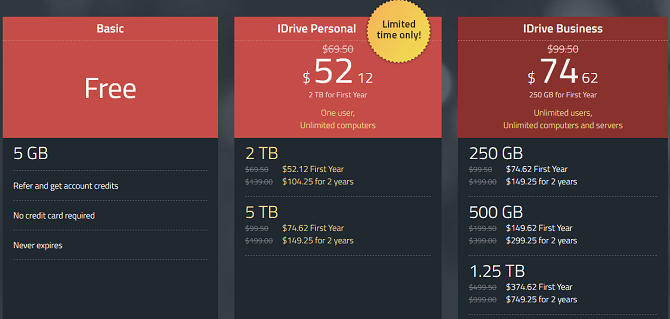
idrive prices

If you’re looking to strike a sensible balance between price and features, IDrive is definitely worth checking out.

For $69.50 per year, you’ll get 2TB of space which you can use across an unlimited number of computers and mobile devices. The service also offers continuous real-time backup, network drive backups, and disk image backups.

Like Backblaze, there’s also a physical recovery option which can be used once per year for free.

IDrive even has a free plan. Although you only get 5GB of space, it’s a great option to backing up your most vital files if you cannot afford the other apps’ fees.

5. SpiderOak

Like SOS, SpiderOak is on the pricier end of the list of online backup apps we’re discussing. Four plans are available. The same features are available on each product; it’s the amount of storage that changes.

For $5 per month you get 150GB. $9 gives you 400GB, 2TB is $12, and 5TB costs $25 per month.

SpiderOak prides itself on its data security. End-to-end encryption is deployed as standard (meaning your data is encrypted before it even leaves your machine), your password is hashed and salted with PBKDF2, and each version of a file is encrypted with a new key.

SpiderOak has no knowledge of the contents of your data, or the metadata associated with it.

The app’s other features include point-in-time recovery to protect against ransomware, full Linux support (other Linux back up solutions are available), and unlimited historical versions.

6. OneDrive

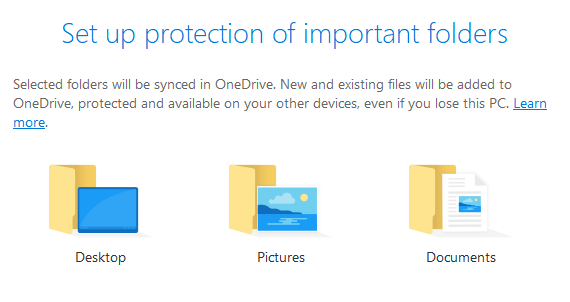
onedrive folder protection

If you’re an Office 365 subscriber (and you really should be), OneDrive is a fantastic choice.

Since August 2018, it has offered “folder protection.” It’s a fancy way of saying automatic backups. And because Office 365 gives you 1TB of free OneDrive space, you’ll be able to save all your most important files without worrying about hitting storage limits.

There are a couple of limitations. For example, you cannot use the app to backup OneNote notebooks or Outlook PST files, but there are other ways to save those files in the cloud.

The Folder Protection feature is available to non-Office 365 subscribers, but you’ll only get 5GB of space. 1TB is $69.99 per year.

7. Degoo

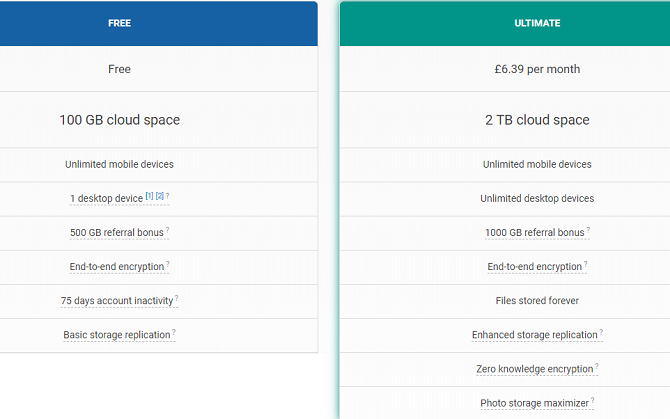
degoo feature comparison

The cloud storage provider that offers the most storage space for free is the Swedish company, Degoo. All users get 100GB when signing up.

There’s no native backup tool, so you will need to make your copies manually. You also need to log in once every 75 days or risk losing your account. However, if those are hassles you can live with, there isn’t a better free option.

For $6.39 per month, you can get 2TB of space and remove the login frequency restriction.

Diversify Your Data Backup Methods

As mentioned earlier, it’s vital that you don’t rely solely on one of the services we’ve discussed (or indeed, any other single method).

You’re putting your data in the hands of a third-party that you have no control over. Doing so carries a risk; the sector’s leading app used to be CrashPlan, but it unexpectedly pulled out of the consumer market in mid-2017.

To be safe, make sure you also make some local backups of your data. There are local backup options for Mac and ways to backup Windows locally.

Read the full article: The 7 Best Online Backup Services to Keep Your Data Safe


Read Full Article
Reolink RLC-511: The Best Looking Security Camera Yet (Review and Giveaway)

How to Watch Live TV on Hulu


hulu-live

Over-the-top (OTT) media services continue to grow, allowing you to move away from traditional cable and satellite outlets for your home and mobile entertainment needs. One of the fastest growing products in this segment is Hulu with Live TV.

First introduced in May 2017, Hulu with Live TV offers live programming from broadcast and cable brands. This works in conjunction with Hulu’s more traditional subscription service that allows you to watch current and past television series.

In this article, you’ll learn all about how to watch Live TV on Hulu using Hulu with Live TV.

Hulu’s Live TV Selection

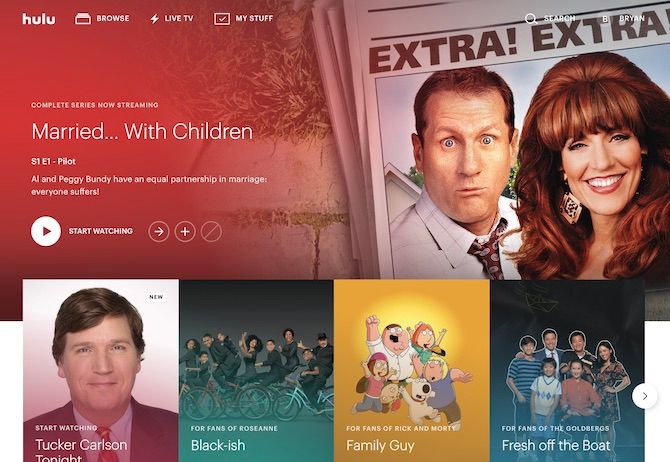
Hulu Live TV Main Screen

Unlike similar services like Sling TV, DirecTV Now, and PlayStation Vue, Hulu With Live TV doesn’t offer a choice of channel packs. Instead, you pay $39.99 per month to receive access to more than 50 channels.

From there, you can select add-ons such as premium channels like HBO, Showtime, Cinemax, and Starz, plus extra channel packs. YouTube TV, which is perfect for cord-cutters, is similar in that it offers one base package plus premium channels for extra.

The base Hulu With Live TV package varies slightly based on your location. It includes live local, regional, and national channels. Select channels may offer only on-demand content. Certain channels or content may not be available in all locations or on all devices.

With the base package, most subscribers have access to:

  • Local channels featuring content from ABC, CBS, FOX, and NBC.
  • Entertainment and lifestyle channels such as A&E, Bravo, FX, National Geographic, and TNT.
  • Family and kids channels like Boomerang, Cartoon Network, and Disney.
  • Movie channels, including FXM and TCM.
  • News channels such as CNBC, CNN, FOX, and MSNBC.
  • Sports channels like BTN and ESPN.

Premium channels vary in price and are subject to limited time promotions. Most of these channels include one week of access for free. At the time of writing, for example, Showtime is priced at $10.99/month, but for a limited time, you can subscribe for $4.99/month for three months.

Recently, Hulu With Live TV introduced two add-on packages. These include a $7.99/month entertainment package, which includes channels like DYI and FYI, and a $4.99/month Spanish language pack that offers CNN, ESPN Deportes, and more.

More Extras on Hulu With Live TV

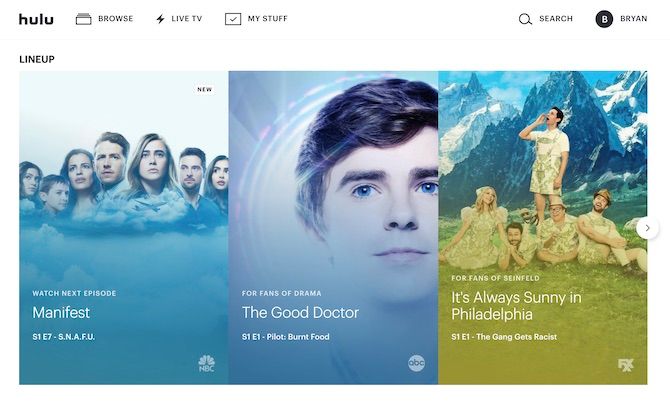
Hulu lineup

Hulu With Live TV also includes unlimited access to Hulu’s traditional streaming library plan, plus 50 hours of Cloud DVR storage, and the ability to watch on two screens at the same time. If there are a lot of people in your household, you can add unlimited screens for an extra $14.99/month.

Also for $14.99/month, you can upgrade your Cloud DVR to 200 hours. With Cloud storage, you can fast-forward through commercials and enjoy your programs anywhere on supported devices. (You will soon be able to download shows from Hulu for offline viewing.)

Finally, you can upgrade your plan, so Hulu’s traditional streaming library plan airs without commercials. For this, the standard price for Hulu With Live TV rises from $39.99/month to $43.99/month.

A Pricey Example

Imagine you have a household with five people and want to subscribe to Hulu with Live TV. You want to pay extra for HBO and unlimited screens. Additionally, you rather not watch commercials when airing content from Hulu’s traditional streaming library.

The monthly fee for this package would be:

  • Hulu with Live TV (and no commercials), $43.99/month
  • HBO, $14.99/month (because Game of Thrones and other HBO series are always must-see TV)
  • Unlimited screens, $14.99/month
  • Total cost: $73.97/month

You’ll need to decide whether switching to Hulu with Live TV or a similar solution is worth it or whether all of your favorite shows are covered.

Getting Started With Hulu Live TV

To subscribe to Hulu With Live TV, you must do so from the Hulu website by following these steps:

  1. Visit signup.hulu.com from your web browser.
  2. Log into your account using your Hulu email and password or through Facebook.
  3. Once logged in, select Manage My Account.
  4. Click Manage next to Add-Ons.
  5. On this page, you’ll see a list of your current subscriptions, plus ways you can change this. Make your changes and then select Review Changes.
  6. You can now enjoy Hulu With Live TV.

Hulu With Live TV is available on multiple platforms, including Mac and PC, iOS, Apple TV, Xbox, Chromecast, and many more.

Using Hulu With Live TV

Hulu recent channels

Moving around Hulu With Live TV varies ever-so-slightly, depending on the platform. To watch live TV, click on the Live icon from the main Hulu screen. The main navigation in Hulu includes Home, Browse, Search, My Stuff, and Live TV.

By default, you’ll see a guide listing your most recent channels first. You’ll also see a window showing live TV for your most recently viewed channel. Click on the TV window to pause/play live TV or to make it bigger. Click or tap on one of the other recent channels to change the program that’s showing.

Tap on Recent Channels to change your view to All Channels, News, Sports, Kids or Movies. Scroll to find the channel you want to watch. You can find future programming using scrolling; when you see something to record, click on it and select Record.

The Hulu with Live TV guide is sortable alphabetically or by category, and you can use the guide during live programming.

Hulu With Live TV: Odds and Ends

There are two final notes to consider about the Hulu with Live TV service: home internet setup and profiles.

Home Network Setup

To use Hulu with Live TV, you need to verify the location of your home internet network within 30 days. Hulu uses this information to set your local and regional programming for your area.

Note: Your home network must be a residential, non-mobile network. So make sure you buy a good router and modem.

Note: Mobile users need to connect to the home internet network at least once every 30 days to use Hulu with Live TV.

To set or update your home location, you can log in on a living room device that supports Hulu with Live TV while connected to your network. You can also visit Hulu.com and select Set or Change Home on your Account page.

Profiles

You can create up to six profiles in Hulu with one account. These profiles personalize the TV experience by keeping track of viewing history to make recommendations. You can also create profiles for your children so that only family-friendly content is accessible.

To set up or change profiles, sign in to your Hulu account online. From there, click on Profiles from the main Account page.

Cut the Cord and Get the Popcorn Popping

Hulu with Live TV doesn’t offer as many channels as some other services. Nonetheless, it’s an excellent choice for those new to OTT services and current Hulu users. It’s a great way to cut the cord once and for all.

Before making a choice, be sure to shop around and check out the price of similar services before cutting the cord for good.

Read the full article: How to Watch Live TV on Hulu


Read Full Article

The New and Improved Windows 10 Notepad: Useful Tips and Features


windows10-notepad-tips

Notepad finally got some much-needed attention in Windows 10 1809. It’s been around since the first version of Windows and has always been a very basic text editor.

Well, Notepad is still a basic editor, and the interface is pretty much the same. But Microsoft added new features, made performance improvements, and fixed some bugs in Windows 10 1809 to give it a long overdue boost.

Here’s what you need to know about the improved Notepad in Windows 10 1809.

Zoom In and Out

Prior to Windows 10 1809, if you wanted to view bigger text in Notepad, you had to change the font size of the text.

Now, you can zoom in and out on the text without changing the font size.

Go to View > Zoom and select Zoom In or Zoom Out.

Zoom menu in Notepad

You can also use the Ctrl + + (plus sign) and Ctrl + – (minus sign) keyboard shortcuts to zoom in and out, respectively. To go back to the default 100% zoom level, press Ctrl + 0 (zero).

You can also use a combination of the keyboard and the mouse to quickly zoom in and out. Press and hold the Ctrl key and scroll up with the scroll wheel on your mouse to zoom in or scroll down to zoom out.

Zoom in and out on text in Notepad

Wrap Around, Find and Replace, and Search AutoFill

Previously, when you started searching in the middle of a text file in Notepad, the search would go to the end of the file or the beginning of the file (depending on the selected direction), but not search the whole file.

In the new improved Notepad, Microsoft added an option to wrap the search around so you can search the whole text file from wherever the cursor is in the file.

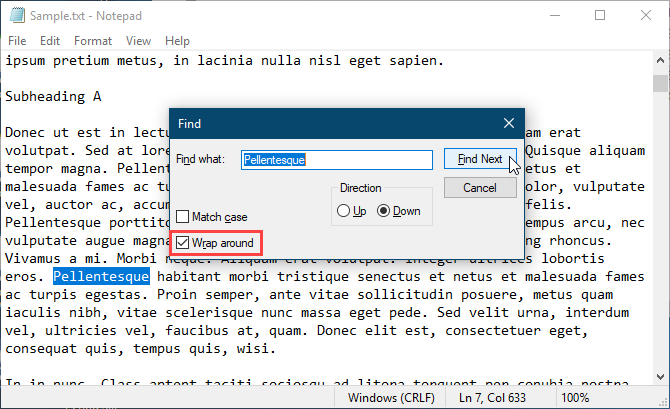
When you press Ctrl + F and enter a word or phrase in the Find what box, check the Wrap around box to search the whole file.

Notepad also remembers the options you select now, so when you check the Wrap around box, it will stay checked the next time you use the Find dialog box to search.

Microsoft also added another handy feature—Search Autofill.

Say you want to find other occurrences of specific text in your file. Select the text you want to find and press Ctrl + F. Notepad automatically inserts the selected text into the Find what box on the Find dialog box, allowing you to quickly start your search.

Wrap around search in Notepad

Display the Status Bar with Word Wrap Enabled

Previously, when you enabled Word Wrap on the Format menu in Notepad, the status bar would disappear if you had it enabled. You couldn’t display both at the same time. When Word Wrap was enabled, the Status Bar option on the View menu was grayed out and unavailable.

Now you can enable Word Wrap and display the Status Bar at the same time. And you can disable both if you want.

Word wrap enabled with Status Bar showing in Notepad

Support for Text Files from Linux and Mac

Before Windows 10 1809, Notepad only supported Windows Carriage Return (CR) and Line Feed (LF) (CRLF) line endings for text files. When you opened text files created on Unix, Linux, or Mac, the line endings wouldn’t display correctly. The file would be a mess and line endings occurred in unexpected places. You had to open the file in WordPad, save it there, and then reopen the file in Notepad.

Notepad still uses Windows Carriage Return (CR) and Line Feed (LF) (CRLF) line endings by default. But Microsoft finally added support in Notepad in Windows 10 1809 for line endings in Unix and Linux (LF) and Mac (CR). So text files created on Unix, Linux, or Mac will now display correctly when opened in Notepad.

When you edit and save text files created on Unix, Linux, or Mac, Notepad preserves the type of line breaks from the operating system it was created in.

Text file from Linux open in Notepad

Search Bing Directly From Notepad

Notepad now allows you to search Bing directly from a text file.

Simply select a word or phrase and select Search with Bing from the Edit menu or press Ctrl + E. Notepad searches the web using Bing and opens the results in Microsoft Edge.

Unfortunately, you can only do searches from Notepad using Bing and Edge. There is no way to change to a different search engine or browser.

Search with Bing in Notepad

Other Changes, Improvements, and Bug Fixes

Microsoft made other small changes and improvements to Notepad. And they fixed some bugs.

Use a Keyboard Shortcut to Delete the Previous Word

Notepad already supports the Ctrl + left arrow and Ctrl + right arrow keyboard shortcuts to move through whole words at a time. You can also use the Shift + Ctrl + left arrow and Shift + Ctrl + right arrow keyboard shortcuts to select whole words at a time.

Now you can also use Ctrl + Backspace to delete the previous word.

Using Arrow Keys on Selected Text

Previously, when you had some text selected and you used the left or right arrow key to move the cursor and deselect the text, the cursor would jump ahead or back one character.

Now, when you move the cursor with the arrow keys while some text is selected, the first key press deselects the text and puts the cursor right after or before where the selection was. The cursor is not advanced an additional character away from the selected text.

Improved Performance When Opening Large Text Files

If you often work with large text files, you’ll be glad to know that Microsoft promises improved performance when opening large files in Notepad.

Some Display Bugs Fixed

Microsoft also fixed some display bugs.

Although we haven’t noticed this bug, Notepad now correctly displays lines that don’t fit entirely on the screen.

Also, when saving a file, the line and column numbers on that status bar don’t reset to 1. They continue showing the correct position of the cursor in the text file.

Increase Your Productivity With the New Notepad

Although there are good Notepad alternatives out there with many more features, Notepad is there by default and still useful for tasks like taking quick notes, editing configuration files, writing scripts and code, and more. There are also some cool tricks you can do with Notepad. And now, with the new features and improvements, you can be more productive in Notepad.

If you still want a text editor with more features than even the improved version of Notepad has, we offer a list of Windows Notepad alternatives.

Read the full article: The New and Improved Windows 10 Notepad: Useful Tips and Features


Read Full Article
5 Different Ways to Navigate Your Android Phone

23 November 2018

Facebook policy VP, Richard Allan, to face the international ‘fake news’ grilling that Zuckerberg won’t


An unprecedented international grand committee comprised of 22 representatives from seven parliaments will meet in London next week to put questions to Facebook about the online fake news crisis and the social network’s own string of data misuse scandals.

But Facebook founder Mark Zuckerberg won’t be providing any answers. The company has repeatedly refused requests for him to answer parliamentarians’ questions.

Instead it’s sending a veteran EMEA policy guy, Richard Allan, now its London-based VP of policy solutions, to face a roomful of irate MPs.

Allan will give evidence next week to elected members from the parliaments of Argentina, Brazil, Canada, Ireland, Latvia, Singapore, along with members of the UK’s Digital, Culture, Media and Sport (DCMS) parliamentary committee.

At the last call the international initiative had a full eight parliaments behind it but it’s down to seven — with Australia being unable to attend on account of the travel involved in getting to London.

A spokeswoman for the DCMS committee confirmed Facebook declined its last request for Zuckerberg to give evidence, telling TechCrunch: “The Committee offered the opportunity for him to give evidence over video link, which was also refused. Facebook has offered Richard Allan, vice president of policy solutions, which the Committee has accepted.”

“The Committee still believes that Mark Zuckerberg is the appropriate person to answer important questions about data privacy, safety, security and sharing,” she added. “The recent New York Times investigation raises further questions about how recent data breaches were allegedly dealt with within Facebook, and when the senior leadership team became aware of the breaches and the spread of Russian disinformation.”

The DCMS committee has spearheaded the international effort to hold Facebook to account for its role in a string of major data scandals, joining forces with similarly concerned committees across the world, as part of an already wide-ranging enquiry into the democratic impacts of online disinformation that’s been keeping it busy for the best part of this year.

And especially busy since the Cambridge Analytica story blew up into a major global scandal this April, although Facebook’s 2018 run of bad news hasn’t stopped there…

The evidence session with Allan is scheduled to take place at 11.30am (GMT) on November 27 in Westminster. (It will also be streamed live on the UK’s parliament.tv website.)

Afterwards a press conference has been scheduled — during which DCMS says a representative from each of the seven parliaments will sign a set of ‘International Principles for the Law Governing the Internet’.

It bills this as “a declaration on future action from the parliaments involved” — suggesting the intent is to generate international momentum and consensus for regulating social media.

The DCMS’ preliminary report on the fake news crisis, which it put out this summer, called for urgent action from government on a number of fronts — including floating the idea of a levy on social media to defence democracy.

However UK ministers failed to leap into action, merely putting out a tepid ‘wait and see’ response. Marshalling international action appears to be DCMS’ alternative action plan.

At next week’s press conference, grand committee members will take questions following Allan’s evidence — so expect swift condemnation of any fresh equivocation, misdirection or question-dodging from Facebook (which has already been accused by DCMS members of a pattern of evasive behavior).

Last week’s NYT report also characterized the company’s strategy since 2016, vis-a-vis the fake news crisis, as ‘delay, deny, deflect’.

The grand committee will hear from other witnesses too, including the UK’s information commissioner Elizabeth Denham who was before the DCMS committee recently to report on a wide-ranging ecosystem investigation it instigated in the wake of the Cambridge Analytica scandal.

She told it then that Facebooks needs to take “much greater responsibility” for how its platform is being used, and warning that unless the company overhauls its privacy-hostile business model it risk burning user trust for good.

Also giving evidence next week: Deputy information commissioner Steve Wood; the former Prime Minister of St Kitts and Nevis, Rt Hon Dr Denzil L Douglas (on account of Cambridge Analytica/SCL Elections having done work in the region); and the co-founder of PersonalData.IO, Paul-Olivier Dehaye.

Dehaye has also given evidence to the committee before — detailing his experience of making Subject Access Requests to Facebook — and trying and failing to obtain all the data it holds on him.


Read Full Article

Horror Movies 2


Horror Movies 2

How to Set Up and Use Apple TV Without a Remote


apple-tv-without-remote

The Siri Remote is one of the best things about the Apple TV. It allows users to quickly and easily navigate the streaming device and even use the personal assistant Siri to accomplish a number of different tasks like finding a specific movie or TV show to watch.

While the remote easily fits in a hand, its small size makes the expensive device prone to getting lost under the couch, or somewhere else equally annoying.

However, the good news is that you don’t need a remote control to use your Apple TV. In this article, we’ll be showing you a number of alternate ways to control your Apple TV.

How to Set Up Apple TV Without a Remote

If you have lost the Siri Remote, or are just looking for a different way to interact with your Apple TV during setup, there is another option to select from.

You can easily set up your Apple TV with just a Bluetooth keyboard. Here are some of our best picks for wireless mice and keyboards for all budgets.

While setting up a new Apple TV for the first time, or after doing a factory reset, wait until the first screen appears on the screen to begin.

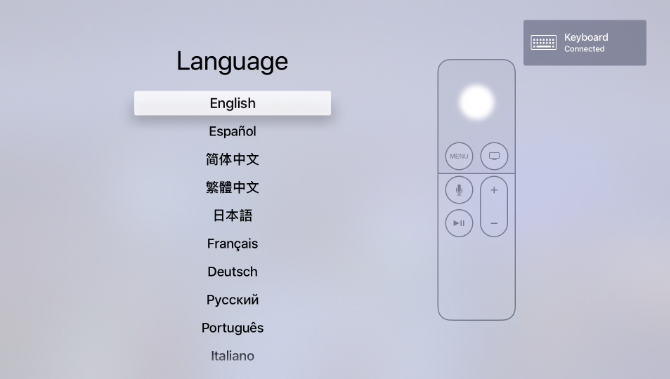
When that screen appears, place a Bluetooth keyboard near the Apple TV and place it in pairing mode. In some cases, a code will then appear on the Apple TV screen that you can enter on the keyboard. That completes the pairing process.

Apple TV Keyboard Set Up

A keyboard symbol will flash on the screen to confirm that the keyboard is ready for use. Use the arrow keys to move around the screen and the Enter button to select. After selecting a language and country, there is another screen which allows you to select whether to use Siri and dictation on the Siri Remote.

Next, you can select whether to manually enter Wi-Fi and Apple ID information by using the keyboard or automatically with an iOS device. If you have an iPhone or iPad to hand, use the iOS device option. That will save time and energy trying to enter a long Wi-Fi password and Apple ID information.

Once that is complete, there are a few more screens regarding when to require a password, location services, screensavers, analytics, and more. After going through those, setup is complete, and you’ll see the home screen.

How to Use Apple TV Without a Remote

Once setup is complete, you can still enjoy the entire Apple TV experience without a remote. All you’ll need is an iPhone or iPad.

After being set up, and if your iPhone or iPad is running iOS 12 or later, there is a Control Center widget that can control the streaming device. We have previously detailed how to use the Control Center on iPhone and iPad.

Once the Apple TV is added to Control Center, tap the icon to begin. Make sure you’re on the same Wi-Fi network. You may need to enter a four-digit code on an iPhone or iPad that appears on the Apple TV screen.

On the top of the widget, you’ll select what Apple TV to control if there are multiple Apple streaming devices in a home. You can also control the Apple TV with the dedicated Remote app for iOS.

If you want to find out more about controlling your Apple TV without a remote, we have previously published an article detailing how to control your Apple TV with an iPhone or iPad.

How to Turn On an Apple TV Without a Remote

If your Apple TV is left idle after a certain amount of time, it will automatically go to sleep. This causes a big issue if you’ve lost the Siri Remote as you usually need to press a button or click the touch surface to wake the Apple TV up.

The first step to try (if you don’t have a remote) is to use the Remote app or the Apple TV Control Center widget. Just press the virtual control area and see if that will wake up the Apple TV.

If that doesn’t work, there may be some other type of issue with the device. In which case the best course of action is to remove the power cord from the rear of your Apple TV and then place it back into the power supply. That will completely reboot your Apple TV, and you should then be able to easily control it with an iPhone or iPad.

If you’re having other issues, take a look at these Apple TV troubleshooting tips.

Using Another Remote on an Apple TV

Learn Remote Apple TV

Another control option is to use a third-party remote.You can set one up with the Apple TV in just a few steps.

Here’s the step-by-step process:

  1. Wake the Apple TV and head to Settings.
  2. Select Remotes and Devices and then Learn Remote.
  3. Hit the Start button to start the process.
  4. Grab the new remote and make sure its pointed to the Apple TV.
  5. There will be a number of different prompts on the screen that will require you to press the corresponding button on the new remote. Some of those will include the directional buttons, Select, and Menu. For the Apple TV to help learn the new remote, you’ll need to hold down the button until the progress bar on the screen is full.
  6. After that is complete, you can also add a custom name to help better identify the remote.
  7. Then you can also select Set Up Playback Buttons to help your Apple TV learn the play, pause, fast forward, and rewind buttons on the other remote.

It’s also easy to delete the remote information from an Apple TV. Just go to Settings and then choose Remotes and Devices. Choose the name of the remote, and on the next screen, hit Delete Remote.

More Apple TV Tips to Note

If you’ve lost your Siri Remote, or just don’t enjoy using the small device, there are a number of other options to control and set up Apple’s streaming device. Whether you have a Bluetooth keyboard, iOS device, or other universal remote, you should be able to enjoy the Apple TV and all it has to offer.

And if you’re looking to find out more about the streaming video device, take a look at our tips for getting the most out of your Apple TV.

Read the full article: How to Set Up and Use Apple TV Without a Remote


Read Full Article

How to Find a Cell Phone’s Location From an Android Device

7 Ways to Watch Netflix With Friends Far Away


watch-netflix-faraway-friends

Movies and TV shows are more fun when you watch them with friends. And with the growth of online streaming, it’s now possible to share the viewing experience with other people, even if they’re on the other side of the world.

In this article, we’ll explore some of the best ways to watch Netflix with friends far away.

1. Netflix Party

netflix party app

Netflix Party is a Google Chrome extension that lets you and your friends remotely watch Netflix together.

The extension synchronizes playback between everyone who’s watching, adds a chat window, and allows anyone who’s watching to play and pause the video. When someone hits the pause button, playback on everyone’s screen will stop.

Creating a session is easy. Just start playing a video on Netflix, hit pause, then hit the extension’s browser button in the upper right-hand corner of the window.

There are a couple of downsides. Firstly, chat usernames are not customizable. Secondly, the session will end upon completion of a film or episode; if you want to watch a second video, you will need to make a new session and re-add everyone.

Netflix Party is free to download and use.

2. Watch2Gether

watch2gether netflix app

If you watch a lot of YouTube videos with friends, you will probably be familiar with Watch2Gether. The app has its own player that lets you natively access content from YouTube, Vimeo, Twitch, and SoundCloud.

Netflix is not compatible with the Watch2Gether player, but the company has come up with a workaround.

The beta W2gSync feature lets you paste a Netflix URL directly into a special window in your private room. When you start the video, everyone else will be able to see it. However, only the person who created the room and added the URL will be able to control it.

For W2gSync to work, you will need to download the official Watch2Gether browser extension. It is available on Chrome and Firefox for free.

3. Rabbit

Rabbit is another great way to watch videos with friends. It supports all the major online streaming services, including Netflix. It’s also browser agnostic; the people who are watching Netflix with you won’t need to download Chrome or Firefox.

Note: Some people oppose mainstream browsers on privacy grounds because browsers collect a lot of information about you. Such people often choose to use a private web browser instead.

One person controls the stream via a proxy on Rabbit’s online portal. Anyone who is in the same room as the streamer can watch the show.

Non-US users might encounter some issues with geo-blocked content. To mitigate the problem, Rabbit has released a dedicated Chrome extension. It lets you open a specific browser tab directly with anyone else, thus circumnavigating the geographical restrictions.

The main Rabbit app and the Chrome extension are both free to use.

4. Gaze

Of course, you don’t really need video syncing features to watch Netflix videos together.

If there’s only a small group of you, and you all have your own Netflix account (or even shared multi-screen account), it’s easy enough to coordinate yourselves to all press Play at the same time.

In this case, all you need is text and/or video chat.

One service to check out it Gaze. Its primary function is to let you watch YouTube videos with friends, but you can use its text and video chat features as the backend for a Netflix party.

Interestingly, you can also use Gaze to sync locally-saved videos with groups of friends. Just make sure everyone has their own local copy (shared via Google Drive or Dropbox) before starting.

5. Google Hangouts

hangouts netflix app

If you want a service that most people already have access to, check out Google Hangouts. Google has a confusing array of chat apps, but Hangouts remains the most widely installed and the most readily understood.

You can use Hangouts for text chat, video chat, and phone calls. Just use your Google Account credentials to log in.

6. Kik

For years Kik has been one of the best online chat services around, and it’s a great tool to use while watching Netflix movies or shows with a friend who isn’t sitting on the same couch as you.

Kik has all the features you’d expect from a top-tier chatting service, such as a wide range of emojis, the ability to easily share photos, and a library of GIFs.

GIFs are a great way to express your emotions when a big moment happens in the movie or show you’re watching. If you’d like to understand more about this internet phenomenon, read the brief history of GIFs.

Note: Kik might not be suitable for kids who want to watch Netflix together.

7. Telegram or WhatsApp

We’ll finish by mentioning two of the most common mobile apps for live chat and calls—Telegram and WhatsApp.

WhatsApp has a larger user base (1.5 billion) than Telegram (250 million), but we prefer Telegram’s impressive list of features, especially from the standpoint of watching Netflix with friends.

It supports larger groups that WhatsApp (100,000 compared to 256), lets you watch YouTube together while chatting, and you can share large video files for local viewing.

WhatsApp is the simpler option. Almost everyone you know will have the app, meaning it’s readily accessible for people who only want to send the odd message while watching.

Does Netflix Support Any of These?

Sadly, none of the services we have discussed are officially supported by Netflix. Which means they are liable to stop working without warning.

One wonders why Netflix hasn’t already incorporated a native way to watch content in sync with other users. Given the popularity of watching with friends far away, and the fact that Netflix is now available worldwide, it would surely be an instant hit.

Alas, for now, we’ll have to make do with some other cool Netflix tips and tricks. There are lots you might not know about, even if you’re a seasoned user.

Read the full article: 7 Ways to Watch Netflix With Friends Far Away


Read Full Article
How to Log Yourself Out of Facebook on Other Devices


It’s important to keep on top of your security. That’s especially true for Facebook, which holds so much of your personal information. In this article we’ll show you how to see which devices can access your account and how to remotely log yourself out of Facebook.

Unlock the free "Facebook Security Checklist" now!

This will sign you up to our newsletter

Enter your Email

We’ll also give you some tips on how to improve the security of your Facebook account, so hopefully you remain the only person who can ever log in to it.

How to Remotely Log Out of Facebook

Facebook tracks all of the devices you are currently logged in to. It’s quick and easy to review this list and sign out of any necessary accounts.

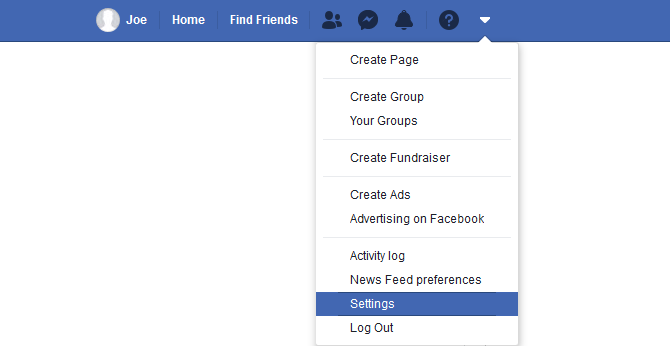
To begin, click the dropdown arrow in the top-right of the page. Click Settings and then Security and login from the left-hand menu.

How to access Settings on Facebook

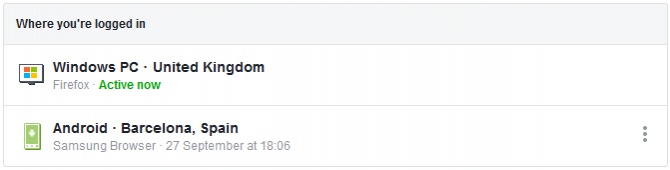
Go to the section titled Where you’re logged in. This will display all of your active logins—perhaps your phone or tablet. You may need to click See More if there are lots of them.

It lists the type of device and the browser used, plus the physical location of the person who logged in and the last time they did so. Hover over the location to see the specific IP address.

Seeing all your active Facebook sessions

Active now” will display next to whichever device you are currently using. To log out of this one, you don’t need this section. Simply use the dropdown arrow in the top-right and click Log Out.

Alternatively, perhaps you signed in on a library computer or on a friend’s device and you don’t want the risk of someone using your account. No problem, you can remotely log out of these sessions.

Signing out of a remote Facebook session

To remove these, click the three vertical dots next to each entry and click Log Out.

Don’t worry if you remove an entry accidentally. The only impact is that you’ll need to log back into your account next time you use it on that browser or device.

How to Improve Your Facebook Account Security

If you found that your Facebook account was signed in to unexpected places, or just want to improve your security, let’s round up the various ways to get better control over who can use your account. Consider using all of these techniques for the ultimate protection.

All of these options can be accessed by clicking the dropdown arrow in the top-right and then clicking Settings > Security and login.

Change Your Password

Changing your password is the first thing you should always do if your account has been accessed without your authorization. In fact, you should change your Facebook password periodically regardless.

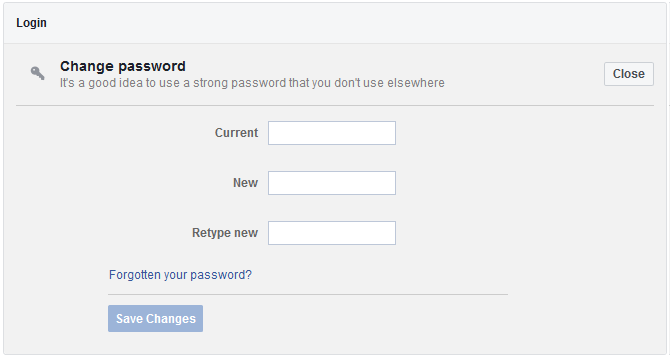
Next to Change password, click Edit. You will be prompted for your Current password. Next, input a New password twice, then click Save Changes.

How to change your password on Facebook

For better security, you should consider using a password manager. These can ensure you have strong passwords and don’t need to remember them either.

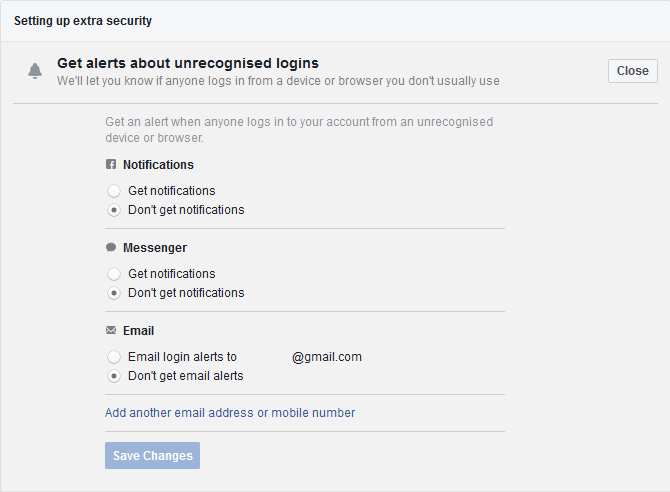
Get Alerts About Unrecognized Logins

It’s great that Facebook lets you sign out of unauthorized sessions, but if you don’t check this page then you won’t know if you need to. That’s why you should go to the Get alerts about unrecognized logins section and click Edit.

Get alerts about unrecognized logins on Facebook

Here you can set to Get notifications so you’ll be informed when someone logs into your account from an unrecognized device or browser. Select your preferences and then click Save Changes.

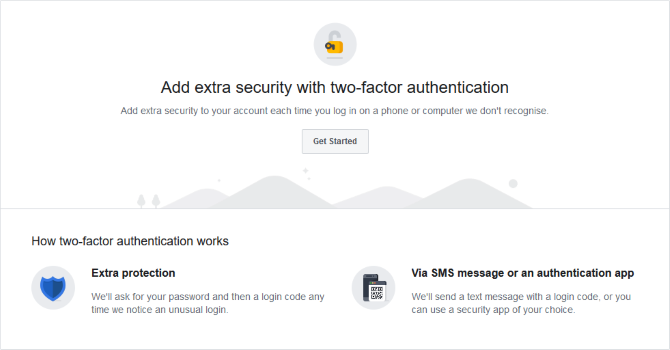
Use Two-Factor Authentication

Two-factor authentication is an extra layer of security when logging in to your account. It requires you to input not only a password, but also a secondary piece of information that only the real account owner can access.

To activate it, next to Use two-factor authentication, click Edit. On the next page, click Get Started. Choose whether you want to use a Text Message or Authentication App as your extra security, then click Next and follow the wizard. These two options are all Facebook offers at the moment, and it’s important to note that SMS and 2FA apps aren’t all that secure.

Adding two factor authentication on Facebook

You’ll only need to use two-factor authentication when Facebook doesn’t recognize the device. You can review and adjust this approved device list. Go back to the Security and login page and, next to Authorized logins, click View.

While you’re at it, check out our guide on how to set up two-factor authentication for all your social media accounts.

Keep Your Facebook Secure

This is all simple stuff. And yet it means that within a matter of minutes you can remotely sign out of any device and increase the security of your Facebook account.

If you want even more tips, check out our guide on how to secure your Facebook account. Then again, when you consider that Facebook is a security and privacy nightmare, perhaps you just delete your account altogether.

Read the full article: How to Log Yourself Out of Facebook on Other Devices


Read Full Article
22 November 2018

MQT builds classy Swiss watches for the truly debonair


Ah, wonderful to see you again, sir. The usual? Kool-Aid Grain Alcohol Martini with a twisty straw. Of course. And I see you’re wearing a new watch. The MQT Essential Mirror. Quite striking.

I see the watch has a quartz ETA movement – an acceptable movement by any standard – and a very elegant face and hands combination. What’s that? It has a quickset date? Of course, no watch over $200 would skimp on that simple complication. $251 you say? On a silver mesh band, also known as a Milanese? A relative bargain, given its pedigree.

Of course, sir. I’ve spoken with the chef and she’s preparing your Ritz crackers with Easy Cheese as we speak. Do tell me more about this watch. It seems to be one of your only redeeming features.
[gallery ids="1749599,1749597"]
What was that? No, I said nothing under my breath. Do go on.

Made in Berne, Switzerland, you say, by a pair of watchmakers, Hanna and Tom Heer, who left their high-paying jobs to make watches? And their goal is not to create a beautiful quartz piece that is eminently wearable yet quite delicate? Laudable, sir, laudable. I especially like the thin 41mm case. It’s so light and airy! Not unlike your Supreme baseball cap.

No, of course sir, we still give away all the mints you can eat after the meal. If you’d like I can tie that lobster bib around your neck. There we are. Nice and snug.

And they make a marble version? Wonderful! That hearkens back to the Tissot Rock Watches of yore. A delight, truly.

You’ve got a bit of cheese in your beard. Let me get… oh. I’m sorry to say that my hand got into the way of your pendulous tongue. I’m very sorry, sir.

Well, it’s been wonderful chatting with you. I’ll leave you to your Rick and Morty comics. What’s that? Caviar in an ice cream cone? With sprinkles? Of course. I’ll see what I can do. I do commend you, sir, all things being equal, on your taste in watches.


Read Full Article
Google lays outs narrow “EU election advertiser” policy ahead of 2019 vote


Google has announced its plan for combating election interference in the European Union, ahead of elections next May when up to 350 million voters across the region will vote to elect 705 Members of the European Parliament.

In a blog post laying out a narrow approach to democracy-denting disinformation, Google says it will introduce a verification system for “EU election advertisers to make sure they are who they say they are”, and require that any election ads disclose who is paying for them.

The details of the verification process are not yet clear so it’s not possible to assess how robust a check this might be.

But Facebook, which also recently announced checks on political advertisers, had to delay its UK launch of ID checks earlier this month, after the beta system was shown being embarrassingly easy to game. So just because a piece of online content has an ‘ID badge’ on it does not automatically make it bona fide.

Google’s framing of “EU election advertisers” suggests it will exclude non-EU based advertisers from running election ads, at least as it’s defining these ads. (But we’ve asked for a confirm on that.)

What’s very clear from the blog post is that the adtech giant is defining political ads as an extremely narrowly category — with only ads that explicitly mention political parties, candidates or a current officeholder falling under the scope of the policy.

Here’s how Google explains what it means by “election ads”:

“To bring people more information about the election ads they see across Google’s ad networks, we’ll require that ads that mention a political party, candidate or current officeholder make it clear to voters who’s paying for the advertising.”

So any ads still intended to influence public opinion — and thus sway potential voters — but which cite issues, rather than parties and/or politicians, will fall entirely outside the scope of its policy.

Yet of course issues are material to determining election outcomes.

Issue-based political propaganda is also — as we all know very well now — a go-to tool for the shadowy entities using Internet platforms for highly affordable, mass-scale online disinformation campaigns.

The Kremlin seized on divisive issues for much of the propaganda it deployed across social media ahead of the 2016 US presidential elections, for example.

Russia didn’t even always wrap its politically charged infowar bombs in an ad format either.

All of which means that any election ‘security’ effort that fixes on a narrow definition (like “election ads”) seems unlikely to offer much more than a micro bump in the road for anyone wanting to pay to play with democracy.

The only real fix for this problem is likely full disclosure of all advertising and advertisers; Who’s paying for every online ad, regardless of what it contains, plus a powerful interface for parsing that data mountain.

Of course neither Google nor Facebook is offering that — yet.

Because, well, this is self-regulation, ahead of election laws catching up.

What Google is offering for the forthcoming EU parliament elections is an EU-specific Election Ads Transparency Report (akin to the one it already launched for the US mid-terms) — which it says it will introduce (before the May vote) to provide a “searchable ad library to provide more information about who is purchasing election ads, whom they’re targeted to, and how much money is being spent”.

“Our goal is to make this information as accessible and useful as possible to citizens, practitioners, and researchers,” it adds.

The rest of its blog post is given over to puffing up a number of unrelated steps it says it will also take, in the name of “supporting the European Union Parliamentary Elections”, but which don’t involve Google itself having to be any more transparent about its own ad platform.

So it says it will —

  • be working with data from Election Commissions across the member states to “make authoritative electoral information available and help people find the info they need to get out and vote”
  • offering in-person security training to the most vulnerable groups, who face increased risks of phishing attacks (“We’ll be walking them through Google’s Advanced Protection Program, our strongest level of account security and Project Shield, a free service that uses Google technology to protect news sites and free expression from DDoS attacks on the web.”)
  • collaborating — via its Google News Lab entity — with news organizations across all 27 EU Member States to “support online fact checking”. (The Lab will “be offering a series of free verification workshops to point journalists to the latest tools and technology to tackle disinformation and support their coverage of the elections”)

No one’s going to turn their nose up at security training and freebie resource.

But the scale of the disinformation challenge is rather larger and more existential than a few free workshops and an anti-DDoS tool can fix.

The bulk of Google’s padding here also fits comfortably into its standard operating philosophy where the user-generated content that fuels its business is concerned; aka ‘tackle bad speech with more speech’. Crudely put: More speech, more ad revenue.

Though, as independent research has repeatedly shown, fake news flies much faster and is much, much harder to unstick than truth.

Which means fact checkers, and indeed journalists, are faced with the Sisyphean task of unpicking all the BS that Internet platforms are liberally fencing and accelerating (and monetizing as they do so).

The economic incentives inherent in the dominant adtech platform of the Internet should really be front and center when considering the modern disinformation challenge.

But of course Google and Facebook aren’t going to say that.

Meanwhile lawmakers are on the back foot. The European Commission has done something, signing tech firms up to a voluntary Code of Practice for fighting fake news — Google and Facebook among them.

Although, even in that dilute, non-legally binding document, signatories are supposed to have agreed to take action to make both political advertising and issue based advertising “more transparent”.

Yet here’s Google narrowly defining election ads in a way that lets issues slide on past.

We asked the company what it’s doing to prevent issue-based ads from interfering in EU elections. At the time of writing it had not responded to that question.

Safe to say, ‘election security’ looks to be a very long way off indeed.

Not so the date of the EU poll. That’s fast approaching: May 23 through 26, 2019.


Read Full Article