22 November 2018

Gift Guide: 16 fantastic computer bags


Give the gift of organization this year. Bags are often ignored but are a critical part of anyone’s mobile gear. They’re the outward representations of our techie styles, and we put far too little thought into where we keep our most prized possessions. Here’s a collection of bags TechCrunch reviewed over the last year. You’ll find waxed canvas bags, camera backpacks, trail-ready commuter bags and bags designed with women in mind.


WP Standard built the leather messenger bag you want

At $295 the bag is priced accordingly for the fantastic material and build. It’s a great bag to carry a few things and it will always be noticed. I have yet to see a bag as beautiful as the Vintage Leather Messenger Bag. If more space is needed, WP Standard now has a larger option that looks equally as good in the $310 Large Messenger Bag though I haven’t seen the bag in person yet.

Read the full review here.

Pad & Quill Heritage Satchel is a modern leather classic

This is a solid bag that I completely recommend. It’s a great size, able to hold most everything I threw at it while not being too big to carry even when lightly packed. After a few months with the bag, it’s aged nicely and is starting to feel like a well-worn pair of denim jeans. The leather is still delicious and seems durable enough to withstand a person’s daily grind.

Read the full review here.

The Bitcoin Genesis Block backpack will centralize your belongings

Unlike the blockchain, this backpack will centralize your stuff in a fairly large, fairly standard backpack. There is little unique about the backpack itself – it’s a solid piece made of 100% polyester and includes ergonomically designed straps and a secret pocket – but it is printed with the Bitcoin Genesis Block including a headline about UK bank bailouts. In short, it’s Merkle tree-riffic.

Read the full review here.

Chrome’s Vega Transit Brief makes your work vibe less uncool

The Vega isn’t Chrome’s most inspired design ever, but it isn’t supposed to be. If you want to show up to a meeting looking pro but still cool, like yeah you looked over the slides from the call but you drink shitty beer after work because you’re legit not because you can’t afford some triple-hopped bullshit, the Vega is probably for you. For anyone looking for a well-made bag that’s not too loud to carry to and from work meetings that happens to turn into a damn backpack, Chrome’s Vega Transit Brief is a great fit.

Read the full review here.

Chrome’s BLCKCHRM Bravo 2.0 backpack is a burly, stylish beast

It’s hard to overstate how good-looking this bag is. Like quality leather, the Hypalon breaks in with wear, picking up surface marks that fade into a kind of weathered patina over time. Between that material, the all-black mini Chrome buckle chest strap and central black leather panel, it’s a very sleek, sexy looking bag. Still, for anyone who digs the Bravo 2.0’s vibe but is wary of its heavy construction, the regular edition Bravo 2.0 might be a better choice. But if you like your packs fancy, serious and black on black on black, well, you know what to do.

Read the full review here.

Filson 24-Hour Tin Briefcase

OLYMPUS DIGITAL CAMERA

This bag has a large main compartment with a padded laptop area that will hold a 15-incher easily, and a couple of pockets on the inside to isolate toothbrushes and pens and the like. On the outside is a pair of good-sized zippered pockets that open wide to allow access from either the top or side; inside those are organizer strips and sub-pockets for pens and so on.

Read the full review here.

Croots England Vintage Canvas Laptop

OLYMPUS DIGITAL CAMERA

There isn’t a heck of a lot of room in there but this is definitely meant to be a daily driver briefcase and not an overnight bag — a “personal item” on the plane perhaps but I would take the Filson or ONA over it for space reasons. However as a bag to take to work the cafe, or the bookstore it’s a great option and a striking one. The Flight Bag is a slightly more expansive and unique option.

Read the full review here.

S-Zone $30 waxed canvas bag

OLYMPUS DIGITAL CAMERA

To balance out the admittedly very expensive bags in this review I decided to grab a cheap one off Amazon as well. As I expected, it isn’t up to the quality level of the others, but for $30 it’s a bargain. If you want to experience how waxed canvas evolves and wears, an inexpensive bag like this is a great way to try it out.

Read the full review here.

WP Standard’s Rucksack goes the distance

This bag assumes that you’re OK with thick, heavy leather and that you’re willing to forgo a lot of the bells and whistles you get with more modern styles. That said, it has a great classic look and it’s very usable. I suspect this bag would last decades longer than anything you could buy at Office Depot and it would look good doing it. At $275 it’s a bit steep but you’re paying for years – if not decades – of regular use and abuse. It’s worth the investment.

Read the full review here.

The Nomadic NF-02 keeps everything in its right place

Nomadic is a solid backpack. It’s small, light, and still holds up to abuse. I’m a big fan of the entire Nomadic line and it’s great to see this piece available in the US. It’s well worth a look if you’re looking for a compact carrier for your laptop, accessories, and notebooks.

Read the full review here.

Chrome’s Yalta 2.0 is a roomy rolltop that keeps up

Compared to some of Chrome’s more heavy-duty bags and other less-technical packs, the Yalta is a likable middle ground. The pack isn’t as rain resistant as a bag made out of fully waterproof material and the laptop sleeve could use some structure, but it carries a fair amount and it’s got a nice slender profile that looks and feels good. The Yalta doesn’t really have any quirks or tricks beyond the strange side-zip compartment, and that makes it a good fit for anyone who needs a good-looking, weather resistant mid-sized rolltop backpack for work and what comes before and after.

Read the full review here.

Mission Workshop’s Radian rolltop starts simple but grows piece by piece

In the end I think the Radian is the best option for anyone looking at Mission Workshop bags who wants a modular option, but unless you plan on swapping out pieces a lot, I’m not personally convinced that it’s better than their all-in-one bags like the Rambler and Vandal. By all means take a look at putting a Radian system together, but don’t neglect to check if any of the pre-built ones fit your needs as well.

Read the full review here.

Why I still love the Peak Design Everyday Backpack
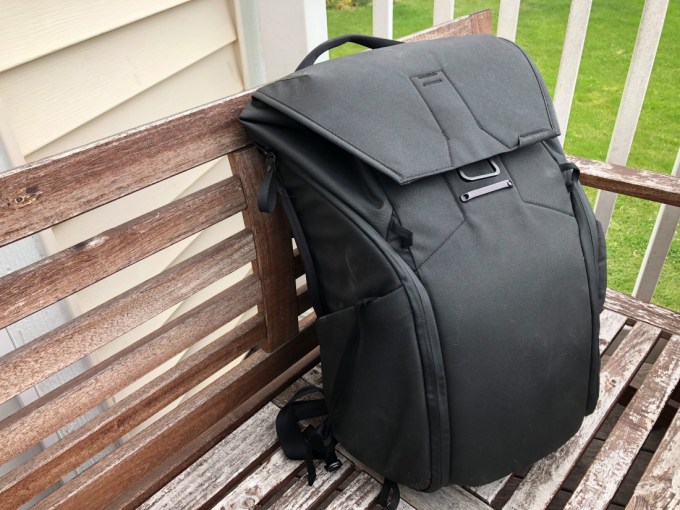
Like I said several months ago, the bag is best described as smart and solid. It’s a confident design with just enough pockets and storage options. The bag features one, large pocket that makes up most of the bag. Foldable dividers allow the wearer to customize the bag as needed. And quickly, too. These dividers fold in several ways, allowing the bag to hold, say, a large telephoto lens or several smaller lens.

Read the full review here.

P.MAI’s women’s leather laptop bag is luxury packed with utility

By designing a bag for women that blends a luxury aesthetic with comfortable utility, the P.MAI bag quickly rose to the the “Most Wished for” laptop backpack on Amazon last holiday season. Premium materials and quality design don’t come cheap. Still, the $450 price-tag may keep this one on the wish-list for now.

Read the full review here.

Timbuk2’s Launch featherweight daypack is tough and tiny

If you’re a longtime Timbuk2 fan know that the pack both looks and feels different from most of Timbuk2’s classic designs, and unfortunately doesn’t come in the bright, playful tri-color look that some of its classic messengers do. Still, if you’re into more natural, subdued tones and really don’t want your day-to-day pack to weigh you down unnecessarily, Timbuk2’s Launch is totally worth a look.

Read the full review here.

Osprey Momentum 32 is ready for muddy trails

The Osprey Momentum 32 impresses. I used it during a muddy week at Beaumont Scout Reservation and it performed flawlessly as a rugged, bike-ready backpack. It stood tall in the miserable rain and insufferable heat that engulfed northern Ohio during the camping trip. If it can withstand these conditions, it can withstand an urban commute.

Read the full review here.


Read Full Article
How to Clean and Declutter Your Trello Boards: 5 Simple Tips


clean-trello

If you use Trello a lot and often, your Trello boards are probably quite cluttered. It’s a good idea to declutter them once in a while to ensure that important items don’t slip off your radar.

A spot of cleaning will also make Trello easier to navigate and the right data easier to find. Not sure where to begin? Start with these simple activities and make the relevant ones a part of your regular Trello cleaning routine.

1. Archive Old Boards

close-board-in-trello

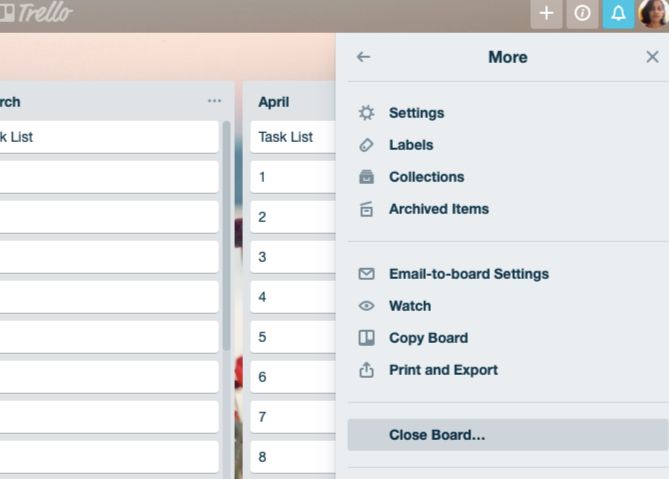
If there are any boards that haven’t seen much activity and probably won’t, you could consider archiving them. You can archive boards with the Close Board option hidden behind Show Menu > More.

(You’ll find the Show Menu button below your gravatar at the top right of the page.)

An archived board isn’t gone for good. It’s simply hidden and you can retrieve it via the Boards menu. To access this menu, click on the Boards button next to the Home button at the top left of the page.

Next, click on the See closed boards item in the menu to reveal a list of your archived boards. Click on Re-open beside the board you want to retrieve. If you’re sure you don’t want it back ever, you can click on Delete instead.

You might also want to unpin a few of the starred boards in the Boards menu to clean up the menu a bit.

2. Archive Unneeded Lists and Cards

archive-list-in-trello

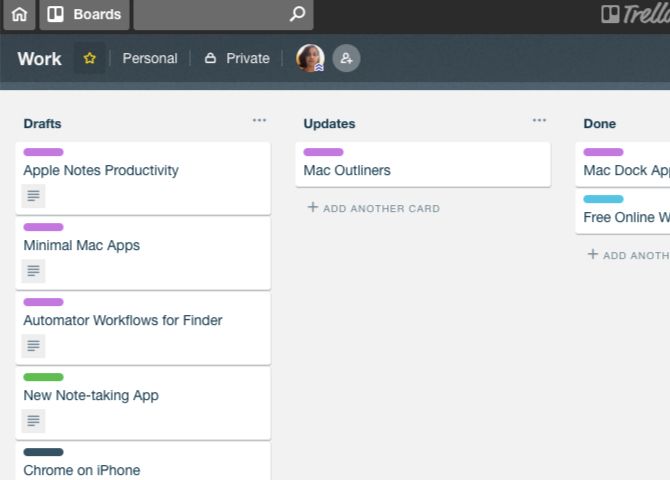
Trello lists and cards can also get out of hand at times. Why not archive the ones that are distracting, unused, or no longer relevant?

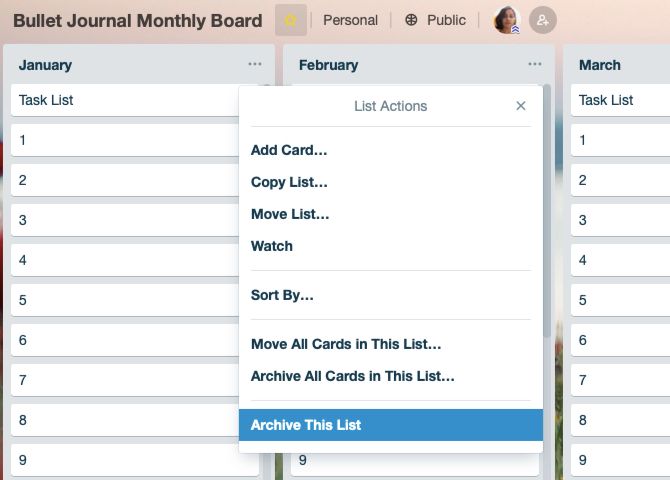
To archive a list, first click on the List Actions button (three dots) next to the list name. Now select the Archive This List option that appears in the consequent menu.

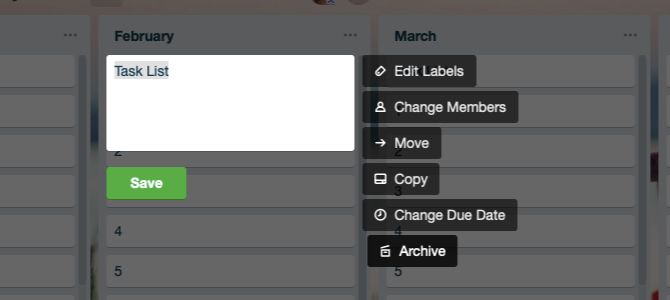
For cards, you’ll find the Archive option in the Trello quick-edit menu. To reveal this menu, tap the E key or click on the pencil icon that appears when you hover over a card.

The Archive option also shows up under Actions on the card back. (Speaking of the card back, here, you can keep card activity out of sight by clicking on the Hide Details link next to the Activity section.)

archive-card-in-trello

Like archived boards, archived lists and cards are also safe. You can view and retrieve them anytime from Show Menu > More > Archived Items.

Want archived cards to show up on the relevant board automatically on a schedule? You can make that happen if you get the Card Snooze Power-Up to snooze cards for later.

By the way, a Power-Up is nothing but an add-on in Trello terms and Card Snooze is just one of the handy Trello Power-Ups that’ll boost your workflow. You can install Power-Ups from Show Menu > Power-Ups.

3. Clean Up Stickers, Labels, and Extensions

delete-label-in-trello

Stickers are a fun way to make cards look interesting, but it’s easy to go overboard with them. Get rid of stickers from specific boards or cards to tone down the visual clutter. You can remove stickers from the board view only. Hover on a sticker to reveal its Remove option.

Labels can also contribute to Trello clutter. We recommend cutting out the extras from this department too.

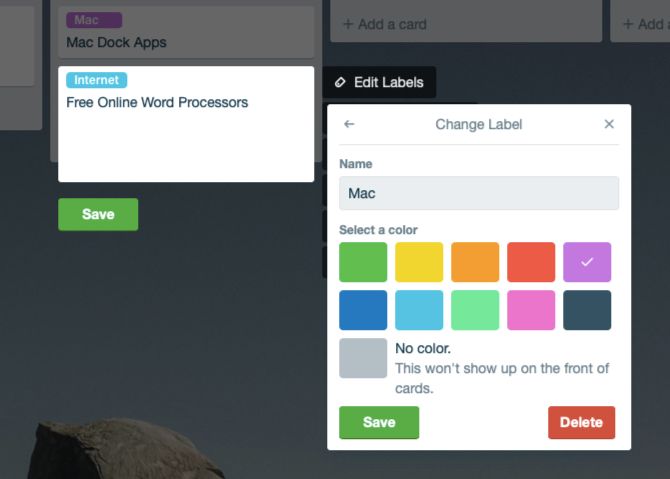
To delete a label, first click on Edit Labels from the quick-edit menu of any card. This reveals all the labels available for that board. Then click on the pencil icon next to the label you’d like to get rid of. In the Change Label popup that appears next, click on the Delete button at the bottom right.

Before you confirm the deletion, keep in mind that you’ll not only lose the selected label from all linked cards, but also its entire history.

Like stickers and labels, Trello extensions can make your job easier. But having too many of them is not such a great idea. Weed out the ones that you no longer need/use.

4. Export Old Data

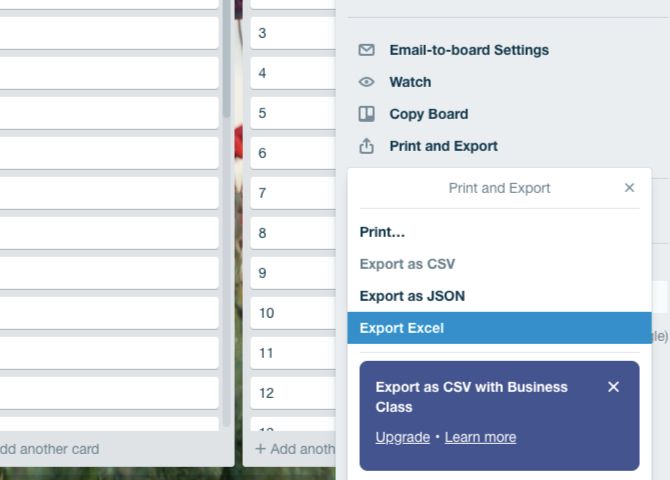
export-to-excel-in-trello

Have you kept now-irrelevant data from ages ago in Trello because you might need it someday? Maybe it’s time to store that data elsewhere and delete it from Trello.

Trello lets you export data in the JSON format, which isn’t ideal because the format is not easy to parse. Thankfully, you can get a browser extension like Export for Trello to pull Trello board data to a spreadsheet format. This keeps it way more readable.

If you still wish to export to JSON, you can do so from Show Menu > More > Print and Export. Here, Trello Business Class users, will see an option to export board data to a CSV file. The option appears grayed out if you don’t have a Business Class account.

5. Get a New User Style

new-userstyle-for-trello

Stylish is an easy way to change the layout of your favorite web apps for usability. Its website will give you user styles or themes to change, hide, or get rid of specific elements from Trello.

For example, Trello Flat Minimal creates a flatter and more compact-looking layout. Then there’s White Board With Colored Header, which gives Trello a cleaner look. Try Trello Slim Boards Drawer for a slimmer Boards menu.

Give Your Trello Boards a Facelift

Trello is highly organized by itself and easy to use for such a complex app. But it does get cluttered with regular use thanks to its complexity.

That’s why it’s up to you to spring-clean your boards from time to time for a better Trello workflow. And while you’re at it, how about cleaning up your entire digital life?

Read the full article: How to Clean and Declutter Your Trello Boards: 5 Simple Tips


Read Full Article

9 Great Sites Where You Can Explore the Benefits of Artificial Intelligence


ai-sites

Artificially intelligence is now making its way into every aspect of your digital lives. While most companies cannot stop talking about what they’ve done in the field, there are a host of cutting-edge AI-powered websites that are useful for everyday tasks today.

Here are several awesome and insightful artificial intelligence sites you probably don’t know about.

1. PixelDrive: Compress Your Photos

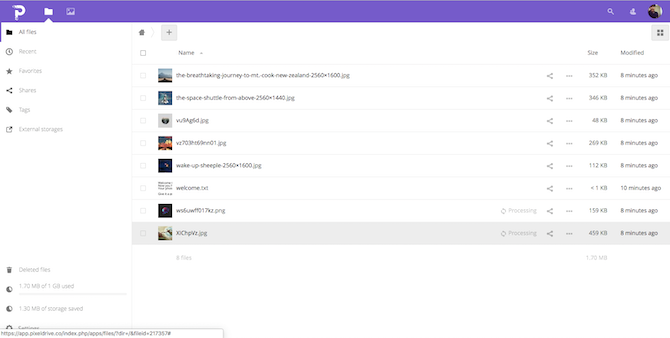
Pixeldrive Demo

PixelDrive is a cloud storage platform which employs a set of machine learning algorithms to significantly compress your pictures without compromising many details. Its developers say that only about 10% of quality is lost. And we did find that to be true. For instance, a 4MB file I uploaded was brought down to 500KB and the quality seemed pretty much identical.

What’s more, since the engine is constantly learning to know which pixels are important and which can be eliminated, that number will only get less as more users sign up. PixelDrive is free for up to 1GB of data and for more, you will have to pay.

2. Rave: Be a DJ at Your Next Party

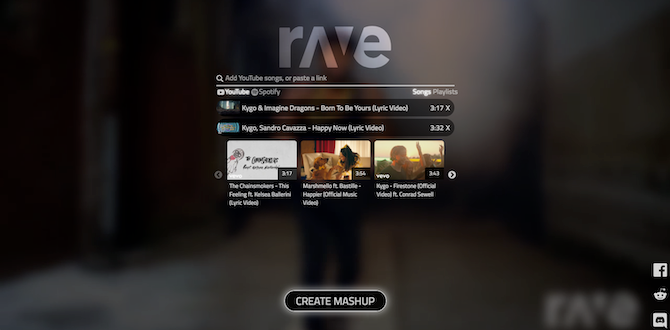
Rave DJ Demo

Artificial Intelligence has come to a point where it’s being considered a threat to several jobs and professions. And a new tool called Rave tries to replicate the job of a DJ.

Rave lets you mash multiple soundtracks into one mix with an automated AI-powered DJ. All you need to do is simply supply the YouTube or Spotify links and Rave will conjure up a remix in a matter of minutes. Surprisingly, more often than not, Rave’s claims do prove accurate and the outcomes it yields turn out coherent and enjoyable.

Rave is also entirely free of cost but you probably shouldn’t redistribute what it produces due to the absence of copyrights.

3. Iris AI: Find a Solution in a Research Paper

Iris AI Demo

If you’re still a student or a researcher, you know how painful it can be to locate similar papers online. Well, not anymore as AI comes to the rescue again.

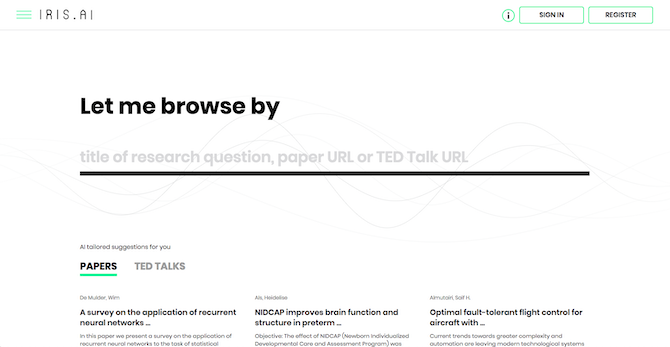
Iris AI is a free service you can log into for surfacing related research papers based on their topics. You can begin by feeding in a title, existing link, or even a TED Talk YouTube URL. Iris AI will then comb through all the available resources and present you with a nifty interface you can quickly go through to find a specific document.

4. EveryPixel: Search for the Best Stock Photos

EveryPixel Demo

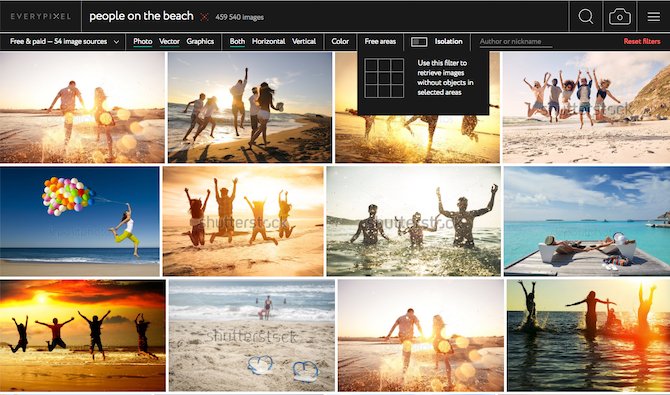
EveryPixel is a smart search engine for stock images which relies on a neural network to find the best ones available based on your search query. It does so by evaluating all of them through a beauty score and prioritizing the pictures which have the highest among all.

In addition, EveryPixel also cleverly breaks down your search terms to pull up the most relevant results. You can also filter them through a bunch of factors. Plus, there’s also an option to specify whether you’d like some free space on the stock image for any further edits or additions.

5. Delay Predictor: Avoid Flight Delays With AI

Delay Predictor Demo

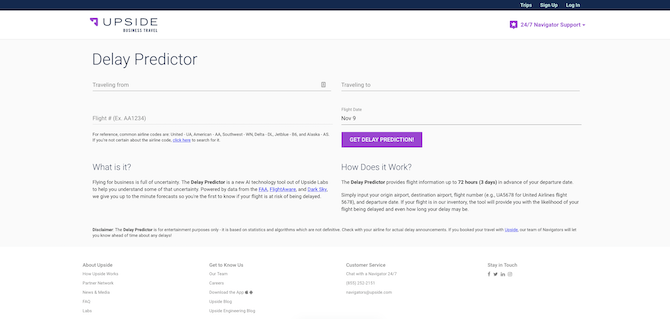
Delay Predictor is a handy tool for travelers that can predict flight delays for up to three days in advance to your trip. It takes your essential information such as the flight number, dates, and sifts out the delay period if there will be any.

The tool functions by analyzing previous the flight’s history, and other circumstantial factors such as the weather. Unfortunately, though, Delay Predictor, for now, is limited to the United States.

6. Beautiful.AI: Impress With Beautiful Presentations

Beautiful.AI is the new-age presentation builder we all deserve. The app uses AI to help you through all the stages of creating a presentation. It begins with finding the appropriate template and you can nudge it by simply typing what is your presentation all about.

Next, you can employ a series of automated tools to add anything you want including pie charts, team members, demographics, and more. The AI engine can also adapt to the changes you make on its own and recommends new elements accordingly.

Beautiful.AI has a free plan that comes with 50+ smart templates and customizable themes.

7. Trint: Your Automated Transcription Service

Trint Demo

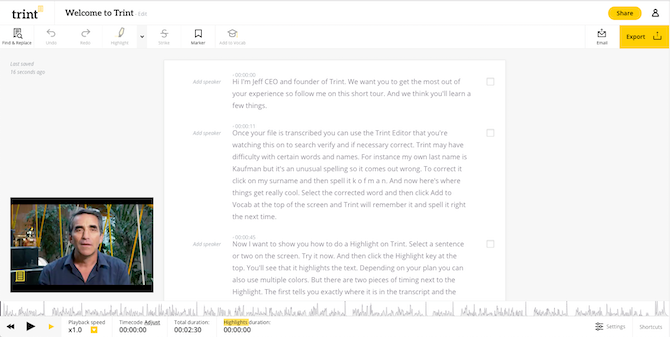
Trint is a digital transcriber that comes with the ability to process recordings (video or audio). You get editable as well as searchable transcriptions. In addition to that, Trint also offers a host of editing tools which can prove useful if you’re editing interviews such as highlights or assigning the speaker to particular sentences.

When done, you can export these into a variety of formats as well including XML, Microsoft Word, HTML, and more. If you are into transcription, consider signing up.

Trent does not have a free option in its pricing plans but does offer a free trial.

8. CaptionBot: Let a Robot Caption Your Photos

CaptionBot Demo

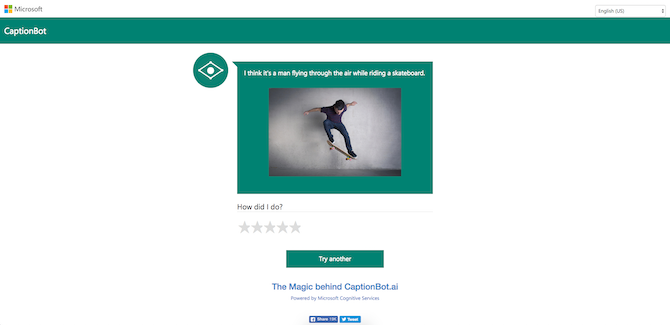
CaptionBot is a fun, little app that is powered by Microsoft’s Cognitive Services. CaptionBot illustrates how digital bots process images by generating a caption for any file or URL you upload. It only takes a few seconds for CaptionBot to come up with an outcome and it’s usually quite on point.

Of course, this can’t be used to figure out captions for Instagram posts but it’s certainly a nice, educational experiment.

9. Quick Draw: Google Helps You Draw

Google QuickDraw Demo

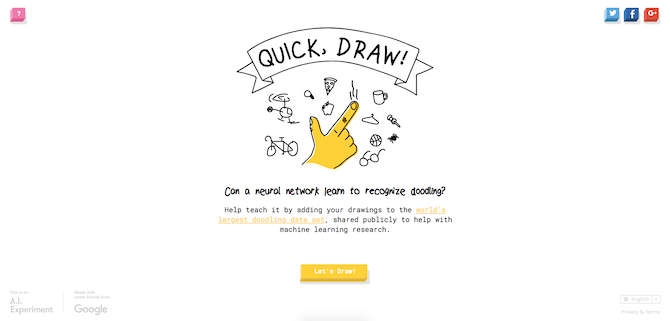
Another experiment you should take a look at is Quick Draw which is one of the popular Google AI Experiments. Its neural network tries to predict what are you trying to doodle as you draw it with a mouse or on a touchscreen. The game is built with machine learning (which is different from AI). Quick Draw learns as you play with it and you can notice that behavior if you try it a few times.

Artificial Intelligence Is Here

Artificial intelligence is a double-edged sword. There are dangers and there are benefits, like how AI is fighting cybercrime today. You can be worried and also question if A.I and machine learning’s effect on humanity.

To have a more in-depth understanding of the subject here’s why scientists think you should be worried about Artificial Intelligence.

Read the full article: 9 Great Sites Where You Can Explore the Benefits of Artificial Intelligence


Read Full Article

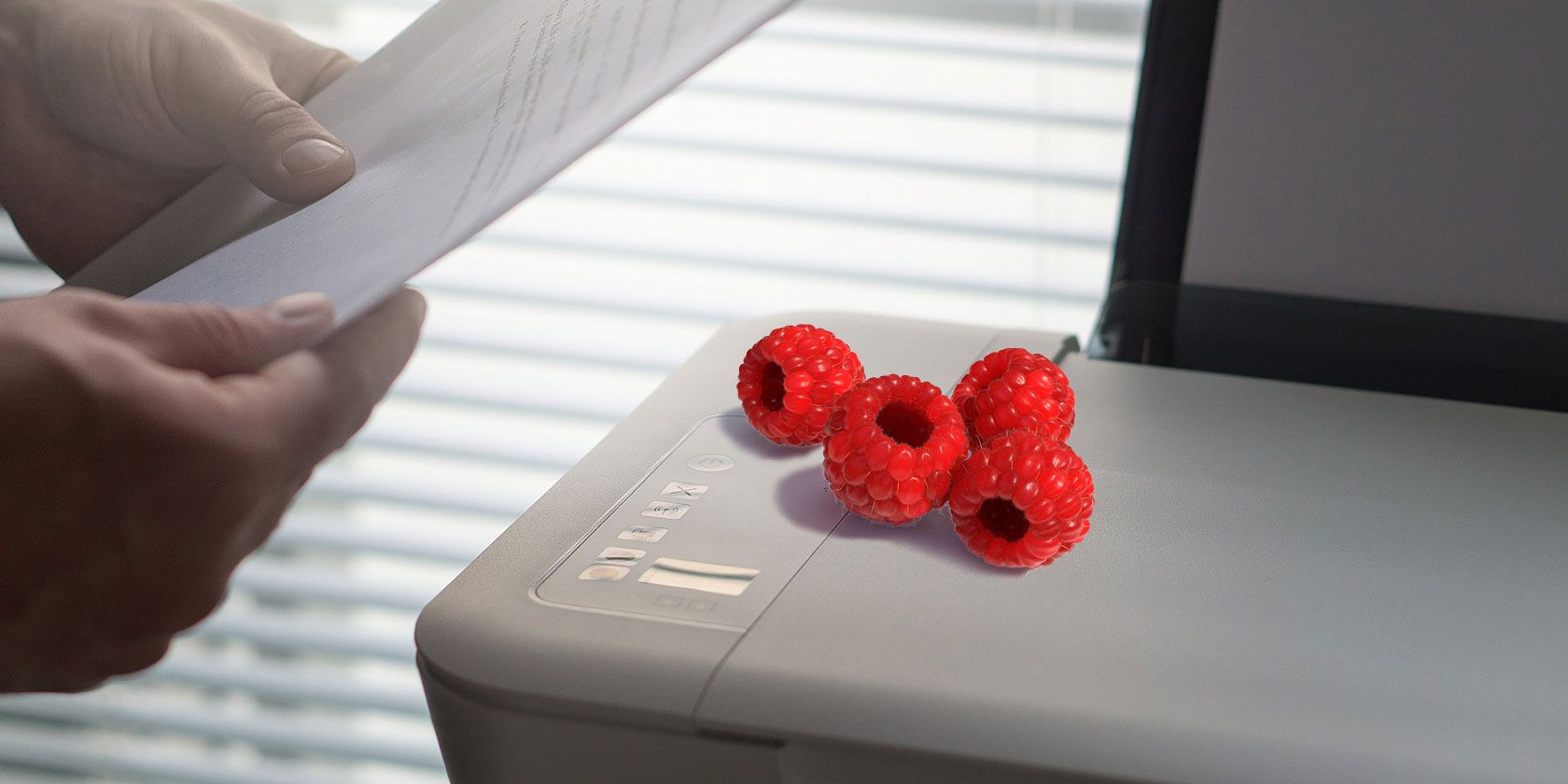
6 Ways to Print With a Raspberry Pi


raspi-print

Reckon your Raspberry Pi is just a little computer good for retro gaming, streaming video, and not much else? Wrong! It’s an ideal project computer that you can use for many practical purposes, from looking at the stars to acting as a substitute desktop.

Which means it’s ideal for print projects! Here are six ways you can use a Raspberry Pi with a printer, from basic printing to running a 3D printer.

1. Basic Raspberry Pi Printing

You can print to a printer with a Raspberry Pi in the usual way. Assuming you’re using the Raspbian operating system (it shouldn’t differ if you installed Ubuntu MATE), start by making sure the printer and the Raspberry Pi are on the same network.

Next, open a Terminal window and install the CUPS client software. Do not install the CUPS server software, as that will turn your Raspberry Pi into a print server. Scroll down to the next section to learn a bit more about that.

sudo apt update
sudo apt install cups-client

Follow the displayed instructions to install the client, then open the configuration file in the nano text editor.

sudo nano /etc/cups/client.conf

Here, add the following line:

ServerName [PRINTER.IP.ADDRESS.HERE]

For example, if the printer IP address is 192.168.75.80, you would enter

ServerName 192.168.75.80

Save the file with Ctrl + X, then exit. You’ll be able to print from LibreOffice and various other applications.

2. Wireless AirPlay Printing

With a Wi-Fi dongle attached, or using the Raspberry Pi 3 or later (with built-in Wi-Fi), you can make a pre-wireless printer into a wireless printer.

Better still, it can be configured for AirPlay compatibility, meaning you can print to your old printer from an iPad!

Connect your printer your network with a Raspberry Pi

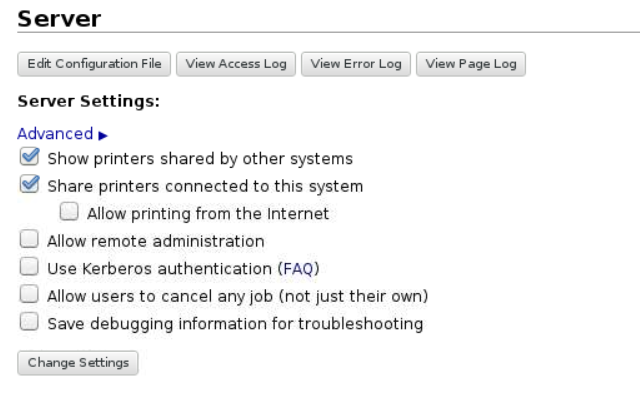
This is all thanks to the CUPS software, installed this time as a server. Simply hook up a USB printer to your Raspberry Pi and configure CUPS correctly to install the driver and make the printer wireless. Our guide to making a wireless printer with your Raspberry Pi gives you all the steps you need to follow.

You don’t have to leave it there, however. Want to print directly from your iOS or Android mobile device? Adding AirPrint support to your Raspberry Pi print server makes this possible, and it’s even simpler than setting up CUPS.

Oh, and you can also set it up to print from Android devices, too!

3. Google Cloud Printing

Need to print something from your phone, tablet, or laptop, but you’re out of the house? Google Cloud Print is a great solution to this, but it requires you to have a suitably-equipped printer.

Fortunately, there is a DIY workaround that uses the Raspberry Pi. You’ll need a Google account, the Chromium browser installed, and set this up with Google Cloud Print.

All you need to do is open Settings > Advanced Settings and find Google Cloud Print. Click Manage Cloud Print devices and sign into your Google account when prompted. Be sure to check the Stay signed in box to ensure your printer remains available.

Click Add printer against the device you want to print from to gain cloud access. You’re then ready to print from anywhere, just as long as you’re signed into the same Google account.

4. Connecting a Thermal Printer

It isn’t only standard inkjet printers that can be connected to a Raspberry Pi. Thermal printers, which use special heat-sensitive paper, can also be hooked up.

“Thermal paper” shouldn’t be unfamiliar to you. ATM receipts, shop receipts, even temporary ID badges in government buildings are typically printed on this heat-sensitive paper. It’s basically paper that has the ink built-in, only appearing when heat is directed. The result is readable, and can be used for barcodes, QR codes, and even photographs.

Compact, and low-powered, a thermal printer might cost more than a budget inkjet, but you won’t need to buy ink! If you don’t own a thermal printer already, start off with the Adafruit model, which is used in the accompanying video.

Thermal printers come in many shapes and sizes. Label printers, such as those produced by Dymo, are typically thermal printers. They’re often found in offices, bought mainly to avoid the waste of printing out a sheet of labels when only one is required.

5. 3D Printing With Raspberry Pi

Want to put your Raspberry Pi in charge of your own mini production line? If you own a 3D printer (or are planning to build one) then the Pi makes a great dedicated system for managing your 3D prints.

Several projects are available that can help you to do this, but the most popular is probably OctoPrint. This is available as a disk image for all Raspberry Pi models, from the A, through to the 3B+, as well as the Zero and Zero W.

If you know how to install a Raspberry Pi operating system, this will be simple to set up, and you can even power the Pi from most 3D printers.

Once up and running, you might even print a new case for your Raspberry Pi. When you’ve done that, check out our list of Raspberry Pi 3D printer projects.

6. Raspberry Pi Wedding Photo Booth

Planning a party or a wedding reception, and not sure about the fee for the wedding booth? Simple: build your own!

Wedding photo booths are typically wooden structures with a push-button camera mounted inside, and a photo printer connected. Often, the wedding organizer will include some amusing props and backgrounds to create a fun-looking photograph.

However, these booths are often expensive to hire, so setting up your own photo booth is a good way to save money.

All you need is a Raspberry Pi, a camera module, and a suitable printer. For extra low-budget point scoring, a label printer or even a thermal printer should work. If you want something a bit more hi-res for people to remember your big day, however, some portable photo printers can work with a Raspberry Pi.

For example, an LG Pocket Photo printer can receive photos via Bluetooth from a Raspberry Pi and instantly output them.

Ways to Print With a Raspberry Pi, Recapped

The Raspberry Pi is so compact and flexible that it can do more than simply send a document to your printer. We’ve looked at six ways to print with the Pi:

  1. Basic local and wireless printing
  2. Make a print server with AirPlay support
  3. Set up Google Cloud Print
  4. Use a thermal printer
  5. Control a 3D printer
  6. Create a wedding photo booth

Looking for more projects? Check our list of awesome ways to use a Raspberry Pi.

Read the full article: 6 Ways to Print With a Raspberry Pi


Read Full Article

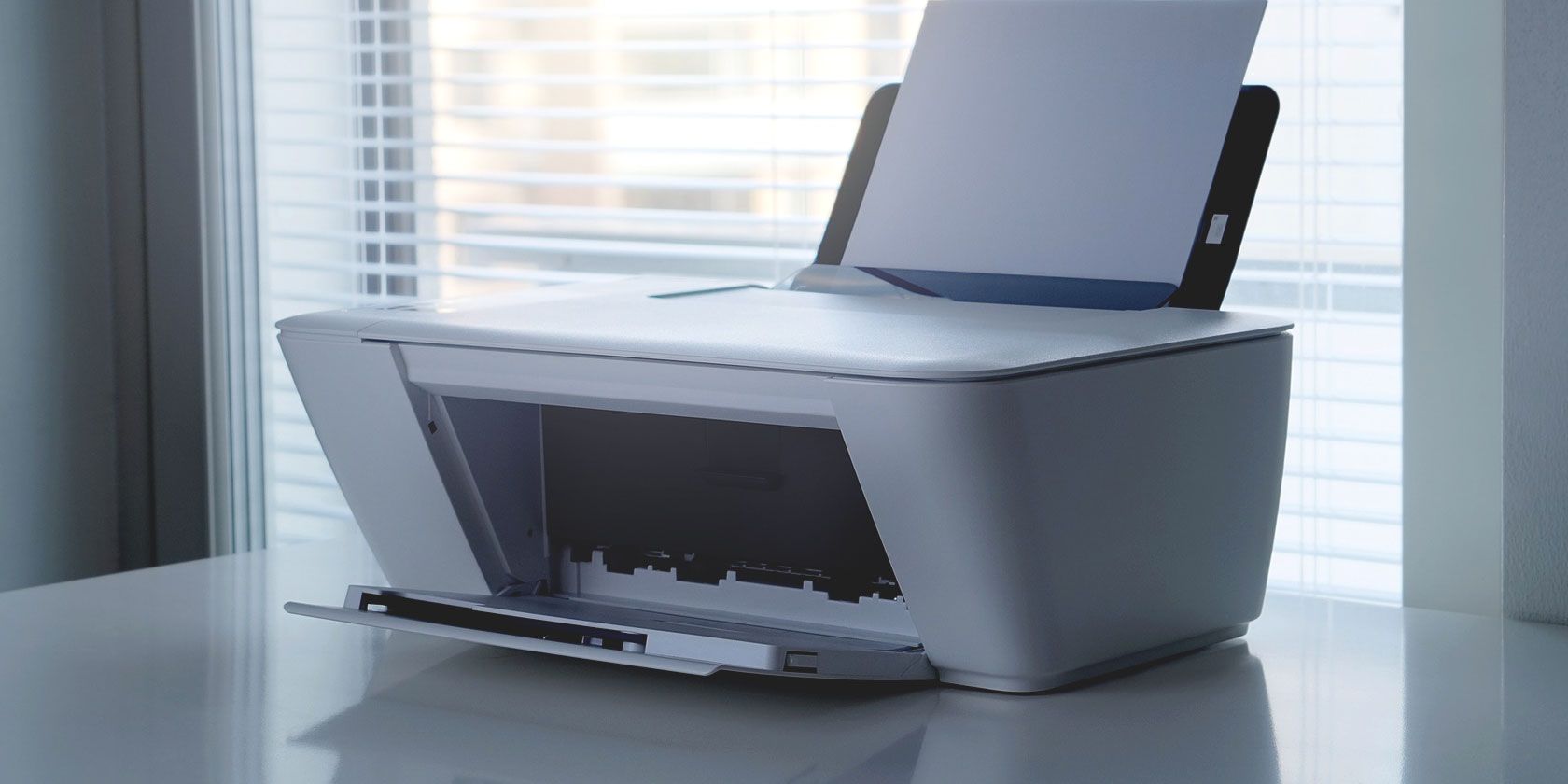
8 Things to Check When Buying a New Printer


printer-tips

Are you looking for a new printer? With so many different models out there, it’s hard to know which one is right for your needs.

To make sure you don’t regret your purchase, here are a few things you need to consider before you hit the shops.

1. Stay in Budget

The cost of printers varies wildly. Obviously, you shouldn’t spend more than you can afford on your new device.

However, the issue of budgeting for a printer runs deeper than its upfront cost. You also need to consider the ongoing price of replacement ink.

It’s common for the cheapest printers to have some of the most expensive ink; it’s how the manufacturers make their money. So, before you go to the nearest Best Buy, do some research online. Make sure the price of the replacement cartridges is in line with other models at a similar price point.

It’s also worth checking whether you can pick up third-party ink cartridges for your printer and whether you can refill the ink cartridges. Be aware that using unapproved ink cartridges might void your warranty.

2. Type of Ink

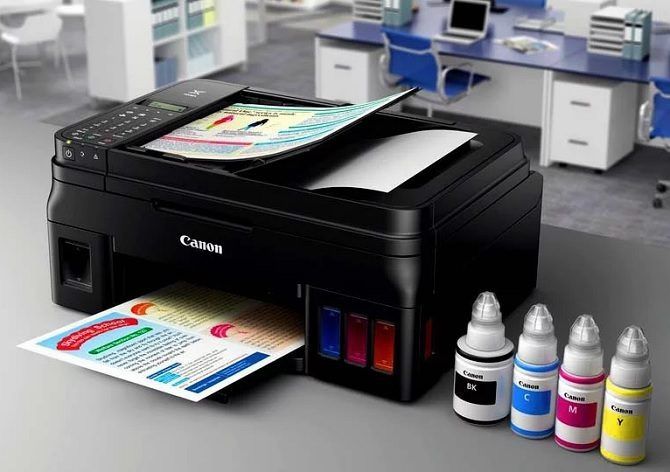
canon inkwell printer

There are three common ink cartridge configurations.

  • Two ink cartridges: A black cartridge and an all-in-one color cartridge.
  • Four ink cartridges: A black cartridges, and three separate cartridges for cyan, magenta, and yellow. This is the CMYK color model.
  • Inkwells: Instead of using cartridges, the printer draws its ink from large, refillable wells.

Of the three, inkwells are comfortably the most economical in the long run. For example, the Epson Expression ET-3700 EcoTank can print 14,000 black pages or 11,200 color pages of a single refill. That’s enough for two years of heavy usage (read our article about the best printers with cheap ink to learn more).

You can also buy laser printers. They use toner instead of ink. Laser printers can produce sharper edges and crisper images than their inkjet counterparts.

Which configuration is right for you depends on how you plan to use your printer. If you’re going to print lots of text documents with few colors, a two-cartridge printer might suffice. People who need professional-grade color printouts should opt for a laser printer, and regular users can decide between CMYK and inkwell printers.

3. Print Quality

Although laser printers offer the best quality, they are also expensive to buy and have higher running costs.

If you’re a home user, an inkjet should suffice. But the quality of printout varies significantly among inkjet printers.

Several things affect the print quality, including the design of the printhead, the printer’s driver, and the quality of the ink. However, the main spec to look out for is the printer’s DPI (dots per inch). It indicates how accurately a printer can replicate the pixels of a source image.

You can find inkjet printers with anything from 600 x 600 DPI to 4,800 x 4,800 DPI.

4. Print Speed

We’ve all sat impatiently while a printer creates a document at a snail’s pace. It’s frustrating.

If you do a lot of printing, especially printing of documents with dozens of pages, print speed will be an important factor in your purchase decision.

Printer speed is measured in pages per minute (PPM). A printer will have different PPM speeds for pages of text and pages of images. However, when you look at a box in a store, you’ll often only see one PPM rating. It refers to how many pages of black text the printer can produce in a single minute.

Again, you’ll find massive variation in the PPM scores of consumer-grade inkjet printers. You could come across anything from 5PPM to 25PPM.

5. Wireless Connectivity

Another major thing you should look out for when buying a new printer is its connectivity. To establish which connections you need, ask yourself two questions:

  1. Where are you going to print from?
  2. Which devices are you going to print from?

All printers on the market offer wired connectivity. They can connect to your computer via a USB port.

However, some models also offer Wi-Fi connectivity and Bluetooth connectivity. Increasingly, you will also find machines that support Google Cloud Print and Apple AirPrint. Bluetooth is great for printing from local mobile devices, while Wi-Fi and cloud support let you print documents remotely when you’re away from home.

6. Additional Features

Printers do more than just print. All-in-One devices can also copy, scan, and even send faxes (yes, some people do still use them!).

You can expect to pay a bit more for All-in-One printers, but for many people, the extra capabilities are worth the additional expense.

Also, keep an eye open for manufacturer-specific added features such as special photo printing modes and web apps.

Note: You don’t have to use a printer to send faxes. You can also send faxes on Android and send faxes from your computer.

7. Paper Format

Not all printers can accept legal-sized paper. Similarly, the scanner beds on many all-in-one printers are too small for legal documents.

Some high-end all-in-one machines have a separate scanner feeding tray on the top. You can use it to scan larger documents or to stack multiple papers and scan them all into a single PDF file.

8. Compact, Portable, or Desktop?

Printers come in many different shapes and sizes. If you’re looking for a printer that fits in a small area, there are now many compact versions available. Sure, you might have to sacrifice the scanner and copier functionality, but it’s a good option for occasional users.

At the other end of the scale, some devices are significantly larger. They are normally aimed at the small office market and would be unnecessary in your home.

Remember, technology should look great; don’t buy something that doesn’t fit its environment.

Which Is the Best Printer for You?

There are too many variables to be able to name a single printer that’s right for you. Instead, you need to weigh up the pros and cons of the models you’re considering against the criteria we’ve discussed.

If you’re not sure where to start, check out some of our guides. We’ve written about the best all-in-one printers for homes and small offices, a comparison of inkjet and laser printers, and even the best 3D printers.

Read the full article: 8 Things to Check When Buying a New Printer


Read Full Article

The Best Wireless Headphones Under $100

4 Black Friday Deals on Great Tech Gadgets


With the season of price-drops in full swing, now is a great time to invest in new technology. From smartphone stabilizers to sticky note printers, MakeUseOf Deals has some amazing gadgets at rock-bottom prices this Black Friday. Here’s our pick of the bunch — now with an extra 20% off when you use code BFSAVE20.

MOZA Mini-Me Smart Phone Gimbal

If you shoot videos with your smartphone, the MOZA Mini-Me is an essential upgrade. This gimbal keeps your phone rock steady, and it can automatically follow your subject. At the same time, the gimbal provides wireless power for your phone. You can grab the MOZA gimbal now for $94.99, saving $15 on the standard price.

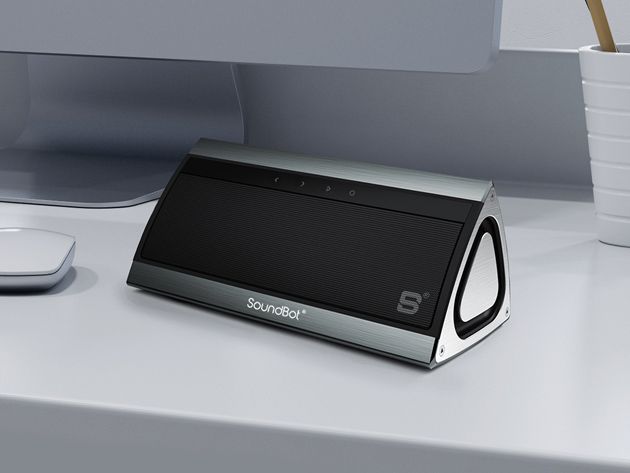
SoundBot HD Premium Bluetooth Speaker

The SoundBot HD speaker measures only three inches thick, but this tiny boombox kicks out a wall of sound. Dual 5W speakers produce an impressive dynamic range, complete with crisp highs and rich bass notes. You get six hours of playback on a full charge, and a Bluetooth range of 33 feet. Normally $69.99, the SoundBot HD is now just $36.99.

2-in-1 Universal Camera Lens with Selfie LED Light

This smartphone attachment is guaranteed to improve your selfie game. It has a wide-angle lens that’s perfect for group shots, while the soft LED light makes it easy to take flattering photos after dark. The lens is compatible with most smartphones, and it’s currently 25% off at $14.99.

Cubinote Pro Sticky Note Printer

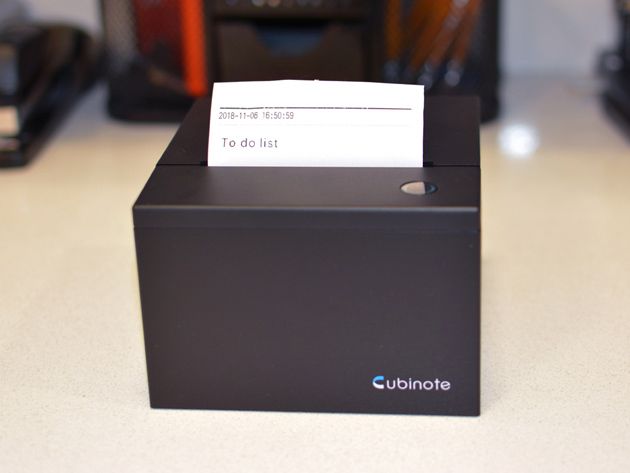
From complex diagrams to your weekly schedule, Cubinote Pro lets you print virtually anything on a sticky note. The companion app is very easy to use, and the printer itself uses heat rather than ink. Yes, that means there are no cartridges to replace. You can get Cubinote Pro now for $149.99 with three rolls of paper, saving $27 off MSRP.

Read the full article: 4 Black Friday Deals on Great Tech Gadgets


Read Full Article

As Taiwan prepares to vote on LGBTQ issues, a homophobic group is running ads before kids videos on YouTube


This Saturday, several issues related to LGBTQ equality, including marriage, are up for referendum in Taiwan’s mid-term elections. A little more than a year after the country’s top court ruled in favor of same-sex marriage, the LGBTQ community is once again fighting for their rights due to efforts by anti-gay groups. The battle has reached social media platforms including YouTube, where a group called 3 Yes is running an ad, including before popular children’s videos, that claims teaching about LGBTQ issues in schools will confuse young children about their gender identity.

3 Yes’ name refers to three referendum items (proposals 10, 11, and 12) that anti-gay groups want voters to approve during Saturday’s election. The questions ask voters “Do you agree that marriage should be restricted to being between one man and one woman under the Civil Code?”; “Do you agree that the Ministry of Education and schools at the elementary and junior high level should not teach about homosexuality as detailed in the Gender Equity Education Act?” [passed in 2004 to promote gender equality and prevent discrimination]; and “Do you agree to unions outside of the ones defined as marriage by the Civil Code to protect the right of same-sex couples to live together permanently?”

In an attempt to counteract those proposals, LGBTQ advocacy groups introduced two additional referendums (14 and 15) that ask “Do you agree that the rights of same-sex couples to get married should be guaranteed by the Civil Code’s marriage regulations?” and “Do you agree that gender equity education as defined under the Gender Equity Education Act should be taught at all stages of the national curriculum and include education about emotions, sex, and homosexuality?”

Even though Taiwan’s Constitutional Court ruled in favor of same-sex marriage in 2017, the fact that the issue and others made it to referendum this year underscores the power of anti-gay groups led by religious conservatives, including the Bread of Life Christian Church, the Happiness of the Next Generation Alliance, and the Alliance of Taiwan Religious Groups for the Protection of the Family. In addition to YouTube videos, groups such as these have also spread homophobic propaganda and misinformation through demonstrations, flyers, banners, and other online platforms including YouTube, Facebook, and Line, one of the most popular messaging apps in Taiwan.

An example of a flyer denouncing education about LGBTQ issues.

In addition to YouTube videos, groups such as these have also spread homophobic propaganda and misinformation through demonstrations, flyers, banners, and online platforms including YouTube, Facebook, and Line, one of the most popular messaging apps in Taiwan.

3 Yes’ YouTube channel has three videos. Two appear to show same-sex couples before they suddenly veer into messaging that marriage is between one man and one woman. The third, which was uploaded to 3 Yes’ channel a week ago and is currently running as an ad, is even more pernicious. It opens at a school, with young students looking at a textbook. A girl says “He must be 80% like a girl,” referring to a boy, who gets upset and runs home. Upset, he asks his parents “My classmates are laughing at me for being 80% like a girl. Do you think I’m a boy or girl?” as they look in shock at the textbook. His older sister then turns to their father and says “Dad, you must be 100% girl” as both parents gape at her in horror. The ad cuts to the slogan “Support ACCURATE, AGE-APPROPRIATE gender equity education.”

(It is worth pointing out that Taiwan’s government had to issue guidelines against sex-selective abortions because the preference for boys has skewed the country’s sex ratio).

I am the parent of a toddler and began noticing the ad popping up this week when we watched popular kids’ channels on YouTube. The example embedded above shows it running before a video by Super Simple Songs, a channel with over 12 million subscribers that features nursery rhymes and other content for very young kids. While I’ve seen it at other times, the frequency it appears in the afternoon and early evening suggests that 3 Yes scheduled their ad to run during those time slots, when many kids are home from school, in front of content targeted to them.

(It is important to note that while YouTube content creators can filter out certain advertisers from running before their videos, many may be unaware of ads like the one by 3 Yes because they aren’t located in the same market. Super Simple Songs, 3 Yes, and Google have all been contacted for comment. When reached through their Facebook page, someone from 3 Yes said they don’t run TV ads. I clarified that I mean YouTube ads and am awaiting a response.)

The ad is especially concerning because it helps the spread of misinformation about sexuality and gender by anti-gay groups in Taiwan. Debates are required for referendums and during one of them, the executive director of the National Alliance of Presidents of Parents Associations, Yang Chun-tzu, stated that children should not learn about homosexual issues during elementary and junior high school because it could influence their sexual orientation. That notion has been debunked by growing mounds of evidence that sexual orientation is mainly determined by genetic factors.

Indeed, statements like the those made by Yang and 3 Yes support the case for more education about LGBTQ issues in Taiwan’s schools, not less. 3 Yes’ video also appears to contravene Google’s new initiative against misinformation, though it’s less clear if it violates its policy against hate speech.

But even if it doesn’t incite physical violence, it promotes harmful stereotypes about LGBTQ people and is a sad echo of other instances when anti-gay ads have run on YouTube, sometimes appearing before videos by LGBTQ YouTubers. It is also a reminder that YouTube’s attempts to make its platform safer for children, including “safeguarding the emotional and physical well-being of minors,” is difficult to enforce.

Imagine being a LGBTQ child in Taiwan and seeing an ad like that pop-up while you are watching your favorite channels, at a time when the basic rights of LGBTQ people are up for a vote, and you are already confronted every day by banners and posters that declare you are in a lesser category of human. This is a stark reminder that social media platforms and content creators must pay more attention in different markets to the kind of ads and content that are allowed to be targeted to kids, especially during elections and other politically-charged times.


Read Full Article
The Best Nintendo Switch Black Friday Deals


nintendo-switch-accessories

Looking to pick up a Nintendo Switch this Black Friday? You’ve come to the right place.

We’ve rounded up the best Nintendo Switch deals around. Whether you want to get the console, accessories, or games, check these out.

The Best Nintendo Switch Console Deals

Nintendo Switch and Mario Kart 8 Deluxe Bundle

There’s only one major Switch console deal this Black Friday. It’s the standard $300 price, but includes a digital copy of Mario Kart 8 Deluxe. Mario Kart 8 Deluxe is a must-have Switch title and costs $60 on its own, so this represents a solid savings.

Since Nintendo isn’t known for offering major discounts on its consoles, this is the best Nintendo Switch Black Friday deal you’ll find value-wise. If you have no interest in the game, you could always sell it.

Additionally, if you get this bundle at GameStop, the company is offering an extra $50 gift card with any console purchase. While it’s still not a cash discount, this will almost pay for a full-price game like Super Smash Bros. Ultimate.

Find this deal at: Best Buy, Walmart, Amazon, GameStop, Target

Nintendo Switch and Headset/Case Bundle

If you’d rather have some accessories with your new Switch instead of a game, check out this deal.

For a bit more at $330, you get the Switch console plus an official carrying case and a Turtle Beach headset. It also includes $90 in Kohl’s Cash you can put towards other holiday spending.

As the Switch is portable, it’s smart to have a case to protect it from damage. And headphones let you hear your favorite games more clearly whether you’re on the go or at home. Check out the best Switch accessories for more.

Find this deal at: Kohl’s

The Best Nintendo Switch Accessories Deals

The Nintendo Labo is a cardboard construction toy. It lets you craft items that interact with the Switch system and the Joy-Con controllers.

The three available Labo kits normally cost between $60 and $70 apiece. But until December 1, you can get two Labo kits for just $99 from Best Buy. This would make a great gift for any young Nintendo Switch owner.

Find this deal at: Best Buy

The Best Nintendo Switch Game Deals

If you need some new games for your Switch, you’ll find some discounts for Black Friday. In addition to Nintendo’s Cyber Deals on digital games, here are some physical copy highlights:

  • Bayonetta 2 at Best Buy ($40): This is one of the best action games ever made, and includes the first Bayonetta to boot. It’s a great price for two awesome titles.
  • Crash Bandicoot N. Sane Trilogy at Best Buy | Walmart ($25): Relive some nostalgia with three remastered PS1 platformer classics in one package.
  • Donkey Kong Country: Tropical Freeze at Walmart ($35): This is one of the best platformers of the modern age. If you missed it on the Wii U, it’s a must-buy for your Switch.
  • Mario + Rabbids Kingdom Battle at Best Buy ($20): This strategy game’s mashup of characters was a surprise hit, and you can check it out for a steep discount.

What Will You Buy?

This is a sampling of the best Nintendo Switch Black Friday deals. You’re bound to find something at a great price, whether you’re new to the system or need some games.

Though they haven’t been announced yet, we’ll likely see digital deals on the Nintendo eShop too. Browse our list of the best Nintendo Switch games so you know what to look out for on the big day.

Read the full article: The Best Nintendo Switch Black Friday Deals


Read Full Article
Half a million Android users tricked into downloading malware from Google Play


More than half a million users have installed Android malware posing as driving games — from Google’s own app store.

Lukas Stefanko, a security researcher at ESET, tweeted details of 13 gaming apps — made by the same developer — which were at the time of his tweet downloadable from Google Play. Two of the apps were trending on the store, he said, giving the apps greater visibility.

Combined, the apps surpassed 580,000 installs before Google pulled the plug.

Anyone downloading the apps were expecting a truck or car driving game. Instead, they got what appeared to be a buggy app that crashed every time it opened.

In reality, the app was downloading a payload from another domain — registered to an app developer in Istanbul — and installed malware behind the scenes, deleting the app’s icon in the process. It’s not clear exactly what the malicious apps do; none of the malware scanners seemed to agree on what the malware does, based on an uploaded sample to VirusTotal. What is clear is that the malware has persistence — launching every time the Android phone or tablet is started up, and has “full access” to its network traffic, which the malware author can use to steal secrets.

We reached out to the Istanbul-based domain owner, Mert Ozek, but he did not respond to our email. (If that changes, we’ll update).

Google spokesperson Scott Westover confirmed that the apps “violated our policies and have been removed from the Play Store.”

It’s another embarrassing security lapse by Google, which has long faced criticism for its backseat approach to app and mobile security compared to Apple, which some say is far too restrictive and selective about which apps make it into its walled garden.

Google has spent years trying to double down on Android security by including better security features and more granular app permission controls. But the company continues to battle rogue and malicious apps in the Google Play app store, which have taken over as one of the greatest threats to Android user security. Google pulled more than 700,000 malicious apps from its app store last year alone, and has tried to improve its back-end to prevent malicious apps from getting into the store in the first place. 

And yet — clearly — that isn’t enough.


Read Full Article
LinkedIn cuts off email address exports with new privacy setting


A win for privacy on LinkedIn could be a big loss for businesses, recruiters, and anyone else expecting to be able to export the email addresses of their connections. LinkedIn just quietly introduced a new privacy setting that defaults to blocking other users from exporting your email address. That could prevent some spam, and protect users who didn’t realize anyone who they’re connected to could download their email address into a giant spreadsheet. But the launch of this new setting without warning or even a formal announcement could piss off users who’d invested tons of time into the professional networking site in hopes of contacting their connections outside of it.

TechCrunch was tipped off by a reader that emails were no longer coming through as part of LinkedIn’s Archive tool for exporting your data. Now LinkedIn confirms to TechCrunch that “This is a new setting that gives our members even more control their email address on LinkedIn. If you take a look at the setting titled “Who can download your email”, you’ll see we’ve added a more detailed setting that defaults to the strongest privacy option. Members can choose to change that setting based on their preference. This gives our members control over who can download their email address via a data export.”

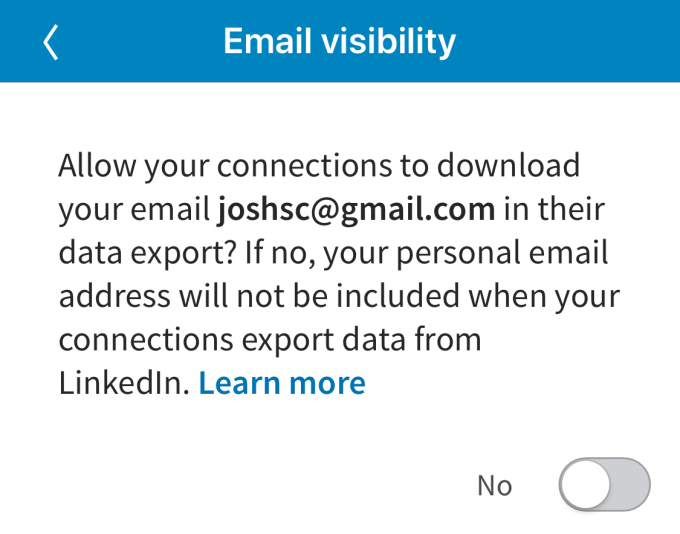
That new option can be found under Settings & Privacy -> Privacy -> Who Can See My Email Address? This “Allow your connections to download your email [address of user] in their data export?” toggle defaults to ‘No’. Most users don’t know it exists since LinkedIn didn’t announce it, there’s merely been a folded up section added to the Help center on email visibility, and few might voluntarily change it to ‘Yes’ since there’s no explanation of why you’d want to. That means nearly no one’s email addresses will appear in LinkedIn Archive exports any more. Your connections will still be able to see your email address if they navigate to your profile, but they can’t grab those from their whole graph.

Facebook came to the same conclusion about restricting email exports back when it was in a data portability fight with Google in 2010. Facebook had been encouraging users to import their Gmail contacts, but refused to let users export their Friends’ email addresses. It argued that users own their own email addresses, but not those of their Friends, so they couldn’t be downloaded — though that stance conveniently prevented any other app from bootstrapping a competing social graph by importing your Facebook friend list in any usable way. I’ve argued that Facebook needs to make friend lists interoperable to give users choice about what apps they use, both because it’s the right thing to do but also because it could deter regulation.

On a social network like Facebook, barring email exports makes more sense. But on LinkedIn’s professional network where people are purposefully connecting with those they don’t know, and where exporting has always been allowed, making the change silently seems surreptitious. Perhaps LinkedIn didn’t want to bring attention to the fact it was allowing your email address to be slurped up by anyone you’re connected with given the current media climate of intense scrutiny regarding privacy in social tech. But trying to hide a change that’s massively impactful to businesses that rely on LinkedIn could erode the trust of its core users.


Read Full Article
Facebook has poached the DoJ’s Silicon Valley antitrust chief


Facebook has recruited Kate Patchen, a veteran of the U.S. Department of Justice who led its antitrust office in Silicon Valley, to be a director and associate general counsel of litigation.

Patchen takes up her post amid ongoing scandals and reputation crises for her new employer, joining Facebook this month according to her LinkedIn profile.

The move was spotted earlier by the FT, which reports that Facebook also posted a job listing on LinkedIn for a “lead counsel” in Washington to handle competition issues two weeks ago — suggesting a broader effort to bulk up its in-house expertise.

Patchen brings a wealth of experience on the antitrust topic to her new employer, having spent 16 years at the DoJ, where she began as a trial attorney before becoming an assistant chief in the antitrust division in 2014. Two years later she was made chief.

We reached out to Facebook about the hire and it acknowledged our email but did not immediately provide comment on its decision to recruit an specialist in antitrust enforcement.

The social media giant certainly has plenty playing on its mind on this front.

In 2016 it landed firmly on lawmakers’ radars and in hot political waters when the extent of Kremlin-funded election interference activity on the platform first emerged. Since then a string of security and data misuse scandals have only dialled up the political pressure on Facebook.

Domestic lawmakers are now most actively discussing how to regulate social media. Although competition scrutiny is increasing on big tech in general, with calls from some quarters to break up platform giants as a fix for a range of damaging impacts.

The FT notes, for example, that democratic lawmakers recently introduced legislation to address “the threat of economic concentration”. And the sight of Democrats pushing for tougher competition enforcement suggests the party’s love affair with Silicon Valley tech giants is well and truly over.

In Europe competition regulators have already moved against big tech, issuing two very large fines in recent years against Google products, with more investigations ongoing.

Amazon is also now on the Commission’s radar. While, at a national level, EU competition regulators have been paying increasing attention to how the adtech industry is dominated by the duopoly of Google and Facebook.

Patchen, meanwhile, joins Facebook at the same time as some long-serving veterans are headed out the door — including public policy chief, Elliot Schrage.

Schrage’s departure has been in train for some months but a leaked internal memo we obtained this week suggests he’s being packaged up as a convenient fall guy for a freshly cracked public relations scandal.

Last month Facebook announced it was hiring more new blood: Former deputy prime minister of the UK, Nick Clegg, to be its new head of global policy and comms — with Schrage slated then to be staying on in an advisory capacity.

In other recent senior leadership moves Facebook CSO Alex Stamos also left the company this summer. While chief legal officer, Colin Stretch, announced he would leave at the end of the year.

But according to a Recode report this month Stretch has now put his exit on hold — until at least next summer — apparently deciding to stay to help out with ongoing legal and political crises.


Read Full Article

Google Assistant iOS update lets you say ’Hey Siri, OK Google’


Apple probably didn’t intend to let competitors take advantage of Siri Shortcuts this way, but you can now launch Google Assistant on your iPhone by saying “Hey Siri, OK Google”.

But don’t expect a flawless experience — it takes multiple steps. After updating the Google Assistant app on iOS, you need to open the app to set up a new Siri Shortcut for Google Assistant.

As the name suggests, Siri Shortcuts lets you record custom phrases to launch specific apps or features. For instance, you can create Siri Shortcuts to play your favorite playlist, launch directions to a specific place, text someone and more. If you want to chain multiple actions together, you can even create complicated algorithms using Apple’s Shortcuts app.

By default, Google suggests the phrase “OK Google”. You can choose something shorter, or “Hey Google” for instance. After setting that up, you can summon Siri and use this custom phrase to launch Google’s app.

You may need to unlock your iPhone or iPad to let iOS open the app. The Google Assistant app then automatically listens to your query. Again, you need to pause and wait for the app to appear before saying your query.

This is quite a cumbersome walk-around and I’m not sure many people are going to use it. But the fact that “Hey Siri, OK Google” exists is still very funny.

On another note, Google Assistant is still the worst when it comes to your privacy. The app pushes you to enable “web & app activity”, the infamous all-encompassing privacy destroyer. If you activate that setting, Google will collect your search history, your Chrome browsing history, your location, your credit card purchases and more.

It’s a great example of dark pattern design. If you haven’t enabled web & app activity, there’s a flashy blue banner at the bottom of the app that tells you that you can “unlock more Assistant features”.

When you tap it, you get a cute little animated drawing to distract you from the text. There’s only one button that says “More”. If you tap it, the “More” button becomes “Turn on” — many people are not even going to see “No thanks” on the bottom left.

It’s a classic persuasion method. If somebody asks you multiple questions and you say yes every time, you’ll tend to say yes to the last question even if you don’t agree with it. You tapped on “Get started” and “More” so you want to tap on the same button one more time. If you say no, Google asks you one more time if you’re 100 percent sure.

So make sure you read everything and you understand that you’re making a privacy tradeoff by using Google Assistant.


Read Full Article
Google Assistant iOS update lets you say ’Hey Siri, OK Google’


Apple probably didn’t intend to let competitors take advantage of Siri Shortcuts this way, but you can now launch Google Assistant on your iPhone by saying “Hey Siri, OK Google”.

But don’t expect a flawless experience — it takes multiple steps. After updating the Google Assistant app on iOS, you need to open the app to set up a new Siri Shortcut for Google Assistant.

As the name suggests, Siri Shortcuts lets you record custom phrases to launch specific apps or features. For instance, you can create Siri Shortcuts to play your favorite playlist, launch directions to a specific place, text someone and more. If you want to chain multiple actions together, you can even create complicated algorithms using Apple’s Shortcuts app.

By default, Google suggests the phrase “OK Google”. You can choose something shorter, or “Hey Google” for instance. After setting that up, you can summon Siri and use this custom phrase to launch Google’s app.

You may need to unlock your iPhone or iPad to let iOS open the app. The Google Assistant app then automatically listens to your query. Again, you need to pause and wait for the app to appear before saying your query.

This is quite a cumbersome walk-around and I’m not sure many people are going to use it. But the fact that “Hey Siri, OK Google” exists is still very funny.

On another note, Google Assistant is still the worst when it comes to your privacy. The app pushes you to enable “web & app activity”, the infamous all-encompassing privacy destroyer. If you activate that setting, Google will collect your search history, your Chrome browsing history, your location, your credit card purchases and more.

It’s a great example of dark pattern design. If you haven’t enabled web & app activity, there’s a flashy blue banner at the bottom of the app that tells you that you can “unlock more Assistant features”.

When you tap it, you get a cute little animated drawing to distract you from the text. There’s only one button that says “More”. If you tap it, the “More” button becomes “Turn on” — many people are not even going to see “No thanks” on the bottom left.

It’s a classic persuasion method. If somebody asks you multiple questions and you say yes every time, you’ll tend to say yes to the last question even if you don’t agree with it. You tapped on “Get started” and “More” so you want to tap on the same button one more time. If you say no, Google asks you one more time if you’re 100 percent sure.

So make sure you read everything and you understand that you’re making a privacy tradeoff by using Google Assistant.


Read Full Article