13 November 2018

5 Must-Have Email Web Apps for Reminders, Quick Mails, Burners, and More


email-web-apps

Email is one of the quintessentially important elements of using the internet. From signing up for websites and services to serving as a place for tasks, reminders, and notes, these web apps turn email into a much more powerful tool.

For most of these apps, it doesn’t matter whether you use Gmail, Yahoo Mail, Outlook, or any of the other popular email service providers. A couple of them are based on Gmail, and we do think that’s the best email app too. Regardless, the email service shouldn’t be a big issue, as long as you use one of the popular options.

Dear Ele (Web): Schedule Email Reminders to Yourself or Others
schedule email reminders with dear ele

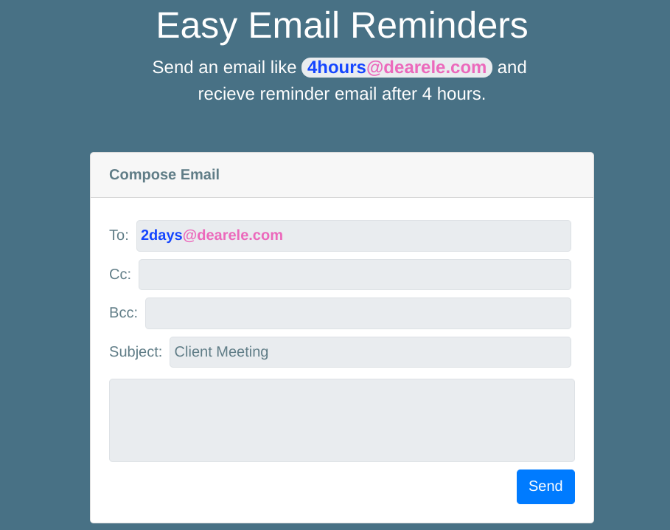
Dear Ele lets you send delayed emails to anyone, without installing anything. The idea is to send a reminder through an email that doesn’t rely on any app.

Here’s how it works. You open your inbox, compose a new message, and type an email to Dear Ele that includes a certain time frame. For example:

  • 4hours@dearele.com
  • 3days@dearele.com
  • tomorrow2pm@dearele.com
  • wednesday@dearele.com
  • nextweek@dearele.com
  • nextmonth@dearele.com

As you can see, each of the email addresses makes it pretty clear when the email will be sent. Along with that, you can add a CC or BCC so that the reminder goes out to multiple people, without needing any of them to be using the same reminder or to-do app. You can also add the Dear Ele email in the CC or BCC.

Dear Ele is a free, simple, and effective solution to an everyday problem. The free version allows 100 reminders a month, while you’ll have to pay to unlock more reminders. But if you’re using it that frequently, you should instead look at specialized apps. In fact, Google Calendar’s new Reminders function is awesome.

QuickSend (Web): Send an Email Without Logging Into Your Inbox

send emails without logging into inbox with quicksend

Commit this name to your memory. If you’re using someone else’s computer or phone, and need to send an email urgently, QuickSend is the best solution we’ve seen in a long time.

To send a message, you add the recipient’s email address, the sender’s email address, the subject, and compose the message. When you’re done, send it. It’s really as simple as that, making it one of the best no-signup services for everyday use.

QuickSend isn’t as instantaneous as regular email. In our tests, the email landed in the recipient’s inbox about 10-15 minutes after it was sent. While that’s not bad, it loses the speed of email. But hey, at least you are protected and can use a public computer safely for your email.

Speaking of privacy, don’t worry, QuickSend encrypts all data, so no one can intercept or read the email apart from the intended recipient.

BurnerMail (Chrome, Firefox): Easiest App for Disposable Emails
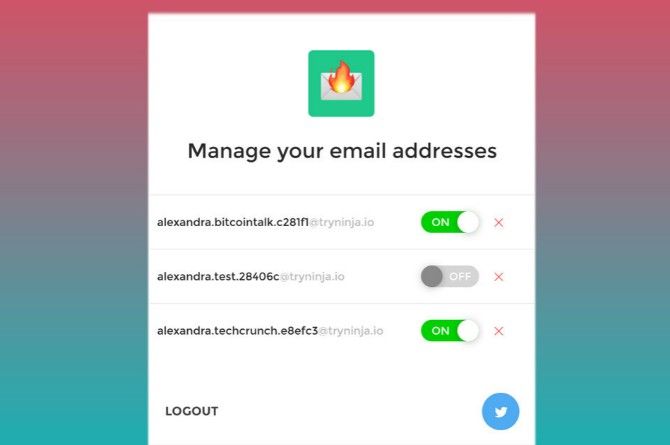
burnermail is the easiest extension to manage free disposable email addresses

When you sign up for any service on the internet, it’s good security and privacy practice to use a disposable email address instead of your primary email account. BurnerMail is the easiest app for this.

Download the BurnerMail extension for Chrome or Firefox to begin. Set up an account with your primary email, which BurnerMail will protect. Whenever you go to a website which asks for an email address to sign up, BurnerMail will offer to create a disposable email account. Sign up with that, and the emails go to your primary inbox.

But once you’re done with that service, or if you don’t want the emails cluttering up your inbox, click the extension and disable that disposable email. It’s really that simple. So even if the service leaks your email address, you won’t get bombarded with more spam.

Download: BurnerMail for Chrome | Firefox (Free)

AhhLife (Web): Regular Reminders to Write a Journal Entry

Write a journal from your email inbox with AhhLife

Most productivity and lifestyle experts recommend writing a journal regularly as an exercise to center yourself and take stock. AhhLife puts the journal in your inbox, making you write an email that serves as a journal entry.

It’s a simple and easy solution, and it’s completely free. You can set the frequency of the reminders, choosing whether to write a journal every day, every few days, every week, or so on. And you can choose the reminder email’s time too, for morning or evening entries. Once you get the reminder, just reply to it.

AhhLife saves all your entries in a dashboard that you can access on its web app. It’s a neat and clean design to revisit what you’ve chronicled. It only supports text entries though, so you can’t attach photos and videos.

The only barrier to AhhLife is that it uses a Google account exclusively, so you can’t use other email services. Instead, you can use Journal Jerk, one of the best journaling and diary apps, which works with multiple email providers.

EmailThis.Me (Web): Save and Read Articles In Inbox

emailthis.me is a pocket alternative to save and read articles in your inbox

Don’t bother with read-it-later apps. After using EmailThis.Me for a year, we can happily recommend it once again as one of the best alternatives to Pocket bookmark articles for later.

EmailThis.Me takes any article on the web, strips unnecessary and cluttering elements, and presents a clean read in your inbox. You don’t need any app to access what you want to read, and it works perfectly on both desktop and mobile.

Since its launch, EmailThis.Me has worked to improve support for many sites that try to thwart such apps that strip elements for a clean read. While there are extensions available for Chrome, Firefox, and Opera, you might want to use the simple bookmarklet instead. It works perfectly and doesn’t add extra load to your browser’s resources.

Download: EmailThis.Me for Chrome | Firefox | Opera (Free)

More Tools for Better Email

Naturally, this isn’t an exhaustive list of email apps and tools. You are more likely to find better extensions and add-ons for particular browsers and services, like the best Chrome extensions to super-power Gmail.

But there are always exceptions. In fact, we’ve already talked about a few such tools that you can use with any service or browser, so check out these other universal email tools to make your life easier.

Read the full article: 5 Must-Have Email Web Apps for Reminders, Quick Mails, Burners, and More


Read Full Article

YouTube VR finally lands on the Oculus Go


Today, Google’s YouTube VR app arrives on the $199 Oculus Go, bringing the largest library of VR content on the web to Facebook’s entry-level VR device.

YouTube brings plenty of content in conventional and more immersive video types. It’s undoubtedly the biggest single hub of 360 content and native formats like VR180, though offering access to the library at large is probably far more important to the Oculus platform.

One of the interesting things about Oculus’s strategy with the Go headset is that gaming turned out to be the minority use case following media consumption. If you find it hard to believe that so many people are out there binging on 360 videos it’s because they probably aren’t. Users have kind of co-opted the device’s capabilities to make it a conventional movie and TV viewing device, there are apps from Netflix and Hulu while Facebook has also built Oculus TV, a feature that’s still in its infancy but basically offers an Apple TV-like environment for watching a lot of 2D content in a social environment.

At the company’s Oculus Connect conference this past year CTO John Carmack remarked how about 70 percent of time spent by users on the Go has been watching videos with about 30 percent of user time has gone to gaming. Oculus has positioned itself as a gaming company in a lot of ways via its investments so it will be interesting to see how it grows its mobile platform to make the video aspect of its VR business more attractive.

With YouTube, the company has pretty easy access to effortlessly bringing a bunch of content onboard, this would have been a great partner for Oculus TV, but a dedicated app brings a lot to users. It wasn’t super clear whether Google was going to play hardball with the YouTube app and keep standalone access confined to its Daydream platform, as the company’s homegrown VR ambitions seem to have grown more subdued, it looks like they’ve had some time to focus on external platforms.

You can download the YouTube VR app here.


Read Full Article

Tinder to roll out expanded set of gender options in India


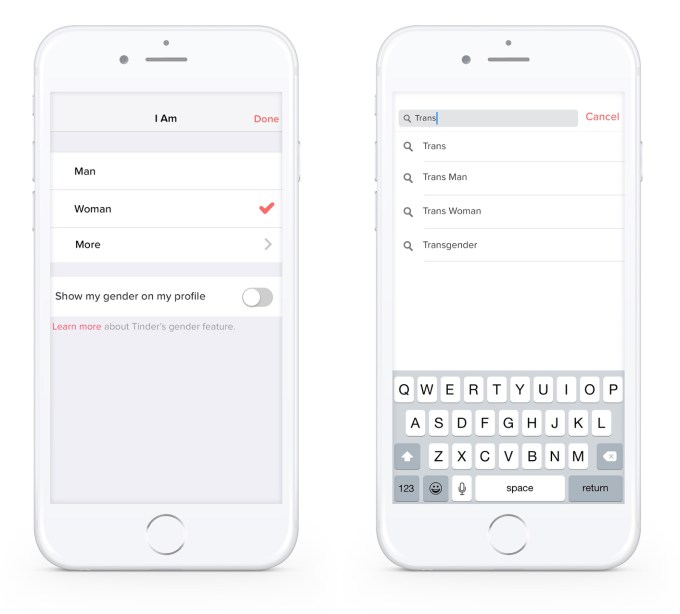
Tinder is preparing to roll out more gender options in its app in India. The company will announce shortly that users will be able to edit their profile in order to choose a different option for their gender identity, instead of just “Man” or “Woman,” as well as toggle a setting that will display their gender on their profile in Tinder’s app.

These same options have been live in the U.S. since November 2016, when the dating app added options for transgender and gender non-conforming people.

The news was published earlier today to Tinder’s blog ahead of a planned announcement, a spokesperson said. It plans to share more information later tonight, they noted. (We’ll update if that’s the case).

In the post Tinder published, the company admits it hasn’t always “had the right tools” to serve its community in the past, and is now trying to learn to be a better ally to transgender and gender non-conforming people using its app. On this front, Tinder says it’s expanding its support team and educating its staff about the issues that these communities face in India. 

Additionally, the company is opening up its support channels and inviting back users who were banned after being unfairly reported by others due to their gender. Tinder users will be able to email the company with a link to their Facebook profile in order to have their request reviewed by Tinder’s team, in order to be let back in. To what extent banned users will want to return, of course, is less clear at this point.

Tinder has not fared well with the trans community in particular, as some users in the past have been banned from the app even when using the identifiers for trans people and displaying this on their profile.

For the U.S. launch of the expanded gender options, Tinder had worked with organizations like GLAAD, activists and others.

In India, it worked with users and consultants, including an LGBTQ organization working for the health and human rights of the LGBTQ community since 1994, The Humsafar Trust, as well as LGBTQ author and inclusion advocate, Parmesh Shahani.

The post also pointed users to Umang, a Mumbai-based support group run by The Humsafar Trust, which offers mental health counselling, legal support, community support and events. And it linked to the clinical and counselling unit of The Humsafar Trust.

The group also runs a helpline Monday through Friday, 10 AM to 8:30 PM at +91 9930095856, and is available on Whatsapp.

“Every new person in your life expands your horizons in some way. Inclusion and acceptance drive this expansion, and we want Tinder to reflect the world that surrounds us every day. No one will ever be banned from Tinder because of their gender,” said Tinder.

The move is notable not just because of arrival of these important and inclusive features, but because of how critical the Indian market is for dating apps. So far, it seems straight Indian men have been flocking to Tinder and other apps in large numbers, but they’ve had trouble diversifying their user base. To address this problem, Tinder and others have focused efforts on recruiting the millions of young, educated India users who have left home to go live and work in cities.

Tinder – like all major tech companies – sees India as a key market, because of the rapid smartphone adoption and the population’s size. It even launched its Bumble-inspired “My Move” feature there first, back in September.

Bumble, meanwhile, has its sights on India as well, having said it plans to be in the market in full force by year-end.


Read Full Article

The Xbox One Gets Keyboard and Mouse Support


The Xbox One is finally adding keyboard and mouse support for gamers who prefer to play that way. This is happening more than two years since Microsoft first suggested keyboard and mouse support was on its way. So, this is definitely a case of better late than never.

Xbox One Keyboard and Mouse Support

Microsoft officially announced it was adding Xbox One keyboard and mouse support in September. Since then, selected gamers have been testing it out. And now, as part of XO18, Microsoft has detailed which games are getting mouse and keyboard support.

Fortnite and Warframe are the first two Xbox One games to support keyboard and mouse, and both should receive updates on November 14. These are both free-to-play shooters, with Fortnite being the game that all kids love and most parents don’t quite understand.

Bomber Crew, Strange Brigade, Warhammer: Vermintide 2, War Thunder, X-Morph: Defense, and Deep Rock Galactic will add support in November. And Children of Morta, Vigor, Warface, Wargroove, DayZ, Minion Masters, and Moonlighter will follow in the future.

With mouse and keyboard support having arrived on the Xbox One, Microsoft is hoping to take advantage of the situation. The company has partnered with Razer to develop an official line of Xbox keyboards and mice. The first of which will be unveiled at CES 2019.

Keyboard and Mouse Support for More Games

PC gamers who switch to consoles often have trouble adapting to a controller. So, given the crossover between PC and Xbox One games, this makes perfect sense for Microsoft. Now it’s up to developers to implement mouse and keyboard support into more games.

If you already own an Xbox One you should check out our beginner’s guide to Xbox Achievements. And if you’re only now considering buying one of Microsoft’s console, here are the differences between the Xbox One X, Xbox One S, and the Xbox One.

Image Credit: Constantin Wiedemann/Flickr

Read the full article: The Xbox One Gets Keyboard and Mouse Support


Read Full Article

You Can Now Use Cloudflare’s 1.1.1.1 DNS on Mobile


Cloudflare has launched a mobile app for its 1.1.1.1 DNS service. This makes it easier for smartphone users (on Android and iOS) to use. Cloudflare’s DNS service, which is designed to improve privacy and performance, can also be used on your desktop.

What Is Cloudflare’s 1.1.1.1 DNS Service?

In April 2018, Cloudflare launched its DNS service, catchily monikered 1.1.1.1. This is a DNS resolver that anyone can use for free. We previously detailed how to set it up on Windows and Mac, and explained how 1.1.1.1 solves some big privacy issues.

Using Cloudflare’s 1.1.1.1 DNS service should help you keep your browsing habits private from your ISP and other interested parties. It should also help improve performance, allowing you to load websites faster than you can using your ISP’s default DNS server.

Cloudflare’s 1.1.1.1 DNS Lands on Mobile

After a successful beta, Cloudflare has launched its 1.1.1.1 DNS service as a mobile app for Android and iOS. Cloudflare describes 1.1.1.1 as “the world’s fastest and safest DNS resolver” which is focused on a combination of privacy and performance.

Once you install 1.1.1.1 you can turn it on or off with just a few clicks. When it’s turned on your internet usage will be funnelled through a secure connection. This makes sure no one can snoop on your DNS queries, whether it’s your ISP or the government.

By making use of Cloudflare’s global network, the company claims 1.1.1.1 can improve your internet performance. Either way, 1.1.1.1 is free (for life), and Cloudflare promises to “never sell your data or use it to target ads”. Unlike some ISPs.

Download: Cloudflare’s 1.1.1.1 on Android | iOS (Free)

1.1.1.1 Is Another Tool to Add to Your Arsenal

Cloudflare’s app is far from the only DNS server available to use. We have previously detailed DNS servers guaranteed to improve your online safety, and explained why it’s better to use third-party DNS servers. Still, 1.1.1.1 is another tool to add to your arsenal.

Read the full article: You Can Now Use Cloudflare’s 1.1.1.1 DNS on Mobile


Read Full Article
15 CMD Commands Every Windows User Should Know


cmd-commands

Microsoft has slowly but surely pushed the command line aside in the Windows interface. This is not without reason; it is an antiquated and mostly unnecessary tool from an era of text-based input. But many commands remain useful, and Windows 8 and 10 even added new features.

Unlock our "100+ Essential Windows CMD Commands" cheat sheet now!

This will sign you up to our newsletter

Enter your Email

Here we present the essential commands every Windows user needs to know.

In case you’re not sure how to access the Windows command prompt, forgot basic Windows commands, or would like to know how to see a list of switches for each command (aka prompt codes), you can refer to our beginners guide to the Windows command line for instructions.

Prefer this tutorial in video form? We’ve got you covered:

1. Assoc

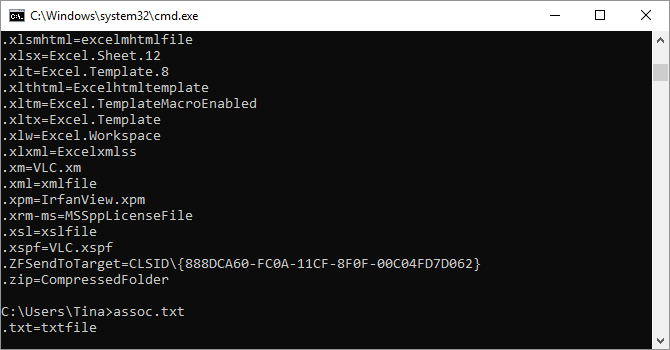
Assoccommand

Most files in Windows are associated with a specific program that is assigned to open the file by default. At times, remembering these associations can become confusing. You can remind yourself by entering the command “assoc” to display a full list of file name extensions and program associations.

You can also extend the command to change file associations. For example, “assoc .txt=” will change the file association for text files to whatever program you enter after the equal sign. The “Assoc” command itself will reveal both the extension names and program names, which will help you properly use this command. You can probably do this more easily in the GUI, but the command line interface is a perfectly functional alternative.

2. Cipher

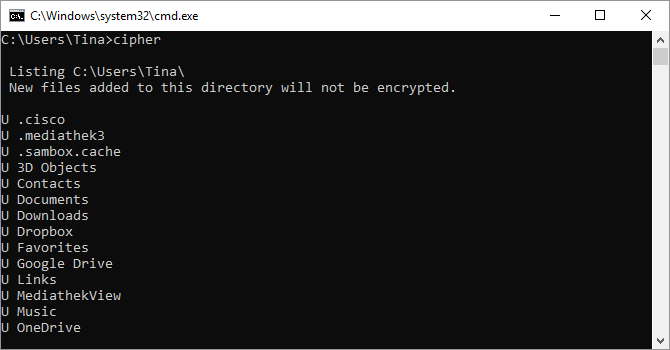
Cipher command

Deleting files on a mechanical hard drive doesn’t really delete them at all. Instead, it marks the files as no longer accessible and the space they took up as free. The files remain recoverable until the system overwrites them with new data, which can take some time.

The cipher command, however, wipes a directory by writing random data to it. To wipe your C drive, for example, you’d use the command “cipher /w:c”, which will wipe free space on the drive. The command does not overwrite undeleted data, so you will not wipe out files you need by running this command.

You can use a host of other cipher commands, however, they are generally redundant with BitLocker enabled versions of Windows.

3. Driverquery

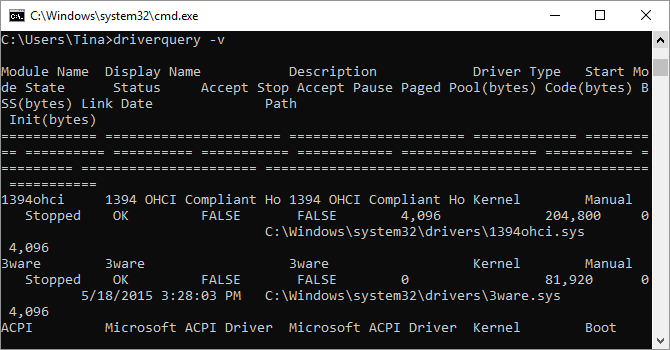
Driverquery command

Drivers remain among the most important software installed on a PC. Improperly configured or missing drivers can cause all sorts of trouble, so its good to have access to a list of what’s on your PC. That’s exactly what the “driverquery” command does. You can extend it to “driverquery -v” to obtain more information, including the directory in which the driver is installed.

4. File Compare

File compare command

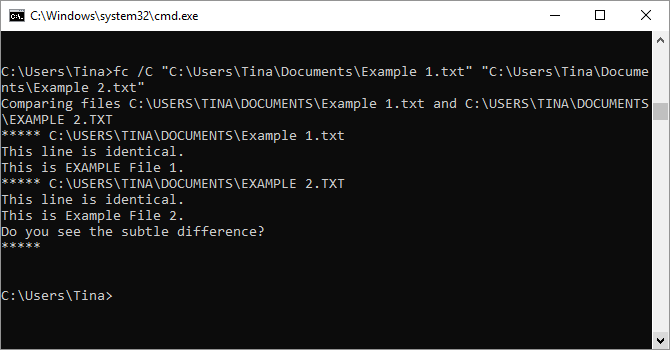
You can use this command to identify differences in text between two files. It’s particularly useful for writers and programmers trying to find small changes between two versions of a file. Simply type “fc” and then the directory path and file name of the two files you want to compare.

You can also extend the command in several ways. Typing “/b” compares only binary output, “/c” disregards the case of text in the comparison, and “/l” only compares ASCII text.

So, for example, you could use the following:

fc /l "C:\Program Files (x86)\example1.doc" "C:\Program Files (x86)\example2.doc"

The above command compares ASCII text in two word documents.

5. Ipconfig

Ipconfig command

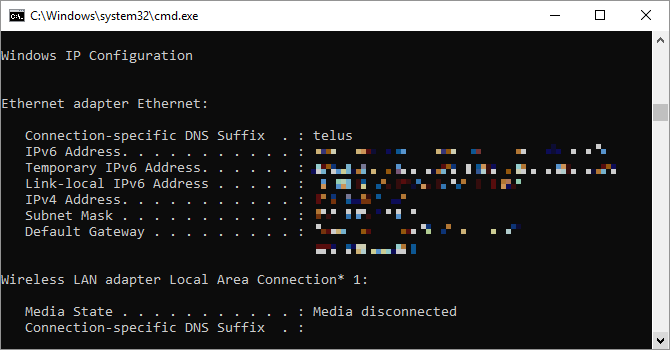
This command relays the IP address that your computer is currently using. However, if you’re behind a router (like most computers today), you’ll instead receive the local network address of the router.

Still, ipconfig is useful because of its extensions. “ipconfig /release” followed by “ipconfig /renew” can force your Windows PC into asking for a new IP address, which is useful if your computer claims one isn’t available. You can also use “ipconfig /flushdns” to refresh your DNS address. These commands are great if the Windows network troubleshooter chokes, which does happen on occasion.

6. Netstat

Netstat command

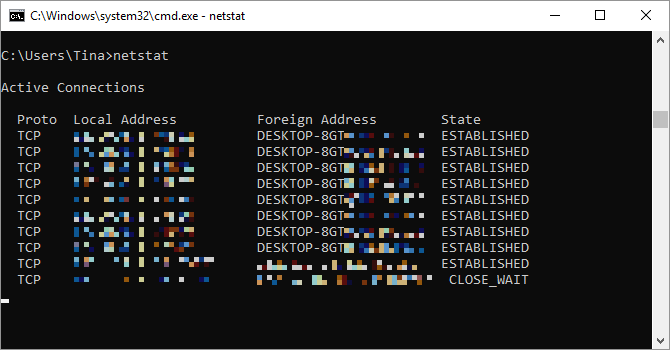
Entering the command “netstat -an” will provide you with a list of currently open ports and related IP addresses. This command will also tell you what state the port is in – listening, established or closed.

This is a great command for when you’re trying to troubleshoot devices connected to your PC or when you fear a Trojan infected your system and you’re trying to locate a malicious connection.

7. Ping

Ping command

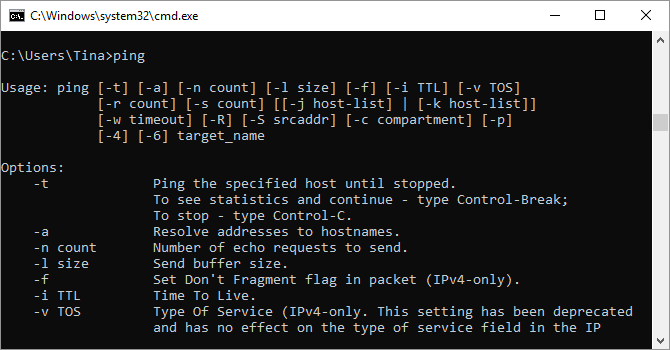
Sometimes, you need to know whether or not packets are making it to a specific networked device. That’s where ping comes in handy.

Typing “ping” followed by an IP address or web domain will send a series of test packets to the specified address. If they arrive and are returned, you know the device is capable of communicating with your PC; if it fails, you know that there’s something blocking communication between the device and your computer. This can help you decide if the root of the issue is an improper configuration or a failure of network hardware.

8. PathPing

PathPing command

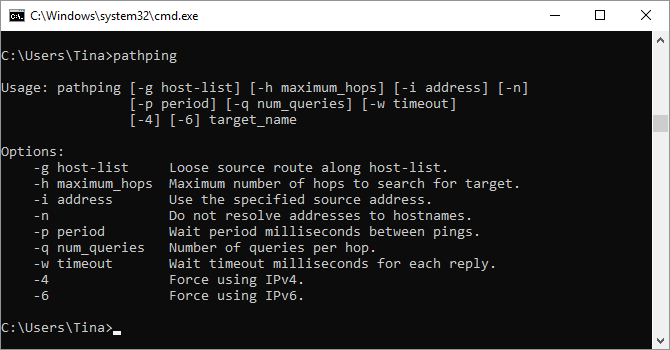
This is a more advanced version of ping that’s useful if there are multiple routers between your PC and the device you’re testing. Like ping, you use this command by typing “pathping” followed by the IP address, but unlike ping, pathping also relays some information about the route the test packets take.

9. Tracert

Tracert command

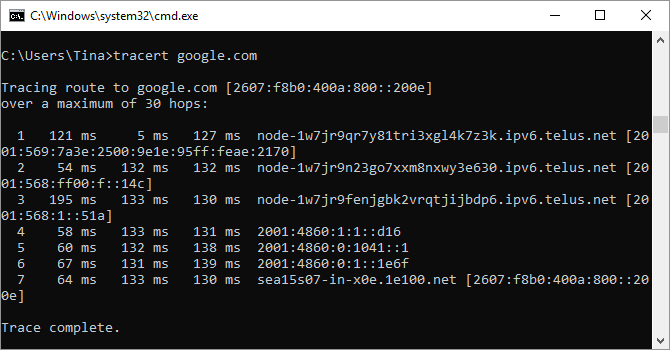
The “tracert” command is similar to pathping. Once again, type “tracert” followed by the IP address or domain you’d like to trace. You’ll receive information about each step in the route between your PC and the target. Unlike pathping, however, tracert also tracks how much time (in milliseconds) each hop between servers or devices takes.

10. Powercfg

Powercfg command

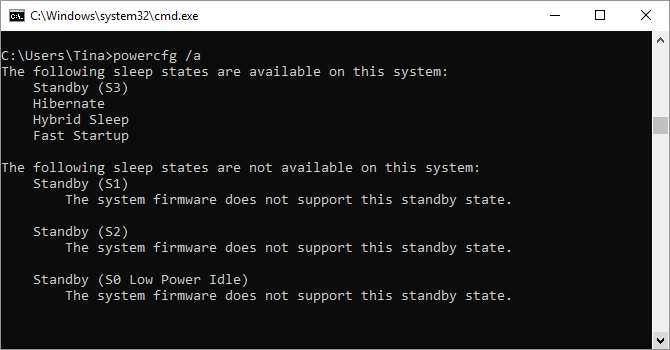
Powercfg is a very powerful command for managing and tracking how your computer uses energy. You can use the command “powercfg hibernate on” and “powercfg hibernate off” to manage hibernation, and you can also use the command “powercfg /a” to view the power-saving states currently available on your PC.

Another useful command is “powercfg /devicequery s1_supported”, which displays a list of devices on your computer that support connected standby. When enabled, you can use these devices to bring your computer out of standby — even remotely. You can enable this by selecting the device in Device Manager, opening its properties, going to the Power Management tab and then checking the Allow this device to wake the computer box.

“Powercfg /lastwake” will show you what device last woke your PC from a sleep state. You can use this command to troubleshoot your PC if it seems to wake from sleep at random.

Powercfg energy command

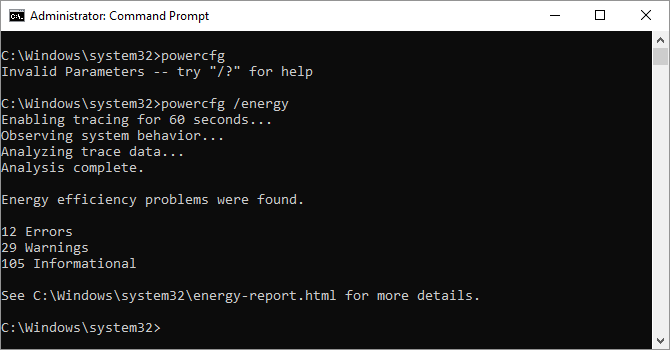
You can use the “powercfg /energy” command to build a detailed power consumption report for your PC. The report saves to the directory indicated after the command finishes. This report will let you know of any system faults that might increase power consumption, like devices blocking certain sleep modes, or poorly configured to respond to your power management settings.

Windows 8 added “powercfg /batteryreport”, which provides a detailed analysis of battery use, if applicable. Normally output to your Windows user directory, the report provides details about the time and length of charge and discharge cycles, lifetime average battery life, and estimated battery capacity.

11. Shutdown

Shutdown command

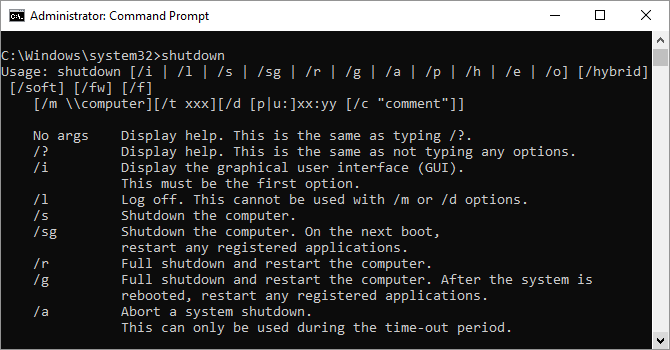
Windows 8 introduced the shutdown command that—you guessed it!—shuts down your computer.

This is, of course, redundant with the already easily accessed shutdown button, but what’s not redundant is the “shutdown /r /o” command, which restarts your PC and launches the Advanced Start Options menu, which is where you can access Safe Mode and Windows recovery utilities. This is useful if you want to restart your computer for troubleshooting purposes.

12. Systeminfo

Systeminfo command

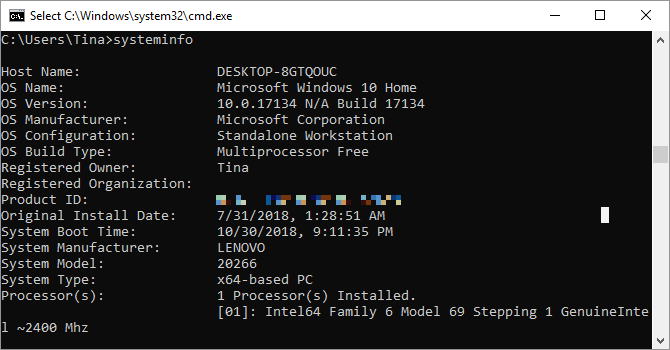
This command will give you a detailed configuration overview of your computer. The list covers your operating system and hardware. For example, you can look up the original Windows installation date, the last boot time, your BIOS version, total and available memory, installed hotfixes, network card configurations, and more.

Use “systeminfo /s” followed by the host name of a computer on your local network, to remotely grab the information for that system. This may require additional syntax elements for the domain, user name, and password, like this: “systeminfo /s [host_name] /u [domain]\[user_name] /p [user_password]”

13. System File Checker

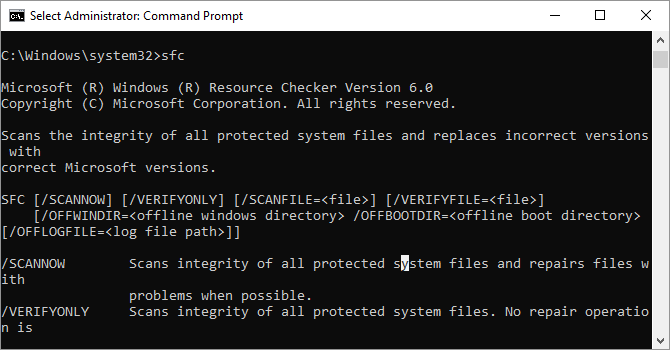
System File Checker sfc command

System File Checker is an automatic scan and repair tool that focuses on Windows system files.

You will need to run the command prompt with administrator privileges and enter the command “sfc /scannow”. If SFC finds any corrupt or missing files, it will automatically replace them using cached copies kept by Windows for this purpose alone. The command can require a half-hour to run on older notebooks.

14. Tasklist

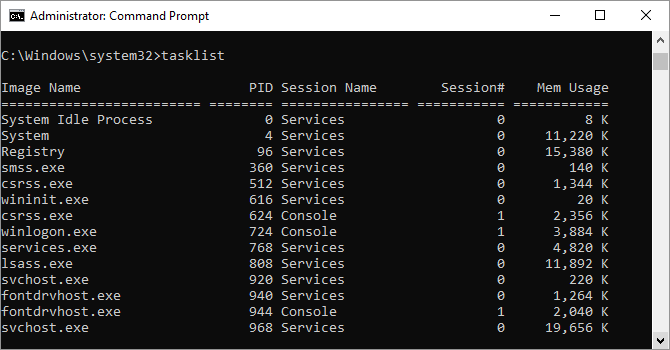
Tasklist command

You can use the “tasklist” command to provide a current list of all tasks running on your PC. Though somewhat redundant with Task Manager, the command may sometimes find tasks hidden from view in that utility.

There’s also a wide range of modifiers. “Tasklist -svc” shows services related to each task, use “tasklist -v” to obtain more detail on each task, and “tasklist -m” will locate .dll files associated with active tasks. These commands are useful for advanced troubleshooting.

15. Taskkill

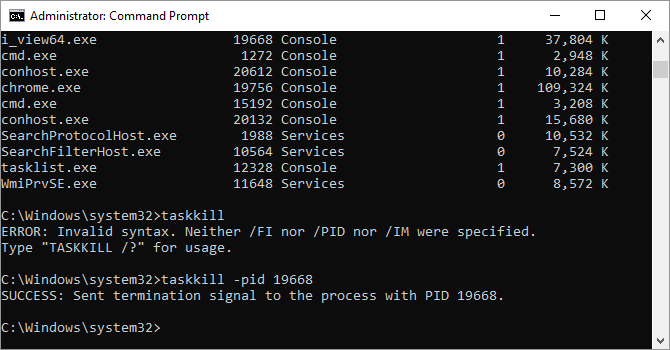
Taskkill command

Tasks that appear in the “tasklist” command will have an executable and process ID (a four- or five-digit number) associated with them. You can force stop a program using “taskkill -im” followed by the executable’s name, or “taskkill -pid” followed by the process ID. Again, this is a bit redundant with Task Manager, but you can use it to kill otherwise unresponsive or hidden programs.

Windows 8 Only: Recovery Image

Virtually all Windows 8/8.1 computers ship from the factory with a recovery image, but the image may include bloatware you’d rather not have re-installed. Once you’ve un-installed the software you can create a new image using the “recimg” command. Entering this command presents a very detailed explanation of how to use it.

You must have administrator privileges to use the “recimg” command, and you can only access the custom recovery image you create via the Windows 8 “refresh” feature.

In Windows 10, system recovery has changed. Windows 10 systems don’t come with a recovery partition, which makes it more important than ever to back up your data.

CMD Commands Recommended by Readers

These are the commands our readers use regularly:

  • nbstat: “For looking up names of computers on your network.” (Vferg)
  • netstat -ano | find “est”: “To get a list of processes with established CP connections.” (Eric)
  • tasklist | find “[process id]”: “To get the name of the executable associated with the particular process id that I’m interested in.” (Eric)
  • cacls: This command is “most handy to manually access hidden files and folder. (A41202813)
  • net use: “To map drives of networked CNC machines.” (Jimbo)
  • chkdsk /f C: “Checks your C: partition hard disk for errors and fixes bad sectors.” (Kai M)
  • Schtasks: To schedule tasks. (Teddy)

Command and Conquer Your Windows PC

This article can only give you a taste of what’s hidden within the Windows command line. When including all variables, there are literally hundreds of commands. Download Microsoft’s command line reference guide (in Edge or Internet Explorer) for advanced support and troubleshooting.

With Windows 10, Microsoft has moved from the command prompt to PowerShell. While you can still access the Windows command line, it may be time to switch. Note that you can use command line commands in the Windows PowerShell.

Read the full article: 15 CMD Commands Every Windows User Should Know


Read Full Article
8 Formatting Tips for Perfect Tables in Microsoft Word


word-tables

You just cannot create beautiful Microsoft Word documents by cutting corners on tables. On Microsoft Word, tables are essential formatting tools. Microsoft Office has made it easier to create and format basic tables in Word for Office 365, Word 2019,  Word 2016, and Word 2013.

Unlock the "Essential Microsoft Office Shortcuts" cheat sheet now!

This will sign you up to our newsletter

Enter your Email

We haven’t covered tables as much as we would have liked to. It’s time to correct that as the number of people asking questions on how to format tables properly is piling up. Maybe these eight table tips can be an appetizer.

1. How to Make a Table in Word

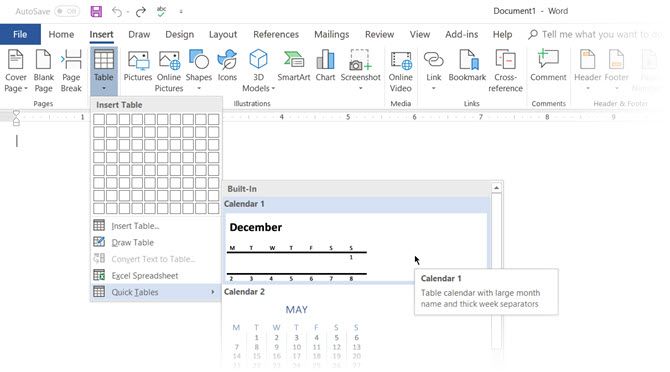
Using tables and even changing them on the fly according to the data has become far easier in the newer versions of Word like Microsoft Word 2019 and Office 365. Intuitive formatting features give you finer (and quicker) control over how a table looks. But first head to the Ribbon > Insert > Table > Insert Table for making your first table.

It gives you five options for creating your first table.

The quickest way to start is with Quick Tables. The built-in designs save you from the lack of design skills. You can modify the designs by adding your own rows and columns or deleting the ones you don’t need.

Microsoft Word-Insert Table

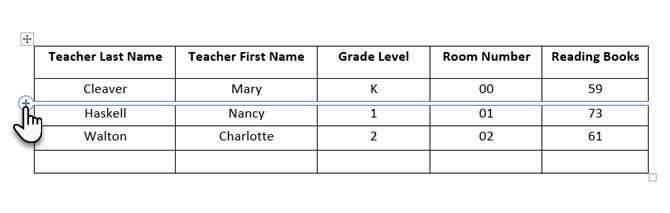
Another quick way to create a table in Word is the Insert Control feature. You can create a new column or row with one click. Hover the mouse over a table. A bar appears right outside your table between two existing columns or rows. click on it when it appears, and a new column or row will be inserted at that position.

Microsoft Word-Table-Insert ControlWhen you want to move or order a row around, use the combination of Alt+Shift+Up Arrow and Alt+Shift+Down Arrow to order the row up or down. Move contiguous rows by selecting them all first.

How to Position Your Table on the Page?

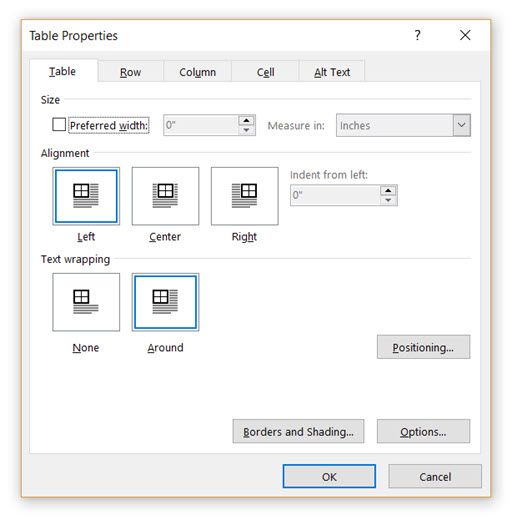
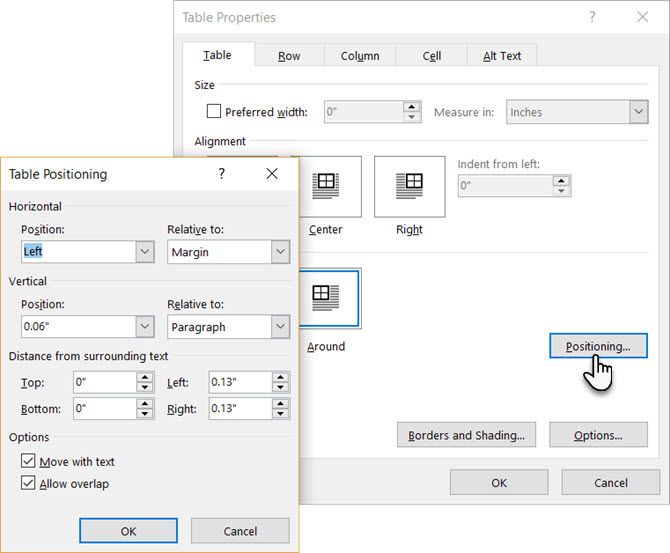
Right-click on the table and select Table Properties from the context menu. The Table Properties dialog box is for precise control over the data and its display. Control the size, alignment, and indentation of the table.

By default, Word aligns a table on the left. If you want to center a table on the page, select the Table tab. Click on Alignment > Center.

The Indent from left figure controls the distance of the table from the left margin.

Microsoft Word-Table Properties

Position the table according to the text around it for a visually aesthetic look. Wrap text around tables by dragging it by the handle. The text wrapping changes automatically from None to Around. From the Table Positioning dialog box, you can set the Distance from surrounding text for each side of the table.

Microsoft Word-Position Table

Select Move with Text if the text is directly related to the table data. The table is vertically aligned to the related paragraph around it. If the table data applies to the whole document, you can keep the option unchecked.

2. Use the Ruler

Sizing tables and positioning them accurately is an art in itself. If you need precise measurements to size your rows and columns—use the ruler.

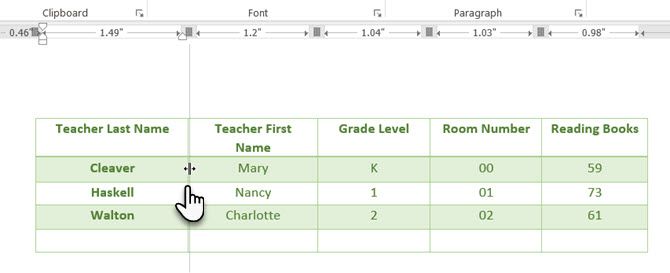
Use Microsoft Word Ruler to Position Tables

Hover the mouse over a border. When the double-arrow pointer appears, click the border and hold down the ALT key. Microsoft Word shows specific measurements on the ruler. Move the rows and columns to fit your measurements.

3. Convert Text to Table (and Vice Versa)

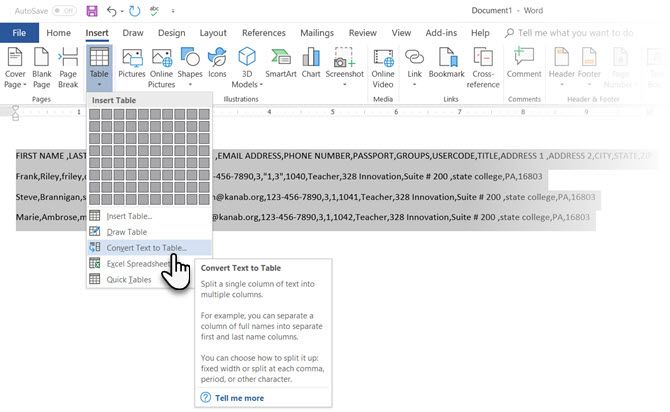
Tabular data gives information its structure. It would have been frustrating if Word didn’t have something to handle non-tabular data. You can convert data to tables instantly from the Insert Table command.

Select the text. Go to Ribbon > Insert > Table > Insert Table

Microsoft Word Convert Text to Table

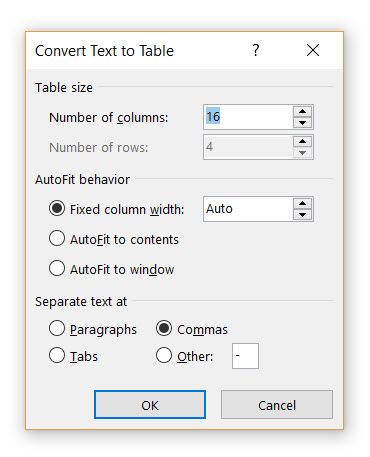
Microsoft Word determines the required number of rows and columns by considering the text separators and then auto-fits the contents. The Convert Text to Table dialog box allows you more control if the previous operation doesn’t work out right. You can also choose how to fit the contents of the table on the page.

Specify rows and columns for table.

You can specify how Microsoft Word should separate the data into rows and columns. Paragraph, tabs, commas, or any other delimiting character. This allows you to easily import non-tabular data from CSV files or plain TXT files and convert them into formatted tables.

Convert Table to Text

Engineer the reverse process if someone asks you to send them files with comma separated values or any other delineator. Select the entire table by clicking the “move” handle above the table.

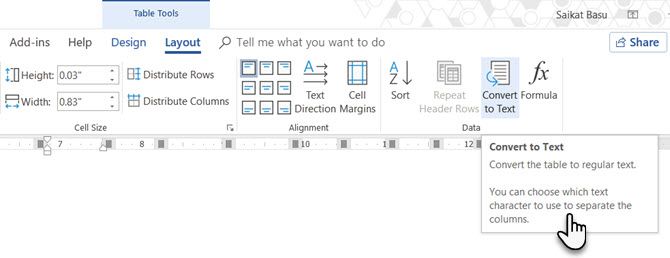
Go to Ribbon > Table Tools > Layout > In the Data Group, click Convert to Text.

Convert table to text.

Simple text can be boring. When you have the chance, convert your table of data to a more visual chart instead with one of the underused features in Microsoft Word.

4. Auto-Fill Column Numbers

Microsoft Excel makes auto-filling a sequence of numbers very easy. Microsoft Word does not and you may have to resort to a manual job. There is a simpler way.

Create a new column for the serial numbers if it does not exist. Select this column by positioning the mouse over the column.

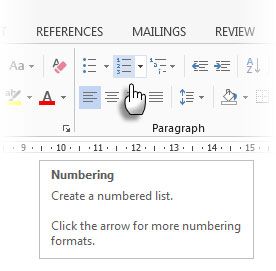
With the column selected, go to Home > Paragraph > Click the Numbering button for inserting a numbered list.

Insert Numbers in Tables

A number sequence is inserted in the column automatically.

5. Freeze Those Tables!

Microsoft Word tables change their dimension to accommodate new data. There may be times when you do not want the table to change size at all, even when new data is inserted. That is—“freeze” the size of cells.

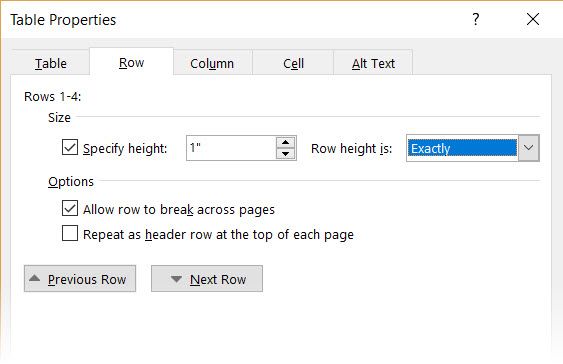
The first step is to specify a fixed size for the cells. Go to Table Properties > Row > Enter a value in the Specify height box. For Row height is select Exactly from the dropdown.

Freeze Tables in Microsoft Word

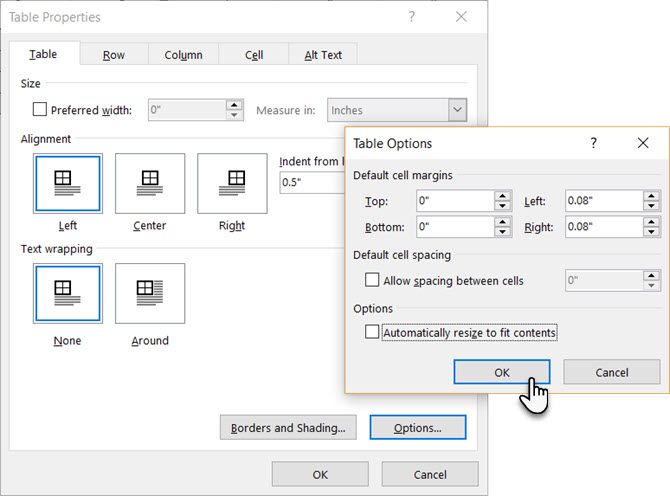
Now, select the Table tab > click the Options button > uncheck the Automatically Resize to Fit Contents check box.

Microsoft Word - Do Not Resize Table

Click OK twice to exit the Table Properties dialog box.

This also solves the problem of inserting an image into a cell without the cell expanding to accommodate the image. If the image is bigger than the available space in the cell, it gets cropped to fit within the cell.

6. Change Rows Into Columns in a Table

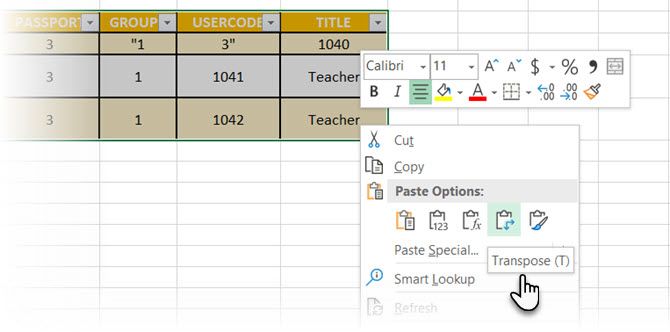
There are situations where you have to change rows into columns and columns into rows. One possible scenario is where the number of columns exceeds the page margin. Switching columns around to rows and vice-versa is called transposition.

The bad news is that Word does not have an inbuilt method for handling this yet. Microsoft suggests that you copy-paste your table into Microsoft Excel and use its Transpose command. The transposed table can now be copy-pasted back into Microsoft Word.

Change Rows Into Columns in a Table

Dann shows how easy it is in Excel with this short tutorial on switching rows into columns. Also, take the help of Microsoft’s Support Page if you run into a problem using the Transpose command.

7. Paste Perfect Excel Tables into Gmail

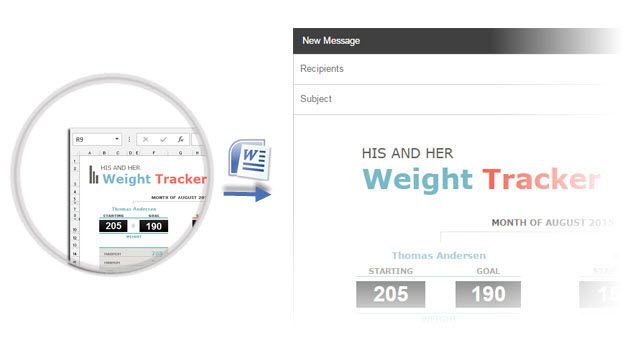
You will find a use for this simple workaround. By default, Gmail does not retain the spreadsheet format when you paste from Microsoft Excel. To email tabular data without sending it as a separate attachment, use Microsoft Word as a bridge.

Paste Perfect Excel Tables into Gmail

Select and copy-paste the Microsoft Excel table to a Microsoft Word document with the source formatting. Now, copy-paste from Microsoft Word to Gmail. As you can see from the screenshot, the problem is solved. You might have to tweak the more heavily formatted tables slightly, but most of the formatting is retained.

8. Reuse Your Tables to Save Time

You can save a lot of time by re-using tables when you create professional reports and documents. Save empty table formats and insert new data when required. With this quick save, you won’t have to recreate the layout from scratch for new data.

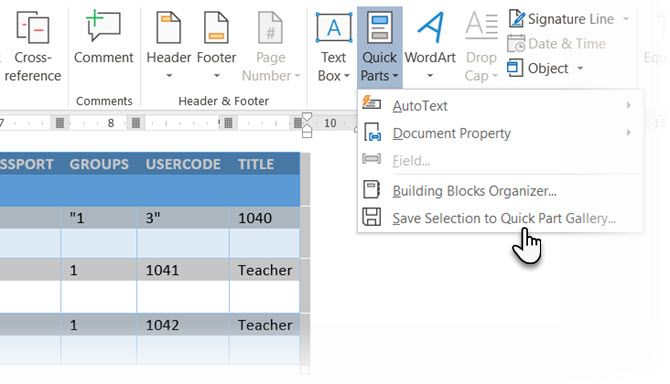
Select a table. Go to Ribbon > Insert > Text group > click Quick Parts > Save Selection to Quick Part Gallery.

Save to Quick Parts

After you save a selection to the Quick Part Gallery, you can reuse the selection by clicking Quick Parts and choosing the selection from the gallery.

Use the Building Blocks Organizer to preview any table you created. You can also edit properties and delete the tables from here. 

Do Microsoft Word Tables Confuse You?

These tips aren’t enough to cover the scope of tables in our everyday work. I haven’t talked about the role of the Design tab in creating eye-catching tables. That is a topic in itself. But it is one of the lesser areas to get confused over thanks to the visual help in that tab.

Tables are one common area between Microsoft Word and Excel. Microsoft Excel is for power managing tabular data, but doing them well in both is an essential Microsoft Office skill. Use them at every opportunity.

Read the full article: 8 Formatting Tips for Perfect Tables in Microsoft Word


Read Full Article
Make Money Gaming: 5 Games You Can Get Paid to Play


make-money-gaming

If you could get paid to play video games, would you do it? It’s definitely possible—thousands of people do it every year—but your options are pretty limited and it may not be as fun as you think. Still interested? Keep reading.

Before we begin, let’s make a distinction between indirect and direct sources of income from video games. Indirect income doesn’t come from a particular game but outside activities that can be applied to any game, such as streaming or video game testing. Direct income comes directly from a particular game.

This article is about direct income. Here are some games that have elements of real money transaction built right into the game’s core design, allowing you to walk away from a gaming session with a few more dollars in your pocket.

CS:GO, Dota 2, Team Fortress 2

Team Fortress 2 (TF2) was Valve’s chosen franchise to spearhead their “cosmetic item market” approach to revenue, who then took it to new levels in Dota 2 and Counter-Strike: Global Offensive (CS:GO). One could say that Valve’s execution of the cosmetic item market idea really drove the success of these games.

In short: cosmetic items (called “skins”) make you look different in-game. Some items look cooler than others, and some items are so cool that players are willing to pay money to acquire them. By engaging in item trading (also known as “skin trading”), you can exchange the items you have (earned by playing the game itself) with another player for real dollars. This is all permitted—even encouraged—by Valve.

This is done through the Steam Community Market, which is an official marketplace run by Valve where you can put cosmetic items up for sale and earn Steam Wallet funds.

CS:GO, Dota 2, and Team Fortress 2 are the most popular Valve games, but the Market supports dozens of other games: PUBG, Rust, Black Squad, Unturned, and more.

Note: Steam Wallet funds cannot be withdrawn, so whatever money you earn can only be spent on Steam games or other items for sale on the Steam Community Market.

If you do want to trade skins for real-life cash, you can use a third-party site like BitSkins (withdrawal by PayPal, Bitcoin, Ethereum, Bank Wires) or StoneFire (withdrawal by PayPal and Bank Wires). These sites take a percentage cut of every transaction. Third-party sites can be risky, so exercise caution when trading!

Skin markets like these are one of the easiest ways to earn money by playing games.

Second Life

Second Life is a uniquely social MMORPG that debuted way back in 2003. Does anyone even talk about it anymore? Hasn’t it fallen off the radar? To my surprise, not only is Second Life still going strong, but it has a strong player-centric economy from which you can make real money.

It all revolves around the in-game currency, Linden Dollars (L$). Players can earn L$ by engaging in various activities in the game. Some activities are passive, such as sitting on camping chairs, while others are active and require certain skills, such as creating virtual content and trading virtual real estate.

Some players would rather save time and spend cash for L$, so you can sell your surplus L$ to other players on the LindeX Currency Exchange for real money. The exchange rate changes based on supply and demand, but tends to hover around L$ 250 for every $1 USD. With time and perseverance, it’s possible to make a profit on the Exchange.

Entropia Universe

There’s another MMORPG in the same vein as Second Life that’s built on a real cash economy: Entropia Universe, formerly known as Project Entropia. Also launched back in 2003, this game isn’t a pure social world like Second Life—there are actual gameplay elements (e.g. hunting, missions, crafting, etc.) so it does feel more like a traditional MMORPG than Second Life.

The in-game currency is called Project Entropia Dollars (PED) and exists at a fixed exchange rate of 10 PED per $1 USD. What’s unique about Entropia Universe is that PED can be directly withdrawn into a bank account, no middleman services necessary.

In a very real way, Entropia Universe is the closest thing you’ll find to a game whose economy is inherently connected to the value of real-world money. But whether the game is fun enough to warrant the effort? Only you can decide.

Other Ways to Get Paid to Play Games

It must be said: regardless of which of these games you decide to play, there’s no guarantee that you’ll actually make a profit on your time—and an even smaller chance that you’ll earn more than minimum wage.

Want to make money playing games? You’ll have to sink a lot of hours in, which can easily turn fun gameplay into hard work. You might hear the occasional story of a player who earns thousands of dollars per month, but they are the exception.

Are there any other games out there that allow players to make money from gameplay? Note that there are several other ways to make money playing games, including streaming, Let’s Plays, podcasts, esports, and more.

Read the full article: Make Money Gaming: 5 Games You Can Get Paid to Play


Read Full Article
These antique phones are precious, private Alexa vessels


Amazon’s Alexa may be in ten thousand different devices now, but they all have one other thing in common: they’re new. So for those of us that prefer old things but still want to be able to set timers and do metric-imperial conversions without pulling out our phones, Grain Design is retrofitting these fabulous old telephones to provide Alexa access with no other hints of modernity. There’s even a privacy angle!

The phones themselves (spotted by a BoingBoing tipster) are genuine antiques, and not even the mass-produced Bell sets you see so often. I personally love the copper-plated model, though I certainly wouldn’t say no to the candlestick.

Dick Whitney, who runs the company, modifies the hardware to make room for an Echo Dot inside. Pick up the phone and speak, and Alexa answers, just like the operators of yore! Except you can ask Alexa anything and it won’t be irritated. Some of the Alexaphones, as he calls them, will include the original audio hardware so you can experience the cognitive dissonance of talking to a virtual assistant and having them answer using a century-old speaker. (I bet it sounds terrible and brilliant.)

I’m also delighted to say that the microphone physically disconnects when the phone is on the hook, though — so Amazon won’t be listening in to your conversations and emailing them to random people.

“The Echo microphones have their connections severed or are removed completely, and the microphone in the handset is connected via the original switches in the base, so it’s only in contact when the handset is picked up,” explained Whitney in an email.

The modifications to the phones don’t end there: in the rear of each will be a 1/8″ audio port so you can plug in a real speaker. No one wants to sit at their telephone table (remember those?) and listen to a few songs in mono through vintage hardware. Although having written that sentence I do have to say I’d try it once. Right now all the audio would have to go out that way, but Whitney says he may have a trick to switch it back and forth in the future (you can always just unplug the audio for privacy).

There’s also an LED hidden on the front so you have that basic feedback of whether the device is on, listening, and such. The rotary dial isn’t used, unfortunately, though more because it’s hard to apply its principles to a voice-operated device.

“It’s funny,” he wrote when I asked about the latter, “I’d actually built an installation for Android at MWC [Mobile World Congress] a few years ago that used a rotary dialer, so I know how to do it and have the hardware around (it’s very simple), but both couldn’t figure out a function that seemed interesting enough (dial 1 to increase the volume? Certainly open to suggestions) and didn’t want to add more complexity inside the telephones. Maybe in the future!”

No soldering or weird old tech stuff required on your part — the device will run on USB power and set up just like any other Alexa gadget. Of course, these things also cost $1,500. Yeah, kind of out of my price range, too. Still, they’re lovely and a great subversion of the “smart home” idea.


Read Full Article
Airbnb ends forced arbitration days after Google, Facebook did the same


The Google employee walkout on Nov. 1 is leaving a lasting impact on the tech industry.

In the immediate aftermath of the walkout, which saw thousands of Googlers across the globe protest the company’s mishandling of sexual harassment and misconduct claims, the search giant said it would put an end to its policy of forced arbitration for employees claiming workplace harassment. Facebook followed suit, announcing the next day that it would allow its employees to pursue claims of sexual harassment in court.

Today, Airbnb and eBay confirmed to TechCrunch they too would no longer require sexual harassment claims to be settled through private arbitration. Their announcements emerged as a result of a BuzzFeed News article exploring which tech companies were updating their policies in light of the Google protest.

Thousands of Google employees protested the company’s handling of sexual harassment & misconduct allegations on Nov. 1.

“We are a company who believes that in the 21st Century it is important to continually consider and reconsider the best ways to support our employees and strengthen our workplace,” a spokesperson for Airbnb said in a statement provided to TechCrunch. “From the beginning, we have sought to build a culture of integrity and respect, and today’s changes are just one more step to drive belonging and integrity in our workplace.”

Here’s what eBay had to say about its decision: “eBay takes great pride in fostering an inclusive culture that allows employees to feel comfortable and encouraged to report any workplace issues. We’ve adjusted our existing employee policy regarding sexual harassment claims to better reflect and encourage eBay’s values of being open, honest and direct.”

According to BuzzFeed, Pinterest, Oath, Twitter, Reddit and others have never required mandatory arbitration. Uber, Lyft and Microsoft each put an end to forced arbitration in the last year.

Arbitration is a private method of solving a dispute without a judge, jury or right to an appeal. Companies that require forced arbitration waive their employees right to sue and to participate in a class action lawsuit.

Throwing out its policy of forced arbitration was one of the five demands disgruntled employees had for Google. In a Medium post last week, the walkout organizers commended Google’s decision to end forced arbitration while emphasizing the company’s failure to address all of their demands.

…”The response ignored several of the core demands — like elevating the diversity officer and employee representation on the board — and troublingly erased those focused on racism, discrimination, and the structural inequity built into the modern day Jim Crow class system that separates ‘full time’ employees from contract workers. Contract workers make up more than half of Google’s workforce, and perform essential roles across the company, but receive few of the benefits associated with tech company employment. They are also largely people of color, immigrants, and people from working class backgrounds.”

Google employees began crafting a plan for a company-wide walkout in late October, days after a bombshell New York Times investigation revealed Google had given Android co-creator Andy Rubin a $90 million exit package despite multiple relationships with other Google  staffers and accusations of sexual misconduct.

Rubin, for his part, has said that the NYT’s story contained “numerous inaccuracies.”


Read Full Article