14 August 2018

Create Beautiful Mockups in Minutes With Placeit


If you want your brand and products to stand out, you need slick and attractive materials. But you don’t want to spend money on something before you know how it looks for real.

That’s where Placeit comes in. This service allows you to easily generate high-quality product mockups on all sorts of products. Let’s take a look at what it offers and how to use it. It just might change the way you do business!

Meet Placeit

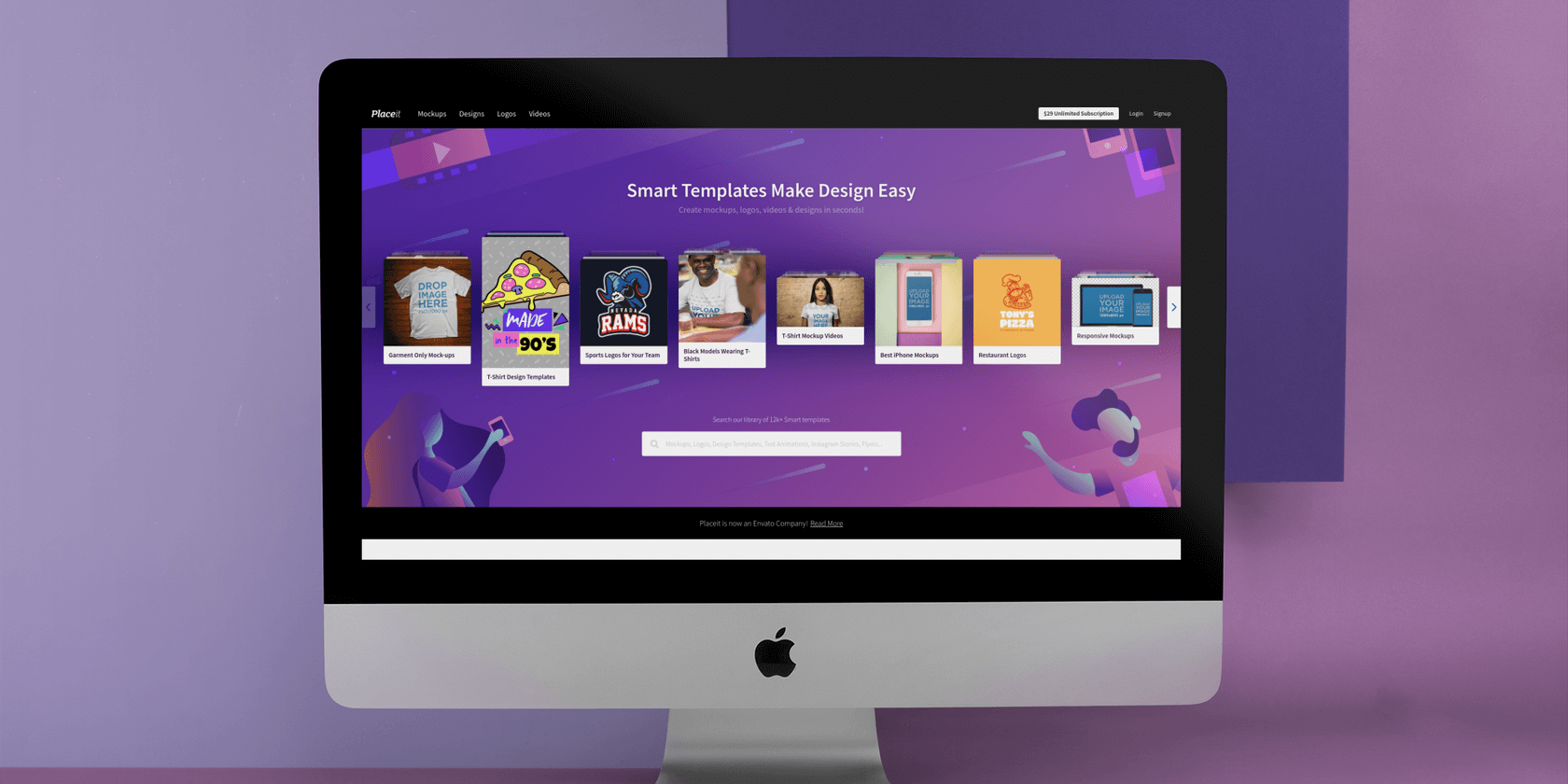
Head to Placeit’s homepage and you’ll see a sampling of the templates on offer. These include Sports Logos for Your Team, T-Shirt Design Templates, and much more. Click on one if it interests you.

If none of those catch your eye, you should start off with the four options at the top of the screen. Mockups, Designs, Logos, and Videos collect the general types of content available on Placeit. Select one to see what’s on offer and start making it your own.

And if you prefer, try the search bar below the marquee to look for the exact smart template you need.

Mockups

On this tab, you have all kinds of options to see how your design looks on shirts, smartphones, hats, computers, and much more. The default view shows all available choices, but you can filter by type on the left. Some of the ones we think are the coolest are:

  • Jersey
  • Facebook Ad
  • Flyer
  • Smartwatch

Aside from the type of mockup, you can filter by various tags as well. These include the race, gender, and age of models in the image, specific type of clothing, what sport it depicts, and similar. These let you drill down to the exact mockup image you need for your project.

Designs

Need to create a flyer, coupon, banner, or similar? This is the spot for you. On the left side, choose from templates like Social Media Images, Business Cards, or Poster Maker. You can filter these further with tags like Small Business, Restaurant, or Education.

Logos

A good logo represents your company and builds brand recognition in an instant. No matter your industry, you can mock up a new logo with Placeit and create something stunning. It makes the logo-creation process quick and painless, even if you’re not experienced in graphic design.

Enter your company name at the top of this page to see at once on all the examples. Represented fields include Sports, Gaming, Coffee Shop, Automotive, and much more.

Videos

The final category makes creating awesome short social media videos a cinch. Placeit has presets for Instagram videos, logo introductions, and more. These are great for connecting with your social audiences, or embedding onto your website.

Using the Mockup Editor

Whether you choose a highlight from the marquee, browse through one of the tabs described above, or search for what you want, you’ll end up on the editor before long. This allows you to tweak the samples to your liking. And depending on what you’re editing, you’ll see various tools to play with.

For example, when editing a coffee shop logo, you’ll have all sorts of coffee-related images on the right side. Pick one and it appears on your mockup. You can select the color of this element as well as the background.

On the left side of the editor, you’ll have access to text options. Enter the text you want for your logo on various lines, then choose the font and its color. Most logos also have different layouts to preview, too.

If you scroll down, you’ll see your logo design added to some related mockups. For a coffee shop logo, per our example above, this shows an apron, mug, and menu.

Creating a Mockup

The design uploader is an awesome tool that allows you to preview your design on many mockups at once. For instance, if you select hoodie templates, you’ll see an Upload Your Design Here button at the top. Adding your image will then reflect on every sample below.

Clicking on a specific image gets you a closer look. You can also change the color of the object on the right side. For device mockups, you can add images from URLs instead.

Placeit Pricing

Once you’re satisfied with your mockup or logo, clicking the Download button on the page lets you download a high-quality version for a set price. This depends on the type of mockup you’re downloading, but can range between $8 for a flyer and $39 for a logo.

If you design a lot of mockups, it’s definitely worth looking at Placeit’s Unlimited Subscription plan. For $29 per month, you can download as many designs as you want (with a three per month minimum requirement). This will pay for itself if you use the service often.

Make Awesome Designs With Placeit

Hopefully this helped you understand how simple it is to create a stunning graphic with Placeit. The straightforward editing tools and professional designs take the hard work off you and let you create sharp mockups in minutes regardless of your experience level. With a huge library of content, you’re bound to find just what you need no matter what you want to design.

And if anything isn’t clear, check out Placeit’s FAQ page. In addition to text instructions, it has video tutorials for all the most important functions.

Read the full article: Create Beautiful Mockups in Minutes With Placeit


Read Full Article

The 13 Best New Features in Android 9.0 Pie

11 Chrome Extensions That Help You Stay Healthy at a Desk Job


chrome-ext-stay-healthy

Your fingers travel a mile when type on a keyboard every day. But, that does nothing for your health when you scarcely leave the desk. A desk job can be deadly for your health in the long term.

If you’re someone (like me) whose job involves sitting in front of a computer all day, you need a solution. Fortunately, there are a few extensions for Google Chrome which can help you be more mindful of your health while working. Here are eleven of them.

1. Fresh Air: Pause For a Few Deep Breathes

Fresh Air Chrome Extension

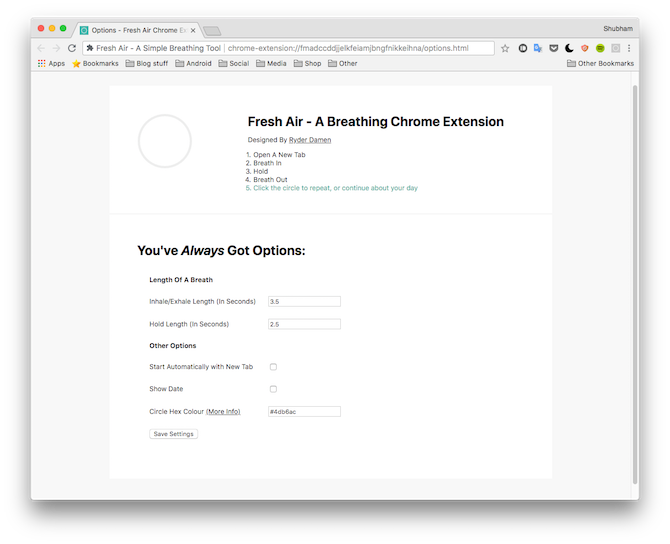
Fresh Air is a Chrome extension which simply reminds you to breathe everytime you open a new tab. It replaces your existing New Tab page with just an empty circle. The circle begins filling up as soon as you launch a fresh tab and guides you to gradually inhale, hold for a few seconds, and gently release it.

Fresh Air also lets you customize these individual periods but I’ve personally found the default settings to be quite calming. You can even switch the background to a different color if you’re not into the minimalistic white it comes preloaded with.

Download: Fresh Air (Free)

2. Calm: For More Mindful Browsing

Calm Calm Google Chrome Extension

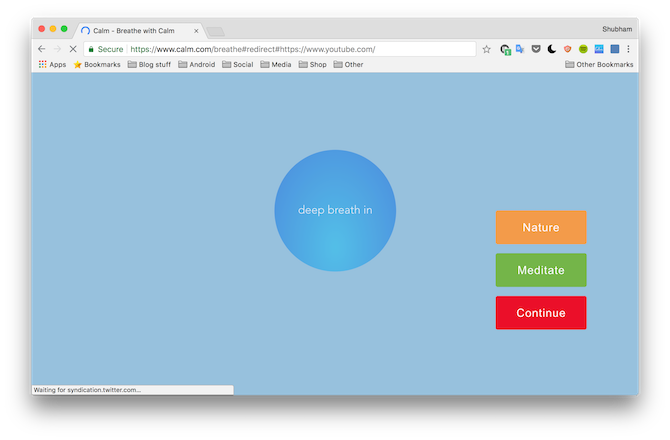
Calm, in a way, is similar to Fresh Air since it’s too designed around the science of long breaths to destress and relax. Except, in this case, you’re doing it before heading over to addictive websites like YouTube or Facebook.

Here’s how it works: You add the services you think will make you procrastinate more such as Instagram to Calm’s blacklist. Once that’s done, whenever you’re about to launch any one of them, Calm will present you with a little breathing exercise which will make you rethink your decision and return to work.

Also, Calm also offers options for playing nature or meditative sounds instead of hitting “Continue” and be on your way to the blacklisted website.

Download: Calm (Free)

3. DeskAthelete: Quick 30-Second Exercises

DeskAthelete Google Chrome Extension

Sitting on a chair for prolonged periods can lead to rigid tension points and muscle pain. The easy way out is to perform quick exercises at your desk itself every now and then. How? Install an extension called DeskAthelete.

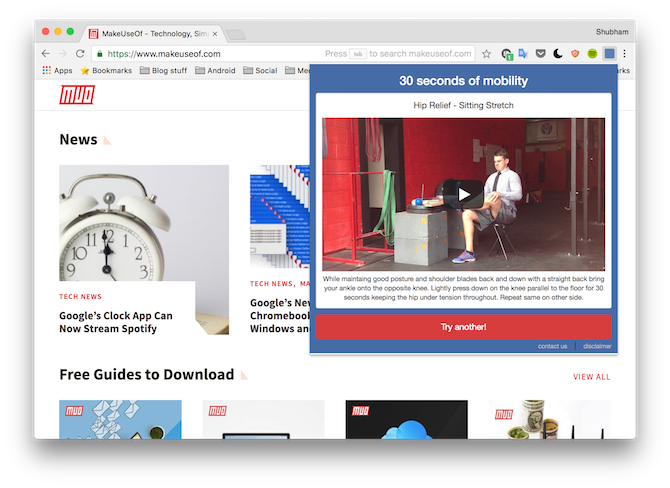
DeskAthelete lets you learn 30-second exercises for several body parts like the neck, a lot of which you can do without even standing up.

Whenever you feel like stretching, just click the extension’s icon on the omnibar and it will show instructions along with a video tutorial of an exercise you can work out to.

Download: DeskAthelete (Free)

4. PostureMinder: Mind that Lose Posture!

PostureMinder Google Chrome Extension

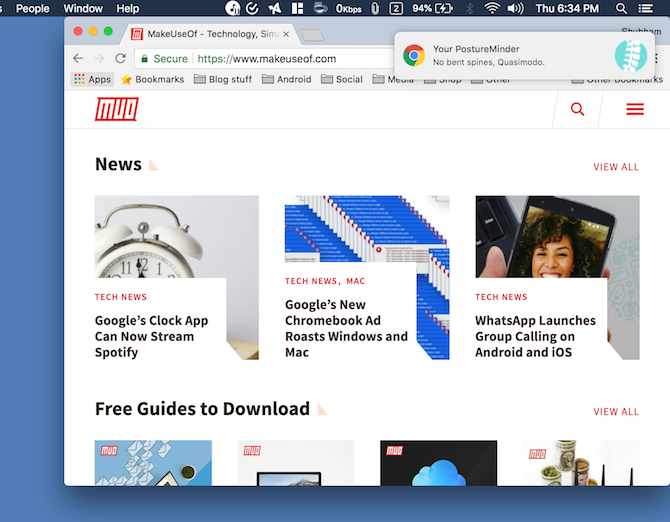
PostureMinder is yet another free extension which will help you be a bit healthier while sitting on a chair. As the name suggests, PostureMinder will periodically nudge you to fix your posture which can take a toll when you haven’t moved in hours.

Moreover, you can also enable reminders that will ask you to get up and walk around for a few minutes. If you’re someone who constantly suffers from back pain, this is undoubtedly a must-have.

Download: PostureMinder (Free)

5. Water Reminder: Periodic Water Reminders

Water Reminder Google Chrome Extension

Water Reminder is a tiny Chrome extension which can have a significant impact on your wellbeing. As you’d expect, it’s essentially a basic water reminder tool. You can configure the time frame between notifications and choose whether it should have a sound in addition to a normal alert.

Download: Water Reminder (Free)

6. Stretch Reminder: Know When It’s Time to Stretch

Stretch Reminder, as you’d probably guess, reminds you to get up and stretch every few minutes. The extension pops up a notification based on the defined duration. Like other extensions in this list, you can personalize the time periods too including between which hours it should be active.

Download: Stretch Reminder (Free)

7. Healthy Browsing: All-in-One Health Reminders

Healthy Browsing Google Chrome Extension

This extension is for users who want reminders for all those aforementioned activities and a few more. Healthy Browsing can send you notifications for four things: water, blinking, posture, and stretch. You can, of course, change the time frames for each of these and set them up as per your preferences.

Download: Healthy Browsing (Free)

8. Screen Shader: For Comfortable Browsing at Night

Screen Shader Google Chrome Extension

It’s no secret that your eyesight is one of the most adversely affected part of your body when you’re staring at a screen for hours. A Chrome extension called Screen Shader makes the impact a little less severe.

Screen Shader switches your browser’s color tones to more comfortable gradients for reducing the blue light impact which in turn decreases eye-strain and allows you to sleep better at night.

The science of blue light filters is the same as in the popular F.lux and Night Shift apps. While the extension can automatically configure the temperatures based on your whereabouts, you can go ahead and manually alter them as well. You can even select the primary color if you find the default one a little harsh.

Download: Screen Shader (Free)

9. Dark Reader: Switch to the Dark Side

Dark Reader Google Chrome Extension

While Screen Shader will certainly diminish the impact of blue light, it still won’t be as effective as a dark theme at night. Dark Reader, a free Chrome extension brings a dark theme to every website without messing up the graphics.

Dark Reader also allows you to edit several individual settings such as brightness, contrast and even whitelist websites where the extension shouldn’t be activated.

Download: Dark Reader (Free)

10. Tabtics: Health Tips on the New Tab Page

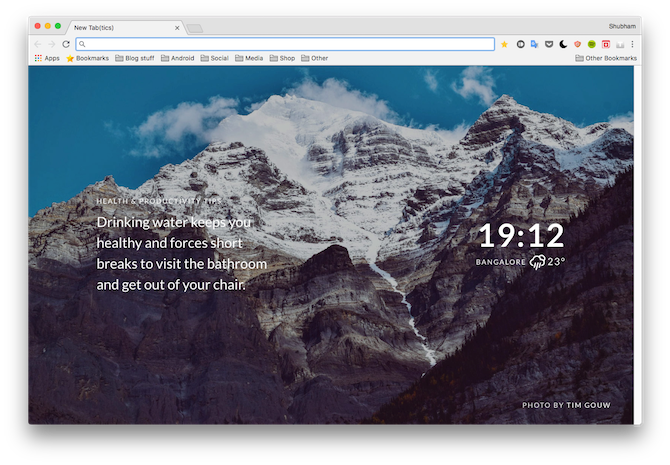
Tabtics, unlike others, won’t notify or nudge you to be more active while working. Instead, it shows various health tips and suggestions on new tabs in a modern and minimal interface. Moreover, the extension displays the time and weather and can even sync with your Fitbit if you have one.

Download: Tabtics (Free)

11. Marinara: A Pomodoro Extension

Marinana Google Chrome Extension

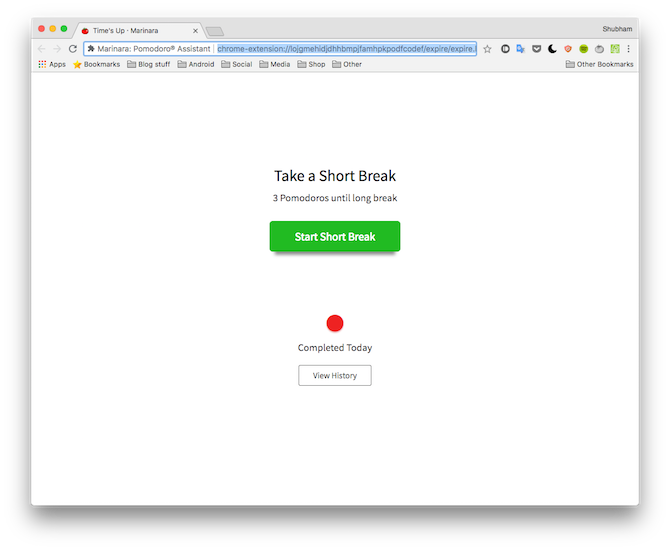
Marinara is a straightforward Pomodoro extension which you can customize as you like. Pomodoro, for the uninitiated, is an approach to time management where you break down work in short sessions separated by mini and long breaks.

It’s a clever time management technique which has proved successful for many including me. Marinara, in addition to serving as timer, also produces your statistics so that you can view your performance in the past.

Download: Marinara (Free)

One Step at a Time Towards a Healthier Desk Job

While these extensions may seem trivial, they can easily assist you in living a healthier desk job by simple nudges for stretching, drinking water, and more throughout the day. All of them are free too, so you should definitely give them a whirl if you haven’t already yet.

Good health starts with awareness and you can always turn to the web and focus on your own health and fitness.

Image Credit: Rawpixel/Depositphotos

Read the full article: 11 Chrome Extensions That Help You Stay Healthy at a Desk Job


Read Full Article

Yi Smartphone Gimbal: Silky Smooth Footage, But Could Be Better

Bye Bye, Addresses: What3Words Gives Every World Location a 3-Word Address


google-maps-features-android

Google Maps can take you anywhere around the world. Google Maps alternatives like Bing Maps and Apple Maps are also catching up. So, you’d be right to wonder why another mapping service is joining the fight—and how is it using just three words to describe any address on the planet?

What Is what3words?

It’s a three-word address for any place on the map. what3words is an innovative mapping platform that wants to cut your dependence on large (and sometimes unpronounceable) street addresses.

It makes it simpler by giving each 3m x 3m square on the map a unique three word address. For instance, The White House is kicks.mirror.tops.

You can use what3words in the browser and with its mobile apps. In short, it gives you an alternative way of typing an address:

  1. The world map is divided into grids.
  2. Each square grid is 3m x 3m, so there are 57 trillion squares.
  3. Every square has a unique three-word address that can be found and shared via the map.

The real-life benefits aren’t difficult to understand. 

Think of the three words as a shortcode for an address. Long addresses can be easily understood and shared faster. With voice navigation becoming a part of modern automobiles, the compact what3words addresses can be easily understood by computers and humans alike.

They are easily shareable via messaging apps. It can also help to reduce any confusion in countries where addressing conventions are confusing. Plus, the address won’t take up too much of space on your business card or wedding invite!

Download: what3words for Android (Free) | iOS (Free)

Don’t Get Rid of Google Maps Yet

what3words works as a layer on top of Google Maps. According to the platform, Mercedes Benz is bringing the technology to its cars from 2018. The United Nations and the Red Cross also use the mapping service to reduce the complexity of addresses. So, it’s not time yet to forget your Google Maps navigation skills.

Read the full article: Bye Bye, Addresses: What3Words Gives Every World Location a 3-Word Address


Read Full Article

Every Android Auto User Should Tweak These 3 Settings

How to Set Default Apps for Any Action on Android and iOS

How to Stay Secure Online for only $19


How do you stop cyber crime? It seems like a huge question, but the answer is surprisingly simple. Just by using complex, unique passwords for all your online accounts, you drastically reduce your chances of being hacked. Password Boss is a service that helps you store and sync all those login details. Right now, you can get lifetime service for just $19.99 via MakeUseOf Deals.

Smart Secure Storage

It’s surprising how many people use really bad passwords. While “abc123” might be easy to remember, it’s also very easy to guess. Once a hacker gains access to your email account, they can essentially take over your digital world.

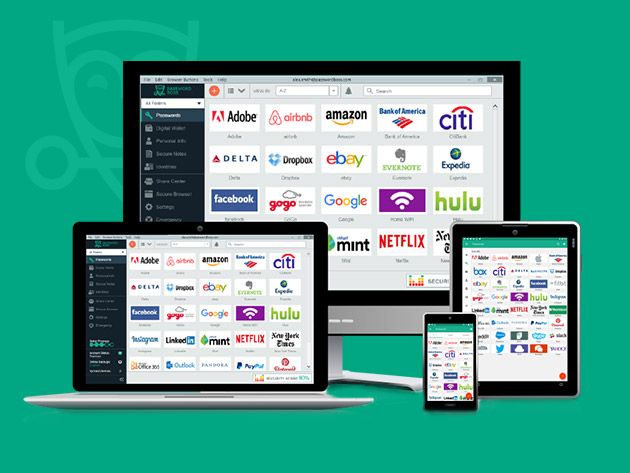
Password Boss helps you avoid this fate. The platform offers secure, encrypted storage for all your usernames and passwords. When you visit a known site, the app can log in for you. All you have to do is remember one master password.

The Password Boss app is available to download on Windows, Mac, iOS, and Android. Your passwords are automatically synced between your devices, with two-step verification for added protection. If you ever lose a device, you can delete the stored data remotely.

Aside from storage, Password Boss can create new secure passwords and autofill online forms with your details.

Lifetime Service for $19.99

Order now for $19.99 to get a Password Boss Premium lifetime subscription, worth $150.

Read the full article: How to Stay Secure Online for only $19


Read Full Article

5 Apps to Improve Your Posture and Fix Back or Neck Pain


improve-posture

For all its many other benefits, personal technology wrecks havoc on your body. From back and neck pain to more serious issues like sciatica, you need to improve your posture before it is too late.

The most common pain points of technology are:

  • Sitting too long at your desk.
  • Slouching when you use a computer.
  • Using your laptop in weird positions.
  • Bending your neck when looking at your phone.

The good news is that technology itself has a few solutions to these problems. Programs, apps, and browser extensions can send you reminders to fix your posture, move around, or even smartly figure out when you are slouching.

Limber (Chrome): Simple Desktop Notifications

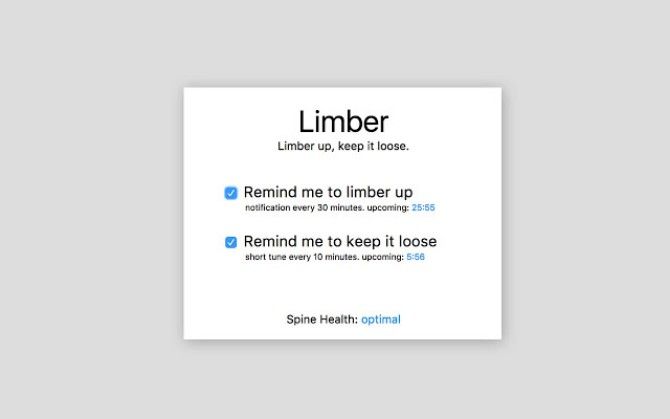
Limber for Chrome gives reminders to check posture

Sometimes, all you need is a nudge in the right direction. Slouching at the computer desk isn’t your natural position. And a regular reminder to fix your posture can be enough to get your spine in its correct shape.

Limber is a Chrome extension that has two types of notifications. It will tell you to take a break every 30 minutes or limber up every 10 minutes. You can switch on both notifications, or stick to one of the two.

The 10-minute reminder is a great time to do quick exercises at your work desk. At the 30-minute interval, get out of your seat and move around. Your body needs that break, even if your brain is on a productivity roll.

Download: Limber for Chrome (Free)

Posture Minder (Chrome): Reminders With Attitude

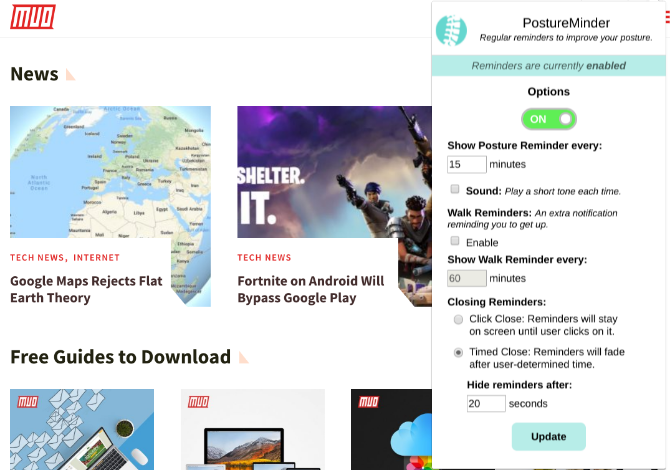
Posture Minder for Chrome gives reminders to check posture

Limber is good for those who want that quick reminder with nothing more. Posture Minder adds a few more layers to those notifications, and includes some funny or snarky messages too.

The app lets you customize how many minutes pass between the separate reminders for posture check and for walks. It also tackles how you close that notification box. By default, you can have the notification disappear after 20 seconds. But if you want to really force yourself, then use the option to physically close it, and discipline yourself to close it only after you have fixed your posture. It might also help to get yourself one of the better office chairs for back problems.

We’ve already seen how apps like Carrot for weather elevate their service by adding attitude to the notification. It looks and feels nicer than the common robotic messages from apps. Posture Minder uses a similar strategy for its notifications too, making it more charming to use.

Download: Posture Minder for Chrome (Free)

Nekoze (macOS): Webcam Spots When You Slouch

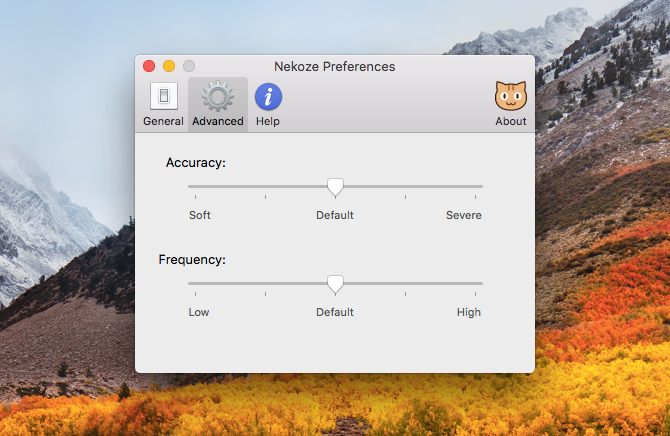
Nekoze for Mac checks posture from webcam

Your coworkers or friends probably point out when you slouch while using the computer. How about if your Mac did that too? Nekoze is a cute app that uses the webcam on your Mac computer or laptop to figure out when your posture is weak.

Nekoze can be a little intense at first, so I’d recommend changing the settings to make it more lenient. Every time your posture Isn’t correct, a pop-up notification of a cat will tell you to straighten up. There are different cat emojis, all of which probably mean different things, but you don’t need to guess that since a text message tells you what’s wrong. Remember, sitting up straight isn’t best either.

The only real issue with Nekoze is that it drains your battery. You are basically keeping your webcam on all the time, which means it consumes battery on laptops. But that’s not a concern if you’re on an iMac or Mac Pro.

Download: Nekoze for macOS (Free)

Simply Align (iOS): iPhone Reminders to Fix Posture

Using phones and computers throw us into a hunchback posture quite often. There’s a simple three-minute exercise to fix this. But prevention is always better than cure, so download the Simply Align app on your iPhone nonetheless.

Made by the Canada-based Simply Align rehabilitation center, the app sends periodic reminders to fix your posture. As you probably know, it’s better to lift your arm and bring your phone at eye height, than to bend your neck and look down at your phone.

Sometimes, it feels like the app is nagging you for no reason. But you know what? It’s better that it fixes your posture even 50% of the time you see the notification, considering how your phone damages your neck.

Download: Simply Align for iOS (Free)

Posture (Android): Gyroscope Sensor to Fix How You Hold a Phone

Like Nekoze, Posture actually makes use of the technology in your device to help improve your health. The app uses the gravity sensor in Android phones to figure out how the phone is being held, and shows an on-screen logo if you’re holding it wrong.

It’s pretty cool when you use it. You can choose how strict you want the app to be, and how regularly it should check. You can even customize the notifications, although some of the options need you to buy the premium version. But don’t bother with that, the free version of Posture gets the job done.

When you get an alert, hold your head up and look straight ahead, and then bring the phone up to your eye level. That’s the best way to hold it and fix your posture.

Download: Posture for Android (Free)

Do You Know the Ideal Posture to Use a Laptop?

If you operate a laptop instead of a desktop, you probably use it everywhere: on the sofa, in bed, while commuting, and so on. But how you prop it up is the most important thing, especially when lying down. Don’t put your neck on the line, check out the ideal posture to use a laptop.

Image Credit: lightwavemedia/Depositphotos

Read the full article: 5 Apps to Improve Your Posture and Fix Back or Neck Pain


Read Full Article
Google keeps a history of your locations even when Location History is off


In a wonderfully clear example of “dark patterns” designed to mislead users and retain control over their data, Google continues tracking your location even when you turn off Location History and are told that “the places you go are no longer stored.” Google says it tells users, but its disclosure is the bare minimum and users are discouraged from further interference with data collection.

A report from the AP lays out the details, but the information will come as no surprise to anyone who has tried to fully expunge their location data, or who read the “dark patterns” report from June.

The problem is quite simple. When you turn off (technically “pause,” a choice of words in itself troubling) “Location History,” a major Google account-level setting, you are told: “With Location History off, the places you go are no longer stored.”

Yet many apps and services Google provides when Location History has been turned off, in fact, do record and store your location.

To be fair, this is explained, after a fashion, when you turn off location history (here): “This setting does not affect other location services on your device, like Google Location Services and Find My Device. Some location data may be saved as part of your activity on other Google services, like Search and Maps.”

Although it makes sense that checking the weather would require location data, it makes less sense that the data would be collected systematically, in direct contradiction with what the user has been told. It’s not exactly a deception on Google’s part, but rather what appears to be a deliberate understatement of the company’s other location tracking practices.

Not listed: that a precise location is recorded every time you interact with some apps and services.

That “some location data” as part of your search history is precise and organized, good enough to reconstitute a person’s movements over a few days, as indeed the AP reporters did; with Location History off, there was in fact a detailed history of locations stored with Google.

Google protests that you can turn off this location data collection as well — it’s just under a separate setting called “Web and App Activity.” Why is it there? Why are there multiple places? Why is the user not told that in order to truly turn off location history, there is a second setting that must be adjusted as well? Why is it assumed that the user will understand that location is also stored under separate headings of search and other services? It hardly need be said that this is completely inadequate as far as informing the user of how their data is being handled.

Further, it falls squarely under the concept of dark patterns. The user is duped into thinking that their locations are no longer being recorded by Google, down to a warning from the company that some services might not work correctly if Location History is disabled. Meanwhile location is still recorded silently and without notifying the user, for example, that such and such an action will produce a location record that will be saved, and giving them a chance to delete it or recall the action.

The deletion of these points, by the way, is one of Google’s other defenses: you can go delete them at any time. But deleting location history points was one of the main points of criticism for Google in the dark patterns paper, which found that hardly any of their testers could figure out how to do it. There are separate controls for different types of location collection, isolated from each other and each unaffected by the other’s deletion or restriction, but it is not explained why, or why for example some can be deleted in bulk but others must be done one by one.

This kind of confusing and underhanded, not to say malicious, practice is far from uncommon among tech companies, but this is a particularly indefensible one. Continuing to maintain a history of locations when a user has deliberately indicated their preference to have no such history recorded is simply ridiculous.

In a statement to TechCrunch, Google explained:

Location History is a Google product that is entirely opt in, and users have the controls to edit, delete, or turn it off at any time. As the story notes, we make sure Location History users know that when they disable the product, we continue to use location to improve the Google experience when they do things like perform a Google search or use Google for driving directions.

It’s easy to imagine a handful of minor UI or alert changes that would fully inform users of what is being recorded and when. A notification when a location is generated, for instance, or a link to the separate location tracking setting would be sufficient. But it is telling that not only is the interface the way it is, but the system has been designed the way it is: silently recording location in spite of user preference, with no way to opt out without compromising the service. These are both deliberate choices and the more such choices are exposed and questioned, the better off users will be.


Read Full Article
The 10 Best Sites for Cheap Last-Minute Online Car Rentals


Next time you’re trying to find a last-minute car rental, give the traditional companies a wide-berth. They might not have the car model you want and are likely to hike their prices to try and exploit your desperation.

Instead, you’ll find better deals by using third-party car rental websites to see what’s available when you go looking online for a four-wheeler at the last minute.

Here are some of the best car rental sites.

1. CheapTickets

If you’re looking for a website that lets you refine the trivial details of your search criteria, you should use CheapTickets. The site is part of the Expedia group.

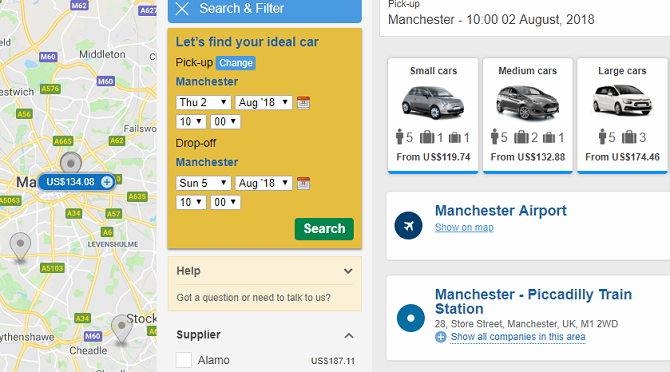
On the initial search page, you can enter your pick-up and drop-off locations along with the time and date you require. Click on Advanced Search to add your preferred car type and the rental car company.

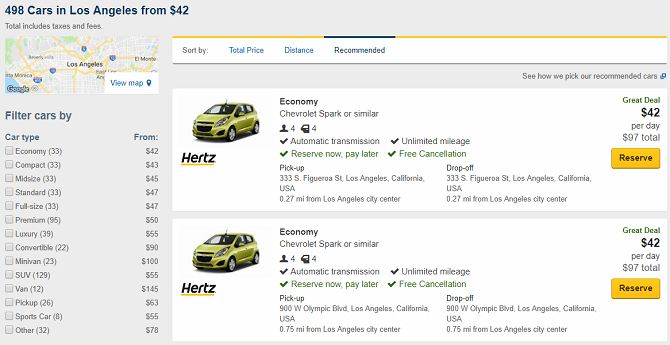
However, it’s on the search results page where the site excels. In the left-hand panel, you can filter by price, neighborhood, car mileage, transmission type, air conditioning, and a whole lot more. If you specify an address or city rather than an airport, you’ll also get a map of the nearby pick-up locations.

2. Priceline

If you want cheap last-minute car rentals, you’ll probably find the best deals on Priceline thanks to the company’s Name Your Price tool.

The tool lets you enter the maximum amount you would be willing to pay for your rental. Rental companies see your bid and decide whether they want to accept it. If you’re unsuccessful, you’ll need to wait 24 hours before making another bid of the same value.

The Name Your Price tool is not available in all locations.

3. Costco Travel

Did you know Costco offers online car rentals? You’ll need to have a Costco account to use the service, but if you spend a lot of time away from home, it’s well worth the $60 annual membership.

Your membership gives you access to savings beyond what you’ll see on other third-party sites. Costco has partnerships in place with Alamo, Avis, Budget, and Enterprise.

The account will also provide access to lots of cheap hotel deals and cheap flights.

4. Skyscanner

Skyscanner has built its reputation as a place to find bargain prices on flights and hotels, but the site also offers a way to compare car rental prices.

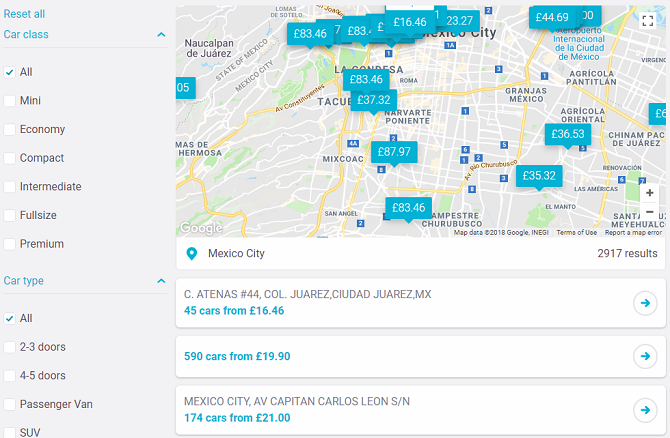
The initial search screen is standard fare. You enter your pick-up and drop-off locations along with your desired dates. The results screen, however, varies slightly from the other major sites. Instead of using a hidden algorithm to determine the best rental for you, Skyscanner purely bases its search on cost. The results are sorted from lowest to highest.

The results page also makes the map more prominent than most other sites. All pick-up locations along with their price are displayed, allowing you to make a fast and informed decision about the best deal for you.

5. Kayak

Kayak is Priceline’s sister site. Both are part of the Booking.com world. However, despite sharing the same parent company, the deals you’ll find on the two sites on different. Don’t ask us why; just make sure you check them both out.

Like many of the other last-minute car rental websites, Kayak offers a bunch of filters and displays your results on a map.

Kayak also lets you know whether the average price is higher or lower than usual in your location. We have no way to determine the veracity of the claims, so we’ll take the site’s word for it.

6. Hipmunk

The quality of deals on Hipmunk isn’t in doubt. The company’s prices are a fair match for all the other sites we’ve discussed.

However, the site’s big drawback is that it only supports airport pick-ups and drop-offs. For many people, that won’t be an issue. But for people who want to hire a car when they’ve already left the airport or when they arrived in a city via a different method of transport, it’s a non-starter.

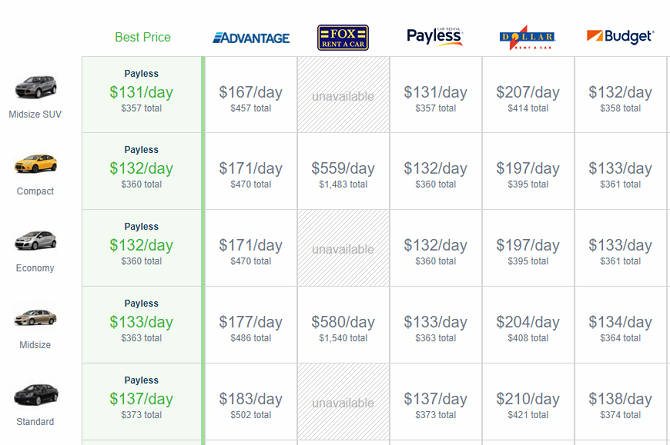
On the upside, Hipmunk’s chart-based layout does make it exceptionally easy to compare car rental prices.

7. Expedia

Expedia is one of the biggest names in the travel price comparison sector. In addition to cars, hotels, and flights, it can also help you find discounted prices on museum tickets, local excursions, and other holiday activities.

Because it’s part of the same group as CheapTickets, the user experience, website layout, and search criteria are all identical. Only the site’s color scheme is different when you start using it as a car rental search engine.

However, like the Kayak/Priceline situation, the prices on the sites can vary; but it’s worth checking both out.

8. RentalCars

RentalCars is the first site on the list that solely specializes in RentalCars; you cannot use the site to find flight tickets and cheap hotels.

Because the site’s focus is so narrow, it appears to offer a broader range of car rental companies than its competitors. According to the RentalCars’ own literature, it works with more than 900 companies in 53,000 locations.

The site also offers more search filters than the other sites. For example, you can filter by damage excess, deposit at pick-up, and even whether you need to get a shuttle bus or can enjoy a meet-and-greet when picking up the car at an airport.

9. RentCars

The second site that’s sole business is providing online car rental services is RentCars.com.

Sadly, its coverage is nowhere near as extensive as RentalCars’. It covers around 7,000 locations and only deals with 100 car rental companies.

Nonetheless, if you’re looking for a car in a major city, it’ll have you covered. It’s always worth taking a peek to see if you can find a better last-minute deal.

10. AutoSlash

The final entry on our list of great sites to find last-minute car rentals is AutoSlash.

AutoSlash is a unique site. Rather than offering the prices you see on car rental companies’ own websites, minus an affiliate discount—as most other sites do—it searches for online discount coupons for the various car hire companies and applies them to the rate automatically.

The process almost always leads to savings. You can even track prices and receive notifications when new coupons become available.

Learn More Money-Saving Travel Secrets

Knowing how to shop around to get the cheapest last-minute car rental is just one part of saving money when you travel.

To learn more, check out our articles on easy ways to travel more for less money, how to find cheap airfares with these travel secrets, and how to reduce data roaming fees when you’re out of the country.

Read the full article: The 10 Best Sites for Cheap Last-Minute Online Car Rentals


Read Full Article

Facebook buys Vidpresso’s team and tech to make video interactive


Zombie-like passive consumption of static video is both unhealthy for viewers and undifferentiated for the tech giants that power it. That’s set Facebook on a mission to make video interactive, full of conversation with broadcasters and fellow viewers. It’s racing against Twitch, YouTube, Twitter and Snapchat to become where people watch together and don’t feel like asocial slugs afterward.

That’s why Facebook today told TechCrunch that it’s acqui-hired Vidpresso, buying its seven-person team and its technology but not the company itself. The six-year-old Utah startup works with TV broadcasters and content publishers to make their online videos more interactive with on-screen social media polling and comments, graphics and live broadcasting integrated with Facebook, YouTube, Periscope and more. The goal appears to be to equip independent social media creators with the same tools these traditional outlets use so they can make authentic but polished video for the Facebook platform.

Financial terms of the deal weren’t disclosed, but it wouldn’t have taken a huge price for the deal to be a success for the startup. Vidpresso had only raised a $120,00 in seed capital from Y Combinator in 2014, plus some angel funding. By 2016, it was telling hiring prospects that it was profitable, but also that, “We will not be selling the company unless some insane whatsapp like thing happened. We’re building a forever biz, not a flip.” So either Vidpresso lowered its bar for an exit or Facebook made coming aboard worth its while.

For now, Vidpresso clients and partners like KTXL, Univision, BuzzFeed, Turner Sports, Nasdaq, TED, NBC and others will continue to be able to use its services. A Facebook spokesperson confirmed that customers will work with the Vidpresso team at Facebook, who are joining its offices in Menlo Park, London and LA. That means Facebook is at least temporarily becoming a provider of enterprise video services. But Facebook confirms it won’t charge Vidpresso clients, so they’ll be getting its services for free from now on. Whether Facebook eventually turns away old clients or stops integrating with competing video platforms like Twitch and YouTube remains to be seen. For now, it’s giving Vidpresso a much more dignified end than the sudden shutdowns some tech giants impose on their acquisitions.

“We’ve had a lot of false starts along the way . . . We finally landed on helping create high quality broadcasts back on social media, but we still haven’t realized the full vision yet. That’s why we’re joining Facebook,” the Vidpresso team writes. “This gives us the best opportunity to accelerate our vision and offer a simple way for creators, publishers, and broadcasters to use social media in live video at a high quality level . . . By joining Facebook, we’ll be able to offer our tools to a much broader audience than just our A-list publishing partners. Eventually, it’ll allow us to put these tools in the hands of creators, so they can focus on their content, and have it look great, without spending lots of time or money to do so.”

Facebook already has some interactive video experiments out in the wild. It recently rolled out its Watch Party tool for letting Groups view and chat about videos together. It’s also trying new games like Lip Sync Live and a Talent Show feature where users submit videos of them singing. Facebook Live has also built tools to help publishers pull in social media content, let streamers earn tips and for fans to subscribe to donating money to their favorite video makers like on Patreon. It’s even got an interactive video API that it’s developing to allow developers to launch their own HQ Trivia-game shows.

But the last line of Vidpresso’s announcement above explains Facebook’s intentions here, and also why it didn’t just try to build the tools itself. It doesn’t just want established news publishers and TV studios making video for its platform. It wants semi-pro creators to be able to broadcast snazzy videos with graphics, comments and polls that can aesthetically compete with “big video” but that feel more natural.

Every internet platform is wising up to the fact that web-native creators who grew up on their sites often create the most compelling content and the most fervent fan bases.

Whichever platform offers the best audience growth, creative expression tools and monetization options will become the preferred destination for their work, and their audiences will follow. Facebook couldn’t risk another tech giant buying up Vidpresso and gaining an edge, or wasting time trying to build interactive video technology and expertise from scratch.


Read Full Article
How to Convert YouTube Videos to MP3 for Offline Listening


youtube-red

Despite being a video hosting site, the most searched topic on YouTube is actually music. Even if we exclude all the official music videos, YouTube is still home to millions of audio-only uploads. YouTube pretty much doubles as a music streaming service these days.

But the downside is that the music is still in video form, so streaming can end up wasting a lot of bandwidth. (Painful if you have monthly data caps.) Which is why you should convert YouTube videos into MP3 files.

By converting and downloading YouTube videos as MP3 files, you can listen as often as you want without wasting any data. Here are the best online YouTube to MP3 converters for music.

1. YouTube Premium

Before you jump into using an online YouTube to MP3 converter—which is legally gray—consider paying for a YouTube Premium account.

It comes with many useful benefits, such as unlimited streaming access to Google Play Music, but the one we’re interested in is the ability to download YouTube videos for offline playback.

And with a YouTube Premium account, you can actually choose to listen to only audio streams for YouTube videos as long as you do so through the YouTube Music app. And yes, you can download music and playlists for offline playback in YouTube Music.

The one downside is that downloaded videos and music only last for 30 days. You can always download them again, but it can be something of a hassle. See our article on what you should know about YouTube Premium.

2. Peggo

Peggo is our favorite tool on this list because it offers unique features: once you paste in a YouTube video URL, you’re taken to an editing page where you can customize what you want to capture.

Meaning, you can select the start and end points in the video and Peggo’s resulting MP3 will only be for the selected section. You can also set a title and artist for the MP3, plus toggle whether you want to remove silence, normalize the volume, and automatically fill in the rest of the metadata (e.g. album name, album art, etc).

Instead of using an MP3 splitter tool to cut your MP3s down to size, you can do it right from the start with Peggo.

3. Vubey

Vubey is a strong runner-up to Peggo because it isn’t just easy to use, but gives you a choice in what quality the resulting MP3 should be: Low (64kbps), Medium (128kbps), Good (192kbps), High (256kbps), and Highest (320kbps).

Paste the URL of the YouTube video, select a quality, and click Convert to MP3. Give it a few seconds to execute the conversion (if there’s a queue, you’ll have to wait longer), then click the download link.

Vubey supports over 400 sites, with the main ones being YouTube, SoundCloud, Vimeo, DailyMotion, and Facebook.

4. YoutubeMp3HQ

There’s one thing that YoutubeMp3HQ offers that no other converter on this list does, and that’s the option to download the converted audio file in AAC, M4A, and WAV formats in addition to the ubiquitous MP3 format.

Just paste in the video URL, click Convert, and let it work its magic. It will attempt to download the audio in the highest possible quality, and it works pretty well most of the time.

5. Flvto

With Flvto, simply copy and paste the YouTube video URL into the box and mark the checkbox agreeing to the terms and conditions. Then, select the kind of conversion you want: MP3, MP4, MP4 HD, AVI, or AVI HD.

Yes, Flvto can download the videos as they are, even if they’re high-quality. When you’re ready, click Convert To to start the conversion process.

When it’s finished, you can download the MP3 directly, send it over to your Dropbox account, or send a download link to someone else through email.

6. Vid2Mp3

Vid2Mp3 is short on features but reigns in convenience. Just copy and paste any YouTube video’s URL into the box and click Go. But first make sure you enable the checkbox agreeing to the site’s terms and conditions.

Once the conversion is complete, you’ll be given a link that leads to a preview of the MP3 plus a giant Download MP3 button. Click it and you’re done!

Unfortunately, while Vid2Mp3 tries its best, the audio quality can vary from video to video—even if the videos themselves are HQ.

7. ytmp3.cc

Like Vid2Mp3, ytmp3.cc is as simple as they come. Paste in the video URL and click Convert. No options to fiddle with. No decisions that need to be made. It’s one click and ready to go. It supports both MP3 (audio) and MP4 (video) conversions.

When it’s done, you can download the file directly or have it sent over to your Dropbox account. Note that while there aren’t many scenarios where you’ll hit this restriction, ytmp3.cc only supports videos up to 2 hours long. For anything longer, you’ll need to use one of these other sites.

Tools for Managing Your MP3 Music Library

Once you’ve downloaded all of the MP3s you want, consider using these awesome music management tools to handle tasks like ID3 tagging and mass renaming of files.

You should also look into Windows music players, Mac music players, Android music apps, and iOS music apps. After all, what good is having a massive collection of MP3s if you don’t have a good way to play them?

Read the full article: How to Convert YouTube Videos to MP3 for Offline Listening


Read Full Article
What the rumors say about Google’s upcoming Pixel 3


Now that the Note 9’s all good and official, it’s time to move onto the next major smartphone. The Google Pixel 3 leaks haven’t quite hit the fever pitch we saw with Samsung’s device ahead of launch — though there’s still time. After all, it seems likely the latest version of Google’s flagship Android handset won’t officially be official until October.

Even so, we’ve already seen a handful of credible links, including a full unboxing last week, so we’re starting to develop a pretty good picture of what we’re in for with the device.

For starters, there’s what looks to be a pretty sizable top notch. That Google would embrace the notch this time around is no surprise, really. In additional to being all the rage on practically every non-Samsung flagship, Google made a big deal of making Android Pie notch-friendly.

It seems to follow, then, that the company would embrace the polarizing design decision. That said, even by today’s notch-embracing standards, this is a big one. If anything, it seems that notches are actually getting bigger since Essential helped kickstart the trend by adding one to its first phone.

Speaking of embracing trends, Google dropped the headphone jack for the Pixel 2, after mocking Apple’s decision to do so a year prior. From the looks of it, the company is helping ease the transition with a pair of USB-C headphones, forgoing the necessity for a dongle (there does, however, still appear to be one in the box). Of course, you’ll still have to figure out a way to listen to music while charging the phone.

The design language is very similar to the company’s Pixel Buds, complete with loops for keeping them in place. It’s probably going too far to call them wired Pixel Buds, with all of the functionality that entails (translation and the like), but the company does appear to be taking some cues from the lukewarmly received wireless earbuds.

The Google Pixel XL, meanwhile, appears to be going really large this time out. The new 6.4-inch Note 9’s got nothing on what’s reported to be a 6.7-inch display. We’re getting to the point where these things are basically tablets with calling capabilities. Of course, Samsung’s got the benefit of years of product design that have made it possible to sneak a large display into a relatively small footprint. Without actually holding the new device, it’s hard to say how unwieldy it really is.

Other bits and bobs include a Snapdragon 845, which is basically a prerequisite for any flagship smartphone to be taken seriously. The XL is also rumored to have a 3,430 mAh battery — actually a downgrade over last year’s model, in spite of yet another massive bump in screen size.


Read Full Article
Facebook buys Vidpresso’s team and tech to make video interactive


Zombie-like passive comsumption of static video is both unhealthy for viewers and undifferentiated for the tech giants that power it. That’s set Facebook on a mission to make video interactive, full of conversation with broadcasters and fellow viewers. It’s racing against Twitch, YouTube, Twitter, and Snapchat to become where people watch together and don’t feel like asocial slugs afterwards.

That’s why Facebook today told TechCrunch that it’s acquihired Vidpresso, buying its seven-person team and its technology but not the company itself. The 6-year old Utah startup works with TV broadcasters and content publishers to make their online videos more interactive with on-screen social media polling and comments, graphics, and live broadcasting integrated with Facebook, YouTube, Periscope, and more. The goal appears to be to equip independent social media creators with the same tools these traditional outlets use so they can make authentic but polished video for the Facebook platform.

Financial terms of the deal weren’t disclosed, but it wouldn’t have taken a huge price for the deal to be a success for the startup. Vidpresso had only raised a $120,00 in seed capital from Y Combinator in 2014 plus some angel funding. By 2016, it was telling hiring prospects that it was profitable, but also that “We will not be selling the company unless some insane whatsapp like thing happened. We’re building a forever biz, not a flip.” So either Vidpresso lowered its bar for an exit or Facebook made coming aboard worth its while.

For now, Vidpresso clients and partners like KTXL, Univision, BuzzFeed, Turner Sports, Nasdaq, TED, NBC, and others will continue to be able to continue to use its services. A Facebook spokesperson confirmed that customers will work with the Vidpresso team at Facebook, who are joining its offices in Menlo Park, London, and LA. That means Facebook is at least temporarily becoming a seller of enterprise video services. Whether it turns away old clients or stops integrating with competing video platforms like Twitch and YouTube remains to be seen.

“We’ve had a lot of false starts along the way . . . We finally landed on helping create high quality broadcasts back on social media, but we still haven’t realized the full vision yet. That’s why we’re joining Facebook” the Vidpresso team writes. “This gives us the best opportunity to accelerate our vision and offer a simple way for creators, publishers, and broadcasters to use social media in live video at a high quality level . . . By joining Facebook, we’ll be able to offer our tools to a much broader audience than just our A-list publishing partners. Eventually, it’ll allow us to put these tools in the hands of creators, so they can focus on their content, and have it look great, without spending lots of time or money to do so.”

Facebook already has some interactive video experiments out in the wild. It recently rolled out its Watch Party tool for letting Groups view and chat about videos together. It’s also trying new games like Lip Sync Live and a Talent Show feature where users submit videos of them singing. Facebook Live has also built tools to help publishers pull in social media content, let streamers earn tips, and for fans to subscribe to donating money to their favorite video makers like on Patreon.

But the last line of Vidpresso’s announcement above explains Facebook’s intentions here, and also why it didn’t just try to build the tools itself. It doesn’t just want established news publishers and TV studios making video for its platform. It wants semi-pro creators to be able to broadcast snazzy videos with graphics, comments, and polls that can aesthetically compete with ‘big content’ but that feel more natural.


Read Full Article

This happy robot helps kids with autism


A little bot named QTrobot from LuxAI could be the link between therapists, parents, and autistic children. The robot, which features an LCD face and robotic arms, allows kids who are overwhelmed by human contact to become more comfortable in a therapeutic setting.

The project comes from LuxAI, a spin-off of the University of Luxembourg. They will present their findings at the RO-MAN 2018 conference at the end of this month.

“The robot has the ability to create a triangular interaction between the human therapist, the robot, and the child,” co-founder Aida Nazarikhorram told IEEE. “Immediately the child starts interacting with the educator or therapist to ask questions about the robot or give feedback about its behavior.”

The robot reduces anxiety in autistic children and the researchers saw many behaviors – hand flapping, for example – slow down with the robot in the mix.

Interestingly the robot is a better choice for children than an app or tablet. Because the robot is “embodied,” the researchers found that it that draws attention and improves learning, especially when compared to a standard iPad/educational app pairing. In other words children play with tablets and work with robots.

The robot is entirely self-contained and easily programmable. It can run for hours at a time and includes a 3D camera and full processor.

The researchers found that the robot doesn’t become the focus of the therapy but instead helps the therapist connect with the patient. This, obviously, is an excellent outcome for an excellent (and cute) little piece of technology.


Read Full Article

30+ Great Emulators You Can Run on Your Nintendo Wii


The Nintendo Wii was released in 2006, bringing a revolutionary new console to the market. While its highlight feature was motion control, the Wii also touted retro gaming capabilities.

Using the Virtual Console, users could download retro video games for a variety of past consoles including the Nintendo Entertainment System (NES), the Super Nintendo Entertainment System (SNES), the Nintendo 64 (N64), the Sega Master System, the Sega Mega Drive, and more.

However, the Nintendo Wii Virtual Console was limited to a small pool of games. But don’t despair, as thanks to emulation software, you can play virtually any retro video games on the Nintendo Wii!

Note: We don’t condone downloading illegal ROMs from the web. Use this only for games you’ve legally purchased and own.

Running Emulators on Your Nintendo Wii

Between disc-based games and downloadable titles, the Nintendo Wii sports a comprehensive library of software. Nevertheless, emulators provide even more options for gamers.

By installing emulator software on your Nintendo Wii, you can run loads of retro video game ROMs from consoles ranging from the Atari 2600 and NES to PlayStation 1 and N64. Moreover, there’s a ton of homebrew software for homebrew gaming on the Wii.

Before downloading retro video game emulators for your Nintendo Wii, you’ll first need to softmod your Wii console. Just follow the steps outlined in the linked article.

Play Atari Games on the Wii

Because it’s an older console, Atari 2600 titles are easy to emulate on pretty much any hardware. As such, the Nintendo Wii can handle any Atari 2600 ROMs you throw at it. StellaWii provides the functionality to play Atari 2600 games on the Nintendo Wii. For Atari 7800 gaming on the Wii, check out the aptly named Wii7800.

For Atari Lynx handheld gaming, there’s WiiHandy. Atari ST emulation on the Wii comes via Hatari Wii, Hatari, and AtaWii. Further, WiiXL handles Atari 800, XL, 5200, and XE titles. Overall, the Wii is a thriving landscape for Atari emulation.

Play Old Nintendo Games on Your Wii

Despite the abundance of NES, SNES, and N64 games on the Virtual Console, the addition of Nintendo emulators for Wii adds even more opportunity to play retro games on the Wii. FCE Ultra GX is a Wii NES emulator. With FCE Ultra GX, you can revisit the likes of The Legend of Zelda, Final Fantasy III, and Teenage Mutant Ninja Turtles.

While the NES is a solid console, the Super Nintendo features a bevy of revered classics. There’s Teenage Mutant Ninja Turtles IV: Turtles in Time, and one of my all-time favorites, Super Mario World 2: Yoshi’s Island. For an awesome Wii SNES emulator, install Snes9x GX.

As the name suggests, Wii64 lets you play Nintendo 64 games on the Wii. Simply download this Wii N64 emulator for a romp through The Legend of Zelda: Ocarina of Time. Unsurprisingly, Nintendo Wii emulators for NES, SNES, and N64 gaming run well on Wii hardware. Between official Virtual Console downloads and third-party Wii emulators, there’s a massive library of retro gaming content.

Play Gameboy and DS Games on Your Wii

The Wii also runs handheld Nintendo ROMs flawlessly. Visual Boy Advance GX handles Gameboy, Gameboy Color, and Gameboy Advance titles. Gnuboy GX and RIN Wii play Gameboy and Gameboy Color ROMs. For Nintendo DS emulation on the Wii, there’s DeSmuMe Wii. With an array of Wii emulators for Nintendo consoles and handhelds, the Wii provides comprehensive retro gaming with a Nintendo flavor.

Play PlayStation Games on Your Wii

Although a Nintendo device, the Wii is more than capable of running ROMs from other consoles. WiiSX and PCSX-Revolution allow for PS1 gaming on the Nintendo Wii. Install WiiSX or PSCX-Revolution to play classics like Metal Gear Solid, and Final Fantasy VII on your Nintendo Wii.

Play Sega Games on Your Wii

Similarly, Nintendo Wii Sega emulators run ROMs from a variety of consoles. Genesis Plus plays Genesis, Mega Drive, Master System, Game Gear, Sega CD, and SG-1000 titles. Yabause Wii tackles Sega Saturn emulation on the Nintendo Wii. For Sega Game Gear and Sega Master System emulation on the Wii, there’s SMSPlus.

Other Retro Gaming Emulators for Wii

While Wii NES, SNES, N64, and PS1 emulators might be the most popular options, you can play loads of ROMs of other, less popular systems on the Nintendo Wii as well.

For arcade games, SDL MAME and SDL MAME Wii emulate MAME ROMs. GxGeo plays Neo Geo games, while NeoCD-Wii supports Neo Geo CD games. Neo Geo Pocket emulation arrives with Neopop Wii. And you can play MSX games with MiiSX, uMSX, and BlueMSX-Wii.

If you’re like me and love point-and-click games a la TellTale titles, check out ScummVM for the Wii.

Arguably the most comprehensive Nintendo Wii emulator is WiiMednahen. This awesome option supports consoles including the GameBoy, GameBoy Color, GameBoy Advance, Neo Geo Pocket, WonderSwan, Genesis, Lynx, and more. Check out the full list of Wii homebrew emulators via WiiBrew.

Emulating the Nintendo Wii Itself

It’s also possible to run Wii games using emulators. However, this requires quite a bit of computing power. Nevertheless, the Dolphin emulator is capable of running ROMs for Wii and GameCube titles.

You’ll need a decent CPU and GPU for proper Wii emulation with the Dolphin emulator. For instance, the Raspberry Pi running RetroPie struggles with N64 emulation. Even the more powerful Odroid XU4 doesn’t provide completely smooth N64 emulator support.

Yet with a beefy device, you can run Wii emulator Android software such as Dolphin. If you plan to run a Nintendo Wii emulator for Android, you’ll need a powerful gadget like the Nvidia Shield TV or Galaxy S8.

Turn Your Wii Into a Retro Games Console

While the Nintendo Wii features an amazing lineup of disc-based games and downloadable content, emulator software further enhances the gaming experience. I enjoy using Wii homebrew emulators to revisit retro games that I’ve ripped, such as my extensive PS1 collection.

Between that and its vast library of Wii games plus backwards compatibility with GameCube titles, my Wii remains regularly used. Though it’s an aging console, the Nintendo Wii is still worth using whether as a retro gaming arcade.

Despite the Wii’s competency at running retro ROMs, you might consider building a Raspberry Pi game console. Additionally, you can find more Wii homebrew apps using these websites.

Read the full article: 30+ Great Emulators You Can Run on Your Nintendo Wii


Read Full Article

Airbnb shows off new collaboration features that let co-travelers plan trips together


In recent years, Airbnb has been working to expand its business beyond accommodations, by becoming a more robust travel companion with features like guidebooks, suggested experiences, and full-service hospitality for high-end travelers with its still invite-only Airbnb Beyond, for example. Now the company is preparing even more trip-planning features, including support for adding co-travelers to trips and other collaboration features for group travel.

Airbnb offered a sneak peek at these otherwise unannounced features at a recent tech talk given at company headquarters.

“Trip planning is not necessarily complete unless you can share your trip with someone. So now we’re building features that let you add co-travelers – so you can add and share ideas, so you can add comments, so you can collaborate,” said Laura Xu, an Android engineer on Airbnb’s Trip platform, during the presentation. “You can really build out your trip.”

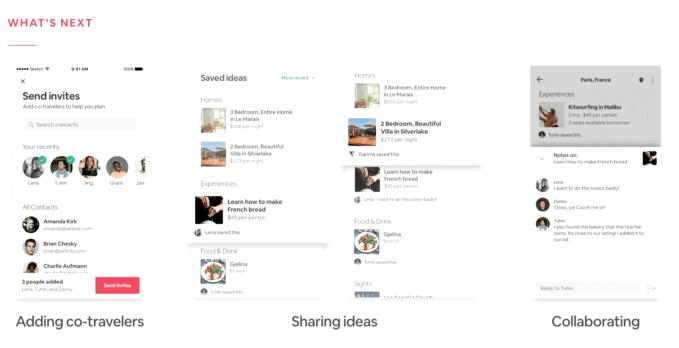
From the screenshots displayed, the co-travelers feature will allow Airbnb users to send invites to people who are joining the trip. This allows everyone to save ideas to a master list, including homes that match their criteria, experiences, food and drink, sights and more. Each item will indicate who added it to the trip. There’s also a way for others to comment on the items, which allows for group conversations about the place or activity.

The company didn’t say how soon the features were arriving.

The focus of this portion of the presentation was to give a look at how a company of Airbnb’s size and scale can change its platform and codebase to support more than just home listings. Over the past couple of years, the company has added support for things like restaurants, concerts, coworking spaces, luxury rentals, and even high-end vacations like castle rentals and even private islands, Xu said.

Now the company is creating a mobile platform that can support its change in focus, as well.

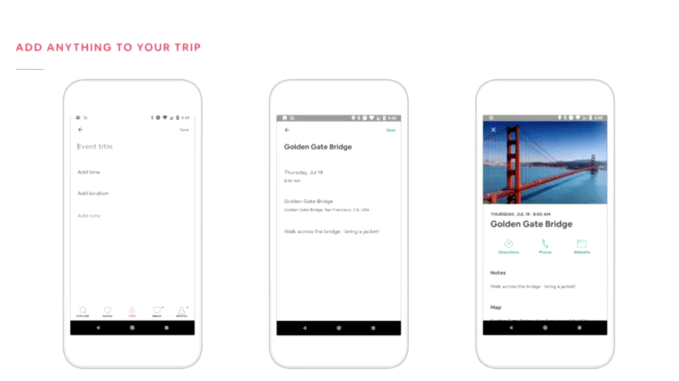
Also offered was a deeper look at of the newer features on mobile, where travelers can add anything to their trip itinerary – like places they want to visit. The feature is integrated with Google Places to pull in photos, directions, open hours, and other details.

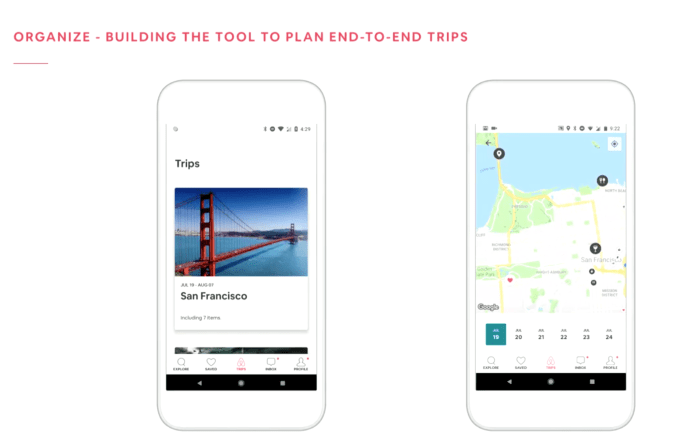
Meanwhile, the ‘Organize’ experience under Trips in the Airbnb app is being updated to become a way to plan the entire trip. The company showed off a new trip planner – which hasn’t yet launched – which will include a day-by-day view to see when everything is booked, an embeddable map that shows where everything is booked, and a suggestions feature, so you’re never short on ideas of what to do while in town.

In addition, Airbnb presented a new concept called Trip Platform, which was described as something that powers the end-to-end trip experience on Airbnb, and enables the launch of new tools. It includes easy-to-reuse UI (user interface) components that will make it easier to create and add new features, while maintaining a consistent look and feel across the app.

The tech talk, overall, was focused on what goes into building Airbnb’s iOS and Android apps – something that’s important to the company because over 50% of its incoming traffic is now mobile, and because travelers aren’t generally using a desktop or laptop computer.

Airbnb also hinted towards its longer-term, mobile-first vision – one that has expanded beyond “where I am going to stay” to now include “what am I going to do?” but hasn’t yet addressed the question, “where am I going to go?” It could help with that latter query by introducing more discovery features, but these plans weren’t discussed during the talk.

We’ve reached out to Airbnb to get more information on these additions, but the company has not offered an official response.

Airbnb Tech Talk: Native Product Development

Are you curious about what goes into building Airbnb's iOS and Android apps? Join us to hear Airbnb native engineers cover in-house technologies that facilitate product development, along with learnings from large-scale product launches. RSVP to attend in person: https://ift.tt/2JBpTRs

Posted by Airbnb Engineering on Tuesday, August 7, 2018


Read Full Article

The 13 Best Xposed Modules for Customizing Your Android Device