29 March 2018

The Blackview P6000 Has a Huge Battery, But That’s About It (Review and Giveaway!)


Our verdict of the Blackview P6000:
A reasonable performer with an amazing battery. But give this a miss if you're used to flagship models, or like taking photos.
710

The Blackview P6000 is a chunky 5.5 inch Android phone, with a huge battery and some impressive hardware under the hood. Priced at around $280, this isn’t a flagship model, even if the specification fools you. Let’s see what it can do – and at the end of this review, we’ve got one to giveaway to one lucky reader.

Blackview P6000 Features

The P6000 houses an eight core Helio P25, 6 GBs of RAM, and 64 GBs of storage, which is expandable via the microSD slot. The 5.5 inch IPS LCD panel is only 1080p, so while it would have been nice to see more pixels, or an OLED or AMOLED panel, it gets the job done.

Confused about what difference this would make? Check out our mobile display technology guide.

The case comprises a cool metal and glass combination. This works really well, and the rear comes in a choice of black or blue. This easily picks up fingerprints and dust, however.

With a massive 6180 mAh battery, the P6000 is capable of handling a demanding workload. This battery isn’t removable, but it does support fast charging via the USB Type-C port.

The chin of this phone features a touch ID sensor, which works very well. It’s worth noting that this sensor placement, along with the design of the P6000, it looks exactly like the OnePlus 3. The similarities end there however, as the P6000 is significantly larger at 0.38 inches thick, and weighing 7 ounces.

Finally, the P6000 ships with Android 7.1, dual rear cameras, and support for dual SIMS. There’s no headphone jack, but inside the box you’ll find a USB Type-C to 1/8th inch adaptor.

Performance

Performance is something of a mixed bag. You’d think that with such a beefy processor and vast amounts of RAM that this phone would fly through any task, but that’s not always the case.

General tasks such as web browsing, checking emails, making calls, and so on, all perform fine, and the 6 GBs of RAM ensure that you can keep plenty of apps running at the same time.

What’s surprising here is that there’s a tiny lag between opening some apps and then seeing the result. Things like opening new tabs in Chrome, or viewing the task launcher. While you’ll struggle to notice this in reality, it is something I noticed coming from an original Google Pixel, which is hardly a current generation device.

Flagship devices perform basic tasks instantly, and although this is a midrange model, its specs should be more than capable of blasting through simple things like opening an app.

Perhaps Android 7.1.1 is partially to blame here, as Android 8 brought some fairly significant stability and performance enhancements. As it stands, there’s no official upgrade path to Android 8, although you should be able to install a custom ROM fairly easily.

Geekbench benchmarks the P6000 at 865 for single-core performance. Put simply, this is a terrible score, and may explain some of the lag experienced. Devices such as the LG G3 (944) or Samsung Galaxy S5 (915) outperform this phone, and those models came out in 2014!

Current device single-scores are in the 1500 – 2000 range, so such a low score is surprising. It’s no wonder this phone feels slow at times.

The multi-core score of 3980 is slightly redeeming, which is about on par with the OnePlus 3. This is much better than the single-core score, but don’t forget than many tasks don’t actually benefit from multiple cores. Simply opening tabs or swiping between screens is all based on the single-core performance, which is woefully inadequate.

The GPU compute RenderScript score of 2616 matches the graphics with the Samsung Galaxy S7, which came out in 2016.

The P6000 handles gaming surprisingly well. I played a selection of modern and slightly older games including:

  • Cover Orange
  • Cut the Rope
  • Catchers
  • Sausage Run

All of these games ran flawlessly, although this is no surprise, as they are hardly graphically demanding. The real surprise here is that PlayerUnknown’s Battlegrounds (PUBG) Mobile runs absolutely perfectly, with no stuttering to be seen.

You do have to reduce the graphics to the lowest quality, and the phone does get warm to the touch, but the processing power provided by the ARM Mali-T880 MP2 GPU is certainly capable of keeping up.

Battery Life

The battery life on the P6000 is fantastic, and is probably the biggest reason to purchase this device. With a huge 6180 mAh on tap, there’s enough juice to power even the most demanding of workloads.

During daily use, I had no concerns at all about running out of power, and even playing demanding 3D games such as PUBG for nearly an hour did little to diminish the remaining power. You could probably achieve two or more days of use, with some careful planning.

Quick charging is provided via the 12V/2A charger, which can charge 80% in 100 minutes, or 70% in one hour. This may seem slow, but don’t forget that this battery is double or nearly triple the capacity of other devices, so this is actually very impressive.

Image Quality

The image quality is disappointing. With a 21 megapixel Sony sensor, dual rear cameras, and face recognition, pictures should come out beautifully clear, but that’s not the case. The focus is painfully slow, and images generally lack detail.

High contrast scenes really struggle to be captured, and most images become washed out, regardless of lighting conditions. You can shoot in manual mode, or capture Adobe DNG files, or even correct things in post, but none of this helps if you just want to capture a quick snap or memory.

The included camera app is reasonable, and does a good job of presenting all the features and tools in an easy to use way.

The dual rear cameras are used to provide an optical zoom between 1x and 2x. This works very well, and the simple control at the bottom of the interface provides easy access to various levels of zoom in between the two.

The P6000 camera can produce a “fake bokeh”, called simply “beauty mode”. I don’t recommend this at all, however, as all this does is blur an already bad image, producing a weird, alien looking rendition of anything unlucky enough to photographed by you.

Standard portrait mode on the left. The right photo is beauty mode:

The front facing camera produces reasonable results, but again, this suffers with a lack of detail. Face detection works well, but you probably wouldn’t need this if a good solid autofocus was implemented.

Video quality is rather average. The camera records at a maximum resolution of 1080p, and while there are many reasons to shoot in 4k, it’s not absolutely essential to have in a camera.

Video suffers from all of the problems apparent in images. Colors are poor, images lose all sharpness, and there’s a lack of detail. If you’re upgrading from a very old model, you may be impressed, but models by the vast majority of other manufacturers produce better video, at higher resolutions and frame rates as well!

This image was extracted from the video footage:

Should You Buy the Blackview P6000?

There’s a lot to like about the P6000. The beautiful screen, good specs, or massive battery life. Unfortunately, it’s not all about the hardware, and this model fails to meet the standard set by all the other devices.

It tries very hard to keep up, and if you’ve got basic needs you will probably be very happy. It’s hampered by the slow processor and bad camera however, so for the price, you’d probably be better of with a OnePlus 3.

Enter the Competition!

Blackview P6000 Giveaway
Read Full Article

It’s Now Easier to Manage Your Facebook Privacy Settings


In light of the Cambridge Analytica scandal which saw people’s personal data used to target voters, Facebook is making it easier to manage your privacy settings. You might still want to delete Facebook, but the social network hopes you won’t.

Despite making it clear Facebook has changed the way it operates in recent years, Mark Zuckerberg won’t have convinced everyone that Facebook has your best interests in heart. So, in order to allay fears, the social network is changing its privacy settings. Again.

The Ever Changing Facebook Privacy Settings

The biggest change Facebook is making this time around is simplifying everything. So, rather than having its privacy settings spread across 20 pages, they’re now all accessible from a single page. This is Facebook acknowledging people care about their privacy.

Beyond that there’s a new Privacy Shortcuts menu designed to help you control your data without needing a manual to navigate the various options. Facebook has changed its privacy settings and the way they’re laid out numerous times, and this is just the latest.

In the Facebook Blog post explaining the changes, the social network encourages you to “make your account more secure,” “control your personal information,” “control the ads you see,” and “manage who sees your posts and profile information”.

The final, and potentially most important change, is Access Your Information, which Facebook describes as “a secure way for people to access and manage their information, such as posts, reactions, comments, and things you’ve searched for”.

Keep, Deactivate, or Delete Your Facebook?

Unfortunately, the social network hasn’t made it any easier to delete Facebook. Instead, you’re directed to deactivate your account, which suspends your account without deleting it. You have to manually request Facebook to actually delete your account.

We think there are some compelling reasons to stop using Facebook in 2018. However, there are also reasons to keep using Facebook despite its recent issues. So if you opt for the latter, you really should go through your privacy settings with a fine-tooth comb.

Image Credit: David Goehring/Flickr


Read Full Article

How to Build a Mind Map in Microsoft PowerPoint


You can create mind maps with pen and paper, digital notebooks, or specialized apps on your PC. Microsoft Word is a good candidate for making quick mind maps, but let’s give thought to another app today: Microsoft PowerPoint can be more adept at mind maps because it has a ready canvas and easy draw and drag tools.

How to Build a Mind Map in Microsoft PowerPoint

PowerPoint drawing tools are very capable. While you can make stunning visuals with them, a mind map can give anyone the birdseye view of the idea behind the presentation. We will start a new slide and use SmartArt to add the graphical elements.

  1. Start a new slide and add the title for your mind map.
  2. Insert SmartArt. These graphics will form the layout of the mind map. There are many SmartArt layouts available, but the Horizontal Hierarchy is the closest to the appearance of a mind map.
  3. Go to the Ribbon > Insert > SmartArt > Hierarchy > Horizontal Hierarchy.
    SmartArt Graphic
  4. Click on the first (central) box and type your central topic. In this example, I have typed “Content Ideas”.
  5. The central topic will branch into main topics and sub-topics. Here the main topics are “Recreate Top Posts” and “Ask Your Readers”.
    Mindmap made with PowerPoint
  6. The sub-topics fill in the parts of the main topic. For instance, the “Recreate Top Posts” main topics will branch out into sub-topics called “Expand a Point” and “Add New Information”
  7. You can also use the SmartArt Text box on the left to add the details and also promote or demote the SmartArt shapes.
  8. Add SmartArt Shapes with the help of the text box (or the SmartArt toolbar) and maintain their hierarchy. This way, you can expand your mind map with more topics and sub-topics.
  9. The SmartArt Design and Format toolbar can help you create aesthetically nice mind maps that wow your audience.

Any time you feel you have made a mistake, just hit Reset Graphic (on the SmartArt Design toolbar) to bring the mind map back to its original state.


Read Full Article

How to Change Your Account’s Country Setting on Spotify


Spotify might be the most popular music streaming service in the world, but the company has a reputation for both removing features and making important settings difficult to find. You can do something about the removed features; we’ve previously explained how you can bring back some of the ones you miss.

It’s not as easy to circumnavigate a poor user interface combined with an almost non-existent level of support. You need a bit of help. One such challenge is changing your Spotify country. But don’t worry, we’re going to explain everything you need to know. Keep reading to find out more.

What Type of Spotify Account Do You have?

The way to change your country on Spotify varies depending on whether you have a free or a premium account.

Free Account

If you have a free Spotify account, you can listen to music when you’re in a different country for up to 14 days. Thereafter, you will need to return to your home country or make a new account in your new locale.

To listen for the 14 days, you need to change the appropriate setting.

To make the change, log into your Spotify account on a web browser and go to Edit Profile > Country. You can select your country from a dropdown list. The country will only be visible if you’re physically there.

Premium Account

If you have a premium account, you do not need to change your country while traveling. You are not subject to the same 14-day restriction as a free account.

If you’re moving permanently, however, you will need to update your details.

To update your details, log into your Spotify account page and go to Subscription > Update. You will need to enter your new payment details. The payment details must be linked to a financial institution in your new country.

If you have a free account, you should consider upgrading to Spotify Premium. Sure it costs money, but for many users, that’s money well spent.


Read Full Article

LinkedIn is introducing auto-playing video ads


In a move that was probably inevitable, LinkedIn is introducing video advertising as one its Sponsored Content formats.

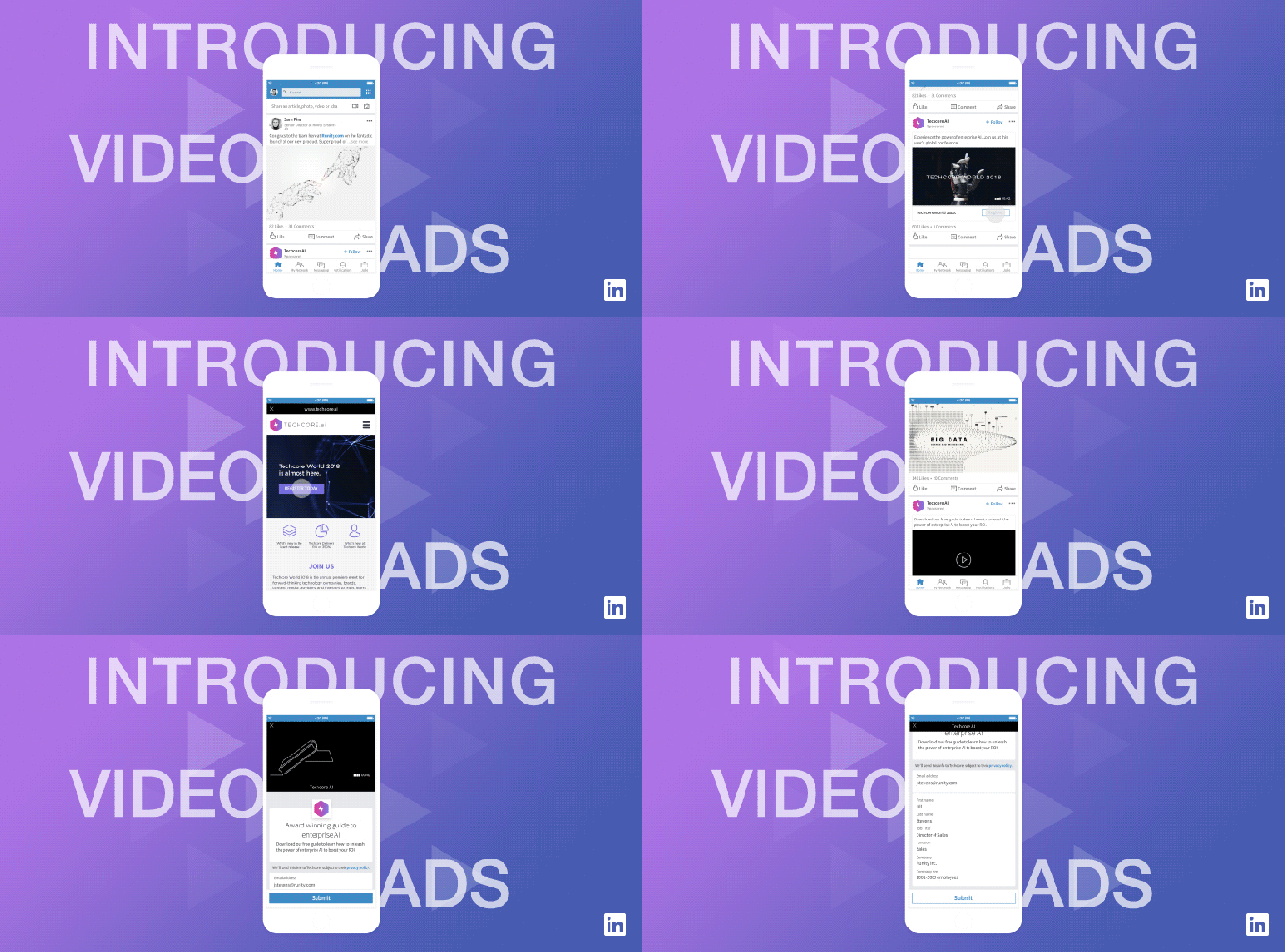
Although my LinkedIn newsfeed already includes plenty of video, Abhishek Shrivastava, director of product for LinkedIn Marketing Solutions, explained for advertisers, the only way to incorporate videos was to link to other websites. Now, the Microsoft-owned professional network is rolling out a native ad format, where video ads will appear as standalone posts in the feed.

The video ads will play automatically, though with the sound turned off initially.

Other social networks introduced video advertising years ago, but LinkedIn is a different environment — Shrivastava touted this as a way to bring “sight, sound and motion” to business marketers, while the company announcement declares that the company is going “all in on B2B video.”

Shrivastava added that while most videos are seen as ideal for “top of the funnel” marketing (i.e., building awareness, rather than sealing the deal), LinkedIn’s Video for Sponsored Content is designed to work “across the funnel.”

LinkedIn video ads

So yes, the videos can be designed to build brand awareness, but they can also point directly to the advertisers’ desktop or mobile website, or even be used to collect leads. And they can incorporate LinkedIn’s ad targeting and conversion tracking capabilities.

LinkedIn says it’s been testing the format with more than 700 advertisers since October, resulting in engagement times that are nearly three times longer than those for regular Sponsored Content.

In addition to the video ads, LinkedIn is also introducing the ability for businesses to include native video on their Company Pages — so a company that’s hiring might highlight a video about their culture and work environment.

LinkedIn says it will be rolling out these capabilities to all businesses over the next few weeks.


Read Full Article

How to Automatically Delete Old Files in the Windows Downloads Folder


For many, a cluttered desktop and downloads folder is just a way of life—no matter how hard you try, they somehow always ends up disorganized. Need to do a bit of digital spring cleaning? Fortunately, there are lots of ways you can keep your Windows 10 computer decluttered!

You can get rid of Windows 10 bloatware. You can declutter your right click menu. You can even declutter your search results. And of course, you can clean up your desktop.

If you’re looking for a more passive approach, there’s at least one Windows 10 setting you should turn on to get rid of temporary files and to declutter your downloads folder.

How to Auto-Delete Old Files in the Downloads Folder

  1. Go to Settings > System > Storage.
  2. Toggle on the Storage Sense feature.
  3. Click Change how we free up space.
  4. Check Delete files in my Downloads folder that haven’t changed for over 30 days and Delete temporary files that my apps aren’t using. You can also check Delete files that have been in the recycle bin for over 30 days.

One important point to note: not all files in the downloads folder will be deleted after 30 days, just those that haven’t changed in the past 30 days. This means if you download a file and open it daily without making any changes to it, it will still be deleted after the 30 day mark. If you turn this setting on, you should move anything out of the downloads folder that you intend to keep.

This is just one passive way you can make sure your Windows 10 machine is efficient, but don’t forget there’s plenty more that you can do to keep your computer clean.


Read Full Article

Investing in France’s AI Ecosystem


Recently, we announced the launch of a new AI research team in our Paris office. And today DeepMind has also announced a new AI research presence in Paris. We are excited about expanding Google’s research presence in Europe, which bolsters the efforts of the existing groups in our Zürich and London offices. As strong supporters of academic research, we are also excited to foster collaborations with France’s vibrant academic ecosystem.

Our research teams in Paris will focus on fundamental AI research, as well as important applications of these ideas to areas such as Health, Science or Arts. They will publish and open-source their results to advance the state-of-the-art in core areas such as Deep Learning and Reinforcement Learning.

Our approach to research is based on building a strong connection with the academic community; contributing to training the next generation of scientists and establishing a bridge between academic and industrial research. We believe that both objectives are key to fostering a healthy research ecosystem that will flourish in the long term. These ideas are very much aligned with some of the recommendations that Fields Medalist and member of French Parliament Cédric Villani is putting forward in his report on AI to the French government.

As we expand our teams in France, we have several initiatives that illustrate our commitment to these goals:
  • We are sponsoring “Artificial Intelligence and Visual Computing” Chair at École Polytechnique (one of the leading higher education institutions in France) which will support their education initiatives in AI
  • We just established a partnership with INRIA for conducting collaborative research projects
  • We are funding academic research with unrestricted grants mostly dedicated to the support of PhD and postdoc positions through our Faculty Research Awards and PhD Fellowship programs, as well as our Focused Research Awards. As one example, we have recently funded a project on large scale optimization of neural networks led by Francis Bach (INRIA and ENS) and Alexandre d’Aspremont (CNRS and ENS)
  • We are working on offering CIFRE PhD positions (joint PhD positions between Google and an academic lab) as well as internships for PhD students
Additionally, we are pleased to announce that one of the world’s leading experts in computer vision, Cordelia Schmid, will begin a dual appointment at INRIA and Google Paris. These kind of appointments, together with our Visiting Faculty program, are a great way to share ideas and research challenges, and utilize Google's world-class computing infrastructure to explore new projects at industrial scale.

France has a long tradition of research and educational excellence, and has a very dynamic and active machine learning community. This makes it a great place to pursue our goal of building AI-enabled technologies that can benefit everyone, through fundamental advances in machine learning and related fields.

Why You Need to Be Using Your iPhone’s “Do Not Disturb” Feature


Are you tired of notifications distracting you from getting work done on your iPhone or iPad? Do you use your phone as an alarm and worry about unimportant notifications waking you up? Your iPhone has a solution for these issues: Do Not Disturb mode.

When Do Not Disturb is on, all calls and other alerts you receive when your phone is locked won’t make a sound. To easily toggle Do Not Disturb at any time, slide up from the bottom of the screen to access the Control Center. Tap the crescent moon icon to enable it.

Navigate to Settings > Do Not Disturb to take a look at what you can do with this. You can enable the Do Not Disturb (DND) slider here and your phone will immediately enter DND mode. When it’s on, you’ll see a crescent moon icon in the status bar to indicate so.

Enable the Scheduled slider and you can set a time interval to automatically enable DND. This is an easy way to avoid interruptions while you’re sleeping.

Under the Silence header, you can choose to silence notifications Always instead of just when your phone is locked.

Check the Allow Calls From option to choose who can still call you in Do Not Disturb. You can choose Everyone (which kind of defeats the purpose), No One, Favorites, or another contact group you’ve created.

Enable Repeated Calls, and anyone who calls you two times within three minutes will break through DND.

Do Not Disturb keeps you in control of when your iPhone notifies you. It lets you suppress notifications you don’t need to see while still letting important ones through.

And don’t forget that Do Not Disturb has a few driving options to look at too. You can choose whether to enable it automatically while driving or not, as well as automatically replying to messages from your Favorites contacts group.


Read Full Article

Hewlett Packard Enterprise to move HQ to San Jose


Hewlett Packard Enterprise is moving north from Palo Alto to San Jose. The company will relocate 1,000 employees to a 220,000-square-foot space in late 2018. HPE was spun-off from Hewlett-Packard in 2015 and is focused on servers and storage.

This news comes months after HPE announced a different plan in which the company was moving to Santa Clara, where Aruba Networks, a company it previously acquired, is headquartered.

HPE is going to occupy six floors in San Jose’s America Center, which is located near a forthcoming Berryessa BART station.

This move is the latest win for San Jose. Google recently announced it would move in the coming years. According to a report in The Mercury News, the city of San Jose did not offer HPE any financial incentives.


Read Full Article

Using Machine Learning to Discover Neural Network Optimizers


Deep learning models have been deployed in numerous Google products, such as Search, Translate and Photos. The choice of optimization method plays a major role when training deep learning models. For example, stochastic gradient descent works well in many situations, but more advanced optimizers can be faster, especially for training very deep networks. Coming up with new optimizers for neural networks, however, is challenging due to to the non-convex nature of the optimization problem. On the Google Brain team, we wanted to see if it could be possible to automate the discovery of new optimizers, in a way that is similar to how AutoML has been used to discover new competitive neural network architectures.

In “Neural Optimizer Search with Reinforcement Learning”, we present a method to discover optimization methods with a focus on deep learning architectures. Using this method we found two new optimizers, PowerSign and AddSign, that are competitive on a variety of different tasks and architectures, including ImageNet classification and Google’s neural machine translation system. To help others benefit from this work we have made the optimizers available in Tensorflow.

Neural Optimizer Search makes use of a recurrent neural network controller which is given access to a list of simple primitives that are typically relevant for optimization. These primitives include, for example, the gradient or the running average of the gradient and lead to search spaces with over 1010 possible combinations. The controller then generates the computation graph for a candidate optimizer or update rule in that search space.

In our paper, proposed candidate update rules (U) are used to train a child convolutional neural network on CIFAR10 for a few epochs and the final validation accuracy (R) is fed as a reward to the controller. The controller is trained with reinforcement learning to maximize the validation accuracies of the sampled update rules. This process is illustrated below.
An overview of Neural Optimizer Search using an iterative process to discover new optimizers.
Interestingly, the optimizers we have found are interpretable. For example, in the PowerSign optimizer we are releasing, each update compares the sign of the gradient and its running average, adjusting the step size according to whether those two values agree. The intuition behind this is that if these values agree, one is more confident in the direction of the update, and thus the step size can be larger. We also discovered a simple learning rate decay scheme, linear cosine decay, which we found can lead to faster convergence.
Graph comparing learning rate decay functions for linear cosine decay, stepwise decay and cosine decay.
Neural Optimizer Search found several optimizers that outperform commonly used optimizers on the small ConvNet model. Among the ones that transfer well to other tasks, we found that PowerSign and AddSign improve top-1 and top-5 accuracy of a state-of-the-art ImageNet mobile-sized model by up to 0.4%. They also work well on Google’s Neural Machine Translation system, giving an improvement of up to 0.7 using bilingual evaluation metrics (BLEU) on an English to German translation task.

We are excited that Neural Optimizer Search can not only improve the performance of machine learning models but also potentially lead to new, interpretable equations and discoveries. It is our hope that open sourcing these optimizers in Tensorflow will be useful to machine learning practitioners.

The 4 Best iPhone Radio Apps Compared


Increasingly, folks are turning to streaming services such as Apple Music and Spotify to enjoy their favorite music. Despite this, traditional terrestrial radio stations have survived. You can enjoy many of these stations on your iPhone thanks to the internet and the rise of digital radio.

You’ll find no shortage of radio-based apps on the App Store. However, only a few of these are worth considering. And of them, one is clearly the best, as you’ll see below.

What Makes a Great Radio App?

You should consider four critical factors when selecting an app to listen to traditional radio stations.

First, you’ll want to make sure the app offers the channels you want. Yes, this sounds like a no-brainer. However, depending on where you live, it may prove challenging. Since most of the best radio apps are free (if only to try), you can find this out with ease.

Second, you may wish to branch out beyond your local channels. Therefore, make sure your solution offers a diverse lineup of stations including those that feature music, talk shows, news, sports, and more.

Next, you may think you only want to listen to the best radio stations on your phone live and with commercials. But premium solutions might change this thinking. The most beneficial radio app solutions are those that also provide extra features such as offline listening or podcasts, even if that means paying extra.

Finally, the best radio apps should receive frequent updates to fix bugs and add new features. Therefore, avoid abandoned apps on the App Store.

1. TuneIn Radio

TuneIn Radio - iPhone Radio Apps

TuneIn Radio is the best radio app available thanks to its vast, diverse library and ease of use. To date, TuneIn offers over 120,000 live radio stations from around the world across various formats, including music, sports, news, talk, and even podcasts. TuneIn groups stations by location and genre.

A free TuneIn account is all you need to listen to your favorite stations in real time. Although you can’t create stations like you can through Pandora and other services, you can find out if any live stations are currently playing your favorite music.

A $10/month TuneIn Pro subscription gives you the ability to record broadcasts for later listening. It also offers live games for NFL, MLB, NBA, and NHL teams. A premium subscription also adds commercial-free music and removes display ads. Access to select audiobooks is also available.

Pros:

  • Truly a free service, if you only want to listen to live stations.
  • A premium subscription adds lots of other features.
  • Available on iPhone and iPad, plus the web and other platforms.

Cons:

  • TuneIn isn’t a solution if you’re looking for curation.
  • No Apple Watch support.

Download: TuneIn Radio (Free, subscription available)

2. iHeartRadio

iHeart Radio - iPhone Radio Apps

The iHeartRadio app features live broadcast and digital-only radio stations numbering around 800. While this might not sound like a lot, the stations are among the most popular in the United States. In other words, if you’re looking for a hit local station from your area, the odds are pretty good it’s available here.

Content on iHeartRadio includes music, news, podcasts, sports, talk, and comedy programs.

Besides offering live radio stations, iHeartRadio also allows you to create custom stations based on a song or artist. You can also create a “My Favorites Radio” station offering content based on your listening history.

To date, iHeartRadio also offers two premium subscription plans: the $5/month iHeartRadio Plus and iHeartRadio All Access for $10/month.

The former gives you the ability to instantly replay songs from the radio and then return to the live radio station in progress. The latter combines the interactive radio functionally of iHeartRadio Plus with the addition of a personal music collection and library. Offline listening is also possible.

Pros:

  • Terrific, easy-to-use interface.
  • Lots of premium offerings.
  • Neat customization tools.
  • Available on iPhone, iPad, and Apple Watch, plus other platforms.

Cons:

  • Limited library, which is why it’s not the best.
  • The company filed for bankruptcy protection in March 2018.

Download: iHeartRadio (Free, subscriptions available)

3. MyTuner Radio

MyTuner Radio - iPhone Radio Apps

MyTuner Radio first launched in 2012. Since then, its reach has steadily grown and now includes 50,000 radio stations around the world. The service is available in over 200 countries across multiple platforms. Besides iPhone, you can find the service on Apple TV, Apple Watch, Android, on the web, and in the auto market. It also claims to offer access to over a million podcasts.

Currently, myTuner Radio is lacking some of the features found on other services, such as being able to listen to music offline. Additionally, the only premium option is the ability to remove in-app ads.

Pros:

  • Growing listing of stations.
  • Impressive podcast lineup.
  • International coverage.

Cons:

  • Few extras.
  • No offline listening.

Download: myTuner Radio (Free)
Download: myTuner Radio Pro ($3)

4. NextRadio

With NextRadio, you can stream live local FM radio broadcasts plus those outside of your area. The service, which only launched on iOS devices in 2017, is entirely free to use.

Stations within NextRadio’s orbit include those featuring music, talk, sports, comedy, and news.

One of NextRadio’s most prominent features is the Live Guide. This allows you to see and select from what’s playing on local stations in real time all at once, rather than searching through each station for something. In doing so, the Live Guide interface displays album art and program details for better music discovery.

NextRadio is the only solution on this list that works with the FM chips installed on select smartphones. This integration means you can listen to any FM channel in your area just as you can with traditional radio boxes.

Current iPhones don’t have FM chips, however, which means NextRadio can only offer music streaming music. The number of stations that support the service is unknown.

Pros:

  • Easy to use.
  • A great “basic” service.

Cons:

  • Limited reach on iOS devices.
  • No premium features.

Download: NextRadio (Free)

What’s Your Favorite Way to Listen to Music?

There are countless solutions for listening to your favorite radio stations on your iPhone. TuneIn Radio is probably the one you’ll like the best. It offers 100,000 stations and lots of extras to provide you with hours of entertainment each day.

Are you looking for more ways to listen to music on your iPhone? You might want to consider Apple Music, Spotify, or Amazon Music. There’s also Pandora, which now has a premium music service.


Read Full Article

Security flaw in Grindr exposed locations to third-party service


Users of Grindr, the popular dating app for gay men, may have been broadcasting their location despite having disabled that particular feature. Two security flaws allowed for discovery of location data against a user’s will, though they take a bit of doing.

The first of the flaws, which were discovered by Trever Faden and reported first by NBC News, allowed users to see a variety of data not available normally: who had blocked them, deleted photos, locations of people who had chosen not to share that data, and more.

The catch is that if you wanted to find out about this, you had to hand over your username and password to Faden’s purpose-built website, C*ckblocked (asterisk original), which would then scour your Grindr account for this hidden metadata.

Of course it’s a bad idea to surrender your credentials to any third party whatsoever, but regardless of that, this particular third party was able to find data that a user should not have access to in the first place.

The second flaw involved location data being sent unencrypted, meaning a traffic snooper might be able to detect it.

It may not sound too serious to have someone watching a wi-fi network know a person’s location — they’re there on the network, obviously, which narrows it down considerably. But users of a gay dating app are members of a minority often targeted by bigots and governments, and having their phone essentially send out a public signal saying “I’m here and I’m gay” without their knowledge is a serious problem.

I’ve asked Grindr for comment and confirmation; the company told NBC News that it had changed how data was handled in order to prevent the C*ckblocked exploit (the site has since been shut down), but did not address the second issue.


Read Full Article

Are Old Pokemon Games Still Worth Playing?


Pokémon is now more than 20 years old. With smartphone and trading card games, TV series, films, and manga to its name, Pokémon has become the highest-grossing media franchise of all time. It’s a cultural phenomenon.

But the whole franchise would be nothing without Pokémon Red, Blue, and Green.

Many of us have fond memories of the original GameBoy titles, and, realizing there’s demand for them, Nintendo has released Pokémon Red, Pokémon Blue, Pokémon Yellow, Pokémon Gold, Pokémon Silver, and Pokémon Crystal to the eShop. So, are old Pokémon games still worth playing? And, even more importantly, worth paying for?

Do the Graphics Feel Outdated?

old pokemon games - pokemon blue

This is going to be your immediate issue.

If you’ve picked up any Pokémon games over the past few years, you’ll be used to quite stunning visuals. Pokémon X and Y—and the re-releases, Pokémon Omega Ruby and Alpha Sapphire—proved a significant step forward in graphics. Grass actually resembled grass, water seemed to flow (at least a bit), and the Pokémon themselves could be enjoyed in higher definition.

Finding Latios or Latias on Southern Island in Omega Ruby and Alpha Sapphire really expanded the games’ horizons, allowing you to explore the Hoenn region to its fullest and participate in Sky Battles. Here were two games that fully demonstrated how far the franchise had come.

So what’s it like going back to the original Generation I and II games?

Obviously, the visuals are a step down. Red, Blue, and Yellow are even in black and white. Everything feels like Minecraft—and that’s not a good thing in this instance.

The Pokémon are less refined: they’re darker or bigger. Chansey looks like she’s had one too many, for instance; without the anime to compare to, the original Raichu is a bulky beast. They actually feel like monsters, not the loveable creatures we have now.

And yet they retain their charm. Remarkably, the visuals feel just as real and just as immersive. The less polished graphics feel oddly more intimate than the clean lines of Pokémon Sun and Moon.

The titles may not take full advantage of your 3DS, but some clever shading nonetheless gives them depth. The basic designs remain very smart, perhaps more practical than some modern games.

If the idea of inferior graphics puts you off downloading these early Pokémon games, you should cast your concerns aside immediately. There’s nothing wrong with the rustic approach!

Are the Stories Just as Compelling?

old pokemon games - pokemon blue

Graphics mean nothing if the plot is non-existent.

For much of the franchise’s history, the narrative of Pokémon games has remained basically the same: you collect Pokémon, train them up, fight gym leaders to get badges, see off other trainers and ne’er-do-wells like Team Rocket, and proceed to the a final battle stage to become a Pokémon Master.

That is, until Pokémon Sun and Moon. For Pokémon’s 20th anniversary, the games shifted up a gear. Sure, you still collected and battled the little monsters, but the narrative is looser. There’s a lot of hand-holding at the beginning, and the only proper trial is the Island Challenge. Team Skull are there to cause mischief and mayhem. It’s the same structure, essentially, but it’s not as regimented. And you don’t get to show off some colorful badges either.

It divided opinion, as such overhauls often do. Either way, most agree that the gym stricture is missed. That’s where the downloadable Pokémon games come in. The original formula works beautifully, and if it ain’t broke…

Crucially, it feels simplified without being patronizing or tedious. There’s place for convoluted ideas in all mediums, but let’s not undervalue the importance of straightforward plots. Without unnecessary diversions, you can sit back and enjoy.

Plus of course, Pokémon is known for having some flexibility. Narrative is great, but the main aim is collecting the creatures. Gotta catch ’em all!

Other Things to Bear in Mind

The downloadable games feel immediately slower than modern iterations. We don’t mean the narrative: it’s the actual speed of your avatar’s movement. You can’t run. You’ll soon get used to it, don’t worry. Still, it takes some time to adjust. Cerulean City has a Bike Shop, but fees start at impossible prices. Head to Vermilion City’s Pokémon Fan Club, where the Chairman will give you a Bike Voucher. That’ll speed things up.

Amazingly, the two most notable glitches from Pokémon Red and Blue still work on the 3DS. If you’ve never been rebellious (in a conformist sort of way), these are: the Mew Glitch; and the Missing No. Glitch. We won’t go into exact instructions for them, but you should at least know they exist.

The first—as you can guess—allows you to catch the legendary 151st Pokémon, Mew. This was originally an Easter egg for the employees of developer, Game Freak, but once word got out about this mysterious creature, the game’s popularity skyrocketed.

The Missing No. Glitch, however, is riskier. It appears as a Pokémon to catch but looks like a coding error (which is exactly what it is). Obtaining it might make your system glitch further, and the only guaranteed way to undo the damage is to restart the game, thereby losing all your progress. However, it can also lead to item duplication, including unlimited Master Balls. It’s a gamble, essentially.

The other thing you should be aware of is the fact you can’t play against others online. Nonetheless, one cool feature is the ability to send Pokémon you catch in the downloadable titles to Pokémon Ultra Sun and Ultra Moon via the Pokémon Bank service. This means you’re closer than ever to catching them all.

The Nostalgia Factor of Pokémon

old pokemon games - pokemon blue

We can’t ignore nostalgia as a major reason you need to download Pokémon Red, Blue, Yellow, Gold, Silver, and/or Crystal. These take you back, back, back to the 1990s and early 2000s.

There’s nothing wrong with that at all! Nostalgia is good for you: it wraps you up in a comforting blanket by reminding you of happier times and places. It challenges you and brings back things you’d long since buried in the annals of the past.

And it’s all there, still guaranteed to make you smile.

Because you have to input a name, Professor Oak forgets what his grandson is called. You’ve forgotten the joy of those early evolutions. The first gym feels ridiculously easy; unless you’ve picked Pokémon Yellow which pairs you up with Pikachu, AKA the worst Pokémon of all time to take on Rock-types. Our advice? Catch Pidgeys and Caterpies, and train them up relentlessly.

We’re told not to “live in the past,” but there’s nothing to feel guilty about here. This is why all downloadable games are so popular. We need to embrace that.

Which Old Pokémon Game Should You Download?

This is the one question that remains. Because we’ve already answered the question over whether old Pokémon games are worth playing, at length. Of course they are! So, which should you choose?

You need to download at least one from Generation I. Go with the one you bought originally, if you were a fan back then. If not, Blue or Red are both solid options. It’s a good idea to follow this up with Crystal because it combines the best of Gold and Silver.

The old Pokémon games are all utterly fantastic. And if you really want to delve deep into the history of the Pokémon series take a look at our ranking of official Pokémon games.


Read Full Article

Hide 3D paintings anywhere with AR app Artopia


Public places may soon be filled with secret pieces of art unlocked by looking through the lens of AR, if Artopia’s cheerily creative app catches on. It essentially lets you geocache your 3D scribbles so anyone else can find, appreciate, and share them.

Artopia, currently in beta for Android and iOS, is a straightforward combination of AR painting and real world discovery. You make your art by selecting brushes, colors, and so on and moving your phone as you would the brush. Grab objects and move them around, attach them, etc.

When you’re done, save it and its precise location is saved to Artopia’s service. Now anyone passing by will be able to see it (a map shows nearby creations) and who made it, give it a like, and maybe draw some complementary work nearby.

It’s simple (in concept, not in execution), but also a thoroughly pleasant and natural combo. Of course, there will also be a report button in case someone draws a fence of phalluses around your house (for example), and the usual caveats of crowd-sourced content and moderation apply.

Artopia was created by Kuwaiti developer Omar Khalil, so the density of art might be a bit higher around the American University of Kuwait. But if this sounds like something you’re into, apply to get into the beta and start filling the parks and streets around your neighborhood with color and shape.


Read Full Article

Scotty Labs raises $6 million for remote-controlled autonomous car platform


Scotty Labs, a tele-operations company that is working on technology to enable people to remotely control self-driving cars, has raised a $6 million seed round from Gradient Ventures with participation from Horizon Ventures and Hemi Ventures. Gradient Ventures is an early-stage venture fund housed within Google.

“Usman and I founded Scotty on the belief that human intelligence is critical to solving the autonomous driving problem,” Scotty co-founder and CEO Tobenna Arodiogbu wrote in blog post. “The company exists to answer the fundamental questions — what role do humans play in the future of robotics and automation, and how do we leverage human and machine intelligence to build a better future?”

That’s what led to the creation of the company’s first product, a tele-operations platform that lets humans virtually control cars. The idea, Arodiogbu wrote, is this type of human intervention will help “solve some of the hardest edge cases of driving, while allowing AV companies and their teams to focus on what they do best — building and improving their autonomous driving technology.”

If something goes wrong, a human could theoretically intervene from the safety of their home, rather than from the car itself. Scotty Labs’ first partner is Voyage, an Udacity spin-out that’s aiming to build a fully self-driving taxi platform. In October, Voyage began testing its self-driving vehicles in retirement communities.

“We decided to work with Voyage as a partner because we are excited by and fundamentally believe in the work they are doing,” Arodiogbu wrote. “We believe it is critical to provide autonomy to the communities that need it the most. We also both share a belief that human intelligence will be needed to achieve level 4 autonomy, and we share a deep and uncompromising focus on safety above speed in the deployment of fully autonomous systems. We will continue to support Voyage in the coming months and years as they achieve their goal of building a level 4 autonomous fleet.”


Read Full Article

Microsoft can ban you for using offensive language


A report by CSOOnline presented the possibility that Microsoft would be able to ban “offensive language” from Skype, Xbox, and, inexplicably, Office. The post, which cites Microsoft’s new terms of use, said that the company would not allow users to “publicly display or use the Services to share inappropriate content or material (involving, for example, nudity, bestiality, pornography, offensive language, graphic violence, or criminal activity)” and that you could lose your Xbox Live Membership if you curse out a kid Overwatch.

“We are committed to providing our customers with safe and secure experiences while using our services. The recent changes to the Microsoft Service Agreement’s Code of Conduct provide transparency on how we respond to customer reports of inappropriate public content,” said a Microsoft spokesperson. The company notes that “Microsoft Agents” do not watch Skype calls and that they can only respond to complaints with clear evidence of abuse. The changes, which go into effect May 1, allows Microsoft to ban you from it services if you’re found passing “inappropriate content” or using “offensive language.”

These new rules give Microsoft more power over abusive users and it seems like Microsoft is cracking down on bad behavior on its platforms. This is good news for victims of abuse in private communications channels on Microsoft products and may give trolls pause before they yell something about your mother on Xbox. We can only dare to dream.


Read Full Article

Understanding Excel Cells vs. Range Functions in VBA


Excel is powerful. If you use it a lot, you probably already know a lot of tricks using formulas or autoformatting, but making use of Cells and Range functions in VBA, you can boost your Excel analytics to a whole new level.

The problem with using the Cells and Range functions in VBA is that at the advanced levels, most people have a hard time understanding how these functions actually work. Using them can get very confusing. Here’s how you can make use of them in ways you probably never imagined.

The Cells Function

The Cells and Range functions let you tell your VBA script exactly where on your worksheet you want to obtain, or place data. The main difference between the two cells is what they reference.

Cells usually reference a single cell at a time, while Range references a group of cells at once. The format for this function is Cells(row, column).

This references every single cell in the entire sheet. It’s the one example where the Cells function doesn’t reference a single cell:

Worksheets("Sheet1").Cells

This references the third cell from the left, of the top row. Cell C1:

Worksheets("Sheet1").Cells(3)

The following code references cell D15:

Worksheets("Sheet1").Cells(15,4)

If you wanted to, you could also reference cell D15 with “Cells(15,”D”)”—you’re allowed to use the column letter.

There is a lot of flexibility in being able to reference a cell using a number for column and cell, especially with scripts that can loop through a large number of cells (and perform calculations on them) very quickly. We’ll get to that in more detail below.

The Range Function

In many ways, the Range function is far more powerful than using Cells, because it lets you reference either a single cell, or a specific range of cells, all at once. You aren’t going to want to loop through a Range function, because the references for cells aren’t numbers (unless you embed the Cells function inside of it).

The format for this function is Range(Cell #1,Cell #2). Each cell can be designated by a letter-number.

Let’s look at a few examples.

Here, the range function is referencing cell A5:

Worksheets("Sheet1").Range("A5")

Here, the range function is referencing all cells between A1 through E20:

Worksheets("Sheet1").Range("A1:E20")

As mentioned above, you don’t have to use number-letter cell assignments. You could actually use two Cells functions inside of a Range function to identify a range on the sheet, like this:


With Worksheets("Sheet1")
 .Range(.Cells(1, 1), _ 
 .Cells(20, 5))
End With

The code above references the same range as the Range(“A1:E20”) function does. The value in using it, is that it would allow you to write code that dynamically works with ranges using loops.

Now that you understand how to format the Cells and Range functions, let’s dive into how you can make creative use of these functions in your VBA code.

Processing Data With Cells Function

The Cells function is most useful when you have a complex formula that you want to perform across multiple ranges of cells. These ranges can also exist across multiple sheets.

Let’s take a simple example. Let’s say you manage a sales team of 11 people, and every month you want to look at their performance.

You might have Sheet1 that tracks their sales count, and their sales volume.

processing data - excel functions vba

On Sheet2 is where you track their feedback rating for the last 30 days from your company’s clients.

processing data - excel functions vba

If you want to calculate the bonus on the first sheet using values from the two sheets, there are multiple ways to do this. You could write a formula in the first cell that performs the calculation using data across the two sheets and drag it down. That’ll work.

An alternative to this is creating VBA script that you either trigger to run whenever you open the sheet, or triggered by a command button on the sheet so you can control when it calculates. You might use a VBA script to pull in all of the sales data from an external file anyway.

So why not just trigger the calculations for the bonus column in the same script at that time?

The Cells Function in Action

If you’ve never written VBA in Excel before, you’ll need to enable the Developer menu item. To do this, go to File > Options. Click on Customize Ribbon. Finally, choose Developer from the left pane, Add it to the right pane, and make sure the checkbox is selected.

Microsoft Excel customize ribbon

Now, when you click OK and go back to the main sheet, you’ll see the Developer menu option.

You can use the Insert menu to insert a command button, or just click View Code to start coding.

Microsoft Excel view code

In this example we’ll make the script run every time the workbook is opened. To do this, just click View Code from the developer menu, and paste the following new function into the code window.

Private Sub Workbook_Open() 

End Sub

Your code window will look something like this.

excel functions vba code

Now you’re ready to write the code to handle the calculation. Using a single loop, you can step through all 11 employees, and with the Cells function pull in the three variables needed for the calculation.

Remember the Cells function has row and column as parameters to identify each individual cell. We’ll make “x” the row, use a number to request each column’s data. The number of rows are the number of employees, so this will be from 1 to 11. The column identifier will be 2 for Sales Count, 3 for Sales Volume, and 2 from Sheet 2 for Feedback Score.

The final calculation use the following percentages to add up to 100 percent of the total bonus score. It’s based on an ideal sales count being 50, sales volume as $50,000, and a feedback score of 10.

  • (Sales Count/50) x 0.4
  • (Sales Volume/50,000) x 0.5
  • (Feedback Score/10) x 0.1

This simple approach gives sales employees a weighted bonus. For a count of 50, volume of $50,000, and a score of 10—they get the entire maximum bonus for the month. However anything under perfect on any factor reduces the bonus. Anything better than ideal boosts the bonus.

Now let’s look how all of that logic can be pulled off in a very simple, short VBA script:

Private Sub Workbook_Open()
For x = 2 To 12
Worksheets("Sheet1").Cells(x, 4) = (Worksheets("Sheet1").Cells(x, 2).Value / 50) * 0.4 _
 + (Worksheets("Sheet1").Cells(x, 3).Value / 50000) * 0.5 _
 + (Worksheets("Sheet2").Cells(x, 2).Value / 10) * 0.1 _
Next x
End Sub

This is what the output of this script will look like.

excel functions vba output

If you wanted to have the Bonus column show the actual dollar bonus rather than the percentage, you could multiply it by the maximum bonus amount. Better yet, place that amount in a cell on another sheet, and reference it in your code. This would make it easier to change the value later without having to edit your code.

The beauty of the Cells function is that you can build some pretty creative logic to pull in data from many cells across many differen sheets, and perform some pretty complex calculations with them.

You can perform all sorts of actions on cells using the Cells function—things like clearing the cells, changing font formatting, and much more.

To explore everything you can do further, check out the Microsoft MSDN page for the Cells object.

Formatting Cells With Range Function

For looping through many cells one at a time, the Cells function is perfect. But if you want to apply something to an entire range of cells all at once, the Range function is far more efficient.

One use case for this might be to format a range of cells using script, if certain conditions are met.

formatting cells - excel functions vba

For example, let’s say if the tally of all sales volume across all sales employees surpasses $400,000 in total, you want to highlight all cells in the bonus column in green to signify that the team has earned an extra team bonus.

Let’s take a look at how you can do that with an IF statement.

Private Sub Workbook_Open()
If Worksheets("Sheet1").Cells(13, 3).Value > 400000 Then
 ActiveSheet.Range("D2:D12").Interior.ColorIndex = 4
End If
End Sub

When this runs, if the cell is over the team goal, all cells in the range will be filled in green.

This is just one simple example of the many actions you can perform on groups of cells using the Range function. Other things you can do include:

  • Apply an outline around the group
  • Check the spelling of text inside a range of cells
  • Clear, copy, or cut cells
  • Search through a range with the “Find” method
  • Much more

Make sure to read the Microsoft MSDN page for the Range object to see all of the possibilities.

Take Excel to the Next Level

Now that you understand the differences between the Cells and the Range functions, it’s time to take your VBA scripting to the next level. Dann’s article on using Counting and Adding functions in Excel will allow you to build even more advanced scripts that can accumulate values across all of your data sets very quickly.

And if you’re just getting started with VBA in Excel, don’t forget we’ve got a fantastic introductory guide to Excel VBA for you as well.


Read Full Article

We go butt-on with the Blix Komfort Prima electric bike


Blix is a new European ebike brand that melds high style, faux leather, and a really nice electric drive train to create a $2,500 ebike that might be too pricey for some but hits most of the buttons when it comes to a fully augmented bike ride. The bike, called the Blix Komfort Prima, runs about 60 miles per charge on Eco mode and essentially adds small boost to your regular pedaling. It includes disc brakes as well as front and rear lights and when you amp it up to High power mode you can really fly at about 20mph.

I rode this bike around Brooklyn including on a 10 mile trek on the city streets and the ride was surprisingly pleasant. The Komfort Prima uses the Shimano Step system to add a boost to your regular peddling, thereby allowing you to take hills with ease and get a little help on straightaways. In fact, the Step system is almost undetectable in Eco mode but it still goes a long way to making your ride more comfortable.

I like the styling of the bike and the high quality accessories. I also like the Step’s removable battery pack – a huge improvement over previous ebikes I’ve ridden. What I don’t love is the price but at $2,500 for a slick, smooth ride you’re on par with similar offerings from Yamaha and Raleigh. The space is changing quickly and it’s nice to see smaller players introducing high style, quality bikes at prices on par with bigger competitors.


Read Full Article