03 December 2013

Chrome Download Tips


These features aren't new, but they're pretty useful and they might help you become more productive when you download files in Google Chrome.


1. Do you want to open a file immediately after Chrome downloads it? You don't have to wait, just click the file in the download bar and you should see something like "opening in X minutes".
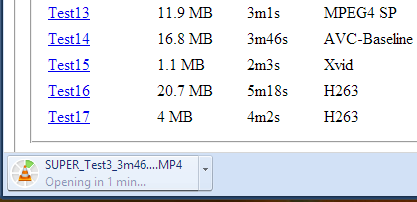


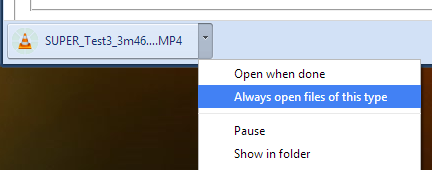
2. If you always want to open certain files after Chrome downloads them, click the arrow icon and check "always open files of this type". You can use this for .mp4 files or .torrent files, for example.


3. How to move to the desktop a file you've just downloaded? Just drag it from the download bar and drop it onto your desktop.


4. Some files open directly in Chrome: PDF documents, MP4 videos, MP3 songs. How to download them? Use a keyboard shortcut: Ctrl+S or Command-S for Mac. Another option is to right click and select "save as". You can also right click the link to the file and select "save link as".


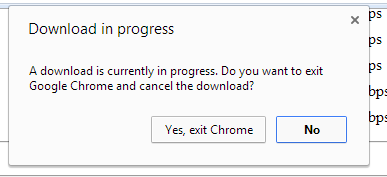
5. Don't worry about closing the Chrome window accidentally while downloading some files. Chrome shows a warning: "download in progress".


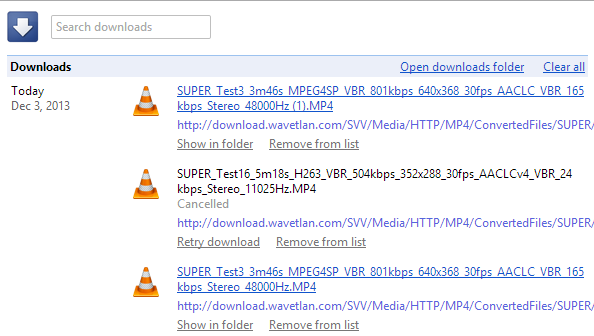
6. Manage your downloads by clicking "Downloads" in the Chrome or pressing Ctrl+J (Command-J for Mac). Use the search box to find a file you've downloaded last month, right-click the URL and you can copy it, click "Show in folder" to locate the file. You can also clear all the downloads.


More Search Results in the New Google Maps


The new Google Maps for desktop updated the local search card and now shows the top 3 results instead of only one. You can still go to the list of top results or check the results from the map, but the card is more convenient. Google is the king of search, so people expect to find a hierarchy. The list of top results is one click away, but many people will never find it.


{ via Jérôme }

My Google?


iGoogle has been discontinued, it's time for My Google. It's not clear what's behind this new service or if it will ever be released, but one thing it's clear: a Chromium bug report from a Google employee included a few links to some articles from Google's help centers. One of the links is: https://support.google.com/mygoogle/answer/3151281?hl=en&ref_topic=3148584 and there's a reference to "MyGoogle".


Clicking the link sends you to a 403 error page: "Your client does not have permission to get URL from this server". You get a 404 error page if the page doesn't exist, so this is different.


It's likely that the My Google help center is only available for Google employees, since the service hasn't been released yet. The Chromium bug report included links to the following Google help centers: MyGoogle, Google+, Google Maps, Google Search and YouTube, so the new service could be important.


"My" suggests that you'll be able to personalize Google. iGoogle, My Yahoo, My MSN focused on personalized homepages, but Google moved away from this model and started to focus on pushing content when it's likely to be useful (Google Now).


Maybe it's about Google Now, maybe it's another attempt at personalizing search results, maybe it's a way to manage preferences for all Google services. What's your take?


{ Thanks, Florian K. }

Make The Minutes Work: How To Take Effective Notes During A Meeting


meeting-featured

It’s a skill which few people have perfected; the perfect meeting minutes. It’s a familiar story in an imperfect world. You’re working on a project of critical importance at work. This is an inter-departmental affair, with all the painful inter-departmental politics that comes with that. As the deadline looms with the project no closer to completion, you schedule a meeting with your colleagues. After setting an agenda for the meeting and two hours of tedious discussion, you end up with an agreed schedule and plan of action. And then the agreed schedule isn’t met, and the agreed plan of action...


Read the full article: Make The Minutes Work: How To Take Effective Notes During A Meeting


02 December 2013

What Everybody Ought to Know About Dealing With Email Spam


spam-featured-image

Here’s one more reason for everyone to hate Mondays. They’re supposedly the busiest days for email spam, that frustrating stream of unsolicited emails about weight loss, Viagra, million-dollar lotteries, and what not. It might be next to impossible to stop spam completely, but it’s certainly possible to reduce its flow to a trickle. We have already covered ways to tackle Facebook spam , Twitter spam, and spam from friends. In this post, we’ll tell you how to control email spam. Unfortunately, the option to stop unwanted emails from piling up in your inbox is not available as a one-click solution....


Read the full article: What Everybody Ought to Know About Dealing With Email Spam


2 Ways To Encrypt Your Files From Your Browser


encrypting-zipper

Do you want to send a file across the Internet to a friend or coworker, but don’t want the NSA to snoop on that file? You’ll want to encrypt that file, but in the quickest and easiest way possible. Thanks to various web technologies, you can now do this without even having to deal with a heavier desktop-based encryption program. File Lock File Lock is a fantastic file encryption service that runs entirely on HTML5 technologies — you don’t even need to install a plugin for your browser! All you have to do is visit their website, choose the file...


Read the full article: 2 Ways To Encrypt Your Files From Your Browser


2 Ways To Encrypt Your Files From Your Browser


encrypting-zipper

Do you want to send a file across the Internet to a friend or coworker, but don’t want the NSA to snoop on that file? You’ll want to encrypt that file, but in the quickest and easiest way possible. Thanks to various web technologies, you can now do this without even having to deal with a heavier desktop-based encryption program. File Lock File Lock is a fantastic file encryption service that runs entirely on HTML5 technologies — you don’t even need to install a plugin for your browser! All you have to do is visit their website, choose the file...


Read the full article: 2 Ways To Encrypt Your Files From Your Browser


Amazon Delivery Drones, Facebook Hack, Kindle Fire Vs iPad Air [Tech News Digest]


Today in Tech News Digest, Amazon plans to deliver packages via aerial drones, a Facebook friends list hack is revealed, a vulnerability in Google Nexus handsets is discovered, Black Friday numbers are released, Steam introduces user reviews, and the Kindle Fire HDX is compared favorably to the iPad Air. Amazon Delivery Drones Amazon R&D is also working on buildings that you can drive to to pick up things in 10 minutes or less — Ashlee Vance (@valleyhack) December 2, 2013 When you order an item from Amazon in five years time you may get it delivered to your door within...


Read the full article: Amazon Delivery Drones, Facebook Hack, Kindle Fire Vs iPad Air [Tech News Digest]


01 December 2013

Where Did You Shop This Black Friday? [MakeUseOf Poll]


5787003804_636bd1629c_o

Last week we asked you if your Facebook account ever got hacked. Whether it’s because you don’t use Facebook, never got hacked, or just don’t care, most of you couldn’t be persuaded to answer this poll, which left us with a small number of votes. Still, it’s surprising to see what percentage of Facebook account actually got hacked at least once. 136 readers voted, and revealed that 8% never owned a Facebook account, 23% got hacked at least once, and 69% never got hacked. Good for them! Full results and this week’s poll after the jump. Don’t forget to check...


Read the full article: Where Did You Shop This Black Friday? [MakeUseOf Poll]


3 Ways To Download Videos From Facebook


facebook-videos

Is your Internet connection unstable? Do you hate Facebook’s video interface? You don’t have to suffer. There are quick and easy ways to download videos from Facebook. You can then watch them on any interface you prefer, and most importantly, offline. Everyone knows how to download YouTube videos. You can do this easily whether you’re on Windows, on a Mac, or even if you want to download entire video playlists. But do you know how to download Facebook videos? By the end of this article, you will. Important note: Different Facebook videos have different privacy settings. You will only be...


Read the full article: 3 Ways To Download Videos From Facebook


30 November 2013

Use Map Your Representatives To Find Information On Your Legislators With A Click [U.S. Only]


washington-dc

A new U.S. specific web tool powered by Google works on one premise. It’s that public servants should be open to scrutiny and dialog with the people they serve. Map Your Representatives helps U.S. citizens with the first part of touching base with political representatives in their area. It answers the basic question – who represents me? Enter your address or ZIP code and Map Your Representatives will opens stylishly to display every relevant piece of social information it can find on the official. As the screenshot below shows you, it contains essentials like contact info and the official (or...


Read the full article: Use Map Your Representatives To Find Information On Your Legislators With A Click [U.S. Only]


Best Free Cloud Storage Sites that Provide 100GB Free Data(File Hosting)


Popularity of cloud storage service is increases day by day and now days almost every internet geek using cloud storage service. Cloud storage is a model of network enterprise storage where data is stored in virtualized pools of storage which are generally hosted by third parties (from Wikipedia). In general Cloud storage services are used for backup data and store data or share data on the internet. There are so many free cloud storage services are available such as Google drive, Drop box, Sky drive and more but they offers less free space which is sufficient for sharing small files. But if you want to backup more data or want to share more files then the above services would not satisfy you. In this case you are trying to find some other provider which can give you more free cloud storage. If yes, then read this article, because today we are going to discussing about top free cloud storage provider which gives more free space to store your data.


Read more »

How to Change the Date of your Digital Photographs


John Q. Public has just finished importing the videos and pictures from the digital camera to his laptop but realizes that the media files are incorrectly time-stamped.


Maybe the date and time settings of his “point and shoot” camera were set incorrectly or maybe the digital camera was stamping the files with local time though the pictures were being shot in another country with a different time zone. He probably forgot to change the time stamp of the camera before going on vacation.


How does John change the data and time of his pictures?


Most image editing software, Picasa and iPhoto included, allow you corect the data and time of photographs imported from a digital camera or a smartphone. You can import your digital photos in the software and select the ones that need to be fixed.


In the case of Picasa, choose Tools -> Adjust Date & Time and select a new date for your photos. This will change the “Date Picture Taken” field in the EXIF data of you picturs. Similarly, iPhoto users can choose Photos -> Adjust Date & Time to set the selected photos to a particular date and time.


I however prefer a little-known command line utilitly called ExifTool for such operations since it is much more versatile. To get started, download the ExifTool executable and extract the zip file to your desktop. Now rename the exiftool(-k).exe utility to exiftool.exe and we are all set to adjust the date and time of our photographs.


Unlike the iPhoto or Picasa software that simply set the date and time of a photograph to another time stamp, Exif Tool can “shift” the data and time values associated with a picture. For instance, if your camera’s time was off by 2 hours 30 minutes at the time of capture, you can use ExifTool to shift the time stamp of all your pictures only by that “off” duration.


The sytax is:


exiftool.exe "-DateTimeOriginal+=Y:M:D h:m:s" filename.jpg

For instance, if wish to shift the time of photographs by 5 hours and 30 minutes, the command would be:


exiftool.exe "-DateTimeOriginal+=0:0:0 5:30:0" filename.jpg

And if you wish to perform a negative shift by 1 day, the command would be:


exiftool.exe "-DateTimeOriginal-=0:1:0 0:0:0" filename.jpg

Please refer to this document for the exact syntax and other examples.


Exif Tool is free and available for Windows, Mac and Linux.


This story, How to Change the Date of your Digital Photographs, was originally published at Digital Inspiration on 29/11/2013 under Image Editing, Software

29 November 2013

Use Your Computer, Don’t Let It Use You: Five “U”s For Reduced Stress Online


use-computer

Remember when getting an email was exciting? Or when seeing a particular post on Facebook was an event? It feels so long ago, but it wasn’t. In the past few years the amount of information in our various inboxes has exploded, and we all feel overwhelmed as a result. And when I say “inboxes”, I’m not just talking about email. At this point you probably have several “inboxes” that consistently require your attention. There’s your email, but there’s also probably some combination of Facebook, Twitter, Tumblr, and maybe an RSS reader demanding your attention. Really, any place where you don’t...


Read the full article: Use Your Computer, Don’t Let It Use You: Five “U”s For Reduced Stress Online


Microsoft Updates OneNote With OCR, Camera Scan, Share Charm


Microsoft-OneNote-Update-OCR-Camera-Scan-Share-Charms

Microsoft’s OneNote is great for research, especially when used with Windows 8 and 8.1’s SkyDrive integration. And the popular note-taking app has now had a major update on the desktop OS that brings some cool new functions, including ‘Camera Scan’ for smart scanning and the ability to read and search scanned items. Camera Scan lets you capture important data like what’s written on the whiteboard in a meeting or that crucial document you don’t want to lose. Train your device’s camera at it, use OneNote’s Camera Scan and it will automatically crop, rotate, straighten, remove shadows and sharpen the image...


Read the full article: Microsoft Updates OneNote With OCR, Camera Scan, Share Charm


What’s Trending? Find Out With These Real-Time Data Websites


trends

Tired of always being out of the loop? It’s amazing how quickly information can spread from person to person these days thanks to the Internet and social media. New ideas, websites, videos, and all manner of content can be seen by millions of people overnight, which mean that trends are being appearing and disappearing faster than ever before. Is it possible to keep up? The short answer is yes — with a catch. If you consume web media for hours per day, sure, it’s easy to stay on top of the latest trends and memes. But what if you don’t...


Read the full article: What’s Trending? Find Out With These Real-Time Data Websites


How to Make the New Google Maps Embeds Responsive


Responsive Google Maps resize automatically based on the screen size

Responsive Google Maps – The maps automatically resize based on the screen size.


The new Google Maps now offer you can option to embed maps in your web pages. While you are on the Google Maps website, zoom-in to an area that you wish to embed, click the Gear icon in the lower left corner and choose the Embed Maps option from the menu.


This web page contains a sample map embedded using the default embed code provided by Google Maps. The embedded map is non-responsive. What it means is if you open the page on a device other than your desktop computer, the Google Map won’t fit the screen and you’ll have to scroll the page horizontally to see the complete map.


Here’s another web page that contains the same Google Map but now the map has been embedded responsively. Thus, if you resize the browser or view the page on a small device, the embedded map would adjust its size automatically based on your screen size.


How to Embed Google Maps Responsively


This is the default embed code for the new Google Maps:


<!-- Height=450px; Width=600px -->
<iframe src="https://www.google.com/maps/embed?pb=!1m14!1m12!1m3!1d7098.94326104394!2d78.0430654485247!3d27.172909818538997!2m3!1f0!2f0!3f0!3m2!1i1024!2i768!4f13.1!5e0!3m2!1sen!2s!4v1385710909804" width="600" height="450" frameborder="0" style="border:0"></iframe>

As specified in the height and width parameters of the embed code, the default height for medium embeds is 450px or 75% of the default width (600px).


If you wish to transform this static sized Google Map into one that is responsive, all you have to do is add a few CSS rules to your web page and wrap the embed IFRAME inside these rules.


The new embed code with responsive style will be something like this. You can change the value of padding-bottom (line #4) from 75% to something for a different aspect ratio.


<style>
.google-maps {
position: relative;
padding-bottom: 75%; // This is the aspect ratio
height: 0;
overflow: hidden;
}
.google-maps iframe {
position: absolute;
top: 0;
left: 0;
width: 100% !important;
height: 100% !important;
}
</style>

<div class="google-maps">
<iframe src="https://www.google.com/maps/embed?pb=!1m14!1m12!1m3!1d7098.94326104394!2d78.0430654485247!3d27.172909818538997!2m3!1f0!2f0!3f0!3m2!1i1024!2i768!4f13.1!5e0!3m2!1sen!2s!4v1385710909804" width="600" height="450" frameborder="0" style="border:0"></iframe>
</div>

A similar technique can be used to embed Instagram videos and photos responsively.


This story, How to Make the New Google Maps Embeds Responsive, was originally published at Digital Inspiration on 29/11/2013 under Embed, Google Maps, Internet

28 November 2013

Keyboard Shortcuts for Google+ Notifications


The Google+ notifications box has a few keyboard shortcuts you might find helpful. Here are some of them:


* up/down arrow keys help you select a notification from the list. Notice the blue line, which shows the currently selected notification. After opening a notification, use the same arrow keys to scroll.


* Enter (Return for Mac) opens the notification you've selected. You can also use o


* press the down arrow key after the last notification and then press Enter to open the list of previously read notifications


* right/left arrow keys let you go to the next/previous notification. You can also use j/k


* u - go back to the list of notifications or to the main screen


* d - mark as read the notification you've selected


* Esc closes the notifications box.


Unfortunately, there's no shortcut that opens the Google+ Notifications box, so you still need to click the bell icon. How to quickly read your notifications? Press the down arrow key, then press Enter and go to the next notification using the right arrow key.


Sometimes Page Up/Page Down and Space/Shift+Space work, but only after you use the arrow keys. If you find other keyboard shortcuts, please let me know in the comments.


Google+ also has a list of keyboard shortcuts.

Fascinating Earth: 5 Citizen Science Projects For Our Natural World


science-lab

Quite frankly, I didn’t have the brain matter or the perseverance to be a scientist. But today, thanks to the power of the Internet, you don’t have to be a boffin with double PhDs to contribute to the sciences. If you are interested in the world we live in, natural sciences could be your calling. Like me, easy to join citizen science projects should help you take that interest further, and call yourself a “citizen scientist” if not a true blue scientist. Do you share a love for the natural world? Then, be a part of the crowd and join...


Read the full article: Fascinating Earth: 5 Citizen Science Projects For Our Natural World


NSA Porn, CyanogenMod Ban, Jolla Smartphone, Microsoft Sexism [Tech News Digest]


Today in Tech News Digest, the NSA watches porn, Bitcoin is now valued at $1,000, Google Street View comes to airports and train stations, the CyanagenMod Installer is banned from Google Play, F-Secure KEY is launched to help you manage your passwords, the new Jolla smartphone arrives, Twitter ups its level of security, and Microsoft is accused of being sexist when it comes to the Xbox One. The NSA Watches Porn "We only spy on terrorists. Well, all foreigners, really. OK, just basically anyone we want.": http://t.co/LUpbf7h6PV — Casey Muratori (@cmuratori) November 27, 2013 The NSA has tracked which pornographic...


Read the full article: NSA Porn, CyanogenMod Ban, Jolla Smartphone, Microsoft Sexism [Tech News Digest]