22 April 2013

Swipe Navigation in the Mobile Gmail Site


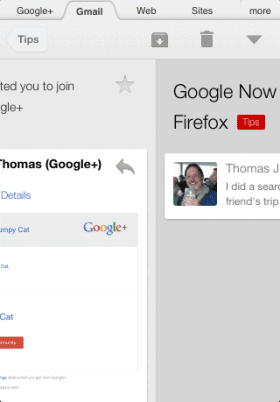
One month ago, Google updated the Gmail app for iOS and added a swipe gesture that lets you move between conversations without having to return to the inbox. At that time, the mobile Gmail site didn't have this feature, but now it's available.


If you like to use Gmail in the mobile browser and you don't want to install a special app for Gmail, you can now swipe left or right to the previous or the next conversation. Unfortunately, this feature is more difficult to use in Chrome because Google's browser has a similar gesture for navigating between tabs. You should avoid swiping from the edge of the screen when you open mobile Gmail.


It's interesting to notice that the "swipe to archive" feature of the mobile Gmail site doesn't work in Chrome for Android, but it works in the stock browser, in Safari and Chrome for iOS.


Outsourcing Blogger Comments to Google+


While Blogger's new commenting system has a lot of cool features, there's an important downside: Google+ Comments has nothing to do with Blogger.


The old comments are available in the new interface, but the new comments are not available in the old commenting system, if you decide to switch back. Blogger's comment feeds don't include the comments from the new interface, you can no longer manage comments from the Blogger dashboard and the new comments aren't included when you export your blog.


Here's the empty comment feed for a post that has a lot of comments:


When you switch to Google+ Comments, you outsource the comments to Google+, but Google+ doesn't have a section that lets you manage the comments and there's no way to export the new comments.


21 April 2013

Google Now for Google's Homepage in Testing


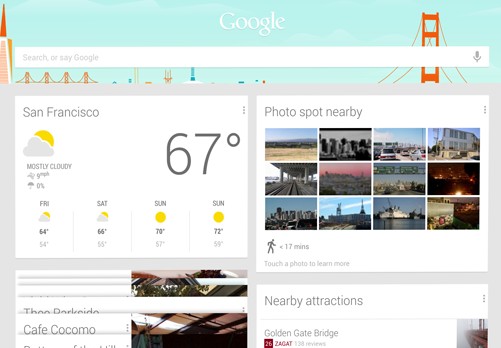
It looks like Google Now won't be limited to Android, iOS and Chrome, it will also be added to Google's homepage. Some code from a page that's tested by Google offers more information about this feature.


"Get started with Google Now. Just the right information at just the right time." That's how Google introduces the new feature. "Google Now uses your Home location to show relevant information like weather, traffic conditions, and nearby places," explains Google. You can edit the home location, work location and the current location. Another feature lets you track your favorite stocks.


It's not clear how Google Now for desktop will look, but this screenshot reveals a possible implementation (it also includes some Chrome features):


Here's the Google Search app interface for Android tablets (Nexus 10 gallery):


As I mentioned here, Google Now could replace some of iGoogle's functionality. Here's an early version of iGoogle from 2005:


{ Thanks, Florian. }


Add Google+ Comments to Any Web Page


Until Google launches an API for the Google+ Comments feature, you can use the code from Blogger. Browsing the Net found a way to embed Google+ Comments on any website or blog. Here's the code you could use:


<script src="https://apis.google.com/js/plusone.js">
</script>
<div class="g-comments"
data-href="[URL]"
data-width="642"
data-first_party_property="BLOGGER"
data-view_type="FILTERED_POSTMOD">
</div>


Replace [URL] with the address of your page. It's interesting to see what happens if you enter the URL of a different page: from what I've noticed, Google shows some Google+ posts that link to that page.


{ Thanks, Jerzy. }


Google Now Is Not Google Voice Search


Here's something I don't understand: why do so many people confuse Google Now with Google Voice Search? There are a lot of articles that compare Google Now with Siri or claim that Google Now is a voice assistant.


Google Now is a feature of the Google Search app for Android that shows information about what's happening right now or in the near future: weather, calendar events, reservations, travel information. Try this: disable Google Now in Google's search app and you can still use voice search. After all, Google Voice Search has been available before Google Now. Google Search for iOS includes Voice Search, but it doesn't have Google Now yet.


One of the explanations why many people confuse Google Now with Google Voice Search is that Google Now and the improved Voice Search have been announced at the same time, when Jelly Bean was released. Google Now is shorter and sounds better than Google Voice Search.


Even the Wikipedia article for Google Now is inaccurate: "Google Now is an intelligent personal assistant available for Google's Android operating system. An extension of Android's native Google Search application, Google Now uses a natural language user interface to answer questions, make recommendations, and perform actions by delegating requests to a set of web services. Along with answering user-initiated queries, Google Now passively delivers information to the user that it predicts they will want, based on their search habits."


How Do I Download An Entire Website For Offline Reading?


Download the entirety of a website – or individual web pages – to your hard drive. Whether you want to do some work offline so you can really block time-wasting websites or do some research on the road, downloading web content locally means you don’t need to stop when your connection does.


It’s increasingly rare, but still occasionally true: sometimes you just don’t have Internet access. Whether you’re on a plane or your grandparent’s place in the country, life occasionally brings all of us to places WiFi and 4G can’t reach. With a little preparation, however, you can have the data you need on your hard drive, waiting for you.


There are three distinct ways to read offline: downloading an entire website, downloading recent blog posts or news stories, and downloading the content from a specific page or article. I’m going to touch on all three below, but feel free to skip to the section you’re actually interested in.


Downloading Entire Websites


This is the hardcore option: downloading the entirety of a single website for offline reading. Obviously how long this takes will vary depending on the web site in questions – Wikipedia could take days to finish, and will take up a lot of your hard drive when it does. If you just want an offline copy of something simple, however, like the ultimate Final Fantasy 7 database or a simple site outlining a few recipes you were thinking of trying, downloading an entire website might be right for you.


The software I recommend for downloading an entire site is HTTrack, which Tina wrote about back in 2008. Don’t worry: the software hasn’t changed much and her article is still solid.


This open source program can be a little hard to use at first – especially if you’re not a Windows user. But if you’re looking to make a complete offline version of your favorite website – not an individual web page, an entire web site – it’s one of the simplest options out there. Tweak the settings if you run into problems and you should be fine. Only the Windows version comes with a dedicated GUI – Linux users will need to use a browser-based version of HTTrack instead. Don’t worry: items will be added to the menu so it’s easy enough to get started.


Mac users can install the software using MacPorts, but many might be better off checking out Sitesucker, a free Mac app that functions similarly but is easy to install and has it’s own GUI.


Downloading The Latest News


Are you mostly interested in keeping up with the news? Downloading an entire site then is probably an overkill: you don’t need to keep a copy of the headlines from 2005 on your computer. Happily there are dedicated tools for reading the news offline.


I showed you how to download entire newspapers or blogs using Calibre – it saves everything to the eBook format of your choice. This is a great way to condense the latest news into a format you can easily read offline, but be warned: paid subscriptions are required for some sites to work properly.


You can also use NewsToEbook to download the latest news directly. It even supports Google Reader (though of course that ends in July when Google pulls the plug on Reader).


Downloading Individual Web Pages


This is the simpler option: downloading the entirety – or only the content from – an individual page. If you’re doing some research, or simply want to do some offline reading, there are tools out there allowing you to clip any particular page and read it later.


My favorite is probably Evernote, a service that aims to become your personal on-and-offline repository of knowledge. You can use the service to “clip” articles from your favorite websites, which you can then read anytime using the desktop or mobile client.


Check out the unofficial Evernote manual to learn more. It’s written by our very own Mark O’Neil, and like all our manuals it’s free of charge.


Another simple way to save individual articles for reading later is Pocket, the ultimate digital bookmarking service. Apps for mobile devices sync articles you’ve saved for later, meaning you can read them anytime you want. There’s even a Mac version of Pocket for you computer (sorry, Windows and Linux users: not yet).


Want an entirely mobile solution? Offline Pages Pro for iOS and Read Web Offline for Android both allow you to save any URL directly to your mobile device, allowing you to read them anytime.


Conclusion


Of course, this list is only the beginning: there are other ways to do this. Most browsers offer a “Save As” function, for example, and you can always print any page on the web as a PDF for reading later.


Beyond that, I’m sure readers will point out plenty of other ways to save entire sites or individual pages for offline reading in the comments below. Unless, of course, they’re reading this comment offline – then they can’t leave comments. Oh well.


The post How Do I Download An Entire Website For Offline Reading? appeared first on MakeUseOf.


How Do I Download An Entire Website For Offline Reading?


Download the entirety of a website – or individual web pages – to your hard drive. Whether you want to do some work offline so you can really block time-wasting websites or do some research on the road, downloading web content locally means you don’t need to stop when your connection does.


It’s increasingly rare, but still occasionally true: sometimes you just don’t have Internet access. Whether you’re on a plane or your grandparent’s place in the country, life occasionally brings all of us to places WiFi and 4G can’t reach. With a little preparation, however, you can have the data you need on your hard drive, waiting for you.


There are three distinct ways to read offline: downloading an entire website, downloading recent blog posts or news stories, and downloading the content from a specific page or article. I’m going to touch on all three below, but feel free to skip to the section you’re actually interested in.


Downloading Entire Websites


This is the hardcore option: downloading the entirety of a single website for offline reading. Obviously how long this takes will vary depending on the web site in questions – Wikipedia could take days to finish, and will take up a lot of your hard drive when it does. If you just want an offline copy of something simple, however, like the ultimate Final Fantasy 7 database or a simple site outlining a few recipes you were thinking of trying, downloading an entire website might be right for you.


The software I recommend for downloading an entire site is HTTrack, which Tina wrote about back in 2008. Don’t worry: the software hasn’t changed much and her article is still solid.


This open source program can be a little hard to use at first – especially if you’re not a Windows user. But if you’re looking to make a complete offline version of your favorite website – not an individual web page, an entire web site – it’s one of the simplest options out there. Tweak the settings if you run into problems and you should be fine. Only the Windows version comes with a dedicated GUI – Linux users will need to use a browser-based version of HTTrack instead. Don’t worry: items will be added to the menu so it’s easy enough to get started.


Mac users can install the software using MacPorts, but many might be better off checking out Sitesucker, a free Mac app that functions similarly but is easy to install and has it’s own GUI.


Downloading The Latest News


Are you mostly interested in keeping up with the news? Downloading an entire site then is probably an overkill: you don’t need to keep a copy of the headlines from 2005 on your computer. Happily there are dedicated tools for reading the news offline.


I showed you how to download entire newspapers or blogs using Calibre – it saves everything to the eBook format of your choice. This is a great way to condense the latest news into a format you can easily read offline, but be warned: paid subscriptions are required for some sites to work properly.


You can also use NewsToEbook to download the latest news directly. It even supports Google Reader (though of course that ends in July when Google pulls the plug on Reader).


Downloading Individual Web Pages


This is the simpler option: downloading the entirety – or only the content from – an individual page. If you’re doing some research, or simply want to do some offline reading, there are tools out there allowing you to clip any particular page and read it later.


My favorite is probably Evernote, a service that aims to become your personal on-and-offline repository of knowledge. You can use the service to “clip” articles from your favorite websites, which you can then read anytime using the desktop or mobile client.


Check out the unofficial Evernote manual to learn more. It’s written by our very own Mark O’Neil, and like all our manuals it’s free of charge.


Another simple way to save individual articles for reading later is Pocket, the ultimate digital bookmarking service. Apps for mobile devices sync articles you’ve saved for later, meaning you can read them anytime you want. There’s even a Mac version of Pocket for you computer (sorry, Windows and Linux users: not yet).


Want an entirely mobile solution? Offline Pages Pro for iOS and Read Web Offline for Android both allow you to save any URL directly to your mobile device, allowing you to read them anytime.


Conclusion


Of course, this list is only the beginning: there are other ways to do this. Most browsers offer a “Save As” function, for example, and you can always print any page on the web as a PDF for reading later.


Beyond that, I’m sure readers will point out plenty of other ways to save entire sites or individual pages for offline reading in the comments below. Unless, of course, they’re reading this comment offline – then they can’t leave comments. Oh well.


The post How Do I Download An Entire Website For Offline Reading? appeared first on MakeUseOf.


How Do I Download An Entire Website For Offline Reading?


Download the entirety of a website – or individual web pages – to your hard drive. Whether you want to do some work offline so you can really block time-wasting websites or do some research on the road, downloading web content locally means you don’t need to stop when your connection does.


It’s increasingly rare, but still occasionally true: sometimes you just don’t have Internet access. Whether you’re on a plane or your grandparent’s place in the country, life occasionally brings all of us to places WiFi and 4G can’t reach. With a little preparation, however, you can have the data you need on your hard drive, waiting for you.


There are three distinct ways to read offline: downloading an entire website, downloading recent blog posts or news stories, and downloading the content from a specific page or article. I’m going to touch on all three below, but feel free to skip to the section you’re actually interested in.


Downloading Entire Websites


This is the hardcore option: downloading the entirety of a single website for offline reading. Obviously how long this takes will vary depending on the web site in questions – Wikipedia could take days to finish, and will take up a lot of your hard drive when it does. If you just want an offline copy of something simple, however, like the ultimate Final Fantasy 7 database or a simple site outlining a few recipes you were thinking of trying, downloading an entire website might be right for you.


The software I recommend for downloading an entire site is HTTrack, which Tina wrote about back in 2008. Don’t worry: the software hasn’t changed much and her article is still solid.


This open source program can be a little hard to use at first – especially if you’re not a Windows user. But if you’re looking to make a complete offline version of your favorite website – not an individual web page, an entire web site – it’s one of the simplest options out there. Tweak the settings if you run into problems and you should be fine. Only the Windows version comes with a dedicated GUI – Linux users will need to use a browser-based version of HTTrack instead. Don’t worry: items will be added to the menu so it’s easy enough to get started.


Mac users can install the software using MacPorts, but many might be better off checking out Sitesucker, a free Mac app that functions similarly but is easy to install and has it’s own GUI.


Downloading The Latest News


Are you mostly interested in keeping up with the news? Downloading an entire site then is probably an overkill: you don’t need to keep a copy of the headlines from 2005 on your computer. Happily there are dedicated tools for reading the news offline.


I showed you how to download entire newspapers or blogs using Calibre – it saves everything to the eBook format of your choice. This is a great way to condense the latest news into a format you can easily read offline, but be warned: paid subscriptions are required for some sites to work properly.


You can also use NewsToEbook to download the latest news directly. It even supports Google Reader (though of course that ends in July when Google pulls the plug on Reader).


Downloading Individual Web Pages


This is the simpler option: downloading the entirety – or only the content from – an individual page. If you’re doing some research, or simply want to do some offline reading, there are tools out there allowing you to clip any particular page and read it later.


My favorite is probably Evernote, a service that aims to become your personal on-and-offline repository of knowledge. You can use the service to “clip” articles from your favorite websites, which you can then read anytime using the desktop or mobile client.


Check out the unofficial Evernote manual to learn more. It’s written by our very own Mark O’Neil, and like all our manuals it’s free of charge.


Another simple way to save individual articles for reading later is Pocket, the ultimate digital bookmarking service. Apps for mobile devices sync articles you’ve saved for later, meaning you can read them anytime you want. There’s even a Mac version of Pocket for you computer (sorry, Windows and Linux users: not yet).


Want an entirely mobile solution? Offline Pages Pro for iOS and Read Web Offline for Android both allow you to save any URL directly to your mobile device, allowing you to read them anytime.


Conclusion


Of course, this list is only the beginning: there are other ways to do this. Most browsers offer a “Save As” function, for example, and you can always print any page on the web as a PDF for reading later.


Beyond that, I’m sure readers will point out plenty of other ways to save entire sites or individual pages for offline reading in the comments below. Unless, of course, they’re reading this comment offline – then they can’t leave comments. Oh well.


The post How Do I Download An Entire Website For Offline Reading? appeared first on MakeUseOf.


20 April 2013

Why You Don’t Have To Use PayPal For Online Transactions: 5 PayPal Alternatives


Online shopping and online purchases have grown into something so important in many of our lives that it’s strange, at least for me, to think of a world where it doesn’t exist. PayPal is one service that really pioneered that world, especially in terms of purchasing without needing a credit card, debit card, or gift card. But are there any viable alternatives if you don’t like PayPal?


There are many reasons why you might not like PayPal. For one thing, it’s such a big service that it’s prime meat for hack attempts and scam attempts. Similarly, ever since PayPal grew into an enormous international service, people have been experiencing a decline in service quality. And who can forget the PayPal account freezing horror stories? PayPal is not the be-all end-all of online transaction services.


But even so, PayPal is convenient, widely accepted, and established. There are many PayPal competitors out there, but none of them have the same ubiquity or prominence. By switching away from PayPal, you may be gaining in some respects but you’ll also be losing out in other ways. If that’s okay with you, then keep reading!


WePay


Overview: The first time I heard about WePay was when I stumbled across GoFundMe, one of many services that help with online fundraising. They trusted WePay enough to make it their default money handler over PayPal for US users. As it turns out, WePay is used by over 250,000 merchants and they’ve processed over 1.5 million transactions. WePay accepts Visa, MasterCard, Discover, and more.


What’s Good: WePay has an extremely fast setup process that’ll have you ready to go in less than a minute. There are no contracts or tricky fees: 2.9% + $0.30 for credit card payments and 1.0% + $0.30 for bank payments. In terms of security, they’re sharp: first-class security credentials that they test every day for vulnerabilities. And, most importantly, WePay has excellent customer service (rated 9 out of 10 by its users).


But on top of the usual transaction features, WePay has a few more things to offer. You can embed an HTML WePay button right onto your website which you can use to collect payments. WePay also has a page builder which you can use to create a fully functional online store without any technical expertise.


Check out Angela’s WePay review if you haven’t already.


Overall: B+


Skrill


Overview: Formerly known as MoneyBookers, Skrill is a money service that stretches internationally when it comes to reach. With more than 10 million users in over 200 countries with support for more than 40 currencies, you can be sure that Skrill is a force to be reckoned with. In terms of sheer size, Skrill may be the closest to PayPal.


What’s Good: The international support is definitely a thumbs up. Skrill allows you to deposit and withdraw money instantly all while keeping your information secure. For personal users, Skrill’s fees sit at 1% for sending money (caps at $0.50) and no fees for receiving money. For merchants, there are a few processing fees per transaction but they are competitive with other similar services (standard rate is 2.90% + $0.29).


For US users, deposites and withdrawals are free. For international users, deposits and withdrawals are mostly free but may incur processing fees depending on the method. When you want to take your funds out, you can opt for a physical check, a direct deposit into your bank account, or a MasterCard debit card that you can use in tandem with an ATM.


Overall: B+


Dwolla


Overview: Dwolla is similar to PayPal in that it’s an online peer-to-peer transaction service, but unlike PayPal, Dwolla requires both sender and receiver to have a Dwolla account; if you receive money and don’t have an account, you’ll need to create one to access it. It’s a small inconvenience, but otherwise pretty similar to PayPal’s system.


What’s Good: The first thing that sticks out to me about Dwolla is the transaction fee. Most services will charge a percentage-based fee, but Dwolla has one simple rule: a $0.25 fee per transaction unless the transaction is less than $10, then the fee is waived. Transactions take a few days to process, though you can subscribe to an Instant Transaction feature for $3 a month.


Dwolla is available as a mobile app for iPhones and Androids, too, which makes it extremely easy to check your account and transfer money no matter where you are.


Overall: B+


Google Wallet


Overview: A few years ago, Google combined their Checkout service with their Wallet service. Both services were meant to track your payment information and to facilitate e-commerce transactions. If you’re a customer, Google Wallet may be exactly what you need; if you’re a seller, there’s a Business version for accepting payments.


What’s Good: On any site that accepts Google Wallet, you can use your Wallet account to make payments. The Wallet account tracks all of your credit cards, debit cards, and gift cards in one convenient location, so purchasing items online becomes easy. All of your data is secure, obviously. If you’re a seller, Google does not charge any transaction fees for accepting Wallet payments.


For in-store purchases, Google Wallet can transform your phone into your wallet. If you have a device with the Wallet app and NFC capabilities, you can simply tap your device on the store’s NFC reader and pay instantly without hassle.


Overall: B


Payza


Overview: Formerly known as AlertPay, Payza has grown into something of a force over the past decade. It’s a great PayPal alternative for both personal users (transfer money, purchase items) and business users (process payments, send invoices). And if you need an international solution, Payza is global with offices all around the world.


What’s Good: Payza is supported in over 190 countries and over 20 different currencies. Money transfers can be performed through wire transfers, bank transfers, money orders, or credit cards. Payza money can be withdrawn through wire transfers, bank transfers, physical checks, or prepaid Payza cards. Payza has a simple fee structure that you should be aware of before committing to the service.


Overall: B-


Conclusion


So for quick reference, here are the most viable alternatives to PayPal that I’ve found in order of rating:


  • WePay

  • Skrill

  • Dwolla

  • Google Wallet

  • Payza


All of these services are great and they’re all used by many people, which means that none of these are horrible choices when it comes to finding an alternative to PayPal. However, it ought to be reiterated that there really isn’t a perfect PayPal alternative; no matter which one you choose, you’ll always be missing out on something.


Have you switched away from PayPal? If so, what are you using now? Are there any other services that could work as a PayPal alternative? Please share your thoughts with us in the comments.


The post Why You Don’t Have To Use PayPal For Online Transactions: 5 PayPal Alternatives appeared first on MakeUseOf.


Anonymous Animals in Google Drive


Google found a funny way to show the anonymous persons who open a document in Google Drive. Instead of only using different colors for each person, Google Drive associates each person with an animal, so you'll see things like "anonymous anteater", "anonymous moose", "anonymous chupacabra", "anonymous axolotl", "anonymous kraken", "anonymous gopher", "anonymous jackalope". Google also uses special icons for each animal.


For the moment, this only works for PDF files, photos, videos and other files that can't be edited using Google's apps.


To test this feature, I'll link to Nexus 4's PDF manual.


{ Thanks, Yu-Hsuan Lin. }