07 March 2013

Change Distance Units in Google Maps for iPhone


The latest version of Google Maps for iOS added a small feature that's really useful: manually changing distance units. Just tap the "people" icon next to the search box, tap the "wheel" icon, go to the "distance units" section and select "miles" or "kilometres".


Until now, the application used the unit that corresponded to the country you've selected in the iPhone's settings (General/International/Regional format). If you've picked "United States", Google Maps only displayed distance information in miles.


Unfortunately, the "regional format" setting affects a lot of features, including the Google URL used by Safari's search box. If you select any other country than the United States, you're always sent to the corresponding international domain.


Google Maps 1.1 for iOS also integrates with Google Contacts and adds a feature that lets you "quickly search for local places by selecting popular categories such as restaurants, bars, cafes, gas stations". Right now, the most important missing feature is the lack of native iPad support.


The Trouble With Google Drive


When you can use Google Music to store 20000 songs, Google+ Photos to store an unlimited number of photos up to 2048 x 2048 pixels and videos up to 15 minutes, YouTube to store all your videos, Gmail to store 10GB of messages and attachments and when the files converted to the Google Drive formats don't count towards the Google Drive storage, what are the use cases for the Google Drive storage and why would you buy extra storage?


You could use it to store the original photos, PDF files, store documents/spreadsheets/presentations without importing them into Google Docs, backup all your files, but the most popular file types are already covered. Google wanted to encourage people to use Gmail, Google Docs, YouTube, Google Music, Google+ and free storage was an important selling point.


The trouble with Google Drive is that Google has a lot of other services that are better suited for storing your files and Drive doesn't even integrate with those services. When your photos are in Google+ Photos, your videos are uploaded to YouTube and your music is in Google Music, Google Drive feels like an afterthought, not the "go-to place" for uploading your files.


Add Close Button To Windows 8 Apps With ModernMix


CLICK HERE TO SEE FULL POST


If you have been using a Windows 8 powered PC or have tested one of the preview builds of Windows 8, you must be aware of Modern or Metro apps introduced with Windows 8. Unlike the legacy programs, Modern apps can run on both x86 and ARM based chipsets. As you know, modern apps can [...]

How To Setup GoDaddy Email on Your Android Device


Hello Friends, Today I have come with a Simple But Effective article, We all know that Emails are now become part of our Daily life and for Bloggers like me too, It is really important for Us, We all know that GoDaddy is Largest Domain Provider on Web, the reason behind this is Because GoDaddy provides Cheapest Domains Rate with Great Support, TricksHunt.com Domain is also Purchased via GoDaddy and this Domain I got a Personal Email Account ie; Siddharth@trickshunt.com.

My This Email Address is Really important for me because it Gets lots of Email Everyday, I used Godaddy officail App on my Android Device but I m not completely Satisfied with it because sometimes its loads mails very slow :( Then I Tried An amazing app MailDroid. This app is really amazing, I have configured my all Emails account on this app Even my gmail too..


So Today I will Show you How to configure/Setup your Godaddy Email Account on any Email client of Your Android Device.


Note : You can also Use Inbuilt Email App of your Android Device.


BEFORE YOU START: To set up Android with your email, you need to know your POP or IMAP Email Server Settings and ports. To find them, go to the InfoCenter and write down the information that displays under Email Server Settings.


NOTE: The steps to set up email on your Android device might be a little different depending on your make/model and your network provider. However, all the information you need to set up your account (username, password, server settings) is in these steps.


To Set up Email on Your Android-based Device :


  • Open your device's email application.

  • If you already have an email account set up, press Menu and tap Accounts. Press Menu again and tap Add account.

  • Type your Email address and Password, and click Next.

  • If you have IMAP, tap IMAP. If you're not sure, tap POP3.

  • Use these settings for your incoming server, depending on the type of email you have:


POP3
Username Enter your full email address.
Password Enter your email account password.
POP3 server pop.secureserver.net
Port 110


IMAP
Username Enter your full email address.
Password Enter your email account password.
IMAP server imap.secureserver.net
Port 143


  • Use these settings for your outgoing server:


SMTP (Outgoing Mail Server)
SMTP server smtpout.secureserver.net
Port 80
Security type None


  • Select Require sign-in and make sure your Username (your full email address) and Password are correct. Tap Next.

  • Tap Next again. Name your account and enter the name you want to display on outgoing messages.

  • Tap Done.


Do this Same Process in your any Mail Client like MailDroid, K9 mail etc.


That's it. If everything is working OK, you should see some email messages. To make sure you can send messages, go ahead and compose an email and send it to yourself.

Hope You Enjoyed the Article, If you got any problem during the Process please feel Free to ask via comments :)


Look At That Photograph: 7 Websites Full Of Funny Photos


funny photo websitesThere are quite a few of us here at MakeUseOf who are very keen on photography. I count myself as one of those people, though I do it purely for fun. I’m not even that good at it, but in an age when smartphones have made everyone capable photographers (as well as making life easier) the quantity of shots taken has somewhat taken over from the quality of shots taken.


However, although the quality of photographs has suffered of late, the fact that people can easily take photos anywhere and everywhere has provided content for the Web. What follows are seven websites which have photographs at their core. They’re also all funny and/or entertaining.


Pointer Pointer


funny photo websites


Pointer Pointer is a very simple concept, but one which is more than worthy of spending a few minutes exploring. You’re presented with a rectangular photograph-shaped space and told to place your cursor somewhere within it. A photograph will then load which shows someone pointing at your cursor, no matter where it is placed.


There’s something strangely addictive about seeking to beat the system, trying to place your cursor somewhere not covered by the photos on the server. It isn’t possible. Believe me, I’ve tried everywhere.


Eyebombing


websites with funny pictures


Eyebombing is the act of placing eyes on inanimate objects in order to humanize them. Forget anthropomorphizing animals, this goes one further. The rules are simply that googly eyes need to be used, and all photos must be taken in the public space. But that’s it.


This site is the online home of eyebombing, with countless photographs posted of examples of the art. The aim is to bring some sunshine to the streets, with things such as fire hydrants and post boxes smiling to passers-by.


Awkward Family Photos


websites with funny pictures


Awkward Family Photos exists for one reason and one reason alone: to publicize those horrific shots of family members posing in weird and wonderful costumes or against strange backdrops. Why people would subject themselves and their kids to these ill-conceived photo-shoots is beyond me.


The photographs displayed on the site are submitted by readers, meaning you could feature on Awkward Family Photos yourself. Some of the stories behind the photos are as funny as the photos themselves.


People Of Walmart


websites with funny pictures


People Of Walmart has been around for several years (having already appeared in our list of things to do when bored at work), but age hasn’t dented its ability to entertain. Walmart is something of an American institution, and some of the people who shop there are, to put it mildly, slightly weird. This website catalogs those people to the point that non-Americans will be put off ever visiting the store, and perhaps the country as well.


As well as the photos, which can be viewed chronologically, by popularity, or by rating, there are videos and stories associated with Walmart. Some are funnier than others, while some are just downright scary.


Engrish


websites with funny pictures


Engrish is the slightly racist term for the mistakes made when people around the world try and use the English language. This website catalogs the best examples of these mistranslations, many of which are extremely funny. The best Engrish attempts are from Japan (the home of WTF music videos), where English words and phrases are used as a design element.


The slightly uncomfortable feeling you may experience when laughing at Engrish only makes this website more compelling. Embrace the awkwardness, and if you’re ever in Asia you may find your own examples to offer up for perusal.


Awkward Stock Photos


websites with funny pictures


Awkward Stock Photos is full of those frankly quite bizarre photographs offered up on stock photography websites. While many, or indeed most, of the stock photos offered by these sites have a use somewhere, those listed on Awkward Stock Photos would appear to be absolutely useless. Talk about appealing to a tiny niche.


Recent examples include a rhino trying to mount a tree stump, a woman with lobsters on her head, and someone holding a truck driver up at gunpoint. If you can think of any possible use for these scenarios then let us know below.


Rich Kids Of Instagram


funny photo websites


People use Instagram in lots of different ways, though many users do seem to have an obsession with posting pictures of their food. Rich Kids Of Instagram mostly ignores pictures of food, instead compiling the worst examples of excess by young people with too much money and a distinct lack of subtlety and style.


There isn’t all that much fun to be wrung from seeing endless photos of rich people living it up… unless everyone taking part (except those actually in the pictures) knows that we’re extracting the urine.


Conclusions


These seven websites have provided me with hours of entertainment already, and as most of them are updated on a daily basis they’re likely to provide me with many more hours from here on in. Do you have a favorite amongst those listed? Or your own offering to add to this choice selection?


As always we’d love to hear from you on the subject matter at hand, so please feel free to let us know your thoughts and views in the comments section below. All are read, many are replied to… even the offensive ones we suspect are written by trolls.


Image Credit: See-ming Lee


The post Look At That Photograph: 7 Websites Full Of Funny Photos appeared first on MakeUseOf.


06 March 2013

Download MediaMonkey App For Windows 8


CLICK HERE TO SEE FULL POST


MediaMonkey, the popular media management software, has now been released for Windows 8 and Windows RT, and is now available to install from the official Windows Store. For those who’re not aware of MediaMonkey, it’s one of the better applications available to manage and organize media collections on a computer running Windows operating system. The [...]

Get A Sneak Peek At Springpad 4.0 In A Live Google+ Hangout Anyone Can Join [Updates]


Love Springpad? It might get even better soon, and you have a chance to get a sneak peek into the new upcoming changes. The popular note-taking application will be holding a special Google Hangout On Air event today at 4PM Easter time (21:00 UTC), and will present some new features which will be included in Springpad 4.0.


The Hangout will include a first look at Springpad 4.0, but will also include a question and answer round with the Springpad team, so if you’ve always had a burning Springpad question you’ve been dying to ask, there’s a chance to get it answered during the Hangout. The event is open to anyone with a Google+ account – all you have to do is RSVP on the Hangout page to receive the link.


Springpad is a cross-platform note-taking app which is available as a Web app, an iPhone/iPad app, and on Android. In case you’ve never used it, Springpad lets to save a wide range of content, including notes, links to books, products and services, images and photos, to-do lists, calendar events and alarms, recipes, music and videos, wine collections—nearly anything that can be accessed on the Internet. You can then access this content no matter where you are using the mobile apps, and collaborate on notes with other users.


A link to the live event will be posted on Springpad’s Google+ page and Twitter page today at 3:50PM Eastern time (20:50 UTC). If you don’t use Google+, you can follow the event on Twitter as well, and even ask questions using the #springpadsneakpeek hashtag. The Hangout will last around 30 minutes, so you can tune in at any time between 4-4:30PM EST and watch it


Source: Springpad


The post Get A Sneak Peek At Springpad 4.0 In A Live Google+ Hangout Anyone Can Join [Updates] appeared first on MakeUseOf.


Try Chrome's Data Compression Proxy


The latest version of Chrome Beta for Android added the experimental data compression feature. It's not enabled by default, but here's how you can try this feature:


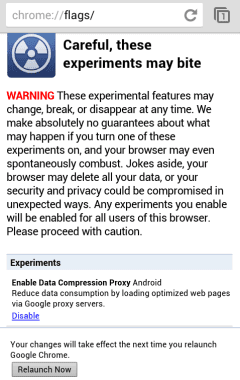
1. open a new tab, type chrome://flags in the address bar and tap "Go"


2. tap "Enable" next to the "data compression proxy" experiment (it's the first one right now)


3. tap "Relaunch now"


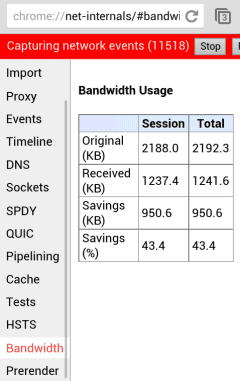
After relaunching the browser, you can see how much data you've saved by opening a new tab, typing chrome://net-internals and selecting the "Bandwidth" section in the left sidebar. Then visit different sites in a different tab and check the stats.


Google's proxy is faster than Opera Mobile's Turbo feature, while saving almost the same amount of data. For example, the savings for AnandTech.com were 48.9%, while Opera Mobile Turbo's data savings were 50%. The savings for apple.com were 60.3%, while Opera Mobile Turbo's data savings were 57%. Chrome's major advantage is that the proxy doesn't slow down browsing, unlike Opera Mobile.


Logon Screen Rotator For Windows 8


CLICK HERE TO SEE FULL POST


Remember the Logon Screen Rotator, the tool which enables you automatically rotate Windows 7 logon screen background after every login or lock? As some of you know, Logon Screen Rotator is probably the only free tool available to rotate logon background picture. Windows 7 users who have upgraded to Windows 8 and are missing the [...]

Procrastinate On Facebook With These Great Ideas [Weekly Facebook Tips]


We know full well that most people who use Facebook use it to mess around and generally procrastinate, instead of getting on with their real work. Yeah, sometimes we use it for some genuinely interesting conversations with friends, but there’s still a lot of time-wasting in the works. If you disagree, you’re probably one of the few disciplined people who simply ensure you don’t head to Facebook in the first place. If so, good on you. If not, read on.


So, you’ve suddenly realised you’re on Facebook again. You’ve scrolled through your home page for a good while now and started to hit refresh to see if anything new is happening. You know you’re just procrastinating and that this is pointless. Isn’t there anything better you can do? Yes – yes, there is. Facebook is such a great procrastination tool because there are dozens of ways to make your day disappear. If you’re going to hang out on Facebook wasting time, you may as well do it in the most fun ways possible. So, here’s some ideas for next time you’re bored.


Stop Hitting Refresh!


When you’re viewing your home page, the default option is to view your “Top Stories“. These are stories Facebook has decided are the most popular from all of your friends, filtered according to your Facebook EdgeRank score with your various friends. What this probably means for you is that it’s not even half of what your friends are actually posting.


If you’re actually bored and want to see more, head to the sort button at the top-right of the home feed. Then choose “Most Recent” to give yourself the fire-hose of posts you’ve been dying to see.


Play Games


Facebook is awash with time-wasting games to play with your friends. So, if you’re wasting time on Facebook and failing to play Facebook’s games, you’re missing most of the fun. However, when you’re bleary and stuck in the home page cycle it’s strangely easy to forget the Facebook games even exist.


There are so many Facebook game choices to be made, from board-game style word games like Scrabble and Words With Friends, through popular games like Draw Something and Angry Birds, party-style games such as karaoke, right to the ultimate time-wasters like Farmville, Mafia Wars and the like.


If you have friends worldwide, there’s almost always someone awake to play with, too. Pick anything that looks okay to you and watch your day waste away to oblivion.


Search For Cool Stuff With Facebook Graph Search


Facebook Graph Search is still fairly new, so searching for interesting things can make for some fascinating enlightenment. However, there are also some searches you can run which are pretty much guaranteed to entertain you – at least the first time.


One well-loved search Facebook recommends is “Photos I have liked“, which if you’re like me will include millions of photos of your friends’ kids. If you click on the “More than 100 Photos” button that hovers over to the right, you can filter it by year, location, who is tagged, who else liked the photo or whatever you like. Basically, this search will continue to show you all the pictures you’ve loved over the years – possibly ones you haven’t seen in a while. It’s a great way to re-live great memories.


Or, use Facebook Graph search to find apps or groups to enjoy via your friends. It’s the quickest way to find a new things to waste your time with.


If you’d prefer just to get straight to things you can waste your time looking at, try searching for “Photos by pages liked by my friends” or one of the many suggested alternatives, filters or extensions to this search. After a few hours, you’ll be ready for something else to do.


Update Your Privacy Settings


If the Facebook graph searches have made you worry a bit about your privacy, maybe you could spend a little time updating your privacy settings to deal with Facebook Graph Search. It’s less fun than other time-wasting activities on Facebook, but probably worth it in the long run.


Update Your Facebook Page


If you’re killing time anyway, why not take a few minutes to improve any Facebook pages or groups you help to run. There’s lots you can do to improve your page’s popularity: brighten up the page to make it more interesting, add some photos to gain popularity, fix niggling annoyances, or set up some automation.


No – I Want To STOP Procrastinating!


Maybe this post has hit home a little and you’d actually prefer to stop yourself from procrastinating on Facebook and maybe block Facebook games completely. That’s your choice, obviously. We’ll see you back on Facebook soon, I’m sure.


The post Procrastinate On Facebook With These Great Ideas [Weekly Facebook Tips] appeared first on MakeUseOf.


05 March 2013

How To Free Up Disk Space On Surface Pro


CLICK HERE TO SEE FULL POST


Microsoft Surface Pro is currently available in two models: 64GB and 128GB. As some of you already know, the actual free storage space that you get to use on 64GB model is approximately 29GB, and 89GB on 128GB model. Windows 8 files, Microsoft Office, and built-in apps take roughly 21GB and the recovery image takes [...]

Picasa Web Albums Redirects to Google+ Photos


After replacing Picasa Web with Google+ Photos in the navigation bar and redirecting individual albums to the Google+ interface, now Google redirects picasaweb.google.com to the albums section of Google+ Photos. You can still go back to the old Picasa Web interface if you use this URL: https://picasaweb.google.com/lh/myphotos?noredirect=1. Google displays this URL in a message that says: "Click here to go back to Picasa Web Albums".


When you use that URL, Google also sets a cookie value that prevents the redirect to Google+ Photos even when you enter picasaweb.google.com in the address bar.


Google+ Photos has constantly improved last year, while Picasa Web Albums no longer added new features. It's obvious that Google+ Photos is an upgraded version of Picasa Web Albums, which will be discontinued in the future. There are still a lot of cool Picasa Web features that haven't been added to Google+ Photos (Creative Commons licensing, photo mapping, featured photos, search), so let's hope that Google won't retire Picasa Web Albums until Google+ Photos adds these features.


{ Thanks, Dave and Eric. }


Download CCleaner 3.28 Latest Version


CCleaner is one of the best and #1 optimization tool for Windows computers. Now it has released the latest version of CCleaner 3.28 for all the Windows PCs with stunning new features. This latest version has fixed some minor bugs and fully supports with Windows 8 operating system. And also Piriform is planing to release CCleaner 4.0 in upcoming months. CCleaner developer team has introduced a new logo in this latest version.


Click here to Download CCleaner 3.28


How To Disable Databases Are Out Of Date Notification In Kaspersky


CLICK HERE TO SEE FULL POST


Kaspersky may not offer free antivirus software to protect your PC from viruses, malware, trojans, and other threats, but its paid Antivirus and Internet Security are definitely two better security software available to safeguard your PC. Both Kaspersky Antivirus and Kaspersky Internet Security software come with plenty of advanced features. Just like most security software [...]

04 March 2013

Gmail's Account Activity Reveals More Information


Gmail's account activity is a very useful security feature that offers information about the clients that connected to your email account recently, including the IP addresses and the date.


Until now, Google only displayed generic information about the access type (browser, mobile, POP3). A recent updated added some new details: the browser's name and the user agent. If you click "show details", you can find more information from the user agent: the browser's version and the operating system. Obviously, the browser's user agent can be easily spoofed.


{ Thanks, Herin. }


Change the Default Country Code in Gmail


Gmail has a new setting that lets you change the default country code for phone numbers. Google already detected the country, but you can now manually change it.


The default country code is used by Gmail's contact manager. If a phone number doesn't include a country code, Gmail uses the code you've selected.


{ Thanks, Scott and Herin. }


Recover My Password: Free Software To Reset Windows Password


CLICK HERE TO SEE FULL POST


Windows lets you create a password reset disk so that you can access your PC and user account even if you forget the password. But the problem is that many Windows users don’t create a password reset disk after setting up a complex password. Users who don’t have a password reset disk and want to [...]