20 February 2013

Cool Things To Search For With Graph Search [Weekly Facebook Tips]


graph search facebookFacebook Graph Search recently made a huge splash on the search scene, allowing all Facebook users to mine data that is either public or visible to them via their friends. The result is that regular users now have access to all sorts of information about friends and strangers. Some of that information can be quite interesting or useful, while some of it can be downright scary.


It’s worth noting that graph search has the power to divulge your personal information quite rapidly to friends or strangers, so please do re-check your Facebook privacy specifically for this. Regardless of what you think of Facebook Graph Search, it seems here to stay. So, here’s a bunch of interesting things to search for that could make your life easier, a little bit stranger or just make you more enlightened.


Get Graph Search


For starters, if you don’t already have Facebook Graph Search enabled, you can sign up for it here. You may need to wait a little while before it’s enabled. Soon though, it will be rolled out for everyone.


Use Facebook As A Dating Site


Facebook’s graph search makes it really easy to search for single people near you. Most importantly, you can narrow that down to friends-of-friends who have similar interests to you. So, the next time you go to a party and see that particular person, you already know of at least one common interest – and that they’re single! This means that life for single people on Facebook just got a whole lot easier and creepier, depending on how you look at it.


graph search facebook


Find Out Really Creepy Things About Your Friends


If you didn’t think searches like this could get really creepy and invasive, try searching for “My friends who are married and like prostitutes” or something equally crass. Luckily, my friends are either squeaky-clean or not silly enough to put that sort of information on Facebook.


graph search facebook technology


Stalk High-Profile People


Have you ever wanted to know the sorts of things Mark Zuckerberg likes? I mean, it’s only fair that we take a look. Similarly, we could be searching for pages, places or more.


graph search facebook technology


Since I don’t know any of Mark’s friends personally, all of these photos must be public ones. However, it’s still pretty interesting to take a peek. Flip that on its head, though, and you have a creepy way of stalking your friends and their friends – especially when you consider places check-ins. If that cute single person you found earlier has publicly shared their check-ins, you might easily learn their favourite coffee place, clubs and other haunts.


graph search facebook technology


Research Your Travel Destinations


If you’re heading off for a holiday, why not check out which places your friends visited in those cities? You’ll get a quick overview of the must-see places, plus if you narrow it down to restaurants or clubs you might find some great places to spend some leisure time while you’re there.


graph facebook search


Find Out About Your Workmates


If you’re struggling to find common topics to chat about around the water cooler, why not check out what the people you work with like to watch on TV? Or you could find out about movies they like, books, restaurants, hobbies, or whatever else takes your fancy. Perhaps if you’re preparing for a job interview you could do something similar with the new company.


graph facebook search


Find Out More About Your Customers


There are dozens of useful searches you can do to check out what your customers like. For starters, why not see what other pages are liked by fans of your company’s page? And which pages are liked by people who like the top pages of that search?


graph facebook search


But all that is very business-like. Why not check something fun instead? What movies do your fans like? What hobbies do they like? Just for interest, MakeUseOf fans seem to like photography, travelling and reading.


graph search facebook


As you can see, with Facebook Graph Search it is now really important to ensure your privacy settings are set precisely as you wish. Please do take the time to read more on how to limit your exposure on Facebook.


Have you tried Facebook Graph Search yet? What are your favourite searches so far? Have you found a great way to make use of it?


The post Cool Things To Search For With Graph Search [Weekly Facebook Tips] appeared first on MakeUseOf.


19 February 2013

Manage Your Hard Disk Partitions Like A Pro With EaseUS Partition Master [Windows]


hard drive partition softwareWhen you ask a tech crowd about hard drive partition managers, many people will agree that EaseUS Partition Master is the best tools for the job. Why? Because it offers many great features, yet remains easy to use. It’s also MakeUseOf’s favorite partition manager for Windows.


So what does a hard drive partition manager do? New hard drives typically come with one large logical storage unit that spans the entire size of the disk. A partition manager can slice that space up into multiple partitions, meaning it can be used like multiple disks. There are many reasons why you would want to do that, for example to boot more than one operating system from the same hard disk, or to store personal data separately from your operating system, meaning you can wipe the system partition without losing your files. Now, what if one partition becomes too small or you don’t need it anymore? A partition manager can also resize, move, and merge partitions. While Windows does provide native disk management tools, third party software usually provides additional features.


Note that EaseUS Partition Master is launched from a start screen that features two other EaseUS tools, which are the EaseUSData Recovery Wizard and EaseUS Todo Backup. This review focuses on the partition manager only.


hard drive partition software


Feature Overview


  • maintain data during any partitioning operations

  • resize or move partitions, includes extending NTFS system partition without reboot

  • merge two adjacent partitions into a bigger one

  • create multiple partitions

  • delete partitions (data is lost)

  • wipe data on unallocated space

  • wipe a whole disk or wipe a selected partition

  • format with new file system, including FAT, NTFS, EXT2, and EXT3 (data is wiped)

  • format with new cluster size between 512Bytes and 6KB (data is wiped)

  • change label and drive letter

  • hide partition

  • convert primary partition to logical partition and vice versa

  • defragment disk or partition

  • run a disk surface test to find bad sectors

  • rebuild MBR to boot system again

  • manage Linux partitions formatted with EXT2 or EXT3 file system

  • supports hardware RAID, multiple removable storage devices, standard hard disk and GPT disk

  • supports up to 2TB partition on MBR and 4TB partition on GPT

  • runs under Windows 2000 / XP / Vista / 7 SP1 / 8 with either 32-bit or 64-bit


Interface Overview


Front and center are all disks connected to your computer. Connected drives are listed as Disk1, Disk2 etc. Under each disk header, you will find all partitions of the respective disk and their properties.


hard drive partition manager


Below the drive list, you see the disk map, which presents a graphical overview of each disk’s partitions.


hard drive partition manager


The left-hand menu shows all available operations for each partition. See how the menu changes as you select different partitions.


hard drive partition manager


Key operations, like Resize/Move, Delete, or Merge are also shown as buttons in the toolbar on top.


windows hard drive partition manager


In addition, all operations are accessible via the menu shown in the screenshot above. Moreover, you can change what you see or how items are arranged via the View menu.


windows hard drive partition manager


Using EaseUS Partition Master


The main purpose of this tool is to create, resize, move, delete or merge partitions, and – with the exception of deleting a partition – without compromising the data stored on each disk or partition. After closely inspecting the interface, you should have an idea how to use EaseUS Partition Master. I will take you through the finer detail of basic operations here, using an unpartitioned external hard drive.


I want to create a partition. Note that this option does not exist. So first, I have to create some space, by resizing the existing single partition. To do this, I select Disk2, my external drive, and click Resize/Move. A window pops up that allows me to change the size and position of the selected partition.


windows hard drive partition manager


Grab one of the ball-shaped handles on the left or right of the partition and move it or grab the partition in its center to move it as a whole. The latter only works if there is unallocated space to its left or right. Note how the disk map at the bottom updates, showing the result of your changes.


I don’t want my data to be moved, so I create unallocated space on the right side of the existing partition and click OK. The disk map now shows unallocated space for my external hard drive.


I can select the unallocated space and click Create under Operations or in the toolbar to create a new partition. A window will pop up where you can select a partition label, file system, drive letter, cluster size, and how much of the unallocated space should be dedicated to the new partition. Again, you can drag the ball-shaped handles to change the location and size of your new partition.


Now I have a smaller partition with my data and a new partition flanked by unallocated space. Try to grab the partitions and move them around in the disk map. That is what I call intuitive software!


Now if you tried this yourself, you may have noticed that all of this went pretty quick. Did EaseUS Partition Master really create a new partition in a matter of milliseconds. No, it didn’t. None of the operations are immediate. They are all parked in Pending Operations in the bottom left.


hard drive partition software


You can undo changes via the toolbar or General menu and once you are ready, hit Apply. In other words, you can safely play around, without making any actual changes.


Conclusion


EaseUS Partition Master has a very clear interface, yet offers many advanced features. It is easy and intuitive to use and protects the novice from making hasty mistakes. It is superior to Windows’ native disk management because it is more flexible. For example a partition can be extended, regardless of where unallocated space sits, simply by dragging everything into place.


We have covered other drive partition tools in the past, including GParted. Do you have a favorite third party partition manager or are you completely satisfied with Windows’ native disk management?


The post Manage Your Hard Disk Partitions Like A Pro With EaseUS Partition Master [Windows] appeared first on MakeUseOf.


So, You Think You Can’t Write? Let’s Get You Back On Track


writer tipsStumped? Lost for words? Are you often in the position of being unable to get yourself to write anything, even though the deadline is fast approaching? Yeah, writer’s block sucks – and it happens to all of us. Most writers, after suffering a few days where it got really bad, make plans to get around the problem as best as possible. Now is your time to do the same.


There are lots of great ideas anyone can try, regardless of your writing needs. It doesn’t matter if you’re a student writing essays, a casual writer doing NaNoWriMo, or a professional author writing a new novel. In this list of writing tips there are bound to be a couple of ideas which will make a huge difference to the way you approach your writing. So, read on!


1. Get Comfortable


If you’re fussing around trying to avoid back-ache and eye strain, you’re not writing. Set up your desktop or laptop so that you’re actually comfortable, then every future attempt to write will only be thwarted by you not knowing what to write.


writer tips


2. Stop Procrastinating & Write


Sometimes, you just need to open up a blank page and get writing. It doesn’t matter what the subject is, really. Once you’ve written a few pages, you’ll be ready to get stuck into the important stuff. So, get yourself a random writing prompt and see how quickly you can get a few words out:


3. Ensure Your Desktop is Distraction-Free


Get rid of email notifications, turn off anything that beeps or pops up, ensure your digital writing space is clear and uncluttered, and make sure your real-world environment is clean, quiet and peaceful too. Serenity brings creativity with it & many writers swear by ensuring they have a neat and peaceful place to write, both digitally and physically.


writer tips tricks


4. Dictate When Possible


If you find your typing speed slows you down, or that getting free time with your hands ready for typing isn’t likely, you might be better off using some dictation software. This is great if you’re out and about with a tablet often.


5. Read & Listen To Creative Inspiration


If you get a daily dose of inspiration and advice on creating characters and other writing devices, you’ll be perpetually coming up with great ideas you can use. This is the state you want to be in! It’s better to forget a handful of half-formed ideas than to never have them in the first place. So, subscribe to creative podcasts, read blogs on writing, install brainstorming software, use free web tools, and take time to immerse yourself in decent literature. Every bit helps.


Here’s some recommendations from MakeUseOf staff:


6. Make Notes Of Any Great Ideas


It doesn’t matter what you use: Evernote, OneNote, RememberTheMilk or a spreadsheet. What matters is that whenever you have a great idea for an article, story, character or plot you jot it down somewhere where you can refer to it when you need some inspiration later. Nothing is better than realising that you already came up with the ideas and all you need to do now is write. Dictating your notes is also a great idea if you’re pressed for time.


writer tips


7. Keep Synced Backups


Nothing is more annoying than wanting to work on a particular piece you are writing, only to find that you don’t have a current version with you. Oh wait, yes there is – losing your work altogether. To avoid this issue, and to protect your writing from digital or real-world disasters, keep organised backups of your writing that are synced between your devices. MakeUseOf staff recommend numerous ways to do great backups, but here’s a few dedicated to writing backups:


What are your best tips for getting your writing back on track? How do you overcome procrastination? Where do you get your inspiration? Let us know in the comments!


Image Credit: Shutterstock, Shutterstock, Shutterstock, Shutterstock


The post So, You Think You Can’t Write? Let’s Get You Back On Track appeared first on MakeUseOf.


How To Open Folder Options In Windows 8


CLICK HERE TO SEE FULL POST


In Windows 8, Microsoft has introduced Ribbon in Windows Explorer. Because of this, the new file explorer or Windows Explorer looks drastically different from previous versions of Windows. The new Ribbon Explorer helps quickly access various files and folders options. Many advanced settings are located under Folder Options in Windows. Options such as show drive [...]

18 February 2013

Everything You Need To Know About Windows 8 Swipe Gestures On A Laptop


windows 8 gesturesWith the introduction of Windows 8, a lot of brand-new touch-friendly features have been added to make the operating system enjoyable to use on touch-enabled devices. However, for typical laptops which only have touchpads for their input, it may be a bit confusing as to how to move your mouse in order to achieve the same results. Therefore, with some tips and drivers in hand, here is how you can easily take advantage of Windows 8′s new Modern UI goodies.


Synaptics Drivers


Before we begin, it’s important to note that Windows 8 does support some touchpad gestures as well, in addition to simply pushing your mouse pointer to certain areas of your screen. There’s nothing you need to do if you bought your computer with Windows 8 already installed, but if you upgraded to Windows 8 yourself, you may need to go to Synaptic’s website and download their latest drivers to enable gesture support.


Charms Bar


windows 8 gestures

The Charms bar is what appears on the right side of your screen to access application and system settings, the start button, and a few other items. Touch-screen users can reach it by swiping to the left from the right edge of the screen. However, touchpad users have three options – either push your mouse pointer into the top right or bottom right corner and then move it to the center of the right edge, put your finger on the right edge of your touchpad and swipe inward, or hit Win + C on your keyboard.


App Switcher


Accessing the app switcher is very similar to how the Charms bar is accessed, except on the opposite side. Therefore, touchscreen users can swipe to the right from the left edge of their screen. Touchpad users can push their mouse pointer into the top left or bottom left corners and then move to the center of the left edge, put your finger on the left edge of your touchpad and swipe inward, or hit Win + Tab on your keyboard. One thing to note – all desktop applications are grouped together into the “Desktop” app, so switching between those desktop applications can still be achieved with the trusty Alt + Tab keyboard combination.


App Bar


windows 8 gesture control

If you would like to access the App bar of a native Windows 8 app, you have slightly different options. Touch-screen users can simply swipe down from the top edge of their screen, and touchpad users can do the same thing by swiping down from the top edge of their touchpad. You can also right-click anywhere on an app, or hit the Win + Z key combination.


Horizontal Scrolling


Horizontal scrolling is another feature in Windows 8 which can be easily accessed. Both touch-screen and touchpad users can do horizontal scrolling by swiping two fingers to either the left or right. If you are using a mouse, you can horizontally scroll by scrolling the wheel up or down. The reasoning why scrolling the wheel up or down corresponds into horizontal scrolling is because the start screen as well as all Windows 8 apps expand horizontally rather than vertically.


Zooming And Rotation


You can also zoom in and out as well as rotate. Zooming in and out can be achieved by placing two fingers on the touchpad and then spreading them out or putting them together. You can also use the Ctrl and + keyboard combination to zoom in, or the Ctrl and – keyboard combination to zoom out. Rotation can be accomplished by using two fingers and then turning them to mimic rotating a circle. Rotation doesn’t have a keyboard shortcut, however.


Turning Them Off


windows 8 gestures

While it’s cool to have these gestures to get easier access to Windows 8′s UI, it may get in the way of your productive habits if you tend to swipe around on your touchpad in much the same way as the gestures defined by Windows 8. If you need to turn them off, there’s a way to change entries in the registry which control whether the gestures are enabled or disabled. To do this, open up Notepad and copy and paste the following code into it:


Windows Registry Editor Version 5.00

[HKEY_CURRENT_USER\Software\Synaptics\SynTPEnh\ZoneConfig\TouchPadPS2\Right Edge Pull]

"ActionType"=dword:00000000

[HKEY_CURRENT_USER\Software\Synaptics\SynTPEnh\ZoneConfig\TouchPadPS2\Left Edge Pull]

"ActionType"=dword:00000000

[HKEY_CURRENT_USER\Software\Synaptics\SynTPEnh\ZoneConfig\TouchPadPS2\Right Edge Pull Extended Zone]

"ActionType"=dword:00000000

[HKEY_CURRENT_USER\Software\Synaptics\SynTPEnh\ZoneConfig\TouchPadPS2\Top Edge Pull]

"ActionType"=dword:00000000


Then save that file somewhere on your computer as “gestures.reg”. Just make sure to choose “All file types” in the Save As dialog and then typing out the whole filename, including the file extension. Then find the file you just saved and run it, clicking on Yes for all warnings that pop up. After it completes, you’ll need to restart your computer to load the new settings.


You can also enable them again if you previously disabled them using the same trick. However, you’ll need to paste this code into your gestures.reg instead:


Windows Registry Editor Version 5.00

[HKEY_CURRENT_USER\Software\Synaptics\SynTPEnh\ZoneConfig\TouchPadPS2\Right Edge Pull]

"ActionType"=dword:00000002

[HKEY_CURRENT_USER\Software\Synaptics\SynTPEnh\ZoneConfig\TouchPadPS2\Left Edge Pull]

"ActionType"=dword:00000002

[HKEY_CURRENT_USER\Software\Synaptics\SynTPEnh\ZoneConfig\TouchPadPS2\Right Edge Pull Extended Zone]

"ActionType"=dword:00000002

[HKEY_CURRENT_USER\Software\Synaptics\SynTPEnh\ZoneConfig\TouchPadPS2\Top Edge Pull]

"ActionType"=dword:00000002


Conclusion


Hopefully you can make better use of your new Windows 8 system now that you know about these tips for using the operating system with a touchpad. While I still think that the OS is better suited for actual touch-screens, it’s still easy to remain productive with just a typical laptop touchpad. And if these wordy instructions didn’t click in your mind, maybe this video will help you a bit. Also, if you have any other Windows 8 issues, check out this article, or if you’re just getting started with the new operating system, check out our guide on Windows 8!


What do you use with your Windows 8 system, a touchpad, touchscreen, or both? How do you feel about any of these input options? Let us know in the comments!


The post Everything You Need To Know About Windows 8 Swipe Gestures On A Laptop appeared first on MakeUseOf.


Chromebooks and Battery Life


There's something wrong about the latest Chromebooks: battery life. Cr-48, Google's prototype hardware, had a 63Wh battery that provided more than 8 hours per charge. Samsung's first Chromebook had a similar battery that provided "up to 8.5 hours of continuous use".


For some reason, a few months after introducing the Series 5 Chromebook, Samsung switched to a different battery: 41Wh and only 6.5 hours of use. The updated Series 5 Chromebook, which uses a Celeron processor, has a battery with a larger capacity: 51Wh, but the same battery life. Samsung's latest Chromebook, which uses a Cortex A15 chip, has a 30Wh battery and the same battery life because the ARM chip is more efficient.


What about the latest offerings from Acer, Lenovo and HP?


- Acer C7: 37Wh, 2.5Ah, 3.5 hours battery life

- HP Pavilion: 35Wh, 2.55Ah, 4.25 hours battery life

- Lenovo X131e: 6.5 hours battery life.


It's not clear why the latest Chromebooks no longer have a great battery life, but the new batteries are obviously cheaper and lighter. Google's Chromebook features page no longer mentions the word "battery", even if this was one of the main selling points for the first Chromebooks.


Google Docs Templates, Still Available


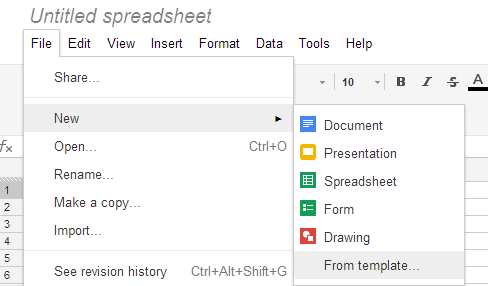
Google has recently updated the "Create" menu from Google Drive and removed the templates option from the menu. You can still find it if you visit this page.


Another workaround is to create a document, spreadsheet, form, drawing or presentation, click the "File" menu, select "New" and then "From template".


Maybe Google finds a way to integrate the templates section with the Google Drive apps, so that it doesn't open in a new tab.


17 February 2013

Complete Windows 8 Guide


Windows 8 proved that its better than its predecessors windows 7 ,XP and Vista.In this article we will list out all the Tutorials and How to Guides related to Windows 8 Operating System.


Downloading Windows 8:


Microsoft first released the preview editions of windows 8 then finally released the Professional Edition on August 1st 2012.Since its release it has got a great hype.


Installation:


You can install windows 8 on your computer in different ways based on your need and convenience.


  • Install Windows 8 on virtual box to test its features.

  • You can mount ISO image of downloaded windows 8 edition and format your PC with usual bootable CD method.

  • In case if you dont want to go ahead with Bootable CD method then you can also install windows 8 via usb/pendrive.

  • You can also run Windows 8 in parallel to the existing OS on your PC.All you have to do is to format your PC using the same traditional bootable method but here you have to choose a different hard drive i.e Other than C Drive which is already loaded with the existing Operating system.So you have to choose drive other than C while formatting your personal computer.


Windows 8 Activation and Keys:


Almost all the editions of windows 8 comes with trial period.Windows 8 pro edition comes with a 90 days trial.


Windows 8 Customization:


Windows 8 itself is a very colourful and attractive operating system.It also offers many features to customize windows 8 based upon your interest.


Windows 8 Video Tutorials:


Final Words:


Here we have listed all the basic guides to get started with Windows 8.If you want any more guides let us know in your comments we will update the article with what you want.


Hokrain Is The Coolest Audio Player That You’ve Never Heard Of [Windows]


audio playerEvery month or so, I’ll come across a piece of software hidden in the depths of the internet that really hits me as a surprise. How are some of these applications so unpopular?


I’ve preached on my loyalty to Winamp Lite in a previous article. It’s old and many would consider it to even be deprecated, but it’s always done the job for me. When I’m listening to music downloaded to a local drive, I don’t need Spotify or iTunes in charge of my music. However, for the past week, I’ve slowly started to fall in love with a new, free, and portable alternative to Winamp Lite that seems to incorporate the same elements of simplicity while also offering some really awesome extra functionality. Let me tell you about Hokrain!


Download Hokrain


First worth mentioning is the website that Hokrain calls home. Though I’ll echo and help explain much of it in this article, Hokrain’s website is one of the best examples of a one-pager that I’ve ever seen. All of the information that you’d be interested in, including a direct link to download the application, exists on a single page.


audio player


It saves you from wasting time and makes you want to download and give it a try. It’s one click away and you know everything that it has to offer, so why not?


Hokrain is completely portable and can be run from a flash drive. Hokrain runs perfectly on any version of Windows, from 98 onward. It’ll cost your disk 600 KB of space and I’ve yet to see it go over about 7 MB in RAM usage. Compared to one of the applications I mentioned earlier, Spotify or iTunes, the difference in resource intensity is extremely significant.


Out of the box, Hokrain’s interface is very simple and clean.


free audio player


One quick glance and you’re able to see practically everything you need to begin listening to your music. Hokrain supports the following formats:


  • MP3

  • MP2

  • MP1

  • MPA

  • OGG

  • WAV

  • AIFF

  • MO3

  • IT

  • XM

  • S3M

  • MTM

  • MOD

  • UMX

  • AAC

  • AC3

  • APE

  • MAC

  • CDA

  • FLAC

  • MIDI

  • MID

  • RMI

  • KAR

  • MPC

  • MP+

  • MPP

  • TTA

  • WMA

  • WV


Navigate to a folder, double-click a track, and it will immediately begin playing.


free audio player


Let’s break down a few of the more interesting parts of the audio player’s interface:


  • Hokrain has a nice CPU usage monitor that shows just how much processing power it is consuming while playing. It’s near the top-right of the interface, and just 0.42% in the above screenshot.

  • Hokrain’s volume slider is very large, running all the way up the right side of the interface. Unlike many audio players, it’s vertical rather than horizontal. Being so large, it really allows you to easily set an exact volume percentage, if you’re into round numbers like me.

  • There is also a quality spectrum that lets you visualize the current track’s visual quality.

  • Below the spectrum, you’re able to graphically seek your track. Some audio players have a simple slider that lets you seek through the track, but a graphical seeker really lets you pinpoint a particular part of a song at just a glance. No more hearing around and wasting time to get to the part of a song that you want.


The application’s settings are filled with goodies. Hokrain comes stocked with six different themes that you can choose from. Here is the Windows XP theme:

free audio player


The General tab offers a lot of information and lets you set more than just your theme. There is an OSD (on-screen display) every time you change tracks to notify you of what is currently being played. It can be turned on or off. You are then able to toy with shell integration options, your tray icon, and a few other small tweaks.


cool audio player


Another great thing about Hokrain lies within the two Hot Keys tabs.


cool audio player


If you’re using a media player, you need to use hotkeys. It’s just that simple. Hokrain supports a ridiculous amount of hotkeys that let you control playing, stopping, pausing, muting, seeking, and plenty more. I’d argue that there are possibly even too many hotkeys!


The coolest part of the settings is something that I’d consider to be a “quality of life” feature, one that isn’t exactly necessary but it’s really nice to have: Scrobbler.


audio player


If you’re not big on Last.fm, Hokrain lets you keep local records on what tracks you play, how long you’ve listened to them, and how many times you’ve played them. You can sort these records to make out what your favorite songs are. It’s just an example of Hokrain thinking outside the box and doing more than the average audio player.


Hokrain is an audio player that I’m happy I’ve found. Even if you’re pleased with your current audio player, it’s a piece of software really worth appreciating. Give it a try and see if you like it. Let me know what you think in the comments!


The post Hokrain Is The Coolest Audio Player That You’ve Never Heard Of [Windows] appeared first on MakeUseOf.


Will Windows 8 Run On My PC? Here’s How to Tell


will windows 8 work on my pcIt’s been about three months since Microsoft released Windows 8, and people have had lots of time to hear about what’s new and decide whether they wish to upgrade. If you have decided to commit to the upgrade, you need to be sure that your system is capable of handling the new software, or else burn a useless hole in your wallet.


Now that the time frame for cheaper Windows 8 upgrades is over, it’s highly important to be certain that such an upgrade will go as smoothly as possible. Therefore, to help you out, here are some tips on determining whether your system can handle the upgrade, and what you can do to improve performance once you’re running Windows 8.


The Requirements


will windows 8 work on my pc

Every piece of software has listed hardware requirements that your system must meet in order to run such software. Windows 8 is no different, but its requirements aren’t as high as past Windows releases. The requirements for Windows 8 include:


  • 1 GHz processor

  • 1 GB of RAM for 32-bit systems, or 2 GB of RAM for 64-bit systems

  • 16 GB of free space for 32-bit systems, or 20 GB of free space for 64-bit systems

  • A graphics card capable of DirectX 9 graphics with WDDM driver


Of course, in order to get the best experience possible, there are a few recommendations that are listed. However, Windows 8 should run just fine if you don’t have any of these:


  • A tablet or monitor that supports multi-touch

  • To access the Windows Store and download and run apps, you need an active Internet connection and a screen resolution of 1024 x 768

  • To “snap” apps, you need a screen resolution of 1366 x 768.


If you do not meet all of the listed requirements, I would suggest looking at upgrading your system’s hardware, if possible. If not, you’ll probably need to look at getting a new system if you are still wanting to run Windows 8. If you do meet the requirements, however, you should run the Windows 8 Upgrade Assistant. This utility will do some extra work to check not only your system’s basic hardware, but also the compatibility of all attached hardware, such as webcams, printers, joysticks, and other peripherals. If the upgrade assistant gives you the green light, you should be in good position to perform an upgrade.


Performing the Upgrade


Once you have the upgrade media (whether it’s a physical disc or the upgrade assistant which will download the upgrade for you after charging you the fee), it’s fairly painless to complete the procedure. The setup wizard asks a minimal amount of questions, and you can even perform a “clean install” upgrade directly from your old Windows, without having to reboot into the installer. Of course, once the upgrade completes, you’ll need to restart in order to do some final cleaning up and launch into the new operating system.


Turn Off Visual Effects


will windows 8 work on my computer

Congratulations, you’re now running Windows 8! If, after the upgrade, your system feels sluggish, you can change a few settings to increase performance. A fair amount of the resources and CPU cycles needed by Windows come from the graphical interface on which you do your work, so it’s a good idea to turn off any fancy graphical effects that aren’t really necessary to stay productive.


To turn these all off to up your system’s performance, begin by opening the Control Panel. You can do this by going into the Start screen by hitting the Start button on your keyboard, and then typing “control panel.” Hitting enter will open the application. From here, click on System and Security –> System –> Advanced system settings. The new window that appears should already be in the Advanced tab. Click on the Settings button under the Performance section at the top of the window. A new Performance Options window should appear which is on the Visual Effects tab. To turn off all the graphical effects, choose the “Adjust for best performance” option. This should help reduce some strain on your CPU, GPU, and RAM.


Increase the Paging File


will windows 8 work on my computer

Another performance trick is to adjust the size of the paging file on your computer. The paging file is a file on your hard drive that is responsible for holding any data that won’t fit into the RAM. In other words, it’s a space on your hard drive that is used as overflow for whenever your RAM is completely used. Conceptually, it is similar to the swap partition for Linux operating systems.


In the same Performance Options window, switch from the Visual Effects tab over to the Advanced tab. Then click on the Change button in the Virtual Memory section at the bottom of the window. Then, in the new window, turn off “automatically manage paging file size for all drives,” and then choosing Custom Size. The size that you put in is really up to you, so it mostly depends on how much RAM is already installed on the system and how much free space you have on your hard drive. As people who would need to do this trick typically have about 1 GB of RAM, I would suggest setting it to at least 2048 MB. Both fields should hold the same number, so that the space is always reserved for the paging file. When you’re done, hit the Set button before closing out of all your opened windows.


Clean Out Your Hard Drive


will windows 8 work on my pc

Last but not least, it’ll also help to clean up some space on your hard drive after performing the upgrade. To open the disk cleaning utility, launch an instance of Windows Explorer by clicking on the folder icon in the taskbar in desktop mode. Then, click on your C: drive from the list in the left panel, and then click on Manage from the ribbon menu. Finally, click on Cleanup to launch the utility. Let it scan through all your files to see what can be removed, and when it opens up the results, click on the “Clean up system files” button to really search through everything. Provided that you have backed up or moved out any files that you may have wanted to keep from your old Windows installation, the disk cleaning utility will clean up all traces of the upgrade, typically reclaiming around 20GB or more.


Conclusion


You also shouldn’t have to worry about defragmenting your hard drive anymore, as Windows 8 does it routinely by default. With these tips on whether an upgrade is feasible, and how to improve performance on systems that barely meet the requirements, you should be on your way to a decent Windows 8 experience based on the hardware that you have. Plus, there are a few more things you can change to make your Windows 8 experience even more enjoyable.


Are you upgrading to Windows 8? What other tips could you offer? Let us know in the comments!


The post Will Windows 8 Run On My PC? Here’s How to Tell appeared first on MakeUseOf.