30 January 2013

Prepare Your Account Privacy For Facebook Graph Search [Weekly Facebook Tips]


facebook graph searchEvery time Facebook releases a new feature to learn more about our friends, many people realise that their privacy settings are not adequate anymore. Their latest new feature, Facebook Graph Search, is no exception – many people are a little concerned about what sorts of things will be found and by whom.


Thankfully, all it takes is a little understanding about how Facebook Graph Search works, then you can tweak your privacy settings accordingly. Today, we’ll go into a little detail about what exactly the Facebook Graph Search is and the sorts of things strangers may be able to find out about us. Then, we’ll make sure you have double-checked your privacy settings in anticipation of the full Graph Search roll-out.


What Is Facebook Graph Search?


Facebook Graph Search is a new way to search for information on Facebook, which uses natural language and finds results across a broad spectrum of things. For instance, Facebook suggests you might like to do a search for “People who like cycling and live in Seattle, Washington“. It’s also possible to do a similar search for “My Friends who like cycling and live in Seattle, Washington“. This would mean you could quickly find out which of your friends you should talk to in order to go cycling with them while you’re in Seattle.


facebook graph search


As you can see, Facebook graph search takes information about people’s Location, Liked Pages, Other Likes, Places, Photos, Education, Work, Hometown, Timeline and more. Also, because all of this information is protected by a variety of privacy settings, searches performed by different people will yield different results. This is due to the privacy settings of friends and strangers for each individual part of their profile. Only things that were previously available to a given person will be viewable via the Search Graph, however they may find that information more readily now.


Which Privacy Settings Are Likely To Create The Most Trouble?


Since it’s now easier to find information in the sea of data in Facebook, strangers and friends alike will now be able to find out information about you more easily. I personally recommend that all users check their privacy settings for their current location, hometown and tagging for places, as these could very quickly lead a person to your current physical location.


facebook privacy


The next most important thing to do is to review photos of yourself. On Facebook, there is also a little confusion with photo privacy. The privacy of any given photo is determined by the person who uploaded it. The privacy settings you set for photos you are tagged in will determine who else may see the photo, but they can’t stop someone who already could view the photo from seeing it.


For instance, if your cousin uploads photos of you and makes them visible to all of their Facebook friends, all of those Facebook friends will be able to see the photo despite your privacy settings. Even if you have set your privacy to ensure your grandparents can’t see photos you are tagged in, they will still be able to see your cousin’s photos if your cousin is friends with them on Facebook.


You can remove the tag, although it will do little to help you in this circumstance. The best thing to do would be to ask your friends to set stricter privacy settings on the photos you appear in or to remove the photos altogether.


facebook privacy


Also important are the settings for your work and education, previous posts and activity. Check your activity log to see what is viewable and make changes as you like (go to https://www.facebook.com/YOUR-PROFILE/allactivity ).


facebook privacy


Review your Likes and remove or change the settings for anything that you don’t want people to see. Pages you have liked were changed to public by default a while back, but they can now be made less public. So, it’s vital that you change the privacy settings or Unlike anything that you’d prefer to stay private. Since many people have been Liking activities, TV shows, movies and music since long before they all went public, this is important.


To edit your settings for Likes, go to your timeline and click on “Likes“, then “Edit“. Each category of Likes has a different privacy setting, so you can fine-tune it as you wish. Ensure you remember to click on “Done Editing” when you are finished in order to save your settings.


facebook graph privacy


Also note that minors have certain settings locked to a maximum exposure of friends or friends of friends (who are also minors). To read more about privacy for minors, see this page.


How Do I Fix & Check My Privacy Settings?


Facebook has a new privacy navigation menu, which is accessible via the little padlock icon in the top-right of any page on Facebook. The menu makes it easy to check your privacy settings, to access the activity log and to access the full privacy menu. This also allows you to quickly view your timeline as another person to verify what they can see.


facebook graph privacy


As you saw above for the privacy settings of “Likes“, it is now possible to edit the settings of many other items on your Timeline in the same way. It’s worth checking each section of your Timeline and ensuring things are as private as you expect, particularly the “About” section and the “Friends” section.


facebook graph privacy


Don’t forget that privacy settings can be dictated using custom-made friends lists. It’s therefore well worth setting up some friends lists to help you manage your privacy.


What Else Should I Know?


Facebook have written their own guide to Facebook Privacy and the Graph Search and it is well worth taking a look. In particular, it will demonstrate the sorts of photos which can be found via Graph Search that are not viewable on your timeline. These are the ones you should be reviewing and discussing with the person who uploaded them.


facebook graph search


Have you checked your privacy settings for Facebook Graph Search yet? Were you surprised to find some things were more public than you had hoped?


The post Prepare Your Account Privacy For Facebook Graph Search [Weekly Facebook Tips] appeared first on MakeUseOf.


Turn On Click-to-Play and Make your Google Chrome More Stable


You are watching a video in Google Chrome and suddenly a yellow notification bar pops-up saying that the Shockwave Flash plug-in isn’t responding. While Chrome may have come a long way, these frequent Flash Player crashes still remain the most annoying thing about Google’s browser.


Shockwave Flash in Google Chrome

Shockwave Flash isn’t responding – the most frustrating error in Google Chrome?


Fixing Shockwave Flash Crashes in Chrome


The easiest solution to the problem would be that you completely disable the Shockwave Flash plug-in inside Chrome. Go to the Chrome address bar, type chrome://plugins and find the entry that says “Adobe Flash Player /Shockwave Flash.” Click Disable.


While this certainly resolves the crashing behavior, you now have to deal with another problem. You can’


YouTube is probably the biggest reason why we need the Flash Player in our browser and once we disable the Shockwave Flash plugin, some of the videos won’t play. YouTube does offer an HTML5 video player but videos that are enabled for advertising (most professional content) still require the Flash Player. Also, the YouTube video player served with Flash seems to offer more features.


Run the Flash Player On-demand inside Chrome


A better alternative is that instead of completely blocking the Flash plugin, you configure Chrome such that the plugin loads only when required.


Enable Flash on-demandIn this case, the plugin stays inactive by default but if you happen to visit a web page that requires Flash, you can load the plugin on-demand.


Go to the address bar and type chrome://settings to open the Chrome Settings windows. Choose Show Advanced Settings -> Content Settings (under Privacy) and then choose “Click to Play” under the Plug-ins group.


If a YouTube video or an audio clip on the Soundcloud requires Flash, you can click the plug-in icon to temporarily enable the Flash Player for that page. This obviously isn’t a permanent fix but just a workaround to deal with a very frustrating and common problem of Google Chrome.


Also see: Why is your Flash Player Green?


Tweet this Share on Facebook


Digital Inspiration @labnol This story, Turn On Click-to-Play and Make your Google Chrome More Stable, was originally published at Digital Inspiration on 29/01/2013 under Google Chrome, Software.


29 January 2013

Search The Web Faster With Quickrr Search Extensions [Chrome]


Is productivity overrated? There certainly is value in getting things done better or quicker and saving time. But at what price? Do some shortcuts let us miss out on essential experiences, the kind that make life worthwhile? I think it’s worth pondering those questions before we plunge ahead mindlessly. Do save time for what matters in life and maybe some of the extensions introduced below can help.


Quickrr provides a collection of Chrome productivity extensions, which enhance your browsing experience in 25 different ways. One of the extensions, Quickrr Google Maps Search, made it onto our list of Best Chrome Extensions in the category Maps and Weather. This article introduces four more Quickrr search tools.


Quickrr Google Maps Search


This extension is a shortcut to Google Maps. Click the place mark icon within the list of extensions, enter your search term, and hit Enter to see the result in Google Maps. If you need directions, enter a respective search, for example ‘Chicago to NY‘ and you will see a route instantly.


Note that for a new search using Quickrr Google Maps Search, you first have to close the tab from your previous search. Or simply search directly within Google Maps.


Quickrr YouTube Search


Quickrr’s YouTube Search extension for Chrome is almost identical to Google Maps Search. Click the respective icon, enter your search term, hit Enter, and off you go to a list of results in YouTube.


Quickrr Research


Do you often use multiple search engines and sites to research a topic? Maybe Quickrr can save you some time here. Preset with an impressive list of engines, it will make your research a breeze.


Is your favorite resource missing from the list? No problem! Simply do a search for I_Love_Quickrr and the extension will recognize the new engine and ask you whether you want to add it.


Quickrr Image Search


For those of you frequently on the lookout for images, this extension will come in very handy. It allows you to search multiple pages in parallel. It comes equipped with 7 image search engines, but you can fully customize the list. To do a search, click the icon, enter your search term, check the pages you want to search, and click Go.


What impressed me once more is how easy it was to add an engine. We use Shutterstock for MakeUseOf. To add it to Quickrr Image Search, all I had to do was run a search for Quickrr Image within Shutterstock. Quickrr recognized this search and asked me whether I wanted to add a new search engine.


Quickrr Site Search


Tired of searching for the search box on every other website? If this happens to you a lot, you need to try this extension. It simply lets you search whatever website you are currently viewing. No more typing the site name into Google, Quickrr does it for you.


We also mentioned Quickrr Dictionary in the article 7 Chrome Extensions That Help You Look Up Words & Meanings As You Browse.


Summary


Quickrr’s extensions can help you get things done faster and free up time for things that matter. If you like several of their extensions, save some system resources by installing the Quickrr Productivity Kit. This extension includes four of Quickrr’s search tools, as well as Translator, Dictionary, Calculator, Tasks To-Do, Notepad, Calendar, World Clock, Unit Converter, Currency Converter, and Quickrr’s Stopwatch & Timer. Unfortunately, it does not include Quickrr’s YouTube search. However, you can easily add YouTube to Quickrr Research.


What do you think of productivity extensions for your browser. Do they help you save time and work faster or do they just distract and consume system resources? Which ones have worked for you?


The post Search The Web Faster With Quickrr Search Extensions [Chrome] appeared first on MakeUseOf.


Introducing Tall Tweets v2.0


There are situations when you need more than 140 characters to express yourself but Twitter won’t allow you post tweets that exceed the limit.


Some apps – like TwitLonger – let you bypass that 140-character limit by posting your message to another page and then tweeting the hyperlink to that page. The downside to this approach is that Twitter users will have to leave the Twitter website to read your full tweet.


If you are looking for an alternative, check out the latest version of Tall Tweets. This web app also allows you to publish longer tweets on Twitter but takes a slightly different approach as shown in this video demo.


What is Tall Tweets?


Tall Tweets will slice your tweet into multiple smaller tweets of 140 characters or less, and publishes them all to Twitter in a sequence. The tweets are numbered and are sent in a reverse arrangement such that they can be read from top-to-down inside any Twitter client.


Alternatively, you may choose to publish your long tweet as an image and in that case, the entire text gets published in a single tweet. The image tweets are rendered in the Roboto font (originally design by Google for Android) and thus the text in the images should be readable even on mobile screens.


The main advantage with Tall Tweets is that your Twitter followers can read your entire tweet inside their favorite Twitter client. This is also true for image tweets since most Twitter apps (and the Twitter.com website) offer inline image previews.


To get started, sign-in with your Twitter account, compose a tweet and hit publish. If there are hyperlinks in your tweet, they’ll be shortened using bit.ly. The app uses OAuth and therefore you won’t have to share your account credentials anywhere.


Tall Tweets

Send tweets as images and bypass the 140-character limitation of Twitter


Tweet this Share on Facebook


Digital Inspiration @labnol This story, Introducing Tall Tweets v2.0, was originally published at Digital Inspiration on 29/01/2013 under Twitter, Internet.


Improve Your YouTube Experience With These Chrome Add-Ons


chrome youtube addonIf you watch YouTube videos often, you may have developed some pretty strong preferences regarding how you like YouTube to be. Being a huge Google service, YouTube is not exactly a flexible, customizable service, but with some work and some handy add-ons, you can get rid of some YouTube annoyances, and get a YouTube experience that better matches the way you use it.


In the past, we’ve told you about ways to achieve a more cinematic YouTube experience, and we’ve listed some handy Firefox add-ons that enhance your YouTube experience. Today’s it’s Chrome’s turn. Do you use YouTube mainly to listen to music? Do you like browsing around for interesting videos? Or maybe you have a favorite list of subscriptions you stick to? No matter how you use YouTube, there are ways to make it even better than it is with useful YouTube Chrome extensions.


ChromeTunes


YouTube is a great music source, and while it’s pretty easy to find or create music playlists to listen to, the task becomes even easier with this simple extension. ChromeTunes turns YouTube into a bona fide music player, taking away the videos, the comments, the suggestions, and even the need to load youtube.com. After installing ChromeTunes, click on the red play button to start listening to YouTube music.


chrome youtube addon


The ChromeTunes player has two parts: the player itself, which you can see above, and the settings layer, where you can add or remove playlists, search YouTube, and more. The player itself comes loaded with two sample playlists which you can easily move between using the bottom playlist switcher. The player comes complete with all the usual options such as repeat, shuffle, reload and share. You can also view more video information such as views count, likes, and more.


To add new playlists, either click the search and play button on the bottom right, or click the cogwheel button on the top right. From here, you can search YouTube for more playlists and add them to ChromeTunes.


youtube chrome extension


Hovering over the extension’s button will reveal the name of the song currently playing, the artist, and the song’s length.


YouTube Preview


youtube chrome extension


So you’re watching your daily dose of YouTube videos, going from one video to the next using the ever-present right sidebar. YouTube’s sidebar is a pretty good source of related and recommended videos, but as good as it is, you often find yourself clicking on videos that look promising, only to find out they’re not really what you were looking for. Sounds familiar? YouTube Preview is a handy little add-on that can help you find out more about a video just from looking at the thumbnail.


The first thing you’ll notice are the colorful green and red bars under each thumbnail. These are indicators of how popular a video is, and represent how many people liked this video out of all the users who’ve rated it. If you hover over the thumbnail, the thumbnail itself will start playing, and you’ll see a small walkthrough of the video. While it’s not like watching the full video, it’s much more informative than just seeing a static thumbnail.


Read a full review of YouTube Preview.


YouTube Options


Want to create your very own new and improved YouTube? YouTube Options has everything you need to upgrade and personalize your YouTube experience. With a few checkmarks in the right boxes, watching a video can turn from the regular page you’re used to, to something like this:


youtube chrome extension


That’s right, no comments, so suggestions, to counters – not even a white background. With YouTube Options, you can control every aspect of YouTube you can possibly think of, from ads, annotations and comments to playback, background and layout. To start playing around, access the add-on’s options through Chrome’s Extensions menu.


youtube chrome plugin


And best of all, YouTube options doesn’t work solely with YouTube – you can apply your favorite settings to other video websites such as Vimeo, Dailymotion, Metacafe and others.


Read a full review of YouTube options.


YouTube Video Deck


youtube-video-deck-1[5]


Are you a subscription fiend? If you have many subscriptions on YouTube, keeping track of them all can become somewhat tiresome. YouTube Video Deck is a Chrome app that brings all your YouTube subscriptions under one roof – sort of like Google Reader for YouTube subscriptions. After logging in, you can add all or only some of your subscriptions, and receive notifications when a new video is uploaded.


You can set up the layout to your liking, and check the app every time you’re bored for the newest fixes from your favorite YouTube accounts.


chrome youtube addon


The app is ad-supported, and you can choose to see ads either at the bottom or on the left. If you want to get rid of the ads, you can buy the Pro version for 1.89€ (approximately $2.50).


If you’re not using Chrome, Video Deck is also available as a Web app.


Conclusion


YouTube being as popular as it is, there are endless ways to customize it, upgrade it and generally make it better. Have a favorite way to enhance your YouTube experience? We’d love to hear about it in the comments!


Image credit: circle image via Shutterstock


The post Improve Your YouTube Experience With These Chrome Add-Ons appeared first on MakeUseOf.


28 January 2013

Compare Nokia Lumia 920 with HTC 8X


The new Windows Phone 8 devices – Nokia Lumia 920 and HTC 8X – hit the retail shelves earlier this month and if you want your next phone to stand out from the crowd, these devices may well be an option worth considering.

Nokia Lumia 920 vs HTC 8X


Camera Comparison


Tweet this Share on Facebook


Digital Inspiration @labnol This story, Compare Nokia Lumia 920 with HTC 8X, was originally published at Digital Inspiration on 28/01/2013 under Windows Phone, Gadgets.


Offline Google Slides


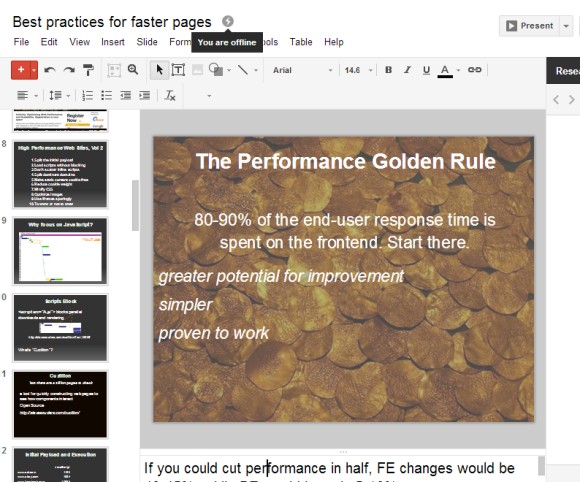
Google Slides is just another name for Google Presentations, but that's not actually new. The big news is that you can now use Google Slides offline to create, edit and run presentations. "Any new presentations or changes you make will be automatically updated when you get back online. So you can continue polishing slides on your next flight, and head to your upcoming presentation without worrying about whether there's going to be wifi."


The offline functionality is still limited to Chrome and requires the Google Drive app from the Chrome Web Store. If you've already enabled the offline support and use it for documents and spreadsheets, you don't need to do anything.


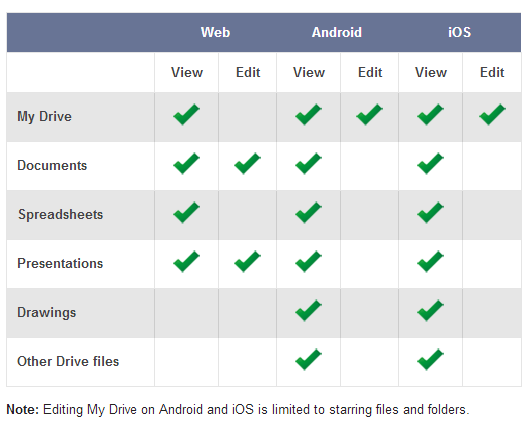
This table shows which Google Drive features are available when you're offline and you use Chrome for desktop or the mobile apps for iOS and Android. You can sync any file when you use the mobile apps, but the editing support is better in the desktop Chrome. You can also install the Google Drive app for Windows and Mac to sync the files that can't be edited online using Google Docs, Sheets, Slides and Drawings.


Quickly Switch to the Basic Google Image Search


If you don't like the new Google Image Search interface, you can't go back to the previous interface. Fortunately, Google still includes a link to a much older interface without infinite scrolling, but with useful information like the file size and a page snippet.


Infinite scrolling makes it difficult to get to the bottom of the page because Google continuously loads new image results as you scroll down. The best way to find the link that switches to the old interface is to press "End" on your keyboard (Fn + Right Arrow if you have a Mac) and click "switch to basic version". Google doesn't remember your setting, so the switch is not persistent.


New Google Image Search Interface


Long time, no see. After a long vacation, it's time to get back to the latest news from the Google world. Last month, Google tested a new image search interface and now it's been rolled out. It's the first desktop interface that drops the landing page and no longer loads the web pages that included the image results. The previous interfaces loaded these pages using iframes more like a courtesy to the third-party websites than to improve the user experience.


Google started to make the iframes less important when it moved them to the background. Then the mobile interfaces for smartphones and tablets came out and they didn't even load the original web pages. The new desktop interface is closer to the tablet interface: click an image result and use the left/right keyboard arrows to check the other results.


Here's the old interface (you may still see it):


"Instead of sending you over to a whole new page to preview an image, you'll see a preview of the image in your search results. Once you click on a image, you can quickly flip through the whole set of image previews using your keyboard. Your search results stay in the panel so you don't lose track of what you were doing; if you want to go back to looking at other search results, you can just scroll down and pick up right where you left off. If you want to check out the website where the image is hosted, you can click on the photo or use the tools available," explains Google.


Obviously, the traffic from Google Image Search will drop dramatically and webmasters will complain that Google uses their images and doesn't give anything in return. Google only hosts image thumbnails and loads the original images when you click the thumbnails, so it's now an image leecher that hotlinks to other people's images, using their bandwidth without generating page views or ad revenue. It's better for users, but expect to see many sites that stop displaying images when loaded from Google Image Search or use other anti-leech tricks. Finding the right balance between user experience and webmasters' interests is a hard thing to do.


27 January 2013

WindowsAndroid: Run Android On Windows


CLICK HERE TO SEE FULL POST


Android is probably the most powerful and highly customizable mobile operating system out there. Android, since it’s launch by Google back in 2007, has been powering millions low to mid to high end smart phones, including the famous Samsung Galaxy series. Users who would like to run Android on Windows have limited options. Users need [...]