17 August 2020

Indian lawmakers accuse Facebook of political bias


Facebook is facing heat in India, its biggest market by users, over a report that claimed the company compromised its hate speech policy to favor the ruling party.

Politicians from both Bharatiya Janata Party, which rules the government in India, and opposition Indian National Congress lambasted Facebook for its supposed favoritism to the other and thereby taking a political stand in the country.

The debate was sparked by a Wall Street Journal report on Friday which claimed that Ankhi Das, Facebook’s top public-policy executive in India, had opposed applying the company’s hate-speech rules to a member of Indian Prime Minister Narendra Modi’s party.

The report added that posts from at least three more members of BJP individuals and groups were flagged internally for “promoting or participating in violence.”

In a statement, a Facebook spokesperson said the platform prohibits hate speech and content that incites violence and that it enforces “these policies globally without regard to anyone’s political position/party affiliation.”

“We’re making progress on enforcement and conducting regular audits of our process to ensure fairness and accuracy,” the statement follows.

Rahul Gandhi of Congress, who until mid-last year served as its President, tweeted over the weekend that “BJP controls Facebook and WhatsApp in India. “They spread fake news and hatred through it and use it to influence the electorate.”

Several more politicians with Congress including Shashi Tharoor have shared similar statements. Tharoor tweeted that the Parliamentary Standing Committee on Information Technology “would certainly wish to hear from Facebook about these reports and what they propose to do about hate-speech in India.”

BJP officials have offered a range of responses. India’s IT Minister Ravi Shankar Prasad pointed to Congress’ link with Cambridge Analytica and accused Congress’ supposed alliance with Facebook itself to “weaponise data before the elections.” He added, “Now [they] have the gall to question us?”

In an op-ed published with local media, Member of Parliament Rajyavardhan Singh Rathore accused Facebook of being “left-leaning in India.”

“Merely scratching the surface reveals how this storm in a teacup is merely an exercise to browbeat Facebook for ‘allowing’ certain opinions to even exist. It is no secret globally that Facebook has been hauled up by various government bodies for controlling the flow of facts,” he wrote in a piece for Indian Express.

“In India, too, we have seen examples of Facebook actually filtering out non-Left and non-Congress viewpoints through manufactured labels of ‘fake news.’ They are even accused of using shadow banning algorithms,” he wrote.

New Delhi-based digital rights advocacy group Internet Freedom Foundation on Monday wrote to the Parliamentary Committee on Information Technology, calling for summoning of Facebook’s top global executives, extensive hearings and an international human rights audit leading to reparations for victims.


Read Full Article

Tips to Improve the Productivity of Call Center


There are many ways to improve the productivity of the call center. One of them is the use of different dialers in a call center. A dialer is basically an application that calls for a specific list of numbers by automatic dialing and then transfers the call to the agent. You can search and know […]

The post Tips to Improve the Productivity of Call Center appeared first on ALL TECH BUZZ.


As it adds Jeremy Milken to the partnership, Watertower Ventures nears $50 million close for its new fund


Derek Norton and Jeremy Milken have known each other for twenty years. Over their longtime personal and professional relationship, the two Los Angeles-based serial entrepreneurs have invested in each other’s companies and investment firms, but never worked together until now.

Milken is taking the plunge into institutional investing, joining Norton as a partner in Watertower Ventures just as the firm prepares to close on a $50 million new fund.

It’s an auspicious time for both Los Angeles-based businessmen, as the LA venture community sees a wave of technology talent relocating from New York and San Francisco in the newly remote work culture created by the COVID-19 epidemic.

“I see two things happen. One people look at the effects of where the market’s going. We’re seeing a lot more companies that are starting up now as a result of a [the pandemic],” said Norton. “New company formation is happening faster than before covid. [And] a lot of venture capitalists that have relocated to LA. They’ve moved down to LA for lifestyle reasons and they’re saying that they don’t need to go back to San Francisco.”

For Milken, the opportunity to get into venture now is a function of the company creation and acceleration of digital adoption that Norton referenced. “The pandemic is accelerating change in the marketplace. Things that might have taken a decade are taking two years now,” Milken said.

These opportunities are creating an opening for Watertower Ventures in markets far beyond the Hollywood hills. The firm, whose original thesis focused on Los Angeles, San Francisco, and New York, is now cutting checks on investments in Texas and Utah, and spending much less time looking for companies in the Bay Area.

Derek Norton, founder, Watertower Ventures: Image Credit: Watertower Ventures

Norton’s latest fund is the only the most recent act in a career that has seen the investor traverse the financial services digital media and the early days of the internet. Norton built Digital Boardwalk, a pioneering internet service provider and the second commercial partner for the trailblazing browser service, Netscape.

Later, at Jeffries Technologies, and the $120 million Entertainment Media Ventures seed and early stage venture capital fund, Norton was intimately involved in bringing tech to market and focusing on early stage investments. With that in mind, the Watertower Ventures group, which launched in 2017 with a small, $5 million fund, is a return to those roots.

The plan, even at the time, was always to raise a larger fund. After founding and running the boutique investment banking business at Watertower Group, Norton knew he had to raise a starter fund to prove the thesis he was working on.

That thesis was to provide a bridge between early stage companies and large technology companies using the network that Norton has built in the Southern California tech and entertainment community over decades.

“We want to take our contacts at Google, Apple, Facebook, Disney, Microsoft, Cisco, Verizon, AT&T, Comcast, and other companies we believe should have a relationship with our portfolio companies, and help the CEOs and management teams more effectively do business development,” Norton told SoCal Tech when he closed his first fund in 2017. “We want to connect them to the right person at those companies to create a commercial relationship. That has a really large impact on early stage companies, who typically don’t have a deep network of relationships, and the ability to get to those type of people. It’s because of our advisory business that we have those relationships, and that’s also why those relationships stay fresh and active, versus people who aren’t in those businesses. It’s almost a full time job to maintain that, and that’s where our value-add is.”

Milken, who has spent his professional career in entrepreneurship, was ready to try investing, and was intimately familiar with Watertower and its portfolio, as an investor in the firm’s first $5 million fund.

“Two years ago we started having those conversations,” said Norton in an interview. “As Jeremy exited his business in September it created the opportunity to go out and raise together as the evolution of our partnership.”

Jeremy Milken, general partner, Watertower Ventures. Image Credit: Watertower Ventures

With the new capital coming in, Norton expects to back some 30 to 35 companies, he said. And, in a testament to the first fund’s performance, which has it in the top decile of venture funds for its vintage, Norton said he was able to raise the capital amidst the economic uncertainty caused by the COVID-19 pandemic. Some 70 percent of the existing portfolio has been marked up, according to Norton.

Even though limited partners, the investors who back venture funds, were reluctant to commit capital to new firms in March and April, fundraising returned with a vengeance in June and July, according to Norton. The paper performance likely was enough to woo additional limited partners and individual investors including TikTok chief executive Kevin Mayer, the former head of streaming at Disney.

Mayer’s presence in the firm’s investor base is a testament to the firm’s pitch to founders. “We view fundraising as a massive distraction for these early stage companies from their business. We try to deliver that network that’s ours to those founders,” said Norton.

“I think we’re in a unique position starting with a fresh fund here,” says Norton. “Uncertainty creates opportunity and people are bringing solutions. We haven’t noticed any slowdown whatsoever, we’re working with twenty five companies per week. Since the inception of the fund, we haven’t seen deal flow at this level.”


Read Full Article

Facebook Seeks to Stop the Spread of COVID-19 Misinformation


As COVID-19 continues to spread around the world, so does misinformation about the virus. In an effort to stop the spread of fake news about COVID-19, Facebook has removed and/or labeled millions of misleading posts.

Facebook’s COVID-19 Takedown

As you probably already know, Facebook has become a breeding ground for COVID-19 conspiracy theories and false information. In this quarter’s Community Standards Enforcement Report, it was revealed that Facebook has removed 7 million posts containing COVID-19 misinformation.

The majority of these posts contained misleading information about fake COVID-19 cures and preventative myths. Meanwhile, another 98 million misleading posts received warning labels. This is in addition to Facebook’s crackdown on hate speech, which also led to the removal of several million posts this quarter.

Facebook’s attempt to put a stop to misinformation hasn’t only affected everyday users. After US President, Donald Trump, posted a video of his Fox News interview, Facebook quickly removed it. In the video, Trump mentioned that children are “almost immune” to COVID-19, which goes against Facebook’s policies on COVID-19 misinformation.

Facebook Provides More Context to COVID-19 Content

From now on, whenever you share a link related to COVID-19 you’ll receive a notification. This notification informs you how old the article is, and will also help you identify the original source.

Facebook’s vice president of feed and stories, John Hegeman, described the purpose of the notification in an About Facebook post, saying:

The notification will help people understand the recency and source of the content before they share it.

Facebook hopes that this will force users to stop and think before they share a potentially misleading post. The only exceptions to the warning notification are credible health institutions, such as the World Health Organization.

The pop-up will also provide a link to Facebook’s COVID-19 Information Center. This page gives people access to trustworthy COVID-19 information from both local and global health organizations.

How to Find the Truth About COVID-19 Online

Misinformation can spread like wildfire. Once one post is shared, there’s no telling how many times it will get passed around. Facebook’s efforts to curb the spread of COVID-19 misinformation will hopefully help squash the myths about the virus.

For accurate information about this pandemic, check out these sites you can trust for reliable information about COVID-19.

Read the full article: Facebook Seeks to Stop the Spread of COVID-19 Misinformation


Read Full Article

16 August 2020

How to Get Followers on Instagram Fast


get-followers

With millions of people using Instagram every day, it’s getting harder to stand out from the crowd. If you’re not getting any new followers or any likes on your posts you probably need to change some of your Instagram habits.

In this article, we explain how to get followers on Instagram. With a set of tips to help you get more followers.

1. Promote Your Posts on Other Social Media Accounts

Cross Promote Instagram Posts

If you want to learn how to quickly gain Instagram followers, you can start by promoting your posts on other social media platforms. This means sharing your posts on Twitter, Facebook, Pinterest, YouTube, and possibly even your own website.

Cross-promoting your Instagram posts will only attract more people to your page. Not only does it allow your existing audience to check out your Instagram profile, but it also opens the door for users from other platforms to discover your account.

2. Give Your Profile a Unique Style

Instagram Unique Profile Style

Instagram is a visual website—a user’s decision to follow you is based on the quality of the content you post, as well as the way you present it. Posting poorly-shot photos in a completely random order is a surefire way to deter potential followers. You want people to click on your profile and love what they see.

The best way to get more people to hit that Follow button is to establish a style or theme. There are several amazing Instagram themes that you can use as a framework for your own profile, each of which can help you organize your photos. That said, it’s important to consider both the quality of your individual posts, as well as your profile’s overall look.

If you don’t stick with a single style or theme on your profile, you might struggle to amass a steady base of followers. Take @taramilktea (pictured above), for example. She’s gained over 1 million followers by posting aesthetically-pleasing photos arranged according to color. As you scroll through her profile, you’ll notice that she posts small chunks of pictures with one dominant shade. The result is a beautiful profile that you can look at for hours.

3. Use Hashtags Wisely

Hashtags are the key to getting found on Instagram, and failing to include the right ones in your post can seriously limit your exposure.

When you add a hashtag, you’ll not only want to include descriptive hashtags, but you’ll want to throw in some ultra-popular hashtags too. This way, you can get the attention of anyone searching for a specific topic, in addition to those who are just scrolling through the feed of a popular hashtag.

But before you decide on which hashtags to use, make sure you’ve looked at our guide to popular Instagram hashtags that no one understands.

4. Don’t Forget About Geotags

You can catch the eyes of local Instagram users by simply adding a location to your posts. When a user searches for a location in the Places tab in Instagram’s search bar, your post just might show up in the results.

Not to mention that geotags come in handy when you want to find out if any local events are happening near you. Taking advantage of geotags can help you keep up on local trends, as well as help you gain more Instagram followers.

5. Bulk Up Your Posts’ Captions

View this post on Instagram

Photo by @amivitale Happy World Lion Day! A lion cub relaxes at @loisaba_conservancy in Laikipia, in northern Kenya. This cub's mother wears a GPS collar that allows rangers from the @lionlandscapes program to track the movements of lions living among people and livestock. Real-time movement data from these collars teaches us about how lions survive in human-dominated landscapes, and helps us to prevent human-lion conflict by keeping livestock away from known lion locations. And, if a collared lion approaches a livestock enclosure outfitted with an alarm, the alarm will blare, scaring the lion away. With less human-wildlife conflict, all species benefit. To learn more, follow @lionlandscapes, @loisaba_conservancy @nature_africa, @peregrinefund and @tusk_org who are working together to promote coexistence between humans and lions for the benefit of people and nature in northern Kenya. Follow @amivitale for more photos on the conservation gains being made in northern Kenya thanks to partnerships like these. @nature_org @kenyawildlifeservice @houstonzoo @sandiegozoo @thephotosociety #lions #kenya #conservation #africa #WorldLionDay

A post shared by National Geographic (@natgeo) on

A picture may be worth a thousand words, but that doesn’t mean you can always get away with writing single-sentence captions on your Instagram posts. Writing descriptive captions can help your audience learn more about who you are, and even find out something new.

Having a lengthy caption can also make you seem more “human,” and less like someone who just mechanically posts pictures. Plus, it’s a great way to get your followers to interact with your posts.

6. Post Videos and Reels

Although Instagram started out as a photos-only platform, videos have become increasingly popular. How-tos, funny skits, and adorable cat videos are just some examples of video content that garner thousands of views on Instagram.

Whether you want to post a woodworking tutorial or an intriguing video of wildlife, Instagram gives you the voice to do so. A healthy mix of photo and video content can make your account a lot more engaging and attractive to potential followers.

One of Instagram’s newest features, Reels, is another great way to get your account discovered. Instagram Reels are short, 15-second videos that you can add music and special effects to. Other users can find your Reels in their Explore tab, and can even discover your Reel by searching for the song you used.

To learn more about this feature, be sure to read our article explaining what Instagram Reels is.

7. Create Engaging Instagram Stories

In addition to posting videos regularly, you’ll also want to consider creating frequent Instagram Stories. Your Story appears at the top of your followers’ feeds, and is also clickable from your profile picture on your Instagram page. Stories provide your followers with short updates, and also give them a glimpse into your day-to-day life.

The Story feature is pretty versatile, as it lets you include photos, live videos, or even pre-recorded videos. You can even add interactive polls for your followers, as well as write messages—don’t forget to add hashtags to your Story to boost your visibility!

While your Story only lasts for 24 hours, you can still use any archived Stories to create Highlights. This allows you to leave your favorite clips at the top of your profile for as long as you want.

8. Post Regularly

In 2018, Instagram explained to TechCrunch how certain posts wind up on your feed. It turns out that its algorithm prioritizes photos based on recency and relevancy. In other words, Instagram is more likely to include your post in someone’s feed if it has been posted recently, and if the user has interacted with similar posts in the past.

You might not be able to control what the user likes, but you can control how often you post. Posting on a daily basis is a quick Instagram trick to help you get more followers.

9. Start an IGTV Series

If you want to take your videos to an even higher level, you should consider creating an IGTV series. IGTV is Instagram’s standalone video-only platform, and unlike the Instagram app, it allows you to upload videos up to 10 minutes long. These videos are integrated with the standard Instagram app, so users don’t need the IGTV app to view them.

Longform videos give you the chance to show more in-depth content. Whether you decide to go down the informative or entertainment route, longer videos can help you captivate viewers even more. Users can find your IGTV videos on their feeds, but you can also help your videos get found by adding related hashtags to the description.

Learn How to Get Followers on Instagram

Once you’ve figured out how to get more followers on Instagram, you might feel a bit overwhelmed. And while it may require some adjustment to your posting routine, it will pay off once you see your follower count increase.

To make your Instagram account even more unique, check out these ways to make your Instagram stand out.

Read the full article: How to Get Followers on Instagram Fast


Read Full Article

7 Fixes When Your Android Phone Won’t Connect to Your Computer


android-wont-connect

Can’t get your Android phone to connect to your computer? This can happen for many reasons, including an incorrect connection mode or a lack of proper drivers. The smallest of issues can prevent your computer from detecting your device.

If you have no clue what’s causing this problem, walk through the below methods one by one. Each tip fixes a certain problem , so keep trying them until your computer detects your phone.

1. Check the USB Connection Mode on Your Phone (Windows/Mac)

Your Android device offers several connectivity modes when connecting your phone to your computer. Each mode has different purposes, and some could cause your phone not to show up on your computer.

Changing the connection mode on your phone can get your computer to recognize it. Here’s how to do that:

  1. Connect your phone to your computer using a USB cable.
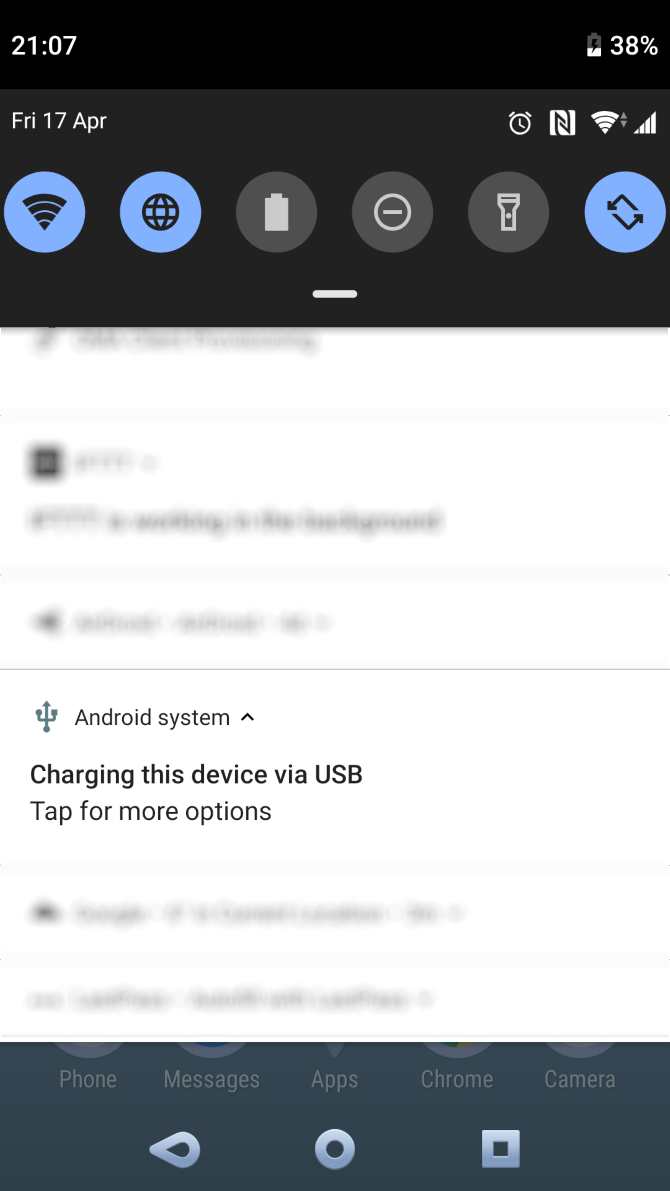
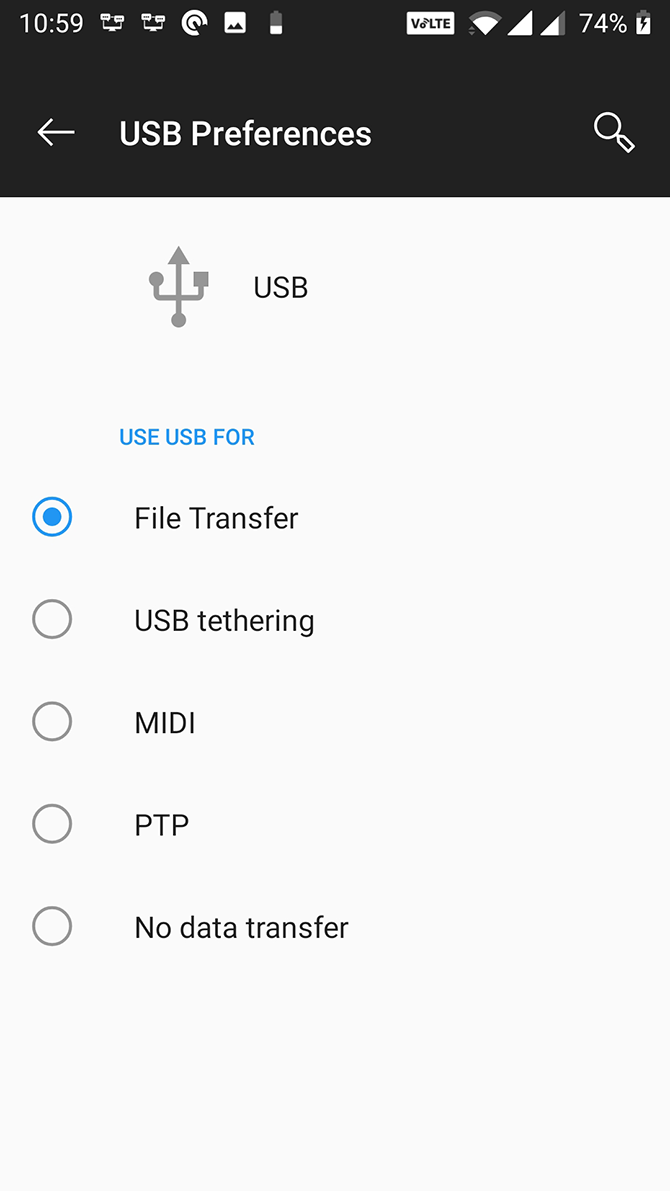
  2. Pull down the notification bar, and you should see an Android system entry that shows the current connection mode. Tap on the connection mode item to open the USB Preferences page.
  3. Select File Transfer.

Once you do this, your phone should appear as a storage drive in File Explorer or Finder. Now you can start copying files to and from your device.

2. Update the MTP USB Drivers on Your Computer (Windows)

If you’re looking to use your phone as a media device on your computer, you need to enable the MTP mode on your phone. This requires that you have MTP drivers installed and updated on your computer.

Most computers have those drivers installed already. If they’re outdated, you can easily update them using the Device Manager:

  1. Connect your phone to your computer using a USB cable.
  2. Open the Device Manager by right-clicking on the Start button or hitting Win + X.
  3. Find your Android device under Portable Devices, right-click on it, and choose Update driver.update android drivers
  4. Select Browse my computer for driver software.
  5. Click on the Let me pick from a list of available drivers on my computer option at the bottom.
  6. Select MTP USB Device from the list and click on Next at the bottom.update mtp android drivers

Once the drivers are updated, your phone should work as a media device.

3. Use the Android File Transfer Utility (Mac)

Unlike Windows, you can’t directly transfer files from Android to a Mac. You need to first install a utility on your Mac that acts as a bridge between your Mac and your Android device.

This utility is called Android File Transfer, which you can download from the official Android website:

  1. Grab the Android File Transfer tool from the Android website.
  2. Launch the downloaded file and drag the tool to your Applications folder.
  3. Double-click on the tool in your Applications folder (or search for it using Spotlight with Cmd + Space) to launch it.
  4. Plug your Android phone into your computer using a USB cable.
  5. Your phone should appear in the newly installed tool.android file transfer tool

Once you see your phone, you can start moving your files as you please.

4. Use a Different USB Port and USB Cable (Windows/Mac)

If you’ve run through the above and still have an issue, perhaps the USB port or cable that you’re using is defective or damaged. This will prevent your computer from recognizing your device, of course.

Luckily, most computers have multiple USB ports. Try another port on your machine to see if your phone connects. You should also connect using a different USB cable and see if that makes your computer recognize your device.

5. Update Your Operating System Version (Mac)

On Windows, you can connect your Android phone regardless of your operating system’s version. However, on Macs, older macOS versions can have issues with Android connections.

Therefore, you should update your macOS version when you run into connection issues between your phone and computer. You can do this as follows:

  1. Click on the Apple logo at the top-left corner and choose About This Mac.
  2. Click the Software Update button to update your Mac’s software.update macos version
  3. If a macOS update is available, download and install it on your machine, then try the connection again.

6. Uninstall Other Android Connectivity Tools (Windows/Mac)

Some phone manufacturers offer their own connectivity solutions, such as Samsung SideSync. These tools sometimes interfere with the standard Android connection methods; such conflicts can cause your computer not to recognize your phone at all.

If you have any of these tools installed, try removing them from your computer to avoid conflicts. Once that’s done, reconnect your phone to your computer and see if it works as normal.

7. Run Windows Device Troubleshooter (Windows)

Windows 10 comes with several troubleshooters to help you find and fix issues with various facets. Thankfully, one of these is to troubleshoot external devices like your Android phone.

You can enlist the help of this tool to fix connection issues and get your phone to show up on your machine. While it’s not always perfect, it’s worth a try.

Microsoft removed the Hardware and Devices troubleshooter from the list in the latest versions of Windows 10, but it’s still accessible via the command line:

  1. Press Win + X and choose Windows PowerShell (Admin) or Command Prompt (Admin) from the list.
  2. Enter the following command: msdt.exe -id DeviceDiagnostic
  3. You’ll see the Hardware and Devices troubleshooter. Click Next to let the tool detect issues with your devices. When it’s done, it will offer methods to fix the detected issues.hardware and devices troubleshooter

If you’re on an older version of Windows 10, you can find the tool using the following method:

  1. Launch Settings on your PC, click Update & Security, and choose Troubleshoot from the left sidebar.
  2. From the list, click the item that says Hardware and Devices to launch the devices troubleshooter.

Bonus Tip. Use an Alternate File Transfer Method

If your phone won’t connect no matter what you do, you might want to use some alternate methods to transfer files from Android to your computer. This way, you can at least get your files moving until your connection issue is sorted.

Keep Your Android and Computer Connected

At first, it might seem like your computer is never going to recognize your device. However, with the methods above, you should successfully get your computer to mount your phone and let you move files between them.

Meanwhile, if you urgently need to move something from your computer to your phone, you can use some of the computer to Android file transfer methods to get your file transfers going.

Read the full article: 7 Fixes When Your Android Phone Won’t Connect to Your Computer


Read Full Article

Bring Back the Magic With Minecraft Modpacks: 7 to Try


minecraft-modpacks

If you’re an old-school Minecraft player who hasn’t touched the game in a few years, now is a great time to come back to it. The development team keeps adding more awesome content to the experience.

But even with that, if you got tired of the game before, it will probably get old for you quickly again. If this describes you, or you’re a current player who finds the game stale, it’s time to explore Minecraft mods.

Why Use Minecraft Mods?

If you haven’t gotten into Minecraft mods yet, you’re only just getting started with what’s possible in the game. For almost as long as Minecraft has been around, people have made the game even better by modifying it.

If you’re into fantasy and wish there were more involved systems in place that let you do real magic, there are mods for that. Botania and Thaumcraft are a couple of great fantasy mods that alter the whole world and bring new ways to play.

Maybe sci-fi and industry are more your speed; there are a ton of great mods for that as well. There are mods like Immersive Engineering that can turn your Minecraft world into something closer to Factorio. You can even travel to other worlds and die from a lack of oxygen if you want.

One of the biggest arguments against Minecraft is that it’s more of a toy than an actual game. Sure enough, there are mods that can turn Minecraft into a full-blown RPG with skill progression and equipment leveling.

There’s a great mod called Pam’s Harvestcraft that adds new food items and recipes. There’s Open Gliders, which lets you build hang gliders. Meanwhile, Journey Map gives you an excellent full-featured in-game map.

With all these, plus the ability to make your own Minecraft mods, the only problem is that there are just too many options. It’s hard to know what’s available and which ones work well together. That’s where modpacks come in.

Introducing Minecraft Modpacks

Modpacks are collections of mods that turn Minecraft into a whole new game. Really, they are almost entire games by themselves. The best part is that modpacks are completely free.

Imagine if the green fields and soaring mountains with grazing sheep and cows were all gone. What if the entire Minecraft world had been devastated in a long-forgotten apocalypse, and it was your job to fix it? There are a lot of modpacks that offer this scenario.

regrowth minecraft modpack screenshot

What if you woke up on a 3×3 platform of dirt blocks with a tree in the middle and had to find a way to build a base? There are no caves, chickens, water, or minerals. You have to use the mods in the pack to create everything from scratch.

Maybe you just want to get lost in a fantasy world with dragons and warlocks. Or perhaps you want to explore deep underground dungeons loaded with epic loot. What if you could open doors to other dimensions where all the rules have changed? There are packs that provide all of this and more.

If checking off boxes and getting achievements is something you enjoy, there are a lot of great quest-based packs. These packs give you a ton of challenges that increase in difficulty as you play. The best ones even teach you how to use the mods without feeling like a tutorial.

Finding Minecraft Modpacks

The three best places to get modpacks are Feed The Beast, Technic Pack, and CurseForge. All three of them have their own installers, which makes it easy to get started.

For newcomers, the best one is CurseForge. It has the largest selection of modpacks and makes it easy to find them through search, sort, and filter options. The site has most or all of the Feed the Beast packs, as well as some of the Technic packs.

Installing Modpacks

It’s possible to run into issues with the individual loaders working on different platforms. You also might not want to install three loaders in addition to your Minecraft launcher. Thankfully, there’s a better way.

Multi MC is a tool that works great on macOS, Windows, and Linux. It will let you play any version of vanilla Minecraft—all the way back to pre-alpha if you’re feeling nostalgic. And it makes installing mods and modpacks super easy.

To start, download MultiMC. Once you have it installed, the next step is to pick a modpack. You can download a modpack from Curse Forge by clicking it and then selecting which file to install from the list of options on the right menu.

You’ll want to pick a file that has a green R (release version). Also, make sure you get the regular install file, not one for a server. Following the download link will take you to a page with a download button. Use it to grab the pack.

curseforge download links

Next, open MultiMC and click Add Instance.

MultiMC add instance button

Then select Import from zip and click Browse. Select the modpack you downloaded, click OK, and wait.

MultiMC new instance window

Installing and running modpacks takes a lot longer than with vanilla Minecraft. It also requires more memory. If your system is kind of sluggish, it’s best to stick with modpacks from Minecraft 1.7.

The Best Minecraft Modpacks to Try

Looking to try some modpacks, but don’t know where to begin? Have a look at these great choices.

1. MC Eternal

mc eternal modpack logo

Minecraft Version: 1.12

This is a great kitchen-sink style modpack with over 750 quests that can help you learn more about some of the best mods available. You can find sci-fi, fantasy, and automation mods in this epic pack. It’s a beast though, and may not work on older, slower systems.

Download: MC Eternal

2. Questing Mayhem

questing mayhem modpack logo

Minecraft Version: 1.07

If your system isn’t beefy enough to handle 1.12 modpacks, this is another awesome all-around pack. It’ll introduce you to the world of mods and give you quests to learn the ins and outs of each one. With over 1,400 quests, this one should keep you busy for a while.

Download: Questing Mayhem

3. SevTech: Ages

sevtech ages modpack logo

Minecraft Version: 1.12

This beautifully crafted evolution pack makes Minecraft a whole new experience. It takes you from being a stone-age caveman that can’t do much more than bang rocks together (literally) and evolves your game all the way up to space travel.

Many elements like mapping, object identification, and even ores are hidden until you unlock the appropriate tier.

Download: SevTech: Ages

4. Sky Factory 4

sky factory 4 modpack logo

Minecraft Version: 1.12

This is the fourth installment of a classic “sky island” pack. You’re given nothing but dirt and a tree and have to build an empire. This pack involves magic and automation, plus has multiple options and biomes to keep it fresh and interesting.

Download: Sky Factory 4

5. Compact Claustrophobia

compact claustrophobia modpack logo

Minecraft Version: 1.12

This is a crazy-fun pack where you start out locked in a 3x3x3 miniature cube and need to escape. But the only way out is to create more miniature cubes and dig yourself in deeper and deeper. This is a high-tech modpack that involves a lot of automation, machinery, and large functional structures.

Download: Compact Claustrophobia

6. Roguelike Adventures and Dungeons

rad modpack logo

Minecraft Version: 1.12

This is a true RPG-style modpack with dungeons, dragons, and progressive difficulty. But it’s still Minecraft, so how you play it is up to you. There are blueprints for instant structures like a hobbit house to get you started. It also has recipes for yurts and backpacks that let you become a nomadic dungeon-crawling adventurer.

Download: Roguelike Adventures and Dungeons

7. Regrowth

regrowth modpack logo

Minecraft Version: 1.12

This is the modpack with all the brown and gray blocks shown above—as you might expect, it’s extremely challenging! You start in a dead world with no resources and have to bring the world back to health through farming.

Almost every material and resource you’d normally find in Minecraft can be grown through farming mods. It makes progression quite slow in the beginning, but provides amazing opportunities for automation later on.

Download: Regrowth

Minecraft Is a Rich Challenge for Everyone

A lot of people think Minecraft is a simple kid’s game. There’s so much more to it than that, though. Modpacks turn the game into a deeply challenging obsession that will keep adults playing for hundreds or thousands of hours longer.

And for kids, it doesn’t need to stop at building castles. Minecraft’s Hour of Code can spark a passion for programming and STEM in children as well.

Read the full article: Bring Back the Magic With Minecraft Modpacks: 7 to Try


Read Full Article

15 August 2020

Microsoft OneNote Keyboard Shortcuts for Windows and Mac


onenote-templates

Microsoft OneNote is a popular personal information management application (PIM) that helps you collect notes of all kinds into one digital notebook. Those notes can be web page clippings, photos, videos, audio recordings, scribbles, and much more. You can organize notes in a section, group them, and bind them with a notebook.

OneNote is a powerful tool with many great features, which you can quickly access through keyboard shortcuts.

This list of OneNote shortcuts is a comprehensive collection for both Mac and Windows 10. In the cheat sheet, you’ll find separate sections for Windows and macOS shortcuts where necessary.

FREE DOWNLOAD: This cheat sheet is available as a downloadable PDF from our distribution partner, TradePub. You will have to complete a short form to access it for the first time only. Download Microsoft OneNote Keyboard Shortcuts for Windows and Mac.

Microsoft OneNote Keyboard Shortcuts for Windows and Mac

Shortcut Action
Common Keyboard Shortcuts
Ctrl + M Open a new OneNote Window
Ctrl/Cmd + Z Undo the last action
Ctrl/Cmd + Y Redo the last action
Ctrl/Cmd + A Select all the items on a current page (to expand the selection, press the keys again)
Ctrl/Cmd + X Cut the selected text or item
Ctrl/Cmd + C Copy the selected text or item to the clipboard
Ctrl/Cmd + V Paste the contents of the clipboard
Ctrl/Cmd + K Insert a hyperlink
Ctrl/Cmd + B Apply or remove bold formatting
Ctrl/Cmd + I Apply or remove italics formatting
Ctrl/Cmd + U Apply or remove underline formatting
Ctrl/Cmd + Alt/Option + 1...6 Apply heading style from 1 to 6 of the current note
Ctrl/Cmd + Period Begin a bulleted list
Ctrl/Cmd + / Begin a numbered (sorted) list
Ctrl/Cmd + Shift + N Clear all the formatting applied to the selected text
Ctrl/Cmd + L Left-align the selected paragraph
Ctrl/Cmd + R Right-align the selected paragraph
Ctrl/Cmd + O Open a OneNote notebook
Ctrl/Cmd + T Create a new section
Ctrl/Cmd + N Create a new notebook page
Ctrl + Shift + G Move keyboard focus to the section list
Ctrl + G View the list of notebooks
Ctrl/Cmd + Shift + T Select the page title
Ctrl/Cmd + P Print the current page
Page Up Scroll up in the current page
Page Down Scroll down in the current page
Tab Increase the indent by one level
Shift + Tab Decrease the indent by one level
Ctrl/Cmd + 1 Mark or clear the To Do tag
Ctrl/Cmd + 2, 3, 4, and 5 Mark or clear the Important, Question, Remember for Later, and Definition tag
Tab key, after typing a new line of text Create a table
Tab key Create another column in a table with a single row
Enter/Return Create another row when at the end cell of a table
Ctrl/Cmd + Enter/Return Insert a row below the current row in a table
Alt/Option + Enter/Return Create another paragraph in the same cell in a table
Shift + Enter/Return Insert a line break
Ctrl/Cmd + S Synchronize the current notebook
Ctrl/Cmd + Alt/Option + L Lock all password-protected sections
Windows Specific Shortcuts
Home / End Move to the beginning or end of the line
Ctrl + Left / Right arrow key Move one word to the left or right
Backspace / Delete Delete one character to the left or right
Ctrl + Backspace / Delete Delete one word to the left or right
Ctrl + Down / Up key Go the next or previous paragraph
Alt + Shift + Right / Left arrow key Increase or decrease the paragraph indent
Alt + Shift + Up / Down key Move the selected paragraph up or down
Ctrl + Shift + H Highlight the selected text
Ctrl + Shift + C / V Copy or Paste the formatting of the selected text
Ctrl + Hyphen (-) Apply or remove strikethrough formatting
Ctrl + Shift + Equals sign (=) Apply or remove superscript formatting
Ctrl + Equals sign (=) Apply or remove subscript formatting
Alt + Equals sign (=) Start a math equation or convert the selected text to math equation
Windows logo key + Period Insert emoji or symbol
Alt + Shift + Plus sign (+) / Minus sign (-) Expand or collapse an outline (you can selectively expand or collapse the outline at each level)
Ctrl + Alt + Shift + N Create a new subpage below the current page
Ctrl + Alt + M Move or Copy page to another location
Ctrl + Alt + G Move keyboard focus to the page list
Up or Down key / Ctrl + Page Up or Down After moving keyboard focus to the page list, press these keys to switch between pages
Ctrl + Tab Go the next section
Ctrl + Shift + Tab Go to the previous section
Alt + Shift + Up / Down key Move the selected page tab up or down
Ctrl + Home / End Scroll to the top or bottom of the current page
Ctrl + Alt + Shift + Plus sign (+) / Minus sign (-) Zoom in or out
Ctrl + Alt + A / S Create or Stop the recording
Ctrl + Alt + P Play the selected audio recording
Alt + Shift + D Insert the current date
Alt + Shift + F Insert the current date and time
Ctrl + Alt + R Create a column to the right of the current column in a table
Ctrl + E Open a search to search all currently opened notebooks
F9 Synchronize all notebooks
F6 Jump between the tab bar, navigation pane, and the page canvas
Left or Right arrow keys Move between the tabs on a ribbon (Home, Insert, Draw, and more)
Spacebar or Enter Perform the currently selected ribbon command (when the selection is over Navigation button, press Spacebar to enlarge the OneNote canvas)
Alt + Down arrow key Go to the next note container
Ctrl + Shift + M Insert the author name and last modified time stamp
Windows logo key + Shift + S Copy a screen clipping to the clipboard
macOS Specific Shortcuts
Cmd + Left / Right arrow key Move to the beginning or end of the line
Option + Left / Right arrow key Move one word to the left or right
Delete / Fn + Delete Delete one character to the left or right
Option + Backspace / Delete Delete one word to the left or right
Option + Down / Up key Go to the next or previous paragraph
Cmd + ] / [ Increase or decrease the paragraph indent
Option + Cmd + Up / Down Move the selected paragraphs up or down
Ctrl + Cmd + H Highlight the selected text
Option + Cmd + C / V Copy or Paste the formatting of the selected text
Ctrl + Cmd + Hyphen (-) Apply or remove strikethrough formatting
Option + Shift + Cmd + Equals sign (=) Apply or remove superscript formatting
Option + Cmd + Equals sign (=) Apply or remove subscript formatting
Ctrl + Equals sign (=) Start a math equation or convert the selected text to math equation
Ctrl + Cmd + Spacebar Insert emoji or symbols
Ctrl + Shift + Plus sign (+) / Minus sign (-) Expand or collapse the outline (you can selectively expand or collapse outline at each level)
Cmd + N then Option + Cmd + ] Create a new subpage below the current page
Cmd + Shift + C / M Copy or Move page to another location
Ctrl + Cmd + G Move keyboard focus to the page list
Up or Down key / Cmd + Page Up or Down After moving keyboard focus to the page list, press these keys to switch between pages
Cmd + Shift + } Go to the next section
Cmd + Shift + { Go to the previous section
Cmd + Option + Up / Down key Move the selected page tab up or down
Cmd + Up / Down Scroll to the top or bottom of the current page
Cmd + Plus sign (+) / Minus sign (-) Zoom in or out
Option + Shift + Cmd + R / S Create or Stop the recording
Option + Shift + Cmd + P Play the selected audio recording
Cmd + D Insert the current date
Cmd + Shift + D Insert the current date and time
Ctrl + Cmd + L / R Create a column to the left or right of the current column in a table
Cmd + Option + F Open a search to search all currently opened notebooks
Shift + Cmd + S Synchronize all notebooks
F6 Jump between the tab bar, navigation pane, and the page canvas (enable F1, F2 as standard function keys in System Preferences)
Tab Move between the tabs on a ribbon
Spacebar Perform the currently selected ribbon command (when the selection is over Navigation button, press Spacebar to enlarge the OneNote canvas)
Press Fn Twice Start dictation
Ctrl + Option + Cmd + L Use Smart Lookup

Discover Hidden Microsoft OneNote Features

The keyboard shortcuts listed here will help you become a OneNote power user. If you’re just getting started with OneNote, here is a guide on how to use OneNote for Mac and little known tips and tricks in OneNote you’ll love.

Read the full article: Microsoft OneNote Keyboard Shortcuts for Windows and Mac


Microsoft OneNote Keyboard Shortcuts for Windows and Mac


onenote-templates

Microsoft OneNote is a popular personal information management application (PIM) that helps you collect notes of all kinds into one digital notebook. Those notes can be web page clippings, photos, videos, audio recordings, scribbles, and much more. You can organize notes in a section, group them, and bind them with a notebook.

OneNote is a powerful tool with many great features, which you can quickly access through keyboard shortcuts.

This list of OneNote shortcuts is a comprehensive collection for both Mac and Windows 10. In the cheat sheet, you’ll find separate sections for Windows and macOS shortcuts where necessary.

FREE DOWNLOAD: This cheat sheet is available as a downloadable PDF from our distribution partner, TradePub. You will have to complete a short form to access it for the first time only. Download Microsoft OneNote Keyboard Shortcuts for Windows and Mac.

Microsoft OneNote Keyboard Shortcuts for Windows and Mac

Shortcut Action
Common Keyboard Shortcuts
Ctrl + M Open a new OneNote Window
Ctrl/Cmd + Z Undo the last action
Ctrl/Cmd + Y Redo the last action
Ctrl/Cmd + A Select all the items on a current page (to expand the selection, press the keys again)
Ctrl/Cmd + X Cut the selected text or item
Ctrl/Cmd + C Copy the selected text or item to the clipboard
Ctrl/Cmd + V Paste the contents of the clipboard
Ctrl/Cmd + K Insert a hyperlink
Ctrl/Cmd + B Apply or remove bold formatting
Ctrl/Cmd + I Apply or remove italics formatting
Ctrl/Cmd + U Apply or remove underline formatting
Ctrl/Cmd + Alt/Option + 1...6 Apply heading style from 1 to 6 of the current note
Ctrl/Cmd + Period Begin a bulleted list
Ctrl/Cmd + / Begin a numbered (sorted) list
Ctrl/Cmd + Shift + N Clear all the formatting applied to the selected text
Ctrl/Cmd + L Left-align the selected paragraph
Ctrl/Cmd + R Right-align the selected paragraph
Ctrl/Cmd + O Open a OneNote notebook
Ctrl/Cmd + T Create a new section
Ctrl/Cmd + N Create a new notebook page
Ctrl + Shift + G Move keyboard focus to the section list
Ctrl + G View the list of notebooks
Ctrl/Cmd + Shift + T Select the page title
Ctrl/Cmd + P Print the current page
Page Up Scroll up in the current page
Page Down Scroll down in the current page
Tab Increase the indent by one level
Shift + Tab Decrease the indent by one level
Ctrl/Cmd + 1 Mark or clear the To Do tag
Ctrl/Cmd + 2, 3, 4, and 5 Mark or clear the Important, Question, Remember for Later, and Definition tag
Tab key, after typing a new line of text Create a table
Tab key Create another column in a table with a single row
Enter/Return Create another row when at the end cell of a table
Ctrl/Cmd + Enter/Return Insert a row below the current row in a table
Alt/Option + Enter/Return Create another paragraph in the same cell in a table
Shift + Enter/Return Insert a line break
Ctrl/Cmd + S Synchronize the current notebook
Ctrl/Cmd + Alt/Option + L Lock all password-protected sections
Windows Specific Shortcuts
Home / End Move to the beginning or end of the line
Ctrl + Left / Right arrow key Move one word to the left or right
Backspace / Delete Delete one character to the left or right
Ctrl + Backspace / Delete Delete one word to the left or right
Ctrl + Down / Up key Go the next or previous paragraph
Alt + Shift + Right / Left arrow key Increase or decrease the paragraph indent
Alt + Shift + Up / Down key Move the selected paragraph up or down
Ctrl + Shift + H Highlight the selected text
Ctrl + Shift + C / V Copy or Paste the formatting of the selected text
Ctrl + Hyphen (-) Apply or remove strikethrough formatting
Ctrl + Shift + Equals sign (=) Apply or remove superscript formatting
Ctrl + Equals sign (=) Apply or remove subscript formatting
Alt + Equals sign (=) Start a math equation or convert the selected text to math equation
Windows logo key + Period Insert emoji or symbol
Alt + Shift + Plus sign (+) / Minus sign (-) Expand or collapse an outline (you can selectively expand or collapse the outline at each level)
Ctrl + Alt + Shift + N Create a new subpage below the current page
Ctrl + Alt + M Move or Copy page to another location
Ctrl + Alt + G Move keyboard focus to the page list
Up or Down key / Ctrl + Page Up or Down After moving keyboard focus to the page list, press these keys to switch between pages
Ctrl + Tab Go the next section
Ctrl + Shift + Tab Go to the previous section
Alt + Shift + Up / Down key Move the selected page tab up or down
Ctrl + Home / End Scroll to the top or bottom of the current page
Ctrl + Alt + Shift + Plus sign (+) / Minus sign (-) Zoom in or out
Ctrl + Alt + A / S Create or Stop the recording
Ctrl + Alt + P Play the selected audio recording
Alt + Shift + D Insert the current date
Alt + Shift + F Insert the current date and time
Ctrl + Alt + R Create a column to the right of the current column in a table
Ctrl + E Open a search to search all currently opened notebooks
F9 Synchronize all notebooks
F6 Jump between the tab bar, navigation pane, and the page canvas
Left or Right arrow keys Move between the tabs on a ribbon (Home, Insert, Draw, and more)
Spacebar or Enter Perform the currently selected ribbon command (when the selection is over Navigation button, press Spacebar to enlarge the OneNote canvas)
Alt + Down arrow key Go to the next note container
Ctrl + Shift + M Insert the author name and last modified time stamp
Windows logo key + Shift + S Copy a screen clipping to the clipboard
macOS Specific Shortcuts
Cmd + Left / Right arrow key Move to the beginning or end of the line
Option + Left / Right arrow key Move one word to the left or right
Delete / Fn + Delete Delete one character to the left or right
Option + Backspace / Delete Delete one word to the left or right
Option + Down / Up key Go to the next or previous paragraph
Cmd + ] / [ Increase or decrease the paragraph indent
Option + Cmd + Up / Down Move the selected paragraphs up or down
Ctrl + Cmd + H Highlight the selected text
Option + Cmd + C / V Copy or Paste the formatting of the selected text
Ctrl + Cmd + Hyphen (-) Apply or remove strikethrough formatting
Option + Shift + Cmd + Equals sign (=) Apply or remove superscript formatting
Option + Cmd + Equals sign (=) Apply or remove subscript formatting
Ctrl + Equals sign (=) Start a math equation or convert the selected text to math equation
Ctrl + Cmd + Spacebar Insert emoji or symbols
Ctrl + Shift + Plus sign (+) / Minus sign (-) Expand or collapse the outline (you can selectively expand or collapse outline at each level)
Cmd + N then Option + Cmd + ] Create a new subpage below the current page
Cmd + Shift + C / M Copy or Move page to another location
Ctrl + Cmd + G Move keyboard focus to the page list
Up or Down key / Cmd + Page Up or Down After moving keyboard focus to the page list, press these keys to switch between pages
Cmd + Shift + } Go to the next section
Cmd + Shift + { Go to the previous section
Cmd + Option + Up / Down key Move the selected page tab up or down
Cmd + Up / Down Scroll to the top or bottom of the current page
Cmd + Plus sign (+) / Minus sign (-) Zoom in or out
Option + Shift + Cmd + R / S Create or Stop the recording
Option + Shift + Cmd + P Play the selected audio recording
Cmd + D Insert the current date
Cmd + Shift + D Insert the current date and time
Ctrl + Cmd + L / R Create a column to the left or right of the current column in a table
Cmd + Option + F Open a search to search all currently opened notebooks
Shift + Cmd + S Synchronize all notebooks
F6 Jump between the tab bar, navigation pane, and the page canvas (enable F1, F2 as standard function keys in System Preferences)
Tab Move between the tabs on a ribbon
Spacebar Perform the currently selected ribbon command (when the selection is over Navigation button, press Spacebar to enlarge the OneNote canvas)
Press Fn Twice Start dictation
Ctrl + Option + Cmd + L Use Smart Lookup

Discover Hidden Microsoft OneNote Features

The keyboard shortcuts listed here will help you become a OneNote power user. If you’re just getting started with OneNote, here is a guide on how to use OneNote for Mac and little known tips and tricks in OneNote you’ll love.

Read the full article: Microsoft OneNote Keyboard Shortcuts for Windows and Mac


Read Full Article