16 July 2020

Instagram launches its redesigned Shop, now powered by Facebook Pay


Earlier this month, Instagram href="https://techcrunch.com/2020/07/07/instagram-swaps-out-its-activity-tab-for-shop-in-new-global-test/"> began testing new navigation in its app that gave its shopping destination a more prominent position. Today, the company is moving forward with its plans to promote Instagram as a place to shop with the launch of its new Instagram Shop, a place to shop from inside Instagram Explore, as well as the launch of Facebook Pay for purchases and donations in the U.S.

Both initiatives were announced previously, this year and in 2019, but had not yet rolled out.

Instagram Shop is described as a place to browse products from favorite brands and creators, as well as curated collections published by the Instagram-run @shop account. In the Shop tab, you’re able to filter by categories like beauty and home, for example, and then checkout directly in the app.

In its original announcement, Instagram Shop was to launch before the company swapped out the Activity tab for the Shop tab in the bottom nav bar, but the company chose to begin testing that latter change first. If you don’t have the Shop tab, you’ll have to visit Instagram Shop directly from Explore.

While there was already a way to shop within Instagram before today — and even check out from select accounts without leaving the app — the new Instagram Shop has been designed to encourage even more browsing and discovery of brands, creators, and products.

Shop itself grew out of how Instagram users were already using the platform to find new things to buy. The photo-centric app had naturally drawn in users who posted creative content, often including well-styled photos of fashion, beauty products, art, home décor, and more. And thanks to the rise of influencers and their numerous brands deals, Instagram was often a place where you’d find products being demoed and discussed, encouraging purchases.

Meanwhile, Instagram ads and their nearly perfected targeting capabilities would appear in your feed eerily suggesting the very thing you’re likely to buy.

The new Instagram Shop is the culmination of all this data and insight, put into its own destination. How well it will covert as a standalone product, however, remains to be seen. After all, Instagram’s ability to connect users to brands was often due to the massive amount of time users spent inside the Instagram app scrolling through photos — eventually, they’d see something they liked.

The new Instagram Shop experience is personalized to the end user. There are rows with your favorite brand and creators, for example, underneath large, attention-grabbing images at the top of the screen. There’s also a personalized “Suggested For You” section at the bottom.

Facebook Pay, meanwhile, was introduced last year as a way to transact securely across Facebook, Messenger, Instagram and WhatsApp.

In Instagram, it will allow U.S. users to make purchases as they shop, as well as donations to the businesses they’re supporting because of the coronavirus outbreak and related shutdowns, because of destruction by rioters, or any other reason.

If the business is using Instagram’s own Checkout feature a selling fee is involved. At scale, this could produce a new stream of revenue for the company, particularly now as consumers are shopping more online amid the pandemic.

The new features are rolling out starting today in the U.S.


Read Full Article

New lo-fi, text-based social app Lex, for queer women, raises $1.5 million


Lex, a new social app for women, trans, genderqueer, and non-binary people offering the ability to post personal ads, has today announced the close of a $1.5 million seed funding round.

Investors in the round include Corigin Ventures, X-Factor Ventures, and Tusk Ventures, with angels Michelle Kennedy (Peanut), Andy Dunn (Bonobos) Amanda Bradford (The League), Rei Wang (The Grand), Bumble Fund, Elisabeth Hartley, Tavi Gevinson, Nisha Dua, A.G. Breitenstein, Albert Lee, Alice Cheng, Justin Stefano, Piera Gelardi, Philippe von Borries, Debbie Millman and Roxane Gay. Female Founders Fund led the round.

Short for Lexicon, Lex was founded by Kell Rakowski, who had originally rose to some prominence after starting an Instagram account called Herstory that curated cool lesbian content from the 1800s to the 90s, including the Personals Ads found in the backs of lesbian erotica magazines from the 80s.

“[The personal ads] were just so hot, and so cool,” said Rakowski. “They were really witty and the women were super direct, and were able to express themselves in a really clear and inspiring way.”

Rakowski had an idea: What if the queer personal ad came back? She asked her Herstory followers if they’d want to post their own personals and the premise quickly took off, with hundreds of personal ads flooding in over the two-day period each month where submissions were open.

The popularity of the format led to yet another idea. Rakowski decided to set up a dating/social app that was focused on these text-based personal ads for women, trans, genderqueer and non-binary people.

Lex, which launched on the App Store in November 2019, is an MVP that does just that.

Users can set up their own profile and post personals, and can browse the feed of other personals and like the ones that pique their interest. While the personals themselves can be rather graphic, the app is not. There are currently no pictures on Lex, with the caveat that users can link out to their Instagram account if they so choose.

Rather, users can browse through the text-based personals and like them, or message the author of the personal to start up a conversation.

[gallery ids="2017871,2017872,2017870"]

Moreover, unlike your traditional dating apps, there is no mutuality required to start a private conversation. In other words, people don’t have to be ‘matched’ to chat. Just like the personal ads of yesteryear, the author sends out a call for responses and the responses flow in.

It’s still early days for the app, but Rakowski has plans to set up the ability to post pictures to profiles (which would not be included in the feed, but would be clickable should the text intrigue you), as well as adding group chat to the app for folks that are looking to build community.

Lex also has plans to eventually introduce a freemium subscription model to the app, giving users extended functionality for a monthly price. For now, however, the focus is on growth and building out the app.

With the new funding, Lex is looking to hire underrepresented talent in tech for product and engineering positions. The team, comprised of five people, is currently 80 percent cis women and 20 percent cis men, with 80 percent identifying as LGBTQ. Three of the five team members are people of color.

Lex is being aggressive about this hiring sprint, posting its open positions on the app and on Instagram.

“I’ve gotten so many incredible queer tech talent applying for positions at Lex,” said Rakowski. “It’s so inspiring and also emotional. People are writing the most beautiful emails about how much they like Lex. Hiring is 100 percent our main focus.”


Read Full Article

Waldo is a ‘no code’ automated mobile testing service that anyone can use


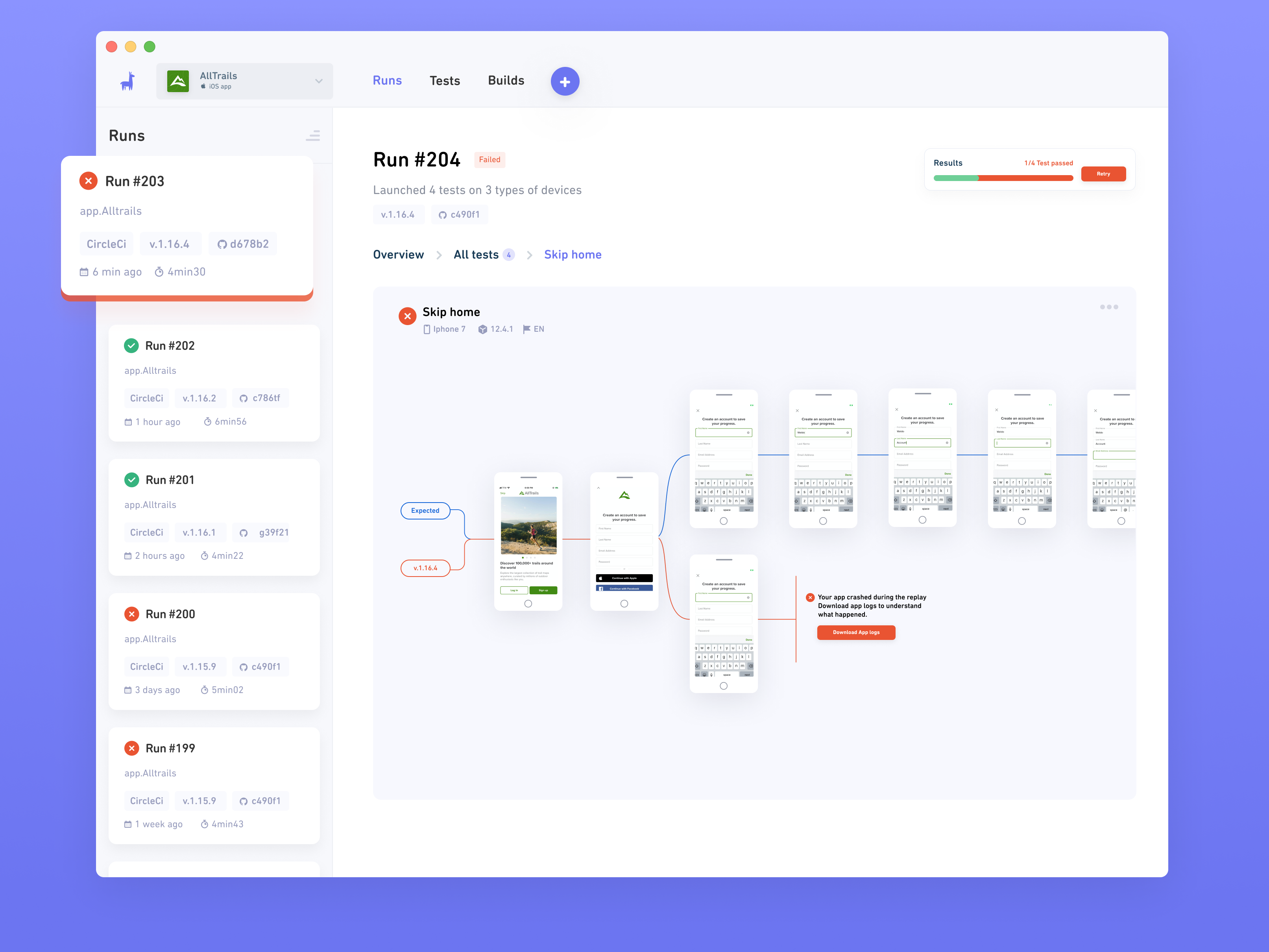
Meet Waldo, a new product that wants to make mobile testing both faster and easier. The New York-based startup lets you record tests in your browser by interacting with your app like you’d normally do. Every time you compile a new build, Waldo runs the same tests you previously recorded on multiple software and hardware models to tell you if everything works fine.

If you’re an app developer, you currently have two possibilities. You can keep a bunch of smartphones and run your current build on these devices to see if there’s anything wrong, but it takes a ton of time. Or you can develop testing scripts that validate the core features of your app — but that requires additional development and creates a whole new set of headaches when you need to update your scripts.

“It’s always a bit weird that we can create incredible experiences when it comes to UX, but that the way we test those apps is outdated,” co-founder and CEO Amine Bellakrid told me.

Waldo wants to lower the barrier to entry and lets smaller mobile development teams take advantage of automated functional and UI testing. It is part of a bigger trend of ‘no code’ startups — no technical skills required.

The company raised a $6.5 million round led by First Round Capital (with Josh Kopelman), with existing investor Matrix Partners and business angels also participating.

Creating tests on Waldo is pretty straightforward. The product runs your app directly (.app / .ipa / .apk), which means that you don’t have to create a special version of your app to take advantage of the platform.

After uploading your app, you see your app running in your browser window. Waldo records every screen and every action you take. For instance, you can record the signup flow or a feature that lets you upload content.

Image Credits: Waldo

When you’re done recording your tests, Waldo keeps them for future versions. Every time you have a new build of your mobile app, Waldo runs the same tests on that new version. In addition to that, Waldo can run those tests on other devices with different screen sizes, older versions of mobile operating systems and in different languages.

If a test fails, users get notified and can browse the replay of the test. You can see exactly what went wrong to spot the problematic step more easily.

The idea is that you set up Waldo once and let it run in the background. It integrates with popular continuous integration (CI) tools, such as Fastlane, Bitrise and CircleCI. You can receive alerts in Slack or see the status of your test results in GitHub directly.

“We have customers that run 500 tests at once every week or we have customers that run 10 to 15 tests multiple times a day,” Bellakrid said.

Waldo is launching a free plan today to kick the tires and you can then pay a subscription to run more tests. Some companies have started using Waldo already, such as Alltrails, Jumprope, KeepSafe and Elevate. Right now, Waldo only works with iOS apps but the team is already working on adding Android support in the future.

Image Credits: Waldo


Read Full Article

How to Speed Up Slow PS4 Downloads


Do you feel like your PS4 download speeds are extremely slow? You’re not alone. Many people experience slow download speeds for updates and new games, even when other devices on their network don’t have this issue.

Let’s find out if playing a game slows the download speed on PlayStation 4, plus more tips to help you speed up slow PS4 downloads.

1. Close Background Applications

One of the biggest culprits for slow PS4 downloads is having a game running. When you have a game or app open, the PS4 prioritizes it over anything working in the background.

This makes sense—when you’re playing an online game, you likely prefer stable performance of the game over whatever’s downloading in the background moving a bit faster. Check out an explanation from Juho Snellman if you’re interested in the technical details behind how this works.

When you want a download to complete as soon as possible, you should close everything else. Here’s how to close background apps on PS4:

  1. Hold the PS button on your controller to open the Quick Menu.
  2. Scroll to the top of the list and choose Close Application(s).
  3. Confirm that you want to close the current game (or check the boxes to close multiple running apps, if applicable).

PS4 Close Application

Once you do this, you’ll return to the home screen of your system. The game should start downloading a lot faster, so keep apps closed until it’s done.

If it still seems slow, restarting your system every so often is a good idea too. Select the Power section from the Quick Menu and choose Restart PS4 to reboot.

2. Put Your System Into Rest Mode

Rest mode puts your PS4 into a low-power state so it can resume quickly. If you enable a specific option, the system will also download updates and games in rest mode. After closing apps, putting your system in rest mode can help pick up the speed even more.

First, make sure your system is set up to download in rest mode by heading to Settings > Power Saving Settings > Set Features Available in Rest Mode. Make sure Stay Connected to the Internet is checked, and your PS4 will download while it’s sleeping.

You should also check Enable Turning on PS4 from Network so that purchases you make on the PlayStation Store immediately start downloading without turning on your console.

PS4 Rest Mode Features

After this, hold the PS button to open the Quick Menu, then go to Power > Enter Rest Mode to put your system to sleep.

3. Pause and Resume the Download

While it sounds like a placebo, many people report that pausing and resuming a download can help speed it up if it’s lagging. You should try this when it seems like a download has stalled.

To view your current downloads, scroll up to the top menu on the home screen and select Notifications, followed by Downloads. Find the download that’s stalling, then select it and choose Pause. After a moment, choose it again and click Resume.

PS4 Pause Download

After it gets going again, you should see better performance in the download. While you’re here, if there are multiple downloads running, you should pause all but the most important to prioritize it.

4. Improve Wi-Fi Performance, or Use Ethernet

If you use a wireless connection to use your PS4 online, there’s potential for interference, which will slow your downloads. The further away your system is from the router, the less reliable the signal is. Plus, the original model of PS4 is only compatible with 2.4GHz networks, which are more susceptible to these issues.

Follow our guide to fixing PS4 Wi-Fi issues for tips on this.

If possible, use an Ethernet cable to get your system online instead. Not only will this be more reliable, but you’ll experience faster speeds too.

5. Stop Downloads on Other Devices

Your home network only has so much bandwidth to share between all of your devices. If you’re downloading a huge file on your computer, streaming 4K video on your TV, or taking similar network-heavy actions, your PS4 download speeds will suffer.

Thus, you should try to limit using bandwidth on other devices when you want a PS4 download to complete quickly.

6. Try Changing Your DNS Settings

Like all online devices, your PS4 uses DNS servers to translate human-friendly URLs into computer-friendly IP addresses. By default, the PS4 uses your ISP’s DNS server, which may not be the best option.

Some people report better PS4 download speeds after changing the DNS settings. This may or may not have an effect for you, but it’s worth a try.

To change DNS settings, go to Settings > Network > Set Up Internet Connection. Choose Wi-Fi or LAN Cable based on what you’re using. Select the Custom option, choose your current network if you’re connecting via Wi-Fi, and type the password if needed.

Since you chose Custom, you’ll be prompted to select a number of network options. However, you don’t need to worry about most of these, so pick Automatic for IP Address Settings and Do Not Specify for DHCP Host Name.

When you get to DNS Settings, pick Manual and enter the DNS servers you want to use. A good general choice is Google’s public DNS; use 8.8.8.8 for Primary DNS and 8.8.4.4 for Secondary DNS to try it. For alternatives, we’ve looked at other great DNS servers you can try instead.

PS4 DNS Settings

To finish up, choose Automatic for MTU Settings and Do Not Use for Proxy Server. You can test the internet connection when you’re done to make sure everything works OK.

7. Consider Your Home Network Speed and Equipment

If you’ve tried all of the above and nothing seems to help, the issue may lie with your overall network. A slow download speed or outdated router can slow down every device in your home, so troubleshooting your PS4 won’t have much effect.

Try testing your home network speed to see what kind of network speed you get on a computer. If you have consistent slowness everywhere, it might be time to talk to your ISP about a faster service plan.

Similarly, if your router is close to a decade old, buying a new one that can handle modern speed standards may solve your problem.

8. How to Make PS4 Downloads Less Annoying

While not necessarily related to download speed, there are two tips that can make the process of downloading PS4 updates and new games a bit smoother.

When Automatic Updates Don’t Run

As mentioned above, the PS4 will automatically download updates in Rest mode with the proper setting enabled. However, there are still times when you’ll turn your system on, only to see a message that an update just started. This is because the system only checks for updates once a day.

While it’s not known exactly when this happens, it seems to occur in the early morning. This means that if a patch goes live for your game at 4pm and you sit down to play at 7pm, you’ll have to wait for the download before playing.

To combat this, simply turn on your system and it will start downloading any updates published since the last auto-check. If this isn’t an option, you can often trigger the automatic check for updates by downloading something from the PlayStation Store.

Use the web interface to download a free game, avatar, or similar to your system, and it should start any pending updates as well.

Keep in mind that the PS4 only auto-checks for updates for games you’ve played recently. For titles you haven’t played in months, you’ll need to start them or press Options > Check for Update to get the latest version.

PS4 Check for Updates

Update Copying

After an update downloads, you’ll see a Copying Update File message as the final step in the process. Unfortunately, this step can often take longer than the actual download.

To apply downloaded updates, the PS4 actually copies the entire game file and adds the patch in as it goes. This means that even for a tiny update, the PS4 has to rewrite the entire size of the game to apply the patch.

For small games, this isn’t a big deal. But with games that take up dozens of gigabytes, the Copying Update File process can take half an hour or more. There’s unfortunately no way around this, unless you upgrade your PS4’s hard drive to a faster 7,200RPM model or an SSD. But those are expensive options.

Speeding Up Slow PS4 Downloads

Now you know why your PS4 downloads seem so slow and what you can do to combat this. Unfortunately, some of the slowness is out of your control, but with a bit of planning ahead, you can minimize any wasted time.

Thankfully, the PlayStation 5 should cut down on update times thanks to its internal SSD. So if you already have one eye on the next-generation of games consoles, here’s everything you need to know about the PS5.

Image Credit: alexmillos/Shutterstock

Read the full article: How to Speed Up Slow PS4 Downloads


Read Full Article

Tablet Touchscreen Not Working? 7 Tips to Fix Touch Problems


We’ve all been there. Tapping, swiping or zoom-pinching, there’s often a moment when the touchscreen display on your tablet refuses to respond. How do you overcome this, and achieve tablet-tapping Zen?

Why Your Tablet Touchscreen Doesn’t Respond

As the primary mode of interaction between you and your apps, the tablet touchscreen is vitally important. Any damage inflicted—knocks to the device, scratches or worse—will degrade the touchscreen. Short of paying for a replacement, you will need to make sure the display is kept safe and intact.

What might cause a touchscreen to stop responding? Consider the following:

  • A knock might dislodge the touchscreen digitizer
  • Dropping or jarring the tablet can affect the cable connecting the digitizer to the mainboard resulting in display and responsiveness issues

This tablet display is unresponsive

  • Dirt, dust, hair, and other detritus can confuse the touchscreen
  • Scratches and cracks will reduce touchscreen reliability

There are several things you can do to help with this.

  • Applying a screen protector is easier than you think
  • Using a tablet case with a soft interior is also a good idea—it might cost a few extra dollars but is worth it in the long run
  • Avoid placing your tablet face down on hard surfaces as the tiniest bit of dirt can cause destructive scratches on the display

The following tips—also suitable for smartphones—will help you resolve your tablet’s touchscreen responsiveness issues. We’ve designed this guide for all touchscreen tablet computers, running iOS, Android, or Windows.

1. Make More RAM Available

Perhaps the best place to start in troubleshooting screen responsiveness issues is to make more system RAM available. This may take a moment but should give you an idea of how bad the problem is.

Android users have a wealth of options for freeing up space on tablets, such as clearing the app cache or using third party apps. Our guide to spring cleaning your Android should come in handy here.

Memory issues on an iPad can lead to slow responses from your touchscreen. The best way to deal with this is to close any apps that you’re not using:

  1. Double click Home
  2. Swipe up on each unneeded app to close

If your iPad touchscreen is not working, try closing apps

After you’ve closed all the apps you no longer need, your tablet should be more responsive. Jailbroken iPads can run task management apps, meanwhile, which will help you to close any running processes you don’t need.

On Windows 10 tablets, close as many desktop apps as is practical can before switching to the Start screen. Then:

  1. Hold WIN+TAB to display the task switching view
  2. Tap the X on each app to close

If freeing up some RAM helps with your touchscreen tablet’s responsiveness, then this should be all you need to do.

2. Touchscreen Not Working? Restart Your Tablet

Further troubleshooting can be performed by restarting your tablet. When the device restarts, most applications will be closed.

Restarting a tablet isn’t a case of just tapping the power button to turn the screen off. Instead, the whole device must be switched off and back on again.

For Android users, this shouldn’t be too much of a problem. Just hold the power button down and select Restart.

iPad owners should close each open app before holding the Sleep/Wake button and dragging slide to shutdown. If closing apps isn’t possible, your model of iPad will determine how to restart.

For the iPad Air:

  1. Hold Power and Home until the tablet restarts
  2. Release when you see the Apple logo

On the iPad Pro:

  1. Press and release the Volume Up button
  2. Repeat with the Volume Down button
  3. Press and hold Power until the tablet restarts

Windows tablet owners can restart their devices by tapping Start then Power > Restart. If the device fails to respond, hold the power button for 10 seconds to reboot.

3. Use System Apps to Detect Unresponsive Touchscreen Areas

Use a maps app to test your touchscreen

Often when a tablet touchscreen is being unresponsive, the problem can be localized to a portion of the display.

Knowing which area(s) of the touchscreen are failing to respond correctly can be useful in diagnosing what is wrong. This information would prove useful to any engineer who ends up repairing the tablet.

A useful means of checking which areas of your display work and which don’t is to employ a couple of apps.

With a calculator app you can test simple taps across the display. Use the screen rotate function to check the tablet in all orientations.

A maps app, meanwhile, can be used to determine problems with dragging and pinch-to-zoom.

4. Calibrate Your Tablet’s Touchscreen

Calibrating your tablet display can resolve many touchscreen detection issues.

For iPad, there is no calibration tool available or required. However, if you are using a jailbroken device that is registering your taps and swipes incorrectly, perform a hard reset. This will undo the jailbreak, but your device should work again.

On Android, free calibration and testing apps are available. Touchscreen Calibration will help you spot issues with touchscreen responsiveness. Meanwhile, Touch Screen Test is designed to help you find specific areas where input is not detected.

Windows 10 users can calibrate their tablet for touch or stylus.

  1. Tap Start and type “control panel”
  2. Click Control Panel > Hardware and Sound
  3. Click Tablet PC Settings
  4. Select Calibrate the screen for pen and touch input
  5. Choose the display then click Calibrate
  6. Select Pen input or Touch input
  7. Follow the instructions to calibrate the display

5. Call an Engineer to Fix Your Tablet Touchscreen

As you may already realize, there are problems that are so bad that you will need an engineer.

For devices that are in warranty, this means contacting the manufacturer and arranging a return, or dropping into a store. iPads, for example, can be taken to Apple Stores; Samsung tablets can similarly be taken to Samsung stores. In some cases, doorstep repairs are possible, where the device is repaired in a mobile workshop parked outside your home.

Check your device manufacturer’s support pages to find the correct steps to arrange repair. Make it clear what steps you have attempted to resolve the touchscreen issues.

6. Realign the Tablet Display

Realign your tablet's touchscreen

This is a risky option that sometimes pays off. However, only attempt if you have a device that is out of warranty and can’t afford a professional repair. It’s more suited to cheaper Android tablets rather than top end Samsungs, iPads, or Windows tablets.

It basically involves you removing and resetting the display, aiming for improved touchscreen response.

Before you grab your tablet check if you can find the tools and instructions for disassembling your device. YouTube is a great source if you can find a video for your device.

However, don’t take this step lightly; perform as much research as possible before you begin to break your tablet open.

7. Replace a Cracked Tablet Screen

As noted above, if your tablet screen is cracked, it can impact reliability. Whether it’s big or small, a cracked tablet screen will always end up not working

Having your tablet looked at by an engineer under warranty is the smart option, but isn’t always possible.

If your tablet is out of warranty and the screen is cracked, you have two options:

  • Pay for repair
  • Repair it yourself

Paying for a repair shouldn’t be too expensive. Often, the repair can be done the same day—in city centers, repair shops can often do it while you wait. This depends on the tablet model and the parts the shop has in stock, however.

Prepared to replace the display yourself? Check our guide to replacing a cracked smartphone display to get started.

Get Your Tablet Touchscreen Working Again

We’ve covered all bases here, providing you with the most effective ways to resolve problems with your tablet’s touchscreen:

  1. Make more RAM available
  2. Restart your tablet
  3. Use apps to detect unresponsive areas
  4. Calibrate the touchscreen
  5. Call an engineer
  6. Realign the display
  7. Replace a cracked tablet touchscreen

Have a different problem with your tablet? Here’s how to save a tablet or phone that has been dropped in water.

Read the full article: Tablet Touchscreen Not Working? 7 Tips to Fix Touch Problems


Read Full Article

The 13 Best True Crime Podcasts Worth Listening To


true-crime-podcasts

In 2014, Sarah Koenig launched a true crime podcast named Serial. The weekly investigative journalism format was an immediate hit, and listeners couldn’t get enough of Koenig’s in-depth reporting into the criminal trial of Adnan Syed. Serial breathed new life into podcasting, and popularized the true crime genre.

For many, Serial invigorated an interest in podcasts, especially those in the true crime genre. However, there have been many more fascinating true crime podcasts released since Serial. So, for those who enjoy these fascinating glimpses into the criminal underworld, here are the best true crime podcasts you need to hear.

1. Undisclosed

undisclosed podcast

In Undisclosed, three hosts investigate wrongful convictions and problems with the US justice system, from investigation through to trial and ending with the verdict. The program is the product of three great legal minds: attorney and author Rabia Chaudry, University of South Carolina law professor Colin Miller, and lawyer Susan Simpson.

Fans of Serial will appreciate Undisclosed because it began as a deeper dive into Adnan Syed’s case, but has since expanded into covering other questionable convictions.

2. Bear Brook

bear brook podcast

Bear Brook covers a cold case of bodies being discovered inside barrels in Bear Brook National Park. The specifics of the story are chilling, especially because the police were unable to identify the victims or find the killer.

However, a breakthrough in genetic genealogy meant that researchers and sleuths were able to work together to shine a light on the case. The technique changed criminal justice forever and it’s thrilling to listen to it play out.

3. Someone Knows Something

someone knows something podcast

Someone Knows Something is an investigative podcast from Canada’s CBC Radio. Like Serial, the first season of Something Knows Something looked at an older unsolved case, the disappearance of 5-year-old Adrien McNaughton in 1972.

Filmmaker David Ridgen writes, produces, and hosts the podcast, mixing his expertise in investigative work with the narrative format. It makes for a thrilling listen into the world of cold cases as he tracks leads, speaks to suspects, and searches for answers.

If you like this podcast, you’re sure to enjoy the best true crime documentaries on Netflix.

4. Crime Junkie

crime junkie podcast

Crime Junkie is a podcast hosted by childhood friends Ashley Flowers and Brit Prawat. Growing up on stories like Nancy Drew and Agatha Christie, the pair have taken their obsession with crime tales and turned it into this podcast.

Each episode takes a different case or subject—missing persons, convicts, murderers, and so on—and explores it over an hour. The passion of the hosts comes across clearly and is sure to hook you.

5. S-Town

s-town podcast

From the creators of Serial, the S-Town podcast is a must-listen for fans of the investigative narrative format. Over the course of seven episodes, host Brian Reed looks at an Alabama town after receiving a tip from a man named John, who claims to despise the town.

John says the son of a wealthy family in town has been bragging about getting away with murder. Later, another person is found dead, and the investigation unveils what turns out to be an intense family feud.

6. American Scandal

american scandal podcast

While many true crime podcasts often deal with grisly topics like murder, American Scandal puts the focus on the corruption in business, politics, sports, and society. As you can imagine, there’s a lot of deceit to cover.

Not only does American Scandal delve into the dodgy dealings, but it also explores the people involved. What drove them to break the rules? What happens when they get caught?

7. Breakdown

breakdown podcast

Breakdown is an investigative podcast from a newspaper, The Atlanta Journal-Constitution, and covers different stories each season. One season revolves around a man accused of burning down his own house and killing an elderly woman who lived next door. Another season is about a man accused of murdering his 22-month-old son by leaving him strapped in an overheated car.

Investigative podcasts from newspaper publishers, such as Breakdown, should be right in the wheelhouse of Serial fans, because they cover insane true life stories in podcast form and apply professional reporting standards.

8. In the Dark

in the dark podcast

In the Dark is an investigative true crime podcast hosted by Madeleine Baran, who each season dives deep into an intriguing case. For example, the first season explores Jacob Wetterling, who was abducted in a small Minnesota town in October 1989.

Like Serial, the In the Dark podcast has twice won a George Foster Peabody Award, considered among the highest honors in broadcasting.

9. Small Town Dicks

small town dicks podcast

Crime doesn’t just happen in the big cities. Small Town Dicks is all about exploring big-time crime that happens in places with small populations. Each episode includes the detective involved in the case, along with jail calls, suspect interviews, and 911 recordings.

Perhaps the best part about this podcast is that it’s hosted by Yeardley Smith, the voice of Lisa Simpson. She’s also joined by identical twin detectives Dan and Dave. Together, they make a wonderful hosting team.

10. Court Junkie

court junkie podcast

The aim of Court Junkie is to explore the injustices of the American judicial system. Each episode covers a different case, whether it’s someone wrongfully convicted for a crime or someone who has gone free despite there being evidence for conviction.

Court Junkie is so good because it backs up everything with first-hand research; they attend trials, interview those involved in the case, and pore over the court documents in search of justice.

11. True Crime Fan Club

true crime fan club podcast

Are you a fan of true crime? Of course you are! That’s why True Crime Fan Club is perfect for you. Lanie Hobbs created the show, inspired by an event from her childhood when she and her family had guns pointed at them.

That experience of an attempted carjacking, paired with her background in public speaking, make this show a great listen as she dives into a range of different crimes. It shares the stories of other people who have found themselves in uncertain situations.

12. Swindled

swindled podcast

The business world is full of crime. Greed, political corruption, con artists, and more. Swindled is a podcast that exposes corporate evil, using narrative storytelling and archive audio to immerse you in the story.

Interestingly, the host of Swindled is anonymous, known only as “A Concerned Citizen”. He tells tales of embezzlement, fraud, Ponzi schemes, environmental disaster, and more.

13. Today in True Crime

today in true crime podcast

If you can’t get enough of true crime podcasts, then there’s one that you definitely need to start listening to: Today in True Crime. It’s a daily podcast that examines a true crime event from that day years ago.

In each episode, the team look at the true crime story and then see what impact that event had on the present. The episodes are only around 15 minutes long, which means they’re easily digestible and a great way to get your true crime fix.

Add Some Mystery to Your Podcasts

The true crime podcast genre is pretty saturated at this point. However, these are the best true crime podcasts we could find, and they all contain a wealth of investigative journalism.

And when you’re done with these, why note try listening to mystery podcasts guaranteed to tingle your spine.

Read the full article: The 13 Best True Crime Podcasts Worth Listening To


Read Full Article

6 Free Mind Map Apps for Mac to Get Your Creative Juices Flowing


mindmap-mac

Mind mapping is a terrific visual method for capturing thoughts and ideas. For both business and personal use, a mind map is ideal for brainstorming sessions and helps you organize your concepts easily.

If want a stellar mind mapping app for Mac, the App Store has plenty. The problem is that most are paid—and expensive at that. But luckily, there are several free mind map apps for macOS that have great features and are a breeze to use.

1. SimpleMind

SimpleMind Lite Mac Mind Map

Getting started with SimpleMind Lite is just as the name implies: simple. This mind mapping software has an intuitive interface that lets you create a mind map in a snap.

First, pick your style. You can choose from a variety of options like bright colors, chart, grayscale, and colors on black. Then to add nodes, you can either click the plus (+) on your current node or the Add Child Topic button from the toolbar. To insert text into a node, click the T on the current node or double-click inside the shape.

Other features include:

  • Undo and redo buttons
  • Print and zoom options
  • Freeform or horizontal layouts
  • Color palettes and custom colors
  • Easy deletion and clipboard options

You can use SimpleMind Lite for free and without ads. But if you would like additional features like Dropbox and Google Drive sync, media and document options, or app customizations, check out the paid version.

And remember, there are other types of Mac apps that support visual thinking.

Download: SimpleMind Lite (Free) | SimpleMind Pro ($29.99)

2. XMind 2020

XMind 2020 Mac Mind Map

If you want a free mind mapping tool that lets you begin with a template, check out XMind 2020. You can choose from over 25 templates that offer different colors, layouts, and diagram styles.

To add nodes, click either the Topic or Subtopic buttons from the toolbar. To insert text, just double-click inside the shape. You can freely move the nodes without losing their connections or turn subtopics into main topics.

Other features include:

  • Full set of icons such as priority, numbers, tasks, stars, and symbols
  • Stickers for education, business, travel, sports, weather, and more
  • Zen mode for full-screen mode with a night-view option
  • Ability to add notes or summaries to nodes
  • Sharing via local file save, social media, or URL

Xmind 2020 gives you awesome features for free. But if you would like to unlock full version or also use it on iOS, you can check out the in-app subscription plans. You might also take a peek at mind map apps specifically for iOS.

Download: XMind 2020 (Free, subscription available)

3. MindNode

MindNode Mind Map on Mac

MindNode is a terrific mind map app for Mac that lets you capture, organize, and share your thoughts easily. You’ll love the intuitive interface and expandable outline view.

Start your map with a single node in the center and then click the plus (+) to add a child node. With each thought, idea, or item you add, you’ll see a different colored connector. Then simply pop in the text you want to use and add another just as easily.

Other features include:

  • Fold and unfold nodes from either the outline or map for a compact view.
  • Search for titles in the outline view with a keyword.
  • Share a mind map using your Mac’s share menu.
  • Right-click any node to open a shortcut menu for adding new nodes, copying and pasting, and other helpful shortcuts.

You get great features with the free version of MindNode. But to expand your map with visual tags, notes, tasks, themes, and additional features, check out the subscription option.

Download: MindNode (Free, subscription available)

4. Junkyard

Junkyard Mac Mind Map

Junkyard is another slick and easy-to-use mind mapping app for Mac. What’s nice about Junkyard is that you receive all features for free. There is a small ad at the bottom of the window that you can remove with an inexpensive in-app purchase. But if you don’t mind the ad, this is a great freebie.

To create a node, click the Settings (gear icon) button on the sidebar. To add a child node, do the same and then drag the arrow from the parent to it to form the connection. And you can enable full-screen mode for more canvas space.

Other features include:

  • Outline view of your mind map
  • Many font options and five color palettes
  • Shapes, colors, and borders for the appearance, lines, and groups
  • Automatic alignment guides
  • Connection line labels

Download: Junkyard (Free, premium version available)

5. Mydea

Mydea Lite Mac Mind Map

Mydea’s free mind mapping app is a good choice if you enjoy adding icons, symbols, and even links to your diagrams. You can choose from five layout options, like mind map or fish bone. Then select a style, which applies colors and shapes to your mind map.

The toolbar is intuitive and lets you create topics and subtopics with a click. Double-click inside a node to add the text. If you want a number or progress symbol, just hit the Assets button. The app lets you move all nodes freely and zoom in or out for different views.

Other features include:

  • Ability to add notes to nodes
  • Ability to include hyperlinks in nodes
  • Hide and unhide nodes or groups of nodes
  • Add tags that you can attach to nodes

Mydea Lite lets you add up to 20 nodes per mind map. If you would like to add more, consider the paid version, which also provides support for XMind documents and importing or exporting in Markdown format.

Download: Mydea Lite (Free) | Mydea ($7.99)

6. SimpleMindMap

SimpleMindMap Mac Mind Map

A final app to check out is SimpleMindMap. This one offers a host of interesting and useful features.

For basic mind maps, click the plus (+) inside a node to add a child. Or use the blue and pink plus (+) buttons in the toolbar for brother and child nodes. You can then double-click a node to add text or use the text box in the toolbar. You can move and resize the nodes and diagram freely while keeping the connections.

Other features include:

  • Click a node’s minus sign to hide all child nodes
  • Change the line and fill color of nodes
  • Choose node and child node shapes
  • Add objects like emojis and symbols
  • Modify the canvas with grid and snap features

SimpleMindMap lets you create mind maps with a limit of 80 items for free. For simple maps, this is ideal. But if you need more, you can upgrade to the full version via in-app purchase for unlimited items.

Download: SimpleMindMap (Free, premium version available)

Let Your Thoughts Flow With a Mind Map for Mac

Free mind mapping software for macOS is great for basic diagrams and helps you get the job done. Whether you like modest mind maps with just a few nodes or those that go a bit further and contain many, there’s sure to be an app here that you’ll like.

If you want similar apps for other platforms, explore our roundup of the best free mind-mapping tools. Or if you would rather use Microsoft Office, check out these helpful mind map templates for Microsoft Word.

Read the full article: 6 Free Mind Map Apps for Mac to Get Your Creative Juices Flowing


Read Full Article

Download Android Studio 3.4 With these New Features


This year 2020 would be a year for refining the Android phones. Android app development continues to proliferate. Often, organizations find a great design language, which works and sticks with it for a year or for a couple of years. Android Studio 3.4 is available now in a secure channel. Google shipped the version 3.4 […]

The post Download Android Studio 3.4 With these New Features appeared first on ALL TECH BUZZ.


How to Make Slideshows Using PowerPoint on Android Phones


You’re on the bus to work. You have an important pitch to make today. But, you’ve remembered that you also need a presentation – which you don’t have yet. What do you do? Luckily, you can create a slideshow with PowerPoint on your Android device – in a couple of minutes. So you still have […]

The post How to Make Slideshows Using PowerPoint on Android Phones appeared first on ALL TECH BUZZ.


Twitter stock slides after-hours amid scramble to contain high-profile account hacks


Twitter’s stock slid as much as 4% in after-hours trading as the company tried to swat down hackers that had taken over the accounts of multiple high-profile users.

Accounts belonging to Barack Obama, Elon Musk, Jeff Bezos, Kanye West, Joe Biden, Warren Buffet, Apple and many others had their accounts compromised Wednesday afternoon, all posting tweets directing users to a Bitcoin scam. The scam directs the account’s followers to send a certain number of Bitcoin to a blockchain address.

A Twitter spokesperson told TechCrunch the company was “looking into” the matter but didn’t immediately comment.

By the time of publication, the blockchain address associated with the hacked tweets had amassed more than $100,000 worth of Bitcoin.


Read Full Article

How to Cool Down Your Room Without AC


cool-without-ac

It’s sweltering hot and you need to stay cool. Either air conditioner is on the blink, or you simply don’t have one.

Getting it repaired or buying an AC unit or fan is one thing, but all of these things take time. What are you going to do to stay cool right now? Help is at hand—we’ve collected the best tips on how to cool down a room without air conditioner unit.

How to Make a Room Cooler Without an AC Unit

There might be many reasons why the room doesn’t have an AC unit. Perhaps you made an air conditioner blunder and the device stopped working. But right now, you need to cool down. Without an air conditioner, you’re left with tried and tested means to cool down and stay that way.

You can cool down a room without an AC unit by:

  • Switching off entertainment systems and computers
  • Knowing the best time to open windows
  • Using light, cotton bedding
  • Activating extractor fans in the kitchen and bathroom
  • Using energy efficient lightbulbs
  • Cooking at strategic times
  • Keeping yourself cool

Let’s unpack these ideas and learn how to stay cool, day or night.

Switch Off the TV, Games Console, and PC

The first thing you should do is switch off anything that generates heat.

Your TV is a of heat, as is your PC. Even your laptop is likely to generate more heat that you want on a hot day. As for your games console… yeah, turn that off too.

Xbox One power switch

The fans in those devices will already be working overtime, pushing hot air from inside the devices into your room. They need cooling as much as you do—in some cases, more. Switching them off will prevent system faults caused by overheating.

You’ll probably notice a difference within 10 minutes of shutting down your laptop or PC. Switching off a TV might take a bit longer to make an impact. Games consoles run with quite a bit of heat output, meanwhile, so the impact of switching off your Xbox or PlayStation could be almost immediate.

That doesn’t mean you should stop reading, however. Open this page on your phone and read on for more tips on how to cool down without an air conditioner.

Know When to Open Windows

Obviously, you know how to open a window. But do you know when to open the window to make a room cooler?

In hot weather, the rule is simple. When it’s cool early in the day (usually around sunrise), open doors and windows to let your house cool down. Later in the day when things get hotter, close curtains and shut outer doors to trap the cooler air inside.

If you have a fan, switch this on to aid the airflow. This should be a larger static or oscillating fan, however, rather than a battery powered handheld fan.

Stay Cool at Night: Use Cotton Bedding

Hot nights are unbearable. How can you keep your bedroom cool when the lights go out, everything is switched off, but you’re still sweating?

You already know when to open windows. You should already use a mosquito net for your windows and bed to avoid insect bites on hot nights. Mosquito nets allow airflow, preventing you from getting too hot, as does cotton bedding.

Thin cotton sheets are perfect for hot weather. They keep you covered, provide enough warmth to counter a cool breeze, and let you regulate your temperature.

When the heatwave strikes, put lightweight cotton sheets on your bed.

Install Energy Efficient Smart Bulbs

Old style lightbulbs would keep many rooms warm. The incandescent quality meant that heat was radiated as well as light. In hot weather, this is counterproductive.

Smart bulbs

Fortunately, these bulbs are mostly no longer used. While incandescent bulbs appear to be making a comeback, energy efficient bulbs that radiate far less heat are a smarter option. And if you have app controlled smart bulbs then you can easily switch then on or off using a phone.

Not using smart bulbs? Here’s how to find the best smart bulbs for you.

Switch on Extractor Fans in Kitchen and Bathroom

We’ve explained that certain appliances should be switched off. However, there are things you can switch on to help cool your home—namely, extractor fans.

Many bathrooms and kitchens feature extractor fans for air circulation purposes. Switching these on can help considerably. Better still, if there is a line of sight between the two rooms, using one for air in and the other to pull the air out, can improve airflow. This will contribute to improved airflow.

A standing fan can also help here. Oscillating fans are particularly useful for controlling airflow.

Use Strategic Cooking for Meals

It’s tempting to stand in front of an open fridge door in hot weather. But what happens when you get hungry?

One option is to simply eat cool food. Salads, cold meats or equivalents, yoghurts—anything to keep you cool. Cooking is certainly not a good idea.

If you must cook, opt for cooler times (perhaps early morning and late evening), and minimize what is cooked. So, if you’re making pasta with a sauce, microwave the sauce to cook it through. Similarly, boil a kettle for water rather than having a stove radiating heat to get the water to temperature. Then add the water to the pan with the pasta and cook as normal.

Cooking can impact the air quality in your home. Once the heatwave has passed, think about buying an air quality monitor to help manage this.

How to Cool Yourself Down

Finding ways to keep yourself cool is also a great solution when you need to cool yourself down without an AC unit.

Why? Well, perhaps you are the reason the room is hot. After all, your body temperature is around 36 degrees Celsius. A lot of heat is lost from your head, arms, and hands to maintain that level.

So, what can you do about it?

Start by taking a cold shower. Not only will this cool you down, it will make you feel better. Dress in light cotton or linen clothing to improve airflow around your person.

Drinking a cool drink from the fridge can also help. Plunging your feet into a bucket or tray of iced water is also a good idea.

Meanwhile, moving generates heat. We’re told to stay active when it’s cold in order to warm up. So, find a cool spot to enjoy your cold drink. And stay entertained by reading a book.

Stay Cool Day and Night Without AC

Using these tips you should be able to guarantee a cooler environment and hopefully even a better night’s sleep.

Most of these tips should help you reduce the temperature enough to be comfortable. Still having trouble and have a decent sized fan? Here’s how to make a DIY homemade air conditioner using ice and a fan.

Read the full article: How to Cool Down Your Room Without AC


Read Full Article

A Look at GNOME Classic: Why You Might Not Need MATE


gnome-classic

When GNOME 3 debuted over a decade ago, it introduced a whole new way of interacting with your GNU desktop. But many people liked the pre-existing way of doing things: navigating app menus, minimizing windows, and not having to deal with a full-screen launcher. The MATE desktop arose as a continuation of GNOME 2, and other alternatives appeared as well.

But you don’t have to replace GNOME to preserve much of the old experience. GNOME Classic has come pre-installed on millions of GNOME desktops for years, and it may be just what you’re looking for.

What Is GNOME Classic?

GNOME Classic is a different way of using the GNOME desktop environment. You can select it as an alternative option on the login screen by clicking the gear icon before typing in your password.

GNOME Classic is free and widely available for anyone to use, but there are some situations where it might be more appealing:

  • Enterprise users who prefer a traditional workflow and may not have the freedom or resources to swap out the default software.
  • Environments where GNOME is deployed across a large number of machines with many non-technical users whose workflow would be disrupted by large changes.
  • People who simply prefer the traditional way of interacting with a desktop.

If you first downloaded a Linux distribution after the GNOME 3 transition, you might not be familiar with the GNOME 2 interface unless you’ve come across MATE. Here’s an overview of how things work.

The Applications Menu

GNOME Classic applications launcher

In the top-left corner, you have an Applications menu. The is how you launch apps, which are arranged by category. To edit app names, tweak icons, create new categories, or move apps around, you will need to install a dedicated tool for the job.

Available App Menu Editors:

If you have an established understanding of GNOME’s configuration settings, you can also edit the menu using dconf-editor.

The Places Menu

GNOME Classic places menu displaying storage options

The Places menu provides quick access to your files. The menu lists your home folder, locations that are saved as favorites, secondary hard drives, removable drives, and network folders.

The App Menu

GNOME Classic app menu

The third menu is the name of your currently open app. If you don’t have one open, then nothing will appear here.

The App menu shows open windows for the current app, the ability to open new windows, access to details about the app, and a place to quit all the relevant windows at once.

This menu is one of the most obvious differences from the GNOME 2 interface. Previously, system settings occupied this space, as you see if you install MATE today.

Date & Time

GNOME Classic displaying notifications

Unsurprisingly, this is where you see the date and time on your panel, but this is also where notifications appear. A dot will pop up next to the time when a notification has come in.

Clicking on either the date or the time will open a single menu that shows notifications, your calendar, and the weather. You can also enable a Do Not Disturb mode.

System Icons

GNOME Classic user session menu

System icons and notifications appear in the top right. These are the same as they appear in default GNOME. Regardless of which icon you click, they open the same menu providing access to available Wi-Fi networks, sound, power management, system settings, and the ability to log off or power down.

Window List

GNOME Classic list of open windows

A window list occupies most of the bottom of the screen. Here you see your open windows. Your active windows appears filled in or shaded. Windows that are minimized will have brackets around the title and appear faded. You can minimize and restore windows by clicking on their names in the window list.

Workspace Switcher

GNOME Classic workspace switcher

The workspace switcher shows your available workspaces. The default number is four. In contrast to default GNOME, here your workspaces are arranged horizontally.

Show Windows

GNOME Classic displaying open windows

Clicking this little button in the bottom left corner will bring all the windows you have open in the current workspace into view.

From here, you can also move windows between your workspaces (also known as virtual desktops). Simply drag a window into the desired workspace in the bottom right corner.

GNOME Classic Is Really a Set of Extensions

GNOME Classic is not a separate body of code for the developers to maintain. Instead, it’s a set of GNOME extensions that, when all used together, replicate the GNOME 2 interface.

That means you can recreate most of GNOME Classic by simply enabling these extensions:

To move the date and time from the center, you can also try the Frippery Move Clock extension.

If the process is this simple, why does GNOME Classic exist? Because you need to know about the existence of extensions and which to enable in order to replicate the experience. You also need to do this manually for each machine. In offices or computer labs where this interface may be preferred, it’s easier to only have to enable GNOME Classic as the default session.

And if you do choose to recreate GNOME Classic manually by enabling the relevant extensions, you will still be left with a few GNOME 3-isms. Removing that functionality requires even more technical knowledge of where all of GNOME’s configuration settings are buried and how to tweak things without breaking the desktop.

For the time being, GNOME Classic also uses the Xorg display manager rather than Wayland. As for what that means, well, you’re better off reading about Wayland.

GNOME Classic Vs MATE

Neither GNOME Classic nor MATE is inherently better. Which you prefer depends on what you’re looking for in a desktop.

  1. If you like the general look and feel of modern GNOME apps, GNOME Classic lets you keep them. In contrast, MATE brings back traditional titlebars, menubars, and toolbars.
  2. GNOME Classic has more of a designer’s touch. The panel icons are cleaner and more consistent. The workspace switcher has rounded corners and softer shades. With MATE, you will need to hunt for themes and customize things manually if you want more of a modern design aesthetic.
  3. MATE, like GNOME 2, is a relatively configurable desktop environment. Even compared to GNOME 3, GNOME Classic is not configurable. If you only want to use a single panel or want to rearrange the items on your panel, GNOME Classic does not let you do that at all.
  4. Just like standard GNOME did away with desktop icons, GNOME Classic also doesn’t have desktop icons. MATE does.
  5. GNOME Classic does not use fewer system resources than standard GNOME. In the background, it is standard GNOME, after all. So if you find GNOME too heavy for your computer, then switching to GNOME Classic won’t speed things up aside from the reduced reliance on animations. MATE has lower system requirements and may feel faster on the same machine.

In short, GNOME Classic is not a copy of GNOME 2, nor does it contain many of the features found in GNOME 2. If you want those, you will probably want to install MATE instead. But if you find GNOME 2 to look dated, even if you enjoy the interface, or you simply don’t want to have to reinstall your desktop environment, then you might want to give GNOME Classic a go.

Read the full article: A Look at GNOME Classic: Why You Might Not Need MATE