11 July 2020

Keyboard Shortcuts for Calendar, Reminders, and Notes on Mac


A notebook placed next to a MacBook keyboard

If you’re a Mac user looking for a simple and effective day planner, consider this trio of native macOS apps: Calendar, Reminders, and Notes.

Once you set up these apps to your liking, you have a fuss-free system to manage your schedule, tasks, and notes. Plus, if you learn how to control them with keyboard shortcuts, so much the better. And what’s more, you can discover various useful keyboard shortcuts for these macOS productivity apps in the cheat sheet below.

The cheat sheet contains shortcuts for navigation and search, view management, formatting, and more in Calendar, Reminders, and Notes.

FREE DOWNLOAD: This cheat sheet is available as a downloadable PDF from our distribution partner, TradePub. You will have to complete a short form to access it for the first time only. Download Keyboard Shortcuts for Calendar, Reminders, and Notes on Mac.

Keyboard Shortcuts for Calendar, Reminders, and Notes on Mac

Calendar
Cmd + N Add new event
Option + Cmd + N Add new calendar
Shift + Cmd + N Add new calendar group
Option + Cmd + S Add new calendar subscription
Cmd + F Highlight search box to search for events
Cmd + 1 Switch to Day view
Cmd + 2 Switch to Week view
Cmd + 3 Switch to Month view
Cmd + 4 Switch to Year view
Cmd + Right Arrow Go to next day, week, month, or year
Cmd + Left Arrow Go to previous day, week, month, or year
Cmd + T Switch to today’s date
Shift + Cmd + T Open popup for switching to specific date
Cmd + + (Plus) Increase text size
Cmd + - (Minus) Decrease text size
Cmd + R Refresh all calendars
Cmd + E Edit selected event
Esc (when event is open) Close event editor without saving changes
Return (when event is open) Commit changes to event and close event editor
Cmd + I Show Info popup for selected event(s)
¹Option + Cmd + I Show Inspector popup for selected event
Arrow Keys Select event (if available) in adjacent row/column in relevant direction
Control + Option + Up Arrow Day/Week View: Move selected event 15 minutes earlier
Month View: Move selected event one week earlier
Control + Option + Down Arrow Day/Week View: Move selected event 15 minutes later
Month View: Move selected event one week later
Control + Option + Right Arrow Day/Week/Month View: Move selected event one day later
Control + Option + Left Arrow Day/Week/Month View: Move selected event one day earlier
Shift + Cmd + A Toggle Availability panel
Reminders
Cmd + N Create new reminder
Shift + Cmd + N Create new list
²Cmd + ] Indent reminder to create subtask
²Cmd + [ Outdent reminder
Cmd + E Show all subtasks
Shift + Cmd + E Hide all subtasks
³Cmd + I Show Info popup for selected reminder
Cmd + F Highlight search box to search for reminders
²Shift + Cmd + F Set/clear flag for selected reminder(s)
Control + Cmd + S Toggle sidebar
Notes
Cmd + N Create new note
Shift + Cmd + N Create new folder
Shift + Cmd + A Open dialog for attaching file
Cmd + K Create link
Cmd + F Highlight search box to search current note
Cmd + G Highlight next search result in current note
Shift + Cmd + G Highlight previous search result in current note
Option + Cmd + F Highlight search box to search all notes
Shift + Cmd + T Apply Title format
Shift + Cmd + H Apply Heading format
Shift + Cmd + J Apply Subheading format
Shift + Cmd + B Apply Body format
Shift + Cmd + M Apply Monospaced format
Shift + Cmd + L Apply Checklist format
Shift + Cmd + U Mark selected checklist items as checked/unchecked
Control + Cmd + Up Arrow Move current list/checklist item up in list
Control + Cmd + Down Arrow Move current list/checklist item down in list
Cmd + B Emphasize selected text
Cmd + I Italicize selected text
Cmd + U Underline selected text
Cmd + + (Plus) Increase size of selected text
Cmd + - (Minus) Decrease size of selected text
Cmd + Shift + [ Align selected text flush left
Cmd + Shift + \ Center selected text
Cmd + Shift + ] Align selected text flush right
Cmd + [ Decrease indent level of selected content or line where cursor is placed
Cmd + ] Increase indent level of selected content or line where cursor is placed
Control + Return Add line break (soft return) to list/checklist item
Option + Tab Insert tab character in list item
Option + Cmd + C Copy style of selection
Option + Cmd + V Paste copied style to selection
Cmd + T Show Fonts window
Shift + Cmd + C Show Colors window
Option + Cmd + T Create table
⁴Return Move cursor to row below
Tab Move focus to next cell on right
Shift + Tab Move focus to next cell on left
Shift + Left/Right Arrow Select cells one by one in relevant direction current row
Shift + Up/Down Arrow Select cells one by one in relevant direction in current column
Option + Return Add new paragraph in current cell
Option + Tab Add tab character in current cell
Option + Cmd + Up Arrow Add new row above current row
Option + Cmd + Down Arrow Add new row below current row
Option + Cmd + Right Arrow Add new column to right of current column
Option + Cmd + Left Arrow Add new column to left of current column
Cmd + 0 Show main Notes window
Cmd + 1 Switch to List view for notes
Cmd + 2 Switch to Gallery view for notes
Cmd + 3 Switch to Attachments Browser
Return (when note is selected in List view or Gallery view) Open or switch focus to selected note to begin typing
Cmd + Return Open or switch focus from current note content to previous notes view i.e. List view or Gallery view
Option+ Cmd + S Toggle Folders sidebar
Shift + Cmd + . (Period) Zoom in on note content
Shift + Cmd + , (Comma) Zoom out of note content
Shift + Cmd + 0 Change note content to default size
⁵Cmd + A (When cursor is in table) Select content of active cell OR
Select table if active cell is empty
Common Shortcuts
Cmd + Z Undo previous action
Shift + Cmd + Z Reverse undo
Cmd + X Cut selected item
Cmd + C Copy selected item
Cmd + V Paste cut/copied item
Delete Delete selected item
Cmd + A Select all items
Cmd + P Open Print dialog
Cmd + , (Comma) Open app preferences
Control + Cmd + F Toggle Full Screen mode
Cmd + M Minimize window
Option + Cmd + M Minimize all windows of current app
⁶Cmd + W Close current window
Option + Cmd + W Close all windows of current app
Cmd + H Hide current app
Option + Cmd + H Hide all apps except current app
Cmd + Q Quit app
¹Shortcut does not work with multiple events, but if you switch between events when Inspector is active, its contents are updated accordingly.

²Shortcut may not be available if iCloud is not enabled.

³If multiple reminders are selected, Info popup for last selected reminder is displayed.

⁴If cursor is in last row, shortcut adds new row to table.

⁵When active cell is populated, press shortcut twice to select table.

⁶In Reminders and Notes, shortcut quits app after closing window.

Bullet Journaling With Mac Productivity Apps

The default productivity apps on macOS are not only easy to use, but also quite flexible. You can use them to bring offline note-taking methods online. For example, you can create a Bullet Journal on your Mac with Calendar, Reminders, or Notes.

Image Credit: Colton Sturgeon on Unsplash

Read the full article: Keyboard Shortcuts for Calendar, Reminders, and Notes on Mac


Read Full Article

This Week in Apps: US ponders TikTok ban, apps see a record Q2, iOS 14 public beta arrives


Welcome back to This Week in Apps, the Extra Crunch series that recaps the latest OS news, the applications they support and the money that flows through it all.

The app industry is as hot as ever, with a record 204 billion downloads and $120 billion in consumer spending in 2019. People are now spending three hours and 40 minutes per day using apps, rivaling TV. Apps aren’t just a way to pass idle hours — they’re a big business. In 2019, mobile-first companies had a combined $544 billion valuation, 6.5x higher than those without a mobile focus.

In this Extra Crunch series, we help you keep up with the latest news from the world of apps, delivered on a weekly basis.

This week, we’re digging into the news of a possible TikTok ban in the U.S. and how that’s already impacting rival apps. Also, both Android and iOS saw beta launches this week — a near-ready Android 11 beta 2 and the  public beta of iOS 14. We also look at the coronavirus’ impact on the app economy in Q2, which saw record downloads, usage and consumer spending. In other app news, Instagram launched Reels in India, Tinder debuted video chat and Quibi flounders while Pokémon GO continues to reel it in.

Headlines

Apple release iOS 14 public beta

Image Credits: Apple

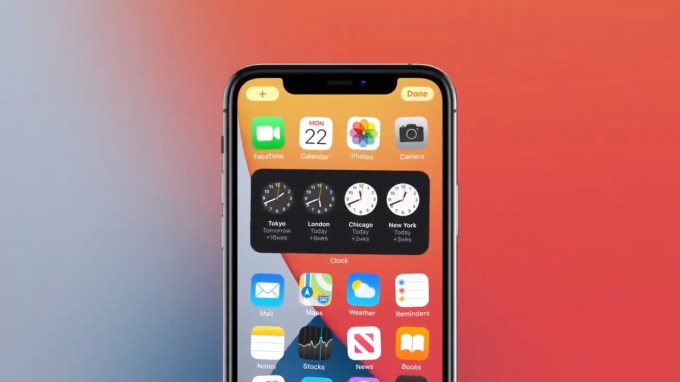
The much-anticipated new version of the iOS mobile operating system, iOS 14, became available for public testing on Thursday. Users who join the public beta will be able to try out the latest features, like the App Library, Widgets and smart stacks, an updated Messages app, a brand-new Translate app, biking directions in Apple Maps, upgraded Siri and various improvements to core apps like Notes, Reminders, Weather, Home, Safari and others.

When iOS 14 launches to the general public, it may also include support for QR code payments in Apple Pay, according to a report of new assets discovered in the code base.

Alongside the public beta, developers received their second round of betas for iOS 14, iPadOS 14 and other Apple software.

Google’s efforts in speeding up Android updates has been good news for Android 10


Read Full Article

This Week in Apps: US ponders TikTok ban, apps see a record Q2, iOS 14 public beta arrives


Welcome back to This Week in Apps, the Extra Crunch series that recaps the latest OS news, the applications they support and the money that flows through it all.

The app industry is as hot as ever, with a record 204 billion downloads and $120 billion in consumer spending in 2019. People are now spending three hours and 40 minutes per day using apps, rivaling TV. Apps aren’t just a way to pass idle hours — they’re a big business. In 2019, mobile-first companies had a combined $544 billion valuation, 6.5x higher than those without a mobile focus.

In this Extra Crunch series, we help you keep up with the latest news from the world of apps, delivered on a weekly basis.

This week, we’re digging into the news of a possible TikTok ban in the U.S. and how that’s already impacting rival apps. Also, both Android and iOS saw beta launches this week — a near-ready Android 11 beta 2 and the  public beta of iOS 14. We also look at the coronavirus’ impact on the app economy in Q2, which saw record downloads, usage and consumer spending. In other app news, Instagram launched Reels in India, Tinder debuted video chat and Quibi flounders while Pokémon GO continues to reel it in.

Headlines

Apple release iOS 14 public beta

Image Credits: Apple

The much-anticipated new version of the iOS mobile operating system, iOS 14, became available for public testing on Thursday. Users who join the public beta will be able to try out the latest features, like the App Library, Widgets and smart stacks, an updated Messages app, a brand-new Translate app, biking directions in Apple Maps, upgraded Siri and various improvements to core apps like Notes, Reminders, Weather, Home, Safari and others.

When iOS 14 launches to the general public, it may also include support for QR code payments in Apple Pay, according to a report of new assets discovered in the code base.

Alongside the public beta, developers received their second round of betas for iOS 14, iPadOS 14 and other Apple software.

Google’s efforts in speeding up Android updates has been good news for Android 10


Read Full Article

5+ Best Free Poker Apps to Play Texas Hold’Em With Friends Online


Online Poker Game

You don’t need real money or even real cards. Check out these best free poker apps to play a game of Texas Hold’em Poker with friends online.

Poker is one of the most popular games online, whether to play or to watch. You can now play with friends remotely and even over a video call. One of the games even lets you play poker without chips or cards.

Note: Play responsibly. In any online poker game, don’t add your credit card or PayPal details. Casual gamers are advised not to spend real money on virtual coins. And remember, poker games can’t help you win in real life.

1. LiPoker (Web): Fastest Poker Game With Friends, No Signup, No Download

LiPoker is the fastest way to play a game of poker with friends, no signup or download needed

Want to play a quick game of poker with friends? LiPoker is the fastest way to start a game. Head to the website to create a new game and share the link with friends for them to join. No one has to sign up or download anything to begin, it works in any desktop or mobile browser.

The app allows you to password-protect games in case you want to ensure random people can’t join. The creator sets how much money can be bet per hand. Up to nine friends can play simultaneously, and the game tracks winnings and losings in the “leaderboard.” There are easy keyboard shortcuts for your bets, and a hand rankings chart in case you’re new to the game.

LiPoker allows you to chat with friends in a small window, which also logs all moves. It also includes a video call option, but the video call didn’t work in our test. You can change theme colors, sit out for a few hands, and generally play as you would with friends in real life.

2. Poker in Place (Web): Video Call Poker Games With Friends

Play poker with friends online over a video call at Poker-In-Place

The fun of playing poker in person is judging reactions. You get to see your friends’ expressions and “tells,” as hard as they might try not to give anything away. Poker in Place brings that experience closer by adding a video call to a game of poker.

You can play with up to four players at a time. Each player’s video shows up in a little circle at their spot on the table. The audio and video are perfectly stable. Use keyboard shortcuts or your mouse to play a standard game of poker. Like with LiPoker, anyone can use the app in their browser without signing up or downloading anything. But you also have the option to sign up to save progress and settings.

Poker in Place uses Twilio Video for the video calling, and so there is a catch. The free version lasts for 20 minutes. If you want to continue the game after that, you’ll need to pay (it’s the same as the Twilio fee, the developer claims they are passing on the cost). Otherwise, you could make a new game every 20 minutes.

3. EasyPoker (Android, iOS): Play Poker Without Chips or Cards

It’s such a common situation. You find yourself ready to play a quick game of poker with friends, but there isn’t a deck of cards or a set of chips available. What do you do? Just whip out your phones and launch EasyPoker, as it’s the same thing.

This app is one of the ways for a quick poker game between friends, whether you’re bored in a cafe, traveling on a train, or anything else. You will need an active internet connection on both phones though. Download the app and sign up, then create a room to invite friends.

Because you’re all in the same room, you want to “hide” your cards too. So EasyPoker hides your hand at all times, and you have to press and hold the screen to see them. It’s a tiny but excellent user design that makes the game feel more fun and real.

Technically, you could play the game live over the internet with friends who aren’t around you, but given that there’s no chat, the other apps in this article are better for that. Easy Poker’s free version also limits you to four players at a time, and you’ll have to pay to unlock up to 12 players and other customization features.

Download: Easy Poker for Android | iOS (Free)

4. PokerStars (YouTube): Watch the Best Poker Videos on the Internet

PokerStars is the best youtube channel to watch poker videos online for free

The World Series of Poker is the biggest poker tournament to watch on TV, but unfortunately, their YouTube channel has been inactive for a long time. So if you like watching poker tournaments and games on TV, there is no better YouTube channel than PokerStars to get your fix. In fact, if you haven’t seen such games before, you should really give it a chance. It’s a lot more entertaining than you might think.

PokerStars hosts some of the best tournaments in the world, and they’re now available to watch online in slickly edited packages. You can also view all episodes of the poker series Shark Cage and The Big Game. The stars in the videos are the Who’s Who of poker, including Phil Ivey and Daniel Negreanu.

The YouTube channel also has a team of video editors putting together fun playlists and clips. The PokerStars Top 5, for instance, has some incredible videos about the best nightmare hands, celebrity appearances like Ronaldo, and other entertaining action.

5. The Best Poker Apps to Play Online (Android, iOS)

If you want to play a game of Texas Hold’em Poker online with strangers, you are spoilt for choices. Even if you don’t know the game, you can learn it quickly and have a fun time without spending any actual money.

  1. TOK: Learn how to play poker if you haven’t played before. TOK teaches the basics of poker with a neat quiz format to ensure you’ve got a hang of the game. Without that, you’ll get eaten alive in the online games. TOK also includes an AI mode to play against three opponents offline.
  2. Governor of Poker / World Series of Poker / Zynga Poker: These are three of the biggest apps to play poker online. There’s very little to separate them, so choose the one you like. All games have millions of players online, so you’ll easily find a table to start a match quickly. Each game gives you a virtual cash bonus daily to play, so you don’t have to spend real money through in-app purchases. Just be patient.
  3. Appeak Poker: Appeak is also like the other three games, but relatively new and without as large a fan base. However, it’s a much lighter game that doesn’t hog battery or resources, so it’s excellent for older phones.

Download: TOK for Android | iOS (Free)

Download: Appeak Poker for Android | iOS (Free)

Please note that all online poker games have in-app purchases and are trying to get you to pay to buy virtual coins. It’s best to disable in-app purchases on a device that an impressionable mind might use.

PlayingCards.io and Other Games to Play With Friends Online

Poker is just one of the games you can play online at the excellent card game website PlayingCards.io. You can set up the table and deck how you want, and invite friends to join in. Check it out, and other such free multi-game apps and websites to play with friends online.

Read the full article: 5+ Best Free Poker Apps to Play Texas Hold’Em With Friends Online


Read Full Article

5+ Best Free Poker Apps to Play Texas Hold’Em With Friends Online


Online Poker Game

You don’t need real money or even real cards. Check out these best free poker apps to play a game of Texas Hold’em Poker with friends online.

Poker is one of the most popular games online, whether to play or to watch. You can now play with friends remotely and even over a video call. One of the games even lets you play poker without chips or cards.

Note: Play responsibly. In any online poker game, don’t add your credit card or PayPal details. Casual gamers are advised not to spend real money on virtual coins. And remember, poker games can’t help you win in real life.

1. LiPoker (Web): Fastest Poker Game With Friends, No Signup, No Download

LiPoker is the fastest way to play a game of poker with friends, no signup or download needed

Want to play a quick game of poker with friends? LiPoker is the fastest way to start a game. Head to the website to create a new game and share the link with friends for them to join. No one has to sign up or download anything to begin, it works in any desktop or mobile browser.

The app allows you to password-protect games in case you want to ensure random people can’t join. The creator sets how much money can be bet per hand. Up to nine friends can play simultaneously, and the game tracks winnings and losings in the “leaderboard.” There are easy keyboard shortcuts for your bets, and a hand rankings chart in case you’re new to the game.

LiPoker allows you to chat with friends in a small window, which also logs all moves. It also includes a video call option, but the video call didn’t work in our test. You can change theme colors, sit out for a few hands, and generally play as you would with friends in real life.

2. Poker in Place (Web): Video Call Poker Games With Friends

Play poker with friends online over a video call at Poker-In-Place

The fun of playing poker in person is judging reactions. You get to see your friends’ expressions and “tells,” as hard as they might try not to give anything away. Poker in Place brings that experience closer by adding a video call to a game of poker.

You can play with up to four players at a time. Each player’s video shows up in a little circle at their spot on the table. The audio and video are perfectly stable. Use keyboard shortcuts or your mouse to play a standard game of poker. Like with LiPoker, anyone can use the app in their browser without signing up or downloading anything. But you also have the option to sign up to save progress and settings.

Poker in Place uses Twilio Video for the video calling, and so there is a catch. The free version lasts for 20 minutes. If you want to continue the game after that, you’ll need to pay (it’s the same as the Twilio fee, the developer claims they are passing on the cost). Otherwise, you could make a new game every 20 minutes.

3. EasyPoker (Android, iOS): Play Poker Without Chips or Cards

It’s such a common situation. You find yourself ready to play a quick game of poker with friends, but there isn’t a deck of cards or a set of chips available. What do you do? Just whip out your phones and launch EasyPoker, as it’s the same thing.

This app is one of the ways for a quick poker game between friends, whether you’re bored in a cafe, traveling on a train, or anything else. You will need an active internet connection on both phones though. Download the app and sign up, then create a room to invite friends.

Because you’re all in the same room, you want to “hide” your cards too. So EasyPoker hides your hand at all times, and you have to press and hold the screen to see them. It’s a tiny but excellent user design that makes the game feel more fun and real.

Technically, you could play the game live over the internet with friends who aren’t around you, but given that there’s no chat, the other apps in this article are better for that. Easy Poker’s free version also limits you to four players at a time, and you’ll have to pay to unlock up to 12 players and other customization features.

Download: Easy Poker for Android | iOS (Free)

4. PokerStars (YouTube): Watch the Best Poker Videos on the Internet

PokerStars is the best youtube channel to watch poker videos online for free

The World Series of Poker is the biggest poker tournament to watch on TV, but unfortunately, their YouTube channel has been inactive for a long time. So if you like watching poker tournaments and games on TV, there is no better YouTube channel than PokerStars to get your fix. In fact, if you haven’t seen such games before, you should really give it a chance. It’s a lot more entertaining than you might think.

PokerStars hosts some of the best tournaments in the world, and they’re now available to watch online in slickly edited packages. You can also view all episodes of the poker series Shark Cage and The Big Game. The stars in the videos are the Who’s Who of poker, including Phil Ivey and Daniel Negreanu.

The YouTube channel also has a team of video editors putting together fun playlists and clips. The PokerStars Top 5, for instance, has some incredible videos about the best nightmare hands, celebrity appearances like Ronaldo, and other entertaining action.

5. The Best Poker Apps to Play Online (Android, iOS)

If you want to play a game of Texas Hold’em Poker online with strangers, you are spoilt for choices. Even if you don’t know the game, you can learn it quickly and have a fun time without spending any actual money.

  1. TOK: Learn how to play poker if you haven’t played before. TOK teaches the basics of poker with a neat quiz format to ensure you’ve got a hang of the game. Without that, you’ll get eaten alive in the online games. TOK also includes an AI mode to play against three opponents offline.
  2. Governor of Poker / World Series of Poker / Zynga Poker: These are three of the biggest apps to play poker online. There’s very little to separate them, so choose the one you like. All games have millions of players online, so you’ll easily find a table to start a match quickly. Each game gives you a virtual cash bonus daily to play, so you don’t have to spend real money through in-app purchases. Just be patient.
  3. Appeak Poker: Appeak is also like the other three games, but relatively new and without as large a fan base. However, it’s a much lighter game that doesn’t hog battery or resources, so it’s excellent for older phones.

Download: TOK for Android | iOS (Free)

Download: Appeak Poker for Android | iOS (Free)

Please note that all online poker games have in-app purchases and are trying to get you to pay to buy virtual coins. It’s best to disable in-app purchases on a device that an impressionable mind might use.

PlayingCards.io and Other Games to Play With Friends Online

Poker is just one of the games you can play online at the excellent card game website PlayingCards.io. You can set up the table and deck how you want, and invite friends to join in. Check it out, and other such free multi-game apps and websites to play with friends online.

Read the full article: 5+ Best Free Poker Apps to Play Texas Hold’Em With Friends Online


How to Get Admin Rights on Windows


get-admin-windows

Windows separates user accounts into Administrator and Standard levels. Standard accounts can make changes that don’t affect others on the computer, such as personalization options or installing software for themselves. However, you need an Administrator account to change the clock, access protected system files, add users, and take similar actions.

Perhaps you’ve just tried to access something and were told you don’t have administrator rights. We’ll show you how to get administrator privileges on Windows 10.

First: Make Sure You’re Allowed Admin Rights

It sounds obvious, but perhaps you don’t have administrative privileges on a computer because the owner doesn’t want you to. On a corporate computer or one owned by your parents, friends, etc. you’ve probably been restricted to a Standard account so you can’t make major changes.

If you need admin access on someone else’s computer, ask them to make the change or to update your account with admin rights. Unfortunately, we can’t show you how to bypass admin restrictions in Windows 10 for a school computer or similar. You should respect controls that the computer manager put in place.

User Account Control: Know Your Rights

Windows uses the blue and yellow User Account Control (UAC) shield icon to designate computer functions that require admin privileges. If you try to take action, you’ll see two different prompts depending on whether you’re an administrator or not.

Admins simply have to click Yes when asked if they want to allow a program to make changes. Standard accounts must type an admin’s password to proceed.

This lets you perform administrative functions without staying logged into an admin account all the time. As long as you know an admin password, you can get through UAC prompts. See our overview of User Account Control for more information on how it works.

If you want to elevate your standard account to an admin account, another admin will need to visit Settings > Accounts > Family & other users. Select your account under Other People (or Your Family) if you manage one) and click the Change account type button.

Change it from Standard User to Administrator and you’ll have full privileges.

Windows Change Account Type Settings

It’s also wise to make sure you haven’t disabled UAC. Doing so will prevent standard accounts from even seeing UAC prompts, so trying to take admin actions will fail with no notification.

To check this, type UAC into the Start menu and click Change User Account Control settings. Make sure the slider is not set to the bottom option of Never Notify. The second option from the top is the default and should work fine in most cases.

Windows 10 User Account Control Settings

If You’ve Forgotten the Admin Account Password

One common situation where you can’t log into an admin account occurs when you lose your password. Thankfully, you’re not locked out even if the password slipped your mind.

We’ve covered how to reset your Windows password. If you use a Microsoft login for the admin account, it’s easy to reset your password via Microsoft’s portal. Local accounts have several other methods for resetting a password, but they take some work.

Once you recover your account password, you’ll have full admin rights again.

Temporarily Access the Windows Administrator Account

Since Windows Vista and the advent of UAC, Windows ships with the built-in Administrator account disabled. This is to protect your PC, as the default Administrator account can take any action on your computer without boundaries. Obviously, if malware got hold of this account, it would be a huge problem.

Windows has a few utilities to provide admin rights back to your own account, but none of them will work if you’re not an administrator yourself. Depending on what your exact problem is with admin rights (maybe you can accept UAC prompts but not access other users’ files), you might still be able to enable the built-in admin account.

To enable the default Administrator account, right-click on the Start button or press Win + X. Choose Command Prompt (Admin) or Windows PowerShell (Admin) to open an elevated command line. If you’re able to do this, enter this command to enable the built-in Admin account:

net user administrator /active:yes

Now, just log out of your account and you’ll see Administrator as an option. It has no password, so you’re free to log in and perform any function you like. Once you’re done working, you should run the above command again and change the yes to no to disable it for safety.

The Built-In Administrator Account Workaround

If you try to open an elevated Command Prompt above and can’t do it because you lack admin rights, you’ll have to enable the Administrator account using a workaround.

To do this, refer to our in-depth guide on resetting your Windows password, as it contains instructions for a workaround to enable that account.

How to Fix Admin Rights on Your Own Account

Once you’ve logged in with the Administrator account, you can use Windows tools to fix the problems on your own admin account. Start by visiting the same accounts page as before to make sure your account is indeed an admin: Settings > Accounts > Family & other users.

Click your account name under Other users (or Your family, if applicable) and then hit the Change account type button. Change the dropdown box from Standard User to Administrator if it’s not already.

Another way of doing this is through the User Accounts page. Type netplwiz into the Start Menu (or the Win + R Run menu) to access it. Here, you’ll see a list of every user on your machine.

Click one and hit the Properties button, then select the Group Membership tab. You can change an account from Standard users to Administrator. The Other option contains lots of other account types that aren’t common outside of business use.

windows user accounts panel

There’s one other place you should check to make sure you aren’t missing any rights. Open a File Explorer window to This PC. Under Devices and drives, right-click on your primary storage drive (likely the one labeled C:) and choose Properties.

In the resulting window, switch to the Security tab. Next, click the Advanced button near the bottom. You’ll see the full list of permissions for each group of users on your PC. This will vary if you’ve made changes, but here’s an idea of what a normal permissions list should look like:

windows disk advanced security settings

Make sure that the Administrators group has Full Control listed for Access. If it doesn’t, you’ve found the reason you can’t view all files. Click the Change permissions button first to make changes, then double-click on a group to modify it.

Make sure to tick the Full control box for the Administrators group. Remember, you shouldn’t change anything else here you’re not sure about. If you’re still having problems, try creating a new admin account at Settings > Accounts > Family & others users > Add someone else to this PC.

Gaining Admin Rights: Success

We’ve covered the most common solutions for getting administrative rights in Windows 10. Whether you’ve disabled UAC, forgotten your password, or are suffering from strange file settings, these methods let you recover admin rights and control your PC again.

Now that you’re an admin, make sure you know how to run programs as admin in Windows. You can also lock down your Windows PC to prevent other users from accessing sensitive features.

Image Credits: Sergey Nivens/Shutterstock

Read the full article: How to Get Admin Rights on Windows


Activism, changemakers and hope for the future | Malala Yousafzai

Activism, changemakers and hope for the future | Malala Yousafzai

Education activist (and recent Oxford graduate) Malala Yousafzai reflects on the defining moments of her life, how she balances passion with personhood and where the world finds itself during the COVID-19 crisis. With humor and humility, she shares her dreams of seeing social progress in her lifetime, explains why girls education advocacy must not relent during the pandemic and champions youth activists worldwide leading the fight for a fairer future for all. (This virtual conversation, hosted by TED's current affairs curator Whitney Pennington Rodgers, was recorded July 8, 2020.)

https://ift.tt/2ZfPGcX

Click this link to view the TED Talk

How Thor Fridriksson’s ‘Trivia Royale’ earned 2.5M downloads in 3 weeks


In its first few weeks of release, the latest game from QuizUp founder Thor Fridriksson took the top spot in the Games Section of Apple’s App Store and was the top app (for a brief time) in the App Store at large.

Since its launch on June 17, Trivia Royale has been downloaded more than 2.5 million times, with day-one retention of 45% and week-one retention of 45% on iOS, according to the company. Average daily usage per user is around 30 minutes. It currently sits in the number six spot in the Free Games category on the App Store.

There is no shortage of mobile games, but in such a cluttered space, it’s difficult to break through the noise. So how did Trivia Royale do it?

The game, which lets users compete in a 1,000-person, single-elimination trivia tournament, is built on the Teatime Games platform. Teatime emphasizes the fun of playing against other humans in the mobile gaming landscape, giving users the ability to communicate via video chat while they play in a game on their smartphone.

The platform allows game developers to use this video chat functionality, which comes with Snapchat-like face filters or Apple Memoji-style avatars, on their own games. But for Teatime to truly succeed as a gaming platform, the company needed a hit game, Fridriksson said.

The serial entrepreneur told TechCrunch that he decided to take off his CEO hat and return to his product roots by focusing on a category that few people know as well as he does: trivia.

The Trivia Royale tournament combines the scale of Battle Royale with the durability of trivia — whether it’s Jeopardy, HQ Trivia, bar trivia or this, we can’t get enough of it — or lets users match against one other player in a single category of trivia.

I’ve played around on the game for a while now and can say that it’s very well done, from the design to the production value. But more important than the mechanics of the tournament or the typeface or even the content of the questions are the avatars, which let users express themselves through customization and their real-life facial expressions.

But none of that means anything if players don’t join the game. So how did Trivia Royale earn more than 2.5 million downloads (and climbing) in a matter of days?

A big bet on TikTok

Fridriksson told TechCrunch that he has to give a ton of credit to his kids (who are 15 and 11). His daughter told him about TikTok and gave him a list of her favorite stars, including Addison Rae and Dixie D’Amelio.


Read Full Article

10 July 2020

Grounding Natural Language Instructions to Mobile UI Actions


Mobile devices offer a myriad of functionalities that can assist in everyday activities. However, many of these functionalities are not easily discoverable or accessible to users, forcing users to look up how to perform a specific task -- how to turn on the traffic mode in Maps or change notification settings in YouTube, for example. While searching the web for detailed instructions for these questions is an option, it is still up to the user to follow these instructions step-by-step and navigate UI details through a small touchscreen, which can be tedious and time consuming, and results in reduced accessibility. What if one could design a computational agent to turn these language instructions into actions and automatically execute them on the user’s behalf?

In “Mapping Natural Language Instructions to Mobile UI Action Sequences”, published at ACL 2020, we present the first step towards addressing the problem of automatic action sequence mapping, creating three new datasets used to train deep learning models that ground natural language instructions to executable mobile UI actions. This work lays the technical foundation for task automation on mobile devices that would alleviate the need to maneuver through UI details, which may be especially valuable for users who are visually or situationally impaired. We have also open-sourced our model code and data pipelines through our GitHub repository, in order to spur further developments among the research community.

Constructing Language Grounding Models
People often provide one another with instructions in order to coordinate joint efforts and accomplish tasks involving complex sequences of actions, for example, following a recipe to bake a cake, or having a friend walk you through setting up a home network. Building computational agents able to help with similar interactions is an important goal that requires true language grounding in the environments in which the actions take place.

The learning task addressed here is to predict a sequence of actions for a mobile platform given a set of instructions, a sequence of screens produced as the system transitions from one screen to another, as well as the set of interactive elements on those screens. Training such a model end-to-end would require paired language-action data, which is difficult to acquire at a large scale.

Instead, we deconstruct the problem into two sequential steps: an action phrase-extraction step and a grounding step.
The workflow of grounding language instructions to executable actions.
The action phrase-extraction step identifies the operation, object and argument descriptions from multi-step instructions using a Transformer model with area attention for representing each description phrase. Area attention allows the model to attend to a group of adjacent words in the instruction (a span) as a whole for decoding a description.
The action phrase extraction model takes a word sequence of a natural language instruction and outputs a sequence of spans (denoted in red boxes) that indicate the phrases describing the operation, the object and the argument of each action in the task.
Next, the grounding step matches the extracted operation and object descriptions with a UI object on the screen. Again, we use a Transformer model, but in this case, it contextually represents UI objects and grounds object descriptions to them.
The grounding model takes the extracted spans as input and grounds them to executable actions, including the object an action is applied to, given the UI screen at each step during execution.
Results
To investigate the feasibility of this task and the effectiveness of our approach, we construct three new datasets to train and evaluate our model. The first dataset includes 187 multi-step English instructions for operating Pixel phones along their corresponding action-screen sequences and enables assessment of full task performance on naturally occurring instructions, which is used for testing end-to-end grounding quality. For action phrase extraction training and evaluation, we obtain English “how-to” instructions that can be found abundantly from the web and annotate phrases that describe each action. To train the grounding model, we synthetically generate 295K single-step commands to UI actions, covering 178K different UI objects across 25K mobile UI screens from a public android UI corpus.

A Transformer with area attention obtains 85.56% accuracy for predicting span sequences that completely match the ground truth. The phrase extractor and grounding model together obtain 89.21% partial and 70.59% complete accuracy for matching ground-truth action sequences on the more challenging task of mapping language instructions to executable actions end-to-end. We also evaluated alternative methods and representations of UI objects, such as using a graph convolutional network (GCN) or a feedforward network, and found those that can represent an object contextually in the screen lead to better grounding accuracy. The new datasets, models and results provide an important first step on the challenging problem of grounding natural language instructions to mobile UI actions.

Conclusion
This research, and language grounding in general, is an important step for translating multi-stage instructions into actions on a graphical user interface. Successful application of task automation to the UI domain has the potential to significantly improve accessibility, where language interfaces might help individuals who are visually impaired perform tasks with interfaces that are predicated on sight. This also matters for situational impairment when one cannot access a device easily while encumbered by tasks at hand.

By deconstructing the problem into action phrase extraction and language grounding, progress on either can improve full task performance and it alleviates the need to have language-action paired datasets, which are difficult to collect at scale. For example, action span extraction is related to both semantic role labeling and extraction of multiple facts from text and could benefit from innovations in span identification and multitask learning. Reinforcement learning that has been applied in previous grounding work may help improve out-of-sample prediction for grounding in UIs and improve direct grounding from hidden state representations. Although our datasets were based on Android UIs, our approach can be applied generally to instruction grounding on other user interface platforms. Lastly, our work provides a technical foundation for investigating user experiences in language-based human computer interaction.

Acknowledgements
Many thanks to my collaborators on this work at Google Research. Xin Zhou and Jiacong He contributed substantially to the data pipelines and the creation of the datasets. Yuan Zhang and Jason Baldridge provided much valuable advice for the project and contributed to the presentation of the work. Gang Li provided generous help for creating open-source datasets. Many thanks to Ashwin Kakarla, Muqthar Mohammad and Mohd Majeed for their help with the annotations.

How to disrupt philanthropy in response to crisis | Darren Walker

How to disrupt philanthropy in response to crisis | Darren Walker

If we want to build back better after the pandemic, we must reconsider philanthropy and create a new kind of capitalism that's rooted in generosity and accountability, says Darren Walker, president of the Ford Foundation. In this vital conversation, Walker calls for citizens and corporations to question the inequality that makes their wealth possible, to think about their own complicity in creating economic injustice and to celebrate the critical role art plays in creating a culture that uplifts everyone. (This virtual conversation, hosted by head of TED Chris Anderson, was recorded July 1, 2020.)

https://ift.tt/2OdGYFT

Click this link to view the TED Talk

How to Choose a Safe Online Casino


While playing at a traditional brick and mortar casino can be a lot of fun, it is not always convenient. You may live far away from such a facility, or you just do not desire to be around that many people all the time. With online casinos, both of those obstacles are removed. Since can […]

The post How to Choose a Safe Online Casino appeared first on ALL TECH BUZZ.


COVID-19 pivot: Travel unicorn Klook sees jump in staycations


Spring 2020 was gloomy for Klook. As countries closed their borders and went into complete or partial lockdown, the SoftBank-backed travel platform saw its revenue plummet by as much as 90% through March and April. The World Travel and Tourism Council said in April that the coronavirus could put up to 100 million jobs in the global travel and tourism at risk.

But in the dark times, opportunities were also bubbling up.

Six-year-old Klook enables travelers, primarily from Asia, to discover and book overseas experiences ranging from Napa Valley wine tastings to staying with a farming family in Cambodia — a bit like Airbnb Experiences. It then takes a cut from each transaction that happens between the customer and activity vendor.

Before COVID-19, the startup, which crossed the $1 billion valuation mark back in 2018, was seeing 30 million monthly user sessions a month; by April, the figure shrank to 5 million. The constraints on people’s movement across the world, which is the foundation of its business, forced Klook to quickly rethink product offerings.

“At the end of the day, we are in the business of fun things to do. There are things to do at home, as well as local things to do when people could travel,” co-founder and chief operating officer Eric Gnock Fah told TechCrunch over a phone interview. “Now [the pandemic] is giving us an opportunity to add a new aspect to it.”

Staycation

Cooped up at home, people around the world turned to cooking, handcraft and other domestic projects as an outlet for entertainment and creativity. Klook responded to the demand by offering do-it-yourself kits for making bubble tea, macarons, candles and more — and delivering the material to people’s doorsteps. For people who were still eager to see the world, Klook partnered with landmark sites worldwide on online virtual tours, amassing close to 660,000 views in its first two livestreamed experiences.


Read Full Article

How to Post a YouTube Video on Instagram


post-youtube-instagram

One of the best ways to reach out to family, friends, and strangers is through Instagram. However, if you want to share a video with someone on the platform, you’ll need to know how to post a YouTube video on Instagram.

So, in this article, we’ll show you how to post a YouTube video on Instagram using either your mobile device or desktop computer.

How to Post a YouTube Video on Instagram From Your Smartphone

Using a smartphone to post a YouTube video on Instagram isn’t as easy as it sounds. The process is different for both Android and iPhone users, which only complicates matters even more.

Step 1: Install TubeMate

If you have an iPhone, please refer to our article detailing how to download YouTube videos to your iPhone Camera Roll. As for Android users, we’ll let you in on how you can download YouTube videos to your device using TubeMate.
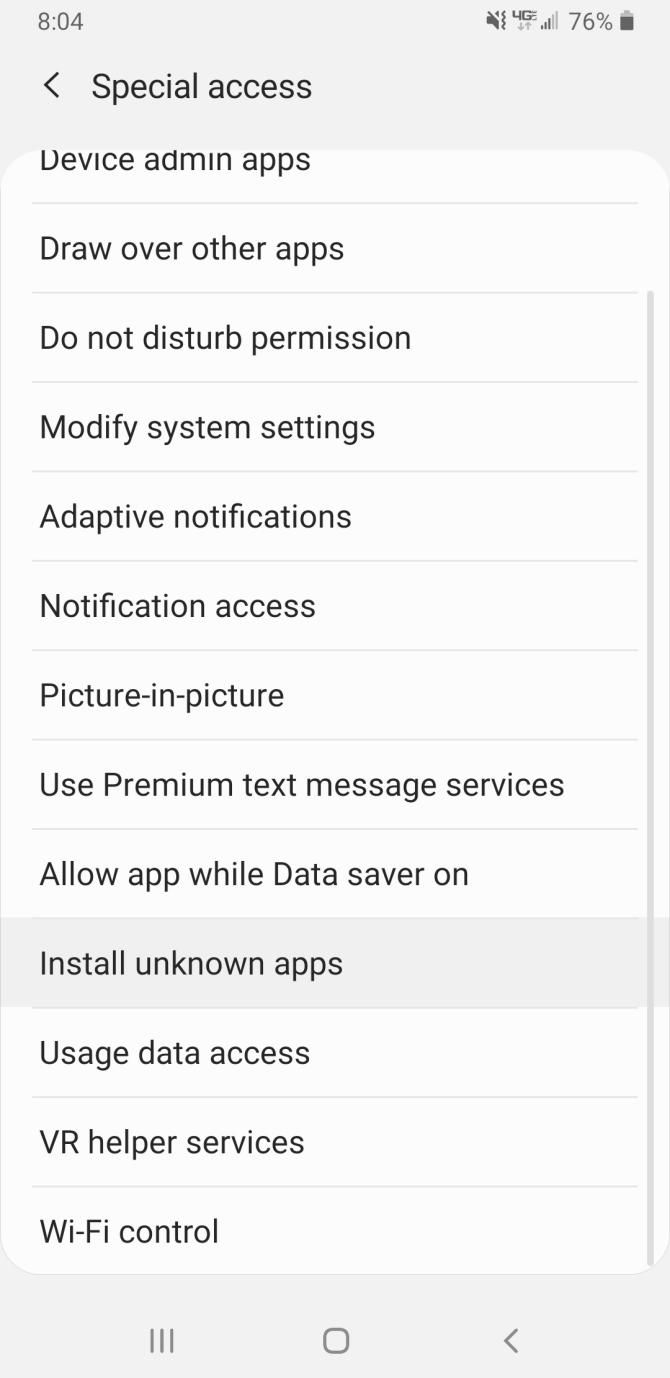
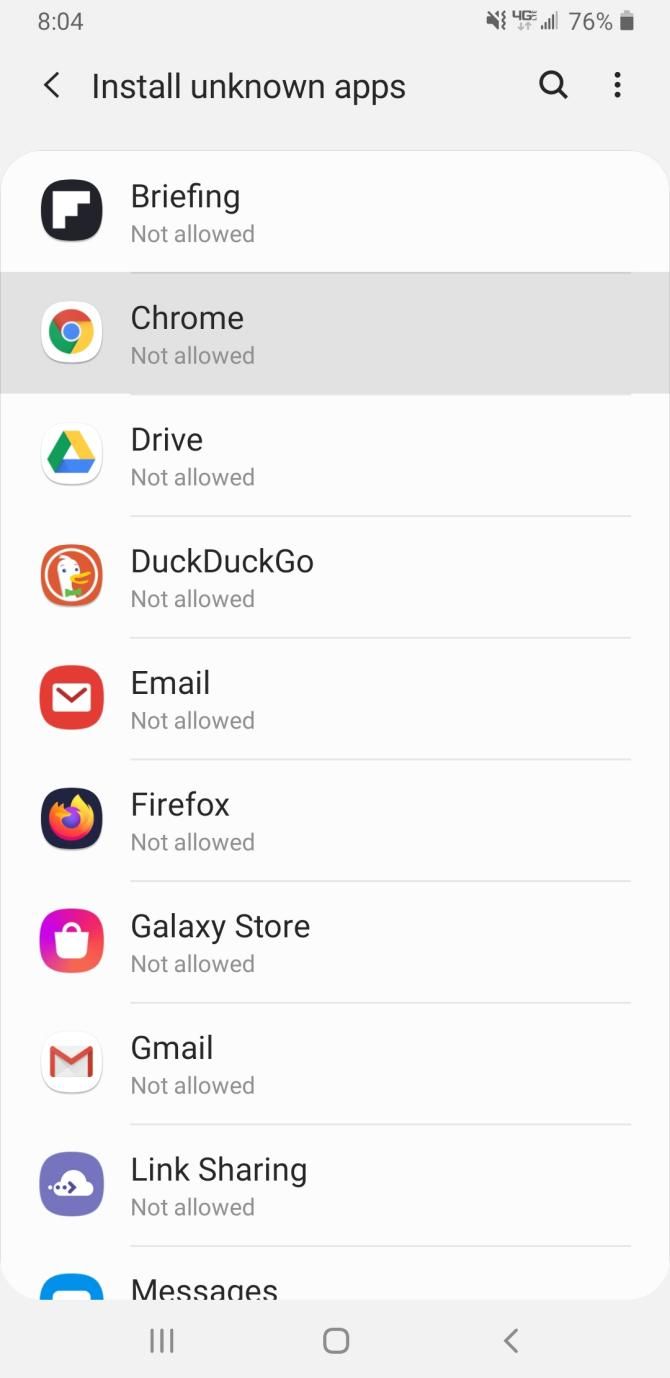
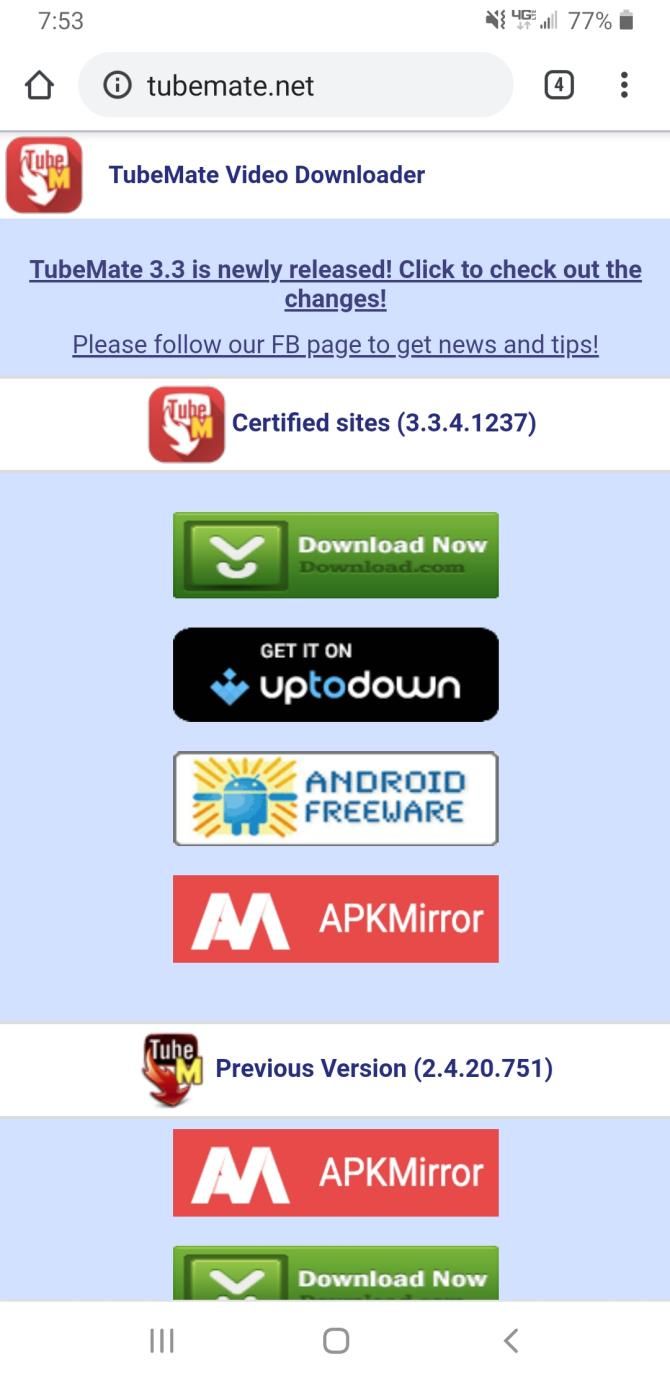
This app isn’t available through the Google Play Store, so you’ll have to download it directly from the TubeMate site. Before you install TubeMate, you’ll need to tweak a security setting that lets your device download apps that aren’t on the Google Play Store. Just make sure to only use this setting for apps you trust.
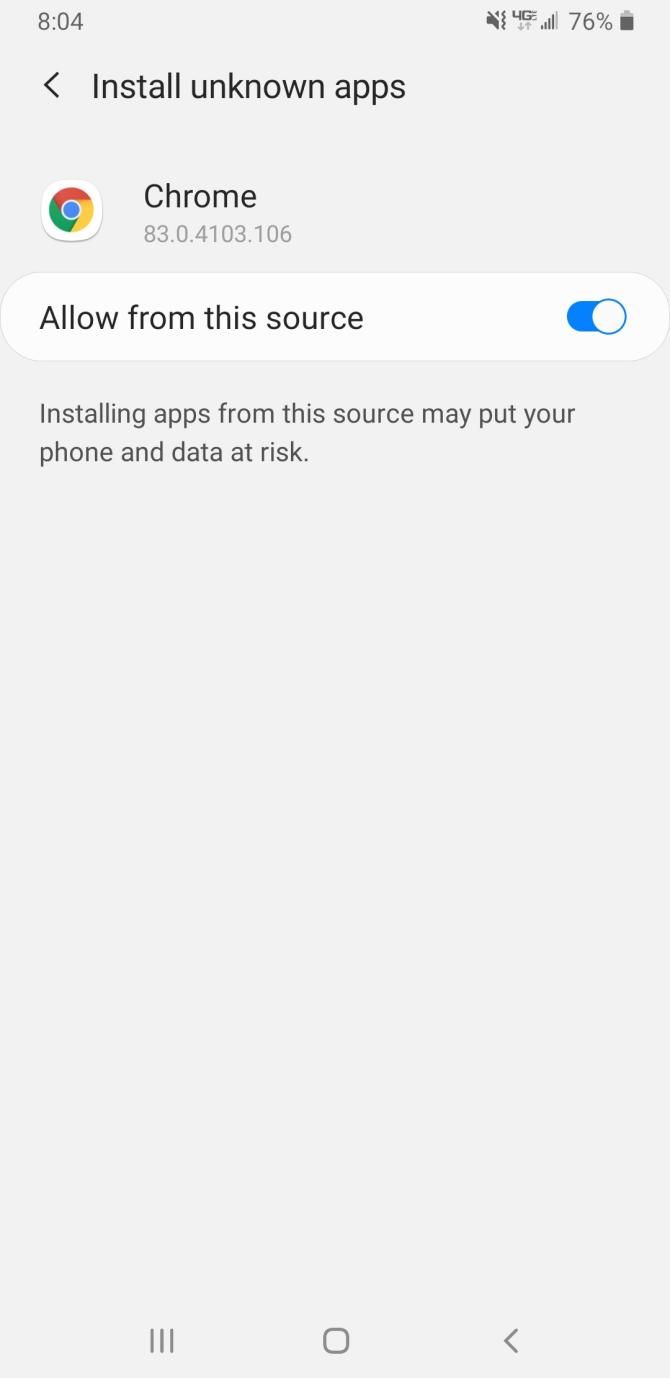
To enable this setting, head to Settings > Apps > Special access > Install unknown apps. From here, select the browser that you’re downloading TubeMate from, and toggle on “Allow from this source.”

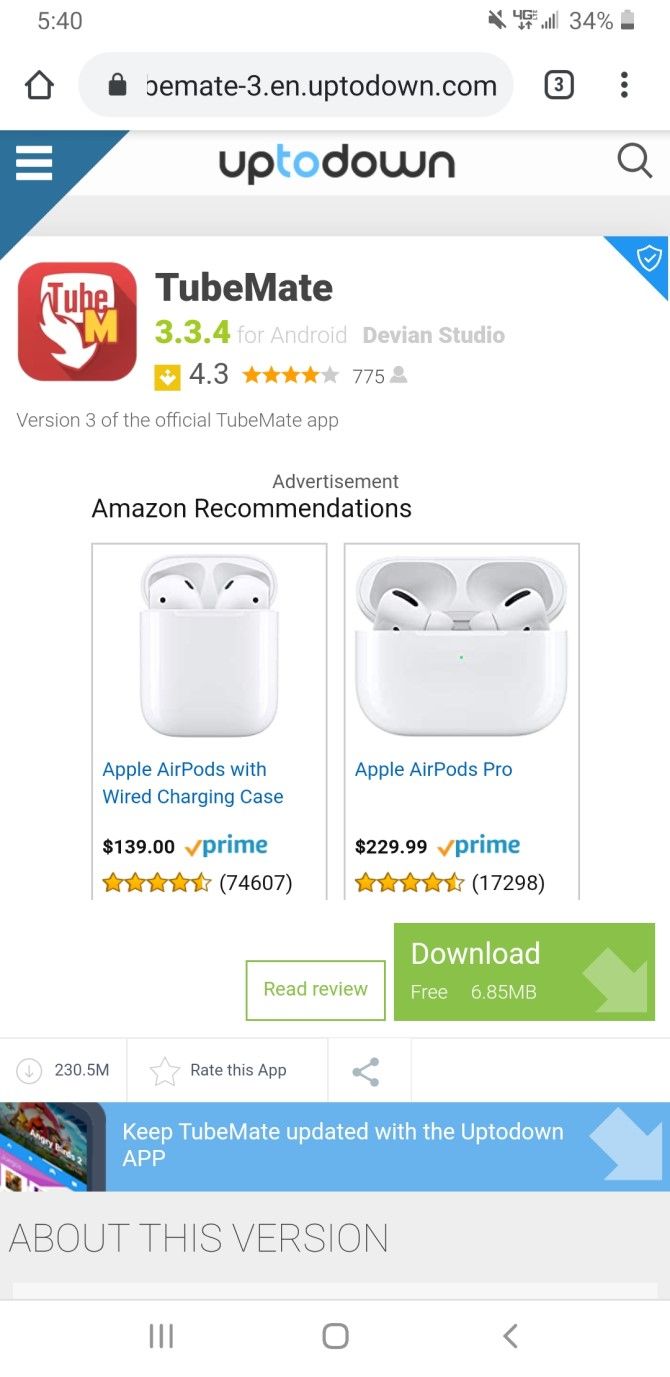
Now, you can go ahead and download TubeMate from any of the links listed on its site.

Download: TubeMate for Android (Free)

Step 2: Download the YouTube Video on Your Android Device

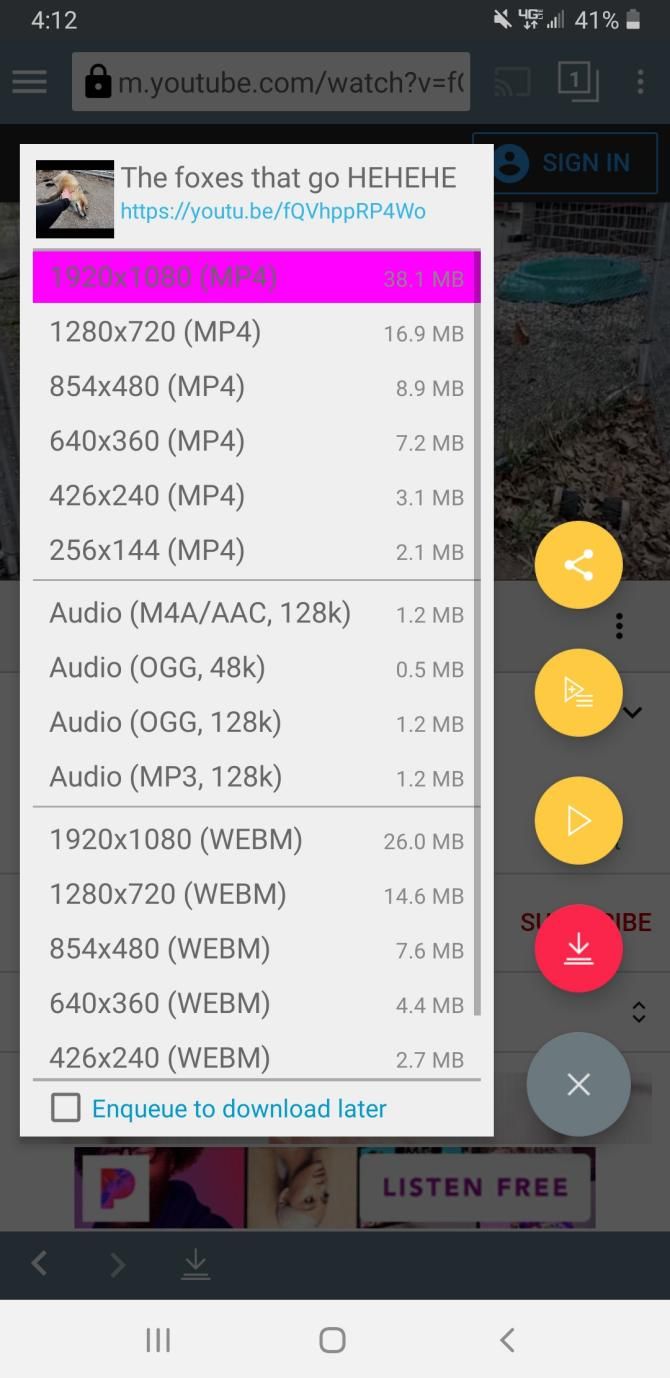
TubeMate writes over the original YouTube app, and adds a download feature. Simply open TubeMate, search for the YouTube video you want to download, and then click the red download button in the bottom-right corner of the video.

You’ll get the option to choose from several different video qualities. If you want to download a 1080p video (the max resolution for Instagram videos), you’ll have to download the MP3 video converter app that TubeMate directs you to.

Step 3: Shorten the Video

In addition to putting a limit on your video’s max resolution, Instagram also has a length restriction for videos—you can only upload videos between three and 60 seconds long. If your video is already within these limits, you can skip this step.

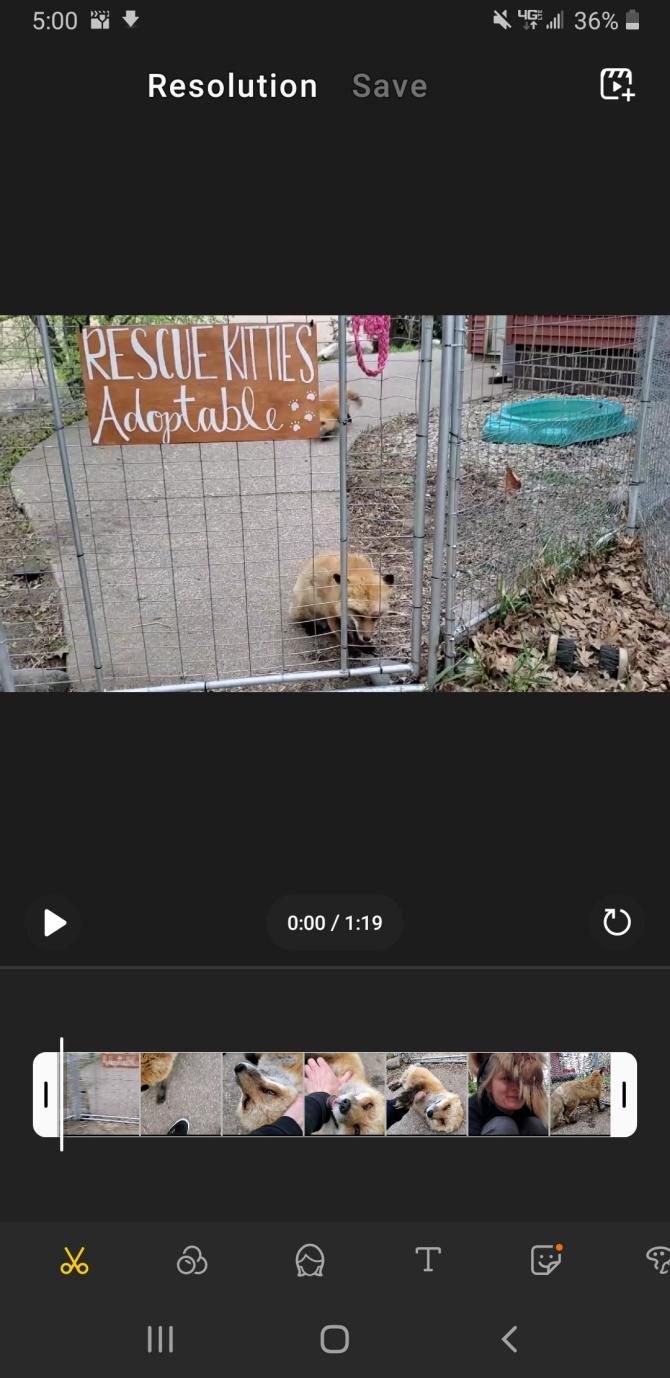
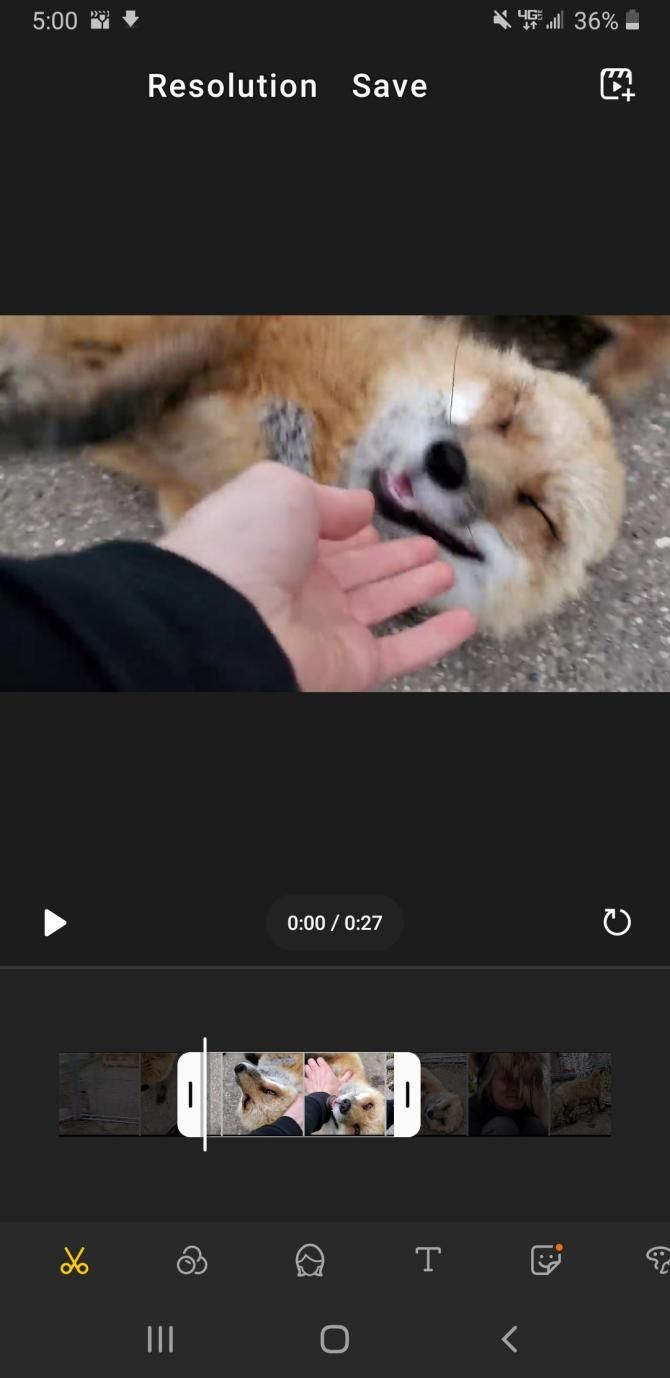
You can easily shorten your video using your phone’s built-in video editor or by using a third-party app—for this part, I used my phone’s built-in editor. After accessing the video, I hit the pencil icon at the bottom of the video, and then selected the scissors icon. From here, I dragged the white bars to fit the portion of the video that I wanted to keep, and then hit Save.

Step 4: Post the YouTube Video on Instagram

When you’re ready to make your post, open the Instagram app, and click the plus icon at the bottom of the page. Select the YouTube video from your gallery, add a filter, write a caption, and then hit Share.

How to Post a YouTube Video on Instagram From Your Computer

You have to jump through just as many hoops when posting a YouTube video to Instagram using your computer. It’s a multi-step process that we’ve outlined below.

Step 1: Install 4K Video Downloader

4K Video Downloader YouTube Videos

4K Video Downloader is a reliable tool that you can use to download videos from YouTube, Facebook, TikTok, Vimeo, and more. Not only does this full-featured video downloader allow you to extract subtitles from YouTube videos, but it even lets you download videos in 4K. This makes it ideal for prepping YouTube videos for Instagram.

To learn more about this handy software, make sure to check out our review of 4K Video Downloader.

Download: 4K Video Downloader for Windows, macOS, or Linux (Free, with premium version available)

Step 2: Download the YouTube Video on Your Desktop

Now that you have 4K Video Downloader, you’ll want to use it to download the YouTube video of your choice. Start by copying the URL of the YouTube video, and then hit Paste Link in the top-left corner of the 4K Video Downloader menu.

4K Video Downloader will automatically detect the link you just copied. After it’s done parsing the video, you can choose from several different resolution options that can even go up to 8K if the video supports it. Instagram only permits video uploads of up to 1080p, so you won’t have to worry about downloading 4K or 8K videos.

Download YouTube Video Quality

4K Video Downloader also presents you with an option to change the video format, but you’ll want to leave that set on MP4. To start the download, hit Download at the bottom of the page.

Step 3: Shorten the Video

You can quickly trim the video using Windows’ built-in Movies & TV app, or you can opt to use iMovie on macOS. There are also plenty of other video editing apps you can use instead.

Here, we’ll give you a quick tutorial on how to trim the video in Movies & TV. After opening the video in Movies & TV, click the pencil icon at the bottom of the menu, and select Trim from the dropdown menu.

Edit YouTube Video in Photos

You can drag the two white markers on either side of the video’s timeline to set a new length. When you’re finished, click Save a copy in the top-right corner of the app.

Step 4: Transfer the YouTube Video to Your Smartphone Using Google Drive

Unfortunately, Instagram doesn’t allow you to post photos or videos from its desktop site. The easiest way to get around this is to send the downloaded video to your smartphone.

There are quite a few options when it comes to transferring the video to your mobile device. You can use a cloud storage provider, attach the video to an email, or even sync your mobile device to your computer. For this article, we’ll show you how to send the video to your smartphone using Google Drive.

First, ensure that you have a Google Drive account, and make sure you’ve already downloaded the Google Drive app on your smartphone.

To upload your video to Drive, follow these simple steps:

  1. Open Google Drive.
  2. Hit the New button in the left corner of the screen.
  3. Select File Upload from the dropdown menu.
  4. Find the YouTube video you downloaded, and hit Open.

When the video finishes uploading, you should be able to open Google Drive on your mobile device and select the video. From here, hit the three vertical dots in the right corner of the video, and hit Download.

Now that the video is on your mobile device, you can upload the video to Instagram using the same steps that we’ve previously outlined.

How to Share YouTube Videos on Instagram the Right Way

Sharing a YouTube video on Instagram may sound complicated, but it’s easy once you get the hang of it. While both methods outlined above require a series of steps, posting on your smartphone is ultimately the easier way to post a YouTube video on Instagram. This way, you don’t have to go through the trouble of dealing with Google Drive.

Having YouTube videos on your Instagram page can help attract more followers to your page. For more ways to make your profile unique, check out these tips to make your Instagram stand out.

Read the full article: How to Post a YouTube Video on Instagram


Read Full Article