22 April 2020

Spotify launches its promised fundraising feature for artists


Last month, Spotify announced that as part of its coronavirus relief efforts it would soon add new fundraising features for artists on its platform. Today, the company is following through with the launch of “Artist Fundraising Pick,” a feature that allows artists to fundraise for themselves, their crews, or one of the verified music relief initiatives Spotify has already vetted through the Spotify COVID-19 Music Relief project.

At launch, Spotify is working with a small group of fundraising partners to make the donation process easier, including Cash App, GoFundMe, and PayPal.me.

Cash App is currently Spotify’s preferred method, as it has also established a $1 million relief effort for artists. When Spotify artists choose their “$cashtag” as their Artist Fundraising Pick and secure at least one donation of any size, they’ll receive an additional $100 in their account from Cash App up until a collective total of $1 million has been contributed. This works for artists in the U.S. and U.K., but Spotify users worldwide can donate through Cash App.

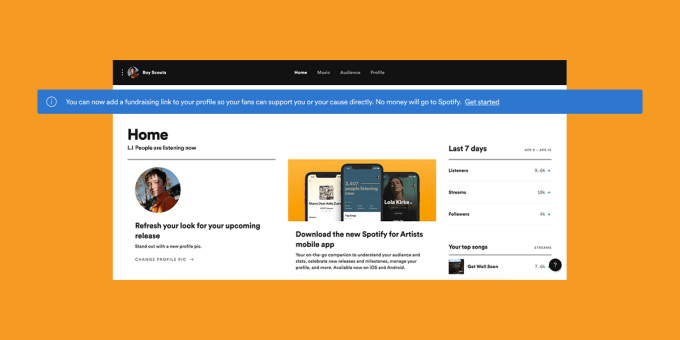
To use the new fundraising tools, artists (or Spotify for Artists admin users) will go to their Artist dashboard and click “Get started” on the banner at the top to submit their Fundraising Pick. This is a similar process as to how artists choose which track they want to display on their profile.

Once live, fans can donate to the cause through the artist’s profile. In addition to Cash App, PayPal is broadly available and GoFundMe is available in 19 markets.

If the artist chooses to raise for a music relief organization, they can select from those associated with Spotify’s existing charity project, which launched last month in partnership with MusiCares, PRS Foundation, and Help Musicians. It has now expanded to include a wider range of participating organizations, including several local options, and is continuing to grow.

At launch, a handful of artists already have the new feature live, including Tyrese Pope and Boy Scouts who are fundraising through Cash App; Marshmello who is fundraising for MusiCares; and Benjamin Ingrosso who is fundraising for Musikerforbundet.

Spotify says it moved to quickly launch this feature because it believed it was in a unique position to help artists raise money from a global network of fans. However, it cautions that it’s never built a fundraising feature like this before, and considers this a “first version.” Over time, the feature will likely evolve and update based on artist feedback.

“This is an incredibly difficult time for many Spotify users and people around the world — and there are many worthy causes to support at this time,” the company wrote in an announcement. “With this feature, we simply hope to enable those who have the interest and means to support artists in this time of great need, and to create another opportunity for our COVID-19 Music Relief partners to find the financial support they need to continue working in music and lift our industry,” it said.


Read Full Article

EU privacy body urges anonymization of location data for COVID-19 tracking


The European Data Protection Board (EDPB) has published guidance for the use of location data and contacts tracing tools intended to mitigate the impact of the COVID-19 pandemic.

Europe’s data protection framework wraps around all such digital interventions, meaning there are legal requirements for EU countries and authorities developing tracing tools or soliciting data for a coronavirus related purpose.

“These guidelines clarify the conditions and principles for the proportionate use of location data and contact tracing tools, for two specific purposes: using location data to support the response to the pandemic by modelling the spread of the virus so as to assess the overall effectiveness of confinement measures; [and] contact tracing, which aims to notify individuals of the fact that they have been in close proximity of someone who is eventually confirmed to be a carrier of the virus, in order to break the contamination chains as early as possible,” the EDPB writes in the document.

The European Commission and the EU parliament have already weighed in with their own recommendations in this area, including a toolbox to help guide contacts tracing app developers. The Commission has also urged Member States to take a common approach to building such apps. And has been leaning on local telcos to provide ‘anonymized and aggregated’ metadata for modelling the spread of the virus across the EU.

The guideline document from the EDPB — a body made up of representatives from the EU’s national data protection agencies which helps coordinate the application of pan-EU data protection law — brings additional expert steerage for those developing digital interventions as part of a public health response to the coronavirus pandemic.

“The EDPB generally considers that data and technology used to help fight COVID-19 should be used to empower, rather than to control, stigmatise, or repress individuals,” it writes. “Furthermore, while data and technology can be important tools, they have intrinsic limitations and can merely leverage the effectiveness of other public health measures. The general principles of effectiveness, necessity, and proportionality must guide any measure adopted by Member States or EU institutions that involve processing of personal data to fight COVID-19.”

Among the body’s specific recommendations are that where location data is being considered for modelling the spread of the coronavirus or assessing the effectiveness of national lockdown measures then anonymizing the data is preferable — with the EDPB emphasizing that proper anonymization is not easy.

Given the inherent complexity it also recommends transparency around the anonymization methodology used. (tl;dr: there’s no security in obscurity, nor indeed accountability.)

“Many options for effective anonymisation exist, but with a caveat. Data cannot be anonymised on their own, meaning that only datasets as a whole may or may not be made anonymous,” it notes.

“A single data pattern tracing the location of an individual over a significant period of time cannot be fully anonymised. This assessment may still hold true if the precision of the recorded geographical coordinates is not sufficiently lowered, or if details of the track are removed and even if only the location of places where the data subject stays for substantial amounts of time are retained. This also holds for location data that is poorly aggregated.

“To achieve anonymisation, location data must be carefully processed in order to meet the reasonability test. In this sense, such a processing includes considering location datasets as a whole, as well as processing data from a reasonably large set of individuals using available robust anonymisation techniques, provided that they are adequately and effectively implemented.”

On contact tracing apps — aka digital tools that are designed to map proximity between individuals, as a proxy for infection risk — the EDPB urges that use of such apps be voluntary.

“The systematic and large scale monitoring of location and/or contacts between natural persons is a grave intrusion into their privacy,” it warns. “It can only be legitimised by relying on a voluntary adoption by the users for each of the respective purposes. This would imply, in particular, that individuals who decide not to or cannot use such applications should not suffer from any disadvantage at all.”

The importance of accountability is also front and center, with the EDPB saying the controller of such apps must be clearly defined.

“The EDPB considers that the national health authorities could be the controllers for such application; other controllers may also be envisaged. In any cases, if the deployment of contact tracing apps involves different actors their roles and responsibilities must be clearly established from the outset and be explained to the users.”

Purpose limitation is another highlighted component. Apps need to have purposes that are “specific enough to exclude further processing for purposes unrelated to the management of the COVID- 19 health crisis (e.g., commercial or law enforcement purposes)”, it says.

So, in other words, no function creep — and no EU citizen mass surveillance via a pandemic backdoor.

The EDPB also writes that “careful consideration should be given to the principle of data minimisation and data protection by design and by default” — noting specifically that contact tracing apps “do not require tracking the location of individual users”.

Instead “proximity data should be used” for the contacts tracing purpose.

“Contact tracing applications can function without direct identification of individuals,” it further emphasizes, adding that “appropriate measures should be put in place to prevent re-identification”.

The guidance aligns with the coronavirus contacts tracing model devised jointly by Apple and Google — which have said they will be offering a cross-platform API for COVID-19 contacts tracing based on ephemeral proximity IDs shared via Bluetooth.

At one point the EDPB guidance appears to be leaning towards favoring such decentralized approaches to contacts tracing apps, with the body writing that “the collected information should reside on the terminal equipment of the user and only the relevant information should be collected when absolutely necessary”.

Although later on the in guidance it discussed centralized models that involve proximity data being uploaded to a server in the cloud, writing that: “Implementations for contact tracing can follow a centralized or a decentralized approach. Both should be considered viable options, provided that adequate security measures are in place, each being accompanied by a set of advantages and disadvantages.”

In Europe there is currently a big fight between different camps over whether contacts tracing apps should use a centralized or decentralized model for storing and processing proximity data — with a contacts tracing app standardization effort known as PEPP-PT that’s backed by Germany’s Fraunhofer Institute for Telecommunications and some EU governments wanting to support centralized protocols for COVID-19 contacts tracking, while a separate coalition of European academics wants only decentralized approaches on privacy grounds, and has developed a protocol called DP-3T.

“The current health crisis should not be used as an opportunity to establish disproportionate data retention mandates,” the EDPB warns. “Storage limitation should consider the true needs and the medical relevance (this may include epidemiology-motivated considerations like the incubation period, etc.) and personal data should be kept only for the duration of the COVID-19 crisis. Afterwards, as a general rule, all personal data should be erased or anonymised.”

The body also recommends algorithms used in contacts tracing apps be audited and regularly reviewed by outside experts.

Again, a key criticism of the PEPP-PT initiative has been around lack of transparency — including its failure to publish code for external review. (Though it has said it will be publishing code.)

“In order to ensure their fairness, accountability and, more broadly, their compliance with the law, algorithms must be auditable and should be regularly reviewed by independent experts. The application’s source code should be made publicly available for the widest possible scrutiny,” the EDPB writes.

Another notable piece of the guidance is for a data protection impact assessment not only to be carried out but that it be published — which marks a further push for accountability via transparency in such an unprecedented moment.

“The EDPB considers that a data protection impact assessment (DPIA) must be carried out before implementing such tool as the processing is considered likely high risk (health data anticipated large-scale adoption, systematic monitoring, use of new technological solution). The EDPB strongly recommends the publication of DPIAs,” it writes.

Typically DPAs leave it up to data controllers to decide whether to publish a DPIA or not — in this case the strong push from the central authority is that these documents are made public where COVID-19 contacts tracing apps are concerned.

Having highlighted the pros and cons of centralized vs decentralized approaches to contacts tracing, the EDPB goes on to recommend that the conceptual phase of app development “should always include thorough consideration of both concepts carefully weighing up the respective effects on data protection/privacy and the possible impacts on individuals rights”.

“Any server involved in the contact tracing system must only collect the contact history or the pseudonymous identifiers of a user diagnosed as infected as the result of a proper assessment made by health authorities and of a voluntary action of the user. Alternately, the server must keep a list of pseudonymous identifiers of infected users or their contact history only for the time to inform potentially infected users of their exposure, and should not try to identify potentially infected users.”

“Putting in place a global contact tracing methodology including both applications and manual tracing may require additional information to be processed in some cases. In this context, this additional information should remain on the user terminal and only be processed when strictly necessary and with his prior and specific consent,” it adds.

You can read the full document here.


Read Full Article

Convert Numbers to Words using Indian Numbering in Google Sheets


The Indian numbering and currency system widely uses lakhs and crores for writing large numbers. The term lakh means one hundred thousand while a crore represents ten million. A billion is written as hundred crores and there exist even higher denominations like arab, kharabh or neel which is equivalent to 10 trillion.

If you would like to write financial numbers in Google Sheets using the Indian Numbering system (lakhs, crores), here’s a custom Sheets function INR() that can spell the numeric value in words for you.

Also see: Make Invoices with Google Sheets and Forms

Indian Rupee in Google Sheets

Convert Numbers to Indian Rupees in Google Sheets

To get started, go to your Google Sheet, click the Tools menu and select Script Editor. Copy-paste the function below inside the Script Editor and chose File > Save to save your changes.

Now switch to the Google Sheet, type =INR(123) in any cell and it will instantly spell the number in words using the lakhs and crores system. The function was originally written by Amit Wilson and adopted to use the V8 Runtime.

/**
 * Convert number to words in Indian Rupees
 *
 * @param {number} input The value to convert.
 * @return The number in lakhs and crores.
 * @customfunction
 */
function INR(input) {
  const rupees = Number(parseInt(input, 10));
  const output = [];

  if (rupees === 0) {
    output.push("zero");
  } else if (rupees === 1) {
    output.push("one");
  } else {
    const crores = Math.floor(rupees / 10000000) % 100;
    if (crores > 0) {
      output.push(`${getHundreds(crores)} crore`);
    }

    const lakhs = Math.floor(rupees / 100000) % 100;
    if (lakhs > 0) {
      output.push(`${getHundreds(lakhs)} lakh`);
    }

    const thousands = Math.floor(rupees / 1000) % 100;
    if (thousands > 0) {
      output.push(`${getHundreds(thousands)} thousand`);
    }

    const hundreds = Math.floor((rupees % 1000) / 100);
    if (hundreds > 0 && hundreds < 10) {
      output.push(`${getOnes(hundreds)} hundred`);
    }

    const tens = rupees % 100;
    if (tens > 0) {
      if (rupees > 100) output.push("and");
      output.push(`${getHundreds(tens)}`);
    }
  }

  return ["Rupees", ...output, "only"]
    .join(" ")
    .split(/\s/)
    .filter((e) => e)
    .map((e) => e.substr(0, 1).toUpperCase() + e.substr(1))
    .join(" ");
}

function getOnes(number) {
  const ones = ["", "one", "two", "three", "four", "five", "six", "seven", "eight", "nine"];
  return ones[number] || "";
}

function getTeens(number) {
  const teens = ["ten", "eleven", "twelve", "thirteen", "fourteen", "fifteen", "sixteen", "seventeen", "eighteen", "nineteen"];
  return teens[number] || "";
}

function getTens(number) {
  const tens = ["", "", "twenty", "thirty", "forty", "fifty", "sixty", "seventy", "eighty", "ninety"];
  return tens[number] || "";
}

function getHundreds(num) {
  if (num > 0 && num < 10) {
    return getOnes(num);
  }
  if (num >= 10 && num < 20) {
    return getTeens(num % 10);
  }
  if (num >= 20 && num < 100) {
    return `${getTens(Math.floor(num / 10))} ${getOnes(num % 10)}`;
  }
  return "";
}

The Google Sheets function will only be available in the spreadsheet where you have added the above code. If you create a copy of the spreadsheet, the function would be copied as well.


What Are Facebook Shadow Profiles?


facebook-shadow-profiles

Everyone knows that Facebook collects personal data, but shadow profiles are one of the more intrusive methods the social network uses.

In a nutshell, shadow profiles mean that even if you’ve never used Facebook, the website may have information about you stored away.

So, in order to help you maintain your privacy, in this article, we’ll explain what Facebook shadow profiles are, and what you can do about them.

What Are Facebook Shadow Profiles?

Facebook's sign up screen

Shadow profiles are so-called because they’re not something you make yourself. Instead, Facebook creates shadow profiles without your knowledge or consent.

Let’s suppose you don’t have a Facebook account. One of your friends, however, makes an account on Facebook. Facebook offers them a special service where they can import their contacts to find friends already on the service.

Your friend thinks this is a great idea, so they import their contacts list to Facebook. Facebook can then go through the contact details and let your friend know if any of their friends have also made an account.

However, while it’s scanning the list, Facebook will find the contact details of people who aren’t signed up yet—including you. Ideally, Facebook would understand that you haven’t signed up for an account and would leave the information alone.

However, this is Facebook we’re talking about, and passing up the chance to obtain free information isn’t its modus operandi. Instead, Facebook will create a shadow profile for you behind the scenes, allowing it to store your personal data. This occurs without your consent or knowledge.

As such, even if you’ve sworn off ever using Facebook, the service may still know your name and contact details. If you have friends that use and import their contacts to Facebook, you can never assume Facebook doesn’t have your information.

Unfortunately, while Facebook does allow you to download the data they have on you, it’s currently only possible if you have an account with them. As such, you need to give up more personal information to see your profile, which isn’t an ideal trade-off for the privacy-minded.

How Do We Know Facebook Creates Shadow Profiles?

The Facebook post reporting the initial leak of shadow profiles

Unfortunately, Facebook shadow profiles aren’t just a rumor or conspiracy theory. They came to light after Facebook discovered there was a leak of people’s contact details all the way back in 2013.

Leaks typically reveal registered user’s details who willingly gave information to the website. However, Facebook’s breach somehow revealed information for people who had never signed up to the website. This raised eyebrows and revealed the existence of shadow profiles.

Why Does Facebook Create Shadow Profiles?

Facebook's People You May Know feature

So, why does Facebook create and store shadow profiles on people who have no interest in using Facebook? It depends who you ask…

If you ask someone from Facebook, they’ll say that shadow profiling is essential for the “People You May Know” feature. This is where Facebook recommends friends you may know that have accounts on the website.

The idea is that if Friend A and Friend B both make a Facebook profile before you, Facebook can get an idea of who is in your circle of friends. For example, the social network can see that you’re in both Friend A and Friend B’s contacts. As such, there’s a chance both of these friends know each other, too.

This gives Facebook a somewhat-uncanny ability to pair you up with the people you know when you first sign up. This is Facebook’s rationale behind the data collection, and it claims it needs shadow profiles to achieve this.

If you ask anyone else why Facebook collects this data, you’ll probably get a more cynical answer. In the modern age, hoarding information on people can be very profitable.

When people give Facebook free data, the service will do everything it can to ensure it harvests as much value from said data as possible. It even goes so far as to keep information after you delete your account, as we covered in our article about deactivating or deleting your Facebook account.

Has Facebook Disclosed These Activities?

Since shadow profiles became public knowledge, Facebook has updated its Privacy Policy. In it, they state that it does use local information from your phone.

Under the section “Networks and Connections,” Facebook says:

“We also collect contact information if you choose to upload, sync or import it from a device (such as an address book or call log or SMS log history), which we use for things like helping you and others find people you may know and for the other purposes listed below.”

And under the section “Things others do and information they provide about you,” Facebook states:

“We also receive and analyze content, communications, and information that other people provide when they use our Products. This can include information about you, such as when others share or comment on a photo of you, send a message to you, or upload, sync or import your contact information.”

The last bolded part is the key line that lets Facebook continue to make shadow profiles. As long as users agree to this privacy policy and continue to entrust Facebook with their data, Facebook will continue to use contact information to create shadow accounts.

Is There Anything You Can Do About Shadow Profiles?

Unfortunately, you don’t have any direct control over shadow profiles on Facebook. Whenever a Facebook user who has you as a contact on their phone signs up to Facebook, your information will be added to your shadow profile.

You CAN ask your friends to delete the contacts they’ve uploaded to Facebook. They can do so by heading over to the Manage Contacts page on Facebook. Of course, they will have to keep the sync settings turned off after this.

Managing imported contacts in Facebook

Unfortunately, this isn’t very practical. You would have to ask everyone you know who a. has your contact details and b. is on Facebook to follow the procedure. If even one friend doesn’t comply, they’ll eventually upload your data to Facebook.

As such, the best way you can protect yourself from data harvesting is to give your friends some “burner” details. Have an email and phone number which you freely give out to friends, while keeping your personal information private.

It’s a lot to ask, but it’s the only real way you can prevent Facebook from harvesting your data. When a friend adds you as a contact and syncs their contacts with Facebook, your shadow profile is created. As such, the only way to prevent it is to create a new, private email address.  Then, only allow close friends and family without Facebook to contact you with it.

Maintain Your Privacy While Using Facebook

Facebook has been, and will likely continue to be, a big sore spot for privacy enthusiasts. It’s likely that Facebook already knows all about you, even if you’ve never visited its website.

The only way to avoid it is to ditch your publicly known information and use a private email address and phone number. Then, you can only share this information with people you trust and know aren’t on Facebook.

If you want to know more about staying safe while using Facebook, be sure to read the complete Facebook privacy guide.

Read the full article: What Are Facebook Shadow Profiles?


Read Full Article

Facebook agrees to restrict anti-government content in Vietnam after months of throttling


Facebook has agreed to block access to certain anti-government content to users in Vietnam, following months of having its services throttled there, reportedly by state-owned telecoms.

Reuters, citing sources within the company, reported that Vietnam requested earlier in the year that Facebook restrict a variety of content it deemed illegal, such as posts critical of the government. When the social network balked, the country used its control over local internet providers to slow Facebook traffic to unusable levels.

An explanation at the time that the slowdown was owing to maintenance of undersea cables likely did not convince many, since it was specific to Facebook (and related properties Messenger and Instagram).

All things being equal, Facebook has shown in the past that it would prefer to keep discourse open. But all things are not equal and in this case millions of users were unable to access its services — and consequently, it must be said, unable to be advertised to.

The slowdown lasted some 7 weeks, from mid-February to early April, when Facebook conceded to the government’s demands.

One Reuters source said that “once we committed to restricting more content… the servers were turned back online by the telecommunications operators.”

Facebook offered the following statement confirming general, though not specific, aspects of the story reported by Reuters:

The Vietnamese government has instructed us to restrict access to content which it has deemed to be illegal in Vietnam. We believe freedom of expression is a fundamental human right, and work hard to protect and defend this important civil liberty around the world. However, we have taken this action to ensure our services remain available and usable for millions of people in Vietnam, who rely on them every day.

Facebook is no stranger to government requests both to restrict and to hand over data. Although the company inspects these requests and sometimes challenges them, it’s Facebook’s stated policy to comply with local law — even if that means (as it often does) complicity with government censorship practices.

The justification usually offered (as here) is that people in a country with such restrictions are better served with an incomplete set of Facebook’s communications tools rather than none at all.


Read Full Article

Facebook invests $5.7B in India’s Reliance Jio


Facebook has enjoyed unparalleled reach in India for more than a decade. But as China’s fast-growing ByteDance emerges as a formidable competitor in what has become the world’s second largest internet market, the American giant has found the horse it wants to bet on in the new decade.

Facebook announced today it has invested $5.7 billion for a 9.99% stake in India’s Reliance Jio telecom operator with more than 370 million subscribers. The deal valued Jio at a pre-money valuation of $65.95 billion.

As per terms of the agreement, the American firm will become the largest minority shareholder in Jio, a three-and-a-half-year-old subsidiary of India’s most valued firm, Reliance Industries.

The social giant said it will focus on collaborating with Jio to create “new ways for people and businesses to operate more effectively in the growing digital economy.” This is the largest investment for a minority stake by a technology company anywhere in the world and the largest foreign direct investment in the technology space in India.

David Fischer, Chief Revenue Officer, and Ajit Mohan, VP and Managing Director, India said one example of such collaboration could be bringing together JioMart, Jio’s small business initiative, with the power of WhatsApp. “We can enable people to connect with businesses, shop and ultimately purchase products in a seamless mobile experience,” they said.

Reliance Jio, which began its commercial operation in the second half of 2016, upended the local telecom market by offering bulk of 4G data and free voice calls for six months. The telco kickstarted a price war that forced local network providers Vodafone and Airtel to revise their data plans and mobile tariffs. But they struggled to match the offerings of Jio, which has become the top telecom operator in the country.

Reaching Jio’s users might interest Facebook, which attempted and failed to expand its free internet initiative, Free Basics, in India. (The company has since expanded Express Wi-Fi to India — though its potential and scale remains comparatively small.)

Reliance Jio also owns a suite of services including music streaming service JioSaavn, which it plans to take public, smartphones, broadband business, on-demand live television service JioTV and payments service JioPay.

Photo: Dhiraj Singh/Bloomberg via Getty Images

“We’re making a financial investment, and more than that, we’re committing to work together on some major projects that will open up commerce opportunities for people across India,” said Mark Zuckerberg, co-founder and chief executive of Facebook, in a post.

In recent quarters, Facebook has started to take interest in local startups. Last year, the firm made an investment in social commerce Meesho; and earlier this year, it wrote a check to edtech startup Unacademy.

Mohan told TechCrunch in an interview last year that the company was open to engaging with startups that are building solutions for the Indian market for more investing opportunities. “Wherever we believe there is opportunity beyond the work we do today, we are open to exploring further investment deals,” he said.

But for Facebook, there might be one more perk in this deal: Mukesh Ambani. India’s richest man is a close ally of Indian Prime Minister Narendra Modi, and his firm has consistently supported policy proposals from the ruling government. And Facebook has received more scrutiny than ever in India in recent years, under Modi’s government.

In a statement, Ambani said, “when Reliance launched Jio in 2016, we were driven by the dream of INDIA’S DIGITAL SARVODAYA — India’s Inclusive Digital Rise to improve the quality of life of every single Indian and to propel India as the world’s leading Digital Society. All of us at Reliance are therefore humbled by the opportunity to welcome Facebook as our long-term partner in continuing to grow and transform the digital ecosystem of India for the benefit of all Indians.”

“The synergy between Jio and Facebook will help realise Prime Minister Shri Narendra Modi’s ‘Digital India’ Mission with its two ambitious goals — ‘Ease of Living’ and ‘Ease of Doing Business’ – for every single category of Indian people without exception. In the post-Corona era, I am confident of India’s economic recovery and resurgence in the shortest period of time. The partnership willsurely make an important contribution to this transformation,” he added.

More to follow…


Read Full Article

5 Ways to Play Your Video Games on Any TV, PC, or Mobile Device


play-games-tv

Console gaming is awesome, but sometimes you just can’t get the TV to yourself. One option is to move your games console into another room; another is to stream the games to your PC, laptop, TV, or mobile device.

Didn’t know you could do this? Well, you can, by streaming games across your home network. Here’s everything you need to know about playing PC and console games on almost any device around your home.

Play Your Favorite Games Across Your Home Network

The great thing about streaming games to other devices is that you’re not limited to one location. Streaming to a laptop lets you play your favorite console games in comfort, away from the family as they gather around the TV to watch soap operas. Which means no more unplugging and moving your console.

If you want to stream games across your network, from one device to another, you have the following five options:

  1. Xbox One to PC: Stream games from your Xbox One to a Windows 10 PC.
  2. PlayStation 4 to PC: Games can be streamed to Windows and macOS.
  3. PlayStation 4 to Android: You can stream games from your PlayStation 4 to an Android device.
  4. Steam to TV: Stream your favorite Steam PC games (Windows, macOS, or Linux) to any TV with a suitable streaming app.
  5. Steam to Android and iOS: PC games can also be streamed to your phone, tablet, or television set-top box.

Let’s look at each of these options in turn.

1. How to Stream Xbox One Games to Windows 10

Desperate for a gaming session but can’t get anywhere near your TV? The solution is to play your Xbox One games on your Windows 10 PC.

This is possible thanks to the Xbox Console Companion app on Windows 10, which lets you stream any game from your Xbox library to your PC (the game disc needs to be inserted where necessary).

Download: Xbox Console Companion

Meanwhile, there is also Xbox Play Anywhere, which lets you play digitally purchased Xbox One games on PC or Xbox. It features continuity of play, meaning that progress on one device is retained when you start playing on the other.

You’ll know when a game supports Xbox Play Anywhere as it is highlighted in the Microsoft Store listing. These games can be activated on Windows 10 or Xbox One, and launched on either platform.

See our guide to Xbox Play Anywhere for more details. Xbox game streaming works best with the console connected to your router with an Ethernet cable. If this is a problem, consider buying a powerline adapter.

2. How to Play PlayStation 4 Games on a PC

What if you own a PlayStation 4, and want to stream games to a TV in another room? Game streaming is the answer again, with Sony’s Remote Play feature. This is compatible with Windows 8.1 or later and macOS (running OS X Yosemite or macOS El Capitan).

You’ll need a computer with an Intel Core i5 CPU at 2.67GHz or faster, with at least 2GB of RAM. Your PC should have a spare USB port for connecting your DualShock 4 controller. Once again, the solution requires a fast and reliable connection with your router for both devices, preferably via Ethernet.

This solution also requires the PS4 Remote Play app, which you need to download and install on your computer.

Download: PS4 Remote Play for Windows and macOS

Read our guide to PS4 Remote Play on Windows and macOS for information on how to set this up. Note that not all titles support remote play; check the game packaging or online store listing for more information.

3. How to Play PlayStation 4 Games on Mobile

You’re not limited to a computer if you want to stream PS4 games to another device. The PS4 Remote Play app for Android and iOS lets you stream your favorite PlayStation 4 games to your phone or tablet.

There’s no need to kick your family out of the living room, and no need to avoid sunlight when you want to game. Instead, just use the PS4 Remote Play app, connect a DualShock 4 controller via Bluetooth, then kick back and enjoy!

Download: PS4 Remote Play for Android | iOS

4. How to Play Steam Games on a TV

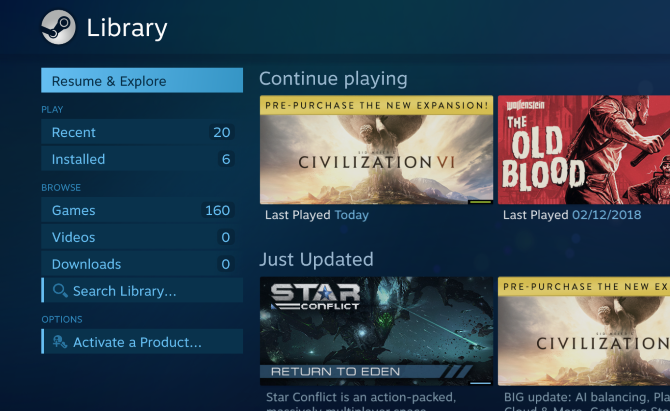
Steam library viewed on Raspberry Pi

What if you want to play games from a PC on your TV? Perhaps you own a powerful gaming PC and want to enjoy it on the 50-inch TV in your living room.

Maybe you’re having a few friends ver and opt to play games on the main television.

One option is to run a very long HDMI cable from a PC in room A to a TV in room B. But this is usually as impractical as moving the PC closer to the TV. Streaming is the best option.

If you use Steam to manage your PC games, you can use Steam Link to stream games across your network. This feature is built into the Steam client on Windows, macOS, and Linux. To get the game onto your TV, you have three options:

Once again, connect the streaming device directly to the router via Ethernet for the best results.

Meanwhile, you shouldn’t feel limited to Steam games. You can also install Parsec on a Raspberry Pi, and stream any PC game to a TV in your house.

5. How to Play Steam Games on Android and iOS

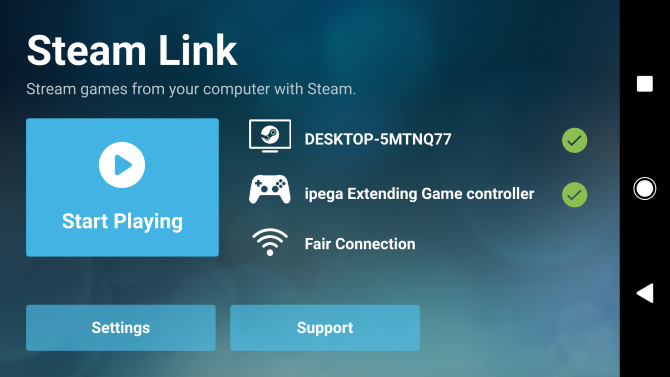
Steam Link running on Android

It is now possible to stream your favorite PC games from your Steam library to Android or iOS devices. Steam games will run on anything: phone, tablet, even an Android TV or Apple TV box.

With the free Steam Link app, you just need a Bluetooth or USB controller (or keyboard and mouse) to play.

Download: Steam Link on Android | iOS

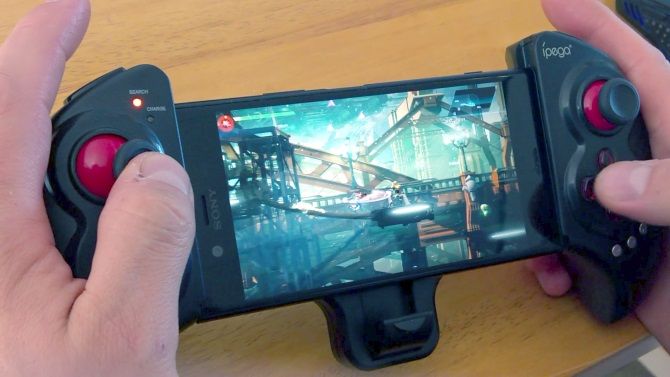
Android Steam Link app playing Strider on PC

Check out our guide explaining how to set up Steam Link on mobiles. For the best results, use your router’s 5GHz band. If this isn’t possible, ensure that the PC hosting your Steam library is connected to the router via Ethernet.

Start Playing Your Games on Other Devices Today

It doesn’t matter where you are in the house, and whether you want to play PC games or console games. If you use one of these methods, you now have an option to enjoy your games in any room, or even outdoors.

Do you want to know more about game streaming? If you want to stream games on the move, here are the best cloud gaming services.

Read the full article: 5 Ways to Play Your Video Games on Any TV, PC, or Mobile Device


Read Full Article
How to Control Your Kid’s TikTok Using Family Pairing


Parents can now control their kid’s TikTok account using a new feature called Family Pairing. This links two accounts, allowing parents to change certain settings on their child’s TikTok. And in this article, we’ll show you how to enable Family Pairing on TikTok.

TikTok Launches New Parental Controls

In February, TikTok announced it was launching new parental controls to help keep kids safe while using the app. These included a feature called Family Safety Mode, which allows a parent to link their TikTok account to their child’s TikTok account.

This was initially only made available in the UK. However, now, the option to link two TikTok accounts is being rolled out worldwide. The name has been changed from Family Safety Mode to Family Pairing, but the feature itself does exactly the same thing.

How to Enable Family Pairing on TikTok

To enable Family Pairing on TikTok as a parent of a teenager, open your TikTok profile page and tap the three-dots menu in the top-right. Tap Digital Wellbeing > Family Pairing. Follow the on-screen prompts, and your screen will display a QR code.

Follow the same steps on your child’s phone, choosing “Teen” when TikTok asks, “Who is using this TikTok account?” Then, scan the QR code displayed on your phone to link the two accounts. And if your child unlinks the accounts, you will receive a notification.

Once Family Pairing has been set up, parents can change certain settings. This includes being able to control how long your child spends on TikTok each day, limiting the visibility of age-inappropriate content, and restricting who can send direct messages.

As an aside, from April 30, 2020, TikTok will be disabling Direct Messages for accounts registered to users under the age of 16. This is to protect younger TikTok users, some of whom have previously found themselves getting unwanted attention from older users.

How to Get More Out of TikTok

These changes are clearly designed to keep kids safe while using TikTok. And Family Pairing should help settle the nerves of parents who worry about what their kids are getting up to on TikTok. Because the latest fads always make parents nervous.

If you’re new to TikTok and want to get more out the app, be sure to check out:

Read the full article: How to Control Your Kid’s TikTok Using Family Pairing


Read Full Article
How to Transfer Photos From Your Samsung Phone to Your PC


transfer-photos-samsung-pc

So you have a Samsung mobile device—perhaps a Galaxy S (smartphone), Galaxy Tab (tablet), or Galaxy Note (phablet)—and you’ve just gone on vacation, went to a concert, or threw a birthday party. You now have a bunch of photos sitting on your device and you want to put them on your PC.

What’s the best way to do this?

As it turns out, there are several methods you can use. They can all transfer files of all kinds, not just photos, so you can choose the one that’s most convenient for you. Here’s how to transfer photos from a Samsung phone to your computer.

1. Transfer From Samsung Device to Computer Using a USB Cable

Transfer Photos from Samsung Device to Windows

We put this method first because it’s the easiest and most likely to work with pretty much any Samsung device. After all, all mobile devices use USB to charge, and every modern Windows PC has at least one USB port that you can use.

To transfer photos from a Samsung device to your PC using a USB cable:

  1. Connect your device to your PC using a USB cable.
  2. The first time you do this, device drivers will automatically download and install on your PC. If your system asks for permission to do this, grant it.
  3. On the Samsung device, when asked to Allow access to device data, allow it.
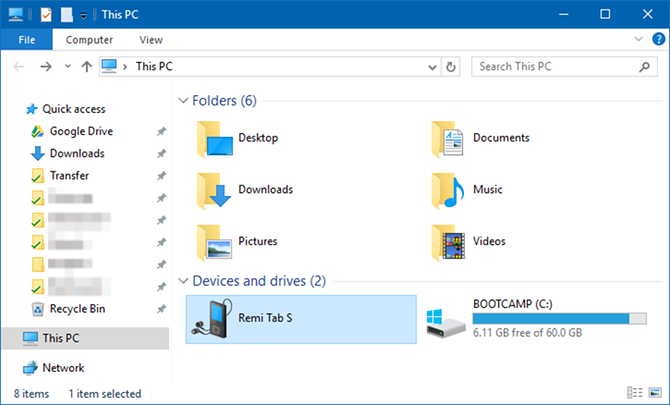
  4. Open File Explorer on your computer to This PC and you’ll see the Samsung device under Devices and drives. You can now use File Explorer to access the device’s file contents, including all of its photos. Photos are found in the DCIM folder on most devices.

2. Transfer Files to Your Computer Using an External SD Card

If your Samsung device has a slot for a microSD card, you may prefer this method over using a USB cable. While some laptops have built-in SD or microSD readers, most computers don’t. Thankfully, you can buy an adapter like the Anker 2-in-1 SD Card Reader, which connects via USB.

Anker 2-in-1 SD Card Reader Anker 2-in-1 SD Card Reader Buy Now On Amazon $11.99

Insert the external card into your device, then use an Android file explorer app to transfer all your photos to the card. Remove the card, plug it into the adapter, and you’ll see it on your PC as an external device under This PC. You can then copy photos from it using the USB directions above.

3. Transfer Files From a Samsung Device Using Bluetooth

Your Samsung device most likely supports Bluetooth, but this method requires a Bluetooth-capable PC as well. Most laptops fit the bill, but some desktops don’t. Like SD card compatibility, you can purchase a USB Bluetooth adapter to add this functionality to your PC for cheap.

TECHKEY Bluetooth Adapter for PC TECHKEY Bluetooth Adapter for PC Buy Now On Amazon $12.99

If you transfer files often, it’s worth the few dollars to avoid having to connect any cables.

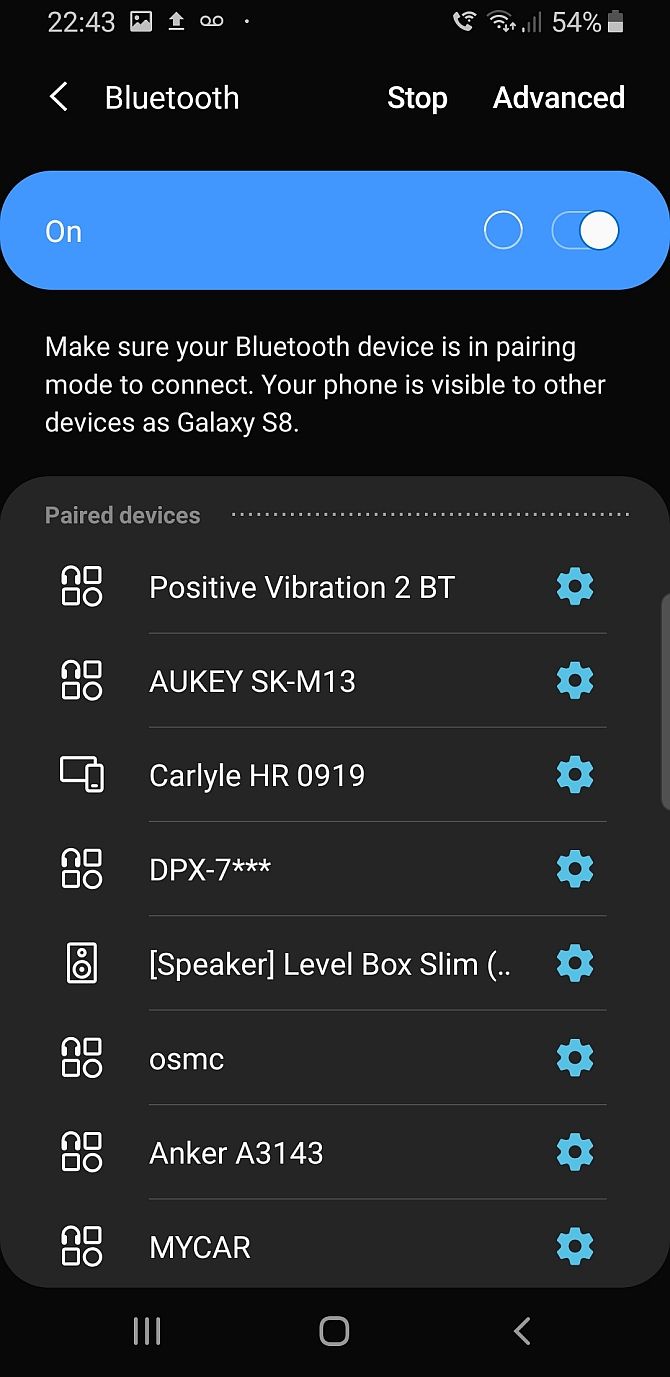
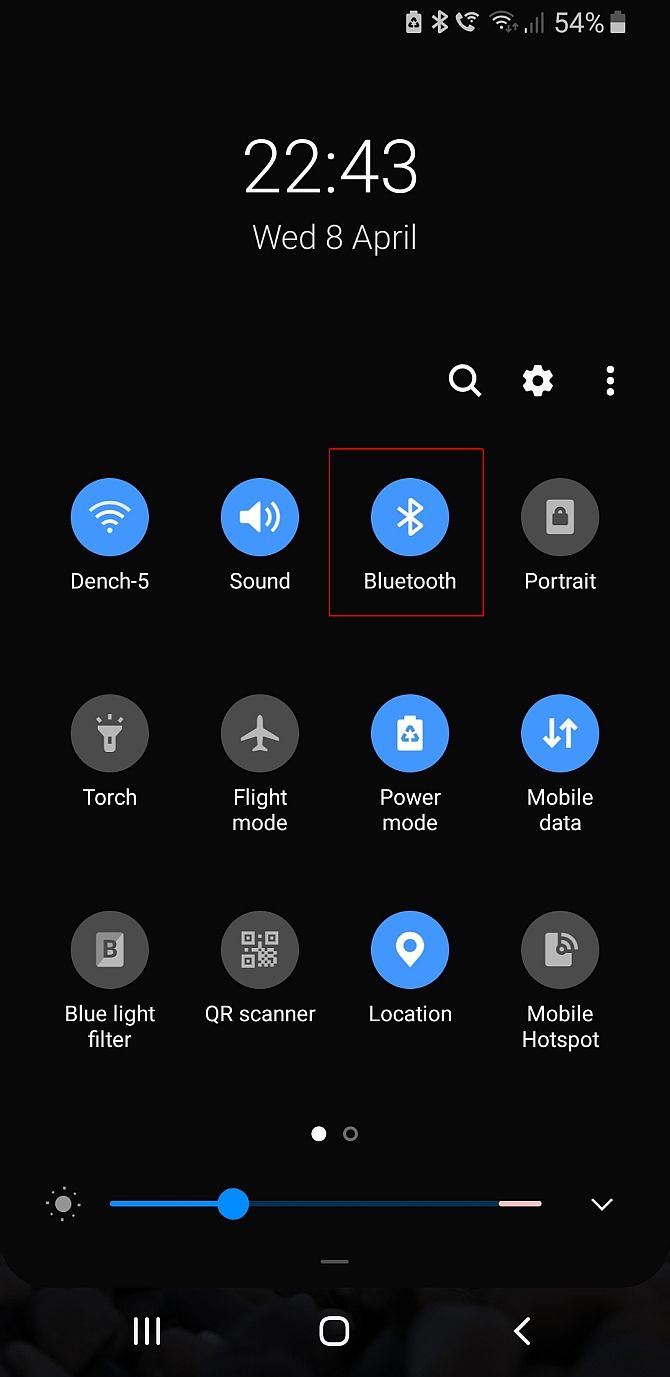
On your Samsung device, pull down twice from the top of the screen to open the Quick Settings panel, then tap Bluetooth to enable it if it’s not already. When the Bluetooth dialog box comes up, tap on your device to make it visible. This will allow your PC to find and connect to it.

On Windows 10, connect to the device with these steps:

  1. Go to Settings > Devices > Bluetooth & other devices and enable Bluetooth if it isn’t already.
  2. In the list of visible Bluetooth devices, select your device and click Pair. If you don’t see it, click Add Bluetooth or other device at the top.
  3. A numeric passcode will appear on both. If they match, click Yes on Windows 10 and tap OK on your Samsung device.
  4. When paired, click Send or receive files via Bluetooth, then Receive files.
  5. On the Samsung device, use the My Files app to select all the photos you want to download. Share them and select Bluetooth as the method, then choose your PC as the destination.
  6. When the file transfer request shows up on the PC, click Finish.

If you have trouble, see our full guide to connecting your mobile device and PC with Bluetooth.

4. Use Cloud Storage Sync to Transfer Files

Cloud storage is arguably the easiest way to move files across devices, but it does have a big downside: limited storage space. This doesn’t matter if you only need to grab a handful of photo. However, since high-quality photos take up a lot of space, you may have trouble transferring large albums.

First, set up an account with a free cloud storage service. Google Drive is probably your best bet, because it provides a large amount of space for free users at 15GB. You’ll then want to install the Google Drive app on your Samsung device and PC.

On your Samsung device:

  1. Open the Gallery app.
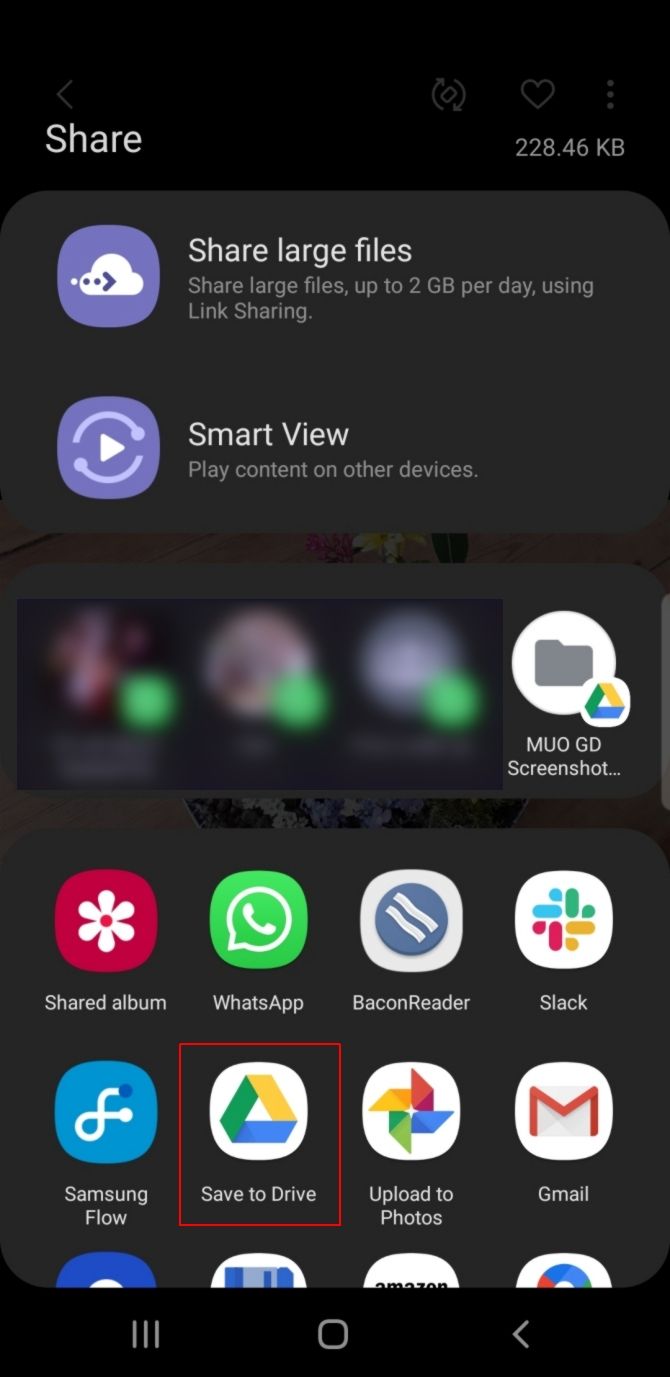
  2. Select all the images you want to transfer, then hit Share and select Save to Drive.
  3. Choose the right Google Drive account (if you’re logged into more than one), pick the folder where you want them saved, then tap Save.
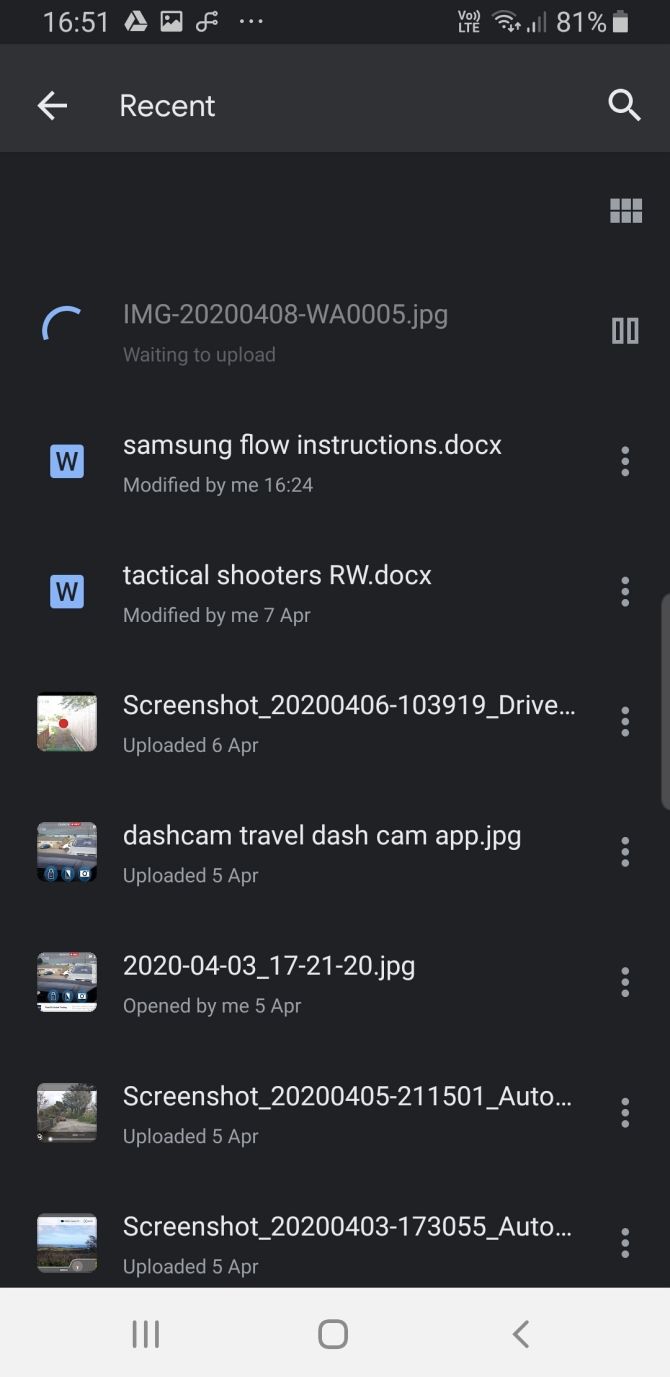
  4. Wait for it to sync.
  5. On your PC, navigate to your Google Drive folder, find where you saved the images, then move them to wherever else you want on your system.

Download: Google Drive for Android | Windows (Free, subscription available)

Samsung Cloud Storage

Samsung provides an integrated cloud storage solution that works in the same manner as Google Drive. If you’ve bought a new Samsung device recently, there’s a good chance you have a basic Samsung Cloud Drive subscription.

The free Samsung Cloud Drive tier offers 15GB of cloud storage, which you can use to sync your photos and other files to your computer. If this isn’t enough, you can upgrade to 50GB for $1 per month or 200GB for $3 per month.

If your device appears on the Samsung Cloud compatibility list, the Samsung Cloud Drive comes pre-installed on your device (assuming you haven’t wiped the default installation and replaced it with a custom ROM). Here’s how you use it:

  1. On your Samsung device, browse to the photo you want to send to your computer. Press the Share icon.
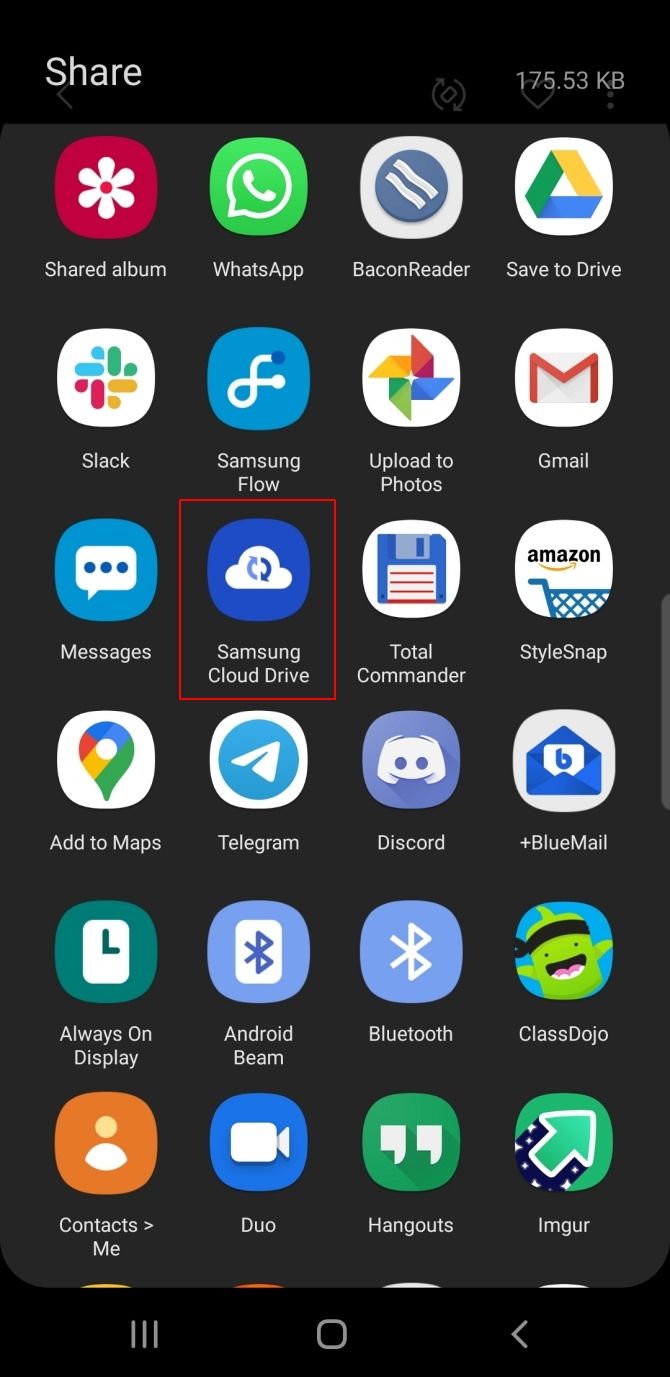
  2. From the list of apps, select Samsung Cloud Drive.
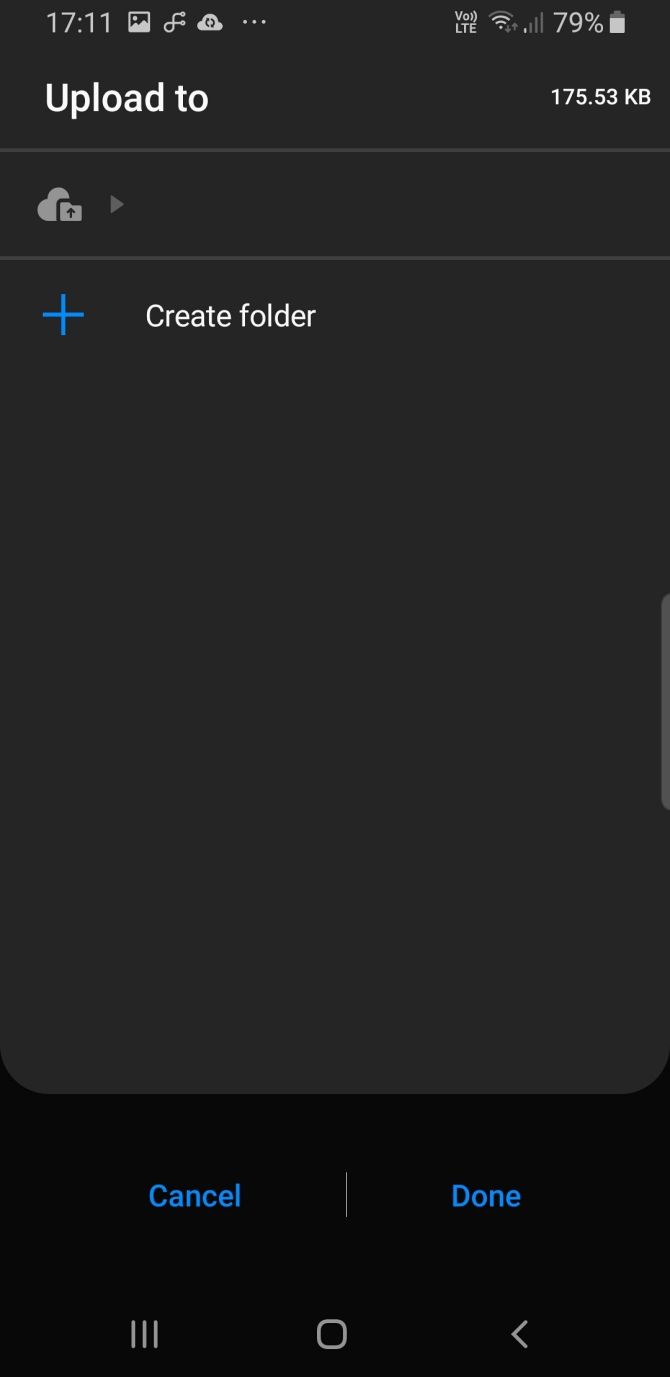
  3. Create a specific folder for your files or photos if you want, then select Done.
    1. If you have not used Samsung Cloud Drive before, you must create an account at this point.
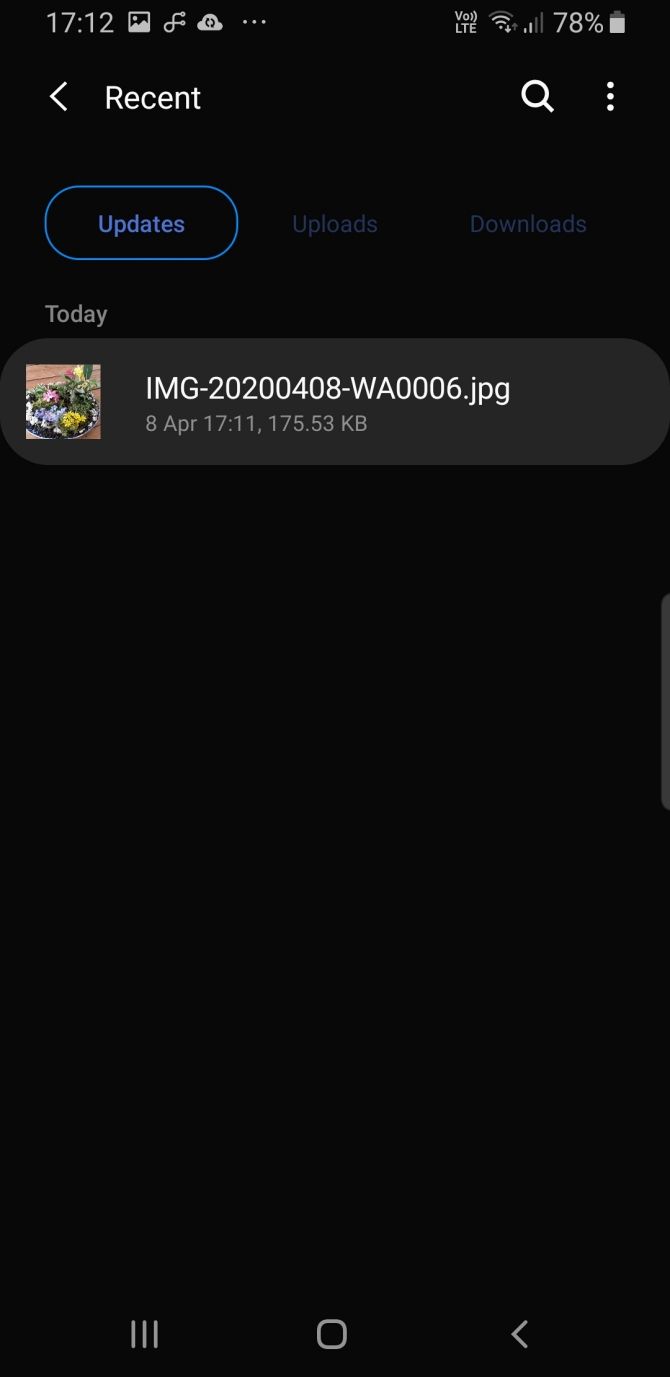
  4. Now, on your computer, head to the Samsung Cloud login page. Enter your Samsung Cloud Drive credentials, and you’ll find your file waiting for you.

5. Use Samsung Flow for Wireless File Transfers

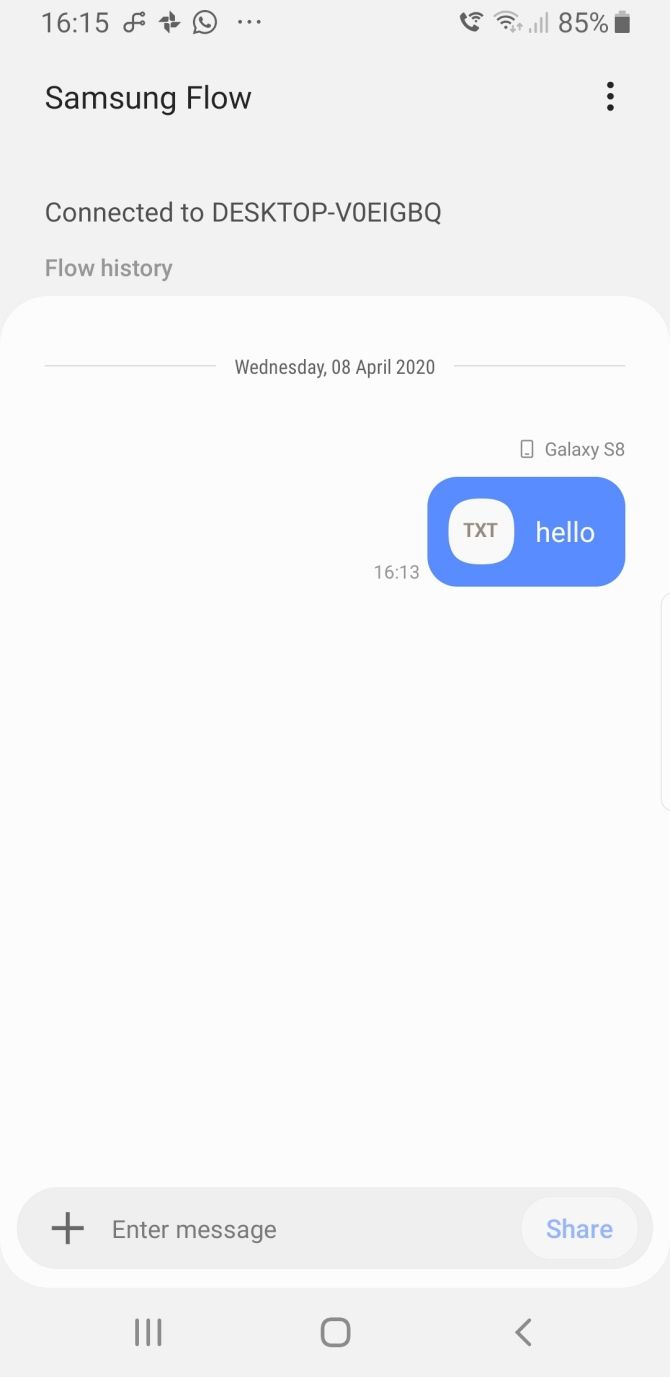
Samsung Flow, formerly known as Samsung SideSync, connects your Samsung smartphone to your PC using your local Wi-Fi connection. Once you establish a connection, you can transfer photos (and other files) from your Samsung device to your PC wirelessly.

Better still, you can use your computer to control your Samsung device. Samsung Flow creates a screen mirror of your Samsung device on your computer. You can then open the apps on your device, swipe through photos, access your messages, and do anything else you’d do on the phone.

How to Use Samsung Flow to Transfer Photos and Files

Samsung Flow is easy to use and works with loads of Samsung devices. Here’s how you set it up:

  1. On your Samsung device, head to Google Play and download the Samsung Flow Android app.
  2. On your computer, head to the Microsoft Store and download the Samsung Flow Windows 10 app.
  3. Make sure your computer and your Samsung device are connected to the same network, either by Ethernet or Wi-Fi.
  4. Open Samsung Flow on your Samsung device. Then open Samsung Flow on your computer and press Start.
  5. Select your Samsung device in the Samsung Flow app on your computer. Confirm the passkey connection on your Samsung device, then again on your computer. Once confirmed, Samsung Flow is connected.

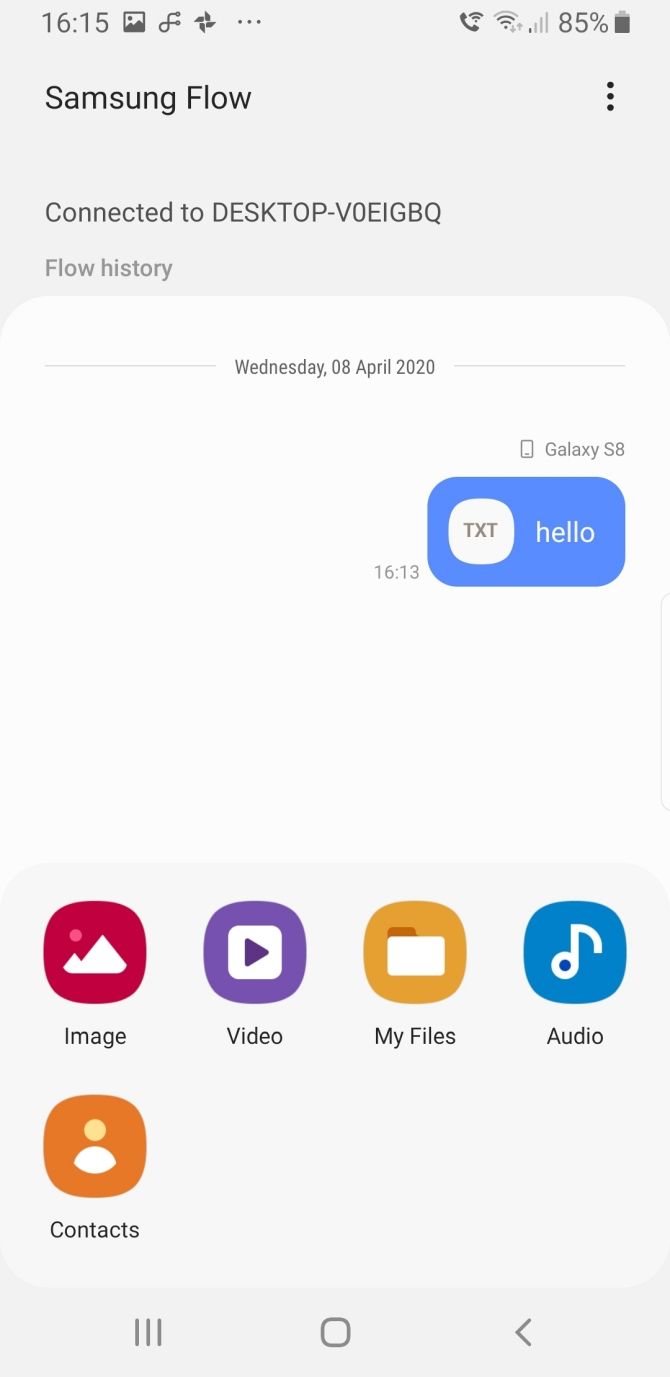
After the connection completes, you can begin using your Samsung device from your computer. Here’s how you transfer photos from your Samsung phone to your computer using Samsung Flow:

  1. In the Samsung Flow app, select the three-dot menu icon in the top right corner and choose Settings.
  2. Specify the Downloads Folder using Change. You must do this, otherwise file transfers will not complete.
  3. Once complete, press the Back arrow to return to the home screen.
  4. Now, select the Plus icon in the bottom-left corner.
  5. Select Image, then browse to the image you want to send.

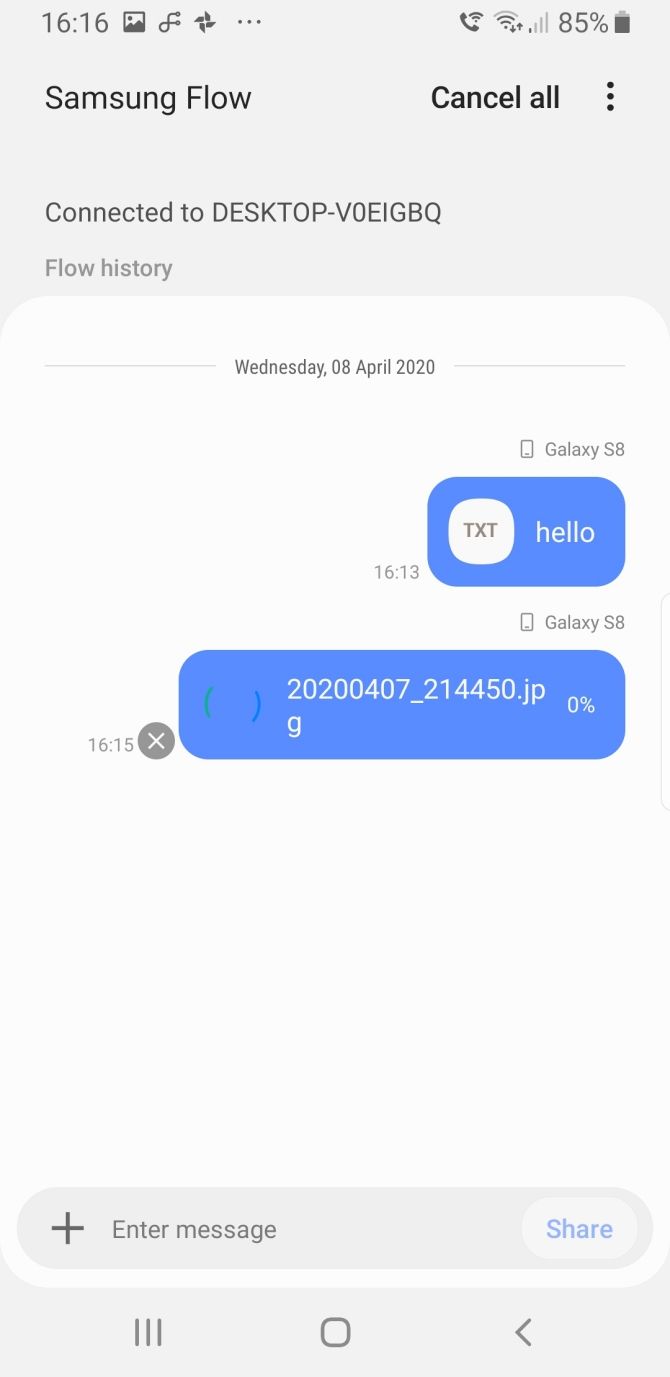
While simple, this method only sends one image at a time, which isn’t efficient. If you want to send more than one photo from your Samsung device to your computer at a time, try this:

  1. In the Samsung Flow app, select the Plus icon in the bottom-left corner.
  2. Select My Files > Images, then check each photo you want to send to your computer.

6. Use FTP Over Wi-Fi to Transfer Files From a Samsung Device

WiFi FTP Server Android

FTP (File Transfer Protocol) is a simple way to transfer files over the internet between a server (in this case, your Samsung device) and a client (the destination PC). To do this, you need to install an app that lets your device become a server, as well as FTP software that allows your PC to connect while the device’s server app is running.

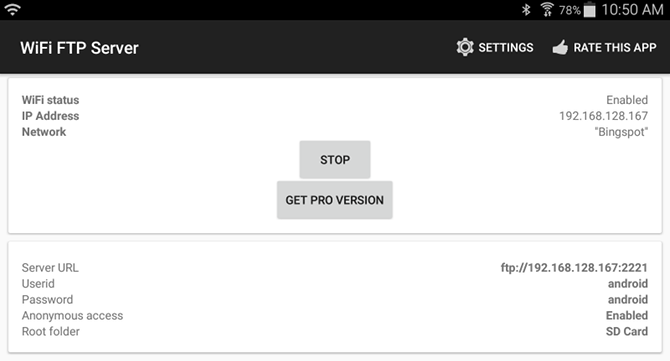
On your phone, you can use a free app called WiFi FTP Server. It’s easy to use, but has non-intrusive ads. Once installed, it’s as easy as tapping the Start button to turn on server mode.

On Windows, we recommend these free FTP clients if you have experience using FTP. If not, then we just recommend using the FTP capabilities of File Explorer instead.

Now that your mobile device and PC are set up, you can transfer photos in this way:

  1. Open WiFi FTP Server on your phone and tap Start. Allow permission if asked.
  2. Note the Server URL, Userid, and Password, as you’ll need to use them as connection details in the FTP client on your PC.
  3. Once connected, you’ll be able to browse the entire contents of your Samsung device through the FTP client. Navigate to the DCIM folder to find camera photos.
  4. Use the FTP client to download those photos to your PC.

Download: WiFi FTP Server for Android (Free)

Transferring Photos From a Samsung Device Is Easy

We’ve covered a few methods for moving photos from a Samsung device to a PC. Depending on how often you need to do this and how many photos you want to transfer, one of these procedures will work best for you.

For a lot more that you can do with your device, check out awesome ways to customize your Samsung phone.

Read the full article: How to Transfer Photos From Your Samsung Phone to Your PC


Read Full Article
8 Ways to Free Up RAM on Your Windows Computer


ram-clean

Need to learn how to free up RAM after seeing messages that your Windows PC is low on memory? Don’t fear—we’re here to help.

Let’s take a look at some practical steps to clear RAM and keep your computer running smoothly.

Unlock the "Windows Keyboard Shortcuts 101" cheat sheet now!

This will sign you up to our newsletter

Enter your Email

What Is RAM?

Before we dive into tips on how to clear RAM, we’ll briefly describe what RAM does in case you’re not familiar.

RAM stands for Random Access Memory. It’s a short term storage medium that holds programs and processes currently running on your computer.

The more RAM that’s in your machine, the more programs you can run at once without negatively affecting performance. When your computer runs low on RAM, it uses a part of the storage drive called the page file that acts as pretend RAM. This is much slower than actual RAM, which is why you notice slowdowns when Windows uses it.
Because RAM is volatile, you’ll lose its contents when your computer shuts off. Anything you want to keep must save to permanent storage, like a hard drive or solid-state drive.

Check out our quick guide to RAM for more background info.

How to Free Up Memory on Your PC: 8 Methods

Let’s look at the ways to reduce the amount of RAM you’re using. You shouldn’t need to do this most of the time, but they come in handy when you notice a problem.

1. Restart Your PC

This is a tip you’re probably familiar with, but it’s popular for a reason.

Restarting your PC will also completely clear the RAM and restart all running processes. While this obviously won’t increase the maximum RAM available, it will clean up processes running in the background that could be eating up your memory.

You should restart your computer regularly to keep it from getting bogged down, especially if you use it all the time.

2. Check RAM Usage With Windows Tools

Windows Task Manager Network Usage

You don’t have to guess what’s using your RAM; Windows provides tools to show you. To get started, open the Task Manager by searching for it in the Start menu, or use the Ctrl + Shift + Esc shortcut.

Click More details to expand to the full utility if needed. Then on the Processes tab, click the Memory header to sort from most to least RAM usage. Keep the apps you see here in mind, as we’ll discuss more on them later.

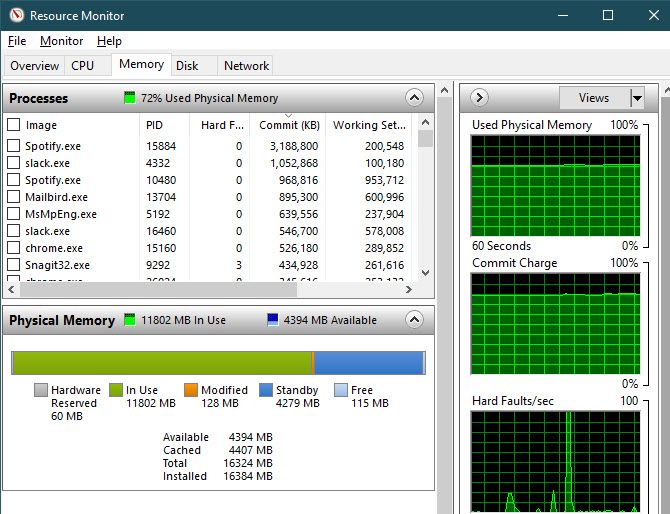
For more information, switch to the Performance tab. In the Memory section, you’ll see a chart of your RAM usage over time. Click Open Resource Monitor at the bottom and you can get further details on its Memory tab.

The chart at the bottom will show you how much RAM you have free. Sort by Commit (KB) on the top list to see which programs use the most RAM. If you suspect you have a deep problem based on what you see here, see the complete guide to troubleshooting memory leaks.

Windows Resource Monitor Memory

3. Uninstall or Disable Software

Now that you’ve seen what apps use the most RAM on your system, think about whether you really use them. An easy way to free up RAM is to keep programs you never use anyway from consuming it!

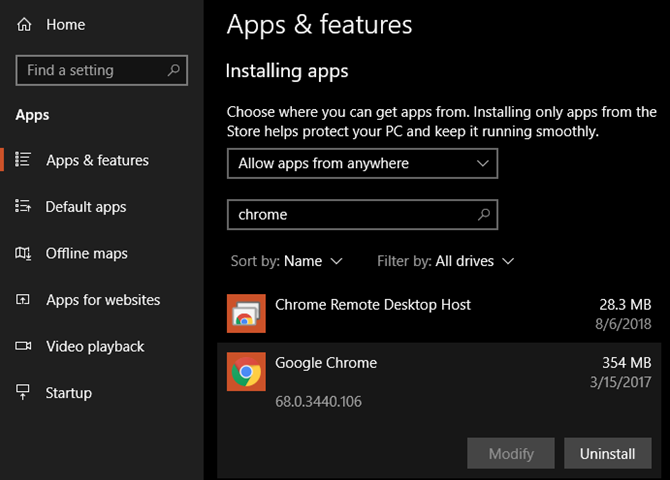
Apps you haven’t opened in months are just wasting resources on your computer, so you should remove them. Do so by navigating to Settings > Apps and clicking Uninstall on any app you want to remove.

Uninstall Chrome Windows 10

If you don’t want to uninstall an app because you use it sometimes, you can instead prevent it from running at startup. Many apps set themselves to automatically run every time you log in, which is overkill if you rarely use them.

4. Use Lighter Apps and Manage Programs

Chrome Task Manager

What if you really need to cut down on RAM usage, but the apps hogging RAM are necessary to your workflow? You can handle this in two ways.

First, try using lighter app alternatives when you can. If your computer struggles when you have Photoshop open, try using a smaller app like Paint.NET or GIMP for minor edits. Only use Photoshop when you’re fully dedicated to working on a project.

Second, pay closer attention to the programs you have open. Close any software that you’re not actively working with. Bookmark open browser tabs that you want to read later, then close them to free up RAM. Keeping a tighter leash on what’s open will help free up RAM.

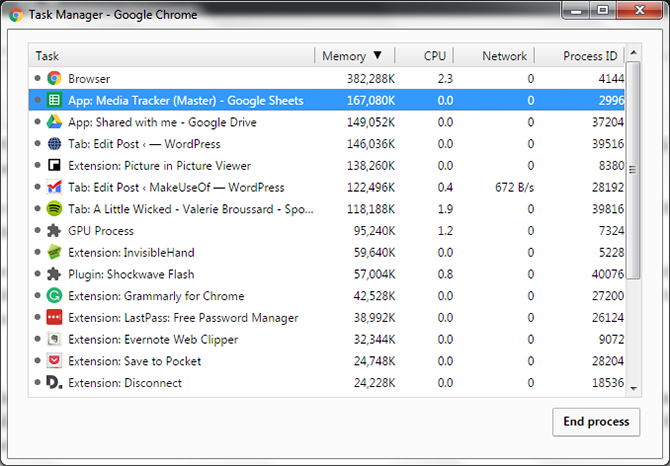
Google Chrome is in its own category here, as it’s notorious for gobbling RAM. See how to control Chrome’s memory usage for tips.

5. Scan for Malware

It’s worth checking for malware on your PC. Rogue software stealing resources will obviously suck up your available RAM.

We recommend running a scan with Malwarebytes. Hopefully, it won’t find anything, but at least you can rule out the possibility.

6. Adjust Virtual Memory

Earlier, we mentioned the paging file. If you see error messages that your system is low on virtual memory, you can increase this and hopefully keep performance stable.

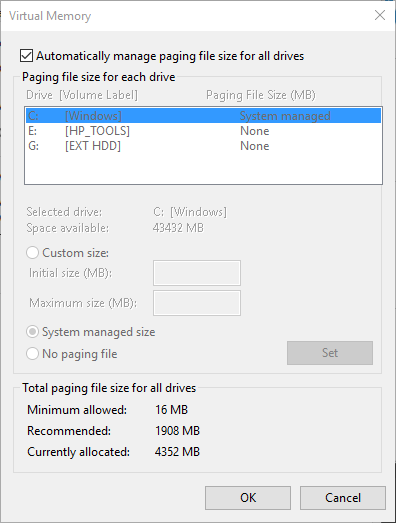
To do so, search for the Control Panel on the Start menu to open it. Switch the Category view in the top-right to Small icons (if needed) and choose System. On the left side, click Advanced system settings, which will open a new window.

Here, on the Advanced tab, click the Settings button under Performance. Switch to the Advanced tab once again and click the Change button in the Virtual memory section.

Now you’ll see the paging file size for your main drive. In most cases, you can leave the Automatically manage box checked and let Windows take care of it. However, if you’re running low on virtual memory, you may need to uncheck this and set the Initial size and Maximum size to higher values.

Virtual Memory Management Windows

7. Try ReadyBoost

If your computer still has an older mechanical hard disk drive (HDD) inside, you can try a lesser-known Windows feature called ReadyBoost to increase RAM. This allows you to plug in a flash drive or SD card that Windows effectively treats as extra RAM.

While it sounds great, this feature offers limited use today. If your computer has an SSD, ReadyBoost won’t do anything. This is because an SSD is faster than a flash drive.

Plus, since computers have more RAM installed by default now, you won’t see as much gain from ReadyBoost as you would on an anemic system from many years ago. The “pretend RAM” from ReadyBoost doesn’t offer the same performance gains as actually adding more RAM.

8. Install More RAM

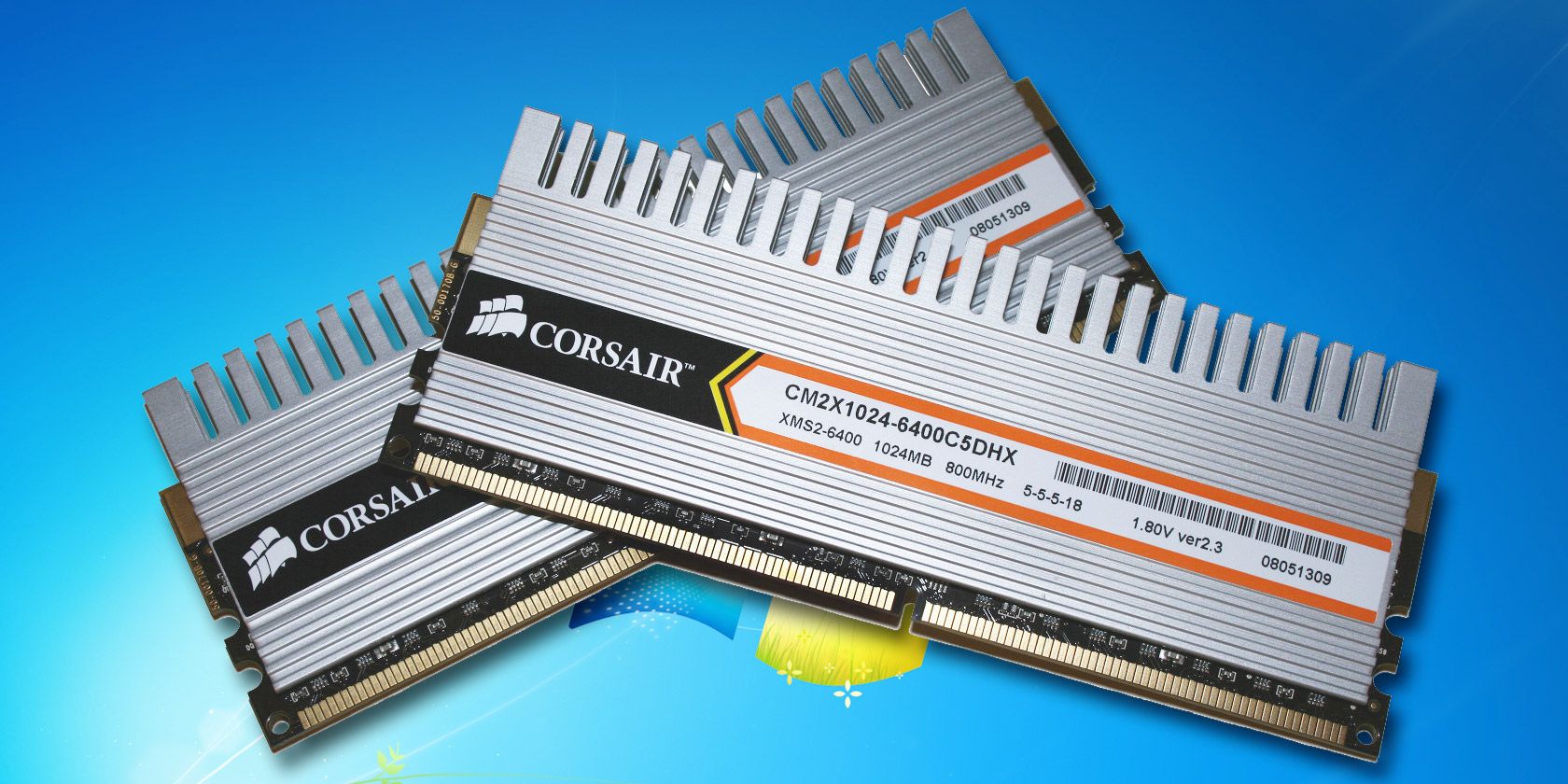
If you’re always running low on RAM or want to run more programs at once, there’s really no way around it: you need to add some more RAM to your machine. While it’s not cheap, adding RAM will grant much-improved performance if your computer hasn’t had much until now.

If you’re wondering how to get more RAM, know that it’s only possible to increase your RAM by adding physical sticks into your machine. Claims online about “downloading more RAM” are jokes; it’s impossible to add memory this way.

On a desktop, increasing your RAM is a pretty simple upgrade. But due to the confined space on a laptop, it may be difficult or even impossible on portable machines. You’ll also need to make sure you buy RAM that’s compatible with your system.

Take a look at your PC manufacturer’s documentation to learn what kind of RAM works with your system and whether the upgrade is easy. Online forums will also help with this. For more info, we’ve compared whether faster RAM or the overall amount of RAM is more important.

What About RAM Cleaners?

You’ve likely seen RAM cleaning utilities that promise to help you boost your RAM in various ways. While these sound great, we recommend avoiding them.

Have a look at our coverage of CleanMem, one such app, for the reasons why. In summary, RAM boosters are placebos at best, as they “free up” RAM by taking it from programs that probably need it.

Memory management is a complex computing issue. The developers of Windows, who are experts in their field, have a much better grasp on how to do this than some random developer who publishes a RAM cleaner.

RAM Is Just One Important Upgrade

We’ve taken a look at several ways to free up RAM on Windows 10. Ultimately, adding more physical RAM to your machine is the best solution for RAM-related issues. Walking through the above steps will help you decide if this is necessary, though.

With all this talk of RAM, don’t forget that other PC components are important too. Find out what upgrades will improve your computer’s performance the most.

Read the full article: 8 Ways to Free Up RAM on Your Windows Computer


Read Full Article