24 March 2020

Oura partners with UCSF to determine if its smart ring can help detect COVID-19 early


Startups continue to find new ways to contribute to ongoing efforts to fight the global spread of COVID-19 during the current global coronavirus pandemic, and personal health hardware-maker Oura is no exception. The smart ring startup is working with the University of California, San Francisco (UCSF) on a new study to see if its device can help detect early physiological sings that might indicate the onset of COVID-19.

This study will include two parts: Around 2,000 frontline healthcare professionals will get Our rings to wear during the study. The rings track a users’s body temperature continuously, as well as their sleep patterns, heart rate and activity levels. Fever is a common and early symptom that could indicate COVID-19, and a continuously updated body temperature reading could detect fever very early. That’s not enough to confirm a case of COVID-19, of course, but the purpose of the study is to determine whether the range of readings Oura’s ring tracks might, taken together and with other signals, be useful in some kind of early detection effort.

There’s good reason why researches believe that Oura could be used in early detection: An Oura user in Finland alerted him to the fact that he was ill before he was displaying any overt symptoms of the virus, prompting him to get tested (relatively easy in that country). Test results confirmed that while asymptomatic, he had indeed contracted COVID-19. As a result, UCSF researcher Dr. Ashley Mason hypothesizes that the Oura ring could anticipate COVID-19 onset by as many as two to three days before the onset of more obvious symptoms, like coughing.

Being able to detect the presence of the virus in an individual early is key to global containment efforts, but even more important when it comes to frontline healthcare workers. The earlier a frontline responder is diagnosed, the less chance that they expose their colleagues or others they’re working around in close quarters.

In addition to the Oura rings being provided to study participants, the plan is to expand it to include Oura’s general user population, meaning its over 150,000 global users can opt in to participate and add to the overall poor of available information with their ring’s readings and daily symptom surveys. For existing Oura users, it’s a relatively low-lift way to contribute to the global effort to combat the pandemic – without even leaving the house.


Read Full Article

The best video chat apps to turn social distancing into distant socializing


The vicissitudes of social distancing have taken many people by surprise, making video calls a new necessity for distant socializing. But which of the two dozen apps out there should you and your (perhaps not as tech-savvy) friends and family use? Here are our recommendations, whether it’s for a coffee meeting, a family get-together, or a late night gaming hangout.

This list is for individuals looking for a free solution to easily connect with others, not for small businesses or enterprises. The focus here is on ease of use and features that make it attractive to ordinary people. Every app is free and cross-platform, meaning iOS and Android at least, with many supporting Macs and Windows machines as well.

For big groups

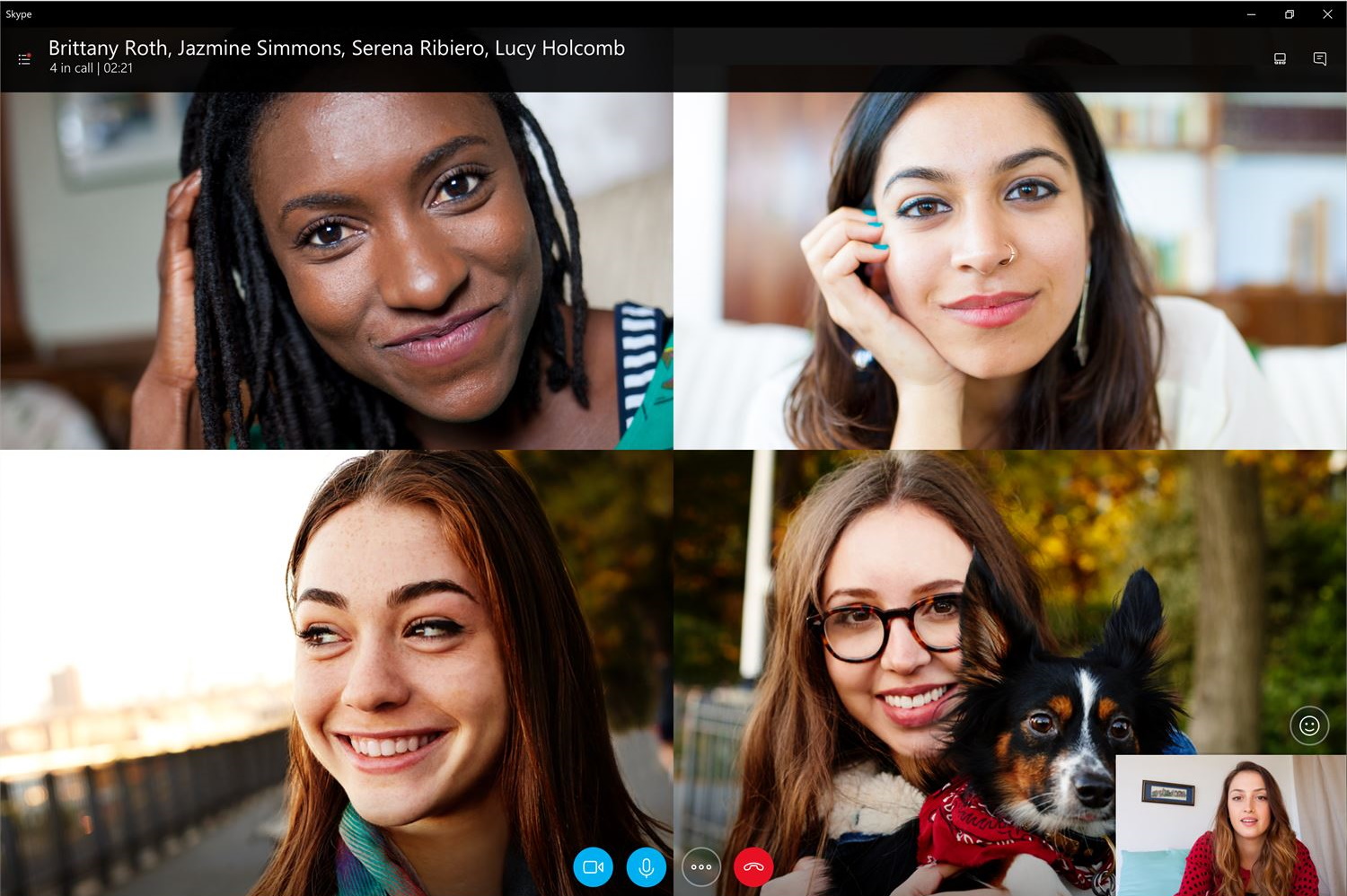
Skype (iOS, Android, Mac, Windows, Linux, web)

Pros: Many simultaneous callers

Cons: Tries too hard to do other things

Skype has been around for a long time, and while its desktop app is pretty weak, the mobile version is solid and it supports big groups with no real time limit (4 hours per call, 100 hours per month), for free. As long as you focus on just the video calls, it’s great, but Skype’s emoji reactions, status updates, and other cruft are best avoided.


Zoom (iOS, Android, Mac, Windows)

Pros: Many simultaneous callers, strong admin controls

Cons: Sketchy background data policies, 40 minute limit

Zoom is one of the most popular business video conference apps out there due to its reliability, solid web integration, and other features. It’s not really made for personal calls — there are way more bells and whistles than you need — but its free plan works just fine for them. Unfortunately, there’s a 40 minute limit for group calls, which you’ll hit faster than you think, and everyone will have to hang up and start again. Zoom has also been criticized for its considerable behind-the-scenes data collection. If you really want to just chill with your friends, there are better options.

For friends and family

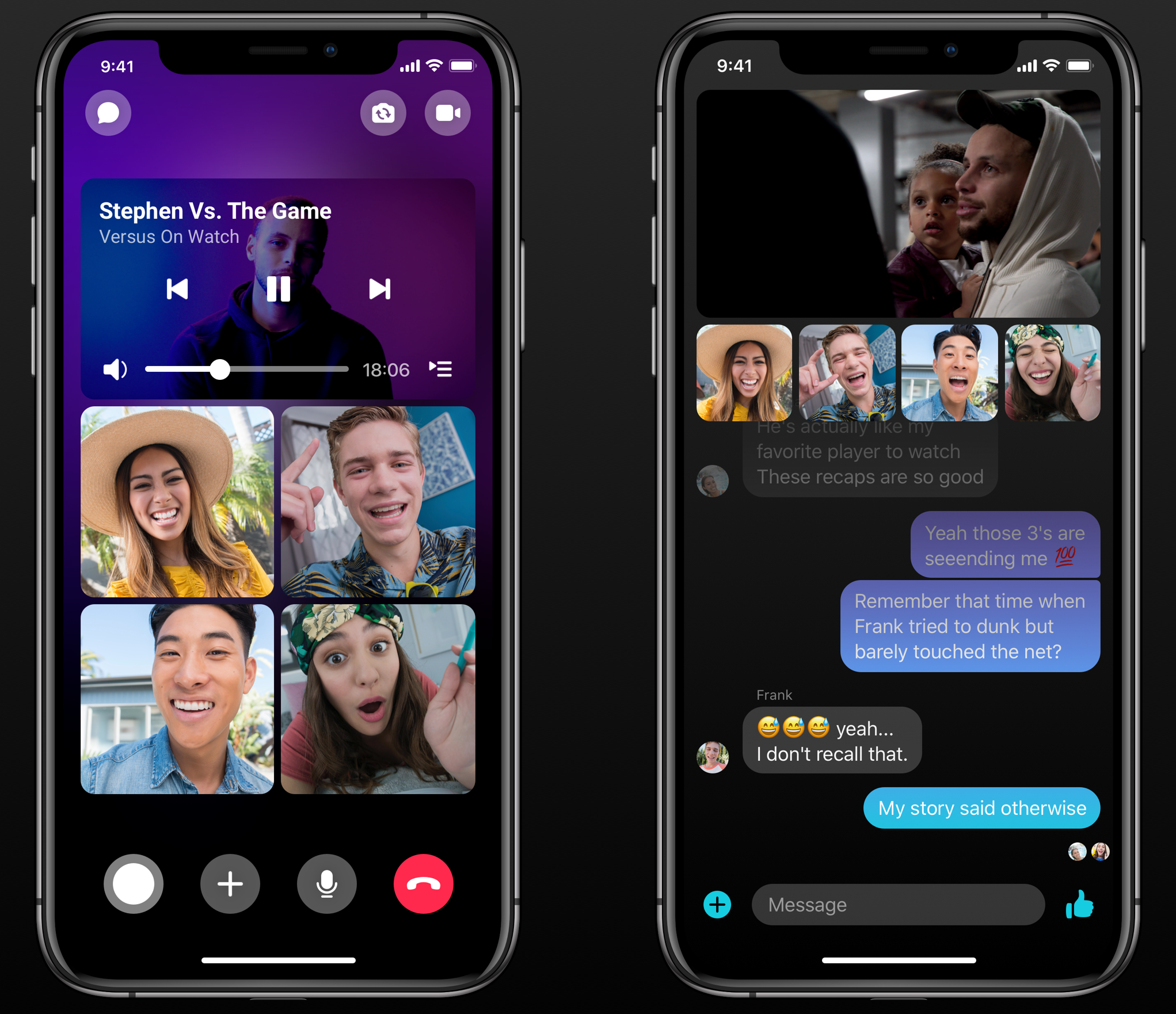
FB Messenger (iOS, Android, Mac, Windows)

Pros: Easy to use, many people already on it, some handy group features

Cons: Facebook account required

Messenger is a popular app for good reason — it works well for pretty much every kind of digital communication you might want to do with your friends. It supports up to 8 people in free video calls with no duration limit, and when you are doing a two-person call it switches to a peer-to-peer structure, skipping servers and potentially avoiding congestion. Of course, it’s also a Facebook product, meaning you’ll need an account there — not something everyone is into. But Messenger use is considerably better protected from Facebook snooping than posts and images on the main site.


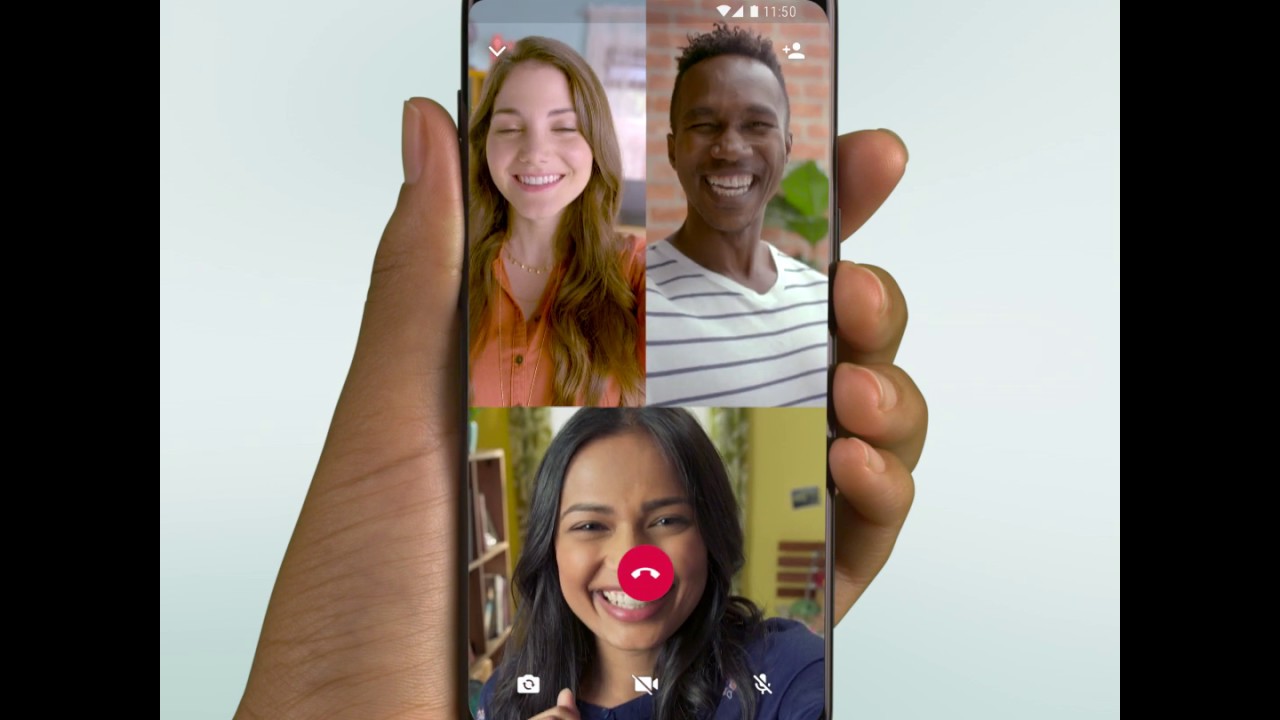
WhatsApp Messenger (iOS, Android, Mac, Windows, web)

Pros: Secure, popular

Cons: Only 4 people per video call

Think of WhatsApp as FB Messenger’s nerdier, less good-looking sibling. With a focus on privacy, WhatsApp is popular around the world despite being super ugly, and while video calls aren’t its main feature, they are possible if you don’t mind a 4-person limit. To activate it, start a group chat and then hit the call button the top right and select the participants, then hit the camera.


Google Duo or Hangouts (iOS, Android, web)

Pros: Simple interface, uses existing Google account

Cons: Confusing platform issues, Duo may not be long for this world

Duo is one of Google’s later messaging products, started as a complement to Allo and meant to be sort of the consumer version of Hangouts, which is being split into Chat and Meet, but still exists on its own. Confused? So is Google. But the apps work pretty well for now, plugging into your existing Google contacts and accounts and letting you do straightforward, unlimited video calls. If your friends don’t want to sign up for a new account anywhere, this is a good option — just don’t get attached, as unpopular Google products don’t tend to live for long.


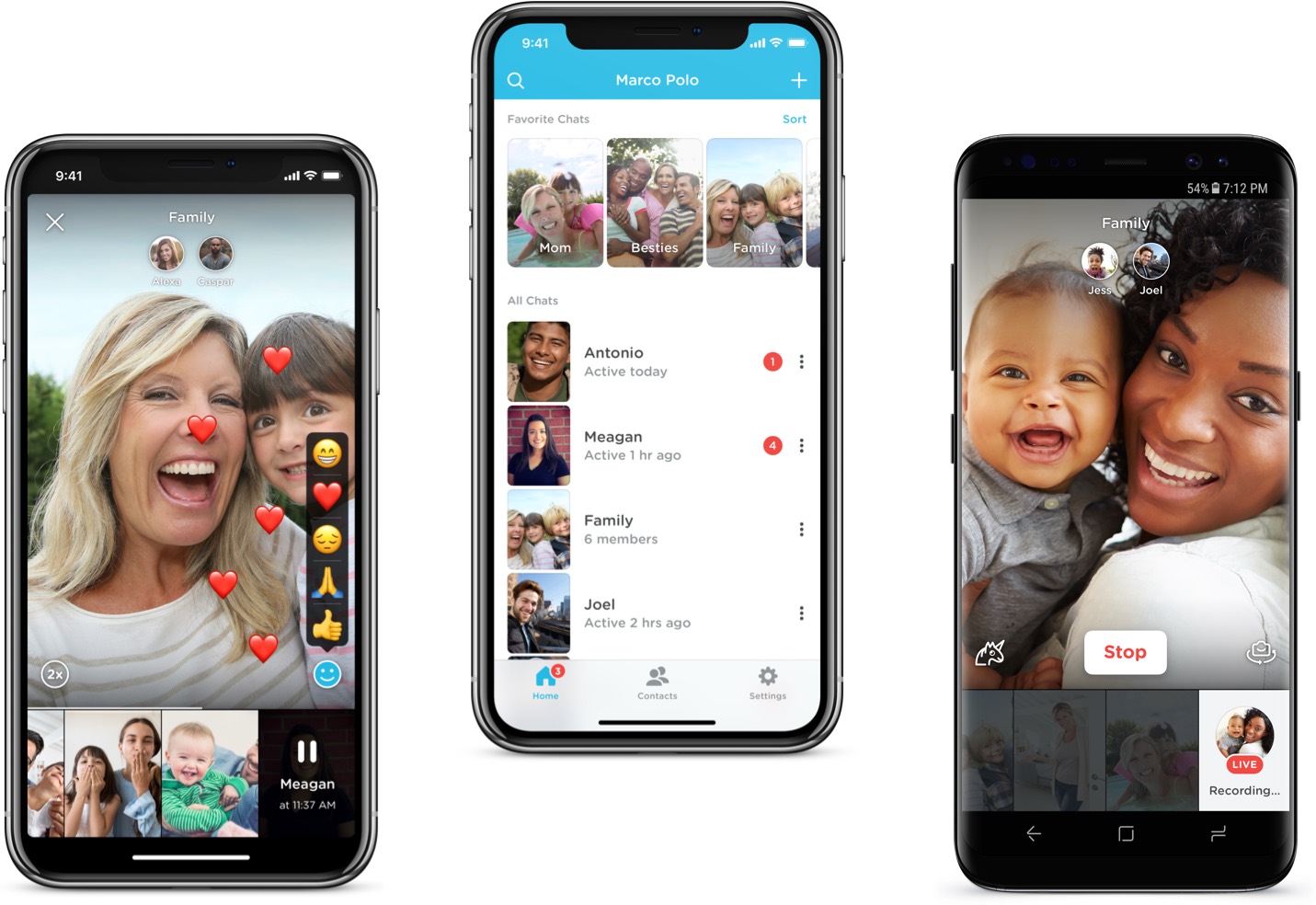
Marco Polo (iOS, Android)

Pros: Video messaging is a fun alternative to live chats

Cons: No live chat option

This isn’t a video chat app per se, but the fact is not everyone really wants to do a full-on live face-to-face video all the time. Marco Polo is like a streamlined Snapchat, sending short videos to friends or groups with the option to add doodles, filters and so on. If you and your friends are finding it hard to set aside half an hour to talk live, this can be a good alternative.


Honorable mentions: FaceTime, Instagram

FaceTime is great, but it’s not cross-platform, considerably limiting its usefulness. But if your friends do happen to have Apple products, it’s a great, simple option. Instagram has video calling built into direct messages, which is nice for quick calls with people you aren’t sure you want to bring into a smaller circle of connectivity.

For having fun together

Houseparty (iOS, Android, web)

Pros: Simple drop-in, drop-out group chat, built-in games

Cons: Basically a trojan horse for Heads Up

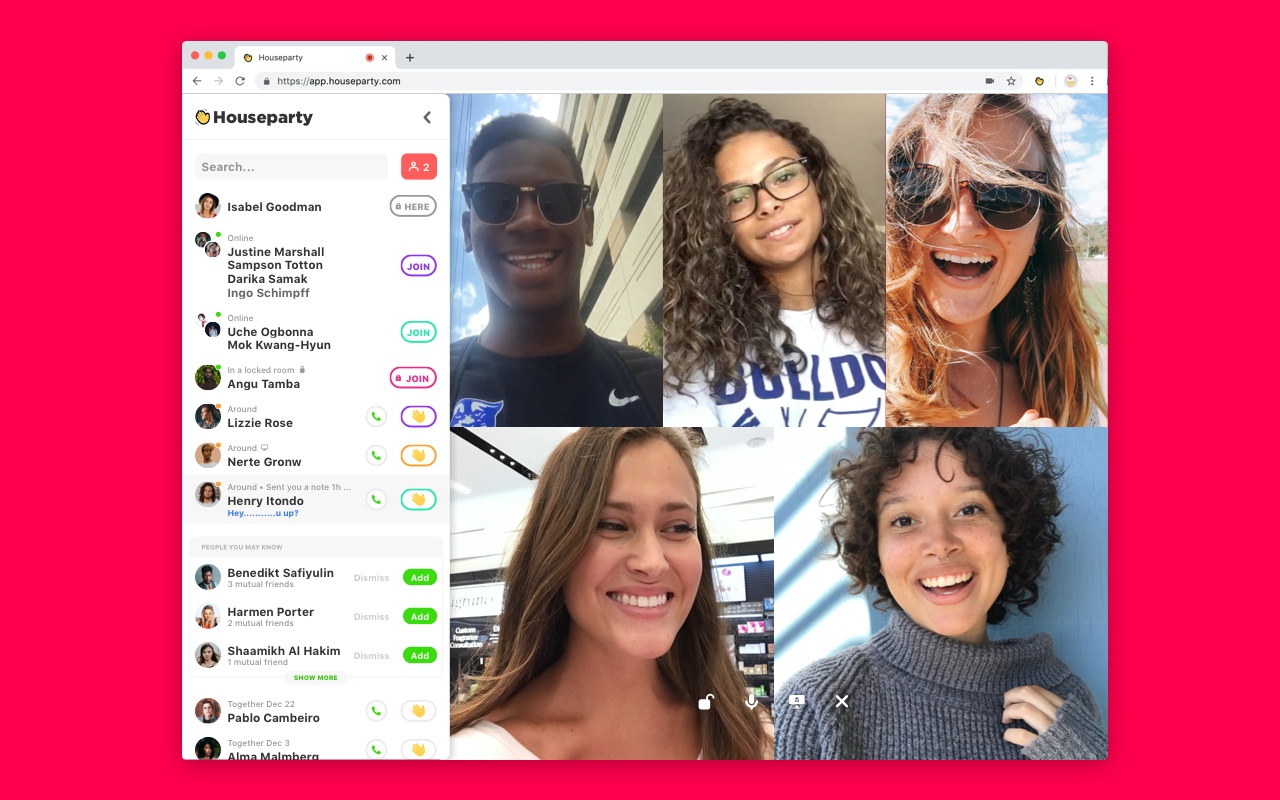
Houseparty established its brand as the app teens were using to chat with groups of friends without leaving the house. Pundits disapproved, but as usual, the kids get the last laugh. Houseparty is nice for a group of close friends, alerting you when someone’s available and letting people easily join in the chat with minimal fuss. The built in games are also fun, but you’ll have to pony up for Heads Up decks. The Pictionary clone is fun but desperately needs more words.


Discord (iOS, Android, Mac, Windows, Linux, web)

Pros: Great for voice chat while gaming or simple occasional video chat

Cons: Occasionally confusing interface, not video-focused

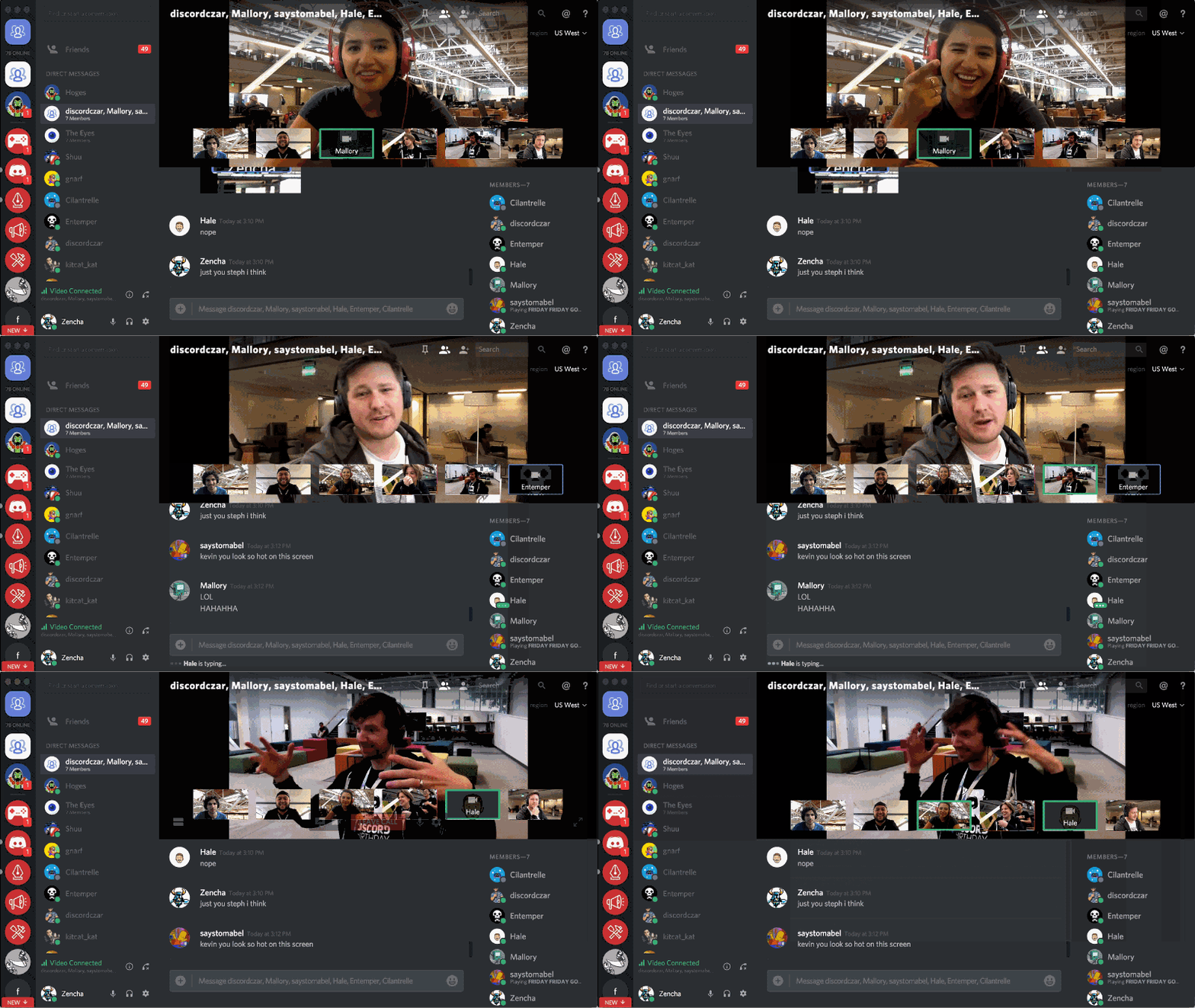
Discord is the de facto champion for gaming-related communications, taking the place of many in-game chat interfaces and even schooling industry heavyweights like Steam. While it’s mainly focused on audio and does that well, video is an option too. Less savvy users may also find its interface confusing, with multiple tabs, groups, and channels.


Honorable mention: Bunch, Squad

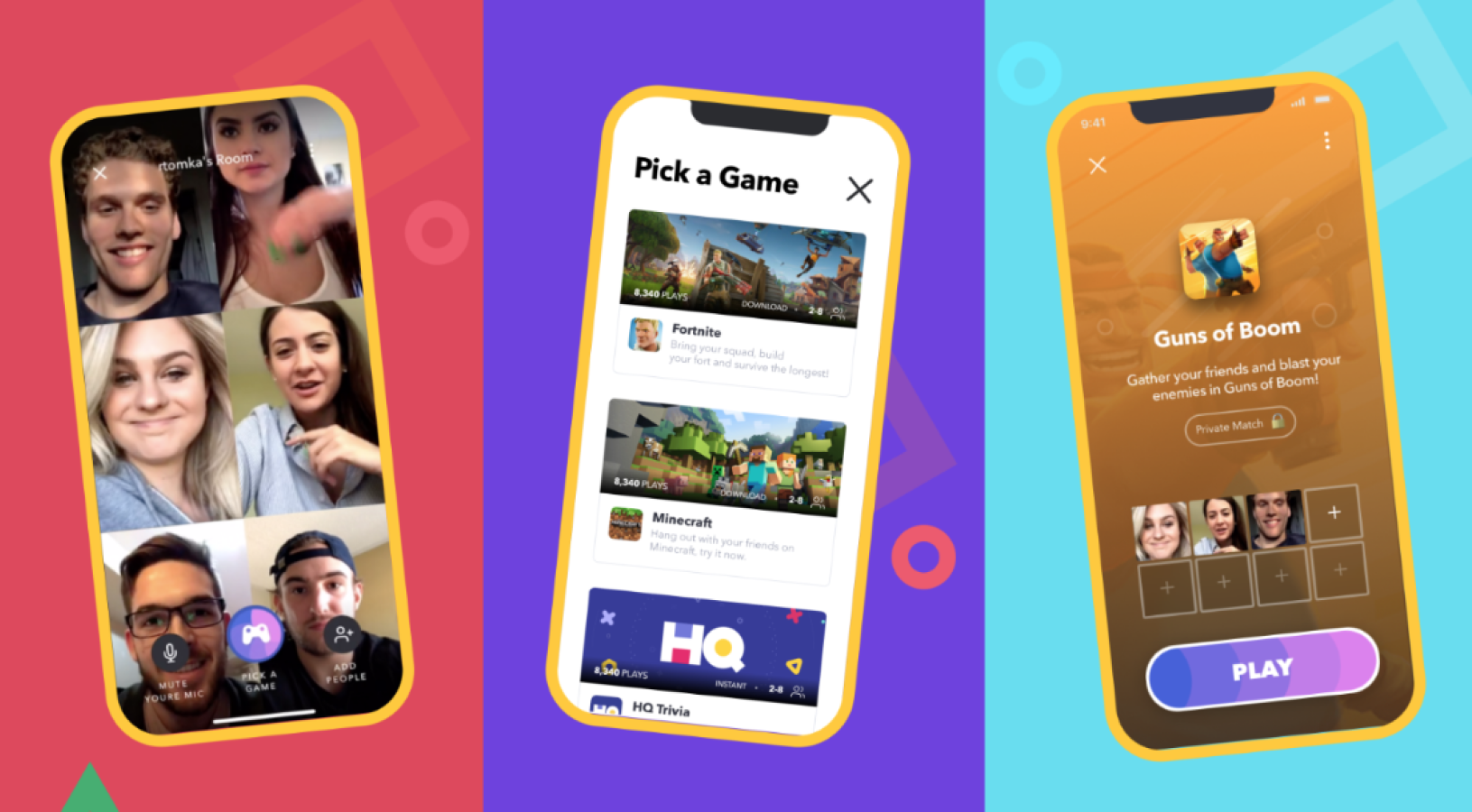
A newer app, Bunch, is focused on group games while in video chat. This can be hit or miss and you can expect in-app purchases, and startups like this don’t always live forever. But Bunch is probably getting a lot of engagement right now and can use that to extend its credit long enough to power through the summer at least. I can’t think of a better opportunity to give it a shot.

Squad is focused on sharing what you’re doing on your phone while chatting — so you can Tinder together, watch videos, etc. Like Bunch it’s still new so you’ll have to get your friends to sign up, but it’s a nice way to share what you’re scrolling (or swiping) through.


Read Full Article

The best video chat apps to turn social distancing into distant socializing


The vicissitudes of social distancing have taken many people by surprise, making video calls a new necessity for distant socializing. But which of the two dozen apps out there should you and your (perhaps not as tech-savvy) friends and family use? Here are our recommendations, whether it’s for a coffee meeting, a family get-together, or a late night gaming hangout.

This list is for individuals looking for a free solution to easily connect with others, not for small businesses or enterprises. The focus here is on ease of use and features that make it attractive to ordinary people. Every app is free and cross-platform, meaning iOS and Android at least, with many supporting Macs and Windows machines as well.

For big groups

Skype (iOS, Android, Mac, Windows, Linux, web)

Pros: Many simultaneous callers

Cons: Tries too hard to do other things

Skype has been around for a long time, and while its desktop app is pretty weak, the mobile version is solid and it supports big groups with no real time limit (4 hours per call, 100 hours per month), for free. As long as you focus on just the video calls, it’s great, but Skype’s emoji reactions, status updates, and other cruft are best avoided.


Zoom (iOS, Android, Mac, Windows)

Pros: Many simultaneous callers, strong admin controls

Cons: Sketchy background data policies, 40 minute limit

Zoom is one of the most popular business video conference apps out there due to its reliability, solid web integration, and other features. It’s not really made for personal calls — there are way more bells and whistles than you need — but its free plan works just fine for them. Unfortunately, there’s a 40 minute limit for group calls, which you’ll hit faster than you think, and everyone will have to hang up and start again. Zoom has also been criticized for its considerable behind-the-scenes data collection. If you really want to just chill with your friends, there are better options.

For friends and family

FB Messenger (iOS, Android, Mac, Windows)

Pros: Easy to use, many people already on it, some handy group features

Cons: Facebook account required

Messenger is a popular app for good reason — it works well for pretty much every kind of digital communication you might want to do with your friends. It supports up to 8 people in free video calls with no duration limit, and when you are doing a two-person call it switches to a peer-to-peer structure, skipping servers and potentially avoiding congestion. Of course, it’s also a Facebook product, meaning you’ll need an account there — not something everyone is into. But Messenger use is considerably better protected from Facebook snooping than posts and images on the main site.


WhatsApp Messenger (iOS, Android, Mac, Windows, web)

Pros: Secure, popular

Cons: Only 4 people per video call

Think of WhatsApp as FB Messenger’s nerdier, less good-looking sibling. With a focus on privacy, WhatsApp is popular around the world despite being super ugly, and while video calls aren’t its main feature, they are possible if you don’t mind a 4-person limit. To activate it, start a group chat and then hit the call button the top right and select the participants, then hit the camera.


Google Duo or Hangouts (iOS, Android, web)

Pros: Simple interface, uses existing Google account

Cons: Confusing platform issues, Duo may not be long for this world

Duo is one of Google’s later messaging products, started as a complement to Allo and meant to be sort of the consumer version of Hangouts, which is being split into Chat and Meet, but still exists on its own. Confused? So is Google. But the apps work pretty well for now, plugging into your existing Google contacts and accounts and letting you do straightforward, unlimited video calls. If your friends don’t want to sign up for a new account anywhere, this is a good option — just don’t get attached, as unpopular Google products don’t tend to live for long.


Marco Polo (iOS, Android)

Pros: Video messaging is a fun alternative to live chats

Cons: No live chat option

This isn’t a video chat app per se, but the fact is not everyone really wants to do a full-on live face-to-face video all the time. Marco Polo is like a streamlined Snapchat, sending short videos to friends or groups with the option to add doodles, filters and so on. If you and your friends are finding it hard to set aside half an hour to talk live, this can be a good alternative.


Honorable mentions: FaceTime, Instagram

FaceTime is great, but it’s not cross-platform, considerably limiting its usefulness. But if your friends do happen to have Apple products, it’s a great, simple option. Instagram has video calling built into direct messages, which is nice for quick calls with people you aren’t sure you want to bring into a smaller circle of connectivity.

For having fun together

Houseparty (iOS, Android, web)

Pros: Simple drop-in, drop-out group chat, built-in games

Cons: Basically a trojan horse for Heads Up

Houseparty established its brand as the app teens were using to chat with groups of friends without leaving the house. Pundits disapproved, but as usual, the kids get the last laugh. Houseparty is nice for a group of close friends, alerting you when someone’s available and letting people easily join in the chat with minimal fuss. The built in games are also fun, but you’ll have to pony up for Heads Up decks. The Pictionary clone is fun but desperately needs more words.


Discord (iOS, Android, Mac, Windows, Linux, web)

Pros: Great for voice chat while gaming or simple occasional video chat

Cons: Occasionally confusing interface, not video-focused

Discord is the de facto champion for gaming-related communications, taking the place of many in-game chat interfaces and even schooling industry heavyweights like Steam. While it’s mainly focused on audio and does that well, video is an option too. Less savvy users may also find its interface confusing, with multiple tabs, groups, and channels.


Honorable mention: Bunch, Squad

A newer app, Bunch, is focused on group games while in video chat. This can be hit or miss and you can expect in-app purchases, and startups like this don’t always live forever. But Bunch is probably getting a lot of engagement right now and can use that to extend its credit long enough to power through the summer at least. I can’t think of a better opportunity to give it a shot.

Squad is focused on sharing what you’re doing on your phone while chatting — so you can Tinder together, watch videos, etc. Like Bunch it’s still new so you’ll have to get your friends to sign up, but it’s a nice way to share what you’re scrolling (or swiping) through.


Read Full Article

Kinsa’s fever map could show just how crucial it is to stay home to stop COVID-19 spread


Smart thermometer maker Kinsa has been working on building, accurate, predictive models of how seasonal illnesses like the flu travel in and among communities – and its fever map is finding new utility as the novel coronavirus pandemic grows globally. While Kinsa’s US Health Weather Map has no way of tracking spread of COVID-19 specifically, since it looks only at fevers tied to geographic data, it could provide easy-to-grasp early indicators of the positive effects of social distancing and isolation measures at the community level.

At the time that Kinsa’s health weather map was covered in the New York Times in February, the company had around a million thermometers in market in the U.S., but it had experienced a significant increase in order volume of as man as 10,000 units per day in the week prior to its publication. That means that the company’s analytics are based on a very large data set relative to the total U.S. population, which Kinsa founder and CEO Inder Singh told me allowed them to achieve an unprecedented level of accuracy and granularity in flu forecasting down to the community level, working in partnership with Oregon State University Assistant Professor Ben Dalziel.

“We showed that the core hypothesis for why I started the company is real – and the core hypothesis was you need real-time, medically accurate, geolocated data that’s taken from people who’ve just fallen ill to detect outbreaks and predict the spread of illness,” Singh said. “What we did with our data is we punched it into Ben’s existing, first-principal models on infectious disease spread. And we were able to show that on September 15, we could predict the entire rest of cold and flu season with hyper-accuracy in terms of the peaks and the valleys – all the way out to the rest of flu season, i.e., 20 weeks out on a hyperlocal basis.”

Prior to this, there have been efforts to track and predict flu transmission, but the “state-of-the-art” to date has been predictions at the national or multi-state level – even trends in individual states, let alone within communities, was out of reach. And in terms of lead time, the best achievable was essentially three weeks out, rather than multiple months, as is possible with Kinsa and Dalziel’s model.

Even without the extraordinary circumstances presented by the global COVID-19 pandemic, what Singh, Dalziel and Kinsa have been able to accomplish is a major step forward in tech-enabled seasonal illness tracking and mitigation. But Kinsa also turned on a feature of their health weather map called ‘atypical illness levels’ a month ago, and that could prove an important leading indicator in shedding more light on the transmission of COVID-19 across the U.S. – and the impact of key mitigation strategies like social distancing.

“We’re taking our real-time illness signal, and we’re subtracting out the expectation,” Singh says, explaining how the new view works. “So what you’re left with is atypical illness. In other words, a cluster of fevers that you would not expect from normal cold and flu time. So, presumably, that is COVID-19; I cannot definitively say it’s COVID-19, but what I can say is that it’s an unusual outbreak. It could be an anomalous flu, a strain that’s totally unexpected. It could be something else, but at least a portion of that is almost certainly going to be COVID-19.”

[gallery ids="1964196,1964197"]

In the example above, Singh says that the spike in fevers coincides with reports of Miami residents and tourists ignoring guidance around recommended distancing. The steep drop-off, however, follows after more extreme measures including beach closures and other isolation tactics were adopted in the area. Singh says that they’re regularly seeing that areas where residents are ignoring social distancing best practices are seeing spikes, and that as soon as those are implemented, via lock-downs and other measures, within five days of those aggressive actions you begin to see downward dips in the curve.

Kinsa’s data has the advantage of being real-time, and continually updated by its users. That provides it a time advantage over other indicators, like the results of increased testing programs for COVID-19, in terms of providing some indication of the more immediate effects of social distancing and isolation strategies. One of the criticisms that has appeared relative to these tactics is that the numbers continue to grow for confirmed cases – but experts expect those cases to grow as we expand the availability of testing and identify new cases of community transmission, even though social distancing is having a positive impact.

As Singh pointed out, Kinsa’s data is strictly about fever-range temperatures, not confirmed COVID-19 cases. But fever is a key and early symptom of COVID-19 in those who are symptomatic, and Kinsa’s existing work on predicting the prevalence of fevers related to cold and flu strongly indicate that what we’re looking at is in fact, at least to a significant degree, COVID-19 spread.

While some have balked at other discussions around using location data to track the spread of the outbreak, Singh says that they’re only interested in two things: geographic coordinates, and temperature. They don’t want any personal identification details that they can tie to either of those signals, so it truly an anonymous aggregation project.

“There is no possible way to reverse engineer a geographic signal to an individual – it’s not possible to do it,” he told me. “This is the right equation to both protect people’s privacy and expose the data that society and communities need.”

For the purposes of tracking atypical illness, Kinsa isn’t currently able to get quite as granular as it is with its standard observed illness map, because it requires a higher degree of sophistication. But the company is eager to expand its dataset with additional thermometers in the market. The Kinsa hardware is already out of stock everywhere, as are most health-related devices, but Singh says they’re pressing ahead with suppliers on sourcing more despite increased component costs across the board. Singh is also eager to work with other smart thermometer makers, either by inputting their data into his model, or by making the Kinsa app compatible with any Bluetooth thermometer that uses the standard connection interface for wireless thermometer hardware.

Currently, Kinsa is working on evolving the atypical illness view to include things like a visual indicator of how fast illness levels are dropping, and how fast they should be dropping in order to effectively break the chain of transmission, as a way to further help inform the public on the impact of their own choices and actions. Despite the widespread agreement by health agencies, researchers and medical professionals, advice to stay home and separated from others definitely presents a challenge for everyone – especially when the official numbers released daily are so dire. Kinsa’s tracker should provide a ray of hope, and a clear sign that each invidious contribution matters.


Read Full Article

Carriers introduce plans to keep consumers connected during COVID-19 pandemic


Earlier this month, the FCC issued a new measure aimed at easing some of the burdens on consumers as COVID-19 continues to have an increasingly profound impact on nearly every aspect of life.

Most or all major internet and wireless providers in the U.S. signed up for the pledge, agreeing to take actions like waiving late fees and not terminating service. Now specific plans are starting to emerge from carriers, aimed at helping cash-strapped consumers until this pandemic blows over.

T-Mobile this morning announced the launch of a $15/month Metro plan — at half the cost of its current lowest-price plan. The pricing will be in place for the next 60 days, including unlimited talk and 2GB of data. The company is also tossing in a free eight-inch tablet (with rebate, plus fine print) and will be adjusting other data plans for the next two months.

At the same time, Verizon (TC’s parent company) announced that it will be adding 15GB of 4G data to current consumer and small business plans, in an effort to help customers use their handsets as mobile hotspots as needed. The company will also be taking $20 off select FiOS plans and waving router rental fees for 60 days.

Like the other carriers, AT&T noted in a message to TechCrunch that it will not terminate service over inability to pay. It will also be waiving late fees, along with domestic overcharges for data, voice and text, retroactive to March 13.

Sprint, meanwhile, will provide for 60 days unlimited data to customers with metered plans, starting March 18, along with 20GB of free mobile hotspot data.


Read Full Article

23 March 2020

Massively Scaling Reinforcement Learning with SEED RL


Reinforcement learning (RL) has seen impressive advances over the last few years as demonstrated by the recent success in solving games such as Go and Dota 2. Models, or agents, learn by exploring an environment, such as a game, while optimizing for specified goals. However, current RL techniques require increasingly large amounts of training to successfully learn even simple games, which makes iterating research and product ideas computationally expensive and time consuming.

In “SEED RL: Scalable and Efficient Deep-RL with Accelerated Central Inference”, we present an RL agent that scales to thousands of machines, which enables training at millions of frames per second, significantly improving computational efficiency. This is achieved with a novel architecture that takes advantage of accelerators (GPUs or TPUs) at scale by centralizing model inference and introducing a fast communication layer. We demonstrate the performance of SEED RL on popular RL benchmarks, such as Google Research Football, Arcade Learning Environment and DeepMind Lab, and show that by using larger models, data efficiency can be increased. The code has been open sourced on Github together with examples for running on Google Cloud with GPUs.

Current Distributed Architectures
The previous generation of distributed reinforcement learning agents, such as IMPALA, made use of accelerators specialized for numerical calculations, taking advantage of the speed and efficiency from which (un)supervised learning has benefited for years. The architecture of an RL agent is usually separated into actors and learners. The actors typically run on CPUs and iterate between taking steps in the environment and running inference on the model to predict the next action. Frequently the actor will update the parameters of the inference model, and after collecting a sufficient amount of observations, will send a trajectory of observations and actions to the learner, which then optimizes the model. In this architecture, the learner trains the model on GPUs using input from distributed inference on hundreds of machines.

Example architecture for an earlier generation RL agent, IMPALA. Inference is done on the actors, usually using inefficient CPUs. Updated model parameters are frequently sent from the learner to the actors increasing bandwidth requirements.
The architecture of RL agents (such as IMPALA) have a number of drawbacks:
  1. Using CPUs for neural network inference is much less efficient and slower than using accelerators and becomes problematic as models become larger and more computationally expensive.
  2. The bandwidth required for sending parameters and intermediate model states between the actors and learner can be a bottleneck.
  3. Handling two completely different tasks on one machine (i.e., environment rendering and inference) is unlikely to utilize machine resources optimally.
SEED RL Architecture
The SEED RL architecture is designed to solve these drawbacks. With this approach, neural network inference is done centrally by the learner on specialized hardware (GPUs or TPUs), enabling accelerated inference and avoiding the data transfer bottleneck by ensuring that the model parameters and state are kept local. While observations are sent to the learner at every environment step, latency is kept low due to a very efficient network library based on the gRPC framework with asynchronous streaming RPCs. This makes it possible to achieve up to a million queries per second on a single machine. The learner can be scaled to thousands of cores (e.g., up to 2048 on Cloud TPUs) and the number of actors can be scaled to thousands of machines to fully utilize the learner, making it possible to train at millions of frames per second. SEED RL is based on the TensorFlow 2 API and, in our experiments, was accelerated by TPUs.
Overview of the architecture of SEED RL. In contrast to the IMPALA architecture, the actors only take actions in environments. Inference is executed centrally by the learner on accelerators using batches of data from multiple actors.
In order for this architecture to be successful, two state-of-the-art algorithms are integrated into SEED RL. The first is V-trace, a policy gradient-based method, first introduced with IMPALA. In general, policy gradient-based methods predict an action distribution from which an action can be sampled. However, because the actors and the learner execute asynchronously in SEED RL, the policy of actors is slightly behind the policy of the learner, i.e., they become off-policy. The usual policy gradient-based methods are on-policy, meaning that they have the same policy for actors and learner, and suffer from convergence and numerical issues in off-policy settings. V-trace is an off-policy method and thus works well in the asynchronous SEED RL architecture.

The second algorithm is R2D2, a Q-learning method that selects an action based on the predicted future value of that action using recurrent distributed replay. This approach allows the Q-learning algorithm to be run at scale, while still allowing the use of recurrent neural networks that can predict future values based on the information of all past frames in an episode.

Experiments
SEED RL is benchmarked on the commonly used Arcade Learning Environment, DeepMind Lab environments, and on the recently released Google Research Football environment.
Frames per second comparing IMPALA and various configurations of SEED RL on DeepMind Lab. SEED RL achieves 2.4M frames per second using 4,160 CPUs. Assuming the same speed, IMPALA would need 14,000 CPUs.
On DeepMind Lab, we achieve 2.4 million frames per second with 64 Cloud TPU cores, which represents an improvement of 80x over the previous state-of-the-art distributed agent, IMPALA. This results in a significant speed-up in wall-clock time. IMPALA requires 3-4x as many CPUs as SEED RL for the same speed.
Episode return (i.e., the sum of rewards) over time on the DeepMind Lab game “explore_goal_locations_small” using IMPALA and SEED RL. With SEED RL, the time to train is significantly reduced.
With an architecture optimized for use on modern accelerators, it’s natural to increase the model size in an attempt to increase data efficiency. We show that by increasing the size of the model and the input resolution, we are able to solve a previously unsolved Google Research Football task, “Hard”.
The score of different architectures on the Google Research Football “Hard” task. We show that by using an input resolution and a larger model, the score is improved, and with more training, the model can significantly outperform the builtin AI.
Additional details are provided in the paper, including our results on the Arcade Learning Environment. We believe SEED RL and the results presented, demonstrate that reinforcement learning has once again caught up with the rest of the deep learning field in terms of taking advantage of accelerators.

Acknowledgements
This project was done in collaboration with Raphaël Marinier, Piotr Stanczyk, Ke Wang, Marcin Andrychowicz and Marcin Michalski. We would also like to thank Tom Small for the visualizations.

Does Windows 10 Freeze Your Computer? Try This!


windows-10-update-freeze

Windows 10 should run smoothly for most people, but there are times when Windows 10 can freeze or lock up your system. Sitting there while your computer hangs is frustrating and you shouldn’t have to deal with it.

Whether your computer is freezing after installing Windows 10 or one of its updates, or if it’s just suddenly starting locking up, we’re going to provide various steps to stop Windows 10 freezes.

1. Free Up Storage Space

Your computer can slow down if your drive is nearly at full capacity. This is because Windows 10 doesn’t have enough space to effectively manage itself.

Windows 10 This PC drives

To check your situation, navigate to This PC in File Explorer to take a look at the volume of your drives. If they’re in the red, it’s time to delete unnecessary data. See our guide on which Windows files and folders to delete.

You might also want to invest in a new storage drive if you’re constantly battling with the amount of space you have. External hard drives are cheap, if you’re not confident in installing something within the computer case itself.

2. Clean the Inside of Your Computer

Dust will build up inside your computer over time. This is likely to happen quicker if you have your computer close to the floor or have pets. Not only is it gross to have your computer full of dust, but it can also slow your system down too.

Dusty computer
Image Credit: Vinni Malek/Flickr

Your computer generates heat, which is why your case has fans to try to regulate airflow and keep temperatures stable. However, if your computer is full of dust then it can be hard for those fans to be effective. If your computer gets too hot, it then throttles performance to prevent the components from burning out and failing.

Turn your computer off, unplug everything, open up the case, and use compressed air to blast the dust out. More information can be found in our Windows PC spring cleaning checklist.

3. Check the Health of Your Components

If you’ve had your computer a while, the components inside might be failing. Faulty RAM is often the source of Windows 10 freezing. A failing hard drive could also be the culprit, especially if you notice the freezing when trying to access files.

Follow our guide on how to test your PC for failing hardware. If your hard drive is failing, back up your data immediately, then ideally replace it with a solid state drive. Replacement RAM is usually inexpensive.

4. Update or Rollback Your Drivers

Generally, you should only update drivers when there’s a problem with your computer. Now, it might be that a driver updated and that’s what has caused Windows 10 to freeze. Alternatively, you might need to update a driver to solve the problem.

For information on how to update, see our guide on how to find and replace outdated drivers. If that doesn’t work, you should try going back to an older driver version. For help on how to do that, see our guide on how to take back driver control.

5. Uninstall Antivirus and Cleaner Tools

You don’t need to bog your computer down with multiple antivirus programs or pointless cleaner tools. If you have lots of these programs running, they’re likely going to clash and hog your system resources. For most people, the inbuilt Windows 10 Security package is more than enough.

Press Windows key + I to open Settings and click Apps. Then, select each unnecessary program on the list in turn, and click Uninstall.

Windows Security full scan

Next, it’s time to do a virus scan to ensure your system isn’t infected. A virus could be draining your system resources and causing it to freeze. Do a system search for Windows Security and open the app.

Go to Virus & threat protection > Scan options > Full scan > Scan now. The tool will automatically clean up any viruses or malware.

6. Assess the Event Viewer

A good way to check what problems are occurring on your system is with Event Viewer. Do a system search for Event Viewer and open it.

Windows 10 event viewer

On the left pane, double click Windows Logs. This is broken down into different sections. The relevant ones are Application and System. Look in these two logs and check for entries with a date and time that coincide with Windows 10 freezing. Alternatively, look for those with a level of Error or Critical, since these detail the worst problems.

Once you have found something, copy and paste the event information into Google. There are far too many possibilities to cover here, so hopefully someone else has asked about the error online.

7. Create a New User Account

Creating a new local account can stop Windows 10 freezing. To do this, press Windows key + I to open Settings. Then navigate to Accounts > Family & other users. Beneath Other users, click Add someone else to this PC.

Windows 10 create a new user

On the new window, click I don’t have this person’s sign-in information. Then click Add a user without a Microsoft account. Fill out the fields and click Next. Then log out of your account and into the new one.

8. Go Back to the Previous Version of Windows 10

If Windows 10 started freezing after an update, it makes sense to reverse that update. If it’s been less than 10 days since you updated then you can go back to an earlier version easily.

To do this, press Windows key + I to open Settings. Navigate to Update & Security > Recovery. Beneath Go back to the previous version of Windows 10, click Get started and follow the instructions.

Go back to the previous version of Windows 10

If this option isn’t available then you could download an ISO for a previous Windows 10 version and install from that. However, Microsoft doesn’t provide these, so you’ll have to get one from an unofficial source or use one you’ve previously created.

If you have one available, check out our guide on how to create Windows 10 installation media.

Keyboard Shortcut to Fix a Frozen Computer

While system freezes aren’t as common as they used to be, they do still occur—and since there are many reasons why it could happen, it can be hard to pinpoint the problem. Hopefully, one of the troubleshooting steps here has resolved your frozen Windows 10 computer.

If you want some more tips to combat a Windows 10 freeze, check out this keyboard combination to combat a frozen computer.

Read the full article: Does Windows 10 Freeze Your Computer? Try This!


Read Full Article

How Does Private Internet Access Protect Your Online Activity?


Using a virtual private network (VPN) can help boost your online privacy. But while some VPNs are excellent, others are less so. A lousy VPN might retain logs of activity or slow your speed to a crawl. Others might sell your data, fail to fix DNS leaks, and generally offer a poor service.
Private Internet Access has one of the greatest reputations among VPN providers. To find out if this standing is deserved, we downloaded the app, signed up, and tested Private internet Access.

Do You Need a VPN? Yes, You Do

Getting online is simple these days, but it’s never 100 percent safe, secure, and private. Risks threaten at every turn. You might have your identity stolen or your activity monitored by hackers or even government. Perhaps you’ll be targeted by malware or ransomware, or even lose access to your online accounts.

One way to reduce these and other risks from becoming an issue is to modify your online behavior. In conjunction, however, you should use a VPN.

Using a VPN via a client app on your computer or mobile (or through your router) encrypts your online activity. With a monthly (or annual) subscription, this encryption can enhance your privacy considerably.

You can then use a VPN to overcome state censorship or region-blocking, and improve your security on open Wi-Fi networks. Our guide to why you need a VPN explains this in more detail.

Given the myriad of threads online, everyone should be using a VPN to connect to the internet. It’s as sensible as keeping your windows locked when you’re out.

How Much Is Private Internet Access?

Private Internet Access (also known as PIA) offers access to over 3,301 servers in 30 countries. That’s amazing and will cost you as little as $3.33 a month when you pay for 12 months at $39.95. This is a 67 percent markdown on the usual price of $119.40, making it well worth considering.

If your budget isn’t up to paying for a 12-month VPN subscription, consider the monthly option of $9.95. Private internet Access also lets you pay six-monthly for $35.95 (40 percent off the usual $59.70). This works out at $5.99 a month.

So a Private internet Access subscription is priced roughly the same as its competitors. Now, why should you use this VPN? And, perhaps more importantly, why should you trust Private internet Access?

Cross-Platform VPN for All Devices

Install an app or extension to use Private internet Access

Private Internet Access offers encrypted private browsing across most devices. You can download an app for:

  • Windows 10 (32-bit and 64-bit versions)
  • macOS
  • Linux
  • Android
  • iPhone/iPad

In addition, the VPN provides extensions for the Chrome, Firefox, and Opera browsers. Plus, there is support for OpenVPN and routers running DD-WRT, Tomato, and PfSense firmware. Running a VPN on your router rather than individual devices saves a lot of messing around with switching servers.

However, it’s not necessary for PIA, as its servers can handle 10 connections from a single account. That should be enough for most families.

Is This a VPN You Can Trust?

Feeling that you can trust your chosen VPN is vital. Without trust, there is no point in paying the monthly subscription. The VPN is essentially selling trust. For your money, you should expect fulfillment of two key concepts: encryption and privacy.

Private Internet Access is a US-based company, owned by Kape Technologies, who also operate the CyberGhost VPN company.

The location of PIA means that it’s under the purview of the Five Eyes alliance. This is a multilateral agreement existing among the USA, UK, Canada, Australia, and New Zealand to cooperate on intelligence.

This means that if requested, Private internet Access would be legally compelled to release all information about online activity. Single accounts, activity during a particular time or date range, sites visited, and anything else would all be fair game.

However, Private internet Access declares on its pages that it retains no traffic logs. If accurate, this would mean it has no activity to release. Instead, requests from government on activity would be limited to sign-in and server connection data.

PIA maintains a privacy report page that you can check. This lists court orders, subpoenas, and warrants received by PIA from governments. These reports go back to mid-2018.

Private Internet Access Features

Subscribing to PIA doesn’t just give you access to a wealth of apps and VPN servers around the world. Several key VPN features are bundled into the service.

IP cloaking, for example, hides your true IP address. This privacy is increased by encryption (AES-256), which secures all online transactions. As noted, no traffic logs are retained by PIA, while a VPN firewall is also included to prevent malicious connections.

Private internet Access VPN privacy settings

Using PIA will enable identity protection, so long as you don’t log into any sites while using it. You can also use this VPN to unblock websites that might be closed to you by government or local policy.

Private Internet Access supports peer-to-peer networking, ideal for using BitTorrent. Note that not all BitTorrent uses are illegal. PIA also blocks ads, trackers, and malware from reaching your device, and offers unlimited bandwidth. You can therefore use it as much as you like and download almost anything.

As with most VPNs, PIA offers various protocols: OpenVPN, IPSEC/L2TP, PPTP, and the SOCKS5 proxy. In most cases, you won’t need to tweak these settings.

Get Online With Private Internet Access

Using Private Internet Access is as straightforward as downloading the app or extension, adding your credentials, and connecting. Below we look at using the VPN in three scenarios: using a desktop PC, desktop browser, and a mobile device.

Private Internet Access on Windows

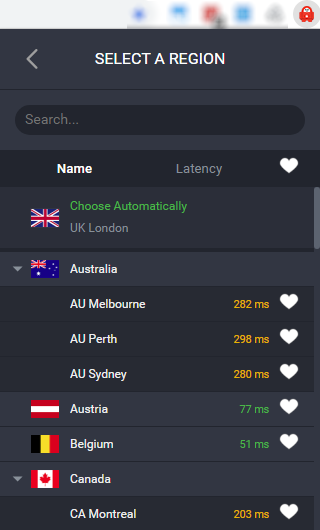
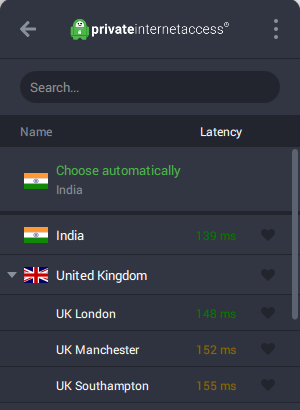
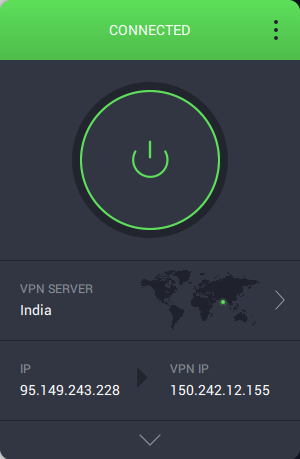
The PIA app for desktop requires you to sign in after installation. It highlights an automatic selection, based on ping time, as the fastest VPN server in your region.

Simply select it to connect.

The app also provides a range of settings, including managing network preferences, changing the app’s appearance, and connection/proxy preferences.

Although useful, the PIA app for Windows has a default “attached to tray” setting in the General tab. This can be frustrating, as it means you cannot Alt + Tab to switch between your current app and PIA. Switching the Dashboard Appearance setting to Window will detach it for easy task switching.

How to Use Private Internet Access With a Browser Extension

If you prefer to secure only your browsing, it’s easy to add PIA to Google Chrome, Mozilla Firefox, and Opera. Each browser has a Private Internet Access extension available in its respective library.

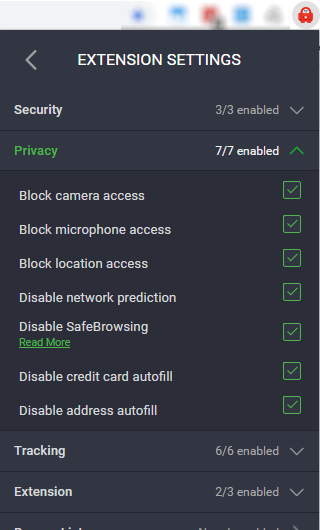
This features a slimmed-down version of the main desktop app with the same quick-connect tools. However, you’ll also find settings for privacy and security, including tracking protection and both microphone and camera blocking.

Get PIA on Your Mobile

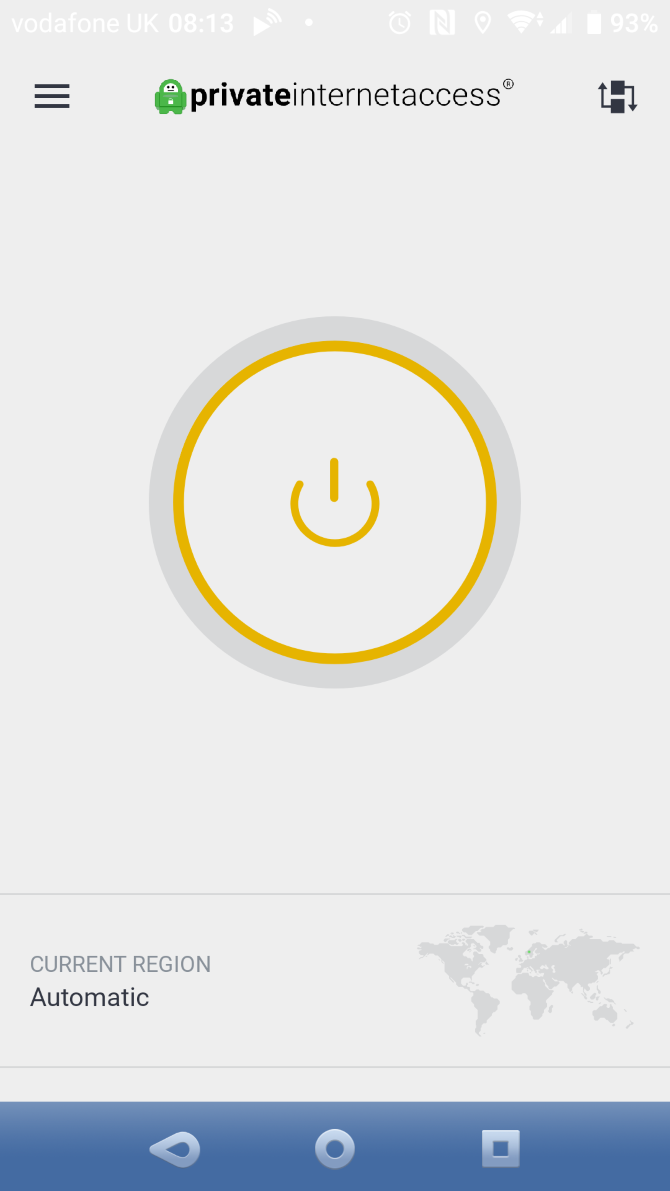
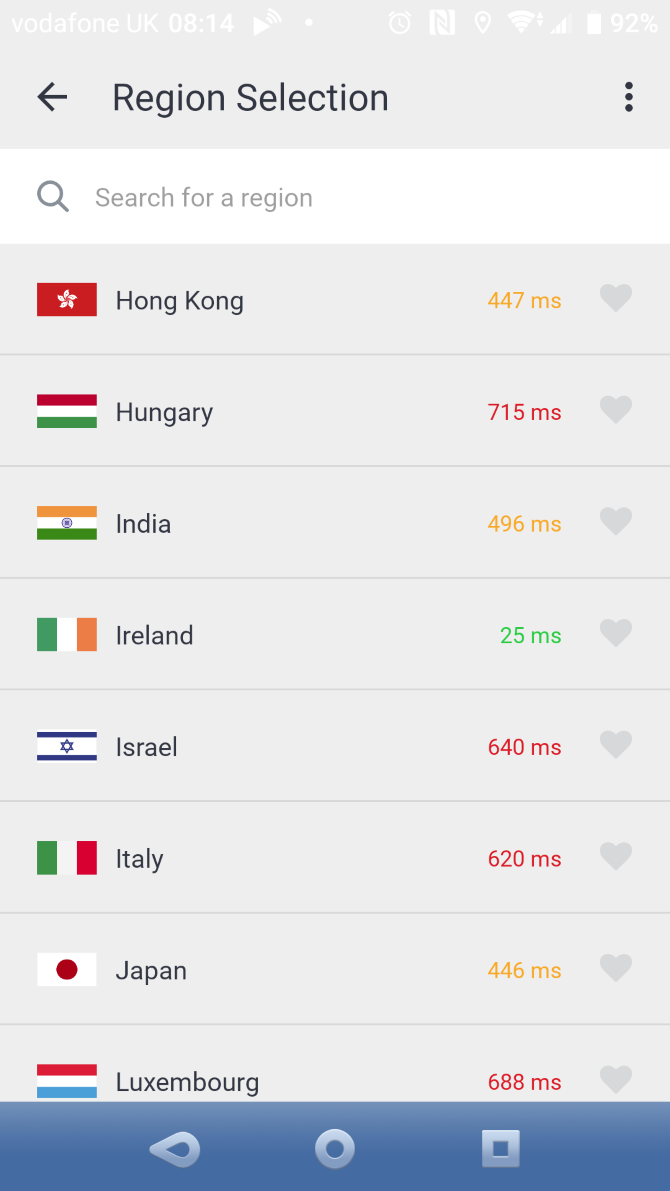
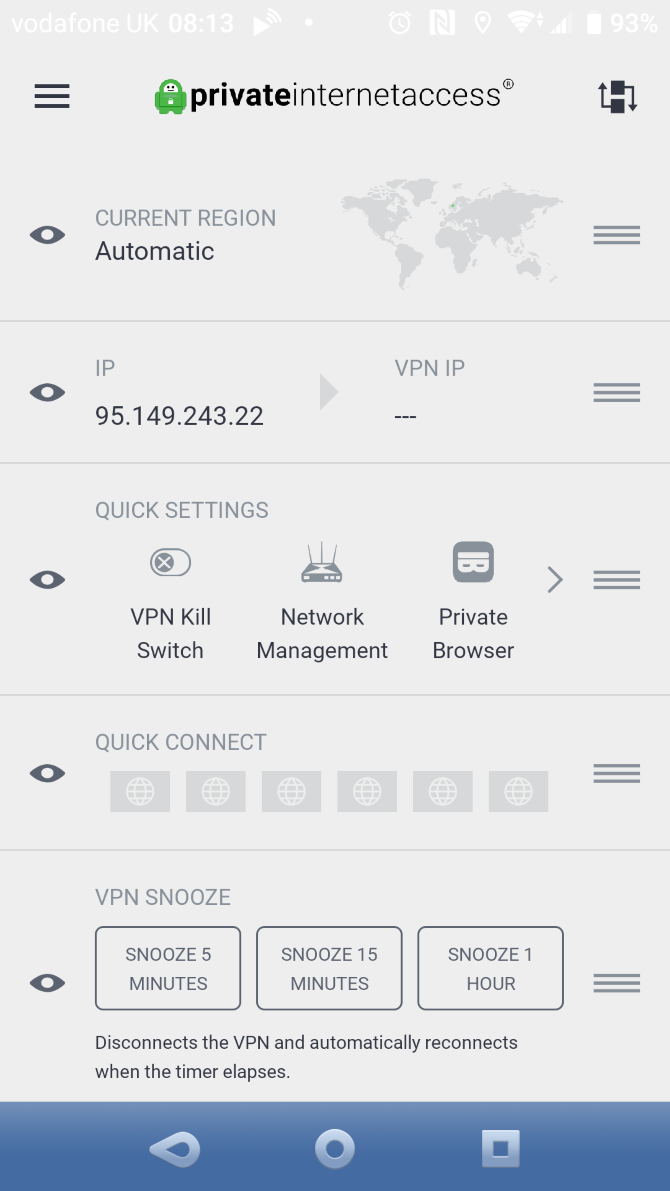
We tested Private Internet Access on Android. A more streamlined app than the desktop version, it again defaults to an automatic server choice. Quick settings are accessible from the top-right corner to choose a server, activate the kill switch, snooze the service, and monitor usage.

More detailed settings are available via the hamburger menu (top-left). Encryption settings, preferences, kill switch, port and port forwarding, and even per-app settings live here.

For example, you might prefer for one or two apps to circumvent VPN protection. Some streaming services actively block VPNs, so bypassing this block by suspending VPN use with those apps is useful.

Will Private Internet Access Slow Your Connection?

Connecting to a VPN will almost certainly impact the speed of your connection. In most cases this will be negligible, but with poor VPNs, the slowdown will be considerable.

It’s worth noting that connecting to a VPN on the other side of the globe will naturally be slower than one in your own region. While such a selection might be necessary, take that distance into account when considering speed.

We tested Private Internet Access with two servers. The first was local in the UK; the second was a server in the USA.

We conducted the test using the following baseline speed, measured without a VPN connection using Speedtest.net:

  • Download: 42.47Mbps
  • Upload: 10.64Mbps
  • Ping: 14ms

This is via a connection to a server around 70 miles away.

VPN Speed Test 1: UK to UK

Connecting to a Private Internet Access VPN server in London (roughly 250 miles) provided the following results:

  • Download: 42.06Mbps
  • Upload: 10.29Mbps
  • Ping: 15ms

As you can see, these results are roughly consistent with the baseline. Local internet traffic plays a part in the near-identical speeds.

VPN Speed Test 2: UK to USA

With a connection to a server in New York (about 3,300 miles away) the results are:

  • Download: 40.90Mbps
  • Upload: 9.97Mbps
  • Ping: 84ms

Despite the considerable difference in ping, the speed of the VPN connection to the New York server is good, as reflected in the speed values.

Private Internet Access: An Affordable VPN With Great Options

By this point you should have an idea as to whether you’re going to trust PIA as your VPN. It’s full of features and supports a wealth of platform. And as we saw, PIA is definitely fast and the app is simple to use.

However, there is the issue of successfully overcoming geoblocking when streaming to consider. If you have concerns around true privacy, PIA’s residence in the USA might also be a problem. However, Private Internet Access is fast, flexible, supports custom firmware with OpenVPN, and provides privacy for peer-to-peer activity.

For most users, Private Internet Access is an ideal choice of VPN.

Read the full article: How Does Private Internet Access Protect Your Online Activity?


Read Full Article