25 February 2020

Huawei’s ill-fated foldable returns with a more robust upgrade


MWC may have been canceled on account of rising coronavirus concerns, but the party still went on for Huawei (albeit to what appears to have been a mostly empty room). A year after wowing crowds with the Mate X, the company is introducing the Mate Xs.

Rather than a proper successor, the device appears to be the result of Huawei’s decision to go back to the drawing board, following Samsung’s very public problems with its own original foldable.

The design looks nearly identical to the original version of the phone — which is a pro. Honestly, the one major downside of the device (aside from a lofty price tag) is the fact that it never fully arrived, outside of what appears to be a relatively small batch offering in China.

Like Samsung, Huawei’s update focused a lot on the hinge; with increased mechanical components, the product should be more rugged than the original. Keep in mind that, while we were able to play around with the original Mate X, that was about it. Personally, I saw one at MWC and had an opportunity to try one for a few minutes during lunch, between meetings at Huawei HQ in Shenzhen.

Now that foldables have arrived, it seems Huawei is finally ready to take the leap. Of course, one ought not forget the company’s ongoing issues here in the States that will not only make it more difficult to procure here, but also blocks access to Android apps and services. That will continue to be a major issue for the company’s products, going forward.

Price, too, will continue to be an issue, at around $2,700 when it goes up for sale in certain markets next month. That extremely inflated price gets you a 6.6-inch display, 5G, a beefy 4,500 mAh battery, the latest Kirin 990 chip, 8GB of RAM and 512GB of storage. Go big and/or go home, right?


Read Full Article

Venmo prototypes a debit card for teenagers


Allowance is going digital. Venmo has been spotted prototyping a new feature that would allow adult users to create a debit card connected to their account for their teenage children. That could potentially let parents set spending notifications and limits while giving kids more flexibility in urgent situations than a few dollars stuffed in a pocket.

Delving into children’s banking could establish a new reason for adults to sign up for Venmo, get them saving more in Venmo debit accounts where the company can earn interest on the cash, and drive purchase frequency that racks up interchange fees for Venmo’s owner PayPal.

But Venmo is arriving late to the teen debit card market. Startups like Greenlight and Step let parents manage teen spending on dedicated debit cards. More companies like Kard and neo banking giant Revolut have announced plans to launch their own versions. And Venmo’s prototype uses very similar terminology to that of Current, a frontrunner in the children’s banking space with over 500,000 accounts that raised a $20 million Series B late last year.

The first signs of Venmo’s debit card were spotted by reverse engineering specialist Jane Manchun Wong who’s provided slews of accurate tips to TechCrunch in the past. Hidden in Venmo’s Android app is code revealing a “delegate card” feature, designed to let users create a debit card that’s connected to their account but has limited privileges.

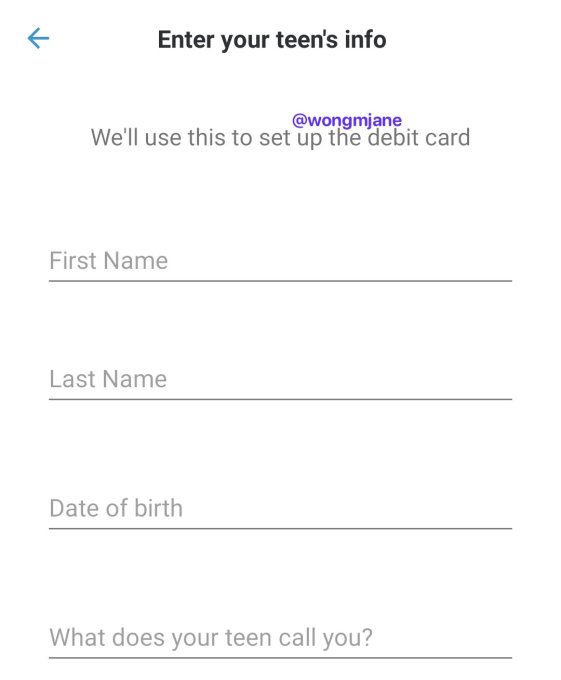
A screenshot generated from hidden code in Venmo’s app, via Jane Manchun Wong

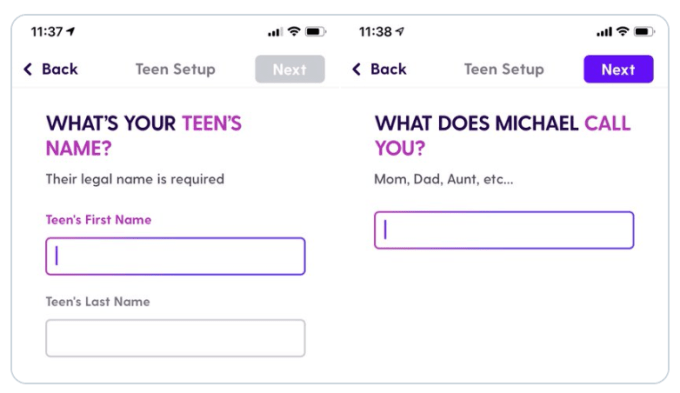
A set up screen Wong was able to generate from the code shows the option to “Enter your teen’s info”, because “We’ll use this to set up the debit card”. It asks parents to enter their child’s name, birthdate, and “What does your teen call you?” That’s almost identical to the “What does [your child’s name] call you?” set up screen for Current’s teen debit card.

When TechCrunch asked about the teen debit feature and when it might launch, a Venmo spokesperson gave a cagey response that implies it’s indeed internally testing the option, writing “Venmo is constantly working to identify ways to refine and enhance the user experience. We frequently test product offerings to understand the value it could have for our users, and I don’t have anything further to share right now.”

Typically, the tech company product development flow see them come up with ideas, mock them up, prototype them in their real apps as internal-only features, test them externally with small percentages of real users, and then launch them officially if feedback and data is positive throughout. It’s unclear when Venmo might launch teen debit cards, though the product could always be scrapped. It’d need to move fast to beat Revolut and Kard to market.

Current’s teen debit card

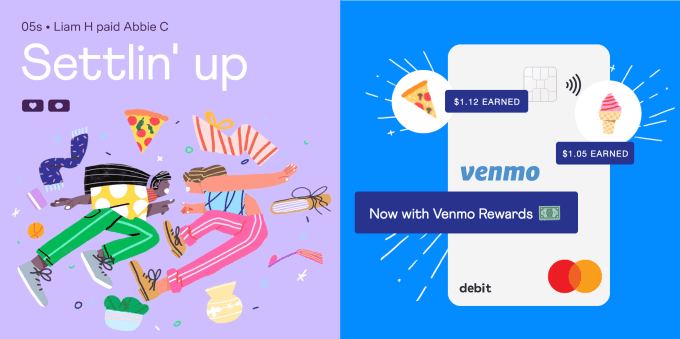
The launch would build upon the June 2018 launch of Venmo’s branded MasterCard debit card that’s monetized through interchange fees and interest on savings. It offers payment receipts with options to split charges with friends within Venmo, free withdrawls at MoneyPass ATMs, rewards, and in-app features for reseting your PIN or disabling a stolen card. Venmo also plans to launch a credit card issued by Synchrony this year.

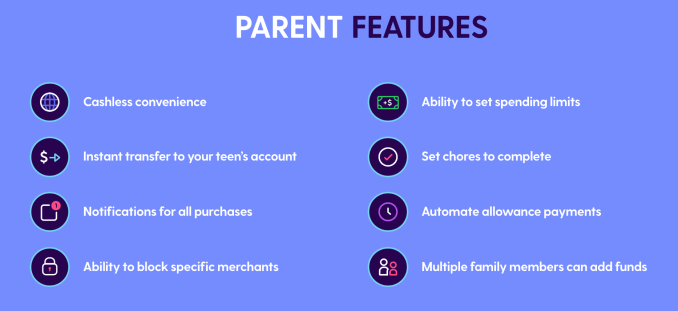
Venmo might look to equip its teen debit card with popular features from competitors, like automatic weekly allowance deposits, notifications of all purchases, or the ability to block spending at certain merchants. It’s unclear if it will charge a fee like the $36 per year subscription for Current.

Current offers these features for parents who set up a teen debit card

Tech startups are increasingly pushing to offer a broad range of financial services where margins are high. It’s an easy way to earn cheap money at a time when unit economics are coming under scrutiny in the wake of the WeWork implosion. Investors are pinning their hopes on efficient financial services too, pouring $34 billion into fintech startups during 2019.

Venmo’s already become a popular way for younger people to split the bill for Uber rides or dinner. Bringing social banking to a teen demographic probably should have been its plan all along.


Read Full Article

Exploring Transfer Learning with T5: the Text-To-Text Transfer Transformer


Over the past few years, transfer learning has led to a new wave of state-of-the-art results in natural language processing (NLP). Transfer learning's effectiveness comes from pre-training a model on abundantly-available unlabeled text data with a self-supervised task, such as language modeling or filling in missing words. After that, the model can be fine-tuned on smaller labeled datasets, often resulting in (far) better performance than training on the labeled data alone. The recent success of transfer learning was ignited in 2018 by GPT, ULMFiT, ELMo, and BERT, and 2019 saw the development of a huge diversity of new methods like XLNet, RoBERTa, ALBERT, Reformer, and MT-DNN. The rate of progress in the field has made it difficult to evaluate which improvements are most meaningful and how effective they are when combined.

In “Exploring the Limits of Transfer Learning with a Unified Text-to-Text Transformer”, we present a large-scale empirical survey to determine which transfer learning techniques work best and apply these insights at scale to create a new model that we call the Text-To-Text Transfer Transformer (T5). We also introduce a new open-source pre-training dataset, called the Colossal Clean Crawled Corpus (C4). The T5 model, pre-trained on C4, achieves state-of-the-art results on many NLP benchmarks while being flexible enough to be fine-tuned to a variety of important downstream tasks. In order for our results to be extended and reproduced, we provide the code and pre-trained models, along with an easy-to-use Colab Notebook to help get started.

A Shared Text-To-Text Framework
With T5, we propose reframing all NLP tasks into a unified text-to-text-format where the input and output are always text strings, in contrast to BERT-style models that can only output either a class label or a span of the input. Our text-to-text framework allows us to use the same model, loss function, and hyperparameters on any NLP task, including machine translation, document summarization, question answering, and classification tasks (e.g., sentiment analysis). We can even apply T5 to regression tasks by training it to predict the string representation of a number instead of the number itself.
Diagram of our text-to-text framework. Every task we consider uses text as input to the model, which is trained to generate some target text. This allows us to use the same model, loss function, and hyperparameters across our diverse set of tasks including translation (green), linguistic acceptability (red), sentence similarity (yellow), and document summarization (blue). It also provides a standard testbed for the methods included in our empirical survey.
A Large Pre-training Dataset (C4)
An important ingredient for transfer learning is the unlabeled dataset used for pre-training. To accurately measure the effect of scaling up the amount of pre-training, one needs a dataset that is not only high quality and diverse, but also massive. Existing pre-training datasets don’t meet all three of these criteria — for example, text from Wikipedia is high quality, but uniform in style and relatively small for our purposes, while the Common Crawl web scrapes are enormous and highly diverse, but fairly low quality.

To satisfy these requirements, we developed the Colossal Clean Crawled Corpus (C4), a cleaned version of Common Crawl that is two orders of magnitude larger than Wikipedia. Our cleaning process involved deduplication, discarding incomplete sentences, and removing offensive or noisy content. This filtering led to better results on downstream tasks, while the additional size allowed the model size to increase without overfitting during pre-training. C4 is available through TensorFlow Datasets.

A Systematic Study of Transfer Learning Methodology
With the T5 text-to-text framework and the new pre-training dataset (C4), we surveyed the vast landscape of ideas and methods introduced for NLP transfer learning over the past few years. The full details of the investigation can be found in our paper, including experiments on:
  • model architectures, where we found that encoder-decoder models generally outperformed "decoder-only" language models;
  • pre-training objectives, where we confirmed that fill-in-the-blank-style denoising objectives (where the model is trained to recover missing words in the input) worked best and that the most important factor was the computational cost;
  • unlabeled datasets, where we showed that training on in-domain data can be beneficial but that pre-training on smaller datasets can lead to detrimental overfitting;
  • training strategies, where we found that multitask learning could be close to competitive with a pre-train-then-fine-tune approach but requires carefully choosing how often the model is trained on each task;
  • and scale, where we compare scaling up the model size, the training time, and the number of ensembled models to determine how to make the best use of fixed compute power.
Insights + Scale = State-of-the-Art
To explore the current limits of transfer learning for NLP, we ran a final set of experiments where we combined all of the best methods from our systematic study and scaled up our approach with Google Cloud TPU accelerators. Our largest model had 11 billion parameters and achieved state-of-the-art on the GLUE, SuperGLUE, SQuAD, and CNN/Daily Mail benchmarks. One particularly exciting result was that we achieved a near-human score on the SuperGLUE natural language understanding benchmark, which was specifically designed to be difficult for machine learning models but easy for humans.

Extensions
T5 is flexible enough to be easily modified for application to many tasks beyond those considered in our paper, often with great success. Below, we apply T5 to two novel tasks: closed-book question answering and fill-in-the-blank text generation with variable-sized blanks.

Closed-Book Question Answering
One way to use the text-to-text framework is on reading comprehension problems, where the model is fed some context along with a question and is trained to find the question's answer from the context. For example, one might feed the model the text from the Wikipedia article about Hurricane Connie along with the question "On what date did Hurricane Connie occur?" The model would then be trained to find the date "August 3rd, 1955" in the article. In fact, we achieved state-of-the-art results on the Stanford Question Answering Dataset (SQuAD) with this approach.

In our Colab demo and follow-up paper, we trained T5 to answer trivia questions in a more difficult "closed-book" setting, without access to any external knowledge. In other words, in order to answer a question T5 can only use knowledge stored in its parameters that it picked up during unsupervised pre-training. This can be considered a constrained form of open-domain question answering.
During pre-training, T5 learns to fill in dropped-out spans of text (denoted by <M>) from documents in C4. To apply T5 to closed-book question answer, we fine-tuned it to answer questions without inputting any additional information or context. This forces T5 to answer questions based on “knowledge” that it internalized during pre-training.
T5 is surprisingly good at this task. The full 11-billion parameter model produces the exact text of the answer 50.1%, 37.4%, and 34.5% of the time on TriviaQA, WebQuestions, and Natural Questions, respectively. To put these results in perspective, the T5 team went head-to-head with the model in a pub trivia challenge and lost! Try it yourself by clicking the animation below.
Fill-in-the-Blank Text Generation
Large language models like GPT-2 excel at generating very realistic looking-text since they are trained to predict what words come next after an input prompt. This has led to numerous creative applications like Talk To Transformer and the text-based game AI Dungeon. The pre-training objective used by T5 aligns more closely with a fill-in-the-blank task where the model predicts missing words within a corrupted piece of text. This objective is a generalization of the continuation task, since the “blanks” can appear at the end of the text as well.

To make use of this objective, we created a new downstream task called sized fill-in-the-blank, where the model is asked to replace a blank with a specified number of words. For example, if we give the model the input “I like to eat peanut butter and _4_ sandwiches,” we would train it to fill in the blank with approximately 4 words.

We fine-tuned T5 on this task using C4 and found the resulting outputs to be quite realistic. It’s especially fun to see how the model adjusts its predictions based on the requested size for the missing text. For example, with the input, “I love peanut butter and _N_ sandwiches,” the outputs looked like:

  • I love peanut butter and jelly sandwiches.
  • I love peanut butter and jelly on my sandwiches.
  • I love peanut butter and jelly, which is what makes good sandwiches.
  • I love peanut butter and jelly, Yum! You can’t beat peanut butter and jelly sandwiches.
  • I love peanut butter and bread. Thanks!! This looks delicious. I love all types of peanut butter, but especially peanut butter/jam sandwiches.
  • I love peanut butter and banana sandwiches and the Peanut Butter Chocolate Chip Cookie Bites are now very easy to prepare. The best part is that the PB&J Cookie Bites are the perfect size for kid lunch boxes and everyone will enjoy them. Kids love these sandwiches.
  • I love peanut butter and jelly! It's like an incredible childhood love now that I'm in my 30s. I'm obsessed with peanut butter and jelly sandwiches. I have made this recipe many times with great success. I'm guessing you could probably find that it's from a 1950s cookbook. I haven't seen it listed in a current one but it is in a 1930 version (they seem to have retired it). Hope you enjoy it ;) I hope you'll post what you do with your sandwiches.
  • I love peanut butter and banana sandwiches. Peanut butter and bananas were the original sandwich spread (also known as PB&J or Peanut Butter and Jelly), so they are probably my favorite. When I was a kid, I knew what peanut butter and bananas tasted like, but I didn't really think of them as one flavor. I did recognize PB & J's as just a sandwich spread, and not really two separate flavours. When I was in graduate school researching food allergies and intolerances, PB&B is one of the main themes that came up. PB&B was and still is the favorite sandwich spread on my school cafeteria tray, and it's still on my personal board in the kitchen. I've seen PB&B on more than one occasion over the years. I can always find one of the other types of peanut butter spread at the school cafeteria and I find it's the perfect spread for PB&B. You have several options for making your own peanut butter (I love this recipe from Cookie and Kate) or buying it at stores like Trader Joes, Publix, and Safeway. The flavor of PB&B varies, but I've found that white chocolate is my favorite to use. This simple sandwich is perfect for lunch or an afternoon snack. When you're on the go, you can use a store bought product, but it just wouldn't taste as good. These peanut butter n' banana sandwich spreads (as well as other peanut butter spreads) are great for on the go eating, but they can also be refrigerated for a few hours and then served at your next party. Preheat oven to 350 degrees. Using a kitchen timer, or using a microwave, heat butter in a saucepan and melt over low heat. Add vanilla extract and milk and heat until nearly boiling. Add peanut butter, bananas, sugar, salt, and pepper, mixing well to combine all ingredients. Spread peanut butter mixture on both sides of your bread. Top with banana slices and a slice of cheese. Toast the bread until both sides are golden brown. Remove from toast and sprinkle a little more sugar and peanut butter on the top. Enjoy while the bread is warm. Store in an airtight container up to one day. Assemble peanut butter and banana sandwich spread by spreading the peanut butter mixture on each slice of bread. Add a banana slice on top and then a PB & J sandwich. Enjoy while the bread is still warm. P.S. You might also like these peanut butter and jelly sandwiches.
Conclusion
We are excited to see how people use our findings, code, and pre-trained models to help jump-start their projects. Check out the Colab Notebook to get started, and share how you use it with us on Twitter!

Acknowledgements
This work has been a collaborative effort involving Colin Raffel, Noam Shazeer, Adam Roberts, Katherine Lee, Sharan Narang, Michael Matena, Yanqi Zhou, Wei Li, Peter J. Liu, Karishma Malkan, Noah Fiedel, and Monica Dinculescu.


Announcing the 2019 Google Faculty Research Award Recipients


In Fall 2019, we opened our annual call for the Google Faculty Research Awards, a program focused on supporting the world-class technical research in Computer Science, Engineering and related fields performed at academic institutions around the world. These awards give Google researchers the opportunity to partner with faculty who are doing impactful research, additionally covering tuition for a student.

This year we received 917 proposals from ~50 countries and over 330 universities, and had the opportunity to increase our investment in several research areas related to Health, Accessibility, AI for Social Good, and ML Fairness. All proposals went through an extensive review process involving 1100 expert reviewers across Google who assessed the proposals on merit, innovation, connection to Google’s products/services and alignment with our overall research philosophy.

As a result of these reviews, Google is funding 150 promising proposals across a wide range of research areas, from Machine Learning, Systems, Human Computer Interaction and many more, with 26% of the funding awarded to universities outside the United States. Additionally, 27% of our recipients this year identified as a historically underrepresented group within technology. This is just the beginning of a larger investment in underrepresented communities and we are looking forward to sharing our 2020 initiatives soon.

Congratulations to the well-deserving recipients of this round's awards. More information on our faculty funding programs can be found on our website.

Facebook’s Creator Studio gains a mobile companion


Facebook’s Creator Studio has added a mobile companion. The insights dashboard for creators and publishers, which debuted globally in August 2018, is now available as a mobile app for both iOS and Android. Similar to the desktop hub, the Creator Studio app allows users to track how their content is performing across Facebook Pages, as well as publish, schedule and make adjustments to posts, respond to fan messages, and more.

Facebook Director of Entertainment for Northern Europe Anna Higgs took the stage along with creator Ladbaby, who has over 4 million Facebook followers, to share the news of the new app’s launch at last week’s VidCon London.

There are a few key areas where the app can be of use to creators and publishers, starting with its metrics and insights section. Here, users can analyze both Page and post-level insights, retention, and distribution metrics in order to adjust their strategies accordingly. For example, they’ll find content performance metrics like “1-minute views,” 3-second views,” and “avg. minutes viewed,” plus engagement metrics like comments and shares, and follower counts, earnings, and more.

The app also serves as a mobile companion for viewing both published and scheduled posts, allowing creators to make quick adjustments like editing the video titles or descriptions. And they can use the app for deleting or expiring posts, rescheduling posts, or publishing drafts.

From the inbox section, users can respond to incoming messages and comments while on the go.

Creators can toggle between their different accounts during the same session, instead of having to log out and back in as a different user. This could be helpful for those who have a large social media presence, as well as those whose business involves supporting multiple creator pages.

The Creator Studio app will also send out immediate notifications for key milestones and other important events.

This isn’t the first time Facebook has offered a dedicated app for its creator community. The company in 2017 debuted a Creator app, that had also offered a unified inbox and analytics, among other things. But that app was shut down early last year, and creators were pointed towards the Pages Manager app or desktop version of Creator Studio instead. Before that, Facebook had offered a Mentions app that was only available for verified public figures and Pages.

The new Creator Studio app isn’t a direct replacement for the shuttered Creator app, as it sports a similar, though not identical feature set and a new user interface. It also notably lacks Instagram integration and the ability to upload and post new content — the latter which is contributing to poor user reviews, following the app’s launch. Many complain there’s too much overlap with the Pages Monitor app, as well. But the missing features are something Facebook will likely address in the future, as it rolls out more functionality to the app.

It’s worth noting that Facebook’s desktop hub and app sport a name similar to YouTube’s service for creators — YouTube Studio, rebranded from YouTube Creator Studio in 2017. By including both “studio” and “creator” in the new app’s name, it will perform better in App Store search results — including those that appear when someone searches for the YouTube Studio app for creators. That reflects the competitive nature between the two companies, both hungry to woo video creator talent.

Facebook’s new app is a free download on iOS and Android.


Read Full Article

Daily Crunch: Sony unveils its first 5G smartphone


Sony announces a camera-centric phone, Microsoft offers more details about the next Xbox and a liquid biopsy startup raises $165 million. Here’s your Daily Crunch for February 24, 2020.

1. Sony announces its first 5G flagship, the triple lens Xperia 1 II

Sony has announced its first 5G smartphone: The Xperia 1 II — for the curious or confused, it’s pronounced “Xperia One, Mark Two.”

As ever with Sony — a major B2B supplier of image sensors to other smartphone makers — it has made the camera a huge focus. The Xperia 1 II packs three lenses that offer a selection of focal lengths (16mm, 24mm and 70mm) for capturing different types of photos, from super wide angle to portraits.

2. Microsoft offers a closer look at the next Xbox

The headline feature of the upcoming Xbox Series X is, naturally, a new processor. Built on top of AMD Zen 2 and RDNA 2 architecture, Xbox says the chip is able to deliver four times the processing power of the Xbox One.

3. Karius raises $165M for its liquid biopsy technology identifying diseases with a blood draw

Liquid biopsy technology has been widely embraced in cancer treatments as a way to identify which therapies may work best for patients, based on the presence of trace amounts in a patient’s bloodstream of genetic material shed by cancer cells. Karius applies the same principles to the detection of pathogens in the blood.

4. Europe’s Target Global raises new €120M early-stage fund

Dubbed “Early Stage Fund II,” the new vehicle will see the firm continue to back early-stage tech companies across Europe and Israel, leading and co-leading seed and Series A rounds.

5. Sensors are the next big thing in space, not starships

“In 2020 I really, really look forward to and hope to see different, new creative types of sensors that are utilizing low Earth orbit for benefits back on Earth,” Bessemer VP Tess Hatch told us in a recent interview. (Extra Crunch membership required.)

6. The Plaid ‘mafia’ begins with John Whitfield joining student loan fintech startup Summer

So far this year, one of the most eye-popping startup exits has been Visa’s $5.3 billion acquisition of fintech data services platform Plaid. Could this be the start of a brand new mafia born out of fintech, à la PayPal?

7. This week’s TechCrunch podcasts

The latest full episode of Equity has a counter-intuitive message — equity isn’t always the answer for companies looking to fundraise. Meanwhile, the shorter Monday segment looks at declining stocks around the world. And on Original Content, we review the new Netflix series “Locke & Key.”

The Daily Crunch is TechCrunch’s roundup of our biggest and most important stories. If you’d like to get this delivered to your inbox every day at around 9am Pacific, you can subscribe here.


Read Full Article

24 February 2020

Windows 10 Home vs. Pro: Do You Need to Upgrade?


windows-10-pro

While Windows 10 offers many editions for specific use cases, home users only have two main choices to worry about: Windows 10 Home and Windows 10 Pro. This has likely led you to wonder what the differences are between Windows 10 Home and Pro.

Unlock the FREE "Ultimate Windows Keyboard Shortcuts" cheat sheet now!

This will sign you up to our newsletter

Enter your Email

We’ll walk you through this in our Windows 10 Home vs. Pro comparison. Let’s look at what Pro offers if you upgrade, how to make the switch, and whether it’s worth it.

Windows 10 Professional vs. Home: A Summary

Before we dive into specifics, here’s a quick summary of the differences between Windows 10 Home and Pro:

  • Windows 10 Home offers all the standout functionality of Windows 10 that the average user will enjoy. This includes Windows Hello logins, the Windows Defender antivirus, Cortana, pen and touch support, the Microsoft Store, and much more.
  • Windows 10 Pro includes everything in Windows 10 Home, so you don’t miss out on anything by using the Professional edition.
  • Windows 10 Pro adds several advanced features, including Hyper-V for virtual machines, BitLocker device encryption, Remote Desktop for remote access, and a suite of features intended for business use.

Let’s look at how to check which version of Windows 10 you’re using, then examine some of these exclusive features more closely.

Windows 10 Edition Basics

If you upgraded to Windows 10 from Windows 7 or 8, your edition of Windows 10 matches the prior version. For example, Windows 7 Home Premium would upgrade to Windows 10 Home, while Windows 8.1 Pro would upgrade to Windows 10 Pro.

Those who bought their PC new with Windows 10 probably have the Home edition. Some high-end systems are sold with Windows 10 Pro, but it’s not as common.

You can easily check which Windows 10 edition you have. Open the Settings app and go to System > About. At the bottom of the page under Windows specifications, you’ll see an Edition line.

Windows 10 Edition Info

What’s the Difference Between Windows 10 Home and Pro?

Is Windows 10 Home enough, or should you pay for Pro? Let’s look at the most important Windows 10 Pro-exclusive features to find out.

1. Windows Remote Desktop

Windows has included its own Remote Desktop tool for some time. This allows you to connect to your PC using another device and control it like you were sitting in front of it.

With Windows 10 Home, you can’t use Remote Desktop to connect to your own PC from other devices. You need Windows 10 Pro for anywhere access. On Windows 10 Pro, head to Settings > System > Remote Desktop to set up this feature.

Windows 10 Remote Desktop

If you have Windows 10 Home, you can easily replicate this feature using alternative remote access software. Tools like TeamViewer are free for personal use and work on all editions of Windows.

2. BitLocker Encryption

BitLocker Windows 10

Did you know that even if your computer is password-protected, someone with access to your hard drive could read all the data saved on it? This is where encryption comes in—it scrambles all the files on your computer and makes them unreadable to anyone without the key.

BitLocker is Microsoft’s built-in encryption software for Windows. It’s a Windows 10 Pro feature that you’ll find under BitLocker Drive Encryption in the Control Panel (search for it on the Start Menu for easy access).

This is a great tool for simple and powerful encryption, and convenient since it’s integrated into the operating system. However, Windows 10 Home users have other choices for disk encryption. Check out how to protect your data using VeraCrypt for a full guide on a great free tool.

3. Hyper-V Virtualization

hyper-v quick create virtual machine

Hyper-V is a virtual machine (VM) manager that allows you to run virtual operating systems on your computer. These are great for test-driving other OSes or installing software in a safe environment without risking your actual system.

Newer versions of Windows 10 also include a handy related tool called Windows Sandbox. You can use the Windows Sandbox to open a clean copy of Windows 10 that resets when you close it. Compared to a traditional VM, this doesn’t take as much time to set up and is easier to maintain.

However, like both of the above functions, Windows 10 Home users have free alternatives. Hyper-V is a fine tool, but for the casual VM user, VirtualBox will do the trick just fine. See our full user guide to VirtualBox for everything you need to get started.

4. Deferring Updates for Longer

For some time, Windows 10 Home users didn’t have any way to put off Windows Updates, as they were all automatic. Now, Windows 10 allows Home users to pause updates for up to 35 days. Visit Settings > Update & Security > Windows Update > Advanced Options and you can choose to Pause updates until a future date.

Windows 10 Defer Updates

This prevents all Windows updates from installing during the period you select. However, once that date hits, you must install current updates before pausing again.

Windows 10 Pro goes a step further and lets you defer both feature updates and security updates for a set number of days. Feature updates are the major revisions to Windows 10 that launch approximately twice per year and add new features. Quality updates are Windows 10 patches that fix bugs and security issues.

If you feel strongly about controlling updates, you may wish to use Windows 10 Pro to gain more control.

5. Enterprise-Focused Features

Some Pro features clearly aimed at businesses can still have appeal for home users, but not all of them.

One of these is Enterprise Mode for Internet Explorer, which lets you emulate IE 8 inside of IE 11. This is for ancient websites that don’t work in modern browsers, which are usually internal business sites.

Another tool that might find more use with normal users is Assigned Access, a Pro-only feature that lets you lock down an account on the machine to using a single app. It’s designed for kiosks or other restricted environments, but it could be a great way to kid-proof your computer. Letting your child play a game while knowing they can’t access the web is a nice feature.

Windows 10 Pro is also required for other business features, like joining your computer to a domain and Active Directory support. These are critical for corporate environments, but pretty much useless for normal users.

Reasons Not to Upgrade to Windows 10 Pro

While the features above might tempt you, let’s conclude with some reasons why the Windows 10 Pro upgrade isn’t worth the cost for most people.

1. You Already Have the Features You Need

Windows 10 Home doesn’t inhibit your daily usage or take any major features away; chances are that it includes all the functionality you want. Cortana’s voice assistance, the revamped Start Menu, native virtual desktops, and the Edge browser are all fully available in Windows 10 Home.

Some people ask specifically about Windows 10 Home vs. Pro for gaming. While some of the Pro features could come in handy for gaming systems, there’s no particular advantage to using Windows 10 Pro for gaming. You’ll do fine with whatever edition you chose.

In the end, the features above either have a free alternative or are unnecessary for everyday use. Why pay for what you aren’t going to use?

2. It’s Expensive

A final, but important facet of the Windows 10 Home vs. Pro discussion is the cost. For a new system, Windows 10 Home costs $139, while Windows 10 Pro is $199. If you want to upgrade from Windows 10 Home to Pro, you’ll need to pay $99.

While this upgrade price isn’t outrageous, you could better spend it elsewhere on premium desktop software, a subscription, or something similar. If you do decide to upgrade, head to Settings > Update & Security > Activation.

Windows 10 Pro Activation

Here you’ll see an Upgrade your edition of Windows section. Click Change product key if you bought one already. Else, choose Go to the Store to buy a license from Microsoft.

Windows 10 Home Is Enough for Most

As we’ve seen, Windows 10 Pro packs some solid features, but they’re mostly unnecessary for home audiences. Use the alternatives listed above and save your cash for something more useful. Windows 10 will continue to add new features in major updates that will come to all users, so those using Home won’t miss out.

For more on this, take a look at all the different Windows 10 editions on offer.

Image Credit: Joana Lopes/Shutterstock, Denis Vrublevski/Shutterstock

Read the full article: Windows 10 Home vs. Pro: Do You Need to Upgrade?


Read Full Article

6 Cool Things You Can Do With Google Voice


voip-phone-google-voice

Google Voice revolutionizes the way we make phone calls—it allows you to combine your home, personal phone, and business phone into one device. You might not be able to replace your cellular device with Google Voice, but it’s still a reliable option when you don’t want to spend the money on an additional phone number.

So, what is Google Voice, and what advantages does it have? Here, we’ll introduce you to the basics of Google Voice, and tell you about its coolest features.

How Does Google Voice Work?

In short, Google Voice is a free phone service that allows you to send and receive calls and texts from your mobile device or computer. You can even create a VoIP phone using Google Voice.

Fortunately, Google Voice is extremely simple to set up. After you sign up for an account on Google Voice, select a new phone number, and input your current phone number, you can start making calls from your Google Voice number. Better yet, you can even connect one or more of your phones to your Google Voice number (which we’ll get into later).

You can use Google Voice to make calls and send texts over Wi-Fi. If Wi-Fi isn’t available, you can still use a small amount of mobile data from your cellular plan to make calls. This prevents your calls from eating up minutes on your phone plan.

1. Integrate Google Voice for All Mobile Calls and Texts

Google Voice Forward Calls

What can Google Voice do, and what is Google Voice used for? One of the main features of the service is its ability to forward calls to one or many phones.

Once you sign up with Google Voice, you’ll want to install the mobile app onto your phone. Google Voice offers integrated mobile apps for both Android and iPhones. As soon as you install Voice on your phone, you can check your voicemail, send and receive calls or texts, as well as check your current account balance.

Most importantly, you can receive calls on your mobile phone from your Google number. You can also dial out from your cell phone using the app, and people will see your Google Voice number, not your cell phone number.

Just call with your Google Voice number, and your call will get routed through your Voice account. Why is this useful? Imagine you’re starting a new business and you’d like a unique number that you can route to different phones depending on who’s calling.

Create one group of contacts that rings your phone, a second group that rings your mobile, and so on. Perhaps you’d like a call to your Google Voice number to ring multiple phones at once—Google Voice makes this possible as well.

2. Screen Your Calls

Google Voice Screen Calls

Remember the days when you had an answering machine, and when a caller would start leaving a message, you would also hear the voice from the speaker? With the advent of digital voicemail, that ability to screen calls by listening to the beginning of the message is a disappearing luxury.

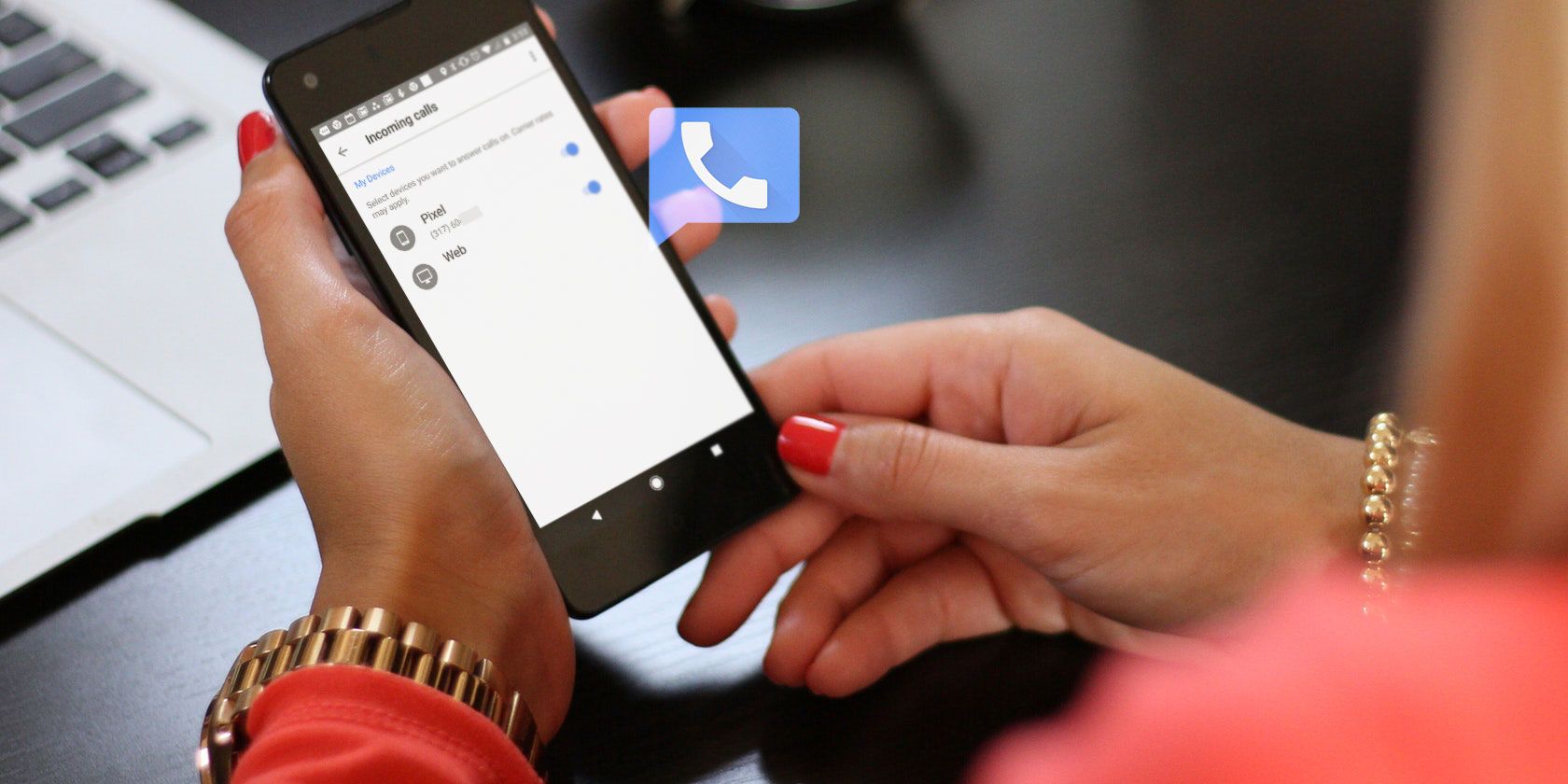
Well, Google brings it back by allowing you to screen calls. Callers from an unknown number will get asked to speak their name. That way, you know who’s calling before you pick up. To enable call screening, head to your Google Voice Settings, click on Calls, and find the Screen Calls option. Make sure Screen Calls is toggled on.

Once you hear the caller’s name, you have the option to handle the call in a variety of ways. You can press 1 to immediately accept, 2 to immediately send to voicemail, and * if you want to jump into the call.

3. Automatic Transcription of Every Voicemail

Google Voice Voicemail Transcription

If you’re not able to listen to a voicemail, Google Voice provides voicemail transcription. This allows you to read someone’s message instead of listening to a long, rambling voicemail. Google Voice can also send transcribed voicemails to your email. To ensure this feature is on, go to your Google Voice Settings > Voicemail and toggle on the Get voicemail via email option.

While the bugs aren’t quite all worked out of the system yet, the Google voicemail transcription feature works well enough that you can pretty much understand what the person is saying. In addition to receiving voicemail transcriptions by email, you can also check your voicemails either from your computer or from your phone.

4. Record Phone Calls

Google Voice Record Calls
Make sure it’s legal where you live, but another option when you have an incoming call is to accept and record the call. When you answer, press the number 4 to record phone calls on your iPhone, Android, computer, or tablet. This is useful for interviews, police interrogations, or simply to have a record of the conversation.

When you start recording, you and the caller will hear an announcement that the recording has started. There’s no transcription available for recorded conversations, so you’ll need to log into your Voice account, head to your voicemails, and replay the conversation. You can even download it as an MP3 file.

5. Customize Greetings and Other Group Settings

Google Voice Legacy Groups

You can customize Google Voice even more by changing the way Voice handles and routes your phone calls. It essentially acts as a personal secretary—a phone switchboard that can be as simple or as complicated as you want it to be.

The old version of Google Voice let you set different voicemail greetings for different callers. While this feature isn’t available with the new version of Google Voice, you can still assign greetings by using the Legacy Version of Google Voice. Access the Legacy version from your computer by heading to the Google Voice menu in the top left corner of your screen. At the bottom of the menu, click Legacy Google Voice to open it.

Under Settings > Groups, you can create any group that you like, and edit individual settings as shown above. Select what phone (or phones) should ring, select (or record) a special greeting, and you can even disable call screening for a particular group.

6. Filter Spam

Google Voice Spam Filter

Tired of getting constant robocalls? When you receive calls on your non-Google Voice number, your caller ID might read “Scam Likely.” Otherwise, you won’t even know which numbers are safe to answer.

Fortunately, Google Voice has a filter for spam calls and texts. When Google suspects a phone number is spam, it’ll transfer any voicemails, calls, and texts to your Spam folder. You can turn on this feature by navigating to the Google Voice Settings > Security and turning on Filter Spam.

Why Use Google Voice?

It’s easy to see the benefits of Google Voice. Whether you use your Google Voice number for your business, or as a personal number, it can save you both time and money.

If you want even more options when it comes to calling, check out the best free calling apps for making free phone calls.

Read the full article: 6 Cool Things You Can Do With Google Voice


Read Full Article

TikTok Launches New Parental Controls to Keep Kids Safe


TikTok is launching new parental controls designed to keep kids safe while they use the app. And with TikTok being very popular amongst teenagers, the new Family Safety Mode should help ease the minds of worried parents the world over.

TikTok Only Appeals to Teenagers

TikTok has grown to be one of the most popular apps in the world. And unlike the other giant apps, such as Instagram and Snapchat, TikTok appeals to a very specific demographic. Essentially, kids love it, and adults generally don’t understand it.

With its 1 billion users being mostly children and young adults, TikTok needs to do all it can to protect its userbase. The company is slowly but surely adding measures to protect youngsters using the platform. And the latest are new parental controls.

What Is TikTok’s Family Safety Mode?

As outlined in a post on the TikTok Newsroom, TikTok has launched two new features. The first, called Family Safety Mode, is an amalgamation of various parental controls. The second, called Screen Time Management in Feed, reminds users to use TikTik responsibly.

Family Safety Mode links a parent’s TikTok account to their child’s TikTok account. And, once enabled, a parent will be able to control how long their child can spend on TikTok, limit who can send direct messages, and restrict certain types of content.

While most teenagers will not like the idea of their parents controlling their use of TikTok, this may be a necessary step for certain kids. Especially as even some adults seem to be addicted to their smartphones and the apps that reside on them.

Meanwhile, Screen Time Management in Feed reminds teenagers themselves not to overdo it on TikTok. Videos from popular creators pop up in users’ feeds encouraging them to take a break from TikTok and do something else more productive instead.

Learn More About How to Use TikTok

TikTok has initially launched Family Safety Mode and Screen Time Management in Feed in the UK. However, the company is promising to roll both features out to additional markets in the coming weeks. It isn’t yet clear whether or not that includes the US.

Whether you’re one of the few teenagers who hasn’t yet got into TikTok, or a parent keen to learn more about the phenomenon, we’re here to help. For parents, here’s our guide to TikTok and how it works, and for teenagers, here’s how to get more TikTok followers.

Read the full article: TikTok Launches New Parental Controls to Keep Kids Safe


Read Full Article

The Best White Noise Machines for Drowning Out Distractions


white-noise-machines-

Does sound distract or keep you awake? A white noise machine can help.

Many people use noise-canceling headphones to dampen sounds. But there’s another option that doesn’t require wearing bulky earcups: white noise does the same job. With a nature-emulating soundscape, such as wind blustering through trees or a gently rushing waterfall, white noise is well-suited to a variety of applications.

We’re taking a look at the best white noise machines you can buy.

What Is a White Noise Machine and Why Use One?

A white noise machine is a device that produces sounds with equal intensities but varied frequencies. These bits of random audio form a unified whole that’s soothing and mimics naturally occurring sounds such as a waterfall or the wind whistling through trees. However, there’s a bit of a misconception. Some machines don’t produce white noise. Instead, they play pink noise or even other colors of noise.

Pink noise differs in that it’s more powerful and louder at lower frequencies, whereas white noise maintains equal power. Additionally, many white noise machines include modes that play sounds, such as traffic, rain, and the ocean.

White noise devices are mostly used as sleep aids. Because of their ambient sounds, these machines can mask outside noises by forming a sort of sonic wall. Essentially, it’s like wearing earplugs but without the hassle of shoving anything into your ear, aside from sound waves. Similarly, noise-canceling headphones put a damper on the volume of outside noises. But these remove ambient sounds using active or passive noise control through methods like soundproofing.

Aside from the bedroom, they are superb devices for reducing distractions in general. A white noise machine for an office can help you better focus. Notably, babies may sleep better with white noise machines. Since they’re accustomed to ambient sounds in the womb, white noise generators provide a familiar experience. White noise machines are also ideal for sleeping with anxiety or tinnitus.

1. HoMedics White Noise Sound Machine

HoMedics White Noise Sound Machine HoMedics White Noise Sound Machine Buy Now On Amazon $19.93

For home or on the go, take a look at the HoMedics White Noise Sound Machine. The device can be powered with the provided AC adapter or with four AA batteries. You can select from six different sounds; white noise, thunder, ocean, summer night, brook, and rain.

While the machine can run all night, an auto-off timer can be set for 15, 30, or 60 minutes to conserve battery power. To better customize the sound, there is also an adjustable volume knob.

2. Marpac Dohm Classic

Marpac Dohm Classic Marpac Dohm Classic Buy Now On Amazon $41.77

The Marpac Dohm Classic is all about white noise. Featuring a real fan, the machine produces a continuous stream of natural-sounding audio. The machine uses an 8-foot long plug for AC power.

There are two different volume levels to select from. You can also adjust the sound and tone by twisting the outside casing. To help the device fit in with your home decor, this sound machine is available in white, black, gray, or tan.

3. Hatch Baby Rest Sound Machine

Hatch Baby Rest Sound Machine Hatch Baby Rest Sound Machine Buy Now On Amazon $59.99

The Hatch Baby Rest Sound Machine is made to grow with your child. With an infant, the machine offers a white noise sound machine and night light. After a few years, once a toddler, you can set a time-to-rise color, so they’ll know when it’s time to get up out of bed.

You can control settings, including volume and brightness, with a companion smartphone app so you won’t need to bother your sleeping child. The app also allows you to set schedules for the light and sound. A toddler lock on the sound machine will help make sure little hands can’t change any settings.

4. Big Red Rooster 8 Sound White Noise Machine

Big Red Rooster 8 Sound White Noise Machine Big Red Rooster 8 Sound White Noise Machine Buy Now On Amazon $19.99

If you’re looking for a variety of different sounds to select from to help cancel noise, you’ll want the Big Red Rooster 8 Sound White Noise Machine. As the name suggests, there are eight different options—box fan, small fan, brown noise, pink noise, white noise, summer night, rain, and ocean.

There’s also an auto-off timer which can be set for 15, 30, or 60 minutes. You can power the machine with the AC adapter or three AA batteries. A black or white version is available.

5. Sound+Sleep Sound Machine

Sound+Sleep Sound Machine Sound+Sleep Sound Machine Buy Now On Amazon $72.95

The Sound+Sleep Sound Machine offers 10 different noise options, each with three levels of richness to help you find a perfect combination for sleep or relaxation. Some of the more unique sound choices include fireplace, city, and train along with the usual white noise.

The device constantly monitors the surrounding room and then will adjust the sound to better cancel noise. You can also take advantage of the 3.5mm audio connector on the front of the machine to listen with headphones or use a larger speaker.

To help you better sleep, the front panel lighting will automatically dim. There is also an optional sleep timer that will reduce the volume after 30, 60, 90, or 120 minutes.

6. SNOOZ White Noise Sound Machine

SNOOZ White Noise Sound Machine SNOOZ White Noise Sound Machine Buy Now On Amazon $79.99

The SNOOZ White Noise Sound Machine features non-looping sound from a built-in fan. You can adjust the tone of the sound by twisting the outer shell. There are also 10 volume settings to select from.

With the companion smartphone app, you can remotely control the machine and customize an automatic on/off schedule. You can select from a white or black version of the machine, depending on your preference, too.

The Best White Noise Canceling Machines

Any of these white noise machines can help cancel out sounds and help you sleep at night. During the day, they can also help you to concentrate better and focus.

And if you’re looking for another alternative option that doesn’t require another device, make sure to take a look at the best sleep apps for tracking and improving sleep.

Read the full article: The Best White Noise Machines for Drowning Out Distractions


Read Full Article

VEGAS Movie Studio for Windows Combines Powerful Video Editing With Ease of Use


vegas-movie-studio

Editing video was once the task of people working on Hollywood movies or big advertising campaigns. These days, though, editing video is common enough that you’ll find basic editing software included on many new computers.

Of course, not all editors are created equal. If you’re looking for powerful video editing software for Windows 10, VEGAS Movie Studio is an impressive package. Not only does it compare to several other premium options, but you get 30 days to try before you buy.

Video Editing Software for Windows With a Safety Net

If you are new to the video-related field, VEGAS Movie Studio might be the best video editing software available for Windows to start out with. It is not only beginner-friendly, but also comes with time-saving features.

To start, VEGAS Movie Studio saves automatically. This means you don’t need to worry about losing all your work if the power goes out. And that’s just the beginning of how VEGAS Movie Studio makes video editing easier for both beginners and pros alike.

Starting a project in VEGAS Movie Studio

In other software, editing clips in the storyboard won’t automatically update them in the timeline. With VEGAS Movie Studio, these clips update in both the storyboard and in the timeline, making it much easier to experiment. If you don’t like the change, you can easily undo it.

Which Version Is Right for You?

If you’re not already familiar with VEGAS Movie Studio, you may not be sure which software version is right for you. The simple answer is to start with the basic VEGAS Movie Studio option, then upgrade as you need to. That said, the differences between the various versions mainly come down to extras.

VEGAS Movie Studio costs $49.99 and includes everything you need to edit a video from start to finish, complete with a guided video creator. If you find yourself needing a little extra polish, you might want to upgrade to VEGAS Movie Studio Platinum, which you can get for just a bit more. This adds features like fast and easy video stabilization and motion tracking.

VEGAS Movie Studio pricing options

For creators looking for an all-in-one editing solution, the VEGAS Movie Studio Suite includes everything you’ll find in Platinum, plus a solid collection of extras. Both of these include the VEGAS DVD Architect, which isn’t available in the standard version.

If you frequently burn DVDs for clients or even just for home use, this single addition will make your life much easier. Don’t let the name fool you either: you can use DVD Architect to create both DVD and Blu-ray Discs.

What Do You Get in the VEGAS Movie Studio Suite?

Much of the benefit of the VEGAS Movie Studio Suite comes in the form of the NewBlue plugins. One of these, NewBlue Transitions Ultimate, is available in Movie Studio Platinum. This plugin lets you go beyond simple fades and crossfades with transitions like Pencil Rubbing, Plasma Glow, and Shiny Fog. For all of the other plugins, you’ll need the VEGAS Movie Studio Suite.

The Suite includes the NewBlue Cinema Collection Template for eye-popping text effects, along with NewBlue Essentials 5 V3 which has all sorts of useful tools. NewBlue Titler Pro Express, meanwhile, lets you create professional-looking titles.

Other bundled plugins include NewBlue Cartoonr Plus, NewBlue Chroma Key Pro, and NewBlue Fluid Template Pack.

Creating a credit sequence in VEGAS

No matter which version you pick, VEGAS Movie Studio will save you money compared to most other video editing software. Don’t let that lead you into thinking this isn’t powerful software. Even the base version can handle most video editing tasks. You simply get more power with the Suite.

We think everyone interested in testing the waters of video editing will appreciate this software.

Read the full article: VEGAS Movie Studio for Windows Combines Powerful Video Editing With Ease of Use


Read Full Article

10 Interactive Movies You Can Watch and Control Online


Interactive movies have been around since 1967, but they’ve come a long way from their humble beginnings. So much so that there has been a resurgence in recent years. Now, there are lots of great interactive movies worth checking out online.

Interactive movies are a special type of movie that blend the interactivity of games with the narrative experience of films. And in this article we list some of the best interactive movies that you can watch and control online in your web browser.

1. Possibilia

Possibilia Interactive Movie

Possibilia bills itself as an interactive love story set in the multiverse. It’s directed by the duo behind Swiss Army Man, that barmy film where Daniel Radcliffe plays a corpse.

In Possibilia, a young couple are thinking of breaking up. That simple premise plays out in an incredible format, where you can switch between up to 16 different interpretations of the same script. The unique thing is that they are all playing out at the same time and cross over with one another.

2. Five Minutes

Five Minutes Interactive Movie

Five Minutes is set in a zombie apocalypse. The film opens with a man holding a gun to his head, his daughter in the next room, and a bunch of zombies trying to break down the door.

The name of the film comes from how long it takes for someone to become a zombie after being infected. Five Minutes flicks between the past and present as you must interact and draw shapes in order to carry out actions. It’s nail-biting (albeit violent) fun.

3. Black Mirror: Bandersnatch

Black Mirror: Bandersnatch Interactive Movie

Netflix brought interactive movies back into the spotlight with its 2018 release of Black Mirror: Bandersnatch. In typical Black Mirror fashion, the film blends science fiction and horror.

You control a programmer who is turning a choose-your-own-adventure book into a video game. You make his decisions for him as he begins to question his reality and things begin spiraling out of control.

If you enjoyed Bandersnatch, you’ll probably enjoy the best cyberpunk films to watch online.

4. Chatterbox: Escape the Asylum

Chatterbox: Escape the Asylum Interactive Movie

Chatterbox puts you in the shoes of a man in an asylum. You can hear all of the voices inside his head, pushing him one way and pulling him another. You get to decide which route he takes.

The driving force of the story is the man’s desire to escape the asylum, but first he’ll have to deal with the other inmates and his own sanity. While the portrayal of mental illness is clichéd, it’s still a decent experience.

5. A Week In The Life Of Milly

A Week In The Life Of Milly Interactive Movie

Milly is a former child prodigy who has found herself in a life going nowhere, needing a raise in a job she hates. She turns to self-help books to try to guide her decisions.

You get to choose which book advice Milly follows at certain points, like how she replies to her landlord’s request for rent or how she copes when bumping into her childhood crush. This is a charming story that is elevated by Milly’s awareness of being in an interactive movie.

6. Solace

Solace Interactive Movie

Solace is an interactive movie built within the browser. Via voice-over, you hear two friends talking to one another about an addictive fruit drink from their childhood. It’s set in the near-future and is all about the connection of marketing and addiction.

The narrative is portrayed with abstract color shapes swirling around the screen, which you can interact with—-poking, pushing, popping, and more. Not only do the visuals react to your movement, but so does the audio.

Solace was produced as part of the Experiments with Google project, so you’ll need to watch it in Google Chrome.

7. Dead Lonely

Dead Lonely Interactive Movie

Aardman is known as the creator of the excellent Wallace and Gromit series. The company produced this interactive movie in partnership with Rapt Media. In Dead Lonely, a man called Fred is looking for his lost love in a post-apocalyptic world.

You must choose options that determine the path Fred takes, like whether you enter the hairdressers or what gift you buy from the shop. Be careful though, as many decisions lead to death. The interactive elements are enjoyable, but Aardman’s style and wit take this to the next level.

8. A Heist With Markiplier

A Heist with Markiplier Interactive Movie

YouTube teamed up with the popular YouTuber for this interactive movie called A Heist With Markiplier. It’s filmed from a first-person perspective, with Markiplier playing a cat burglar trying to break out of the facility he robbed.

Markiplier makes a great lead character, adding some needed silliness to the story. There are 31 different endings to experience and it’s possible to get “Game Over” during it, so be careful with what you choose.

Hopefully YouTube experiments more with this kind of storytelling in the future, since its platform is the perfect home for it.

9. Minecraft: Story Mode

Minecraft: Story Mode Interactive Movie

Minecraft: Story Mode is an interactive Netflix version of Telltale Games’ episodic video game adventure. Of course, it’s based upon the hugely popular block builder game, Minecraft.

The story is a simple Good vs. Evil affair, but it’s a rollicking journey that is sure to be a hit with kids as they get to forge their own path in the Minecraft world.

If you enjoy Minecraft: Story Mode, you should also check out our article explaining how to play Minecraft for free in your browser.

10. Wizard School Dropout

Wizard School Dropout Interactive Movie

You can’t go wrong with a bit of magic. Wizard School Dropout follows the story of Andy, a wizard who is struggling with the normal stresses and strains of life, like being unable to afford rent or putting up with overbearing parents.

Split across different episodes, this is not a story that takes itself too seriously, with an over-the-top style and modern humor. You get to control Andy’s life and how she uses her magic. Some of your decisions build elemental powers, which then impact how effective your magic is.

Play More Interactive Stories on Amazon Echo

Hopefully you’ve found something enjoyable in this selection of interactive movies, whether thanks to the intensity of zombies or the fun of Minecraft. And remember, these interactive movies can all be played online and in your browser, so you don’t need any special hardware.

However, if you own an Echo device then you can experience some more interactive narratives using Alexa. So, check out these interactive stories to play on your Amazon Echo.

Read the full article: 10 Interactive Movies You Can Watch and Control Online


Read Full Article