12 January 2020

Identifying opportunities in today’s saturated cybersecurity market


Yoav Leitersdorf is the founder of YL Ventures, a 12-year-old, Mill Valley, California.-based seed-stage venture firm that invests narrowly in Israeli cybersecurity startups and closed its fourth fund with $120 million in capital commitments last summer — a vehicle that brings the capital it now manages to $260 million.

The outfit takes a concentrated approach to investing that has seemingly been paying off. YL Ventures was the biggest shareholder in the container security startup Twistlock, for example, which sold to Palo Alto Networks last year for $410 million after raising $63 million altogether. (YL Ventures had plugged $12 million into the company over four years.) It was also the biggest outside shareholder in Hexadite, an Israeli startup that used AI to identify and protect against attacks and that sold in 2017 to Microsoft for a reported $100 million.

Still, the firm sees a lot of cybersecurity startups. It also has an advisory board that’s comprised of more than 50 security pros from heavyweight companies. For insight into what they’re shopping for this year — and how startups might grab their attention — we reached out to Leitersdorf last week to ask what he’s hearing.


Read Full Article

Cherry Viola Mechanical Keyboard Switch: The Biggest News in Keyboard History?


cherry switch viola images

Keyboard switch manufacturer and designer, Cherry, just announced their newest and most revolutionary product: the Viola mechanical switch which may appear in keyboards by the fourth quarter of 2020 in keyboards costing $50 or more. Cherry also announced a series of updates to their Cherry MX line, the MX1A, which comes in four different switch colors.

At the conference in a private room, we were shown two prototype keyboards which included the latest in Cherry’s mechanical switch technology.

The Cherry Viola Unveiled at CES 2020

The Viola takes modularity to an entirely new level. Unlike the MX1A series of updates, Cherry’s newest line is a quantum leap in design innovation. In one word, it’s best described as modular. That means it’s easily modified. In other words, Viola switches can be changed and upgraded without  a soldering iron. On top of that, the switches are cheaper to produce than the original MX line.

cherry viola switch view from the side

The Viola Is Solder-Free

Instead of requiring laborious amounts of soldering, the new Viola switch merely pops into place on the keyboard printed circuit board (PCB). But on top of being easy to install, the Viola also comes with fewer moving parts. The reduced number of parts makes it easier to produce and, in theory, mechanically more reliable.

viola switch cherry

We’ve seen similar developments on keyboards such as the ErgoDox EZ, which uses swappable switches. Other than the ErgoDox EZ, there are SIP sockets that enable easy LED change outs. But up until Cherry’s announcement, there was no cheap and easy solution for anyone who wants to own a keyboard with solder-free, knock-out switches.

The Viola Is Cheaper and Simpler

On top of modularity, the reduced number of components make the Viola switch much cheaper and, in theory, more reliable. While we haven’t yet seen the track record of keyboards using solder-free Viola switches, it is common-sense to believe that because fewer components are used, there should be a corresponding improvement in component durability, since there are fewer moving parts.

While we don’t have exact estimates on the cost of a Viola-equipped keyboard, the early estimate was in the ballpark of $50. Compared to the cheapest full-sized, Cherry-switch keyboards, such as the Logitech G610 Orion, it appears that using Viola switches can reduce the cost of a keyboard by around 50%. If Cherry’s estimated price proves true around launch, there may be 60% or number pads that cost far less than even $50. Time will tell how far prices fall.

cherry keyboard's mx1a update

Unfortunately, there are some serious shortcomings.

Viola Switch Problems?

The Viola switch unfortunately is not perfect. While its modularity and simplicity are amazing innovations, it comes at a price: Viola needs an entirely new motherboard designed for the swtich. That means older boards cannot be retrofitted and require replacement.

On top of that, there is only one switch at present. However, Cherry claims that they will continue to release refinements on the basic Viola design. Their roadmap includes all the Cherry staple switches, including Speed, Red, Black, and Blue. But I suspect that Viola may end up displacing the MX line.

The MX1A Update

The MX1A update includes modifications to 12 of Cherry’s MX line of switches. Essentially, the update will improve on each switch’s resistance to dust, dirt, and other particulate matter. There are also a number of performance tweaks. It’s not a substantial upgrade over the older MX Cherry switches. However, if you already have a PCB designed for Cherry switches then you could drop in the MX1A switch without any issue.

While it’s unexciting compared to the Viola switch, the MX1A update is fully compatible with the current market-dominant keyboards which mostly use Cherry-compatible motherboards.


Read the full article: Cherry Viola Mechanical Keyboard Switch: The Biggest News in Keyboard History?


Read Full Article

Cheat Sheet: The Vim Linux Command Line Editor Cheat Sheet


Screenshot of lines of code

Powerful, efficient, and highly configurable—that’s Vim in a nutshell for you. This cross-platform command line text editor has been around for ages and has a solid online community you can look to for help. The best part is that Vim is free and open source.

If you have only dabbled in Vim until now, the next step is getting comfortable with Vim commands i.e. Vim’s keyboard shortcuts. (This is essential given that Vim is a keyboard-centric text editor.)

We’ve even compiled the best Vim shortcuts into a cheat sheet for you! Scroll down to discover it. You can also download a PDF version of this Vim cheat sheet and save it to your desktop for quick access.

Keep in mind that Vim (Vi Improved) is a modified clone of the Unix-based text editor Vi, which ships with several Linux distros. So you’ll find that several Vim commands also function as Vi commands.

FREE DOWNLOAD: This cheat sheet is available as a downloadable PDF from our distribution partner, TradePub. You will have to complete a short form to access it for the first time only. Download The Vim Cheat Sheet.

The Vim Commands Cheat Sheet

Shortcut Action
Cursor Movement
h Move cursor left
j Move cursor down
k Move cursor up
l Move cursor right
w OR ¹W Move cursor to the start of the next word
b OR ¹B Move cursor to the start of the previous word
e OR ¹E Move forward to the end of a word
0 Move to the start of the line
^ Move to the first non-blank character of the line
$ Move to the end of the line
G Go to the last line of the document
nG OR :n Go to line number n
' To the position before the latest jump, / where the last "m'" / "m`" command was given.
fx Move to next occurrence of character x
tx Move to one character before the character x
} Move to next paragraph
{ Move to previous paragraph
H Move to home (top) of screen
L Move to last line of screen
M Move to middle of screen
3, f, x Move to 3rd instance of character x forward from cursor on current line.
3, F, x Move to 3rd instance of character x back from cursor on current line.
Editing a File
r Replace a single character
dd Cut (delete) a line
yy Yank (copy) a line
2yy Yank (copy) two lines
J Join line below to the current one
cc OR S Change (replace) entire line
cw Change (replace) to the end of the word
c$ Change (replace) to the end of the line
s Delete character and substitute text
xp Transpose two letters (delete and paste)
u Undo
Ctrl r Redo
. Repeat last command
Search and Replace
* Search for word under cursor
/pattern Search for pattern
?pattern Search backward for pattern
n Repeat search in same direction
N Repeat search in opposite direction
:%s/old/new/g Replace all instances of old with new
:%s/old/new/gc Replace all instances of old with new, with confirmations
Screen Movement
Ctrl u Move screen up by half page
Ctrl b Move screen up by one page
Ctrl d Move screen down by half page
Ctrl f Move screen down by one page
zz Center screen on cursor
zt Align top of screen with cursor
zb Align bottom of screen with cursor
Insert Mode (Insert Text)
i Enter insert mode
I Insert at the beginning of the line
a Insert (append) after the cursor
A Insert (append) at the end of the line
o Append (open) a new line below the current line
O Append (open) a new line above the current line
ea Insert (append) at the end of the word
Esc Exit insert mode
Change Case
~ Toggle case (Case => cASE)
gU Uppercase
gu Lowercase
gUU Uppercase current line (also gUgU)
guu Lowercase current line (also gugu)
Visual Mode (Mark Text)
v Start visual mode, mark lines, then do a command (like y-yank)
V Start linewise visual mode
vo Move to other end of marked area
Ctrl v Start visual block mode
vO Move to other corner of block
vaw Mark a word
vab Mark a block with ()
vaB Mark a block with {}
vib Mark inner block with ()
viB Mark inner block with {}
Esc Exit visual mode
Visual Commands
> Shift text right
< Shift text left
#ERROR! Auto-indent current line
<< Shift current line left by shiftwidth
>> Shift current line right by shiftwidth
y Yank (copy) marked text
d Delete marked text
~ Switch case
Folding Commands
zf#j Create a fold from the cursor down # lines
zf/ String creates a fold from the cursor to string
zj Move the cursor to the next fold
zk Move the cursor to the previous fold
za Toggle a fold under cursor
zo Open a fold at the cursor
zO Open all folds at the cursor
zc Close a fold under cursor
zm Increase the foldlevel by one
zM Close all open folds
zr Decrease the foldlevel by one
zR Decrease the foldlevel to zero—all folds will be open
zd Delete the fold at the cursor
zE Delete all folds
[z Move to start of open fold
]z Move to end of open fold
Tabs
#gt Move to tab number #
Ctrl w, t Move the current split window into its own tab
:tabmove # Move current tab to the #th position (indexed from 0)
:tabnew filename/ :tabn filename Open a file in a new tab
:tabclose / :tabc Close the current tab and all its windows
:tabonly / :tabo Close all tabs except the current one
gt / :tabnext / :tabn Move to the next tab
gT / :tabprev / :tabp Move to the previous tab
Working With Multiple Files
:e filename Edit a file in a new buffer
:ene Open a blank file for editing
:bnext / :bn Go to the next buffer
:bprev / :bp Go to the previous buffer
:bd Delete a buffer (close a file)
:sp filename Open a file in a new buffer and split window
:vs filename Open a file in a new buffer and vertically split window
Ctrl w, s Split window
Ctrl w, w Switch windows
Ctrl w, q Quit a window
Ctrl w, v Split window vertically
Ctrl w, h Move cursor to window left
Ctrl w, l Move cursor to window right
Ctrl w, k Move cursor to window above
Ctrl w, j Move cursor to window below
Ctrl w, r Rotate windows clockwise
Ctrl w, T Move current window to a new tab
:on Close all windows except current window
Ctrl w, | Maximize width of active window
Ctrl w, 1, | Minimize width of active window
Ctrl w, _ Maximize height of active window
Ctrl w, 1, _ Minimize height of active window
Ctrl w, = Equalize the size of windows
Exiting a File
:w Write (save) the file, but don't exit
:wq Write (save) and quit
:x OR ZZ Write (save) current file if modified and quit
:q Quit (fails if there are unsaved changes)
:q! Quit and discard unsaved changes
:qa Quit all buffers and windows
ZQ Quit without checking for changes
¹Word can contain punctuation.

Vim Improved

Vim is no doubt a great text editor, but it could do with a few of the useful features that most modern text editors are equipped with. The good news is that you can add top features from other text editors to Vim!

Image Credit: Markus Spiske on Unsplash

Read the full article: Cheat Sheet: The Vim Linux Command Line Editor Cheat Sheet


Read Full Article

11 January 2020

At CES, companies slowly start to realize that privacy matters


Every year, Consumer Electronics Show attendees receive a branded backpack, but this year’s edition was special; made out of transparent plastic, the bag’s contents were visible without the wearer needing to unzip. It isn’t just a fashion decision. Over the years, security has become more intense and cumbersome, but attendees with transparent backpacks didn’t have to open their bags when entering.

That cheap backpack is a metaphor for an ongoing debate — how many of us are willing to exchange privacy for convenience?

Privacy was on everyone’s mind at this year’s CES in Las Vegas, from CEOs to policymakers, PR agencies and people in charge of programming the panels. For the first time in decades, Apple had a formal presence at the event; Senior Director of Global Privacy Jane Horvath spoke on a panel focused on privacy with other privacy leaders.


Read Full Article

5 Apps to Find the Best Color Schemes, Matches, and Palettes


Color is all around us, but not everyone is born with a sense of how to match different hues. But don’t worry, there’s an app for that. In fact, there are several to suggest color schemes, matches, and entire palettes.

You’ll need to match colors for different things in life, from your clothes to designs for a house or a presentation. Choosing the right colors can have a major impact on the viewer, as our brain is attuned to match certain colors with certain feelings.

Whether you want to learn the basics of color theory or simply find the best color for your current needs, here are a few apps that make it happen.

1. Adobe Color (Web): Find a Matching Color and Extract From Images

Adobe Color website that finds a matching color and extracts colors from images

It would be impossible to have an article about color apps without mentioning Adobe Color. After its recent makeover, it has become one of the easiest online tools to find the perfect color for your needs.

There are two ways to use Adobe Color. You can use the standard color wheel and set a color mode between RGB, CMYZ, HSV, and LAB. Click anywhere on the wheel to choose a color. Then you can find matches based on the scheme: analogous, monochromatic, complementary, triad, compound, and shades.

If you like the colors in an image, you can upload a picture to Adobe Color. By default, it will pick out some striking hues, but you can click around on the image for the colors you really want to replicate or find matches for.

Adobe Color also has two other tabs worth checking out: Explore and Trends. In these, you’ll find recommendations for color schemes based on what other Adobe Color users are liking these days, which you can replicate or simply use as inspiration.

2. Colorsinspo (Web): Collection of Free Palettes, Gradients, and Brand Colors

Colorsinspo website to find brand colors and get free color palettes, gradients

They say good artists copy, great artists steal. You have probably seen a brand whose color scheme you think would be perfect for your project. Well, head to Colorsinspo to get the exact colors to use in your project or use them as inspiration for new schemes.

Colorsinspo is a large repository of free color palettes, gradients, brand colors, solid colors, and other color tools. It’s especially awesome for brands because large corporations put a lot of thought and effort into finding the right color schemes.

If you’re doing a small project that targets a similar audience, you have a readymade template to use. Search for a brand and you’ll get the precise colors it uses, or browse all the brands.

The web app also gives free gradients and palettes. The color tools section includes a color wheel, color swatch, and a gradient palette, with easy instructions on how to use it to pinpoint which color is right for your project.

3. Picular (Web): What’s the Color of Laughter?

Picular website for finding hues for abstract words or regular objects

Picular calls itself the Google for colors. While that’s a great marketing pitch, it’s not far off from the truth. This web app is a search engine for colors based on any word you type. Have you ever wondered what’s the color of laughter?

Let’s say you are looking for the closest hue to a real-life banana. Simply type “banana” in the search field. Picular will return with a bunch of colors that fit what a banana looks like. But it gets more interesting for abstract words, like love, anxiety, or laughter.

Behind the scenes, Picular uses the top 20 Google Image Search results for the desired keyword. It analyzes all colors and finds the most dominant hues, displaying them in a grid.

Not only does this make it easy to find the perfect color of an object you’re describing, like a banana or a strawberry, but it’s super cool to try and find the best color for inanimate words.

4. Happy Hues (Web): Suggestions for Palettes and Live Web Demo

Happy Hues web app suggests color palettes with a live demo

Happy Hues is a really cool implementation of websites that suggest color palettes. Usually, you will only get a list of several recommended palettes, which you can then play around with in your project. But Happy Hues shows you a live demo of their own website by updating it to a new palette every time you choose it.

The single web page will change its background colors, buttons, panes, and fonts. In fact, each section gets a new look, so that you can check all variants in a palette.

The live demo helps you visualize how any project, especially a website, would actually look if you used the palette.

Plus, Happy Hues makes its entire web page more informative to help you pick. In simple English, it teaches the basic difference between hue, tint, shade, tone, value, and saturation. It also talks about color psychology, explaining the feelings that any hue evokes.

5. EVA Design System (Web): AI Suggests Best Color Combos

Get color suggestions and matches based on artificial intelligence with the EVA Design System

Apparently, you don’t need a human eye and a design-oriented mind to figure out color palettes. Artificial intelligence is taking human jobs, and the EVA Design System might be the latest example of this. Put in a color, and it will generate a color scheme for four emotional responses.

EVA Design System uses GAN (Generative Adversarial Network) to train its artificial intelligence on a large number of colors found on the internet. It’s the basis for a lot of the amazing things that AI can do now. With GAN, the AI learns the best possible color matches for any hue.

So give it your brand’s base color, and in no time, EVA will tell you four colors that match it for four different emotions: success, information, warning, and danger.

If you like them, great, otherwise you can generate four new colors based on the same original. You can then copy the hexadecimal or export the whole scheme as JPEG or JSON.

Learn the Basics of Color Theory

With a few simple apps like these, you can always have a handle on how to choose the perfect color combination for anything. From matching the right socks with your attire to creating a stunning website without any design knowledge, you can get a lot done.

But even though technology helps, it’s best to learn the basics of the color wheel. Colors are all around us, after all, so why not figure out what makes us find some combinations aesthetically appealing, while others look garish and off-putting.

In fact, you can learn the basics of color theory in less than one hour. Give it a go, it’s a life skill.

Read the full article: 5 Apps to Find the Best Color Schemes, Matches, and Palettes


Read Full Article

Update Firefox Now to Fix a Critical Flaw


You need to update your Firefox right now. This is to patch a zero-day vulnerability that could allow hackers to access your computer. So, if you’re a Firefox user, please update Firefox to the latest available version in order to safeguard your system.

Why Do I Need to Update Firefox?

Just two days after releasing Firefox 72, which introduced the option to delete your telemetry data, Mozilla released Firefox v72.0.1. This updated version fixes a critical security flaw which Mozilla admits is already being abused in the wild.

Mozilla describes the issue as an “IonMonkey type confusion with StoreElementHole and FallibleStoreElement.” It goes on to say that “Incorrect alias information in IonMonkey JIT compiler for setting array elements could lead to a type confusion.”

The United States Department of Homeland Security’s Cybersecurity and Infrastructure Security Agency (CISA) further claims that “An attacker could exploit this vulnerability to take control of an affected system.” Therefore, it’s crucial that you update Firefox.

How to Update Firefox to the Latest Version

If you have the correct settings enabled, there’s a good chance Firefox will have updated itself already. However, to make absolutely sure, you need to check the version you’re currently running on your computer, and, if necessary, update Firefox manually.

To update Firefox, do the following:

  1. Click the hamburger menu in the Firefox menu bar.
  2. Click Help > About Firefox (or Firefox > About Firefox on a Mac).
  3. You’ll see your current version of Firefox, and any available updates.
  4. If there’s an update, click “Restart to update Firefox” to apply it.

At the end of the process, you should have 72.0.1 (or later) installed. And that patches this particular zero-day vulnerability. While zero-day vulnerabilities are scary, at least Mozilla acted quickly to limit the potential damage of this one.

How to Protect Yourself from Zero-Day Exploits

Zero-day vulnerabilities and critical flaws are an unfortunate reality in this day and age. However, there are things you can do to help safeguard your security. So, here are several ways to protect yourself from zero-day exploits.

Read the full article: Update Firefox Now to Fix a Critical Flaw


Read Full Article

Waymo’s Anca Dragan and Ike Robotics CTO Jur van den Berg are coming to TC Sessions: Robotics + AI


The road to “solving” self-driving cars is riddled with challenges from perception and decision making to figuring out the interaction between human and robots.

Today we’re announcing that joining us at TC Sessions: Robotics+AI on March 3 at UC Berkeley are two experts who play important roles in the development and deployment of autonomous vehicle technology: Anca Dragan and Jur van den Berg.

Dragan is assistant professor at UC Berkeley’s electrical engineering and computer sciences department as well as a senior research scientist and consultant for Waymo, the former Google self-driving project that is now a business under Alphabet. She runs the InterACT Lab at UC-Berkeley, which focuses on on algorithms for human-robot interaction. Dragan also helped found and serve on the steering committee for the Berkeley AI Research Lab, and is co-PI of the Center for Human-Compatible AI.

Last year, Dragan was awarded the Presidential Early Career Award for Scientists and Engineers.

Van den Berg is the co-founder and CTO of Ike Robotics, a self-driving truck startup that last year raised $52 million in a Series A funding round led by Bain Capital  Ventures. Van den Berg has been part of the most important, secretive and even controversial companies in the autonomous vehicle technology industry. He was a senior researcher and developer in Apple’s special projects group, before jumping to self-driving trucks startup Otto. He became a senior autonomy engineer at Uber after the ride-hailing company acquired Otto.

All of this led to Ike, which was founded in 2018 with Nancy Sun and Alden Woodrow, who were also veterans of Apple, Google and Uber Advanced Technologies Group’s self-driving truck program

TC Sessions: Robotics+AI returns to Berkeley on March 3. Make sure to grab your early-bird tickets today for $275 before prices go up by $100. Students, grab your tickets for just $50 here.

Startups, book a demo table right here and get in front of 1,000+ of Robotics/AI’s best and brightest — each table comes with four attendee tickets.


Read Full Article

Instagram’s Boomerang evolves with SloMo, Echo, & Duo effects


Nearly five years after launching, Instagram’s back-and-forth video loop maker Boomerang is finally getting a big update. Users around the globe can now  add SlowMo, “Echo” blurring, and “Duo” rapid rewind special effects to their Boomerangs, as well as trim their length. This is the biggest creative upgrade yet for one of mobile’s most popular content creation tools.

The effects could help keep Instagram interesting. After so many years of Boomerangs, many viewers simply skip past them in Stories after the first loop since they’re so consistent. The extra visual flare of the new effects could keep people’s attention for a few more seconds and unlock new forms of comedy. That’s critical as Instagram tries to compete with TikTok, which has tons of special effects that have spawned their own meme formats.

Starting today, people on Instagram will be able to share new SloMo, Echo and Duo Boomerang modes on Instagram” a Facebook company spokesperson tells TechCrunch. “Your Instagram camera gives you ways to express yourself and easily share what you’re doing, thinking or feeling with your friends. Boomerang is one of the most beloved camera formats and we’re excited to expand the creative ways that you can use Boomerang to turn everyday moments into something fun and unexpected.”

The new Boomerang tools can be found by swiping right on Instagram to open the Stories composer, and then swiping left at the bottom of the screen’s shutter selector. After shooting a Boomerang, an infinity symbol button atop the screen reveals the alternate effects and video trimmer.

Typically, Boomerang captures one second of silent video which is then played forward and then in reverse three times to create a six second loop that can be shared or downloaded as a video. Here are the new effects you can add plus how Instagram described them to me in a statement:

  • SlowMo – Reduces Boomerangs to half-speed so they play for two seconds in each direction instead of one second. “Slows down your Boomerang to capture each detail”
  • Echo – Adds a motion blur effect so a translucent trail appears behind anything moving, almost like you’re drunk or tripping. “Creates a double vision effect.”
  • Duo – Rapidly rewinds the clip to the beginning with a glitchy, digitized look. “Both speeds up and slows down your Boomerang, adding a texturized effect.”
  • Trimming – Shorten your Boomerang with similar controls to iPhone’s camera roll or the Instagram feed video composer. “Edit the length of your Boomerang, and when it starts or ends.”

The effects aren’t entirely original. Snapchat has offered slow-motion and fast-foward video effects since just days after the original launch of Boomerang back in 2015. TikTok meanwhile provides several motion blur filters and glitchy digital transitions. But since these are all available with traditional video, unlike on Instagram where they’re confined to Boomerangs, there’s more creative flexibility to use the effects to hide cuts between takes or play with people’s voices.

Hopefully we’ll see these features brought over to Instagram’s main Stories and video composers. Video trimming would be especially helpful since a boring start to a Story can quickly lead viewers to skip it.

Instagram has had years of domination in the social video space. But with Snapchat finally growing again and TikTok becoming a global phenomenon, Instagram must once again fight to maintain its superiority. Now approaching 10 years old, it’s at risk of becoming stale if it can’t keep giving people ways to make hastily shot phone content compelling.


Read Full Article

Instagram’s Boomerang evolves with SloMo, Echo, & Duo effects


Nearly five years after launching, Instagram’s back-and-forth video loop maker Boomerang is finally getting a big update. Users around the globe can now  add SlowMo, “Echo” blurring, and “Duo” rapid rewind special effects to their Boomerangs, as well as trim their length. This is the biggest creative upgrade yet for one of mobile’s most popular content creation tools.

The effects could help keep Instagram interesting. After so many years of Boomerangs, many viewers simply skip past them in Stories after the first loop since they’re so consistent. The extra visual flare of the new effects could keep people’s attention for a few more seconds and unlock new forms of comedy. That’s critical as Instagram tries to compete with TikTok, which has tons of special effects that have spawned their own meme formats.

Starting today, people on Instagram will be able to share new SloMo, Echo and Duo Boomerang modes on Instagram” a Facebook company spokesperson tells TechCrunch. “Your Instagram camera gives you ways to express yourself and easily share what you’re doing, thinking or feeling with your friends. Boomerang is one of the most beloved camera formats and we’re excited to expand the creative ways that you can use Boomerang to turn everyday moments into something fun and unexpected.”

The new Boomerang tools can be found by swiping right on Instagram to open the Stories composer, and then swiping left at the bottom of the screen’s shutter selector. After shooting a Boomerang, an infinity symbol button atop the screen reveals the alternate effects and video trimmer.

Typically, Boomerang captures one second of silent video which is then played forward and then in reverse three times to create a six second loop that can be shared or downloaded as a video. Here are the new effects you can add plus how Instagram described them to me in a statement:

  • SlowMo – Reduces Boomerangs to half-speed so they play for two seconds in each direction instead of one second. “Slows down your Boomerang to capture each detail”
  • Echo – Adds a motion blur effect so a translucent trail appears behind anything moving, almost like you’re drunk or tripping. “Creates a double vision effect.”
  • Duo – Rapidly rewinds the clip to the beginning with a glitchy, digitized look. “Both speeds up and slows down your Boomerang, adding a texturized effect.”
  • Trimming – Shorten your Boomerang with similar controls to iPhone’s camera roll or the Instagram feed video composer. “Edit the length of your Boomerang, and when it starts or ends.”

The effects aren’t entirely original. Snapchat has offered slow-motion and fast-foward video effects since just days after the original launch of Boomerang back in 2015. TikTok meanwhile provides several motion blur filters and glitchy digital transitions. But since these are all available with traditional video, unlike on Instagram where they’re confined to Boomerangs, there’s more creative flexibility to use the effects to hide cuts between takes or play with people’s voices.

Hopefully we’ll see these features brought over to Instagram’s main Stories and video composers. Video trimming would be especially helpful since a boring start to a Story can quickly lead viewers to skip it.

Instagram has had years of domination in the social video space. But with Snapchat finally growing again and TikTok becoming a global phenomenon, Instagram must once again fight to maintain its superiority. Now approaching 10 years old, it’s at risk of becoming stale if it can’t keep giving people ways to make hastily shot phone content compelling.


Read Full Article

A swarm of mini drones makes ... magic! | Marco Tempest

A swarm of mini drones makes ... magic! | Marco Tempest

Leading a swarm of small, buzzing flying machines, techno-magician Marco Tempest orchestrates a "cyber illusion" that will have you asking yourself: Was that science or magic?

Click the above link to download the TED talk.

10 January 2020

Climate change will displace millions. Here's how we prepare | Colette Pichon Battle

Climate change will displace millions. Here's how we prepare | Colette Pichon Battle

Scientists predict climate change will displace more than 180 million people by 2100 -- a crisis of "climate migration" the world isn't ready for, says disaster recovery lawyer and Louisiana native Colette Pichon Battle. In this passionate, lyrical talk, she urges us to radically restructure the economic and social systems that are driving climate migration -- and caused it in the first place -- and shares how we can cultivate collective resilience, better prepare before disaster strikes and advance human rights for all.

Click the above link to download the TED talk.

7 Virtual Monitor Apps to Maximize Your Ultrawide Monitor


virtual-monitor-apps

The advent of ultrawide and 4K monitors gives computer users more screen real estate than ever before. But with so much space for activities, keeping your screen organized is difficult. How do you keep your work documents in one single area, or make sure that Spotify opens in the same place each morning?

Some monitor manufacturers have taken this into account. You can use monitor and desktop dividers to control every area of your screen, with extra snap-to grids, numbered areas, and much more.

Here are the best free and premium virtual screen divider and monitor management apps!

1. MaxTo

MaxTo is a great screen divider and window management app. As the tagline suggests, it is “The window manager you didn’t know you missed.”

You can use MaxTo to divide your monitor into regions using the app’s sliders. You can readjust the sliders without issue, allowing you to control your dividers on the fly. Once the regions are in place, you can shift your windows around the regions, holding the Shift key while dragging to snap your window to a region.

There is also the option to save different screen region layouts. You can load different screen layouts depending on your workflow, without having to drag your sliders. Another handy MaxTo feature is Recipes. You can program your MaxTo Recipe to open multiple programs across your window regions at the press of a single shortcut.

MaxTo is a premium monitor management app. A lifetime subscription costs $29 at the time of writing. However, there is a free trial available if you want to test MaxTo before committing.

Download: MaxTo for Windows (Free Trial)

2. GridMove

grid move example

GridMove is a free monitor and window management tool. It comes with several window management features, such as different interaction methods, pre-made snap-to-grid templates, and customizable hotkeys.

You can also create personal snap-to grids for your desktop and monitor requirements. The custom option is perfect for ultrawide monitors with larger screen proportions than the default options. There is also an extensive GridMove forum thread with other user’s custom grids. Overall, GridMove is a handy free window management app.

Download: GridMove for Windows (Free)

3. Desktop Divider

Desktop Divider splits your monitor into multiple “adjacent non-intersecting zones,” which Desktop Divider refers to as tiles. Desktop Divider tiles are customizable. You can create tiles of varying sizes to perfect your monitor layout.

There are also some handy shortcuts to help you manage your widescreen monitor. For example, you can set the number of tiles you want, then shift between the tiles.

Download: Desktop Divider for Windows (Free)

4. Divvy

Divvy lets you “divvy up” your screen real estate into several easy to use areas. You can use the integrated screen grid to create areas that suit your work style, then assign keyboard shortcuts to quickly move your app windows between them.

Alternatively, each time you move a window, the Divvy grid appears, and you can slot your window into a specific size.

Divvy is a premium tool, which costs $14 for both Windows and macOS. There is also a free trial, so you can test Divvy out before buying.

Download: Divvy for Windows | macOS (Both Free Trials)

5. AquaSnap

aquasnap workspaces examples

AquaSnap brings the snap-to functionality of modern operating systems to older versions of Windows. You can use AquaSnap to quickly split windows into equal sizes, snap to defined window grids, and much more. Another handy AquaSnap feature is snapping several windows together, allowing you to move them at the same time.

Although AquaSnap was designed with older versions of Windows in mind, the extensive snapping and ability to move several windows together makes it a worthwhile app for ultrawide monitor users. Or, if you’re one user that hates snap assist, learn how to switch snap assist off with just a few clicks.

Download: AquaSnap for Windows (Free)

6. Virtual Display Manager

virtual display manager with options

Virtual Display Manager (VDM) is a powerful monitor management tool with support for ultrawide and multi-monitor setups.

VDM can split each monitor into up to 16 individual virtual displays, allowing fine-grained control over your monitor. You can specify the scale of each virtual display, tailoring the virtual displays over each monitor. There are several virtual display configuration pre-sets, but you can just as easily set up and save a personal configuration.

Also, the Virtual Display Manager configuration panel makes it easy to switch up your configuration, changing your setup on the fly.

VDM is a premium tool, which costs $35 for a single PC license. There is also a free trial available for testing before you purchase.

Download: Virtual Display Manager for Windows (Free Trial)

7. Fancy Zones

fancy zones powertoys microsoft

The winner of the best window manager tool undoubtedly goes to Microsoft’s Fancy Zones. Fancy Zones is an extension of the Windows 10 snap tool. It brings the functionality of several other apps on this list into a Windows 10 specific app.

Fancy Zones splits your monitor layout into several easy to use monitor layouts. The default layouts include rows, columns, grids, and a handy priority grid. Each grid adds extra snap-to lines to your monitor, allowing you to push your apps around the screen with ease. If Fancy Zone’s default grids are not to your liking, you can create a custom grid layout with multiple zones.

To use Fancy Zones, you must install the PowerToys utilities, then enable Fancy Zones through the utility manager.

Download: PowerToys for Windows (Free)

The Fancy Zones app is part of the revitalized Microsoft PowerToys project. PowerToys was a set of freeware system utility apps Microsoft developed for Windows 95 and Windows XP, and now for Windows 10. Many of the original PowerToys are now integrated into the Windows operating system, such as Command Prompt Here (opens a Command Prompt window in your current folder) and Send to X (send the selected file to a location from the context menu).

You can install the PowerToys utility, then check back periodically for any new utilities.

Other tools already available include PowerRename (extensively integrate file renaming options) and the Windows Key Shortcut Guide (holding a Windows key for about 1 second produces a short keyboard shortcut guide). The PowerToys team is also developing an animated GIF screen recording tool and a tool that allows you to maximize any window to a new desktop.

Managing Your Ultrawide or 4K Monitor

If you have an ultrawide or 4K monitor, or even a multi-monitor configuration, managing your screens is important. Making the most of your screens means extra productivity and better PC experience all-round.

Are you wondering about setting up several monitors? Check out the complete guide to setting up multiple displays in Windows 10.

Read the full article: 7 Virtual Monitor Apps to Maximize Your Ultrawide Monitor


Read Full Article

The 7 Best Smart Scales of 2020


best-smart-scales

Getting fit isn’t easy. If you want to live a more healthy lifestyle, it takes perseverance and a good attitude on the journey

But the good news is that technology can help. In tandem with a smartphone app, a smart scale can help keep you motivated to lose weight. Some models can also calculate BMI and track changes in your body composition.

Here are seven of the best smart scales on the market.

1. QardioBase 2 Wireless Smart Scale and Body Analyzer

QardioBase 2 Wireless Smart Scale and Body Analyzer QardioBase 2 Wireless Smart Scale and Body Analyzer Buy Now On Amazon $149.99

A great all-around choice is the QardioBase 2 Wireless Smart Scale and Body Analyzer. You’ll use the scale with the companion app available for smartphones and even the Amazon Kindle Fire. All of the information that the scale collects syncs with other apps, including Apple Health, making it a perfect companion to use with an Apple Watch. You can also sync with MyFitnessPal, Google Fit, and others.

Along with weight, the scale measures BMI and tracks changes in your body composition like muscle percentage, body fat, water, and bone. If you don’t want to worry about specific numbers, you can switch to a smart feedback mode that will help you recognize progress with emojis.

The built-in battery provides up to a year of use on a single charge. The scale can recognize up to eight unique users, making it great for families. The scale also features a dedicated pregnancy mode that allows women to track their weekly progress and even add pictures to the numbers. You can select from a white or black version of the scale.

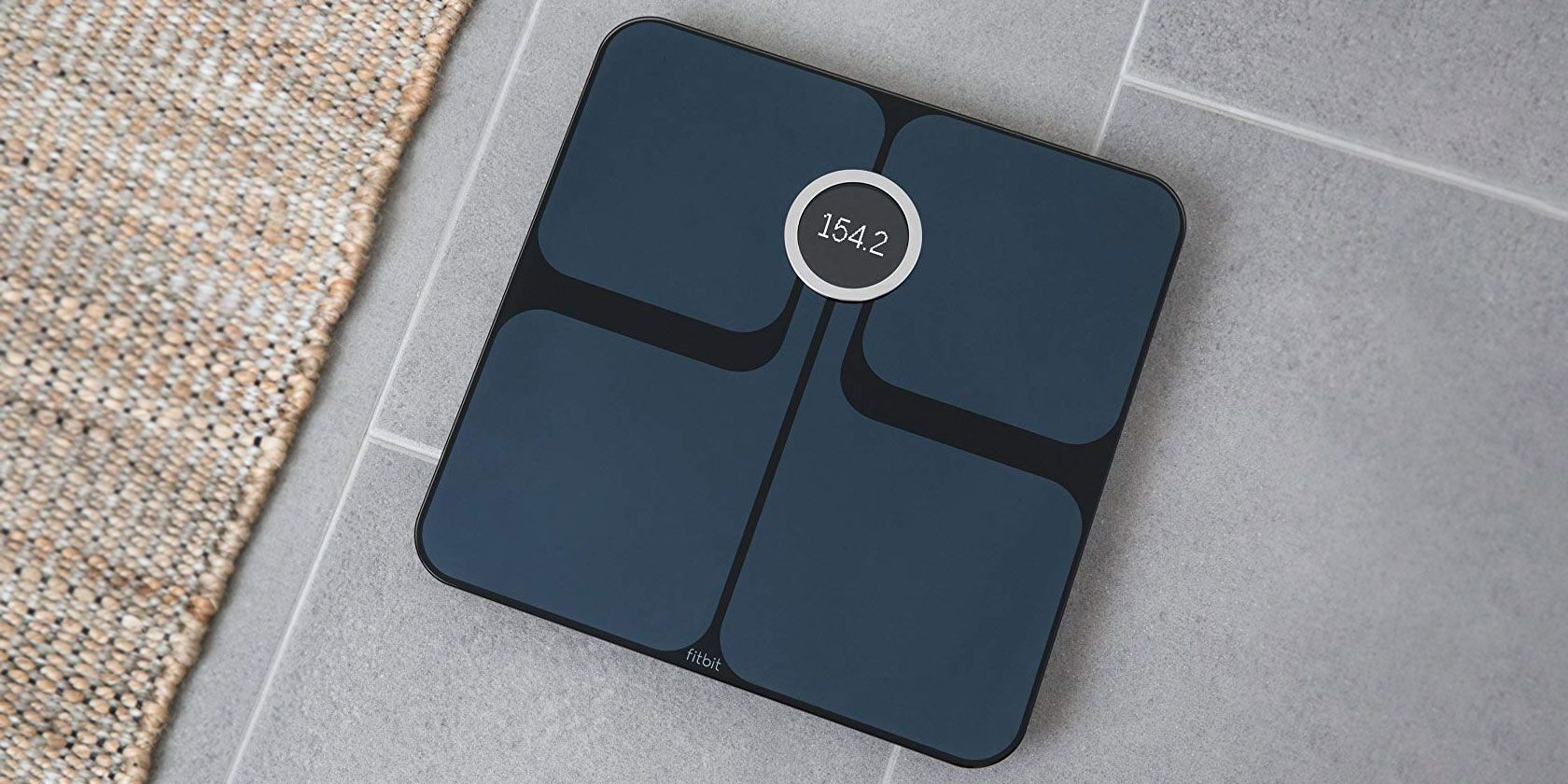
2. Fitbit Aria 2

Fitbit Aria 2 Fitbit Aria 2 Buy Now On Amazon $99.00

If you’re firmly a fan of Fitbit fitness trackers, make sure to take a look at the Fitbit Aria 2. The smart scale measures weight, body fat percentage, lean mass, and BMI. All of that information will sync to your Fitbit dashboard, and is viewable in the app and on the Fitbit website.

Thanks to the tight Fitbit integration, you can see precisely how your activity impacts weight. All of the information is shown in easy-to-understand graphs. When you reach a goal weight, you’ll earn achievement badges and share with friends through the app.

The scale takes power from three AA batteries. Up to eight different users are recognized using the Aria 2. You can select from a black or white version of the scale.

3. Withings Body+

Withings Body+ Withings Body+ Buy Now On Amazon $62.99

The Withings Body+ is another great scale to use with Apple Watch. You can view all of the information from the scale on the companion Withings Health Mate watch app. It also syncs with other major apps like Apple Health, Fitbit, and Google Fit. You can monitor body weight, body fat, water percentage, muscle mass, and bone mass.

Powered by four AAA batteries, the scale can go for up to 18 months before needing to switch the cells out. When stepping on the scale, you can view the daily weather forecast and see the previous day step count if you’re using a Withings activity tracker. Anyone with an Amazon Alexa device can also take advantage of a skill to find out about weight trends by day, week, or year with a simple voice command.

The scale, available in black or white, tracks the information of up to eight different users. There is also a pregnancy mode that offers additional insight and a baby mode for small children.

4. Garmin Index Smart Scale

Garmin Index Smart Scale Garmin Index Smart Scale Buy Now On Amazon $113.32

Another popular maker of fitness trackers, Garmin, has a smart scale that can be used within its own ecosystem. The Garmin Index Smart Scale measures a number of different metrics, including weight, body mass index, body fat, and skeletal muscle mass. The scale recognizes up to 16 different users.

You’ll use four AAA batteries for power that can last up to nine months. All of the information is available to view in the companion smartphone app or the Garmin Connect online account. You can select from either a black or white version of the scale.

5. Eufy BodySense Smart Scale

Eufy BodySense Smart Scale Eufy BodySense Smart Scale Buy Now On Amazon $29.99

The Eufy BodySense Smart Scale is one of the best smart scales for anyone on a budget. The scale can measure several different data points, including weight, body fat, BMI, bone mass, and muscle mass. The scale recognizes up to 16 unique users.

The recorded data is available to view in the companion app, too. All of the measurements can also sync with Apple Health, Google Fit, and Fitbit. The scale uses three AAA batteries for power.

6. iHealth Lite Wireless Smart Scale

iHealth Lite Wireless Smart Scale iHealth Lite Wireless Smart Scale Buy Now On Amazon $79.99

Your whole family can easily use the iHealth Lite Wireless Smart Scale. The scale can track measurements for up to 20 unique users. You can see both weight and BMI results in the companion app. The information can also sync to Apple Health and Samsung Health.

This makes the iHealth Lite among the best smart scales for Apple Health. An ambient light sensor will automatically adjust the LED screen so you can easily and clearly see the readings in any room. The scale takes power from four AAA batteries.

7. RENPHO Bluetooth Body Fat Scale

RENPHO Bluetooth Body Fat Scale RENPHO Bluetooth Body Fat Scale Buy Now On Amazon $22.99

The RENPHO Bluetooth Body Fat Scale can measure 13 different data points, including weight, BMI, body fat percentage, body age, muscle mass, and skeletal mass. Athletes can take advantage of a special mode that provides more accurate body composition information. The mode is also for anyone with above-average muscle mass and activity levels.

Along with the companion smartphone app, the scale can also sync with Apple Health, Samsung Health, and Google Fit. Apple Watch users can view the data on their wearable device thanks to the RENPHO app. You’ll use three AAA batteries for power, and the scale can track data from an unlimited amount of users.

The Best Smart Scales to Help Track Weight Loss

Using one of these smart scales, you can better track your weight loss and view different trends from all of the different information collected.

And using a smart scale is just one piece of technology that can help you become more fit. Make sure to take a look at our rundown of the best fitness trackers with heart rate monitoring as well.

Read the full article: The 7 Best Smart Scales of 2020


Read Full Article

What Does TBH Mean? It’s Not What You Might Think…


whats-tbh

“TBH” has been around for a long time, but what does TBH mean? Even if you know its original meaning, you may be unaware that this old term now has a couple of new meanings.

So, what does TBH mean, and what are the different ways of using it? In this article, we’ll explain all, helping you use the term correctly so you don’t embarrass yourself on social media.

What Does TBH Mean?.. “To Be Honest”

The most popular use of the initialism TBH is, “To Be Honest.” This explanation sounds simple enough, but its usage and meaning can change depending on what website you’re on.

How to Use “To Be Honest” As a Phrase

Using TBH as a phrase is the oldest and most traditional use of the initialism. There isn’t anything special about this term or any special rules for using it. This is what TBH means on Facebook, Snapchat, Twitter, in text messages, emails, and on forums. Whenever you’d type out the full phrase “to be honest,” you can instead replace it with “TBH”.

You’ll usually find this initialism at the start or end of a sentence. It can be typed in either lowercase or upper-case, or have the T capitalized at the beginning of the sentence. People rarely put dots between the letters, so don’t worry about doing that.

TBH’s primary use is to declare that a statement is coming from the honesty of the person speaking it. Its usage can range from snarky attacks to humble self-reflection. It can also be used jokingly when the poster isn’t genuinely being honest but uses the acronym for added comedic effect.

You can use this version of TBH anywhere you like. TBH is recognized internet-wide, from message boards to social media. If you’re typing something in a casual setting, feel free to drop a TBH, should the need arise.

TBH is very similar to the other internet term, “In My Opinion” (IMO). IMO can also be used at the beginning or end of a sentence to signal that the user is giving their honest opinion on a topic.

You may also see TBH’s close cousin “To Be Fair” (TBF) on social media posts or forums. This is when someone is giving an honest take that’s typically playing devil’s advocate to a statement or opinion.

How to Use “To Be Honest” As a Noun

An Instagram post offering a like for a TBH

If you venture onto Instagram, you’ll see that TBH takes on another meaning. Users will use TBH as if it were a noun; for example, “like for a tbh” or “I’ll give you a tbh.” So, what does TBH mean on Instagram?

On Instagram, TBH still keeps its meaning of “To Be Honest.” However, to “give a tbh” means to give an opinion on someone’s appearance or personality.

People will often post images that say “like for a tbh.” This means that whoever gives the picture a like will receive a compliment in return. When used for complimenting, TBH typically goes at the very start of the sentence (“tbh I love your hair”).

Some may argue that a TBH Instagram post goes against the true meaning of “To Be Honest,” as people are dissuaded from criticism. Some Instagram users, however, won’t give a TBH if they don’t have anything nice to say about the requester, which they believe is honest enough to fit the original meaning of TBH.

If a user is looking for something more genuine, they may ask for a “tbh and rate.” This is where the original poster rates the commenter out of 10, and gives them a first impression in the form of a TBH. Due to the scoring nature of this request, the TBH will be more honest than complimentary.

A brave user may ask for a “tbh, rate, and date.” This is the same as above, but the replier will also state if they’d date the person or not.

Instagram is full of terms related to the platform and the users who use it, and it can be confusing for a newcomer. Be sure to study up on the common Instagram terms everyone should know to understand what people mean.

What Does TBH Mean?.. “To Be Heard”

Some users also report that TBH stands for “to be heard.” It’s not as common as “to be honest,” but it can be found if you look hard enough.

In this instance, TBH is used to indicate a post of someone who wants to be heard. This can be a personal problem or an issue with the world that they want to bring up and receive recognition for.

However, this usage of TBH isn’t as well-known as the other two. As such, if you do use TBH to mean “to be heard,” you may confuse users who think it means “to be honest”. Which is something to bear in mind.

How to Understand Internet Lingo Better

TBH is an excellent example of how initialisms can grow and develop over time. While people mostly know that it means “to be honest,” not many know of its unique usage on Instagram or its alternate meaning of “to be heard”.

If reading your social media feed feels like you’re trying to crack the Enigma code, be sure to learn the trendy internet acronyms and slang words used across the internet.

Read the full article: What Does TBH Mean? It’s Not What You Might Think…


Read Full Article

5 Web Frameworks Worth Learning for Developers


frameworks-learn

As a web developer, you’re always on the lookout for ways to make coding easier. One way to do this is by using code libraries that eliminate repetitive code or give you more power.

You need to write a lot of code to develop a web app. The design, layout, server logic, and database all need to be coded. It takes a lot of work, but there are ways you can save time.

To code more effectively, you can turn to something known as a web framework. Here are five frameworks that will give your web apps more power.

What Is a Web Framework?

A web framework is a library of code that simplifies common tasks. Knowing when to use one can cut down on repetitive code when you’re writing an app. Writing repetitive code goes against some key programming principles and makes life difficult.

Using a framework is easy. Just choose a framework, install on your machine, and deploy it within your app. From there, write your app using all the code now available to you via the framework.

There are frameworks for front end and back end development, made with various programming languages.  Let’s take a look at some top picks, in no particular order.

1. Django (Python)

What Is Django?

Django is a framework in the incredibly popular Python language. This framework puts an emphasis on speed, security, and scalability.

Python developers get a boost on the back end with Django. If you’re comfortable with the language you’ll feel right at home. Python can do some pretty amazing things developing on the web, so there’s no shortage of benefits.

Benefits

Django first and foremost has the advantage of being written in Python. Many programmers in data science, machine learning, and software engineering are choosing Python. You can find a lot of resources to learn the language, which is well documented. Here are the best websites to learn Python and explore more.

Django creates an entire back end with one click. It lets you work with any front end language you want, which gives you some flexibility when you write your app. Documentation for Django is extensive and up-to-date.

Security features are built in to help you combat hacking. For example, you can:

  • Keep passwords safe
  • Protect your app from clickjacking attacks
  • Defend against SQL injection attacks

2. Ruby on Rails (Ruby)

Ruby On Rails Web Framework Web Development

What Is Ruby on Rails?

Ruby is normally used to develop computer programs, but Ruby on Rails came along and made it a great option for web development. You will need a basic grasp of Ruby to be successful with Rails. It’s not trendy, so an interactive guide to learning Ruby may help.

Ruby on Rails is a pretty heavy framework, which means it launches some pretty large file sizes. It lays the entire foundation for both the back end and the front end using the Model-View-Controller (MVC) pattern.

Benefits

Ruby on Rails is reliable and secure. Web apps like Hulu, GitHub, Square, and SoundCloud were built using Ruby on Rails. It’s able to handle the scale of these apps, so you can feel comfortable using this for your app as well.

It’s open-source with a robust community of developers pitching in to improve its features. Over 5,000 developers contribute, many of whom push updates regularly.

Ruby on Rails is a heavy framework, so it’s not right for every application. Simple web apps are better served with a lighter framework with smaller files. But if you’re building a full-scale app Rails can give you nearly everything you need.

3. React (JavaScript)

React Framework JavaScript for Web Developers

What Is React?

React is a JavaScript framework that became popular thanks to Facebook. It gives you new ways to write re-usable code in your front end layouts. React uses its own language known as JSX, and is used to build pieces of code called components. 

A React component is a reusable piece of code that can contain HTML, CSS, or JavaScript. You can build anything from small modules to entire HTML layouts inside of components. React can render, or display, these components on the web browser.

Benefits

Using components can eliminate repeated code as you build your app. Use JSX to create a user interface (UI) or layout in a  component, then call the component whenever you need it.

React is relatively fast thanks to the way it was designed. Normally, HTML and JavaScript are processed through the browsers document object model (DOM). React uses its own DOM to render elements, and then pushes them through to the browser DOM.

When you write code to make an update to the React DOM, it only updates the necessary information and does not try and update the entire DOM. This means a significant boost in speed.

React is easy to test using the React Testing Library or Jest.

4. ASP.NET Core

ASP.NET Core Framework for Web development

What Is ASP.NET Core?

Microsoft built ASP.NET to work as a complete Back End framework for their programming language C#. It can also run F# and Visual Basic but there are lots of reasons to use C#. Microsoft might make you think Windows, but ASP.NET Core works for macOS and Linux also.

ASP.NET Core is open-source and free to use. You can create web apps and mobile apps with ease. Developers who are used to programming using Microsoft’s stack will feel pretty comfortable.

Note: Microsoft currently supports both ASP.NET (their Windows framework) and ASP.NET Core (Windows/macOS/Linux). Their names are nearly identical, so download accordingly!

Benefits

ASP.NET Core is pushed by Microsoft because of its flexibility coding with any OS. You might be a developer that wants to use macOS for web development. Microsoft had to make a stack that was able to code outside of Windows, and they’ve done it with ASP.NET Core.

Visual Studio and Visual Studio Code work well with ASP.NET Core, so if you’re using those to write apps you have an advantage.

ASP.NET Core is updated several times a year by Microsoft to keep it secure. It has a strong ecosystem of packages, known as NuGet packages, to make coding quicker. It’s flexible on the front end, you can use frameworks like React or Angular with it.

5. Laravel (PHP)

PHP Laravel Web Framework

Why PHP?

Once a king of web development, PHP has fallen slightly out of favor in recent years and has an unfortunate reputation as an old language.

There’s still plenty of reason to use PHP. WordPress uses it, and if you maintain code for older apps you may run into PHP quite often. Developing new apps with PHP is also not uncommon; Laravel is a modern library that makes it easier.

Benefits

Laravel takes PHP and combines it with modern concepts like MVC architecture and object-oriented programming. You won’t encounter limits on building a full-scale PHP app. Security features are also built in to help keep your apps safe.

Perhaps the best thing about using Laravel is its vast ecosystem of tools and packages. You can find PHP tools to manage servers, test your app, Oauth authentication, debugging and more. All these are built by a community of developers to make Laravel more useful.

Learning More Web Development

Web frameworks are all about making life easier as a web developer. You can use any of these frameworks to get ahead, or perhaps take a look at some coding apps that make programming a little easier.

You’ll get even more out of these tools by continuing to learn about web development. Learn more about HTML, CSS, and JavaScript to get ahead. You can also check out some great tools that will upgrade your web development skills.

Read the full article: 5 Web Frameworks Worth Learning for Developers


Read Full Article