16 October 2019

Instagram will give you more control over your third-party apps…in about six months


Instagram is slowly rolling out a new feature that will help better protect your personal data from being accessed by your long discarded, third-party applications — that is, any app you had once authorized to access your Instagram profile over the years. This may include websites you used for printing your Instagram photos, various dating apps, or Instagram tools for making collages, finding your top photos, and more.

Providing a tool to remove third-party apps’ access to your account is now a fairly commonplace security setting among platform providers. Instagram is late to offer such functionality. Twitter, Facebook, and Google have had similar functionality in place for years.

And Instagram isn’t hurrying its launch, either.

The company says its new security features will take a whopping six months to reach all users, as it’s designed to be a gradual rollout. For comparison’s sake, most new features tend to roll out in days or sometimes weeks, but rarely as long as half a year.
Revoke access 1

The choice to move slowly is worth calling out here — especially, given that Instagram’s parent company Facebook’s massive personal data scandal, Cambridge Analytica, arose because users had connected to a third-party app that improperly collected users’ personal data.

Instagram, arguably, has less of a treasure trove of personal information on hand to tap into, compared with Facebook. But there’s still no need to let some app you used once, many years ago, to continue to access information like your Instagram username, your photos, all your captions, timestamps of your posts, permalinks, and more. And if you maintain a private account with the intention of only sharing your content with close friends and family, this level of access might make you even more uncomfortable.

While Instagram isn’t clear in its public announcement about its reasoning for such a slow rollout, it’s tied to API changes for developers. The company is giving developers time to move from the Instagram Legacy API Platform to the Facebook Graph API.

As the company explains in a developer announcement, the new API will enable “appropriate consumer use-cases, while protecting user privacy and safety” — including giving users the ability to decide what information they share with apps, then revoke access through the Instagram mobile app. The legacy API platform will be deprecated on March 2, 2020.

It would have made sense for Instagram to communicate to users that the gradual rollout is because it’s giving developers time to get their apps ready for these changes. But because it didn’t mention this, the news of the slow rollout comes across as Instagram not believing such a feature is a priority or important to users.

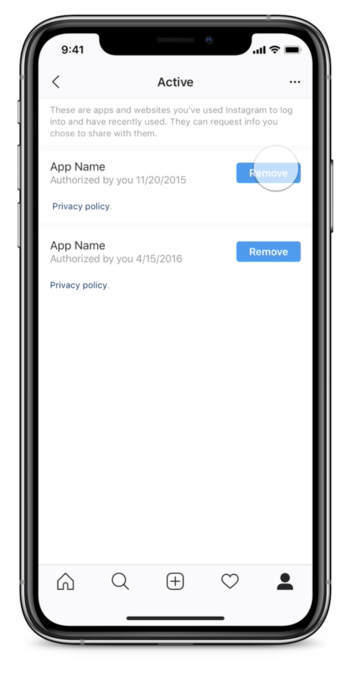
If you have the new security setting, you’ll find it under “Settings” in the Instagram app. It will be under “Security,” then “Apps and Websites.” From this screen, you can tap “Remove” on any apps you don’t want connected to your Instagram account.

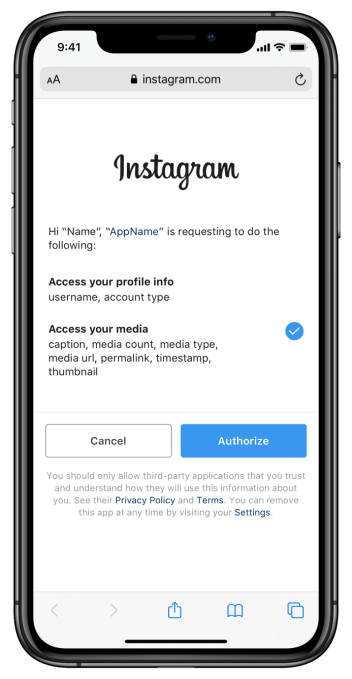
Related to this, Instagram says it’s also introducing an updated authorization screen that will detail all the information an app is requesting when you go to authorize it to connect to your Instagram account. If you think it’s over-reaching, you can just choose “Cancel” instead of “Authorize.”
Authorize Access

If you don’t have the new features now, just wait until sometime in 2020, I guess.


Read Full Article

The Analogue Pocket might be the perfect portable video game system


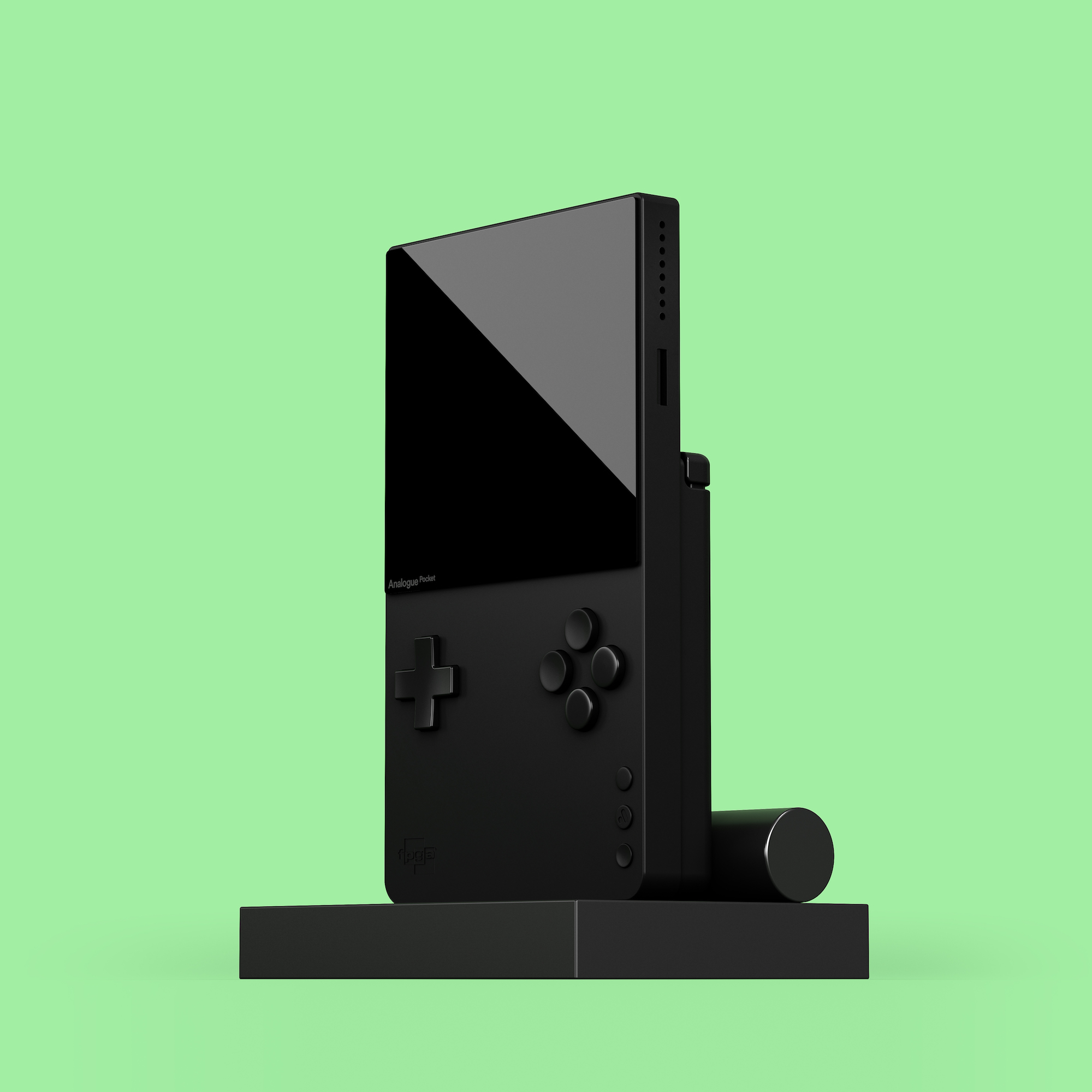
Very few modern tech companies have executed on their mission as consistently, and at such a high level of quality as Analogue. Analogue’s obsessively engineered modern consoles for old-school physical cartridge video games are museum-quality hardware design, housing specially tuned processors that offer pitch- and pixel-perfect play of all NES, Sega Genesis, SNES and other retro console games on modern HD TVs – and their new $199 Analogue Pocket aims to provide the best way to play classic portable console titles in similar high fidelity.

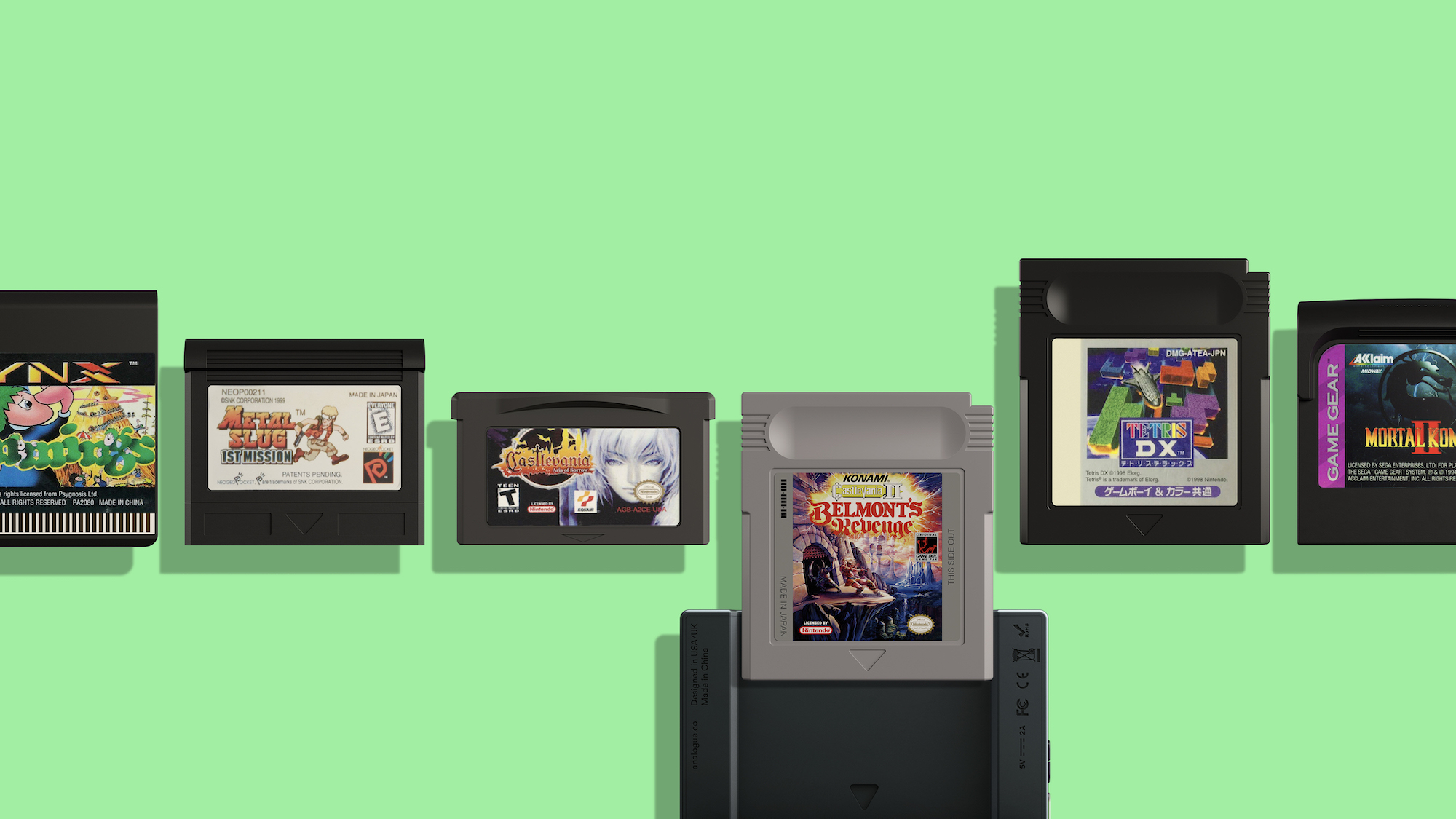
The Analogue Pocket is a portable gaming console that can play the entire library of Game Boy, Game Boy Color and Game Boy Advance games out of the box – natively, without emulation, so that the gaming experience is exactly as you remember it (or as it was intended, if this is your first experience with these classic titles). That’s not all, though: Using cartridge adapters, the Analogue Pocket can support Game Gear, Neo Geo Pocket Color, Atari Lynx and other games, too.

4 Analogue Pocket All

It uses two FPGAs (Field Programmable Gate Arrays) which are processors that have been programmed specifically to play these games back as they were originally intended, mimicking the the operation of the original silicon found in the consoles that these games were designed for with the faithfulness of true restoration hardware. The result is a great gaming experience that will feel like the original – but played on the Analogue Pocket’s much more impressive hardware, which offers a 3.5-inch, 1600×1440 LCD display that provides a very high-resolution 615 ppi. For those keeping tracks that’s ten times the resolution of the original Game Boy display. And it’s color tuned for amazing color rendering and brightness – it could actually be the best display on a dedicated gaming device, period, let alone for a retro console.

The Analogue Pocket also works with an accessory called the Analogue Dock (sold separately, pricing TBD), which adds HDMI out and Bluetooth/wired controller support, to turn the Pocket into a home console for your big screen TV, too. The dock offers two standard USB ports for wired controllers, and its Bluetooth support works with any of 8Bitdo’s excellent gamepads. It’s basically a Switch but for all your favorite Game Boy series games, and with what looks like much better quality hardware.

6 Analogue Dock

That would be plenty to offer in a portable console, but the Analogue Pocket is designed to do still more. It has a built-in synthesizer and sequencer for making digital music, and the second FPGA it’s packing is designed to be used specifically for development. It allows the development community to bring their own cores to the platform, which means it could potentially support a whole host of classic and ported games in future.

Analogue Pocket is set to release some time in 2020, with a more specific date to be announced later on. It’s a natural next step for the company that delivered excellent gaming experiences via the Nt Mini, the Super Nt and the Mega Sg, but it’s still a nice, exciting surprise to find out that they’re tackling the rich history of mobile gaming next.

[gallery ids="1898038,1898039,1898040,1898041,1898042,1898043,1898044,1898045,1898046,1898047,1898048,1898049,1898050,1898051"]


Read Full Article

UK quietly ditches porn age checks in favor of wider online harms rules


A controversial UK government scheme to introduce mandatary age checks for accessing online pornography has been dropped — for now.

Introduction of the measure, which was intended to protect children from accessing inappropriate content online, had already been delayed by several months this year, most recently after a bureaucratic oversight.

The reason given for ditching the plan now is the government says it has decided it no longer makes sense to introduce the age check provision at this stage — given wider plans to introduce comprehensive legislation to regulate a range of online harms, as set out in the Online Harms white paper earlier this year.

The news that age checks for accessing porn were being ditched dropped quietly, via a written statement from secretary of state for digital, Nicky Morgan, today.

“Since the White Paper’s publication, the government’s proposals have continued to develop at pace. The government announced as part of the Queen’s Speech that we will publish draft legislation for pre-legislative scrutiny. It is important that our policy aims and our overall policy on protecting children from online harms are developed coherently in view of these developments with the aim of bringing forward the most comprehensive approach possible to protecting children,” she writes.

“The government has concluded that this objective of coherence will be best achieved through our wider online harms proposals and, as a consequence, will not be commencing Part 3 of the Digital Economy Act 2017 concerning age verification for online pornography. The Digital Economy Act [DEA] objectives will therefore be delivered through our proposed online harms regulatory regime. This course of action will give the regulator discretion on the most effective means for companies to meet their duty of care. As currently drafted, the Digital Economy Act does not cover social media platforms.”

A spokesman for the Department for Digital, Culture, Media and Sport confirmed the intention is to incorporate the objectives of Part 3 of the DEA into comprehensive online harms regulation that will place a duty of care on platforms to protect users from a range of harmful content. Including in the case of inappropriate material being accessed by children.

The spokesman could not give a timeframe for such a provision making it into law now in light of the change of plans. But given how much government and parliamentary time continues being consumed by the brexit process there is no realistic chance of online porn age checks making it onto the UK’s statute books this year.

Getting agreement on comprehensive regulation of online harms is also unlikely to prove any less controversial. So the timeframe for passing a broader law could be a long one — ergo, it looks safe to assume regulations for accessing online porn are being booted into 2020 at least.

In terms of where it’s at with the wider online harms plan, a consultation on the White Paper was concluded in July, per the DCMS spokesman, who said the government will be publishing its response in the coming months. The intent is to introduce a draft bill this session and pass legislation as soon as possible, he added.


Read Full Article

Live Caption, Google’s automatic captioning technology, is now available on Pixel 4


Live Caption, Google’s automatic captioning system first introduced at its I/O developer conference this May, is now officially available, alongside the launch of the new Pixel 4. But unlike some of the other technologies highlighted at the company’s Pixel hardware event yesterday, Live Caption won’t be limited to Google’s new smartphone alone. After the initial debut on Pixel 4, the automatic captioning technology will roll out to Pixel 3, Pixel 3 XL, Pixel 3a and Pixel 3a XL before the year-end, says Google, and will become more broadly available in 2020.

The company has already offered automatic captions on YouTube for a decade, but that same sort of experience isn’t available across the wider web and mobile devices. For example, Google explains, you can’t read captions for things like the audio messages sent by your friends, on trending videos published elsewhere on social media, and on the content you record yourself.

There’s a significant accessibility issue with the lack of captions in all these places, but there’s a convenience issue, as well.

If you’re in a loud environment, like a commuter train, or trying to watch content privately and forgot your headphones, you may need to just use the captions. Or maybe you don’t want to blare the audio, which disturbs others around you. Or perhaps, you want to see the words appear because you’re having trouble understanding the audio, or just want to be sure to catch every word.

With the launch of the Pixel 4, Live Caption is also available for the first time to the general public.

The technology will capture and automatically caption videos and spoken audio on your device, except for phone and video calls. This captioning all happens in real-time and on your device — not in the cloud. That means it works even if your device lacks a cell signal or access to Wi-Fi. The captions also stay private and don’t leave your phone.

Google Live Caption UIDemo720 16MB

This is similar to how the Pixel 4’s new Recorder app functions. It, too, will do its speech-to-text processing all on your device, in order to give you real-time transcriptions of your meetings, interviews, lectures, or anything else you want to record, without compromising your privacy.

You can launch the Live Captions feature with a tap from the volume slider that appears, then reposition the caption box anything on your screen so it doesn’t get in the way of what you’re viewing.

Currently, the feature supports English only. But Google says it’s working to add more languages in the future.

After today’s launch on Pixel 4 and the rollout to the rest of the modern Pixel line of smartphones this year, it will start to show up in other new Android phones. Google says it’s working with other manufacturers to make the technology available to more people as soon as next year.


Read Full Article

Live Caption, Google’s automatic captioning technology, is now available on Pixel 4


Live Caption, Google’s automatic captioning system first introduced at its I/O developer conference this May, is now officially available, alongside the launch of the new Pixel 4. But unlike some of the other technologies highlighted at the company’s Pixel hardware event yesterday, Live Caption won’t be limited to Google’s new smartphone alone. After the initial debut on Pixel 4, the automatic captioning technology will roll out to Pixel 3, Pixel 3 XL, Pixel 3a and Pixel 3a XL before the year-end, says Google, and will become more broadly available in 2020.

The company has already offered automatic captions on YouTube for a decade, but that same sort of experience isn’t available across the wider web and mobile devices. For example, Google explains, you can’t read captions for things like the audio messages sent by your friends, on trending videos published elsewhere on social media, and on the content you record yourself.

There’s a significant accessibility issue with the lack of captions in all these places, but there’s a convenience issue, as well.

If you’re in a loud environment, like a commuter train, or trying to watch content privately and forgot your headphones, you may need to just use the captions. Or maybe you don’t want to blare the audio, which disturbs others around you. Or perhaps, you want to see the words appear because you’re having trouble understanding the audio, or just want to be sure to catch every word.

With the launch of the Pixel 4, Live Caption is also available. The technology will capture and automatically caption videos and spoken audio on your device, except for phone and video calls. This captioning all happens in real-time and on your device — not in the cloud. That means it works even if your device lacks a cell signal or access to Wi-Fi. The captions also stay private and don’t leave your phone.

Google Live Caption UIDemo720 16MB

This is similar to how the Pixel 4’s new Recorder app functions. It, too, will do its speech-to-text processing all on your device, in order give you real-time transcriptions of your meetings, interviews, lectures, or anything else you want to record, without compromising your privacy.

You can launch the Live Captions feature with a tap from the volume slider that appears, then reposition the caption box anything on your screen so it doesn’t get in the way of what you’re viewing.

Currently, the feature supports English only. But Google says it’s working to add more languages in the future.

After today’s launch on Pixel 4 and the roll out to the rest of the modern Pixel line of smartphones this year, it will start to show up in other new Android phones in the future. Google says it’s working with other manufacturers to make the technology available next year to more people.


Read Full Article
Amazon Kindle for Kids, Improve Mac Gaming, Boot Windows 10 in Safe Mode


macos-gaming-performance

The tech podcast for technophobes is back with news of the Amazon Kindle for kids, how to maximise gaming on a Mac, and tips for booting your Windows 10 PC into Safe Mode. Plus we take a look at some cash back apps, text adventures you can play in your browser, and Google Maps’ new voice guidance feature for visually impaired people.

Oh and there’s news of Christian’s Samsung tablet repair.

Really Useful Podcast Season 4 Episode 7 Shownotes

In this week’s show, we bring you:

Help us reach and help more people by subscribing, reviewing, and even sharing the Really Useful Podcast. You’ll find us anywhere you can listen to podcasts, as well as:

Come back next week for another Really Useful Podcast!

Read the full article: Amazon Kindle for Kids, Improve Mac Gaming, Boot Windows 10 in Safe Mode


Read Full Article

The 11 Best Samsung Galaxy Watch Apps (Formerly Samsung Gear)


samsung-gear-apps-secret-agent

Most people grew up enjoying stories about secret agents and their wide range of futuristic gadgets. Smartwatches like Samsung’s Galaxy Watch line (formerly known as Samsung Gear) bring us closer to making them a reality.

Powered by high-end hardware, Samsung’s Galaxy watches let you perform many tasks, such as calling a ride, right from your wrist. But you can do a lot more with your wearable.

Here are the best Galaxy Watch apps and faces that will make you feel like a secret agent. To install them, search for the app name on the Galaxy App Store store and hit Install.

Download: Galaxy Wearable for Android | iOS (Free)

1. Camera One

Control phone camera with Galaxy Watch

Camera One is one of the best apps for the Samsung Galaxy Watch. It lets you control your phone’s camera from your smartwatch.

The app shows a live preview of what the camera sees and offers a range of controls. You can snap a picture, record videos, adjust the flash setting, zoom in or out, and set a timer.

On the smartwatch app, you have options for editing the image and video quality. Camera One functions through a separate companion app installed on your phone, after granting the necessary permissions.

Since Camera One has direct access to the camera, you don’t have to keep your default camera app active (or even have your phone screen turned on) for it to work. Thanks to this, you can utilize Camera One for surveillance by remotely operating your device’s camera.

2. Voice Memo

Record voice memos on Galaxy Watch

Samsung’s Voice Memo app allows you to take audio notes on the fly. Since these smartwatches house a microphone, you can simply raise them to your mouth and secretly record your thoughts without ever picking up your phone.

In addition, Galaxy watches have some amount of internal storage. Thus, you can use Voice Memos even if the watch is not connected to your phone. The app will save the recordings locally and when you later reconnect it with your phone, it will transfer the files over.

3. Bixby

Talk to Bixby on Galaxy Watch

No undercover spy is complete without a reliable assistant. Your Galaxy Watch has one named Bixby.

For the uninitiated, Bixby is Samsung’s virtual assistant. You can ask it to message someone, show the weather, set a reminder, control a smart appliance, and much more. Bixby can also fetch your health stats and start workouts. The voice assistant always stays on the lookout for the wake command: “Hey, Bixby.”

Bixby requires an internet connection to answer your queries. So you must either connect your watch to Wi-Fi, or pair it with an online phone.

4. SmartThings

Your Galaxy smartwatch supports Samsung’s SmartThings smart home platform. Hence, if you own a SmartThings-compatible device like a washing machine or air conditioner, you can control it directly from your watch.

There’s no setup process either. Since both your appliances and watch are already linked to your Samsung account, all you need to do is install the SmartThings app.

5. Find My Car

log parking location with Galaxy watch

As a secret agent, you have to park your high-tech vehicle in covert places to avoid having it spotted and taken by the enemy. Your Galaxy watch can remember those complex locations for you.

Samsung has a Find My Car app that logs your parking locations and guides you to them if you forget. It lets you record where you left your car, along with a voice memo and picture. The watch app shows you the exact position on a map and how far you are from your vehicle.

6. SpyFinger

Fingerprint prank on Galaxy watch

SpyFinger is a prank app for fooling your friends into believing the watch’s screen doubles as a fingerprint sensor.

Once you launch SpyFinger, it puts a giant, interactive fingerprint graphic on your watch. When someone presses their finger on the display, the app renders a scanning animation for a second and throws a “rejected” message every time.

The only way to produce an “accepted” animation is through a predefined trick. You have to first tap the screen three or more times and then scan your fingerprint. Amaze your friends with your high-tech spy gadgetry!

7. Yandex Translate

Translate languages on Galaxy watch

An adept spy has to converse in multiple tongues to gather intel from sources all across the globe. The Galaxy Watch can help out if you’re still learning, however.

An app titled Yandex Translate can translate a handful of languages like English, Turkish, and Russian on the watch. It allows you to speak a foreign phrase you’re not familiar with and view the translation on-screen.

8. Wrist Flashlight

Undercover agents often find themselves in a dark (possibly underground) spaces while unearthing secrets.

An app named Wrist Flashlight is just what you need in those scenarios. It lights up the screen to its maximum capacity with a white background. You have the option to adjust the brightness level and color, if needed.

Watch Faces

No discussion of the best Samsung Watch Apps would be complete without mentioning watch faces. These are another way you can feel like a secret agent when wearing a Samsung Galaxy smartwatch.

You’ll find a range of options on the store that look like they’re right out of a spy movie.

9. Radar Watch Face

Radar watch face on Galaxy watch

This watch face resembles an active radar keeping tabs on your foe’s movements. It features a vintage green dial and replaces traditional hour and minute hands with icons of a ship and airplane. The second hand is used to depict the radar’s signals and your relative position.

10. 2000 Satellite

A watch face called 2000 Satellite makes it seem like you are remotely steering an airplane. Its design is dominated by a plane’s outline, the borders of which you can configure as either white or red.

The jet’s head points to the minute and the hour is displayed inside a circle at its tip. Plus, the watch face has widgets for step count and battery level.

11. Luxurious Faces

Watches worn by most modern fictional agents like James Bond and Ethan Hunt look like regular, classy timepieces at first glance. Inside, however, they pack a vast gamut of high-tech abilities. Similarly, you can camouflage your smartwatch under a sophisticated watch face. Browse such designs by searching for keywords like “luxury” or “classy.”

For more options, check out some of the many watch faces that can transform your Samsung Galaxy smartwatch.

Make the Most Out of Your Samsung Galaxy Smartwatch

These Samsung Galaxy Watch and Samsung Gear apps will surely satisfy your younger self who always wanted to become a secret agent. Apart from this, you have many other ways to use your Samsung Galaxy smartwatch to its full potential.

Check out our tricks and tips to get the most out of your Samsung Galaxy smartwatch to go further with the device.

Read the full article: The 11 Best Samsung Galaxy Watch Apps (Formerly Samsung Gear)


Read Full Article

How to Move Installed Apps & Programs in Windows 10


move-apps-windows-10

If you’ve got a lot of apps and programs installed on your Windows 10 system, you might want to move them to another drive to free up space. It may also be necessary to change your default install location. Happily, all of these things are possible.

Windows has a built-in utility that allows you to move modern apps to a location of your choice. Although this method doesn’t work for traditional desktop programs, it’s still possible to move these programs to another drive.

Let us show you how to move an app or program to another drive.

How to Move Apps & Programs to Another Drive

It’s quick to move most of the native Windows apps, but the process of moving anything else will require additional work. First, we’ll outline the process for Microsoft Store apps, then we will take a look at traditional desktop programs.

Modern Apps

Press Windows key + I to bring up the Settings menu and click Apps. You should be on the Apps & features page of the left-hand navigation.

Here you will find a list of all apps and programs installed on your system. Some of these apps might have come with your system, the others you installed yourself. This method will only work with the latter group.

move apps

Scroll to the app that you want to move and select it from the list. Now, click Move. Select the new drive location from the dropdown, then click Move again.

You can repeat the process if you ever want to move the app back or to a different drive.

If the Move button is greyed out, it means it’s a Windows 10 app that can’t be moved. If you see a Modify button instead, it’s a traditional desktop program and you’ll need to follow the method outlined below.

Desktop Programs

Microsoft doesn’t recommend moving the file location of installed programs because it can cause issues, like the program ceasing to run. A safer (though less efficient) method is to uninstall the program and then just reinstall it to your desired drive.

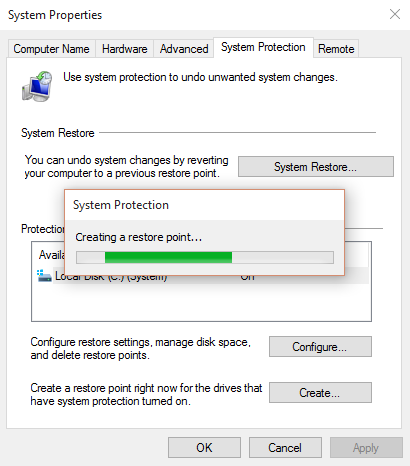
If you do want to proceed, create a restore point so you can reverse the changes, if anything goes wrong.

We recommend using a program called Steam Mover. This was originally designed to move Steam games between drives, but will actually work on any program. You can use it to move programs from your HDD to SSD, for example.

Note that any drive you want to use with this program, whether it’s where the installed program currently sits or where you want it moved to, needs to be in the NTFS format. You can check this by loading File Explorer and then clicking This PC from the left-hand navigation. Now, right-click a drive and select Properties. Refer to the File system to see if it’s using NTFS.

local disc properties

Open Steam Mover. First, select the button next to Steam Apps Common Folder to select the folder path which contains the program you want to move (for example, your Program Files). Now, select the button next to Alternative Folder and select the folder path where you want to move the program to.

steam mover

Next, select the program from the list that you want to move. You can select multiple programs by holding CTRL as you click. When ready to move, click the blue right arrow at the bottom to begin. Command Prompt will open and process the move. When complete, you’ll see the new folder path next to the program in the Junction Point column.

How to Change the Default Install Location

If you just want to change the default install location for apps, that’s simple. Changing it for standard programs is a bit more complicated.

Modern Apps

Press the Windows key + I to bring up the Settings menu. From here, click System and then select Storage from the left-hand menu.

Underneath the More storage settings heading, click Change where new content is saved. To change the default drive for new apps, use the New apps will save to: dropdown.

app save locations

You will notice that this page also allows you to change the default location of things like documents, music, and pictures.

Desktop Programs

Microsoft doesn’t recommend changing the default install path for programs. Doing so could cause problems with existing programs and some Windows features. It’s best to perform this operation on a clean system. If that’s not suitable, create a restore point so that you can roll back if necessary.

The majority of programs will let you change the install path when installing them, which might be a better solution than fiddling with the system.

Create a restore point before you move any app

If you do want to proceed, we recommend a program called Install Dir Changer. Download it from SourceForge and then run the program.

Once the program has opened, click Enable Editing and then click Yes when the User Account Control window pops up. You’ll now be able to select a default install path, using the … button to browse to a folder path if necessary.

install dir changer

Program Files is where 64-bit applications will be installed and Program Files (x86) is for 32-bit applications. If you’re not sure what that means, read our guide for the difference between the 32- and 64-bit versions of Windows. But you’ll probably want both of them on the same drive anyway.

Once you’ve selected your new path, click Apply Changes. Now all new programs you install will default to these folder paths.

Clean Up Your Drive

Now that you know how to move your apps and programs and how to change their default install location, you can free up space on your drives. But remember to take all precautions when using the third-party programs.

And if you want to salvage even more disk space, consider deleting old Windows files and folders. Along with having moved your programs to another drive, you’ll have a superbly organized drive.

Read the full article: How to Move Installed Apps & Programs in Windows 10


Read Full Article

15 October 2019

Google aims to change the definition of good photography with Pixel 4’s software-defined camera


Google’s new Pixel 4 camera offers a ton of new tricks to improve its photographic chops, and to emphasize the point, it had Professor Mark Levoy, who leads camera technology development at Google Research, up on stage to talk about the Pixel 4’s many improvements, including its new telephoto lens, updated Super Res Zoom technology and Live HDR+ preview.

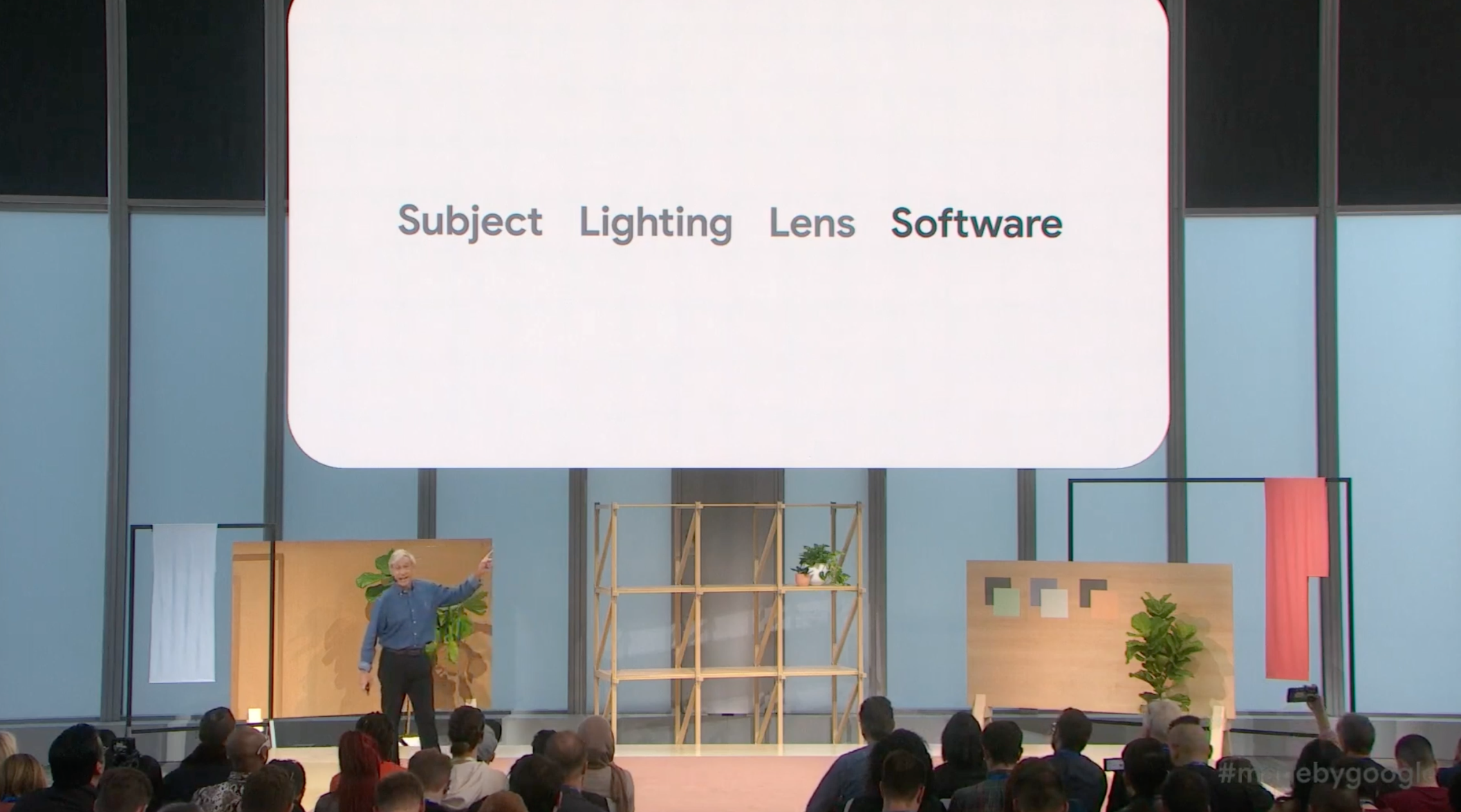
Subject, Lighting, Lens, Software

Levoy started by addressing the oft-cited saying among photographers that what’s most important to a good photo is first subject, then lighting and followed after that by your hardware: ie., your lens and camera body. He said that he and his team believe that there’s a different equation at play now, which replaces that camera body component with something else: Software.

Screen Shot 2019 10 15 at 10.59.55 AM

Lens is still important in the equation, he said, and the Pixel 4 represents that with the addition of a telephoto lens to the existing wide angle hardware lens it offers. Levoy also offered the opinion that a telephoto is more useful generally than a wide angle, clearly a dig at Apple’s addition of an ultra-wide angle hardware lens to its latest iPhone 11 Pro models.

Google Pixel 4 Camera

In this context, that means Google’s celebrated “computational photography” approach to its Pixel camera tech, which handles a lot of the heavy lifting involved when it takes a photo from a small sensor, which tend to be bad, and turns that into something pretty amazing.

Levoy said that he calls their approach a “software-defined camera,” which most of the time just means capturing multiple photos, and combining data from each in order to produce a better, single final picture.

Screen Shot 2019 10 15 at 11.07.56 AM

What’s new for Pixel 4

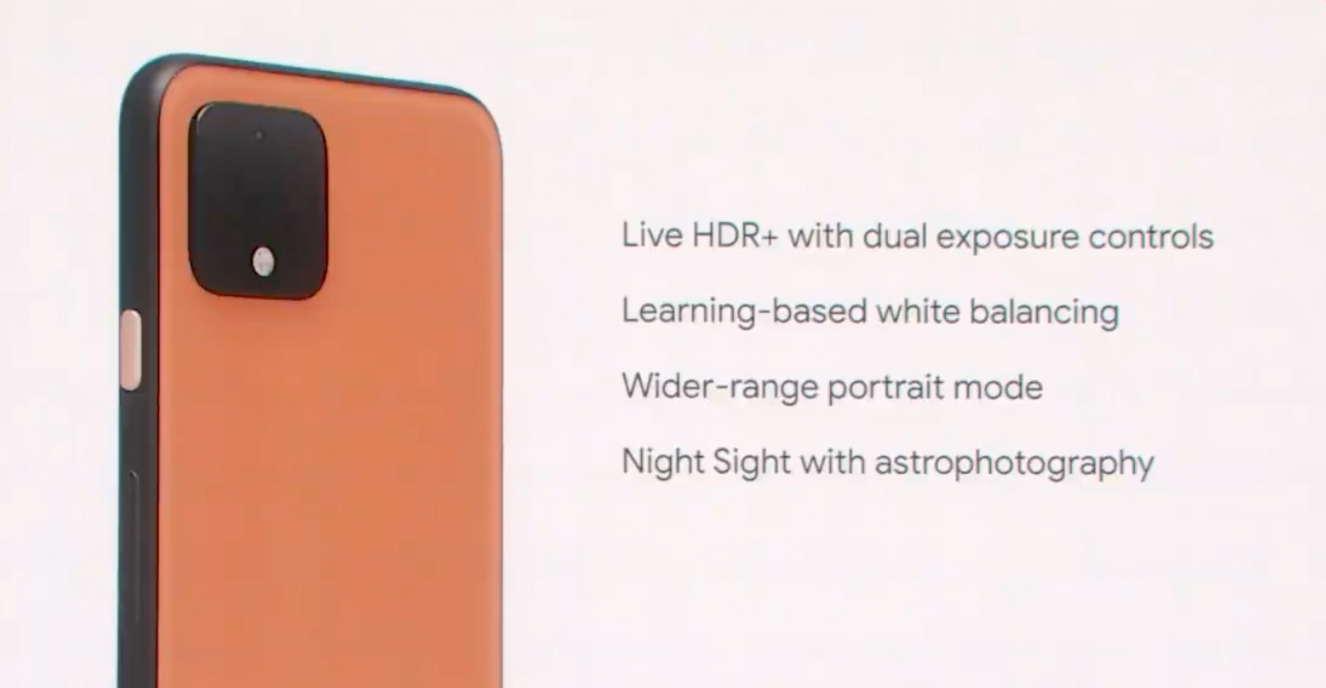
There are four new features for the Pixel 4 phone powered by computational photography, which include Live HDR with dual exposure controls, which shows you a real-time image of what the final photo will look like with the HDR treatment applied, instead of just giving you a very different looking final shot. It also bakes in exposure controls that allow you to adjust the highlights and shadows in the image on the fly, which is useful if you want bolder highlights or silhouettes from shadows, for instance.

Also new is “Learning-based white balance,” which addresses the tricky issue of getting your white balance correct. Levoy said that Google has been using this approach in white-balancing night sight photos since the introduction of that feature with Pixel 3, but now it’s bringing it to all photo modes. The result is cooler colors, and particularly in tricky lighting situations when whites tend to be incorrectly exposed as orange or yellow.

Screen Shot 2019 10 15 at 11.02.01 AM

The new wide-range portrait mode makes use of info from both the dual-pixel imaging sensors that Pixel 4 uses, as well as the new second lens to derive more depth data and provide an expanded, more accurate portrait mode to separate the subject from the background. It now works  on large objects and portraits where the person in focus is standing further back, and it provides better bokeh shape (the shape of the defocused elements int eh background) and better definition of strands of hair and fur, which has always been tricky for software background blur.

Lastly, Night Sight mode gets overall improvements, as well as a new astral photography mode specifically for capturing the night sky and star fields. The astral mode provides great looking night sky images with exposure times that run multiple minutes, but all with automatic settings and computational algorithms that sort out issues like stars moving during that time.

google pixel 4 sample images

Still more to come

Google wanted to emphasize the point that this is a camera that can overcome a lot of the problems faced typically by small sensors, and it brought out heavyweight photography legend Annie Lebowitz to do just that. She showed some of the photos she’s been capturing both with Pixel 3 and Pixel 4, and they did indeed look great, although the view from the feed doesn’t say quite as much as would print versions of the final photos.

[gallery ids="1897442,1897441,1897440"]

Levoy also said that they plan to improve the camera over time via software updates, so this is just the start for Pixel 4. Based on what we saw on stage, it definitely looks like a step-up from the already excellent Pixel 3, but we’ll need more time hand-on to see what it does compared to Apple’s much-improved iPhone 11 camera.


Read Full Article

Google’s Pixel 4 ships October 24, starting at $799


The rumors and leaks have been pretty relentless. In fact, over the past three days, the Pixel 4 and Pixel 4 XL have gone up for preorder on at least two different sites. While it’s true that Google’s never been particularly great at keeping this stuff under wraps, this was pretty silly.

Anyway, the Pixel 4 is finally official, and it’s basically exactly what we were expecting from this year’s Google flagship. The device now features face unlock, another addition that brings Pixels in line with the competition, though Google claims it’s the fastest available. Using a new radar chip, the device is able to start the unlock when you reach for the phone and then fully unlock when it sees your face.

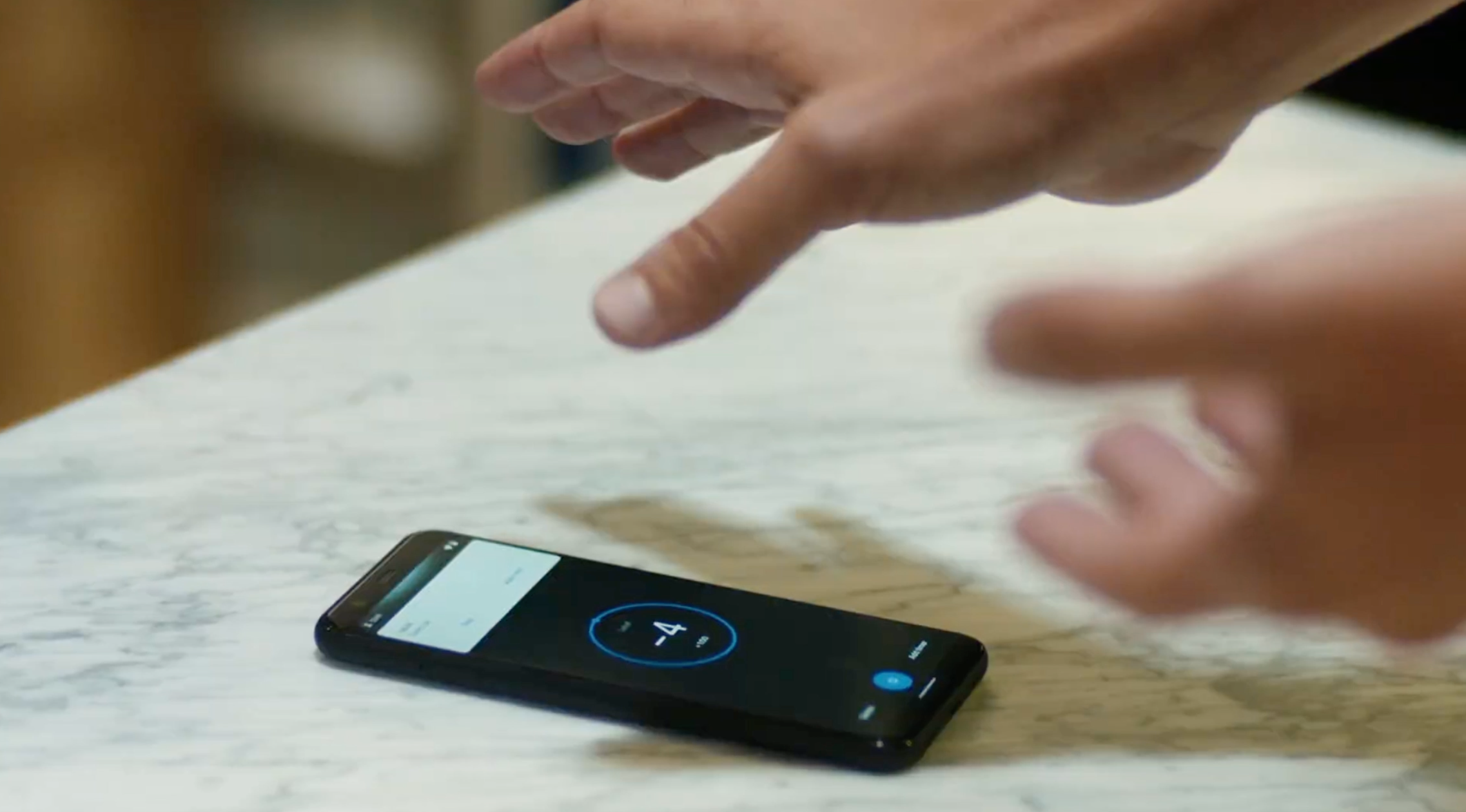
Radar also gives the device gesture recognition, via Motion Sense The concept is similar to what you’ll find on other Android handsets, but it’s significantly more sophisticated, distinguishing accidental gestures from intentional ones Use these, this can do things like skipping songs, turn the screen on and wave to your animated Pikachu wallpaper (actual example). All of the processing is done on device and users can turn it off for privacy.

Google Pixel 4 Soli

The 4 maintains the familiar Active Edge squeeze, which launches a newly upgraded Google Assistant. As rumored, there’s a new recording app, which is capable of transcribing conversations in real-time. From the demo, at least, the feature is pretty impressive, with a more accurate transcript than I’ve seen from most AI software. Interestingly, it all works on-device, meaning that you can use it in airplane mode — and that that conversations aren’t automatically uploaded to the cloud.

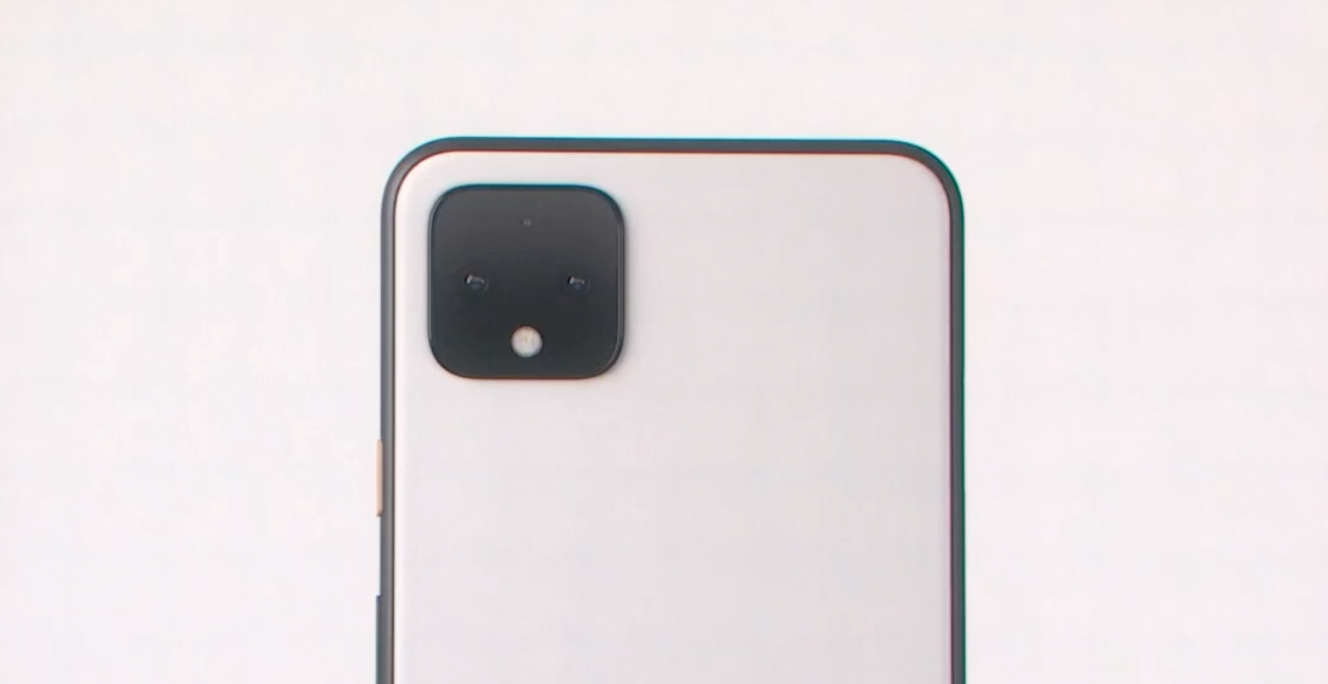
The company finally embracing a multi-camera set up on the back of the device. Google had been one of the few holdouts on that front, instead insisting that its AI/ML was perfectly capable of producing shots as good as any multi-camera setup.

Google Pixel 4 Camera

And while it’s true Google’s managed to get a pretty solid camera with this combo, the Pixel 4 gets a pair of cameras on the back, in the iPhone 11-esque square camera array. There’s a wide angle and telephoto14- and 16-megapixel on the back. That, when coupled with the computational photography Google has been pushing for a number of years now ought to make this a solid competitor. 

The camera utilizes a combination of optical and digital zoom (Super-res Zoom) to take some pretty impressive close up shots. It also looks to be pretty impressive on low light shots, improving on earlier Night Sight offerings. Live HDR+, meanwhile, is able to approximate final HDR shots in real time to give users a better idea of what the final photo will look like.

Google Pixel 4

Dual Exposure controls, meanwhile, give users more direct controls over brightness and shadow, and thus more control over HDR. White balance gets a bump using AI training. Learning based light balance is adopted from Night Sight and now available on all photos to get more realistic shots. Night Sight gets a bump as well, and is now capable of taking better shots of things like a starry sky using long exposure times.

Machine learning is also being used to calculate depth in real-time, so users can get a broader depth of field with subjects at different distances. Oh, and Annie Leibovitz is a fan, apparently. Arguably the world’s most famous photographer has been taking the phone for a spin, shooting an impressive series of portraits on the new handset. The results are pretty stunning — and very iconically hers.

“What’s great about the camera phone,” Leibovitz said, “it’s a brand new language, and it’s really great this is for everyone to use.”

[gallery ids="1897405,1897404,1897401,1897399,1897400"]

As with its predecessors, the Pixel 4 comes in both a standard and XL version, at 5.7 (full HD+) and 6.3 inches (Quad HD+), respectively. The Pixel 4 XL got an A+ from Display Mate, according to the company, thanks in part to the addition of a 90MHZ refresh rate.

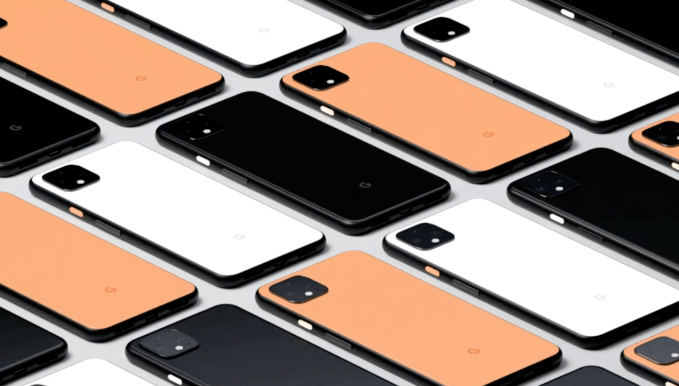
The handset is up for pre-order, starting at $799. It starts shipping October 24 in Just Black, Clearly White and the new/limited edition Oh So Orange.


Read Full Article
Here’s everything Google just announced at the Made By Google 2019 event
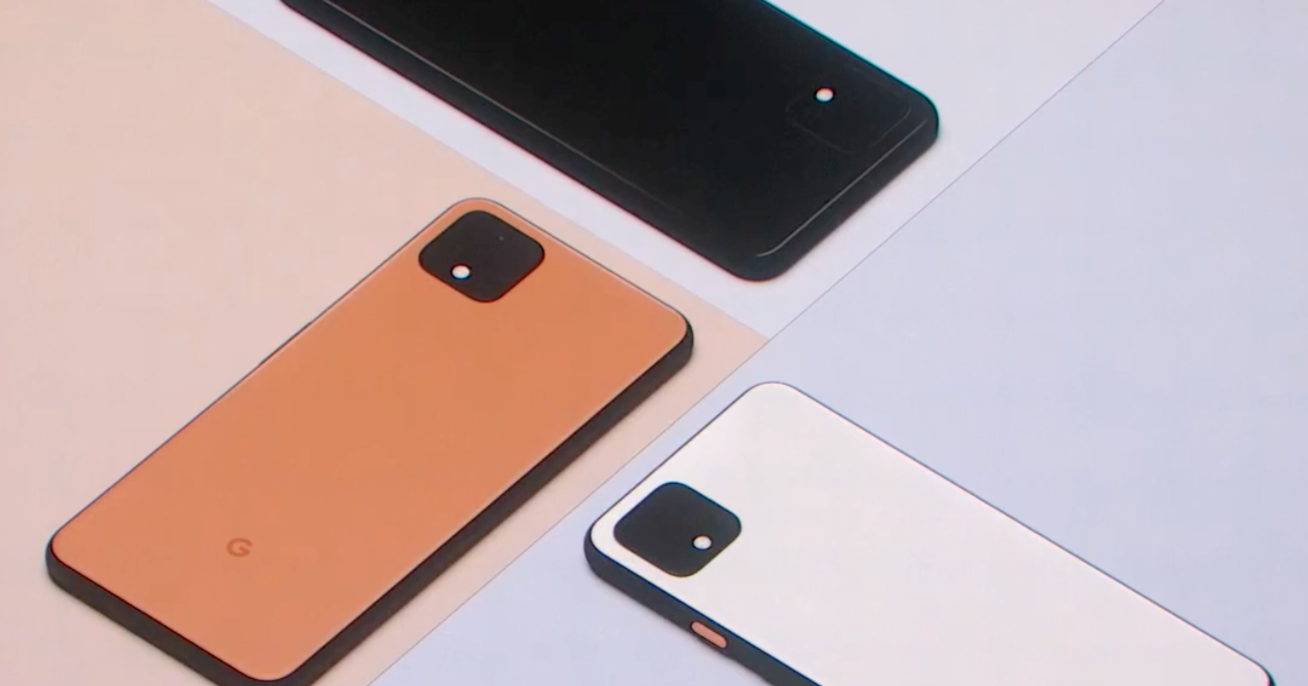


Google held its annual “Made By Google” hardware event this morning in New York City, where they launched all sorts of new gear back to back to back.

Didn’t have time to watch the whole stream, but still want to know the bulletpoints of what’s new? We’ve got you covered.

Stadia Launch

Stadia, Google’s cloud video game streaming service, will launch on November 19th.

Pixel Buds

Google Pixel buds

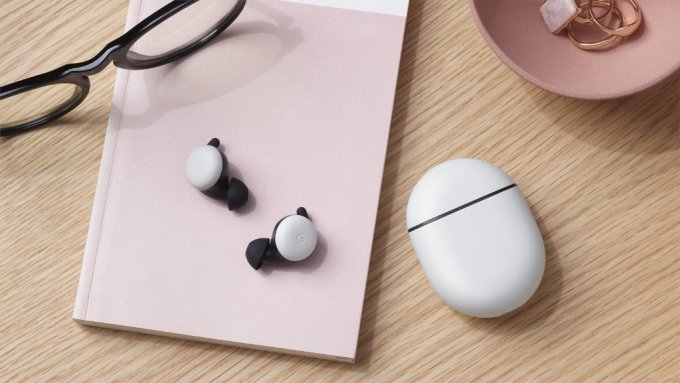
Google went back to the drawing board with its answer to the AirPods. Shipping sometime in “Spring 2020”, the new Pixel Buds will cost $179. Google says the battery should last about 5 hours per charge, with the familiar floss-style charging case packing an additional 24 hours worth of charge. On-board microphones will adapt the sound based on your environment, and help to cancel out background noise like wind.

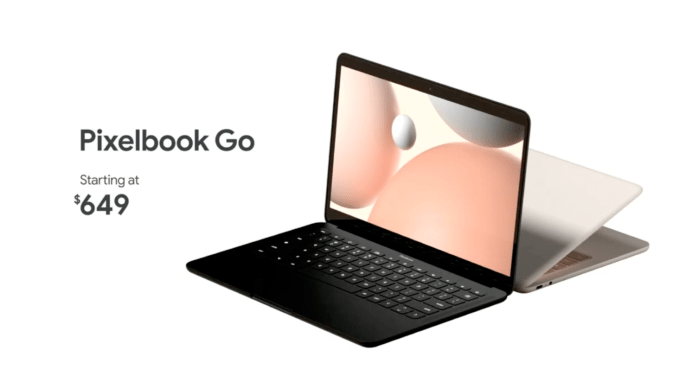
Pixelbook Go

Google Pixelbook Go

It’s been a while since Google shipped a higher-end Chrome OS laptop — but with Pixelbook Go, they’re taking another swing at it. It’s got a 13.3″ display, up to 16GB of RAM, up to 256GB of storage, with the company promising around 12 hours of battery life. It’ll weigh roughly 2lbs, with a base model that’ll cost $649.

New Nest Aware

Nest Aware (which lets you add cloud recording to your Nest cameras) used to cost a few bucks per device. Now it’s a flat fee, regardless of how many cameras you’ve got. $6 per month gets you 30 days of “event” history (read: just the bits of video where things are actually happening), while $12 per month gets you 60 days of event history and 10 days of 24/7 video history.

Nest Aware also now lets you put your Nest Minis/Nest Hubs into a security-centric listening mode, with the smart speakers listening for things like smoke alarms and dogs barking and sending you notifications accordingly.

They’ll switch to the new tier structure in “early 2020”.

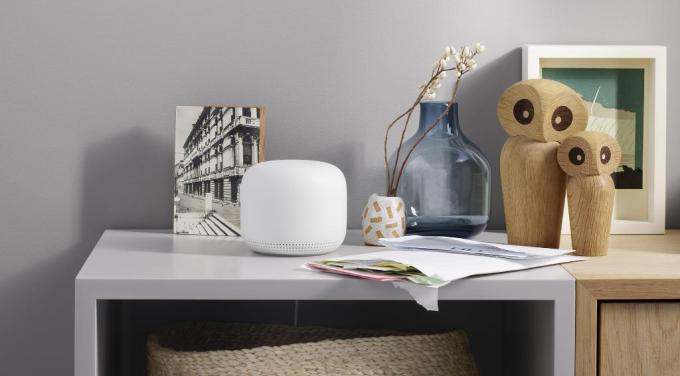
Nest WiFi

EG7TM0pXYAIlB

As rumored over the past few weeks, Google is mashing up the concepts of its Google Wifi mesh router with its Google Home speakers, voltroning them into Nest WiFi — a router/smart speaker hybrid. They’ll ship starting on November 4th; a two pack will cost $269, with a three pack going for $349.

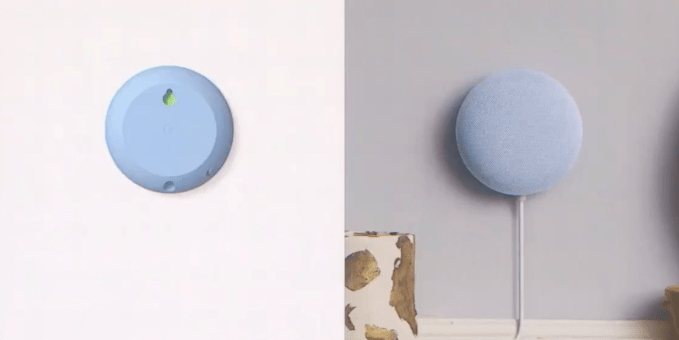
New Nest Mini

Google Nest Mini

The Google Home Mini is now the “Nest Mini” — and a bit has changed beyond the name. It’s now wall mountable without any adapters, with a speaker that Google says offers up double the bass. Its got a new machine learning chip on board for faster responses, and more microphones to work better in louder environments. It’ll ship on October 22nd for $49.

Pixel 4

Google Pixel 4

After an endless series of leaks, the next generation of Pixel — Google’s flagship Android phone — is officially official. The Pixel 4 will come in at 5.7″ with a 2,800mAh battery, while the Pixel XL 4 comes in at 6.3″ with a 3,700mAh battery. They’re both running on the Snapdragon 855 chipset with 6GB of RAM. They’ve both got “Project Soli” radar chips inside, allowing you to do things like switch songs, snooze alarms, or silence calls by waving your hand over the phone without actually touching it.

The main focus here for Google is the cameras, with the company leaning hard into the idea of using machine-learning and AI-centric software to improve photos — things like dual exposure controls, AI-driven “learning” white balance, and an improved Night Sight mode that can handle taking photos of star-lit nights. Both phones have two cameras on the back (12.2 megapixel f/1.7 main camera and a 16 megapixel f/2.4 telephoto lens) and one on the front (8 megapixels).

It’ll ship starting October 24th, starting at $799.


Read Full Article