17 April 2019

Is the iMac Pro Right for You? The Most Powerful Macs Compared


most-powerful-macs

The iMac Pro is a sleek and desirable machine. With 256GB of memory and an optional upgrade to not just 10, but 18 cores, it’s a powerful beast. Even that exclusive Space Gray hue screams class. But do you really need it?

We’ll take you through the spectrum of specs, then put them in a head-to-head matchup with the iMac and Macbook Pro to find out which is the right device for you.

The Baseline iMac Pro and Maxed-Out Model

The absolute cheapest iMac Pro you can get costs $4,999. But if you’re opting for the iMac Pro, you’re probably not going to go with the base model.

On the other end of the spectrum, the fully maxed-out iMac Pro costs a whopping $15,848. For 10 grand extra, you get one of the most powerful machines on the market in a compact, all-in-one package that looks as good as it runs.

iMac Pro looking sleek

Processors

The baseline iMac Pro comes with an Intel Xeon W 8-core processor. What do multiple CPU cores do? They allow you to multi-task. You can render video with one core while working with After Effects on another. The more cores, the more tasks your computer can do at once without slowing down.

Most entry-level Macs have two CPU cores. The mid-level Macbook Pros have four. Eight is already a lot, but the iMac Pro can be upgraded to a processor with a whopping 18 cores! No other Mac, not even the Mac Pro, offers that much power.

Memory

Memory determines how many programs you can have open and running at once. If you keep a million browser tabs open at once, memory is your friend.

The iMac Pro baselines at 32GB, which is a lot of memory even in the professional world. In comparison, most Macs come standard with 8 or 16GB, and the Macbook Pro 15-inch maxes out at 32.

However, the iMac Pro maxes out at a whopping 256GB. That’s a lot of open browser tabs.

Graphics Cards

A dedicated graphics card is essential for any professional graphics work.

The Radeon Pro Vega 56 is the latest generation, and 8GB of video memory is nothing to sneeze at. The iMac Pro can be upgraded to a Radeon Pro Vega 64X with 16GB of video memory, which is definitely a boosy, but probably not essential for most use cases.

Storage

All iMac Pro storage options are SSDs. This differentiates them from standard iMacs, which still have hard disk drive (HDD) or Fusion drive options. 1TB is the baseline standard, which is upgradeable to 4TB of storage.

At almost $2,500 extra for a 4TB SSD, that upgrade is probably not worth it. A 2TB drive is more reasonable at $600 extra.

Matchup 1: Cheapest iMac Pro or Priciest iMac?

iMac on desk

You can customize an iMac so that it approaches the specs of the baseline iMac Pro and only costs $4,249.

They both have the same beautiful 5K Retina display. So what does that extra $750 buy you in the iMac Pro?

  1. A 10Gb Ethernet port vs 1Gb. Essential if you’re working with assets stored in the cloud or on a server.
  2. Two additional Thunderbolt 3 ports, bringing the total to four.
  3. A next-gen graphics card (Radeon Pro Vega 56 vs. Radeon Pro Vega 48).
  4. A next-gen processor (3.2GHz 8-core Intel Xeon W vs. 3.6GHz 8-core Intel Core i9).
  5. That exclusive dark gray finish.

If any of those options appeal to you, then go with the iMac Pro. However, if you’re a pro freelancer who works at home or is on a budget, you might want the standard iMac.

Just keep in mind that two Thunderbolt 3 ports means you might have to choose between a third display and some extra storage or speed in the future.

Matchup 2: iMac Pro or Macbook Pro and Display?

Macbook_Pro_13

Here’s where the comparison gets trickier. Despite the similar names, the iMac Pro and the Macbook Pro are quite different animals. Does the portability of the Macbook Pro make up for its reduced power compared to the iMac Pro? Are the benefits of the iMac Pro worth the price? Let’s take a look.

A maxed out 15-inch Macbook Pro (except for the storage space, which after 2TB isn’t really financially worth upgrading) is $4,849. Pick up a 4K monitor and you’ll add another $1,000 to that, give or take. For $5,849, you get a powerful laptop.

But even at its most specced-out, the Macbook Pro is not as powerful as the iMac Pro in any category. Is it still worth getting?

The Macbook Pro is the perfect balance of power and portability. This makes it ideal if you are a freelancer or photographer someone who has to do quick graphics work onsite, but still needs a powerful machine at home. It’s also ideal as a second computer for its portability.

However, even the baseline model of the iMac Pro has better specs in every category than the fully specced MacBook Pro. It is still the machine to beat if you work heavily with 3D graphics or film editing.

Matchup 3: Maxed-Out iMac Pro or Mac Pro?

Fully Loaded iMac Pro

Our final comparison is between a fully specced iMac Pro and a top-of-the-line Mac Pro. Both machines are meant for power users, can be heavily upgraded, and come at a high cost. What are their differences?

  1. The Mac Pro, at this time, has six Thunderbolt ports compared to the iMac Pro’s four. However, they are all Thunderbolt 2 ports. Thunderbolt 2 is marketed as being as fast as PCI, which means peripherals using it will operate at a speed comparable to an internal component. However, it is still an outdated standard.
  2. Also, the Mac Pro has two Gigabit Ethernet ports, versus the iMac Pro’s one 10 Gigabit port.
  3. Notably, the Mac Pro doesn’t ship with a display, which can be a pro or a con. It gives you the flexibility of adding your own and means you don’t have to pay for one up front. However, nothing can really beat the Retina 5K in an iMac Pro, especially for graphics work.
  4. The best Mac Pro processor is not as good as the best iMac Pro’s. However, the Intel Xeon E5 processors in the Mac Pro are a little better for servers, since that’s what they were designed for.

The Mac Pro is for a very specific type of professional. If you need your machine turned on all the time, as a web server or a render farm, and you don’t need a top-of-the-line display, you may find more value in the compact Mac Pro. The multiple Thunderbolt ports means that you can upgrade it with added peripherals as much as you like.

But overall, the iMac Pro is a better, more powerful machine. It comes with everything you need right out of the box.

Find the Right Mac Notebook for You

Whether you’re looking for a second machine to complement your iMac Pro on the go, or you just don’t need the power, there are a lot of different options when it comes to MacBooks. No matter your budget or profession, there’s a MacBook out there that’s right for you.

Read the full article: Is the iMac Pro Right for You? The Most Powerful Macs Compared


Read Full Article

The 6 Best Sites to Download Microsoft OneNote Templates


onenote-templates

Microsoft OneNote 2016 has a large variety of built-in templates. They offer different preset layout, styles, formatting tools, and more to give your notes a consistent appearance. You can start taking notes without worrying about the structure.

OneNote offers you a complete suite of tools to create templates. But you can save time by getting ready-made templates from the web. Let’s go to some of the best sites to download OneNote template for your use in different projects.

How to Install Templates in OneNote 2016

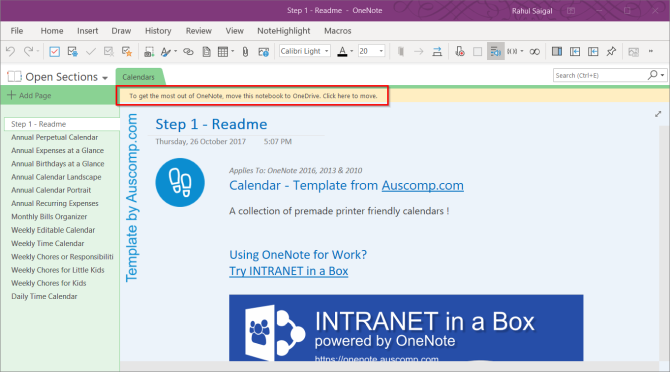
Download the template file with .one extension. Double-click the file to open it with Microsoft OneNote 2016. You’ll see a message in the yellow bar “To get the most out of OneNote, move this notebook to OneDrive. Click here to move.”

move the OneNote template to Onedrive

Step 1: Open the Templates pane. To do this, go to Insert > Page Templates and choose the Page Templates command.

Step 2: Click Save current page as a template.

save current page as a template

Step 3: Type a unique name for the new template file.

Step 4: Optionally, if you want all new pages to use the new design, click Set as default template for new pages in the current section.

Step 5: Click Save. OneNote adds this new template to the list of available templates found in the My Templates category.

1. Auscomp

Auscomp for OneNote features the biggest collection of templates designed to help make your life simpler and more productive. The 12 free OneNote templates include—Kanban, GTD, Estate Planner, Family Tree, Diary/Journal, Travel/Vacation Organizer, Cooking Recipes, and much more.

Auscomp lets you import these templates even if you don’t own a Windows device. Go to OneNote Notebook Importer and click Import. Navigate to the location of your notebook folder and then click Open to import it.

You can preview all the templates before you decide to download them.

If you decide to buy the PRO version, you get to precisely customize the template to make it work according to your needs. Here is the list of free and PRO version of the templates.

2. Notegram

instantly save templates with notegram

Notegram is a companion web app that offers you a simplistic approach to install templates. Just sign in with your Microsoft account and click the Save button. Templates get automatically saved to your default notebook section—usually Quick Notes.

Since Notegram is completely platform independent, you can save templates to OneNote from any device. The monthly calendar template lets you create a calendar for any month and year. You’ll also find various planner templates like a day planner, weekly planner, and trip planner.

For those who like to maintain a journal, there is a simple template for writing a journal, maintaining an accounting journal, document annotation for note-taking, and more.

3. OneNote Gem

OneNote gem template collection

OneNote Gem is a specialized site that offers you add-ins and apps to enhance the functionality of OneNote. The template section has a collection of 15+ templates for various personal projects like weekly assignments, appointments, time management, and a GTD template.

For students, you’ll find homework assignments, Cornell notes, and daily schedule template invaluable for managing day-to-day class activities. There are 5+ ready-made notebook templates with all sections and placeholder text pre-filled. You’ll find notebooks for work, students, managing personal projects, and more.

Gem for OneNote also offers you a Cornel Note-Taking Template with Fields. All you have to do is select this template and apply the template styles. It saves you time and comes with all the formatting options. This add-in is available for $33.

4. Onetastic

monthly calendar with task list

Onetastic is a multipurpose add-in for OneNote 2016. It uses macros to increase the functionality of OneNote. With the help of macros, you can perform simple repetitive tasks quickly. But these macros are powerful enough to create some basic templates for everyday use.

Insert Monthly Calendar macro inserts a calendar in a OneNote page. Then just select a month, year, and the first day of the month. Monthly Calendar With Task List macro goes even further.

It makes a blank cell (there is no limit to the number of cells) in each day of your column. You can put a tag with checkbox and manage a running to-do list right from this calendar.

The Weekly Planner macro lets you insert a simple weekly planner. Select your starting day of the week, layout, and decide the number of weeks you want to use in a planner. The Weekly Planner With Task List macro lets you create a task list for that week or more with to-do tags.

5. Awesome Planner

If you want a full-fledged planner for OneNote, then this template comes with a lot of options. This planner is set up with the year at the top level. Each month is a separate section and the weeks are pages within each section.

The planner also includes some unique pages like lined blank pages, dot grid pages for bullet journal, graph pages, and undated horizontal or vertical pages. This planner comes as a ZIP file. When you buy the template, you’ll receive a download link and the instruction PDF.

Download: Awesome Planner ($20)

6. Simplify Days

Free OneNote template from Simplify Days

Simplify Days features a collection of organization-based templates. It includes a work order template to store and manage all the client details. A capsule wardrobe template based on embracing a minimalist kind of wardrobe lifestyle. And a nice party guide template to keep all the details of the party in a single place.

The templates are beautiful. They use custom fonts and background images to give a professional look to a template. To get them, type in your name and email address. Within a few moments, you’ll get a download link to all the templates in a ZIP file.

Use OneNote Templates to Organize Your Life

A well-made template can help you improve note-taking, forgetfulness, and keeping life organized. If you have already integrated OneNote into your workflow, then the templates discussed in this article will help you earn great rewards in the long term.

Spending time in creating a template is also fun and a great learning experience. You can use OneNote to create your own templates for any personal or work needs. If this interests you, read how to use OneNote templates to be more organized.

Read the full article: The 6 Best Sites to Download Microsoft OneNote Templates


Read Full Article

How to Play Retro Games on Your PC, Legally!


play-retro-games-legally

Modern video games are great, but they don’t always have the charm of the classics. So if you have the urge to play a game of Zombies Ate My Neighbors, unless you happen to have your old SNES plugged into a CRT TV, this can be tricky.

Thankfully, you can play old games on your computer very easily, but not every method is going to be completely legal. This article is for those who want to play retro games on a PC but keep everything completely above board.

Looking at the Legal Issues

Emulation isn’t illegal. You can have any number of emulators installed on your computer. Using an emulator to play a ROM of a classic game isn’t illegal either.

Legal issues arise from how you obtained that ROM and whether you actually own the game. So, every method we outline here is entirely legal, letting you play your games guilt-free.

1. Replay Your Old PC Games

You have a PC, and you’ve got some old PC games. It should be easy to play them right? Unfortunately, it’s anything but.

Some more recent games may work on Windows 10 running in Compatibility Mode, but for older DOS games, you’ll need something else.

Say Hello to DOSBox

DOSBox is DOS emulation software that lets you run a wide range of DOS-based software, not just games. As long as you have your old disks, there’s a good chance that you can get them running in DOSBox. That said, you may need a USB floppy disk drive or CD ROM drive to get this working.

DOSBox running a game

Getting up and running with DOSBox is fairly simple but beyond the scope of this article. Fortunately, we already have a guide to playing retro games with DOSBox.

2. Buy Old Games Anew

If you don’t already have a closet full of games, buying old games from modern digital storefronts is your best option. This option also presents zero legal issues.

PC Games

There was a time when buying old PC games meant shopping at second-hand stores and scouring yard sales. Since then, multiple options for buying old games on new platforms have popped up.

The most popular place to buy older PC games is Steam, which shouldn’t come as a surprise. It’s not the only option, though. GOG, formerly known as Good Old Games, is another great place to buy retro PC games.

The GOG storefront

Older games on GOG often come with extras like maps and scans of the original manuals, which you won’t usually find on Steam. GOG also takes care to make sure older games are playable on modern systems.

We have listed the old PC games still worth playing to help you sort the wheat from the chaff.

Other Games

When it comes to console games, your pickings are a little slimmer. You still have a choice of retailers, but you’ll generally have to rely on collections of retro games.

If you’re a Sega fan, the SEGA Mega Drive and Genesis Classics collection is a great one, with 59 games included for a list price of $29.99. For arcade fans, a number of SNK NeoGeo classics are available for individual purchase from GOG.

Additionally, the NeoGeo Classic Complete Collection is available on the Humble Bundle Store, collecting more than 20 games for $39.99.

3. Rip ROMs From Old Cartridges

If you’re a Nintendo fan, you’re out of luck when it comes to buying older games to play on your PC. However, if you happen to have your old SNES cartridges, you can get them working on your PC totally legally. It just takes a little work.

How to Rip Your Old Game Cartridges

First off, you’ll need the right hardware. The most popular option is the Retrode 2.

The Retrode 2 with SNES and Genesis cartridges

Out of the box, the Retrode 2 can rip SNES / Super Famicom and Genesis / Mega Drive games. DragonBox also sells Plugin modules. These let you rip Nintendo 64, Sega Master System, and Game Boy games.

When you rip the games, you don’t just get the game ROM. Unless the cartridge’s internal battery has died (which is entirely possible), you can dump your old save games too. This is very handy if you never finished Chrono Trigger, for example.

Play Those Old Console Games Using Emulators

Once you’ve got your games on your PC, you’ll need an emulator or emulators to play them. One of the easiest ways is to install a front end that can manage multiple emulators for you.

If you’re using Windows, your best bet is RetroArch. This lets you run emulators for nearly any retro system you can imagine and tacks on modern features. For example, you can play two-player games over the internet, which is great if you don’t have anyone to play against.

On a Mac, OpenEmu is a fantastic option. It also supports a ton of different systems and has a great-looking user interface.

OpenEmu in action

4. Other Sources for Playing Retro Games

If you don’t have a box of old cartridges and still want to scratch your retro gaming itch without spending a dime, you’ve got a few other options available to you. Some creators of older games have made their games available free of charge, so they’re entirely legal to have and use.

There is a collection of free ROMs available on the MAME website. Star Fire and Top Gunner probably don’t ring a bell, but you could still have a blast playing them.

The Internet Archive offers up The Internet Arcade, which is not only fully legal but also lets you play games over the internet. Since everything happens in your browser, you don’t even need to install an emulator.

The Internet Arcade on the Internet Archive

You’ll find a number of well-known games like Outrun, Defender, Joust, and Paperboy. If you’re looking to kill an afternoon without putting in much work, this is the option for you.

Looking to Play Your Old Games on the Go?

You’re now all set up to play old games on your PC, but what about playing old games on the go?

Technically, your laptop counts, but hauling it out on the bus for a quick round of Smash TV isn’t ideal. Fortunately, there are DIY projects to make portable retro gaming easier.

If you like to build things yourself, the ClockworkPI GameShell might be just what you’re looking for. It’s not perfect, but it’s an interesting piece of hardware that will cost you less than a new handheld. For more information, check out our review of the ClockworkPI GameShell.

Read the full article: How to Play Retro Games on Your PC, Legally!


Read Full Article

Disney+, Is IPTV Legal, and Office Alternatives for macOS


iptv-legal

Join Christian Cawley and Gavin Phillips as Disney+ is given a launch date and YouTube TV increases its subscription again. So it makes sense to talk about IPTV’s legality… or otherwise.

There’s also time to tell you about Microsoft Office alternatives for macOS, how to transfer photos and text messages from Android to your PC, and how to easily uninstall software on Windows.

Really Useful Podcast Season 2 Episode 11 Shownotes

As ever, we provide you with the links to the topics we discuss in this week’s Really Useful Podcast:

This week’s Really Useful Podcast is hosted by Christian Cawley and Gavin Phillips, who you can follow on Twitter:

Share our podcast with anyone you know who could benefit with having otherwise complicated technology matters clearly explained.

Enjoy the show? Subscribe to the Really Useful Podcast on:

Subscribing means you won’t miss next week’s tech podcast for technophobes, in which we take a look at Facebook’s recent privacy issues.

Read the full article: Disney+, Is IPTV Legal, and Office Alternatives for macOS


Read Full Article

Sony Reveals Information About Its Next-Gen PlayStation 5


The next generation of video game consoles is almost upon us. Well, sort of.

Sony’s Mark Cerny recently sat down for an interview with Wired where he provided some key information about what we can expect from the company’s next-generation console, which we presume will be called the PlayStation 5 (the name of the device wasn’t officially confirmed in the interview).

What We Know About the PS5

The interview is a rather interesting way for Sony to drop hints about its upcoming console, as these sorts of announcements are typically made at some sort of press event with lots of pomp and circumstance. Still, Cerny did reveal some critical information that provides us with a taste of what we can expect when the next-generation of video games becomes available.

One of the most important things to note is that this won’t be like the PlayStation 4 Pro, where it’s an iteration on the previous console. Instead, this will be a more traditional leap like the PlayStation 3 to the PlayStation 4.

However, for PS4 fans, Cerny did reveal that the next console would be based on the same architecture as the PS4, which means it’ll be backward compatible with games from the previous platform.

As for the graphics, Sony says that its next console will have a custom version of Radeon’s Navi line. This means it’ll have support for ray tracing, which is just starting to make waves in the world of PC gaming and movies. The console will also be able to output graphics in 8K, though that will require televisions and displays with support for the higher resolution to catch up.

For the processor, Sony will arm the device with an AMD chip based on the third-generation Ryzen processor. It will feature eight cores of the seven-nanometer Zen 2 chip.

There will be 3D audio thanks to the power offered by the AMD chip. This, along with the graphical horsepower, should help game developers create more immersive experiences than we’ve ever seen before.

Cerny wouldn’t go into details about its plans for VR on its next console, but he did say that “VR is very important to us and that the current PSVR headset is compatible with the new console.”

One of the biggest changes to the new generation and one that PC gamers have been enjoying for quite some time is the inclusion of an SSD, which will greatly speed up loading times. In fact, Cerny demonstrated the loading times on a development kit of the new console with Spider-Man on the PS4. The PS4 took about 15 seconds to load while the new console with its SSD took about 0.8 seconds.

Here’s a quick rundown:

  • Backward compatible with PS4 and PSVR
  • Support for discs
  • Radeon Navi line GPU with support for 8K and ray tracing
  • AMD processor based on third-generation Ryzen with eight cores
  • 3D Audio support
  • Solid state drive

When Can You Buy The PlayStation 5?

Unfortunately, there’s quite a bit of information we don’t know about the next PlayStation console, and one of those is the exact release window for it. Cerny did say that it won’t be out this year, though, so gamers will need to be patient.

Another thing Sony didn’t reveal was anything about the console’s services or other features, as this initial reveal was meant to give us a taste of the hardware.

Obviously, the company didn’t announce any pricing information for its next-generation console yet, as it’s far too early for that.

Sony isn’t holding a press conference at E3 in June this year, so it’s not clear when we’ll get to hear more about just what the company has up its sleeve for the next console generation.

Read the full article: Sony Reveals Information About Its Next-Gen PlayStation 5


Read Full Article

Google starts rolling out better AMP URLs


Publishers don’t always love Google’s AMP pages, but readers surely appreciate their speed, and while publishers are loath to give Google more power, virtually every major site now supports this format. One AMP quirk that publisher’s definitely never liked is about to go away, though. Starting today, when you use Google Search and click on an AMP link, the browser will display the publisher’s real URLs instead of an “http//google.com/amp” link.

This move has been in the making for well over a year. Last January, the company announced that it was embarking on a multi-month effort to load AMP pages from the Google AMP cache without displaying the Google URL.

At the core of this effort was the new Web Packaging standard, which uses signed exchanges with digital signatures to let the browser trust a document as if it belongs to a publisher’s origin. By default, a browser should reject scripts in a web page that try to access data that doesn’t come from the same origin. Publishers will have to do a bit of extra work, and publish both signed and un-signed versions of their stories.


Quite a few publishers already do this, given that Google started alerting publishers of this change in November 2018. For now, though, only Chrome supports the core features behind this service, but other browsers will likely add support soon, too.

For publishers, this is a pretty big deal, given that their domain name is a core part of their brand identity. Using their own URL also makes it easier to get analytics, and the standard grey bar that sits on top of AMP pages and shows the site you are on now isn’t necessary anymore because the name will be in the URL bar.

To launch this new feature, Google also partnered with Cloudflare, which launched its AMP Real URL feature today. It’ll take a bit before it will roll out to all users, who can then enable it with a single click. With this, the company will automatically sign every AMP page it sends to the Google AMP cache. For the time being, that makes Cloudflare the only CDN that supports this feature, though others will surely follow.

“AMP has been a great solution to improve the performance of the internet and we were eager to work with the AMP Project to help eliminate one of AMP’s biggest issues — that it wasn’t served from a publisher’s perspective,” said Matthew Prince, co-founder and CEO of Cloudflare. “As the only provider currently enabling this new solution, our global scale will allow publishers everywhere to benefit from a faster and more brand-aware mobile experience for their content.”


Read Full Article

Google starts rolling out better AMP URLs


Publishers don’t always love Google’s AMP pages, but readers surely appreciate their speed, and while publishers are loath to give Google more power, virtually every major site now supports this format. One AMP quirk that publisher’s definitely never liked is about to go away, though. Starting today, when you use Google Search and click on an AMP link, the browser will display the publisher’s real URLs instead of an “http//google.com/amp” link.

This move has been in the making for well over a year. Last January, the company announced that it was embarking on a multi-month effort to load AMP pages from the Google AMP cache without displaying the Google URL.

At the core of this effort was the new Web Packaging standard, which uses signed exchanges with digital signatures to let the browser trust a document as if it belongs to a publisher’s origin. By default, a browser should reject scripts in a web page that try to access data that doesn’t come from the same origin. Publishers will have to do a bit of extra work, and publish both signed and un-signed versions of their stories.


Quite a few publishers already do this, given that Google started alerting publishers of this change in November 2018. For now, though, only Chrome supports the core features behind this service, but other browsers will likely add support soon, too.

For publishers, this is a pretty big deal, given that their domain name is a core part of their brand identity. Using their own URL also makes it easier to get analytics, and the standard grey bar that sits on top of AMP pages and shows the site you are on now isn’t necessary anymore because the name will be in the URL bar.

To launch this new feature, Google also partnered with Cloudflare, which launched its AMP Real URL feature today. It’ll take a bit before it will roll out to all users, who can then enable it with a single click. With this, the company will automatically sign every AMP page it sends to the Google AMP cache. For the time being, that makes Cloudflare the only CDN that supports this feature, though others will surely follow.

“AMP has been a great solution to improve the performance of the internet and we were eager to work with the AMP Project to help eliminate one of AMP’s biggest issues — that it wasn’t served from a publisher’s perspective,” said Matthew Prince, co-founder and CEO of Cloudflare. “As the only provider currently enabling this new solution, our global scale will allow publishers everywhere to benefit from a faster and more brand-aware mobile experience for their content.”


Read Full Article

You Can Now Listen to SiriusXM Shows on Pandora


Pandora users are gaining access to some of SiriusXM’s most popular talk shows. These shows will be available on Pandora as podcasts, with free and premium Pandora users both able to tune in. This is thanks to SiriusXM having acquired Pandora in early 2019.

Podcasts Are Moving Into the Mainstream

Podcasts have been around for well over a decade. However, the medium now seems to be moving into the mainstream. The success of several podcasts, but Serial in particular, means more people than ever are choosing to listen to podcasts.

This surge in popularity led Spotify to acquire podcasting studio Gimlet Media and podcasting app Anchor. And it has now led SiriusXM to bring its talk shows to Pandora in a cross-promotional venture beloved by old media and now being adopted by new media.

SiriusXM Talk Shows Land on Pandora

In all, Pandora users are gaining access to 22 SiriusXM talk shows. The shows, which were all formerly exclusively available to SiriusXM subscribers, cover a range of genres. These include entertainment, comedy, music, sports, and spirituality.

Hosts include Andy Cohen, who has one-on-one conversations with celebrities, Hoda Kotb, who discusses water cooler topics, Kevin Hart and Ricky Gervais, who both talk about life, Eddie Trunk, who discusses music, and Joel Osteen, who deals with spirituality.

In a press release, Scott Greenstein, SiriusXM’s President and Chief Content Officer, said:

“We’re excited that some of our most popular talk shows are now being made available to Pandora users. This will be a great opportunity for new audiences to discover these SiriusXM shows, while providing Pandora with great programming, as we continue to collaborate on content opportunities for both platforms.”

SiriusXM’s talk shows should all be available right now, and located within the Podcasts on Pandora section of the app. If you’re a Pandora user who is passionate about podcasts you can find a full list of the SiriusXM shows on this Pandora Blog post.

Paywalled Podcasts Are Now Available for Free

Given that both SiriusXM and Pandora have struggled in the face of intense competition, sharing content in this way makes perfect sense. And it’s an especially good deal for Free Pandora users who will gain access to previously paywalled content.

Unfortunately for those of us located outside the United States, Pandora isn’t available worldwide. However, we have previously listed a number of free Pandora alternatives worth checking out. And some of them even boast their own podcasts.

Read the full article: You Can Now Listen to SiriusXM Shows on Pandora


Read Full Article

10 Ways to Improve Gaming Performance on Your Laptop


Your premium gaming laptop will never reach the performance of a similarly-priced gaming desktop. But that doesn’t mean that you can’t play the latest games. Rather, it puts extra pressure on you to ensure that your laptop is optimized for gaming.

With desktop computers, you can upgrade the hardware. Laptop users will probably know that they can only replace the memory (and perhaps the hard drive) with an upgrade. So, what can you do?

Here are 10 ways to optimize your laptop gaming setup on Windows 10.

1. Keep Your Laptop Clean and Dust-Free to Improve Gaming Performance

First things first. You’ll only enjoy improved performance on your laptop with a proactive attitude to physical maintenance. Dust and dirt are the enemies of performance. This detritus will reduce airflow, resulting in a computer that gets too hot.

Once the heat builds, the processor, GPU, and most other components will slow down. This doesn’t make for an effective gaming machine.

The best way to deal with this is to remove the dust. Obviously, this isn’t the simplest of tasks. Your laptop is probably sealed, and if it isn’t, opening it will almost certainly invalidate the warranty. The solution is to use some very specific cleaning techniques.

But it isn’t just the vents on your laptop that you need to keep clear. If you’re using the keyboard regularly (a staple of PC gaming) it’s important to ensure there is no dust, food, or other matter able to cause sticky keys.

For that matter, for top gaming performance, you don’t want a mucky screen, either. Our guide to cleaning your laptop computer will help here.

2. Update Laptop Drivers for Faster Gaming

Computers running Windows, macOS, and Linux operating systems are almost all based around the same hardware, with the same architecture. This means that whatever the operating system, keeping device drivers up to date is vital.

Fortunately, it’s usually straightforward, at worst a slight inconvenience that has been largely swallowed up into the standard OS updates.

However, when it comes to graphic drivers, you might need a more hands-on approach. While Intel graphics—largely unsuitable for hardcore gaming—will enjoy updated drivers via a Windows update, your third-party graphics provider doesn’t offer that option.

Instead, ensure the GPU management software (such as Nvidia GeForce or AMD Gaming Evolved) is set to automatically update. Be sure to update your controller and audio drivers up to date, too.

3. Install the Latest DirectX Version

DirectX Diagnostic Tool in Windows 10

A collection of software tools that facilitate the graphics in a video game, DirectX is vital to gaming on Windows. Various iterations of DirectX have seen release over the years.

Launched in 2015, DirectX 12 is the latest version, which you’ll find pre-installed on your Windows 10 laptop.

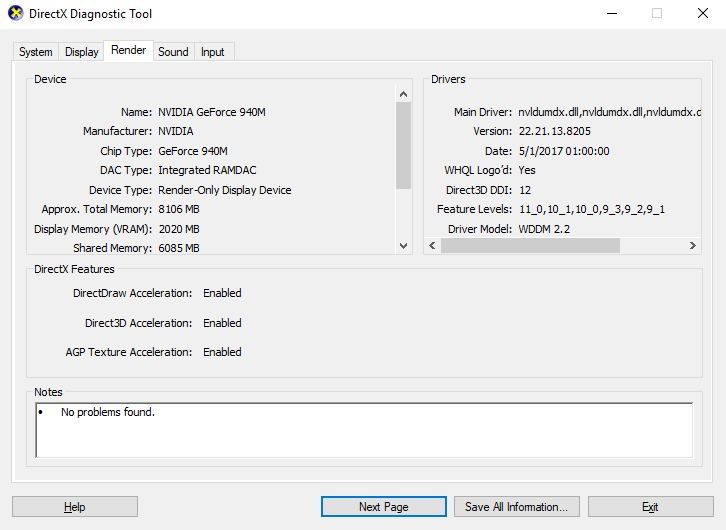
To check your current DirectX version, press WIN + R to open the Run menu and enter dxdiag. Wait for the DirectX Diagnostic Tool (DXDiag) to load, then open the Render tab. Here, you’ll find information about your dedicated graphics card. In the Drivers pane, look for Direct3D DDI. This should be numbered according to the latest version of DirectX.

As well as having your graphic drivers up to date, it is worth ensuring that your audio drivers are fit for gaming. You can check your audio driver status in the Sound tab of DXDiag. Note also that Input device drivers are summarized here too.

DXDiag is a good way of checking if your gaming-related hardware is missing any drivers. If in doubt, run a Windows Update, or manually update the device drivers.

4. Overclock the Laptop Graphics Card for Optimized Gaming

Overclock your laptop GPU

Perhaps a bit risky for the beginner, overclocking can force some additional performance out of the graphics card. Tools are available for both AMD and Nvidia GPUs, so you shouldn’t have too much trouble with this.

The main problems are with power and heat. Overclocking uses more electricity, so you’ll need to adjust your computer’s power settings appropriately (see below). But overclocking also increases the heat of the GPU.

Usually, this is handled by the laptop’s built-in cooling system. You should regularly clean the heatsinks and fans, as outlined in #1. If not, your laptop will automatically shut down—as a safety precaution—as soon as it gets too hot.

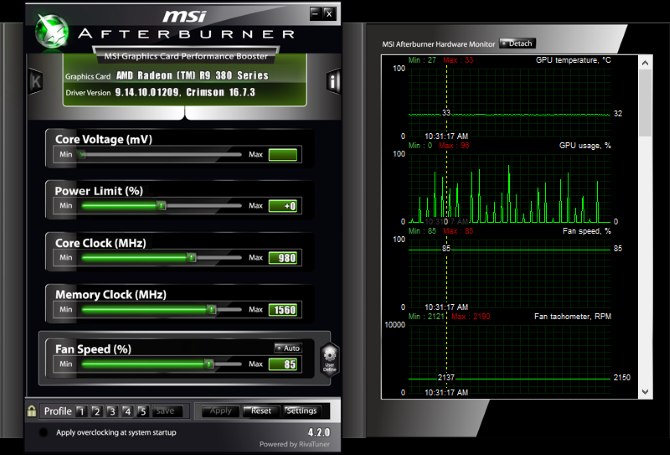
Looking for an overclocking tool for your GPU? The most popular at present is MSI Afterburner, which is suitable for Nvidia and AMD graphics cards.

You can enjoy good results with overclocking, but it is something you must do with care. Our guide to overclocking your GPU safely should help here.

5. Adjust Your Computer’s Power Settings

Few devices can enjoy improved operation without effective power management. When it comes to laptops—devices that are intended for use away from a permanent power source—power management is a big deal.

Windows gives you some detailed power management options, but for a strong gaming experience, you should have your laptop connected to a power outlet.

Once this is done, it’s time to look at your computer’s power settings. In Windows 10, you can open Settings > System > Power and sleep > Additional power settings and select the High performance option. It’s also worth clicking Change plan settings > Change advanced power settings to check you haven’t previously adjusted anything here. You don’t want less-than-optimum power settings when squeezing gaming performance from your laptop.

6. Activate Windows 10 Game Mode

Enable Windows 10 Game Mode

This is a tip that anyone can use. Windows 10 is equipped with an Xbox app which includes features such as screen recording, streaming, and Game Mode. Optimizing your laptop for gaming can be as simple as activating Game Mode.

Press WIN + G to display the Xbox panel. If prompted, check the Yes, this is a game box.

On the game bar, find the Game Mode button on the right. Click to enable Game Mode. Once enabled, this will ensure that the OS runs the game with optimum settings. To do this, Windows may close or suspend some background tasks.

7. Close Background Apps for Increased Laptop FPS

We’re assuming you’re running Windows 10 for many of these tips. If not, there is a manual change you can make to your laptop before you launch a game. Ensure all other apps are closed before you click Play in Steam.

Once you’ve done that, look at the System Tray. This part of the Windows taskbar lists apps that are running in the background. Right-click each icon and close it. You may like to keep your graphics card management app or a voice chat tool like Discord open, of course!

All that should be running in the taskbar before you launch the game is your digital download service… or nothing at all.

8. Online Gamers: Check Your Network Speed

Check your internet speed for optimized online gaming

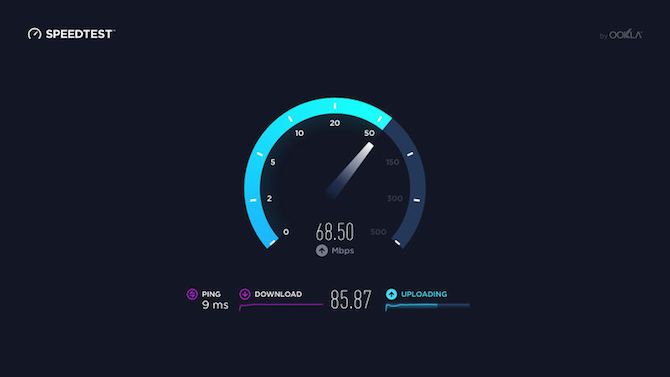
Gaming performance for your laptop is mostly determined by your hardware, drivers, and how your computer is configured. But if you’re playing online games, there is one other element to consider: your internet connection speed.

Lag is the usual cause of trouble with online gaming. This can be due to problems with your internet connection, but often a slow connection between your laptop and the router is to blame. In most cases, your wireless network card will have the most up-to-date drivers, thanks to Windows Update, or whatever system updates your OS has downloaded.

If there’s no change after applying updates, consider a wired Ethernet connection to the router. You should also check to see if a gaming router can optimize gaming performance along with our tips on reducing lag in online gaming.

9. Manage Automatic Updates

Automatic updates can be a big pain. For example, Windows Update can download updates in the background, before reminding you periodically that the update needs installing. Not only can the uninstalled update impact performance, so too can the reminders.

Unfortunately, you can’t disable Windows Updates permanently, so you have the following options:

  • Keep your computer offline.
  • Install updates as soon as prompted.
  • From the May 2019 update (version 1903), you can block updates for 35 days.

It’s unlikely that you’ll be able to completely disconnect from the internet if you’re using a gaming laptop, so installing those updates as soon as possible is the best answer.

Digital delivery systems such as Steam also push updates out. There’s a chance that a second game will download updates in the background while you’re playing another game.

To avoid this, open Steam, and head to Steam > Settings. In the Downloads tab, ensure the Allow downloads during gameplay check box is cleared. Click OK to confirm this change.

You can also manage update rules for individual games. Right-click the game in the Steam menu, select Properties > Updates, and check you’re satisfied with the options for Automatic updates and Background downloads. Further tips on managing Steam downloads can potentially improve your laptop gaming performance too.

10. Tweak Texture Settings to Optimize Your Laptop Graphics Card

Adjust 3D settings for better laptop gaming performance

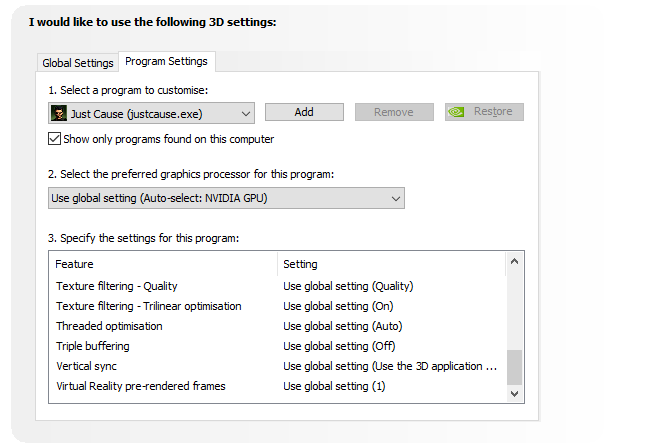
Finally, it’s worth looking at your graphics card settings, especially if you need to run a certain game. Here, you’ll find master controls for texture and shader details, which will determine how your games look.

The memory available to your laptop’s GPU limits what options are available here, so it’s usually good to select a configuration that offers performance over looks. In short, high-resolution textures will consume your RAM, impacting frame rate.

Note that you can also give individual games their own texture and shader preferences here. This is useful if an older game can run with high settings. Meanwhile, you’ll still be able to adjust individual games’ video settings as they play, from the video/display settings screen.

It can take a while to find the optimum video settings for games. Once you’ve established that performance-quality trade-off, however, you’ll see that it was worth the effort.

Laptop Gaming Performance: Improved!

Who’d have thought that you could so much to improve gaming performance on a laptop computer? While most apply purely to Windows 10 laptops some tips can be transferred to equivalent settings on macOS and Linux.

Let’s review the 10 top ways to make your laptop faster for gaming:

  1. Regularly clean your laptop.
  2. Update your drivers (especially for the GPU).
  3. Install the latest version of DirectX.
  4. Overclock the GPU.
  5. Optimize the power settings.
  6. Activate Windows 10’s Game Mode.
  7. Close background apps.
  8. Check the network speed for online gaming.
  9. Disable automatic updates for games and the operating system.
  10. Adjust texture and shader settings.

For desktop computers, upgrading your hardware can have a massive impact on gaming; as a laptop user you’re limited. You can’t upgrade the graphics card or processor in most laptop computers. That’s why these ten tips are so vital to improving gaming performance.

If this isn’t enough, see our dedicated Windows 10 gaming performance tips guide for more.

Read the full article: 10 Ways to Improve Gaming Performance on Your Laptop


Read Full Article

The 20 Best Kodi Add-Ons You Didn’t Know You Needed


kodi-add-ons

If you have been using low-quality, illegal add-ons to watch TV shows and movies on Kodi, STOP!

Firstly, they could land you in legal trouble. Secondly, there are plenty of great, content-packed add-ons that are perfectly legal, so why take the risk? Here are the best Kodi add-ons you didn’t know you needed, but should install right now.

1. Charge

Charge TV

Charge is a live TV service that’s entirely free to watch. It offers action movies, TV shows, sports, entertainment, and even the occasional series.

Download the app in Kodi’s official repo.

2. Comet TV

The Comet TV add-on is made by the same developer as Charge. Like Charge, it offers 24/7 live streaming.

Comet TV’s focus is on science fiction. You’ll find old movies, classic TV shows, cult series, and forgotten gems. For more modern content, check out the best sci-fi movies on Netflix.

3. Tubi TV

Tubi TV is the first on-demand add-on in the list. It has more than 20,000 TV shows and movies, all of which are both free and legal to watch. The app is ad-supported, hence the extensive library.

You won’t find the latest blockbusters. To give you a taste, movies such as Jeepers Creepers, Afterlife, and Bandits are listed. Much like Netflix, the available content you see will vary depending on your geographic location.

Tubi TV is available in the BG Addons Repository.

4. FilmRise

FilmRise

FilmRise’s YouTube channel is one of the best ways to watch legal movies. The add-on lets you access the same library from your Kodi app.

The company behind the app is a film acquisition and distribution company, so the quality of the available movies is solid.

5. ABC Family Channel

ABC Family carries a selection of the best family-friendly content from the American TV network, ABC. Some content is available without making an account.

If you are outside the United States, you will need to use a VPN.

6. Live Tube

YouTube has offered live streaming since May 2013, but it wasn’t until mid-2017 that the minimum subscriber level was reduced to 100.

The change has meant YouTube has become a treasure trove of live content. You can find everything from 24/7 music videos to news. This add-on makes the live streams easy to browse and watch.

It’s available in the Fusion repo.

7. USTVNow

USTVNow

USTVNow is a paid service for U.S. citizens who live abroad. For $19/month, you can watch ABC, Fox News, ESPN, BBC America, AMC, and more.

On-demand content is also available.

8. The Cooking Channel

Who wouldn’t love to learn to cook better? The Cooking Channel, which is produced by the same team that’s responsible for The Food Network, can help. There’s a mountain of content to work through, with stuff arriving constantly.

Again, users outside the U.S. will need to run a VPN.

9. Pluto.TV

Pluto.TV offers a mix of on-demand content and live TV channels. It provides access to mainstream networks like CNBC, Sky News, Bloomberg, and Cheddar, as well as internet-only channels such as The Nerdist and IGN.

10. BBC iPlayer

BBC iPlayer

If you’re in the U.K. and pay your TV license fee, you can use the unofficial BBC iPlayer app. It provides live streams of the network’s TV channels and a vast library of on-demand content.

Despite being unofficial, the app is available in the official Kodi repo.

11. Popcornflix

Popcornflix is no relation to the controversial Popcorn Time movie streaming app. The add-on offers full-length movies, trailers, clips, and TV series legally and for free.

You can also watch on the web or by using the company’s smartphone apps.

12. TBD TV

TBD TV is a channel for millennials. Its content includes web films, scripted and unscripted series, and featurettes.

It also owns the rights to some feature films. They form the backbone of the TBD Movie of the Day, which runs seven days a week.

13. Twitch

Twitch

Twitch is essentially YouTube for gamers. You can watch other people play your favorite titles, listen to some (often hilarious) commentary, and chat with other people.

14. TV Land

TV Land is a Viacom-owned cable and satellite channel in the U.S that’s been running for more than 20 years.

Its bread-and-butter are television series. It offers an enjoyable mix of new and classic shows. You’ll also find the odd limited theatrical release movie and original series.

15. Plex

Plex is Kodi’s great rival, with most users committing to one of the two apps. So, if you’re a Kodi user, why should you install Plex on Kodi?

Well, you’ll gain access to Plex’s unofficial channels, which will massively increase the amount of content you have available to you.

16. YouTube

YouTube boasts 400 hours of video uploaded every minute, 5 billion videos on the platform, and 50 million content creators. Just install it already.

17. Adult Swim

Adult Swim

Adult Swim is an adult-orientated offshoot of the Cartoon Network. It screens animation, mockumentaries, sketch comedy, and live action programs.

It offers a large number of syndicated shows, including King of the Hill, American Dad, and Family Guy.

18. TVPlayer

TVPlayer is another add-on for people based in the U.K. If you’re located outside the British Isles, you’ll need to use a VPN to tune into it.

It provides more than 100 channels, including the full complement of leading British networks.

The TVPlayer add-on is available through the Fusion repo.

19. MovieZoot

MovieZoot is a legal way to watch thousands of Community Commons or copyright-free films. As such, the quality varies dramatically, but you can be confident you’ll always be able to find the latest indie film that the hipsters are talking about.

You’ll also have access to old classics such as To Kill a Mockingbird, A Farewell to Arms, and God Created Woman.

MovieZoot is available in the Fusion repo.

20. NewsON

NewsON is a joint venture between five of the largest TV stations in the United States and offers 170 channels from 108 American cities. The NewsON add-on is geo-restricted, so you need to be located within the U.S. to watch the streams.

It’s one of the best ways to watch live news on Kodi.

Download Even More Content for Kodi

These legal Kodi add-ons should mean you never run out of content, but if you’re still looking for more, we’ve previously detailed how to watch live TV on Kodi.

And if you would like more information about any of the technical details we have briefly touched on above, be sure to read our beginner’s guide to setting up and using Kodi.

Read the full article: The 20 Best Kodi Add-Ons You Didn’t Know You Needed


Read Full Article

How to Monitor and Restrict Router Traffic: 4 Tips and Tricks


kids-internet-router

You’re watching a movie on Netflix when suddenly the internet comes screeching to a halt. The buffering screen seems to take forever. So, what’s causing your sudden internet slow-down?

Well, if you have kids with mobile devices, laptops, consoles, or computers in their bedroom, then chances are, you’re facing a bandwidth crisis. What’s the solution? How do you make sure the kids are sleeping on a school night rather than streaming video under the duvet?
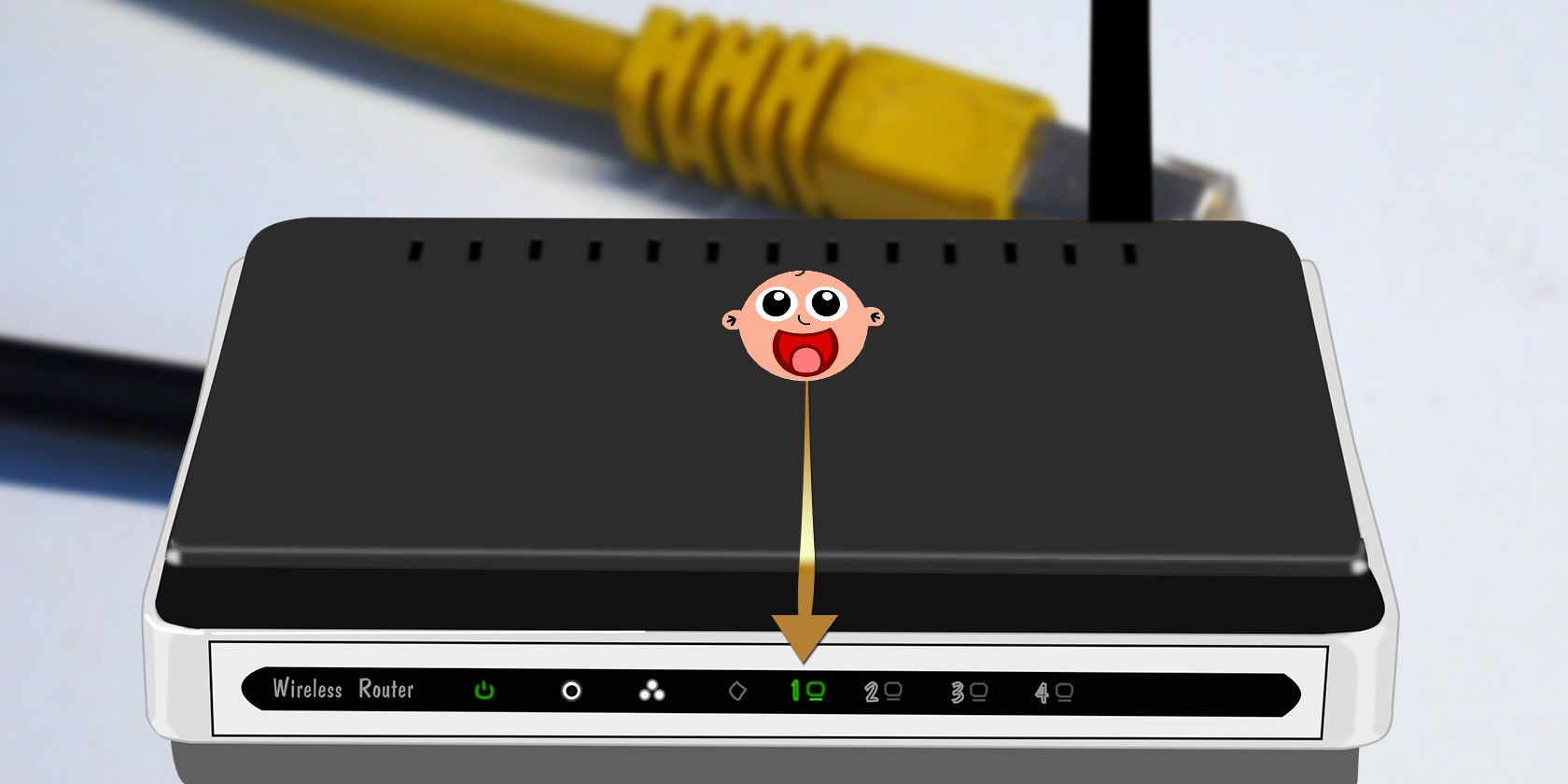
The best option is managing your home internet use directly from the router. Here’s how to control the internet in your home!

Managing Home Internet Use: Monitoring or Spying?

Thankfully, there are all kinds of ways you can use your router to monitor your home network traffic. You can block traffic during certain times and days, give higher priority to specific devices that are more important for the family, and figure out which devices are consuming the most data.

Knowing how to monitor traffic and usage on the router level is important, especially with a bandwidth-hungry family.

Better still, monitoring at the router level doesn’t feel as invasive as installing parental controls or other monitoring software directly your children’s devices, a delicate struggle for many parents. Installing a tracking or monitoring program walks the fine line between monitoring your kids and spying on them, which no parent wants to do.

1. Router Traffic: Quality of Service Settings

Manage internet settings on your router

One of the first things to do is give your living room entertainment system the highest priority for the available bandwidth coming to and from the internet. Quality of Service (QoS) settings on your router let you adjust the bandwidth for individual applications and devices on your home network.

The location of the QoS menu varies depending on your router, as do the menu options.

For the most part, however, under the QoS menu, you will need to enable an Internet Priority setting of some sort. This setting is where you assign connection priority to a specific device.

Typically, you assign “medium priority” to devices so that even when it requires a lot of bandwidth, it doesn’t drain the bandwidth of other connected network devices. However, if you have a device like a network internet streamer that keeps locking up because other people are using your bandwidth, setting the device priority to “High” will resolve the issue.

2. Logging and Tracking Router Traffic

If you’re curious about what’s using up the bandwidth in your home network, there’s no need to run around and installing surveillance equipment on every device. Most routers offer the ability to log internet usage for both incoming and outgoing traffic. The option to log router traffic is often found in the Administrator section of your router menu.

Log router traffic

Once you find the Administrator menu, look for a menu named “Log” or similar. You should find an option to enable logging for incoming, outgoing, or all router traffic. Then it is just a case of waiting for a while then checking the incoming and outgoing router logs.

Checking the Outgoing log will give you some idea about what websites your kids are visiting.

Check the router logs for internet activity

When you open the log, find the IP address corresponding to their computer on the list, then the outgoing IP address that appears alongside it. Depending on your router, you will see an IP address or the actual website name. If it is the former, don’t worry. Head to the MXToolBox Reverse IP Lookup page, input the IP address, and search.

It won’t find every website, but it will show the majority. A reverse IP lookup is definitely one of the easiest, fastest ways to quickly figure out what your kids are doing on your home network that is consuming so much bandwidth.

Chances are you will find IP addresses linking to Facebook, YouTube, Netflix, Twitch, and so on—common internet sites you would expect to find. At least it gives you some explanation as to what’s going on with your disappearing bandwidth.

3. Block Internet Use Using a Schedule

If you talk to your kids about staying off of the internet late on a school night, but they keep ignoring you—sneaking those devices into bedrooms and surfing the internet into the early morning hours—you have more internet blocking options.

Many routers give you the option to block internet use from your network on a set schedule. For example, you could block internet access to your children’s devices from 9PM on school nights.

Find the Device MAC Address

Internet block scheduling isn’t usually difficult to set up. First, you need to identify the MAC address of the devices you want to limit. A MAC address is a unique identifier for a device, hardcoded at the time of manufacture. On most routers, you can find device MAC addresses in the Local Network menu of your router.

Check device MAC addresses on your router

The Local Network menu should show all current and recent device connections for your router. Underneath or alongside the IP addresses, you will see a string of six pairs of letters and numbers (it’ll look similar to this: A8:BE:1C:F4:D0:3A). Locate the name of your child’s device, then copy down the MAC address value.

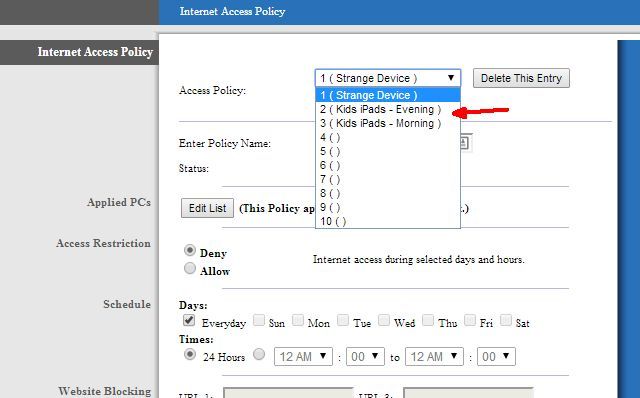
Once you find the MAC address for the devices you to limit, you need to find the “Access Restrictions” menu area. Remember, this menu may have a different title on your router. Here you can define several different policies for your kids’ devices and customize specific internet access rules for them.

Set access rules in your router

Create an Internet Time Restriction Schedule

Create a new internet schedule policy or rule, then add the MAC addresses you copied down earlier. Next, define the access restrictions you want to apply to those devices. Depending on your router, you might have to fiddle with the timings.

For instance, one Linksys router model doesn’t allow restrictions to begin in the PM and finish in the AM, so you would have to make two rules that bookend one another.

Set access times per device

Because you are using individual device MAC addresses, you can create specific rules for each device. So, if you have a younger child that should switch off early, assign a separate rule for their device. Or if you have an older child studying for exams, you could increase their internet schedule by an hour (just so long as they are actually using it to study!).

How to monitor home network traffic with your router.

Controlling the internet schedule is probably one of the most effective ways to manage your kids’ internet usage. If you have kids (or anyone else, for that matter) who won’t honor your requests to stop using the internet after a certain hour, you can take matters into your own hands.

Just bare in mind that cunning children might figure out how to change their device MAC address. If they do, they’ll skirt any router-level restrictions you put in place using the MAC address as an identifier.

4. Block Certain Internet Behaviors

If you are lucky enough to have children who listen to you and honor your wishes to use the internet responsibly, you may not need any of the tips in this article. On the other hand, if you have kids at the opposite end of the spectrum, who tend do things like use a VPN to bypass your internet filters or use a proxy to torrent illegal content, you might need to pull out the big guns. (Here are some ways your kids might bypass parental control tools!)

Depending on your router, you may have access to advanced tools like VPN Passthrough blocking, or individual controls for vital web scripts such as Java, AJAX, and ActiveX. Some routers let you block cookies and the use of proxies, too.

Block content on your router

It doesn’t matter how your child configures their browser or the computer. The router is the source of the internet coming to and from your home, so it trumps everything. If you turn ActiveX scripting off, it stays off. These advanced firewall functions take precedence over everything else.

Can You Block All Devices From the Internet?

Keep in mind that nothing is 100% bullet-proof. If your child is clever enough, they will find a way around your internet restrictions at the router level.

Perhaps they will figure out router administrator password? Or how about just bypass the router entirely? If your child has access to a smartphone with a decent data plan, they can use that as a Wi-Fi hotspot, where your router restrictions are of no use.

However, these tips will give you at least a fighting chance to try and manage what goes on in your home network, as well as how people access the internet from it. You might not want to use all of your options straight away, either. A gradual increase to curb excessive internet use might encourage your children to bring their internet use back to a responsible level.

Remembering, of course, that talking and open dialog is often the best option of all. But if that fails, you have these tools at your fingertips.

While you’re poking around your router, check there are no uninvited visitors. Here’s how to monitor your home network usage.

Read the full article: How to Monitor and Restrict Router Traffic: 4 Tips and Tricks


Read Full Article