17 February 2019

VCs aren’t falling in love with dating startups


Some 17 years ago, when internet dating was popular but still kind of embarrassing to talk about, I interviewed an author who was particularly bullish on the practice. Millions of people, he said, have found gratifying relationships online. Were it not for the internet, they would probably never have met.

A lot of years have passed since then. Yet thanks to Joe Schwartz, an author of a 20-year-old dating advice book, “gratifying relationship” is still the term that sticks in my mind when contemplating the end-goal of internet dating tools.

Gratifying is a vague term, yet also uniquely accurate. It encompasses everything from the forever love of a soul mate to the temporary fix of a one-night stand. Romantics can talk about true love. Yet when it comes to the algorithm-and-swipe-driven world of online dating, it’s all about gratification.

It is with this in mind, coincident with the arrival of Valentine’s Day, that Crunchbase News is taking a look at the state of that most awkward of pairings: startups and the pursuit of finding a mate.

Pairing money

Before we go further, be forewarned: This article will do nothing to help you navigate the features of new dating platforms, fine-tune your profile or find your soul mate. It is written by someone whose core expertise is staring at startup funding data and coming up with trends.

So, if you’re OK with that, let’s proceed. We’ll start with the initial observation that while online dating is a vast and often very profitable industry, it isn’t a huge magnet for venture funding.

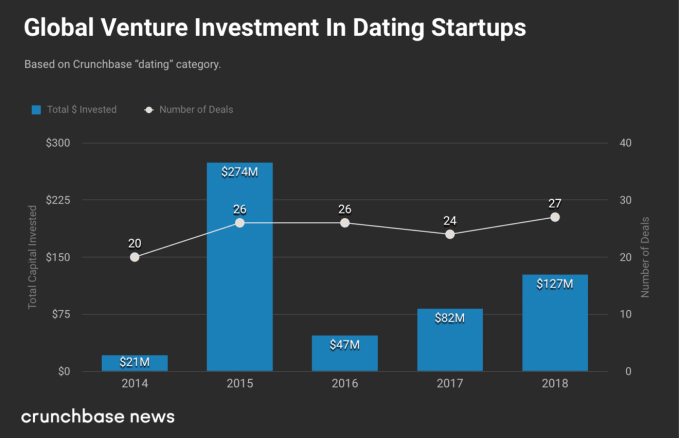
In 2018, for instance, venture investors put $127 million globally into 27 startups categorized by Crunchbase as dating-focused. While that’s not chump change, it’s certainly tiny compared to the more than $300 billion in global venture investment across all sectors last year.

In the chart below, we look at global venture investment in dating-focused startups over the past five years. The general finding is that round counts fluctuate moderately year-to-year, while investment totals fluctuate heavily. The latter is due to a handful of giant funding rounds for China-based startups.
While the U.S. gets the most commitments, China gets the biggest ones

While the U.S. is home to the majority of funded startups in the Crunchbase dating category, the bulk of investment has gone to China.

In 2018, for instance, nearly 80 percent of dating-related investment went to a single company, China-based Blued, a Grindr-style hookup app for gay men. In 2017, the bulk of capital went to Chinese mobile dating app Tantan, and in 2014, Beijing-based matchmaking site Baihe raised a staggering $250 million.

Meanwhile, in the U.S., we are seeing an assortment of startups raising smaller rounds, but no big disclosed financings in the past three years. In the chart below, we look at a few of the largest funding recipients.
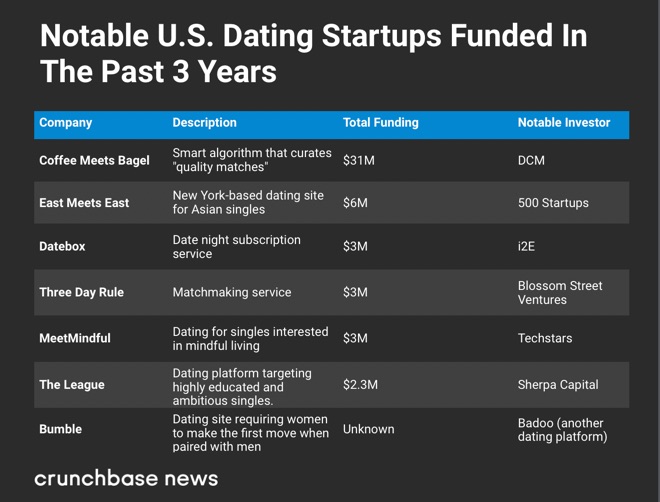
 

Dating app outcomes

Dating sites and apps have generated some solid exits in the past few years, as well as some less-stellar outcomes.

Mobile-focused matchmaking app Zoosk is one of the most heavily funded players in the space that has yet to generate an exit. The San Francisco company raised more than $60 million between 2008 and 2012, but had to withdraw a planned IPO in 2015 due to flagging market interest.

Startups without known venture funding, meanwhile, have managed to bring in some bigger outcomes. One standout in this category is Grindr, the geolocation-powered dating and hookup app for gay men. China-based tech firm Kunlun Group bought 60 percent of the West Hollywood-based company in 2016 for $93 million and reportedly paid around $150 million for the remaining stake a year ago. Another apparent success story is OkCupid, which sold to Match.com in 2011 for $50 million.

As for venture-backed companies, one of the earlier-funded startups in the online matchmaking space, eHarmony, did score an exit last fall with an acquisition by German media company ProSiebenSat.1 Media SE. But terms weren’t disclosed, making it difficult to gauge returns.

One startup VCs are assuredly happy they passed on is Ashley Madison, a site best known for targeting married people seeking affairs. A venture investor pitched by the company years ago told me its financials were quite impressive, but its focus area would not pass muster with firm investors or the VCs’ spouses.

The dating site eventually found itself engulfed in scandal in 2015 when hackers stole and released virtually all of its customer data. Notably, the site is still around, a unit of Canada-based dating network ruby. It has changed its motto, however, from “Life is short. Have an affair,” to “Find Your Moment.”

An algorithm-chosen match

With the spirit of Valentine’s Day in the air, it occurs that I should restate the obvious: Startup funding databases do not contain much about romantic love.

The Crunchbase data set produced no funded U.S. startups with “romantic” in their business descriptions. Just five used the word “romance” (of which one is a cold brew tea company).

We get it. Our cultural conceptions of romance are decidedly low-tech. We think of poetry, flowers, loaves of bread and jugs of wine. We do not think of algorithms and swipe-driven mobile platforms.

Dating sites, too, seem to prefer promoting themselves on practicality and effectiveness, rather than romance. Take how Match Group, the largest publicly traded player in the dating game, describes its business via that most swoon-inducing of epistles, the 10-K report: “Our strategy focuses on a brand portfolio approach, through which we attempt to offer dating products that collectively appeal to the broadest spectrum of consumers.”

That kind of writing might turn off romantics, but shareholders love it. Shares of Match Group, whose portfolio includes Tinder, have more than tripled since Valentine’s Day 2017. Its current market cap is around $16 billion.

So, complain about the company’s dating products all you like. But it’s clear investors are having a gratifying relationship with Match. When it comes to startups, however, it appears they’re still mostly swiping left.


Read Full Article

16 February 2019

Want to Learn Something New? Find Cool Skills to Learn With These 5 Websites


Learn New Skills

Learning a new skill is supposed to be easy on the web. But often, we don’t know where to start. Or critically, what to learn. There are beginner guides for almost any skill you can think of. There are MOOCs which can give you a Master’s level education at the cost of a single book. You can get confused faced with the glut of choices on your screen.

That’s why you need some help to create your own training plan to learn anything you want to. Use the five websites below to decide on the skills you want to try, and hopefully stick with for the long haul.

Learn-Anything (Web)

Learn Anything with interactive mindmaps.

How easy is it to learn something new when the path is laid out for you? Learn-Anything is an Open Source web app that is built on that simple idea. Enter the topic you want to learn more about in the search box. Learn-Anything then creates an interactive mindmap of a few sub-topics with the resources it finds online. This relationship between the topics can be the learning path you follow.

The learning path may or may not be the most efficient step by step way to master a new subject. But it points you to sites, articles, and software you can jump to immediately.

Learn-Anything is community-powered and it is still a work in progress. But take some inspiration from the interactive maps and create some of our own. Also, log in and contribute to the content by adding resources you come across.

Degreed (Web)

The Degree learning feed.

The age of lifelong learning has started. Degreed can be your springboard with its learning pathways. The learning platform helps you construct a personal feed of resources around a topic. Your personal feed can have articles, videos, podcasts, books, and courses. You don’t have to hunt them down yourself as the site’s algorithm curates them for you. But you can also add any material to your profile too.

Think of it as a combination of a Facebook like learning network and place to capture all the best learning materials from anywhere. Use Degreed to follow people who are on similar learning journeys. Organizations can use it as a learning management system. The platform can also be used to track and measure skill improvement.

I would recommend that you also keep an eye on Degreed’s deep dives into specific topics with the Degreed Does Data series. The series takes a complex topic (like Data Science) and breaks down how it will change an industry.

Courseroot (Web)

Courseroot - A MOOC Search engine

Massive Open Online Course platforms like Coursera, Udacity, and Udemy have their own search tool. But Courseroot does a good job of tying them all together (and a few more) under one massive MOOC search engine. The database lists the best courses on offer from the likes of FutureLearn, Springboard, edX, Skillshare, and Khan Academy too.

Search for the subject you want to begin learning. Filter the results according to price, difficulty, certificate quality, duration, and the platform you want to be on. Then, click the blue button to scoot to the source.

But again, you may not know what to study in the first place. Head to the A-Z list of all courses that Courseroot has cataloged. It could even be an arcane skill like Ancient Greek, or cutting edge like Xamarin.

Learney (Web)

Learney for software developers

Learney is a knowledge aggregator that is focused on software developers. It is so far a one-person team with a small community of users supporting it. Software developers have plenty of knowledge nuggets to depend on. Learney distills all that and cuts out the time you would spend hunting and collecting them.

It’s a humble try at connecting software developers to the most valuable knowledge available online. If you are a software developer, then use the Discover page to glance at all the things outside your areas of interest. It may be a new language, a new framework, or new methodologies.

Learney can not only help you expand your skillset but also help you start by cluing you to a learning path if you are still unclear about it.

r/IWantToLearn (Web)

I Want to Learn Subreddit

You can ask the 400,000+ members about any subject you want to know more about, or you can just lurk. The subreddit is all about advice from those who have come before you. As their charter says, it’s about learning a concrete, useful skill, or a form of art, which usually takes time to master.

The sidebar lists several other interesting educational subreddits like r/FrugalLearning if you want to pick up skills without spending a bucketload of money.

Use the search box to find discussions around your topic of interest. You can also lurk efficiently by sorting the threads to the “Top” of all time. You might be amazed that most of us want to learn how to stop procrastinating!

Life Can Get in the Way of Learning

School is failing us. That’s why you need to take your learning in your own hands. A well-laid out plan, a bit of time management, the discipline of a schedule, and a daily dose of unflagging motivation should see you through.

But I know you just might come back to the same old question—what should I learn? How about taking on a new skill as a 30-day challenge and see where it takes you.

Read the full article: Want to Learn Something New? Find Cool Skills to Learn With These 5 Websites


Read Full Article

5 Options for Samsung Galaxy S8 Screen Repair or Replacement

Google Adds Haptic Feedback to Gboard for iOS


Gboard for iOS now lets you feel each button press on your iPhone. This is thanks to Google adding haptic feedback to its iOS keyboard. Android users have enjoyed haptic feedback for a while, but now Google is offering the same feature to iPhone users.

What Is Haptic Feedback?

Haptic feedback is exactly what the name suggests. Haptics is any form of interaction involving touch, and the feedback refers to what happens when you touch something. An extreme form is this technology is the mid-air haptics we saw at CES 2019.

Gboard for Android has offered haptic feedback for a while, but for whatever reason, Google is only now offering the feature on Gboard for iOS too. Google has still beaten Apple to the task though, as the default iOS keyboard doesn’t offer haptic feedback.

How to Enable Haptic Feedback on Gboard for iOS

Google isn’t really making a big deal out of this. 9to5Google just happened to notice the new feature in the update notes for Gboard version 1.40. They read, “Feel your keys! You can now enable haptic feedback on key press by going to settings.”

Haptic feedback is available on all recent iPhones up to and including the iPhone 7. It isn’t enabled by default, so to enable it, click on Settings > Keyboard Setting, find “Enable haptic feedback on keypress” and toggle it across to “On”.

Once enabled, you’ll feel a small vibration through your finger every time you tap a key. This works for letters, numbers, symbols, as well as other options located within Gboard. Luckily, you can enable and disable haptic feedback at your leisure.

Download: Gboard for iOS

Don’t Forget the Default Keyboard for iOS…

Haptic feedback takes some getting used to. So, if you enable the option, our advice is to give it a chance before you disable it again. It isn’t for everyone, but it can be useful for those who need more than a visual clue that they’ve pressed a button.

When Google first launched it, we called Gboard for iOS “the best iPhone keyboard yet”. And that remains true to this day. However, the default keyboard for iOS has its plus points, and there are some essential iOS keyboard tips and tricks worth knowing.

Read the full article: Google Adds Haptic Feedback to Gboard for iOS


Read Full Article

The 6 Best iPhone Apps to Supercharge Your MacBook or iMac

The 7 Best Mobile Games to Play on a Google Chromecast

Apple acquires talking Barbie voicetech startup PullString


Apple has just bought up the talent it needs to make talking toys a part of Siri, HomePod, and its voice strategy. Apple has acquired PullString, also known as ToyTalk, according to Axios’ Dan Primack and Ina Fried. The company makes voice experience design tools, artificial intelligence to power those experiences, and toys like talking Barbie and Thomas The Tank Engine toys in partnership with Mattel. Founded in 2011 by former Pixar executives, PullString went on to raise $44 million.

Apple’s Siri is seen as lagging far behind Amazon Alexa and Google Assistant, not only in voice recognition and utility, but also in terms of developer ecosystem. Google and Amazon has built platforms to distribute Skills from tons of voice app makers, including storytelling, quizzes, and other games for kids. If Apple wants to take a real shot at becoming the center of your connected living room with Siri and HomePod, it will need to play nice with the children who spend their time there. Buying PullString could jumpstart Apple’s in-house catalog of speech-activated toys for kids as well as beef up its tools for voice developers.

PullString did catch some flack for being a “child surveillance device” back in 2015, but countered by detailing the security built intoHello Barbie product and saying it’d never been hacked to steal childrens’ voice recordings or other sensitive info. Privacy norms have changed since with so many people readily buying always-listening Echos and Google Homes.

We’ve reached out to Apple and PullString for more details about whether PullString and ToyTalk’s products will remain available. .

The startup raised its cash from investors including Khosla Ventures, CRV, Greylock, First Round, and True Ventures, with a Series D in 2016 as its last raise that PitchBook says valued the startup at $160 million. While the voicetech space has since exploded, it can still be difficult for voice experience developers to earn money without accompanying physical products, and many enterprises still aren’t sure what to build with tools like those offered by PullString. That might have led the startup to see a brighter future with Apple, strengthening one of the most ubiquitous though also most detested voice assistants.


Read Full Article

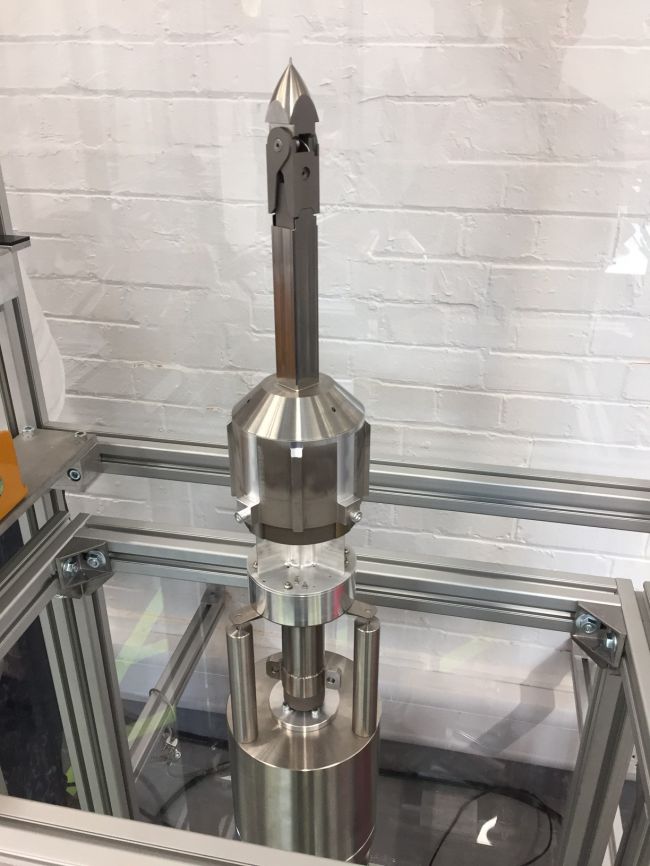
Deploy the space harpoon


Watch out, starwhales. There’s a new weapon for the interstellar dwellers whom you threaten with your planet-crushing gigaflippers, undergoing testing as we speak. This small-scale version may only be good for removing dangerous orbital debris, but in time it will pierce your hypercarbon hides and irredeemable sun-hearts.

Literally a space harpoon. (Credit: Airbus)

However, it would be irresponsible of me to speculate beyond what is possible today with the technology, so let a summary of the harpoon’s present capabilities suffice.

The space harpoon is part of the RemoveDEBRIS project, a multi-organization European effort to create and test methods of reducing space debris. There are thousands of little pieces of who knows what clogging up our orbital neighborhood, ranging in size from microscopic to potentially catastrophic.

There are as many ways to take down these rogue items as there are sizes and shapes of space junk; perhaps it’s enough to use a laser to edge a small piece down towards orbital decay, but larger items require more hands-on solutions. And seemingly all nautical in origin: RemoveDEBRIS has a net, a sail, and a harpoon. No cannon?

You can see how the three items are meant to operate here:

The harpoon is meant for larger targets, for example full-size satellites that have malfunctioned and are drifting from their orbit. A simple mass driver could knock them towards the Earth, but capturing them and controlling descent is a more controlled technique.

While an ordinary harpoon would simply be hurled by the likes of Queequeg or Dagoo, in space it’s a bit different. Sadly it’s impractical to suit up a harpooner for EVA missions. So the whole thing has to be automated. Fortunately the organization is also testing computer vision systems that can identify and track targets. From there it’s just a matter of firing the harpoon at it and reeling it in, which is what the satellite demonstrated today.

This Airbus-designed little item is much like a toggling harpoon, which has a piece that flips out once it pierces the target. Obviously it’s a single-use device, but it’s not particularly large and several could be deployed on different interception orbits at once. Once reeled in, a drag sail (seen in the video above) could be deployed to accelerate reentry. The whole thing could be done with little or no propellant, which greatly simplifies operation.

Obviously it’s not yet a threat to the starwhales. But we’ll get there. We’ll get those monsters good one day.


Read Full Article

Even years later, Twitter doesn’t delete your direct messages


When does “delete” really mean delete? Not always or even at all if you’re Twitter.

Twitter retains direct messages for years, including messages you and others have deleted, but also data sent to and from accounts that have been deactivated and suspended, according to security researcher Karan Saini.

Saini found years-old messages found in a file from an archive of his data obtained through the website from accounts that were no longer on Twitter. He also filed a similar bug, found a year earlier but not disclosed until now, that allowed him to use a since-deprecated API to retrieve direct messages even after a message was deleted from both the sender and the recipient — though, the bug wasn’t able to retrieve messages from suspended accounts.

Saini told TechCrunch that he had “concerns” that the data was retained by Twitter for so long.

Direct messages once let users to “unsend” messages from someone else’s inbox, simply by deleting it from their own. Twitter changed this years ago, and now only allows a user to delete messages from their account. “Others in the conversation will still be able to see direct messages or conversations that you have deleted,” Twitter says in a help page. Twitter also says in its privacy policy that anyone wanting to leave the service can have their account “deactivated and then deleted.” After a 30-day grace period, the account disappears and along with its data.

But, in our tests, we could recover direct messages from years ago — including old messages that had since been lost to suspended or deleted accounts. By downloading your account’s data, it’s possible to download all of the data Twitter stores on you.

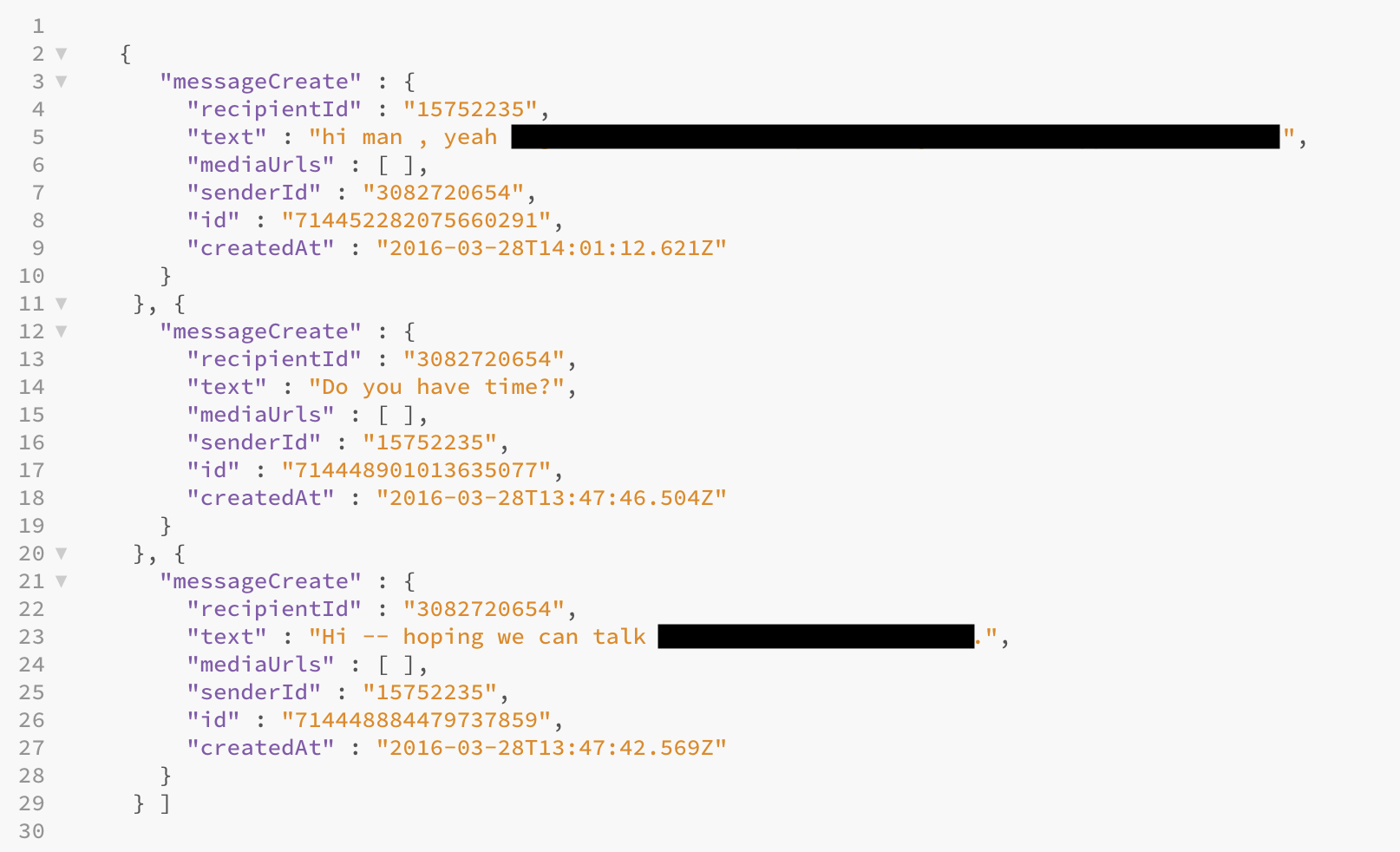
A conversation, dated March 2016, with a suspended Twitter account was still retrievable today. (Image: TechCrunch

Saini says this is a “functional bug” rather than a security flaw, but argued that the bug allows anyone a “clear bypass” of Twitter mechanisms to prevent accessed to suspended or deactivated accounts.

But it’s also a privacy matter, and a reminder that “delete” doesn’t mean delete — especially with your direct messages. That can open up users, particularly high-risk accounts like journalist and activists, to government data demands that call for data from years earlier.

That’s despite Twitter’s claim that once an account has been deactivated, there is “a very brief period in which we may be able to access account information, including tweets,” to law enforcement.

A Twitter spokesperson said the company was “looking into this further to ensure we have considered the entire scope of the issue.”

Retaining direct messages for years may put the company in a legal grey area ground amid Europe’s new data protection laws, which allows users to demand that a company deletes their data.

Neil Brown, a telecoms, tech and internet lawyer at U.K. law firm Decoded Legal, said there’s “no formality at all” to how a user can ask for their data to be deleted. Any request from a user to delete their data that’s directly communicated to the company “is a valid exercise” of a user’s rights, he said.

Companies can be fined up to four percent of their annual turnover for violating GDPR rules.

“A delete button is perhaps a different matter, as it is not obvious that ‘delete’ means the same as ‘exercise my right of erasure’,” said Brown. Given that there’s no case law yet under the new General Data Protection Regulation regime, it will be up to the courts to decide, he said.

When asked if Twitter thinks that consent to retain direct messages is withdrawn when a message or account is deleted, Twitter’s spokesperson had “nothing further” to add.


Read Full Article

15 February 2019

As GE and Amazon move on, Google expands presence in Boston and NYC


NYC and Boston were handed huge setbacks this week when Amazon and GE decided to bail on their commitments to build headquarters in the respective cities on the same day. But it’s worth pointing out that while these large tech organizations were pulling out, Google was expanding in both locations.

Yesterday upon hearing about Amazon’s decision to scrap its HQ2 plans in Long Island City, New York City Mayor De Blasio had this to say: “Instead of working with the community, Amazon threw away that opportunity. We have the best talent in the world and every day we are growing a stronger and fairer economy for everyone. If Amazon can’t recognize what that’s worth, its competitors will.” One of them already has. Google had already announced a billion dollar expansion in Hudson Square at the end of last year.

In fact, the company is pouring billions into NYC real estate with plans to double its 7000 person workforce over the next 10 years. As TechCrunch’s Jon Russell reported, “Our investment in New York is a huge part of our commitment to grow and invest in U.S. facilities, offices and jobs. In fact, we’re growing faster outside the Bay Area than within it, and this year opened new offices and data centers in locations like Detroit, Boulder, Los Angeles, Tennessee and Alabama,” wrote Google CFO Ruth Porat.”

Just this week, as GE was making its announcement, Google was announcing a major expansion in Cambridge, the city across the river from Boston that is home to Harvard and MIT. Kendall Square is also is home to offices from Facebook, Microsoft, IBM, Akamai, Digital Ocean and a plethora of startups.

Google will be moving into a brand new building that currently is home to the MIT Coop bookstore. It plans to grab 365,000 square feet of the new building when it’s completed, and as in NYC will be adding hundreds of new jobs to the 1500 already in place. Brian Cusack, Google Cambridge Site lead points out the company began operations in Cambridge back in 2003 and has been working on Search, Android, Cloud, YouTube, Google Play, Research, Ads and more.

“This new space will provide room for future growth and further cements our commitment to the Cambridge community. We’re proud to call this city home and will continue to support its vibrant nonprofit and growing business community,” he said in a statement.

As we learned this week, big company commitments can vanish just as quickly as they are announced, but for now at least, it appears that Google is serious about its commitment to New York and Boston and will be expanding office space and employment to the tune of thousands of jobs over the next decade.


Read Full Article

Introducing PlaNet: A Deep Planning Network for Reinforcement Learning


Research into how artificial agents can improve their decisions over time is progressing rapidly via reinforcement learning (RL). For this technique, an agent observes a stream of sensory inputs (e.g. camera images) while choosing actions (e.g. motor commands), and sometimes receives a reward for achieving a specified goal. Model-free approaches to RL aim to directly predict good actions from the sensory observations, enabling DeepMind's DQN to play Atari and other agents to control robots. However, this blackbox approach often requires several weeks of simulated interaction to learn through trial and error, limiting its usefulness in practice.

Model-based RL, in contrast, attempts to have agents learn how the world behaves in general. Instead of directly mapping observations to actions, this allows an agent to explicitly plan ahead, to more carefully select actions by "imagining" their long-term outcomes. Model-based approaches have achieved substantial successes, including AlphaGo, which imagines taking sequences of moves on a fictitious board with the known rules of the game. However, to leverage planning in unknown environments (such as controlling a robot given only pixels as input), the agent must learn the rules or dynamics from experience. Because such dynamics models in principle allow for higher efficiency and natural multi-task learning, creating models that are accurate enough for successful planning is a long-standing goal of RL.

To spur progress on this research challenge and in collaboration with DeepMind, we present the Deep Planning Network (PlaNet) agent, which learns a world model from image inputs only and successfully leverages it for planning. PlaNet solves a variety of image-based control tasks, competing with advanced model-free agents in terms of final performance while being 5000% more data efficient on average. We are additionally releasing the source code for the research community to build upon.
The PlaNet agent learning to solve a variety of continuous control tasks from images in 2000 attempts. Previous agents that do not learn a model of the environment often require 50 times as many attempts to reach comparable performance.
How PlaNet Works
In short, PlaNet learns a dynamics model given image inputs and efficiently plans with it to gather new experience. In contrast to previous methods that plan over images, we rely on a compact sequence of hidden or latent states. This is called a latent dynamics model: instead of directly predicting from one image to the next image, we predict the latent state forward. The image and reward at each step is then generated from the corresponding latent state. By compressing the images in this way, the agent can automatically learn more abstract representations, such as positions and velocities of objects, making it easier to predict forward without having to generate images along the way.
Learned Latent Dynamics Model: In a latent dynamics model, the information of the input images is integrated into the hidden states (green) using the encoder network (grey trapezoids). The hidden state is then projected forward in time to predict future images (blue trapezoids) and rewards (blue rectangle).
To learn an accurate latent dynamics model, we introduce:
  • A Recurrent State Space Model: A latent dynamics model with both deterministic and stochastic components, allowing to predict a variety of possible futures as needed for robust planning, while remembering information over many time steps. Our experiments indicate both components to be crucial for high planning performance.
  • A Latent Overshooting Objective: We generalize the standard training objective for latent dynamics models to train multi-step predictions, by enforcing consistency between one-step and multi-step predictions in latent space. This yields a fast and effective objective that improves long-term predictions and is compatible with any latent sequence model.
While predicting future images allows us teach the model, encoding and decoding images (trapezoids in the figure above) requires significant computation, which would slow down planning. However, planning in the compact latent state space is fast since we only need to predict future rewards, and not images, to evaluate an action sequence. For example, the agent can imagine how the position of a ball and its distance to the goal will change for certain actions, without having to visualize the scenario. This allows us to compare 10,000 imagined action sequences with a large batch size every time the agent chooses an action. We then execute the first action of the best sequence found and replan at the next step.
Planning in Latent Space: For planning, we encode past images (gray trapezoid) into the current hidden state (green). From there, we efficiently predict future rewards for multiple action sequences. Note how the expensive image decoder (blue trapezoid) from the previous figure is gone. We then execute the first action of the best sequence found (red box).
Compared to our preceding work on world models, PlaNet works without a policy network -- it chooses actions purely by planning, so it benefits from model improvements on the spot. For the technical details, check out our online research paper or the PDF version.

PlaNet vs. Model-Free Methods
We evaluate PlaNet on continuous control tasks. The agent is only given image observations and rewards. We consider tasks that pose a variety of different challenges:
  • A cartpole swing-up task, with a fixed camera, so the cart can move out of sight. The agent thus must absorb and remember information over multiple frames.
  • A finger spin task that requires predicting two separate objects, as well as the interactions between them.
  • A cheetah running task that includes contacts with the ground that are difficult to predict precisely, calling for a model that can predict multiple possible futures.
  • A cup task, which only provides a sparse reward signal once a ball is caught. This demands accurate predictions far into the future to plan a precise sequence of actions.
  • A walker task, in which a simulated robot starts off by lying on the ground, and must first learn to stand up and then walk.
PlaNet agents trained on a variety of image-based control tasks. The animation shows the input images as the agent is solving the tasks. The tasks pose different challenges: partial observability, contacts with the ground, sparse rewards for catching a ball, and controlling a challenging bipedal robot.
Our work constitutes one of the first examples where planning with a learned model outperforms model-free methods on image-based tasks. The table below compares PlaNet to the well-known A3C agent and the D4PG agent, that combines recent advances in model-free RL. The numbers for these baselines are taken from the DeepMind Control Suite. PlaNet clearly outperforms A3C on all tasks and reaches final performance close to D4PG while, using 5000% less interaction with the environment on average.
One Agent for All Tasks
Additionally, we train a single PlaNet agent to solve all six tasks. The agent is randomly placed into different environments without knowing the task, so it needs to infer the task from its image observations. Without changes to the hyper parameters, the multi-task agent achieves the same mean performance as individual agents. While learning slower on the cartpole tasks, it learns substantially faster and reaches a higher final performance on the challenging walker task that requires exploration.
Video predictions of the PlaNet agent trained on multiple tasks. Holdout episodes collected with the trained agent are shown above and open-loop agent hallucinations below. The agent observes the first 5 frames as context to infer the task and state and accurately predicts ahead for 50 steps given a sequence of actions.
Conclusion
Our results showcase the promise of learning dynamics models for building autonomous RL agents. We advocate for further research that focuses on learning accurate dynamics models on tasks of even higher difficulty, such as 3D environments and real-world robotics tasks. A possible ingredient for scaling up is the processing power of TPUs. We are excited about the possibilities that model-based reinforcement learning opens up, including multi-task learning, hierarchical planning and active exploration using uncertainty estimates.

Acknowledgements
This project is a collaboration with Timothy Lillicrap, Ian Fischer, Ruben Villegas, Honglak Lee, David Ha and James Davidson. We further thank everybody who commented on our paper draft and provided feedback at any point throughout the project.


Night Shift


Night Shift

The 11 Best Android Apps to Install on a Chromebook


android-apps-chromebook

Android app support for Chrome OS has been available for a while. But while you can install the majority of them on any Chromebook, only a handful are properly compatible with the operating system.

If an app is updated for Chromebooks, it will be much more reliable and support Chrome OS’ built-in multitasking tools. Therefore, here are the best third party apps you should install on your Chromebook.

1. Netflix

Netflix Chromebook

Netflix was one of the first apps to be updated for Chromebooks. While you can obviously stream from the Chrome browser too, there are a few benefits of downloading the dedicated app. The biggest of all is that you can download content for offline consumption which is perfect for scenarios like when you’re about to board a flight.

Plus, if you have a lower-end Chromebook, streaming on the mobile app is a significantly better experience than doing it from a Chrome tab. This is especially the case for HD videos.

Download: Netflix (Free)

2. Microsoft Office

Microsoft Office Chromebook

If you’re not comfortable with Google’s suite of productivity apps and want a more advanced platform, try Microsoft’s alternative. All the apps under Microsoft’s Office lineup for Android including OneNote, Word, PowerPoint, and Skype can work with Chromebooks. You have access to nearly every essential feature such as editing documents, templates, cloud sync, and more.

What’s more, they can be operated in multi-window modes. However, unless you have a Chromebook with a screen size less than 10.1-inches, Microsoft Office is not free. You will need an Office 365 subscription to unlock the ability to create, edit, or print documents.

Download: Microsoft Apps (Free, premium subscription available)

3. Adobe’s Mobile Suite

Adobe Lightroom App Chromebook

Adobe’s host of creative apps have been re-engineered to be compatible with Chrome OS as well. Whether you want to edit pictures or PDF documents or sketch, Adobe’s apps are the place to be.

From Lightroom CC to Acrobat Reader, Chromebooks are now compatible with most of Adobe’s major titles. Of course, it’s worth pointing out that these are still Android apps, not their full-fledged desktop counterparts. However, all of them are free unless you want to employ any of the premium features.

Download: Adobe Apps (Free, premium subscription available)

4. Evernote

Evernote Chromebook Dark Mode

While Google now preloads its own note-taking app on touchscreen-equipped Chromebooks, you can also give Evernote a shot. For Chromebooks, its mobile app offers a special tablet interface so that you can utilize the entire screen real estate.

In the landscape orientation, the app also automatically shifts to a sleek, tabular UI — ideal for those lengthy research sessions. Furthermore, you can create shortcuts for particular notes for getting into them right from the app launcher. There are doodling options too if you own a stylus and want to jot down handwritten notes.

Download: Evernote (Free, premium subscription available)

5. VLC

VLC Chromebook Multi-Window

Chrome OS’ pre-installed local video player is rather limited both in terms of performance and capabilities. To overcome that, we recommend taking a look at VLC’s mobile app. It offers all the tools you would need to play any kind of clip on your Chromebook.

On top of that, you can play videos in a movable window if you’d like to watch it while working on another app. In the touchscreen mode, a bunch of gestures are available allowing you to quickly perform an action like skipping ten seconds ahead.

Download: VLC (Free)

6. Slack

Slack Chromebook

Slack’s mobile app is compatible with Chrome OS too and features a two-column layout similar to the desktop client. It functions flawlessly if you’re using the Chromebook as a tablet and can be placed in the multi-window mode.

Download: Slack (Free)

7. TickTick

TickTick Chromebook

One of the best task management apps, TickTick has been tweaked to properly support Chrome OS as well. That means whether you’re planning your day in the portrait or landscape orientation, you won’t encounter any delays or odd behaviors. Even advanced features like the Pomo Timer work as intended. There are a multitude of other reasons to try TickTick if you haven’t already yet.

Download: TickTick (Free, premium subscription available)

8. GoPro Quik

GoPro Quik Chromebook

While Chromebooks are not primarily built for video editing, there are a few ways non-pro users can do it. One of those is with GoPro’s free Quik app.

GoPro’s full-fledged video-editing app comes with a ton of features that cater to both amateurs and professionals. You can either decide to let the app build stories from your media for you, or pick the effects, transitions and other aspects yourself.

In addition, GoPro Quik even has advanced video editing tools such as managing frame layouts, captions for each moment, color-grading, and more. Even if you want to quickly generate an edited video, GoPro Quik won’t disappoint with its wide range of themes.

Download: GoPro Quik (Free)

9. Pocket Casts

Android’s premier podcast streaming app is optimized for Chromebooks as well. When fired up in landscape mode, you’re greeted with a dense homescreen of album arts from featured podcasts. Like others, it sports a two-tab layout with links to other sections situated on the left. Unfortunately, Pocket Casts is not free and charges an upfront fee of $3.99.

Download: Pocket Casts ($3.99)

10. SketchBook

Sketchbook Chromebook

If you’re an artist, Autodesk’s SketchBook app is a must-have for your Chromebook. It has a ton of features whether you’re casually sketching or painting your next masterpiece. The app is compatible with styluses and can even detect pressure. Therefore, you can press harder for a darker gradient and vice versa. SketchBook is also entirely free.

Download: SketchBook (Free)

11. Squid

Squid Chromebook

Squid is the best mobile app for handwritten notes and the company has partnered with Google to bring low-latency ink to a few Chromebooks. The app lets you choose from a wide selection of backgrounds like college-ruled, graphs, and more. Plus, you have the ability to import documents and scribble over them for purposes such as signing.

Download: Squid (Free, premium subscription available)

Multitask Like a Pro on Chromebooks

Whether it’s editing videos or signing documents, there’s now an app for your Chromebook. Since it’s a desktop operating system, you also have a bunch of abilities to multitask between them. And to do that, you will need to familiarize yourself with these eight tips for multitasking like a pro on Chrome OS.

Read the full article: The 11 Best Android Apps to Install on a Chromebook


Read Full Article

Auto-Vox X1 Dual Dash Camera Won’t Miss a Thing (Review and Giveaway!)

How to Install Kodi on an Amazon Fire Stick

How to Reformat an External Hard Drive Without Losing Everything on It


reformat-external-hdd

Most people are pretty good at keeping backups of their valuable data on external hard drives. But what happens if the drive becomes corrupted?

It’s a lesson in why you should always make an offsite backup with a cloud provider as well as a local copy—but it’s too late for that now.

Thankfully, if you use a few little workarounds, you can reformat an external hard drive without losing everything on it.

Yes, It Is Possible!

A quick browse on the web’s many tech forums reveals that too many people think “data recovery” and “format drive” are mutually exclusive terms. They aren’t.

It’s perfectly possible to wipe your hard drive without losing all your data. The process requires you to format your drive, then use data recovery tools to salvage your data.

The methodology for the formatting part of the process differs depending on whether you’re using a Windows computer or macOS. We’re going to cover both platforms; keep reading to learn more.

How to Reformat a Drive on Windows

The process to reformat an external hard drive on Windows is straightforward.

Firstly, connect your external hard drive to your computer using a USB port. Wait for Windows to recognize the connected drive.

Next, open File Explorer, navigate to This PC in the left-hand column, and click on the shortcut.

In the Devices and Drives section of the main window, you should see your external hard drive. Right-click on the drive’s icon to bring up the context menu, then select Format from the list.

Make sure the Quick Format box is ticked and leave all the other settings the same.

quick format checkbox on windows

Finally, click on the Format button and wait for the process to complete.

To reiterate—it is extremely important to ensure the Quick Format checkbox has a tick in it. If you do a full format of your drive, you will lose all your data.

How to Reformat a Drive on Mac

MacOS doesn’t have a Quick Format box, but you can still achieve the same result by tweaking a particular setting.

To begin, open the Finder app and select Applications from the left-hand panel.

Scroll down the list of applications until you come to the Utilities folder. Open the folder and locate Disk Utility.

Within the Disk Utility app, you should see your external hard drive listed under External on the left-hand side of the screen. Click on your drive’s name.

Now turn your attention to the top of the window and click on the Erase button. The operating system will prompt you to wipe the drive.

mac format disk security options slider

Do not proceed—you need to click on the Security Options link. It’s vital to ensure the slider is moved all the way to the left side of the scale. If the slider is not in the correct position, you will lose some (or all) of your files. The data recovery process will be impossible.

Why Is Quick Format Important?

If you want to use data recovery software, you need to perform a Quick Format (or the Mac equivalent)—but why?

Think of your files as books on a bookshelf. The filesystem is like the catalog that tells you where the books are kept. Performing a Quick Format is akin to throwing away the catalog but keeping the books themselves. You wouldn’t be able to find the books as easily, but they are still there.

In more technical terms, a Quick Format only deletes the file system journaling. It doesn’t overwrite the entire drive with binary zeroes. The files stay, but File Explorer/Finder can no longer see them because they don’t have any information about where to look. The files remain there until they are overwritten with new data from the user.

Don’t Add More Files

At this stage, it’s imperative that you don’t write any new data to your hard drive.

As we just explained, any new data will directly overwrite the old (now hidden) files. And the overwriting won’t take place on a file-for-file basis. By sending a new file to your external hard drive, you could corrupt hundreds of the files that you need to retrieve.

Just move straight onto using the data recovery software.

Using Data Recovery Software

Now it’s time to turn to a data recovery app. It is specialized software that can find files on a hard drive without a catalog which tells it where to look.

Quite a few data recovery apps have a free tier. Sometimes, the free tier is restricted to a certain number of files or amount of storage. If you’re trying to recover lots of data, you might need to get your wallet out.

Here are three data recovery apps you can try:

1. Prosoft

Available on: Windows, Mac

Prosoft is a data recovery app that’s available on both Windows and Mac. It can recover more than 100 different file types, recognize duplicate files among those you want to restore, and offers a recovery preview before you begin the process.

The free trial lets you see a preview so you can be sure it’s going to work before you buy.

Download: Prosoft (Free trial, $99 for a full license)

2. EaseUS Data Recovery Wizard

Available on: Windows, Mac

EaseUS Data Recovery Wizard is probably the most well-known data recovery app.

Unlike Prosoft, it lets you recover 2GB of data for free. All mainstream file types are supported.

If you need to recover more than 2GB of data, you will need to pay for the Pro version. It costs $69.99 for a lifetime license.

Download: EaseUS Data Recovery Wizard (Free, $69.99 for Pro)

3. Recuva

Available on: Windows

The Windows-only Recuva app falls under the CCleaner umbrella. It is free to download and use, and does not have any data limits.

The $19.95 Pro version adds support for virtual hard drives and automatic updates.

If you’d like to learn more, we’ve written about the best data recovery apps for Windows and the best data recovery apps for macOS in separate articles.

Download: Recuva (Free, $19.95 for Pro)

Avoid Problems, Make Multiple Backups

As we mentioned at the start, all these problems can easily be avoided if you make multiple backups of your data.

At the very least, you should keep an onsite and offsite backup. In a dream world, have a backup on a NAS drive, with a cloud storage provider, on an external hard drive, and with a dedicated backup app provider.

Read our article about the best online backup services to learn more.

Read the full article: How to Reformat an External Hard Drive Without Losing Everything on It


Read Full Article

What Is Wish? Is It Safe to Shop Online With Wish?


wish-shopping

If you ever wanted to purchase a smartwatch or a pair of sneakers for under $10, now’s your chance with Wish, the discount store of the web.

Browsing Wish is like browsing a store from an alternate universe. With cell phones for $30, and some items even sold for free, you have to wonder if this site’s legitimacy is just wishful thinking.

We explore how Wish can offer such low prices and what you can do to avoid scams.

What Is Wish?

Wish (wish.com) is an online marketplace for anything you can imagine. From hair extensions to selfie lighting, and laptops, its inventory seems endless.

Wish Shopping Products List

Since its formation in 2010 by ex-programmers from Google and Yahoo, Wish’s worth has soared to $8.5 billion.

It’s famous for low price tags on so-called expensive items. However, the products don’t come directly from Wish itself; instead, they’re sold by different sellers. Wish only takes a portion of their profits.

Why Are Items so Cheap on Wish?

Head to wish now. See how some items often feature a price that’s crossed out? Wish sellers cut that “original” price down to almost nothing. Keep in mind that sellers have the power to make up whatever original price they want.

For example, take a look at this smartwatch. Its price has been supposedly slashed from $269 to a mere $10:

Wish Shopping Smartwatch

You’re probably wondering why Wish sellers can have such low prices. While many products are made from the cheapest materials available, the low prices also have a lot to do with where most of the products ship from: China.

China’s lenient labor policies allow retailers to produce massive volume of goods for very little cost. Wish products are often shipped by the seller, saving them from maintaining a physical store. The products can also be stored in warehouses owned by Wish and get shipped as soon as a customer places an order.

Searching YouTube for Wish unboxings can give you an idea of Wish’s product quality.

Is Wish Safe and Legit?

Despite its unbelievable prices, Wish is completely legit. That means the $0.50 earbuds you buy will be shipped to your home, but they may or may not work. But hey, it’s only $0.50 right?

Although it’s a legit site, that doesn’t mean that there aren’t any knockoffs. Just use common sense—when you see a designer handbag selling for only $20, you should be skeptical.

In addition to the risks of knockoffs, you should know that some of the items you find on Wish are risky buys. Electronics might be poorly made or clothing might not fit right.

Just like the old saying goes: “You get what you pay for.”

Will Wish Steal My Information?

You’re probably hesitant to type your credit card information on a website that sells a leather watch for $1. The truth is that Wish is just about as safe as any other online retailer.

In order to view products on Wish, you’ll need to make an account. This means inputting your full name and email. Wish also tracks your computer’s IP address, social network information, location, your internet browser, and even the items you click on.

There’s always the possibility of a website being hacked, and Wish is no exception. Concerned about data breaches? Wish itself won’t steal your information. Some may even say that it’s a worthy alternative to Amazon.

Tips for Buying on Wish Safely

So you want to take the plunge and order something from Wish? There are several things you should know before starting your Wish haul.

If you’re familiar with the risks of shopping with AliExpress, you won’t be surprised at the precautions you have to take when ordering from Wish. Take a look at these four tips to ensure you make a safe purchase.

1. Don’t Ignore Reviews

Sometimes it’s okay to take reviews with a grain of salt. Buyers often nitpick an item if it doesn’t mean their specific expectations, so you ignore it.

However, you should not do this on Wish. Wish reviewers will let you know the ugly truth behind that $13 drone you want so bad.

If the reviews on the item you want are mostly negative, you might want to reconsider your plan to purchase it. On the other hand, some items are “Verified by Wish Shoppers.” This means that a product has received positive reviews from customers.

Wish Shopping Verified by Wish Shoppers

2. Be Aware of Long Shipping Times

Used to two-day Amazon Prime shipping? Wish will be your wake-up call.

Wish ships from China. That means it could take a long time to get to your doorstep. Let’s just say that one week is a quick shipping time for Wish. Some users report that their item doesn’t arrive for months after their order.

It’s also possible that your item won’t come at all. According to several complaints, it’s not uncommon for a buyer’s item to never reach their home. Always keep track of your order.

3. Watch Out for Misleading Descriptions

One of the biggest issues on Wish is incorrect product descriptions and images. Descriptions aren’t always accurate and images can make the product look better than it actually is.

In this case, it’s better to pay more attention to customer reviews than the product descriptions.

4. Choose the Right Size

If you’re buying clothing on Wish, make sure to look at the size chart. The small, medium, or large in your country might not correspond with the clothing sizes from Wish.

Since most clothes from Wish come from China, the clothes are often in Asian sizes. Luckily, Wish shows a meter on clothing items that let you know whether it runs large or small.

Wish Shopping Sizes

Be Careful What You Wish For

Wish’s affordable prices make it tempting to go on an all-out shopping spree. While you might want to fill your cart with cheap electronics and jewelry that would typically cost hundreds of dollars, you should second-guess yourself every now and then.

Just like Wish, other online retailers come with a host of possible scams as well. Shop smarter by heeding these tips for avoiding common eBay scams, which can be applied to Wish as well.

Read the full article: What Is Wish? Is It Safe to Shop Online With Wish?


Read Full Article
The 5 Most Important Typography Terms, Explained


typography-terms

Because it has the burden of carrying the meaning of a layout, typography can make or break a good design. However, it isn’t something only for artists and advertisers to think about. People from all walks of life can benefit from understanding how typography works.

To take full advantage of typography, you need to understand the elements that go into it. We’ve compiled a list of basic terms together with their explanations that will help you navigate the world of typography.

1. Typefaces and Fonts

Font Weight Width Style

What we commonly refer to as fonts, such as Arial and Times New Roman, aren’t actually fonts. They’re typefaces.

A typeface, also known as a font family, is a set of fonts that share the same fundamental design elements. On the other hand, a font is a specific variation within that family based on a number of characteristics, namely:

  • Weight: This refers to how thick or how light a font is. Most typefaces have a spectrum of weights with descriptive names, from ultra-light or thin to bold or heavy. The middle of a range of weights is called “medium” or “regular.”
  • Italicization: This refers to whether or not a font slants to the right. Italicized fonts are called either “oblique” or “italic.”
  • Condensation and Width: These refer to how broad or how narrow the width of the font is. When a font is narrow, it is usually referred to as “condensed” while broad fonts are referred to as “wide” or “extended.”
  • Style: This refers to a change in the presentation of a typeface rather than its core design. For example, some families have an “outline” font, which is essentially the same as the regular font except only showing an outline of each character.

Helvetica Black Heavy Medium Thin

To get a better idea of this, we’ll use the most common font in design—Helvetica Neue—as an example. Helvetica Neue is a typeface, as there are many fonts within its family.

Under Helvetica are a variety of weights, such as black, medium, and thin. There are also extended and condensed versions. For each weight and width, there is a corresponding oblique version. All of these variations on weight, width, and italicization are individual fonts.

2. Serif, Sans-Serif, and Script

Sans Sans Serif Monotype Script Display

If you’ve ever been around designers, you’d know that one of the first things they think about when designing a layout is whether to use Serif or Sans-Serif. But what exactly do these two things mean?

“Serif” means “tail” in Latin, while “sans” means “without.” Therefore, a serif is a typeface with a tail at the end of the body. On the other hand, a sans-serif refers to a typeface that does not have a tail.

In addition to sans-serif and serif, there are three additional classifications that designers use to refer to typefaces. A script refers to one that simulates curved handwriting or calligraphy. These are especially popular for wedding invitations.

A display has unique, eccentric characteristics and is normally intended to be seen in large sizes. These are the fonts you see on Halloween posters or billboards.

Lastly, a monotype typeface has characters that all have the same width. Programmers use these in order to view blocks of code more easily.

Here are a couple of examples of each that you will likely recognize, as they are word-processing defaults:

  • Serif: Times New Roman, Georgia, Garamond
  • Sans-Serif: Arial, Helvetica, Calibri
  • Script: Lucida Handwriting, Brush Script, Rage Italic
  • Display: Chiller, Bauhaus 93, Jokerman
  • Monotype: Lucida Console, Courier New

3. Alignment

Center Right Left Alignment

If you’ve ever used a word processor, you probably already know what alignment is. It refers to which side of the margin a block of text lines up with.

A paragraph can be aligned to the left, the center, or the right. By default, you should try to keep most blocks of text left-aligned, as the human eye automatically starts reading from the left.

Fully Left Right Center Justified

Most programs have a fourth alignment option, which is justified alignment. Justified alignment means that the lines in a block of text align themselves to both sides of the margin. This is normally achieved by changing the width of spaces between words.

Justified alignment can be further divided into four types, depending on which side the final line aligns itself to. If a block of text is fully justified, that means that all lines in a block of text will align to either side. This normally looks a bit messy but can be useful when designing certain materials.

4. Contrast and Hierarchy

Contrast Statements Typography

In the above image, your eyes probably looked immediately at the second sentence. That is because of the size, the variation in fonts, and the use of the striking red color. The second sentence uses the principle of contrast.

In design, contrast refers to the idea of creating noticeable differences between elements in a layout. When working with typography, it means changing anything from the typeface and weight to the color of text.

Header Subheader Body Subtext

On the other hand, hierarchy refers to the use of contrast to highlight the importance of certain elements over others.

For example, in a typical PowerPoint presentation, the header of a slide is normally the biggest element and uses a thicker font. On the other hand, in a research paper, the citations at the bottom of a page have a smaller font size than the rest of the body text.

5. Tracking, Leading, and Kerning

Line Spacing Character Spacing

One of the most confusing things for a novice designer is the difference between tracking, leading, and kerning.

Tracking refers to changes in the spacing between all characters in a line. When you increase the tracking of a word, you are uniformly increasing the spaces between every letter. Changes in tracking normally happen for printed posters and social media layouts. And these are the tools you need to create shareable social media images.

This is different from kerning, which refers to the changes in spacing between each character. In the example above, the kerning between the letters “K” and “e” was decreased, while the kerning between the other letters remained the same. You normally take kerning into consideration when you’re designing very large layouts with few characters.

On the other hand, leading is the amount of space between lines in a block of text. In word-processing, when you change a paragraph to “double-space,” you’re doubling the leading between lines. Leading is especially important if you’re typing something with a large amount of text, such as a report or a magazine layout.

Typography Is for Everyone

Whether you’re a professional designer making a layout for a client, a student writing a paper, or a corporate professional working on a slideshow, the way that your text is presented can make all the difference. So, with that in mind, it’s important to understand the most important elements.

If you’ve learned enough about typography to design your next project, here are some free alternatives to Photoshop, Illustrator, and Lightroom that you can use to make beautiful layouts. And if you haven’t found the perfect typeface yet, here are websites to discover and download free fonts.

Read the full article: The 5 Most Important Typography Terms, Explained


Read Full Article