Apple Music users will now be able to sing along to their favorite songs even if they forget the words. This is thanks to Apple teaming up with Genius—the music encyclopedia and database—to bring song lyrics to the streaming music service.
Music fans are obsessed with song lyrics. It’s why so many song lyric sites exist online. However, with most of us now listening to music through a streaming service, it makes sense to display lyrics in the apps themselves. Cue Apple Music and Genius.
Apple Music Teams Up With Genius
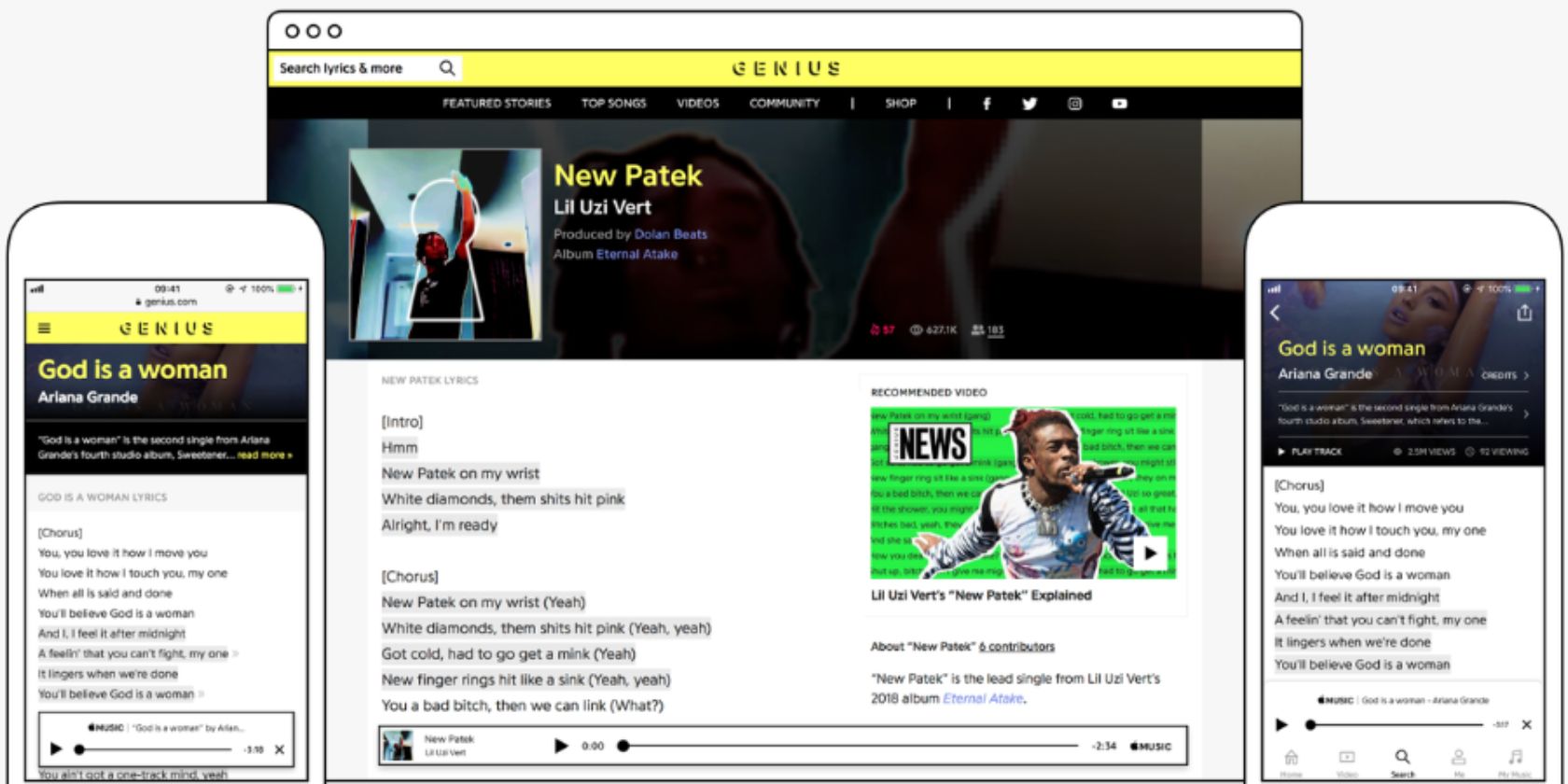
The Apple Music and Genius partnership works both ways. Genius will now provide the lyrics for “thousands of hit songs on the service”. Thus, Apple Music users will be able read along with the lyrics as they listen to their favorite songs.
On the flip side, the Genius website and app now have an embedded Apple Music player. This means (signed in) Apple Music subscribers who visit the Genius website or open the Genius app can listen to the songs without having to open Apple Music.
? GENIUS GETS SMART WITH APPLE MUSIC ?
we’re proud to make @applemusic our first official music player, AND to add the world’s best lyrics to Apple Music’s growing database, providing lyrics to thousands of hit songs ?
more info ? https://t.co/wC1IpYe17Ypic.twitter.com/dhWFAyvGxM
In a post on Genius.com, Ben Gross, Chief Strategy Officer at Genius, said:
“Being able to read lyrics and annotations on Genius while you listen along on Apple Music is a dream Genius experience. We’re proud to make Apple Music our official music player, and we’re doubly excited to bring Genius lyrics to their amazing platform.”
What About Spotify’s Behind the Lyrics?
Interestingly, Genius has an existing partnership with Spotify. This means that for certain songs, you’ll see some of the lyrics and snippets of “Behind the Lyrics” information. It will be interesting to see how Genius’ Apple Music deal affects Spotify moving forward.
Microsoft PowerPoint is the most popular tool to make presentations on a computer. But if you haven’t mastered it, you will need a little help going from a blank page to a stunning slideshow. These free apps and sites will make that happen for you.
Before you jump into any of these, it’s best if you familiarize yourself with the basics of PowerPoint. Our guide will teach you how to use the ribbon or toolbar, how to create slides, add notes, and even how to use templates.
Once you know these basics, you can move on to slightly more advanced PowerPoint principles, like using add-ins to expand its abilities or downloading free templates from other sites.
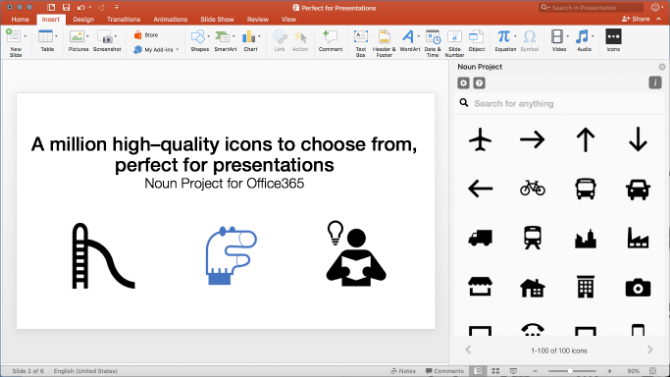
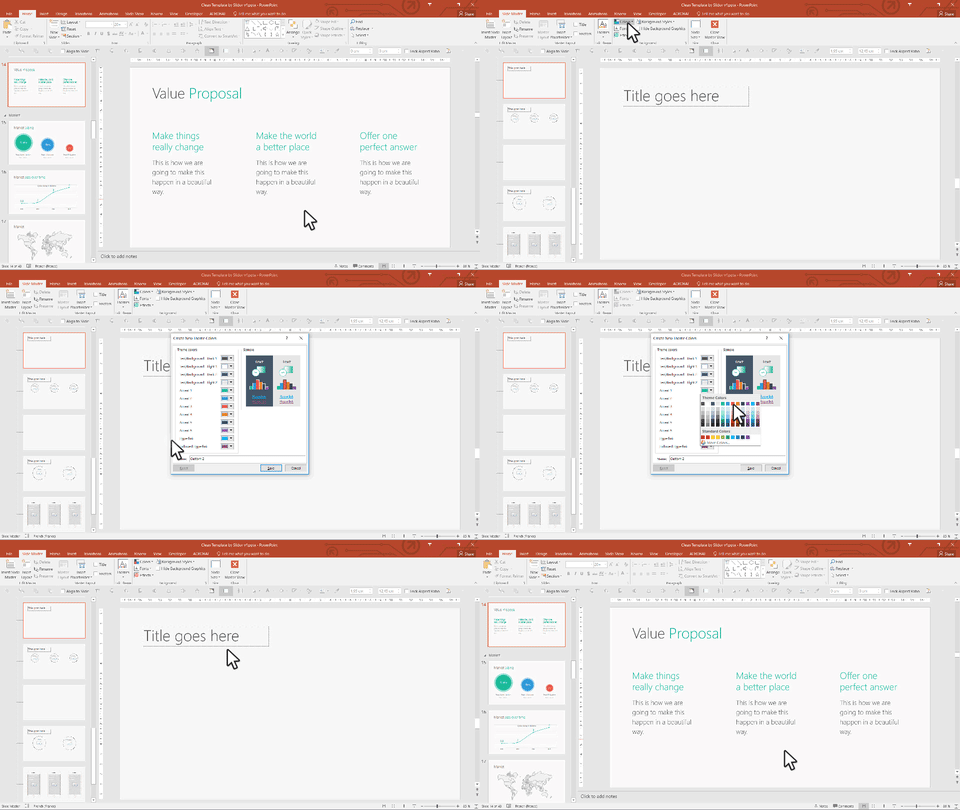
The Noun Project is a collection of over a million icons and emojis that are available for anyone to use for free. You can even legally use the icons for commercial purposes. And a simple add-in lets you use these in PowerPoint.
It’s simple to install the PowerPoint add-in, after which you can start using it. Start The Noun Project and you’ll see a bunch of icons in the sidebar on the right, Drag and drop as you want, and you can even change the size. All icons also come in nine colors: black, white, and the seven colors of the rainbow.
The free version of The Noun Project add-in gives you access to 100 icons. To access the full library, you’ll need to buy a NounPro account. But that account is valid for more than PowerPoint, and you can use those icons anywhere you want.
You can only use The Noun Project add-in on the Windows and macOS versions of Microsoft PowerPoint. It doesn’t work on Android or iOS.
LiveSlides (Windows, macOS): Embed Any Web Media in Slides
It’s easy to embed a YouTube video in PowerPoint, but Microsoft doesn’t make it as simple to add other types of web-based media. If it’s a tweet or a web page that you want to update live, you’ll need an add-in called LiveSlides.
LiveSlides makes it simple enough for anyone to add a web page by simply copy-pasting the link. It works with a wide variety of sites, including YouTube, Vimeo, Twitter, Poll Everywhere, Google Calendar, Outlook Calendar, Google Maps, Asana, Google Docs, and other popular web apps. And it’s free.
The live nature of the add-in makes it special to embed any media in a PowerPoint slide. You can actually embed your company’s Twitter profile in a presentation, and send a tweet from your phone which auto-updates on the big screen. It also works with websites, in case you want to make changes to the backend and show a client their new web page.
You will need to register to download LiveSlides for Windows or macOS. It also works with Keynote on Mac, but we haven’t tested that.
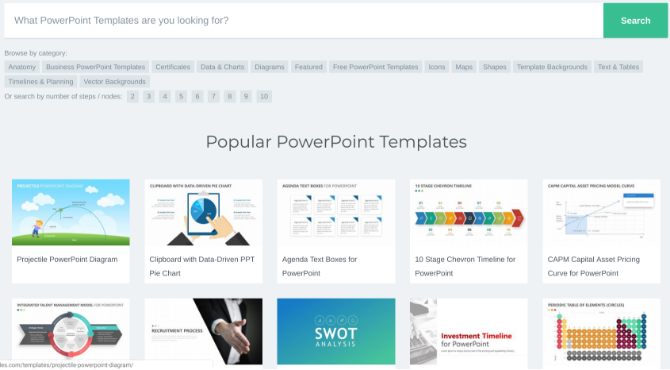
Microsoft already preloads a bunch of free templates in PowerPoint, but you can always download and add more. Pslides is an excellent repository of different types of templates, most of which are free.
To quickly filter the free ones, click the Free PowerPoint Templates category. There are still about 150 templates of different types. You can get slides to show a beautiful competitive analysis, create Venn diagrams to make your point, or show a simple task planner for how the project will progress.
Load any template into PowerPoint and you can edit it in the usual ways: click the text boxes, change the colors, add or delete items and images, and so on.
Like Pslides, there are plenty of other places to find free PowerPoint templates, so don’t forget to check the site before you spend hours creating your own slides.
Peetch (Windows, macOS): Free, Customizable PowerPoint Templates for Entrepreneurs
Peetch is a deck of slides for developers and entrepreneurs who want to showcase their big idea in the language that venture capitalists understand. You don’t need PowerPoint smarts if you use Peetch.
The 42 slides are divided into intro, problem, your solutions, market, data, team, and roadmap. Each of the slides has excellent fine-tuning abilities so you can match it to your idea. For example, you can create beautiful mock-ups of how your app will look on a phone, tablet, or laptop screen. You can customize the color scheme to your design principles, or add a bunch of data and turn it into stunning graphs.
While the whole idea of Peetch is about entrepreneurs, the slide deck is actually useful for any manager or project leader. The slides are universally useful, so try them out. And if you want a bit more, check other free templates for project presentations.
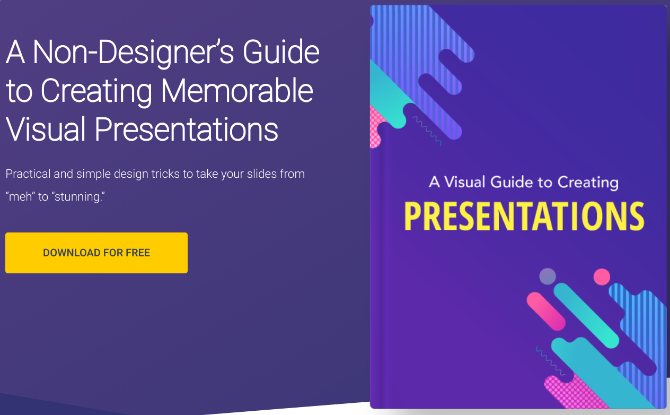
No matter which add-ins and sites you use, none of those will help if you don’t know how to make a visually memorable presentation. So Visme, one of the best free PowerPoint alternatives, put together a little guide on how to create a good-looking slideshow.
The 120-page guide takes you through a series of steps on how to think visually when you’re creating your project’s plan, the different ways to present the main message, and how to design the slides.
You can download the full guide as a free ebook from Visme, but you’ll need to sign up for the newsletter to get it. Don’t worry, you can immediately save the ebook and then unsubscribe from the newsletter or send it to the trash folder.
With the help of these sites, guides, and add-ins, you should be able to create a gorgeous presentation that wows your audience. But that’s only one part of a successful presentation. You still need to stand up and deliver the whole thing.
Visme’s ebook guide has a few tips to prepare a professional presentation in person, but the one thing you need to remember above all else is to practice it in advance. Don’t wing it. That practice will help you speak at the right pace and know which slides are good or need to be changed.
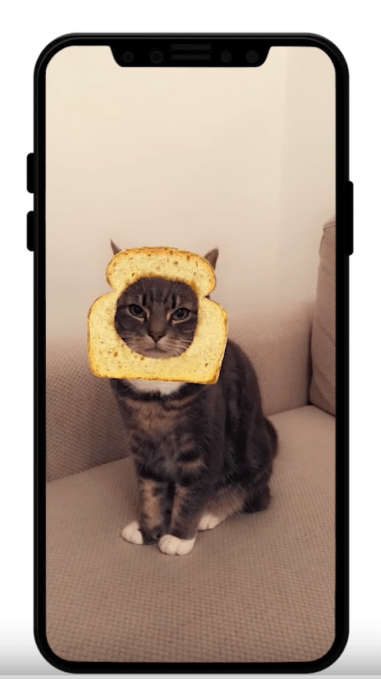
It’s 8:00 PM on Friday night and you’re home alone and already drunk. Oh, is that just me? Well no matter. Snapchat has made lenses for your cat now. Yes, that’s right. Your cat! This is what the internet is made for, friends. Not all that fake news and trolling. Not having to read tweets where people use words like “woke” unironically. Cat lenses!
But now you can put a set of matching glasses on yourself and your cat.
Or give you and your cat rainbow unicorn horns.
Or give Mr. Fluffypants some big ol’ googley eyes.
Or put a piece of toast over his face, which makes him look even less amused than usual.
What the actual f***
You can even give you and kitty big, fat lips as you kissy face the camera.
You can be the angel, while the cat gets devil horns and wings, as is – of course, appropriate.
I mean, this may or may not solve Snap’s long list of problems, like its rushed redesign, the mess that’s Snapchat Discover, its inability to attract adult users, falling share price, and ooooh, all that money it’s bleeding. ($353M last quarter!)
In a letter addressed to Canadian Prime Minister Justin Trudeau, Senators Mark Warner and Marco Rubio make a very public case that Canada should leave Chinese tech and telecom giant Huawei out of its plans to build a next-generation mobile network.
“While Canada has strong telecommunication security safeguards in place, we have serious concerns that such safeguards are inadequate given what the United States and other allies know about Huawei,” the letter states. The senators warn Canada to “reconsider Huawei’s inclusion in any aspect of Canada’s 5G development, introduction, and maintenance.”
The outcry comes after the head of the Canadian Centre for Cyber Security dismissed security concerns regarding Huawei in comments last month. The Canadian Centre for Cyber Security is Canada’s designated federal agency tasked with cybersecurity.
Next generation 5G networks already pose a number of unique security challenges. Lawmakers caution that by allowing companies linked to the Chinese government to build 5G infrastructure, the U.S. and its close allies (Canada, Australia, New Zealand and the U.K.) would be inviting the fox to guard the henhouse.
As part of the Defense Authorization Act, passed in August, the U.S. government signed off on a law that forbids domestic agencies from using services or hardware made by Huawei and ZTE. A week later, Australia moved to block Huawei and ZTE from its own 5G buildout.
Due to the open nature of intelligence sharing between the U.S. and its closest allies, the Canadian government would be able to obtain knowledge of any specific threats that substantiate the U.S. posture toward the Chinese company. “We urge your government to seek additional information from the U.S. intelligence community,” the letter implores.
In a video that similar to those videos where humans push around ATLAS, researchers at Delft University of Technology have created a system that will let a quadrotor drone keep flying even if one of the propellers is broken.
The video above – which is, arguably, pretty boring – shows the drone fighting against both structural damage and wind and most definitely winning. The fact that it is able to stay airborne under such wild conditions is the real draw here and it’s a fascinating experiment in robust robotics. In other words, this drone routed around damage that would destroy a normal quadcopter.
According to IEEE the system works by adding a multiple subsystems to the drone in order to manage the position and altitude. The system uses the built-in gyro and accelerometer readings to keep itself in the air and lots of processing power to keep it moving forward even as it seems to careen into the wild blue yonder. Further, the system manages motor power to ensure that the propellers aren’t “saturated.”
The researchers, Sihao Sun, Leon Sijbers, Xuerui Wang, and Coen de Visser, presented their paper in Spain last week at IROS 2018.
In April, TechCrunch broke the news that some of Mark Zuckerberg’s Facebook messages were deleted from recipients’ inboxes in what some saw as a violation of user trust. Then, Facebook suddenly announced that it would actually build this Unsend functionality for everyone. Then six months went by without a peep about the feature, furthering suspicions that the announcement that it would release an Unsend button was merely a PR driven response to the scandal.
Late last week, TechCrunch asked Facebook about its progress on Unsend, and the company told us “Though we have nothing to announce today, we have previously confirmed that we intend to ship a feature like this and are still planning to do so.”
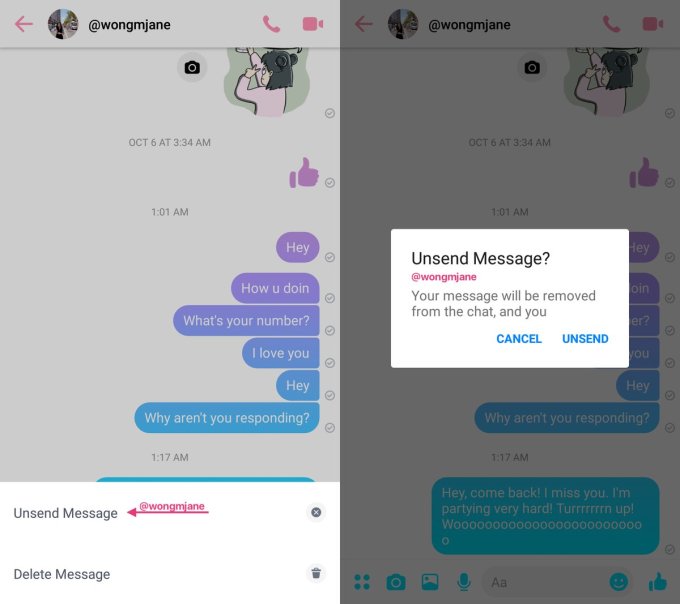
Now we have our first look at the feature thanks to TechCrunch’s favorite tipster Jane Manchun Wong. She’s managed to generate screenshots of a prototype Unsend button from Facebook Messenger’s Android code. Currently, you can only delete messages from your own inbox — they still remain in the recipients’ inbox. But with this Unsend feature, you’ll be able to remove a message from both sides of a conversation. However, the code indicates that in the current prototype there’s a “time limit”. That may mean users would only have a certain amount of time after they send a message to unsend it. That would essentially be an editing window in which users could take back what they said.
In response, a spokesperson confirmed that “Facebook internally tests products and features before they ship to the public so we can ensure the quality of the experience.”
The Unsend feature could be useful to people who say something stupid or inappropriate, disclose a secret they shouldn’t have, or want to erase evidence of their misdeeds. That could make users more comfortable speaking freely on the app, since they know they can retract their texts. Snapchat’s messages self-destruct unless purposefully saved to the thread by a user, permitting more off-the-cuff chatting.
But Unsend could also open vectors for abuse, as users could harass people over Messenger and then delete the evidence. Facebook will need to ensure that Unsend doesn’t accidentally become a weapon for bullies. That might mean allowing users to turn off the ability for their conversation partners to Unsend messages on a thread by thread basis, and/or a report button specifically for flagging messages that have since been retracted.
Facebook’s acquisition Instagram already lets users Unsend messages. But that chat product is more designed for having fun, discussing memes, and sharing photos with close friends. Messenger has positioned itself as a core communications utility for the world. Messing with the permanence of messages could make it feel less reliable or truthful to some users. When we talk in person, our conversations aren’t written in stone forever…but there’s also no way to force someone to forget what you said.
Scroll down to the section “Is my Facebook account impacted by this security issue?”
Here you’ll see a Yes or No answer to whether your account was one of the 30 million users impacted
If Yes, you’ll be in one of three categories:
A. You’re in the 15 million users’ whose name plus email and/or phone number was accessed.
B. You’re in the 14 million users’ who had that data plus account bio data accessed including “username, gender, locale/language, relationship status, religion, hometown, self-reported current city, birthdate, device types used to access Facebook, education, work, the last 10 places they checked into or were tagged in, website, people or Pages they follow, and the 15 most recent searches”.
C. You’re in the 1 million users whose access token was stolen but your account was never actually accessed with it.
So what should you do if you were hacked?
You don’t necessarily have to change your Facebook password or credit card info as there’s no evidence that data was accessed in the attack
Watch out for spam or scam calls, emails, or messages as your contact info could have been sold to unscrupulous businesses
Be on alert for phishing attempts that may try to email you and get you to sign in to one of your online accounts on a fake page that will steal your data. If you get a suspicious email that looks like it’s from Facebook, you can check here to see if it’s legitimate
If you’re in group B who had their bio info accessed, you may want to contact your bank or cell phone provider and add additional security layers such as a pincode since hackers may have enough biographical info to perform social engineering attacks where they pretend to be you and use stolen data to answer security questions and gain access.
Facebook has announced a relatively small but significant purge of bad actors from the platform: 810 pages and accounts that have “consistently broken our rules against spam and coordinated inauthentic behavior.” It may not seem like a lot, but it sounds like the company is erring on the side of disclosure even if the news isn’t particularly hard-hitting.
These were not, as far as Facebook could tell, part of an organized nation-state effort or political interference campaign, like the Iranian and Russian groups previously highlighted in these ban alert posts. These are pages that use networks of fake accounts and pages to drive traffic to clickbait articles strictly for the purpose of ad revenue.
810 can’t be much more than a drop out of the bucket of fake accounts on Facebook — of which there are millions — but the company’s focus right now isn’t individual bad actors but coordinated ones.
A few hundred accounts working together to do a bit of ad fraud produces a sort of digital footprint that might look similar to a a few hundred accounts working together to push a political narrative or sow discontent. And one can turn into the other quite easily.
There are patterns of logins, likes, visits, account creation, and so on that Facebook has been working hard to identify — recently, at least. Although they’ve designed their net to catch the nation-state actors and large-scale operations that have previously been uncovered, small fry like these spammers are getting tangled up as well. Not a bad thing.
“Given the activity we’ve seen — and its timing ahead of the US midterm elections — we wanted to give some details about the types of behavior that led to this action,” the company wrote on its blog.
No doubt they also want to give the impression that there is indeed a cop on the beat. Expect more announcements like this through the midterms as Facebook strives to make it clear that it is working round the clock to keep you, its valuable product users, safe.
Ever connected a USB drive or other device into your computer, only to find later that it won’t work? There’s a good chance that the USB port has a problem.
But what can you do about it? Here’s how to diagnose and fix a suspect USB port.
USB Port Not Working? Give a Physical Examination
Before proceeding, note that you’ll need to be sure that it is the port that is faulty, rather than the device you’re connecting.
To establish which is the problem, connect the device to another USB port. If it works, then the problem is the first port; if the device remains undetected, then you have a faulty device. If you can’t reformat the USB drive, it will need replacing.
If there’s a problem with your USB port, you’ll notice it thanks to either of these things:
The device fails to be detected
Your operating system displays an error message relating to the device (removing and replacing the device might solve this)
Either way, you should investigate the state of the USB port. Has it been damaged in any way? The safest way to find out is to shut down your PC or laptop.
Next, look at the USB port. Is it clean and dust free? If you’re using a desktop, or the USB port is at the back of a PC tower, there’s a chance that dirt, dust, and general detritus might have become embedded in the port.
Dust will reduce airflow, causing your system to overheat. It is particularly damaging to laptops, where overheating can reduce performance in seconds. Clean out the drive with a can of compressed air. A vacuum cleaner might also prove handy here.
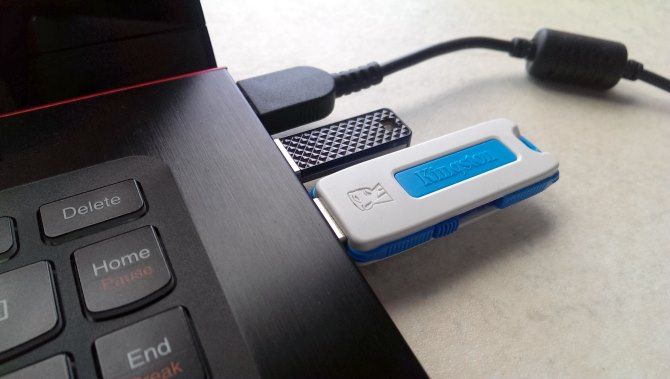
Finally, grab a USB cable (or flash drive, whatever) and gently wiggle it around. If the drive is moving and feels loose—typically this will be up and down—then you have a problem.
Fix Broken USB Hardware
We’ll look at some software fixes in a moment, but first, what if the USB port is loose?
The ports are soldered to a board within your computer. This may be the motherboard, but is typically a secondary printed circuit board (PCB). With regular use, ports can become movable, at times completely unattached.
Often, this is down to the shape of the connected USB devices. While small Wi-Fi, Bluetooth, and even new USB flash memory are unlikely to put any significant strain on the port’s physical connection, older “stick” memory drives are a different story. So are USB cables. Their size and associated weight act as a sort of lever, contributing to USB ports working loose.
Replacing a USB port isn’t easy. On a desktop computer, you may be able to find a replacement board that can be slotted in without too much effort. However, if you’re using a laptop, it’s going to take a soldering iron. Here’s an example of what you might need to go through to re-solder the USB connector back into your laptop:
Of course, you could take this to an expert for repair, but there will be associated costs with this. If you want to do it yourself, make sure you know how to solder. If you’re not sure, check out the software fixes first.
Can Restarting a Computer Fix Broken USB Ports?
“Have you tried turning it off and back on again?”
This old tech support standby is well-known for a reason: it works!
With your unrecognized USB device correctly inserted into the suspect USB port, restart your computer. Once the operating system has rebooted, it should detect the USB device. If not, it’s worth looking at the device in the Windows device manager.
Check Device Manager on Windows 10
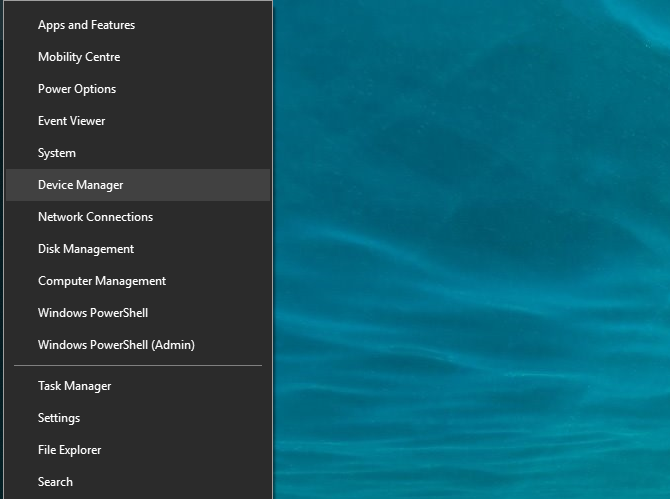
Begin by right-clicking on the Start menu and selecting Device Manager.
The Device Manager lists the devices attached to your computer, grouped into categories. It’s arranged alphabetically, so you should find Universal Serial Bus controllers towards the end of the list.
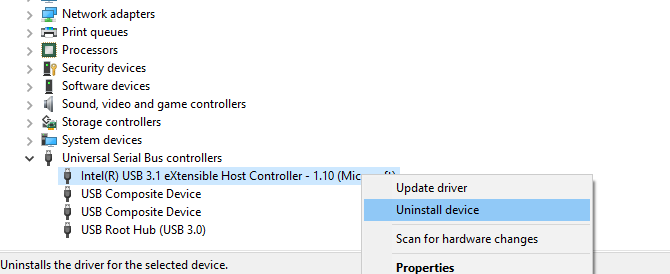
Expand the list, and look for the USB Host Controller. The device you’re trying to find may have a longer title, but it will feature those three words.
No USB Host Controller? This may explain why your USB device doesn’t work. To fix this, click on the Scan for hardware changes button on the toolbar. This will commence a check of all connected hardware, and in most cases will detect the USB port and anything connected to it.
If this still hasn’t worked, it’s worth taking the time to reinstall the USB Host Controllers. Right click on the USB Host Controller items in turn, and select Uninstall on each. Wait while they’re uninstalled, then reboot your computer.
As Windows restarts, the USB Host Controllers will be automatically reinstalled. This “refresh” can help to fix problems with the USB port.
Note that if you’re using a USB mouse or one with a USB receiver, it will be disabled while the USB Host Controllers are uninstalled.
Try Disabling the USB Selective Suspend Feature
If power management settings are overriding your USB controller, this will impact the detection of devices. This is particularly relevant if you use a laptop. If you’re keen to keep power usage low, you might have set a low power option on your Windows 10 desktop.
USB Selective Suspend is a power saving setting that cuts power to the USB device, thereby reducing battery use.
The feature usually works well, but at times makes it look as if there is a problem with your USB ports.
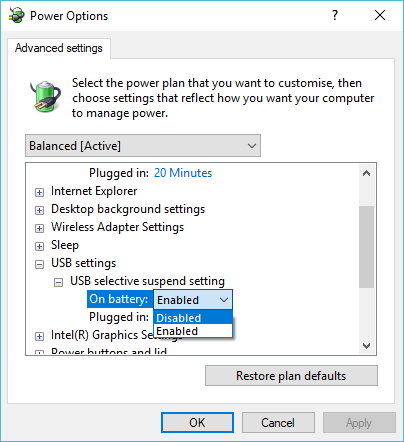
Fix this by opening the Windows Control Panel (it’s still in use… for now). This is best done by clicking Start and typing control panel. Click the corresponding result, then Hardware and Sound > Power Options. Here, click Change plan settings, then Change advanced power settings.
Here, find USB Settings and expand this to find USB selecting suspend setting. Change the drop-down menu to Disabled, then click Apply and OK to confirm. Reboot your PC to ensure this change is applied.
You’ve Fixed Your Broken USB Port!
As you can see, you have several options for repairing an unresponsive USB port. In most cases, it won’t be dead, and you’ll be able to fix it. Remember, when your USB port is not working, you need to:
Make a physical check
If necessary, make a physical repair to the port
Reboot Windows
Check the Device Manager, uninstall the USB Host Controller
Disable USB Selective Suspend power saving option
USB ports aren’t the only potential weak spots on your computer. Looking after your hardware will reduce potential failures, and you can save a lot of money if you know how to test your PC for failing hardware.
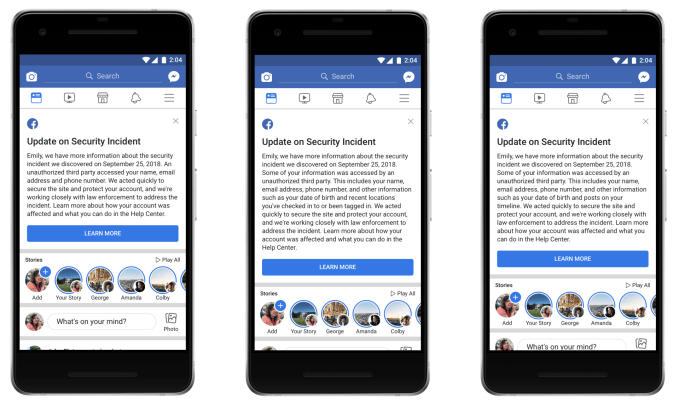
Facebook has now detailed what was potentially stolen in the breach it revealed two weeks ago. 30 million users, not 50 million as it initially estimated, had their access tokens stolen by hackers. Users can check Facebook’s Help Center to find out if their information was accessed, and Facebook will send customized alerts to those impacted detailing what was accessed from their account and what they can do to recover. It’s currently not clear if all the information accessed was necessarily scraped.
15 million of the 30 million users had their name plus phone number and/or email accessed. 14 million had that info plus potentially more biographical info accessed, including “username, gender, locale/language, relationship status, religion, hometown, self-reported current city, birthdate, device types used to access Facebook, education, work, the last 10 places they checked into or were tagged in, website, people or Pages they follow, and the 15 most recent searches”. The remaining 1 million users’ information wasn’t accessed.
Facebook’s other apps including Messenger, Messenger Kids, Instagram, WhatsApp, Workplace, and Pages, as well as its features for payments, third-party apps, advertisers, and developers were not accessed.
Unlike most breaches, this one appears to have turned out to be less severe then initially expected. Users seem to already be forgetting about the breach after a short hiccup where they had to log back in to Facebook. It’s possible that that could impact Facebook’s user counts slightly in its Q3 earnings report. But unless a truly nefarious use case for the accessed data is revealed, the breach could fade into the noise of non-stop cybersecurity failures across the web, including Google+’s breach that was covered up and has now prompted the Facebook competitor’s shut down.
AI-powered photo management app Zyl is going back to the drawing board with a streamlined, more efficient redesign. The app is now focused on one thing only — resurfacing your old memories.
Taking photos on a smartphone is now a daily habit. But what about looking back at photos you took one year, three years or even eight years ago? It can pile up quite quickly. Zyl thinks there’s emotional value in those long-forgotten photos.
Before this update, Zyl helped you delete duplicates, create smart photo albums based on multiple criteria and collaborate on photo albums. In other words, it was a utility app.
But when the company started talking with some of their users, they realized that one feature stood out and had more value than the rest.
Applying those AI-powered models to your photo library is a great way to find interesting photos. But nobody was really looking at them.
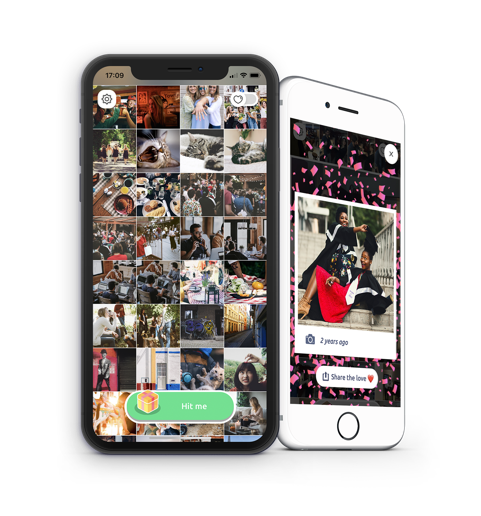
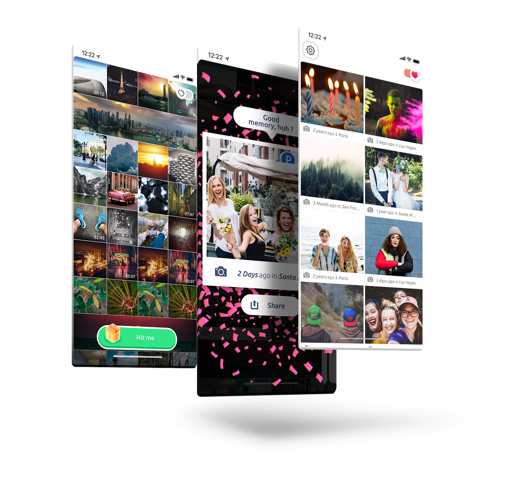
When you open the app, you get a view of your camera roll with your last photos at the bottom. There’s also a big green button at the bottom. When you tap on it, Zyl creates a satisfying animation and unveils an important photo.
If you took multiple photos to capture this moment, the app stitches together those photos and create a GIF. You can then share this Zyl with a friend or family member.
But the true magic happens if you try to get another Zyl. You have to wait 24 hours to unlock another photo. The next day, the app sends you a notification when your photo is ready. You can always open the app again and look at your past Zyls in a new tab with your most important photos.
Unlike Timehop or Facebook’s “On This Day” feature, Zyl doesn’t look at your social media posts and focuses on your camera roll. Zyl isn’t limited to anniversaries either.
Just like before, Zyl respects your privacy and leaves your photos alone. They’re never sent to the company’s server — Zyl uses the same photo database as the native one on your iPhone or Android phone so it doesn’t eat up more storage.
Over time, the app could give you more options by leveraging facial recognition and the intrinsic social graph of your photo library. Maybe you want to see more photos of your brother as his wedding is coming up.
And that notification can be a powerful nudge. I keep opening the app and sharing old photos. Zyl is a good example of the combination of something that you care about combined with an element of surprise.
Posted by Martin Stumpe, Technical Lead and Craig Mermel, Product Manager, Healthcare, Google AI
A pathologist’s microscopic examination of a tumor in patients is considered the gold standard for cancer diagnosis, and has a profound impact on prognosis and treatment decisions. One important but laborious aspect of the pathologic review involves detecting cancer that has spread (metastasized) from the primary site to nearby lymph nodes. Detection of nodal metastasis is relevant for most cancers, and forms one of the foundations of the widely-used TNM cancer staging.
In breast cancer in particular, nodal metastasis influences treatment decisions regarding radiation therapy, chemotherapy, and the potential surgical removal of additional lymph nodes. As such, the accuracy and timeliness of identifying nodal metastases has a significant impact on clinical care. However, studies have shown that about 1 in 4 metastatic lymph node staging classifications would be changed upon second pathologic review, and detection sensitivity of small metastases on individual slides can be as low as 38% when reviewed under time constraints.
Last year, we described our deep learning–based approach to improve diagnostic accuracy (LYmph Node Assistant, or LYNA) to the 2016 ISBI Camelyon Challenge, which provided gigapixel-sized pathology slides of lymph nodes from breast cancer patients for researchers to develop computer algorithms to detect metastatic cancer. While LYNA achieved significantly higher cancer detection rates (Liu et al. 2017) than had been previously reported, an accurate algorithm alone is insufficient to improve pathologists’ workflow or improve outcomes for breast cancer patients. For patient safety, these algorithms must be tested in a variety of settings to understand their strengths and weaknesses. Furthermore, the actual benefits to pathologists using these algorithms had not been previously explored and must be assessed to determine whether or not an algorithm actually improves efficiency or diagnostic accuracy.
In the first paper, we applied our algorithm to de-identified pathology slides from both the Camelyon Challenge and an independent dataset provided by our co-authors at the Naval Medical Center San Diego. Because this additional dataset consisted of pathology samples from a different lab using different processes, it improved the representation of the diversity of slides and artifacts seen in routine clinical practice. LYNA proved robust to image variability and numerous histological artifacts, and achieved similar performance on both datasets without additional development.
Left: sample view of a slide containing lymph nodes, with multiple artifacts: the dark zone on the left is an air bubble, the white streaks are cutting artifacts, the red hue across some regions are hemorrhagic (containing blood), the tissue is necrotic (decaying), and the processing quality was poor. Right: LYNA identifies the tumor region in the center (red), and correctly classifies the surrounding artifact-laden regions as non-tumor (blue).
In both datasets, LYNA was able to correctly distinguish a slide with metastatic cancer from a slide without cancer 99% of the time. Further, LYNA was able to accurately pinpoint the location of both cancers and other suspicious regions within each slide, some of which were too small to be consistently detected by pathologists. As such, we reasoned that one potential benefit of LYNA could be to highlight these areas of concern for pathologists to review and determine the final diagnosis.
In our second paper, 6 board-certified pathologists completed a simulated diagnostic task in which they reviewed lymph nodes for metastatic breast cancer both with and without the assistance of LYNA. For the often laborious task of detecting small metastases (termed micrometastases), the use of LYNA made the task subjectively “easier” (according to pathologists’ self-reported diagnostic difficulty) and halved average slide review time, requiring about one minute instead of two minutes per slide.
Left: sample views of a slide containing lymph nodes with a small metastatic breast tumor at progressively higher magnifications. Right: the same views when shown with algorithmic “assistance” (LYmph Node Assistant, LYNA) outlining the tumor in cyan.
This suggests the intriguing potential for assistive technologies such as LYNA to reduce the burden of repetitive identification tasks and to allow more time and energy for pathologists to focus on other, more challenging clinical and diagnostic tasks. In terms of diagnostic accuracy, pathologists in this study were able to more reliably detect micrometastases with LYNA, reducing the rate of missed micrometastases by a factor of two. Encouragingly, pathologists with LYNA assistance were more accurate than either unassisted pathologists or the LYNA algorithm itself, suggesting that people and algorithms can work together effectively to perform better than either alone.
With these studies, we have made progress in demonstrating the robustness of our LYNA algorithm to support one component of breast cancer TNM staging, and assessing its impact in a proof-of-concept diagnostic setting. While encouraging, the bench-to-bedside journey to help doctors and patients with these types of technologies is a long one. These studies have important limitations, such as limited dataset sizes and a simulated diagnostic workflow which examined only a single lymph node slide for every patient instead of the multiple slides that are common for a complete clinical case. Further work will be needed to assess the impact of LYNA on real clinical workflows and patient outcomes. However, we remain optimistic that carefully validated deep learning technologies and well-designed clinical tools can help improve both the accuracy and availability of pathologic diagnosis around the world.
AI-powered photo management app Zyl is going back to the drawing board with a streamlined, more efficient redesign. The app is now focused on one thing only — resurfacing your old memories.
Taking photos on a smartphone is now a daily habit. But what about looking back at photos you took one year, three years or even eight years ago? It can pile up quite quickly. Zyl thinks there’s emotional value in those long-forgotten photos.
Before this update, Zyl helped you delete duplicates, create smart photo albums based on multiple criteria and collaborate on photo albums. In other words, it was a utility app.
But when the company started talking with some of their users, they realized that one feature stood out and had more value than the rest.
Applying those AI-powered models to your photo library is a great way to find interesting photos. But nobody was really looking at them.
When you open the app, you get a view of your camera roll with your last photos at the bottom. There’s also a big green button at the bottom. When you tap on it, Zyl creates a satisfying animation and unveils an important photo.
If you took multiple photos to capture this moment, the app stitches together those photos and create a GIF. You can then share this Zyl with a friend or family member.
But the true magic happens if you try to get another Zyl. You have to wait 24 hours to unlock another photo. The next day, the app sends you a notification when your photo is ready. You can always open the app again and look at your past Zyls in a new tab with your most important photos.
Unlike Timehop or Facebook’s “On This Day” feature, Zyl doesn’t look at your social media posts and focuses on your camera roll. Zyl isn’t limited to anniversaries either.
Just like before, Zyl respects your privacy and leaves your photos alone. They’re never sent to the company’s server — Zyl uses the same photo database as the native one on your iPhone or Android phone so it doesn’t eat up more storage.
Over time, the app could give you more options by leveraging facial recognition and the intrinsic social graph of your photo library. Maybe you want to see more photos of your brother as his wedding is coming up.
And that notification can be a powerful nudge. I keep opening the app and sharing old photos. Zyl is a good example of the combination of something that you care about combined with an element of surprise.
This summer, Facebook launched Fb.gg, its online gaming hub and Twitch competitor, designed to attract game streamers and their fans to watch videos on Facebook instead of on rival sites. The destination shows videos based on which games and streaming celebrities users follow, plus Liked Pages and Groups, and other featured suggestions of what to watch. Now, Fb.gg is expanding to mobile with its launch on Android.
The new app, first spotted by Sensor Tower, arrived just a few days ago and is currently in beta testing.
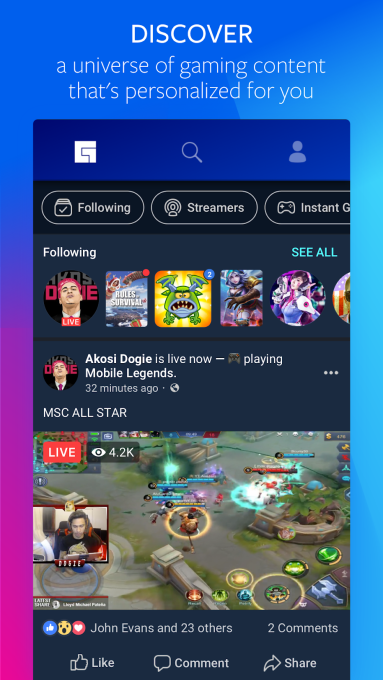
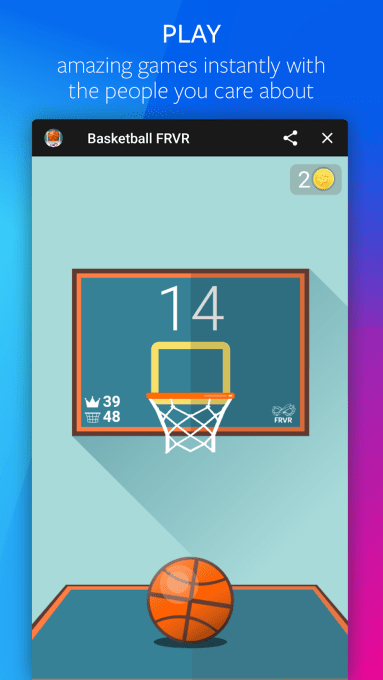
According to its description on Google Play, the app allows gamers and fans to discover a “universe of gaming content,” connect with creators and join communities, and play instant games like Everwing, Words with Friends, Basketball FRVR, and others.
From the screenshots, you can see how the Fb.gg app lets users tap navigation buttons at the top to find streamers to watch, or to view those streamers they’re already following, among other things. They can also participate in live conversations during gameplay with other viewers. Here, they can react to the stream using Facebook’s standard emoticon set of likes, hearts, haha’s and others.
Another section lets gamers jump into simple and popular mobile games. These titles are among those who were early participants in Facebook’s other gaming efforts in the past, like Instant Games on Facebook and Messenger.
Facebook has been trying to woo the gaming community for some time, to better compete against Amazon’s Twitch and Google’s YouTube. There’s a large and growing market for game streaming and viewing, with young viewers tuning in an average of 3+ hours a week to watch, as TechCrunch previously noted.
Facebook’s efforts to directly challenge Twitch and others kicked off in earnest this year, with the launch of its own version of Twitch’s Partner Program. Facebook’s gaming creator pilot program, as it’s called, allows viewers to tip their favorite gamers. And with the arrival of Fb.gg in June, the virtual currency involved in those tips was being referred to as Facebook Stars, with each star equating to $0.01.
Facebook said it takes a cut of fans’ purchases of stars, ranging from 5%-30%, depending on what size pack is bought.
Facebook also recently began testing a monthly subscription option with game streamers, similar to what’s offered by YouTube and Twitch.
Of course, to truly compete with Twitch and YouTube, Facebook needs to go mobile as well – especially since the upcoming Messenger redesign will hide away extraneous features, like mobile gaming. That’s where Fb.gg’s app comes in.
The Android version of the Fb.gg beta app launched on October 9, and already has over 10,000 installs, according to Google Play.
We’ve reached out to Facebook for comment on the launch.
Jump scares are those moments in films where everything has gone quiet and dark, and a sudden sound or movement jolts you out of your seat. Jump scares can provide cheap thrills or genuine frights, but no matter how they’re used, they’re always entertaining.
Some horror filmmakers abhor the tactic and instead focus on building atmospheric tension. But most are happy to embrace the technique, giving the audience the uncontrollable shriek they are waiting for.
There are some great horror films on Netflix, but this list is all about those nightmarish movies full of jump scares designed to keep you at the edge of your seat…
Children often ask us about the monster under the bed or tell tales about the man in the cupboard. As adults, we do our best to convince them it’s just their imagination. But what if the vivid dreams of a child about a mysterious dark force are true? What would you do if the Babadook, a sinister shadow-like creature, is really coming after you?
That’s the question single mom Amelia has to face. Should she believe her son Samuel and his violent dreams, or should she remain rational?
This is likely to make our list of cult favorites on Netflix in the future. The Babadook had a lukewarm reception when it first released in Australia, but it has since garnered critical acclaim and a strong following among horror buffs.
The “found footage” genre is a favorite in horror movies, popularized by the likes of The Blair Witch Project. If that’s what you’re in the mood for, V/H/S/2 might be perfect for you.
The film attempts something unique. It has seven different directors shooting seven short segments, all of which tie together to make one narrative. This includes some big names, like the director of The Raid, the writer of Grindhouse, and so on. Subsequently, V/H/S/2 struggles to build an atmosphere of terror. But it delivers jump scares in spades.
The Conjuring is already being touted as a classic horror flick, even though it wasn’t released that long ago. Director James Wan delivers the perfect treatment on one of the oldest storylines in horror movies: a family movies into a new farmhouse in the middle of nowhere, and creepy things start to happen. As usual, people who know about the supernatural (paranormal investigators, in this case) come to their rescue.
While it’s not a typical “jump scare” movie, Wan uses the classic trick to good effect throughout the film. There are a dozen such moments, according to Where’s The Jump, but I’m pretty sure you’ll be frightened more often than that. It’s what makes this one of the best scary movies on Netflix.
After making a documentary like Jiro Dreams of Sushi, you wouldn’t expect director David Gelb to dive into horror. But he is full of surprises in The Lazarus Effect, which is as creepy as they come.
Olivia Wilde and Mark Duplass star as medical researchers who have figured out how to resurrect dead animals. But a terrible accident claims Wilde’s life, and in his grief, Duplass decides to bring her back to life. It’s a success. Only the being that has come back to life seems to be losing Wilde’s soul and possessed by something much, much darker.
Sometimes, the scariest thing in the world isn’t a demon or a monster or a ghost. It’s a human. A man who anyone would think is normal if you saw him walking down the road. Mark Duplass and Patrick Brice write and star in Creep, which lives up to its name.
Josef is dying of a terminal illness and wants to record messages for his soon-to-be-born son. He puts out an ad on Craigslist to find a videographer. A guy named Aaron shows up. What follows is a slow unravelling of Josef’s life, that gets creepier and creepier, while Aaron continues to shoot. The jump-scare dial is turned up to 11 in this one.
Laura is a typical popular college student. She gets tons of friend requests on Facebook, and she’s happy to add everyone. But it’s one acceptance too many, and she unfriends Marina for being creepy. Laura didn’t expect how creepy things would get, as Marina commits suicide, and mysterious videos start appearing on Laura’s profile. Things get worse when Laura’s friends start dying.
The plot of Friend Request is quite silly, but it’s the perfect sort of movie to watch with your friends for a jump-scare delight. It was never going to win any Oscars, but if you can’t have fun with something like this, you might want to go for one of the other best horror films for geeks where technology takes an evil twist.
Emma and her little sister Stacey’s day starts off with unexpected freedom when their town is quarantined for an infection, with their parents outside the border. But the revelry soon turns sour when the virus starts affecting their friends and family. Emma has to do everything she can to keep Stacey safe, and that means everything.
Everything about Viral is something you’ve seen before if you’re a fan of horror movies. But that’s part of the fun. The jump scares are telegraphed way in advance, but if you love your jump scares, give in to the moment and let them hit you.
Do you want to stay awake all night? Watch Hush with the lights out and the curtains open. You’ll wait up all night with a baseball bat, lest a man wearing a freaky mask shows up at your window.
When deaf writer Maddie sees one such man, she needs to figure out how to survive. She’s in the middle of nowhere, surrounded by woods, and this psychopath serial killer has made his intentions quite clear. Hush is a creepy experience of the hunter-prey game, where the prey is disadvantaged with a hearing disability that you, as a viewer, start empathizing with as you watch.
Count the number of times you’ll be jolted out of your seat. If it’s under 10, you’re a braver soul than most.
It’s well known that you shouldn’t go to the Livingston House. Evil resides there. But that doesn’t stop six idiots from performing a seance in the place. In the course of events that followed, three died, one survived, and two went missing. It’s now to up Detective Mark Lewis and psychologist Dr. Elizabeth Klein to figure out what happened, rescue the missing people, and ensure that the house does not claim any more lives.
Demonic tries to go beyond the usual plotline by including a few twists and turns, including a surprise ending. It won’t work for everyone, but you get plenty of jump scares along the way to keep you entertained.
A new police officer, Jessica Loren, has to stay alone at the station while waiting for a team to collect some bio-hazardous material. The station is the infamous location where a cult leader and his followers killed themselves, and now haunt the premises. It’s about to be the worst shift of Loren’s life.
Last Shift gets a lot of love from jump scare movie fans, and for good reason. The plot, dialog, and acting isn’t much to write about. But the jump scares are handled as perfectly as you’d want: a slow build-up, creepy silence, followed by a genuine fright. Even when you know the jump scare is coming, you’ll still get that jolt.
It’s Not Just Scary Movies Any More
Jump scare movies are made for Halloween. If you want a spooky night on All Hallow’s Eve, grab a tub of popcorn, switch off the lights, and start streaming one of these films on Netflix.
However, a movie only gives you an hour or two of frights. Those who are ready to stay up all night need more than that. Which is where the scariest TV shows to binge-watch prove their worth.
Windows 10 releases a major update roughly twice a year, usually in April and October. The latest release brings us the plainly titled Windows 10 October 2018 Update. As expected, it brings improvements large and small.
Let’s take a look at some of the new features and updates in the latest version of Windows. We’ve kept an archive of notable features from previous updates, in case you’re interested. Feel free to jump ahead to any section.
You’ll eventually get the October 2018 Update through Windows Update, just like any other. Microsoft deploys major feature updates in batches, so you might not get it right away. When it’s time, you’ll see a prompt letting you know there’s a big update pending.
If you want to expedite the process, head to Settings > Update & Security > Windows Update and click Check for updates. Doing so lets Windows know you want the latest update now, so it should start downloading. If this doesn’t work, head to the Download Windows 10 page and click Update now to prompt the download.
After its failed Windows Phone platform, Microsoft has embraced Android (and iOS to a lesser extent) with apps and cross-platform compatibility with Windows. The Your Phone app in Windows 10 takes this even further.
It allows you to text and access photos on your Android phone (7.0 or later) right from your PC. You can even drag a photo from your phone right onto your PC to open it in an app. iPhone users don’t get all that functionality, but they can still send webpages from their phone to computer.
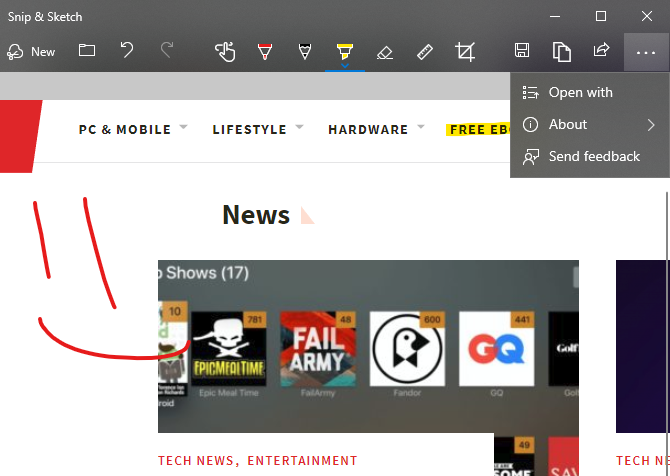
The basic Snipping Tool handles simple screenshot needs, but it’s lacking any power user features. In the October Update, you can check out the new Snip & Sketch tool as a replacement.
Press Win + Shift + S to bring up the window and capture a screenshot. At the top, you can switch between the rectangle and freeform capture modes, or grab a full-screen shot. Once you capture an area, it’s available immediately on your clipboard.
Click the resulting notification, and you can make basic edits to your screenshots like drawing and cropping. From there, you can save it, copy to your clipboard, or open it in another app for further edits.
This won’t replace the best Windows screenshot apps, but it gets the job done in a pinch.
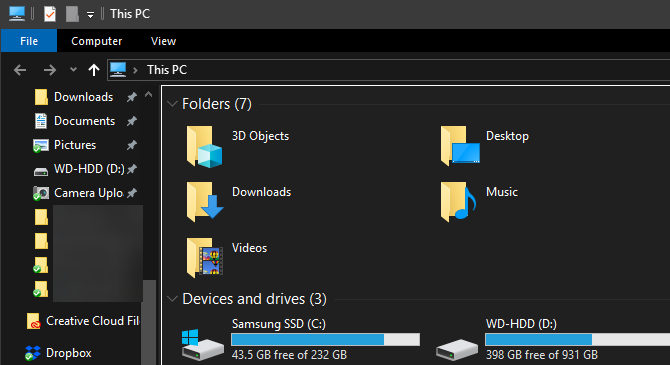
File Explorer Dark Theme
Windows 10 has included a dark theme for some time, but it was previously limited to Store apps. Now, enabling the Dark mode at Settings > Personalization > Colors also gives your File Explorer a dark makeover.
It’s not quite as amazing as macOS Mojave’s dark mode, but it’s a welcome option if you like dark themes or often use your PC at night. Enabling this also makes your right-click menu in File Explorer and desktop dark.
Improved HDR Support
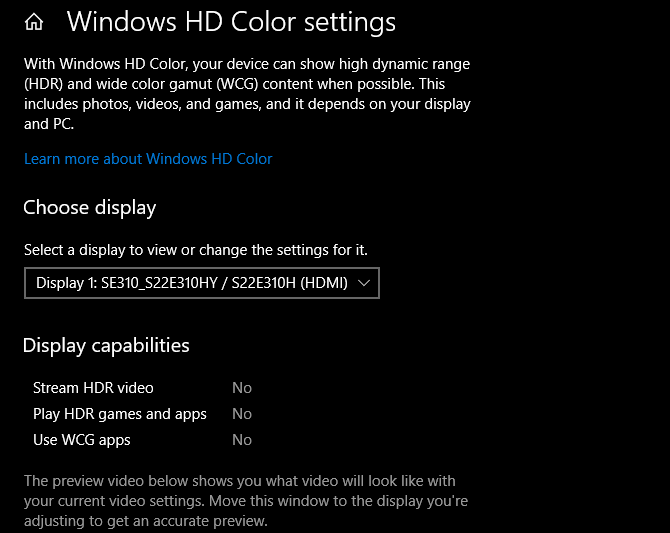
As 4K monitors with more powerful display options become mainstream, Windows 10 is making it easier to enable HDR if you have compatible hardware. Windows 10 has supported HDR in the past, but it wasn’t always convenient to set up.
Now, you can head to Settings > System > Display and click Windows HD Color settings to configure HDR. You’ll see whether your connected displays support HDR features and can adjust them if so.
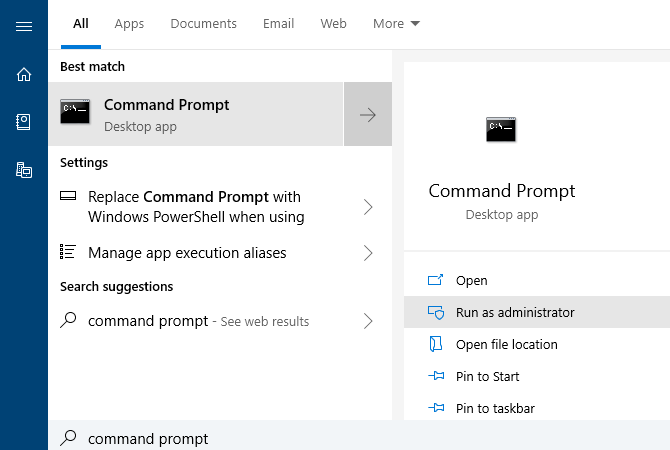
When you search for something, the menu will display a preview panel that illustrates the best results for your search. This might be Bing results for a web search, options like opening as administrator if you search for software, or previews of documents.
Clipboard Improvements and History
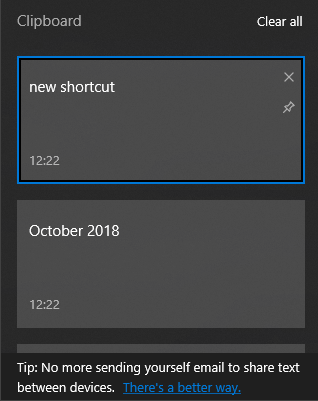
A new shortcut for the clipboard in Windows 10 lets you copy and paste across devices without any extra apps. Just press Win + V and you’ll see the new clipboard window.
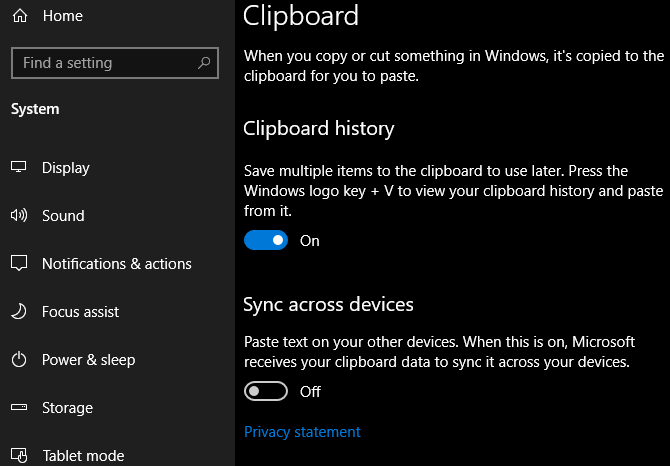
This gives you a native clipboard manager, letting you can paste something you copied even if it’s not the most recent item. You can also pin clips you use often for easy access. Plus, Windows links your clipboard across any device you use running the October 2018 Update or later.
To configure this, take a look at Settings > System > Clipboard.
Power Usage in Task Manager
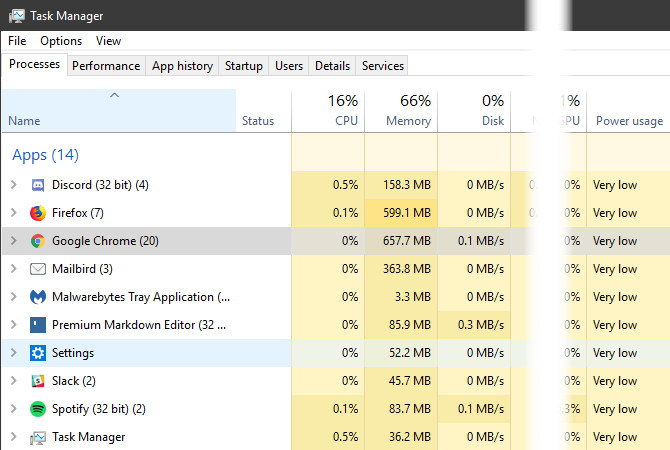
If you want to get more battery life out of your Windows laptop, you might wonder how much power apps pull. Now in the Task Manager (Ctrl + Shift + Esc), you can see a Power usage entry on the Processes tab.
This, along with the Power usage trend field, lets you know how much energy apps use. Limit how much you use them and you should see improved battery life.
Bluetooth Battery Levels
You can now see the battery life of connected Bluetooth devices (if they’re supported) at Settings > Devices > Bluetooth & other devices.
Override Regional Settings
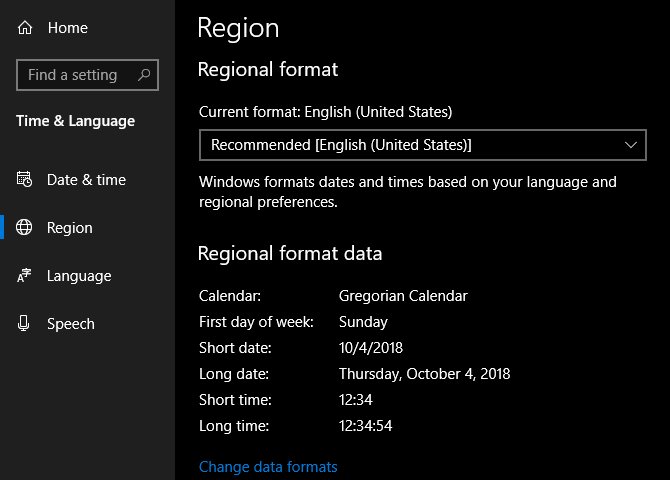
Windows 10 sets some display options, like the date format and first day of the week, based on your region. Now you can override these if you like. Visit Settings > Time & Language > Region and click Change data formats to adjust them.
Make Text Bigger
Windows 10 now allows you to increase the size of text across the OS without scaling. Open Settings > Ease of Access > Display and drag the Make text bigger slider as you wish.
Better Windows Update Automation
Windows Update tries to detect when you’re not using your PC and automatically installs updates during those times. In prior versions, this wasn’t too smart and would sometimes install an update when you simply stepped away for a moment.
Thankfully, the October 2018 Update makes this smarter. Windows will now understand when you’ve stepped away for a short time or longer period better now. This should result in fewer inopportune updates.
Game Bar Improvements
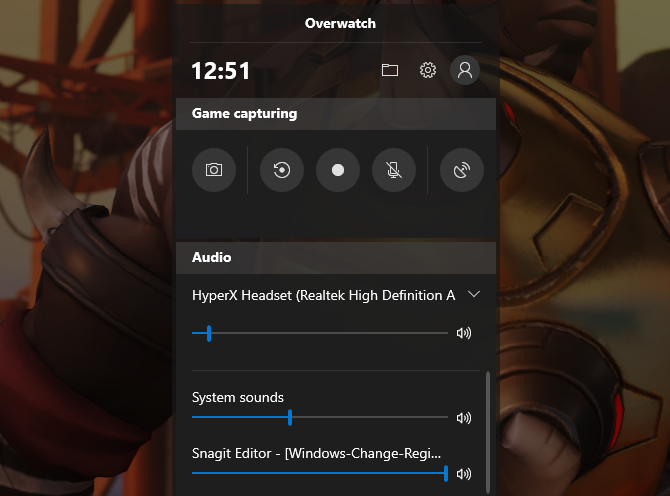
Windows 10’s Game bar is now its own app and comes with some improvements. Now you can adjust audio options right from the bar. Plus, you can see a chart showing game stats like FPS along with CPU and other hardware usage.
Enable the Game bar at Settings > Gaming >Game bar.
The Fall Creators Update
People App
Microsoft is ramping up their social game with the People application. A new addition to the Taskbar, People allows users to contact individuals via email and Skype directly from the Taskbar. To enable, right-click the Taskbar and check the Show People button option.
You can use the People app to share fun content with family and friends or to manage business contacts and projects. Whether it’s a document, PowerPoint, picture, or video, just drag and drop content directly from your PC to a specific contact.
Perhaps the most useful component of the People app is cross-application communication, meaning users will be able to view communication across multiple chats and messages within a single desktop application. While only a few select applications are available for the People app, namely Xbox, Email, and Skype, Microsoft has laid the groundwork for possible Facebook and Twitter integration as well. That makes People a potentially fantastic default application.
Mixed Reality
In the original Fall Creators Update, Microsoft teased 3D editing and 3D smartphone camera modeling. Now, they’ve expanded their 3D program into an entire mixed reality platform for Windows 10.
How? Windows 10’s Microsoft Edge browser was the first to fully support WebVR which allows users to access and interact with virtual reality projects online via the Edge browser. While this may not seem all that impressive, it’s really forward thinking from Microsoft: in some circles, the future of web development exists in 3D space.
Not interested in VR projects? Why not browse Edge on a VR room wall using Microsoft’s Mixed Reality Portal (MRP). MRP allows users to integrate a 3D experience into their desktop using Microsoft’s HoloLens.
Microsoft has also developed an answer to the growing popularity of social media’s AR (augmented reality) integrations, most notably Snapchat’s face filters and 3D World Lens technology. Don’t want to spring for the HoloLens? Enjoy Microsoft’s Mixed Reality Viewer, where all you’ll need is a webcam to enjoy the augmented reality goodness Windows 10 has to offer. Simply click on your Start Menu, type mixed reality, and select the Mixed Reality Portal option to get started.
It’ll be interesting to see where a tech behemoth like Microsoft will take this newfangled form of media.
OneDrive On-Demand
While OneDrive is installed by default on most Windows 10 machines, few users utilize its full potential. That may change with Windows 10’s On-Demand Sync. While most online repositories only allow users to upload and download files using one’s account, One-Drive now allows users to save files locally, upload them to the cloud, and share view links by default.
That means you can upload, delete, edit, and download a variety of files and formats using OneDrive cloud storage. This saves precious local storage space and provides you peace of mind concerning the storage of your most important documents.
Phone Link
In this day and age, cross-device interaction (phone to PC, TV to phone, etc.) is absolutely paramount. Microsoft has decided the close the gap even further, now providing users with the ability to link iOS and Android devices to their Windows 10 machines.
To enable phone linking, type link phone into your Start Menu and click the Link your phone option. Then, enter your phone number in the following window.
Linking your phone currently only allows users to share websites from their smartphone’s Edge browser to your PC via the browser’s share option. Additionally, in case you didn’t know, you can also choose to view phone notifications on your Windows 10 desktop using Cortana’s smartphone application!
Though the phone notification feature was released before the Windows 10 Fall Creators Update, these two quiet features show Microsoft is devoted to closing the gap between mobile and desktop.
Emoji Panel
That’s right, Windows 10 is now finally equipped with its own default emoji keyboard. You can access your emoji keyboard in Windows 10 using the keyboard command Windows key + Period (.) and Windows key + Semicolon (;).
While somewhat unexpected, kudos to Microsoft for giving users the Windows emoji feature they’ve long desired.
The new emoji keyboard isn’t without its failings, though. For now, it only allows users to input one emoji at a time before exiting by default. Let’s hope Microsoft recognizes that and fixes this issue in the updates to come.
Microsoft Edge Improvements
The Windows Fall Creators Update packs a lot into Microsoft Edge’s feature list. For one, pinning websites is as easy as heading to the website and selecting the Pin this page to the Taskbar option in your Edge browser settings panel. You can also pin websites to your Start Menu using the same process.
Other aspects of Edge not previously available before include: PDF text-to-speech, enhanced PDF editing, managing permissions, bookmark importing, editing favorite (bookmark) URLs for easier lookup, and browsing on your phone and continuing on with your PC.
While Edge’s new features aren’t exactly shock-and-awe, they do show Microsoft is still committed to creating a serious contender for the browser market.
Microsoft is venturing into the world of movie making (yet again) with their latest experiment, Story Remix. Story Remix is a feature in the Windows 10 Photos application which lets users create, edit, and score short films using pictures and video clips of whatever they desire.
Like most other features in the Fall Creators Update, this application is for both personal and professional use. Run a dog grooming business and want to send customers a custom-made video of their dog’s grooming process? All you have to do is create a folder of images and videos using your Photos application and Windows will create a fantastic short film in seconds with minor interaction. Best of all, no video editing knowledge is required!
This may sound like your run of the mill automatic video creating service, but it’s not. Microsoft has taken steps in integrating AI and deep learning within Story Remix, allowing users to do things like featuring select people from an aggregate selection of videos automatically. You can also add text or drawings to these videos for an added, personal flair.
Not only can you add flat text to a video, you can also integrate 3D models into videos as well. The most impressive thing about Story Remix is its integration of 3D objects and animations into the captured video. Story Remix allows users to integrate 3D models (most of which have been released by Microsoft, themselves) seamlessly into your video, allowing users to edit and create quasi-CGI short movies without any 3D modeling or video editing experience.
While not the most blatant feature of the Fall Creators Update, it’s marvelous to note Microsoft isn’t simply giving users 3D capabilities. They’re allowing users the ability to play with and learn about 3D modeling and AG integrations using software and models they provide.
GPU Stats
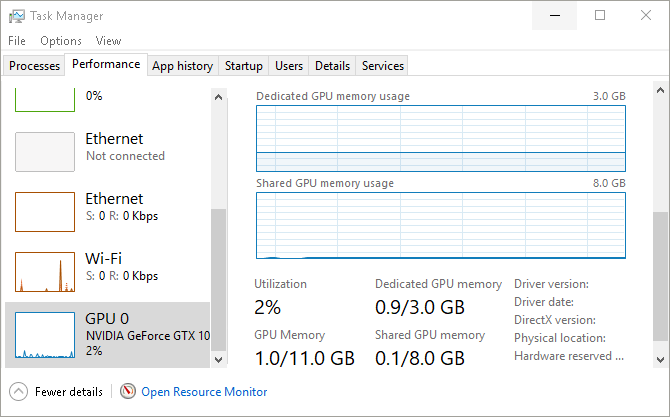
If you’re an overclock aficionado, you know how vital vitals of your PC components are. Microsoft understands this and has taken a small step in appeasing tech geeks by having your beloved Task Manager provide real-time GPU stats for users.
Keep in mind, you won’t be able to modify functions like fan speed via your Task Manager. You can, however, view your GPU’s utilization percentage, memory stats, driver versions, and more.
A considerate move by Microsoft on behalf of PC gamers and hardware tinkerers everywhere.
Fluent Design
Users have long awaited Windows 10 UI overhaul. Slowly but surely, the wait is coming to an end. Say hello to the humble beginnings of Microsoft’s Fluent Design System, a sleek and subtle UI design project hinted at in the recent Fall Creators Update.
Fluent Design promises to offer users a different type of UI experience, bringing with it such features as subtly blurred window transparency (officially named “Acrylic material design”), interactive window sections, light-based color schemes, and an overall sleeker program/controller relationship.
Scale, Depth, Light are the ways in which Microsoft chooses to brand their new design. Judging from what little has been released, it seems Microsoft is moving on to bigger, better, smoother, and more integrated UI design.
As it stands, you can already view a few aspects of the UI in the latest version of Windows with small applications like the Windows 10 Calculator and the newly released People app.
Keep an eye out for further bits and pieces of Fluent Design being released for Windows 10 in the near future. If you can’t wait, consider signing up for the Windows Insider Preview program.
Linux Integration
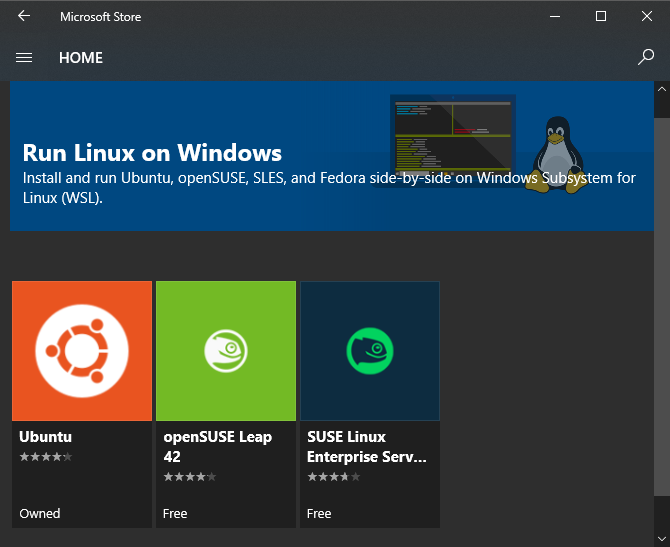
In another big move for Microsoft, the Windows 10 Fall Creators Update now allows users to install Linux distributions directly from the Microsoft Store and onto their Windows machines.
Keep in mind, this feature doesn’t equal a dual boot. You won’t be able to use the mouse and keyboard version of Ubuntu, for example. Instead, the Fall Creators Update allows users to run Bash commands using different Linux distros directly within the Windows 10 environment.
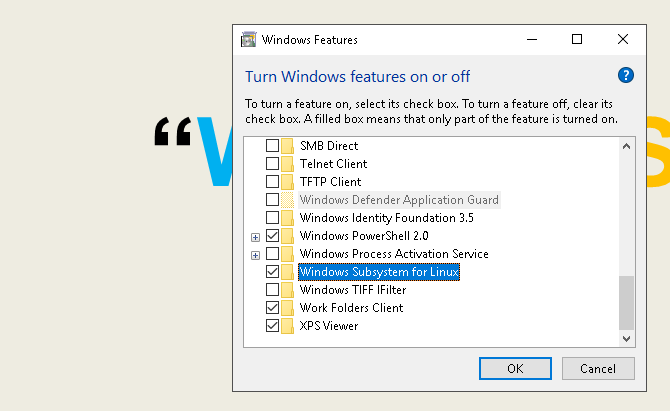
To install Ubuntu on Windows, click on your StartMenu and type windows features. Click on the Turn Windows features on or off option. In the following window, locate and check the Windows Subsystem for Linux option.
Click OK. You’ll be prompted to restart your PC. Once restarted, head to your Microsoft Store by clicking your Start Menu, typing store, and selecting the Microsoft Store option. Search for linux within this window. You’ll see a prompt mentioning Linux distributions. Click Get the apps and proceed to install your favorite.
That’s it, you’re officially running a fully fledged Linux distribution right alongside Windows 10!
It’s Only the Beginning for Windows 10
Microsoft is making strides like never before when it comes to improvements to user interface, developer features, and general maintenance. We’ll update this article any time a new major update is released.
Windows 10 is the final version number, of course, so it’s all or nothing. But this is just the beginning of what Microsoft has in store for Windows 10!