21 July 2018

5 Free Digital Whiteboard Alternatives to Google and Microsoft’s Whiteboard Apps


free-digital-whiteboards

A whiteboard is an essential collaboration tool in any office for teams. Now that the office has gone remote, it’s time for the whiteboard to go digital too. Here are some of the best digital whiteboard apps you can use for free.

Microsoft has recently launched a whiteboard app, but it’s not available to use on non-Surface devices yet. Google has its own Jamboard for teams, but that’s a paid app as part of the G Suite. If all you need is a simple whiteboard to use with your colleagues, there are better options available right now.

Crayon (Web): The Simplest Shared Digital Whiteboard

Out of all the digital whiteboard apps, Crayon is the simplest one I’ve seen. Go to the site, start a new whiteboard room with your name and a room name, and share that link with anyone you want to invite.

Click and drag on the blank canvas to start drawing, much like any paint app. Crayon also lets you use multiple colors, so you could use a simple trick like assigning one color to each person. Double-click anywhere to open a text box that you can type in, which will then be imprinted on the canvas.

Crayon is perfect for when you need to quickly use a whiteboard with your team. It’s one of those excellent no-signup collaboration tools that you should bookmark for future use.

Witeboard (Web): Automatic Shape Detection for Good-looking Whiteboards
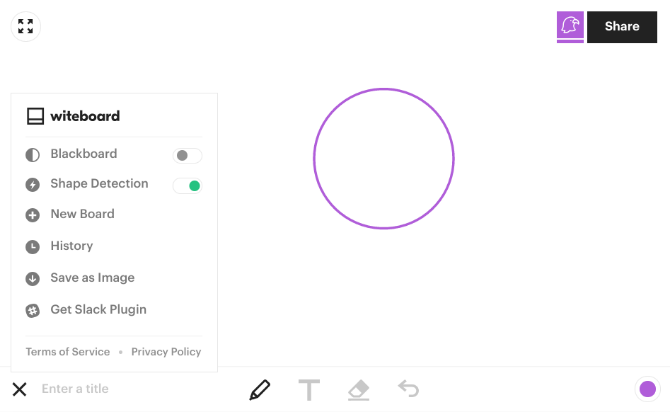
Witeboard integrates with Slack, powering up the chat app for your team. But Witeboard’s main feature is shape detection.

Drawing on a trackpad or with your mouse isn’t as accurate as using your hand on a whiteboard. But when you trace the rough shape of a circle or rectangle on Witeboard, it automatically turns that into a perfect circle or rectangle. You end up getting a good-looking whiteboard instead of one filled with badly-drawn figures and shapes.

Witeboard also saves all the boards you have drawn on in your browser’s cache, so you don’t need to remember the link or go searching for it again. Of course, these boards will be wiped if you clear your cache.

This app is as easy to use as Crayon while adding these extra elements. However, it doesn’t have post-it notes or any system for comments.

Ryeboard (Web): Add Images to a Digital Whiteboard

When the whiteboard has gone digital, it naturally makes sense to add other digital elements to it. Why shouldn’t you be able to add a photo to your whiteboard? Ryeboard is the app to use if you want to attach images.

Ryeboard gives you three types of elements for the whiteboard: note, image, or drawing. Drag and drop the element on to the canvas and add text, photos, or start freehand drawing. You can change the size of the note or image, and lock it on the screen when you’re done. For images, you will need to upload them from your hard drive as Ryeboard doesn’t let you grab links directly.

Like the others, you can share your whiteboard with a simple link. You’ll need to register to use Ryeboard, but it’s a small site, so think twice before using a social login.

Draw.Chat (Web): Multiple Whiteboard with Video, Audio, and Text Chat

When you’re collaborating with your team on a digital whiteboard, you might want to chat alongside. Draw.Chat adds text, audio, or video chat to the whiteboard process.

Draw.Chat is not exactly a whiteboard, it’s actually more of a paint app. But that works just as well when you need a whiteboard, right? Being a paint app actually gives you more tools, like drawing shapes, lines, and even using an ink dropper if need be. Draw.Chat also lets you add images.

Plus, with Draw.Chat, you can create multiple whiteboards within your main link. So you could have one whiteboard for a flowchart, another for your brainstorming, and so on.

The only drawback is that this tool might be a bit much for those seeking a simple whiteboard. It does a lot, and in turn, it consumes a lot of resources while using.

Aww (Web): Packed With Features Like Templates and Board Saving
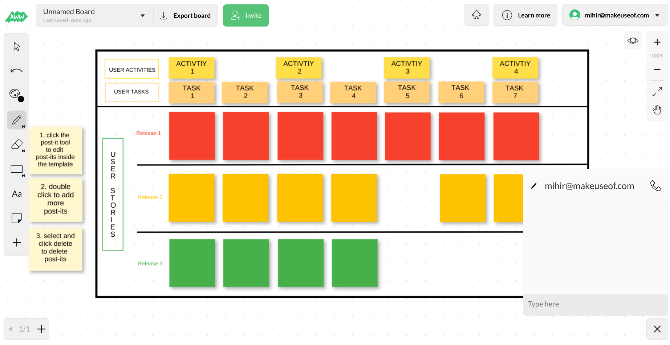
If you see yourself using whiteboards frequently, then Aww might be the best app for you. The whiteboard part is as simple as the others, giving you a blank space to draw, add shapes, add text, or post-it notes. But once you sign up, you can even save your boards for later, and duplicate them too.

Aww also saves you from the daunting blank space by providing templates for common whiteboard uses, like a kanban board, a user story map, SWOT analysis, and more. You will actually end up using the whiteboard more because of these templates.

Aww has other features like the ability to manage which users can see which whiteboards, embedding whiteboards in web pages, basic text chat, and so on. Try it out, it might even be worth it for your company to buy a premium plan.

Other Online Team Tools to Use

A digital whiteboard is an excellent tool for teams who work remotely or mainly collaborate online. Apart from the whiteboard, you should also check out these other free online meeting tools for teams to boost your productivity.

Read the full article: 5 Free Digital Whiteboard Alternatives to Google and Microsoft’s Whiteboard Apps


Read Full Article

Facebook suspends analytics firm Crimson Hexagon over data use concerns


As part of its ongoing mission to close the barn doors after the cows have got out, Facebook has suspended the accounts of British data analytics firm Crimson Hexagon over concerns that it may be improperly handling user data.

The ominously named company has for years used official APIs to siphon public posts from Facebook, Instagram, Twitter, and other sources online, collating and analyzing for various purposes, such as to gauge public opinion on a political candidate or issue. It has clients around the world, serving Russia and Turkey as well as the U.S. and United Kingdom.

Facebook, it seems, was not fully aware of the extent of Crimson Hexagon’s use of user data, however, including in several government contracts which it didn’t have the opportunity to evaluate before they took effect. The possibility that the company is not complying with its data use rules, specifically that they may have been helping build surveillance tools, was apparently real enough for Facebook to take action. Perhaps the bar for suspension has been lowered somewhat over the last year, and with good reason.

“We are investigating the claims about Crimson Hexagon to see if they violated any of our policies,” said Facebook VP Product Partnerships Ime Archibong in a statement.

The Wall Street Journal, which first reported the suspension, noted that Crimson Hexagon currently has a contract with FEMA to monitor online discussion for various disaster-related purposes, but a deal with ICE fell through because Twitter resisted this application of their “firehose” data.

However, beyond the suggestion that the company has undertaken work that skirts the edge of what the social media companies consider appropriate use of public data, Crimson Hexagon doesn’t seem to have done anything as egregious as the wholesale network collection done by others. It restricts itself to publicly available data that it pays to access, and applies its own methods to produce its own brand of insight and intelligence.

The company also isn’t (at least, not obviously) a quasi-independent arm of a big, shady network of companies working actively to obscure their connections and deals, as Cambridge Analytica was. Crimson Hexagon is more above the board, with ordinary venture investment and partnerships. Its work is in a way similar to CA, in that it is gleaning insights of a perhaps troublingly specific nature from billions of public posts, but it’s at least doing it in full view.

As before, the onus of responsibility is equally on Facebook to enforce as it is on partners to engage in scrupulous handling of user data. It’s hardly good data custodianship for Facebook to let companies take what they need under a handshake agreement that they’ll do no evil, and then take them to task years later when the damage has already been done. But that seems to be the company’s main priority now: to reiterate the folksy metaphor from above, it is frantically counting the cows that have bolted while apologizing for having left the door open for the last decade or so.

Incidentally, Crimson Hexagon was co-founded by the same person who was put in charge of Facebook’s new social science initiative: Harvard’s Gary King. In a statement, he denied any involvement in the former’s everyday work, although he is chairman. No doubt this connection will receive a bit of scrutiny on Facebook’s side as well.


Read Full Article

Tinder for Adults: The 5 Best Dating Sites for Seniors and Older Singles


dating-apps-mature

People around the world use dating sites and dating apps to search for soulmates. Social media apps like Tinder have proven to be a great way to find matches, especially if you know what you’re doing.

However, there’s a small problem: For older users, using Tinder is like going to a college bar. You might be welcomed, but the moment you start trying to match with someone is the moment you start feeling a bit out of place.

Well, we have some good news. Just as there are better places in real life for the more mature crowd to find matches, there are also better dating apps suited for older soulmate searchers. Keep these great online dating pick-up lines ready!

1. OkCupid

OkCupid is the market leader for dating sites, and for good reason. Used by millions of people around the world, OkCupid has proven themselves to be one of the most effective ways to actually find matches that last.

While OkCupid is completely free to use—including unlimited messages and matches—you’re more likely to find success if you have a paid account for $24/mo. As a paid user, you get more search options, can see who liked you, appear first in search results, and get a free boost every day.

Sure, OkCupid isn’t exactly a “dating site for older folks,” but it’s so successful and has such a widely active membership that it works well regardless. Stay honest in your profile, have a bit of patience, and check in occasionally with the highly reviewed mobile apps (Android, iOS) if you want.

2. Senior People Meet

Senior People Meet is the number one dating site for senior flirting, messaging, and meeting. It consists of the largest subscription of seniors wanting to start a relationship.

The app works similarly to Tinder in that you can swipe right or left based on how attractive you find each person who pops up in your feed. You can view your matches and send messages, including audio messages and video messages.

Senior People Meet is completely free to use, but you get more features with the $30/mo paid plan. The search engine is pretty basic and makes it hard to narrow down potential matches without fiddling a lot. We recommend using the mobile apps (Android, iOS) because they’re generally easier to use.

3. eHarmony

eHarmony is unique in that you don’t search for matches. You fill out a massive questionnaire that feeds into the Compatibility Matching System, which analyzes you on 29 different dimensions of compatibility for a strong marriage. Based on that, matches are presented to you.

Despite being third on this list, eHarmony is actually really good. It has a massive active membership, it boasts one of the highest success rates of any dating site, and you can get started for free. As a free user, you get a few potential matches per day and can only send pre-written “Quick Questions” when communicating with matches.

The main “problem” with eHarmony is that it has the most expensive paid plan at $60/mo. You’ll need it if you want to send custom messages, see who’s viewed your profile and who’s interested in you, and access the “What If?” feature that expands the parameters for finding potential matches.

Check out the mobile apps (Android, iOS) if you want to get serious with eHarmony.

4. Plenty of Fish (POF)

Plenty of Fish employs an effective matching algorithm and a team of data scientists who are constantly updating their algorithms (even going as far as attempting to stop those over the age of 30 from contacting 18-to-21-year-olds).

The algorithm incorporates the “Relationship Chemistry Predictor,” which is a questionnaire with 70+ questions about your personality, sensibilities, and compatibilities. Matches are suggested based on your measurements. Use the mobile apps (Android, iOS) for a more comfortable time.

As a free user, you can send and receive messages, as well as take advantage of the advanced search features. As a paying user for $24/mo, your profile will be highlighted in search results, you’ll get access to even deeper matching algorithms, and the ability to see when messages are read or deleted.

5. OurTime

OurTime is a dating site that caters to 50-year-olds-and-above who want to find either casual or deep relationships. Because life goals and desires often change quite a bit after one’s fifth decade, it’s nice to use a site that’s specific to the demographic.

The site design and navigation are easy to use, even for the mature crowd to whom the site aims to appeal, and the community features millions of monthly visitors—and even a higher ratio of women to men, believe it or not. The mobile apps are the best way to use OurTime (Android, iOS).

Free accounts can swipe for matches, view who’s looked at your profile, and browse other profiles. For $30/mo, you can send and receive emails, have your profile highlighted in search results, and know when your messages are read. You get five potential matches every day.

Staying Safe on Dating Sites and Apps

Most reputable dating sites are aware that trolls and malicious intruders are an issue, and they do their best to keep them from ruining the experience for others.

However, no matter which dating sites and apps you use, there will always be online dating scammers and fake online dating profiles to be wary of. Be careful as you get the most out of your experience with these online relationship tips.

Image Credit: kurhan/Shutterstock

Read the full article: Tinder for Adults: The 5 Best Dating Sites for Seniors and Older Singles


Read Full Article

8 Useful Tips to Reduce Mobile Data Usage and Save Money

What Is a Virtual Machine? Everything You Need to Know


virtual-machine-linux

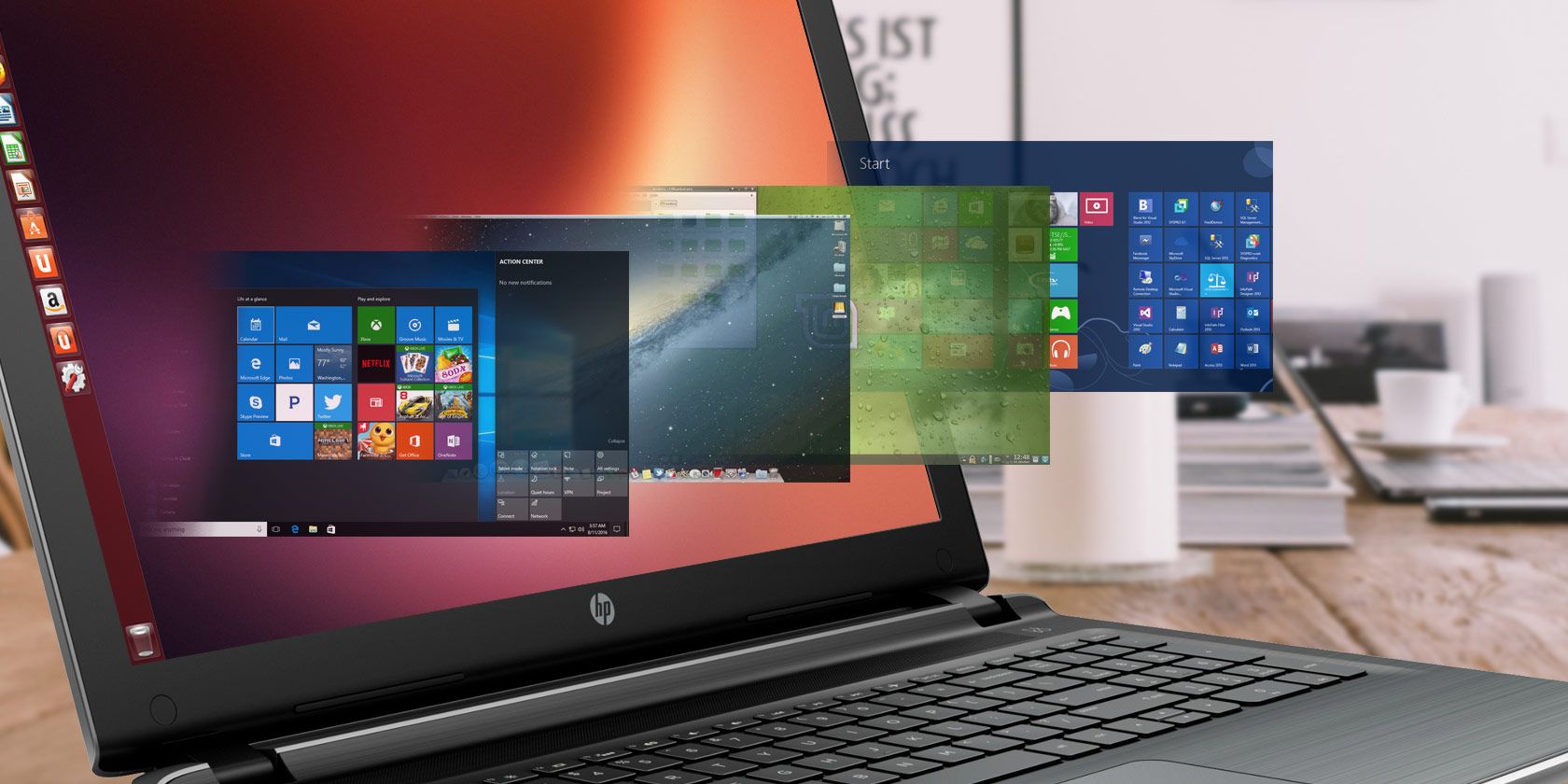
Virtual machines (VMs) allow you to run other operating systems within your current OS. The virtual OS will run as if it’s just another program on your computer.

This is ideal for testing out other operating systems, like Windows 10 or alternative Linux operating systems. You can also use virtual machines to run software on operating systems it wasn’t designed for. For example, you can run Windows programs on a Mac with a virtual machine.

Do you want to get started with virtual machines? You don’t have to pay anything—there are several great, free virtual machine programs.

What Is a Virtual Machine?

A virtual machine is a program that acts as a virtual computer. It runs on your current operating system (the host operating system) and provides virtual hardware to guest operating systems. The guest OS runs in a window on your host OS, just like any other program on your computer.

From the guest operating system’s perspective, the virtual machine is a real, physical computer.

Virtual machines provide their own virtual hardware, including a CPU, memory, hard drive, network interface, and other devices. The virtual hardware devices provided by the VM map to real hardware on your physical machine. For example, a virtual machine’s virtual hard disk is stored in a file located on your hard drive.

You can have several virtual machines installed on your system. You’re only limited by the amount of storage you have available for them. Once you’ve installed several operating systems, you can open your virtual machine program and choose which virtual machine you want to boot. The guest operating system starts up and runs in a window on your host operating system, although you can also run it in full-screen mode.

virtual machine VMWare

Practical Uses for Virtual Machines

Virtual machines have a number of popular uses:

Test new versions of operating systems: You can try out Windows 10 on your Windows 7 computer if you aren’t willing to upgrade yet.

Experiment with other operating systems: Installing various distributions of Linux in a virtual machine lets you experiment with them and learn how they work.

Ubuntu Virtual Machine in Windows

Use software requiring an outdated operating system: If you’ve got an important application that only runs on Windows XP, you can install XP in a virtual machine and run the application there. This allows you to use an application that only works with Windows XP without actually installing it on your computer. This is important since Windows XP no longer receives support from Microsoft.

Run software designed for another operating systems: Mac and Linux users can run Windows in a virtual machine to use Windows software on their computers without compatibility headache. Unfortunately, games are a problem. Virtual machine programs introduce overhead and 3D games will not run smoothly in a VM.

Test software on multiple platforms: If you need to test whether an application works on multiple operating systems, you can install each in a virtual machine.

Consolidate servers: For businesses running multiple servers, they can place some into virtual machines and run them on a single computer. Each virtual machine is an isolated container, so this doesn’t introduce the security headaches involved with running different servers on the same operating system. The virtual machines can also be moved between physical servers.

Recommended Virtual Machine Software

VirtualBox is a great, open-source application that runs on Windows, macOS, and Linux. One of the best parts about VirtualBox is that there’s no commercial version. This means you get all features for free, including advanced features like snapshots. This allows you to save a virtual machine’s state and revert to that state in the future, which is great for testing.

We’ve written a complete guide to VirtualBox that will get you started.

VirtualBox on Windows

VMware Player is another well-known VM program for Windows and Linux. VMware Player is the free counterpart to VMware Workstation, a commercial application, so you don’t get all the advanced features you would with VirtualBox.

However, both VirtualBox and VMware Player are solid programs that offer the basic features free. If one of them doesn’t work for you, try the other.

VMWare Player on Windows

Loading an OS in Your Virtual Machine

To install an operating system in a virtual machine, you’ll need the operating system’s installer disc. Creating Windows 10 installation media will come in handy for this. You can also use an ISO image file, which Linux distributions often come in. Virtual machine programs offer easy-to-use wizards that walk you through the process of creating a virtual machine and installing a guest operating system.

Virtual machines aren’t limited to just desktop operating systems—you can even emulate Android on Windows 10.

Read the full article: What Is a Virtual Machine? Everything You Need to Know


Read Full Article

20 July 2018

Now this… this is an ultra-wide monitor


I’ve been working with an ugly but functional lopsided two-monitor setup for years, and while it has served me well, I can’t say the new generation of ultra-wide monitors hasn’t tempted me. But the truth is they just aren’t wide enough. Or rather, they weren’t.

Samsung has just blown my mind with a monitor so wide it will serve as a ramp that you can trick off of in the summer. It’s so wide that when it puts on a pair of BVDs they read BOULEVARD. It’s so wide that the Bayeux Tapestry got jealous.

Actually it’s a little less wide than a couple of the monitors Samsung announced at CES — but those had two problems. First, they were 3840×1080. And I just need more vertical pixels than that. Second, they were 49 inches wide. That’s a BIG monitor! Not just big, but with those pixels spread out that far, it’s not going to be sharp at all.

On the other hand, this new one not only adds an extra 120 pixels, bringing it to the far superior 1200 vertical (for a total of 3840×1200), but it is 43 inches corner to corner. 43 inches… would that be too big, too small, or would it be…

Just right?!

(Yes, my left monitor is a bit warmer than my right, but it’s not as bad as it looks — that’s a viewing angle issue.)

One of the downsides of a giant monitor is that it can be a pain to separate workspaces or, say, have a movie playing “full screen” on one half while you browse Etsy for vintage kettles on the other. But Samsung has a “picture-by-picture” mode and some other useful features that help with this. So I’m going to give it a shot.

It’s also got 120Hz refresh (though no word on sync tech), a bunch of USB ports, and even a headphone jack. I don’t know why you would want built-in sound on a thing like this, since you clearly are a media freak if you buy it, but they felt the need to add in speakers.

The Samsung C43J89 monitor will cost $900 when it comes out, which admittedly is two or three times what I would normally pay for a monitor — I’m more of a Dell Ultrasharp guy, IPS all the way. But my whole workflow could change when this thing goes on sale.


Read Full Article

Wilson is like Longreads for podcasts


Meet Wilson, a new iPhone app that plans to change the way you discover and listen to podcasts. The company describes the app as a podcast magazine. It has the same vibe as Longreads, the curated selection of longform articles.

With its minimalistic design and opinionated typography, Wilson looks like no other podcasting app. On an iPhone X, the black background looks perfectly black thanks to the OLED display. It feels like an intimate experience.

Every week, the team selects a handful of podcast episodes all tied together by the same topic. Those topics can be the Supreme Court, the LGBTQ community, loneliness, dads, the World Cup…

Each issue has a cover art and a short description. And the team also tells you why each specific podcast episode is interesting. In other words, Wilson isn’t just an audio experience. You can listen to episodes in the app or open them in Apple Podcasts.

Navigating in the app is all based on swipes. You can scroll through past editions by swiping left and right. You can open an edition by swiping up, and go back to the list by swiping down. This feels much more natural than putting buttons everywhere.

Wilson also feels like tuning in to the radio. Podcasts are great because they let you learn everything there’s to learn about any interest you can have. But it also narrows your interests in a way. Podcast apps are too focused on top lists and “you might also like” recommendations.

Gone are the days when you would switch on the radio and listen to a few people talk about something you didn’t know you cared about. Human editors can change that. That’s why Wilson can be a nice addition to your podcasting routine.


Read Full Article

Surprise! Top sites still fail at encouraging non-terrible passwords


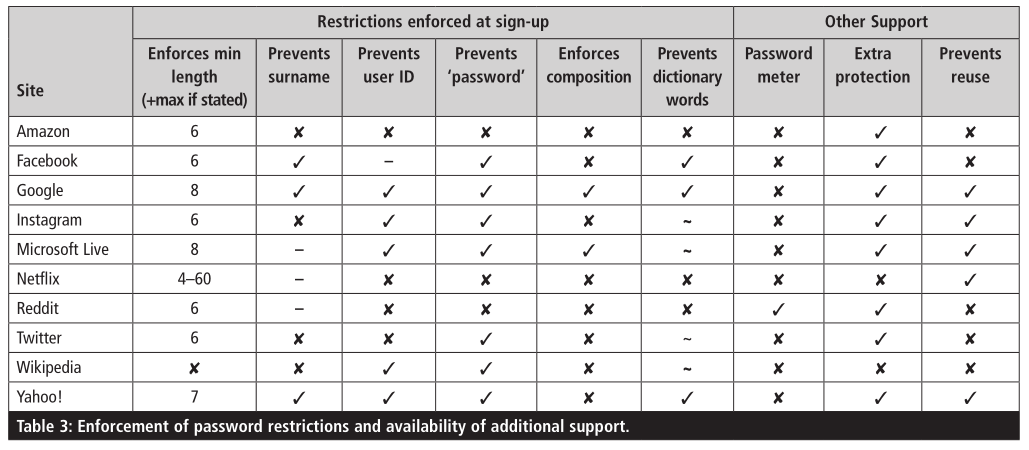
You would think that Amazon, Reddit, Wikipedia and other highly popular websites would by now tell you that “password1” or “hunter2” is a terrible password — just terrible. But they don’t. A research project that has kept tabs on the top sites and their password habits for the last 11 years shows that most provide only rudimentary password restrictions and do little to help users.

Steven Furnell, of the University of Plymouth, first did a survey of websites’ password practices in 2007, repeating the process in 2011 and 2014 — and then once more this week. His conclusions?

It is somewhat disappointing to find that the overall story in 2018 remains largely similar to that of 2007. In the intervening years, much has been written about the failings of passwords and the ways in which we use them, yet little is done to encourage or oblige us to follow the right path.

Although the university writeup notes that Google, Microsoft and Yahoo had the best password practices and Amazon, Reddit and Wikipedia had the worst, it diplomatically declined to go into specifics. Fortunately, I acquired the paper for myself and am prepared to name and shame.

The top 10 unique sites in English (as measured by Alexa; the lineup has changed somewhat over the years) were evaluated: Google, Facebook, Wikipedia, Reddit, Yahoo, Amazon, Twitter, Instagram, Microsoft Live and Netflix.

The biggest failure is inarguably Amazon, which combines truly inadequate password controls with an incredibly valuable and personal service. Wikipedia and Reddit had fewer restrictions, but neither protects such important data; an Amazon account being accessed by malicious actors is a far greater danger.

Amazon accepted practically every password Furnell threw at it, including repeats of the username, the user’s own name and, of course, the all-time classic, “password.” (Netflix and Reddit also took “password,” though Wikipedia didn’t. Wikipedia, on the other hand, accepted single-character passwords like “b.”)

Even sites that do have restrictions, like requiring multiple character types or rejecting commonly used passwords, seldom explain themselves. Presented with no feedback at the start, users creating an account may enter a password, only to be told it must be longer… and then, again, that it can’t have a certain word (like the user’s last name)… and then, again, that it must include special characters. And some sites have different requirements when you sign up than when you set a new one!

Why not lay it all out at the start? And for that matter, why not explain the reasoning behind it? It’d be trivial to make a little info box saying “We require X because Y.” But hardly any of the top sites do.

The one bit of light in this dreary report is that two-factor authentication — arguably more important than a good password — is in fact making strides, and some of the worst offenders in password policy (looking at you, Amazon) allow it. Now they just have to move it off of SMS and onto a secure authenticator app.

The final word is pretty the same as it’s been for the last decade:

The basic argument here – as with the earlier versions of the study and the others referenced – is for provision of user-facing security to be matched with accompanying support. Passwords are a good example because we know that many people are poor at using them. And yet the lesson continues to go unheeded and we continue to criticise the method and blame the users instead.

Two-factor is a start, but:

Users arguably require more encouragement – or indeed obligation – to use them. Otherwise, like passwords themselves, they will offer the potential for protection, while falling short of doing so in practice.

In other words, quit talking about how bad passwords are and do something about it!


Read Full Article

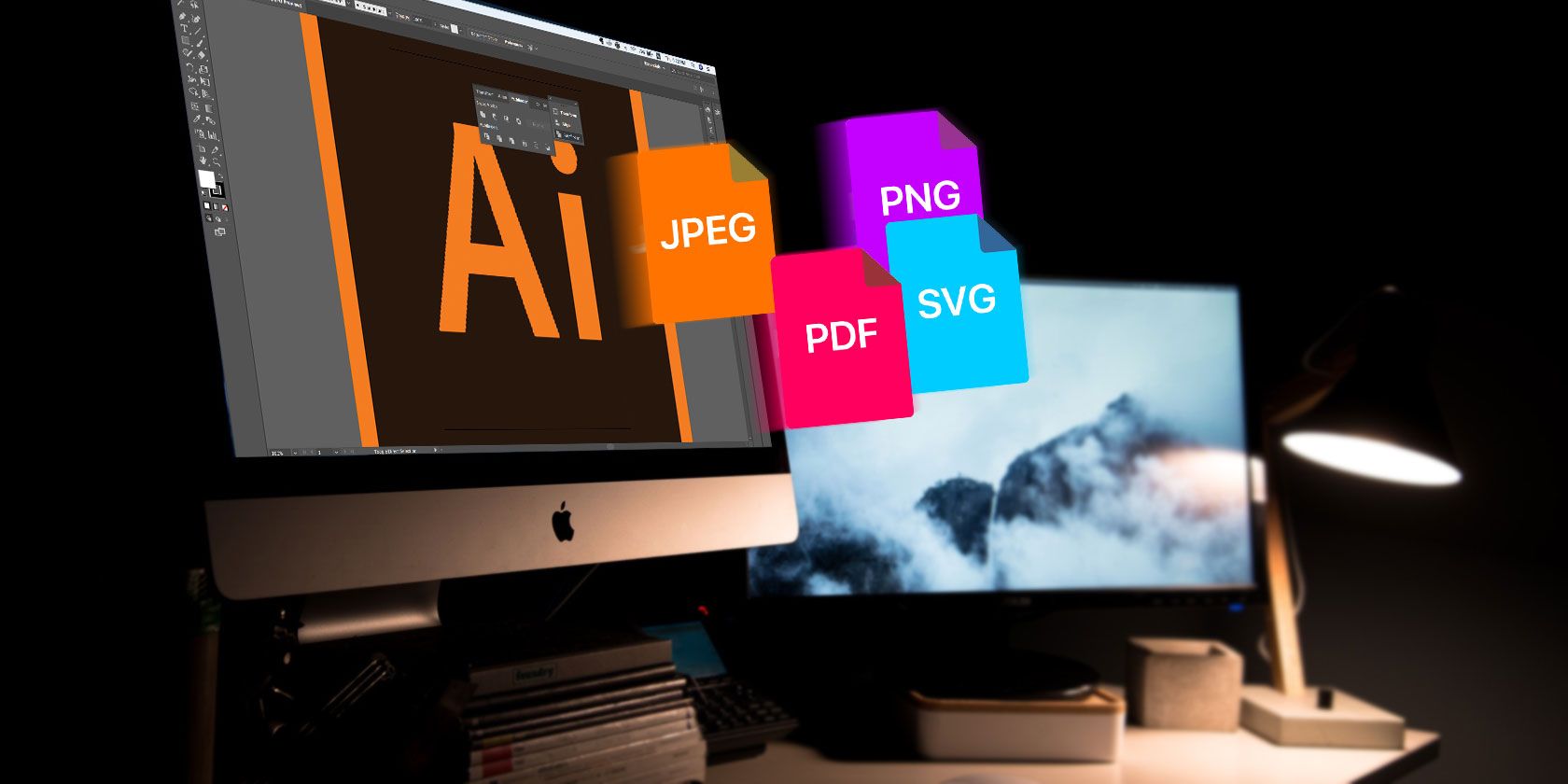
How to Save Adobe Illustrator Files in Other Formats: JPEG, PNG, SVG, Etc.


save-ai-files-other-format

By default, Adobe Illustrator saves files in the AI format. This is ideal for when you’re working on projects, or for saving a master copy of your work.

But when the times comes to print or share the finished product, post it online, or import it into other programs, you will need to save it into a different format.

Adobe Illustrator gives you lots of options for this. The right one to choose depends on how you want to use your resulting image. Let’s take a look at the best formats to use and how to use them.

Saving Artboards in Adobe Illustrator

Before we look at how to save files in specific formats, it’s important to know how Illustrator handles artboards, and how to save artboards as separate files.

Artboards are like different pages within an Illustrator file. They can be combined into a single image, but you can also save them out separately.

Most of the ways to save Illustrator files let you choose how you want to handle artboards, and this affects what your final, exported image will look like. In most cases, you choose what to do through an option in the Export screen.

save artboards illustrator

Here’s what you should do:

  • If you want to save multiple artboards as separate files, check the Use Artboards box. Then select either All to save all the artboards, or enter a Range (such as 2-4) to specify which artboards to save.
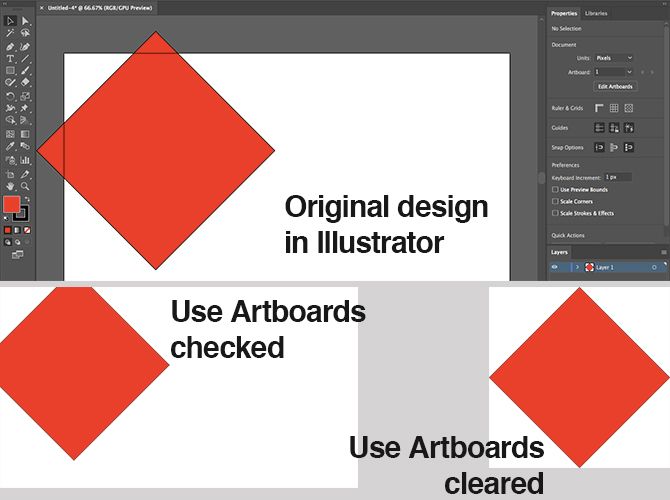
  • When you have objects placed outside of an artboard (like if it’s overlapping the edge), check the Use Artboards box. This will ensure that your final image only contains what’s inside the artboard, and that the rest is cropped out.
  • If all your artwork is within the artboard, and you only have one of them, clear the Use Artboards box. This will produce an image that is cropped to the bounds of the objects within in, with all white space removed. This is especially handy for outputting square or rectangular shaped objects.

artboards illustrator

Saving High Resolution JPEGs in Adobe Illustrator

For an illustration, infographic, or anything that needs to be printed like a business card, the best option is to output it as a high resolution JPEG.

Ideally, you should design your artwork at roughly the size at which you want to output it. Although Illustrator images can be resized without any loss of quality, you’ll find that the sizing between objects—and especially the kerning in text—needs to be tighter at larger sizes than smaller sizes.

save as jpeg

If you haven’t previously worked in this way, create a new document, paste in your artwork and tweak it to taste. You’re now ready to save your high res JPEG.

  1. Go to File > Export > Export As. Type in a file name and set Format to JPEG.
  2. Set how you want to save your artboards, then hit Export to continue.
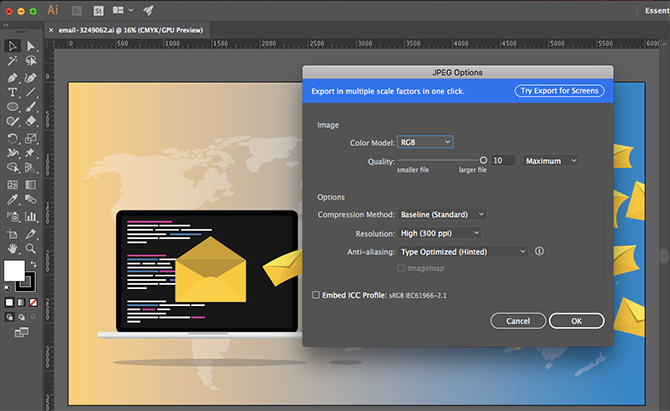
  3. In the JPEG Options screen change the Color Model if you need to, and choose a quality.
  4. Under Options, set the output resolution. Screen (72dpi) will produce a file the same size as your original document and should be okay for web use. Choose High (300dpi) for a high res image. This will be good enough for printing.
  5. Click OK to save the file.

Saving Adobe Illustrator Files as PNG

When you need to save an image like a logo or icon for use on the web, especially if it has a transparent background, then you might want to save it as a PNG file.

save as png

In order to support standard and high resolution displays you should export your file at different sizes. You can do this automatically.

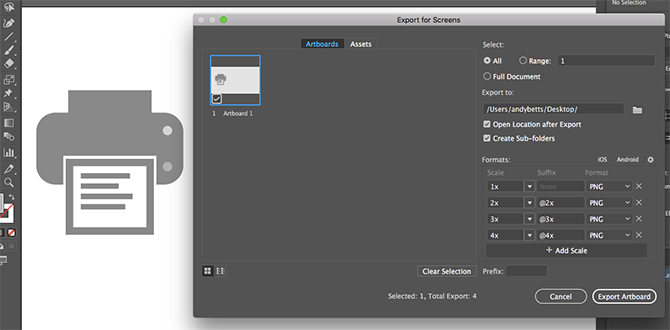
  1. Go to File > Export > Export for Screens.
  2. Select the Artboards tab. If there’s more than one artboard in your image, choose the ones you want to output.
  3. Under Formats, set Format to PNG and Scale to 1x.
  4. Click Add Scale. This will create the settings for a second image, so set the Scale option to a new relative size. 3x, for example, will output an image three times taller and wider than the original.
  5. Add more sizes if you need them.
  6. Click Export Artboard to save your images.

Saving Adobe Illustrator Files as SVG

A better, more modern way to export graphics like icons and logos for the web is by using the SVG format. Short for Scalable Vector Graphics, SVG is actually an XML-based markup language.

While you can output files that you can link to in your web page, you can also save the image as a piece of code that you can paste directly into your HTML file. You can then edit this using CSS. It’s a very efficient way of adding effects and animations to your images.

There are other benefits: the images are lightweight, and because they’re vectors you can resize them easily. There’s no need to output multiple sized images for different screen resolutions.

save as svg

There are a couple of ways to create an SVG. Using Save As creates a larger file for working on. To create a final image you can use in your projects use the Export option.

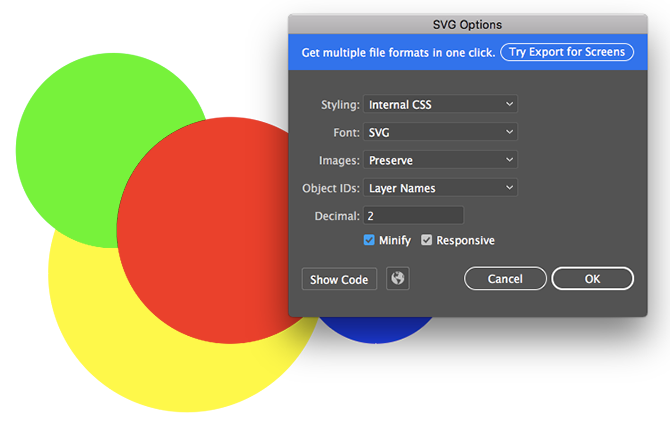
  1. Go to File > Export > Export As.
  2. Set the Format to SVG and click Export.
  3. Set Styling to Internal CSS. This places all the styling information in a <style> block that can be easily changed with CSS.
  4. For Font choose SVG to keep the text selectable. Only choose Outlines if you’re using an obscure, custom font. Leave Images on Preserve.
  5. Make sure Minify and Responsive are both checked for maximum performance and compatibility.
  6. Now click Show Code to open the code in a text editor. You can copy and paste this into your HTML file. Or click OK to output the image as an SVG file.

Saving Artboards as PDFs in Adobe Illustrator

The simplest way to save an Illustrator file as a PDF is through the Save As option. However, if you are using more than one artboard this will combine them all into a multi-page PDF.

artboards as pdf

There’s a simple trick to save artboards as separate PDF files:

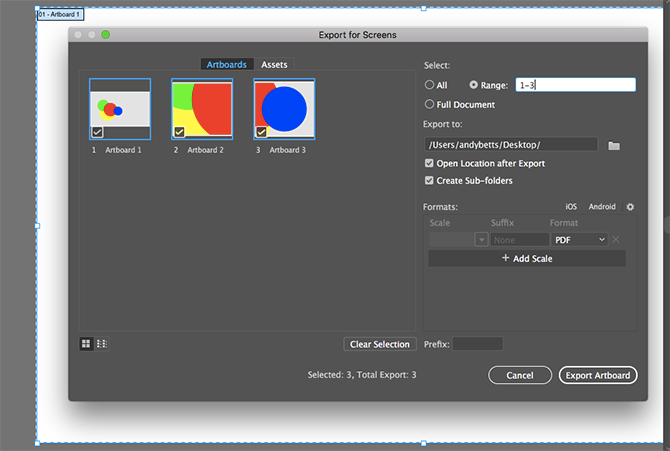
  1. Go to Export > Save for Screens.
  2. In the dialog box that opens, click the Artboards tab and select those that you want to save.
  3. In the right hand column set Format to PDF, then hit Export Artboards. It may take a few seconds to output large or complex files.
  4. When done your files will, by default, saved in their own separate sub-folder.

Saving Objects From an Adobe Illustrator Image

Sometimes you might need to save or export only selected objects from a larger piece of art. For instance, if you have designed a logo you may want to save the text or the symbol in its own individual file.

export assets

You can do this by turning the objects into Assets.

  1. Go to Window > Asset Export.
  2. Choose the Selection Tool from the Toolbar, or hit V on your keyboard. Now drag the objects you want to save onto the Asset Export panel.
  3. Now select the Asset. Hold Ctrl or Cmd to select more than one.
  4. Under Export Settings choose a Format. You can select PNG, Jpeg, SVG, or PDF.
  5. If you’re saving as a PNG or Jpeg you can export at multiple sizes. Set Scale to 1x, then click Add Scale and the set Scale to, for example, 2x. You can also use this option to export the asset in different formats.
  6. Click Export and choose a location to save your new files.

How to Use Adobe Illustrator Files in Other Apps

There are other options, too, that allow you to use your Illustrator file in other programs. Photoshop can open AI files directly, but only as a flat, uneditable image. Use the Export As option instead to save the file in the PSD format. This retains all the separate layers when you open it in Photoshop.

You can use AI files in other Adobe apps and products like InDesign, where it won’t be editable but will keep things like its transparent background.

For most non-Adobe apps, you will most likely need to save the file in the SVG format (using the Save As command this time). Check out our guide to opening AI files without Adobe Illustrator for more details.

Read the full article: How to Save Adobe Illustrator Files in Other Formats: JPEG, PNG, SVG, Etc.


Read Full Article

The World Cup led to a record-breaking number of app downloads and consumer spend in Q2


The second quarter of 2018 was another record-breaker for mobile app downloads and revenue. According to a new report this week from App Annie, there were over 28.4 billion app downloads worldwide across both iOS and Google Play in the quarter, up 15 percent year-over-year. That number is even more remarkable because it doesn’t include reinstalls or updates – only new app downloads. In addition, consumer spending in apps was up 20 percent year-over-year to reach $18.5 billion across iOS and Google Play combined.

This is the most money spent in apps compared with any other quarter before, the report notes, topping the prior quarter’s record-breaking $18.4 billion in app revenue, and 27.5 billion downloads.

Much of the download activity in Q2 came from Google Play.

On its app marketplace alone, global downloads topped 20 billion, up 20 percent year-over-year and widening the gap between itself and iOS by 25 percent points to 160 percent. (See below).

This massive download growth is attributable largely to India, says App Annie.

The country was the biggest driver of download growth year-over-year in both absolute values and growth in market share. Indonesia also played a big role in Google Play downloads.

Meanwhile, the U.S., Russia and Saudi Arabia saw the largest growth in iOS downloads.

In particular, Google Play app downloads included growth in categories like games, video players and editors, and – not surprisingly, given the World Cup – sports applications. And on iOS, Sports apps were also the largest driver of global iOS downloads, followed by Finance and Travel apps.

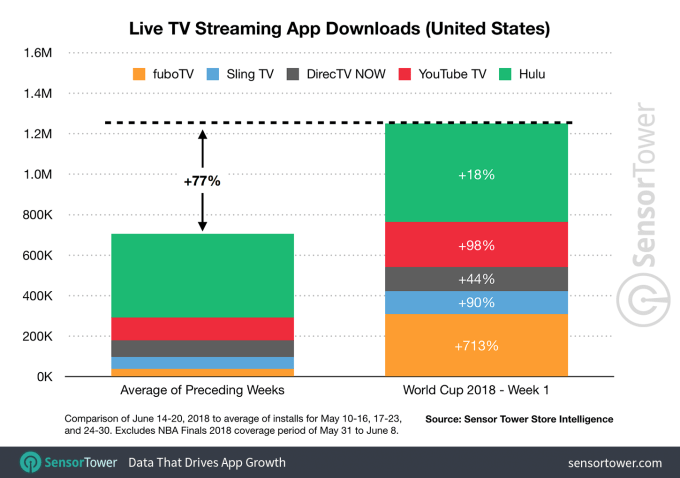
The impact on the 2018 FIFA World Cup on sports app downloads was also highlighted last month by Sensor Tower, whose own analysis found that new installs of the five leading live TV on demand apps offering channels with the World Cup grew 77 percent during the first week of World Cup coverage, compared with the three preceding weeks (excluding the NBA Finals period).

Sports streaming service fuboTV saw the largest impact, growing at a whopping 713 percent and adding 309K new users in the U.S., while Hulu saw the smallest impact at 18 percent growth.

Single network apps grew, too, this earlier report said. FOX Sports downloads increased by 95x for the same period, while Telemundo Deportes En Vivo grew 444x, for example.

App Annie added that the top 3 sports apps in Android in the U.S. during the first three weeks of the tournament were Telemundo Deportes (#1), FOX Sports GO (#2), and FOX Sports (#3), in terms of average megabytes per user – an indication of users’ live-streaming activity. The apps were also new entrants to the top 10 list of apps by total time spent, compared with the three weeks directly prior.

In the U.K., over 6 million hours were spent in the top 10 sports apps on Android during the first 3 weeks of the World Cup, up 65 percent from the 3 weeks prior.

The World Cup also had an impact on consumer spending in apps in the quarter.

Sports apps on iOS were the third largest contributors to absolute growth in consumer spend and in market share in Q2, while Entertainment and Productivity apps were numbers one and two, respectively. In-app subscriptions for both Sports and Entertainment apps drove the consumer spending increases.

On Google Play, Games, Social, and Music & Audio apps saw the largest download growth, quarter-over-quarter.

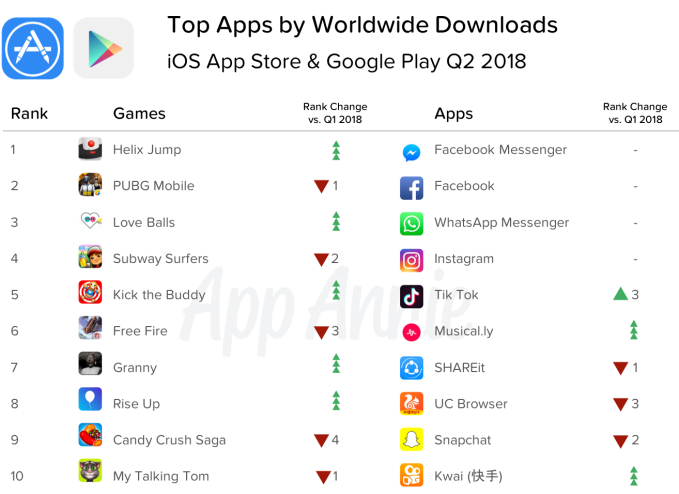
However, despite the downloads and consumer spending in sports and TV apps, the charts of the top 10 apps by worldwide downloads and consumer spending look a lot like they usually do – with Facebook apps dominating the top 10 by downloads (Messenger, Facebook, WhatsApp and Instagram were the top  4).

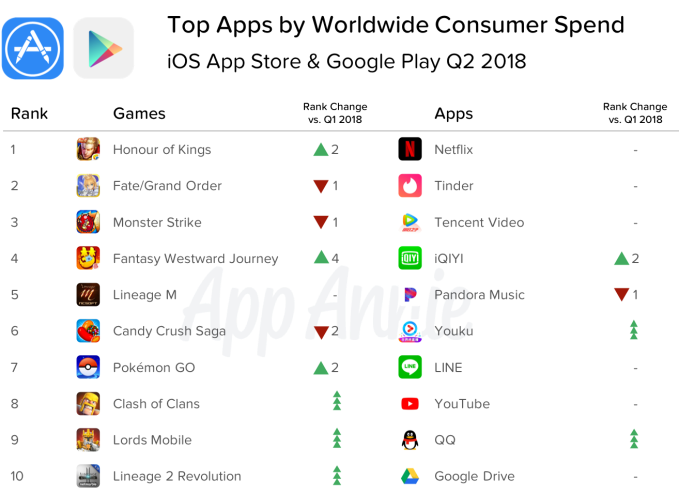
And the top 10 apps by spending were still largely those subscription-based entertainment services like Netflix, Tencent Video, iQIYI, Pandora, Youku, and YouTube.


Read Full Article

10 Useful Telegram Features You Should Be Using

Dish is the first TV provider to offer support for Apple’s Business Chat


Dish today announced it’s becoming the first TV provider to offer customer support over Apple’s Business Chat. Launched earlier this year, Business Chat allows companies to communicate with their customers over iMessage in order to answer questions, provide customer service, or even enable purchases. In Dish’s case, the TV provider says its customers can use Business Chat to reach a live agent with their questions, make account changes, schedule an appointment, and more.

They can even use their credit card in Business Chat to order a pay-per-view movie or sporting event, then watch it within minutes of confirming the purchase, Dish says.

This feature takes advantage of Apple Pay, which lets you quickly make purchases using your stored payment information without having to leave the iMessage conversation.

Business Chat is as secure as placing a call, where customers would have had to provide information to identify themselves as the account holder. As Dish explains, Apple Business Chat doesn’t display the customer’s contact information to the agents, so customers can choose if they want to share that information themselves. They’re also in control of authenticating their account, if they want to make changes or purchases.

“TV should be simple, so we’ve made reaching our live customer service representatives as easy as sending a text,” said John Swieringa, Dish’s chief operating officer, in a statement about the launch. “Adding messaging with Apple Business Chat is a powerful way to connect with us, giving another choice so you can pick what fits with your life.”

Business Chat is a direct attack by Apple on social media platforms like Facebook and Twitter.

Today, businesses tend to set up Facebook Pages and often offer customers the ability to reach out over Facebook’s Messenger, Instagram and WhatsApp with questions. Twitter has also entered the customer service business, allowing businesses to respond to customers over tweets and DMs. Business Chat offers companies an alternative to social media, with the advantage of having access to Apple Pay built-in. (Facebook, meanwhile, hasn’t established itself as a payments company nor does much of its user base keep their payment information on file with the company. The same goes for Twitter.)

In addition, operating over iMessage means businesses get even closer with their customers – their conversations are in the same Messages app as chats with friends and family, not in a third-party app. And Apple isn’t interested in profiting from data collection. Its main goal is to sell more devices, which in turn allows it to sell more of its own services to users, like iCloud storage and Apple Music.

That said, it’s not likely that businesses will abandon their social media presence for Business Chat, so it may end up being just one more place for them to check – albeit one with an install base of hundreds of millions.

Dish is one of the earlier adopters for Business Chat. Other companies on the platform include Aramark, Discover, Four Seasons, Harry & David, Hilton, The Home Depot, Lowe’s, Marriott, NewEgg, T-Mobile, TD Ameritrade, Wells Fargo, 1-800-Flowers, and, of course, Apple.

To chat with Dish via Business Chat on iPhone or iPad (iOS 11.3 or higher), customers search for “Dish” then tap the Messages icon that appears next to the Dish search result. They can also open chat form the contact page of their MyDISH app, where they manage their Dish TV account.


Read Full Article

Why Smartphone Batteries Explode and How to Prevent It


smartphones-explode-prevent

Yes, that little smartphone you keep in your pocket has the potential to burst—and it’s not limited to exploding Samsung batteries. A lithium-ion battery is the same no matter what device it’s in, and they all carry identical risks.

What are these risks? And how can you reduce them with your phone? That’s what we’re going to explore in this article.

Smartphone Battery Explosions: The Facts

We don’t have a bunch of doom-and-gloom fear-mongering stories for you. Yes, your phone can explode. But no, it’s isn’t likely to happen at all.

Modern lithium-ion batteries—today’s preferred rechargeable batteries for everything from smartphones to Tesla vehicles—have the capacity to be highly explosive.

Have a look at this thermal video of a lithium-ion battery cell under “heat abuse” for two minutes:

The point of explosion is sudden and extremely hot.

But outside of a lab where people apply an extremely hot source to the battery, how do these batteries explode in the real world?

Here is the sequence of events that happen inside a lithium-ion battery before and during an explosion:

  • One area of the battery starts getting too hot due to a short-circuit in the charging circuit, or some other external cause.
  • The chemical reaction inside the hot area begins generating its own heat as well, which spreads to other areas in a process known as electrolyte overheat.
  • Eventually, this building heat causes the electrolyte to give off stream, which bursts the battery casing.
  • Very flammable, hot liquid (not unlike napalm) escapes and usually burns or melts the surrounding phone casing and whatever the phone is next to.

This reaction, known as “thermal runaway,” does sound pretty horrendous, but there’s one fact that should set your mind at ease: manufacturers are constantly implementing new safety features in lithium-ion batteries that reduce the likelihood of this happening, or at least reduce the damage caused when it does.

Smartphone Battery Safety Features

Some of these safety features include:

  • Non-flammable additives added to the electrolyte and battery coatings.
  • Built-in circuitry that protects against current surges.
  • Circuit interrupt devices that open the circuit if the cell pressure exceeds safe limits.
  • Fail-safe safety vents that release gases if the cell expands beyond a higher safety limit.
  • Thermal fuses that break the circuit when temperatures reach a safety limit.

So for a healthy battery installed inside the average phone, the worse-case scenario before the battery ever reaches this nightmare “thermal runaway” scenario is a message that the phone needs to shut down. Or the battery may simply stop working.

Still, there are situations that could still cause a battery to explode.

1. Dropping and Damaging the Battery

As mentioned above, everything will work fine so long as you are dealing with a healthy battery. One problem that can negatively affect a battery’s health is physical damage from drops.

Cracked iPhone

Most people will rush to a local repair center to get their screen repaired when this happens. If the phone still works, they don’t even give a second thought to what damage the battery might have sustained.

Unfortunately, a drop can alter the internal mechanical or chemical structure of the battery. These changes could cause any of the fail-safe circuitry to fail in extreme stress conditions.

How can you tell if a battery might be damaged? Open up the case and take a look at the battery. If any of the following conditions exist, consider replacing it immediately:

  • Swelling
  • Deformation
  • Frequent, unexplainable overheating

In many situations, you can avoid explosive battery failure by paying close attention to signs of existing battery damage. For a smartphone battery to be safe, all its built-in safety features need to function properly. So it’s important to never use a battery that has visible signs of damage.

2. Hot Temperatures and Environments

While there may be safeguards built into your battery to ensure that it sheds excessive heat, or shuts down when too hot, it’s important to keep the battery away from those temperature limits in the first place.

Many elements contribute to your phone naturally heating up. Those include:

  • Running intensive graphics that put a heavy load on the GPU
  • Using apps that put too much demand on the CPU
  • Widgets that run constantly while you’re multitasking with the phone
  • Regularly connectivity checks when your cellular or Wi-Fi connection is spotty
  • Long phone calls

Normally any of these uses are fine, but if you’re doing them in an environment that’s extra hot, you could run into trouble. For example, using a phone in direct sunlight at the pool, while listening to Spotify and browsing the web, makes an already straining smartphone struggle to cool itself.

Hot phone by pool

Even if this doesn’t cause the battery to explode, it can contribute to the aging process and make getting long battery life a challenge.

Charging your phone under these conditions can contribute to overheating even further. The phone naturally builds heat during charging.

There are many ways to keep your phone cool and avoid these problems:

  • Remove the phone from its case when you’re charging it.
  • Keep the phone out of direct sunlight whenever possible.
  • Don’t leave your phone in a hot car for extended periods.
  • Don’t charge the phone while it’s in a pocket or inside a bag, or any other place that can trap heat.

We’ve offered many ways to avoid overheating an Android phone, and tips to keep your iPhone cool. Following these is an important part of being a wise smartphone user.

3. Using the Wrong Charger

I purchased a first-generation Google Pixel when it launched. Not knowing that the Pixel requires a cable with a built-in 56k Ohm resistor conforming to Type C specifications, I grabbed a cheap cable in the checkout line at Walmart to charge it.

I incorrectly assumed all USB-C cables are manufactured the same. The reality is that manufacturers of cheap chargers produce cables that do not always meet specifications required by USB-C devices.

After some time using it, I started noticing my phone became especially hot during charging.

Charging smartphone

One day when I went to charge my phone in my car, the phone became extremely hot and the charger actually became stuck in the charger port. As I was trying to pull it out, a small puff of smoke came out of the charger port.

I’m lucky I didn’t experience a smartphone exploding in my face.

Thankfully, Verizon replaced the phone under the manufacturer’s warranty. But the lesson I learned was an important one: Buy brand-name chargers from reputable retailers!

You can buy non-OEM chargers, but you need to make sure they meet all specifications required by your phone. Cheap knockoff chargers like these use materials with sub-standard quality or an incorrect gauge of wire that lacks appropriate overcurrent protection.

If you don’t invest in a quality charger, you can run into charging problems at best. At worst, you’re risking not only the destruction of your expensive phone, but possible injury to yourself.

4. Getting Your Phone Wet

Lithium will ignite and burn when in contact with water or water vapor. Batteries come well-sealed, so that kind of contact shouldn’t happen normally.

Many modern phones are waterproof or water-resistant. However, combine a cheap smartphone with a punctured battery, and you’ve got a recipe for disaster.

5. Battery Punctures

Lithium reacts to both water and oxygen, so puncturing a lithium-ion battery will produce a reaction. This could be anything from a little bit of smoke and a terrible smell to a full-on explosion.

And the reaction is rapid.

Obviously, this means there’s always a danger if a smartphone gets punctured during an accident or any other violent situation.

Staying Safe With Smartphone Batteries

It’s important to keep in mind that the battery inside your smartphone has the capacity to become a dangerous hazard under extreme conditions.

So the idea is to avoid those extreme conditions. Store, charge, and treat your smartphone in a way so that should anything ever happen, you are protected from serious injury.

To learn more, check out some common misconceptions about smartphone batteries.

Image Credit: weerapat/Depositphotos

Read the full article: Why Smartphone Batteries Explode and How to Prevent It


Read Full Article