30 March 2018

How to Stream Your Computer’s Audio Output on Sonos


Sonos speakers are one of the best ways to fill your home with music—entirely wireless and controllable from your computer, tablet, or smartphone. They also sync with dozens of music streaming services, including Spotify, Google Play Music, and Apple Music.

But there’s one area where Sonos falls short: there’s no way to listen to your computer’s audio output with it.

It might not sound like a big deal, but it is. If you’re an audiophile, you probably use a dedicated music manager like MusicBee or MediaMonkey to keep your tunes organized. Specialist apps such as these include a vast number of features, tags, metadata fields, and everything else that music fanatics love. In contrast, the Sonos app is bare-bones. You can see the artist, song, album, and artwork—but not much else.

How to Stream PC Audio Output to Sonos

To stream your computer’s audio output on Sonos, follow the step-by-step guide below.

  1. Download and install Stream What You Hear.
  2. Launch the app using the Start menu shortcut.
  3. Right-click on the app’s icon in the system tray.
  4. Go to Tools > HTTP Live Streaming.
  5. Copy the on-screen URL.
  6. Open the Sonos app.
  7. Go to Manage > Add Radio Station.
  8. Paste in the URL and give the link a name.
  9. Click OK.

To use your new “radio” station, go to Radio > My Radio Stations. Make sure your computer is playing audio before launching the station, or it will fail to connect. Do you use Sonos to stream local audio or do you prefer to use one of the best music streaming services?


Read Full Article

Why You Should Stop Using AutoSave in Microsoft Office 365


The AutoSave feature in Microsoft Office 365 can be a parachute for your forgetfulness. Yes, the AutoSave feature helps you recover your Office files, but there’s one important thing you should know about that little toggle button:

When AutoSave is on, your changes are continually saved to the original, so any changes you make overwrites the original and you cannot get it back.

How to Turn Off AutoSave in Microsoft Office 365

AutoSave On

Microsoft explains the AutoSave feature as a failsafe that automatically saves your file every few seconds so that anyone working with you on the cloud can instantly see the changes. But Microsoft has also removed the File > Save As command when you open a file via OneDrive, OneDrive for Business or SharePoint Online.

So, what can you do to keep working and keep the original file intact?

  1. Disable AutoSave by toggling the switch to the Off position.
  2. You can disable AutoSave with a registry tweak if you are an Office 365 ProPlus subscriber.
  3. Uncheck the AutoRecover setting (File > Options > Save > Save AutoRecover information every X minutes).

Save a Copy

Disabling AutoSave permanently for specific files would have been the best solution. But, this feature is not system-wide and it is on by default for every file you open from the cloud. So, you have to remember to switch it off for every file you open.

Microsoft recommends that you use File > Save a Copy to work collaboratively on a copy of the original document. Instead of using the old Save As command to create a file with a different filename, you can just save a copy of the original document and work on that.

Save a Copy

The always-on AutoSave feature isn’t a problem for those who don’t work with OneDrive. But if you do, be mindful of the pitfalls if you don’t want your original work to be overwritten. And hope Microsoft soon adds an option to turn off AutoSave for specific documents.


Read Full Article

How to Merge or Delete Duplicate iPhone Contacts


Cleaning up your iPhone contacts can be quite the chore. With a free iOS app, the process can be far easier and quicker. If you don’t want to use a third-party app, you can manually delete and merge contacts on your computer, but it will take much longer.

The Easy Method

If you don’t mind granting a third-party app access to your contact list, a popular option is Cleaner. It provides a list of duplicate contacts and numbers, makes it easy to delete old contact info, and merges contacts with the tap of a button.

Cleaner will prompt you to sign up for an account to use the app, but you don’t actually need to in order to use these features:

  1. On the home tab, tap Duplicate Contacts to see a list of all duplicate names listed in your contacts. Alternatively, you can tap Duplicate Phones to see a list of duplicate numbers assigned to different names. There is also the option to view Duplicate Emails and Similar Names.
  2. Tap the contact name or number you want to resolve. You can tap each instance to see the contact information associated with each name. If there are numbers you want to delete tap Edit and then tap the red button next to individual numbers to delete them. 
  3. Under Merged Contact (Preview), you can see what the contact will look like once you’ve merged all the contact information.
  4. Once you’ve deleted any outdated numbers, tap the orange Merge button to merge the contacts one by one. If you’re confident that all duplicates need to be be merged, tap the grey Merge All Duplicates button.

The app also has other contact cleanup features including highlighting missing information including no name, no phone, and no email.

The Manual Method

If you don’t want to grant a third party access to your contact list, you can go through the list manually in your iCloud account. You’ll want to back up your contacts first.

  1. Log in to your iCloud account in a browser.
  2. Click the Contacts icon.
  3. Click the Settings cog and click Select All.
  4. Once all your contacts are selected, click the Settings cog again and this time click Export vCard to export all the contacts as a VCF file. This step is to backup your contacts in case you inadvertently delete a contact you meant to keep.
  5. You can then manually go through all the contacts in the iCloud interface, and manually delete duplicate contacts. To delete a contact, just hit the delete button on your keyboard.
  6. To make changes to a contact, click the Edit button and you can add or remove numbers or other contact information.

Read Full Article

3 Popular Web Services That Are Actually Owned by Google


Have you ever wondered what services are from Google? With such a huge company like it is, keeping track of exactly what Google owns is tough.

Google is more than just Google. Here are some popular services you likely use every day but may not have realized were owned by Google.

1. reCAPTCHA

CAPTCHAs are those little widgets that ask you to type a few words, usually when posting a comment or signing up for a service. They serve to prevent bots from spamming websites. Google acquired reCAPTCHA in 2009, offering a better implementation than standard CAPTCHAs for two reasons.

First, it’s less annoying for people to solve as it allows suspected humans to complete it by just checking a box. Second, it helps improve Google services because the reCAPTCHA prompts you to enter text from street signs in Google Street View. It once had users transcribe books as well.

2. Blogger

Running your own blog is fun, but hosting and building a website might deter some. Blogger, bought by Google in 2003, makes it simple to get your own blog running. Selecting a theme and getting started is easy for newcomers, and you can even put ads on your blog to make some money.

3. YouTube

One of Google’s best-known properties, YouTube is the world’s largest video site. In fact, it’s the second-most popular site in the world behind only Google itself.

YouTube started in early 2005 when three former PayPal employees created it. Google bought the site in late 2006. Nowadays, users watch a billion hours of YouTube content every day.

Of course, this is a very limited look at all the services Google provides. Major offerings also include Google Translate, Chrome, Android, Google+, and more. Check out a much longer list of Google services if you’re interested in learning more.


Read Full Article

University of Michigan opens up its M-Air UAV testing facility to students


Companies and students who want to test an autonomous vehicle at the University of Michigan have the excellent Mcity simulated urban environment. But if you wanted to test a drone, your options were extremely limited — think “at night in a deserted lecture hall.” Not anymore: the school has just opened up its M-Air facility, essentially a giant netted playground for UAVs and their humans.

It may not look like much to the untrained eye, and certainly enclosing a space with a net is considerably less labor-intensive than building an entire fake town. But the benefits are undeniable.

Excited students at a school like U-M must frequently come up with ideas for drone control systems, autonomous delivery mechanisms, new stabilization algorithms and so on. Testing them isn’t nearly as simple, though: finding a safe, controlled space and time to do it, getting the necessary approvals, and of course containing the fallout if anything goes wrong — tasks like these could easily overwhelm a few undergrads.

M-Air serves as a collective space that’s easy to access but built from the ground up (or rather, the air down) for safe and easy UAV testing. It’s 80 by 120 feet and five stories tall, with a covered area that can hold 25 people. There are lights and power, of course, and because it’s fully enclosed it technically counts as “indoor” testing, which is much easier to get approval for. For outdoor tests you need special authorization to ensure you won’t be messing with nearby flight paths.

We can test our system as much as we want without fear of it breaking, without fear of hurting other people,” said grad student Matthew Romano in a U-M video. “It really lets us push the boundaries and allows us to really move quickly on iterating and developing the system and testing our algorithms.”

And because it’s outside, students can even test in the lovely Michigan weather.

“With this facility, we can pursue aggressive educational and research flight projects that involve high risk of fly-away or loss-of-control—and in realistic wind, lighting and sensor conditions,” said U-M arospace engineering professor Ella Atkins.

I feel for the neighbors, though. That buzzing is going to get annoying.


Read Full Article

FCC approves SpaceX plan for 4,425-satellite broadband network


SpaceX has a green light from the FCC to launch a network of thousands of satellites blanketing the globe with broadband. And you won’t have too long to wait — on a cosmic scale, anyway. Part of the agreement is that SpaceX launch half of its proposed 4,425 satellites within six years.

The approval of SpaceX’s application was not seriously in doubt after last month’s memo from FCC Chairman Ajit Pai, who was excited at the prospect of the first U.S.-based company launching a constellation like this.

“I have asked my colleagues to join me in supporting this application and moving to unleash the power of satellite constellations to provide high-speed Internet to rural Americans,” he wrote at the time. He really is pushing that “digital divide” thing.

The proposed service, which may be called Starlink, was opposed by several existing satellite internet providers like OneWeb and Spire. They’re rightly concerned that another operator in space — especially one that wants to launch thousands of satellites — will crowd both spectrum and orbit.

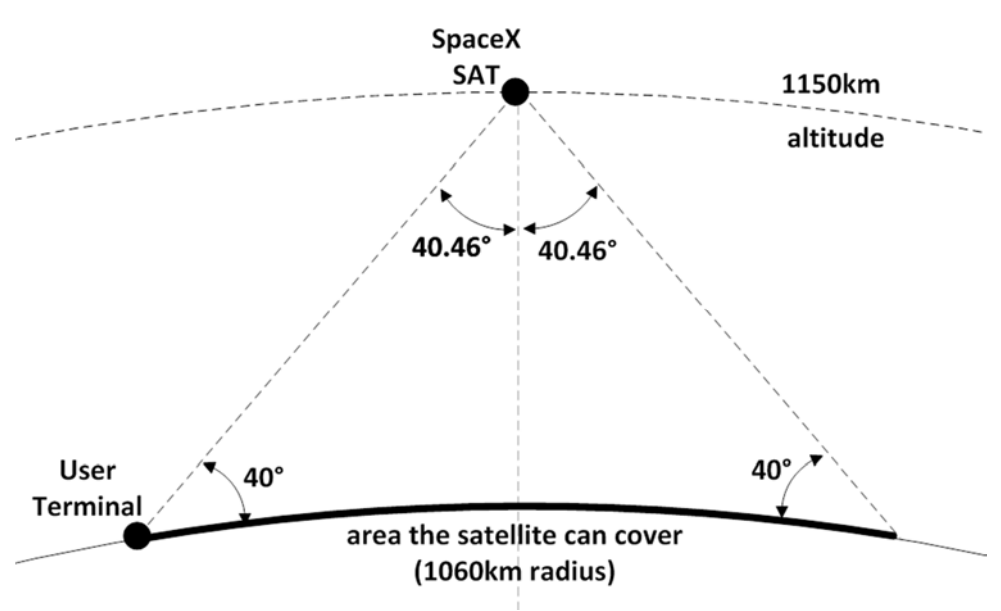
Illustration of SpaceX satellite coverage from the FCC application.

OneWeb, for example, said that SpaceX satellites shouldn’t be allowed to be deployed within 125 kilometers of altitude of its own. You do want to avoid interference, but really, it’s too much to ask for a 150-mile buffer zone around your gear.

One objection that did carry water, however, was the request for an extensive orbital debris mitigation plan.

The unprecedented number of satellites proposed by SpaceX and the other [non-geostationary orbit fixed-satellite service] systems in this processing round will necessitate a further assessment of the appropriate reliability standards of these spacecraft, as well as the reliability of these systems’ methods for deorbiting the spacecraft.

So SpaceX will have to provide more studies on this by the time it finalizes its designs and starts launching.

And that will have to be fairly soon. To move things along, the FCC requires SpaceX to get underway in a hurry or else, presumably, it will have to be reauthorized:

SpaceX must launch 50 percent of the maximum number of proposed space stations, place them in the assigned orbits, and operate them in accordance with the station authorization no later than March 29, 2024.

Commissioner Rosenworcel, in a separate statement, also called for a general revisiting of regulations around commercial space.

“This rush to develop new space opportunities requires new rules,” she writes. “Despite the revolutionary activity in our atmosphere, the regulatory frameworks we rely on to shape these efforts are dated. Across the board, we need to prepare for the proliferation of satellites in our higher altitudes. In short, we have work to do.”


Read Full Article

Facebook tries to prove it cares with “Fighting Abuse @ Scale” conference


Desperate to show it takes thwarting misinformation, fraud, and spam seriously, Facebook just announced a last-minute “Fighting Abuse @Scale” conference in San Francisco on April 25th. Speakers from Facebook, Airbnb, Google, Microsoft, and LinkedIn will discuss how to stop fake news, prevent counterfeit account creation, using honeypots to disrupt adversarial infrastructure, and how machine learning can be employed to boost platform safety.

Fighting Abuse @Scale will be held at the Bespoke Event Center within the Westfield Mall in SF. We can expect more technical details about the new proactive artificial intelligence tools Facebook announced today during a conference call about its plans to protect election integrity. The first session is titled “Combating misinformation at Facebook” and will feature an engineering director and data scientists from the company.

Facebook previously held “Fighting Spam @Scale” conferences in May 2015 and November 2016 just after the Presidential election. But since then, public frustration has built up to a breaking point for the social network. Russian election interference, hoaxes reaching voters, violence on Facebook Live, the ever-present issue of cyberbullying, and now the Cambridge Analytica data privacy scandal have created a convergence of backlash. With its share price plummeting, former executives speaking out against its impact on society, and CEO Mark Zuckerberg on a media apology tour, Facebook needs to show this isn’t just a PR problem. It needs users, potential government regulators, and its own existing and potential employees to see it’s willing to step up and take responsibility for fixing its platform.


Read Full Article

10 DIY Space Projects You Can Build Yourself

Is Edward Snowden’s Haven a Security App… or the Ultimate Spy Tool?


In late 2017, Edward Snowden, The Guardian Project, and Freedom Of The Press announced the product of a collaborative effort: the Haven app. It can transform any Android phone into the ultimate mobile security system. But is Haven as powerful as some claim it to be?

How Haven Works

Haven’s primary purpose is that it can protect your laptop or desktop computer from tampering. It uses every sensor on your phone to monitor the environment and alert you to any changes. With just a little bit of imagination you’ll come up with many more interesting security uses for this app beyond monitoring your computer hardware.

While there are countless other Android apps out there that will do the same thing, the one thing that stands out about Haven is that both the alert message feature and remote access to the device is encrypted and anonymous.

The intent of Haven is that you use it on a burner Android. This is basically a cheap, spare Android you can wipe clean or destroy at any time without really caring. This could be a prepaid phone or a used one from eBay. People sell their old phones there all the time for next to nothing.

The idea is that you’ll place it somewhere in a room where all of the phone’s sensors can fully monitor the environment there.

Smartphone security, encryption

The app uses all of the following smartphone sensor technologies:

  • Camera: It’ll catch any motion either from the front or the back camera.
  • Accelerometer: If the phone moves or vibrates, the app will capture the event.
  • Microphone: Any noise will trigger an alert.
  • Light: The app also monitors lighting levels from the camera.
  • Power: If your burner phone gets unplugged, you’ll receive an alert.

If you place the phone in an ideal location in any room, all of these sensors work together to provide a pretty impressive security monitor.

Setting Up Haven

The Haven app is very easy to intall and set up. Just download it from Google Play; you’ll need to download and install Orbot as well. Haven uses Orbot for anonymous remote access to the phone.

You’ll need to provide Haven with access to a lot on your burner phone… this is why it’s best used on a junk phone you never use. It gets full access to not only all sensors, but also all files stored on the device. As much as I like Edward Snowden and trust the Guardian Project, I would never advise installing this app on your primary phone.

Smartphone security, encryption

Once you’ve installed the app, you’ll walk through a quick wizard. One of those steps is to configure the sensors on the Android device.

Setting Up Haven’s Sensor Sensitivity

Smartphone security, encryption

The next few screens guide you through setting up the appropriate sensitivity for the camera, the accelerometer, and the microphone.

Your settings here will vary depending on how you want to use the application.

  • Monitoring a hotel room: Placing the phone propped up on a night stand so it has full view of the room (including your laptop) is the best option. You may need to adjust microphone sensitivity to a level just above the sound of the air conditioning or traffic. You can set motion sensitivity very high, since nothing should move in the room while you’re gone.
  • Monitoring your laptop bag: Sliding the burner Android into a pocket of your laptop bag, you can adjust the accelerometer threshold to very sensitive. Be wary of any natural vibrations nearby (like construction work outside or a nearby subway train) which could set off the sensor. In this use case the camera sensor or sound detection isn’t really useful.
  • Monitoring your office: Sound, camera motion, and the accelerometer could all come in handy to monitor your office, but if you have a home office you may need to reduce the camera motion sensitivity to ignore any pets you have roaming around.
  • Monitoring a safe: The most important sensor here will be the accelerometer. Place your laptop in a hotel safe with the burner phone on top of it, and set for maximum sensitivity. Even someone just opening the safe door will provide enough movement to trigger an SMS alert to your phone.

You can always reconfigure the sensitivity settings in the apps Settings area.

Configure SMS and Tor Onion Service

Smartphone security, encryption

This is also where you can:

  • Configure SMS alerts or your Signal messaging account
  • Select which camera on your phone to monitor
  • Configure remote access to the phone via the Tor browser

Adding SMS (or even Signal messaging) works, but be careful. If you set the app to message every time there’s an alert, you could get an influx of many incoming messages every few minutes.

Smartphone security, encryption

Luckily, the app lets you adjust how often alerts go out, so you can reduce the flow if the sensors ever do get triggered.

Setting up and configuring Orbot for Tor browser access to your phone is quick and easy. You just install the app, and then under Tor-Enabled Apps, tap to add the Haven app.

Smartphone security, encryption

At this point, you’re ready to start using the burner phone as a personal security device.

Using Haven

When you press the yellow play icon on any screen in Haven, it’ll start monitoring. It’s set to do a default countdown by 30 seconds before activating. Presumably this is to give you time to leave the room.

Smartphone security, encryption

As alerts occur, the app logs all of the motion and sound from the room to its local storage. Later, when you return to the room, you can review the log and scroll through all of the alerts that occurred while you were gone.

Smartphone security, encryption

You can configure the frequency of alerts that the app will send via SMS—either periodically or on every alert.

When reviewing all of the images and sounds you’ve captured, you can click the share button on any one of the logs to export it to any other app or cloud service the phone has access to.

Smartphone security, encryption

It’s quite stunning just how much data the app captures. During testing, any time I entered the room, the phone immediately started snapping a picture every second, and recording any noise I made.

A carefully placed burner Android could easily capture a theft in progress, including clear snapshots of the thieves, and recording everything that was said in the process as well.

Remotely Accessing Logs With Haven

In my opinion, the coolest feature of Haven is that it lets you access all recently captured logfiles via a secure and anonymous Tor connection. We’ve covered how to convert your Android phones into a home security system, but that solution doesn’t have encrypted and anonymous remote access via a Tor browser.

Once you have the Haven app configured to use Orbot, your phone will host its own onion site. The address of this site is displayed in the settings. All you have to do while your burner phone is actively monitoring the room, is access the onion page from your computer, using the Tor browser, and you can see all events that occured.

Smartphone security, encryption

Then, just click on any of the logfiles to view individual alerts.

Smartphone security, encryption

You’ll have access to all of the full-resolution photos captured by your phone. As you scroll down you’ll also have access to all of the motion alerts and sound recordings.

Smartphone security, encryption

Downloading any of the media pulls it directly off the phone and onto your device, where you can do whatever you like with it.

Pros and Cons: Some Final Words on Haven

The ability to access the Haven app remotely and anonymously is a nice feature, but keep in mind that the phone has to be turned on and working in order to access these files. Should a would-be thief realize the phone is monitoring them, all they have to do is turn it off and you’ve lost all access to the alerts.

With that said, you just need to be smart with where, and how, you place the burner phone for your specific situation. But that also raises other questions.

Snowden, the Guardian Project, and Freedom Of The Press advertise this app as a way to “protect personal spaces and possessions”. It definitely accomplishes that purpose. However, it is also converts any mobile device into one of the most effective and inconspicuous spy devices.

With a burner Android installed with this app, you could place it in any room and then leave the room. The phone will continue recording every single movement and sound of every person there. It may not be an app that will invade your privacy, but it’s an app that’ll let people invade other peoples’ privacy without very much effort.

As with all things, with great power comes great responsibility. Using Haven, you’ll have assurance that your space hasn’t been invaded by uninvited guests. At the same time, you’ll need to accept the responsibility that comes with using such a powerful surveillance application.

If you travel a lot, you’ll want to make sure to read list of gadgets to keep your home secure while traveling. Also, if you haven’t yet, you should definitely perform a personal security audit.

Image Credit: logoff/Depositphotos


Read Full Article

The 10 Best Apple CarPlay Apps for iPhone


While using your phone while driving is dangerous, you can integrate your phone safely into your ride to enjoy some neat benefits. The App Store has featured apps for motorists for quite some time.

But in the past few years, Apple CarPlay has greatly expanded your iPhone’s utility in the car. If you have a compatible vehicle, CarPlay makes it easy to navigate, respond to messages, and play music. Let’s take a look at some of the best CarPlay apps you can use on your iPhone.

Built-In Apple CarPlay Apps

Apple CarPlay Home

First, let’s look at the apps included with your iPhone that work with CarPlay.

Note that in addition to these, Siri can also access features of the built-in Calendar, Clock, Reminders, and other apps. You won’t see CarPlay icons for them, but you can use commands like Add paper towels to my grocery list or Set an alarm for 7am tomorrow.

1. Maps

Apple CarPlay Maps

Likely the most important app you use in the car is Maps for navigation. Tap its icon, and you’ll get an overview view of your location. Hit the Destinations link and Maps will suggest places based on where you are. You can tap the icons at the top of screen to quickly find gas stations, food, and more.

Use the microphone button on your steering wheel, or tap the Microphone icon in the upper-right corner of the Destinations screen, and you can use Siri to start navigation instead.

Unsurprisingly, Apple Maps is the only navigation option available with CarPlay. That means you can’t use Google Maps or Waze.

2. Phone

Apple CarPlay Phone

The Phone app’s CarPlay integration lets you make and receive calls in your car. Opening the app lets you browse your contacts, open a dialer, review recent calls, or check your voicemail. However, since scanning through a list of contacts while driving is unsafe, you should just use Siri integration to say Call Sarah.

3. Messages

Apple CarPlay Messages

To message safely in the car, you can use the Messages app. Opening it lets you review your recent conversations, which is something only your passenger should do. Like with Phone, Siri makes sending messages easy. You can also have her read your received messages aloud.

Try saying Text Norah I’ll be home in 15 minutes or Read my text messages.

4. Music

Apple CarPlay Music

What’s a drive without the right music? Use the Music app with CarPlay to play music you’ve purchased from iTunes, or anything available on Apple Music if you’re a subscriber.

You can scroll through your playlists and other saved music by opening the app. Or just ask Siri to play your favorite artists, albums, genres, and more. Once you’re playing something, open the Now Playing app to easily adjust playback.

5. Podcasts

Apple CarPlay Podcasts

Prefer listening to podcasts on your commute instead of music? Use the Podcasts app to access the shows on your iPhone. Siri can also help with commands like Play the iPhone Fanatics podcast or Skip ahead one minute.

6. iBook Audiobooks

Apple CarPlay Audiobooks

If you’ve purchased any audiobooks through Apple’s iBook service, you can have them read aloud to you in the car. Audiobooks are a great way to enjoy books if you don’t have time to sit down and read. However, if you haven’t purchased anything from Apple’s iBook store yet, check the below options for other audiobook providers.

Additional Apple CarPlay Apps

While the above apps come pre-installed on every iPhone, several third-party apps work with CarPlay as well. Apple keeps tight control over these, so there are only a few hand-picked apps. All of them support Siri for hand-free control.

You’ll see icons for any CarPlay-compatible apps on the CarPlay homescreen as long as they’re installed on your phone. In addition to the below apps, CarPlay works with car manufacturer apps for controlling your vehicle’s features.

7. iHeartRadio

Apple CarPlay iHeartRadio

Prefer to listen to radio in the car, but don’t have a favorite station nearby? iHeart Radio, one of the best radio apps for iOS, is available with CarPlay. Open it and you can browse hundreds of radio stations from across the country. For quick access, save your favorites on your phone before you start driving.

Download: iHeartRadio (Free)

8. WhatsApp

Apple CarPlay WhatsApp

WhatsApp is currently the only third-party messaging app available in CarPlay. It functions almost identically to the Messages app, except you can’t scroll through lists of conversations. All the voice commands you’d expect are here though, so you can have Siri read your incoming messages and respond via voice.

Download: WhatsApp (Free)

9. Spotify

Apple CarPlay Spotify

Spotify is one of Apple Music’s biggest competitors, so it’s great to see it available on CarPlay. Like other music apps, you can browse your playlists and other saved music through the interface, or just use Siri to start playing an album or genre. Remember that you’ll need Spotify Premium to listen ad-free and disable shuffle mode, though.

Download: Spotify (Free)

10. NPR One

Apple CarPlay NPR

Here’s one of the best CarPlay apps for those who prefer news over music or other entertainment in the car. NPR One’s CarPlay integration lets you catch up on public radio news, podcasts, and other stories. Use the quick Catch Up button to review the latest stories, or check Recommendations to see what the app thinks you’ll like.

Download: NPR One (Free)

More Audio Apps for Apple CarPlay

Many of the other best apps for CarPlay are quite similar to the above. They’re nearly all music, radio, podcast, or audiobook apps. To avoid redundancy, we’ll quickly mention a few of them here:

  • Overcast: Popular podcast finder and player with plenty of features.
  • Audible: Amazon-owned audiobook service that’s compatible with nearly every platform (unlike iBooks).
  • Pandora: The best-known internet radio service that lets you create personalized stations for anything.
  • Tidal: If you don’t use any of the other music apps, maybe Jay-Z’s hi-fi music service that promises better sound than the competition will appeal to you. Requires a subscription after free trial.
  • MLB At Bat: The ultimate app for baseball fans, featuring highlights, scores, and more. Requires a subscription.

The Best iPhone Apps, Now in Your Car

Apple has hand-selected only a few apps for CarPlay, so it can’t compete with the amount of apps available for Android Auto.

However, all the apps available here are high-quality and provide the features that most drivers will want. Navigating with Maps, responding to messages by voice, and playing your favorite music, audiobooks, or podcasts all work great with CarPlay.

Now that you’re used to talking to Siri in the car, check out how she can help you improve even more.


Read Full Article

29 March 2018

Instagram reenables GIF sharing after GIPHY promises no more racism


A racial slur GIF slipped into GIPHY’s sticker library earlier this month, prompting Instagram and Snapchat to drop their GIPHY integrations. Now Instagram is reactivating after GIPHY confirmed its reviewed its GIF library four times and will preemptively review any new GIFs it adds. Snapchat said it had nothing to share right now about whether it’s going to reactivate GIPHY.

“We’ve been in close contact with GIPHY throughout this process and we’re confident that they have put measures in place to ensure that Instagram users have a good experience” an Instagram spokesperson told TechCrunch. GIPHY told TechCrunch in a statement that “To anyone who was affected: we’re sorry. We take full responsibility for this recent event and under no circumstances does
GIPHY condone or support this kind of content . . . We have also finished a full investigation into our content moderations systems and processes and have made specific changes to our process to ensure soemthing like this does not happen again.”

We first reported Instagram was building a GIPHY integration back in January before it launched a week later, with Snapchat adding a similar feature in February. But it wasn’t long before things went wrong. First spotted by a user in the U.K. around March 8th, the GIF included a racial slur. We’ve shared a censored version of the image below, but warning, it still includes graphic content that may be offensive to some users.

When asked, Snapchat told TechCrunch ““We have removed GIPHY from our application until we can be assured that this will never happen again.” Instagram wasn’t aware that the racist GIF was available in its GIPHY integration until informed by TechCrunch, leading to a shut down of the feature within an hour. An Instagram spokesperson told TechCrunch “This type of content has no place on Instagram.” After 12 hours of silence, GIPHY responded the next morning, telling us “After investigation of the incident, this sticker was available due to a bug in our content moderation filters specifically affecting GIF stickers.”

The fiasco highlights the risks of major platforms working with third-party developers to brings outside and crowdsourced content into their apps. Snapchat historically resisted working with established developers, but recently has struck more partnerships particularly around augmented reality lenses and marketing service providers. While it’s an easy way to provide more entertainment and creative expression tools, developer integrations also force companies to rely on the quality and safety of things they don’t fully control. As Instagram and Snapchat race for users around the world, they’ll have to weigh the risks and rewards of letting developers into their gardens.

GIPHY’s full statement is below.

CHANGES TO GIPHY’S STICKER MODERATION
Before we get into the details, we wanted to take a moment and sincerely apologize for the
deeply offensive sticker discovered by a user on March 8, 2018. To anyone who was affected:
we’re sorry. We take full responsibility for this recent event and under no circumstances does
GIPHY condone or support this kind of content.
The content was immediately removed and after investigation a bug was found in our content
moderation filters affecting stickers. This bug was immediately fixed and all stickers were re-
moderated.
We have also finished a full investigation into our content moderation systems and processes
and have made specific changes to our process to ensure something like this does not happen
again.

THE CHANGES
After fixing the bug in our content moderation filters and confirming that the sticker was
successfully detected, we re-moderated our entire sticker library 4x.
We have also added another level of GIPHY moderation before each sticker is approved into
the library. This is now a permanent addition to our moderation process.
We hope this will ensure that GIPHY stickers will always be fun and safe no matter where you
see them.

THE FUTURE AND BEYOND
GIFs and Stickers are supposed to make the Internet a better, more entertaining place.
GIPHY is committed to making sure that’s always the case. As GIPHY continues to grow, we’re
going to continue looking for ways to improve our user experience. Please let us know how we
can help at: support@giphy.com.
Team Giphy.


Read Full Article

Facebook starts fact checking photos/videos, blocks millions of fake accounts per day


Facebook has begun letting partners fact check photos and videos beyond news articles, and proactively review stories before Facebook asks them. Facebook is also now preemptively blocking the creation of millions of fake accounts per day. Facebook revealed this news on a conference call with journalists [Update: and later a blog post] about its efforts around election integrity that included Chief Security Officer Alex Stamos who’s reportedly leaving Facebook later this year but claims he’s still committed to the company.

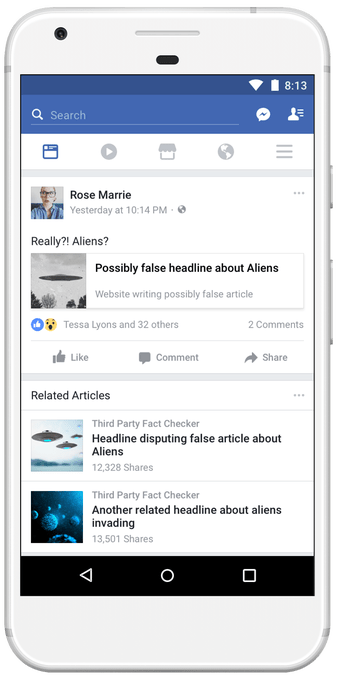
Articles flagged as false by Facebook’s fact checking partners have their reach reduced and display Related Articles showing perspectives from reputable news oulets below

Stamos outlined how Facebook is building ways to address fake identities, fake audiences grown illicitly or pumped up to make content appear more popular, acts of spreading false information, and false narratives that are intentionally deceptive and shape people’s views beyond the facts. “We’re trying to develop a systematic and comprehensive approach to tackle these challenges, and then to map that approach to the needs of each country or election” says Stamos.

Samidh Chakrabarti, Facebook’s product manager for civic engagement also explained that Facebook is now proactively looking for foreign-based Pages producing civic-related content inauthentically. It removes them from the platform if a manual review by the security team finds they violate terms of service.

“This proactive approach has allowed us to move more quickly and has become a really important way for us to prevent divisive or misleading memes from going viral” said Chakrabarti. Facebook first piloted this tool in the Alabama special election, but has now deployed it to protect Italian elections and will use it for the U.S. mid-term elections.

Meanwhile, advances in machine learning have allowed Facebook “to find more suspicious behaviors without assessing the content itself” to block millions of fake account creations per day “before they can do any harm”, says Chakrabarti.

Facebook implemented its first slew of election protections back in December 2016, including working with third-party fact checkers to flag articles as false. But those red flags were shown to entrench some people’s belief in false stories, leading Facebook to shift to showing Related Articles with perspectives from other reputable news outlets. As of yesterday, Facebook’s fact checking partners began reviewing suspicious photos and videos which can also spread false information. This could reduce the spread of false news image memes that live on Facebook and require no extra clicks to view, like doctored photos showing the Parkland school shooting survivor Emma González ripping up the constitution.

Normally, Facebook sends fact checkers stories that are being flagged by users and going viral. But now in countries like Italy and Mexico in anticipation of elections, Facebook has enabled fact checkers to proactively flag things because in some cases they can identify false stories that are spreading before Facebook’s own systems. “To reduce latency in advance of elections, we wanted to ensure we gave fact checkers that ability” says Facebook’s News Feed product manager Tessa Lyons.

A photo of Parkland shooting survivor Emma González ripping up a shooting range target was falsly doctored to show her ripping up the constitution. Photo fact checking could help Facebook prevent the false image from going viral. [Image via CNN]

With the mid-terms coming up quick, Facebook has to both secure its systems against election interference, as well as convince users and regulators that it’s made real progress since the 2016 presidential election where Russian meddlers ran rampant. Otherwise, Facebook risks another endless news cycle about it being a detriment to democracy that could trigger reduced user engagement and government intervention.
Read Full Article

5 Tips for Getting the Most Out of Your Mirrorless Camera

Instagram reenables GIF sharing after GIPHY promises no more racism


A racial slur GIF slipped into GIPHY’s sticker library earlier this month, prompting Instagram and Snapchat to drop their GIPHY integrations. Now Instagram is reactivating after GIPHY confirmed its reviewed its GIF library four times and will preemptively review any new GIFs it adds. Snapchat said it had nothing to share right now about whether it’s going to reactivate GIPHY.

“We’ve been in close contact with GIPHY throughout this process and we’re confident that they have put measures in place to ensure that Instagram users have a good experience” an Instagram spokesperson told TechCrunch. GIPHY told TechCrunch in a statement that “To anyone who was affected: we’re sorry. We take full responsibility for this recent event and under no circumstances does
GIPHY condone or support this kind of content . . . We have also finished a full investigation into our content moderations systems and processes and have made specific changes to our process to ensure soemthing like this does not happen again.”

We first reported Instagram was building a GIPHY integration back in January before it launched a week later, with Snapchat adding a similar feature in February. But it wasn’t long before things went wrong. First spotted by a user in the U.K. around March 8th, the GIF included a racial slur. We’ve shared a censored version of the image below, but warning, it still includes graphic content that may be offensive to some users.

When asked, Snapchat told TechCrunch ““We have removed GIPHY from our application until we can be assured that this will never happen again.” Instagram wasn’t aware that the racist GIF was available in its GIPHY integration until informed by TechCrunch, leading to a shut down of the feature within an hour. An Instagram spokesperson told TechCrunch “This type of content has no place on Instagram.” After 12 hours of silence, GIPHY responded the next morning, telling us “After investigation of the incident, this sticker was available due to a bug in our content moderation filters specifically affecting GIF stickers.”

The fiasco highlights the risks of major platforms working with third-party developers to brings outside and crowdsourced content into their apps. While it’s an easy way to provide more entertainment and creative expression tools, it also forces companies to rely on the quality and safety of things they don’t fully control.

GIPHY’s full statement is below.

CHANGES TO GIPHY’S STICKER MODERATION
Before we get into the details, we wanted to take a moment and sincerely apologize for the
deeply offensive sticker discovered by a user on March 8, 2018. To anyone who was affected:
we’re sorry. We take full responsibility for this recent event and under no circumstances does
GIPHY condone or support this kind of content.
The content was immediately removed and after investigation a bug was found in our content
moderation filters affecting stickers. This bug was immediately fixed and all stickers were re-
moderated.
We have also finished a full investigation into our content moderation systems and processes
and have made specific changes to our process to ensure something like this does not happen
again.

THE CHANGES
After fixing the bug in our content moderation filters and confirming that the sticker was
successfully detected, we re-moderated our entire sticker library 4x.
We have also added another level of GIPHY moderation before each sticker is approved into
the library. This is now a permanent addition to our moderation process.
We hope this will ensure that GIPHY stickers will always be fun and safe no matter where you
see them.

THE FUTURE AND BEYOND
GIFs and Stickers are supposed to make the Internet a better, more entertaining place.
GIPHY is committed to making sure that’s always the case. As GIPHY continues to grow, we’re
going to continue looking for ways to improve our user experience. Please let us know how we
can help at: support@giphy.com.
Team Giphy.


Read Full Article

Twitter makes it easier to share the right part of a live video with launch of ‘Timestamps’


Twitter today is introducing a new feature that will make it easier to share a key moment from a live video, so those viewing the tweet don’t have to scroll to the part of the broadcast you want to talk about. The feature, called “Timestamps,” is something Twitter says it built in response to existing user behavior on Twitter.

Before, users could only tweet an entire live video. So, if they wanted to highlight a particular segment, they would tweet the video along with the specific time in the video where the part they’re trying to share begins.

Those viewing the tweet would then have to scroll through the video to the correct time, which can be cumbersome on longer broadcasts and challenging on slower connections.

For instance:

The new Timestamps feature makes this whole process simpler. Now, when you tap to share a live video (or a replay of a live video), you’re able to scroll back to the exact time you want the audience to watch. You can then add your own thoughts to the tweet, and post it as usual.

But anyone seeing the tweet will start watching right at the time you specified.

If the video is still live, they’ll then be able to skip to what’s happening now by clicking the “live” button, or they can scroll back and forward in the video as they choose.

The new option ties in well with Twitter’s live streaming efforts, which has seen the company focused on offering live-streamed sporting events, news broadcasts, and other events.

For example, those live-streaming a sports match could re-share the same live video broadcast every time the team scores a goal, with the video already positioned to the right part of the broadcast to capture that action. That could increase the video’s number of viewers, which could then translate to better advertising potential for those live streams.

However, Twitter will not allow advertisers to place their ads against the Timestamped moments at launch, because they don’t want to get into a situation where an advertiser is positioned up against a moment that’s not considered ‘brand-safe.’

Beyond the sports-focused use cases, people could also take advantage of Timestamps to share their favorite song from a live-streamed concert, while reporters could highlight something important said during a press conference.

Twitter notes the Timestamps feature will be available to anyone – not just professional content publishers. It will also work for anyone doing a broadcast from their phone, and will support live videos both on Twitter and Periscope.

On Twitter, you’ll be able to share the live video as a tweet, while on Periscope you’re  able to share to your Periscope followers, in addition to sharing to Twitter or sharing as a link.

Timestamps isn’t the first feature Twitter built by watching how people were using its product. The company has a long history of adapting its product to consumer behavior as it did with the previous launches of @ replies, the hashtag, retweets and, most recently, threads. 

The update that delivers support for Timestamps is rolling out today on Twitter for Android and iOS, Twitter.com and Periscope.


Read Full Article

Google Play audiobooks get Smart Resume, bookmarks and Assistant routines support


Google Play Audiobooks is getting a major update today that adds a number of new features to the service that were sorely missing when it launched earlier this year. None of these are groundbreaking, but they’ll help Google reach feature parity with some of its competitors while injecting a bit of its proprietary smarts into the process, too.

Maybe the most useful new feature in today’s release is Smart Resume. Instead of picking up in the middle of a sentence or even word when your audiobook playback gets interrupted (maybe by Google Maps giving you directions or a friendly passerby who is asking for directions while you are clearly listening to an audiobook). Depending on the length of the interruption, this new feature will smartly rewind to the beginning of the word or sentence to help you stay in the flow.

Also new in this update are the ability to set bookmarks so you can easily go back to your favorite part of a book and the ability to speed up the audio — or slow it down so you can really savor your favorite passage in Ulysses. Both of these features were definitely missing in the first release.

If you’re a regular Google Assistant user and are already making use of the recently launched Routines feature, you’ll be happy to hear that you can now choose to continue your audiobooks when you wake up or start your commute.

And if you have family that’s spread around the world, you’ll be happy to hear that support for Google’s Family Library, which allows you to share Google Play purchases like apps, games, movies, e-books and audiobooks, is now rolling out in 13 new countries: Belgium, Germany, Italy, Netherlands, Norway, Poland, Russia, Spain, Switzerland, Chile, Mexico, Japan (audiobooks only) and South Africa.

All of these new features are now available on iOS and Android.


Read Full Article