28 March 2018

Apple Unveils a New iPad Aimed at Students


Apple has updated its entry-level iPad, adding some improved specs and support for the Apple Pencil. But beyond that this is an incremental update, with more staying the same than changing. And this isn’t the budget iPad for students some were expecting.

There have been rumors suggesting Apple was preparing to launch a budget iPad to compete with Chromebooks. Which now includes the first Chrome OS Tablet. Unfortunately, Apple’s bottom line prevents the company from offering a true bargain.

The New iPad: Just Like the Old iPad

The new Apple iPad is just like the last Apple iPad, and the one before that, and… you get the idea. It boasts a 9.7-inch screen, the A10 Fusion chip, an 8-megapixel rear-facing camera, an HD FaceTime camera, and 10 hours of battery life.

For ordinary consumers, the new iPad will cost $329, the same as the current model. The Apple Pencil, which this new model supports, will set you back a further $99. However, schools can get the iPad for $299 and the Pencil for $89. A saving of just $40.

Apple thinks this makes the iPad a bargain for students, which is why it focused this event on education and held it in a school in Chicago. The idea being to take the fight to Google, which, thanks to the success of the humble Chromebook, owns the education sector.

Unfortunately for Apple, these paltry savings are simply not enough to make the iPad an attractive option for public schools. Which are facing budget cuts forcing parents to crowdfund for basic supplies. Spending $388 on an iPad/Pencil combo is not a priority.

Maybe Apple Will Crack It Next Time

While iPads are fantastic devices for creating and consuming content, a Chromebook makes much more sense in a classroom. Especially as most Chromebooks cost less than the new iPad, and come with a keyboard allowing students to write comfortably.

If Apple really wants to compete in the education sector the company will have to launch an actual budget iPad. Or maybe even forgo a slice of its profit in order to help the next generation of consumers get a good education. But that hasn’t happened yet.


Read Full Article

Palantir confirms a staff link with Cambridge Analytica


Turns out there is a link between Peter Thiel’s secretive big data analytics firm, Palantir, and Cambridge Analytica — the political consulting firm at the center of the current Facebook data misuse scandal.

Starting in 2013, the New York Times reports that a UK-based Palantir employee worked with Cambridge Analytica — going on to gain access to the dataset of 50M+ Facebook users the latter firm obtained in 2014 via a third party personality quiz app deployed on the social network giant’s platform.

In testimony to the UK parliament yesterday, CA whistleblower Chris Wylie told MPs that senior Palantir employees worked with the firm on the Facebook data to help it build models off of the dataset to use for political ad targeting purposes.

At the time Wylie worked for SCL Group, the UK defense contractor that went on to form CA with funding from US billionaire, Robert Mercer. CA was later engaged by the Trump campaign, for the 2016 presidential election.

Reached yesterday for a response to Wylie’s allegations, a Palantir spokeswoman flatly denied Wylie’s claim — telling us: “Palantir has never had a relationship with Cambridge Analytica nor have we ever worked on any Cambridge Analytica data.”

However in a statement to the NYT, Palantir has now modified this line — saying: “We learned today that an employee, in 2013-2014, engaged in an entirely personal capacity with people associated with Cambridge Analytica. We are looking into this and will take the appropriate action.”

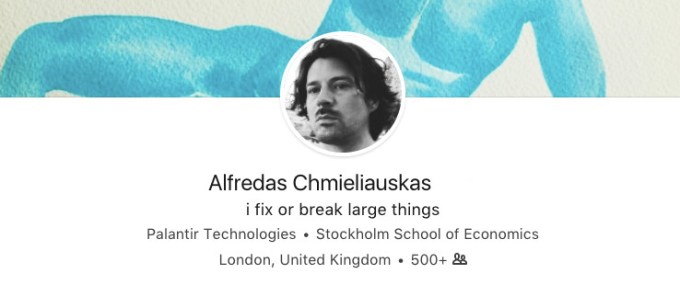
The NYT reports it has seen documents showing that a London-based employee of the big data firm — named as Alfredas Chmieliauskas — worked with the CA data scientists who were building its psychological profiling technology.

The documents were presumably provided by Wylie (pictured below), who has also handed email and other documentary evidence to the DCMS committee investigating online disinformation in political campaigning, as well as to the UK’s data watchdog and Electoral Commission — both of which are also probing digital political campaigning issues (including around the UK’s 2016 Brexit referendum vote, which Wylie alleges CA also worked on).

According to the NYT report, it was actually Chmieliauskas who came up with the idea for cloning the work of Michal Kosinski, the first Cambridge University academic that Wylie says CA approached for help to gather data.

Kosinski was deputy director at Cambridge University’s Psychometrics Centre at the time and, along with another professor at the department, David Stillwell, had already worked on a project drawing links between anonymized Facebook profiles and responses from personality surveys — with that data also obtained via a Facebook app — aiming to connect interests with voting tendencies.

Yesterday Wylie told the committee that Kosinski had asked for $500k up front from CA and 50% equity in the commercial venture to work on the project — which he said was ultimately why it ended up signing a data licensing deal with another Cambridge professor, Aleksandr Kogan, who agreed to work first on gathering the Facebook data and to discuss commercial terms later.

“I had left field idea,” Chmieliauskas wrote in May 2014, the NYT reports. “What about replicating the work of the cambridge prof as a mobile app that connects to facebook?” — going on to suggest this “could be a valuable leverage negotiating with the guy”.

Chmieliauskas’ LinkedIn profile states that he joined Palantir in April 2013 and remains employed at the company in London — working on “business development”.

It also includes the mission statement: “i fix or break large things”.

In the event, Chmieliauskas’ suggestion to clone Kosinski’s app led to CA’s data licensing relationship with Kogan, whose own personality test app — thisisyourdigitallife — was built bespoke for its project and successfully used to harvest data on 50M+ Facebook users so CA could, in turn, build psychological profiles on millions of American voters.

Wylie told the committee yesterday that a pilot of Kogan’s quiz app was launched in May 2014 with 10,000 Facebook users, before formal contracts were signed between CA and GSR — GSR being the company Kogan set up to commercialize the work with CA.

The app then was used to harvest the full Facebook dataset over the summer of 2014, garnering ~270,000 downloads — but able to pull far more data via Facebook’s (now shuttered) friends API.

Yesterday Wylie also claimed CA was able to pull data on “substantially” more Facebook users than even the 50M users that’s been reported so far.

Returning to Palantir, according to the NYT there were also discussions between SCL and Thiel’s firm in 2013 about working together on election campaigns. The newspaper said a Palantir spokeswoman confirmed the companies had briefly considered working together but claimed it had declined a partnership — in part because executives wanted to steer clear of election work.

Further emails seen by the NYT show CA’s (now suspended) CEO Alexander Nix and Palantir’s Chmieliauskas also sought to revive talks about a formal partnership in early 2014 — but Palantir executives again declined.

We reached out to Palantir for confirmation and a spokeswoman sent its updated statement — following what she described as an “initial investigation”.


Read Full Article

How to Manually Add Album Art to iTunes


iTunes has got better. You can also apply a few tweaks to make it more usable. And one of the more visual patches is to add album art cover to your music collection and make it more aesthetically appealing.

When you buy music from iTunes, it comes packaged with cover art. But your own collection might have a few missing album covers when you import them or you just might feel like updating all of them with fresh versions.

So, let’s take a quick look at how you can manually add album art to iTunes.

How to Manually Add Album Art to iTunes

iTunes can automatically find album artwork for you. Right-click on the album and select Get Album Artwork. But, here we show you how to add your own and personalize any playlist.

  1. Right-click on the album and select Album Info.
    Get album art in iTunes
  2. Another screen opens up with all the associated meta-data for the album or song. Go to the Artwork tab next to the screen for Details.
    Add Artwork
  3. Click on Add Artwork. This will open the Finder window in Mac or the File dialog in Windows. Select an image file or drag the image file to the artwork area. You can select a downloaded file from the many cover art sites on the web or make your own graphic. Discussions on the web recommend a size of 600×600 px for the album art.
  4. Click OK and you are done.

The album art is now uploaded to iTunes. Delete the file from your computer.


Read Full Article

How to Set Any Map Location as Your Phone’s Wallpaper


Your phone’s wallpaper and lockscreen image can say a lot about you, and one of the most essential things about you is where you come from. If you want to represent that on your phone, Alvar Carto has a map-generating option for your phone.

Here’s how it works:

  1. Go to Alvar Carto’s phone map generator.
  2. Enter the location for the map you want to generate. Enter the name of the city, country, or continent that you want to use for your wallpaper. You can also be more specific—pick the name of a river, for example.
  3. Choose the color theme of your map: black and white, dark grey and white, light grey and dark grey, and black and orange.
  4. Choose the resolution based on your phone: you can choose from a range of iPhones from the SE 5 to the X, the Google Pixel 2 XL, as well as the resolution for Samsung, HTC, Huawei, LG, OnePlus, and Xiaomi phones.
  5. Once you’ve made all your selections, you can zoom and pan to get it looking exactly how you want it.
  6. Click the Generate button to save the map as a PNG file.

If the idea of a map isn’t right for you, there are plenty of places to find options, whether it’s wallpaper for your iPhone or even a wallpaper you can create yourself. You can even use it for a productive purpose, placing your to-do list on your iPhone’s lockscreen.


Read Full Article

How to Change Where Mac Screenshots Are Saved


A cluttered desktop is not conducive to productivity. We’ve helped you with desktop organization before, even showing you how the MakeUseOf team keeps their workspaces under control.

If you’re a Mac user, there’s one particular thing you might find extremely annoying: the fact that whenever you take a screenshot, it automatically saves to the desktop. Windows, by contrast, just copies the image to your clipboard.

Luckily, it’s possible to change the default save location. You could even make a dedicated screenshots folder. Let’s take a closer look.

How to Change Where Mac Screenshots Are Saved

To stop your Mac from saving screenshots to your desktop, follow the simple step-by-step instructions below.

  1. Open the Terminal app (type terminal into Spotlight if you can’t find it).
  2. Type defaults write com.apple.screencapture location.
  3. Do not press Enter.
  4. At the end of the command, type your new default save location. For example, if you want a dedicated screenshots folder on your desktop:
    /Users/[username]/Desktop/Screenshots
    
  5. Press Enter.
  6. Type killall SystemUIServer.
  7. Press Enter.

Remember, Terminal also supports drag-and-drop. After typing the command in Step 2, just drag the folder where you want your Mac to save your screenshots into the Terminal window. The app will add the folder’s path to the command.

This is just one of many little tweaks you can make to your Mac to make it more enjoyable to use. If you’re looking for similarly easy tweaks, check out our guide to tiny but useful Mac features and our list of hidden Mac productivity tricks.


Read Full Article

How to Rename Your Printer in Windows


Device names are an often overlooked, but important, detail when setting up your devices. When you’re troubleshooting your network or otherwise need to distinguish between machines, it’s a lot easier when they have names like Bill’s Laptop instead of COMPUTER-8319.

The same is true for printers. Windows keeps track of all printers you’ve connected to your PC, whether they’re on your current network or not. If you have two printers with similar names, you might want to rename them so they’re easier to keep track of.

How to Rename Your Printer in Windows 10

Windows 10 Change Printer Name

  1. Open the Settings app. The Windows Key + I shortcut will do this instantly.
  2. Enter the Devices category and select the Printers & scanners tab on the left.
  3. Click the printer you’d like to adjust and select Manage. If you don’t see yours listed, make sure you’ve set your printer up correctly.
  4. On the resulting screen, select Printer properties.
  5. You’ll see a new dialogue with all sorts of options for your printer. On the General tab, change the name next to the printer icon.
  6. While you’re here, you can also add a Location and Comment if that helps you further distinguish printers.

How to Rename Your Printer in Windows 7 or 8.1

Windows 7 Change Printer Name

  1. Open the Control Panel by searching for it in the Start Menu.
  2. In the top-right, change View by to Small icons or Large icons if it currently says Category.
  3. Select the Devices and Printers entry.
  4. Scroll to the Printers header and find the printer you want to rename. Right-click it and choose Printer properties.
  5. You’ll see the same dialog box as above, allowing you to change the printer name, location, and comments.

For more help with printers, check out the easiest ways to share printers on a network.


Read Full Article

Build your own PC inside the PC you built with PC Building Simulator


Considering we’ve got simulators for everything from driving a junker (x2) to moving into a neighborhood with a bunch of hot dads in it, I suppose it was only a matter of time until someone made a game where you assemble your own PC. It’s called PC Building Simulator, as you might guess, and it looks fabulous.

I’ve built all my PCs over the years, including my current one, which I really should have waited on, since the early Skylake mobos were apparently trash. I’m sure we can line up the screw holes better than that, MSI!

What was I talking about? Oh yes, the simulator. This is no joke game: it uses real, licensed parts from major manufacturers, which are (or will be) simulated down to their power draws, pins, draw counts and so on. So if you pick a power supply without enough molex connectors to handle your SLI rig and PCIe solid state system drive (or whatever), it won’t start. Or if you try to close the ultra-slim case with an 8-inch-tall heatsink on your overclocked CPU, it’ll just clank. (Some of these features are still in development.)

Add LEDs inside the case, replace the side panel with acrylic (no!), try out a few cooling solutions… the possibilities are endless. Especially since manufacturers like Corsair, AMD, and so on seem hot to add perfectly modeled virtual versions of their components to the selection.

There’s even a “game” aspect where you can start your own PC repair business — someone sends you a machine that won’t boot, or shuts down randomly, and you get to figure out why that is. Run a virus scan, reseat the RAM, all that. Damn, this sounds just like my actual life.

Seriously though, this is great — it might help more people get over the idea that building a PC is difficult. I mean, it is, but at least here you can go through the motions so it isn’t a total mystery when you give it a shot.

The best part is that this game is made by a teenager who put together the original as a lark (it’s free on itch.io) and attracted so much attention that it’s been blown up into a full-blown game. Well, an Early Access title, anyway.


Read Full Article

Comparing Apple, Google and Microsoft’s education plays


Today’s Apple event in Chicago was about more than just showing off new hardware and software in the classroom — the company was reasserting itself as a major player in education. The category has long been a lynchpin in Apple’s strategy — something that Steve Jobs held near and dear.

Any ’80s kid will tell you that Apple was a force to be reckoned with — Apple computers were mainstays in computer labs across the country. It’s always been a good fit for a company focused on serving creators, bringing that extra bit of pizzazz to the classroom. In recent years, however, there’s been a major shift. The Chromebook has become the king of the classroom, thanks in no small part to the inexpensive hardware and limited spec requirements.

Based on Google’s early positioning of the category, it appears that the Chromebook’s classroom success even managed to catch its creators off-guard. The company has since happily embraced that success — while Microsoft appears to have shifted its own approach in response to Chrome OS’s success.

Apple’s own responses have been less direct, and today’s event was a reconfirmation of the company’s commitment to the iPad as the centerpiece of its educational play. If Apple can be seen as reacting, it’s in the price of the product. Gone are the days that schools’ entire digital strategy revolved around a bunch of stationary desktops in a dusty old computer lab.

But while education has been a piece of the iPad strategy since the product launched eight years ago next month, the tablet was long price-prohibitive. The company has addressed that through school discounts and lowering the overall cost of the line, as the tablet market has started to stagnate, but the last couple of upgrades have dropped pricing down to a far more approachable $299.

A one-iPad-per-child approach is still out of the realm of plenty of public schools, but it’s easy to see how the product could be appealing for school IT managers looking to roll out the iPad cart to classrooms. And additions like Managed Apple IDs have made it easier for multiple kids to share the same device, as a cost-cutting measure.

Along with devoted educational software, the company demonstrated how existing apps like Clips and Garage Band can be repurposed within the educational context to help bring a level of multimedia interactivity to the learning process. The company even sat us down in classrooms today to walk us through some of those projects.

Of course, right now, the market is Google’s to lose. The company reportedly controls around 60 percent of the market. Much like Android, the heart of Chrome OS’s approach is an embrace of third-party manufacturers, which have helped keep the cost down.

Schools with tight budgets can pick up a dirt-cheap Chromebook for $100-$150 less than an iPad. It’s easy to see how that’s an appealing proposition, especially when broken units are just par for the course in the hands of students.

In spite of its success, Google’s certainly not an island. Yesterday’s announcement of the first Chromebook tablet was both a response to Apple’s involvement in the space and a preemptive strike against today’s event, though the new Acer device is actually $30 more expensive than Apple’s educational discount. The company sort of shot itself in the foot on that one, but expect to see more competitively priced slates from other hardware partners.

Microsoft held its own education event in May of last year, showing off its solution to Chrome OS. Thus far, however, Windows 10 S has been kind of a mess, thanks in no small part to some pretty convoluted messaging on the company’s part. The company plans to streamline things a bit by making 10 S a mode inside of Windows 10.

The idea is basically the same, either way, offering a stripped-down version of the operating system that can be locked down from outside apps, so teachers can make sure nothing unseemly makes its way onto the device. It takes less of a toll on the hardware, with the company introducing a new line of PCs starting at $189 — a clear swipe at the Google’s dominance.

In fact, the company came out and said as much in the accompanying press material, saying the products were “the same price as Chromebooks, with none of the compromises.” And while Google’s online office applications have grown in popularity, Microsoft software is still nearly ubiquitous in offices, so there’s something to be said for prepping kids for the real world through use of such applications.


Read Full Article

Inquiry finds FBI sued Apple to unlock phone without considering all options


The Office of the Inspector General has issued its report on the circumstances surrounding the FBI’s 2016 lawsuit attempting to force Apple to unlock an iPhone as part of a criminal investigation. While it stops short of saying the FBI was untruthful in its justification of going to court, the report is unsparing of the bureaucracy and clashing political motives that ultimately undermined that justification.

The official narrative, briefly summarized, is that the FBI wanted to get into a locked iPhone allegedly used in the San Bernardino bombing in late 2015. Then-director Comey explained on February 9 that the Bureau did not have the capability to unlock the phone, and that as Apple was refusing to help voluntarily, a lawsuit would be filed compelling it to assist.

But then, a month later, a miracle occurred: a third party had come forward with a working method to unlock the phone and the lawsuit would not be necessary after all.

Though this mooted the court proceedings, which were dropped, it only delayed the inevitable and escalating battle between tech and law enforcement — specifically the “going dark” problem of pervasive encryption. Privacy advocates saw the suit as a transparent (but abortive) attempt to set a precedent greatly expanding the extent to which tech companies would be required to help law enforcement. Apple of course fought tooth and nail.

In 2016 the OIG was contacted by Amy Hess, a former FBI Executive Assistant Director, who basically said that the process wasn’t nearly so clean as the Bureau made it out to be. In the course of its inquiries the Inspector General did find that to be the case, though although the FBI’s claims were not technically inaccurate or misleading, they also proved simply to be incorrect — and it is implied that they may have been allowed to be incorrect in order to further the “going dark” narrative.

The full report is quite readable (if you can mentally juggle the numerous acronyms) but the findings are essentially as follows.

Although Comey stated on February 9 that the FBI did not have the capability to unlock the phone and would seek legal remedy, the inquiry found that the Bureau had not exhausted all the avenues available to it, including some rather obvious ones.

Comey at a hearing in 2017.

For instance, one senior engineer was tasked with asking trusted vendors if they had anything that could help — two days after Comey already said the FBI had no options left. Not only that, but there was official friction over whether classified tools generally reserved for national security purposes should be considered for this lesser, though obviously serious, criminal case.

In the first case, it turned out that yes, a vendor did have a solution “90 percent” done, and was happy to finish it up over the next month. How could the director have said that the FBI didn’t have the resources to do this, when it had not even asked its usual outside sources for help?

In the second, it’s still unclear whether there in fact exist classified tools that could have been brought to bear on the device in question. Testimony is conflicting on this point, with some officials saying that there was a “line in the sand” drawn between classified and unclassified tools, and another saying it was just a matter of preference. Regardless, those involved were less than forthcoming even within the Bureau, and even internal leadership was left wondering if there were solutions they hadn’t considered.

Hess, who brought the initial complaint to the OIG, was primarily concerned not that there was confusion in the ranks — it’s a huge organization and communication can be difficult — but that the search for a solution was deliberately allowed to fail in order that the case could act as a precedent advantageous to the FBI and other law enforcement agencies. Comey was known to be very concerned with the “going dark” issue and would likely have pursued such a case with vigor.

So the court case, Hess implied, was the real goal, and the meetings early in 2016 were formalities, nothing more than a paper trail to back up Comey’s statements. When a solution was actually found, because an engineer had taken initiative to ask around, officials hoping for a win in court were dismayed:

She became concerned that the CEAU Chief did not seem to want to find a technical solution, and that perhaps he knew of a solution but remained silent in order to pursue his own agenda of obtaining a favorable court ruling against Apple. According to EAD Hess, the problem with the Farook iPhone encryption was the “poster child” case for the Going Dark challenge.

The CEAU Chief told the OIG that, after the outside vendor came forward, he became frustrated that the case against Apple could no longer go forward, and he vented his frustration to the ROU Chief. He acknowledged that during this conversation between the two, he expressed disappointment that the ROU Chief had engaged an outside vendor to assist with the Farook iPhone, asking the ROU Chief, “Why did you do that for?”

While this doesn’t really imply a pattern of deception, it does suggest a willingness and ability on the part of FBI leadership to manipulate the situation to its advantage. A judge saying the likes of Apple must do everything possible to unlock an iPhone, and all forward ramifications of that, would be a tremendous coup for the Bureau and a major blow to user privacy.

The OIG ultimately recommends that the FBI “improve communication and coordination” so that this type of thing doesn’t happen (and it is reportedly doing so). Ironically, if the FBI had communicated to itself a bit better, the court case likely would have continued under pretenses that only its own leadership would know were false.


Read Full Article

Inquiry finds FBI sued Apple to unlock phone without considering all options


The Office of the Inspector General has issued its report on the circumstances surrounding the FBI’s 2016 lawsuit attempting to force Apple to unlock an iPhone as part of a criminal investigation. While it stops short of saying the FBI was untruthful in its justification of going to court, the report is unsparing of the bureaucracy and clashing political motives that ultimately undermined that justification.

The official narrative, briefly summarized, is that the FBI wanted to get into a locked iPhone allegedly used in the San Bernardino bombing in late 2015. Then-director Comey explained on February 9 that the Bureau did not have the capability to unlock the phone, and that as Apple was refusing to help voluntarily, a lawsuit would be filed compelling it to assist.

But then, a month later, a miracle occurred: a third party had come forward with a working method to unlock the phone and the lawsuit would not be necessary after all.

Though this mooted the court proceedings, which were dropped, it only delayed the inevitable and escalating battle between tech and law enforcement — specifically the “going dark” problem of pervasive encryption. Privacy advocates saw the suit as a transparent (but abortive) attempt to set a precedent greatly expanding the extent to which tech companies would be required to help law enforcement. Apple of course fought tooth and nail.

In 2016 the OIG was contacted by Amy Hess, a former FBI Executive Assistant Director, who basically said that the process wasn’t nearly so clean as the Bureau made it out to be. In the course of its inquiries the Inspector General did find that to be the case, though although the FBI’s claims were not technically inaccurate or misleading, they also proved simply to be incorrect — and it is implied that they may have been allowed to be incorrect in order to further the “going dark” narrative.

The full report is quite readable (if you can mentally juggle the numerous acronyms) but the findings are essentially as follows.

Although Comey stated on February 9 that the FBI did not have the capability to unlock the phone and would seek legal remedy, the inquiry found that the Bureau had not exhausted all the avenues available to it, including some rather obvious ones.

Comey at a hearing in 2017.

For instance, one senior engineer was tasked with asking trusted vendors if they had anything that could help — two days after Comey already said the FBI had no options left. Not only that, but there was official friction over whether classified tools generally reserved for national security purposes should be considered for this lesser, though obviously serious, criminal case.

In the first case, it turned out that yes, a vendor did have a solution “90 percent” done, and was happy to finish it up over the next month. How could the director have said that the FBI didn’t have the resources to do this, when it had not even asked its usual outside sources for help?

In the second, it’s still unclear whether there in fact exist classified tools that could have been brought to bear on the device in question. Testimony is conflicting on this point, with some officials saying that there was a “line in the sand” drawn between classified and unclassified tools, and another saying it was just a matter of preference. Regardless, those involved were less than forthcoming even within the Bureau, and even internal leadership was left wondering if there were solutions they hadn’t considered.

Hess, who brought the initial complaint to the OIG, was primarily concerned not that there was confusion in the ranks — it’s a huge organization and communication can be difficult — but that the search for a solution was deliberately allowed to fail in order that the case could act as a precedent advantageous to the FBI and other law enforcement agencies. Comey was known to be very concerned with the “going dark” issue and would likely have pursued such a case with vigor.

So the court case, Hess implied, was the real goal, and the meetings early in 2016 were formalities, nothing more than a paper trail to back up Comey’s statements. When a solution was actually found, because an engineer had taken initiative to ask around, officials hoping for a win in court were dismayed:

She became concerned that the CEAU Chief did not seem to want to find a technical solution, and that perhaps he knew of a solution but remained silent in order to pursue his own agenda of obtaining a favorable court ruling against Apple. According to EAD Hess, the problem with the Farook iPhone encryption was the “poster child” case for the Going Dark challenge.

The CEAU Chief told the OIG that, after the outside vendor came forward, he became frustrated that the case against Apple could no longer go forward, and he vented his frustration to the ROU Chief. He acknowledged that during this conversation between the two, he expressed disappointment that the ROU Chief had engaged an outside vendor to assist with the Farook iPhone, asking the ROU Chief, “Why did you do that for?”

While this doesn’t really imply a pattern of deception, it does suggest a willingness and ability on the part of FBI leadership to manipulate the situation to its advantage. A judge saying the likes of Apple must do everything possible to unlock an iPhone, and all forward ramifications of that, would be a tremendous coup for the Bureau and a major blow to user privacy.

The OIG ultimately recommends that the FBI “improve communication and coordination” so that this type of thing doesn’t happen (and it is reportedly doing so). Ironically, if the FBI had communicated to itself a bit better, the court case likely would have continued under pretenses that only its own leadership would know were false.


Read Full Article

‘Late Show’ will have fewer commercials tonight, thanks to Google sponsorship


Stephen Colbert will get an extra segment on his show tonight, funded by a sponsorship from Google.

Variety reports that CBS and Google have struck a deal that will reduce commercial time on Colbert’s Late Show. He’ll fill that extra time with a new segment (it’s not clear where it will fall during the show, or what the content will be), which he’ll introduce with a plug Google’s new smart doorbell: “More Show Presented by: Google’s Nest Hello video doorbell.”

In some ways, this might just feel like the latest twist on the old-school TV sponsorship, but it also helps advertisers reach audiences who might otherwise skip through the commercials, or who watch the show through digital platforms like Google-owned YouTube (where the Late Show has been surging).

And again, it should mean more Colbert and less advertising for viewers.

Jo Ann Ross, president and chief advertising officer at CBS, told Variety that this is “just the beginning”: “We will continue to work with the show, and across all of our dayparts, to innovate and expand on what we offer our advertisers.”


Read Full Article

10 Killer Productivity Apps That Work Offline


With every passing day, the world becomes more reliant on the internet. From productivity suites to password managers, it seems like there’s a web app for just about everything.

But the reliance on the web is both a blessing and a curse. Sure, the proliferation of online tools means you can theoretically remain productive from anywhere in the world.

But what happens when you’re stuck offline? We all know connectivity issues strike when you least expect them, and it’s easy to rack up hours of lost productivity.

Which offline productivity apps will help you stay productive even when you’re cut off from the web? Keep reading to find out more.

1. Any.do

Any.do is a full-featured task management app. It’s perfect for organizing to-do lists and managing your calendar. It even offers a virtual assistant to keep you on track each day.

The $2.09/month Premium version adds support for real-time collaboration, location-based reminders, and customizable reoccurring tasks.

Any.do’s offline productivity app is great. Any tasks which you’ve already synced with your phone or computer will be available, and any changes you make will upload to your account whenever you next have a connection.

2. Salesforce

Salesforce is one of many web-based CRM tools to pop up in the last decade, but it remains the most well-known and the most widely-used.

Despite being designed for online use, the offline app offers robust support; you just need to ensure the admins have enabled caching.

Naturally, there are some limitations. For example, you won’t be able to create new contacts or tasks, lookup filters aren’t available, you won’t be able to see images attached to notes, and you can’t access Salesforce Communities.

3. OfficeTime

OfficeTime

OfficeTime is one of the best apps for anyone who needs to track billable hours. It’s popular among freelancers and small business owners.

It can record both expenses and hours, then automatically prepare invoices for you to send to clients. The app also boasts an impressive array of charts, graphs, and other visual aids so you can see what’s been eating up your precious hours.

The app is fully-functional when you’re offline; it will still be able to automatically log your time and still lets you manage ongoing projects. Any changes will sync with the OfficeTime servers as soon as you have a connection.

The app costs a one-time fee of $50. A 21-day free trial is available.

4. Google Drive

best offline productivity apps

Google Drive had to make the list, didn’t it? The cloud storage app–along with its three integrated office apps (Docs, Sheets, and Slides)–is popular in the consumer, education, and business sectors.

Google Drive allows you to make files available for offline viewing, while Docs, Sheets, and Slides will all let you create new documents when you don’t have a connection.

5. Microsoft Outlook

best offline productivity apps

Desktop email clients have fallen out of favor in the last few years; most people use a web client to access their inbox instead. But there are several great desktop email apps, perhaps chief among which is Outlook.

Because Outlook downloads a local copy of your email inbox, you’ll always be able to access all your messages, regardless of whether you have a web connection.

Clearly, when you’re offline, you won’t be able to send or receive messages. However, you can queue them up; the process will be completed as soon as you have a connection again.

Note: The Outlook web app also has an offline mode.

6. Trello

best offline productivity apps

Trello uses a Kanban approach to project management. It makes handling tasks a breeze—we even use it here at MakeUseOf for organizing internal workflows.

Since early-2017, Trello has offered offline support for its mobile apps. You can now open boards, create new cards, edit existing tasks, assign team members to boards and tasks, and add descriptions, dates, labels, and other metadata.

The app will save all your changes locally and upload them to the web as soon as you’re back online.

7. LastPass

best offline productivity apps

Password managers are an essential part of keeping yourself secure on the web. They allow you to make more complex passwords without the worry of having to remember them every time you log into a service.

An important feature of any password manager is offline access. You don’t want to be locked out of one of your accounts just because you can’t get online.

As long as you’ve logged into your LastPass account from your device at least once while you had a connection, you will be able to access a locally-saved, encrypted copy of your Vault.

LastPass also offers LastPass Pocket on Windows and Linux. It’s an app specifically designed to give you offline access to your information.

8. Evernote

Alongside Microsoft OneNote, Evernote is one of the two leading notetaking apps available today. You can spend hours arguing about the relative merits of each, but ultimately, they’re both wonderful apps.

As you’d expect, you can access your Evernote content when you’re offline. However, the exact list of what will be available varies depending on the device you’re using.

If you’re using a computer, all your content is accessible. Evernote automatically stores a local copy of everything on your hard disk. If you’re on a mobile device, only note titles, tags, and a small excerpt of text will be available by default.

If you want all access to complete notes on your mobile, you’ll need to upgrade to Evernote Plus or Evernote Premium.

9. Pocket

Pocket is a great way to save web content to read later. But why is it a better solution than simply using your browser’s bookmarks? Because Pocket will make any articles you save available offline.

As such, it’s a great way to load up on content if you know you’re not going to have a connection. For example, you could load up the app with some essential reading from your industry sector and digest it all on a transatlantic flight.

10. Google Maps

Google Maps

Many GPS apps work offline, but the ubiquity of Google Maps means it merits a place in this list.

If you want to use Google Maps offline, you’ll need to do a bit of preparation on your Android or iOS device. Go to Settings > Offline Maps > Select Your Own Map and drag the on-screen window across the portion of the map you want to save. When you’re ready, tap on Download.

You can access your downloaded maps by going to Settings > Offline Maps.

Offline Productivity Is More Important Than Ever

The apps we’ve introduced you to in this article will hopefully give you an appreciation for the amount of online software which now have an offline feature.

As stated at the start of the article, offline access is a vital feature, especially if you spend a lot of time on the road.

If offline access is not offered by your favorite productivity app, check out some of our content elsewhere on the site. You might be able to find the perfect app for your needs.


Read Full Article

Linux’s True Market Share Is Bigger Than You Think!

How to Choose the Perfect LinkedIn Background Photo


You probably already know that a professional profile picture is an absolute necessity for your LinkedIn account. But that’s not the only picture people will see when they check out your profile. There’s also your LinkedIn background photo.

The background photo is a relatively new thing on LinkedIn; it’s only been around for a few years. And it might not seem all that important. But choosing the right background photo can give your LinkedIn profile a big boost.

You can no longer choose from a default list, so you’ll need to provide your own. Thankfully, we’re here to help with a set of tips to help you choose the perfect LinkedIn background photo.

1. Use the Correct LinkedIn Background Photo Size

LinkedIn background photos are 1584 x 396 pixels

Your LinkedIn background photo needs to be the right size, or you’re going to end up with weird proportions or cropping.

The official size of the LinkedIn background photo is 1584×396 pixels.

Not all of that space is usable, however. Much of it gets cropped out on smaller screens—if someone is using the LinkedIn app or mobile site, they’re not going to see much of your photo. And some if it is covered by your profile photo.

The safe usable space is around 1000×120 pixels at the top of the image. That doesn’t leave you with much space for a logo or a call to action. But if you want everyone to see it, that’s where it should be.

2. Decide What You Want Your Background Photo to Do

What purpose do you want your LinkedIn cover photo to serve? For example, it could be an extension of your company or personal branding, like Dave Grow’s background photo:

Dave Grow LinkedIn background photo

Using his company’s colors, name, and logo associates him with the brand.

You could also use a phrase or a few words that channel what you want your visitors to think of when they come to your page, like I’ve done here:

Dann Albright LinkedIn cover photo

Or you could share your credentials and achievements, like Tony Robbins has done here:

Tony Robbins LinkedIn cover photo

You could insert a call to action, telling people to email or call you. Or just choose a scene to impart a specific emotion to your profile.

Whatever you want your LinkedIn background photo to do, decide on the specifics before you create it.

3. Use a LinkedIn Background Photo Generator

Unless you have some graphic design skills, it’s a good idea to use a LinkedIn cover photo generator. You’ll get a professional-looking image.

There are plenty of free services that will help you create a cover photo. Canva is one of the most well-known.

It has a ton of free LinkedIn background templates that you can use to create one for your profile. Here’s one that I made for myself in just a couple of minutes:

Custom LinkedIn background photo from Canva

(It’s watermarked, but you get the idea.)

And there are paid options if you want a specific look.

Adobe Spark is another free way to create a background photo for your LinkedIn profile. Choose an image, add some text, and you’re ready to go. There aren’t any LinkedIn templates like there are on Canva, but it does give you the tools to create something quickly.

Of course, you can always design your own, using any other service (like Crello, which we reviewed) or a design app. But using one of these sites is going to make the process easier.

These services are best if you want to customize your cover photos in some way. In the example above, I added text. Canva also lets you add two different photos, so you could customize it that way.

4. Download Free LinkedIn Background Images

FreeLinkedInBackgrounds technology category

If you don’t want to customize your cover photo, upload a photo that will complement your profile’s theme. For example, a software engineer might choose something code-related. An artist could use something artsy. A manager might choose a photo that evokes the idea of growth.

Fortunately, there are plenty of places where you can browse and download free LinkedIn background photos.

Unsplash is a great place to find free photos of all types that don’t require credit, and you can find images that support any kind of theme.

LinkedInBackground.com and FreeLinkedInBackgrounds.com have many photos that are already cropped to the right size, so you don’t have to worry about resizing them. FreeLinkedInBackgrounds has categories like technology, sports, and abstract images.

You can use any royalty free image you want, as long as you obey the rules for crediting authors. Just make sure that you’re consciously choosing an image that evokes the feeling you’re going for on your profile.

5. Choose a Creative Background Photo to Stand Out

LinkedIn profiles usually look pretty similar to one another; they’re text-based, so you can’t add a whole lot of visual flare. But your background photo can set you apart if it’s creative.

But how do you choose a creative LinkedIn background photo?

The best way to see what other people are doing (so you can avoid it) is to look up people with similar roles.

Head to your LinkedIn profile, then look for the “People Also Viewed” section on the right-hand side:

People Also Viewed section on LinkedIn Profile

Take a look at those profiles and their cover photos. See if they’re using text-based calls to action, custom graphics, simple photos, or the default LinkedIn background photo.

Then, do your best to stand out. Try something different. Think about what will set you apart.

The Best LinkedIn Background Photo for You

In the end, choosing the best background photo for your LinkedIn profile comes down to you personally. What do you want people to think of when they visit your LinkedIn profile? How do you want to stand out? What are you trying to accomplish on LinkedIn?

It’s easy to put up the first abstract background photo that you come across. But if you want to use LinkedIn to its fullest, take the time to figure out what it is you want from your background photo, then choose or create the perfect one for your profile.


Read Full Article

Nvidia stuns by driving a car in real life through virtual reality


Today at Nvidia’s GTC conference the company unveiled a wild technology demo and it’s straight out of Black Panther. Simply put, a driver using virtual reality was remotely controlling a car in real life.

“He’s not with us,” Jensen Huang, CEO of Nvidia, said pointing the driver on the stage. “He’s looking at this virtual world through live video.”

The driver was sitting on the stage of the convention center wearing an HTC Vive and seated in a cockpit-like car with a steering wheel. Using Nvidia’s Holodeck software, a car was loaded (the same Lexus used in Black Panther). Then, a video feed appeared showing a Ford Fusion behind the convention center.

The demo at the show was basic but worked. The driver in VR had seemingly complete control over the vehicle and managed to drive it, live but slowly, around a private lot. He navigated around a van, drove a few hundred feet and parked the car.

[gallery ids="1612999,1613009,1613007,1613005,1613004,1613003,1613001,1613000"]

The car was empty the whole time.

Nvidia didn’t detail any of the platforms running the systems nor did he announced availability. The demo was just a proof of concept. Jensen even exclaimed “we don’t know what to call it. What do we call it?”

Self-driving technology is a massive market for Nvidia, and the company is a leader in supplying technology. And demos like this are a great way to keep the attention on the company’s capabilities.


Read Full Article

Google is acquiring GIF platform Tenor


Google will be acquiring Tenor, which powers a variety of GIF keyboards on phones and messengers like Facebook Messenger, the companies announced today.

Tenor will continue to operate as a separate brand within Google, the company said in a blog post. Tenor has increasingly positioned itself as a search company, using that as a metric for engagement and success as users tap into a massive database of GIFs. The company said it has more than 12 billion searches every month, and is one of the first major exits for a small but relatively hot space around tools that allow users to easily share GIFs. The company works with advertisers to create sponsored GIFs that slot into its searches, which are usually pretty compact and offer an opportunity to generate a lot of engagement.

GIFs have increasingly been pretty interesting because they offer an opportunity to compress a lot of information into something that’s easily shareable. Tenor CEO David McIntosh will often say that the company is about conveying emotion — and really, that isn’t something that often goes very well over text. If you’re watching the NCAA Men’s Basketball tournament, you’re probably better off searching for a GIF of your team rather than just blasting a text message to your group of friends.

“With their deep library of content, Tenor surfaces the right GIFs in the moment so you can find the one that matches your mood,” Google Images director of engineering Cathy Edwards said. “Tenor will help us do this more effectively in Google Images as well as other products that use GIFs, like Gboard. Tenor will continue to operate as a separate brand, and we’re looking forward to investing in their technology and relationships with content and API partners. So whether you’re using the Tenor keyboard or one of our other products, you can expect to see much more of this in your future:”

When you open Tenor, you’ll only find a small slice of GIFs that are available as the company is looking to compress the amount of time you actually spending digging around for a GIF you want to share. The theory is that if it’s easier to find and share one, you’ll do it again and again. This isn’t dissimilar from Google’s approach either, offering itself as a utility that’s a quick get-in, get-out experience that builds a level of stickiness that’s hard to unseat. Google is, of course, worth hundreds of billions of dollars off the back of a massive advertising business that basically prints money.

Tenor isn’t the only one in the space. Giphy, for example, also has a GIF keyboard and has a pretty large database of GIFs. Giphy says it has 300 million daily active users, though depending on who you talk to in the Valley that can mean a couple different things. Nevertheless, all of these companies have been able to attract venture financing. There’s also Gfycat, which positions itself as a tool for creators, that says it has 130 million monthly active users.

The terms of the deal weren’t disclosed. But by positioning itself as a search company that slots into a messaging ecosystem, Tenor seems like a natural piece of the puzzle for Google. It also gives the company a small wedge into the messenger space as it’ll have an opportunity to touch all the platforms that are connected to Tenor like even Facebook messenger, though that one tends to flip between GIF platforms indiscriminately.


Read Full Article

27 March 2018

Google is acquiring GIF platform Tenor


Google will be acquiring Tenor, which powers a variety of GIF keyboards on phones and messengers like Facebook Messenger, the companies announced today.

Tenor will continue to operate as a separate brand within Google, the company said in a blog post. Tenor has increasingly positioned itself as a search company, using that as a metric for engagement and success as users tap into a massive database of GIFs. The company said it has more than 12 billion searches every month, and is one of the first major exits for a small but relatively hot space around tools that allow users to easily share GIFs. The company works with advertisers to create sponsored GIFs that slot into its searches, which are usually pretty compact and offer an opportunity to generate a lot of engagement.

GIFs have increasingly been pretty interesting because they offer an opportunity to compress a lot of information into something that’s easily shareable. Tenor CEO David McIntosh will often say that the company is about conveying emotion — and really, that isn’t something that often goes very well over text. If you’re watching the NCAA Men’s Basketball tournament, you’re probably better off searching for a GIF of your team rather than just blasting a text message to your group of friends.

“With their deep library of content, Tenor surfaces the right GIFs in the moment so you can find the one that matches your mood,” Google Images director of engineering Cathy Edwards said. “Tenor will help us do this more effectively in Google Images as well as other products that use GIFs, like Gboard. Tenor will continue to operate as a separate brand, and we’re looking forward to investing in their technology and relationships with content and API partners. So whether you’re using the Tenor keyboard or one of our other products, you can expect to see much more of this in your future:”

When you open Tenor, you’ll only find a small slice of GIFs that are available as the company is looking to compress the amount of time you actually spending digging around for a GIF you want to share. The theory is that if it’s easier to find and share one, you’ll do it again and again. This isn’t dissimilar from Google’s approach either, offering itself as a utility that’s a quick get-in, get-out experience that builds a level of stickiness that’s hard to unseat. Google is, of course, worth hundreds of billions of dollars off the back of a massive advertising business that basically prints money.

Tenor isn’t the only one in the space. Giphy, for example, also has a GIF keyboard and has a pretty large database of GIFs. Giphy says it has 300 million daily active users, though depending on who you talk to in the Valley that can mean a couple different things. Nevertheless, all of these companies have been able to attract venture financing. There’s also Gfycat, which positions itself as a tool for creators, that says it has 130 million monthly active users.

The terms of the deal weren’t disclosed. But by positioning itself as a search company that slots into a messaging ecosystem, Tenor seems like a natural piece of the puzzle for Google. It also gives the company a small wedge into the messenger space as it’ll have an opportunity to touch all the platforms that are connected to Tenor like even Facebook messenger, though that one tends to flip between GIF platforms indiscriminately.


Read Full Article

Google is acquiring GIF platform Tenor


Google will be acquiring Tenor, which powers a variety of GIF keyboards on phones and messengers like Facebook Messenger, the companies announced today.

Tenor will continue to operate as a separate brand within Google, the company said in a blog post. Tenor has increasingly positioned itself as a search company, using that as a metric for engagement and success as users tap into a massive database of GIFs. The company said it has more than 12 billion searches every month, and is one of the first major exits for a small but relatively hot space around tools that allow users to easily share GIFs. The company works with advertisers to create sponsored GIFs that slot into its searches, which are usually pretty compact and offer an opportunity to generate a lot of engagement.

GIFs have increasingly been pretty interesting because they offer an opportunity to compress a lot of information into something that’s easily shareable. Tenor CEO David McIntosh will often say that the company is about conveying emotion — and really, that isn’t something that often goes very well over text. If you’re watching the NCAA Men’s Basketball tournament, you’re probably better off searching for a GIF of your team rather than just blasting a text message to your group of friends.

“With their deep library of content, Tenor surfaces the right GIFs in the moment so you can find the one that matches your mood,” Google Images director of engineering Cathy Edwards said. “Tenor will help us do this more effectively in Google Images as well as other products that use GIFs, like Gboard. Tenor will continue to operate as a separate brand, and we’re looking forward to investing in their technology and relationships with content and API partners. So whether you’re using the Tenor keyboard or one of our other products, you can expect to see much more of this in your future:”

When you open Tenor, you’ll only find a small slice of GIFs that are available as the company is looking to compress the amount of time you actually spending digging around for a GIF you want to share. The theory is that if it’s easier to find and share one, you’ll do it again and again. This isn’t dissimilar from Google’s approach either, offering itself as a utility that’s a quick get-in, get-out experience that builds a level of stickiness that’s hard to unseat. Google is, of course, worth hundreds of billions of dollars off the back of a massive advertising business that basically prints money.

Tenor isn’t the only one in the space. Giphy, for example, also has a GIF keyboard and has a pretty large database of GIFs. Giphy says it has 300 million daily active users, though depending on who you talk to in the Valley that can mean a couple different things. Nevertheless, all of these companies have been able to attract venture financing. There’s also Gfycat, which positions itself as a tool for creators, that says it has 130 million monthly active users.

The terms of the deal weren’t disclosed. But by positioning itself as a search company that slots into a messaging ecosystem, Tenor seems like a natural piece of the puzzle for Google. It also gives the company a small wedge into the messenger space as it’ll have an opportunity to touch all the platforms that are connected to Tenor like even Facebook messenger, though that one tends to flip between GIF platforms indiscriminately.


Read Full Article

Arm chips will with Nvidia AI could change the Internet of Things


Nvidia and Arm today announced a partnership that’s aimed at making it easier for chip makers to incorporate deep learning capabilities into next-generation consumer gadgets, mobile devices, and Internet of Things objects. Mostly, thanks to this partnership, artificial intelligence could be coming to doorbell cams or smart speakers soon.

Arm intents to integrate Nvidia’s open-source Deep Learning Accelerator (NVDLA) architecture into its just-announced Project Trillium platform. Nvidia says this should help IoT chip makers to incorporate AI into their products.

“Accelerating AI at the edge is critical in enabling Arm’s vision of connecting a trillion IoT devices,” said Rene Haas, EVP, and president of the IP Group, at Arm. “Today we are one step closer to that vision by incorporating NVDLA into the Arm Project Trillium platform, as our entire ecosystem will immediately benefit from the expertise and capabilities our two companies bring in AI and IoT.”

Announced last month, Arm’s Project Trillium is a series of scalable processors designed for machine learning and neural networks. NVDLA open-source nature allows Arm to offer a suite of developers tools on its new platform. Together, with Arm’s scalable chip platforms and Nvidia’s developer’s tools, the two companies feel they’re offering a solution that could result in billions of IoT, mobile and consumers electronic devices gaining access to deep learning.

Nvidia Deepu Tallam, VP and GM of Autonomous Machines at Nvidia explained it best with this analogy: “NVLDA is like providing all the ingredients for somebody to make it a dish including the instructions With Arm [this partnership] is basically like a microwave dish.”


Read Full Article

Aira’s new smart glasses give blind users a guide through the visual world


When it comes to augmented reality technologies, visuals always seems to be a pretty essential part of most people’s definitions, but one startup is offering an interesting take on audio-based AR that also calls on computer vision. Even without integrated displays, glasses are still an important part of the company’s products, which are designed with vision-impaired users in mind.

Aira has built a service that basically puts a human assistant into a blind user’s ear by beaming live-streaming footage from the glasses camera to the company’s agents who can then give audio instructions to the end users. The guides can present them with directions or describe scenes for them. It’s really the combination of the high-tech hardware and highly attentive assistants.

The hardware the company has run this service on in the past has been a bit of a hodgepodge of third-party solutions. This month, the company began testing its own smart glasses solution called the Horizon Smart Glasses, which are designed from the ground-up to be the ideal solution for vision-impaired users.

The company charges based on usage; $89 per month will get users the device and up to 100 minutes of usage. There are various pricing tiers for power users who need a bit more time.

The glasses integrate a 120-degree wide-angle camera so guides can gain a fuller picture of a user’s surroundings and won’t have to instruct them to point their head in a different direction quite as much. It’s powered by what the startup calls the Aira Horizon Controller, which is actually just a repurposed Samsung smartphone that powers the device in terms of compute, battery and network connection. The controller is appropriately controlled entirely through the physical buttons and also can connect to a user’s smartphone if they want to route controls through the Aira mobile app.

Though the startup isn’t planning to part ways with their human assistants anytime soon, the company is predictably aiming to venture deeper into the capabilities offered by computer vision tech. The company announced earlier this month that it would be rolling out its own digital assistant called Chloe that will eventually be able to do a whole lot, but is launching with the ability to read so users can point their glasses at some text and they should be able to hear what’s written. The startup recently showed off a partnership with AT&T that enables the glasses to identify prescription pill bottles and read the labels and dosage instructions to users.

The company is currently in the testing phase of the new headset, but hopes to begin swapping out old units with the Horizon by June.


Read Full Article