09 March 2015

Quickly Save your Gmail Messages in Evernote with a Google Sheet


Your Evernote account has a secret email address and any email message forwarded to this address is automatically archived as a new note in one of your Evernote notebooks. You can forward PDFs, travel receipts, audio clips, images and other important emails to this email address and they will be archived forever in your Evernote account.


You can send emails from Gmail to your Evernote account manually or you can use services like Zapier or IFTTT to automate the task of creating notes in Evernote from your Gmail mailbox. For instance, you can star a message in Gmail and it is sent to Evernote. Or can you apply the label Evernote to a message inside Gmail and IFTTT will forward the message with attachments to Evernote.


While it is easy to integrate Gmail and Evernote with the help of external services, a downside is that you would need to grant full access to your Gmail mailbox to a third party service. If you are not happy doing that, there’s an alternate solution that uses Google Sheets and it can be implemented in less than a minute.


Let’s see how:


Gmail to Evernote


Send Gmail Messages to Evernote


  1. Click here to copy the Gmail to Evernote spreadsheet in your Google Drive.

  2. Put your Evernote email address (help) and other values in column D. Refer to the illustrated screenshot for details.

  3. Now click the Start button, authorize the script and it will run in the background. Close the sheet and any messages in Gmail with the label Evernote (cell D4) will be sent to your Evernote in specified notebook and tag.


That’s it. The script is open-source and no third-party has access to any of your Gmail or Google Drive data. You can also consider using the Bulk Auto Forward tool for automated sending to other email based workflows like Kindle, Instapaper, Salesforce, WordPress and so on.


Later, if you wish to stop the Google sheet from forwarding your Gmail messages to Evernote, simply click the Stop button. Also, please note that you should only specify tag and notebook names that already exist in your Evernote. If they do not existing, the email will get saved in your default Evernote notebook.


See more Evernote tips & tricks.


The story, Quickly Save your Gmail Messages in Evernote with a Google Sheet , was originally published at Digital Inspiration by Amit Agarwal on 09/03/2015 under Evernote, GMail, Internet.

04 March 2015

Google Hides Country Redirection Bypass Link


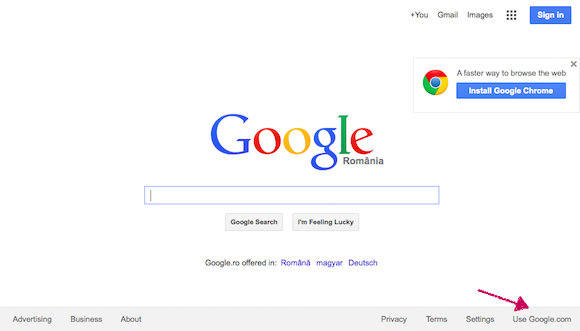
Search Engine Land reports that Google made it more difficult for non-US users to switch from their local Google site to Google.com.


Until now, you could switch to Google.com by clicking "use Google.com" at the bottom of the homepage. Google made a change and it now shows the "use Google.com" link only when you're redirected from Google.com to your country's Google site.


This way, most people will no longer see the "use Google.com" link. One workaround is to visit Google.com to see the link. Another option is to go to www.google.com/ncr, the same URL that used to the displayed by Google. "NCR" means "no country redirection", so the URL can be used to bypass Google's redirection.


Why would Google hide the link? Danny Sullivan suggests that the latest change could have something to do with the "Right To Be Forgotten" feature. "Google’s come under increasing pressure from both Canada and the EU to censor its results on Google.com in addition to censorship demands on country-specific versions."


I use Google.com because it has the latest features and it's more up-to-date.

Hide Google+ Circles in the New Google Contacts


If you're using the new Google Contacts UI, you probably noticed that Google shows both your contacts and the people from your Google+ circles in one place. The "all contacts" section now also shows Google+ contacts and there's no option to only show non-Google+ contacts.


Fortunately, there's a way to hide the people from your Google+ circles. Google+ has a feature called "your circles" which lets you select which circles you share with. For example, you can add the "Friends" and "Family" circles and quickly share your posts with your favorite circles without having to select them all the time.


"When you share posts, photos, profile data, and other things with 'Your circles,' you're sharing with all of your circles, except the ones you're just following (they're unchecked in this list)," explains Google.


The good news is that Google Contacts only includes the people from "your circles", so you can customize "your circles" and uncheck all of them. This way, the "all contacts" section will only include your contacts. The downside is that the "your circles" option from Google+ will no longer be useful, but you can always manually select your circles.

Google Tests New Contacts Interface


Google released a preview of the new Google Contacts interface. Powered by Material Design, the new Google Contacts improves some of the existing features: finding duplicates, Google Profile integration, while adding some new features: a list of recent messages, Hangouts sidebar.


"The new Google Contacts comes with a fresh look and feel, and conveniently pools together all your contacts, circles, and the people you talk to most in Gmail," informs Google.


Google Contacts now finds duplicates automatically and offers to merge all of them. You can dismiss some of the suggestions and better assess if they are actually duplicates.


When you click a contact, Google now opens a card overlay with a bigger picture and more information from the Google Profile page. Google also shows the most recent email conversations and meetings with that person.


Some features aren't available yet in the new Google Contacts: importing/exporting connects, restoring contacts, printing contacts. You can still find them in the old version of Google Contacts.


For now, the new Google Contacts is not available for Google Apps users. The new interface can be found at http://ift.tt/1zFE2kb and it will be added to Gmail's contact manager over the next few weeks.


{ Thanks, Daniel Sadavoy. }

02 March 2015

How to Remove Password from PDF Files with Google Chrome


The bank sends me monthly credit card statements as password-protected PDF files mostly because they contain personal information. I archive these PDFs into Google Drive but, because these files are protected with a password, the text isn’t searchable inside Drive. Also, each PDF file has a different password so it’s impossible to remember them and takes just too much to find these PDFs later.


pdf password


Removing Password from a PDF File


Since the Google Drive is already protected with 2 layers of security – password and 2-factor authentication – it should be OK if we remove the password protection from PDF files before uploading them to Drive.


Is there any software program available that can remove password protection from PDF files? One that doesn’t cost a dime and works on both Mac and Windows? Well the answer is yes and that too is already installed on your computer. It’s called Google Chrome.


Google Chrome has a built-in PDF reader* and a PDF writer and we can combine the two features to remove the password from any PDF document. Let’s see how:


  1. Drag any password protected PDF file into your Google Chrome browser. If you can’t find one, use this sample PDF file – the open password is “labnol” without the quotes.

  2. Google Chrome will now prompt you to enter the password of the file. Enter the password and hit Enter to open the file.

  3. Now go to the File menu in Google Chrome and choose Print (or press Ctrl+P on Windows or Cmd+P on Mac). Choose the destination printer as “Save as PDF” and click the Save button.


Google Chrome will now save the PDF to your desktop but without the password protection. If you re-open this PDF in Chrome, it would no longer require a password to open. Thank you Ivan Sunga for the tip.


Alternatively, if you have enabled Google Cloud Print, you can choose the destination as “Save to Google Drive” in the print dialog and the unprotected version of the PDF will be sent straight to your Google Drive from Chrome.


Remove PDF Password with Chrome


[*] Open the special page chrome://plugins and enable the option that says “Chrome PDF Viewer” to let Chrome natively handle PDF files.

Remove PDF Passwords without Chrome


If you are not a Google Chrome user, download this free Windows utility called BeCyPDFMetaEdit to remove passwords from PDF files.


First launch the program and it will ask your for the location of the PDF file. Before you select and open the PDF, change the mode to “Complete Rewrite,” then switch to the Security tab and set the “Security System” to “No encryption.” Click the Save button and your PDF will no longer require a password to open.


See more tools for editing PDF files.


The story, How to Remove Password from PDF Files with Google Chrome , was originally published at Digital Inspiration by Amit Agarwal on 01/03/2015 under Google Chrome, Google Drive, PDF, Software.

01 March 2015

Google Docs Viewer Page, No Longer Available


Google had a page that allowed you to quickly view documents online right from your browser. The Google Docs Viewer page was available at http://ift.tt/g0ekyj and http://ift.tt/1Br584j. You could enter a document URL and Google generated a link to view it. This worked for a lot of file types: Microsoft Office files, PDFs, PostScript files and more.


While the page is no longer available as it redirects to Google Docs/Drive, you can still use the Google Docs Viewer. Paste this URL in a new tab:


http://ift.tt/OBbN70


and then paste the address of the document you want to view online. Here's an example:


http://ift.tt/1Br5acb


The "embedded" parameter is still available: just add &embedded=true to the URL and the viewer will use an embedded mode interface. This is useful for embedding documents (use the <iframe> tag).


{ Thanks, +Sushubh Mittal. }

26 February 2015

7-Day Week View in Google Calendar for Android


The latest update to the Google Calendar app for Android brings a lot of new features. You can see more events with the new 7-day week view and pinch-to-zoom, add Google Drive files to events, hide Google+ birthdays from the settings, show week numbers and import .ics files from other apps. The new version is gradually rolling out over the next few days.


The feature that lets you hide Google+ birthdays will also be added to the web interface next week. All the other features are already available in the desktop site.

Different First Page Headers in Google Docs


Google Docs added a few features that make the product more useful, especially for students. You can now use different headers and footers on the first page of your documents, hide headers and footers on the first page and start page numbering on the second page.


When you add a header or footer, Google Docs now shows this option on the first page: "different first page header/footer". Click the checkbox and you can add a different header or footer.


The "page number" feature from the "Insert" menu lets you start page numbering on the second page.


"This means that you can follow academic formatting guidelines for first page headers and footers (e.g. MLA, CMS, APA)," says Brian Levee, Google Docs Product Manager.


{ Thanks, August Valera. }

25 February 2015

Chrome's Warning for Sites With Unwanted Software


Last year, Chrome started to block downloads for applications that "make unexpected changes to your computer — for instance, switching your homepage or other browser settings to ones you don't want". Now Chrome shows a warning when you visit a site that "encourages downloads of unwanted software".


Here's the warning page: "The site ahead contains harmful programs. Attackers on example.com might attempt to trick you into installing programs that harm your browsing experience (for example, by changing your homepage or showing extra ads on sites you visit)". This is a new SafeBrowsing feature, just like malware and phishing warnings, and you can disable it from the settings.


In addition to displaying Chrome warnings, Google will also downrank search results and disable Google ads that lead to sites with unwanted software.


There's a Google page that provides more details about unwanted software. According to Google, unwanted software has at least one of these characteristics: it's deceptive, it affects the user's system in unexpected ways, it's difficult to remove, it collects or transmits private information without the user’s knowledge, it's bundled with other software and its presence is not disclosed.

24 February 2015

Mobile Google Tests Colorful Cards


Google's mobile site experiments with a new card UI. There are a few changes: each search result has its own card and cards have colorful borders.


The screenshot below shows Google's Japanese interface, but I don't know if this is a global experiment or it's only for Google Japan. You can find more screenshots at Baka-Ke.com


{ Thanks, Shinohara Makoto. }

19 February 2015

Google Inbox for Tablets and More Desktop Browsers


Google Inbox now supports more devices and more browsers. Mobile apps are now optimized for tablets (iPads and Android tablets) and you can use Google Inbox in Firefox and Safari for desktop computers.


You can install the iOS app or the Android app to use Google Inbox on a mobile device. For now, Google Inbox doesn't support mobile browsers.


Inbox no longer requires Chrome for desktop. In addition to Chrome, Inbox now supports Firefox and Safari. For some reason, Internet Explorer is still not supported. Here's the error message displayed by Inbox: "Oops, your browser is not yet supported. Inbox works best on Chrome, Firefox, or Safari. More browsers coming soon."


There's also an error message for old versions of supported browsers: "It's been a while since your browser was last updated. Please upgrade to the latest version to continue using Inbox."


"If you aren't using Inbox yet, now's a perfect time to jump in. Email inbox@google.com to request an invite and we'll email you as soon as more invites are available," informs Google.

Google and Lunar New Year Celebrations


Google+ celebrates the Lunar New Year with a special costume for Mr. Jingles, the friendly Google+ mascot. "Countries across Asia are beginning Lunar New Year celebrations to welcome in the year of the sheep. In China, hundreds of millions of people are travelling home in what is considered the world's biggest annual human migration. State media says about three billion passenger trips will be made by plane, train and car over the 40-day period," reports BBC.


Here's the animated version:


There's also a Google doodle for Lunar New Year. Google uses an animation which illustrates that 2015 is the Year of the Sheep (sheep, goat or ram, since there's a single Chinese word for all of them).


Google Reading Level Bug


Google has an advanced search feature that lets you filter search results by reading level. Click "search tools", pick "reading level" and you can select one of the 3 options: basic, intermediate and advanced reading level.


For some reason, Google's feature no longer works well: the advanced reading level's percentage is 0% for all queries. When you click "advanced", Google doesn't return any search result. Here's an example for [science].


Google annotates search results and you can still find "advanced reading level" pages.


"The reading-level is based primarily on statistical models we built with the help of teachers. We paid teachers to classify pages for different reading levels, and then took their classifications to build a model of the intrinsic complexity of the text," explained Google's Daniel M. Russell. "Roughly speaking, 'Basic' is elementary level texts, while 'Intermediate' is anything above that level up to technical and scholarly articles, a la the articles you'd find in Scholar."

Standalone Mini Player for Google Play Music


Google has updated the Play Music app for Chrome and you can now use it without having to open the Play Music site in a new tab.


I sometimes forgot about the Play Music tab, closed the tab and music stopped playing. Now the mini player continues to work even after I close the Play Music tab.


You can click the "I'm Feeling Lucky" dice button and start a radio based on your listening history. Another option is to open the Play Music site, start a radio or pick a playlist. Then you can close the Play Music tab and use the controls from the mini player: pause music, play next song, play previous song, thumbs up/down.


{ via François Beaufort }

18 February 2015

YouTube's Also Subscribed Section


When you go to a channel, YouTube's desktop site now shows a list of people who subscribed to that channel and they're also in your Google+ circles. For example, YouTube lists 3 people from my Google+ circles who subscribed to the TED channel.


If you haven't subscribed to the channel, YouTube shows a similar list with people who "already subscribed" (instead of "also subscribed").


If you click a thumbnail, YouTube sends you to the Google+ profile page.


{ Thanks, Anthony. }

Google Play Tests a Sidebar for Related Apps


Patryk Szczygłowski, a reader of this blog, noticed an experimental web interface for Google Play. The updated UI adds a sidebar that shows similar apps and other apps from the same developer. Right now, these lists of apps are placed at the bottom of the page, below the description, reviews, changelog and other information about the app.


"Please note, it doesn't fit my laptop screen 1366x768, but Google might enable this experiment for me, because I have been using an external Full HD screen for a week recently," says Patryk.


{ Thanks, Patryk. }

Gmail's Warning for Suspicious Email Addresses


A few days ago, I received a spam message in Gmail. Instead of flagging the message as spam, Gmail displayed this warning: "Be careful with this message. Someone might be trying to trick you by using similar-looking characters (such as Σ and E) in the email addresses contained in this message."


Last year, Gmail added support for non-Latin characters in email addresses. It also wanted to make sure that the new feature wasn't "abused by spammers or scammers trying to send misleading or harmful messages" and it started to reject messages from email addresses which used "suspicious combinations of letters that could be misleading".


There's a help center article that explains more about this feature. "If you see a warning that someone might be trying to trick you by using similar-looking characters in the email addresses of a message, you should take a close look at the sender's email address and the addresses of anyone else the email has been sent to. The addresses might be different than they seem. Sometimes, the difference is easy to spot if you look carefully. For example, someone might use a Greek character ('Σ') for the Latin character 'E'. In other situations, it's impossible to detect the difference. For instance, the Greek character ('ο') looks exactly the same as the Latin character 'o'."

Personalized Google Suggestions


Google's search suggestions change depending on your previous searches. Just like search results, which are influences by your search history, suggestions related to the queries you've previously typed are more likely to be useful.


Here's an example: I typed "swiss" and got these suggestions: "swiss colony", "swiss army", "swiss army knife".


Then I searched for "kale".


Here are the suggestions displayed when typing "swiss" again: "swiss chard", "swiss colony", "swiss army", "swiss army knife". As you can see, there's a new suggestion and it's placed at the top of the list: swiss chard, a leafy green vegetable, just like kale.


I searched for "rolex" and typed "swiss" again. This time, suggestions include "swiss watches" and "switch army watches".


This is a feature added by Google back in 2009.