29 March 2013

Attach Images in the New Gmail Compose Interface


Gmail's new compose interface has many useful features, but there are also some annoyances.


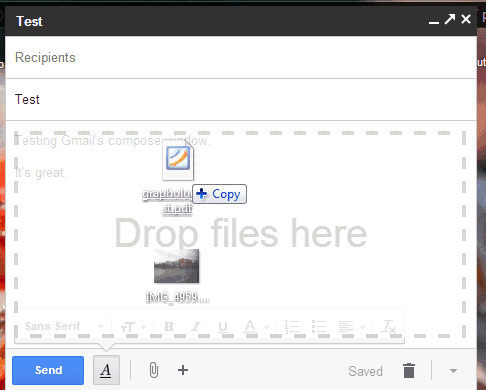
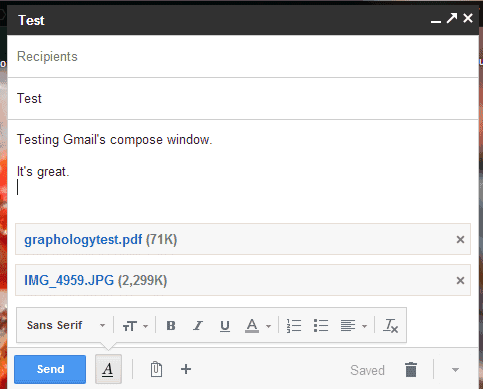
The old interface had two ways to upload images using drag and drop: as attachments or as inline images. The new interface only lets you place images inside the message when you drag and drop them. There are many reasons why you might find this feature annoying: it's more difficult to compose a message after adding a bunch of images, the images could be distracting, Gmail no longer adds cool options like "download all attachments", "view" or "download" when you open the message, some mail clients block inline images.


Fortunately, you can use the "attach files" paperclip button to add image attachments. The "insert photos" button will embed the images. If you still want to drag and drop a photo, you can drag the photo you want to attach and some other random file (for example, a PDF file or another image) and remove the random file. It's a workaround that forces Gmail to treat images like regular files. When you drag and drop multiple images, they're added as attachments.


For now, you can "temporarily switch to the old compose" interface by clicking the arrow button at the bottom of the compose box and selecting the corresponding option, but the new interface is here to stay, while the old one will be retired in the near future. The new UI for composing messages is now the default for all Gmail users.


How To Deal With Telephone Spam


The greatest aspect of the telephone? The fact that you can speak to anyone at a moment’s notice, even if they’re halfway across the world. Sit back and think about that for a second because it’s amazing. But there’s also a drawback: spammers can constantly attempt to reach you with texts and calls and you may feel helpless against the endless barrage.


Fortunately for us all, there are actually a few measures we can take to protect ourselves against phone spammers and telemarketers. Some of these measures are more serious than others (e.g., inflicting financial fines against the perpetrators) and others are just for our own sanity and peace of mind. Check them out and use the ones that work best for you.


Forward to 7726 (SPAM)


If you’re suffering from text spam, this solution might help you out (and others as well). Text spam can come from a lot of sources, though usually the spammers get your number from online contact forms and public profiles. If you truly want to stop all future text spam, don’t ever give your number away. Ever.


But when you do receive text spam, forward it to 7726 (the keypad combo for the word SPAM). Your wireless carrier will send you a reply asking you for the phone number that sourced the text. Text them back and your carrier will block that number from sending out any more unsolicited spam.


I’m not sure how many mobile carriers utilize this service, but it definitely works for Verizon and AT&T. If you want to make sure that your carrier has something similar, search Google for your carrier’s name and the phrase “text spam.” This works in the US, but your mileage may vary in other countries.


Report to a Phone Spam Service


Text spam may not be your biggest problem; what about phone call spam? Most phone call spam arrives in the form of telemarketers, and they usually call when you’re about to sit down for a hearty meal of dinner. Other forms of phone spam can occur all throughout the day and they’re all equally annoying. How can you hit them where it hurts?


If you live in the US, the Federal Communications Commission (FCC) has a form that you can fill out. It’s the 1088G complaint form and I’ve heard that it’s quite effective on a personal level. It’s not even inconvenient since you can just fill out the 1088G form online, never having to leave the comfort of your desk chair.


If you live outside the US, you may be able to find a similar complaint service to report spam callers. In the UK, for example, you could try complaining to the ICO.


Register for DoNotCall


If you want to be more proactive about not receiving spam calls, there are services that will place you on a “do not call me” list. Conveniently, the service is called DoNotCall by the FCC. Register your number and you’ll stop receiving calls after a month. If you do receive a call after a month, you can report the number to the FCC and the spammer will suffer some serious fines.


If you’ve been badgered to sign up for a “do not call” listing, then there’s a good chance it was a fake service that actually farmed your phone number. Here’s a notice by the official DoNotCall service:


Scammers have been making phone calls claiming to represent the National Do Not Call Registry. The calls claim to provide an opportunity to sign up for the Registry. These calls are not coming from the Registry or the Federal Trade Commission, and you should not respond to these calls.


Of course, the DoNotCall registry is only for the US. If you live outside the US, you may be able to find a similar spam-call-blocker service to keep yourself protected from unsolicited calls. In the UK, you might try Ofcom’s TPS service. For other countries, you’ll need to do some Google searching of your own.


Create a SPAM Contact


If you don’t want to mess with call registries and complaints, you could go the passive route by creating a SPAM contact on your phone. With this SPAM contact, you just pick up calls as normal when they come in. If the caller happens to be spam, then you add that number under the SPAM contact.


Now, every time a previous spammer calls you again, you’ll see it come up as SPAM and you can ignore it. You can even set a custom ringtone for the SPAM contact as 30 seconds of silence and you won’t even be bothered when they call. Of course, with this method, you’ll have to deal with a spammer before you can block them AND it only works if your phone allows multiple phone numbers per contact.


Conclusion


And now you have four methods of dealing with telephone spam under different circumstances. Be wary that even when you take measures against spam callers, they’re always trying to engineer new ways to spam their messages to innocent phone owners… just like with email spam. But if you follow the suggestions above, you can at least reduce their impact on your life for now.


Have any other ideas and suggestions for dealing with phone spammers? Please share them with us in the comments!


Image Credits: Stop Spam Via Shutterstock, Texting Via Shutterstock, Frustrated Caller Via Shutterstock, Spam Contact Via Shutterstock


The post How To Deal With Telephone Spam appeared first on MakeUseOf.


Minesweeper: Restoring The Classic Windows Games In Windows 8


minesweeper windowsBring the default games in Windows 8 back to the desktop. If Metro-style, full screen apps aren’t what you want when you play Solitaire, Minesweeper or Free Cell, you’re probably disappointed with Windows 8-only fullscreen versions of these games are offered in Microsoft’s latest operating system.


So these games, which have more or less been the same since Windows 3.1, are not included by default in Windows 8– and the versions you can get all run in the Metro user interface. Sure, they offer new features – the new Minesweeper, for example, offers daily challenges and an adventure mode – but some purists prefer their simple, desktop-based classics. If that includes you, keep reading.


I’ve shown you how to replace the terrible Windows 7 games with the classic XP ones, and this tutorial is similar to that one, except I’ll outline how to grab the games both from an existing Windows XP install and a Windows XP CD. I assume most people don’t have access to a working version of XP anymore.


Let’s get to work…so we can distract ourselves.


From An XP Install


minesweeper windows


If you have access to a computer with Windows XP installed (or a VirtualBox install of Windows XP) the process will be easy for you. Fire up XP and open Windows Explorer, then head to “C:\Windows\System32″. Do not change any files in this folder: you’ll break things. We’re just here to copy some files. They’re called:


  • cards.dll

  • freecell.exe

  • mshearts.exe

  • sol.exe

  • spider.exe

  • winmine.exe


minesweeper for windows 8

Copy – do not move – these files to a single folder, which you can transfer them to your Windows 8 computer however you like. USB, emailing yourself – it doesn’t matter.


These games will all work fine in Windows 8, so feel free to put this folder wherever you like on your Windows 8 computer. You can even right-click one of the games and pin it to the taskbar:


minesweeper for windows 8


Enjoy, and remember: MakeUseOf is not liable for any productivity losses directly resulting from these games. Use responsibly.


From an XP Install Disk


Of course, you probably do not have a computer with Windows XP handy. It’s possible to grab the old games from a Windows XP CD, but it’s a little more complicated – and involves the command line.


Don’t panic: it’s not as hard as it sounds. Let’s do this together now.


Insert your Windows XP CD into your Windows 8 computer, then open Windows Explorer. Open the “i386″ folder – we’re going to find some files here. They’re similar to the files above, but named in all caps and ending with an underscore instead of the last letter. The files are:


  • CARDS.DL_

  • FREECELL.EX_

  • MSHEARTS.EX_

  • SOL.EX_

  • SPIDER.EX_

  • WINMINE.EX_


You can quickly find any of these files by searching.


minesweeper for windows 8


Copy these files to a folder on your desktop – in this tutorial I’ll call it “oldgames”. Once you’ve got them all open the Command Prompt – you can find it by clicking the Search charm and typing “Command”.


minesweeper windows 8


To begin, type:


cd Desktop\oldgames


Then hit “Enter”. This will bring the Command Prompt to your oldgames folder. Now we need to extract the games. Let’s start with CARDS.DL_.


expand CARDS.DL_ cards.dll


minesweeper windows 8


To explain: the word “expand” tells the prompt what you want to do: expand a file. The word “CARDS.DL_” tells the prompt which file you want to expand. The last word, “cards.dll”, tells the prompt what you want the expanded file to be called. Shortcut: hit the “Tab” button after typing the first few letters of an existing file – the prompt will figure out which file you want.


The above command cannot create an .EXE file, so we’re going to need to cheat for the rest of the files. Let’s start with Freecell:


expand FREECELL.EX_ freecell


This command will create a file called “freecell”. Simply rename that file by right-clicking it, then add “.exe” to the end – “freecell.exe”. Assuming you’ve already extracted cards.dll you’ll have a working version of the game:


minesweeper windows 8


Repeat the process for the other games – once you’re done, feel free to delete all the files that end with an underscore (that is, this: ” _” ). You now have a folder full of your favorites:


Right-click any of these files and click “Pin to Taskbar” if you want quick access to them. They’ll be at the bottom of the screen every time you’re in desktop mode.


Conclusion


So you’ve now got your favorite old games from Windows XP working in Windows 8. I’m not sure why Microsoft doesn’t offer these on their site somewhere – it would have saved me some time in writing this, and you some time in finding the files.


minesweeper windows


I suppose they want fans of the games to get used to Metro – to learn how to use it. Microsoft has a history of using games to teach people user interface principles: Solitaire was initially included in Windows to teach people how to click and drag, for example. So these games are once again playing the role of teacher.


Maybe you don’t want to learn, however – maybe you like the way things worked before. At least it’s possible to do things your way with some tweaking: you can use Classic Shell to add a start menu to the Windows 8 desktop or add Aero effects to Windows 8 with free tools. Check out all of our Windows 8 articles for more tips like that.


What else are you doing to make Windows 8 comfortable? Let me know in the comments below, or simply share your top scores in Minesweeper.


The post Minesweeper: Restoring The Classic Windows Games In Windows 8 appeared first on MakeUseOf.


Context-Sensitive Spell Checking in Google Chrome


Chrome is the first browser that has a smart spell-checking feature powered by a web service. Originally, Chrome only relied on a local dictionary. Then Chrome's team started to add suggestions from a Google service to the contextual menu and improve the list of suggestions from the local dictionary.


Chrome 26 dramatically improves spell checking by bringing the Google Docs and Google Search spell checker to the browser. "We're now rolling out support for grammar, homonym and context-sensitive spell checking in English, powered by the same technologies used by Google search. Support for additional languages is on the way," informs Google. Right now, this feature is not available in Chrome for Mac, but it will be added soon.


The enhanced spell-checker is opt-in, so it's not enabled by default. You need to right-click a text field, go to "Spell-checker options" and make sure that "Ask Google for suggestions" is enabled. It's a privacy-sensitive feature, since everything you type is sent to Google's servers.


Context-sensitive spell checking, first available in Google Wave, is incredibly useful. Sometimes you can make mistakes and write "fund a place" instead of "find a place" or "took a brake" instead of "took a break". A regular spell-checking software can't detect these errors because "fund" and "brake" are words from the dictionary. Google uses the language models built for Google Translate to find the words that don't belong in a certain context and highlights them. Right-click the underlined words and click Google's suggestions.


Even if you enable online spell-checking, Chrome will still use the local dictionary feature. The spelling errors that have a red underline come from the dictionary, while errors with a green underline are detected by the web service.


28 March 2013

Watch The Best Short Films From Around The World On Vimeo


short filmsWhen one thinks of online video, YouTube is invariably the first name that springs to mind. It’s easy to see why this is the case. YouTube has become ubiquitous; if one of your friends shares a video with you on your social networking site of choice the chances are it’ll be on YouTube. However, there are alternatives to YouTube, some of which offer a different, possibly better, experience.


Vimeo is one of these YouTube alternatives. It’s a different beast from the Google-owned property, extolling the virtues of quality over quantity. Vimeo is the place where the cool cats — the innovative musicians, interesting documentarians, and offbeat filmmakers — reside. The videos are presented in a beautiful manner, making watching Vimeo a closer experience to watching broadcast television than any other site on the Web.


An Introduction To Vimeo


short films


Vimeo is great for certain kinds of videos, one of which is short films. The following channels are home to some of the finest short films from around the world, curated and presented on Vimeo. Each video can be viewed on its own page by clicking the title. And thanks to the quality of the Vimeo video player the full-screen experience is also great.


These channels may include some of the same content, so don’t be annoyed if you see repeats. To get you started on your cultured voyage of discovery, five of the best short films available on Vimeo have been embedded below for your viewing pleasure.


01SHORTFILM


The Six Dollar Fifty Man from NZ Shorts on Vimeo.


01SHORTFILM is a Vimeo channel dedicated to sharing the best fictional short films from a range of international directors. The channel is curated by Ale Corsini, who is himself a filmmaker based in Berlin, Germany.


At the time of writing there are more 200 videos included on the channel. With each short film being between five and 20 minutes in length (on average), that’s a lot of content for a Vimeo virgin to enjoy.


The short film embedded from this channel is titled The Six Dollar Fifty Man, and is a funny-yet-insightful look at childhood by ‘NZ Shorts’.


Short Of The Week


NOTHING ABOUT NOTHING (Short Film) from Daniel Levi on Vimeo.


Short Of The Week is a Vimeo channel which invites all kinds of short films, from fictional pieces to animated funnies, from serious documentaries to visual feasts. Short Of The Week also has its own dedicated website.


At the time of writing there are in excess of 500 videos on the channel, with more to explore as you head further down the rabbit hole… by this I mean clicking on individual filmmakers’ profiles in order to explore more of their work.


The short film embedded from this channel is titled Nothing About Nothing, and is an intriguing piece by Daniel Levi that evokes memories of Reservoir Dogs.


Independent Filmmakers


VOICE OVER (English subtitles) from Kamel Films on Vimeo.


Independent Filmmakers is a Vimeo channel designed to showcase the best filmmakers using Vimeo as an outlet for their work. It was created by Brian Chambers from Ontario, Canada, who also has his own page on the site.


At the time of writing there are over 700 videos on the channel, and they really are an eclectic mix covering all of the various genres associated with short films.


The short film embedded from this channel is titled Voice Over, an interesting piece that will stay with you long after it ends. Its quality can not be doubted, as it has already won numerous awards.


A Shortfilm Selection


High / Low from Fabien Dubois on Vimeo.


A Shortfilm Selection is a Vimeo channel curated by Emmanuel Tenenbaum, who apologizes up front for not updating as often as he should. Regardless, the quality of films included on this channel make it more than worthy of inclusion.


At the time of writing there are more than 100 videos on the channel, and it’s almost impossible to pigeonhole the content by genre or type. Which is a blessing rather than a curse.


The short film embedded from this channel is titled High/Low, a French film based in Tokyo with an English voiceover. It’s the work of Fabien Dubois, and it’s a thoughtful watch.


The Short Film Channel


the end from Cam McHarg on Vimeo.


The Short Film Channel is a Vimeo channel which exists to pull together the best narrative-led and documentary-style short films on the site. The focus on cinematography means the films featured are feasts for the eyes. It’s curated by Rod Blackhurst, a director and producer from New York.


At the time of writing there are just over 100 videos on the channel, many of which don’t appear on the other channels on this list. Some are visually stunning, others are designed more to get your gray matter working hard.


The short film embedded from this channel is titled the end, a piece by Cameron McHarg that you’ll either love or hate owing to the dark subject matter. Just don’t expect a happy ending.


Conclusions


The Vimeo channels listed here are amazing sources for the best short films the Web has to offer. Some of these films are works of art, acting as a fantastic counterbalance to the dross Hollywood is increasingly pumping out. While some parts of the Web aren’t usually associated with adding culture to the lives of the proletariat, Vimeo is increasingly filling that niche.


What do you think of Vimeo as a whole? Or the content that fills its pages? What do you think about these channels in particular? Or about the way in which content creators are utilizing the Web to find an audience? As always we’re keen to hear your thoughts, so please feel free to leave a comment in the space provided below.


The post Watch The Best Short Films From Around The World On Vimeo appeared first on MakeUseOf.


Google Translate Mistakes


The Google Translate app for Android has some text files that include translation mistakes (/sdcard/Android/data/com.google.android.apps.translate/files/ol/v3r1/c_p). Some of them have been reported by users, blogs, news sites, while others are new. It's not clear why the application needs these lists since Google has fixed these translation errors.


Here are some examples:


German to English: Stuttgart -> London, tischen -> Nazi, Sheraton -> Hilton, StepStone -> Monster, Kilo -> pounds


French to English: le président américain -> Bush, toussaint -> Halloween, Homme -> Female


Spanish to English: Madrid -> London, útil -> helpful Google Translation, amor -> truelove.


English to French: boobs massage -> Ségolène Royal, boobs massage -> Kaamelott Saison, it sucks -> elle suce


English to Spanish: quiz trivia -> vínculo con Israel


Catalan to English: Jordi Pujol -> Abraham Lincoln


English to Latin: English -> Latin, New York -> Romae, New York -> Londini, Milan -> Lib


English to Dutch: please -> iPhone, feet -> meter


Hungarian to English: magyar -> English, Kossuth Lajos -> Abraham Lincoln


Icelandic to English: Sigur Rós -> Foo Fighters, Sigur Ros -> Anastacia


Latin to English: Libri -> Random, Libri -> Reviews, Arma Virumque Cano -> Chairman Meow


Serbian to English: Mitar Mirić -> Rihanna, Miric -> Jackson


Swedish to English: Runkar -> Heil Hitler, kronor -> dollars


Google's machine translation algorithms are often fooled by proper nouns used in similar contexts (Madrid in Spanish vs London in English, Sigur Rós in Icelandic vs Foo Fighters in English), by measurement units and currencies (feet in English vs meter in Dutch), but there are also non-obvious mistakes.


Offline Google Translate for Android


Google Translate is useful, but you need an Internet connection to translate some text. Google's servers process your request, so language models are always up-to-date, you can translate long texts instantly and you don't need to download huge databases. Unfortunately, Google Translate is especially useful when you visit foreign countries and you may want to avoid the high data roaming fees.


Now you can use Google Translate offline if you have an Android device. Just install the latest version of the Google Translate for Android and you can download the core translation files for more than 50 languages (if you've already installed the application, you need to manually update it). Each file has about 150MB and it's stored on your SD card if your Android device has one.


"You can select [Offline Languages] in the app menu to see all the offline language packages available for download. To enable offline translation between any two languages, you just need to select them in the offline languages menu. Once the packages are downloaded, you're good to go," informs Google.


The application works well offline, but you may need to wait a few seconds if you want to translate long texts. Offline translations are less accurate since Google lets you download some simplified language models.


Here's a side-by-side comparison of the offline and offline translations of a French text from Le Monde:


Gmail brings support for six Indic languages to feature phones, including Tamil and Bengali


Gmail has announced that they are supporting six Indic languages on feature phones including Gujarati, Kannada, Marathi, Tamil, Bengali and Telgu.


According to Google, “Indian culture is diverse, with more than 100 languages and thousands of alphabets used every day. Depending on where you are, you might hear anything from Gujarati to Bengali and Tamil to Urdu. If you’re a speaker of these languages and use a feature phone, communicating is about to get a little easier.”


indic languages gmail Gmail brings support for six Indic languages to feature phones, including Tamil and Bengali


Choose language in Gmail:-


Now Gmail allow you to communicate in that language which you are best, You can choose your languages from settings in Gmail.


The post Gmail brings support for six Indic languages to feature phones, including Tamil and Bengali appeared first on Hack Illusion.


What Should Have Been Culled Instead Of Google Reader? [We Ask You]


The biggest technology news to break recently was undoubtedly the shutting down of Google Reader, with the search and advertising giant deciding it was no longer interested in providing an RSS application to the masses. The outcry from RSS enthusiasts was deafening, to the point that some of us wondered whether Google hadn’t actually declared war on a country rather than having culled another one of its myriad of free services.


Thankfully there are plenty of alternatives to Google Reader, so no one needs to go without their RSS feeds come July. Kannon has since tried to prepare us for future Google culls, suggesting which services Google may kill off in the future and providing alternatives for them all well ahead of time.


No one likes to see something they use regularly pulled from availability. However, there must be an online service, Web app, tech company, social network, operating system, or piece of hardware you’d happily see carted off to the mortuary. It’s this subject that forms the basis for this week’s We Ask You.


This Week’s Question…


We want to know, What Should Have Been Culled Instead Of Google Reader? It turns out that a great many of the MakeUseOf readership were loyal users of Google Reader, and its death is therefore a source of frustration. This is your chance to blow off some of that pent-up frustration with a little snark. It’s healthy once in a while.


After last week’s epic and serious discussion on how the Internet should be governed in the future, it’s time for a more lighthearted topic. We don’t normally condone negativity here on MakeUseOf, but just this once we want you to be as negative as you can.


We want you to name one thing related to technology that you’d like to see culled. It could be a hardware manufacturer or one of the products they make, an online service you hate but use begrudgingly, an operating system that has proved to be more trouble than its worth, or even one specific part of a website, such as the Facebook Timeline.


We cannot promise that the thing you choose will blink out of existence once you submit your comment, but stranger things have happened. We may even find a consensus among the readership, in which case that product, service, or company will have to surely concede its time is limited.


As usual we prefer comments that comprise of more than just a word or two, so please also give your reasons for making your choice.


Drawing Conclusions


All comments will be digested to form conclusions in a follow-up post next week where we will detail what You Told Us. One reader will be chosen for the coveted Comment Of The Week, getting their name up in lights, the respect of other readers, and 150 MakeUseOf points to use for MakeUseOf Rewards. What more motivation than that do you need to respond?


We Ask You is a weekly column dedicated to finding out the opinions of MakeUseOf readers. The questions asked are usually open-ended and likely to necessitate a discussion. Some are opinion-based, while others see you sharing tips and advice, or advocating tools and apps to fellow MakeUseOf Readers. This column is nothing without you, as MakeUseOf is nothing without you.


Image Credit: Davidd


The post What Should Have Been Culled Instead Of Google Reader? [We Ask You] appeared first on MakeUseOf.


How To Insert PHP Content Into the Loop of Your Blog Excerpts


php insert into loopEvery now and then, I get a message from the good folks at Google to my Adsense account suggesting one ad modification or another that they propose may help to bolster my ad revenue. In many cases, the suggested change is pretty simple – just post a slightly larger ad, or move it just a little bit up further “above the fold”.


However, there are times when you realize that an ad or maybe some other content needs to go into an area of your blog that isn’t so easy to get to. Sidebar content is one thing, and usually fairly easy to modify, but when it comes to other areas of your website that might be dynamically generated by code, inserting single content isn’t so simple.


For example, in the case of a WordPress blog or a WordPress website, the central content of your home page is most likely a stream of excerpts from your blog posts. People can click on “Read More” to open up the post page itself. You can create a sort of a template for your blog posts to carefully insert the required ad in your post exactly where you want it to go, but inserting an ad into your main blog page is a little more difficult.


It’s difficult mostly because that isn’t a single flow of code that develops the page content. It’s actually a loop that goes through your most recent posts, pulls out the excerpts, and outputs the text, footer info about the article, and the “Read More” button.


Inserting PHP Content Into Your Blog Loop


So, what does that mean exactly? Well, let’s take my Adsense example. Google tells me that I’d do well if I added a third graphical ad closer to the fold. Now, the perfect location for such an ad is just slightly down the main section and to the right of the navigation bar. That’s right, dead center of the area where my blog excerpts are listed.


Ideally, the ad would go right after the first blog post excerpt, and right before the line separator between posts.


php insert into loop


With WordPress, there are a few places where this sort of post excerpt code takes place, but it really depends on your theme. Usually, you’ll see it in the “page” or “index” PHP files. Again, it depends on your theme, so your best bet is to run a simple, local web server for testing like XAMPP, and load your entire blog or website onto that server. Play around with the PHP file that you think is the right one and see if it changes the page.


php insert in loop


Typically, in WordPress, you’ll see the code that runs through your latest posts using a while statement, as shown below.


php insert in loop


Now, I use the Ikarus theme, which has several different layouts depending on your blog configuration. These are stored in a “layout” folder, and in my particular case, since I chose the “blog” layout, the code I’m looking for can be found in the “blog.php” file.


php insert into loop


There are a dozen and a half ways to force something to display only the first time through a while loop. Everyone is going to have their opinion, and everyone is going to feel their way is the best way. I’m not going to claim that – I’m just going to give you code that works.


Either at the start of your PHP file, or anywhere before the “While” statement, just paste the following code.


<?php
$a=1;
$b=2;
?>


What this does is sets two variables to different values. That’s it. A is 1 and B is 2. Not equal, right? A is less than B.


So now, as you enter into the While statement, you’re going to check if A is less than B. The first time through the While loop, you know this is going to be true, so you display whatever you want to display, and then set A equal to B so that the next time through, the “A is less than B” check will no longer be true, and the thing you wanted to display only in the first time through will not be displayed again.


Here’s what that code looks like.


<!--START OF MAIN PAGE CONTENT AD CODE-->
<?php if($a < $b): ?>

<center>
<script type="text/javascript"><!--
google_ad_client = "ca-pub-xxxxxxxxxx";
/* 336x280, created 12/4/09 */
google_ad_slot = "xxxxxxxxxxx";
google_ad_width = 336;
google_ad_height = 280;
//-->
</script>
<script type="text/javascript"
src="http://pagead2.googlesyndication.com/pagead/show_ads.js">
</script>
</center>

<?php else: ?>
<?php endif; ?>

<?php if($a < $b): ?>
<?php $b = $a; ?>
<?php endif; ?>

<!--END OF MAIN PAGE CONTENT AD CODE-->

<span class="article_seperator">&nbsp;</span>
<?php endwhile; ?>


Now, if you think about it, you can use a similar approach to place something after the first 3 or 4 post excerpts, right? Your approach then would be to set A equal to 1, B equal to 4, and then every time through you would add 1 to A. Eventually, after 3 times through, A would equal B and your code snippet wouldn’t be executed for the rest of the times through the While loop.


Running the first example of code on my blog to insert a Google ad after only the first blog excerpt on the main page worked like a charm.


php insert into loop


Again, yet another way to do this would be to set A as a flag equal to “true” and then set it equal to “false” the first time through the loop. Like I said, six or a half dozen – one or the other. Whatever you choose to do, so long as the condition is true only the first time through the While loop, your code will work perfectly.


How do you do a php insert into a loop? How do you create such “one-time” conditions in your PHP code? Share some of your own techniques and tricks to doing this sort of thing in the comments section below.


Image Credits: PHP Coding via Shutterstock


The post How To Insert PHP Content Into the Loop of Your Blog Excerpts appeared first on MakeUseOf.