24 July 2020

11 Amazing Android Apps That’ll Change How You Use Your Phone


change-use-android

There are millions of apps in the Play Store that range from addictive games to essential productivity tools to great ways to customize your phone.

Even better, there are also apps that will completely change how you use Android. Some enhance the user interface, others automate common tasks, and some take popular features in the operating system and make them even better.

Let’s take a look at some of the most amazing apps for Android.

1. Lynket Browser
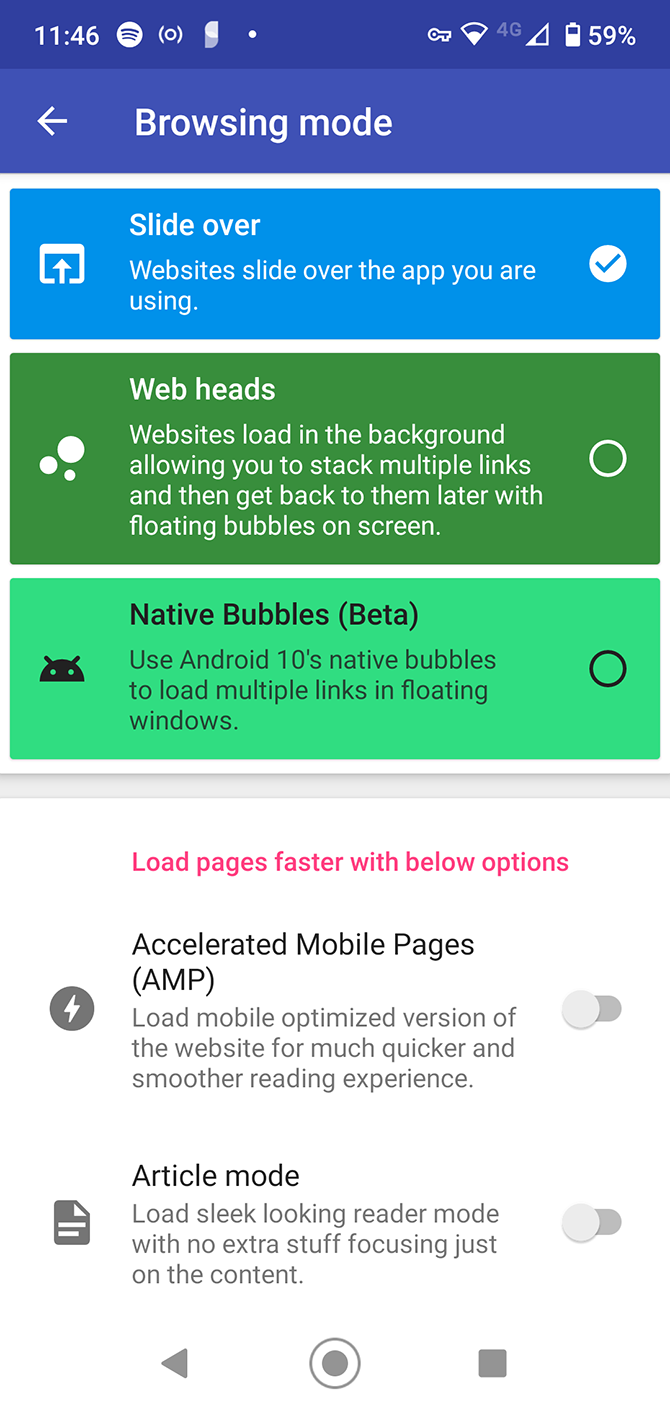
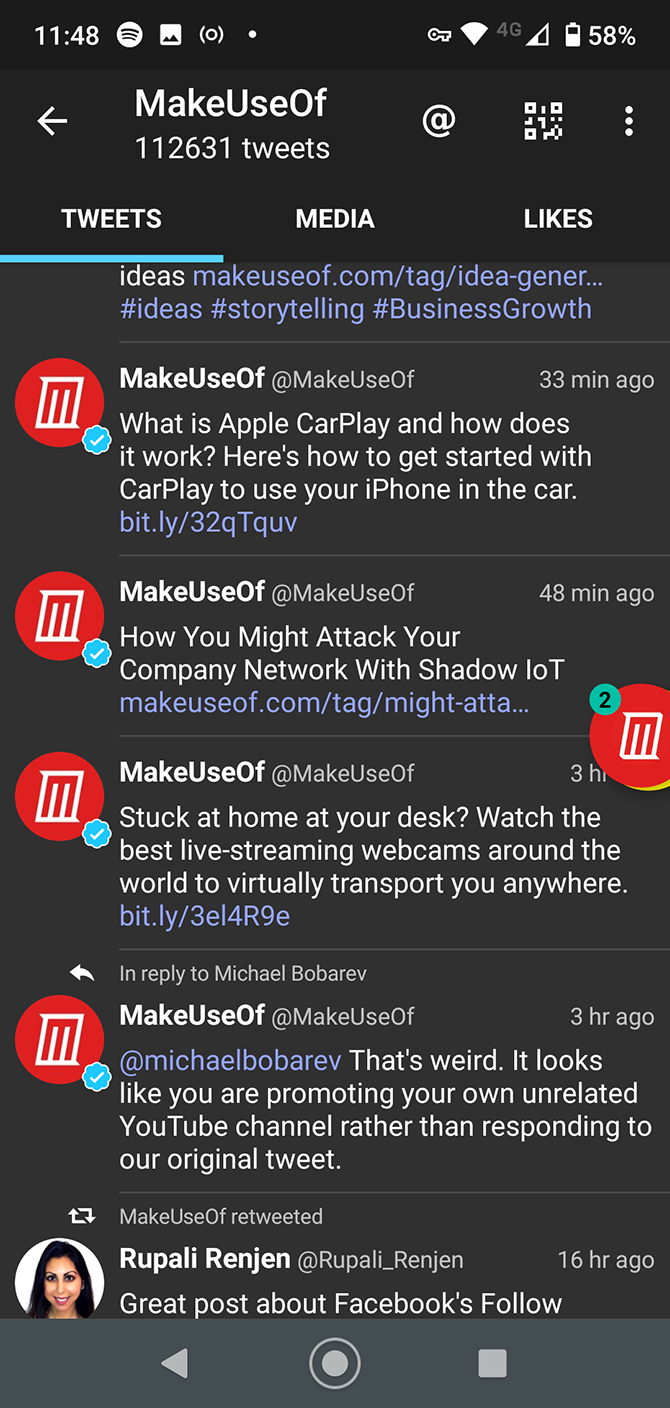
Social media is great for finding interesting articles around the web, but it isn’t always convenient to read them right away. Sometimes it’s better to queue up several articles and come back to them later.

That’s what you can do with Lynket Browser. It opens web pages in the background. You can access whenever you want by tapping floating, onscreen bubbles.

It’s simple, yet so useful. The app works with your existing default browser, and can also speed up browsing by automatically loading the AMP versions of the links you click.

Download: Lynket Browser (Free, in-app purchases available)

2. Popup Widget 3
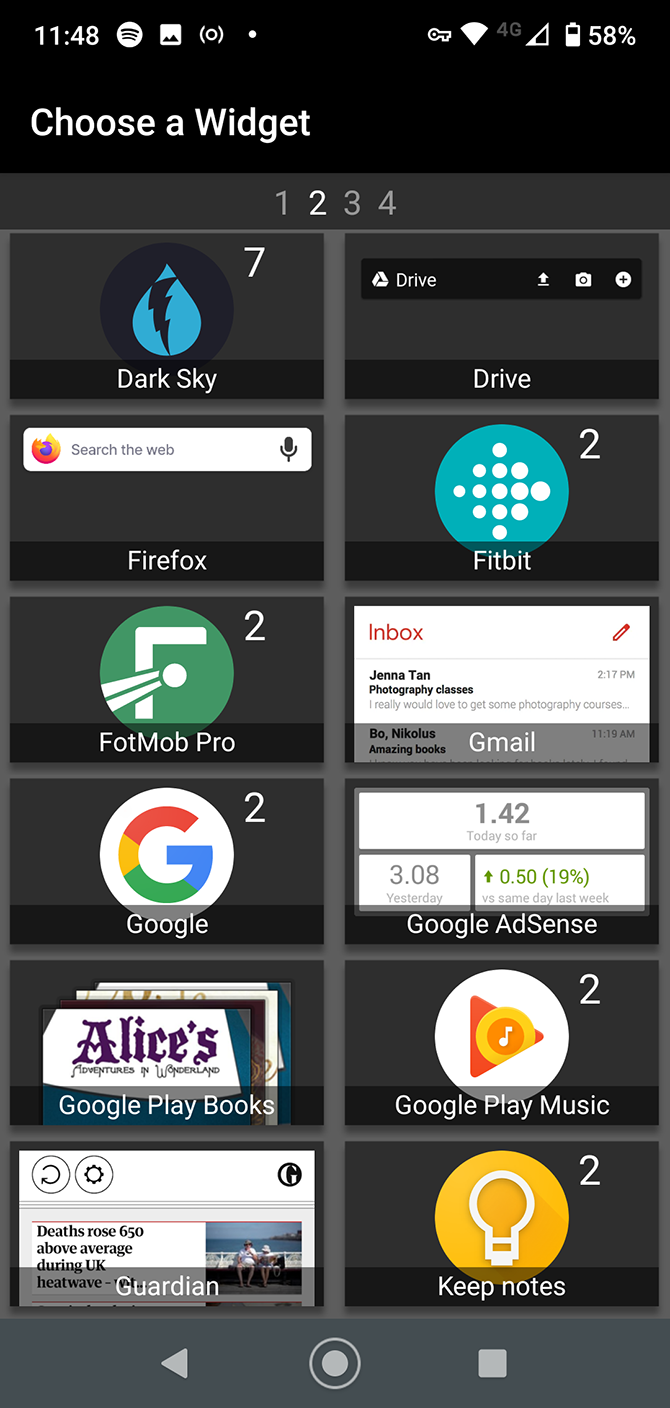
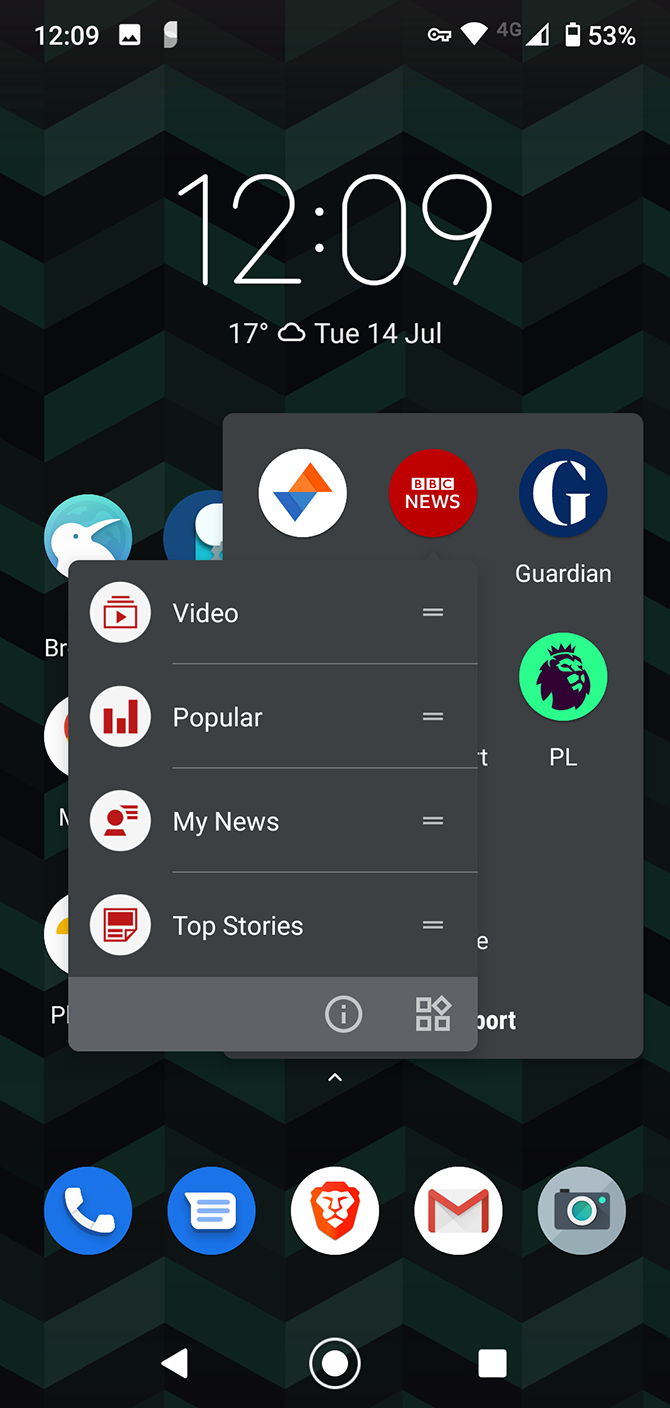
The best Android widgets are really useful, but if you use too many of them, they’ll quickly clutter your home screens and slow down your phone.

Popup Widget 3 rethinks how they work. It turns all your selected widgets into 1×1 icons on your home screen. When you tap one, it’ll pop open so you can see what’s inside.

The app gives you the convenience and speed of widgets—you don’t need to launch the full app just to see your latest tweets or check the weather—without the performance hit.

Download: Popup Widget 3 (Free)

3. Notification Notes
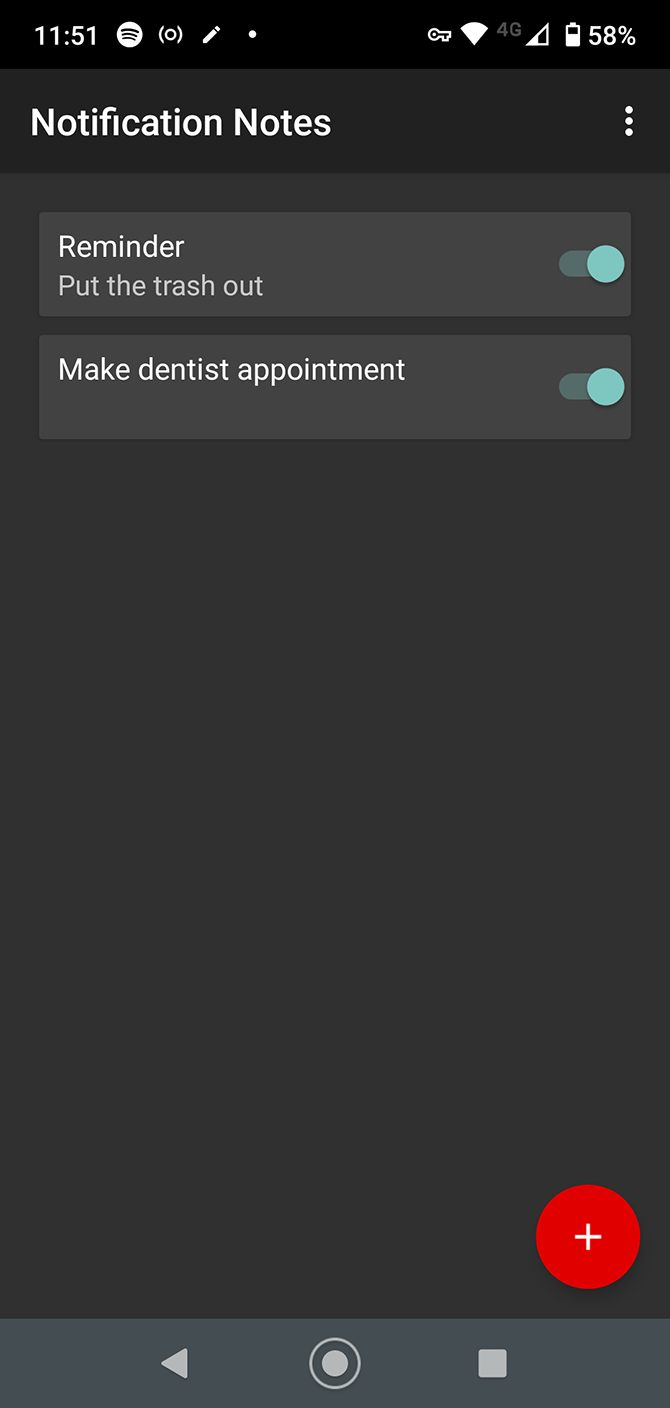
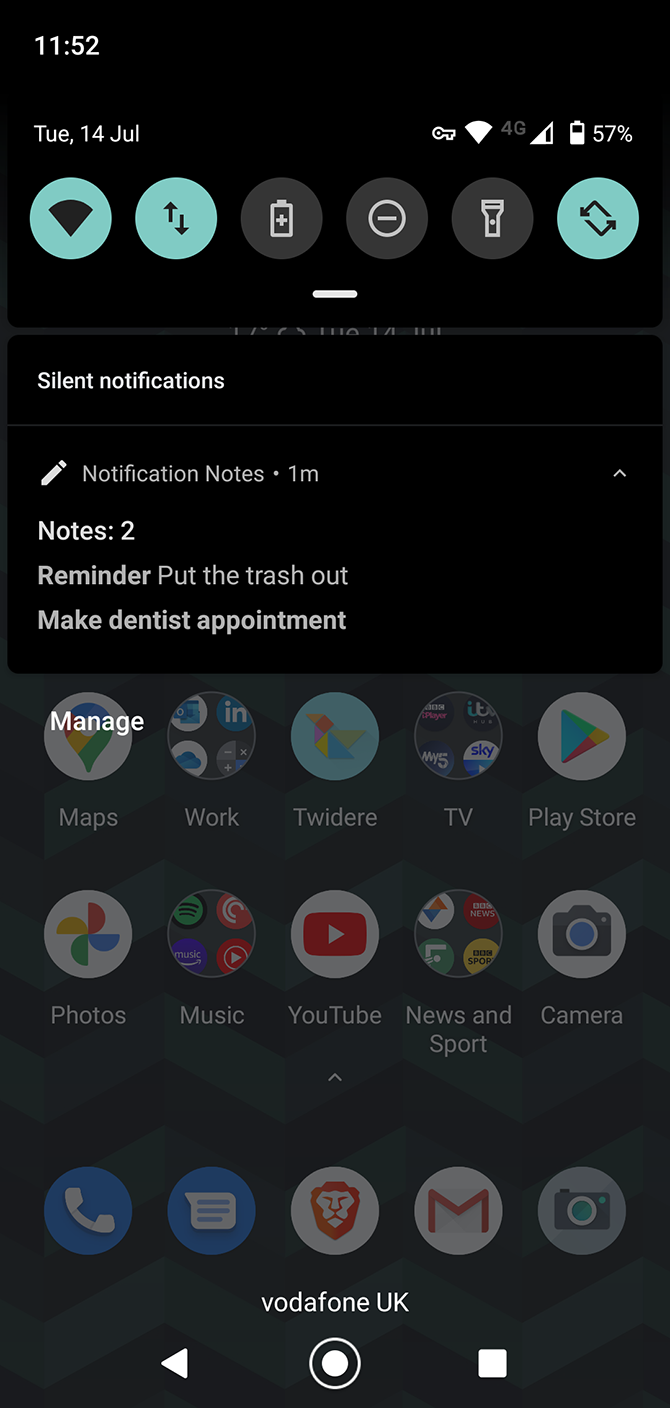
Notification Notes does something so obvious you’ll wonder why it isn’t already a part of Android. Put simply, it allows you to create notes and then pin them to your notifications panel as reminders.

The app doesn’t offer many options, but it doesn’t really need to. You can group notes or keep them separate, and activate or deactivate them as required. They’ll also show on your lockscreen, ready to jog your memory whenever you need them.

Download: Notification Notes (Free)

4. MacroDroid
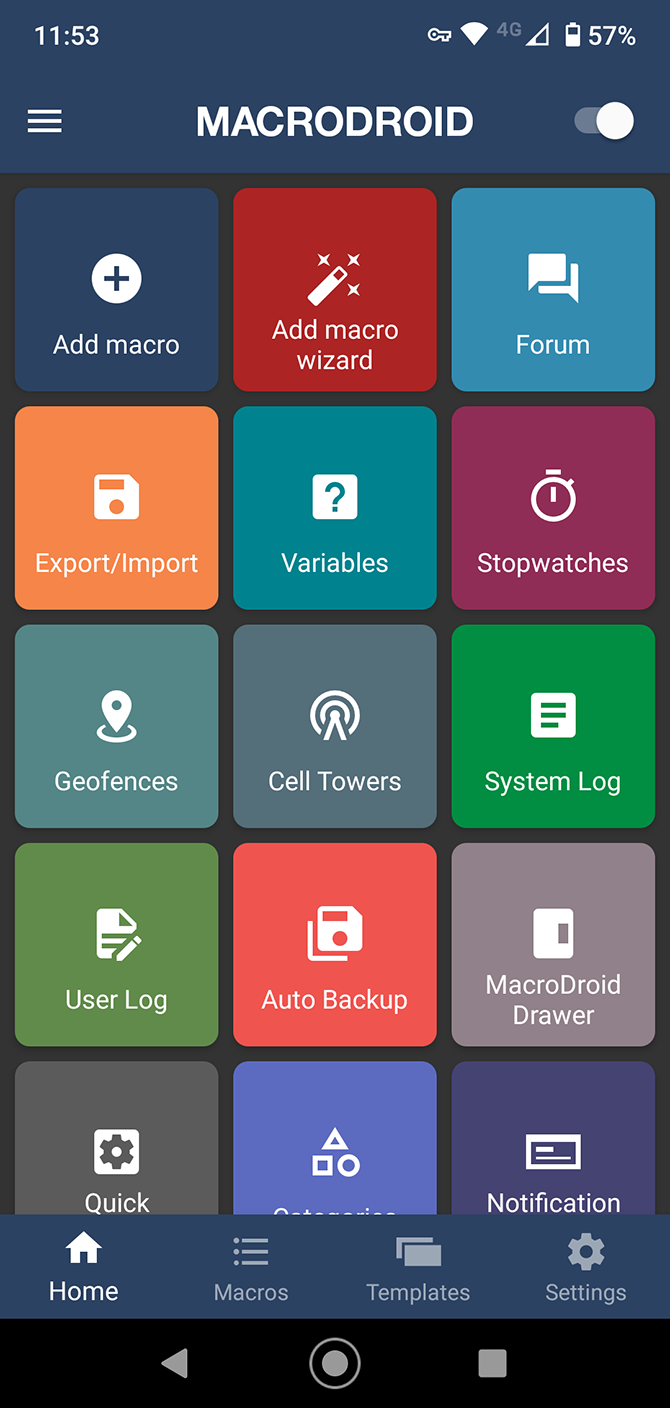
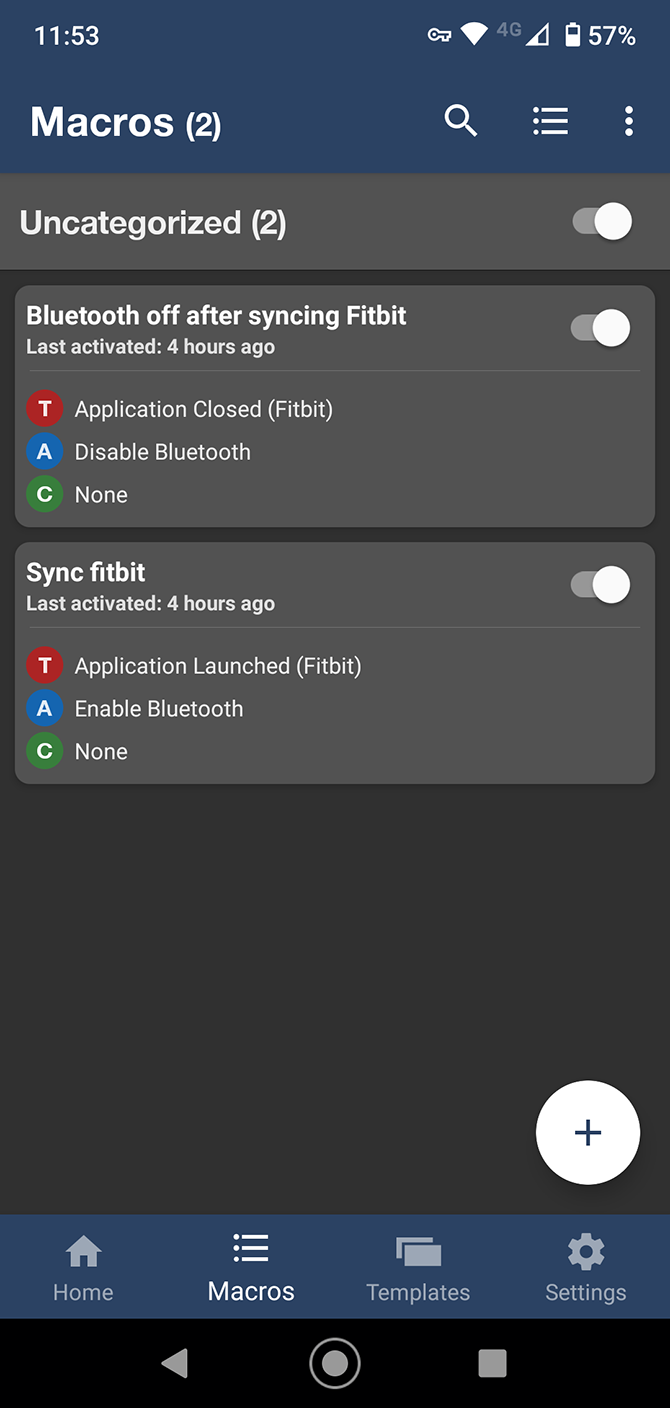
Take the tedium out of the common tasks you perform every day by turning them into macros, a series of commands that happen automatically.

MacroDroid is similar to the popular Android automation app Tasker. But using Tasker effectively has an incredibly steep learning curve, and MacroDroid is an app you can install and start using instantly.

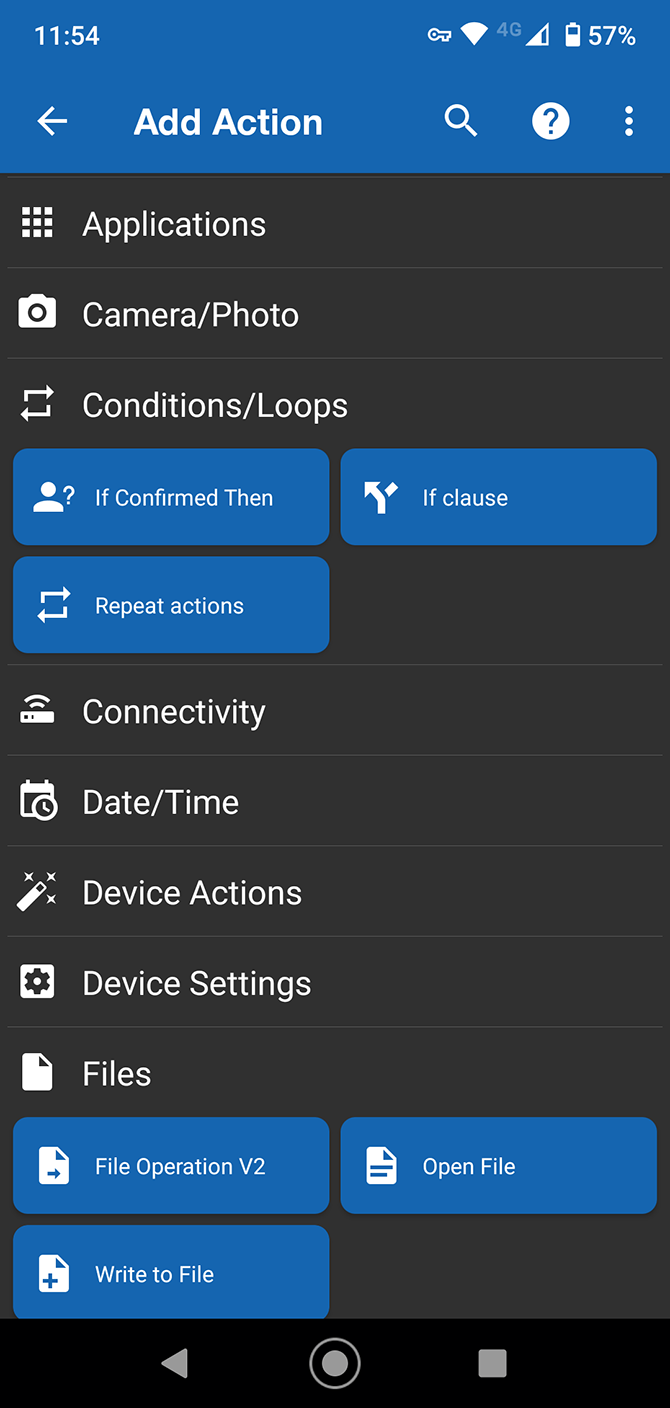
The app needs you to configure as few as two settings—just an action that will be prompted by a trigger. So plugging in your headphones could be the trigger, and the corresponding actions could be the automatic launch of the Spotify app and adjustment of the volume level. Or you could have your phone switch to Airplane mode (the action) at night (the trigger). You could also tell it to read your text messages aloud when your phone’s in a car dock.

You can add optional constraints to fine-tune the conditions under which your macro can run. This gives the app even more power, and your macros can be as simple or as complex as you need them to be.

Download: MacroDroid (Free, in-app purchases available)

5. IFTTT

While MacroDroid is perfect for on-device automation, IFTTT does the same for web services. The official IFTTT app enables you to create applets that connect two internet-based services or devices, with your Android phone as the central hub.

The possibilities are almost endless. You can use IFTTT to automatically tweet, to get SMS alerts for your Google Calendar appointments, or to get notifications on price drops for products you’re looking to buy. Once you get it up and running, you’ll wonder how you ever went without it.

Download: IFTTT (Free)

6. Full Screen Gestures
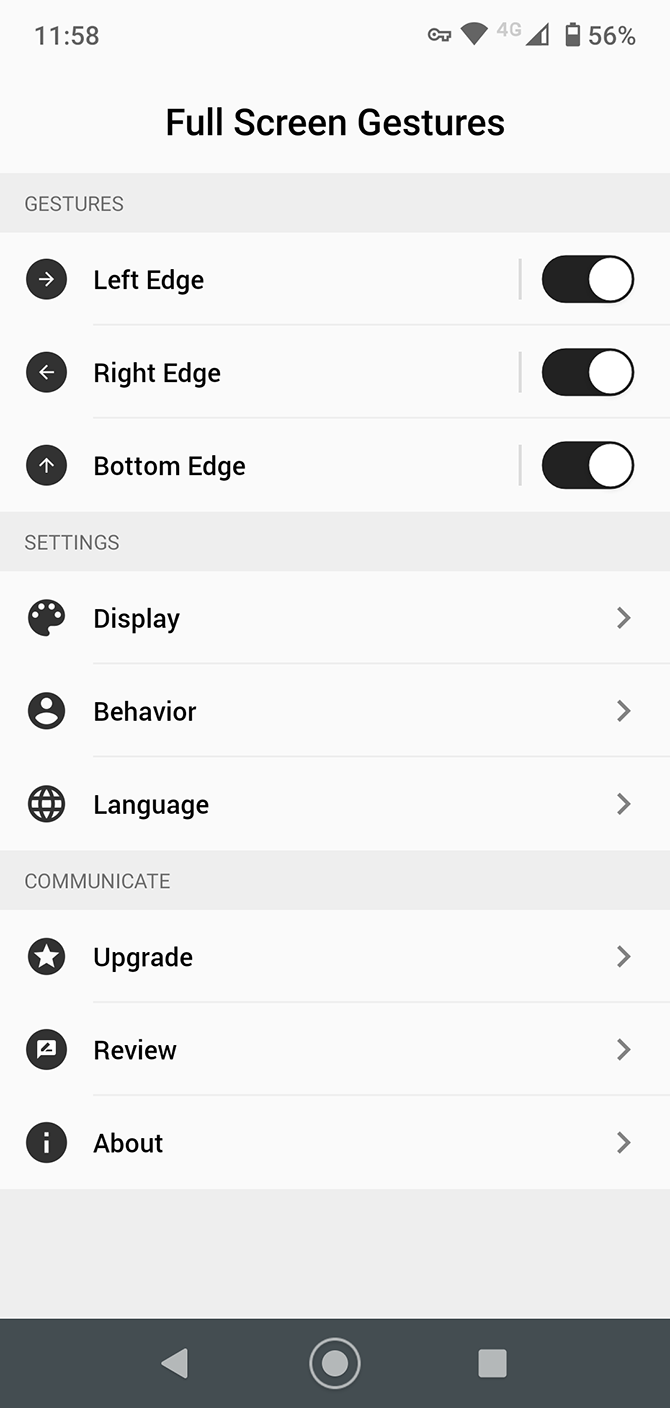
The last few versions of Android have introduced gesture controls, but they’re quite limited. They only work at the very bottom of the screen, and they don’t let you do much beyond basic navigation.

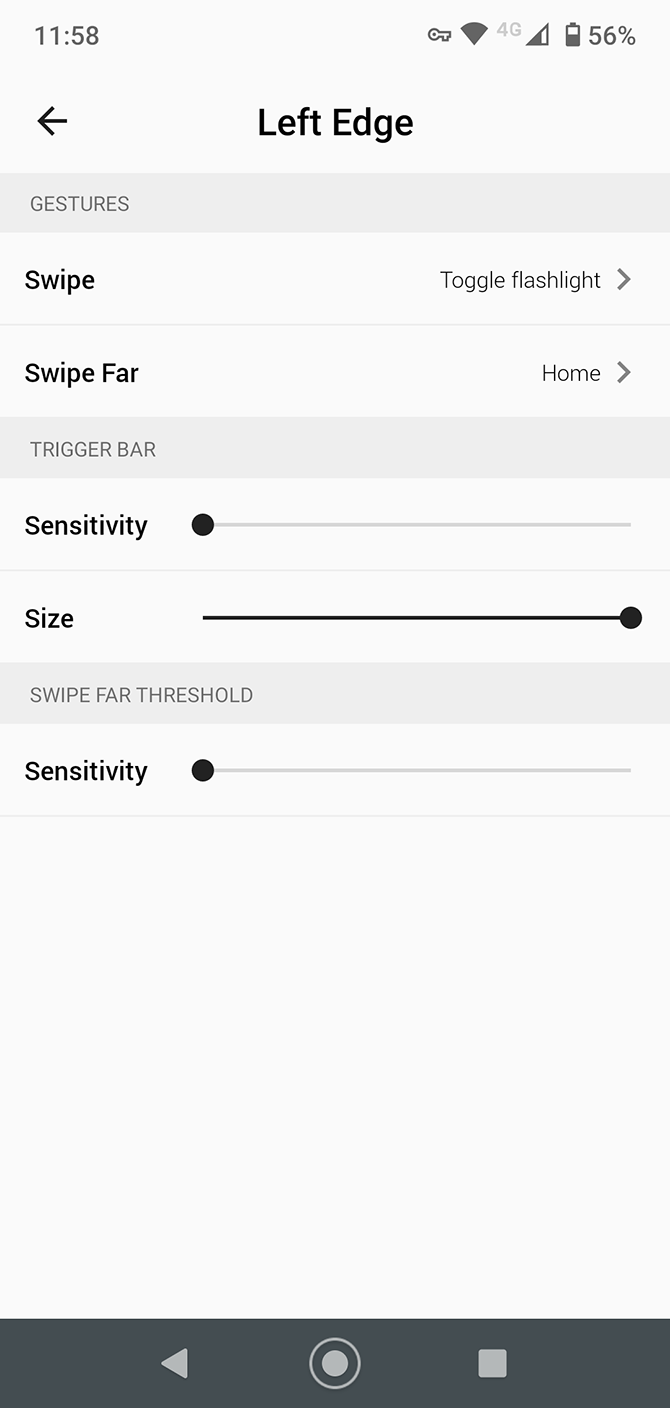
Full Screen Gestures fixes that. It makes gestures work anywhere along the left, right, and bottom edges of the display. And it also allows you to assign two functions to each edge—one for a short swipe and one for a long swipe.

These extra options enable you to control the volume, launch Google Assistant, toggle the flashlight, and much more.

Download: Full Screen Gestures (Free, in-app purchases available)

7. MightyText

mightytext android

If you spend any amount of time sitting at your PC throughout the day, SMS Text Messaging from MightyText becomes an essential app.

It syncs with your PC, Mac, or Linux computer via a browser extension and gives you full access to your SMS messages on the bigger screen. You can read, reply, or create new messages, as well as viewing notifications from all your other apps. You can even make calls, so you’ll hardly need to pick up your phone again.

There is a monthly sending limit in the free version, so you might consider another tool if you’re a heavy user. For more like it, see other apps that let you text from your PC.

Download: MightyText (Free, in-app purchases available)

8. Universal Copy
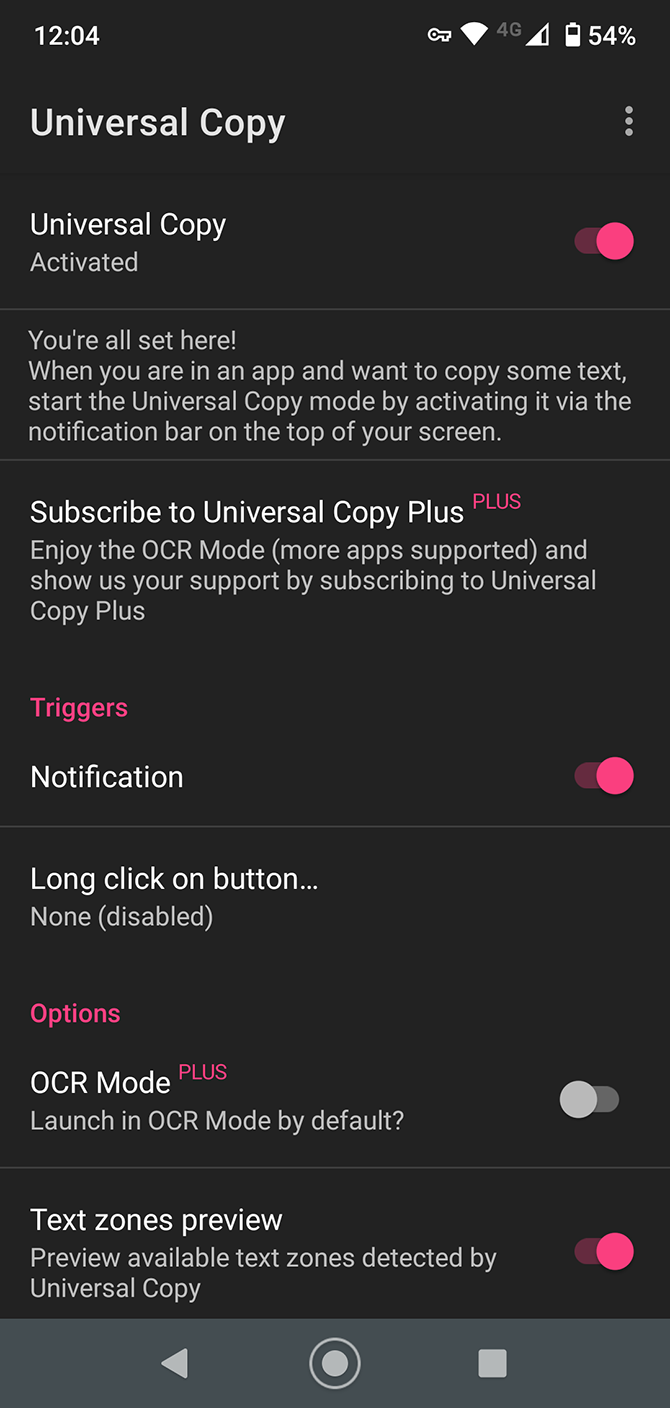
Copy and paste on Android is mostly fine, until it doesn’t work. Some apps just don’t support it—for example, tweets, as well as YouTube and Instagram descriptions.

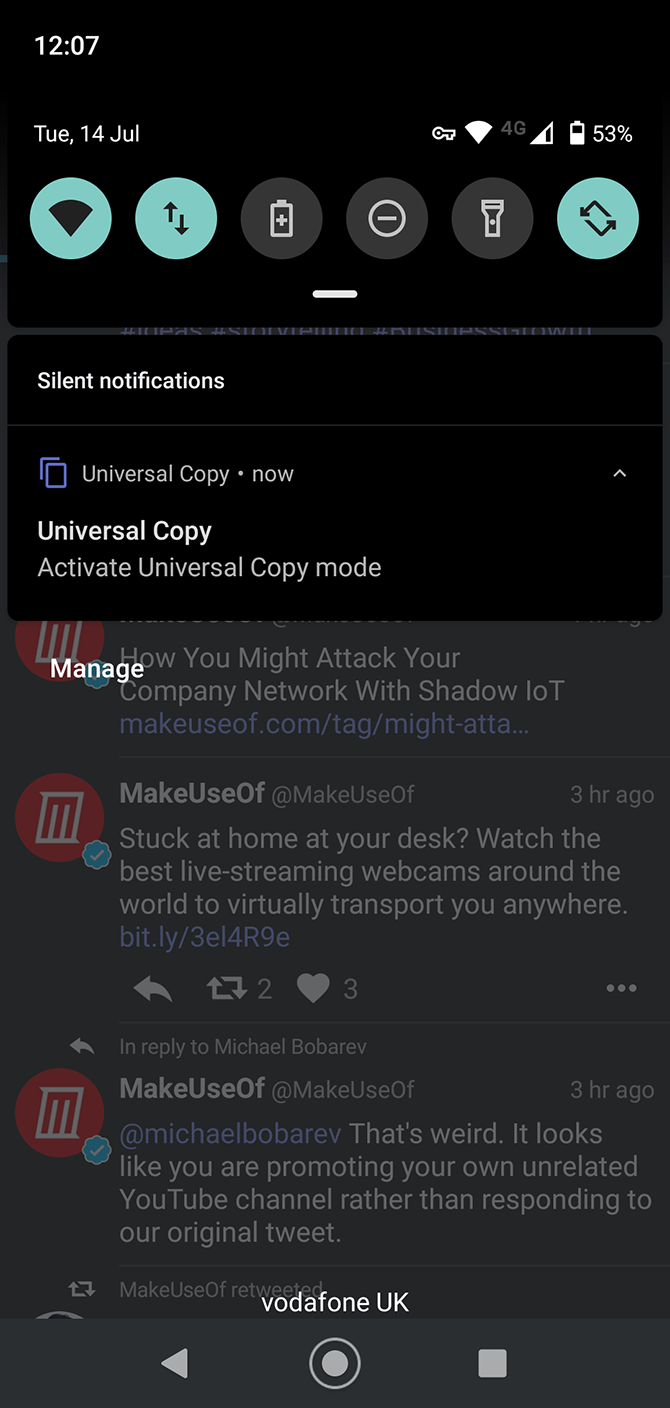
With Universal Copy you can copy and paste almost anything, from any app. It integrates seamlessly with the system. A long press is all you need for the option to copy your chosen text to the clipboard.

Download: Universal Copy (Free, in-app purchases available)

9. Sesame
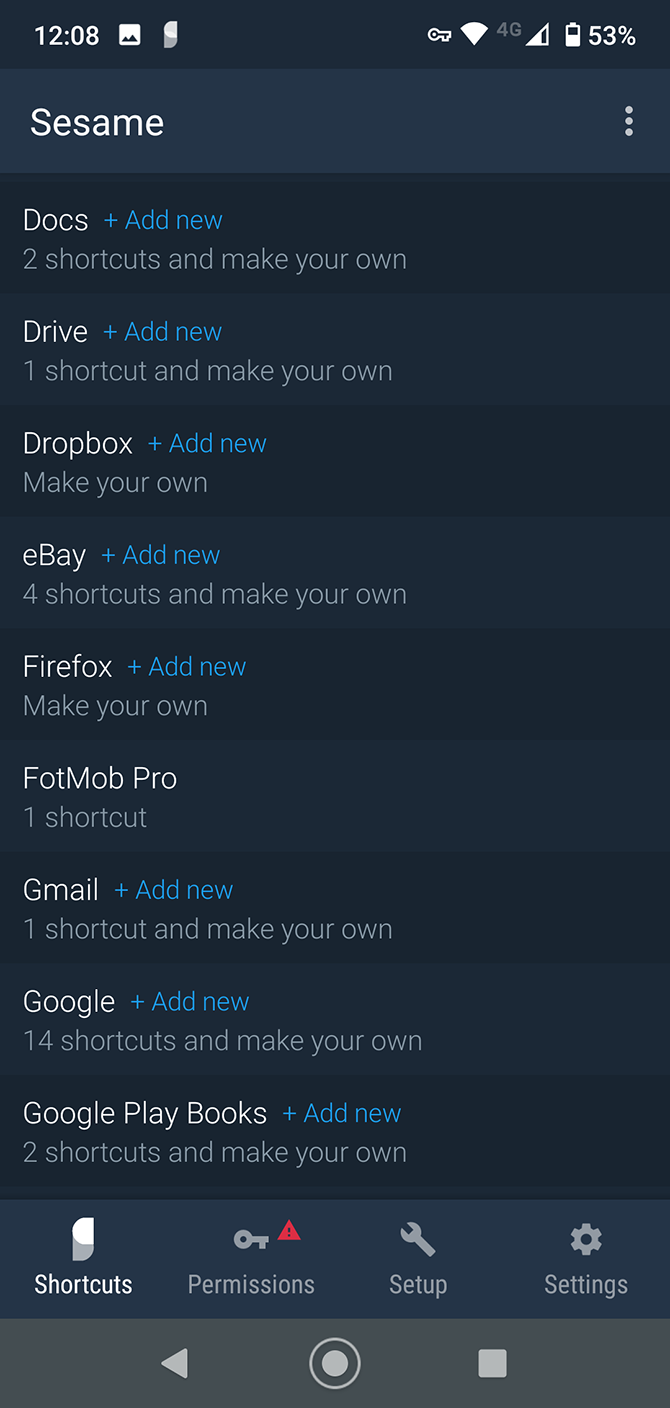
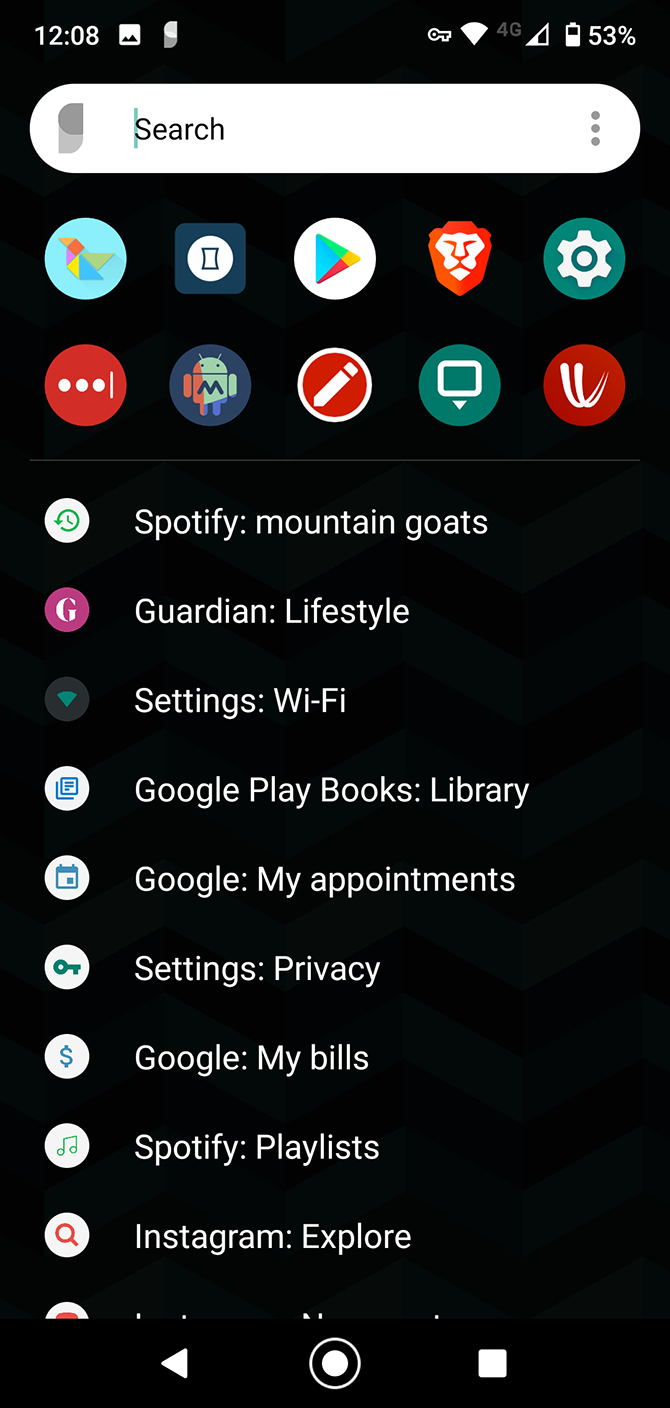
Sesame is a universal search and shortcut maker. It’s so good that it could easily become your most-used app.

Sesame can search within almost all your other apps, showing messages from Slack or playlists in Spotify right from your home screen.

It also creates shortcuts to specific features within those programs. Whether you want to load up your daily route to work, or quickly check the live scores in your favorite sports app, you can with just a single tap.

Download: Sesame (Free, in-app purchases available)

10. Nova Launcher
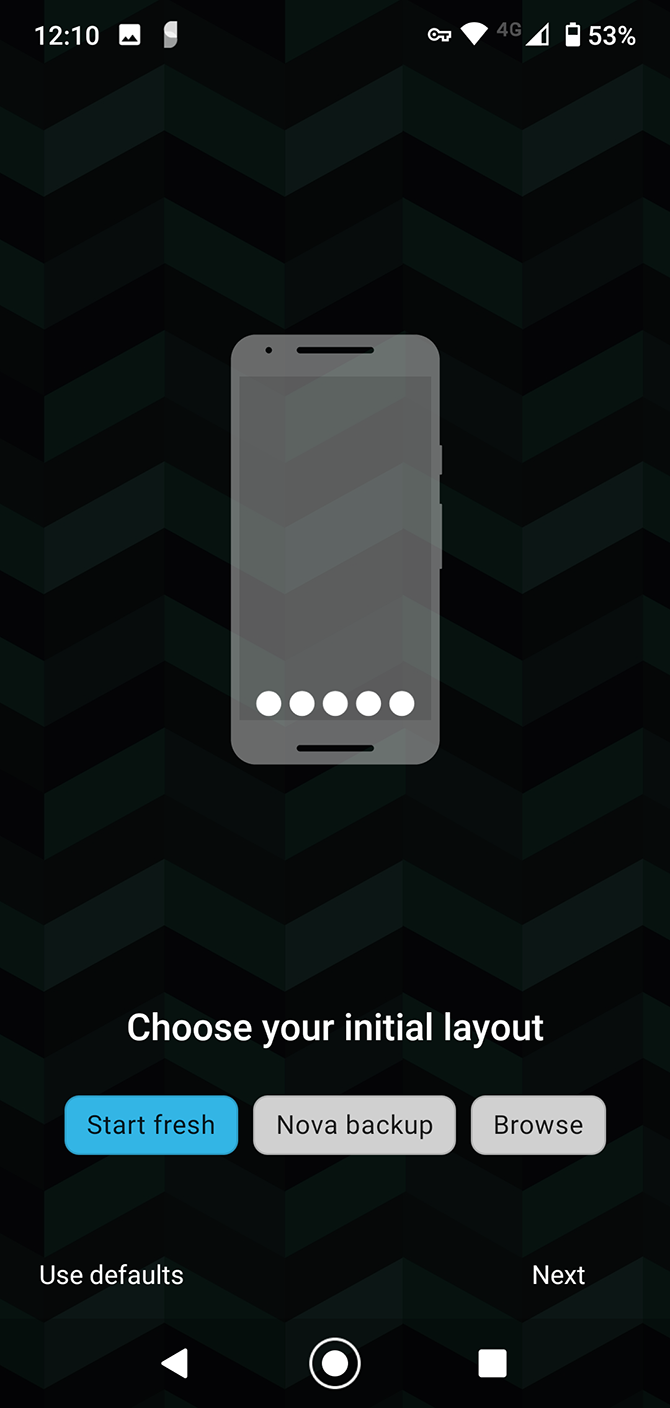
The overall best way to customize your Android phone is to install a new launcher. There are a huge number to choose from, the best of which is Nova.

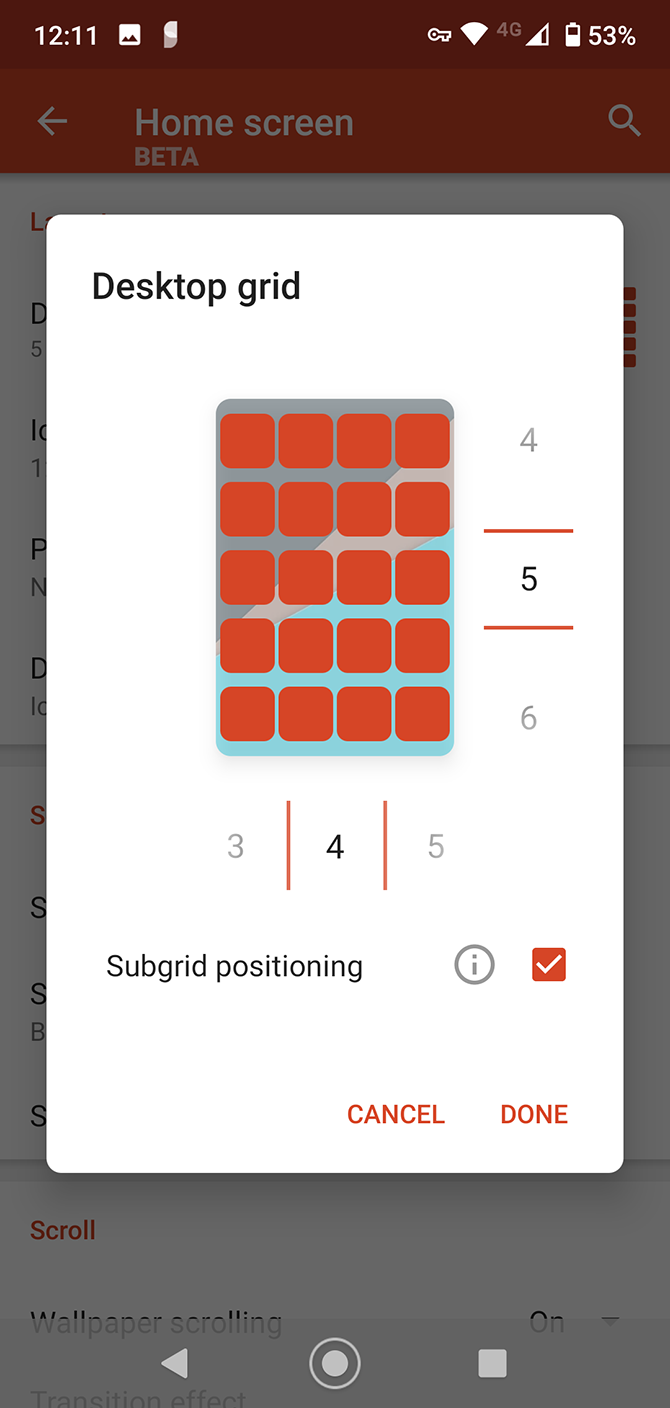
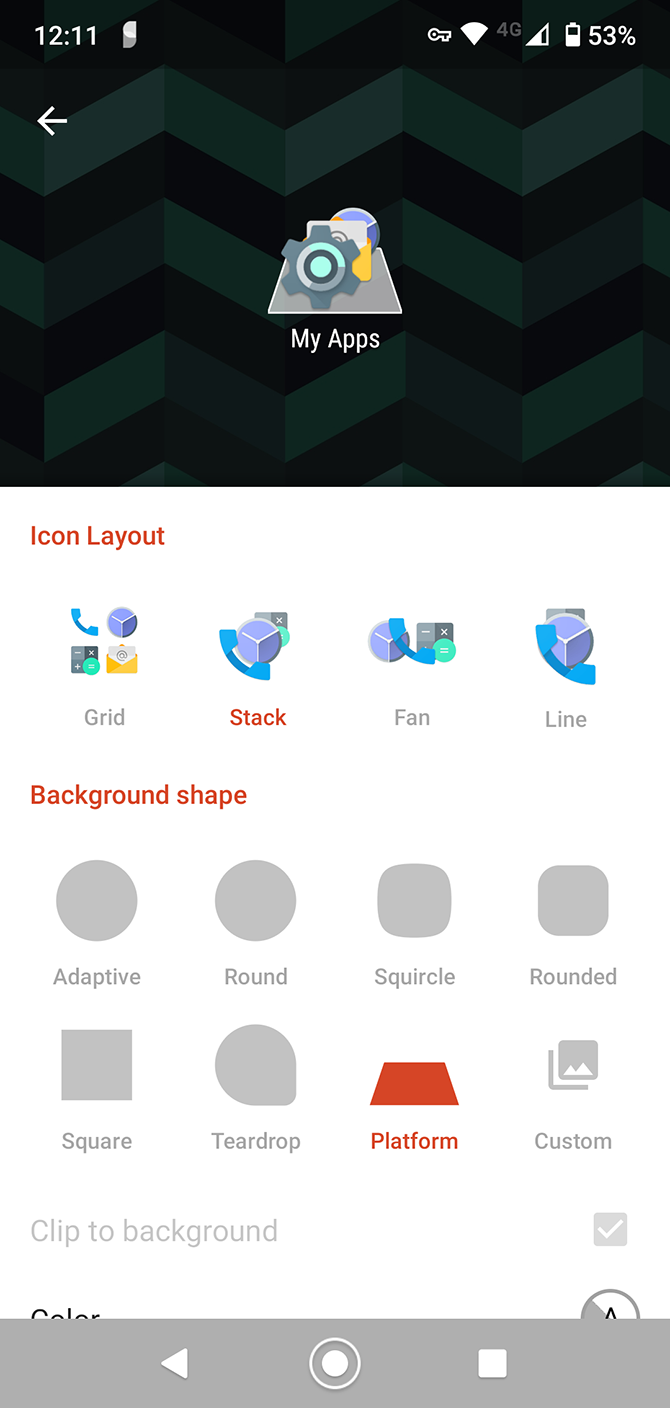
It’s small, fast, stable, and infinitely customizable. The default settings are perfect, but it also comes packed with extra features that you might not know about. These range from support for icon packs to the ability to resize any widget.

But the built-in gesture controls beat everything. These enable you to assign functions—from activating settings, to navigating the interface, to launching apps—to a series of taps, swipes, and pinches.

If you’re a power user, Nova’s gestures will fundamentally change how you interact with your device.

Download: Nova Launcher (Free) | Nova Launcher Prime ($4.99)

11. Super Status Bar
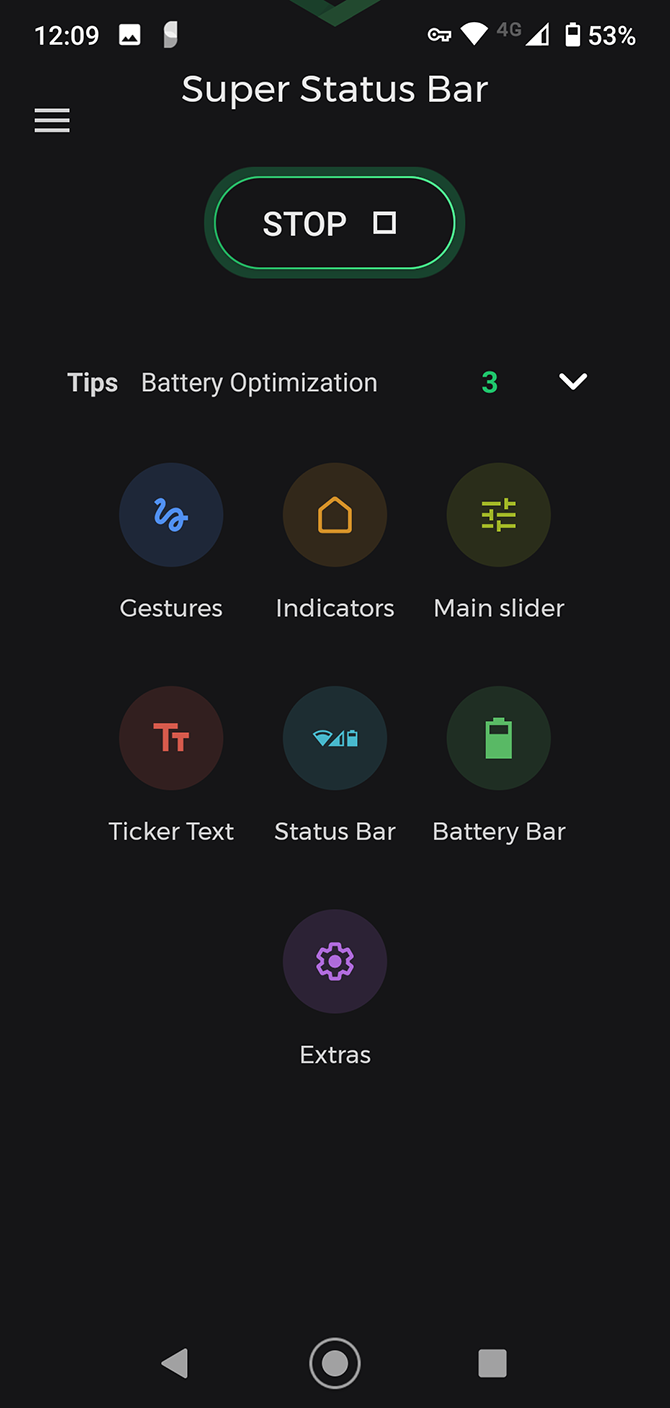
Android has always been heavily customizable, but one area that most people tend to ignore is the status bar. This app finally changes that.

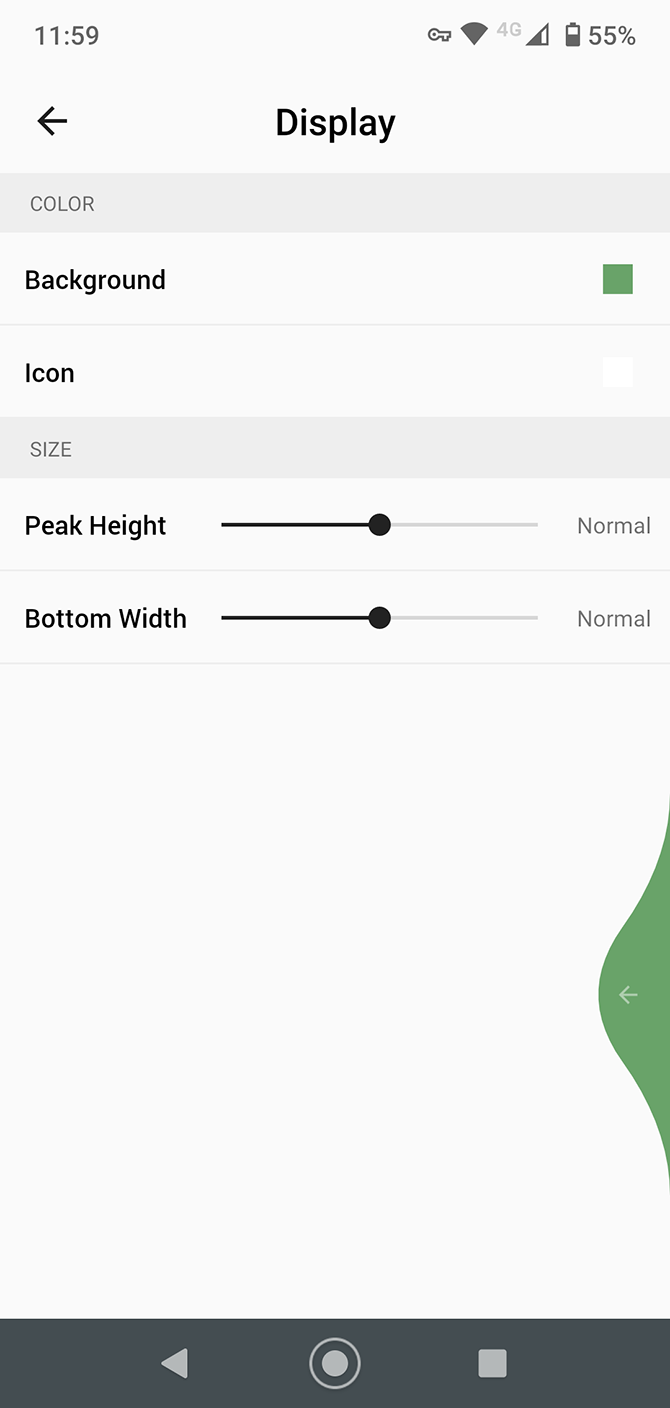
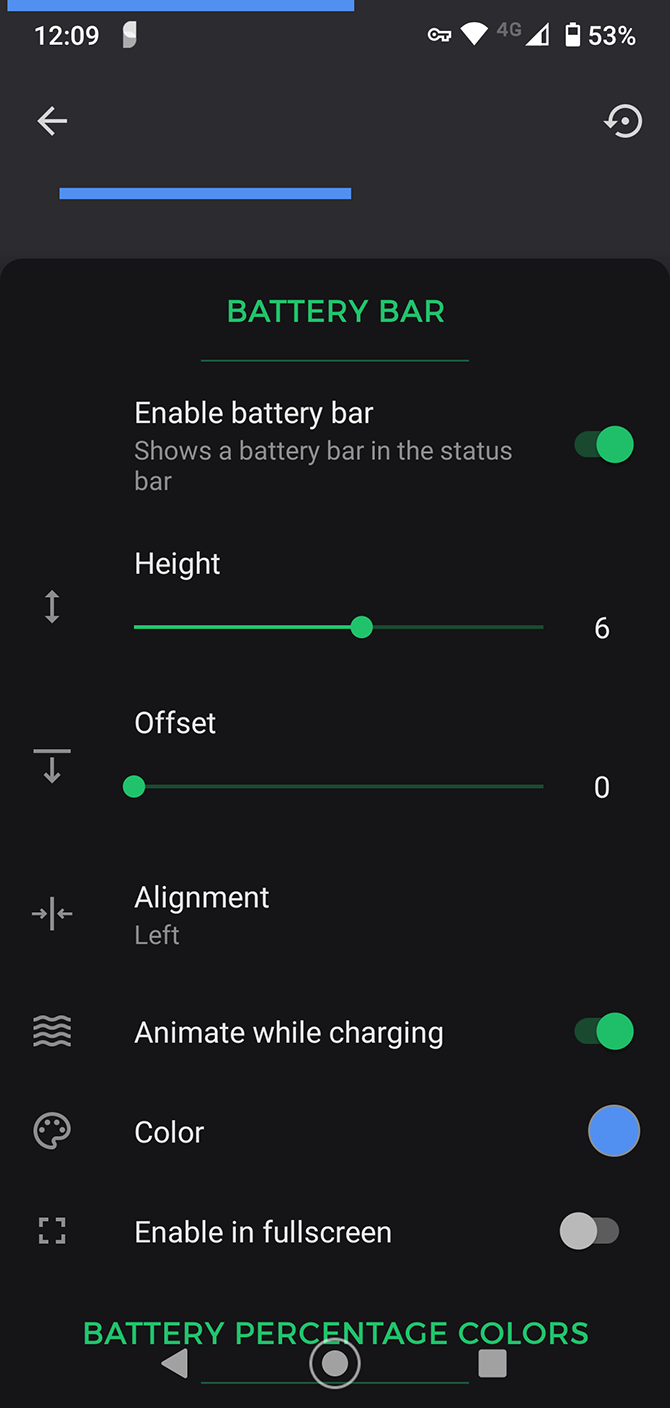
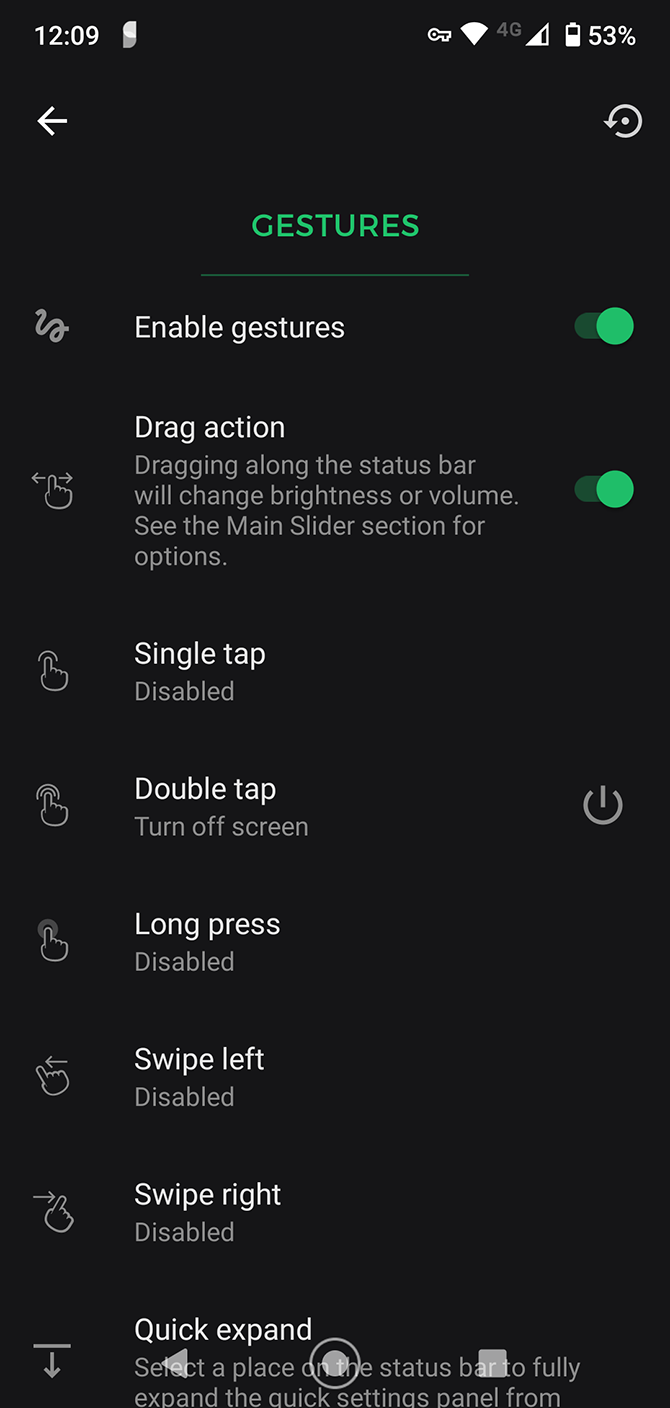
With Super Status Bar you can adjust your display brightness or volume level by swiping along the top of the screen. You can set up a ticker to get previews of your incoming messages and notifications. And you can configure many other gesture controls, monitor your battery life, or change the look and feel of the whole area.

There’s so much going on here that it even includes a few more advanced customizations for rooted users.

Download: Super Status Bar (Free, in-app purchases available)

More Great Android Apps

This group of interesting apps will change how you use your Android phone. They make it easier to handle and let you find things you need more quickly.

But this is only the start of the great tools you can find in the Play Store. For more cool apps, check out the best apps to clean up your device as well as the most popular apps for Android.

Read the full article: 11 Amazing Android Apps That’ll Change How You Use Your Phone


Read Full Article

Plex Launches Free Live TV Channels for Everyone


Plex has launched free Live TV in all 220+ countries that it currently serves. These Live TV channels will be available to watch anytime, anywhere. There are 80 channels available at launch, with Plex promising to add even more in the coming months.

What Free Live TV Channels Are Available on Plex?

As detailed in a post on The Plex Blog, the free Live TV channels on Plex are linear, pre-programmed channels. Which means you can channel hop until you find something you want to watch. And once you find something, the content plays out live from beginning to end.

This gives you a very different experience than streaming on-demand from the likes of Netflix and Disney+ (is Disney+ worth the money?). But in a good way for anyone nostalgic for the bygone age of television.

The 80 free Live TV channels on Plex include news offerings from Reuters and Yahoo Finance, kids’ programming on Toon Goggles, food and travel shows on Tastemade, sports programming courtesy of the fubo Sports Network, gaming content via IGN TV, and movies from The Film Detective and Midnight Pulp.

Some of the more out-there channels include The Bob Ross Channel (for Bob Ross fans), Love Destination (for romantic types), KMTV (for all things K-pop), The Pet Collective (for pet lovers), Surf Now TV (for surfers), and Unidentified (for fans of UFOs and the supernatural).

How to Watch Free Live TV on Plex

All of these Live TV channels are available to watch on Plex for free, as long as you’re willing to sit through the ads. Most of them are available globally, with a handful restricted to the US and Canada. The channels are easily accessible via the Plex app, which is available on most devices you can think of.

The free Live TV offering is distinct from Plex’s existing over-the-air TV and DVR offering, which requires a digital antenna and tuner. You can watch these channels on the Plex app, without any additional hardware. Still, the OTA option gives you access to major networks such as NBC, CBS, ABC, Fox, CW, and PBS, so it’s worth setting up.

Don’t Forget About The Roku Channel…

Plex isn’t alone in offering free live TV channels to those willing to sit through ads. Since June 2020, The Roku Channel boasts over 100 channels in the US, which includes some of the same channels you can now watch on Plex. Still, we’re not complaining, as they’re all free, and perfect for those moments when you just want to sit back and channel surf.

Read the full article: Plex Launches Free Live TV Channels for Everyone


Read Full Article

How to Change the System Language in Windows 10


When you install and set up Windows 10, you’re asked to choose a system language. If you accidentally chose the wrong option or would like to switch to a new language, you can change your computer language without much trouble.

Let’s look at how to change the system language in Windows 10 for the current user, for all new users, on the Welcome screen, and how to make the added language the system default.

If the system currently displays a language you don’t know, refer to the screenshots to know what options to select. The icons and button locations are the same in all languages.

When to Change the Windows 10 System Language

Most people won’t ever need to change their language after the initial Windows setup. But there may be some situations where you want to do this.

Maybe a relative or friend from another country is visiting and wants to use your computer. We recommend creating a new standard user account for them and changing the account language based on their preference.

This also comes in handy if you’re learning a new language and want to practice by having your computer elements appear in the new language.

If you bought a secondhand computer that’s set up with a language you don’t understand, you can use these tips to change the system language. However, if the previous user didn’t remove their data, it’s probably better to factory reset Windows 10 to start fresh.

How to Change the System Language in Windows 10

Changing the system language in Windows 10 is straightforward. We’ll walk you through the steps with screenshots in case you can’t read the current language.

We’ll cover further tweaks later, such as adding a keyboard for a particular language or applying the new language to all user accounts.

Access Settings and Add a Language

Press Win + I on your keyboard to open Settings. From the list of categories, click Time & Language; the icon is a clock with a few other characters under it.

Windows Settings Time

Next, select Language on the left sidebar, which has the same two characters from the earlier icon. Under Preferred Languages on the right side, click Add a language, which will appear above any installed languages.

Windows Add New Language

A long list of available languages will pop up. These all appear both in their native language and in the current system language. This way, even if the system is in a language you don’t know, you can still find your preferred language on the list. Next to each, you’ll see icons to show the features that it supports, such as speech recognition.

Scroll through the list and click on the language you want, followed by Next. You can also search for a language using the box at the top of the window. If the language you choose is spoken in multiple regions, make sure you select the right one.

Windows Choose Install Language

Download the Language Pack and Use the New Language

On the next screen, Windows will ask you to select Optional language features. Make sure you have Install language pack checked, which allows you to set it as your display language. Check Set as my Windows display language if you want to immediately apply it.

Windows 10 Install New Language

Click Install and Windows will download the required files for your new language. After a few moments, the language is ready to use.

If you didn’t set the new language as the display language earlier, select it in the dropdown box under Windows display language to make it the default. You’ll have to log out and back in for the change to take effect. To set your preferred language for apps and websites, use the arrows next to each option under Preferred languages to rearrange them.

Doing both of these effectively sets the default language in Windows 10 to whatever you’ve chosen.

Windows Change Language Preferences

Finally, to customize the options for a language, select it from the Preferred languages list, choose Options, and you can change spell-checking options and install optional features you skipped earlier.

Windows Language Feature Options

How to Add a New Keyboard in Windows 10

When you add a new language to Windows 10 using the above steps, it adds a standard keyboard for that language too. If you want to add another keyboard, go back to Settings > Time & Language > Language.

Select the language you want to add a new keyboard for, followed by Options. On the resulting screen, click Add a keyboard under Keyboards. Choose a keyboard from the list to add it as an input method for that language.

This comes in handy if, for example, you’ve moved countries and want to use the language for your new location while sticking with a keyboard layout you’re familiar with.

Windows 10 Add Keyboard

When you have more than one input method for your computer, you’ll see the current keyboard displayed on the right side of the Taskbar next to the date and time. Click this or press Win + Space to change between your input methods easily.

Windows Switch Input Method

Change Regional Settings in Windows 10

If you’re changing your system language, you might also prefer to change regional options, such as the first day of the week and the date/time format. Head to Settings > Time & Language > Region to adjust those.

Windows Regional Settings

If you’ve moved, you can change the Country or region box to your new location. This may change local content that you see across Windows and apps. To change to the recommended formatting to a particular region’s standards, change the Regional format box.

To instead tweak individual types of data, click Change data formats at the bottom of the page.

How to Change the Windows 10 Language for the Entire System

Changing the language as described above only applies to the current user account. If you like, you can force the welcome screen, as well as new user accounts you make in the future, to also display in that language.

You’ll need to use the Control Panel to make this change. The easiest way to get to the appropriate menu is heading to Settings > Time & Language > Language and clicking Administrative language settings on the right sidebar. If you don’t see the links on the right bar, expand the window to make it wider.

This will launch the Region Control Panel option to the Administrative tab. Click the Copy settings button under Welcome screen and new user accounts.

Windows Copy Admin Settings

This will show the language settings for the Current user, Welcome screen, and New user accounts. You can’t change these options, but you can check the Welcome screen and system accounts and New user accounts at the bottom to copy your current settings to those profiles.

Windows New User Account Language Options

Check the boxes, then click OK and restart your computer. Once you reboot, the language you chose will become the default for the entire system.

How to Remove a Language From Windows 10

If you added another language for someone who was visiting, or no longer need a language you used before, you can remove it. Of course, you need to keep at least one language on your system.

You can quickly get back to Settings > Time & Language > Language by clicking the language option in the bottom-right of your Taskbar and clicking Language preferences.

Before removing a language, you must choose a different language as the default. Change the Windows display language dropdown to something else. After that, click the language you want to remove in the list under Preferred languages and choose Remove.

Windows Remove Language

When you only have one language on your machine, you won’t see the language indicator on the Taskbar.

How to Manually Uninstall Language Packs

If you want to, you can manually uninstall language packs. This isn’t necessary, as they only take up a small amount of space. But if you know you won’t use the language again, it’s easy enough to do.

Press Win + R to open the Run dialog, then enter the following command:

Lpksetup /u

This will launch the Install or uninstall display languages box displays. Check the box for the language you want to uninstall and click Next.

Windows Uninstall Language

The progress bar will show you how far along the process is. Reboot when it’s done and the language pack will be gone.

Windows 10 Speaks Your Language

Now you know how to change your computer’s language. Whether you need to change the Windows system language to English on an unfamiliar computer or add a second language, it’s easy to tweak the settings.

If all this talk of languages has you inspired, check out the best language learning apps you should try.

Image Credit: mediterranean/Depositphotos

Read the full article: How to Change the System Language in Windows 10


Read Full Article

How to Customize Spotify With Spicetify Themes


spicetify-themes

Spotify is one of the best music streaming services around. Sure, some will disagree with that statement, but the numbers and longevity of the service don’t lie.

However, the Spotify desktop app isn’t great. The colors are dull, the user interface is clunky and slow to load, and it can sometimes take a while to find what you’re looking for.

Did you know that Spotify is customizable? With the help of Spicetify, you can change how Spotify looks with themes and even add custom apps for extra functionality.

So, here’s how you customize Spotify with Spicetify.

What Is Spicetify?

Spicetify is an open-source Spotify customization tool that you use through the command-line. Spicetify features include:

  • Changing the Spotify user interface color scheme and theme
  • Installing custom apps within Spotify
  • Installing custom extensions within Spotify
  • Remove bloat from the Spotify desktop app

Spicetify is a command-line only tool. That means you make edits using a series of commands and edits to configuration files. It sounds a little tricky, but with this tutorial, you’ll be able to customize Spotify exactly how you want.

A Spicetify theme consists of two configuration files. One configuration file controls the colors, and the other controls Spotify’s style and layout options (via a CSS file). If you’ve ever created a website, you have probably encountered a CSS (Cascading Style Sheet) file, as they are commonly used to alter the appearance of websites and other online document types.

You don’t need Spotify Premium to customize themes with Spicetify. Is Spotify Premium worth it? That depends on how frequently you want to hear adverts.

How to Customize Spotify With Spicetify

Getting up and running with Spicetify requires a few steps. Spicetify is available for Windows, macOS, and Linux, although the following steps only apply to Windows. You can find the instructions for macOS and Linux on the Spicetify GitHub page.

Before beginning the customization, here’s the default Spotify theme:

spotify basic theme

1. Installing Spicetify on Windows

Let’s install Spicetify on Windows.

In your Start Menu search bar, type powershell, then select Run as Administrator. Now, copy and paste the following command:

Invoke-WebRequest -UseBasicParsing "https://raw.githubusercontent.com/khanhas/spicetify-cli/master/install.ps1" | Invoke-Expression

After the installation completes, you can input spicetify –help to see the comprehensive list of commands. Alternatively, continue to the next step to begin customizing Spotify.

spicetify run powershell command download

2. Backup Spicetify Configuration Files

Remaining within PowerShell, input spicetify, and press Enter to create the Spicetify configuration file.

spicetify create default files

Next up, enter the following command to create a backup of the standard Spicetify configuration:

spicetify backup apply enable-devtool

You’re now ready to begin customizing Spicetify. But keep PowerShell open.

At this point, Spotify will also update with the default Spicetify theme which looks like this:

spicetify default color scheme theme

3. Customizing Spotify With Spicetify

There are two ways you can customize Spicetify: creating your own color scheme or using someone else’s. Creating a copy of and then editing the standard Spicetify theme is an easy way to start customizing Spotify and learning how Spicetify works.

You’ll find the default Spicetify theme configuration in the following location:

C:\Users\[Your Name]\spicetify-cli\Themes\SpicetifyDefault

Hold CTRL and click each file to select both, then press CTRL + C to copy. Now, head to

C:\Users\[Your Name]\.spicetify\Themes\

Right-click and select New > Folder, then give your theme folder a name. Open the new folder and press CTRL + V to paste the default Spicetify configuration files. Your setup should look like this:

spicetify configuration files in folder

Open color.ini with a text editor, such as Notepad. Here you’ll see the hex color codes for the default theme. You’ll also note that there are two color sets, one for “Base” and one for “Dark.” You can add multiple color sets to a single color configuration file and switch between them using the main Spicetify configuration file (more on this in a moment).

Back to the colors. Spicetify uses hex color codes, which appear as a string of six characters (A-F, 0-6). From here, you can edit the color scheme.

Head to HTML Color Codes for help finding hex codes as well as complimentary colors. Press CTRL + S to save your color scheme.

If you are unsure which colors to change, check out the color.ini reference sheet at the bottom of the page.

Keep the default CSS configuration at the current time.

4. Updating Spotify With Your Custom Theme

Once you pick your Spotify theme colors, you can update Spicetify to import the theme. First, you need to specify your theme in the Spicetify configuration file.

Head back to C:\Users\[Your Name]\.spicetify and open configuration.ini.

Replace “SpicetifyDefault” with your custom Spotify theme name. Press CTRL + S to save the configuration.

You might also note the “color_scheme” option, beneath “current_theme.” If you create multiple color schemes within a single color.ini file, this is where you type the color scheme name.

spicetify main configuration file

For example, the default Spicetify theme has two color schemes, Base and Dark. Inputting either option here switches between the two.

Okay, head back to PowerShell and enter the following:

spicetify apply

Now, watch as Spotify magically updates with your color scheme!

spicetify default theme dark version

5. Restore the Default Spotify Theme

If you want to restore Spotify to its default theme and remove all customization, Spicetify includes a simple command:

spicetify restore

You enter the command in PowerShell, and it clears any Spicetify customization, restoring Spotify to its original configuration. The “restore” command is especially handy when you begin creating custom CSS configuration files, as you might break something in the process.

Importing More Spicetify Themes

If you want inspiration, or just want to switch through a bunch of new Spotify themes easily, you have two options.

The Spicetify Themes GitHub is a repository of custom Spotify themes. You can copy and paste the configuration for each theme you like the look, or you can clone the entire GitHub repository to your computer. The first option is slower, whereas the second option requires some extra technical steps but makes it easier to switch between themes.

Read on to see both.

Option 1: Copy and Paste Spicetify Theme

Let’s start with the copy and paste method.

Find the Spicetify theme you want to copy. Head to your Spicetify themes folder (found at C:\Users\[Your Name]\.spicetify\Themes) and create a new folder using the theme name.

Right-click and select New > Text Document.

Now, head back to the Spicetify theme you want to copy. The two files you want, color.ini and user.css, are here. Select color.ini to open the file contents, and you’ll see the theme color scheme.

Drag your mouse over the color scheme to select each item, then press CTRL + C to copy. Head back to your new text document and press CTRL + V to paste the color scheme.

copy and paste spicetify themes

Press CTRL + Shift + S to Save As. Save the file name as “color.ini.” In the dropdown menu underneath the file name, change the file type to All Files.

You can now complete the same process for the user.css file, which alters the Spotify layout. Create a new text document, then copy and paste the contents of the user.css file into the new text document.

Press CTRL + Shift + S to Save As. Save the file name as “user.css.” In the dropdown menu underneath the file name, change the file type to All Files.

Once you save the color scheme and CSS files, you can update the main configuration file to point at the new Spotify theme.

Head back to C:\Users\[Your Name]\.spicetify and open configuration.ini. Replace “SpicetifyDefault” with your custom Spotify theme name. Press CTRL + S to save the configuration.

Option 2: Import Spicetify Themes From GitHub

If copying and pasting individual files seems time-consuming, you can clone the entire Spicetify Themes GitHub repository to your local storage for easy access.

You need to download and configure GitHub Desktop, which only takes a moment. GitHub Desktop is a handy visual tool for interacting with GitHub, which you would normally do through the command line. Having a GUI makes using GitHub easier, especially if you have never used it before.

Download: GitHub Desktop for Windows or macOS (Free)

github desktop menu

Double-click the file to install GitHub Desktop. Once the installation completes, open GitHub Desktop. You don’t need to create a GitHub account, but it does require you to add a username and email address to track any changes or comments you leave on GitHub projects.

Select Clone a repository from the internet from the GitHub Desktop menu, then open the URL tab.

Copy and paste the Spicetify Themes Github URL into the top box (https://github.com/morpheusthewhite/spicetify-themes).

Browse to the location of your Spicetify theme folder in the second box (C:\Users\[Your Name]\.spicetify\Themes).

Press Clone and wait for the process to complete.

github desktop clone repository

You’ll now find the files from the GitHub repository in your Spicetify themes folder. Now, open the downloaded Spicetify Themes folder, press CTRL + A to select all, then press CTRL + X.

Go back to the existing Spicetify themes folder (not the folder you just downloaded, the folder you were using for themes previously), and press CTRL + V to paste.

You can now update your Spotify themes using the main Spicetify configuration file. Swap the “current_theme” for the theme you want, and change the “color_scheme” if you want (if available to the theme).

Save the configuration file, then run “spicetify apply” in PowerShell, and you’re good to go.

Spice-Up Your Spotify With Spicetify

Spicetify is a great way to breathe new life into Spotify desktop. You can add color, change fonts, overhaul the style, and much more. Then there are the Spicetify Extensions which you can use to change or extend the functionality of Spotify.

Now, as your Spotify looks amazing, it’s time to take a look at the mess of playlists in your sidebar. Check out the best tips and tricks for managing your Spotify playlists.

Read the full article: How to Customize Spotify With Spicetify Themes


Read Full Article

The 5 Best Peloton Alternatives for Stationary Cyclists


peloton-alternatives

If you’re looking for a new stationary exercise bike, there are plenty of models to choose from. Of course, Peloton is one of them, but what if you’re looking to mix things up with a bike that’s similar to Peloton?

Let’s explore the best Peloton bike alternatives out there, and what each one does best.

1. NordicTrack Commercial Studio Cycle

A well-known name in the stationary bicycle scene, NordicTrack is a good Peloton bike alternative if you want luxury features for less. NordicTrack’s bike is a few hundred dollars below Peloton’s entry-level bike at the time of writing, so it’s a good place to start.

While NordicTrack doesn’t quite match up to Peloton’s reputation, there is still plenty to enjoy here. Just be sure to read reviews and understand the service, and its variance from other similar products before investing.

Regardless, if you’re looking for a mix of luxury and affordability, try the NordicTrack Commercial Studio Cycle. This stationary bicycle comes with a free year of iFit, a unique training program to make cycling more fun.

With iFit, you can load up different routines or virtual cycle paths and cycle down them as if you were there. The bike will adjust resistance and tilt to match what you’re cycling on. You can see where you are on the route by looking at the screen on the front.

2. Echelon Flex Bike Ultra

Echelon Flex Bike Ultra Echelon Flex Bike Ultra Buy Now On Amazon

Echelon is another big name in stationary bikes, and these models take a different approach to Peloton. Peloton bikes are undoubtedly the height of luxury; you pay a lot, but you also get a lot in return. Echelon, on the other hand, cuts down on some of the high-tech gadgets to keep the cost low.

Does this make the Echelon a cheap knock-off compared to the Peloton? Fortunately, no. While a lot of the flash features are missing, the core cycling experience remains intact. As a result, Echelon bikes a great beginner’s model as they’re affordable without skimping on quality.

For example, the Echelon Flex Bike Ultra covers all the basics you need to cycle indoors for a fraction of the price. It’s sturdy, easy to assemble, and tucks away nicely into a corner once you’ve finished working out. While it’s not as feature-laden as a Peloton or a NordicTrack, it’s a perfect place to start before upgrading to more advanced models.

3. Keiser M3i

Keiser M3i Keiser M3i Buy Now On Amazon $1,995.00

These days, fitness machines can do a lot more than get you into shape. Some models monitor your vital signs so you can watch your overall body health in real-time. These kinds of bicycles are an ideal choice if you want to lower your heart rate, as you can measure your progress in real-time.

As such, if you want the luxury of a Peloton but want something that can measure your body while you ride, try the Keiser M3i. It comes in around the same price as a basic Peloton bike but has some additional tracking features for the technology enthusiast.

Downloading the companion smartphone app, you can monitor your heart rate, RPM, and the equivalent distance you’ve traveled so far via the bike’s wireless Bluetooth connection. So, if you’re looking for the best Peloton alternative for biometrics, you can’t go wrong with the Keiser M3i.

4. Marcy Foldable Upright Exercise Bike

Marcy Foldable Upright Exercise Bike Marcy Foldable Upright Exercise Bike Buy Now On Amazon $298.00

Sometimes you don’t want all the bells and whistles on your stationary bike; sometimes, you just want the basics. That’s where Marcy comes in, with a stationary bike that gives you a straightforward workout for less.

The Marcy Foldable Upright Exercise Bike isn’t the flashiest model, but it is the cheapest on this list. While it is the budget option compared to the others, it’s not barren of features. For instance, it has adjustable resistance and a screen to measure your progress while you cycle. The built-in LCD screen helps you monitor your progress as well.

The Marcy is foldable, which means it’s easy to pack up and tidy away once you’re done. This makes the Marcy bike the best Peloton alternative for the beginner—it’s affordable, sturdy, and doesn’t take up room when not in use.

5. The MYX

The Myx exercise bike

Finally, let’s look at a brand name that isn’t as well-known but still packs a punch. MYX offers bikes that are similar to Peloton models but at around half the price. As such, if you like all the luxury options that Peloton offers but your budget doesn’t support their price tags, try a MYX bike. The company only has one bike model for sale, and it’s aptly-named The MYX.

Like a Peloton, it has a screen that can display exercise routines and is built with premium components and materials. That said, it does have a few advantages over the Peloton. For example, you can use the MYX without needing to wear shoes. The MYX also has a higher weight limit at 350 lbs, and the touchscreen can be swiveled to suit your height better.

If you want to bring the whole gym into your home, you can instead opt for the MYX Plus. The bicycle is still a regular MYX model, but the Plus version comes with an exercise mat, weights, a foam roller, and some resistance bands. Unlike some of the other choices listed here, MYX bikes require a monthly subscription to access many of the features and services. So, be sure to factor this in when making your investment.

The Best Peloton Alternatives for Your Home Gym

Peloton makes fantastic exercise bicycles, but they’re not the only manufacturers worthy of your time and money. There are plenty of bikes similar to Peloton, whether they monitor your vital signs, come at a lower price, or just let you cycle without shoes on.

If your bike of choice doesn’t come with a heart rate tracker, why not grab one of the best fitness trackers with heart rate monitoring for your cycling sessions?

Read the full article: The 5 Best Peloton Alternatives for Stationary Cyclists


Read Full Article

5 Text, Voice, and Video Call Web Apps That Need No Registration


Online Chat

Ready to stop registering new accounts? By using websites with no signups, you’ll never need to make another account again. You’ll also cut down on privacy concerns by learning about anonymous ways to join a video chat.

To start saving your time and privacy, try these video chat tools with no registration options.

1. JumpChat

jumpchat devices

JumpChat provides one of the easiest ways to make free calls online without registration. From its homepage, it’s as simple as clicking the start your JumpChat now button. Once you’ve clicked it, you’re instantly in an anonymous video chat.

Getting others to join is as easy as using a hotkey or clicking add users from the chat menu. You can choose to either copy a link, use a QR code, or email your friends. Plus, JumpChat has no limit on how many people can join the chat.

In terms of features, JumpChat supports video chat, text chat, screen sharing, and file sharing. If you use an ad-block, you might notice some issues when connecting. If so, you may need to disable your ad-blocker for the duration of the call.

While chatting, JumpChat lets you conveniently share files. For those concerned with privacy concerns, you can specify which users to share with or otherwise skip. Then it’s as easy as choosing the file and having them accept the download.

To make it even easier to get a group together, JumpChat supports most major browsers. For desktop users, JumpChat officially works on Chrome, Firefox, Opera, and Safari. JumpChat also supports Chrome and Firefox on Android or Safari on iOS.

If you want to share your screen in your browser, JumpChat will let you pick from your browser’s screen-sharing options. If you find them limiting, try these free online screen sharing tools and websites.

2. WebRoom

webroom interface
WebRoom offers a more in-depth option for those wishing to host online videos for classes or meetings. Up to fifteen people can join the HD no registration video chat. While WebRoom does require you to input a name and email address to make a room, you don’t have to use a working email unless you want a short summary email afterward.

So after inputting any name or email, WebRoom proceeds to check and test your browser, speakers, microphone, and the camera then generates a room for you. Each chatroom then divides into three sections: participants, workspaces, and chat/notes. The participant’s area focuses primarily on controlling invites, grouping users, switching audio/video, and sharing your screen.

The workspace area makes up the majority of the room as it allows you to share websites, PDF presentations, YouTube links, embed video, create a whiteboard, upload files, or play an MP3. For a built-in whiteboard, WebRoom’s tools will satisfy most users. However, if you need a little more customization you can share a website with the help of free online digital whiteboard alternatives.

With the chat/notes section, you can alternate between chat or notes at the click of a header tab. The chat section shows a time-stamped text chat along with a few emojis and two clickable automatic responses. Meanwhile, the note section just lets you enter text with no additions.

Overall, WebRoom features a surprising amount of detail for a free service. If you do decide to register after using WebRoom, you can tweak a few more options, and you also will receive a more detailed session history report after any chat.

3. Volafile

volafile example chatroom

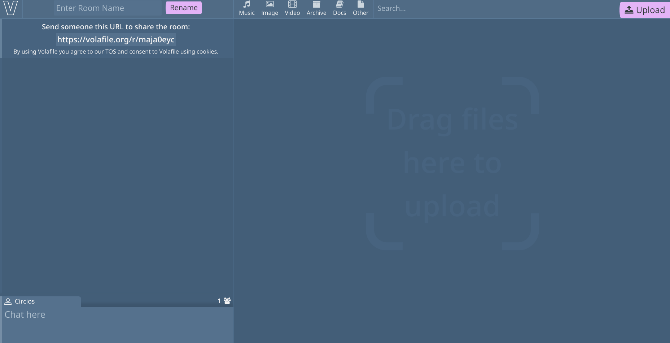
Volafile gives you the best of both worlds. Not only do you get an anonymous text chat, but you can share files too.

To keep things anonymous, you start with an automatically generated username. If you don’t name your room, Volafile will also generate a name for it as well. For additional privacy, you can set a password or Volafile PRO users can change the URL.

Once you’ve shared the room URL, it’s time to share files. Volafile lets you share files up to 20GB in size per file. Files will then last for up to two days before expiring.

Anyone can search or filter the files by different categories including video, image, music, documents, other, or archives. However, only the room creator can delete files or timeout ban any misbehaving user. If anyone needs to be banned, you can set timeouts for thirty minutes, two hours, or a whole day.

Despite being a more minimal chatroom on the surface, Volafile helps those who understand the undeniable reasons why you need online anonymity.

4. Chatzy

chatzy room settings

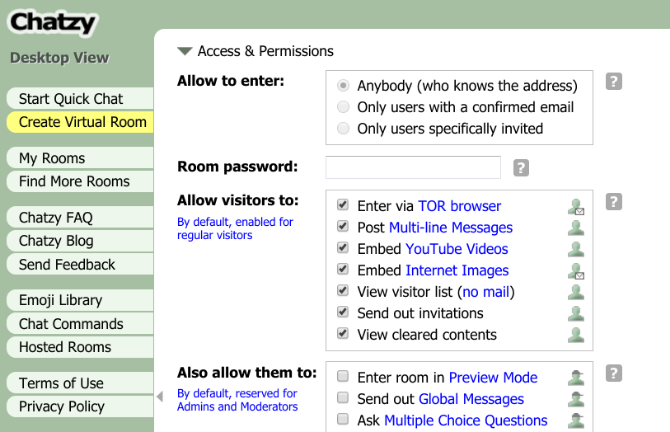
Chatzy feels like an old-school chatroom app but with a ton of modern features. It aims to be accessible for everyone, so it doesn’t use custom HTML or Javascript code. However, you can type in rich text, share images, and post playable video thumbnails.

Rather than relying on preset buttons, Chatzy relies a lot on manually entering things in the chat. You’ll have much more control if you’re willing to carefully set up your chatroom, learn the chat commands, and understand its special features.

For your privacy, Chatzy assigns each chatroom a unique ID number. Unless anyone attempting to break in can guess correctly between a zero and a trillion, you have a good chance of keeping your chat anonymous.

5. Messenger Rooms

messenger rooms settings

Messenger Rooms isn’t completely registration free. Sadly, the initial room maker must have a Facebook or Messenger account. After creating the room, others can join the video chat without an account.

Just enter a username and start your chat. Afterward, you’re free to use the room as a video or voice call for as long as you want. There’s also the option to share your screen if you’re joining from the desktop.

As such, if you have privacy concerns you can always opt to just join after someone else launches a room. With a plan to integrate this into other sources (WhatsApp, Instagram, and Portal devices), it’ll be easy to launch a room from your everyday social media accounts.

Skip Registration to Chat Online

While many services will try to get you to register, it’s not necessary to give out your information. There are many ways to make free calls online without registration while keeping your privacy intact. If you are searching for more apps of this type, try these free video conference apps for office meetings and friendly calls.

Read the full article: 5 Text, Voice, and Video Call Web Apps That Need No Registration


Twitter Q2 misses on sales of $683M, loss per share of $0.16 as COVID-19 takes its toll


On the back of a major security breach last week that saw a bitcoin scam ripple through some of the highest profile accounts on Twitter, the company today reported Q2 earnings that point to the ongoing struggle for ad-based social platforms to weather the pandemic storm while (ironically) handling record levels of traffic and the many growing pains that come with that.

Revenues came in at $683 million with a loss per share (GAAP) of $0.01, with both figures down on the same quarter a year ago, compared to analysts’ expectations, and on Twitter’s own guidance. Meanwhile mDAUs — Twitter’s own audience metric denoting monetizeable daily active users — reached a high of 186 million for the quarter.

Analyst consensus was for $700 million in sales, while Twitter expected a 27% higher figure. Adjusted EPS, meanwhile, was negative $0.16 (non-adjusted was negative $1.56), while analysts expected negative $0.01. For some context, in the same quarter a year ago Twitter reported revenues of $841 million on adjusted EPS of $0.20.

A further note on Twitter’s diluted EPS of negative $1.56: it stemmed from a net loss of $1.2 billion, and Twitter explained that this was in part due to a deferred tax asset valuation allowance of $1.1 billion and a non-cash income tax expense based primarily on cumulative taxable losses “driven primarily by COVID-19.”

The numbers underscore just how much advertising — which accounts for the majority of Twitter’s revenues — has taken a hit for the company despite the continuing surge of traffic and popularity for the site itself. That mDAU figure not only bettered Twitter’s figures last year of 139 million, but beat analysts’ average expectation of 173 million.

Advertising specifically accounted for $562 million of its revenues, down 23% on a year ago. Twitter noted that the pandemic and “civil unrest” that led to many advertisers pausing campaigns both contributed to the decline. The U.S., Twitter’s biggest market, saw a decline of 25% in ad spend.

It goes to show the disconnect not only between audience and advertising that still seems to exist — ads ultimately not only follow eyeballs, but the economy, and that has been in decline — but also the disconnect between financials and how a company is discussed in popular discourse.

That is to say, the big story with Twitter in the last three months has been the ongoing questions of quality, health and security on the platform, and how and whether should Twitter disable bad actors while still upholding free speech. That debate will continue for a long time to come, not just on Twitter but in the halls of government in the months ahead.

It’s that focus on improving the product that CEO Jack Dorsey focused on in his statement on this past quarter’s performance.

“Our product work is paying off, with tremendous growth in audience and engagement,” he said. “We grew mDAU to 186 million, a 34% year over year increase in Q2, the highest quarterly year-over-year growth rate we’ve delivered since we began reporting mDAU growth.

“I also want to address the security issue Twitter suffered last week. We moved quickly to address what happened, and have taken additional steps to improve resiliency against targeted social engineering attempts, implemented numerous safeguards to improve the security of our internal systems, and are working with law enforcement. We understand our responsibilities and are committed to earning the trust of all of our stakeholders with our every action, including how we address this security issue. We will continue to be transparent in sharing our learnings and remediations.”

Ned Segal, the CFO, noted that the ad server rebuild should also help the company recover going forward.

“Despite the pandemic, brands have found innovative ways to join the conversation on Twitter to connect with their customers,” he said. “We have completed our ad server rebuild and are making progress accelerating our performance ads roadmap. With a larger audience and progress in ads, we are even better positioned to deliver for advertisers when the live events and product launches that bring many people and advertisers to Twitter return to our lives.”

More to come.


Read Full Article

23 July 2020

After ad revenue drop, Twitter tells investors it’s eyeing subscription options


After reporting Q2 earnings that showed a marked dip in ad revenue, Twitter has said its exploring alternatives — dangling the possibility of a subscription option.

Earlier today the social media giant reported ad revenues of $562M, down almost a quarter (23%) on a year ago — saying that the pandemic and “civil unrest” leading many advertisers to pause campaigns had both contributed to the decline. While the US, its biggest market, saw a drop of 25% in ad spend.

Twitter CEO Jack Dorsey told investors it’ll likely run subscription “tests” this year (via CNN), though he also said the bar for charging users for aspects of the service would be set “really high”.

So presumably it’s not considering a ‘your first ten tweets are free’ style pay-to-tweet model.

“We want to make sure any new line of revenue is complementary to our advertising business,” CNN reports Dorsey remarking during the investor call. “We do think there is a world where subscription is complementary, where commerce is complementary, where helping people manage paywalls… we think is complementary.”

The prospect of a paid version of Twitter — free from trackers, annoying ads and irritating algorithms which meddle with the clean chronology of the timeline — has been a holy grail for certain Twitter addicts since (basically) forever. So plenty of its most fervent users will be watching keenly to see exactly what Dorsey cooks up.

We’re spitballing here — but perhaps Twitter could charge, er, certain high profile, high risk users billions of dollars per month for the privilege of tweet-threatening the rest of humanity… Just a thought.

Twitter casting around for ad revenue diversification looks interesting in light of broader digital privacy trends that have put the ad tracking industry under increasing (and increasingly awkward) scrutiny.

Certain adtech players and mechanisms are facing challenges under European data protection rules, for instance, while there are also moves afoot in California to further tighten the consumer protections introduced this year, under the Consumer Privacy Act, which could see more US users blocking the tracking industry’s access to their data.

Last week’s massive Twitter security breach also hardly throws a positive light on the company from a privacy perspective. Dorsey addressed the breach in remarks on today’s call, with CNN reporting he apologized to investors — admitting the company “fell behind” on its security obligations.

“We feel terrible about the security incident,” he said. “Security doesn’t have an end point. It’s a constant iteration… We will continue to go above and beyond here as we continue to secure our systems and as we continue to work with external firms and law enforcement.”

Read Full Article

TikTok unveils $200 million fund for U.S. creators


TikTok today announced a $200 million fund, aimed at helping top creators in the U.S. supplement their earnings, and potentially coax the next Charli D’Amelio out of the woodwork.

Called the TikTok Creator Fund, the money is aimed at helping “eligible” creators on the platform earn a livelihood, it said. Eligible for now is defined as 18 years or older, meeting a certain (unspecified) baseline for followers, and consistently posting original content that is in line with TikTok’s community guidelines. The platform will begin accepting applications from U.S.-based creators starting next month and distribute the capital over the coming year.

The promise of payouts is coming at a key moment for the app and its Chinese parent ByteDance. TikTok has been facing mounting criticism in the US, its biggest market by revenues, over how it handles user data and its ties to China, with calls from the Trump administration to ban the popular app outright.

And in response to that, TikTok has been making moves to present a more friendly face to the US. It has pledged to add 10,000 more staff in the US, and this week rumors began to circulate that investors in the US are considering buying a majority stake in the TikTok business back from ByteDance to establish control of the company out of China’s hands.

(It’s not clear if the latter is testing the waters of sentiment, or just an outright rumour, but as an aside to that, these days, ByteDance and TikTok try to go to great lengths to show they are not connected, if you go by how they handle their PR: Chinese spokespeople will not answer TikTok questions and refer journalists to the US team.)

Vanessa Pappas, GM of TikTok’s U.S. business, said in a blog post that ByteDance is starting the Creator Fund at $200 million and plans to increase it over time. She did not disclose how TikTok would decide what sum would be paid to an individual creator, and whether there would be any additional conditions to getting a payout. (We have asked about this and how many followers creators might need to have to be eligible, and will update as we learn more.)

TikTok already helps its creators sign brand partnerships and sponsorship deals, and it provides monetization for live-streams. The platform also has a $50 million Creative Learning Fund to introduce teachers to the platform, which has been used by some 1,000 teachers in the U.S. already. And a Creator Marketplace connects brands to creators to collaborate on paid campaigns.

“Through the TikTok Creator Fund, our creators will be able to realize additional earnings that reflect the time, care, and dedication they put into creatively connecting with an audience that’s inspired by their ideas,” she said.

TikTok currently employs about 1,400 people in the U.S. and recently crossed the milestone of 2 billion installs globally. Last year, it said it had 26 million users in the U.S.

Several lawmakers including Senators Chuck Schumer and Tom Cotton have expressed concerns in recent months that TikTok’s user data could end up with the Chinese government. China-headquartered ByteDance insists that it does not share any user’s data with the Chinese government, and that it stores its U.S.-based user data in the U.S. and Singapore. Earlier this week House lawmakers voted 336-71 to bar federal employees from using TikTok on government-issued devices.

TikTok, which appointed Disney streaming executive Kevin Mayer as its chief executive officer in May this year, also insists that it is a Cayman Islands incorporated firm.

For now, it seems that the programs that TikTok is launching are squarely aimed at fighting that fire in the US. It did not respond to a request for comment asking what it was doing to help creators in other markets supplement their earnings.

India, where TikTok has more than 200 million users and over 1 million creators, banned TikTok and 58 other apps developed by Chinese firms late last month over cybersecurity concerns. Its neighboring nation Pakistan issued a “final warning” to TikTok earlier this week over what it deemed “immoral, obscene, and vulgar content.”


Read Full Article

Facebook raises its Zoom game, lets Messenger Rooms broadcast via Live


Zoom has run away with the prize in the last few months for becoming the video calling platform of choice for people confined to their homes, whether they are making work calls or friend calls. No one really talks about “Teamsing up” (“Skyping,” perhaps?), or “Hangoutsing” or “Meeting“, or indeed “Roomsing.” But many people talk about Zooming, even when they’re not using Zoom to do it.

Today Facebook added in a new feature to its own contribution to the video chat landscape that should lead, if not immediately to more usage, more engagement when Messenger Rooms does get used.

The social network has announced that people using Messenger Rooms — the video chat software that lets people create calls with up to 50 people via a link (no Facebook or Messenger account required to join the call) — can now choose to broadcast that Rooms chat to Live, the feature in Facebook that lets people broadcast directly through Groups, Pages and in timelines via your Profile.

Facebook Rooms via Live will still come with controls for the call host: the limit is 50 people, users need a link to join, and the moderator/call host can still remove people if needed.

The difference now is that those calls will essentially be carried out on a stage, seen by as many as would have seen a Live broadcast posted by that host. When the room goes “Live”, participants will have to opt-in to be a part of it, and they can also leave before it starts to broadcast.

Messenger Rooms was first announced as “Rooms” in a limited rollout at the end of April. Seen by some initially as a Houseparty competitor, it was launched was a time when the world was well into numerous shelter-in-place orders to try to stem the spread of the global health pandemic caused by the novel coronavirus and were turning to video conferencing as a way to stay connected.

Amid many alternatives, Zoom had quickly emerged as the most popular way for people to do that, albeit, not without lots of controversy, partly due to the fact that this enterprise company had never in its wildest dreams thought it would take off as a consumer product and get used by a billion people. Meanwhile, Rooms was then rolled out globally as Messenger Rooms in June.

Because of the controversies Zoom faced, and because Facebook is, well, Facebook, it didn’t really matter at first how well Messenger Rooms was picking up traction: the message was that Zoom should be worried.

It’s actually not clear how many people are now using Messenger Rooms. (We’ve reached out to Facebook to ask.) Nor is it even clear if Facebook ultimately finds Zoom a threat.

Today’s news, it seems, is about adding more incremental engagement across Facebook overall, and adding in features that already exist for the de facto leader in the market.

You can already stream a Zoom call on Facebook Live, so why not be able to stream a Messenger Rooms call live there too? (I don’t know if Facebook will extend that to the other places where Zoom can stream, which include YouTube and Twitch.)

Facebook said that the feature is getting rolled out in limited release today and will soon expand globally to everywhere that Messenger Rooms works. Facebook also says this is a work in progress, with other news features coming soon, too.


Read Full Article