01 June 2020

How to Send Google Forms with Pre-filled Answers


Prefilled Google Forms, where some of the fields in the form are pre-populated with answers you already have, make the process of filling out your forms easier and faster.

  1. Your contacts are more likely to fill out the form as it takes less time for them to complete the remaining fields.
  2. The form respondents are less likely to type incorrect data in fields, like the employee ID, that are pre-populated.
  3. The forms feels more personal when people see their name and other personalized information pre-filled in the form.

Create Pre-filled Google Forms with Google Sheets

This step-by-step video tutorial explains how you can create pre-filled Google Forms with dynamic information from a Google Sheet. You can then use Mail Merge or Document Studio to automatically send the prefilled forms to your contacts in bulk with Gmail.

In our example, the organization maintains their employee database in a Google Spreadsheet and they want to give employees an option to self-update their details in the spreadsheet with the help of Google Forms.

Google Spreadsheet with Answers

If you look at employee records in the Google Sheet carefully, you’ll find that only some details of the employees are missing in the sheet. This is a perfect use case for using prefilled Google Forms as it be wasting employee productivity if we send them a blank Google Form and require them to fill out every single field.

For instance, in row #2, we know the location and gender of Angus but his date of birth is unavailable in our records. For row #4, the employee ID and email is known but Kiran’s other details are missing.

Create the Google Form

To build this workflow, we’ll create a Google Form with fields corresponding to the columns in the source Google Sheet. Here’s how the final form would look like:

123826

Inside the Google Form editor, click the 3-dot menu choose the Get pre-filled link option. Here, fill in every field with dummy data that is easy to recognize and replace later. Once the fields have been filled, click the Get Link button to generate the prefilled link and copy it to your clipboard.

Prefilled Google Form

The link to the prefilled Google Form would look something like this.

https://docs.google.com/forms/d/e/xxxx/viewform
   ?entry.1808207196=EMPLOYEEID&entry.1663131167=EMPLOYEENAME
   &entry.1819275928=2020-06-03&entry.2071782719=Female
   &entry.175059757=Hyderabad

It’s long and complex but if you take a closer look, this is simply a collection of name and value pairs appended to the Google Form URL. Google Forms will assign a unique id to each field in the form and these are appended to the Form URL with your pre-populated value.

For instance, the Name field in your Google Form is internally represented as entry.1663131167 in the form URL. If we replace the parameter value EMPLOYEENAME in the URL with another value, that would be prepopulated in the Google Form.

And this is exactly what we’ll do to create personalized prefilled links for all the rows in our Google Sheet.

prefilled google forms

Add Form Formulas in Google Sheet

Inside your Google Spreadsheet, create a new sheet and rename it Form Link. Paste the prefilled Google Form link in the first cell (A1) of this blank sheet.

Next return to the Google Sheet that has the employee database and create a new column, say Google Form Link.

Now we need to replace the dummy values in our prefilled link with the actual values from the rows in the sheet and this can be easily done with SUBSTITUTE function of Google Sheets.

For instance, we need replace EMPLOYEENAME in the prefilled link with real names that are in column B of the spreadsheet. Our formula would be something like this:

 =SUBSTITUTE('Form Link'!$A$1, "EMPLOYEENAME", B2)

We’ll feed the result of this formula into another SUBSTITUTE function to replace another field, say EMPLOYEEID.

=SUBSTITUTE(
   SUBSTITUTE('Form Link'!$A$1, "EMPLOYEENAME", B2),
   "EMPLOYEEID", A2)

This has to be repeated for every prefilled field in the Google Form.

If your prefilled data contains space, you need to wrap the results into another SUBSTITUTE function that will replace all occurrences of spaces with the plus symbol.

Our final prefilled link would be:

=SUBSTITUTE(
  SUBSTITUTE(
   SUBSTITUTE(
    SUBSTITUTE(
     SUBSTITUTE(
      SUBSTITUTE('Form Link'!$A$1, "EMPLOYEEID", A2),
     "EMPLOYEENAME", B2),
    "2020-05-31",E2),
   "Female", C2),
  "Hyderabad", D2),
 " ", "+")

You can test the workflow using this prefilled Google Form that will write your form submission in a new row of this Google Sheet.

Copy-down the Google Forms Formula

You may use ArrayFormula to copy down formulas or, if you have only a few rows, select the first cell and drag the crosshair to the last row in the formula column as shown below:

Copydown Forumla

Handling Dates in Google Forms

If you plan to prefill dates in the Google Form, you need rewrite your dates in the Google Sheets in a format that Google Forms can recognize.

This is easy to implement. Just select the column in your Google sheet that contains the dates, then go to the Format menu, choose Number > More Formats > More date and time format and choose the YY-MM-DD format.

Also see: Create PDF from Google Forms

You can use Mail Merge with Gmail to send the prefilled forms to all the email addresses in one go from the Google Sheet itself.

When composing the email template for merge, select any text in the email body and convert it into a hyperlink. You can put the title of the column - as the hyperlink and this would be replaced with your Google Form link.

Google Form link

Please watch the Mail Merge tutorial to learn more.


Global smartphone sales plummeted 20% in Q1, thanks to COVID-19


More dismal numbers confirm what we already knew: Q1 2020 was real rough for an already struggling smartphone category. Gartner’s latest report puts the global market at a 20.2% slide versus the same time last year, thanks in large part to fallout from the COVID-19 pandemic.

Every single one of the global top-five manufactures saw large declines for the quarter, save for Xiaomi, which saw a slight uptick of 1.4%. The Chinese handset maker got a surprise bump, courtesy of international sales. Samsung and Huawei and Oppo all saw double-digit drop-offs at 22.7%, 27.3% and 19.1%, while Apple declined 8.2%. Other companies combined for a sizable 24.2% loss for Q1.

The reasons are ones we’ve gone over several times before, nearly all pertaining to the global pandemic. Chief among them are global stay at home orders and general economic uncertainly. Issues with the global supply chain have no doubt been a factor, as well, as Asia was the first to get hit with the virus.

All of this comes in addition to an already plateauing/declining smartphone market. Analysts had expected that the arrival of 5G would help stem the tide a bit — but, well, some stuff happened in there. Notably, Apple’s slide wasn’t as bad as it might have been thanks to a strong start to the year.

“If COVID-19 did not happen, the vendor would have likely seen its iPhone sales reached record level in the quarter. Supply chain disruptions and declining consumer spending put a halt to this positive trend in February,” Gartner’s Annette Zimmermann said in a release. “Apple’s ability to serve clients via its online stores and its production returning to near normal levels at the end of March helped recover some of the early positive momentum.”

Overall, I suspect that recovery won’t be instantaneous for the market. The future of COVID-19 still feels largely uncertain as countries have begun the process of reopening, and a pricey investment still may not be in the cards for many who are struggling to make ends meet. 


Read Full Article

The 10 Best Headphones for Sleeping and Relaxing


headphones-sleep

Have a snoring sleeping partner or trouble getting to sleep at night? Listening to music or guided meditation in bed not only drowns out noise, but it can also calm your anxious thoughts.

You probably know how uncomfortable it is to wear regular earbuds or bulky headphones to bed. That means you’ll need to invest in a pair of headphones designed to keep you comfortable when laying down.

The following headphones are perfect to wear while you sleep; you won’t even know that you’re wearing them!

1. Panasonic Slim Clip-On Earphones

Panasonic Slim Clip-On Earphones Panasonic Slim Clip-On Earphones Buy Now On Amazon $13.90

The Panasonic Slim Clip-On Earphones are a flattened version of traditional earbuds. They come with extremely thin housing that you’ll barely feel when you rest your head. Plus, these earphones hook over your ear, which keeps them from jabbing the inside of your ear.

That said, these earphones don’t have the best sound quality, but it’s still acceptable for nighttime listening.

2. MAXROCK Soft Silicone Sleeping Headphones

MAXROCK Soft Silicon Sleeping Headphones MAXROCK Soft Silicon Sleeping Headphones Buy Now On Amazon $11.99

If you prefer in-ear earbuds, you’ll want to check out the MAXROCK Soft Silicon Sleeping Headphones. These earbuds are made with super-soft silicone, so they won’t hurt your ears like typical earbuds. Better yet, the noise-isolating feature is enough to silence loud snoring.

When you want to change the track you’re listening to, simply press the button on the cord to skip, pause, or play the track.

3. TOPOINT Bluetooth Eye Mask Wireless Headphones

TOPOINT Bluetooth Eye Mask Wireless Headphones TOPOINT Bluetooth Eye Mask Wireless Headphones Buy Now On Amazon $23.99

The TOPOINT Bluetooth Eye Mask provides the most comfortable listening experience possible. It functions as a two-in-one sleeping mask—not only does it block out light, but it also lets you wirelessly listen to music.

Spend about two hours charging this device, and it’ll last over nine hours—this means it’ll stay powered on during the whole night. The long battery life also makes it perfect to wear on plane rides.

4. JVC Marshmallow Memory Foam Earbuds

JVC Memory Foam Earbuds JVC Memory Foam Earbuds Buy Now On Amazon $14.27

The JVC Marshmallow Memory Foam Earbuds are yet another pair of comfortable in-ear earbuds. The earpiece is made of soft memory foam that molds to the shape of your ear. Such a snug fit ensures they won’t fall out while you’re asleep.

The main downside to these earbuds is the plastic housing. This might make it uncomfortable to sleep on your side, so you might want to consider other options if you’re a side sleeper.

5. Hearprotek Sleep Earbuds

Hearprotek Sleep Earbuds Hearprotek Sleep Earbuds Buy Now On Amazon $18.99

Side sleepers can definitely benefit from the Hearprotek Sleep Earbuds. This pair of earbuds comes with a double-layered silicone tip that conforms to your ear. Not only does this promote noise-cancellation, but it also provides painless listening.

Hearprotek’s earbuds have a thin but durable cord that prevents any damage from tossing and turning. At about 50 inches long, the wire won’t have you feeling restricted at night. The cord has a built-in remote button and microphone too. So, you can easily pause, play, and skip tracks, as well as answer calls.

6. Perytong Wireless Sleep Headphones

Perytong Wireless Sleep Headphones Perytong Wireless Sleep Headphones Buy Now On Amazon $19.99

If you aren’t a fan of the eye mask/earphone combination, you might like the Perytong Wireless Sleep Headphones. You can opt to wear the headband over your eyes or around your head. The thin and removable speakers sit inside the headband, making it comfortable to wear in bed.

Simply connect this headband to your device via Bluetooth, and you’ll have 10 hours of battery life. This versatile headband isn’t only great for wearing at night, but it’s also perfect for listening to music during workouts.

7. LC-dolida Sleeping Mask Headphones

LC-dolida Sleeping Mask Headphones LC-dolida Sleeping Mask Headphones Buy Now On Amazon $23.99

The LC-dolida Sleeping Mask Headphones is another fantastic sleeping mask that comes equipped with a pair of built-in speakers. Unlike the other sleeping masks included on this list, the LC-dolida mask is designed to fit the contours of your face. It provides memory foam padding around your eyes and nose, and puts no pressure on your eyes.

The eye mask helps block out light and noise, not to mention that it has 10 long hours of battery life. This means you can sleep or relax longer, and listen to high-quality audio the entire time.

8. AcousticSheep SleepPhones

AcousticSheep SleepPhones AcousticSheep SleepPhones Buy Now On Amazon

Although the AcousticSheep Sleephones are a bit pricey, they’re worth it if you want a headband made specifically for your needs. You can choose from a small, medium, or large-sized band. Having the right size secures the band to your head, and keeps it from sliding off while you sleep. You can also choose between two fabrics: fleece or a lightweight moisture-wicking fabric.

Inside the headband, you’ll find two wafer-thin speakers that you can’t even feel on your ears. With a 30-foot Bluetooth range, you can listen to audio even when your phone is in the next room.

9. Elgin Ruckus Earplug Earbuds

Elgin Ruckus Earplug Earbuds Elgin Ruckus Earplug Earbuds Buy Now On Amazon $19.95

The Ruckus Earplug Earbuds might look like heavy-duty earplugs, but they’re actually suitable for sleeping. With a noise reduction rating of 25 decibels, these earbuds have powerful noise-canceling qualities. Given that, they’re an excellent choice if you’re looking to block out a lot of noise.

The sturdy cable design, soft silicone earbuds, and immersive sound quality make these headphones ideal for sleeping or even working.

10. CozyPhones Sleep Headphones

CozyPhones Sleep Headphones CozyPhones Sleep Headphones Buy Now On Amazon $17.49

For an affordable, lightweight headband with built-in speakers, try the CozyPhones Sleep Headphones. The breathable material and thin speakers keep you cool and comfortable while napping, sleeping, or relaxing.

Since this headband plugs right into your device’s headphone jack, you won’t ever have to worry about charging it. The cable stretches five feet long, giving you freedom while you sleep. Plus, the cord is braided for extra durability.

Sleeping Headphones Help You Fall Asleep Comfortably

It’s time to stop sleeping with a pair of painful plastic earbuds. Even if you love the headphones or earbuds that you wear on a daily basis, they’ll likely make your sleeping experience much worse.

Having a dedicated pair of headphones for sleeping can give you the best night’s rest—you can relax while listening to music, audiobooks, or podcasts, without feeling any discomfort.

If you want to muffle the noise around you even more, you should consider pairing your sleeping headphones with a white noise machine. Try out one of these white noise machines for drowning out distractions, and you’ll find yourself falling asleep way faster.

Read the full article: The 10 Best Headphones for Sleeping and Relaxing


Read Full Article

Best Mutual Funds to invest in June 2020

Best Mutual Funds to invest in June 2020

Please click on the following link to view full post.

https://marketctl.blogspot.com/2020/05/best-mutual-funds-to-invest-in-june-2020.html

Via https://marketctl.blogspot.com/

31 May 2020

Maxoak Bluetti AC100 Keeps You Powered Up, No Matter What


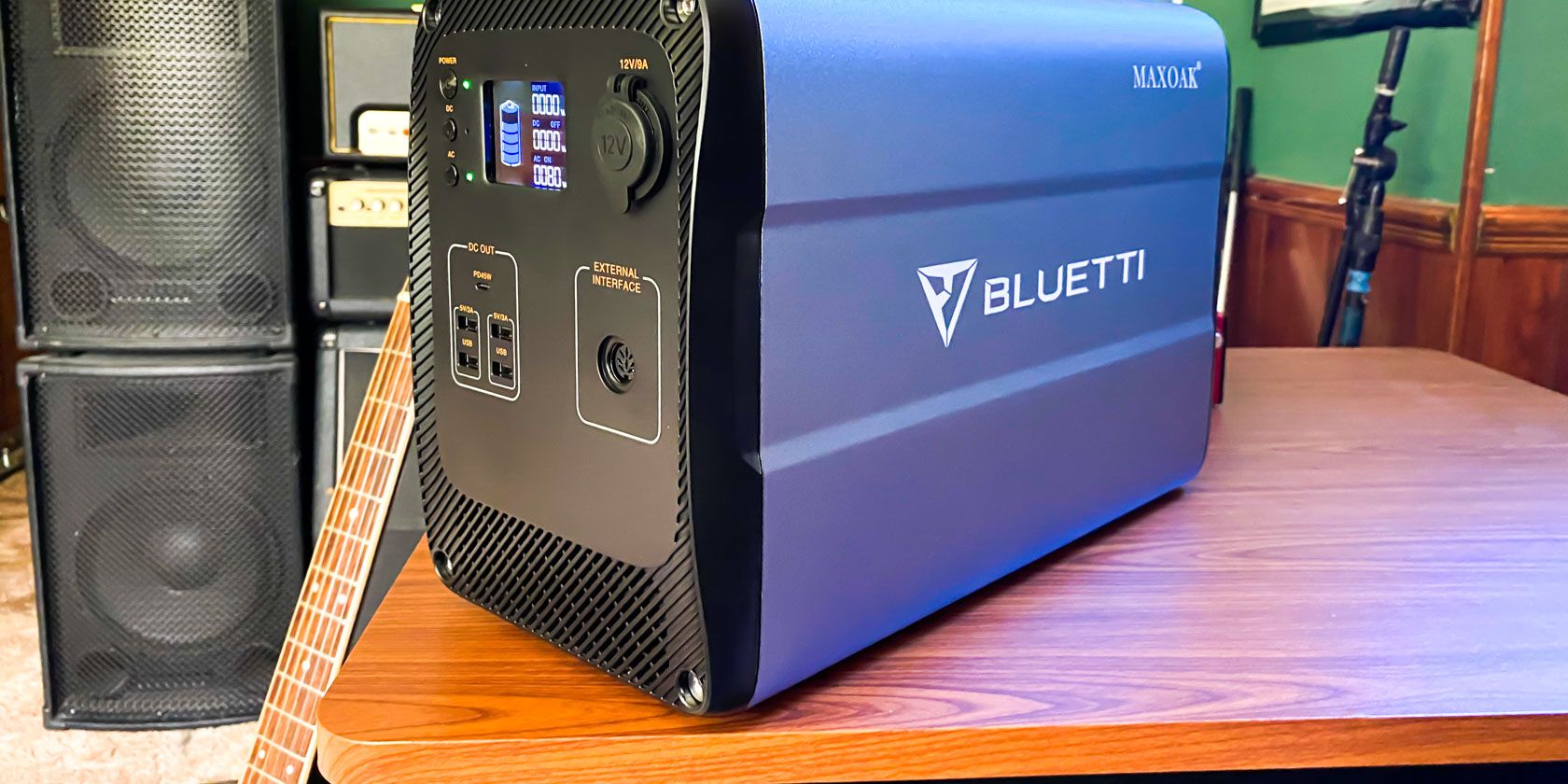
maxoak bluetti ac100
Our verdict of the Maxoak Bluetti AC100:
It doesn't have the power of its larger siblings, but the Maxoak Bluetti AC100 has more than enough to keep your most vital electronics running when you need them.
910

The world is an unpredictable place, so you never know when you might need a solid source of portable power. You may have a power outage in your area or you could have a downed wire from a storm. Maybe you’re just going on a camping trip but can’t do without a specific modern convenience.

We’ve previously looked at portable power supplies from Maxoak’s Bluetti line and were impressed with what they had to offer. That said, not everyone needs a big ultra-powerful pseudo-generator. When you just need to power a few household electronics, the Maxoak Bluetti AC100 will get the job done, and it’s just light enough to make it luggable.

Join us as we take a closer look at the Maxoak Bluetti AC100, and scroll down for an exclusive coupon code!

Specifications

  • Inputs: AC adapter or solar panel (16V-40V 10A)
  • Outputs: 2x AC sockets, 4x 5V USB 2.1A ports, 1 x 45W PD USB-C, 1 x 12V 9A car port
  • Total capacity: 1000Wh
  • Maximum continuous power: 600W
  • Battery technology: Lithium-Ion
  • AC Charge time: 10 hours
  • Solar charge time: Variable (higher power panels mean shorter recharge times); panels not included
Maxoak Bluetti AC100 Maxoak Bluetti AC100 Buy Now On Amazon $899.99

Build & Design

DC ports on the AC100

The Maxoak Bluetti AC100 might be smaller than some others in the Bluetti line, but it isn’t exactly tiny, nor is it light. The size is slightly bigger than a car battery and weighs in at 34.4 pounds (15.6 kg).

While most of that weight comes from the internal lithium-ion battery, a significant portion of it comes from the build. This is a sturdy power source, with a handle for easy carrying. It feels like it could handle a drop from a few feet, but I wouldn’t want to find out the hard way.

The battery may be tough, but it does have its weak points. The biggest of these is that it isn’t waterproof. This isn’t a problem if you’re keeping the AC100 around for power outages, but it means you’ll need to be careful if you bring it on a camping trip.

Features

Built-in light on Bluetti AC100

Functionality is simple: just press the power button on the front, then tap the AC or DC buttons on the front to enable power to the ports. You can use both at the same time, but the individual switches make it easy to route power only to where you need it. You’ll be using both switches often, because aside from the two AC sockets on one side, every other port provides DC power.

One extra bit of functionality comes from the built-in light. Turn on the battery, then tap the light button and you’ve got an extremely heavy, largely unwieldy light source. That said, this may be handy when it comes to plugging devices into the Bluetti AC100 during a power outage.

The built-in display is easy to read, both inside and outside. As with the Maxoak Bluetti 1500Wh, the five-segment battery indicator doesn’t give you a good idea of how much power is left. That said, this is the only poor aspect of the display. Being able to see exactly how much power is discharging at any given time is useful.

Charging the Battery

Charging the Bluetti AC100

The Maxoak Bluetti AC100 arrived mostly charged, so I had quite a lot of work to do before I could charge it to see how long it took. Given the capacity of the battery, this took longer than I’d initially planned.

There are two ways to charge the Bluetti AC100, one of which is standard AC power from a wall outlet. An AC adapter is included in the box, which makes this easy.

As this is such a large battery, you’ll need a while to charge it — roughly 10 to 11 hours, in fact. In my case, charging took around nine hours, but this is because I didn’t entirely run out the battery before plugging it in to charge over the course of a day.

Input for charging the AC100

The other option for charging the Bluetti AC100, and largely one of the more novel reasons for opting for this power source over others, is using a solar panel. You can use plenty of solar panels, as long as it provides a working voltage of between 16V and 40V at a max of 10A. A DC to MC4 charging cable is included in the box.

I had hoped to have a solar panel on hand to test this feature, but that was not to be the case. If you’re interested in charging via solar panel, see our review of the Maxoak Bluetti 1500Wh Backup Solar Generator, which has a 50% larger capacity than Bluetti AC100.

Solar power is great, but not exactly known for being predictable, as so much is reliant on the weather. How fast the AC100 charges depends partly on your solar panel and partly on how the weather is while you’re charging.

Powering Up Your Home

Dual AC outlets

You can power anything with the AC100, as long as it doesn’t draw more than 600 watts. This means that it easily powers TVs, computers, coffee grinders, and more. Maxoak even advertises using the Bluetti AC100 to power a car fridge or mini-fridge.

That said, the AC100 won’t power every home appliance. Microwaves, toaster ovens, kettles, or even a slow cooker, typically all draw more than 600 watts.

Fortunately, you don’t need to worry about accidentally plugging in something with too big of a draw. The AC100 has built-in protection against overcharge, overcurrent, overvoltage, and overheating.

I wasn’t it to provide much fo a challenge, but for initial testing, I plugged a Marshall guitar amplifier from the mid-1980s into the Bluetti AC100, which draws around 50-watt. As expected the AC100 had no problem powering the amp, but there was a strange noise in the background. I’m going to blame this on the amp being a solid-state amp that is around 35 years old rather than the Bluetti.

Just to make sure that the AC100 didn’t have any significant issues with noise, I next decided to power my home audio setup. This includes an Audio-Technica turntable, a hybrid tube integrated amplifier, cassette deck, and input switcher. The Bluetti AC100 easily powered everything, and I noticed no noise. Everything sounded exactly as it was plugged into the wall outlet.

How Long Does the Battery Last?

Reporting the current power load

Unlike laptop power banks, which Maxoak also makes, it can be hard to predict how long the battery will last unless you know how much power you’re drawing. Fortunately, the readouts on the built-in display make this part easy.

Once you know how much power you’re drawing, you can figure out how long the battery will last. This model has 1,000 Wh (watt-hours) of capacity, which simply means that drawing 1 watt continuously would get you roughly 1,000 hours of power. If you’re drawing a total of around 100 watts at a given time, you can expect roughly 10 hours.

This formula works, but you won’t always be working with neat units of 10 or 100. Still, the Maxoak Bluetti AC100 performed as expected, delivering power for roughly as long as I expected. It’s important to note that power usage will fluctuate in most cases, so you’ll want to keep your eye on usage for a while. If you want to be safe, just base your estimate on the highest number you see.

I tested the Bluetti AC100 with my home theater setup that included an LCD TV, 5.1-channel receiver, powered subwoofer, and Ultra HD Blu-ray player. All of this only displayed a load of around 100 watts, even during playback, so I could have expected around 10 hours of playtime. I didn’t feel like watching TV for 10 hours, but after finishing a roughly 2.5 hour movie, the AC100 had drained at the rate I had expected.

Should You Buy the Maxoak Bluetti AC100?

The Maxoak Bluetti AC100 is a great example of a product that clearly describes what it aims to do and then does just that. While it’s not as powerful as other products in the Bluetti line, it’s still powerful enough to keep a fair amount of electronics running. The occasional slightly gimmicky feature like the built-in light don’t do anything to take away from that.

The more important thing to consider when looking at the Bluetti AC100 is whether it does what you need. It’s handy how powerful this power bank is, but that doesn’t mean much if you’re aiming to power your toaster and this won’t handle it. While the AC100 will handle most things you throw at it, its portability does come with a slight tradeoff of sheer power.

Maxoak Bluetti AC100 Maxoak Bluetti AC100 Buy Now On Amazon $899.99

If you need just slightly more than what the Bluetti AC100 can provide, you might be interested in one of the more powerful models in the Bluetti line. On the other hand, if you’re looking to power your entire home or even a portion of it, no product like this will meet your demands. Instead, you’re probably in the market for a diesel-powered generator or Tesla Powerwall.

This level power and portability doesn’t come cheap, but you aren’t necessarily stuck paying the Bluetti’s $900 MSRP. Using the coupon code bluetti108, you can get a further $108 off the purchase price (and there’s an Amazon coupon for $50 on the sales page this can be combined with), which may be a large enough difference in price to make this a worthwhile investment.

Enter the Competition!

Maxoak Bluetti AC100 Battery Backup

Read the full article: Maxoak Bluetti AC100 Keeps You Powered Up, No Matter What


Read Full Article

You Can Now Break YouTube Videos Into Chapters


YouTube creators can now add chapters to videos, making it easier for viewers to navigate them. This is especially useful with longer videos, with the content broken up into smaller chunks. Chapters are entirely optional, but should start appearing on more videos.

YouTube started experimenting with chapters in April, and thanks to positive feedback, is now rolling the feature out to all users. Chapters are optional, and won’t be applied by default, but if a YouTuber adds timestamps to a video, YouTube will do the rest.

How to Add Chapters to YouTube Videos

To add chapters to one of your YouTube videos, simply add timestamps to your description. The first timestamp needs to start at 0.00, a video needs to have at least three timestamps, and each timestamp needs to be at least 10 seconds apart.

YouTube will use your timestamps to break the video into chapters. Viewers will then see the chapters at the bottom of the video, with the timeline broken up with black lines in between each one. Making it easier to navigate to an exact point.

Chapters work on desktop, Android, and iOS. On desktop, you can hover over a chapter to see the title, and click the one you want. On mobile, you need to keep your finger on the screen and scroll across the timeline until you find the chapter you want to watch.

There are no limits on who can add chapters to their YouTube videos, so you’re likely to see them cropping up a lot from now on. However, it IS optional, and YouTubers can disable chapters by adjusting the first timestamp to something other than 0.00.

Making It Easier to Navigate YouTube Videos

Chapters have the capacity to help both YouTube creators and viewers. Creators can break videos up into smaller chunks, helping direct viewers to specific parts of their uploads. And viewers will be able to find what they’re looking for quickly and easily.

If you’re a budding YouTuber keen to start making videos, read our beginner’s guide to making YouTube videos. And if you’re a viewer keen to get more out of YouTube, be sure to check out our article explaining ways to make YouTube even better.

Image Credit: Ivan Radic/Flickr

Read the full article: You Can Now Break YouTube Videos Into Chapters


Essential Keyboard Shortcuts for Visual Studio Code


Laptop displaying text editor

Microsoft Visual Studio Code debuted only a few years ago, but it has quickly become one of the most popular text editors available. Its combination of a simple user interface with powerful IDE-like features makes it especially popular with programmers, but it’s just as useful for writers and anyone who manipulates text files.

Visual Studio Code supports nearly every programming language that exists. If support isn’t built-in, you can add it through the app’s extension browser. VS Code even has native features to support collaborative programming. Plus, it has plenty of keyboard shortcuts to help you navigate the app interface effortlessly.

And what’s more, you can discover the most useful VS Code keyboard shortcuts with this cheat sheet!

Because of the sheer number of users on Windows, that OS is the main focus of this cheat sheet. Don’t worry if you’re a Mac user though, as all of these keyboard shortcuts work on macOS as well. Simply use the Command key instead of the Ctrl key and the Option key instead of Alt. If any shortcuts vary more than that, we’ll mention both.

FREE DOWNLOAD: This cheat sheet is available as a downloadable PDF from our distribution partner, TradePub. You will have to complete a short form to access it for the first time only. Download The Visual Studio Code Keyboard Shortcuts Cheat Sheet.

The Visual Studio Code Keyboard Shortcuts Cheat Sheet

On a Mac keyboard, replace Ctrl with Cmd and Alt with Option in the shortcuts.

Shortcut Action
Basic Functionality
Ctrl + Shift + P Open Command Palette
Ctrl + , Open app settings
Ctrl + K, Ctrl + S Display keyboard shortcuts
Ctrl + Shift + X Switch to Extensions pane
Ctrl + N New file
Ctrl + Shift + N New window
¹Ctrl + F4 Close file
Ctrl + Shift + W Close window
¹F11 Toggle Full Screen mode
Ctrl + B Toggle sidebar visibility
File Management
Ctrl + O Open file
Ctrl + S Save file
Ctrl + Shift + S Save as…
Ctrl + K, S Save all files
Ctrl + K, Ctrl + W Close all
Ctrl + Shift + T Reopen last closed
Editing Commands
Ctrl + C Copy selection or current line
Ctrl + X Cut selection or current line
Ctrl + V Paste
Ctrl + Shift + K Delete line
Home Go to beginning of line
End Go to end of line
Ctrl + Home Go to beginning of file
Ctrl + End Go to end of file
Alt + Up / Down Move line up or down
Ctrl + ] Indent line
Ctrl + [ Outdent line
Ctrl + / Comment out line
Shift + Alt + A Comment out region
Folding
Ctrl + Shift + [ Fold region
Ctrl + Shift + ] Unfold region
Ctrl + K, Ctrl + [ Fold all subregions
Ctrl + K, Ctrl + ] Unfold all subregions
Ctrl + K, Ctrl + 0 Fold all regions
Ctrl + K, Ctrl + J Unfold all regions
Editor Navigation
Ctrl + P Go to file
Ctrl + G Go to line
Ctrl + T Show all symbols
Ctrl + Shift + O Go to symbol
F8 Go to next error or warning
Shift + F8 Go to previous error or warning
Ctrl + Shift + M Show Problems panel
¹Alt + Left Go back
¹Alt + Right Go forward
Find and Replace
Ctrl + F Open Find dialog
Ctrl + H Open Replace dialog
Ctrl + Shift + H Replace in files
¹F3 Find next
¹Shift + F3 Find previous
Alt + Enter Select all matches for search term
Ctrl + D Add current selection to Find match
Ctrl + K, Ctrl + D Move previous selection to next Find match
Selection and Multiple Cursors
Ctrl + L Select current line
Ctrl + Shift + L Select all instances of current selection
Ctrl + F2 Select all matches of current word
¹Shift + Alt + Right Arrow Expand selection
¹Shift + Alt + Left Arrow Shrink selection
Alt + Click Insert cursor
Ctrl + Alt + Up Arrow / Down Arrow Insert cursor above or below current line
Ctrl + U Undo last cursor
Shift + Alt + I Insert cursor at the end of each selected line
Split Editor Management
Ctrl + \ Split editor
Ctrl + 1 / 2 / 3 Focus on editor pane 1, 2, or 3
Ctrl + K, Ctrl + Right Arrow / Left Arrow Focus on next / previous editor pane
¹Ctrl + Shift + PgUp Move editor left
¹Ctrl + Shift + PgDown Move editor right
Integrated Terminal
¹Ctrl + ` Show integrated terminal
¹Ctrl + Shift + ` Create new terminal instance
Ctrl + Up Arrow / Down Arrow Scroll up / down
Ctrl + Home / End Scroll to top / bottom
macOS-Specific Shortcuts
Cmd + W Close file
Cmd + Ctrl + F Toggle full screen
Cmd + - Go back
Cmd + Shift + - Go forward
Cmd + G Find next
Cmd + Shift + G Find previous
Cmd + Control + Shift + Right Arrow Expand selection
Cmd + Control + Shift + Left Arrow Shrink selection
Cmd + K, Cmd + Shift + Left Move editor left
Cmd + K, Cmd + Shift + Right Move editor right
Control + ` Show integrated terminal
Control + Shift + ` Create new terminal instance
¹The corresponding macOS shortcut is listed under the macOS-Specific Shortcuts section at the end of the cheat sheet.

Looking for More Ways to Make the Most of VS Code?

The keyboard shortcuts here will have you well on your way to becoming a Visual Studio Code power user. That said, there are many more ways that you can make the software even better-suited to your workflow.

For example, you can add countless features to the editor with extensions. If you’re looking for a starting point, take a look at our list of extensions to help make programming in VS Code even easier.

Image Credit: UserName on Unsplash

Read the full article: Essential Keyboard Shortcuts for Visual Studio Code


Read Full Article

You Can Now Break YouTube Videos Into Chapters


YouTube creators can now add chapters to videos, making it easier for viewers to navigate them. This is especially useful with longer videos, with the content broken up into smaller chunks. Chapters are entirely optional, but should start appearing on more videos.

YouTube started experimenting with chapters in April, and thanks to positive feedback, is now rolling the feature out to all users. Chapters are optional, and won’t be applied by default, but if a YouTuber adds timestamps to a video, YouTube will do the rest.

How to Add Chapters to YouTube Videos

To add chapters to one of your YouTube videos, simply add timestamps to your description. The first timestamp needs to start at 0.00, a video needs to have at least three timestamps, and each timestamp needs to be at least 10 seconds apart.

YouTube will use your timestamps to break the video into chapters. Viewers will then see the chapters at the bottom of the video, with the timeline broken up with black lines in between each one. Making it easier to navigate to an exact point.

Chapters work on desktop, Android, and iOS. On desktop, you can hover over a chapter to see the title, and click the one you want. On mobile, you need to keep your finger on the screen and scroll across the timeline until you find the chapter you want to watch.

There are no limits on who can add chapters to their YouTube videos, so you’re likely to see them cropping up a lot from now on. However, it IS optional, and YouTubers can disable chapters by adjusting the first timestamp to something other than 0.00.

Making It Easier to Navigate YouTube Videos

Chapters have the capacity to help both YouTube creators and viewers. Creators can break videos up into smaller chunks, helping direct viewers to specific parts of their uploads. And viewers will be able to find what they’re looking for quickly and easily.

If you’re a budding YouTuber keen to start making videos, read our beginner’s guide to making YouTube videos. And if you’re a viewer keen to get more out of YouTube, be sure to check out our article explaining ways to make YouTube even better.

Image Credit: Ivan Radic/Flickr

Read the full article: You Can Now Break YouTube Videos Into Chapters


Read Full Article

30 May 2020

This Week in Apps: Facebook launches trio of app experiments, TikTok gets spammed, plus coronavirus impacts on app economy


Welcome back to This Week in Apps, the Extra Crunch series that recaps the latest OS news, the applications they support and the money that flows through it all.

The app industry is as hot as ever, with a record 204 billion downloads and $120 billion in consumer spending in 2019. People are now spending three hours and 40 minutes per day using apps, rivaling TV. Apps aren’t just a way to pass idle hours — they’re a big business. In 2019, mobile-first companies had a combined $544 billion valuation, 6.5x higher than those without a mobile focus.

In this Extra Crunch series, we help you keep up with the latest news from the world of apps, delivered on a weekly basis.

This week we’re continuing to look at how the coronavirus outbreak is impacting the world of mobile applications, with fresh data from App Annie about trends playing out across app categories benefiting from the pandemic, lockdowns and societal changes. We’re also keeping up with the COVID-19 contact-tracing apps making headlines, and delving into the week’s other news.

We saw a few notable new apps launch this week, including HBO’s new streaming service HBO Max, plus three new app experiments from Facebook’s R&D group. Android Studio 4.0 also launched this week. Instagram is getting better AR tools and IGTV is getting ads. TikTok got spammed in India.

Meanwhile, what is going on with app review? A shady app rises to the top of the iPhone App Store. Google cracks down on conspiracy theory-spreading apps. And a TikTok clone uses a pyramid scheme-powered invite system to rise up the charts.

COVID-19 contact-tracing apps in the news 

  • Latvia: Reuters this week reported that Latvia aims to become one of the first countries to launch a smartphone app, Stop Covid, using the new toolkit created by Apple and Alphabet’s Google to help trace coronavirus infections.
  • Australia: The role of the country’s Covidsafe app in the recovery appears to be marginal, The Guardian reports. In the month since its launch, only one person has been reported to have been identified using data from it. A survey even found that Australians were more supportive of using telecommunications metadata to track close contacts (79%) than they were of downloading an app (69.8%). In a second survey, their support for the app dropped to 64%. The app has been maligned by the public debate over it and technical issues.
  • France: The country’s data protection watchdog, CNIL, reviewed its contact-tracing app StopCovid, finding there were no major issues with the technical implementation and legal framework around StopCovid, with some caveats. France isn’t using Google and Apple’s contact-tracing API, but instead uses a controversial centralized contact-tracing protocol called ROBERT. This relies on a central server to assign a permanent ID and generate ephemeral IDs attached to this permanent ID. CNIL says the app will eventually be open-sourced and it will create a bug bounty. On Wednesday, the app passed its first vote in favor of its release.
  • Qatar: Serious security vulnerabilities in Qatar’s mandatory contact-tracing app were uncovered by Amnesty International. An investigation by Amnesty’s Security Lab discovered a critical weakness in the configuration of Qatar’s EHTERAZ contact-tracing app. Now fixed, the vulnerability would have allowed cyberattackers to access highly sensitive personal information, including the name, national ID, health status and location data of more than one million users.
  • India: India’s contact-tracing app, Aarogya Setu, is going open-source, according to Ministry of Electronics and Information Technology Secretary Ajay Prakash Sawhney on Tuesday. The code is being published on GitHub. Nearly 98% of the app’s more than 114 million users are on Android. The government will also offer a cash bounty of $1,325 to security experts who find bugs or vulnerabilities.
  • Switzerland: Several thousand people are now testing a pilot version of Switzerland’s contact-tracing app, SwissCovid. Like Lativia, the app is one of the first to use Apple and Google’s contact-tracing API. Employees at EPFL, ETH Zurich, the Army and select hospitals and government agencies will be the first to test the Swiss app before its public launch planned for mid-June.
  • China: China’s health-tracking QR codes, embedded in popular WeChat and Alipay smartphone apps, are raising privacy concerns, Reuters reports. To walk around freely, people must have a green rating. They also now have to present their health QR codes to gain entry into restaurants, parks and other venues. These efforts have been met with little resistance. But the eastern city of Hangzhou has since proposed that users are given a color-coded health badge based on their medical records and lifestyle habits, including how much they exercised, their eating and drinking habits, whether they smoked and how much they slept the night before. This suggestion set off a storm of criticism on China’s Weibo, a Twitter-like platform.

Read Full Article

5 Ways to Watch YouTube Together With Friends for Videos, Music, and Workouts


Watching YouTube with friends

Circumstances stopping you from meeting up with others? Try some of these best apps to watch YouTube together with friends. All you need is a web browser to enjoy videos, music, and even workout with friends remotely.

These websites and apps sync YouTube videos and music for everyone to turn it into a group activity. While the clip is playing, you can video call with friends to see their reactions, or chat in text.

So queue up a music playlist together on YouTube, exercise with the best YouTube workout videos, or kick back and watch a movie together on YouTube.

1. Squad (Web, Android, iOS): Watch YouTube Videos in Sync With Friends

Squad is the best app to watch YouTube together with friends on desktop and mobile, with video calls and chat both

Squad is one of the best ways to watch YouTube videos with friends online. It enables both video calls and chat while you’re streaming the same video. And it works on phones as well as desktop browsers smoothly, making it one of the few YouTube sync watching apps to do that.

You don’t need to sign up to use Squad. Simply create a new room with a unique name, and send that link to your friends. Friends can open it in their browser, or in the Squad app on iOS and Android.

You can search YouTube within the app without leaving the screen, to add new videos as and when you want. The video call works flawlessly, and you can also chat in text at the same time.

Squad also works with TikTok videos and has a few movies in its catalog that you stream. The app was initially a screen sharing app for video calls and still has that option too, but it has come a long way since then.

Download: Squad for Android | iOS (Free)

2. Jukebox (Web): Listen to Music on YouTube With Friends in Sync

Jukebox.Today is the easiest app to create YouTube music playlists and listen in sync with friends

After trying many, many, many others like it, we believe Jukebox. Today is the best app to listen to music on YouTube in sync with others in real time. It’s easy, it’s free, it looks good, it works flawlessly, and you can use it for public rooms with strangers or private rooms with friends.

Create a new Jukebox room with a custom name to begin. You can make the room public or delist it so that only people with the link can join. Search for songs within the app and add them to the now playing list. Registered users can even save the playlist for later. There’s a Chat tab to talk with people in the room, though it’s text only.

The host of the room controls playback, with the play and next/previous track buttons. Other users can only choose to mute or unmute. But other users can add songs to the playlist. The host can also give moderation or admin rights to other users.

From the main page, you can browse active Jukebox public rooms to join any. You’ll see how many people are in it, and how many tracks are yet to play.

Jukebox is a perfect way to create a playlist of songs to listen to on YouTube and share it with friends. You can all listen to the songs together, and add tracks to it.

3. Co-Train Space (Web): Workout to YouTube Exercise Videos With Friends

Co-Train Space lets you exercise to YouTube videos live with up to 10 friends on webcam

Working out is more fun when you do it with your friends. That’s why group classes and programs like CrossFit are so popular. You already know that you can stay fit at home with free workout apps. Co-Train Space lets you do a home workout with a YouTube coach, and your friends can join in too.

You don’t even need to register to begin. Pick a workout from Co-Train Space’s categories like morning, beginner, full body, specific parts, and yoga. It’ll create a room, just send the link to invite your friends. As the host, you get to decide when to start the session, so that everyone can work out in sync. The main video plays on the left, while your video chat is in a small bar on the right.

The app uses open-source video calling network Jitsi for its backend, so your data is safe and it’s a stable video connection. While video chat is the preferred form of communication, you can also use the built-in chatroom to send text messages. Co-Train Space is simple, easy, and just works as advertised. You can’t ask for more.

4. Chrono Tube (Web): YouTube Playlist Chatroom With Anonymity

Chrono Tube is an anonymous chatroom to share and watch YouTube videos together

Let’s say you want to send an open invitation to join a chatroom where people share YouTube videos. Chrono Tube makes that happen, while still giving some anonymity. When you visit the website, you’ll first be taken to the #general chat. Don’t use that. Click the yellow “Create a room” button to start your own.

Every participant (including you, the host) is automatically assigned a random nickname. Search for a YouTube video in a separate tab, copy the link, and paste it in Chrono Tube with !q added before it. The app will immediately start playing the video in the chatroom for everyone to see. Any participant can keep adding more links to create a playlist.

Chrono Tube has a few fun scenarios you can use it in. For example, you could post that link on your social media, inviting your followers to add their favorite videos about a subject or music links from YouTube.

It’s a double-edged sword though. If the wrong person gets hold of the link, they can just as easily share objectionable videos in the chatroom. The smart move would be to use Chrono Tube for a limited time, and ensure you post the link in a way that people you want to connect with would use it.

5. YouTube Fiesta (Web): Simple YouTube Chatroom, One Video at a Time

YouTube Fiesta is the simplest way to share a video and watch it together with friends

If you don’t want the bells and whistles of video calling and YouTube search, share and watch videos with friends on YouTube Fiesta. Host a room, add your nickname and a YouTube video link, and share the room’s URL with friends.

YouTube Fiesta only has text chat with emojis to communicate with each other. Add a new YouTube link and hit the “Change” button to start a new video. You can choose if anyone can control playback or only the host. No playlists, no queues, and no headaches; YouTube fiesta’s simplicity is its greatest draw.

If you’re looking for more quick and easy options, try these other ways to watch Youtube together with friends.

It’s Not Just YouTube

The internet makes it easier than ever to share an experience in real-time with friends. YouTube is just one of the many apps you can enjoy together. There are many ways to listen to Spotify songs together with friends. And if you can’t go to the theater, so what? You can still watch Netflix with friends far away.

Read the full article: 5 Ways to Watch YouTube Together With Friends for Videos, Music, and Workouts


5 Ways to Watch YouTube Together With Friends for Videos, Music, and Workouts


Watching YouTube with friends

Circumstances stopping you from meeting up with others? Try some of these best apps to watch YouTube together with friends. All you need is a web browser to enjoy videos, music, and even workout with friends remotely.

These websites and apps sync YouTube videos and music for everyone to turn it into a group activity. While the clip is playing, you can video call with friends to see their reactions, or chat in text.

So queue up a music playlist together on YouTube, exercise with the best YouTube workout videos, or kick back and watch a movie together on YouTube.

1. Squad (Web, Android, iOS): Watch YouTube Videos in Sync With Friends

Squad is the best app to watch YouTube together with friends on desktop and mobile, with video calls and chat both

Squad is one of the best ways to watch YouTube videos with friends online. It enables both video calls and chat while you’re streaming the same video. And it works on phones as well as desktop browsers smoothly, making it one of the few YouTube sync watching apps to do that.

You don’t need to sign up to use Squad. Simply create a new room with a unique name, and send that link to your friends. Friends can open it in their browser, or in the Squad app on iOS and Android.

You can search YouTube within the app without leaving the screen, to add new videos as and when you want. The video call works flawlessly, and you can also chat in text at the same time.

Squad also works with TikTok videos and has a few movies in its catalog that you stream. The app was initially a screen sharing app for video calls and still has that option too, but it has come a long way since then.

Download: Squad for Android | iOS (Free)

2. Jukebox (Web): Listen to Music on YouTube With Friends in Sync

Jukebox.Today is the easiest app to create YouTube music playlists and listen in sync with friends

After trying many, many, many others like it, we believe Jukebox. Today is the best app to listen to music on YouTube in sync with others in real time. It’s easy, it’s free, it looks good, it works flawlessly, and you can use it for public rooms with strangers or private rooms with friends.

Create a new Jukebox room with a custom name to begin. You can make the room public or delist it so that only people with the link can join. Search for songs within the app and add them to the now playing list. Registered users can even save the playlist for later. There’s a Chat tab to talk with people in the room, though it’s text only.

The host of the room controls playback, with the play and next/previous track buttons. Other users can only choose to mute or unmute. But other users can add songs to the playlist. The host can also give moderation or admin rights to other users.

From the main page, you can browse active Jukebox public rooms to join any. You’ll see how many people are in it, and how many tracks are yet to play.

Jukebox is a perfect way to create a playlist of songs to listen to on YouTube and share it with friends. You can all listen to the songs together, and add tracks to it.

3. Co-Train Space (Web): Workout to YouTube Exercise Videos With Friends

Co-Train Space lets you exercise to YouTube videos live with up to 10 friends on webcam

Working out is more fun when you do it with your friends. That’s why group classes and programs like CrossFit are so popular. You already know that you can stay fit at home with free workout apps. Co-Train Space lets you do a home workout with a YouTube coach, and your friends can join in too.

You don’t even need to register to begin. Pick a workout from Co-Train Space’s categories like morning, beginner, full body, specific parts, and yoga. It’ll create a room, just send the link to invite your friends. As the host, you get to decide when to start the session, so that everyone can work out in sync. The main video plays on the left, while your video chat is in a small bar on the right.

The app uses open-source video calling network Jitsi for its backend, so your data is safe and it’s a stable video connection. While video chat is the preferred form of communication, you can also use the built-in chatroom to send text messages. Co-Train Space is simple, easy, and just works as advertised. You can’t ask for more.

4. Chrono Tube (Web): YouTube Playlist Chatroom With Anonymity

Chrono Tube is an anonymous chatroom to share and watch YouTube videos together

Let’s say you want to send an open invitation to join a chatroom where people share YouTube videos. Chrono Tube makes that happen, while still giving some anonymity. When you visit the website, you’ll first be taken to the #general chat. Don’t use that. Click the yellow “Create a room” button to start your own.

Every participant (including you, the host) is automatically assigned a random nickname. Search for a YouTube video in a separate tab, copy the link, and paste it in Chrono Tube with !q added before it. The app will immediately start playing the video in the chatroom for everyone to see. Any participant can keep adding more links to create a playlist.

Chrono Tube has a few fun scenarios you can use it in. For example, you could post that link on your social media, inviting your followers to add their favorite videos about a subject or music links from YouTube.

It’s a double-edged sword though. If the wrong person gets hold of the link, they can just as easily share objectionable videos in the chatroom. The smart move would be to use Chrono Tube for a limited time, and ensure you post the link in a way that people you want to connect with would use it.

5. YouTube Fiesta (Web): Simple YouTube Chatroom, One Video at a Time

YouTube Fiesta is the simplest way to share a video and watch it together with friends

If you don’t want the bells and whistles of video calling and YouTube search, share and watch videos with friends on YouTube Fiesta. Host a room, add your nickname and a YouTube video link, and share the room’s URL with friends.

YouTube Fiesta only has text chat with emojis to communicate with each other. Add a new YouTube link and hit the “Change” button to start a new video. You can choose if anyone can control playback or only the host. No playlists, no queues, and no headaches; YouTube fiesta’s simplicity is its greatest draw.

If you’re looking for more quick and easy options, try these other ways to watch Youtube together with friends.

It’s Not Just YouTube

The internet makes it easier than ever to share an experience in real-time with friends. YouTube is just one of the many apps you can enjoy together. There are many ways to listen to Spotify songs together with friends. And if you can’t go to the theater, so what? You can still watch Netflix with friends far away.

Read the full article: 5 Ways to Watch YouTube Together With Friends for Videos, Music, and Workouts


Read Full Article