21 May 2020

With an ex-Uber exec as its new CEO, digital mental health service Mindstrong raises $100 million


Daniel Graf has had a long career in the tech industry. From founding his own startup in the mid-2000s to working at Google, then Twitter, and finally Uber, the tech business has made him extremely wealthy.

But after leaving Uber, he wasn’t necessarily interested in working at another business… At least, not until he spent an afternoon in the spring of 2019 with an old friend, General Catalyst managing director Hemant Taneja, walking in San Francisco’s South Park neighborhood and hearing Taneja talk about a new startup called Mindstrong Health.

Taneja told Graf that by the fall of that year, he’d be working at Mindstrong… and Taneja was right.

“I was intrigued by healthtech previously,” said Graf.  “The problem always was…and  it sounds a little too money oriented.. but if there’s no clear visibility around who pays who in a startup, the startup isn’t going to work,” and that was always his issue with healthcare businesses. 

NEW YORK, NY – MAY 21: Daniel Graf accepts a Webby award for Google Maps for Iphone at the 17th Annual Webby Awards at Cipriani Wall Street on May 21, 2013 in New York City. (Photo by Bryan Bedder/Getty Images for The Webby Awards)

With Mindstrong, which announced today that it has raised $100 million in new financing, the issue of who pays is clear.

So Graf joined the company in November as chief executive, taking over from Paul Dagum, who remains with Mindstrong as its chief scientific officer.

“Daniel joined the company as it was moving from pure R&D into being something commercially available,” said Taneja, in an email. “In healthcare, it’s increasingly important to understand how to build for the consumer and that’s where Daniel’s experience and background comes in. Paul remains a core part of the team because none of this happens without the science.”

The company, which has developed a digital platform for providing therapy to patients with severe mental illnesses ranging from schizophrenia to obsessive compulsive disorders, is looking to tackle a problem that costs the American healthcare system $20 billion per month, Graf said.

Unlike companies like Headspace and Calm that have focused on the mental wellness market for the mass consumer, Mindstrong is focused on people with severe mental health conditions, said Graf. That means people who are either bipolar, schizophrenic or have major depressive disorder.

It’s a much larger population than most Americans think and they face a critical problem in their ability to receive adequate care, Graf said.

“1 in 5 adults experience mental illness, 1 in 25 experience serious mental illness, and the pandemic is making these numbers worse. Meanwhile, more than 60% of US counties don’t have a single practicing psychiatrist,” said Joe Lonsdale, the founder of 8VC, and investor in the latest Mindstrong Health round, in a statement.  

Dagum, Mindstrong Health’s founder has been working on the issue of how to provide better access and monitor for indications of potential episodes of distress since 2013. The company’s technology provides a range of monitoring and measurement tools using digital biomarkers that are currently being validated through clinical trials, according to Graf.

“We’re passively measuring the usage of the phone and the timing of the keyboard strokes to measure how [a patient] is doing,” Graf said. These smartphone interactions can provide data around mental acuity and emotional valence, according to Graf — and can provide signs that someone might be having problems.

The company also provides access to therapists via phone and video consultations or text-based asynchronous communications, based on user preference.

“Think of us more as a virtual hospital… our care pathways are super complex for this population,” said Graf. “We’re not aware of other startups working with this population. These folks, the best you get right now is the county mental health.”

Mindstrong’s Series C raise included participation from new and existing investors, including General Catalyst, ARCH Ventures, Optum Ventures, Foresite Capital, 8VC, What If Ventures and Bezos Expeditions, along with other, undisclosed investors.  

And while mental health is the company’s current focus, the platform for care delivery that the company is building has broader implications for the industry, especially in the wake of the COVID-19 epidemic, according to General Catalyst managing director, Taneja.

“I expect that we’ll see discoveries in biomarker tech like Mindstrong’s that could be applied horizontally across almost any area of healthcare,” Taneja said in an email. “Because healthcare is so broad and varied, going vertical like Mindstrong is makes a lot of sense. There’s opportunity to become a successful and very impactful company by staying narrowly focused and solving some really hard problems for even a smaller part of the overall population.”


Read Full Article

Facebook introduces new Messenger safeguard aimed at combating scams and fake friends


Facebook this morning announced a new feature for Messenger designed to cut down on malicious parties looking to scam users. The company scans accounts for suspicious activity, leveraging machine learning to pick up anomalies like accounts sending a large number of requests in a short time span or numerous message requests to users under 18. The feature arrives amid a notable uptick in false friend requests caused by a change to the service’s search algorithm. 

If suspicious activity is detected, the app will pop up a chat window noting the issue, along with options for blocking or ignoring the user. The system has already seen a limited roll out for some Android users, dating as far back as March; iOS functionality, meanwhile, is set to arrive some time next week.

The feature aims to both cut down on scammers and users posing as other people, along with helping to protect minors from bad actors. The system is designed to limit interactions between adults and younger users who aren’t already connected on the platform. Per Facebook, “Our new feature educates people under the age of 18 to be cautious when interacting with an adult they may not know and empowers them to take action before responding to a message.”

Facebook says the feature will continue to work with the addition of end-to-end encryption on the platform, which is likely where that machine learning comes in, keeping human operators from having to view potentially sensitive information. 


Read Full Article

Chief, the leadership network for women, raises $15 million in funding


Chief, the social network dedicated exclusively to women in professional leadership positions, announced today that it has $15 million in funding from its existing investors, including General Catalyst, Inspired Capital, GGV Capital, Primary Venture Partners, Flybridge Capital and BoxGroup.

The startup is a highly-vetted network of women who are leaders in their business, either managing a budget, a large team or both. The women are often at the VP or executive level. The company has more than 2,000 members in New York, Los Angeles and Chicago from companies like Google, IBM, HBO, Chobani, Walmart, Visa, Teladoc, Doctors Without Borders and the New York Times.

Chief was founded by Carolyn Childers and Lindsay Kaplan, who saw an opportunity to bring community, mentorship and guidance to a very underserved client: the female business leader.

Childers was SVP of Operations at Handy and led the launch of Soap.com, serving as GM there through its acquisition by Amazon. Kaplan was on the founding team of Casper, serving as VP of Communications and Brand, before leaving to co-found Chief.

Chief members are placed into a Core Group, which is industry agnostic, to receive training from one of the company’s contracted and vetted executive coaches alongside their peers. In these peer groups, members talk about their challenges and receive support and guidance from one another, as well as an executive coach. Members also have access to a community chat feature, and Chief’s events, which include leadership workshops, conversations with industry leaders and community roundtables.

Obviously, the coronavirus pandemic has put a damper on in-person features of the platform, such as Core Groups and live events. But Chief has moved swiftly to put all these core services on the web for members to attend and participate virtually.

The company has also fast-tracked the launch of its hiring board, which gives members the ability to privately list great candidates and open positions to the broader network.

Chief vets its members to ensure that the women on the platform ‘get it,’ as Kaplan likes to say.

“We all know it gets lonely at the top, and it gets a lot lonelier a lot earlier for women,” said Childers. “Women are on panels or on the circuit and they’re exhausted. This is a community they don’t have to be the one in the spotlight and feel all the pressure, but can actually be supported in a network of women who feel the exact same way. These women are the only person or one of the few people in their organization who have hit that level of leadership, and really need support from people who get it.”

The company looks at the applicants experience, the size of their organization and immediate team, the reporting structure, budget size, awards and credentials, thought leadership and impact as well as current member nominations.

Interestingly, no more than 9 percent of the Chief membership work in a single industry, which leads to cognitive diversity within the community. The average age of a Chief member is 43, and members manage over $10 billion in collective budget at their organizations and more than 100,000 employees.

Executive-level members pay $7,900 annually, while VP-level members pay $5,800 each year. Chief says that 40 percent of its members are Executives, with the other 60 percent are VPs. The company says that 30 percent of its membership base are women of color.

Chief also operates a Membership Grant program, created to promote diversity of background and thought among members, that brings the cost of an annual membership down to $3,800 for folks coming from non-corporate or underfunded organizations. The company did not disclose what percentage of customers are on the grant program.

Some napkin math then tells us that Chief is likely generating more than $10 million in revenue in 2020, on the conservative end. Kaplan and Childers say that they have a waitlist of 8,000 to join.

The new funding will be used to accelerate growth to meet demand in new cities and support the build-out of technology infrastructure. This latest round brings Chief’s total funding to $40 million.


Read Full Article

Facebook’s new safety feature for women in India: Easily lock the account from strangers


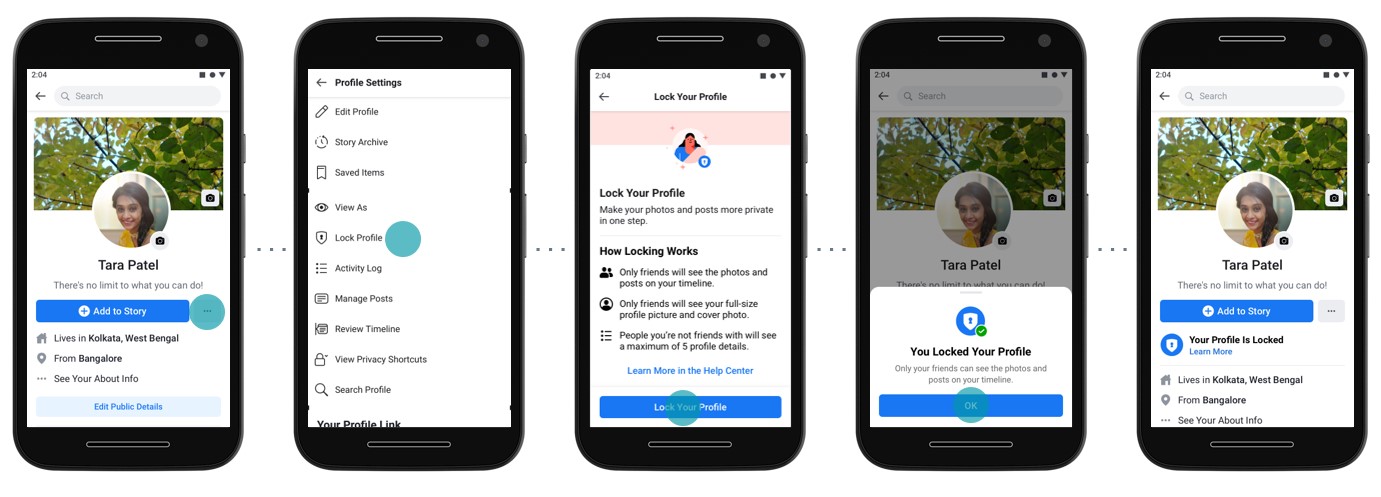
Facebook has rolled out a new safety feature in India that will enable users to easily lock their account so that people they are not friends with on the platform cannot view their posts and zoom into and download their profile picture and cover photo.

The feature is especially aimed at women to give them more control over their Facebook experience, the company said. “We are deeply aware of the concerns people in India, particularly women, have about protecting their online profile,” said Ankhi Das, Public Policy Director at Facebook India, in a statement.

Locking the profile applies multiple existing privacy settings and several new measures to a user’s Facebook profile in a few taps, the company said. Once a user has locked their account, people they are not friends with will no longer be able to see photos and posts — both historic and new — and zoom into, share, and download profile pictures and cover photos.

“We have often heard from young girls that they are hesitant to share about themselves online and are intimidated by the idea of someone misusing their information. I am very happy to see that Facebook is making efforts to learn about their concerns and building products that can give them the experience they want. This new safety feature will give women, especially young girls a chance to express themselves freely,” said Ranjana Kumari, Director at New Delhi-based women advocacy group Centre for Social Research, in a statement.

A user can lock the account by tapping on More under their name, then tapping the Lock Profile button and the confirmation button that prompts afterward.

Prior to Thursday’s announcement, this feature was available to users in Bangladesh, a Facebook spokesperson told TechCrunch.

The new feature appears to be an extension of a similar effort Facebook made in 2017 in India to combat catfishing. That feature, called Profile Picture Guard, allowed users to protect their profile picture from being zoomed into and shared by their friends and those not in the friend list.


Read Full Article

You Can Now Set a Bedtime Reminder on YouTube


YouTube now lets you set a bedtime reminder. As you may have guessed, bedtime reminders remind you when it’s time to stop watching YouTube videos and go to bed. Which is perfect for those people who like to watch YouTube videos into the early hours.

How to Set a Bedtime Reminder on YouTube

As detailed on YouTube Help, you can set bedtime reminders on YouTube using a mobile device. This is the latest addition to YouTube’s suite of features designed to help you maintain your digital wellbeing. To set a bedtime reminder on Android or iOS:

  1. Open the YouTube app.
  2. Sign into YouTube.
  3. Open the Settings.
  4. Scroll down to “Remind me when it’s time for bed” and turn it on.
  5. Select a start and end time for your bedtime reminder.

You can also set a bedtime reminder by clicking on your profile picture followed by “Time watched”. This is also where you’ll find other tools to manage your YouTube time, including the option to autoplay videos and to disable sounds and vibrations.

If you don’t want to have the video you’re watching interrupted, select “Wait until I finish my video to show reminder” during setup. You can also snooze your reminder, which will start your video playing again until the reminder appears again after 10 minutes.

How to Make YouTube Fun to Use Again

Bedtime reminders are just the latest addition to YouTube’s suite of digital wellbeing tools. All of which help you manage your time better. We recommend you check out your Time Watched profile, which shows you how much time you’re wasting on YouTube.

This is a small but useful feature for YouTube users. Especially those who watch YouTube in bed. Bedtime reminders mean you’ll never again burn the candle at both ends. And if that sounds far too sensible, try these ways to make YouTube fun again.

Image Credit: Rego Korosi/Flickr

Read the full article: You Can Now Set a Bedtime Reminder on YouTube


Read Full Article

What Are Config Files? How to Edit Them Safely


config-files

Most of the computer programs we use—whether office suites, web browsers, even video games—are configured via menu interfaces. It has almost become the default way we use our machines.

But some programs require you to take a step beyond that. Instead of menus, you must edit a text file for the software to run as you wish.

These text files configure the software and are—unsurprisingly enough—called “config files”. If you want to enhance your computer knowledge you will need to know what a config file is and how to edit one.

What Are Config Files?

Before we get into the technical nitty-gritty, let’s first define what a configuration file is.

Config files are essentially editable text files that contain information required for the successful operation of a program. The files are structured in a particular way, formatted to be user configurable.

While some configuration is hard coded into software, settings that you can change are included in config files.

Surprisingly, there’s no defined standard on how config files should work, or what they should look like. It’s entirely up to the whim of the developer of the program.

Edit the Raspberry Pi's boot config file

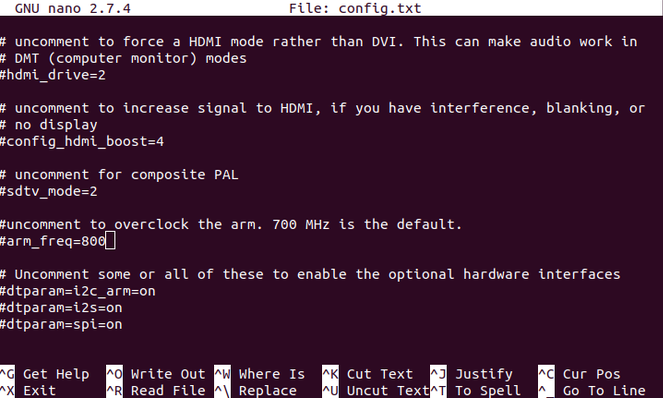
Linux users will be particularly familiar with config files as many basic maintenance tasks require you to edit them. Tweaking the Raspberry Pi often relies on editing config files. This might be to specify a wireless network to connect to or set the amount of RAM for graphics.

However, config files are not exclusive to Linux. There are times when you may have to edit them in Windows or macOS.

How to Find and Edit Config Files

Some config files are structured in a format of the developer’s own design. Others use widely known standards used to structure data, like:

  • JSON (JavaScript Object Notation)
  • YAML (YAML Ain’t Markup Language)
  • XML (eXtensible Markup Language)

Some programs load the information stored in their config files when they start. Meanwhile others periodically check the config file to see if it has been changed.

Whatever config file you want to edit it’s smart to make a copy of it before you make any changes. This way, if something goes wrong, you can restore the copy and start again!

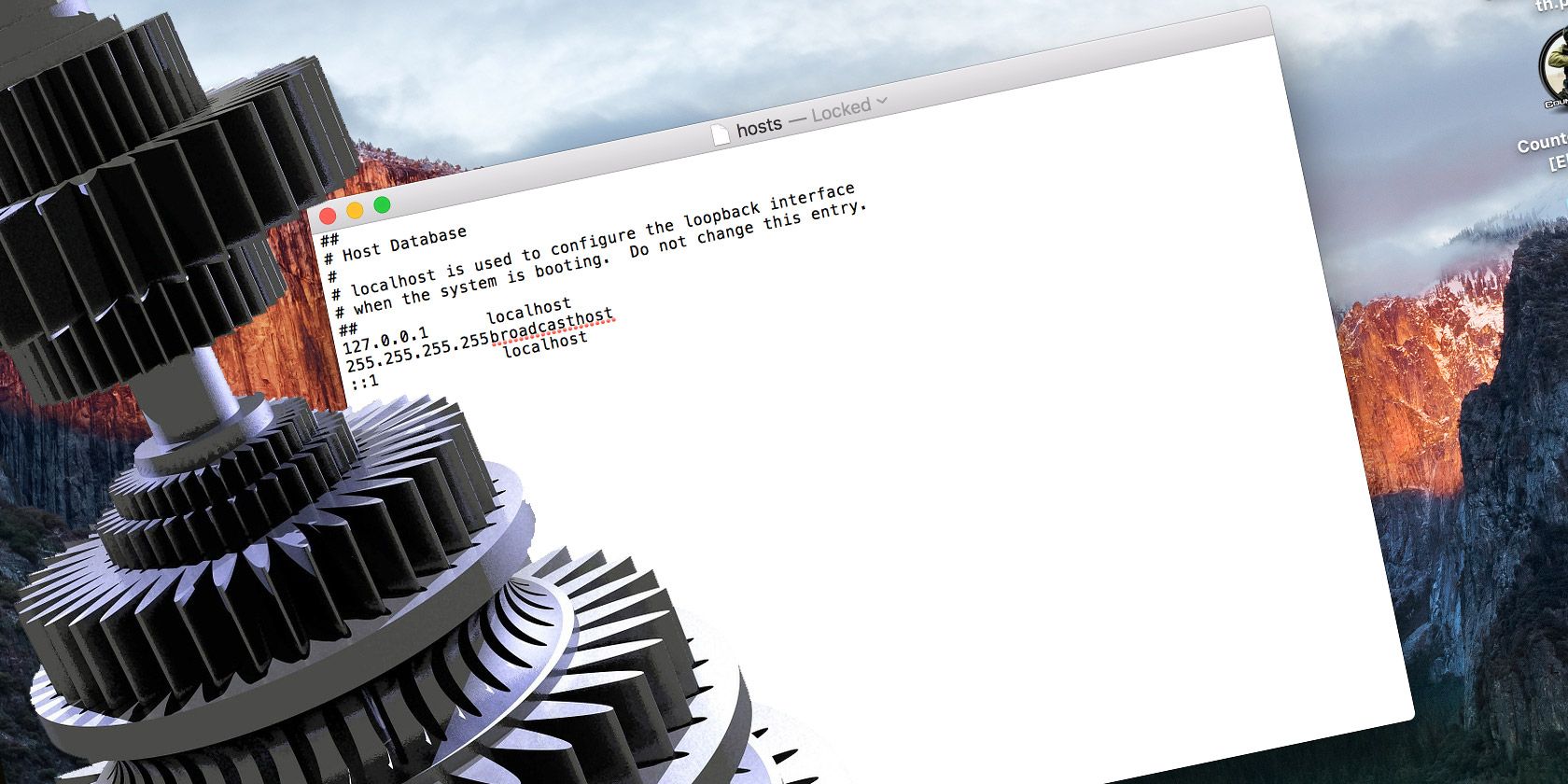
Now, let’s take a look at a real-world config file. As we mentioned earlier, they come in all different shapes and sizes. One config file you’re almost certainly familiar with is the hosts file. Windows, Mac, and Linux all use this to manually map IP addresses to hostnames.

Windows Config Files

Windows users will find the hosts file in c:\windows\system32\drivers\etc\.

You can open it by double-clicking the mouse and selecting Notepad from the list of suggested apps. This is all you need to view and edit config files like hosts. However, several alternatives are available—see below for details.

With the file open you will see that it uses whitespace (literally spaces and tab stops) to separate elements.

Edit the Windows hosts file with Notepad

Each hostname has its own line, followed by a tab stop and the IP address. Furthermore, the hosts file allows the user to add annotations and comments, which all begin with a hash symbol.

Linux Config Files

On Linux, you’ll find the hosts file in /etc/. This can be opened in Gedit, or a command line text editor such as nano or vim. In most cases your Linux distro will have one or all of these preinstalled.

Some programs store the config file in the home directory, with a period at the beginning of the filename. These config files sometimes have the file extension .rc and we refer to them as “dotfiles”.

Config Files in macOS

Like Linux, the hosts file can be found in /etc/ on macOS.

Mac users will know that BBEdit is the default, preinstalled text editor. This makes it ideal for editing config files in macOS. However, as with Linux, command line editors vim and nano are also available.

Apps for Safely Editing Config Files

So, now we know what config files are used for, let’s talk about how we can edit them.

To do this, you’re going to need a text editor. Avoid word processors; these can add formatting to the file which would prevent them from being read correctly.

Edit a Windows config file in Notepad++

Native text editors are available, as mentioned. However, for extra functions, third party text editors are also available:

Download: Notepad++ for Windows (Free)

Download: Atom for Windows, macOS, Linux (Free)

Download: Sublime Text Editor for Windows, macOS, Linux (Free evaluation)

So many text editing tools are available for every platform that it is hard to recommend a single app. Linux users can also check our list of Linux text editors. Meanwhile this round up of text editors for macOS should help Apple computer owners.

When you edit a config file, it’s important to ensure you follow the conventions of it. This can be worked out just by looking at it. Some config files, like the hosts file, will explain these conventions to you in commented out lines. Others will force you to read some documentation, or a couple of blog posts.

Finally, if the config file you edit has a JSON or XML format, consider a text editor with syntax highlighting. Notepad++ and Atom are both good options here. Syntax highlighting will improve your accuracy by showing you when you’ve made a mistake.

Other Places You Can Find Config Files to Edit

If you’re interested in exploring config files further, you’ll find them in all sorts of applications and platforms. There is more to config files than specifying which websites and IP addresses to block!

Beyond the hosts file, you’ll find config files in video games. These are often used to define and control things like keymappings.

Meanwhile, some config files can be used to cheat. This was the case in the original Deus Ex game on PC. These days, cheating is far more difficult and often not worth the effort unless enabling an official cheat mode.

Web applications also use configuration files for customization.

What If Your Config Edit Doesn’t Work?

Problems associated with editing config files tend to fall into two camps: permissions and user error.

Issues with config files caused by permissions issues are down to system integrity. You’re unable to save changes because you’re editing as an ordinary user. To prevent accidental misconfiguration, many config files are only editable by those with administrator-level privileges.

Edit a Linux hosts file

Fixing this is easy:

  • On Windows, right-click the text editor, and select Run as administrator
  • On macOS and Linux, try escalating your privileges with the sudo command. So, if you were editing your hosts file, run sudo nano /etc/hosts

(Note that if you specified a different filename or location, you would effectively create a config file in the terminal.)

When the problem is user error, it means it’s your fault. Check that you haven’t made any typos, and that you’ve followed the conventions of the config file.

While it may seem obvious, a simple spelling mistake can render your entire file useless. Before committing to your changes and saving the file remember to:

  • Check the change you made
  • Ensure you left a comment

Also be sure to close the config file before trying to run the software you’re attempting to configure.

Config Files Are Important

More than important, they’re an essential part of using Linux. Knowing how to properly edit them can help you considerably.

While you can edit many config files, be sure to make a copy of the file before making any changes. That way, you can revert to the original if something goes wonky.

Using Linux? Here’s more about modifying and managing the hosts file in Linux.

Read the full article: What Are Config Files? How to Edit Them Safely


Read Full Article

10 Tips to Start Random Chats Worth Having


omegle-cover

Sites like Omegle and Chatroulette are well-known for connecting you with strangers when you want to have a conversation with someone. Anyone. A lot of the time these conversations are weird, but what if you want to take your random chats to the next level?

In this article, we list some tips to start better random chats worth having. Whether on Omegle or other similar sites.

1. Use the Right Service

Emerald Chat

You’ll find a lot of random chat sites online, and many are quite similar. Most offer either video chat or text chat, with some offering both. If you’re dissatisfied with the results from the big players like Omegle, try some lesser-known options like Chat42 or Emerald Chat. There’s also Wusoup, which is built around filtering out creepy and low-quality accounts.

If one-on-one chats bore you, try another service like Talk.chat, which offers random group chats. Meanwhile, Y99 offers multiple chat rooms grouped around different topics.

Our advice on starting random chats online should apply no matter what services you use.

2. Decide on Text or Video Chat

Before you start chatting, you’ll also need to decide whether you want to use text-only chat, or turn on your webcam and microphone for video and audio chat. Both have benefits and drawbacks.

Text chat is better if you’re uncomfortable with showing yourself to strangers. You can also take a minute to come up with responses instead of having to speak in real-time. However, it’s also easy to be lazy in text chat. You’ll get plenty of “ASL?” messages to start conversations, with nothing of interest said afterwards.

Video chat, meanwhile, lets you put a face to the person you’re talking to. If you’re both involved, it’s a much more rewarding experience. Of course, the major drawback to video chat is that many people use their webcam for inappropriate purposes. If you’re not comfortable with people doing this, stick to text chat.

3. Ask Interesting Questions

Life Goal Chat

It’s too easy to fall into the same routine of asking how someone’s day has been, what they do for a living, and similar boring questions. To get more out of your random chats, try asking deeper questions that will elicit more interesting responses.

This might feel a little awkward at first, but if people are intrigued, you’ll have far more personal discussions. Some example questions include:

  • If you could invite anyone in the world to dinner, who would it be?
  • What is your life goal right now?
  • What’s the hardest event you’ve ever lived through?
  • If you could change one event in history, what would it be?
  • What’s your biggest regret?
  • What is your favorite smell and why?
  • How is your relationship with your family?
  • When did you last embarrass yourself?

If you need more ideas, use a list like the 36 Questions that supposedly can lead anyone to fall in love. You can skip the ones focused on romance, but there are a lot of great conversation starters here.

4. Try Talking to People From Other Regions

If you use sites that are popular in your country, you’re likely to only talk with people from your own area. The same goes for the time you chat—if you’re online at a normal time for your region, you’ll probably run into people who live nearby.

To mix this up, try seeking out other chat sites, such as Chatroulette that cater to different areas of the world. You can also try visiting chat sites in the small hours of the morning, or at other odd times when people from across the world are more likely to be online.

By talking with people from other countries, you’ll have more chances to ask about life in different parts of the world. Give this a try if your usual routine doesn’t yield any interesting folks.

5. Include a Friend

Most random chat services don’t let you invite people to text or video-based chats. Despite this, having your friends physically join you for chats can make the experience more enjoyable. Of course, this makes the most sense for video chats.

By having two (or more) people on camera, you won’t feel the pressure of a one-on-one conversation. You can bounce topics off of your buddy when you’re not sure what to say. When the other person sees that you’re not alone, the chat should become more lighthearted.

And when you come across weirdos, you can laugh about them with your friend instead of getting creeped out by them. It’s a fun activity when you’re together and not sure what else to do.

6. Keep a Record of People You’ve Talked To

Putting a pin in the globe

If you chat online often, why not make a little project out of your experiences? After you’ve talked to someone for a bit, ask them where they live (generally). After a while, you might buy a map to log where the people you’ve met online are from.

One particularly fun option is to buy a scratch-off map, either of your country/continent or the whole world. Otherwise, you can use pins to mark the locations on a regular map. And if you don’t like the map idea, maybe you could start a blog detailing the various hometowns you’ve discovered?

Scratch Off World Map Poster Scratch Off World Map Poster Buy Now On Amazon $21.48

This will help your online chats to feel like a journey over time.

7. Play a Role

Mask Disguise

Are you bored of acting like yourself all of the time? Then why not try pretending to be someone else once in a while?

Instead of responding as you would, try acting like a character from a movie or a famous figure. See if the other person can pick up on who you’re impersonating.

Of course, this strategy might not help you get to know people, and you should never do anything to make people feel uncomfortable. However, if you struggle to talk as yourself, it could be a good way to become more comfortable with the process.

8. Filter the Junk

Real Conversation Omegle

The chances are that you’ll come across all kinds of spam accounts and people asking about inappropriate subjects when striking up random conversations online. Don’t waste your time with these. If someone starts being creepy, sends you automated links, or seems like a bot, just disconnect and move onto the next person.

You might also consider making it clear what you’re looking for from the start. When someone connects, you can paste a message like “I’m looking to have a real conversation, so if that’s not what you’re here for, please disconnect now.” While this sounds a bit harsh, it will make your time more efficient by weeding out people you wouldn’t want to talk to anyway.

9. Bring in Media

Struggling to come up with a conversation topic? Try using media from elsewhere to generate some ideas to talk about. You could share a YouTube video, a playlist of music, a funny meme, or anything else you’ve recently come across online.

Similarly, if the site lets you define your interests, add a few so people know what you like to talk about. Most people enjoy finding new content and discussing common interests, so that will give you something to strike up a conversation.

10. Stay in Touch With Good People

If you meet someone you really connect with on a random chat, it makes sense to keep talking with them on another platform. You might make a new long-term friend out of it.

Should you decide to do this, it’s wise to avoid connecting with a method that uses your real name or phone number. At least initially. For your safety, invite them to chat on Discord, Skype, or another app where you don’t have to use your real name.

If you’re sure you trust them after more time, you can add them on social media, WhatsApp, or another similar service.

Making Random Chats More Interesting

With these tips, you’ll hopefully have a more fulfilling experience when chatting online with random people. And while you will have to sort through a lot of chaff on these platforms, with a little patience and the right mindset, you can have some rewarding chats online.

If you’re only chatting with strangers to pass the time, check out these hilariously random websites to help you procrastinate.

Image Credit: Sach.S/Flickr

Read the full article: 10 Tips to Start Random Chats Worth Having


Read Full Article

The Best External GPU for a MacBook Pro


best-external-gpu-macbook-pro

The idea of an external graphics card (eGPU) was once the talk of fantasy, but that’s no longer the case. Thanks to Thunderbolt 3 and its high-bandwidth 40Gbps transfer rate, external enclosures can now accommodate high-end graphics cards.

That means you can now supercharge the visual performance of your Mac computer, even if it’s a laptop. There are some caveats to doing this, namely a limited number of supported graphics cards and the high price of getting started.

That said, let’s take a look at what you need to add an external GPU to your Mac or MacBook and which ones you should buy.

What You’ll Need

First, you’ll need a Thunderbolt 3-capable Mac or MacBook model. Thunderbolt 3 uses the USB-C connector, and appears on the following models:

  • MacBook Pro, late 2016 and newer
  • MacBook Air, 2018 and newer
  • iMac, 2017 and newer
  • iMac Pro, 2017
  • Mac Pro, 2019

In addition to owning one of these Apple computers, you’ll also need macOS High Sierra 10.13.4 or later. Finally, you’ll need to purchase two additional items, either separately or as part of a bundle:

  1. A Thunderbolt 3 eGPU enclosure, into which your graphics card will slot.
  2. A macOS-compatible graphics card.

With all this in place, you should be able to put the graphics card into the enclosure, then plug the enclosure into your Mac for a significant boost in graphical fidelity. However, you may still be limited in how you can use your eGPU.

The Limitations of External GPUs on macOS

Not every application you run can take advantage of your eGPU. In many cases, you’ll need to plug an external monitor directly into the eGPU enclosure to see the benefit. This is the case with many 3D games and VR applications.

Some pro-level software designed to take advantage of multiple GPUs will just work as you’d expect. This includes 3D modeling apps and video editors, but it’s worth confirming your application will see a benefit before you buy an eGPU.

Some applications and games have received patches allowing you to accelerate the built-in display on your iMac or MacBook. However, this is something that developers must enable on their end, so it’s worth keeping in mind if you’re thinking of using an eGPU purely to accelerate your in-built display.

External Graphics Card for Mac

At present, there are only a small number of compatible graphics cards you can use as an eGPU on your Mac. They are all AMD cards.

According to Apple, these are:

  • AMD Polaris cards: Radeon RX 470, RX 480, RX 570, RX 580, and Radeon Pro WX 7100
  • AMD Vega 64 cards: Radeon RX Vega 64, Vega Frontier Edition Air, and Radeon Pro WX 9100
  • AMD Radeon RX Vega 56

The Best eGPU Enclosures and All-in-One Options for Mac

1. Blackmagic eGPU

A great first place to look when searching for an external GPU for your Mac is with the Blackmagic eGPU. This eGPU sports a Radeon Pro 580 graphics processor with 8GB of GDDR5 memory. It also offers several additional ports to use.

Thanks to up to an 85W power delivery feature, you can use one of the two included Thunderbolt 3 ports to power your MacBook Pro without needing to worry about an additional power brick. There is also an HDMI 2.0 port and four USB 3.0 ports.

Blackmagic includes a 0.5m Thunderbolt 3 cable so you can get started with the eGPU right out of the box.

2. Sonnet eGFX Breakaway Box 650

Sonnet eGFX Breakaway Box 650 Sonnet eGFX Breakaway Box 650 Buy Now On Amazon

You’ll need to provide your own Mac-compatible graphics card when using the Sonnet eGFX Breakaway Box 650. The 650W power supply supports 375W cards that require up to an additional 100W of peak power.

There is also 100W of power delivery reserved to power a laptop with the one Thunderbolt 3 port. A 0.7m 40Gb Thunderbolt 3 cable is included with the enclosure.

3. Razer Core X Chroma

Razer Core X Chroma Razer Core X Chroma Buy Now On Amazon $399.99

If you already have a graphics card in mind, the Razer Core X Chroma is another great enclosure choice. The 700W power supply can support a graphics card up to 500W. There is also 100W available for powering a laptop via the Thunderbolt 3 port. On the rear of the enclosure, you’ll find four USB. 3.1 ports and a Gigabit Ethernet plug.

When it’s time to install the card, there is a quick-release handle on the enclosure to bring out the slider tray. No tools are needed for a quick and easy installation. The enclosure sports additional cooling and open vents in the body for the best thermal performance.

4. Sonnet eGFX Breakaway Puck

Sonnet eGFX Breakaway Puck

The Sonnet eGFX Breakaway Puck Radeon is made for portability. The all-in-one option sports a built-in Radeon RX 560 GPU. Along with three DisplayPort ports, there is an HDMI 2.0 port and a single Thunderbolt 3 plug.

The Thunderbolt 3 port can provide up to 60W of power to your MacBook Pro. Sonnet includes a 0.5m Thunderbolt 3 cable.  While the additional VESA mounting bracket allows you to place the eGPU on the back of a monitor to free up desk space.

5. PowerColor Mini Pro

PowerColor Mini Pro PowerColor Mini Pro Buy Now On Amazon $477.41

The PowerColor Mini Pro sports a built-in AMD RX570 graphics card with 8GB of memory, so you’ll be comfortably set up to attach it to your Mac. Thanks to an external power adapter, the eGPU is lightweight and compact, making it perfect for a desk. It also cuts down on heat inside the enclosure.

On the front of the eGPU is the Thunderbolt 3 port and two USB 3.0 ports to connect another device like an external hard drive. The rear of the box sports several display connection options—two DisplayPort plugs, two HDMI ports, and a single DVI-D port. There is also a Gigabit Ethernet plug on the side of the box for a fast Internet connection.

Turn Up the Graphics With the Best Mac External GPU

Even though a MacBook or MacBook Pro is a powerhouse by itself, adding an external GPU can bring the visual performance of your Mac to new heights. Fortunately, there are other ways to bring more of a desktop-like experience to your laptop, too.

For instance, take a look at these great Thunderbolt 3 docks for Your MacBook Pro.

Read the full article: The Best External GPU for a MacBook Pro


Read Full Article

What Is a Linux Swap Partition? Everything You Need to Know


linux-swap

Most Linux installations recommend that you include a swap partition. This may seem odd to Windows users used to having their entire operating system on a single partition.

What does a swap partition do, do you even need one, and how big should it be? These are all important questions that, with the right answers, can seriously improve your system’s performance.

What the Linux Swap Partition Does

Partitions in Ubuntu Linux

The swap partition serves as overflow space for your RAM. If your RAM fills up completely, any additional applications will run off the swap partition rather than RAM.

This may sound like an easy way to increase your computer’s amount of usable memory without actually getting more RAM, but that isn’t the case. RAM is the ideal hardware for memory because it’s extremely quick, unlike hard drives which are, relatively speaking, much slower.

Solid state drives may have made the performance hit less of an issue with their much-improved speeds, but even they can’t match RAM. This is also true of newer NVMe SSDs. In either case, you wouldn’t want to cause additional wear and tear on your solid state drive.

A close analogy of the swap partition is the Windows pagefile, although there are many technical differences between the two.

The Linux swap partition is not limited to being overflow storage space. It can assist your PC in other ways.

Prioritization

A swap partition can also help move some items from your memory to your hard drive in order to leave more room in memory for more important items. This implies that items that are rarely touched would get moved to the swap partition.

The threshold of what is considered “rare” depends on the “swappiness” (yes, that’s the actual term used), which is configurable. A higher swappiness means data is more likely to be moved to the swap partition. A lower swappiness means data is less likely to be moved to the swap partition.

Hibernation

A swap partition is used as the destination of your memory’s contents whenever you tell your system to hibernate. This means that without a swap partition, hibernation on Linux is impossible.

That said, it has become rather rare for people to use the hibernation feature, so this may not matter to you.

Do You Need a Swap Partition?

Create swap partition in Ubuntu Linux

Does this mean that a swap partition is necessary? Not at all! A Linux system can perform perfectly well without a swap partition. We’ve already discussed the benefits of a swap partition. Now, why might you not want to have one?

When Swap Partitions Don’t Help

Swap partitions have their downsides. They take up space on your hard drive that doesn’t resize dynamically when not in use. Heavy swap usage can also increase wear and tear on your main drive. In some cases, swap partitions don’t even help improve performance. Here’s an example where having a swap partition can actually be worse than not having one.

Say you’ve installed Linux on an old netbook with only 2GB of RAM and a 5400rpm hard drive. With just 2GB of memory, you can imagine that filling up pretty quickly with a few open browser tabs. The swap partition allows you to keep them all open as the memory overflows.

But then a bottleneck appears because of the hard drive’s 5400rpm speed. Since the hard drive is so slow and the system constantly wants to access the swap partition, the netbook becomes extremely sluggish. The machine is slow enough to be unusable unless you close everything to free up some memory.

The set swappiness doesn’t guarantee that everything in the swap partition will move back over once space becomes available in RAM. Instead, much may stay in the swap partition, causing the netbook to continue to be sluggish. So you’re left rebooting your computer to start from a clean slate, which takes a while because the system has to remove everything from the swap partition before shutting down.

What Happens When You Don’t Have Swap

If you do decide to forego a swap partition, know the risks. When your computer needs more RAM than is available, the interface can lock up. You risk having to force quit your computer and lose all the data you were working on.

In such cases, you may wish you had a swap partition around, even if it were only used that once. This depends on whether you find yourself running out of storage space often. Would you notice if you had 4GB less storage space available because you devoted that amount to swap?

Linux Swap Recommendations

Here are some recommendations for when you may want to have a swap partition and how large to make it.

  • If you would like to be able to hibernate your computer, then you should have a swap partition. The size of this partition should be the size of your installed memory, plus an additional 10-25% to leave room for any items that were already moved over into the swap partition.
  • Just want a small performance boost (and you have at least a 7200rpm hard drive)? Then you can add a swap partition if you want. The size of this can be whatever you’d like, but I wouldn’t make it any bigger than you would if you were creating a swap partition to enable hibernation.
  • If you occasionally use heavy applications that require extra RAM, a swap partition can serve as peace of mind. In this case, you don’t need your swap partition to be as large as your RAM.
  • If you have a 5400rpm hard drive, then you may not want to create a swap partition simply because the bottleneck can make your computer worse off. But if you absolutely want to have swap, then you can still create a partition using the same sizing guidelines outlined above. Just be sure to change the swappiness value to something much lower.

Changing Swappiness

Ubuntu Linux swappiness file

Like many aspects of the Linux desktop, your computer’s swappiness is stored in a text file. You can find this file by navigating to /proc/sys/vm.

When you open the file, you will see a single number indicating your current swappiness. You can edit this file using any text editor of your choice, as long as you have root permissions.

To do this with the default GNOME text editor found in Ubuntu and Fedora, you could try:

sudo gedit /proc/sys/vm/swappiness

There is also a command line option that works regardless of which text editor you have installed. Simply enter:

sudo sysctl vm.swappiness=20

You can enter any digit ranging from 0 to 100. The value indicates when you want Linux to start actively moving processes from the memory to the swap partition. So for example, a value of 20 indicates that processes will be moved when memory usage reaches 80%; the default swappiness value in Ubuntu of 60 indicates that processes will be moved when memory usage reaches 40%.

You can check whether the change was successful by reopening that text file. Unsurprisingly, the terminal offers a faster way to check your swappiness. Just enter this command:

cat /proc/sys/vm/swappiness

Does Your PC Feel Faster?

Swap partitions can make a major difference in your system’s performance—sometimes for better and sometimes for worse. Now that you know what the swap partition is for, hopefully you’re better equipped to make the decision appropriate for your situation.

But before you re-partition your drive, know that there’s more to memory management than the amount of RAM you have and the size of your Linux swap partition. Take a moment to learn how Linux manages RAM.

Read the full article: What Is a Linux Swap Partition? Everything You Need to Know


Read Full Article

What Are Config Files? How to Edit Them Safely


config-files

Most of the computer programs we use—whether office suites, web browsers, even video games—are configured via menu interfaces. It has almost become the default way we use our machines.

But some programs require you to take a step beyond that. Instead of menus, you must edit a text file for the software to run as you wish.

These text files configure the software and are—unsurprisingly enough—called “config files”. If you want to enhance your computer knowledge you will need to know what a config file is and how to edit one.

What Are Config Files?

Before we get into the technical nitty-gritty, let’s first define what a configuration file is.

Config files are essentially editable text files that contain information required for the successful operation of a program. The files are structured in a particular way, formatted to be user configurable.

While some configuration is hard coded into software, settings that you can change are included in config files.

Surprisingly, there’s no defined standard on how config files should work, or what they should look like. It’s entirely up to the whim of the developer of the program.

Edit the Raspberry Pi's boot config file

Linux users will be particularly familiar with config files as many basic maintenance tasks require you to edit them. Tweaking the Raspberry Pi often relies on editing config files. This might be to specify a wireless network to connect to or set the amount of RAM for graphics.

However, config files are not exclusive to Linux. There are times when you may have to edit them in Windows or macOS.

How to Find and Edit Config Files

Some config files are structured in a format of the developer’s own design. Others use widely known standards used to structure data, like:

  • JSON (JavaScript Object Notation)
  • YAML (YAML Ain’t Markup Language)
  • XML (eXtensible Markup Language)

Some programs load the information stored in their config files when they start. Meanwhile others periodically check the config file to see if it has been changed.

Whatever config file you want to edit it’s smart to make a copy of it before you make any changes. This way, if something goes wrong, you can restore the copy and start again!

Now, let’s take a look at a real-world config file. As we mentioned earlier, they come in all different shapes and sizes. One config file you’re almost certainly familiar with is the hosts file. Windows, Mac, and Linux all use this to manually map IP addresses to hostnames.

Windows Config Files

Windows users will find the hosts file in c:\windows\system32\drivers\etc\.

You can open it by double-clicking the mouse and selecting Notepad from the list of suggested apps. This is all you need to view and edit config files like hosts. However, several alternatives are available—see below for details.

With the file open you will see that it uses whitespace (literally spaces and tab stops) to separate elements.

Edit the Windows hosts file with Notepad

Each hostname has its own line, followed by a tab stop and the IP address. Furthermore, the hosts file allows the user to add annotations and comments, which all begin with a hash symbol.

Linux Config Files

On Linux, you’ll find the hosts file in /etc/. This can be opened in Gedit, or a command line text editor such as nano or vim. In most cases your Linux distro will have one or all of these preinstalled.

Some programs store the config file in the home directory, with a period at the beginning of the filename. These config files sometimes have the file extension .rc and we refer to them as “dotfiles”.

Config Files in macOS

Like Linux, the hosts file can be found in /etc/ on macOS.

Mac users will know that BBEdit is the default, preinstalled text editor. This makes it ideal for editing config files in macOS. However, as with Linux, command line editors vim and nano are also available.

Apps for Safely Editing Config Files

So, now we know what config files are used for, let’s talk about how we can edit them.

To do this, you’re going to need a text editor. Avoid word processors; these can add formatting to the file which would prevent them from being read correctly.

Edit a Windows config file in Notepad++

Native text editors are available, as mentioned. However, for extra functions, third party text editors are also available:

Download: Notepad++ for Windows (Free)

Download: Atom for Windows, macOS, Linux (Free)

Download: Sublime Text Editor for Windows, macOS, Linux (Free evaluation)

So many text editing tools are available for every platform that it is hard to recommend a single app. Linux users can also check our list of Linux text editors. Meanwhile this round up of text editors for macOS should help Apple computer owners.

When you edit a config file, it’s important to ensure you follow the conventions of it. This can be worked out just by looking at it. Some config files, like the hosts file, will explain these conventions to you in commented out lines. Others will force you to read some documentation, or a couple of blog posts.

Finally, if the config file you edit has a JSON or XML format, consider a text editor with syntax highlighting. Notepad++ and Atom are both good options here. Syntax highlighting will improve your accuracy by showing you when you’ve made a mistake.

Other Places You Can Find Config Files to Edit

If you’re interested in exploring config files further, you’ll find them in all sorts of applications and platforms. There is more to config files than specifying which websites and IP addresses to block!

Beyond the hosts file, you’ll find config files in video games. These are often used to define and control things like keymappings.

Meanwhile, some config files can be used to cheat. This was the case in the original Deus Ex game on PC. These days, cheating is far more difficult and often not worth the effort unless enabling an official cheat mode.

Web applications also use configuration files for customization.

What If Your Config Edit Doesn’t Work?

Problems associated with editing config files tend to fall into two camps: permissions and user error.

Issues with config files caused by permissions issues are down to system integrity. You’re unable to save changes because you’re editing as an ordinary user. To prevent accidental misconfiguration, many config files are only editable by those with administrator-level privileges.

Edit a Linux hosts file

Fixing this is easy:

  • On Windows, right-click the text editor, and select Run as administrator
  • On macOS and Linux, try escalating your privileges with the sudo command. So, if you were editing your hosts file, run sudo nano /etc/hosts

(Note that if you specified a different filename or location, you would effectively create a config file in the terminal.)

When the problem is user error, it means it’s your fault. Check that you haven’t made any typos, and that you’ve followed the conventions of the config file.

While it may seem obvious, a simple spelling mistake can render your entire file useless. Before committing to your changes and saving the file remember to:

  • Check the change you made
  • Ensure you left a comment

Also be sure to close the config file before trying to run the software you’re attempting to configure.

Config Files Are Important

More than important, they’re an essential part of using Linux. Knowing how to properly edit them can help you considerably.

While you can edit many config files, be sure to make a copy of the file before making any changes. That way, you can revert to the original if something goes wonky.

Using Linux? Here’s more about modifying and managing the hosts file in Linux.

Read the full article: What Are Config Files? How to Edit Them Safely


What Is a Linux Swap Partition? Everything You Need to Know


linux-swap

Most Linux installations recommend that you include a swap partition. This may seem odd to Windows users used to having their entire operating system on a single partition.

What does a swap partition do, do you even need one, and how big should it be? These are all important questions that, with the right answers, can seriously improve your system’s performance.

What the Linux Swap Partition Does

Partitions in Ubuntu Linux

The swap partition serves as overflow space for your RAM. If your RAM fills up completely, any additional applications will run off the swap partition rather than RAM.

This may sound like an easy way to increase your computer’s amount of usable memory without actually getting more RAM, but that isn’t the case. RAM is the ideal hardware for memory because it’s extremely quick, unlike hard drives which are, relatively speaking, much slower.

Solid state drives may have made the performance hit less of an issue with their much-improved speeds, but even they can’t match RAM. This is also true of newer NVMe SSDs. In either case, you wouldn’t want to cause additional wear and tear on your solid state drive.

A close analogy of the swap partition is the Windows pagefile, although there are many technical differences between the two.

The Linux swap partition is not limited to being overflow storage space. It can assist your PC in other ways.

Prioritization

A swap partition can also help move some items from your memory to your hard drive in order to leave more room in memory for more important items. This implies that items that are rarely touched would get moved to the swap partition.

The threshold of what is considered “rare” depends on the “swappiness” (yes, that’s the actual term used), which is configurable. A higher swappiness means data is more likely to be moved to the swap partition. A lower swappiness means data is less likely to be moved to the swap partition.

Hibernation

A swap partition is used as the destination of your memory’s contents whenever you tell your system to hibernate. This means that without a swap partition, hibernation on Linux is impossible.

That said, it has become rather rare for people to use the hibernation feature, so this may not matter to you.

Do You Need a Swap Partition?

Create swap partition in Ubuntu Linux

Does this mean that a swap partition is necessary? Not at all! A Linux system can perform perfectly well without a swap partition. We’ve already discussed the benefits of a swap partition. Now, why might you not want to have one?

When Swap Partitions Don’t Help

Swap partitions have their downsides. They take up space on your hard drive that doesn’t resize dynamically when not in use. Heavy swap usage can also increase wear and tear on your main drive. In some cases, swap partitions don’t even help improve performance. Here’s an example where having a swap partition can actually be worse than not having one.

Say you’ve installed Linux on an old netbook with only 2GB of RAM and a 5400rpm hard drive. With just 2GB of memory, you can imagine that filling up pretty quickly with a few open browser tabs. The swap partition allows you to keep them all open as the memory overflows.

But then a bottleneck appears because of the hard drive’s 5400rpm speed. Since the hard drive is so slow and the system constantly wants to access the swap partition, the netbook becomes extremely sluggish. The machine is slow enough to be unusable unless you close everything to free up some memory.

The set swappiness doesn’t guarantee that everything in the swap partition will move back over once space becomes available in RAM. Instead, much may stay in the swap partition, causing the netbook to continue to be sluggish. So you’re left rebooting your computer to start from a clean slate, which takes a while because the system has to remove everything from the swap partition before shutting down.

What Happens When You Don’t Have Swap

If you do decide to forego a swap partition, know the risks. When your computer needs more RAM than is available, the interface can lock up. You risk having to force quit your computer and lose all the data you were working on.

In such cases, you may wish you had a swap partition around, even if it were only used that once. This depends on whether you find yourself running out of storage space often. Would you notice if you had 4GB less storage space available because you devoted that amount to swap?

Linux Swap Recommendations

Here are some recommendations for when you may want to have a swap partition and how large to make it.

  • If you would like to be able to hibernate your computer, then you should have a swap partition. The size of this partition should be the size of your installed memory, plus an additional 10-25% to leave room for any items that were already moved over into the swap partition.
  • Just want a small performance boost (and you have at least a 7200rpm hard drive)? Then you can add a swap partition if you want. The size of this can be whatever you’d like, but I wouldn’t make it any bigger than you would if you were creating a swap partition to enable hibernation.
  • If you occasionally use heavy applications that require extra RAM, a swap partition can serve as peace of mind. In this case, you don’t need your swap partition to be as large as your RAM.
  • If you have a 5400rpm hard drive, then you may not want to create a swap partition simply because the bottleneck can make your computer worse off. But if you absolutely want to have swap, then you can still create a partition using the same sizing guidelines outlined above. Just be sure to change the swappiness value to something much lower.

Changing Swappiness

Ubuntu Linux swappiness file

Like many aspects of the Linux desktop, your computer’s swappiness is stored in a text file. You can find this file by navigating to /proc/sys/vm.

When you open the file, you will see a single number indicating your current swappiness. You can edit this file using any text editor of your choice, as long as you have root permissions.

To do this with the default GNOME text editor found in Ubuntu and Fedora, you could try:

sudo gedit /proc/sys/vm/swappiness

There is also a command line option that works regardless of which text editor you have installed. Simply enter:

sudo sysctl vm.swappiness=20

You can enter any digit ranging from 0 to 100. The value indicates when you want Linux to start actively moving processes from the memory to the swap partition. So for example, a value of 20 indicates that processes will be moved when memory usage reaches 80%; the default swappiness value in Ubuntu of 60 indicates that processes will be moved when memory usage reaches 40%.

You can check whether the change was successful by reopening that text file. Unsurprisingly, the terminal offers a faster way to check your swappiness. Just enter this command:

cat /proc/sys/vm/swappiness

Does Your PC Feel Faster?

Swap partitions can make a major difference in your system’s performance—sometimes for better and sometimes for worse. Now that you know what the swap partition is for, hopefully you’re better equipped to make the decision appropriate for your situation.

But before you re-partition your drive, know that there’s more to memory management than the amount of RAM you have and the size of your Linux swap partition. Take a moment to learn how Linux manages RAM.

Read the full article: What Is a Linux Swap Partition? Everything You Need to Know


X


X

Twitter is testing a feature that limits who can reply to your tweets


Twitter today acknowledged that it has begun testing a new setting that lets users limit who can reply to tweets. The setting was first noted earlier this year. Similar to Facebook’s post view settings, the current implementation features a small glove icon in the corner. Tapping on it brings up a “Who Can Reply?” window.

From there, users can pick from one of three options: Everyone, People You Follow and Only People You Mention. If you opt for either of the latter, the reply function will be greyed out for all who don’t fit the description. They can view, like and retweet the thing, but they won’t be able to reply directly to the sender. The thread itself will also acknowledge that replies are limited. 

Only a “limited group” can use the test feature right now, though anyone with a Twitter account can view the conversations. Because it’s in testing mode, there’s no guarantee that this will become a universal feature, but Twitter says the rollout is designed to “give people more opportunities to weigh in while still giving people control over the conversations they start.”

Director of Product ManagementSuzanne Xie  mentions the phenomenon of “Reply Guys” in a post announcing the feature. One of Twitter’s greatest benefits and downsides is its openness relative to platforms like Facebook. Anyone and everyone can reply directly to a tweet — and that’s not always ideal for the sender. Replies can often devolve into a sea of abusive responses, regardless of subject matter. Until now, the only way to limit them was to lock an account.

The move follows other recent attempts to revamp replies, including threaded responses. It’s clear the issue has become a top priority for the service in recent years. Reaction so far is…mixed. At least judging from the replies to the tweet announcing the new feature.


Read Full Article

Identity management startup Truework raises $30M to help you verify your work history


As organizations look for safe and efficient ways of running their services in the new global paradigm of increased social distancing, a startup that has built a platform to help people verify their work details in a secure way is announcing a round of growth funding.

Truework, which provides a way for banks, apartment-rental agencies, and others to check the employment details of an applicant in a quick and secure manner online, has raised $30 million, money that CEO and co-founder Ryan Sandler said in an interview that it would use both grow its existing business, as well to explore adding more details — both via its own service and via third-party partnerships — to the identity information that it shares.

The Series B is being led by Activant Capital — a VC that focuses on B2B2C startups — with participation also from Sequoia Capital and Khosla Ventures, as well as a number of high profile execs and entrepreneurs — Jeff Weiner (LinkedIn); Tom Gonser (Docusign); William Hockey (Plaid); and Daniel Yanisse (Checkr) among them.

The LinkedIn connection is an interesting one. Both Sandler and co-founder Victor Kabdebon were engineers at LinkedIn working on profile and improving the kind of data that LinkedIn sources on its users (the third co-founder, Ethan Winchell, previously worked elsewhere), and while Sandler tells me that the idea for Truework came to them after both left the company, he sees LinkedIn “as a potential partner here,” so watch this space.

The problem that Truework is aiming to solve is the very clunky, and often insecure, nature of how organizations typically verify an individual’s employment information. Details about salary and where you work, and the job you do, are typically essential for larger financial transactions, whether it’s securing a mortgage or another financing loan, or renting an apartment, or for others who might need to verify that information for other purposes, such as staffing agencies.

Typically that kind of information gathering is time-consuming both to reach out to get and to confirm (Sandler cites statistics that say on average an HR person spends over 1,000 hours annually answering questions like these). And some of the systems that have been put in place to do that work — specifically consumer reporting agencies — have been proven not be as watertight in their security as you would hope.

“Your data is flowing around lots of third party platforms,” Sandler said. “You’re releasing a lot of information about yourself and you don’t know where the data is going and if it’s even accurate.”

Truework’s solution is based around a platform, and now an API, that a company buys into. In turn, it gives its employees the ability to consent to using it. If the employee agrees, Truework sources a worker’s place of employment and salary details. Then when a third party wants to verify that information for the person in question, it uses Truework to do so, rather than contacting the company directly.

Then, when those queries come in, Truework contacts the individual with an email or text about the inquiry, so that he/she can okay (or reject) the request. Truework’s Sandler said that it uses ISO27001, SOC2 Type 1 & 2 protections, but he also confirmed that it does store your data.

Currently the idea is that if you leave your job, your next employer would need to also be a Truework customer in order to update the information it has on you: the startup makes money by charging both larger enterprises to make the platform accessible to employees as well as those organizations that are querying for the information/verifications (small business employers using the platform can use it for free).

Over time, the plan will be to configure a way to update your profiles regardless of where you work.

So far, the concept has seen a lot of traction: there are 20,000 small businesses using the platform, as well as 100 enterprises, with the number of verifiers (its term for those requesting information) now at 40,000. Customers include The College Board, The Real Real, Oscar Health, The Motley Fool, and Tuft & Needle.

While all of this was built at a time before COVID-19, the global health pandemic has highlighted the importance of having more efficient and secure systems for doing work, especially at a time when many people are not in the office.

“Our biggest competitor is the fax machine and the phone call,” Sandler said, “but as companies move to more remote working, no one is manning the phones or fax machines. But these operations still need to happen.” Indeed, he points out that at the end of 2019, Truework had 25,000 verifiers. Nearly doubling its end-user customers speaks to the huge boost in business it has seen in the last five months.

That is part of the reason the company has attracted the investment it has.

“Truework’s platform sits at the center of consumers’ most important transactions and life events – from purchasing a home, to securing a new job,” said Steve Sarracino, founder and partner at Activant Capital, in a statement. “Up until now, the identity verification process has been painful, expensive, and opaque for all parties involved, something we’ve seen first-hand in the mortgage space. Starting with income and employment, Truework is setting the standard for consent-based verifications and unlocking the next wave of the digital economy. We’re thrilled to be partnering with this exceptional team as they continue to scale the platform.” Sarracino is joining the board with this round.

While a big focus in the world of tech right now may be on building more and better ways of connecting goods and services to people in as contact-free a way as possible, the bigger play around identity management has been around for years, and will continue to be a huge part of how the internet develops in the future.

The fax and phone may be the primary tools these days for verifying employment information, but on a more general level, there are companies like Facebook, Google and Apple already playing a big role in how we “log in” and use all kinds of services online. They, along with others focused squarely on the identity and verification space (and Truework works with some of them), and using a myriad of approaches that include biometrics, ‘wallet’-style passports that link to information elsewhere, and more, will all continue to try to make the case for why they might be the most trusted provider of that layer of information, at a time when we may want to share less and especially share less with multiple parties.

That is the bigger opportunity that investors are betting on here.

“The increasing momentum Truework has seen since its founding in 2017 demonstrates the critical need for transformation in this space,” said Alfred Lin, partner at Sequoia, in a statement. “Privacy, especially around identity data, is becoming increasingly top of mind for consumers and how they make transactions online.”

Truework has now raised close to $45 million, and it’s not disclosing its valuation.


Read Full Article

With BuzzFeed’s new feature, you can take a Quiz Party with friends


It’s been a rough couple months for BuzzFeed (and media in general), but the company is still releasing fun new features.

Today’s addition offers a new, more social take on the quizzes that the site is known for. Instead of taking a quiz on your own and then sharing the results on social media (or simply thinking to yourself, “That’s right, I am a total Samantha” and moving on with your life), you can now that quiz with friends.

With BuzzFeed Quiz Party, when you start a quiz, you’ll be given a link that you can share with anyone you want. Once everyone’s signed on, the actual quiz-taking isn’t dramatically different, but you’re all answering questions in parallel (little icons indicate how much progress everyone has made) and you receive your results together.

BuzzFeed CTO Peter Wang (who joined the company earlier this year) told me that the pandemic and related stay-at-home orders seem to be increasing interest in quizzes; traffic was already up — doubling year-over-year in January — before tripling YOY in March, and then continuing to grow since then.

Wang also suggested that Quiz Party ties into a broader theme of building more social experiences on BuzzFeed and “driving real-world actions beyond consumption … and give the world something fun and joyful.”

For this initial set of quizzes, Wang said BuzzFeed took popular solo quizzes and redid them for groups, but it will continue to expand the Quiz Party library. In the future, the company could also introduce sponsorships and enliven the social experience by adding things like music and chat, he said.


Read Full Article