15 May 2020

Dongles vs. Portable Hotspots: Mobile Internet Devices Explained


mobile-internet-showdown

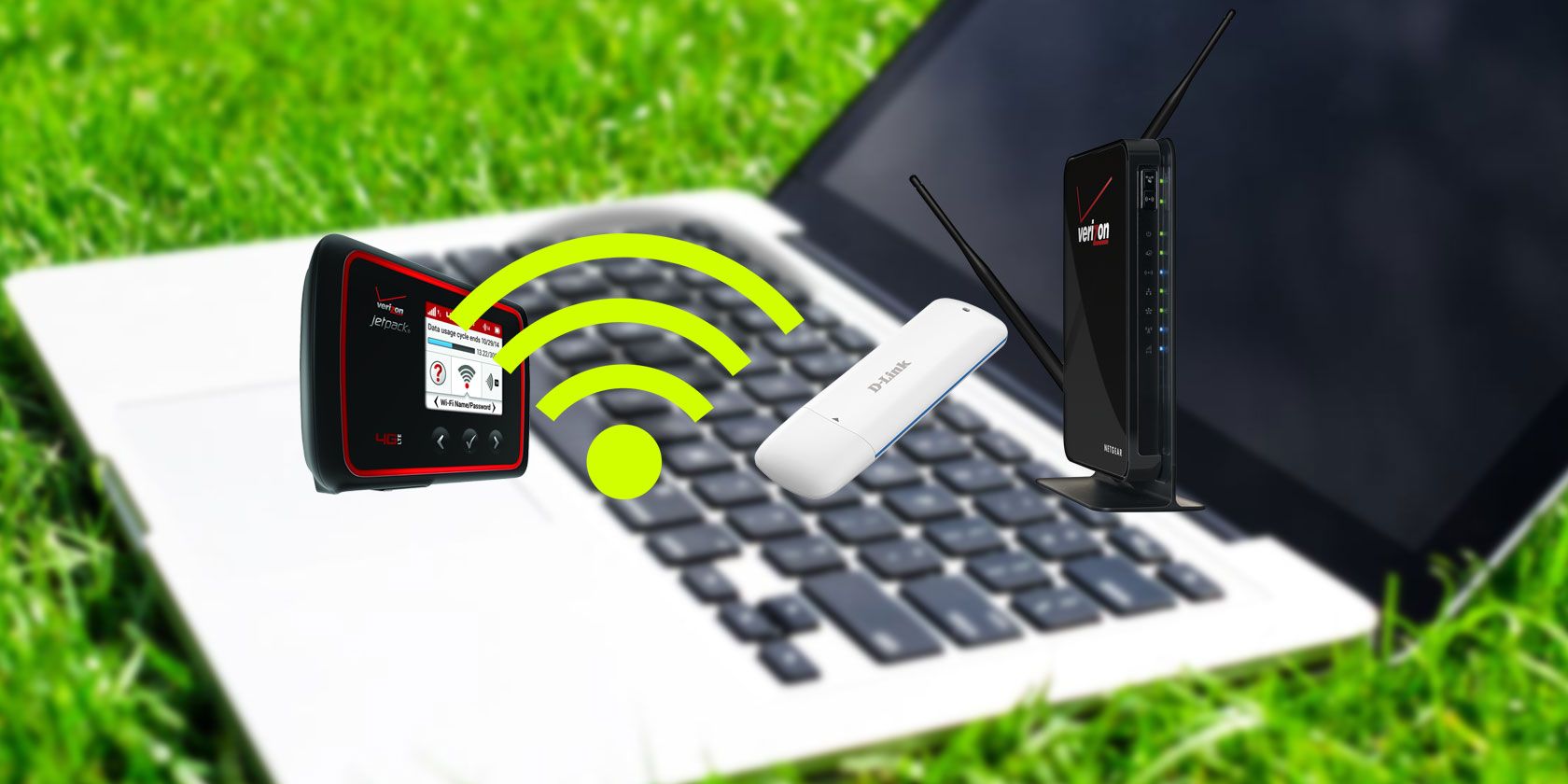
Gone are the days when most of us connected via phone lines. Gone, too, are the days when Ethernet cables were necessary to achieve high speeds. We go online wirelessly, and we’re not limited by the range of our routers. Mobile internet devices can bring us online anywhere with a strong connection to a cellular tower.

Do you connect everything via a portable wireless hotspot or your smartphone? Should you invest in a USB dongle or a WWAN card? Each has their own pros and cons. Let’s take a look.

Portable Mobile Hotspots

Coolpad Surf portable wireless mobile hotspot
Image Credit: Coolpad

Portable mobile hotspots access the same cellular network as your smartphone. You can add them as another device on your shared data plan, or you can get one with its own data-only plan. Data plan prices tend to be similar to the amount you spend on phones.

These mobile internet devices tend to have between 10 and 20 hours of battery life. Some models serve as portable battery packs that can charge your phone or offer shared storage via a microSD card slot. Many have screens that show how much data you’ve used out of your monthly allotment. The specifics change depending on which model you buy.

With the rollout of 5G, portable wireless hotspots can better function as your home’s primary internet connection. That’s because 5G has lower latency, allowing devices to communicate more quickly with one another. This is key for gaming and VR.

Some hotspots, such as 2019’s HTC 5G Hub, can support up to 20 devices and provide enough battery life to cover a day’s usage. But since 5G networks have been slow to roll out, most areas will still rely on 4G LTE.

One downside to a portable mobile hotspot is having to lug it around in addition to your phone, tablet, or laptop. The cost of a data plan can also add up. If you’re merely adding one to your shared data plan, you may be able to get by with tethering your smartphone instead.

Pros

  • Reasonably long battery life
  • Supports more devices
  • The right unit could serve as your home’s primary source of Wi-Fi
  • Added features such as an informative display, shared storage, Ethernet port, or back-up battery power
  • If used exclusively for work, can be helpful for tracking internet usage

Cons

  • Cost
  • Having to carry around another device

Dongles

4G wireless USB dongle
Image Credit: Amazon

Like portable wireless hotspots, dongles tend to come straight from a carrier. Many look like flash drives, while some look like small modems that you plug into your computer via a USB cable. Sticking one in your laptop has the effect of giving your computer a cellular radio. It’s now able to hop online via Wi-Fi or cellular data, just like your smartphone. It can also share that connection with other devices.

4G LTE USB Modem Wireless USB Network Card 4G LTE USB Modem Wireless USB Network Card Buy Now On Amazon $22.58

One big difference between dongles and mobile hotspots is that dongles don’t take up as much space. Nor do they drain on your battery quite like smartphone tethering does. That said, you have to keep the dongle plugged in for it to work, which means giving up a USB port. This probably is not all that big a deal on most laptops, but there are many sleeker models out there that skimp on the number of ports. Some have even done away with full-sized USB ports entirely.

Dongles aren’t limited to USB ports or even PCs. Some plug into a car’s OBDII port, providing passengers with Wi-Fi on the go.

A dongle doesn’t get you out of a data plan. You still need one, and they’re not going to be cheaper than buying one for a portable wireless hotspot. Another downside: dongles often require special software. Setup can be slow or annoying. If you’re a Linux user like me, this may mean you have to jump through additional hurdles, or you may be out of luck entirely.

Pros

  • Cheap upfront cost
  • Less drain on battery
  • Takes up less space than a portable wireless hotspot

Cons

  • Typically requires a USB port
  • May need special software

Mobile Tethering

Don’t want to buy another device? That smartphone you probably have in your pocket may just be all the internet you need. Sounds great, I’m sure. Before you get too excited, the drawbacks are substantial. Here’s the situation.

Smartphones can provide internet access to other devices by turning into hotspots. Tell your phone to start sharing its data, and give the temporary network a name. Your laptop or tablet can connect the same way they would to Wi-Fi. Alternatively, you can connect your phone to a computer using a cable. Regardless of which method you choose, this is called tethering. Wherever you have your phone, you have internet.

If you can even connect a 4G phone to a 5G phone’s hotspot to experience fast speeds on both, if for someone reason you find yourself in that situation.

Doesn’t this mean everyone who buys a dedicated hotspot is being duped? No. Smartphones aren’t designed to serve as hotspots, so they don’t broadcast as far or handle as many devices as dedicated units. Plus, tethering is a huge drain on battery. If you use your phone to provide internet for a few hours, expect to need a charger before the end of the day. Also don’t be surprised if your handset becomes a little hot to the touch.

Pros

  • Convenience
  • Doesn’t need a separate bill
  • Only one device to carry around

Cons

  • Puts a strain on your smartphone
  • Often comes with a smaller monthly limit
  • Isn’t intended to support many devices at once
  • Phone calls happen, making sharing internet with others awkward

WWAN

Wireless wide area networks, or WWAN, are something you’re more likely to interact with while working than in your own time. These are wide area networks that utilize a cellular network to keep corporate computers connected. These can be employee laptops, kiosks, point of sale machines, or vehicles.

A WWAN card gives your PC the ability to connect to a wide area network using a cellular connection. This enables you to connect to a corporate network wherever you’re in range of your company’s WWAN. Typically a traditional carrier provides and manages the infrastructure.

WWAN is offered straight to businesses, not general consumers. For that reason, it’s hard to make a comparison to the options listed above. Don’t think of this as your personal solution to get online. But keep in mind that if you do want to access a wireless wide area network, you will need specific hardware, such as a WWAN card, in order to do so. Some laptops come with this functionality built in.

Which Is Better: Dongle or Hotspot?

You might not be surprised to hear that there is no single best answer. For lightweight, occasional use, smartphone tethering is just fine. Work away from home often and need to connect multiple devices? A portable wireless hotspot can come in handy. Have only limited space to work with? A USB dongle can fit in your pocket.

Or if you’re not particularly interested in another monthly bill, you could stick to Wi-Fi hotspots instead.

Read the full article: Dongles vs. Portable Hotspots: Mobile Internet Devices Explained


Read Full Article

The Kindle App for Android and iPhone: As Good as a Real Kindle?


Forget carrying books around in your bag. Don’t worry about ereaders. You don’t need a Kindle when you have a smartphone in your pocket. Because the Kindle app works extremely well.

With that in mind, here’s how to read books with the Kindle app for Android and iOS.

How Can You Use Kindle on Your Phone?

The Kindle ebook reading service has been around since 2007. Initially launched for dedicated ebook readers, access to the platform was then opened to PCs and smartphones. While Amazon launches a new Kindle ereader every year, you can also read Kindle books on other devices.

Kindle Paperwhite Kindle Paperwhite Buy Now On Amazon $129.99

Do you want to keep your favorite books and comics in your pocket for easy reading? The Kindle app makes it easy, and using Kindle on any iPhone or Android is simple…

Where Can You Get the Kindle App for Your Phone?

You’ll find the Kindle app for Android in the Play Store and Kindle for iOS in the App Store.

Download: Kindle for Android | iOS

Before opening the Kindle app, ensure you have an Amazon account set up. Note that if you have already signed into an Amazon service on your phone, the credentials should be accessible to Kindle.

Finding Books for the Kindle App for Android and iOS

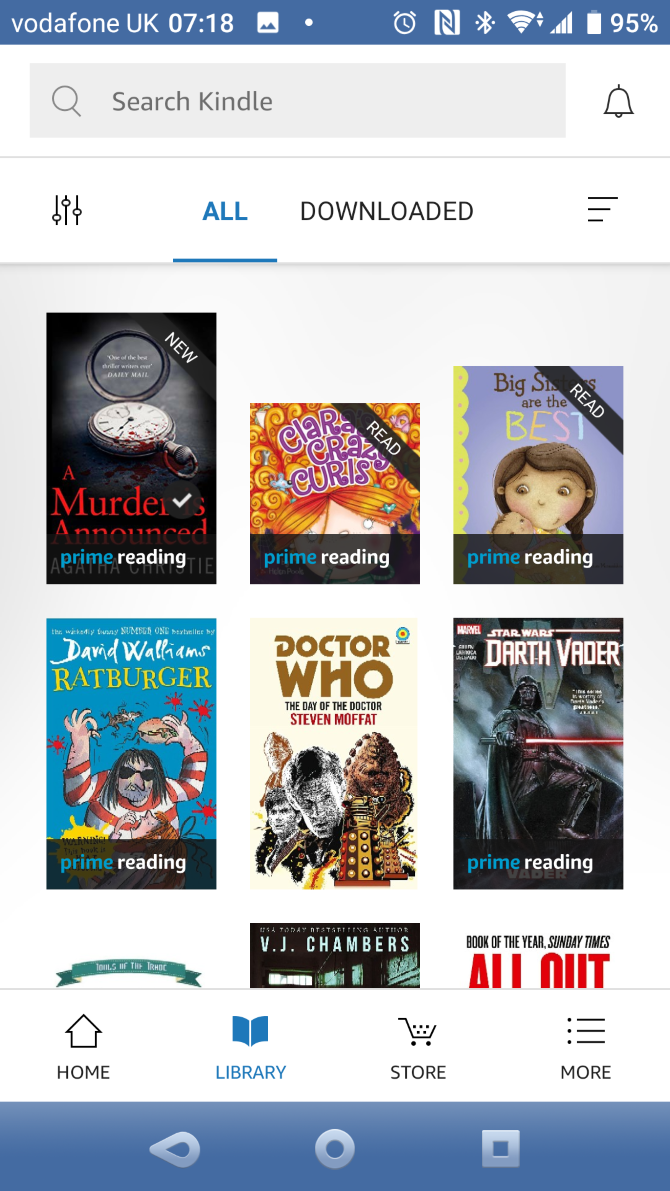
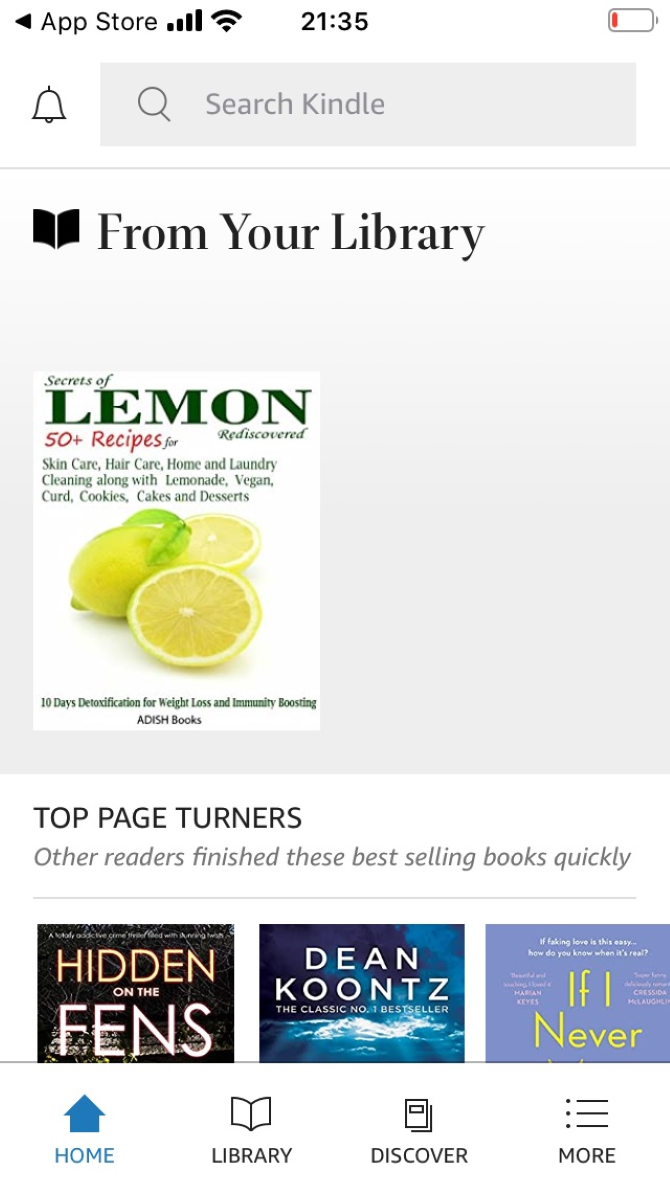
With the Kindle app loaded up on your phone, you should be able to access your existing library of titles.

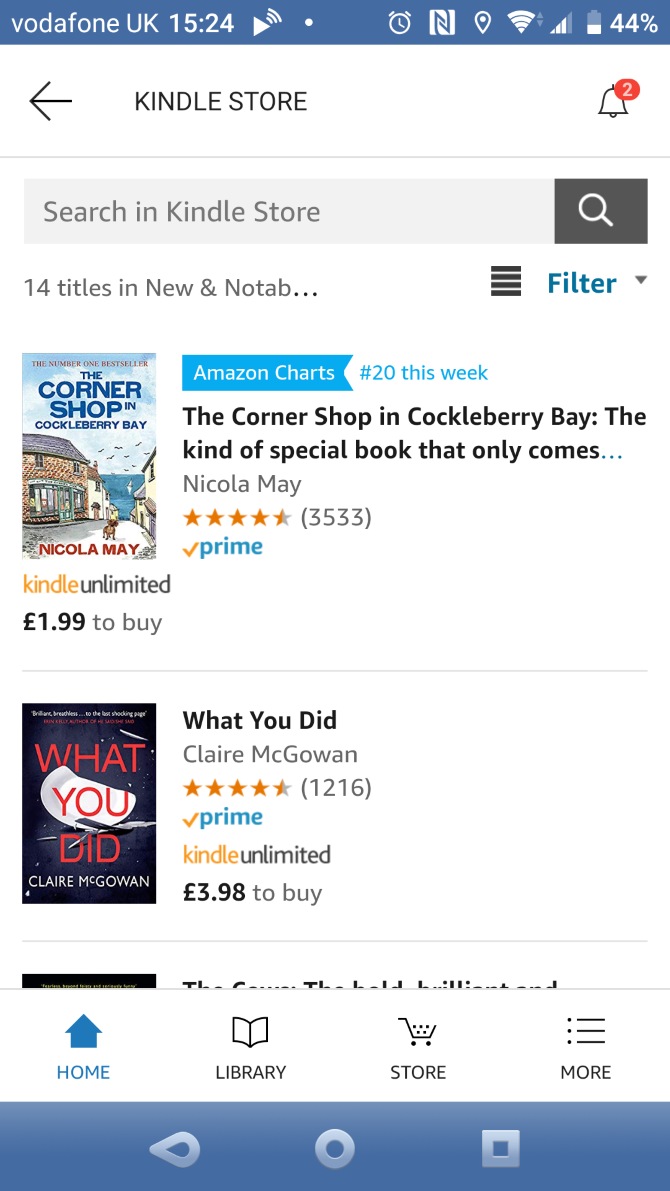
Simply launch the app and sign in when prompted. To purchase a book, either open the Store or check the list of recommendations. You’ll typically see things based on your previous physical book purchases if you’re new to Kindle.

Before purchasing a book, you can read the first chapter as a free sample to see if you’re going to like it. To do this, open the Store, browse for a book, then tap Download Sample to see if it suits you.

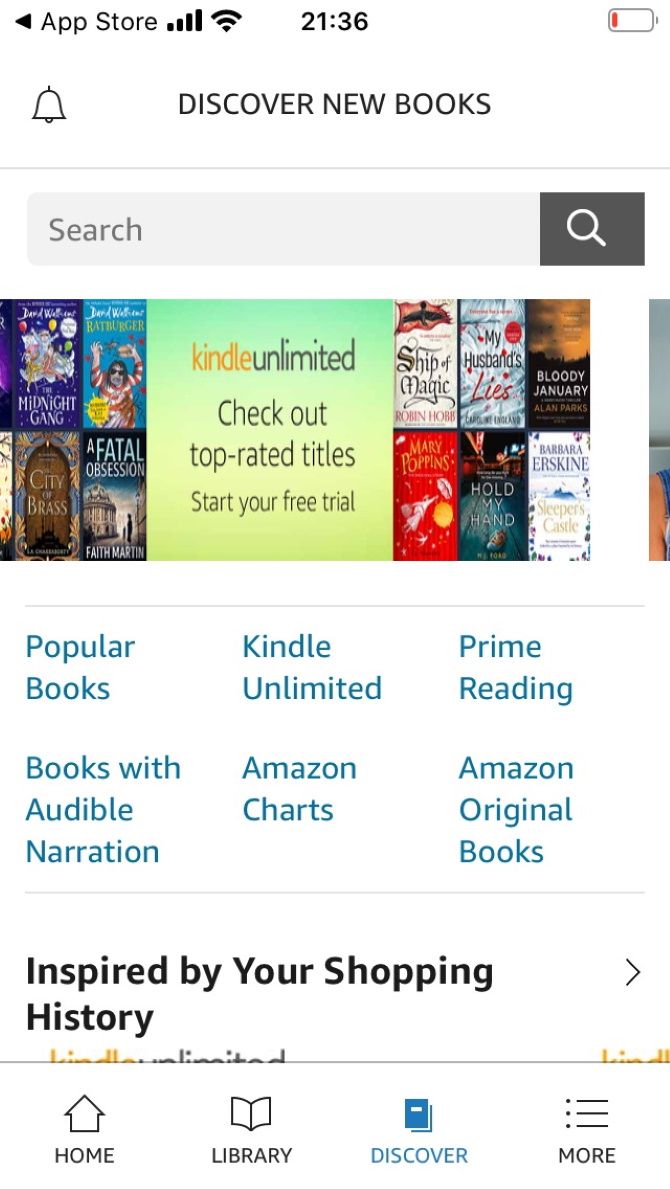
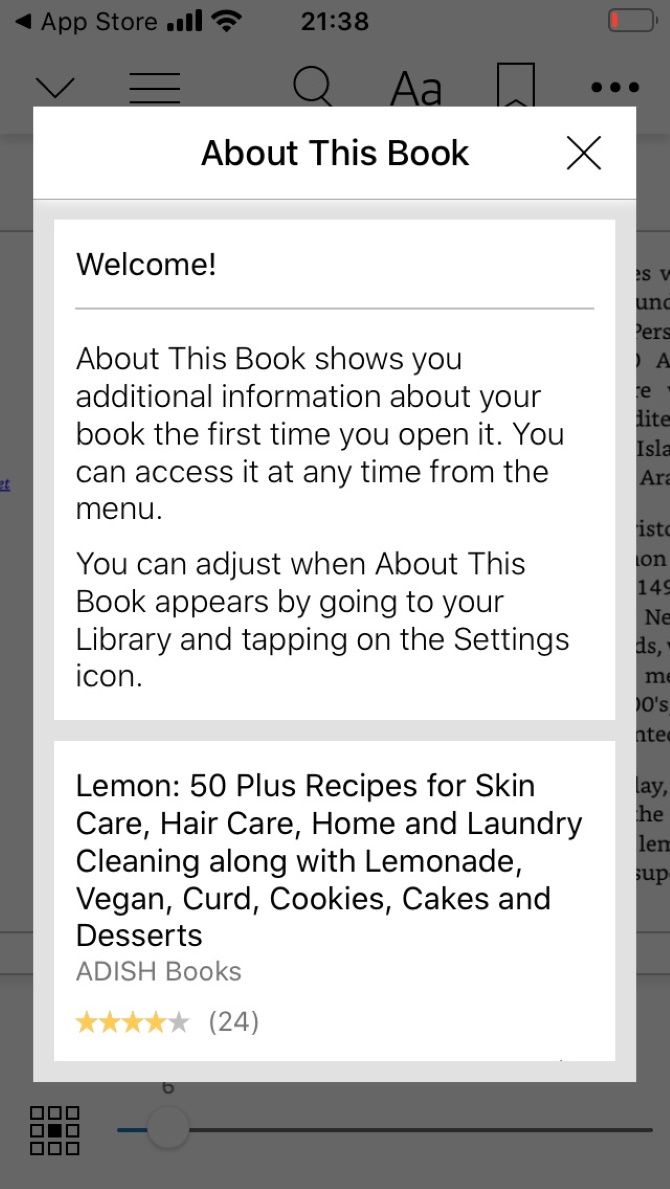
These screenshots from the iPhone version of the Kindle app show slightly different screens, demonstrating the book suggestion and library screens.

Free content is also available through the Kindle store. Mostly this consists of public domain works, such as classics released many years ago, and now out of copyright. You might also sign up to BookBub, a daily newsletter recommending free ebooks and heavy discounts currently listed on the Kindle store.

Read Magazines, Newspapers, and Comics on Your Phone

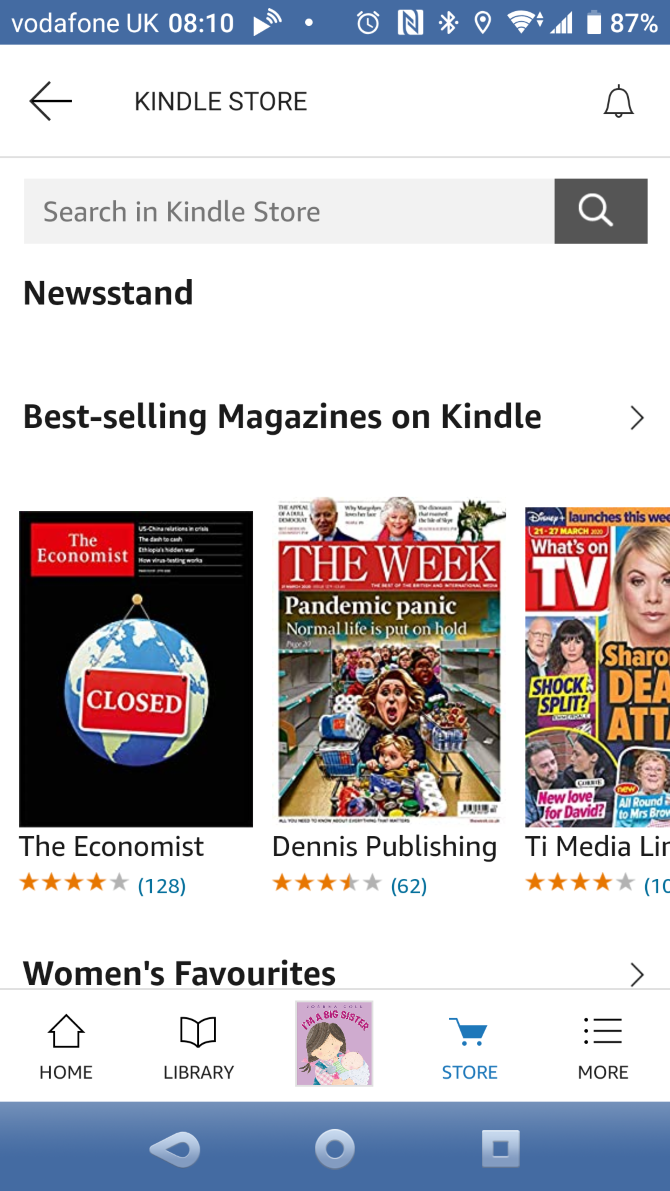
The Kindle app for Android and iOS is not just for books. You can also use it to read magazines and newspapers.

This makes it the go-to app for reading material on your smartphone.

In the Kindle Store you will find a Search feature. Use this to search for magazines and newspapers. Note that in most cases you will need to purchase a subscription to read them on Kindle.

You can also read comics on the Kindle app. Tap Store then scroll to the bottom of the list of categories. Tap More Categories > Comics and Graphic Novels. Here you will find a vast library of thousands of comics, graphic novels, and books about the industry.

Manga titles, plus books from DC, Marvel, and many other big publishers are available. You can either own comics or “borrow” them with Kindle Unlimited or Prime Reading.

Kindle Benefits for Amazon Prime Subscribers

Using a Kindle device or reading app as an Amazon Prime subscriber gives you a supercharged ereading experience. Note that different Amazon Prime subscriptions are available.

In 2020, Amazon launched Prime Reading, which is similar to Kindle Unlimited (see below). Both services let you “borrow” books; that is, download and have access to titles for a short time.

Titles on the Prime Reading list includes top-rated books which you can read for free. Some of these can be found in Amazon’s Top 20 list. To read a book with Prime Reading, browse to the Prime Reading section of the Kindle app (under Home).

Tap the book, then Read for $0.00 with Prime Reading. You’ll receive notification that the book will appear in your library once downloaded.

Get Books With Kindle Unlimited

If you don’t have an Amazon Prime subscription, don’t worry. Amazon also offers the Kindle Unlimited service.

Offering a huge range of books and magazines for $9.99/month, Kindle Unlimited lets you read pretty much anything you want. The range of titles available with Kindle Unlimited makes this good value for money. Better still, where available, Audible versions of your chosen books can be downloaded.

Imagine having an entire library of books in your pocket! Once added to your Kindle account, you’ll find Kindle Unlimited titles on your phone ready to read.

Useful Features to Enhance Reading in the Kindle App

The Kindle app for Android and iPhone isn’t all about buying and downloading books. Once you have actually started reading, the app offers a selection of features to improve the experience.

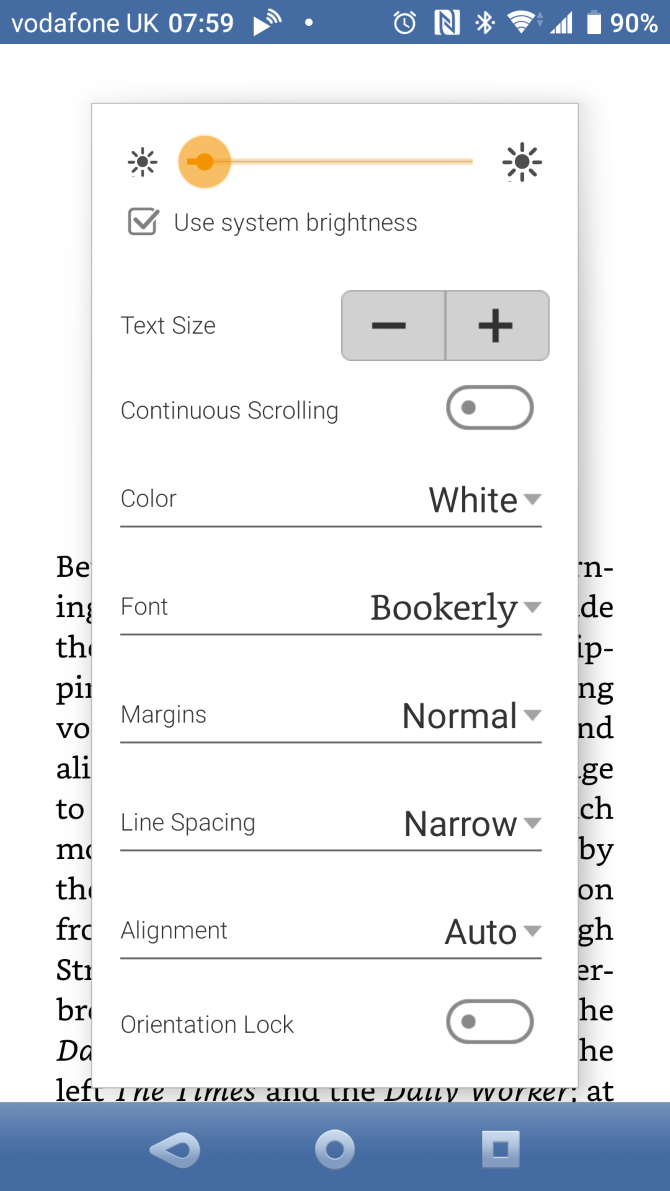
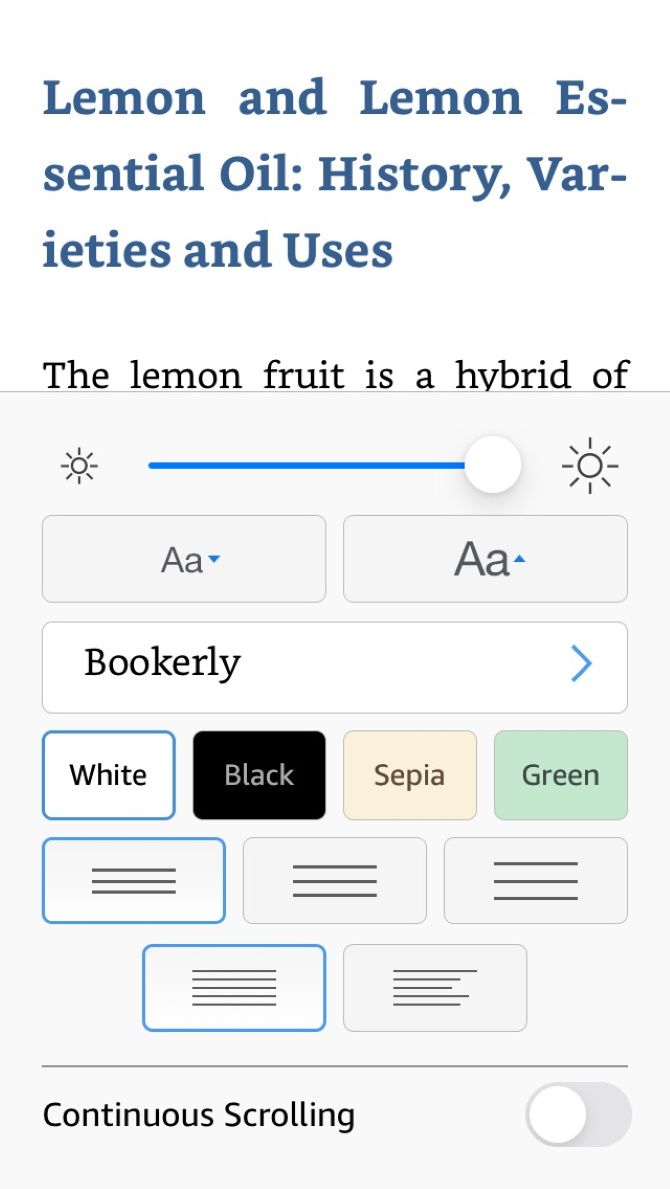
The Android Kindle app allows you to set the screen brightness, preferred screen orientation (landscape or portrait), font size, and background color. Line spacing, alignment, and page color can also be set.

With these options you can set your reading environment to make sure it’s just right for you. Just tap the center of the screen on your current book to display these options.

With the Kindle app, it’s possible to use the built-in dictionary to look up words as you’re reading. You can also use Google or Wikipedia to research a topic further. All you need to do is tap and hold a word to see the options available to you. Other options include making notes or even reporting an error.

Further settings let you toggle animated page turns, give you the option to turn pages with your phone’s volume buttons, and more.

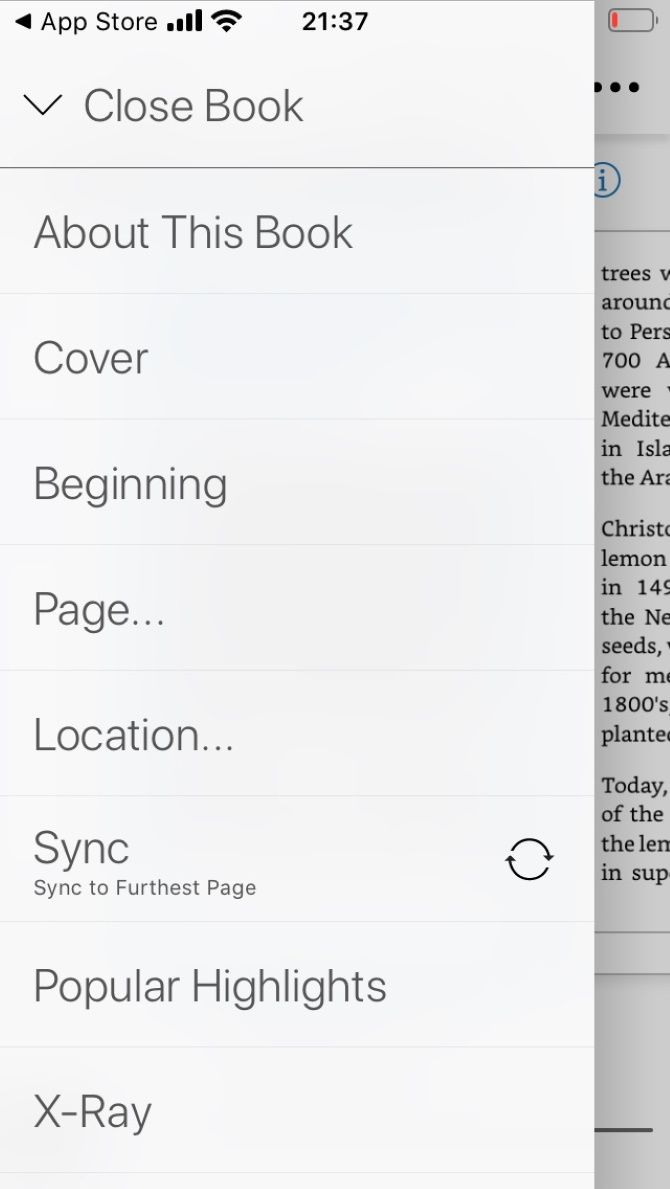
If you have a Kindle or use the Kindle app for another device, you can sync reading across devices. This means you can read on your phone while commuting, then continue from the same page when you later switch to your Kindle device.

The Kindle app will sync bookmarks, furthest point read, highlights, and notes.

Forget the Kindle and Use the App Instead

Most smartphones have screens smaller than Kindle eReaders. So, while a Kindle will fit in your bag with ease, it will not necessarily fit in your pocket. Unlike your phone.

The argument for reading books with the Kindle app on Android or iPhone is clearly strong. Admittedly, the backlight might not be as kind on the eyes as the adjustable light of a dedicated Kindle ereader. However, despite this, reading an ebook on your phone is a great alternative to using a Kindle.

If you do own a Kindle, here’s how to use IFTTT to supercharge your Kindle.

Read the full article: The Kindle App for Android and iPhone: As Good as a Real Kindle?


Read Full Article

5 Creative Hobbies for Adults That’ll Make You a Happier Person


hobbies-happy

In today’s productivity-driven culture, many of us suffer from stress. Too many people are stressed at work, at home, or when we’re running errands. And if this stress seeps into our personal lives, we can become depressed.

Research has shown that creative hobbies have the power to improve your mental health. There are also plenty of creative pastimes that can help fight off stress. So, in this article, we list a handful of creative hobbies that will make you happy.

1. Learn Photography

Best Creative Hobbies Photography

Photography is one of many artistic hobbies that you can pick up. Instead of creating something out of nothing, photography is all about capturing the beauty that already exists around us, either in nature, at home, or on the streets.

One of the most important reasons why you should learn photography is that it can change the way you see the world, often for the better. Not only does it train you to see things from multiple perspectives, it helps you see things that you would normally overlook.

More relevantly, photography can also invoke happiness. According to a 2016 study by the American Psychological Association, taking photographs can make you more mentally engaged.

That said, like all creative hobbies, there is a learning curve to it. So don’t expect yourself to be an expert photographer right away. Once you get a handle on the basics, however, it’s one of the most satisfying and fulfilling skills you’ll ever learn.

To get started, we recommend thee online photography courses for beginners.

2. Learn How to Garden

Creative Hobbies Gardening

After 8-10 hours stuck in an office or otherwise trapped indoors, it’s easy to feel like you don’t have much connection with the earth. However, what if we told you that gardening has been scientifically proven to lift your mood?

Would that make you more likely to step outside and get down in the dirt?

Consider this Preventive Medicine Reports study from 2016, where researchers reported that the correlated mental health effects of gardening are overwhelmingly positive.

Additionally, an article by the BBC goes on to explain how gardening can assist you in achieving a longer, healthier life.

Speaking from personal experience, I can definitely say that gardening has improved my mood, allowed me to get more exercise, and be creative, too.

Additionally, by planting a vegetable garden, it has eased my anxiety over food security. Nothing makes you feel better than knowing that you can grow everything at home.

Overall, gardening is one of the best creative hobbies that can make you happy. Learning how to garden can be a scary prospect, but there are applications designed to make it easier. Here are some helpful gardening apps to help you get started.

3. Start a Journal

Artistic Hobbies Start a Journal

Learning how to write is often associated with creative blocks. It’s not unheard of for famous authors to be so tormented by their psyches that they end up depressed.

However, many people actually write for fun. In fact, certain kinds of writing are incredibly therapeutic. An article by Ian Sample of The Guardian explains that “writing about your feelings can help the brain overcome emotions and leave you feeling happier.”

Overall, this expressive writing could mean the difference between you being stressed out and feeling relaxed. Fortunately, expressive writing is one of the easiest creative hobbies to get into. All you need is a word processing program, or some paper and a pen or pencil.

From there, you can begin writing about anything you want. And we recommend just letting it flow from your brain to the page and seeing what happens.

4. Learn How to Draw and Paint

Artistic Hobbies Drawing and Painting

Are you looking for more artsy creative hobbies? Drawing and painting can be used as an expressive tool to help you cope with stress and trauma.

The term “art therapy” was coined in 1942, and in simple terms it’s the use of visual mediums to help you ease anxious feelings by expressing yourself with lines, shapes, and colors. Since its emergence in the 1940s, art therapy has been one of the many tools that therapists use to treat psychological distress.

In an article on Psychology Today, Dr. Cathy Malchiodi explains that “art expression helped them to put their emotions and non-verbal experiences into words,” in reference to a study’s participants.

Even if you don’t attend official art therapy sessions, you can still reap the benefits by drawing or painting your own. These days, most art is done digitally, and because it’s digital you can learn how to draw online, too.

We recommend starting with these websites that will teach you how to draw, to learn the basics. Once again, arty hobbies can make you happy, too.

5. Learn How to Cook and/or Bake

Hobbies That Make You Happy Cooking and Baking

One of the most reliable hobbies to make you happy is cooking and baking. Time spent in the kitchen might be a nightmare for some, but once you get past your kitchen fears you’ll realize it’s a wonderful skill to have.

According to a comprehensive, well-researched article by The Huffington Post, the creative aspects of cooking and baking can help us express our innermost thoughts during a stressful time when words do not seem to be enough.

“When baking for other people, baking can also be a helpful way to communicate one’s feelings. Susan Whitbourne, professor of psychology and brain sciences at the University of Massachusetts, points to the cultural norm of bringing food to someone when a loved one has passed.”

Cooking can wash away your stress, and it does this by allowing you to channel undesirable or unhealthy energy into something productive or beautiful. This is also evidenced by people using baking as a way to cure manic depression, according to a fascinating article by the BBC.

Essentially, like art therapy, cooking and baking are happy hobbies that can have a positive effect on the brain.

Plus, cooking your own meals from scratch is often healthier than eating out, and can help slash your household expenses. These two things can help reduce stress, and thus improve your mental wellbeing.

To get started, check out the best online cooking guides for beginners.

Creative Hobbies Can Make You Happy

Being able to explore your creative potential can make you a happier person. And there are millions of people out there who can attest to this.

While these creative hobbies are fun, they aren’t just for fun. Creativity can have real, positive benefits on your mental wellbeing, and we think it’s important that this distinction should be made.

If you want to live a happier life, here’s how to check your stress levels and relax your mind.

Image Credits: Andrei Mayatnik/Shutterstock, Miski/Shutterstock

Read the full article: 5 Creative Hobbies for Adults That’ll Make You a Happier Person


Read Full Article

How to Set Up Two-Factor Authentication on Your Social Accounts


two-factor-auth-social

With the increasing popularity of social media platforms, security is of paramount importance. While choosing a strong password helps, 2FA improves your security further.

To add an extra layer of protection, you should enable two-factor authentication on all of your social media accounts. And in this article, we’ll show you how to do just that.

What Is Two-Factor Authentication?

Two-factor authentication (also known as 2FA) is a security method that uses two different ways to verify your identity.

Instead of only entering a password to log in, two-factor authentication requires you to also use a code sent via text message to your phone or generated via an app. This verification helps make sure that only you can access your account.

How to Enable Two-Factor Authentication on Facebook

facebook two factor authentication options

To enable two-factor authentication on Facebook, head over to Facebook’s Settings. Select the Security and Login tab and scroll down to Use two-factor authentication. After clicking Edit, you can choose to pick an authentication app or text message (SMS) as your security method.

By default, Facebook recommends using an authentication app. If you do choose to use a text message (SMS) instead, select your country code then enter your phone number. As a note of caution, phone numbers used for two-factor authentication no longer work for password recovery.

If you choose to go with an authentication app, you can simply scan a QR code or enter a code into your authentication app to start generating your verification codes. While Facebook suggests Google Authenticator or Duo Mobile, there are many options. Check out the best alternatives to Google Authenticator for added security.

After choosing one security method, Facebook allows you to select additional security methods as a back-up. In addition to the default security methods, you can now use recovery codes and a security key. To learn more about security keys, head over to Facebook’s support page.

How to Enable Two-Factor Authentication on Twitter

twitter two factor authentication options

For Twitter, you need to go to your account settings to set-up two-factor authentication. This route slightly differs depending on how you’re using Twitter.

  • On the web, click More on Twitter’s side menu. Then click Settings and privacy.
  • On the Twitter app, tap your profile icon in the upper-left. Scroll down and select Settings and privacy.

Under Settings, go to Account then select Security. Select Two-factor authentication, then follow the prompts to set-up 2FA by text message or an authentication app. You’ll need to enter your password for confirmation of either method.

After you add one method for two-factor authentication, you can add the other authentication type or a security key while logged into Twitter on a supported web browser.

However, the Twitter mobile app won’t allow you to add a security key. In case you don’t have access to your phone, Twitter also supports a single-use backup code and a temporary password.

How to Enable Two-Factor Authentication on Instagram

Unlike the previous social accounts, it’s best to set-up Instagram’s two-factor authentication on a mobile device. With your browser, Instagram only supports two-factor authentication via text. If you’ve examined the pros and cons of 2FA types and methods, you should reconsider using text messages (SMS) alone for the sake of security.

Once you’re on your Instagram app, go to your Profile and click the menu icon at the top-right. Press the Settings icon then choose Security. Under Login Security, scroll down and tap Two-Factor Authentication.

Instagram then provides you with a quick explanation of two-factor authentication. To continue, press Get Started to choose your security method. If you choose to set up two-factor authentication by text message, you’ll enter your phone number and then the Instagram code sent via text to complete the process.

If you choose to use the authentication app, Instagram recommends Duo Mobile and will offer to install it. However, you can choose to set it up manually if you have your own app. Instagram doesn’t provide a QR code, but you can copy your Instagram key to your authentication app to finish setting it up manually.

Once you’ve selected a method, you’ll receive recovery codes in case your phone isn’t available.

How to Enable Two-Factor Authentication on LinkedIn

linkedin two factor authentication

Like with Twitter, setting up two-factor authentication on LinkedIn slightly differs between your browser and app.

  • On your browser, go to your LinkedIn account’s Login and security settings. Scroll down to Two-step verification and click Turn on.
  • On the LinkedIn app, tap your profile icon in the upper-left. Select Settings and press Two-step verification. Finally, select Set up.

Once you’ve completed either route, you’ll be able to choose either an authenticator app or phone number (SMS). Choose one, click Continue, and enter your password to confirm. If you choose to receive your code via SMS, enter your phone number and LinkedIn password once more. Complete the process by entering your six-digit PIN.

If using an authentication app, you can either add your account to the app via a hyperlink or by entering a secret key manually. To complete the process, verify with your six-digit code. With either of the two-step verification methods enabled, you can change your verification method or generate your recovery codes.

How to Enable Two-Factor Authentication on Pinterest

pinterest two factor authentication browser

Pinterest only allows you to set up two-factor authentication by using your browser. Once you’ve logged in, click the pull-down menu icon next to your profile icon and select Settings. On the side menu that appears, click on Security.

Under Two-factor authentication, tick the box next to Require code at login. Enter your password and click Next. Select your country/region code if the default isn’t correct, and enter your phone number.

Check your phone for a security code via text or your authentication app. Enter your code and click Verify to finish enabling two-factor authentication.

Pinterest will provide you a backup code afterwards. While two-factor authentication will help you protect your account, you should be aware of Pinterest’s security issues and what you can do about them.

How to Enable Two-Factor Authentication on Snapchat

From the Snapchat app, click on your profile icon in the upper-left. Once on your profile, click the red gear icon to open Settings. Press Two-Factor Authentication, and you’ll be given a quick summary of what it is.

Tap Continue, and you’ll be able to choose a way to receive your verification code. If you use SMS verification, you’ll receive a text with your code. Enter it to complete two-factor authentication via SMS.

If you choose to go with an authentication app, you can set it up either automatically or manually. Snapchat also offers to find you an app. Once you’ve generated a verification code via the app, Snapchat suggests you set up SMS verification if you haven’t already.

After you’ve set up two-factor authentication, Snapchat will ask you to generate a recovery code.

Use Two-Factor Authentication for Your Security

With online security and its vulnerabilities constantly evolving, two-factor authentication provides an additional safety net. So, to protect your account and all of its history, it’s worth considering adding another layer of security.

Two-factor authentication goes beyond your social accounts as well, so don’t forget to protect other types of accounts too. As a start, we recommend enabling two-factor authentication on your gaming accounts.

Read the full article: How to Set Up Two-Factor Authentication on Your Social Accounts


Read Full Article

Alternatives to Duolingo: The Best Free Language Learning Apps


The language learning app Duolingo has become one of the most trusted sources for people to improve their language skills. With lessons in over 20 languages through short games and challenges, Duolingo has something to offer to all ages and language ability levels.

But it isn’t the right solution for everyone—and that’s okay! There are plenty of other completely free language learning apps out there for you to try.

So, here are the best free alternatives to Duolingo.

Why Use a Free Duolingo Alternative?

Let’s start with why you might want to use a Duolingo alternative.

Duolingo is completely free, which is amazing. Although the company experimented with using in-app purchases, such as the poorly received health bar and gems, these are now long gone. The introduction of these pay-to-progress restrictions saw many users leave Duolingo.

Now the intrusive payments are gone, why would you use a Duolingo alternative?

For one, the depth of the Duolingo courses. Duolingo claims that “34 hours of Duolingo are equivalent to a full university semester of language education,” complete with a supporting study [PDF].

The suggestion implies that Duolingo is more effective than a college language course, which would cost more, take longer, and require you to relocate.

Retired language professor Steven Sacco put the theory to the test.

Sacco studied Swedish on the Duolingo app for 300 hours (most introductory Swedish college courses require around 150 hours coursework, so he doubled that), and then took UCLA’s Elementary Swedish final exam. What happened?

Despite the 300 hours study, despite Sacco’s history of immersion with language and linguistics, he took home an F.

This is one of the main criticisms of Duolingo. It presents itself as a way of learning a language when it is a tool you should use as part of a wider learning experience.

I’m not knocking Duolingo. I use it myself. But it isn’t the only free language learning tool available.

1. Online Communities

One of the best ways to learn a new language is to surround yourself with other people who have similar goals. Online communities of language learners are fantastic resources to learn tips and tricks about effective language learning, practice speaking with native speakers, and find out about other great learning opportunities online and offline.

Fluent in 3 Months

This very active forum offers language learners a place to practice their writing skills in any language they choose, connect with language partners, post information about their language learning journey, and learn from the success of others.

/r/LanguageLearning

Like most communities on Reddit, this subreddit is a mishmash of topics and discussions. Many posts recommend resources for continued language learning, share personal accomplishments, or pose questions to the almost 100,000 community members.

The Polyglot Club

This free language exchange community focuses on getting language off of the page and into the conversation. The site offers opportunities for video chatting or in-person meetups, as well as free lessons and corrections by native speakers.

2. Rhino Spike

rhino spike language learning

If you have difficulty “hearing” the native language as you read it, this site can be a lifesaver. You can use the recordings that are already online to hear how different accents sound in your target language while reading the accompanying transcription. You can also submit your own texts for native speakers to read and record your own voice for others seeking help.

3. Mango Languages

If you do want a game-style online language learning platform, consider Mango Languages. This program is available for free through many library systems and offers language learning opportunities for over 70 languages.

The program is intuitive to use and prioritizes culturally and conversationally relevant language skills. Furthermore, Mango recognizes that you cannot make it to the library every day. Once you begin a course, you can use your library login with the Mango Languages iOS and Android apps. That way, you can continue learning at home.

4. The Yojik Website

While this site isn’t the most aesthetically pleasing option on this list, it’s hard to beat the quality of its resources. Courses in the public domain intended for training the Foreign Service Institute, the Defence Language Institute, and the Peace Corps offer PDF instructional guides in numerous languages and dialects.

estonian peace corps

With some digging, you can also access multiple audio files and training materials.

5. Memrise

Duolingo falls short in a few areas. Luckily, you can use Memrise alongside Duolingo to give your language learning a greater sphere. Guiding you through individual words and phrases using a flashcard-like system, Memrise can help expand your vocabulary alongside other language learning opportunities.

Many users say that Memrise helps you to learn and speak the language like native speakers and locals, which differs from Duolingo’s formulaic approach.

The Memrise UI is easy to navigate, and you’ll find an extensive range of languages and courses ready to learn.

6. Podcasts

If you like to learn on the go, or simply auditory learning, you should check out language learning podcasts. As you might expect, the world of podcasting has some brilliant resources for learning a new language. Here are three language learning podcasts to get you going.

Innovative Language 101 Series

Starting to learn a new language? You should check out the Innovative Language 101 Series of podcasts. The series features a comprehensive list of languages, with each podcast providing an overview of the language, learning tips, and more.

Coffee Break Languages

Coffee Break Languages aims to teach you a new language in your coffee break. Listen to a new podcast for your language each day, and you’ll learn a new word, phrase, or otherwise. The beauty of the Coffee Break Languages podcast is the length. It is short, to the point, and really does only last the length of a coffee break.

News in Slow

Linguistica 360’s News in Slow series is a great take on contextual language learning. Instead of listening to a new phrase on repeat, News in Slow talks through daily news events in Spanish, French, Italian, or German.

The idea is that you can relate to the news stories, so you’ll create a stronger connection to the language being spoken.

7. YouTube

No matter what combination of online and offline language learning resources you use, YouTube should your #1 choice. You can learn almost anything on YouTube, and a new language is no exception.

Nowhere else online do you have so much access to native speakers talking about any subject imaginable. Whether you choose to watch specific language learning videos, news, or television shows, YouTube makes it easy to practice your new language.

8. HelloTalk

Many say the best and quickest method to learn a new language is immersion. Heading to the nearest country that speaks the language you want to learn isn’t always possible. In that case, the next best thing is talking to native speakers of the language directly.

The HelloTalk app connects you to people all around the world that speak the language you want to learn. The idea is that you teach each other your native languages, helping build comprehension one conversation at a time.

With over 18 million users and over 150 languages catered for, you’ll find someone to help you learn a new language.

Should You Use a Paid Language Learning Service Instead?

The language learning resources above are all free. Some of them also offer a paid service, but you see that you can learn a substantial amount without ever dipping into your pocket.

Still, paid language learning services exist for a reason. If they didn’t provide an excellent service that also comes with results, they wouldn’t survive.

Julie Hansen, US CEO of Babbel (one of the most trusted paid language learning services currently available online) states that:

“Language apps on the surface might look similar, but they are not. Babbel teaches genuinely useful content that can be applied in real-life scenarios . . . When you consider that other language apps teach you how to say useless sentences such as ‘the penguin drinks milk,’ it is clear that Babbel is the most effective app for learning a new language in a meaningful way. None of our content is machine-generated or user-generated, with all of Babbel’s courses being created by a team of more than 150 linguists and teachers, and tailored to each combination.”

If you are a serious language learner with financial resources in place, there are a lot of great reasons to invest your money in authentic language learning experiences, whether through an app, a university course, or an immersion experience.

But for casual language learners or those without extra income, there are a lot of great options available.

Which Is the Best Duolingo Alternative?

Looking for a Duolingo alternative is perhaps not the best approach to learning a language. Sure, this article is all about the best free Duolingo alternatives. There is plenty of them, too.

But you should consider Duolingo as one aspect of your free language learning path, rather than as the focal point. For example, here are a bunch more Duolingo alternatives you can use in your language learning quest.

If you’re looking to learn more, you should check out the best mobile apps for learning and improving your English.

Image Credit: gpointstudio/Depositphotos

Read the full article: Alternatives to Duolingo: The Best Free Language Learning Apps


Read Full Article

The 8 Best Music Making Apps for Your iPhone and iPad


iphone-music-making-apps

It’s easier than ever to create music on your iPhone, even if you don’t have a musical background. You don’t need to know how to read music, play an instrument, or even understand musical concepts like chords and scales.

There are apps for every skill level, every budget, and (virtually) every genre of music you wish to create. Try your hand at shiny pop songs, complex breakcore, or even string-heavy cinematic scores.

We won’t focus on individual instruments here, but rather all-in-one workstations, playthings, and musical tools.

1. GarageBand

GarageBand for iPhone

Before you start scouring the App Store, turn to one of the best music making apps for iPhone and iPad that you also get for free: Apple’s own GarageBand. The Mac version has been used by artists like Rihanna, Justice, and Oasis as part of their creative process. It’s now available for free, in the palm of your hand, and makes great use of the touchscreen.

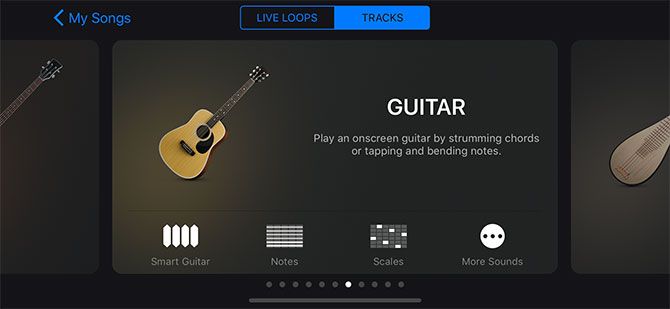
The app includes a great range of virtual instruments. You’ll find everything from drums and drum machines to stringed instruments like violins, virtual pianos, and keyboards. It even has virtual amplifiers for use with real guitars. With these tools and the sequencer, you can create songs that sound great in very little time. This may just be the best DAW for iPad, and it’s free to boot.

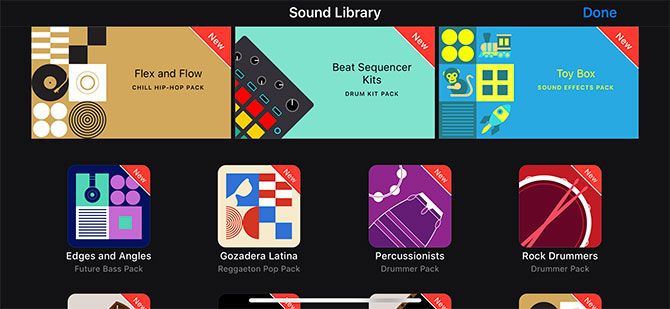
GarageBand for iOS Sound Library

Then there’s Apple’s library of royalty-free samples, available to use however you see fit. You can fuse these with your own creations, record a rough vocal mix with your iPhone’s microphone, and create demos or even whole songs using just your phone. Learn how to use GarageBand with our step-by-step guide.

Download: GarageBand (Free)

2. Auxy

While many apps try to rewrite the rules when it comes to creating beats and loops, Auxy only tries to simplify the process. The result is a free app that’s approachable, while offering serious power to those who know how to use it.

Use the piano roll editor to write looping melodies and bass lines, and create intricate drum patterns using preset or custom drum instruments. You can then arrange your patterns in scenes to create finished productions. Share them to SoundCloud, or export as uncompressed WAVs for further tweaking in your desktop digital audio workstation (DAW).

Auxy is free to download, with a $4.99 monthly subscription to unlock additional instruments, thousands of samples, and the ability to import your own sounds. There’s more than enough here to keep you happy for a few weeks before you open your wallet.

Download: Auxy (Free, subscription available)

3. Figure

Some music maker apps aim to provide every possible feature. Figure takes another approach, aiming to be a simple musical plaything that can get you surprisingly good results. Limitations and constraints can help make you more creative—Figure is the proof.

You get one drum machine, one lead synth, and one bass synth. There are a multitude of instruments for each element, which you can mix and match. Record synth parts by tapping, holding, and swiping the XY pads. Adjust the range of the scale, change the key, and fine-tune the sound till you’re happy.

For a while, it appeared that Figure had disappeared into the ether. Fortunately, the developer Reason (formerly known as Propellerhead) acquired the app in 2019, once again making it available completely free of charge.

Download: Figure (Free)

4. KORG Gadget

KORG’s lineup of iOS apps is almost as impressive as its range of hardware instruments. Gadget is a fully fledged audio workstation, featuring lead and bass synthesizers, analog and sample-based drum machines, and a sampler for recording external sound. The app was previously iPad-only, but now works flawlessly on the smaller iPhone screen too.

The app includes a powerful sequencer to tie all your gadgets together, with full automation and MIDI support. There’s also a built-in community, allowing you to share your creations and listen to what others have made for inspiration.

KORG Gadget is a full-featured iPhone and iPad musical workstation, and it’s not cheap. Fortunately there’s a light version to sample before you buy, though it limits you to three gadgets over three tracks. Advanced features like MIDI export, exporting to Ableton, Audiobus support, and more are disabled until you upgrade.

Download: KORG Gadget Le (Free) | KORG Gadget ($39.99, in-app purchases available)

5. iMPC Pro 2

Akai’s MPC line of hardware samplers has been a major part of the music industry since the 1980s. Hardware like the MPC60, MPC2000, and MPC3000 has been at the heart of countless songs you probably know and love. Akai Professional’s iMPC Pro 2 all but transforms your iPhone or iPad into one of these samplers.

If you’re interested in iPad music production, iMPC Pro 2 may just be your new best friend. Not only is the software loaded with sample packs, but additional free sample packs are available as well. You can also record, chop, and edit your own samples using the iPad’s built-in mic or even an iOS-compatible audio interface.

The software is primarily built for iPad. A separate app is available for iPhone, with a lower price tag that reflects its somewhat reduced usability. You can still get great results—it’s just not as easy to use as the iPad version.

Download: iMPC Pro 2 ($24.99) | iMPC Pro 2 for iPhone ($8.99)

6. KORG iKaossilator

Just like Figure, iKaossilator is a musical tool that breaks down the boundaries. It’s based on KORG’s pricey Kaossilator hardware, which uses an XY touchpad to manipulate the 150 built-in sounds in order to create weird and wonderful pieces of music.

The provides you with five channels of sound, which you can toggle at will. You can then take these channels, remix them across your projects, and control your loops in real time. iKaossilator is as much of a performance tool as it is a creative one.

It’s likely most valuable when generating ideas, rather than creating finished productions. It’s possible to export your creations or upload them directly to SoundCloud if you’re into that.

Download: iKaossilator ($19.99, in-app purchase available)

7. Cubasis

Most of these apps focus on making their own sounds, which is great. That said, you may be more interested in recording music on your iPad or iPhone. To make the most of these you’ll need a USB audio interface and a way to hook it up to your iPad.

Once you’ve put in the setup time, you’ll find Cubasis is one of the best DAWs for iPad music production. Cubasis is based on Steinberg’s Cubase software, so you benefit from the years of development Steinberg has put into Cubase. Despite this, the most recent version was rewritten from the ground up, adding new features like group tracks and other features you may recognize from Cubase on your Mac or PC.

Originally iPad-only, Cubasis now works on both the iPad and iPhone. Even better, the app is Universal, so you don’t need to buy separate versions for each device.

Download: Cubasis ($49.99, in-app purchases available)

8. AudioBus

AudioBus isn’t a music making app, but it’s instrumental in many productions. The app allows you to route audio from one source to another, so you can take the output from a synthesizer or drum machine, add effects with an audio processor, then record it in your workstation.

AudioBus 2 is the cheaper, more linear version, but it hasn’t seen an update since 2017. Meanwhile, AudioBus 3 is currently maintained and does everything AudioBus 2 does. It has more options for routing multiple apps, plus full support for MIDI.

Many apps on this list, like GarageBand, KORG Gadget, and Cubasis already support AudioBus. Check out the full list of AudioBus-compatible apps on the AudioBus website.

Download: AudioBus ($9.99, in-app purchase available)

Get Started Making Music on iPhone

This is a small sample of the huge number of apps that let you use your mobile device to create music. If you want to dive into more specific niches, there are plenty. You’ll find a world of dedicated synthesizers, drum machines, and other single-instrument apps available for iOS.

Want to take your music production up a notch? Check out the best DAWs for Mac or the best DAW software on Windows to make music on your computer.

Read the full article: The 8 Best Music Making Apps for Your iPhone and iPad


Read Full Article

The Best Affordable Robot Vacuums for Your Home


affordable-robot-vacuum-cleaners

Owning a robot vacuum brings a bit of luxury to your home. If you don’t enjoy cleaning, then a robovac is a useful tool that can really lighten the load at home. Even if you do enjoy cleaning, you can use a robot vacuum cleaner to free up a lot of your time.

However, buying a robot vacuum doesn’t have to be an expensive affair. You can grab a device without too much damage to your bank balance.

To help you get started, we’ve rounded up five of the best affordable robot vacuum cleaners.

Note: Manufacturers use a variety of terms to market their devices. So, be sure to check out the things you need to know before buying a robot vacuum.

Best Hybrid Vacuum Cleaner:
eufy RoboVac G10 Hybrid

eufy RoboVac G10 Hybrid eufy RoboVac G10 Hybrid Buy Now On Amazon $299.99

A robot vacuum is great. But wouldn’t a vacuum that also mops your floor be even better? Well, you’re in luck, because eufy have produced the RoboVac G10 Hybrid. This handy home helper comes in at a genuinely inexpensive price point for such a feature-packed unit.

The G10 Hybrid uses linear rather than bounce mode cleaning. This, coupled with simultaneous mopping and vacuuming, makes for a very efficient clean every time. You control the vacuum with a dedicated app.

There’s also Alexa and Google Assistant integration, so you can control the G10 Hybrid with a single voice command. Using either your digital assistant or the app, it’s possible to launch an automatic clean.

The robot will go about its job until it has cleaned everywhere. Once complete, it will return to its charging dock. You can also manually control the G10 with the app’s integrated soft remote.

Best Home-Mapping Vacuum:
ECOVACS DEEBOT 711S

ECOVACS DEEBOT 711S ECOVACS DEEBOT 711S Buy Now On Amazon $299.86

It is incredible that some robot vaccums can draw a map of the space they need to clean. This is even more astonishing when an affordable device can do it. The ECOVACS DEEBOT 711S does, though. When you initially launch the 711S, it will carry out a recon of your room.

Using lasers, it can then discover walls and other obstacles that may hamper the cleaning process. That way, it can avoid them altogether. This feature means the vacuum won’t clean in the same place twice, saving time and energy.

The vacuum will then send the map to a dedicated app on your mobile device. That way, you can see where it has cleaned and how far through the cleaning cycle it is. Like the eufy G10, the 711S cleans in a linear fashion. So, no clumsy bumping into furniture or missing patches of dust on the floor.

And, like the previous unit, there’s support for Google Assisant and Alexa. Thanks to the cliff-detection and anti-collision sensors, you know your vacuum will be safely cleaning your home while you get on with more important pursuits than cleaning.

Best Corner-Cleaning Vacuum:
Neato Botvac D3

Neato Botvac D3 Neato Botvac D3 Buy Now On Amazon $368.40

You have probably noticed that most robot vacuums are circular. This design means they’re not the best when it comes to corners. The Neato Botvac D3 eliminates this issue by taking on a d-shaped form. This unique shape means it can achieve maximum efficiency whenever it encounters those awkward right-angles in your room.

Aside from Alexa voice commands, you can control the D3 using Neato’s app. There’s even smartwatch support, too. With just a tap of your wrist, you can set your robot butler off to tackle dust and debris.

It will do so in a linear pattern, rather than cleaning at random. Not only that but, like the ECOVACS DEEBOT, the Neato Botvac will map out the floor, so it knows where to clean and where not to.

Don’t worry if the D3 runs out of juice, either. Thanks to smart-return tech, it will automatically head back to the included charging station and power-up. With some extra gas in the tank, it will resume its clean from where it left off.

Best Budget Robot Vacuum:
ILIFE A4s Pro

ILIFE A4s Pro ILIFE A4s Pro Buy Now On Amazon $189.99

We said earlier that owning a robot vacuum doesn’t have to break the bank. If any robot vacuum cleaner is a testament to that, it is the ILIFE A4s Pro. For a very reasonable price, you can bag yourself one of the best affordable robot vacuums, without compromising on features.

The A4S Pro, for example, doesn’t clean in a linear fashion. It uses a random cleaning mode, which is less efficient and therefore takes longer. Not that it is this means more work for you, so who is complaining?

It doesn’t have an app, either, but it does come with remote control, meaning you can direct it to any dirt it has missed, post-clean. The A4s’ Electrowall feature sends a laser across the room from wall-to-wall.

This acts as a virtual barrier and prevents the vacuum from entering the no-go zone you have created. If you’d rather contain the cleaner to a certain area, this will do the job. It will also prevent the vacuum from tangling in wire-heavy areas.

Best Self-Emptying Vacuum:
Shark IQ

Shark IQ Shark IQ Buy Now On Amazon $449.99

The Shark IQ robot vacuum represents a real end-to-end home assistant. Not only does it clean your floors for you, but it will also empty its dustbin into a larger unit. The charging station doubles up as waste disposal for your robot vacuum, and it is good for an impressive 30 days worth of dirt.

Shark knows its stuff when it comes to vacuums, with many users testifying that its traditional upright models are Dyson-beaters. According to the company, the Shark IQ boasts the best suction power of all of its robot vacuums.

As with the other options here, the Shark IQ comes with a dedicated app, too. Using the app, you can control the robot and schedule cleans. The vacuum also features a self-cleaning roller brush at the base.

This means issues like tangled hair become a thing of the past. In addition, the angled configuration of the side brushes allows the vacuum to get further into those corners that pose such a problem for a circular robot vacuum cleaner.

The Best Affordable Robot Vacuum Cleaners

If you’re looking to invest for the first time, choosing a robot vacuum cleaner can be a confusing experience. However, the options  we’ve listed, are an affordable starting point.

Whether you go for a basic model or want something with more bells and whistles, your life will get a whole lot easier with a robot to clean up after you.

If you’re opting for a robot vacuum, then you might be interested in how else technology could change your home life. With that in mind, why not check out the best smart home starter kits that are worth the money.

Read the full article: The Best Affordable Robot Vacuums for Your Home


Read Full Article

Daily Crunch: Facebook is acquiring Giphy


Facebook acquires a popular GIF search engine, video game sales see major growth and Sorrentino reports promising results for a COVID-19 treatment.

Here’s your Daily Crunch for May 15, 2020.

1. Facebook to acquire Giphy in a deal reportedly worth $400 million

Facebook will acquire Giphy, the web-based animated GIF search engine and platform provider. The company confirmed the deal but isn’t disclosing the terms; Axios reports that it’s worth around $400 million.

Giphy has grown to be a central source for shareable, high-engagement content, and its animated response GIFs are available across Facebook’s platforms, as well as through other social apps and services. Most notably, Giphy provides built-in search and sticker functions for Facebook’s Instagram, and it will continue to operate in that capacity.

2. US video game sales have record quarter, as consumers stay at home

New numbers from NPD confirm what we’ve known for a while: The first quarter of 2020 was a very good one for gaming companies. The new report notes that sales hit a record $10.86 billion in the U.S. between January and March of this year, marking a 9% increase over a year prior.

3. Sorrento finds a coronavirus antibody that blocks viral infection 100% in preclinical lab experiments

Therapeutics company Sorrento has made what it says could be a breakthrough in potential treatment of SARS-CoV-2, the virus that leads to COVID-19. The company released details of its preclinical research on Friday, announcing that it has found an antibody that provides “100% inhibition of SARS-CoV-2 virus infection of healthy cells after four days incubation.”

4. Indian food delivery startup Zomato cuts 13% of workforce

The 11-year-old firm did not disclose the exact number of people it was letting go, but the number is above 500. A Zomato spokesperson told TechCrunch that the startup employs about 4,000 people and the layoff impacts its workforce globally.

5. Big VCs stacked billions in Q1 while smaller firms saw their haul shrink

New data out today details how U.S.-based VCs fared in Q1 2020, giving us a window into how flush the financial class of startup land was as it headed into the COVID-19 era. The short answer is that big funds raised lots of cash, while smaller funds appear to have put in a somewhat lackluster quarter. (Extra Crunch membership required.)

6. Why did Apple buy NextVR?

At face value, this acquisition seems a little strange for Apple — the company has been pushing full-throttle on mobile AR, largely eschewing public activity or interest in the VR world. But virtual reality might feel like a safer investment at the moment.

7. WeWork and SoftBank unveil the first 14 startups in their Emerge accelerator for underrepresented founders

It’s an equity-free, eight-week program that includes workshops, access to mentors from SoftBank and the WeWork community and sessions with SoftBank executives. It all culminates in a showcase event for investors and SoftBank partners.

The Daily Crunch is TechCrunch’s roundup of our biggest and most important stories. If you’d like to get this delivered to your inbox every day at around 9am Pacific, you can subscribe here.


Read Full Article

Intraday Trading Calls for 18-May-2020

Intraday Trading Calls for 18-May-2020

Please click on the following link to view full post.

https://intradayguruji.blogspot.com/2020/05/intraday-trading-calls-for-18-may-2020.html

Via http://intradayguruji.blogspot.com

The language of being human | Poet Ali

The language of being human | Poet Ali

You speak far more languages than you realize, says Poet Ali. In a profound talk, he reveals how the idea of "language" goes far beyond a lexicon of words, communicating universal experiences like love, laughter and loneliness -- and serving as a portal to cultures, feelings and thoughts that unite us all.

Click the above link to download the TED talk.

Building and investing in the ‘human needs economy’


The entrepreneurial and investor focus of the last decade has largely been centered on increased convenience and consumerism, and has encouraged companies to prioritize scaling, with little care for how it affects stakeholders, employees, consumers and even the environment. We have been talking about a shift for some time, but now more than ever, it has become obvious that companies have to take humanity into account as they build and scale in this new paradigm.

The last 10 years of startup growth have been about building and investing in these “nice to haves.” We believe the next 10 years will be focused on building and investing in “need to haves,” and the greatest business opportunities will be found in what we at Human Ventures call The Human Needs Economy — products and services that have material impact on basic needs and livelihoods and address a core draw on a consumer’s time, money or energy. For 2020, we are focusing on solving problems within three categories that we believe will have a huge impact on the Human Needs Economy: health and wellness, the future of work and community.

As the first category of the Human Needs Economy, we outline the opportunity within health and wellness and specific areas in which we are excited to build and invest.

Health and wellness

Looking back at a decade focused on scaling nice to haves, it shouldn’t come as a surprise that we are living with unaddressed health and wellness issues. And the statistics are staggering. In 2019, an estimated 47.6 million adults (19% of the country) had a mental illness, but only 43% received any kind of mental health care. When it comes to sexual and reproductive health, whole populations of minorities and underrepresented groups receive subpar care and face stigma around health issues. And we’re on track for a shortage of 120,000 doctors in the U.S. by 2030, a signal that these issues are set to get worse. (The United States’ response to the COVID-19 pandemic has highlighted how dangerous this is in a crisis.)

These challenges and others represent what we call the wellness deficit — the sum of the human needs that have gone unmet in the areas of health and wellness. And even though it may seem that every block has a new boutique fitness studio popping up or everyone you know has the latest wearable to measure their sleep, we believe we are just at the starting line when it comes to making up ground and building great businesses that tackle these issues.

Below are 10 areas that are poised to make up this wellness deficit:


Read Full Article

Live Intraday Trading on 15-May-2020

Live Intraday Trading on 15-May-2020

Please click on the following link to view full post.

https://intradayguruji.blogspot.com/2020/05/live-intraday-trading-on-15-may-2020.html

Via http://intradayguruji.blogspot.com

Google Chrome’s Tab Groups Help You Organize Your Tabs


You can now group your Google Chrome tabs thanks to a feature called Tab Groups. Google Chrome Tab Groups let you organize your tabs, whether by topic, task, or progress. You can even use emojis as names for your Google Chrome Tab Groups.

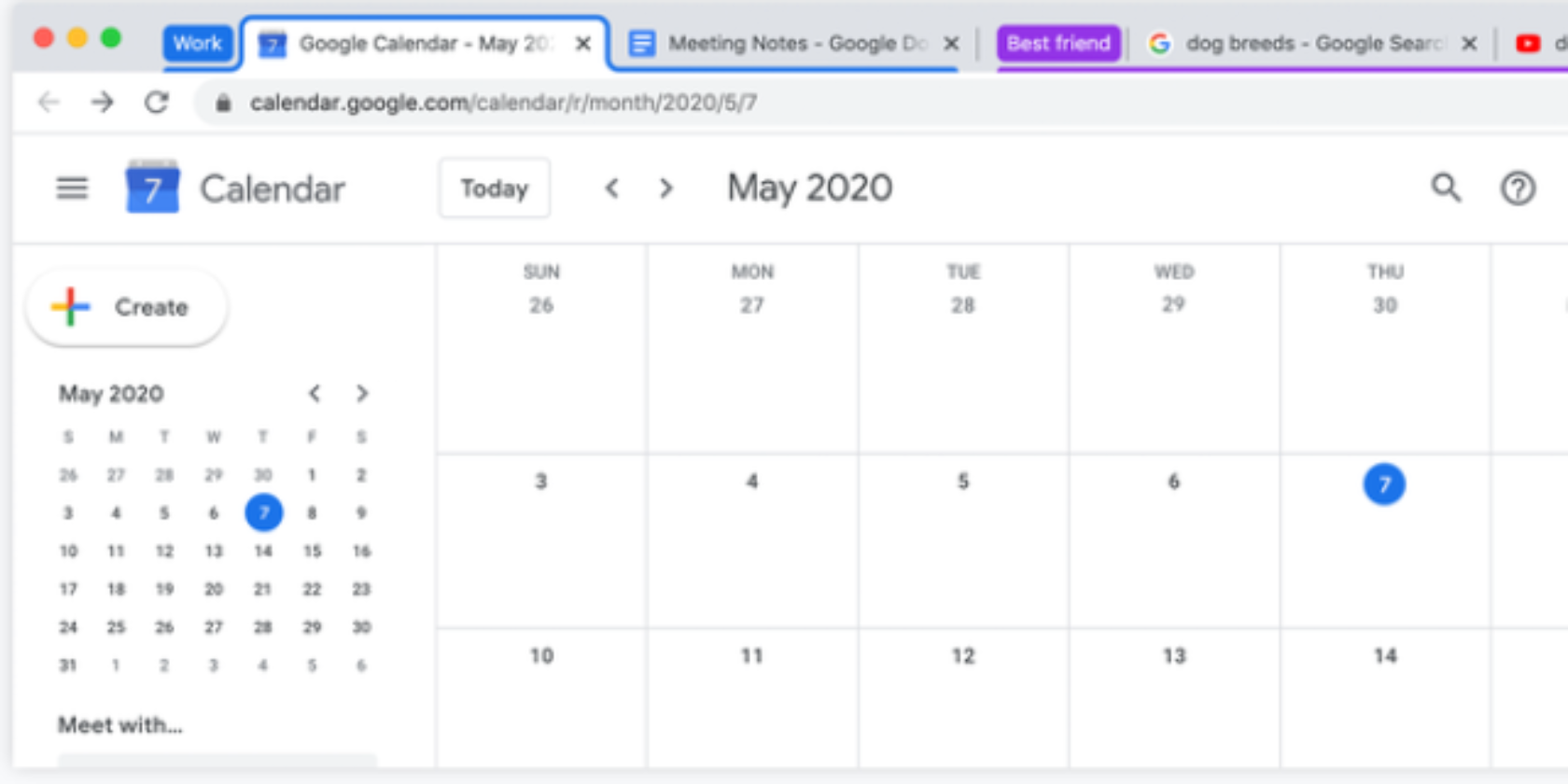
As detailed in a post on The Keyword, Google has finally added a way to organize your tabs. Tab Groups lets you group your tabs together and label them with a name and color. You can also move and reorder your tabs and groupings as and when you see fit.

How to Group Your Tabs in Google Chrome

To group your tabs, all you need to do is right-click on a single tab and click “Add Tab to Group”. You can then move the tab to an existing group or create a new one. If you create a new group, you can assign a name and color to it.

How you group your tabs is up to you. The most obvious is by topic, such as projects or shopping sites. However, Google also suggests grouping tabs by urgency (ASAP, this week, and later), or emojis (a heart for inspiration, a book for articles to read, etc).

Whatever system you decide on, you can add, remove, or reorder your tabs as you see fit. Reordering is as simple as dragging-and-dropping. And when you close Chrome your Tab Groups will be saved, meaning they’ll still be there when you reopen Chrome.

Tab Groups will arrive with the next version of Google Chrome, which is due to start rolling out next week. However, if you want to try Tab Groups out sooner, you’ll need to download the latest version of Google Chrome Beta.

Your Google Chrome Questions, Answered

Tab Groups is the latest feature designed to make Google Chrome easier to use. Especially for the tab collectors who keep dozens open at one time. Tab minimalists will be fine without this, but there’s no obligation to organize your Chrome tabs into groups.

Google Chrome has lots to explore under the hood. So, once you’ve got used to using Tab Groups, be sure to check out the essential Google Chrome FAQ answering all of your questions, and the essential Chrome privacy settings to keep you safe.

Read the full article: Google Chrome’s Tab Groups Help You Organize Your Tabs


Google Chrome’s Tab Groups Help You Organize Your Tabs


You can now group your Google Chrome tabs thanks to a feature called Tab Groups. Google Chrome Tab Groups let you organize your tabs, whether by topic, task, or progress. You can even use emojis as names for your Google Chrome Tab Groups.

As detailed in a post on The Keyword, Google has finally added a way to organize your tabs. Tab Groups lets you group your tabs together and label them with a name and color. You can also move and reorder your tabs and groupings as and when you see fit.

How to Group Your Tabs in Google Chrome

To group your tabs, all you need to do is right-click on a single tab and click “Add Tab to Group”. You can then move the tab to an existing group or create a new one. If you create a new group, you can assign a name and color to it.

How you group your tabs is up to you. The most obvious is by topic, such as projects or shopping sites. However, Google also suggests grouping tabs by urgency (ASAP, this week, and later), or emojis (a heart for inspiration, a book for articles to read, etc).

Whatever system you decide on, you can add, remove, or reorder your tabs as you see fit. Reordering is as simple as dragging-and-dropping. And when you close Chrome your Tab Groups will be saved, meaning they’ll still be there when you reopen Chrome.

Tab Groups will arrive with the next version of Google Chrome, which is due to start rolling out next week. However, if you want to try Tab Groups out sooner, you’ll need to download the latest version of Google Chrome Beta.

Your Google Chrome Questions, Answered

Tab Groups is the latest feature designed to make Google Chrome easier to use. Especially for the tab collectors who keep dozens open at one time. Tab minimalists will be fine without this, but there’s no obligation to organize your Chrome tabs into groups.

Google Chrome has lots to explore under the hood. So, once you’ve got used to using Tab Groups, be sure to check out the essential Google Chrome FAQ answering all of your questions, and the essential Chrome privacy settings to keep you safe.

Read the full article: Google Chrome’s Tab Groups Help You Organize Your Tabs


Google Chrome’s Tab Groups Help You Organize Your Tabs


You can now group your Google Chrome tabs thanks to a feature called Tab Groups. Google Chrome Tab Groups let you organize your tabs, whether by topic, task, or progress. You can even use emojis as names for your Google Chrome Tab Groups.

As detailed in a post on The Keyword, Google has finally added a way to organize your tabs. Tab Groups lets you group your tabs together and label them with a name and color. You can also move and reorder your tabs and groupings as and when you see fit.

How to Group Your Tabs in Google Chrome

To group your tabs, all you need to do is right-click on a single tab and click “Add Tab to Group”. You can then move the tab to an existing group or create a new one. If you create a new group, you can assign a name and color to it.

How you group your tabs is up to you. The most obvious is by topic, such as projects or shopping sites. However, Google also suggests grouping tabs by urgency (ASAP, this week, and later), or emojis (a heart for inspiration, a book for articles to read, etc).

Whatever system you decide on, you can add, remove, or reorder your tabs as you see fit. Reordering is as simple as dragging-and-dropping. And when you close Chrome your Tab Groups will be saved, meaning they’ll still be there when you reopen Chrome.

Tab Groups will arrive with the next version of Google Chrome, which is due to start rolling out next week. However, if you want to try Tab Groups out sooner, you’ll need to download the latest version of Google Chrome Beta.

Your Google Chrome Questions, Answered

Tab Groups is the latest feature designed to make Google Chrome easier to use. Especially for the tab collectors who keep dozens open at one time. Tab minimalists will be fine without this, but there’s no obligation to organize your Chrome tabs into groups.

Google Chrome has lots to explore under the hood. So, once you’ve got used to using Tab Groups, be sure to check out the essential Google Chrome FAQ answering all of your questions, and the essential Chrome privacy settings to keep you safe.

Read the full article: Google Chrome’s Tab Groups Help You Organize Your Tabs


Read Full Article