15 May 2020

Daily Crunch: Facebook is acquiring Giphy


Facebook acquires a popular GIF search engine, video game sales see major growth and Sorrentino reports promising results for a COVID-19 treatment.

Here’s your Daily Crunch for May 15, 2020.

1. Facebook to acquire Giphy in a deal reportedly worth $400 million

Facebook will acquire Giphy, the web-based animated GIF search engine and platform provider. The company confirmed the deal but isn’t disclosing the terms; Axios reports that it’s worth around $400 million.

Giphy has grown to be a central source for shareable, high-engagement content, and its animated response GIFs are available across Facebook’s platforms, as well as through other social apps and services. Most notably, Giphy provides built-in search and sticker functions for Facebook’s Instagram, and it will continue to operate in that capacity.

2. US video game sales have record quarter, as consumers stay at home

New numbers from NPD confirm what we’ve known for a while: The first quarter of 2020 was a very good one for gaming companies. The new report notes that sales hit a record $10.86 billion in the U.S. between January and March of this year, marking a 9% increase over a year prior.

3. Sorrento finds a coronavirus antibody that blocks viral infection 100% in preclinical lab experiments

Therapeutics company Sorrento has made what it says could be a breakthrough in potential treatment of SARS-CoV-2, the virus that leads to COVID-19. The company released details of its preclinical research on Friday, announcing that it has found an antibody that provides “100% inhibition of SARS-CoV-2 virus infection of healthy cells after four days incubation.”

4. Indian food delivery startup Zomato cuts 13% of workforce

The 11-year-old firm did not disclose the exact number of people it was letting go, but the number is above 500. A Zomato spokesperson told TechCrunch that the startup employs about 4,000 people and the layoff impacts its workforce globally.

5. Big VCs stacked billions in Q1 while smaller firms saw their haul shrink

New data out today details how U.S.-based VCs fared in Q1 2020, giving us a window into how flush the financial class of startup land was as it headed into the COVID-19 era. The short answer is that big funds raised lots of cash, while smaller funds appear to have put in a somewhat lackluster quarter. (Extra Crunch membership required.)

6. Why did Apple buy NextVR?

At face value, this acquisition seems a little strange for Apple — the company has been pushing full-throttle on mobile AR, largely eschewing public activity or interest in the VR world. But virtual reality might feel like a safer investment at the moment.

7. WeWork and SoftBank unveil the first 14 startups in their Emerge accelerator for underrepresented founders

It’s an equity-free, eight-week program that includes workshops, access to mentors from SoftBank and the WeWork community and sessions with SoftBank executives. It all culminates in a showcase event for investors and SoftBank partners.

The Daily Crunch is TechCrunch’s roundup of our biggest and most important stories. If you’d like to get this delivered to your inbox every day at around 9am Pacific, you can subscribe here.


Read Full Article

Intraday Trading Calls for 18-May-2020

Intraday Trading Calls for 18-May-2020

Please click on the following link to view full post.

https://intradayguruji.blogspot.com/2020/05/intraday-trading-calls-for-18-may-2020.html

Via http://intradayguruji.blogspot.com

The language of being human | Poet Ali

The language of being human | Poet Ali

You speak far more languages than you realize, says Poet Ali. In a profound talk, he reveals how the idea of "language" goes far beyond a lexicon of words, communicating universal experiences like love, laughter and loneliness -- and serving as a portal to cultures, feelings and thoughts that unite us all.

Click the above link to download the TED talk.

Building and investing in the ‘human needs economy’


The entrepreneurial and investor focus of the last decade has largely been centered on increased convenience and consumerism, and has encouraged companies to prioritize scaling, with little care for how it affects stakeholders, employees, consumers and even the environment. We have been talking about a shift for some time, but now more than ever, it has become obvious that companies have to take humanity into account as they build and scale in this new paradigm.

The last 10 years of startup growth have been about building and investing in these “nice to haves.” We believe the next 10 years will be focused on building and investing in “need to haves,” and the greatest business opportunities will be found in what we at Human Ventures call The Human Needs Economy — products and services that have material impact on basic needs and livelihoods and address a core draw on a consumer’s time, money or energy. For 2020, we are focusing on solving problems within three categories that we believe will have a huge impact on the Human Needs Economy: health and wellness, the future of work and community.

As the first category of the Human Needs Economy, we outline the opportunity within health and wellness and specific areas in which we are excited to build and invest.

Health and wellness

Looking back at a decade focused on scaling nice to haves, it shouldn’t come as a surprise that we are living with unaddressed health and wellness issues. And the statistics are staggering. In 2019, an estimated 47.6 million adults (19% of the country) had a mental illness, but only 43% received any kind of mental health care. When it comes to sexual and reproductive health, whole populations of minorities and underrepresented groups receive subpar care and face stigma around health issues. And we’re on track for a shortage of 120,000 doctors in the U.S. by 2030, a signal that these issues are set to get worse. (The United States’ response to the COVID-19 pandemic has highlighted how dangerous this is in a crisis.)

These challenges and others represent what we call the wellness deficit — the sum of the human needs that have gone unmet in the areas of health and wellness. And even though it may seem that every block has a new boutique fitness studio popping up or everyone you know has the latest wearable to measure their sleep, we believe we are just at the starting line when it comes to making up ground and building great businesses that tackle these issues.

Below are 10 areas that are poised to make up this wellness deficit:


Read Full Article

Live Intraday Trading on 15-May-2020

Live Intraday Trading on 15-May-2020

Please click on the following link to view full post.

https://intradayguruji.blogspot.com/2020/05/live-intraday-trading-on-15-may-2020.html

Via http://intradayguruji.blogspot.com

Google Chrome’s Tab Groups Help You Organize Your Tabs


You can now group your Google Chrome tabs thanks to a feature called Tab Groups. Google Chrome Tab Groups let you organize your tabs, whether by topic, task, or progress. You can even use emojis as names for your Google Chrome Tab Groups.

As detailed in a post on The Keyword, Google has finally added a way to organize your tabs. Tab Groups lets you group your tabs together and label them with a name and color. You can also move and reorder your tabs and groupings as and when you see fit.

How to Group Your Tabs in Google Chrome

To group your tabs, all you need to do is right-click on a single tab and click “Add Tab to Group”. You can then move the tab to an existing group or create a new one. If you create a new group, you can assign a name and color to it.

How you group your tabs is up to you. The most obvious is by topic, such as projects or shopping sites. However, Google also suggests grouping tabs by urgency (ASAP, this week, and later), or emojis (a heart for inspiration, a book for articles to read, etc).

Whatever system you decide on, you can add, remove, or reorder your tabs as you see fit. Reordering is as simple as dragging-and-dropping. And when you close Chrome your Tab Groups will be saved, meaning they’ll still be there when you reopen Chrome.

Tab Groups will arrive with the next version of Google Chrome, which is due to start rolling out next week. However, if you want to try Tab Groups out sooner, you’ll need to download the latest version of Google Chrome Beta.

Your Google Chrome Questions, Answered

Tab Groups is the latest feature designed to make Google Chrome easier to use. Especially for the tab collectors who keep dozens open at one time. Tab minimalists will be fine without this, but there’s no obligation to organize your Chrome tabs into groups.

Google Chrome has lots to explore under the hood. So, once you’ve got used to using Tab Groups, be sure to check out the essential Google Chrome FAQ answering all of your questions, and the essential Chrome privacy settings to keep you safe.

Read the full article: Google Chrome’s Tab Groups Help You Organize Your Tabs


Google Chrome’s Tab Groups Help You Organize Your Tabs


You can now group your Google Chrome tabs thanks to a feature called Tab Groups. Google Chrome Tab Groups let you organize your tabs, whether by topic, task, or progress. You can even use emojis as names for your Google Chrome Tab Groups.

As detailed in a post on The Keyword, Google has finally added a way to organize your tabs. Tab Groups lets you group your tabs together and label them with a name and color. You can also move and reorder your tabs and groupings as and when you see fit.

How to Group Your Tabs in Google Chrome

To group your tabs, all you need to do is right-click on a single tab and click “Add Tab to Group”. You can then move the tab to an existing group or create a new one. If you create a new group, you can assign a name and color to it.

How you group your tabs is up to you. The most obvious is by topic, such as projects or shopping sites. However, Google also suggests grouping tabs by urgency (ASAP, this week, and later), or emojis (a heart for inspiration, a book for articles to read, etc).

Whatever system you decide on, you can add, remove, or reorder your tabs as you see fit. Reordering is as simple as dragging-and-dropping. And when you close Chrome your Tab Groups will be saved, meaning they’ll still be there when you reopen Chrome.

Tab Groups will arrive with the next version of Google Chrome, which is due to start rolling out next week. However, if you want to try Tab Groups out sooner, you’ll need to download the latest version of Google Chrome Beta.

Your Google Chrome Questions, Answered

Tab Groups is the latest feature designed to make Google Chrome easier to use. Especially for the tab collectors who keep dozens open at one time. Tab minimalists will be fine without this, but there’s no obligation to organize your Chrome tabs into groups.

Google Chrome has lots to explore under the hood. So, once you’ve got used to using Tab Groups, be sure to check out the essential Google Chrome FAQ answering all of your questions, and the essential Chrome privacy settings to keep you safe.

Read the full article: Google Chrome’s Tab Groups Help You Organize Your Tabs


Google Chrome’s Tab Groups Help You Organize Your Tabs


You can now group your Google Chrome tabs thanks to a feature called Tab Groups. Google Chrome Tab Groups let you organize your tabs, whether by topic, task, or progress. You can even use emojis as names for your Google Chrome Tab Groups.

As detailed in a post on The Keyword, Google has finally added a way to organize your tabs. Tab Groups lets you group your tabs together and label them with a name and color. You can also move and reorder your tabs and groupings as and when you see fit.

How to Group Your Tabs in Google Chrome

To group your tabs, all you need to do is right-click on a single tab and click “Add Tab to Group”. You can then move the tab to an existing group or create a new one. If you create a new group, you can assign a name and color to it.

How you group your tabs is up to you. The most obvious is by topic, such as projects or shopping sites. However, Google also suggests grouping tabs by urgency (ASAP, this week, and later), or emojis (a heart for inspiration, a book for articles to read, etc).

Whatever system you decide on, you can add, remove, or reorder your tabs as you see fit. Reordering is as simple as dragging-and-dropping. And when you close Chrome your Tab Groups will be saved, meaning they’ll still be there when you reopen Chrome.

Tab Groups will arrive with the next version of Google Chrome, which is due to start rolling out next week. However, if you want to try Tab Groups out sooner, you’ll need to download the latest version of Google Chrome Beta.

Your Google Chrome Questions, Answered

Tab Groups is the latest feature designed to make Google Chrome easier to use. Especially for the tab collectors who keep dozens open at one time. Tab minimalists will be fine without this, but there’s no obligation to organize your Chrome tabs into groups.

Google Chrome has lots to explore under the hood. So, once you’ve got used to using Tab Groups, be sure to check out the essential Google Chrome FAQ answering all of your questions, and the essential Chrome privacy settings to keep you safe.

Read the full article: Google Chrome’s Tab Groups Help You Organize Your Tabs


Read Full Article

14 May 2020

Daily Crunch: Uber will require masks for drivers and passengers


Uber announces some COVID-19 related changes, Google’s Chrome browser is giving users a way to organize their tabs and the Senate rejects an amendment that would have raised the bar for law enforcement access to browsing data.

Here’s your Daily Crunch for May 14, 2020.

1. Here’s how your Uber ride will change, starting May 18

The changes — which include an online checklist for all rides, limits on the number of passengers in vehicles and a face mask verification feature for drivers — are designed to stop the spread of COVID-19, the company said Wednesday.

Riders and drivers, as well as delivery workers and even restaurants that use Uber Eats, will have the power to report unsafe COVID-19 behavior and give low ratings. For instance, a delivery worker can give feedback that a restaurant doesn’t have proper protocols in place, such as social distancing.

2. Google Chrome will finally help you organize your tabs

Google announced the launch of “tab groups” for the beta version of its web browser, which will allow you to organize, label and even color-code your tabs for easy access. The feature will make its way to the stable release of Chrome starting next week.

3. Senate narrowly rejects plan to require a warrant for Americans’ browsing data

Senators have narrowly rejected a bipartisan amendment that would have required the government first obtain a warrant before accessing Americans’ web browsing data. The amendment brought by Sens. Ron Wyden (D-OR) and Steve Daines (R-MT) would have forced the government to first establish probable cause (or reasonable suspicion of a crime) to obtain the warrant.

4. Kustomer acquires Reply.ai to enhance chatbots on its CRM platform

Reply.ai is a startup originally founded in Madrid that has built a code-free platform for companies to create customized chatbots to handle customer service inquiries. Its customers include Coca-Cola, Starbucks and Samsung.

5. Why we’re doubling down on cloud investments right now

Three investors at Bessemer Venture Partners argue that COVID-19 is a turning point for the cloud and cloud company founders, and that the cloud model offers businesses a promising future in the age of social distancing and beyond. (Extra Crunch membership required.)

6. Facebook, telcos to build huge subsea cable for Africa and Middle East

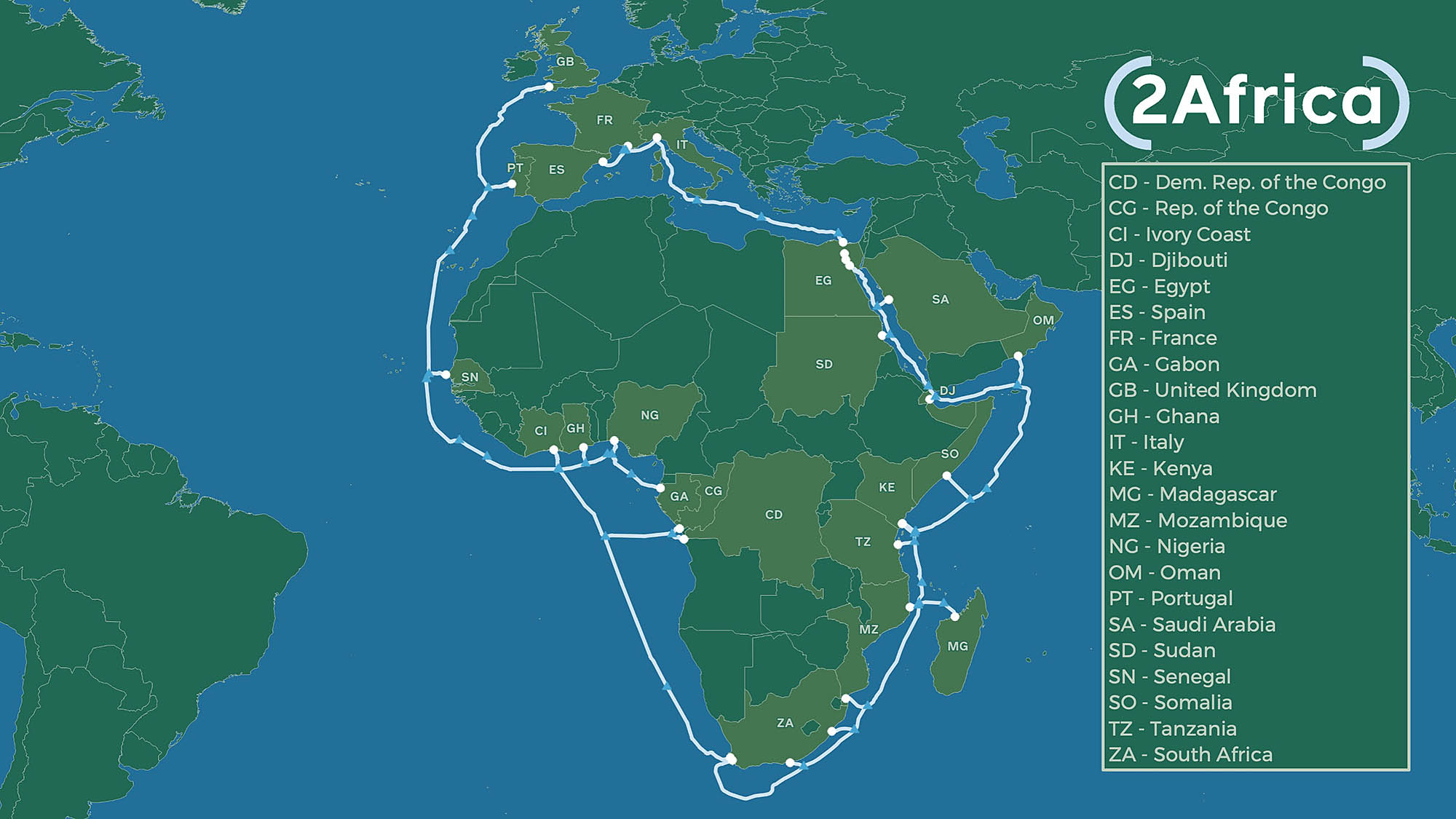
The project, called 2Africa, will see the companies lay cables that will stretch to 37,000km (22,990 miles) and interconnect Europe (eastward via Egypt), the Middle East (via Saudi Arabia) and 21 landings in 16 countries in Africa.

7. 7 top mobility VCs discuss COVID-19 strategies and trends

TechCrunch spoke to seven venture capitalists about how COVID-19 affected their portfolio and investment strategy, their current advice for startup founders and where they think the next hot opportunity will be. (Extra Crunch membership required.)

The Daily Crunch is TechCrunch’s roundup of our biggest and most important stories. If you’d like to get this delivered to your inbox every day at around 9am Pacific, you can subscribe here.


Read Full Article

Restoring human dignity at the US southern border | Norma Pimentel

Restoring human dignity at the US southern border | Norma Pimentel

After seeing the conditions in which children were held at a detention center on the US-Mexico border, Sister Norma Pimentel established a humanitarian respite center in Texas where people can get clean clothing, a warm shower and a hot meal. In this powerful talk, Sister Pimentel discusses her work restoring human dignity at the border -- and calls on us all to put aside prejudice and lead with compassion.

Click the above link to download the TED talk.

Google makes it easier to migrate VMware environments to its cloud


Google Cloud today announced the next step in its partnership with VMware: the Google Cloud VMware Engine. This fully managed service provides businesses with a full VMware Cloud Foundation stack on Google Cloud to help businesses easily migrate their existing VMware-based environments to Google’s infrastructure. Cloud Foundation is VMware’s stack for hybrid and private cloud deployments

Given Google Cloud’s focus on enterprise customers, it’s no surprise that the company continues to bet on partnerships with the likes of VMware to attract more of these companies’ workloads. Less than a year ago, Google announced that VMware Cloud Foundation would come to Google Cloud and that it would start supporting VMware workloads. Then, last November, Google Cloud acquired CloudSimple, a company that specialized in running VMware environments and that Google had already partnered with for its original VMware deployments. The company describes today’s announcement as the third step in this journey.

VMware Engine provides users with all of the standard Cloud Foundation components: vSphere, vCenter, vSAN, NSX-T and HCX. With this, Google Cloud General Manager June Yang notes in today’s announcement, businesses can quickly stand up their own software-defined data center in the Google Cloud.

“Google Cloud VMware Engine is designed to minimize your operational burden, so you can focus on your business,” she notes. “We take care of the lifecycle of the VMware software stack and manage all related infrastructure and upgrades. Customers can continue to leverage IT management tools and third-party services consistent with their on-premises environment.”

Google is also working with third-party providers like NetApp, Veeam, Zerto, Cohesity and Dell Technologies to ensure that their solutions work on Google’s platform, too.

“As customers look to simplify their cloud migration journey, we’re committed to build cloud services to help customers benefit from the increased agility and efficiency of running VMware workloads on Google Cloud,” said Bob Black, Dell Technologies Global Lead Alliance Principal at Deloitte Consulting. “By combining Google Cloud’s technology and Deloitte’s business transformation experience, we can enable our joint customers to accelerate their cloud migration, unify operations, and benefit from innovative Google Cloud services as they look to modernize applications.””


Read Full Article

NVIDIA begins shipping the A100, its first Ampere-based data center GPU


NVIDIA announced today that its NVIDIA A100, the first of its GPUs based on its Ampere architecture, is now in full production and has begun shipping to its customers globally. Ampere is a big generational jump in NVIDIA’s GPU architecture design, providing what the company says is the “largest leap in performance to date” across all eight generations of its graphics hardware.

Specifically, the A100 can improve performance on AI training and inference as much as 20x relative to prior NVIDIA data center GPUs, and it offers advantages across just about any kind of GPU-intensive data center workloads, including data analytics, protein modelling and other scientific computing uses, and cloud-based graphics rendering.

The A100 GPU can also be scaled either up or down depending on the needs, meaning that you can use a single unit to handle as many as seven separate tasks with partitioning, and you can combine them to work together as one large, virtual GPU to tackle the toughest training tasks for AI applications. The ‘Multi-instance GPU’ partitioning feature in particular is novel to this generation, and really helps emphasize the ability of the A100 to provide the most value for cost for clients of all sizes, since one could theoretically replace up to seven discrete GPUs in a data center if you’re already finding you have some headroom on your usage needs.

Alongside the production and shipping announcement, NVIDIA is also announcing that a number of customers are already adopting the A100 for use in their supercomputers and data centers, including Microsoft Azure, Amazon Web Services, Google Cloud and just about every significant cloud provider that exists.

NVIDIA also announced the DGX A100 system, which combines eight of the A100 GPUs linked together using NVIDIA’s NVLink. That’s also available immediately directly from NVIDIA, and from its approved resale partners.


Read Full Article

Intraday Trading Calls for 15-May-2020

Intraday Trading Calls for 15-May-2020

Please click on the following link to view full post.

https://intradayguruji.blogspot.com/2020/05/intraday-trading-calls-for-15-may-2020.html

Via http://intradayguruji.blogspot.com

How to Collaborate in Default Mac Apps: Notes, Calendar, and More


collaborate on mac

When you need to collaborate with coworkers, you may not all be in the same location. Perhaps you’re part of a permanent remote team, or maybe you’re temporarily working from different spots. And while you can easily use a team communication app, that’s not always the most effective way to collaborate.

Whether it’s a project, a plan, or a paper, you have apps built right into your Mac that offer great sharing options for collaboration.

Collaborate by Sharing Notes on Mac

The Notes app is an excellent tool for taking notes and creating lists. And since it’s available across Apple devices, you can sync and access it whenever you need it. If you and your coworkers need to put your heads together on a project and keep your thoughts organized, you can share both folders and notes on Mac.

To share a folder in Notes, make sure that the folder sidebar is open. You can click the Show Folders button in the toolbar or View > Show Folders from the menu bar if it’s not already.

Select the folder and then use one of these methods to share it:

  • Right-click and pick Add People.
  • Click More (three dots) next to the name and pick Add People.
  • Choose File from the menu bar, pick Add People To, and select Folder [folder name].
  • Click the Add People button in the toolbar and pick Folder [folder name].

To only share a note within a folder, select the note and then use one of these methods to share it:

  • Choose File from the menu bar, pick Add People To, and select Note [note name].
  • Click the Add People button from the toolbar and pick Note [note name].

A small popup window will appear with the sharing methods you have available and the permissions you want to allow. For those Permissions, you can allow those you invite to make changes or simply view the item(s).

Mac Notes Add People

Choose your sharing method, add email addresses or phone numbers if applicable, and click Share. Then follow the prompts to share an invitation to your folder or note. Once your recipient accepts the invitation and starts making changes, you’ll see those edits in real-time.

To view each person you’re sharing with, click the Add People button in the toolbar or File > View Participants from the menu bar. Here, you can also change their permissions, stop sharing with one person or everyone, or add more people.

Mac Notes View People

By sharing notes and folders, you and your team can work on items together easily. Check out our tips for organizing your Notes if they become a little messy.

Collaborate by Sharing Reminders on Mac

The Reminders app on Mac is terrific for creating lists of tasks, setting up priorities and due dates, and of course, receiving reminders. And like Notes, you can sync Reminders with iPhone and iPad.

To share a list in Reminders, make sure that the sidebar is open. Click View > Show Sidebar from the menu bar to reveal it.

Then, select the list you want to share and click the Share button next to the name, or right-click the list and pick Add People.

Mac Reminders Add People Shortcut

You’ll then choose the sharing method you want to use. Unlike Notes, anyone you share the list with can make changes. Thus, there are no permission settings. Choose your method, add any details needed for that method, click Share, and follow the prompts.

Mac Reminders Add People

To view those you’re sharing a list with, stop sharing, or add more people, click the Share button next to the list name.

Mac Reminders View People

When you and your team are responsible for list items or duties at work or on a project, you can each mark off what you complete in Reminders.

Collaborate by Sharing a Calendar on Mac

The Calendar app on macOS lets you use different calendars per the accounts you have set up. So you can use it for iCloud, Gmail, Exchange, and other account types. And by sharing a calendar, you and your team can stay up to date on work-related events, meetings, conferences, and similar.

To share a calendar, make sure that the Calendars sidebar is open. You can click the Calendars button in the toolbar or View > Show Calendar List from the menu bar to bring it up.

Select the calendar and then use one of these methods to share it:

  • Right-click and pick Share Calendar.
  • Choose Edit from the menu bar and pick Share Calendar.
  • Click the Share button to the right of the calendar name.

Click inside the Share With area of the small window and enter those you want to share the calendar with. In most cases, you’ll see suggestions from your contacts that you can pick from.

After you add those you want to share the calendar with, you can click the dropdown box for each person’s name. Then choose the permission you want to allow: View Only or View & Edit. Click Done when you finish.

Mac Share Calendar Add People and Permissions

Once your calendar invitations reach the recipients and they accept, those you’re sharing with will have checkmarks next to their names.

Now with that shared calendar, everyone on your team can stay up to date on the events they need to—whether for the company in general or a specific project. And be sure to share these tricks for mastering the Mac Calendar app with your coworkers.

Collaborate by Sharing Photos or Images

The Photos app on Mac is useful for more than pictures of your pets and family. If you’re in a business where you regularly work with photos and other images, take advantage of the Shared Album feature in the Photos app.

To create a shared album in Photos, follow these steps:

  1. Click the plus sign next to Shared Albums in the sidebar.
  2. Give your album a name and optionally a comment, such as a description.
  3. You can invite others to the album right away by clicking the plus sign and choosing them from your contacts.
  4. Click Create and you’re set.

Mac Photos Create Shared Album

If you want to create the shared album first and share it later, that’s easy to do. Select the shared album in the sidebar and then click the People button in the toolbar. Click the plus sign and choose a contact to invite.

Mac Photos Shared Album View People

You can move existing images to the shared album by simply dragging them there. It’s also possible to import images into the album from your Mac or iCloud Drive. Click File > Import from the menu bar and follow the prompts to locate, select, and import the images.

Share Other Items With Your Team From a Mac

You can quickly share most anything you find using Safari, record in Voice Memos, or use in Contacts using these steps:

  • Share a page in Safari: Click the Share button in the toolbar or File > Share from the menu bar.
  • Share a recording in Voice Memos: Click the Share button in the toolbar or right-click and pick Share.
  • Share a card in Contacts: Select the contact card and click the Share button at the bottom-right of the window, or right-click and pick Share.

And remember, you can forward emails from Mail and texts from Messages for your company in addition to sharing your Mac’s screen over Messages with coworkers.

Collaborate by Sharing on Your Mac

Rather than using copy and paste methods to collaborate on notes, reminders, events, or images, make the most of these default apps and their sharing features on Mac.

If you want to collaborate in Pages, Numbers, or Keynote on Mac, we have a helpful tutorial for sharing those documents as well.

Read the full article: How to Collaborate in Default Mac Apps: Notes, Calendar, and More


Read Full Article

How to Set Your Own Background in Microsoft Teams


change-bg-ms-teams

You’ve been invited to a Microsoft Teams meeting, but your work area is a mess. Perhaps you’re working at home, or your usual office is just simply unsuitable. Maybe some redecorating or renovation work is taking place.

Either way, you don’t want anyone to see the mess. So, what can you do?

The solution is to set a background that hides everything behind you during a video call. It could be anything, from outdoors scenery to a photo of an office. Here’s how you can set a custom background in Microsoft Teams.

Why Use Microsoft Teams?

With the explosion in home working following the COVID-19 pandemic, Microsoft Teams is one of the most complete collaboration tools available.

Featuring messaging, team management, and document sharing, Teams is free for anyone to use. However, you’ll get the best results from it by using corporate login details, so speak to your employer about this.

Like Zoom, Microsoft Teams enjoyed a big increase in use in 2020. Surprisingly, it doesn’t feature an easy option to change your video call background.

Fortunately, changing a background in Microsoft Teams isn’t that difficult. You just need to be handy with the Windows or macOS file manager.

Do You Need a New Background?

Before proceeding, take a moment. You’re about to start rifling through your computer’s hidden files and folders. If this prospect concerns you, it might be smarter to simply tidy up, or even move to a new location.

Microsoft Teams is available on Windows, macOS, iPhone, and Android. As such, it shouldn’t be too difficult to switch to a mobile device and take the call in your garden. At work? Why not join the video call from an unused desk, or even in your parked car?

If you can’t do without a new background in Microsoft Teams, keep reading.

You Could Just Blur the Background

If you don’t want to find a new background, you could use the blur effect instead. This is a simpler solution to finding a background, a task that can quickly become time consuming.

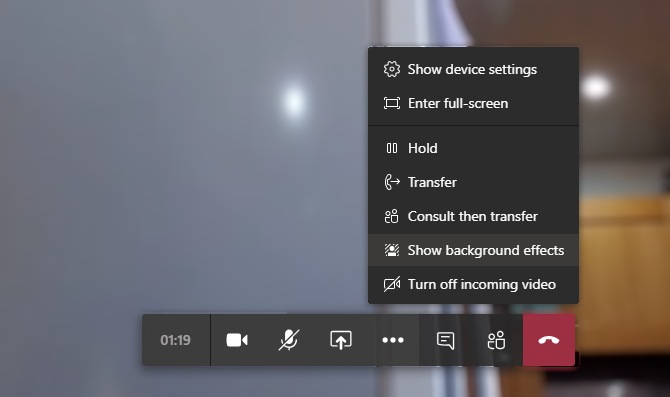
To use the blur feature in Teams, start a call then click the ellipses button on the call toolbar.

Click Show background effects then select the blur option. Use Apply and turn on video to confirm, then carry on with the call.

Blur the background in Microsoft Teams calls

This is a quick and easy fix that saves a lot of messing around with copy, paste, and strange file paths.

How to Choose a Suitable Photo Background

You’ll need an image handy before you set it as the new background, so take a moment to choose one. It might be a corporate logo, or a photo of colleagues at work. Perhaps the photo is a shot of some team building exercise.

It can be a pattern or even just a single color.

In most cases, you’ll need an image that is around 1MB in size. This should ensure that the image quality is high enough to not seem blocky. In terms of resolution, look for images at least 1080px wide.

A low quality, blocky images can be distracting to your colleagues, so keep the background as eye-pleasing as possible.

Save your images in an appropriately named folder in your personal drive and leave this open.

How to Set a Background for Microsoft Teams Video Calls

Windows and macOS Microsoft Teams users can both set a custom background on video calls.

On Windows PCs:

  • Press WIN+R to open the run box
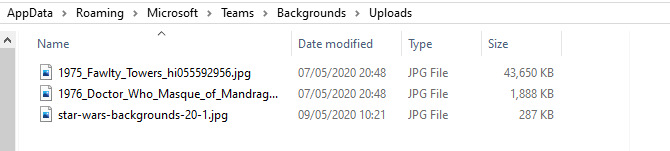
  • Enter %AppData%\Microsoft\Teams\Backgrounds\Uploads

Add custom images to Microsoft Teams

  • Click OK
  • Paste the image(s) from your source location into this folder
  • In a Teams video call, click the ellipses button and select Show background effects

Open the background effects menu in Microsoft Teams

  • You’ll see a selection of pre-installed images including the blur option
  • Browse to the end of the list to select your image then Preview it
  • When you’re happy with the results simply Apply and turn on video to broadcast your feed with the new background

If you use macOS follow these steps:

  • In Finder browser to /users/<username>/Library/Application Support/Microsoft/Teams/Backgrounds/Uploads
  • Paste the chosen background image(s) into the folder
  • During a Teams video call, click the ellipses button and Show background effects
  • Select the image, then Preview

Set custom backgrounds in Microsoft Teams

  • Click Apply and turn on video to add the background to the call

By now you should be broadcasting to your colleagues with a beautiful sunshine scene, a Minecraft landscape, whatever you want!

Where You Can Find Microsoft Teams Backgrounds

What background you choose will depend on what kind of visual you want to share with your colleagues. Short of ideas? Fortunately, there are many places you can find images to use as Microsoft Teams as backgrounds.

Star Wars Backgrounds

Need to remind your coworkers of your galactic power? What better than a collection of Star Wars backgrounds for video calls? This includes the ruined Death Star from The Rise of Skywalker, the planets Jakku, Hoth, and Tatooine, and of course the Millennium Falcon.

Download: Star Wars backgrounds

Marvel Backgrounds

Combining MCU and Marvel Comics images, this is a nice collection if you want to pose as a member of SHIELD or be an Avenger.

Download: Marvel Comics backgrounds

BBC Backgrounds

Fawlty Towers video chat background

The BBC has released a collection of “empty set” backgrounds from a range of TV shows spanning over 50 years. These included sitcoms such as Fawlty Towers (pictured) (other British sitcoms are on Netflix), Doctor Who, Pride and Prejudice, and many others.

Note that these image files are high-resolution format, with some as large as 50MB.

Download: Empty Set backgrounds from the BBC

Harry Potter Backgrounds

For something a little more magical, these images of Hogwarts, Platform 9 ¾, and the popular houses are perfect.

Download: Harry Potter backgrounds

Get Serious: Use Professional Backgrounds

If you prefer to keep your Microsoft Teams video calls serious, simply apply more professional backgrounds. You have a wide choice here. For example, sites like Pexels and Pixabay provide free, professional images.

Meanwhile, your organization probably has a collection of corporate images suitable for video call backgrounds. The public relations department can probably provide these if they’re not available on the website or company intranet.

Share Ideal Surroundings in Microsoft Teams Calls

By now you should be ready to discard your messy workspace, at least virtually. With Microsoft Teams’ custom backgrounds, you can effortlessly declutter your surroundings. And even attract attention in your video calls as any type of photo with a suitable resolution can be used.

Just be sure to save it in the right folder. And if you don’t have time to find a new background image, don’t panic—simply blur your background so no one can see how cluttered your life is.

New to Microsoft Teams? Get to grips with it quickly with our Microsoft Teams keyboard shortcuts cheat sheet.

Read the full article: How to Set Your Own Background in Microsoft Teams


Read Full Article

Make Quarantine More Entertaining With SelectTV, the World’s Largest Entertainment Library


After several weeks of being stuck at home, you may just be starting to run out of content to watch. If you would like to expand your choice without emptying your bank account, try SelectTV. Billed as the world’s largest entertainment library, this platform gives you unlimited access to hundreds of thousands of TV shows and movies, along with live TV and radio. You can currently pick up a two-year subscription for just $32.99 at MakeUseOf Deals.

Endless Choice

With more content than Netflix and Hulu combined, SelectTV is the ultimate defense against quarantine boredom.

As featured by USA Today and The Huffington Post, this platform gives you unlimited access to 250,000 TV episodes and 10,000 movies. You can also stream 1,500 curated TV channels, and listen to 50,000 radio stations from around the world. You can watch on desktop, mobile, and Chromecast devices.

You can browse over 100 content sources via the Select TV guide. In addition, this app can help you find the best deals on pay-per-view entertainment. This expands your options to 700,000 TV shows and 100,000 movies.

Two Years for $32.99

Two years of service would normally cost $92.78, but you can get SelectTV now for just $32.99. The deal includes a free HD antenna, which lets you enjoy local channels.

Read the full article: Make Quarantine More Entertaining With SelectTV, the World’s Largest Entertainment Library


Read Full Article

How to Set Your Own Background in Microsoft Teams


change-bg-ms-teams

You’ve been invited to a Microsoft Teams meeting, but your work area is a mess. Perhaps you’re working at home, or your usual office is just simply unsuitable. Maybe some redecorating or renovation work is taking place.

Either way, you don’t want anyone to see the mess. So, what can you do?

The solution is to set a background that hides everything behind you during a video call. It could be anything, from outdoors scenery to a photo of an office. Here’s how you can set a custom background in Microsoft Teams.

Why Use Microsoft Teams?

With the explosion in home working following the COVID-19 pandemic, Microsoft Teams is one of the most complete collaboration tools available.

Featuring messaging, team management, and document sharing, Teams is free for anyone to use. However, you’ll get the best results from it by using corporate login details, so speak to your employer about this.

Like Zoom, Microsoft Teams enjoyed a big increase in use in 2020. Surprisingly, it doesn’t feature an easy option to change your video call background.

Fortunately, changing a background in Microsoft Teams isn’t that difficult. You just need to be handy with the Windows or macOS file manager.

Do You Need a New Background?

Before proceeding, take a moment. You’re about to start rifling through your computer’s hidden files and folders. If this prospect concerns you, it might be smarter to simply tidy up, or even move to a new location.

Microsoft Teams is available on Windows, macOS, iPhone, and Android. As such, it shouldn’t be too difficult to switch to a mobile device and take the call in your garden. At work? Why not join the video call from an unused desk, or even in your parked car?

If you can’t do without a new background in Microsoft Teams, keep reading.

You Could Just Blur the Background

If you don’t want to find a new background, you could use the blur effect instead. This is a simpler solution to finding a background, a task that can quickly become time consuming.

To use the blur feature in Teams, start a call then click the ellipses button on the call toolbar.

Click Show background effects then select the blur option. Use Apply and turn on video to confirm, then carry on with the call.

Blur the background in Microsoft Teams calls

This is a quick and easy fix that saves a lot of messing around with copy, paste, and strange file paths.

How to Choose a Suitable Photo Background

You’ll need an image handy before you set it as the new background, so take a moment to choose one. It might be a corporate logo, or a photo of colleagues at work. Perhaps the photo is a shot of some team building exercise.

It can be a pattern or even just a single color.

In most cases, you’ll need an image that is around 1MB in size. This should ensure that the image quality is high enough to not seem blocky. In terms of resolution, look for images at least 1080px wide.

A low quality, blocky images can be distracting to your colleagues, so keep the background as eye-pleasing as possible.

Save your images in an appropriately named folder in your personal drive and leave this open.

How to Set a Background for Microsoft Teams Video Calls

Windows and macOS Microsoft Teams users can both set a custom background on video calls.

On Windows PCs:

  • Press WIN+R to open the run box
  • Enter %AppData%\Microsoft\Teams\Backgrounds\Uploads

Add custom images to Microsoft Teams

  • Click OK
  • Paste the image(s) from your source location into this folder
  • In a Teams video call, click the ellipses button and select Show background effects

Open the background effects menu in Microsoft Teams

  • You’ll see a selection of pre-installed images including the blur option
  • Browse to the end of the list to select your image then Preview it
  • When you’re happy with the results simply Apply and turn on video to broadcast your feed with the new background

If you use macOS follow these steps:

  • In Finder browser to /users/<username>/Library/Application Support/Microsoft/Teams/Backgrounds/Uploads
  • Paste the chosen background image(s) into the folder
  • During a Teams video call, click the ellipses button and Show background effects
  • Select the image, then Preview

Set custom backgrounds in Microsoft Teams

  • Click Apply and turn on video to add the background to the call

By now you should be broadcasting to your colleagues with a beautiful sunshine scene, a Minecraft landscape, whatever you want!

Where You Can Find Microsoft Teams Backgrounds

What background you choose will depend on what kind of visual you want to share with your colleagues. Short of ideas? Fortunately, there are many places you can find images to use as Microsoft Teams as backgrounds.

Star Wars Backgrounds

Need to remind your coworkers of your galactic power? What better than a collection of Star Wars backgrounds for video calls? This includes the ruined Death Star from The Rise of Skywalker, the planets Jakku, Hoth, and Tatooine, and of course the Millennium Falcon.

Download: Star Wars backgrounds

Marvel Backgrounds

Combining MCU and Marvel Comics images, this is a nice collection if you want to pose as a member of SHIELD or be an Avenger.

Download: Marvel Comics backgrounds

BBC Backgrounds

Fawlty Towers video chat background

The BBC has released a collection of “empty set” backgrounds from a range of TV shows spanning over 50 years. These included sitcoms such as Fawlty Towers (pictured) (other British sitcoms are on Netflix), Doctor Who, Pride and Prejudice, and many others.

Note that these image files are high-resolution format, with some as large as 50MB.

Download: Empty Set backgrounds from the BBC

Harry Potter Backgrounds

For something a little more magical, these images of Hogwarts, Platform 9 ¾, and the popular houses are perfect.

Download: Harry Potter backgrounds

Get Serious: Use Professional Backgrounds

If you prefer to keep your Microsoft Teams video calls serious, simply apply more professional backgrounds. You have a wide choice here. For example, sites like Pexels and Pixabay provide free, professional images.

Meanwhile, your organization probably has a collection of corporate images suitable for video call backgrounds. The public relations department can probably provide these if they’re not available on the website or company intranet.

Share Ideal Surroundings in Microsoft Teams Calls

By now you should be ready to discard your messy workspace, at least virtually. With Microsoft Teams’ custom backgrounds, you can effortlessly declutter your surroundings. And even attract attention in your video calls as any type of photo with a suitable resolution can be used.

Just be sure to save it in the right folder. And if you don’t have time to find a new background image, don’t panic—simply blur your background so no one can see how cluttered your life is.

New to Microsoft Teams? Get to grips with it quickly with our Microsoft Teams keyboard shortcuts cheat sheet.

Read the full article: How to Set Your Own Background in Microsoft Teams


Facebook, telcos collaborate on subsea cable for Africa and Middle East


Facebook, and a group of telecom companies including China Mobile International, MTN GlobalConnect, Orange, and Vodafone are collaborating to build the “most comprehensive” subsea cable to serve the African continent and Middle East region where nearly a billion people are still not connected to the internet.

The project, called 2Africa, will see the companies lay cables that will stretch to 37,000km (22,990 miles) and interconnect Europe (eastward via Egypt), the Middle East (via Saudi Arabia), and 21 landings in 16 countries in Africa.

In a joint statement, the companies said they expect the system to be live by 2023 or early 2024. Once live, it should be able to deliver more than the total combined capacity of all subsea cables serving Africa today, with a design capacity of up to 180Tbps on key parts of the system.

The companies, which also includes Saudi Arabia-based telecom firm STC, Telecom Egypt, and African telecom firm WIOCC, say service providers in the countries where 2Africa cable lands will obtain capacity in carrier-neutral data centres or open-access cable landing stations on a fair and equitable basis.

Facebook and telecom operators did not reveal how much money they were investing on the project.

Najam Ahmad, Vice President of Network Infrastructure at Facebook, said 2Africa is “a major element of our ongoing investment in Africa to bring more people online to a faster internet. We’ve seen first-hand the positive impact that increased connectivity has on communities, from education to healthcare.”

The subsea cable would also help Facebook and others drive down their bandwidth costs.

The internet is an amalgamation of tiny bits of code that move around the world in cables across the ocean floor. As of early last year, 750,000 miles of cable have been laid out across the globe.

The involvement of Facebook, which maintains a number of other connectivity efforts to bring more people online, in 2Africa shouldn’t come as a surprise. Telecom firms have long worked on undersea cable projects, but over the past decade, several American technology companies have joined the effort.

Google, Microsoft, Facebook, and Amazon now own or lease nearly half of the undersea bandwidth, according to Washington-based research firm TeleGeography. Google alone has backed at least 14 cables globally.

Last year, the search giant unveiled Equiano, a privately-funded subsea cable to connect Europe and Africa. The first phase of this project was scheduled for completion in 2021. Both 2Africa and Equiano have commissioned Alcatel Submarine Networks for building the cable.

American technology companies aren’t alone in their fascination with laying cables across the globe. China’s Huawei completed a 3,750mile cable between Brazil and Cameroon in late 2018, and last year began work on a 7,500-mile cable connecting Europe, Asia and Africa. It was also finishing up links across the Gulf of California in Mexico, WSJ reported last year, adding that some unnamed current and former U.S. officials were worried that the Chinese tech giant’s cables were vulnerable to espionage. Huawei denied any threat.


Read Full Article

Facebook, telcos to collaborate on most comprehensive subsea cable for Africa and Middle East


Facebook, and a group of telecom companies including China Mobile International, MTN GlobalConnect, Orange, and Vodafone are collaborating to build the “most comprehensive” subsea cable to serve the African continent and Middle East region where nearly a billion people are still not connected to the internet.

The project, called 2Africa, will see the companies lay cables that will stretch to 37,000km (22,990 miles) and interconnect Europe (eastward via Egypt), the Middle East (via Saudi Arabia), and 21 landings in 16 countries in Africa.

In a joint statement, the companies said they expect the system to be live by 2023 or early 2024. Once live, it should be able to deliver more than the total combined capacity of all subsea cables serving Africa today, with a design capacity of up to 180Tbps on key parts of the system.

The companies, which also includes Saudi Arabia-based telecom firm STC, Telecom Egypt, and African telecom firm WIOCC, say service providers in the countries where 2Africa cable lands will obtain capacity in carrier-neutral data centres or open-access cable landing stations on a fair and equitable basis.

Facebook and telecom operators did not reveal how much money they were investing on the project.

Najam Ahmad, Vice President of Network Infrastructure at Facebook, said 2Africa is “a major element of our ongoing investment in Africa to bring more people online to a faster internet. We’ve seen first-hand the positive impact that increased connectivity has on communities, from education to healthcare.”

The subsea cable would also help Facebook and others drive down their bandwidth costs.

The internet is an amalgamation of tiny bits of code that move around the world in cables across the ocean floor. As of early last year, 750,000 miles of cable have been laid out across the globe.

The involvement of Facebook, which maintains a number of other connectivity efforts to bring more people online, in 2Africa shouldn’t come as a surprise. Telecom firms have long worked on undersea cable projects, but over the past decade, several American technology companies have joined the effort.

Google, Microsoft, Facebook, and Amazon now own or lease nearly half of the undersea bandwidth, according to Washington-based research firm TeleGeography. Google alone has backed at least 14 cables globally.

Last year, the search giant unveiled Equiano, a privately-funded subsea cable to connect Europe and Africa. The first phase of this project was scheduled for completion in 2021. Both 2Africa and Equiano have commissioned Alcatel Submarine Networks for building the cable.

American technology companies aren’t alone in their fascination with laying cables across the globe. China’s Huawei completed a 3,750mile cable between Brazil and Cameroon in late 2018, and last year began work on a 7,500-mile cable connecting Europe, Asia and Africa. It was also finishing up links across the Gulf of California in Mexico, WSJ reported last year, adding that some unnamed current and former U.S. officials were worried that the Chinese tech giant’s cables were vulnerable to espionage. Huawei denied any threat.


Read Full Article

How to Add an XML Sitemap to your Blogger Blog


The XML Sitemap file is like a directory of all web pages that exist on your website or blog. Google, Bing and other search engines can use these sitemap files to discover pages on your site that their search bots may have otherwise missed during regular crawling.

Google XML Sitemaps for Blogger

The Problem with Blogger Sitemap Files

A complete XML sitemap file should mention all pages of a site but that’s not the case if your blog is hosted on the Blogger or blogspot platform.

Google accepts sitemaps in XML, RSS, or Atom formats. They recommend use both XML sitemaps and RSS/Atom feeds for optimal crawling.

The default atom RSS feed of any Blogger blog will have only the most recent blog posts – see example. That’s a limitation because some of your older blog pages, that are missing in the default XML sitemap file, may never get indexed in search engines. There’s however a simple solution to fix this problem.

Generate XML Sitemap for your Blogger Blog

This section is valid for both regular Blogger blogs (that have a blogspot.com address) and also the self-hosted Blogger blogs that use a custom domain (like postsecret.com).

Here’s what you need to do to expose your blog’s complete site structure to search engines with the help of an XML sitemap.

  1. Open the Sitemap Generator and type the full address of your Blogger blog.

  2. Click the Generate Sitemap button and this tool will instantly create the XML file with your sitemap. Copy the entire text to your clipboard.

  3. Next, go to your Blogger.com dashboard, navigate to Settings –> Search Preferences, enable Custom robots.txt option (available in the Crawling and Indexing section). Paste the XML sitemap here and save your changes.

Blogger XML Sitemap

And we are done. Search engines will automatically discover your XML sitemap files via the robots.txt file and you don’t have to ping them manually.

Internally, the XML sitemap generator counts all the blog posts that are available in your Blogger blog. It then splits the posts in batches of 500 posts each and generates multiple XML feed for each batch. Thus search engines will be able to discover every single post on your blog since it would be part of one of these XML sitemaps.

PS: If you have switched from Blogger to WordPress, it still makes sense to submit XML sitemaps of your old Blogspot blog as that will aid search engines discover your new WordPress blog posts and pages.