14 May 2020

Facebook, telcos collaborate on subsea cable for Africa and Middle East


Facebook, and a group of telecom companies including China Mobile International, MTN GlobalConnect, Orange, and Vodafone are collaborating to build the “most comprehensive” subsea cable to serve the African continent and Middle East region where nearly a billion people are still not connected to the internet.

The project, called 2Africa, will see the companies lay cables that will stretch to 37,000km (22,990 miles) and interconnect Europe (eastward via Egypt), the Middle East (via Saudi Arabia), and 21 landings in 16 countries in Africa.

In a joint statement, the companies said they expect the system to be live by 2023 or early 2024. Once live, it should be able to deliver more than the total combined capacity of all subsea cables serving Africa today, with a design capacity of up to 180Tbps on key parts of the system.

The companies, which also includes Saudi Arabia-based telecom firm STC, Telecom Egypt, and African telecom firm WIOCC, say service providers in the countries where 2Africa cable lands will obtain capacity in carrier-neutral data centres or open-access cable landing stations on a fair and equitable basis.

Facebook and telecom operators did not reveal how much money they were investing on the project.

Najam Ahmad, Vice President of Network Infrastructure at Facebook, said 2Africa is “a major element of our ongoing investment in Africa to bring more people online to a faster internet. We’ve seen first-hand the positive impact that increased connectivity has on communities, from education to healthcare.”

The subsea cable would also help Facebook and others drive down their bandwidth costs.

The internet is an amalgamation of tiny bits of code that move around the world in cables across the ocean floor. As of early last year, 750,000 miles of cable have been laid out across the globe.

The involvement of Facebook, which maintains a number of other connectivity efforts to bring more people online, in 2Africa shouldn’t come as a surprise. Telecom firms have long worked on undersea cable projects, but over the past decade, several American technology companies have joined the effort.

Google, Microsoft, Facebook, and Amazon now own or lease nearly half of the undersea bandwidth, according to Washington-based research firm TeleGeography. Google alone has backed at least 14 cables globally.

Last year, the search giant unveiled Equiano, a privately-funded subsea cable to connect Europe and Africa. The first phase of this project was scheduled for completion in 2021. Both 2Africa and Equiano have commissioned Alcatel Submarine Networks for building the cable.

American technology companies aren’t alone in their fascination with laying cables across the globe. China’s Huawei completed a 3,750mile cable between Brazil and Cameroon in late 2018, and last year began work on a 7,500-mile cable connecting Europe, Asia and Africa. It was also finishing up links across the Gulf of California in Mexico, WSJ reported last year, adding that some unnamed current and former U.S. officials were worried that the Chinese tech giant’s cables were vulnerable to espionage. Huawei denied any threat.


Read Full Article

Facebook, telcos to collaborate on most comprehensive subsea cable for Africa and Middle East


Facebook, and a group of telecom companies including China Mobile International, MTN GlobalConnect, Orange, and Vodafone are collaborating to build the “most comprehensive” subsea cable to serve the African continent and Middle East region where nearly a billion people are still not connected to the internet.

The project, called 2Africa, will see the companies lay cables that will stretch to 37,000km (22,990 miles) and interconnect Europe (eastward via Egypt), the Middle East (via Saudi Arabia), and 21 landings in 16 countries in Africa.

In a joint statement, the companies said they expect the system to be live by 2023 or early 2024. Once live, it should be able to deliver more than the total combined capacity of all subsea cables serving Africa today, with a design capacity of up to 180Tbps on key parts of the system.

The companies, which also includes Saudi Arabia-based telecom firm STC, Telecom Egypt, and African telecom firm WIOCC, say service providers in the countries where 2Africa cable lands will obtain capacity in carrier-neutral data centres or open-access cable landing stations on a fair and equitable basis.

Facebook and telecom operators did not reveal how much money they were investing on the project.

Najam Ahmad, Vice President of Network Infrastructure at Facebook, said 2Africa is “a major element of our ongoing investment in Africa to bring more people online to a faster internet. We’ve seen first-hand the positive impact that increased connectivity has on communities, from education to healthcare.”

The subsea cable would also help Facebook and others drive down their bandwidth costs.

The internet is an amalgamation of tiny bits of code that move around the world in cables across the ocean floor. As of early last year, 750,000 miles of cable have been laid out across the globe.

The involvement of Facebook, which maintains a number of other connectivity efforts to bring more people online, in 2Africa shouldn’t come as a surprise. Telecom firms have long worked on undersea cable projects, but over the past decade, several American technology companies have joined the effort.

Google, Microsoft, Facebook, and Amazon now own or lease nearly half of the undersea bandwidth, according to Washington-based research firm TeleGeography. Google alone has backed at least 14 cables globally.

Last year, the search giant unveiled Equiano, a privately-funded subsea cable to connect Europe and Africa. The first phase of this project was scheduled for completion in 2021. Both 2Africa and Equiano have commissioned Alcatel Submarine Networks for building the cable.

American technology companies aren’t alone in their fascination with laying cables across the globe. China’s Huawei completed a 3,750mile cable between Brazil and Cameroon in late 2018, and last year began work on a 7,500-mile cable connecting Europe, Asia and Africa. It was also finishing up links across the Gulf of California in Mexico, WSJ reported last year, adding that some unnamed current and former U.S. officials were worried that the Chinese tech giant’s cables were vulnerable to espionage. Huawei denied any threat.


Read Full Article

How to Add an XML Sitemap to your Blogger Blog


The XML Sitemap file is like a directory of all web pages that exist on your website or blog. Google, Bing and other search engines can use these sitemap files to discover pages on your site that their search bots may have otherwise missed during regular crawling.

Google XML Sitemaps for Blogger

The Problem with Blogger Sitemap Files

A complete XML sitemap file should mention all pages of a site but that’s not the case if your blog is hosted on the Blogger or blogspot platform.

Google accepts sitemaps in XML, RSS, or Atom formats. They recommend use both XML sitemaps and RSS/Atom feeds for optimal crawling.

The default atom RSS feed of any Blogger blog will have only the most recent blog posts – see example. That’s a limitation because some of your older blog pages, that are missing in the default XML sitemap file, may never get indexed in search engines. There’s however a simple solution to fix this problem.

Generate XML Sitemap for your Blogger Blog

This section is valid for both regular Blogger blogs (that have a blogspot.com address) and also the self-hosted Blogger blogs that use a custom domain (like postsecret.com).

Here’s what you need to do to expose your blog’s complete site structure to search engines with the help of an XML sitemap.

  1. Open the Sitemap Generator and type the full address of your Blogger blog.

  2. Click the Generate Sitemap button and this tool will instantly create the XML file with your sitemap. Copy the entire text to your clipboard.

  3. Next, go to your Blogger.com dashboard, navigate to Settings –> Search Preferences, enable Custom robots.txt option (available in the Crawling and Indexing section). Paste the XML sitemap here and save your changes.

Blogger XML Sitemap

And we are done. Search engines will automatically discover your XML sitemap files via the robots.txt file and you don’t have to ping them manually.

Internally, the XML sitemap generator counts all the blog posts that are available in your Blogger blog. It then splits the posts in batches of 500 posts each and generates multiple XML feed for each batch. Thus search engines will be able to discover every single post on your blog since it would be part of one of these XML sitemaps.

PS: If you have switched from Blogger to WordPress, it still makes sense to submit XML sitemaps of your old Blogspot blog as that will aid search engines discover your new WordPress blog posts and pages.


Live Intraday Trading on 14-May-2020

Live Intraday Trading on 14-May-2020

Please click on the following link to view full post.

https://intradayguruji.blogspot.com/2020/05/live-intraday-trading-on-14-may-2020.html

Via http://intradayguruji.blogspot.com

You Can Now Delete Instagram Comments in Bulk


Instagram has introduced more new ways to fight back against online bullies. The headline feature lets you delete Instagram comments in bulk. However, you can also now pin positive comments, and control who can tag and mention you on Instagram.

Online bullying is a serious problem, especially on social media. This is especially true on the social media platforms popular with younger demographics. Such as Instagram. However, Instagram has been trying to combat online bullies over the years.

New Instagram Features to Combat Bullying

Alongside the fifth edition of its Community Standards Enforcement report, Instagram has announced a number of new features. As outlined on the Instagram Blog, these are all designed to help Instagram users fight back against online bullies.

The first new feature lets you manage unwanted interactions. While you could already delete individual comments, you can now delete up to 25 Instagram comments in bulk. You can also block or restrict multiple accounts behind negative comments.

bulk delete Instagram comments

On the flipside, you can also highlight positive comments. Pinned Comments, which are currently being tested, lets you pin a select number of comments to the top of a thread. The idea being that it lets you set the tone you want for your account.

Last but not least, you can now choose who can tag and mention you. Instagram is rolling out a new set of controls that allow you to manage who can tag or mention you. You can limit the option to no one, allow people who follow you, or allow everyone.

How to Hide Your Social Media Profiles

These are all solid ways to help people fight back against online bullies. And giving people the tools they need to combat the problem is all anyone is asking. For many years, Instagram lagged behind its rivals in this, but it’s now leading the way.

While most social media platforms offer ways to combat bullying, things can get out of hand. In which case, you may need to take extra measures to prevent yourself from being harassed. If so, here’s how to hide your social media profiles from bullies.

Read the full article: You Can Now Delete Instagram Comments in Bulk


Read Full Article

How Are Fake Live Video Calls Made? Here’s How to Spot Them


Video calling is ubiquitous. You can video call your friends, family, and colleagues, sharing your face and surroundings at the same time. Being in the same location all time is boring, right? How about appearing with your regular face? Everyone knows what that looks like.

What if you could make a fake video call that switched out your face, or the background, or other important features—would you fake call your family?

Here’s how fake video calls work, and how you can spot one.

What Is a Fake Video Call?

A fake video call can mean a couple of things.

For instance, you could create a fake video background in an attempt to trick people into believing you’re on holiday. You could record a video of yourself staring at your monitor, then play it back during a meeting that you are not required to talk in.

There’s the option of mirroring your webcam input to a YouTube video that does not feature you at all but could show an amusing cat video.

A fake video call could also use deepfake technology, using AI-powered video to switch out the faces and voices on display. You can find more information on deepfake tech later in the article.

How to Make a Fake Video Call Using ManyCam

How you approach making a fake video call depends on the platform. On a desktop computer or laptop, you have multiple software options to use a fake video, but your access to certain apps is limited. For example, the WhatsApp desktop app does not allow any video (or voice) calling.

For those apps that you can use, ManyCam allows you to alter the appearance of your webcam, extensively. For instance, you can use more than one webcam with Skype or other voice calling apps, or stream a completely different video that appears instead of your webcam.

Here’s how you make a fake video call using ManyCam.

1. Configure ManyCam

First, you need to download, install, and configure ManyCam.

Download: ManyCam for Windows | macOS

Once your download completes, install ManyCam.

2. Create a ManyCam Preset & Choose Your Fake Video Source

You can use presets for your fake video call. Open ManyCam, then under Presets, select Preset 1. Underneath the Presets panel are the video source options. Select the video source you want to use, such as a webcam, IP camera, YouTube video, web source URL, and so on.

If you want to use a YouTube video, copy and paste the video URL into ManyCam. Do the same for whichever fake video source you choose.

3. Select ManyCam In Your Voice Calling App

Once you configure the fake video source, you can make your video call. But you must select the ManyCam webcam option in your video call app to display your fake video.

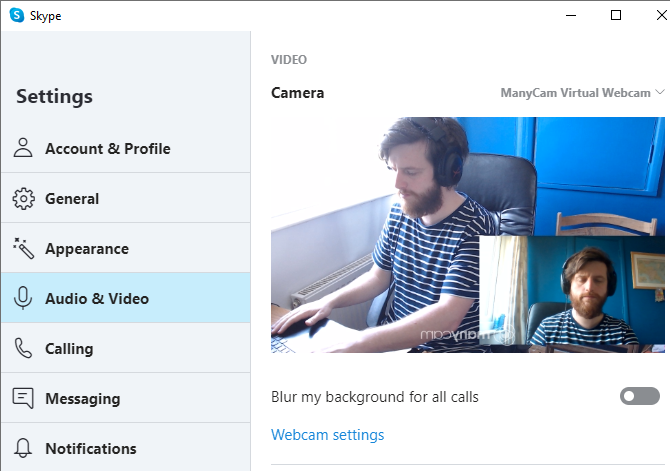
For example, in the Skype desktop app, head to Settings > Audio & Video. In the Camera options, select the ManyCam Virtual Webcam. When you make your video call, the fake video in ManyCam will play instead of your regular webcam.

manycam skype camera options

The process is slightly different for each video calling app, but you’ll find the ManyCam Virtual Webcam option in the camera or webcam options.

How to Make a Fake Video Call Using OBS

OBS (Open Broadcaster Software) is a popular cross-platform, open-source video streaming tool. You can use OBS to stream to multiple platforms simultaneously, record media, and much more. In this case, you can use OBS to stream a fake video in place of your webcam.

The result is similar to ManyCam. However, as OBS is completely free, you can use the full range of video streaming and broadcasting options. Even though OBS has more tools on offer, the software isn’t difficult to use.

Here’s how you make a fake video call using OBS.

1. Configure OBS

First, you need to download and install OBS. Although it is a cross-platform tool, the following steps only work with OBS on Windows due to the plugin required to create a virtual webcam.

Download: OBS for Windows (Free)

2. Configure OBS-VirtualCam

OBS-VirtualCam is an open-source plugin for OBS. The plugin creates a virtual webcam option in OBS. Once you install the plugin, you can output media to the virtual webcam, then select the virtual webcam in your video call options.

Download: OBS-VirtualCam for Windows (Free)

Download and install the plugin. The OBS-VirtualCam plugin will detect your OBS installation folder automatically. When prompted, select Yes, you do want to overwrite the folder. Then select whether you want a single or multiple virtual webcam outputs. Now, complete the installation.

obs virtualcam plugin

Now, open OBS and head to Tools > VirtualCam to switch on the virtual webcam. The virtual webcam option of “OBS-Camera” will now appear in your video calling apps, such as Skype or Facebook Messenger.

3. Select Your Fake Video Source in OBS

OBS has several options you can use for a fake video. You can use OBS to play a local video, display a browser window or online video, create a video stream from a third-party video player (such as VLC), and more.

obs add media source

You can see the range of options along the bottom of the main screen in OBS. Under Source, select the + icon, then choose the video input option for your fake video call.

  • If you already have a video you want to use, select Media Source, then browse to the file location on your computer.
  • Alternatively, you can play the fake video in a separate media player. Select Window Capture, then select the media player using the Window dropdown menu.
  • If you want to use an online video, select Browser, then input the URL of the website you want to display. Next, resize the browser window using Width and Height to fit the video size.

Whichever video configuration you choose, the result will play through the OBS-VirtualCam virtual webcam in your video calling app.

Can You Make Fake Video Calls Using a Smartphone?

Smartphone apps come with a different set of limitations regarding fake video calling.

Fake video apps for smartphones are dime-a-dozen, but they don’t do what you expect. If you search for “fake video calling apps” on Google Play, you’ll find thousands of poorly coded apps that let you “chat” with a fake person, rather than stream a fake video through a video calling app.

Spoofing a smartphone camera within an app isn’t easy. Smartphone video calling apps (and other apps in general) don’t allow such behavior for a simple reason: it presents a security risk. If one app can spoof and mimic the camera for a fun reason, another app will use the same process for nefarious reasons.

What Is a Deepfake?

On the more nefarious side, there are deepfakes. A deepfake video uses AI technology to create an extremely convincing video featuring the likeness of someone else.

Deepfake tech continues to develop, and it is becoming increasingly difficult to spot the difference between a real video and an AI video. For example, check out the example that brought deepfake technology to light, mimicking Barack Obama:

The hands and gestures are Obama’s, but the mouth (voiced by comedian Jordan Peele) is out of sync. Whereas, just over one year later, The Dark Knight’s Tale features Heath Ledger playing himself as Joker in the Dark Knight, but also in A Knight’s Tale.

The Dark Knight’s Tale is fake. But it does illustrate the tremendous advances in deepfake technology over the course of a year.

Around the same time, a deepfake featuring Facebook CEO Mark Zuckerberg was also illustrating the technology.

Again, it is clearly fake. Zuckerberg sounds completely different to the deepfake.

A deepfake requires masses of computing power (specifically, a powerful GPU), time, and data. For the effort creating a lifelike deepfake requires, you’re unlikely to encounter an effective effort as a prank in the near future.

How to Spot a Fake Video Call

Can you spot a fake video call? The answer lies in the quality of the fake video.

The development of deepfake technology is a prime example. Jordan Peele’s deepfake video mimicking Barack Obama was clearly fake. But the quality of public-facing deepfake technology is much better than it was. That’s without considering the deepfake technology that powerful organizations or governments will have access to.

At other times, you’ll know a fake video call is false because of the contact information. Making a truly fake video call on WhatsApp is incredibly difficult because the contact information displays during the connection. Similar limitations are present with other video calling apps that link to a phone number.

There are, of course, tricks to skirt these issues—fake accounts, fake phone numbers, false names, pictures, and so on. But for the most part, would someone go to that length to create a fake video call to fool you?

For most people, tech support scams are a more pressing issue. Either that, or the threat of phishing scams relating to the latest news cycle.

5 Ways to Spot a Fake Video Call

In short, there are a few tell-tale signs regarding a fake video call:

  • Video quality. The quality of the video is usually poor. If the fake video comes from an online source, check for watermarks or other signs the video is stolen.
  • Video sizing. Whoever is fake video calling you will resize a video to fit the webcam window or the app they’re using. Resizing the video will distort the proportions of the video, so it looks out of shape (think extra long or extra wide face, and so on).
  • Contacts. Is the person calling you in your contacts list? If not, does the name mean anything to you? Alternatively, does the contact name appear as the name of an app?
  • If the video call comes from someone you know, and their contact information is correct, what is the video content? Is the person allegedly calling you even in the video?
  • Loops & Cuts. Many fake videos will loop around to the start after a certain amount of time. Alternatively, the video will stop abruptly at the end—but the video call won’t finish.

Also, if someone is using a face swapping app with video functionality, the faces are extremely unlikely to align correctly.

Fake Video Calls Be Gone!

Now you know a few of the methods used to make fake video calls, as well as which platforms they work best on, you’re better prepared to spot and avoid them.

Hopefully, you won’t encounter any fake videos online. But fake news is big business. If something feels fishy, cross-check it using one of the best fact-checking sites for finding the truth.

Read the full article: How Are Fake Live Video Calls Made? Here’s How to Spot Them


Read Full Article

Custom Mouse Cursors for Windows 10: How to Get Started


Are you sick of the default white cursor in Windows? Most people customize their computer wallpaper, sounds, and other elements, but don’t think to tweak the cursor.

Thankfully, it’s easy to change your cursor’s look. Let’s look at how to use a custom cursor in Windows.

Where to Find Custom Mouse Pointers

To change your Windows cursor, you’ll first need a new cursor set. The easiest way to add custom cursors to Windows is to download ready-made packs. You’ll find tons of great free cursor options online with a bit of searching.

One of our favorite cursor packs is Oxygen Cursors, created by LAvalon on DeviantArt. It includes a glassy-looking cursor in 37 different color schemes, meaning that you’re sure to find a color setup you’ll like. In addition to a clean look, they’re also easy to install, making it a great choice if you’re new to cursor customization.

Oxygen Cursors

For tons of cursor options, have a look at the Cursor tag on DeviantArt and Open Cursor Library. You’ll be able to find all sorts of interesting options there.

Sample Mouse Cursor Packs

While we can’t list all the available cursors options, here’s a sampling from DeviantArt that will appeal to most people. Note that you’ll need to have a free DeviantArt account to download these:

  • Capitaine cursors by krourke: A cursor scheme inspired by macOS, with a clean dark look and several alternative icons for loading and other symbols.

Capitaine Cursors

Android Material Cursors

Numix Cursors

  • Entis Cursors by zhorak: A bold cursor set, which is perfect if you often lose track of your cursor.
  • Wii Cursors by allewun: If you’re nostalgic for the pointer from the Nintendo Wii, this pack lets you revive it on your PC.

How to Install Custom Cursor Packs

Because they contain multiple files, most cursor packs download in an archived format, like ZIP or RAR. To proceed, you’ll need to extract the folder contents so you can use them.

If you don’t have it already, install 7-Zip, one of our favorite file extraction tools, to unpack these. Simply right-click on the downloaded folder and choose 7-Zip > Extract to [archive name] and the software will create a new folder with the archive’s contents.

Extract Cursors Windows

Depending on your cursor pack, there may be multiple folders inside for the various themes, so open the one you’re most interested in. Inside, you’ll see several files ending in CUR and ANI. CUR files are static cursors, while ANI file formats are animated cursor files.

Most cursor packs will also have an INF file, typically install.inf or [cursor name].inf. This is an easy installation file that you can use to add the custom cursor to your system.

Right-click on the INF file and choose Install. Windows will show a UAC prompt; once you accept it, the process only takes a moment.

Windows Install Cursors

(If your cursor pack didn’t include an INF file, see the section below on manually changing your mouse cursor.)

Repeat these steps for any other cursor packs you want to install. Now that you’ve added the packs to Windows, you’ll need to apply the cursor set you want to use.

How to Change Your Cursor in Windows

Even on Windows 10, you’ll need to open the Control Panel to change mouse cursors. Type control panel into the Start menu to launch it. If the view option in the top-right says Category, change it to Small icons and choose Mouse.

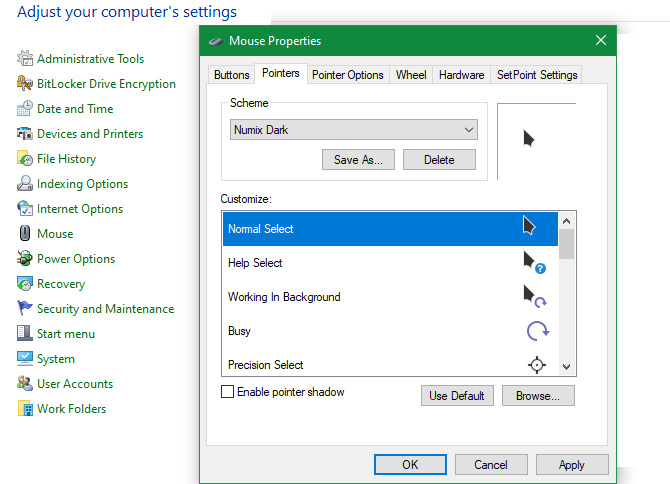
This opens a new dialog box with several options for customizing mouse behavior. Switch to the Pointers tab to change the look of your mouse cursor. There, click the dropdown box under Scheme to show all your installed cursor sets.

Windows Mouse Options

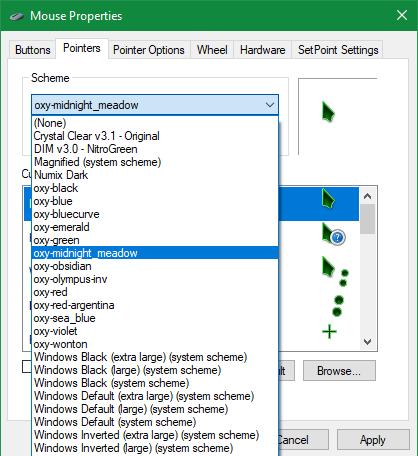
Everything you installed earlier using INF files should appear here. Select a cursor pack to preview its icons; you’ll see what each one looks like in the Customize box. Choose Apply to try the pointer out for yourself and OK when you’re done.

That’s all it takes to use a new cursor. When you want to change to another theme or revert back to the default, return to this menu and select your new cursor. You’ll also find a few other Windows default cursors here, though they aren’t particularly exciting.

Windows Cursor Choices

How to Manually Change Your Mouse Cursor

If you downloaded a cursor pack that doesn’t include an INF file or want to make your own mouse cursor scheme by combining multiple cursor icons, you can add them manually. This is less convenient than the INF install, but it’s still straightforward.

First, navigate to the Mouse section of the Control Panel using the above instructions. Select any scheme from the top dropdown box to use as a base; (None) is fine.

Next, you’ll need to step through each option in the Customize box and manually assign a cursor. To do this, select an entry and hit the Browse button. Navigate to the folder where you unpacked your cursors earlier and select the appropriate CUR or ANI file for that entry.

Windows Manually Select Cursor

Remember that ANI files have some sort of animation. Also, while some packs use filenames that make it obvious what each icon’s purpose is (such as “normal”, “help”, “busy”, etc.), others aren’t so clear. Feel free to assign cursors based on what you think is best.

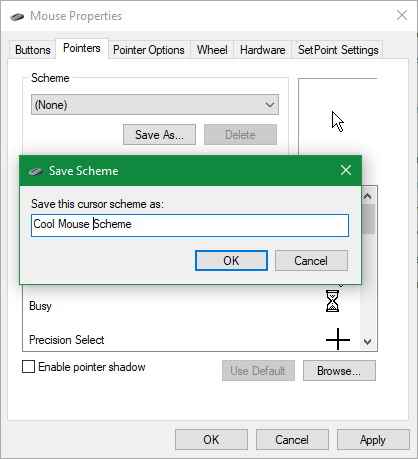
Repeat this for each entry in the Customize box until you have a complete cursor set (most have 15 cursors). Once this is done, click the Save As button and give your new scheme a name. This will add it as an option in the dropdown box so you can easily switch to it in the future.

If you ever want to get rid of a scheme, pick it from the list and choose Delete.

Windows Save Cursor Scheme

How to Create Your Own Mouse Cursors

Want to try your hand at creating your own cursors? You’ll find several tools available that let you make a cursor and use it on your system.

Cursor.cc is a simple site that gives you basic tools to create a cursor. You can even publish it on the site so others can use it.

For something more powerful, take a look at Stardock’s CursorFX. It’s available with a 30-day trial, then you’ll need to pay $5 to purchase the software.

If you’re an advanced designer, it’s also possible to convert an image file you created in another tool into a CUR file. Services like Convertio offer CUR conversion from PNG, JPG, and other common image formats. And try AniTuner if you want to create animated cursor images.

Safety When Downloading Cursors

To keep your system safe, you should keep a few security tips in mind when customizing your cursor.

First, only download cursors from trusted websites. An INF file can potentially harm your system because it gives Windows a set of administrator instructions. This is why you should only install cursors from legitimate sources.

Popular resources, like DeviantArt, shouldn’t pose an issue. Beware cursor downloads that appear from ads or on shady-looking websites that you’ve never heard of, though. Remember that cursors are image files, not applications. If a website asks you to run software to install your cursors, it’s malicious.

If you haven’t already, you should enable file extension display in Windows so you can easily see what kinds of files you’ve downloaded. To do this, open a File Explorer window and select the View tab at the top. In the Show/hide section, check the File name extensions box and Windows will show extension types for all files.

Windows File Name Extensions Option

Aside from readme text files and image samples, the only types of files a cursor pack should contain are CUR, ANI, and INF. If you download a pack with an EXE or MSI file, it’s dangerous and you should delete it.

Now You’ve Made Your Cursor Look Cool

You now have everything you need to customize your Windows cursor. Whether you download a ready-made pack or create your own from scratch, we hope you enjoy a more personalized computer with a custom mouse cursor.

Now that you’ve tweaked your mouse, have a look at more ways to change the look and feel of your Windows desktop.

Read the full article: Custom Mouse Cursors for Windows 10: How to Get Started


Read Full Article

What’s the Difference Between FTTC and FTTP? Fiber Internet Explained


fiber-optic-connection

If you’re looking for a new fiber-optic service, you may come across the terms “FTTP” and “FTTC”. Even if you learn what each letter stands for, they don’t fully tell the story of what they mean or how they affect your service.

Let’s explore the difference between FTTP and FTTC, and which you choose.

What Is FTTP Internet?

Some fiber optic cables

FTTP means “Fiber to the Premises”, but you may also see it called “Fiber to the Home” (FTTH). An FTTP service is a pure fiber-optic cable connection running from an Internet Service Provider (ISP) directly to the user’s home or business.

As such, your internet connection is fiber all the way to your home. This is a good thing, as when it comes to rating cable vs. fiber internet, fiber is Computer Networks, quicker than cable.

What Is FTTC Internet?

Image Credit: Mike Cattell/Flickr

On the other hand, you have FTTC, which means “fiber to the cabinet.” This means the fiber connection from your ISP doesn’t go all the way to your home; instead, it goes as far as a large metal cabinet in your neighborhood. You may have seen them on the streets near your home.

FTTC uses both traditional copper wire cable and fiber optic cable. It uses fiber optic cables right up to the street cabinet, and then copper wire to connect the cabinets to homes and businesses. Because it is incredibly expensive to install fiber optic cables to a home or business, engineers use copper as an economical substitute.

It also has a feature called DLM, or dynamic line management. This automated system ensures that the connection remains stable, error-free, and fast.

DLM achieves this by monitoring the system. When there is a problem, it will either use interleaving to correct errors in the line or it will slightly reduce your speed. Much of the time, however, DLM does not need to take any action.

How Are They Similar? How Are They Different?

While both FTTC and FTTP promise high speeds, FTTP’s complete fiber-optic connection allows for higher speeds than FTTC.

They are both faster than conventional ADSL, but FTTP uses fiber all the way, while FTTC has to rely on a slower copper cable. It is important to note that these may not be the speeds you are actually getting, so it is vital to test your internet speed from time to time.

FTTC stands out as a copper/fiber optic blend, which makes it less expensive to install. However, it was not built for the long term and its potential bandwidth is very limited, while FTTP was built so that it could be expanded and improved upon.

But in terms of availability, they differ greatly. FTTC is commonly used by casual users wanting a domestic internet connection. FTTP is typically only available for businesses.

What Are the Pros and Cons of Each?

FTTP is great in that it provides high-speed broadband service to users in their homes and businesses. Not only that, but it is designed so that people can go back into the system and add onto it as needed, built with the future in mind.

However, installing FTTP is incredibly expensive. It could be considered the broadband of the future, as well as the most future-proof connection as it should be simple to add to.

Trying to connect everyone up with a pure fiber connection is far too expensive, however. New infrastructure would need to be added, and that involves digging up the roads and the sides of the streets to lay the cables.

On the other hand, FTTC still provides great internet speeds. You are also more likely to be able to find a provider for FTTC if you’re just a casual user. Many providers only offer FTTP connections to businesses, so the high-speed connection is not taken up by users at home.

How Can You Get FTTC or FTTP?

If you live in a country with access to fiber internet, FTTC is pretty easy to get. There’s a good chance that the broadband packages you see in targeted advertising are FTTC. As such, if you’re currently subscribed to fiber optic internet, you’re already on FTTC.

Going to FTTP is the hard part. Some ISPs will roll out FTTP to select cities, so if you’re one of the lucky few, you may have it already.

If you’re not, contact your ISP’s business store to see if you can arrange a quote and installation for FTTP. If not, it’s worth looking for FTTP providers in your country to see who can provide domestic connections.

It’s worth noting that FTTP’s expenses won’t stop at installation. While the installation itself will be in the thousands (if not more), your monthly bills may rack up in the hundreds. FTTP is a big investment that’s best for businesses or very, very passionate individuals.

Which Should You Pick?

The difference is important depending on why you want to use the internet. Are you using it to play games and watch YouTube videos? Then FTTP will be a needless financial sacrifice and probably not a good idea.

However, if you need very fast speeds or you want to get a whole business online, you may find FTTC inadequate. At this point, it’s worth going the extra mile to ensure you have the best speeds available to you.

Getting to Know Your Internet Connections

FTTP and FTTC sound complex, but the premise behind them is easy to understand. FTTP gives you pure fiber from ISP to your building, while FTTC needs to take a slower copper wire to your home. If you’re not looking for incredibly fast speeds, however, FTTC will work fine.

If you want to learn more about internet connections, be sure to read up on the different types of internet access technologies.

Read the full article: What’s the Difference Between FTTC and FTTP? Fiber Internet Explained


Read Full Article
What Is a Website Cookie? How Cookies Affect Your Online Privacy


Whether you’re browsing Google search results, logging into Facebook, or just innocently chatting away on an online forum, you’ve encountered cookies. They aren’t inherently harmful but, just like passwords or email addresses, they are exploitable when placed in the wrong hands.

Keep reading to learn about what cookies are and why they can be so dangerous in the wrong hands.

What Is a Website Cookie?

Cookies are files on your computer that begin their life when you visit a website. They store bits of information about your interactions with the website. A cookie is created on your first visit and then checked on repeat visits by the website that made it.

Why Do Cookies Have That Name?

The cookie has an odd name, yet nobody has a straight answer on why it’s called such. One theory is that it’s derived from the term “magic cookie,” which was a term used for a packet of data back in 1979. Another is that it’s a reference to Hansel and Gretel, who navigated a forest using cookie crumbs. Another says it’s because, at the time, a show called the Andy Williams Show had a character called the “Cookie Bear” who would ask for a cookie, much like a computer does.

How Your Computer Gets Cookies

Regardless of how cookies got their name, you’ve probably seen websites inform you that they’re going to give you one. You may even get options to customize what gets stored in it. This popup is due to the EU’s GDPR law, which states that users must agree to cookies that store personal data. That’s why websites these days seem so keen to tell you about their cookie usage.

Cookies are specific to you, and it can be read by the webserver when you interact with it. Programs on your computer can also read them.

A diagram showing how cookies are created and used.
Image Credit: Tizio/Wikimedia

Your browser mediates the cookies between your computer and the website. The website can tailor the content you see, depending on what cookies you have stored. Cookies can expire after a given period (usually determined by the website issuing the cookie), but if necessary, you can delete them yourself.

Why Do Cookies Exist?

So, why do we use cookies on the internet? Because they’re convenient and efficient. If a website wants to service thousands of users without cookies, it would have to store and process all of the interaction data. By offloading that work to your browser, it becomes a faster and less difficult procedure.

Cookies identify you on the website. Cookies can store all sorts of information, like your preferences, your browser type, your location, etc. The website can then use this information to enhance your experience.

For example, have you ever closed your web browser, re-opened it, and saw that you the website didn’t sign you out? This was possible via the power of cookies. The cookie for the website remembered your login information and used it to log you back in quickly.

How Do Cookies Affect You?

A login screen representing what information a cookie stores.
Image Credit: mishoo/Depositphotos

For the most part, cookies are not harmful. They’re just another protocol used on the internet to facilitate communication between users and servers. Cookies cannot carry viruses or malware, nor can they transfer malicious programs to other users.

As such, going on the warpath on cookies isn’t necessary most of the time. You lose the convenience of staying logged into your favorite websites and gain very little.

So, what should you worry about? The worst possible scenario would be the interception or forgery of one of your cookies, which would allow another user to impersonate you on some website. This could result in them eavesdropping on your user data or hijacking your account credentials.

However, there’s no need to worry. Cookie security mostly depends on the website and your browser; a cookie encryption feature, for example, can help protect you from hackers.

A more prevalent issue is a specific type of cookie called the “tracking cookie.” These cookies do not have your wellbeing in mind. Instead, they keep track of all of your actions on certain websites.

These harvest data to build browsing history profiles, which can then target specific ads to you. As such, this causes a privacy issue where cookies snoop on your every move.

Protecting Your Privacy With Cookies

Here’s what you need to know about cookie privacy: they cannot see any information that you don’t personally provide. In other words, just because a website has a cookie on you doesn’t mean that they know everyone in your family and which schools you’ve attended—unless you entered that information to the website.

The biggest problem with tracking cookies is that an advertising agency can view your browsing history, as that’s what they use to target ads relevant to your interests. You can prevent them from doing this, of course, by playing with your browser settings and disabling cookies.

If you’re using a modern-day browser, there’s likely a chance you already have tracking cookie protection. For example, back in 2019, Firefox began blocking tracking cookies by default. As such, it’s worth checking what your browser is doing to protect you from tracking cookies.

If you don’t want to disable all cookies and keep a level of convenience, some browsers let you disable specific cookies from certain domains. Meanwhile, more advanced browsers allow you to synchronize with blacklists maintained by people or communities to block domains with shady cookie practices. You can also enable HSTS to prevent cookie hijacking.

Ultimately, when it comes to cookie privacy, it’s all about trust. Do you trust that website to log every interaction? Read their privacy policy and terms of use—you can usually find these on the website near the header or footer. If you don’t trust them, you can always wipe your cookies later.

Getting the Facts Straight on Website Cookies

Website cookies store your data, but there’s no real reason to be afraid of them. They’re there to make your internet life more manageable by remembering who you are and how you use the website. If you dislike the idea of cookies, however, you can always tell your browser never to store them.

If you’re hungry for more cookies, be sure to learn about the different types of browser cookies.

Read the full article: What Is a Website Cookie? How Cookies Affect Your Online Privacy


Read Full Article

Don’t Toss Old Printouts! 19 Uses for Used Paper


We all waste more paper than intended. Recycling is important, but it’s more than just sorting old sheets of paper into the right bin. You can recycle by reusing, thereby extending the life of the product.

So, next time you make mistakes printing, or throw old school papers in the bin, stop, and think. It can almost certainly be recycled. To prove it, here are 19 ways you can reuse scrap paper.

1. Reuse Printed Paper: Flip It Over to Print on the Unused Side

If only one side has been used, why not just flip the sheet over and print on the other side?

Of course, this depends on what you’re printing—you obviously don’t want to do this with something important. But if you’re printing for personal use, such as an online receipt, then why not save paper in this way?

2. Turn Scrap Paper Into a Wallet

It might not be the most durable wallet you’ve owned (compared to leather), but a paper wallet works, nonetheless. Better still, it’s completely customizable! Depending on what you’ve misprinted, the resulting wallet could be absolutely stunning, although plain paper might be more your style.

3. Paper CD/DVD Holder

While optical media is on its way out, many of us still have the occasional case-less CD or DVD laying around. Rather than leave them to pick up scratches before you save the disc images to your hard drive, try this. With just a few folds of a standard sheet of waste paper you’ll have a paper CD wallet.

If your disc is scratched, you might be able to do something about it. Here’s how to repair a DVD and back up your data.

4. Paper Pen & Pencil Holder

Need to tidy up your desk? This video tutorial demonstrates how to build a DIY origami pen holder, 20x20cm, using just two pieces of paper. The result is a pleasing holder for pens and pencils—you’ll never lose them again!

5. Make Your Own Notepad or Sketchbook

If you’ve output a lot of old paper through your printer, you can bundle the sheets together as a notepad.

Just bind sheets with a bulldog clip and you have paper ready for jotting down quick reminders and more. Write stories, doodle, plan home improvements, sketch, make to-do lists, whatever.

6. Origami Gift Boxes

Another way to reuse scratch paper is to use it for gift boxes. With origami, you can craft boxes of all sizes, particularly useful for Christmas or birthday trinkets. And if the wasted printout was colorful (perhaps a photo that didn’t quite print right), you’ve got a unique gift box.

You’re not limited to gift boxes, either. Use them to organize your desk and store paperclips, erasers, thumbtacks, whatever!

7. DIY Sticky Notes

Rather than buy sticky notes, use scrap paper instead. Just cut sheets of old paper into squares, stick double-sided tape on the back and you have a sticky note. Whenever you need to stick a note somewhere, you can have one ready in seconds!

8. Awesome Paper Airplanes From Old Paper

One of the best uses for old paper is undoubtedly the construction of paper airplanes. We’ve all done it with a scrap sheet of paper, but have we been doing it right?

This video shows you how to make a paper plane that will fly, and fly, and fly.

9. Make a Simple Bookmark

Another great idea to reuse scrap paper is to cut it into 300mm wide strips to make bookmarks. Simply take two or three strips then stick them together with glue or tape, for a more durable result. Maybe even punch a hole in the top and tie a small loop of string to complete your custom bookmark.

10. Draw an Optical Illusion

Learning how to draw is a great way to use spare paper—and what better than an optical illusion?

This example is a great one to start with, requiring just a scrap of paper, a pencil, and a pen. It’s an anamorphic illusion, which means it must be viewed from a particular angle to work.

11. Gift Wrapping Paper

Run out of wrapping paper? Just use waste computer printer paper if the item isn’t too big. Don’t worry about what other people think—just be creative and save some money.

12. Create a Circuit With Pencil and Paper

The graphite in your pencil will conduct a small current, enough to light a bulb. You can test this out with a scrap of unused printer paper, an LED, and a battery. Simply draw the circuit on a sheet of paper, connect the components, and drop your jaw in awe.

13. Shred Old Paper for Packaging

If you own a shredder, turning old printouts of personal data into ribbons is a smart idea. But rather than recycling it right away, use it for packing material instead. It’s greener than foam packing peanuts and gets some wastepaper out of your house.

14. Make a Paper Popper

Let’s make some noise! If you want to startle someone, just fold some paper into a popper. This “air banger” can make a real crack, so be careful who you use it on.

15. Waste Paper Greeting cards

Homemade cards for birthdays and other occasions add a nice personal touch.

Simply fold the old printed sheet of paper in half, or for a little more durability, fold it in quarters. This is particularly useful to hide any inadvertent old print jobs! When you’re ready, decorate it however you’d like.

16. Simple Paper Pop Gun

Something more offensive than a greetings card is a pop gun. With just a few sheets of scratch paper, elastic bands, and sticky tape, you can fire small pellets at targets.

It’s a little more intensive than some of the scrap paper projects we’ve suggested, but worth a go.

17. Paper Crossbow

If you’ve got a paper pop gun, why not find someone to shoot at? They could probably do with their own weapon—which is where the paper crossbow comes in.

This is perhaps the most advanced scrap paper project on this list, requiring a few tools and a glue gun.

18. Make Some Paper Claws

Whether you’re dressing up for Halloween, cosplay, or a theatrical performance, these paper claws make a real impression. More wolf than Wolverine, they’re designed to slip onto each finger. Add some color and these paper claws suddenly look more than just paper.

19. Scrap Paper Mask

You might even team up your paper claws with a corresponding paper mask… or just make a different mask altogether.

Scrap paper, whether from your printer or old papers from school, is ideal for making a paper mask. Either follow the guide above or look further afield. You might even tear up used paper for papier-mâché.

Hundreds of Uses for Scrap Paper

You have so many options to reuse paper you would normally throw away. Just be creative and think about what you need—you’ll discover how you can make it without spending money.

Checking YouTube or using a search engine is a good way to start. You’ll also find plenty of creative ideas on Pinterest.

Want more uses for unused printouts? Try these printable board games.

Read the full article: Don’t Toss Old Printouts! 19 Uses for Used Paper


Read Full Article

5 Reasons Why Home and Remote Workers Should Use a VPN


reasons-for-vpn

You’ve heard about virtual private networks, and probably read somewhere that they’re great for improving security and privacy. But for some reason, you’re not using a VPN. After all, your time is taken up with work.

You don’t have time for Netflix, social networking, online gaming, or any other activity that benefits from using a VPN.

As it turns out, there are many more reasons for using a VPN, especially if you work from home.

How Does a VPN Work?

Despite VPN usage rocketing, there remains some mystery around how VPNs work.

Think of it as a secure tunnel between two online locations (perhaps your home and work, or your favorite website). No one on the outside can see what you’re doing in this secret tunnel. Various security and privacy benefits come with using a VPN. In some cases they can improve your internet speed too, by circumventing your ISP’s data prioritization.

Two types of VPN are available:

  • Access to a single VPN server (perhaps provided by your employer)
  • Connecting to the internet via a third-party VPN subscription service

While similar, they have slightly different uses. Our complete guide to how VPNs work explains this further.

Here are five reasons why anyone working remotely should be using a VPN.

Using a Work VPN? Follow Your Company’s IT Policy!

Working remotely? If you’re accessing your organization’s network or using hardware provided by your employer, ensure you’re adhering to the IT policy. As you’ve probably already signed your agreement to this, it shouldn’t be too difficult. Just make sure you use the equipment as you would in the office: for work purposes.

It’s also worth pointing out that the policy may exclude you from working from your favorite café or brasserie. Regardless of whether you have a VPN running on your computer, this could be a big no-no, so tread carefully. Contact your IT department for advice here.

Working from home during a precautionary lockdown? Check you have the latest version of the IT policy as it may have been updated to reflect recent events.

1. A Secure VPN Is Vital During Pandemics

Social lockdown to combat the effects of a pandemic has been proven to seriously impact working practices. While there are various solutions to this, for office workers a key weapon is a VPN.

Remote working is a security risk in many ways, not least in giving cybercriminals new avenues for attack. Hackers can intercept unencrypted connections, for example. Passwords can be sniffed, stolen, and used, and sensitive data stolen.

With a connection to your employer’s network secured by a VPN, you can work with confidence. Encrypted connections cannot be sniffed. Your password remains safe.

Ideally this VPN would be provided by your employer. If no VPN provision has been made, reach out to your IT colleagues. While it’s possible you’ll be refused, it would be short-sighted.

Freelancer or virtual assistant? Perhaps there is a collaborative portal you use. Your vital files might be stored in the cloud. Or you might be concerned about the security of VOIP calls.

You can still use a VPN here. Simply subscribe to a top VPN service, like ExpressVPN, and go from there.

2. Home VPNs Are Cheaper Than Commuting

Stop commuting - work from home via a VPN

Incredibly, staying at home and using a VPN to connect to your corporate network is cheaper than commuting. It doesn’t matter if it’s a health emergency or some other reason for prolonged home working.

Even when you consider the electricity costs and the VPN subscription, it’s still cheaper. If your IT department has configured a VPN from your computer direct to your workplace, even better!

You wake up, burn your hand on the cafetière, fall into your car with your tie on wrong, or your makeup still to do. Nothing goes right. And then you realize you’re short on gas, which means a stop on the way to the office. Then you get caught in traffic, making you late. And you forgot to sort out your tie/makeup.

It’s horrible. Really, if you can avoid living like that, you should.

If working from home is an option, you can keep your data private and secure using a VPN. Your current work projects are protected from hackers by the VPN’s encryption. All for a few dollars a month.

3. Productivity Is Increased With VPN Privacy Software

Working from home, or at a table in your favorite café, or even in a hot-desking workspace is great. You’re swapping the water cooler for a cat and a coffee machine. If you have the determination and discipline to work rather than play, you should experience a marked increase in productivity.

Is it really that easy? Well, it takes some effort to get in the zone. But one thing you don’t want is to be worrying about the security and privacy of your connection. That sort of distraction will reduce productivity, not increase it.

Simply enabling your VPN client can help immeasurably.

4. Remote Access Your Work PC With a Secure VPN

While reading this, you’re probably wondering “how am I going to connect to my work PC?” It’s quite simple. Using remote access software you can establish a remote connection with your work desktop.

Several options are available here, from SSH to VNC and the most popular, RDP (Remote Desktop Protocol).

All you need to do is ensure your work computer is switched on, which a colleague can do for you. If your organization’s IT policy permits VPN access and it is enabled, you should be able to connect.

Again, a private work-arranged VPN will be required here.

5. A VPN Protects You on Public Wi-Fi

Use a VPN to safely work from home

One of the greatest things about working as a freelancer is that you can work anywhere. Cafés are popular, but you may prefer transport hubs, shopping malls, or other places with free Wi-Fi.

If you don’t have Wi-Fi at home, free wireless access might be the only chance you have of getting online for remote work.

But is free Wi-Fi safe?

Over the years, various threats dwelling in free Wi-Fi hotspots have been uncovered. Wi-Fi sniffer software installed on laptops, tablets, and smartphones can detect and capture unencrypted data. Fake wireless networks posing as real record everything you do while connected.

You probably don’t fancy losing your username and password to a stranger sat nearby.

But actually, it doesn’t matter if the Wi-Fi is free or paid. If it isn’t yours and you don’t have control over it, you shouldn’t connect without a VPN. Simply subscribe to a VPN and install the app on your laptop, tablet, or mobile to protect your data.

Which VPN Should You Use?

Many VPN services are available to subscribe to. However, they differ in quality, reliability, and privacy policy.

So, how do you make the right choice? Well, you need to look for a service that is highly regarded, fast, and with enough servers to ensure reliability. But you also need a VPN that has a clear no-logging policy.

Netflix support is irrelevant for work, but you might need torrent access. Many organizations rely on peer-to-peer (P2P) networking to transfer data. Microsoft distributes updates using P2P too, making it additionally important to have.

Further, you’ll need a VPN that is affordable. If encrypted VPN tunneling isn’t provided by your employer to its network, they may be persuaded to cough up. Otherwise, consider paying for a VPN over a longer period (such as six months) to gain a discount.

Free VPNs are available, but while a handful are good, most are designed to farm your personal data. They’re best avoided.

Want a suggestion for a VPN? We have a reader exclusive: Get 49% off on our top recommended VPN, ExpressVPN.

Working From Home? You Need a VPN

Whether you’re in lockdown, need a few days to work from home, or freelance full-time, you need a VPN.

Freelancers and virtual assistants can take their pick from a range of great VPN services. If you’re employed, meanwhile, your employer should be able to provide you with a VPN connection to the network. You might even get a remote connection to your work PC!

Read the full article: 5 Reasons Why Home and Remote Workers Should Use a VPN


Read Full Article

How to Hide “Typing” and “Seen” on Facebook Messenger


Like most modern messaging apps, Facebook Messenger shows you when someone has either seen your message or is typing one themselves. These are useful for silently acknowledging the latest message or knowing when the other person is getting back to you. But many people don’t like them.

If you feel that read receipts and typing indicators are more harmful than useful, we’ll show you how to hide them in Facebook Messenger.

How to Hide the Seen and Typing Icons in Desktop Messenger

There’s no built-in option for turning off “typing” or “seen” on the desktop version of Facebook Messenger. As a result, you need to turn to browser extensions to do the job.

You’ll find several Chrome extensions that claim to disable the typing and seen indicators in Messenger. Unfortunately, these tend to come and go, and there’s no guarantee that an extension like this won’t be bought out by spammers. At the time of writing, though, the following options are functional.

We didn’t include Unseen for Facebook, another popular tool, due to several reviews reporting that it hijacked search results.

Unseen: Chat Privacy

Unseen Chat Privacy Messenger

This extension allows you to disable several Facebook Messenger features:

  • The “message seen” icon
  • Read receipts
  • When you were last active
  • The “typing…” indicator

You can also choose to use the extension on messenger.com in addition to Facebook’s Messenger page. The app is well-reviewed and while it hasn’t been updated since January 2019, during testing it functioned properly.

It does require access to all the data on every website you visit, though, which is excessive. Our next option is more privacy-conscious.

Messenger Unread

Messenger Unread

This is a less popular extension for the job, but it works just as well. Instead of a list of options, Messenger Unread simply disables read receipts and typing indicators. You can click the extension icon in your toolbar to toggle it on or off—when it’s blue, read receipts are disabled.

Messenger Unread was last updated in February 2020, meaning it’s more current than some of the other choices. The tool is also open-source; the developer advertises that it’s only 30 lines of code. This means you can check the source for yourself to make sure there’s nothing shady going on.

In our testing, the “read” indicator still appeared next to our own messages for the other person, but they didn’t know when we had seen their messages.

How to Appear Offline on Facebook Messenger

If you don’t care about read receipts but want friends to think you’re offline on Messenger, you can toggle a setting. Click the Gear icon at the top-left of the Facebook Messenger window. Here, you’ll see a slider labeled Show when you’re active.

Messenger Show When Active

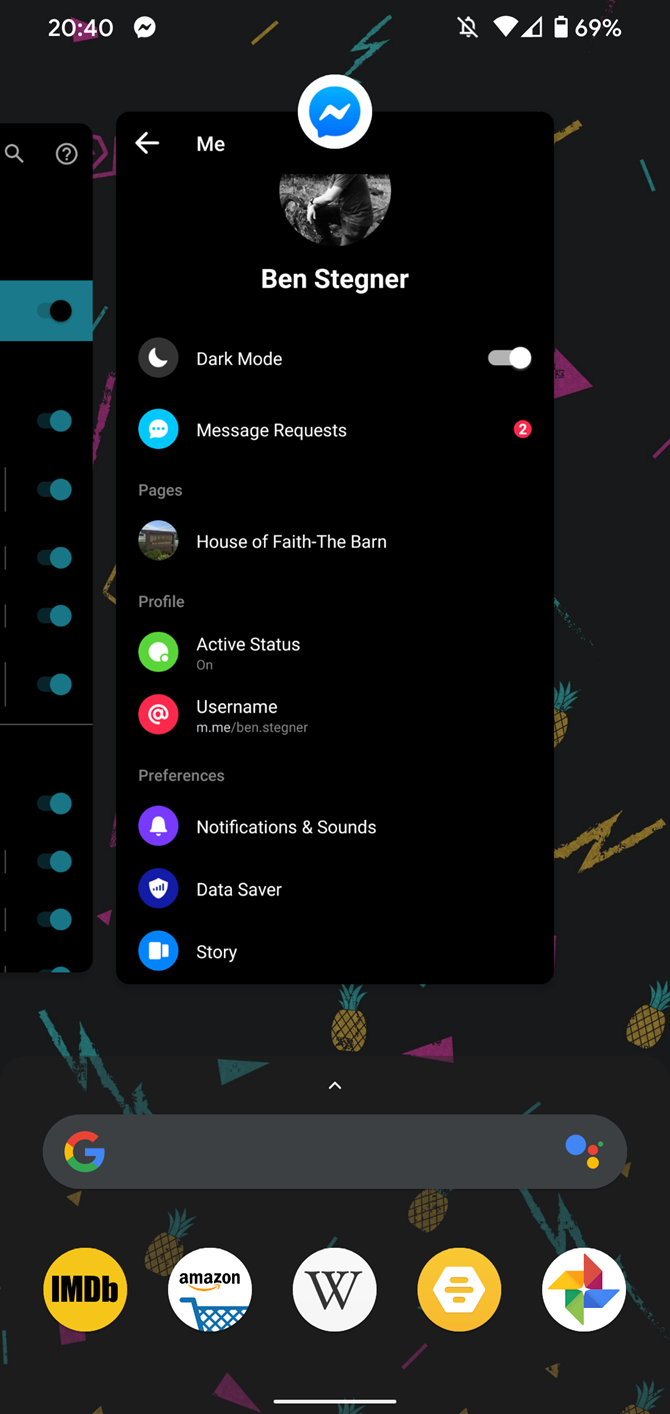
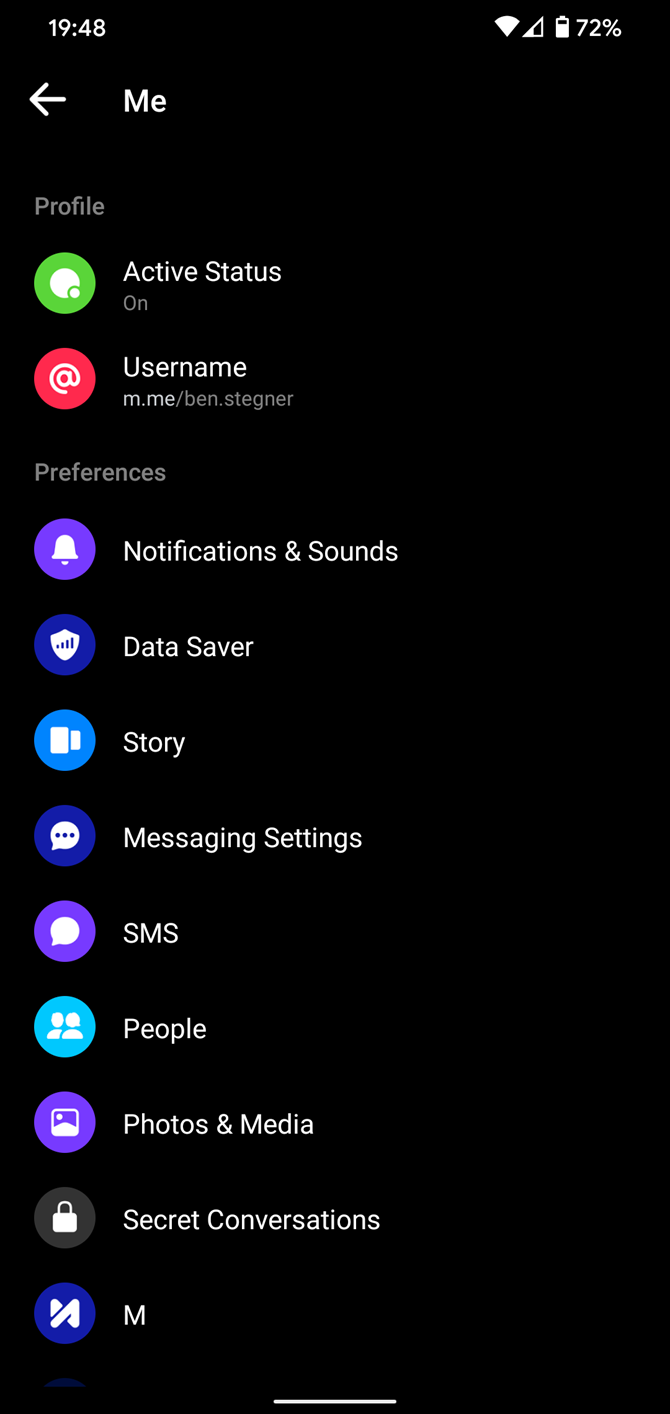
Turn this off, and friends won’t see if you’re online or not. Please note that to fully disappear you’ll need to disable it everywhere you use Facebook or Messenger, so you should turn it off on your phone too. To do that, open the Messenger app, tap your profile picture in the top-left, select Active Status, and toggle the slider Off.

How to Hide Read Receipts in Mobile Messenger

There aren’t any extensions like the above when using Facebook Messenger on Android or iOS. For that, you’ll need to employ a few tricks to check messages without showing that you have read them.

Use Notifications to Preview Messages

The first way to peek at Facebook Messenger messages is using the notifications on your device. Both Android and iOS allow you to show banners for new notifications and review them at a later time.

Using these, you can see a preview of incoming messages without alerting the other party. The downside to this is that if a message is longer than a few lines, you’ll only see the first part of it in the notification.

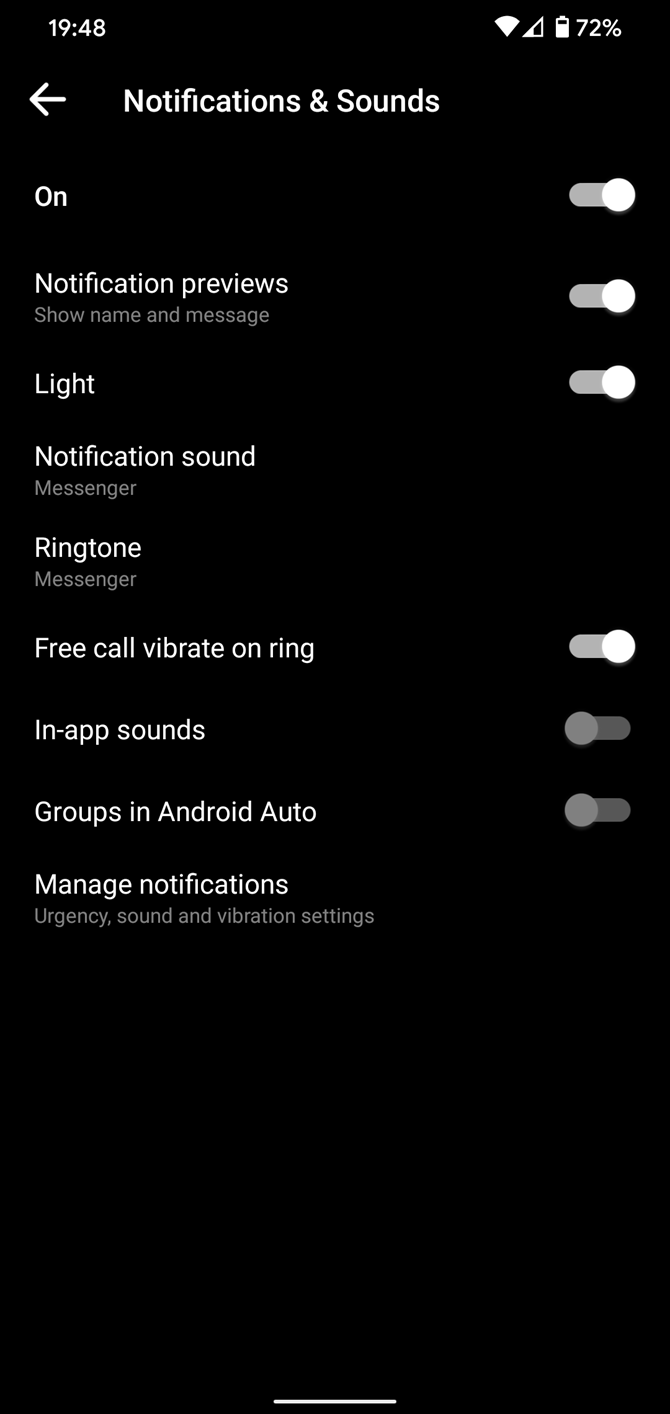
First, in the Messenger app, tap your profile picture at the top-left to access options. Here, select Notifications & Sounds and make sure you have notifications On and Notification previews enabled.

From there, you can read a snippet of incoming messages through your phone’s notification list at any time. It will appear on your lock screen, as well as by dragging down from the top of the screen to show your notification list on both Android and iPhone.

If you want, you can further customize how notifications appear and whether they play a sound—and on iPhone, if they persist until dismissed.

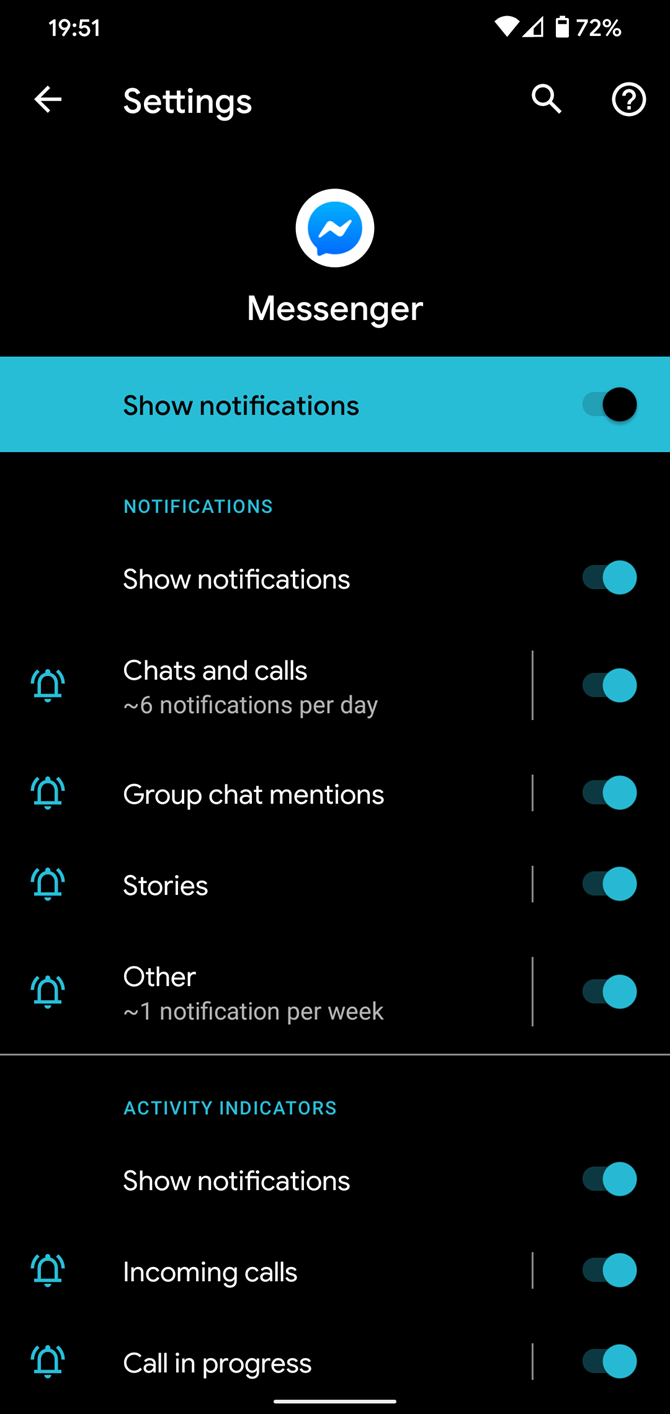
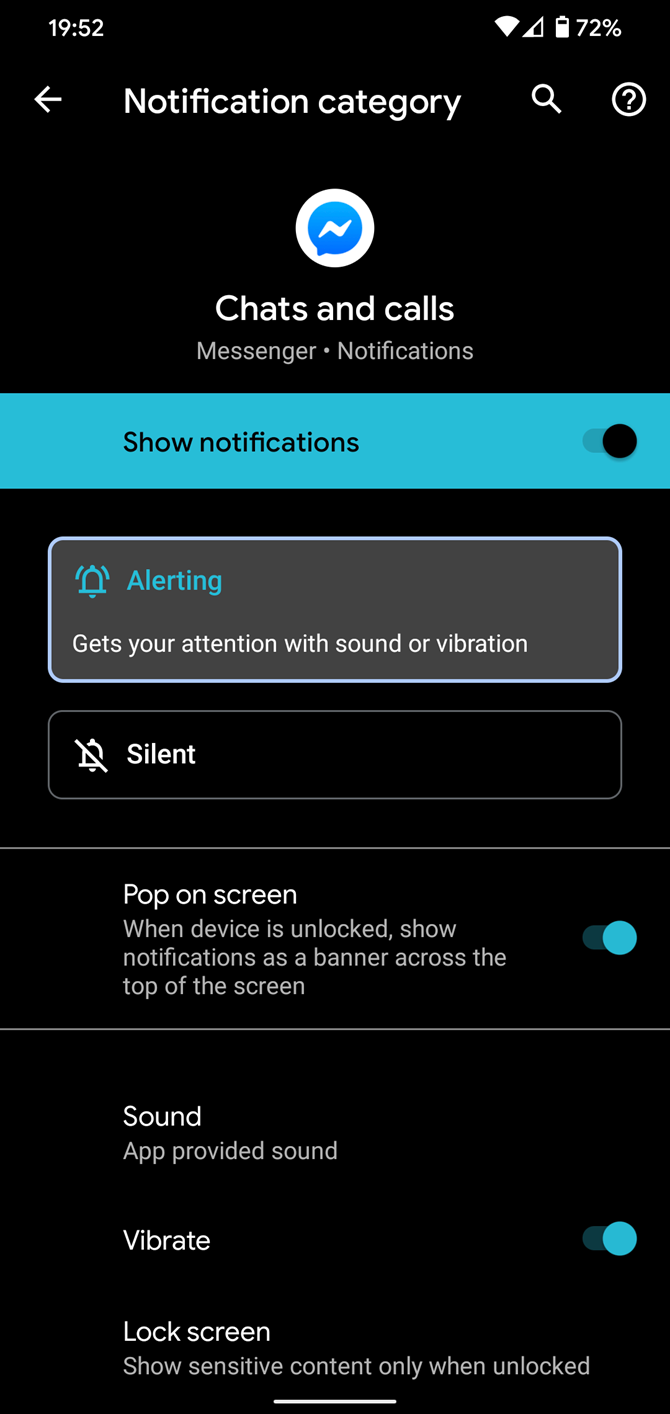
To change Android notification settings, go to Settings > Apps & notifications > See all X apps > Messenger > Notifications. Here you can change the individual notification settings for the various types of alerts.

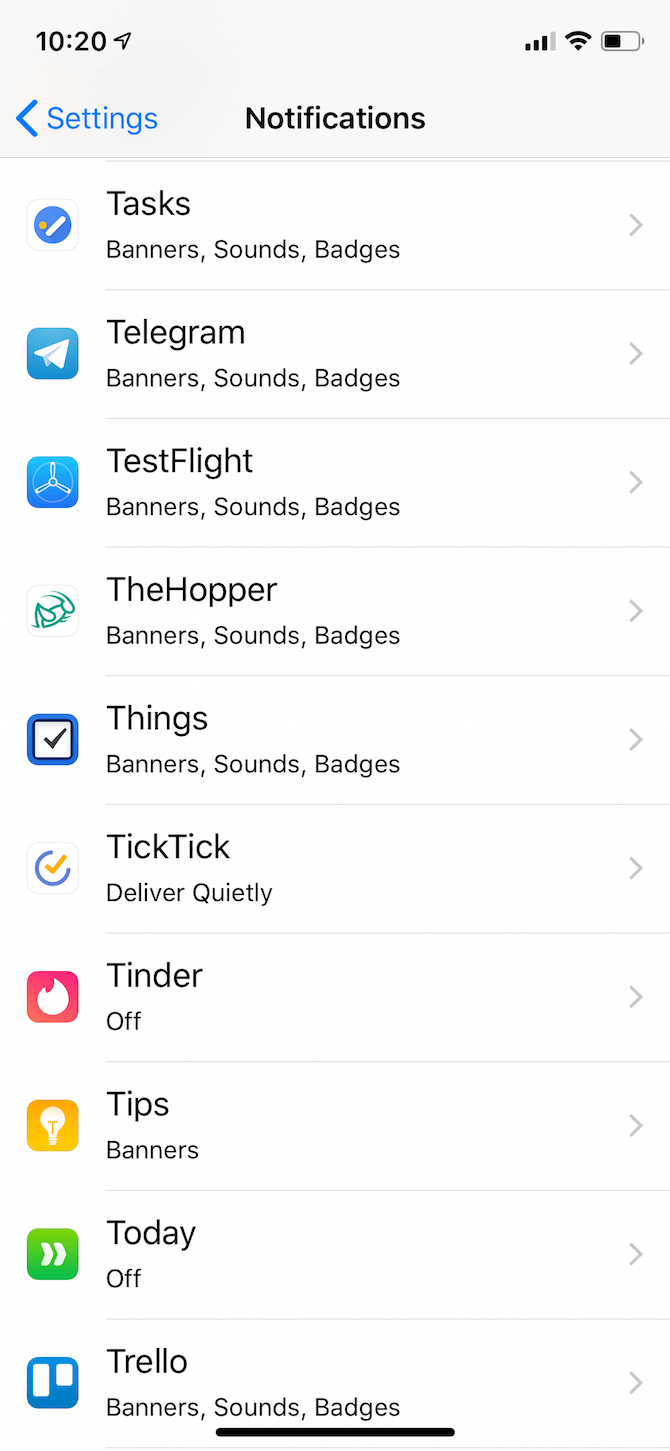
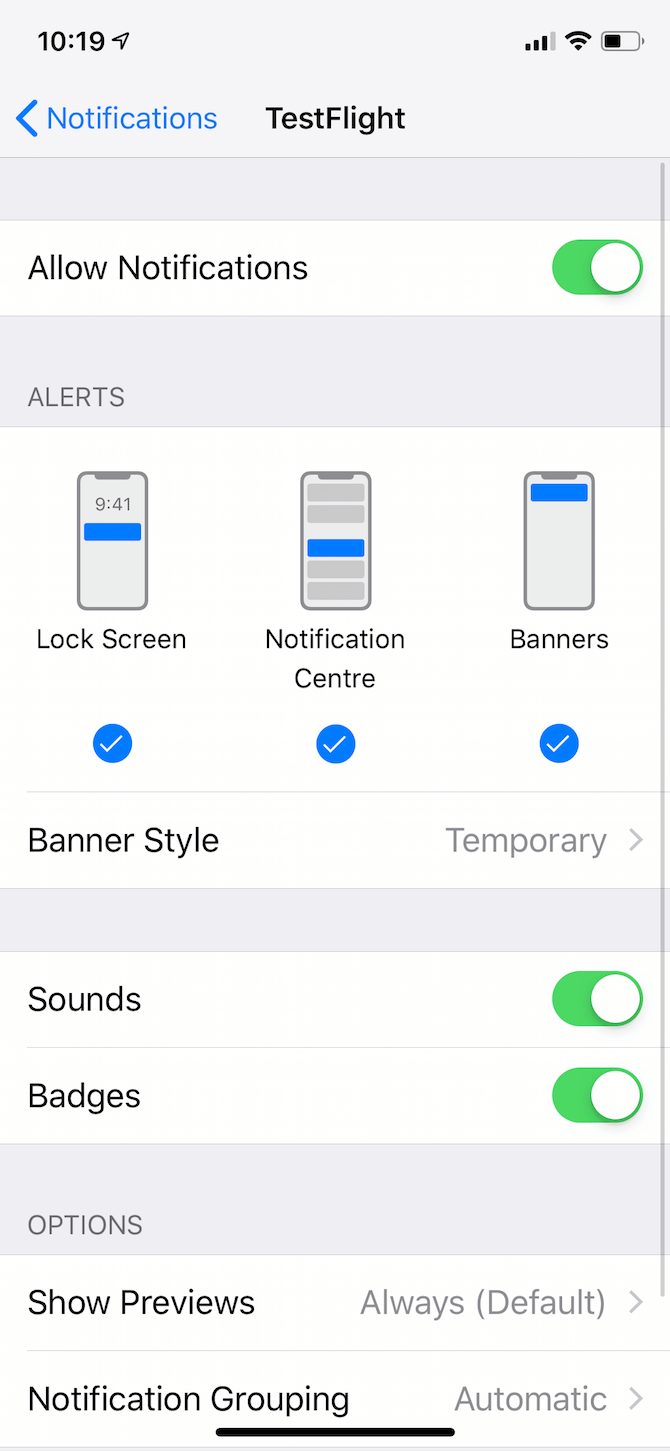
On iOS, visit Settings, scroll down to Messenger, and select Notifications to change iOS notification settings. You can choose to toggle the alerts on your lock screen, notification center, or banners. Change the Banner Style to Persistent if you want it to stay until you dismiss it.

Use Airplane Mode to Preview Messages

Another classic trick to read messages in secret is using airplane mode on your phone. This allows you to open the app and read the message while offline, so Messenger doesn’t know that you looked at it.

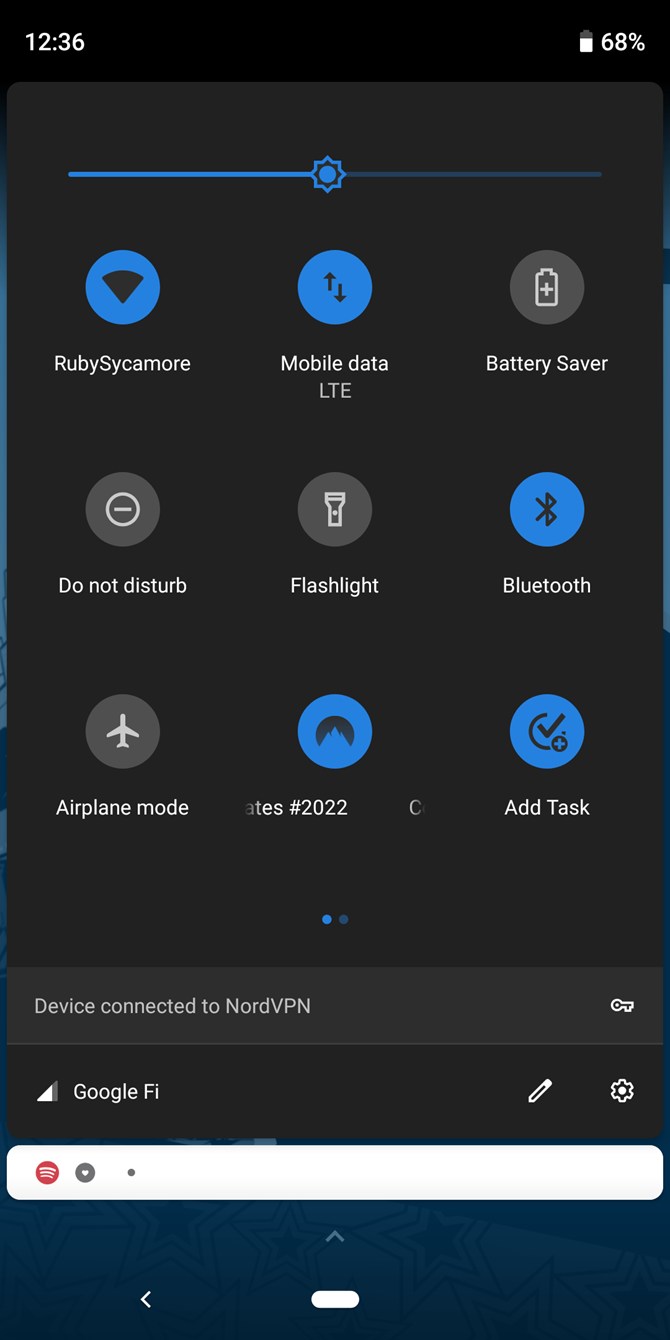
After you receive a message, you’ll want to turn on airplane mode on your phone before accessing it. On Android, swipe down twice from the top of the screen to access the Quick Settings panel and tap Airplane mode.

If you’re an iPhone user you can do this by opening Control Center and tapping the Airplane mode icon. On an iPhone with Face ID, swipe down from the top-right corner of the screen to access Control Center. If your iPhone has a physical Home button, swipe up from the bottom of the screen instead.

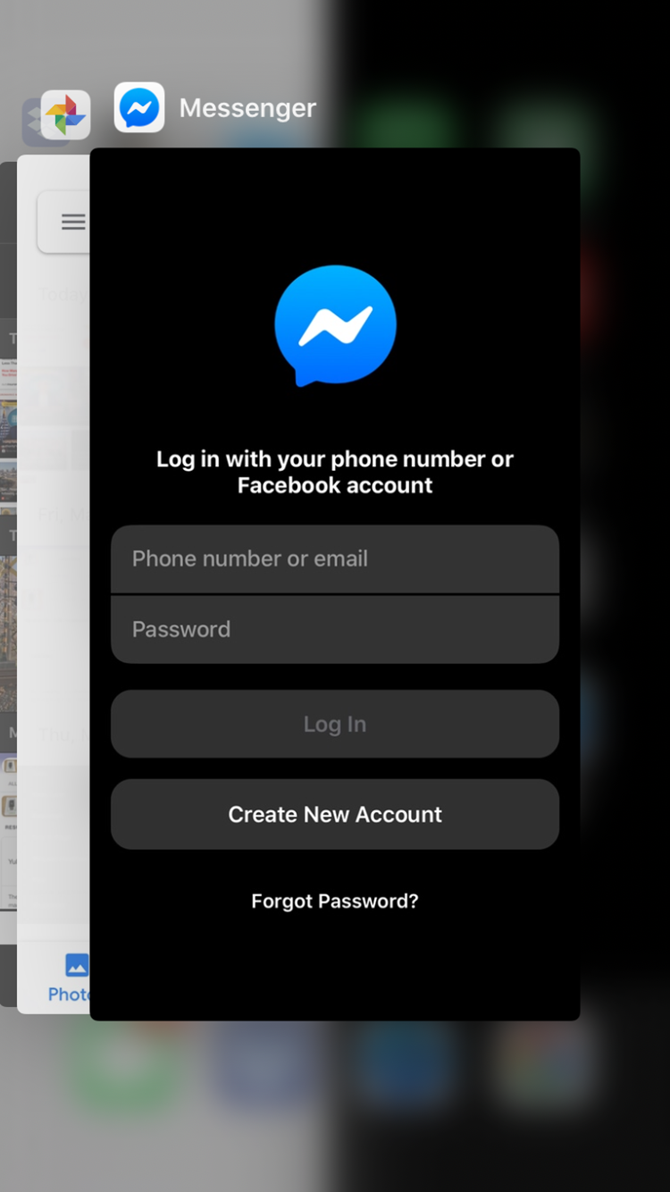
Once you’re in airplane mode, open Messenger and look at the message you want to read. After you’ve checked it out, you should force-close the app from the app switcher. This prevents the app from letting Facebook know that you’ve opened the message.

On Android, you can do this by swiping up from the bottom of the screen and holding for a moment. If your phone still uses the classic three-button navigation scheme, tap the Square icon on your navigation bar. Then swipe Messenger away to fully close it.

If you have an iPhone with Face ID, open the app switcher by swiping up from the bottom of the screen and holding in the middle for a second. On iPhone models with a Home button, double-press the Home button to open the app switcher. Then simply swipe away the Messenger app.

After you close the app, you can disable airplane mode. You’ve successfully read the message without letting the other person know.

The Best Facebook Messenger Features

In this article we’ve looked at how to hide the “seen” and “typing” messages in Facebook Messenger as best you can. So if you can’t see that someone is typing in Messenger, the chances are that they used one of the above strategies to get around this function.
Alternatively, they might have copied and pasted their message from another app to avoid the “typing” indicator showing.

For more tips and tricks, check out the best Facebook Messenger features to try.

Image Credit: Pathdoc/Shutterstock

Read the full article: How to Hide “Typing” and “Seen” on Facebook Messenger


Read Full Article