02 May 2020

The 9 Best Free Photo Editing Apps on iPhone


besft-free-photo-edit-iphone

Your iPhone takes beautiful photos, but the right apps can make them even better. Most photographers accept post-production as a part of their workflow, but a lot of the time our smartphone images miss out on this important step.

There’s no shortage of solid photo editors for iPhone, and plenty of the options are free. Here are some of the best free photo editing apps for iPhone.

1. Photos
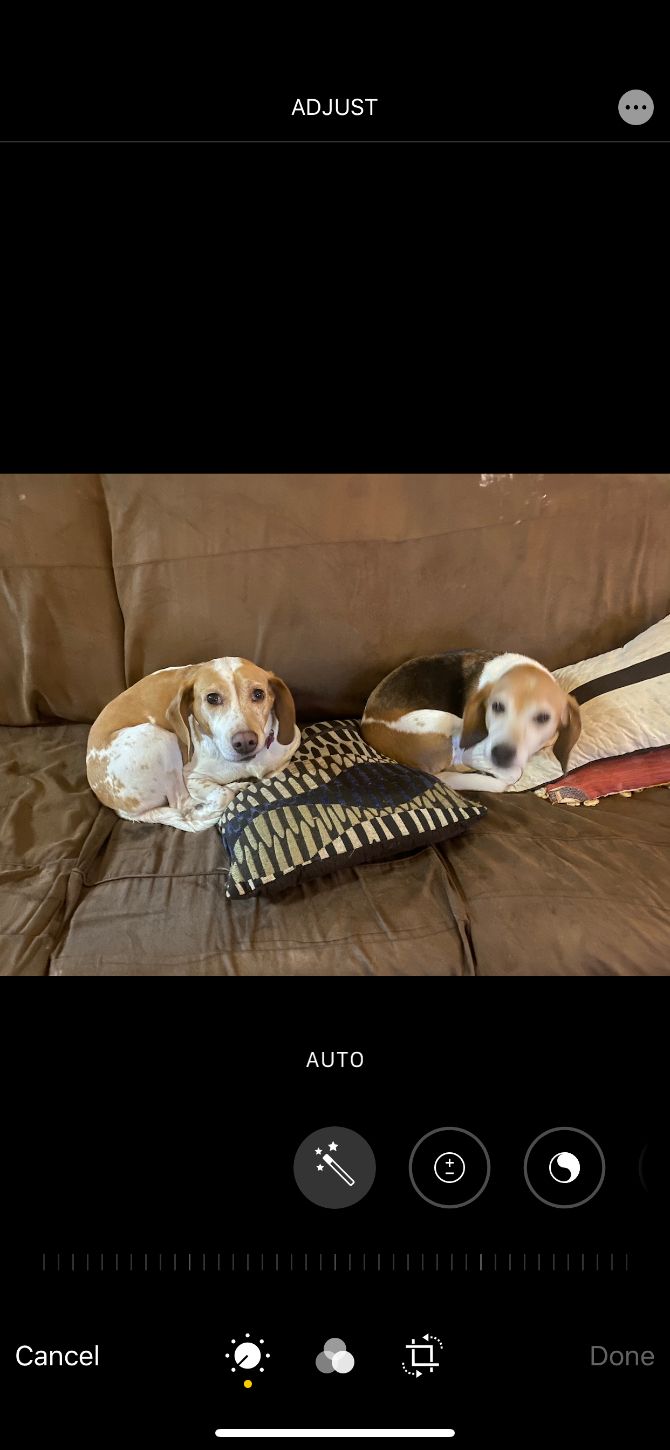
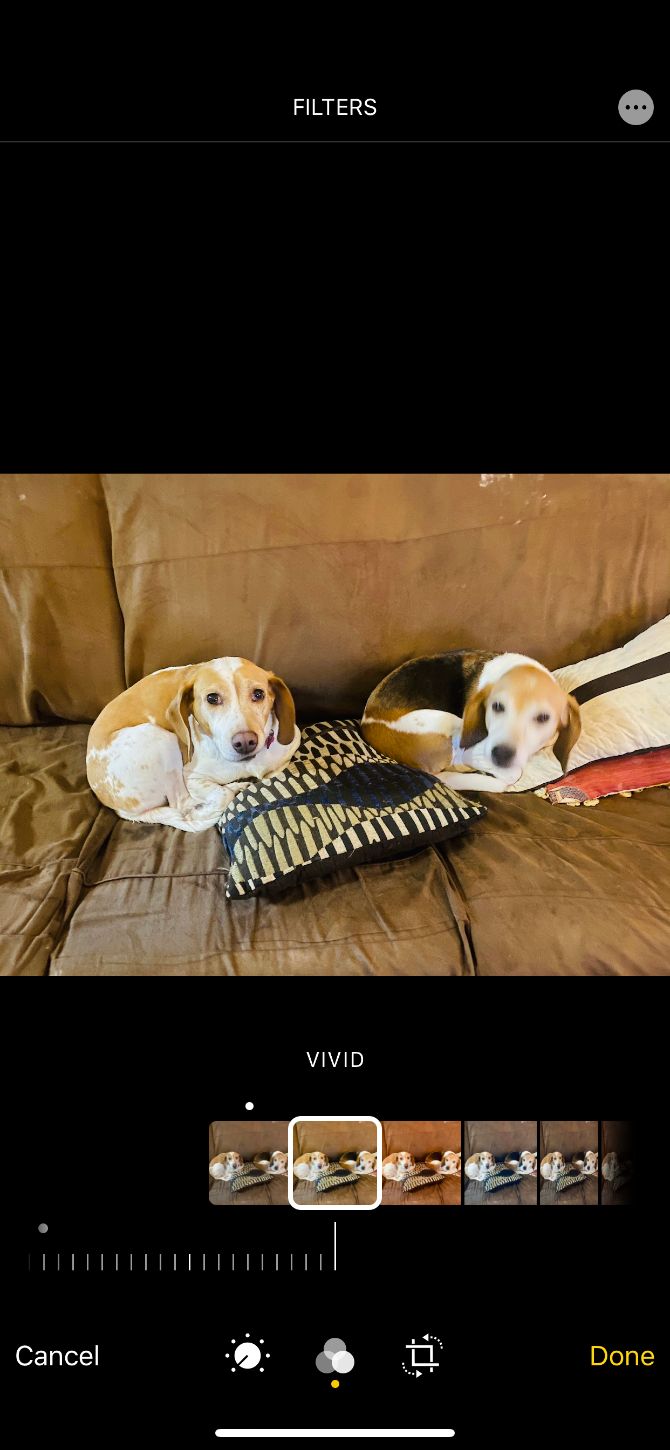
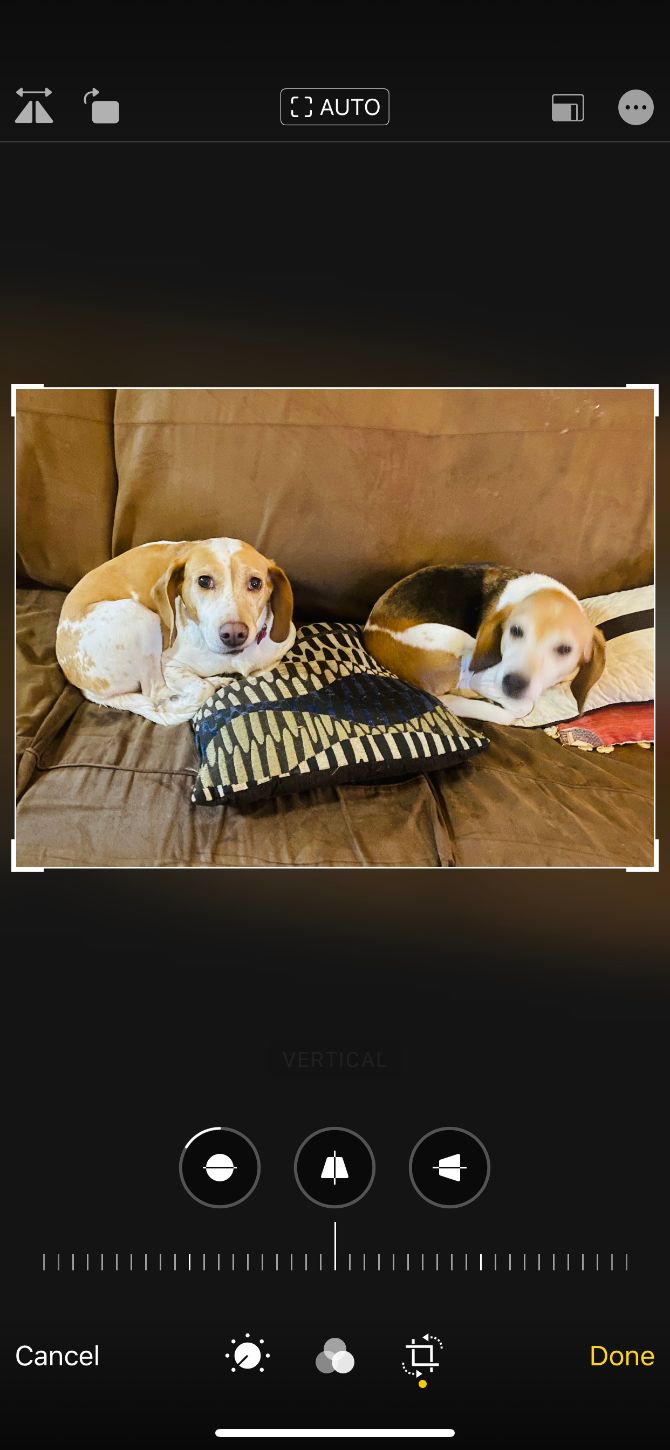
Your iPhone already comes with an impressive image editor built right into the Photos app. Launch the app, find a photo, and tap Edit in the top-right corner of the screen to access the editor.

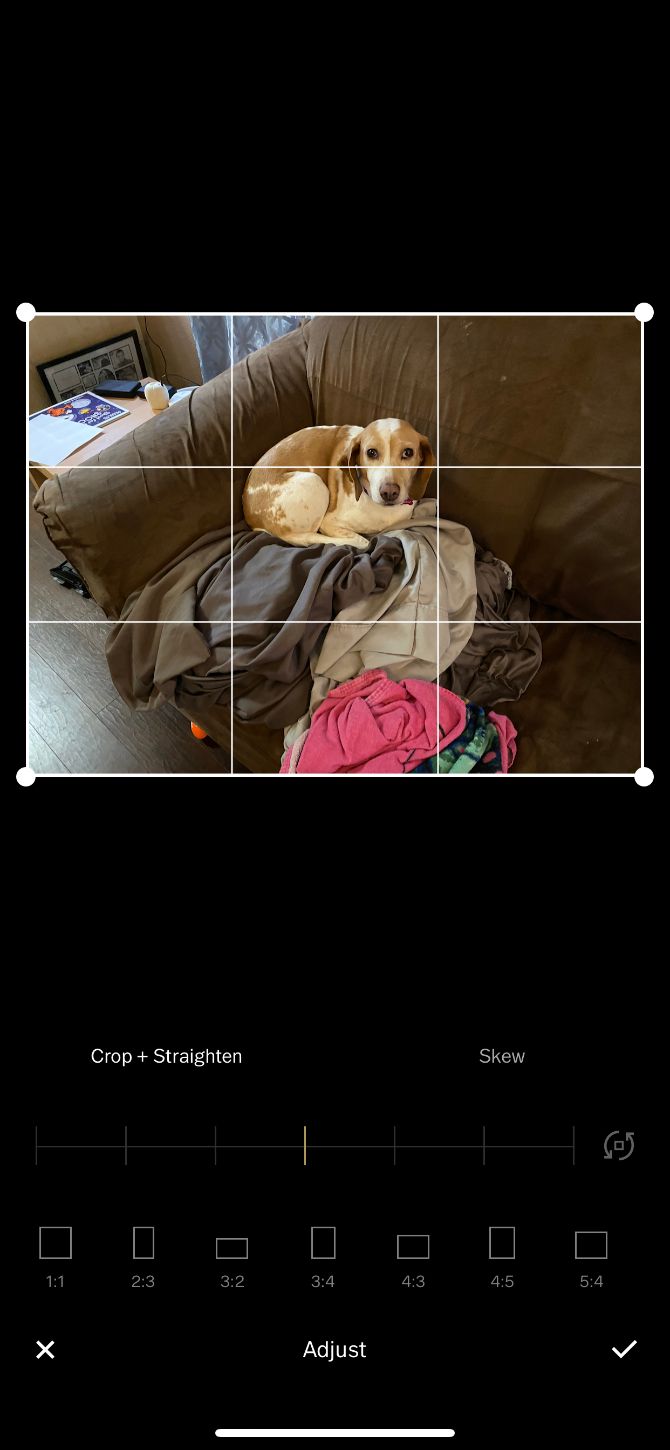
Here you can crop and rotate your image, apply filters, and adjust a wide variety of parameters. Rescue the highlights and shadows, adjust exposure and contrast, or convert to black and white.

Photos has its limitations, however. While it can handle RAW files, it only serves up lossy JPEGs to other apps. That means you can’t make edits in Photos and export a RAW to other apps without first duplicating it.

2. Google Snapseed
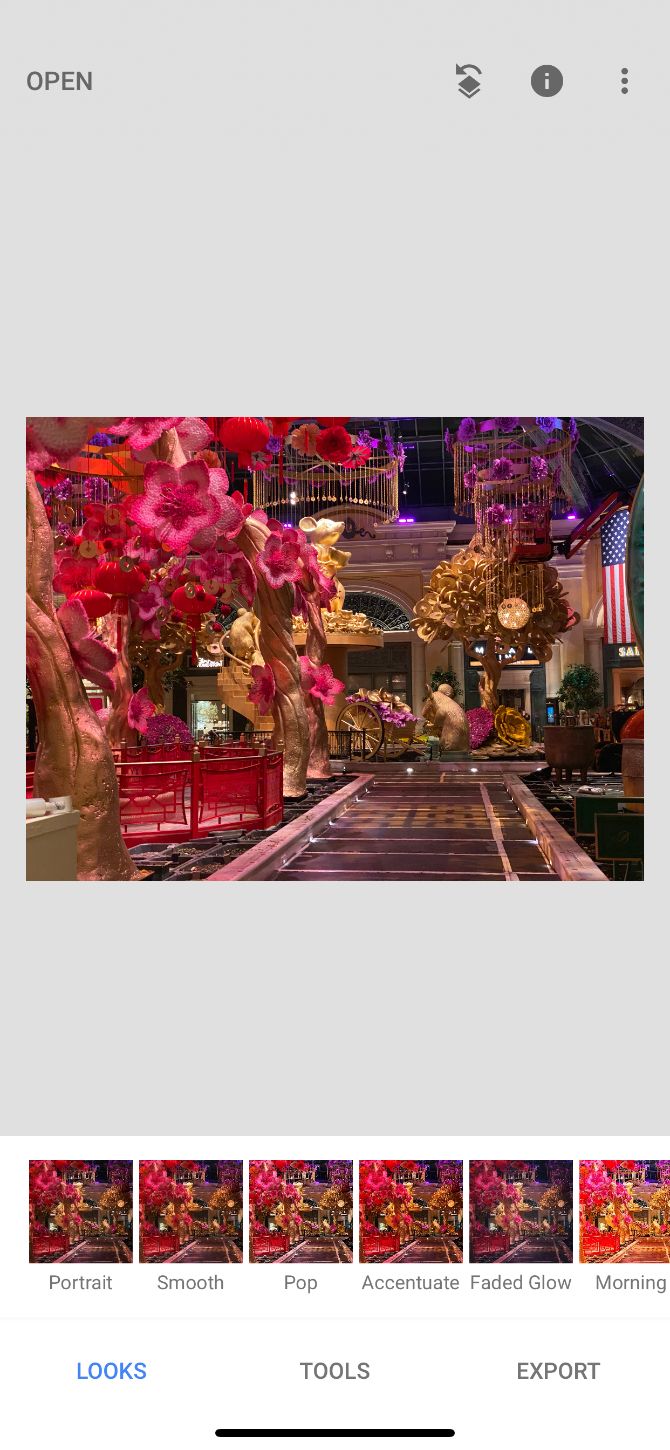
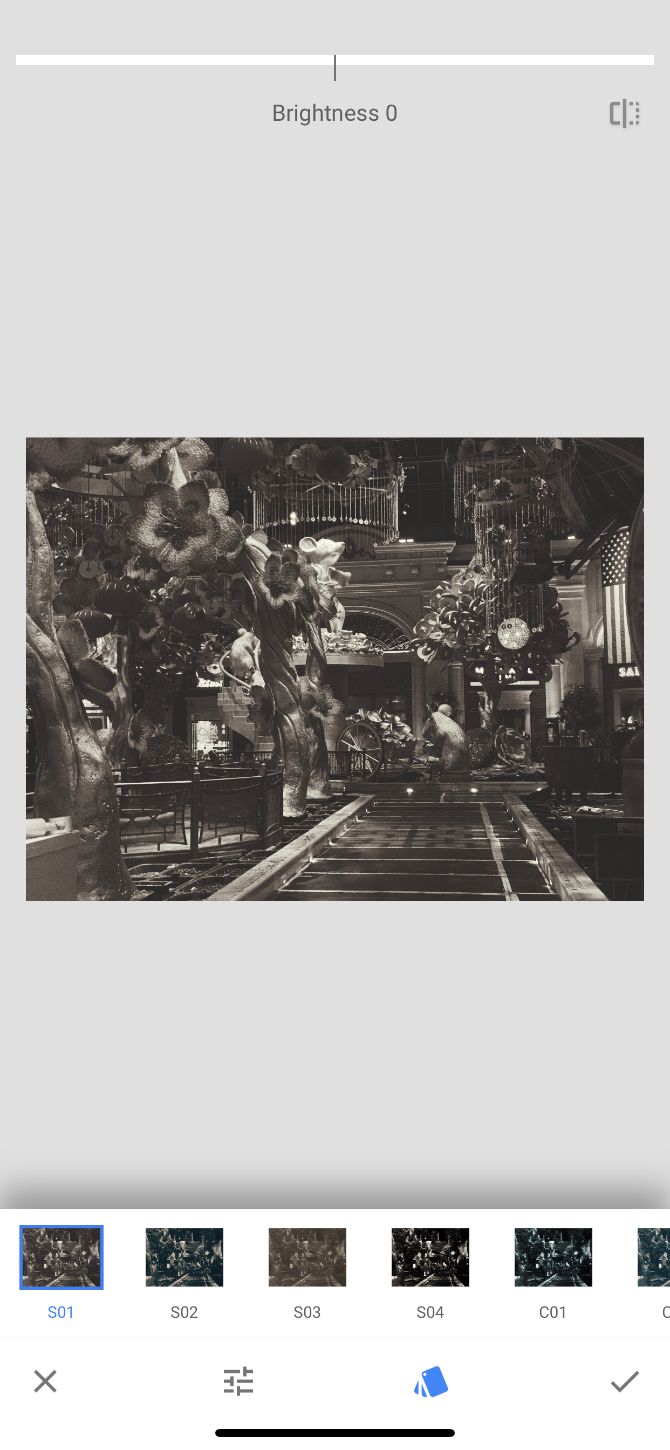
Google’s Snapseed is a photo editing powerhouse on both iOS and Android. The app support RAW editing, which makes it a candidate for the best free image editor on those platforms.

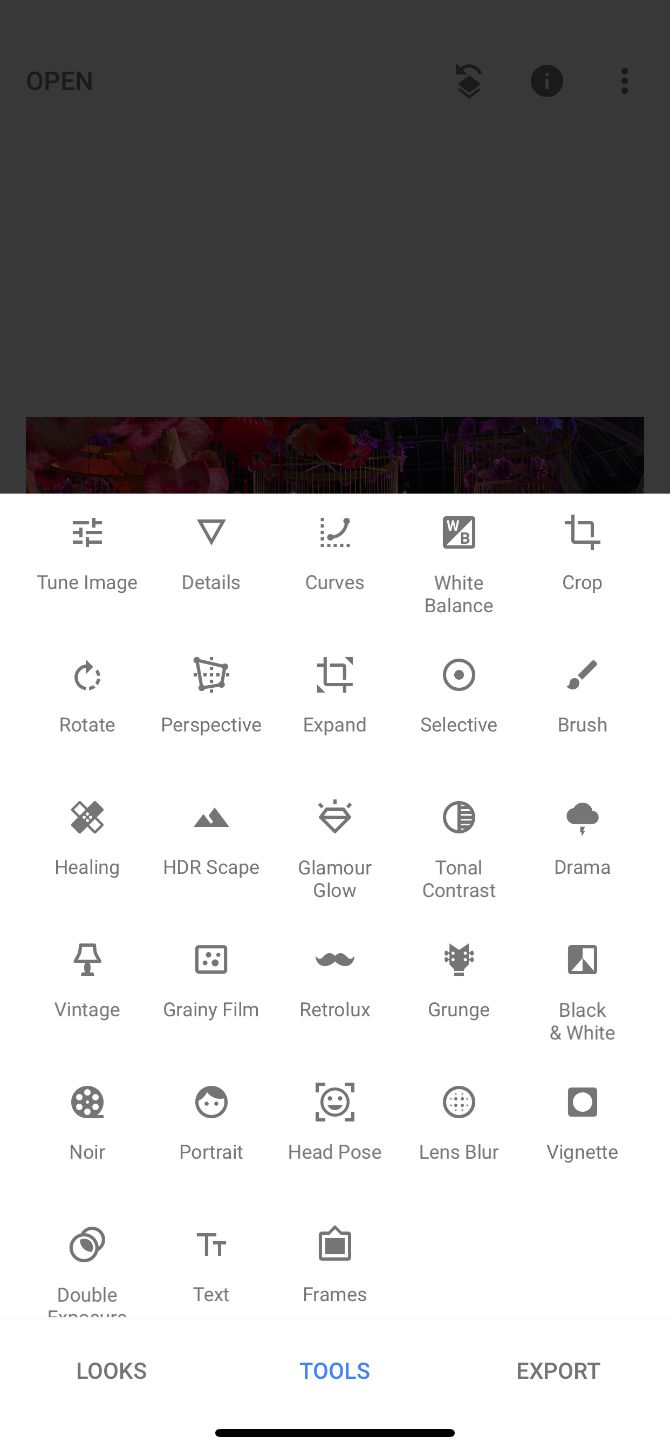
In addition to several filters, which Snapseed refers to as Looks, there’s a dizzying array of editing tools to choose from. These range from the basics to perspective shifts, selective coloring, instant HDR, and extensive monochrome filters and options.

The app controls well too. Just drag left and right to adjust a parameter’s strength, or drag up and down to change the parameter.

Download: Google Snapseed (Free)

3. Afterlight

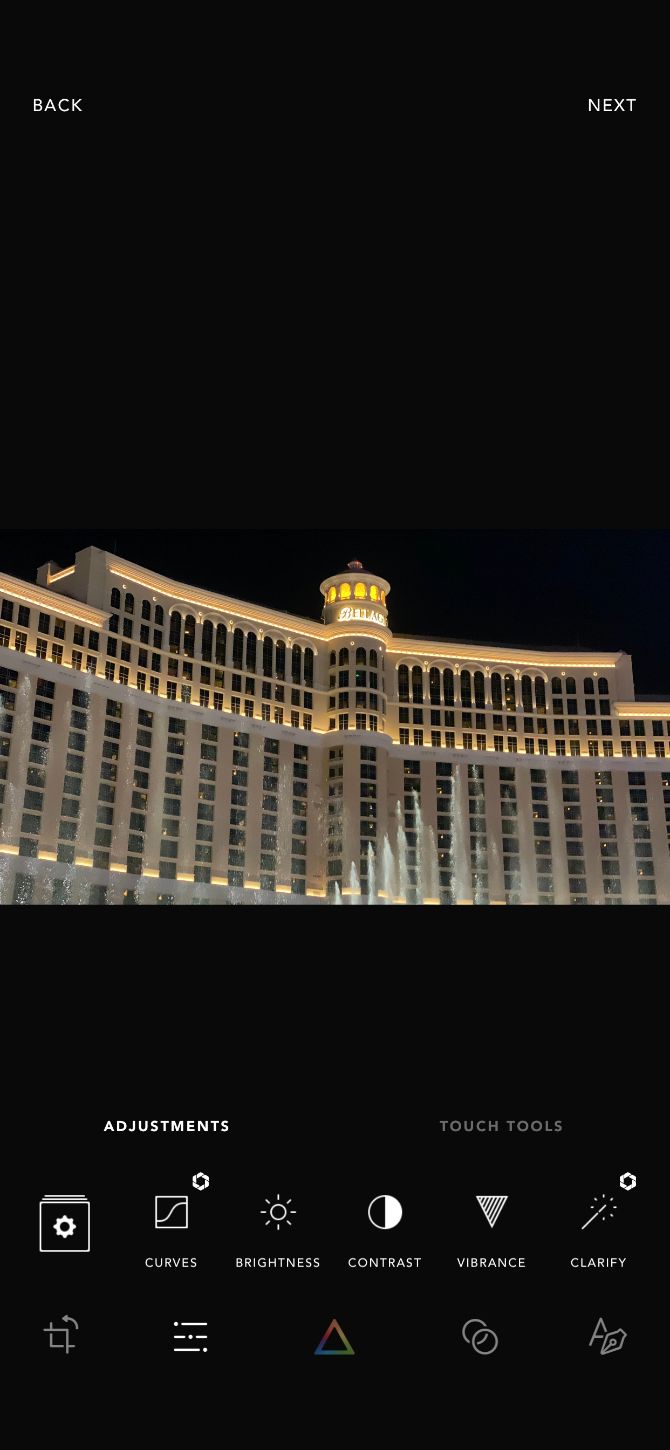
If you’re looking for an all-in-one photo editing app with a host of different tools, it’s hard to go wrong with Afterlight.

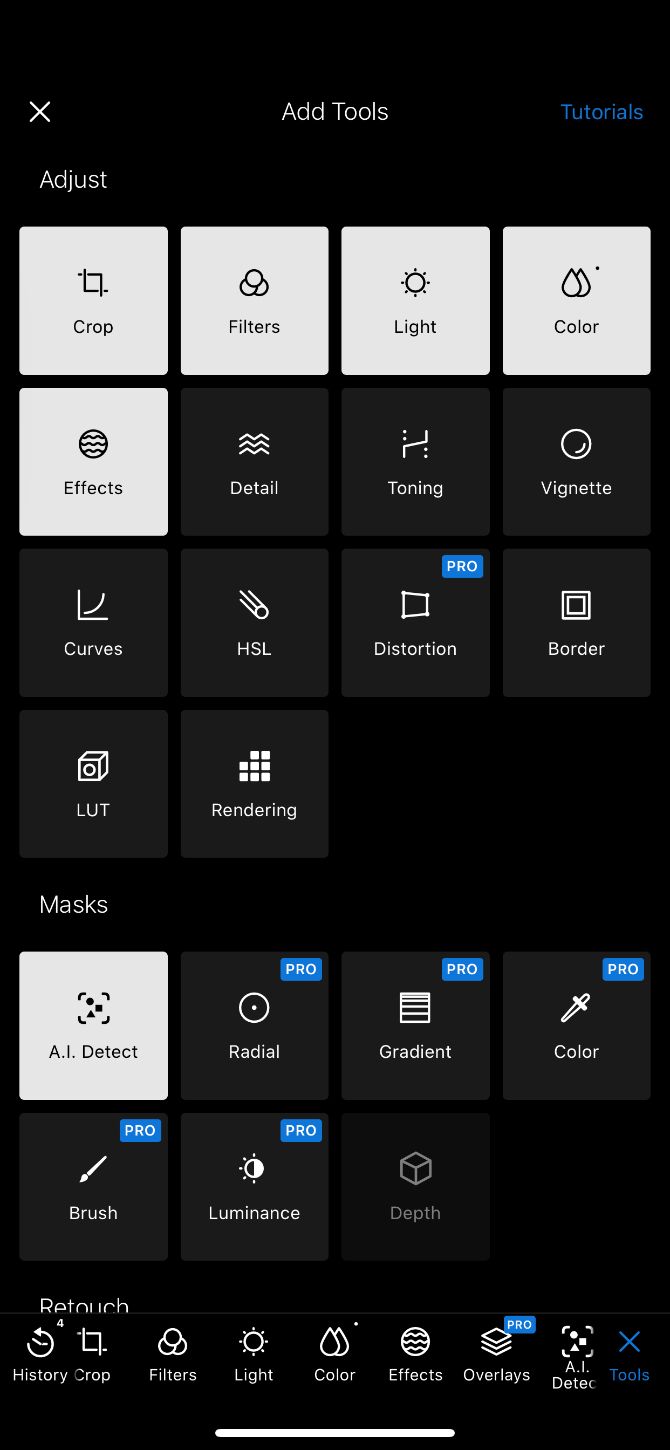
You can start editing with advanced tools like curves, grain, overlays/gradients, and more. Then you can add unique touches with filters, textures and overlays, frames and borders, and fonts. The app also supports RAW images.

With a subscription, you can take advantage of the entire library of 130 unique filters, 20 dusty film overlays, and touch tool adjustments to edit a photo with simple on-screen gestures.

Download: Afterlight (Free, subscription available)

4. Darkroom
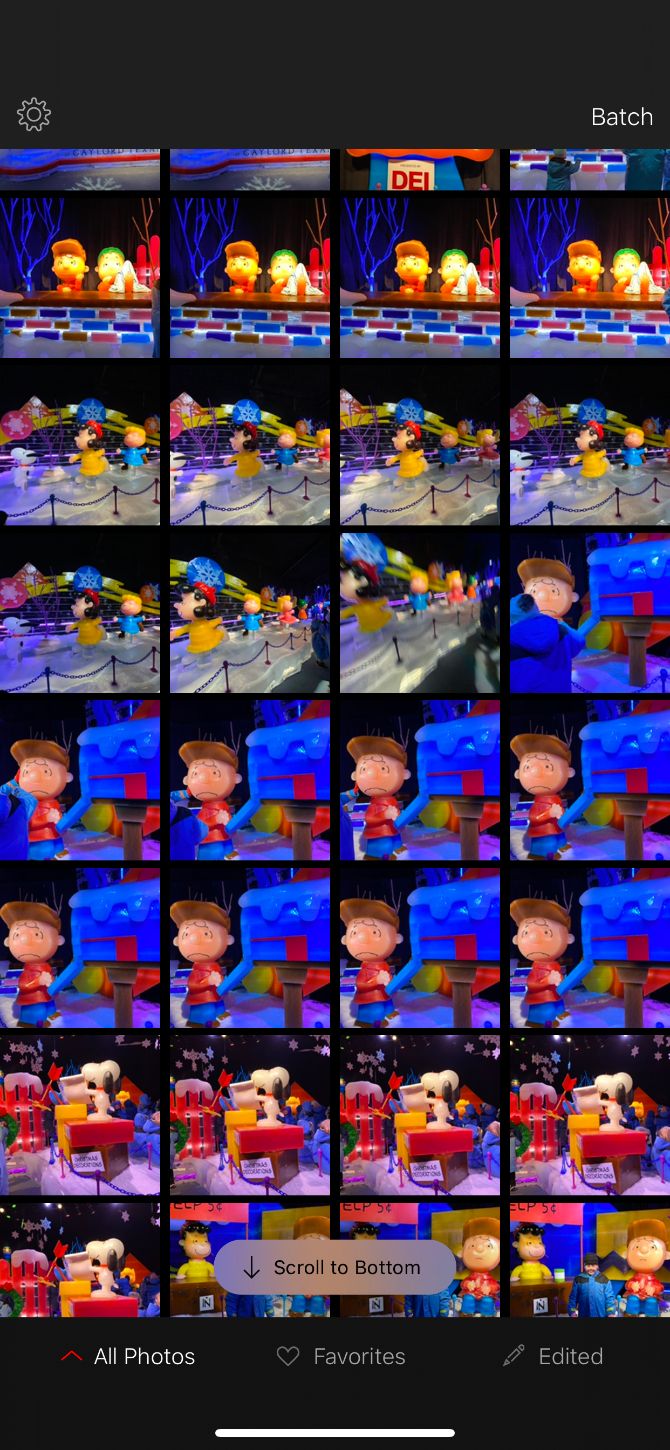
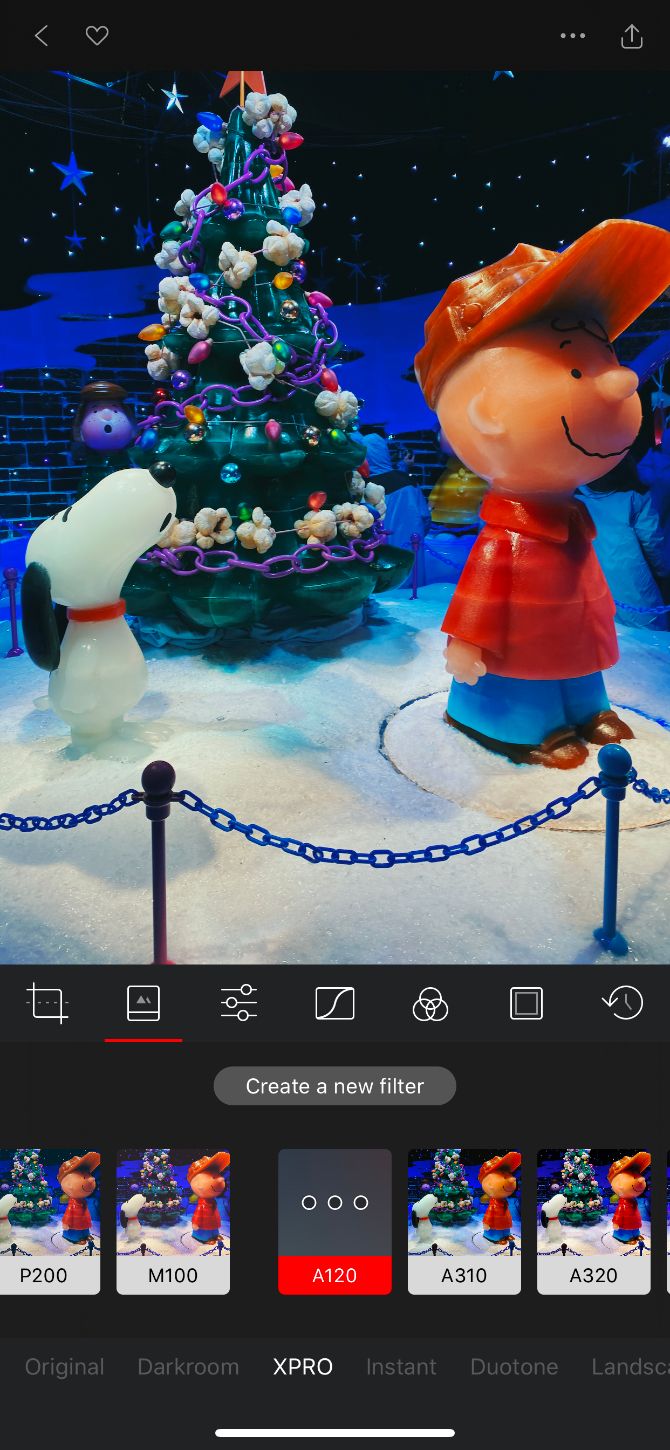
There’s no need to worry about finding the image you need to edit when using Darkroom. Your entire photo library is ready to access immediately (though it’s still wise to organize your iPhone photos).

The app offers great tools to edit all types of images, including Live Photos, Portrait mode images, and RAW photos. You can even create a custom filter from scratch or use one of the built-in options.

Using a batch processing feature, you can easily apply edits and filters to a number of photos at once.

For access to a color tool, curves tool, additional filters, the ability to protect images with a watermark, and a custom icon, you’ll need to purchase a subscription.

Download: Darkroom (Free, subscription available)

5. Enlight Photofox
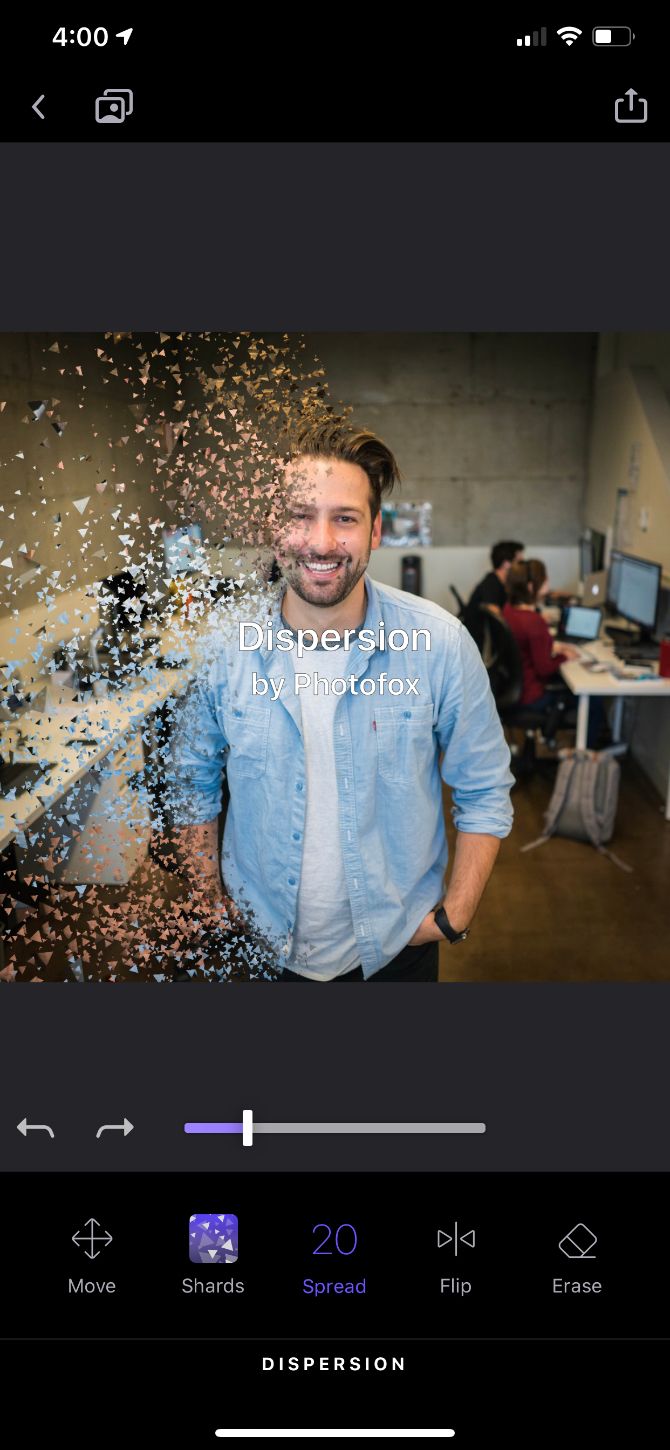
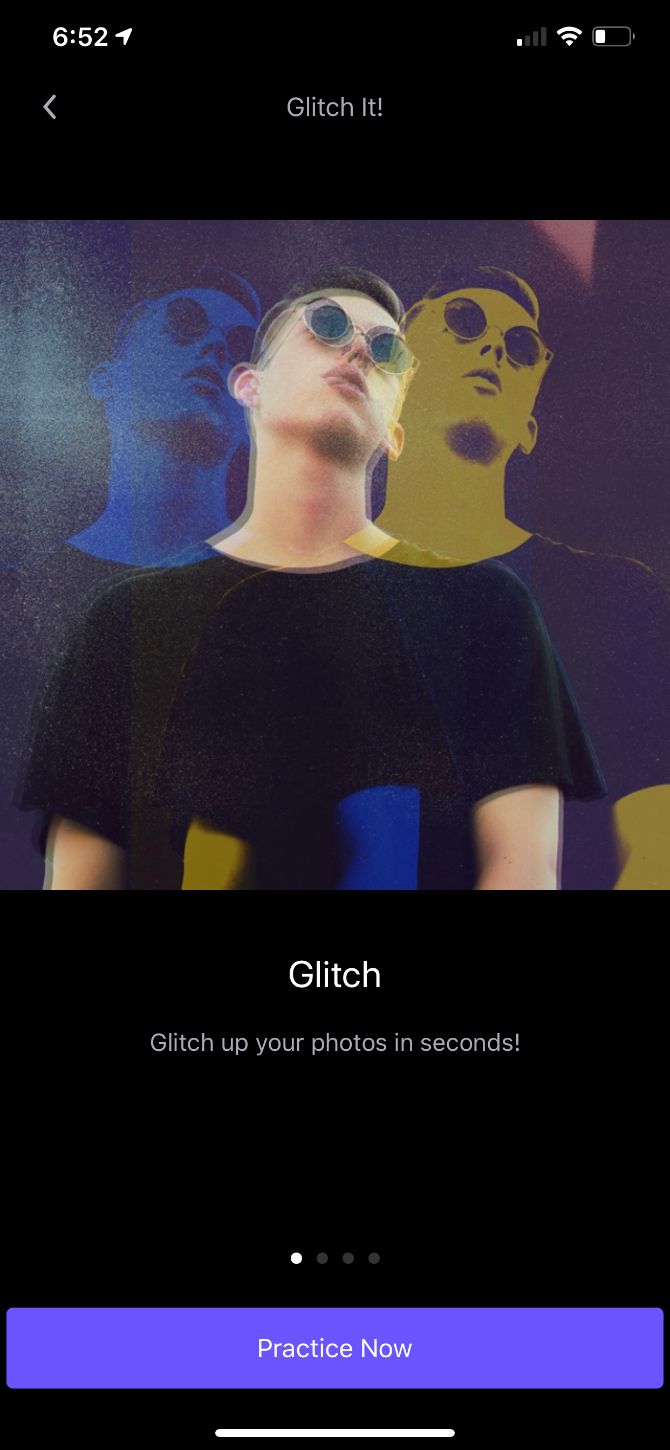
Enlight Photofox wants to do more than just provide a way to edit your images. You can turn any photo into a work of art in just a few taps by using selections from the QuickArt or Readymades sections.

For more advanced editing features, the app provides tutorials that showcase other concepts, such as glitch art.

You’ll need to subscribe to access all the different art styles, frames, tools, and more. Subscribers are also able to create unlimited layers in their photo creations.

Download: Enlight Photofox (Free, subscription available)

6. Prisma
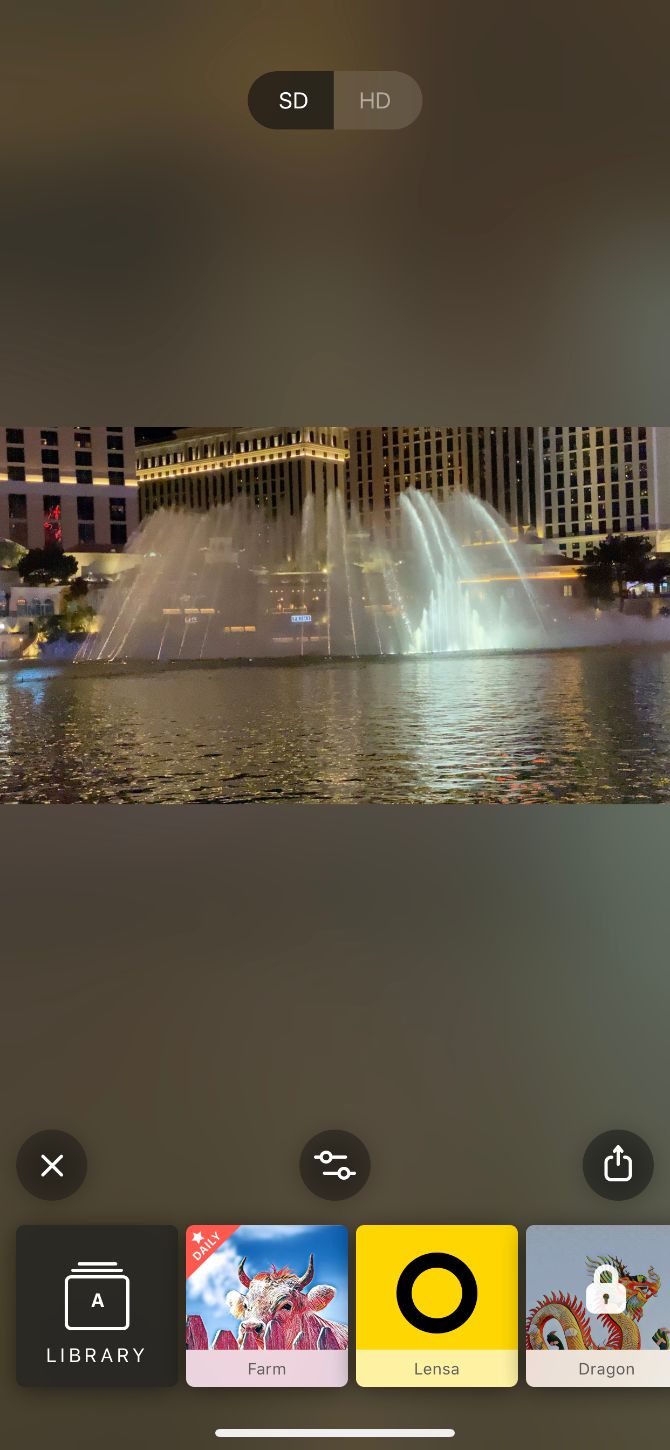
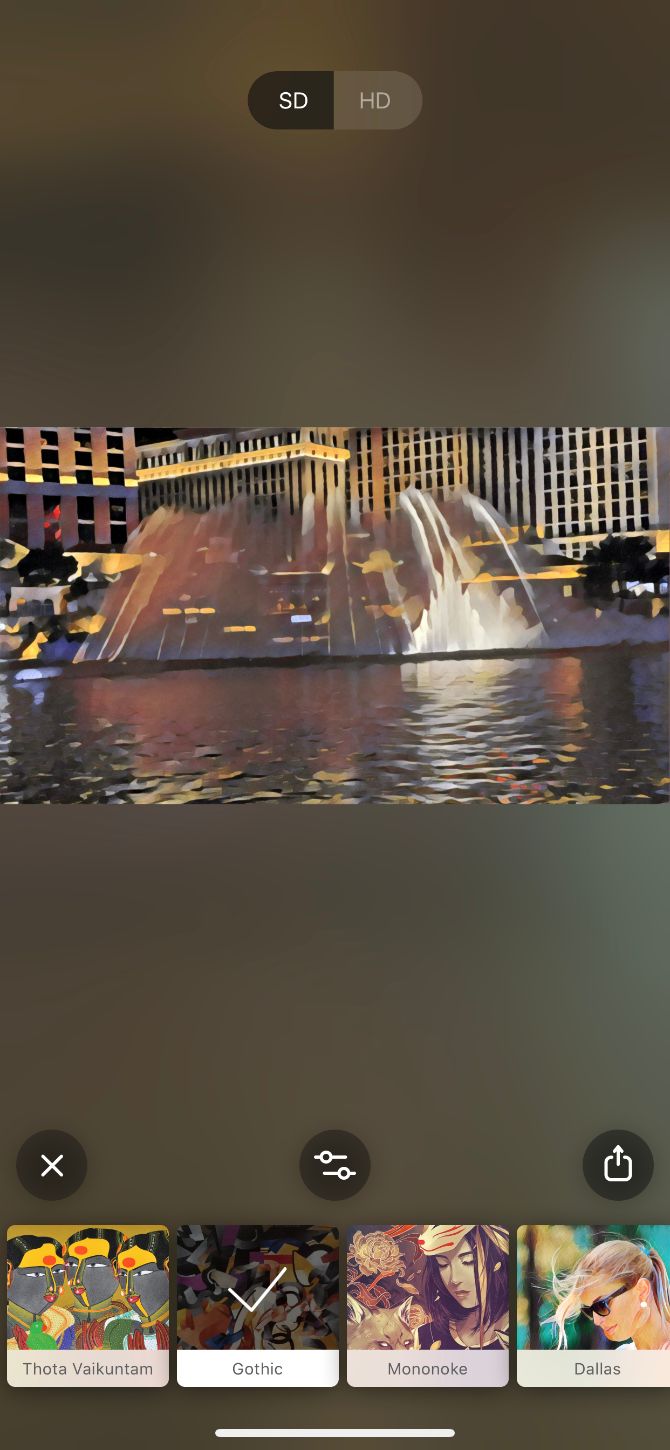
Prisma is an app unlike any other. When you load an image into Prisma, it sends that image to a server where it’s converted into a particular style of art. These styles are modeled on great artists like Picasso and Matisse, but also venture into comic book and futuristic territory.

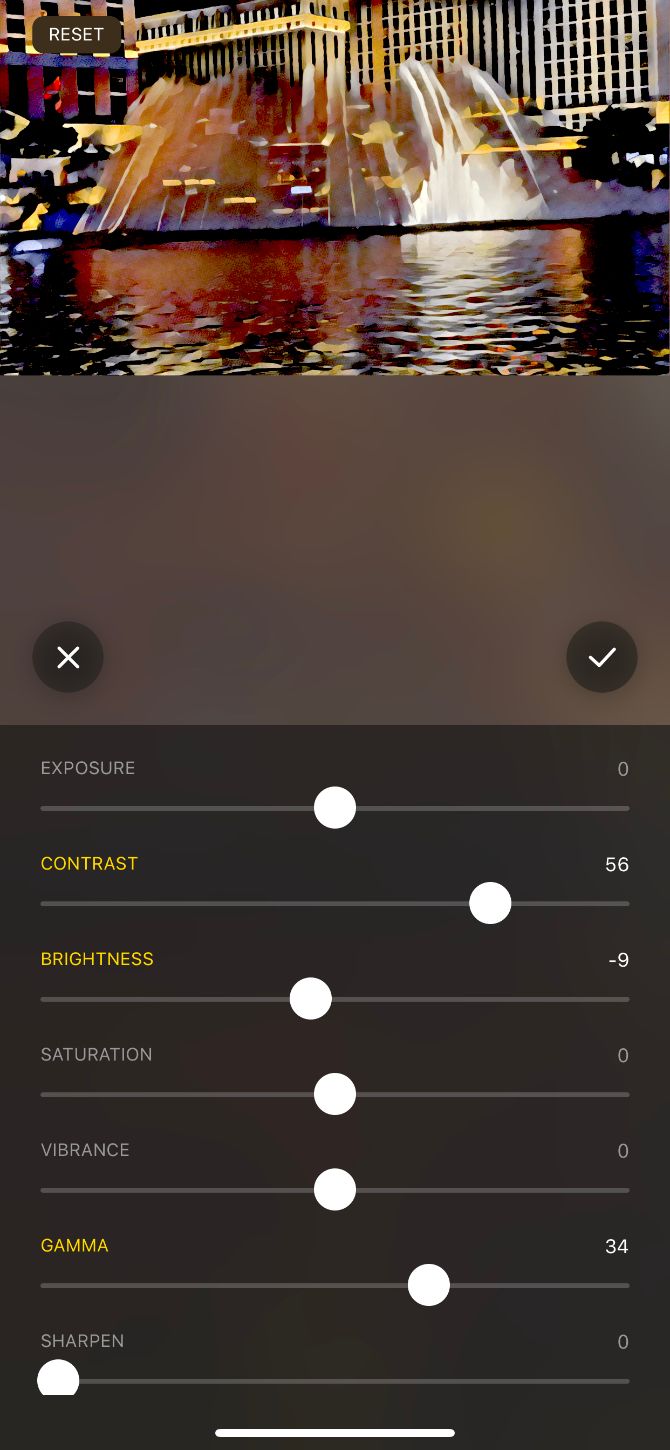
You can adjust the strength of the filter, which is fortunate since the app produces a mixture of impressive and slightly-off images. Some filters produce images that really look like computer-generated artwork; others transform images into something weird and wonderful.

Prisma has some of its features locked behind a premium account. If you want more styles, unlimited HD renders, and an ad-free experience, you’ll need to subscribe.

Download: Prisma (Free, subscription available)

7. Lens Distortions
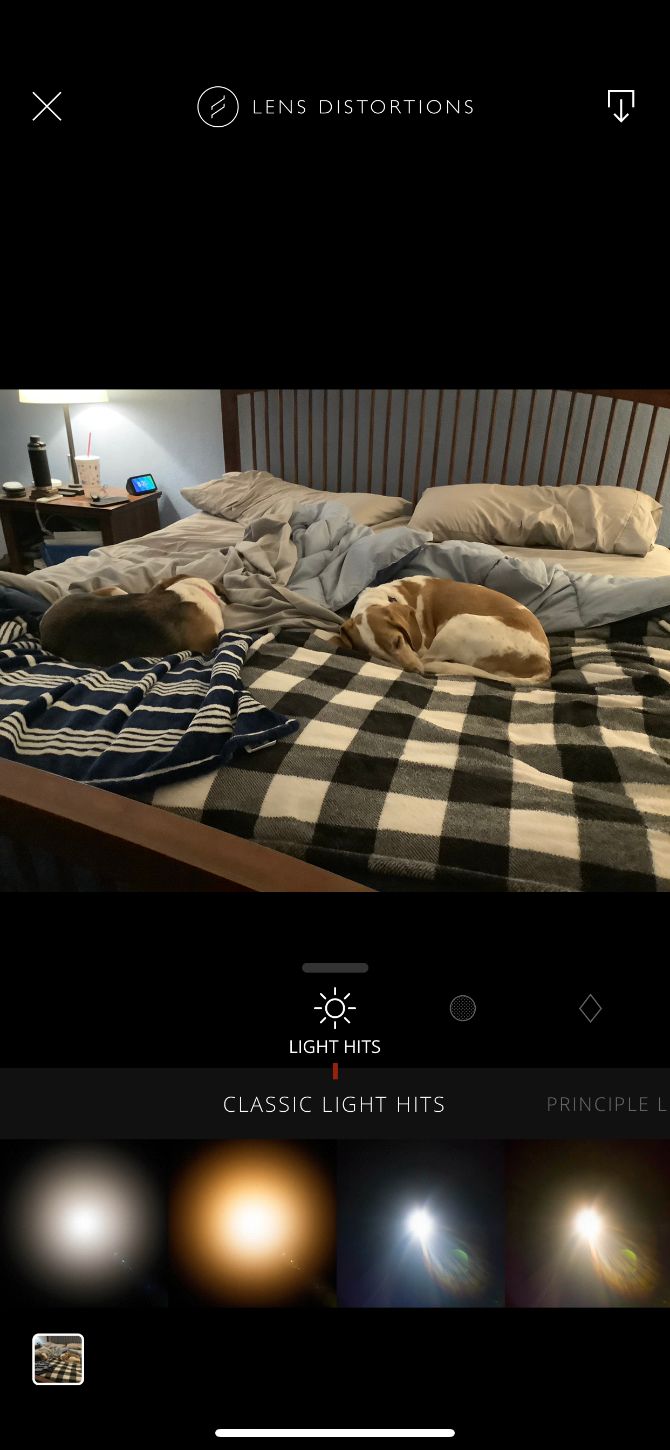
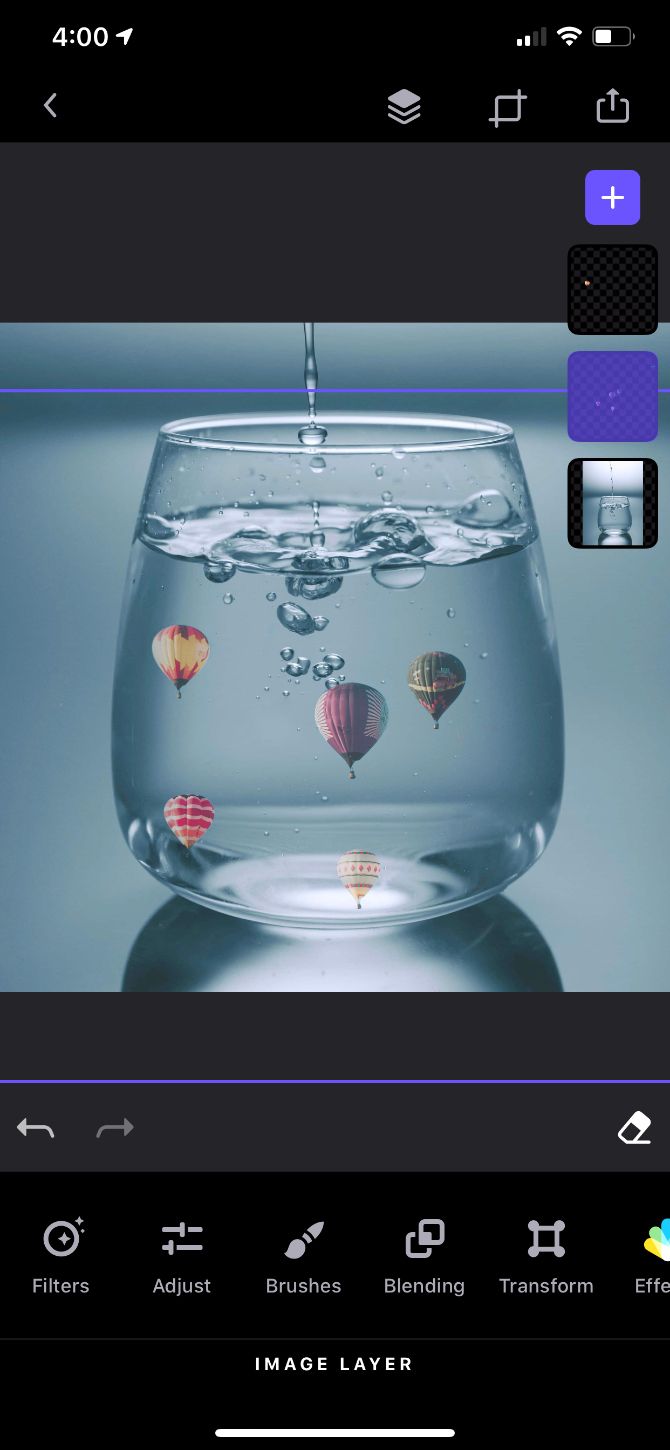
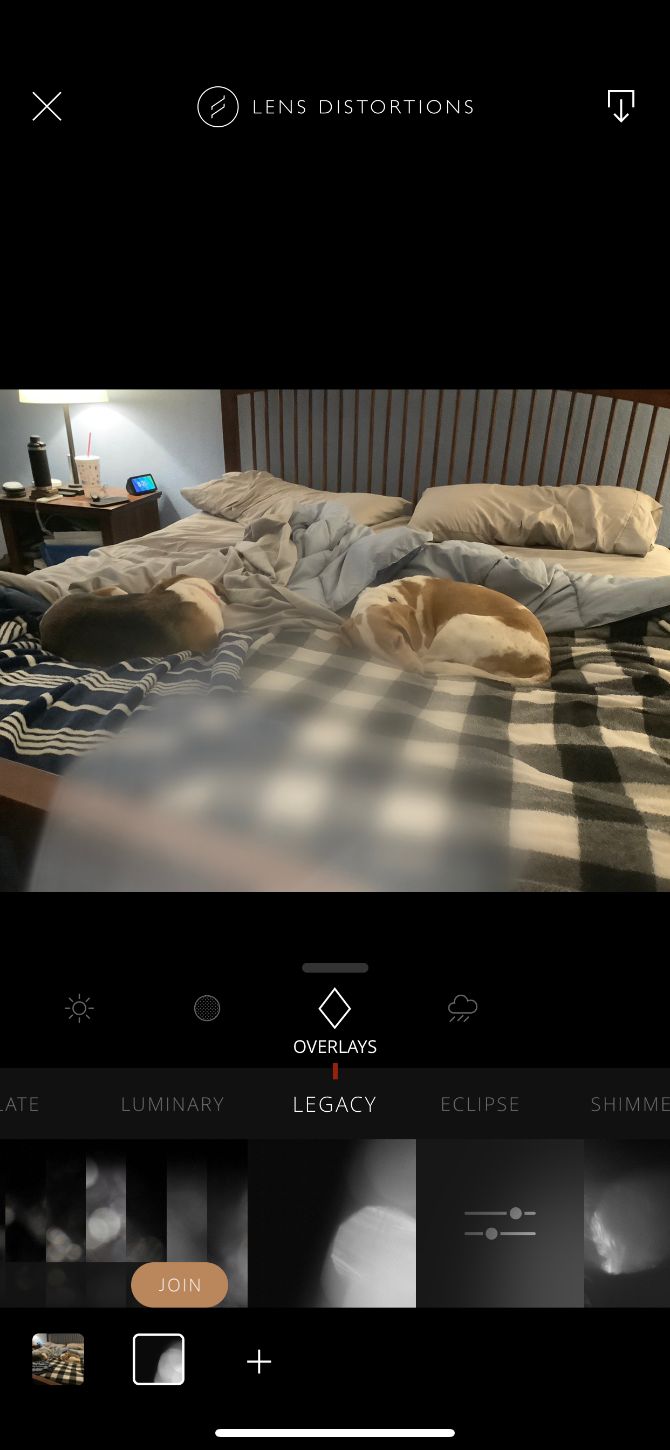
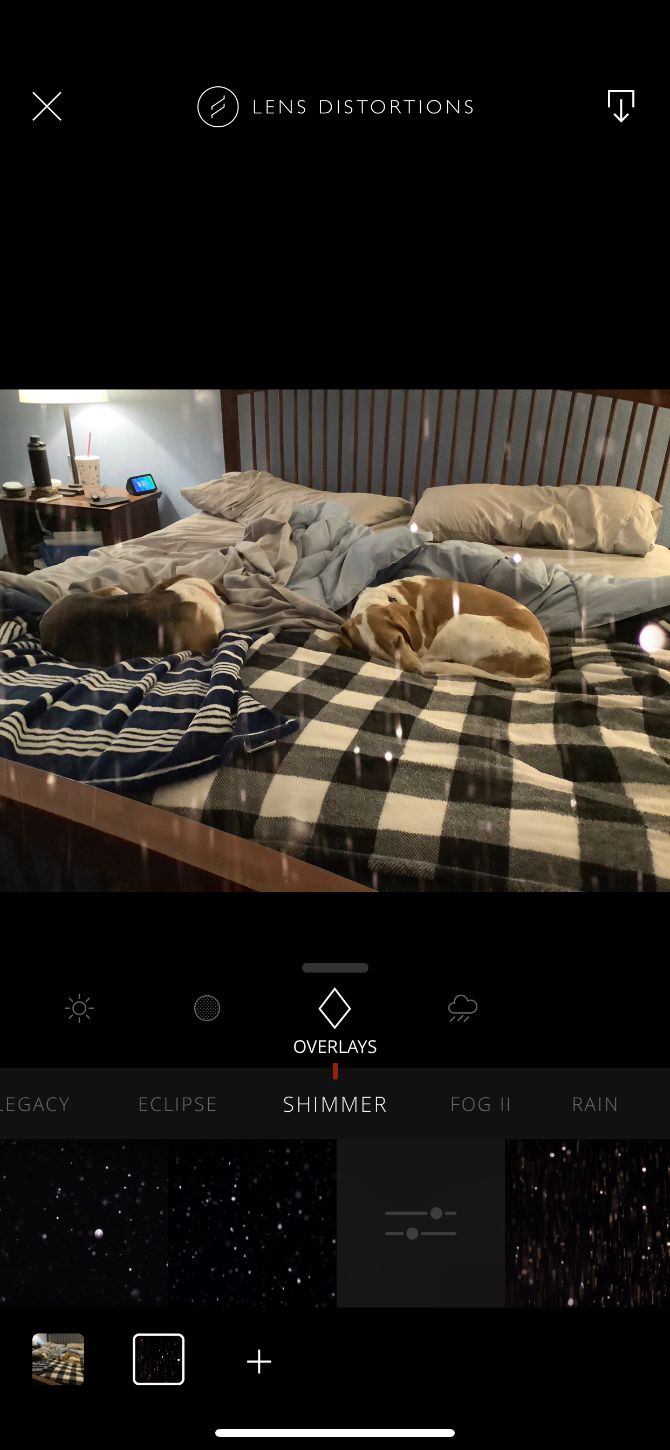
This app is all about emulating the look of fancy glass, weather effects, and lighting. It also includes some basic photo editing tools and uses layers to blend various effects together.

In addition to lens distortions, like blurs and flares, the app includes bokeh balls, fog, rain, snow, and shimmering effects. You can adjust the intensity, position, and scale of the effects as you see fit. It’s a great step toward achieving that vintage photography feel with any image already on your iPhone.

To unlock even more effects and filters, sign up for the premium subscription. You can also expand the various categories by buying packs outright if you’d rather pay once and keep them forever.

Download: Lens Distortions (Free, in-app purchases available)

8. VSCO

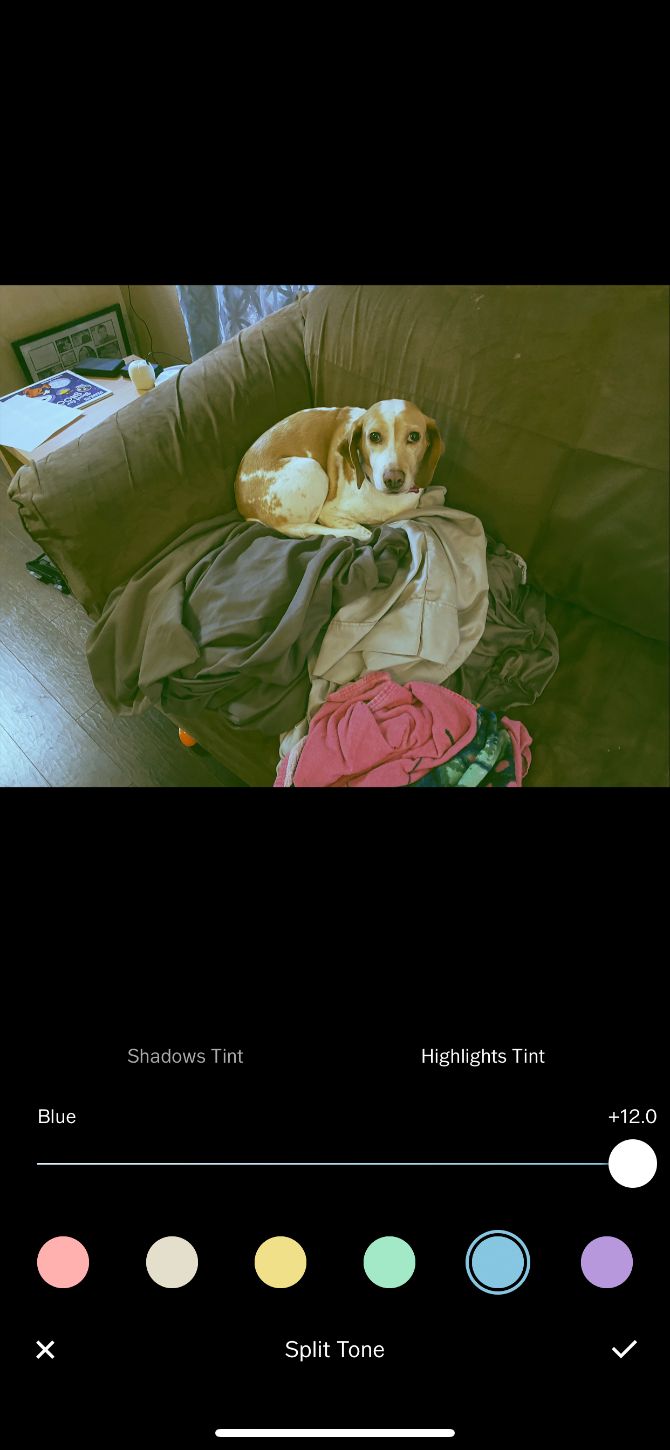
You’ll either love or hate VSCO’s abstract and minimalist interface. To its credit, the app has improved over time with better labels on its editing tools and a more straightforward approach to image editing.

It’s also the only app on this list capable of capturing RAW images. Tap on the camera and then change the image format to RAW to capture much more visual data every time you press the shutter.

The app brings great levels of complexity to RAW editing, with a number of filters included and more available with a VSCO X subscription.

Download: VSCO (Free, in-app purchases available)

9. Polarr Photo Editor
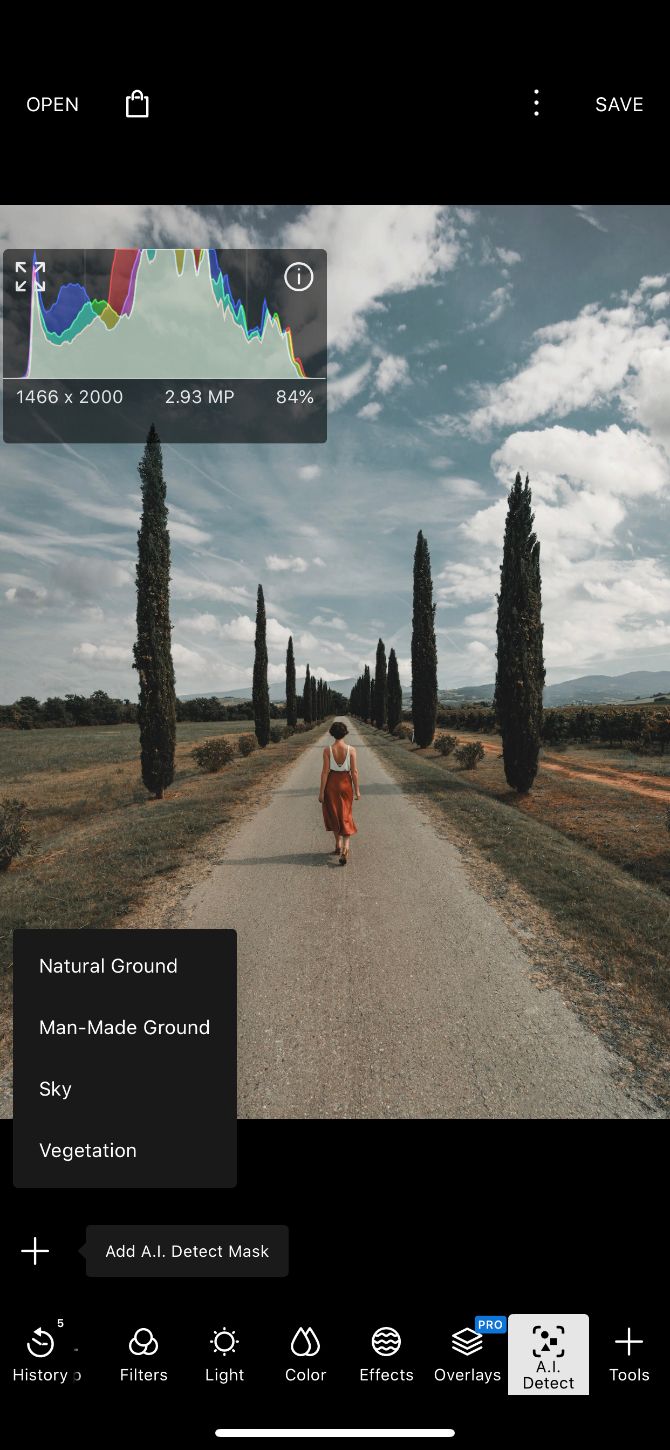
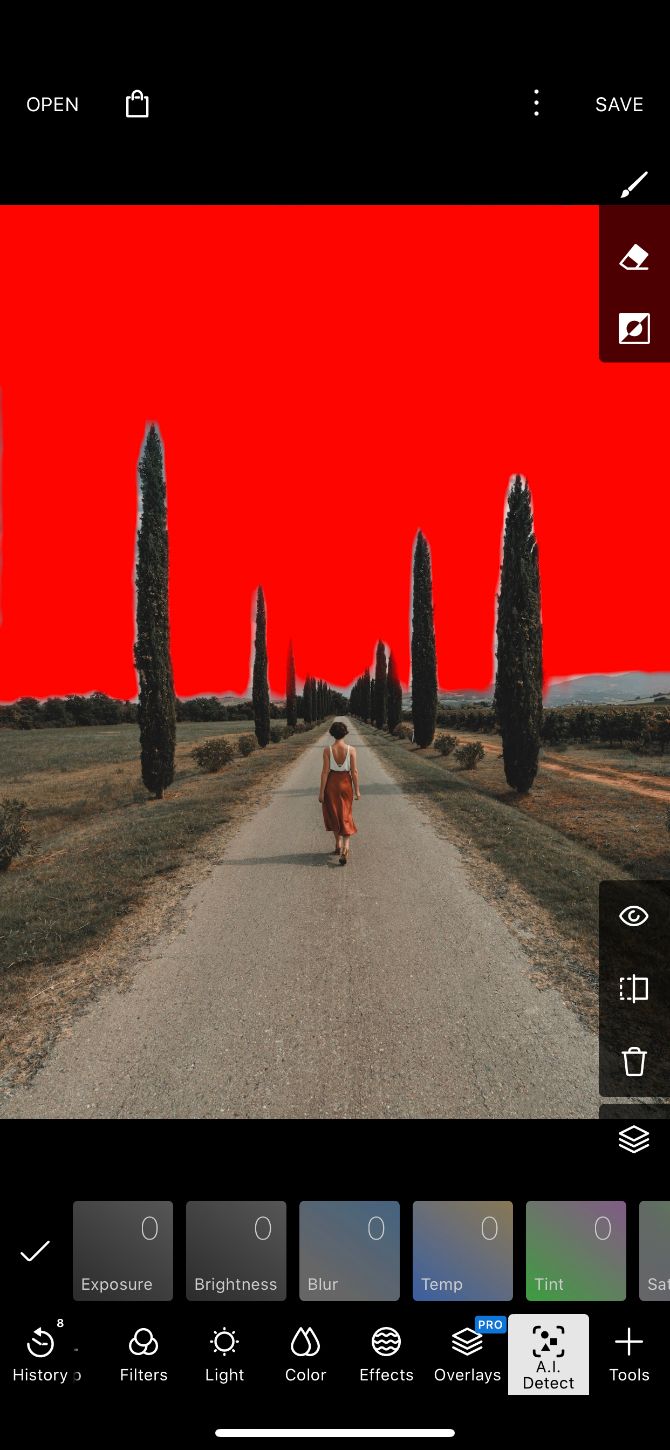
Polarr Photo Editor makes great use of AI and other tools like face detection to make it easier to edit images. Face detection will automatically select a face and allow you to fine-tune different aspects, like skin tone and other facial features. The AI detection can also isolate features of a photo, like the sky, to make it easier to edit different parts of the image.

Thanks to over 10 blending modes, you can superimpose photos and add effects like cloud, light leaks, and more. You’ll also find a bundle of other editing tools for every level of photographer.

With a subscription, you can unlock all of the app’s available filters, overlays, and other tools. It will also back up all custom filters. As a nice touch, the subscription will also carry over to the desktop and web versions of the Polarr app.

Download: Polarr Photo Editor (Free, in-app purchases available)

Free Photo Apps for Better iPhone Pictures

Now you can perform a variety of edits on your iPhone photos using nothing but your device. A bit of work will make your images look even better.

If you’re serious about your photography, you should consider shooting in RAW. RAW captures more detail than a lossy JPEG, meaning you can push your images further in post-production.

Read the full article: The 9 Best Free Photo Editing Apps on iPhone


Read Full Article

How to Use Google Hangouts: Tips and Tricks You Should Know


use-hangouts-like-pro

Because Google offers many overlapping messaging apps, you might have completely forgotten about Hangouts. It’s a bit like Google’s version of Skype, as it offers video and audio calling, plus text chat, over the internet.

While Hangouts was once the default video chat app on Android, Google has phased it out in favor of Duo. However, Hangouts is still alive for both desktop and mobile. Below, we answer common questions about the service and show you how to use Google Hangouts.

How to Use Google Hangouts

To use Hangouts, you need a Google account. You already have one of these if you use Gmail, YouTube, or one of Google’s many other services.

To get started, head to the Google Hangouts homepage and click the Sign in button in the top-right corner. Log into your Google account here, or click Create account to make one.

Google Hangouts Home

Once you’ve logged in, you’ll see options for contacting your friends. Use the tabs on the left side of the screen to swap between Contacts, Conversations, and Phone Calls. At the top of any list, click New conversation and enter a contact’s name or email address to start chatting with them.

When you open a chat with someone, you’ll see it in a panel similar to Facebook Messenger. Use the text field at the bottom to send a message. You can also send emoji or attach a picture using the respective buttons.

Using the icons at the top of a chat, you can quickly start an audio or video call with your contact, or start a group chat with them and others. You can also minimize or pop out chats using the toolbar buttons at the top. Click the Gear icon to archive or delete the conversation, as well as toggling notifications.

Hangouts Options and Chat

How to Set Up a Google Hangouts Video Call

Sending instant messages with Hangouts is easy, but the service makes video calls simple too. On the homepage, click Video Call to start a new video session. If you prefer, you can also click the Video call button in any conversation to call that person or group.

When you click the Video Call link, Hangouts opens a new window and asks you to invite some people. Type a friend’s name or email address to invite them, or click Copy Link to Share. You can them send that link to friends via any method (text message, email, etc.) and clicking it will let them join your Hangout.

Once in a Hangout, you’ll see whoever is speaking in the center of your screen. If you prefer, you can click someone’s thumbnail in the bottom-right to always show them. Click the Message icon in the bottom-left corner to send an instant message to all call members.

Google Hangouts In Call

To invite more people to the Hangout, click the Add icon in the upper-right. Here you’ll also see the Settings icon, which lets you adjust the camera, sound, and bandwidth settings. Under the three-dot menu, you’ll find options to share your screen or go fullscreen.

Click the Microphone or Camera icons at the bottom of the screen to mute your audio or video. When you’re done with the call, just click the red Hang up button to leave.

By the way, check out our list of creative ways to use Hangouts if you need some ideas for your next get-together.

How to Record a Google Hangout

Hangouts once had a feature called Hangouts on Air that made it easy to broadcast your video calls and record them. However, this is no longer an option, nor is a workaround that involved YouTube streaming.

Officially, Hangout recording is only available for G Suite Enterprise users. This is because when you click the Video Call option in Hangouts while using an enterprise account, you’re redirected to Google Meet.

Google Meet, along with Google Chat, serve as the enterprise replacements for Google Hangouts. Google Meet video calls are similar to the Google Hangouts experience, but with a few extra features.

To record a Google Meet call, simply click the three-dot button at the bottom-right of the window and choose Record meeting.

If you’re a home user, Google announced in April 2020 that it plans to make Google Meet available free for everyone. At the time of writing, this is still rolling out, so you may not be able to start your own meetings on the Google Meet homepage. Check back for updates; chances are that Google may retire Hangouts in favor of Meet for all users.

In the meantime, if you need to record a Hangout and can’t wait for Meet, you can try using a screen recorder app to record conversations locally.

How to Schedule a Google Hangout

You can’t schedule a Hangout using the app, but you can achieve the same effect by creating an event in Google Calendar.

Head to Calendar’s homepage. Click the Create button at the top-left to make a new event, then choose More options to show the full set of controls. Fill out information like the meeting title, location, and time, then click the Add conferencing box.

Select Hangouts here, then use the Guests panel on the right to invite people from your Google contacts or via email address.

Google Hangouts Schedule Meeting

Hit Save when you’re done, and you’ll get a prompt to send invitation emails to guests. If you do this, your guests will receive an email about the event with a Join video call link. Once they click that, they’ll jump right into the scheduled call.

How to Share Your Screen on Google Hangouts

You don’t need any special tools to share your screen during a Hangout. In a Hangout call, click the three-dot Menu button at the top-right and choose Share screen. You’ll see a prompt to choose what you’d like to share: pick either a monitor or a single app.

Hangouts Share Screen

Once you start screen sharing, everyone in the call will be able to see what’s on your screen until you click Stop.

How to Block or Unblock Someone on Google Hangouts

If someone is bothering you on Hangouts, you can easily block them. To do so, open Hangouts and select the conversation with the person you want to block. Click the Gear icon on their conversation, then choose Block & report.

To unblock someone later, click the hamburger Menu button in the upper-left of Hangouts. Choose Settings, then select Blocked people. You’ll see everyone you’ve blocked and have the option to unblock them.

Hangouts Block People

How to Delete Google Hangouts

You can’t fully delete your Hangouts account unless you delete your Google account. However, you can remove old messages if you like.

Select any conversation and click the Settings gear at the top. Choose Delete conversation to delete all messages with that contact. You can’t do this for group chats; your only option is to leave the group.

If you’d like, you can also disable the Conversation history option here. Turning this off prevents Hangouts from saving your messages, so they’ll disappear after a short time.

How to Sign Out of Google Hangouts on Your PC

Google Hangouts Sign Out

Signing out of Hangouts signs you out of your Google account in the current browser, so you’ll have to sign back in to access Gmail, YouTube, and other services.

To sign out of Hangouts, just click your profile picture in the upper-right corner of Hangouts and choose Sign out.

How to Use Google Hangouts on Android and iPhone

We’ve covered Hangouts on the web in this guide, but you can use the app on Android or iPhone as well. It functions nearly the same on those platforms, allowing you to instant-message friends and start video or audio calls.

Download the app for your platform and sign into your Google account to access your chats. Like most messaging apps, Hangouts includes emoji, stickers, photo uploads, and more. In any chat, you can tap the Video or Audio calling buttons to start a call with the other person.

Download: Google Hangouts for Android | iOS (Free)

Ready to Hang Out With Google Hangouts

Hopefully, this Google Hangouts tutorial answered your questions about the service. As of this writing, it seems that Google Hangouts may be on its last leg, with Google Meet set to supersede it. For now, Hangouts is still a usable service, but don’t be surprised if Google kills it off before long.

For an alternative, check out how to use Google Duo for easy video calls on any device. We’ve also rounded up other great free conference call apps if you want a non-Google solution.

Read the full article: How to Use Google Hangouts: Tips and Tricks You Should Know


Read Full Article

How to Quickly Switch Between Facebook Accounts


Whether you have multiple Facebook accounts or share a computer with friends and family, you’ll need to know how to switch Facebook accounts. Thankfully, the social network makes it easy to quickly switch between profiles using the same browser.

How to Switch Between Facebook Accounts (Classic Facebook)

classic facebook account switcher

  1. While logged into Facebook, you should see an Account Switcher button between Notifications and Quick Help.
  2. Press the button, then click Add Account.
  3. Enter your username and password and click Log in. If you previously checked Remember password, you won’t receive a prompt to enter your password when switching accounts. If you haven’t checked Remember password, you’ll receive a prompt to enter the password for your account.
  4. Now when you click on the Account Switcher button, you should see both accounts. You’ll know which of your Facebook accounts is currently active by the green mark.
  5. If you decide you would like to remove an account from your computer, click the little grey X in the corner of your profile photo.

How to Switch Between Facebook Accounts (New Facebook)

new facebook switch accounts

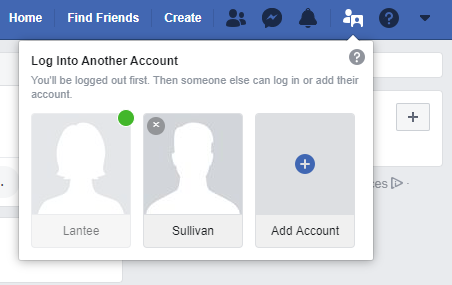
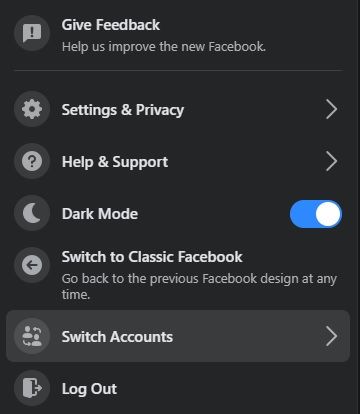
  1. While logged into Facebook, click on the Account button next to Notifications.
  2. Select Switch Accounts, then select Log Into Another Account.
  3. Enter your username and password and click Log in. If you previously checked Remember password, you won’t receive a prompt to enter your password when switching accounts. If you haven’t checked Remember password, you’ll receive a prompt to enter the password for your account.
  4. Now when you click on the Switch Accounts button, you should see both accounts. On New Facebook, there’s no visual marker for the account you’re on.
  5. If you decide you’d like to remove an account from your computer, go to Switch Accounts then click the X to the right of the account name.

Stay Secure When Switching Facebook Accounts

Because you have the option to always enter your password when switching profiles, this feature is useful for family members who share a computer. Facebook also allows you to add up to 10 accounts using the Account Switcher feature.

It will also come in handy if you have a separate Facebook login for work. That way you can keep all things work and personal completely separated. If you want to know more about Facebook security, check out the complete Facebook privacy guide.

You Can Now Switch Facebook Accounts Quickly

Once you’ve added multiple accounts, swapping between accounts on Facebook is quick and easy. It may just be a simple feature, but it’s one that can make your life a lot easier. As is using Facebook to plan an event, and here’s how to create events on Facebook.

Image Credit: Mactrunk/Depositphotos

Read the full article: How to Quickly Switch Between Facebook Accounts


Read Full Article

Is CuriosityStream the Best Streaming Service for Documentaries?


curiosity-stream

CuriosityStream is a streaming service dedicated to documentaries. It offers countless documentaries to watch whenever and wherever you want, and they cover a wide range of topics for all ages. CuriosityStream is also one of the cheapest streaming services around.

Here’s everything you need to know about CuriosityStream, which may just be the best streaming service for documentaries.

What Is CuriosityStream?

CuriosityStream documentaries on the screen

CuriosityStream is an on-demand video streaming service that deals entirely in documentaries. It aims to inspire viewers to learn, create, understand, and explore the world around them, and it comes from the founder of The Discovery Channel.

After 20 years of “scheming and dreaming,” John Hendricks retired from Discovery Communications in 2014 to work on this new streaming service. He hopes it can offer a new way for viewers to watch documentary movies online whenever they want. So if you’re a fan of The Discovery Channel, you’re likely to enjoy CuriosityStream as well.

It includes over 3,000 documentaries of varying length, adding up to over 1,000 hours of content. The library covers science, history, technology, nature, civilization, and lifestyle. And there are programs suitable for a wide range of ages.

CuriosityStream includes third-party shows alongside award-winning originals. It doesn’t have a lot of well-known titles yet, but there are plenty of great documentaries to discover.

How Much Does CuriosityStream Cost?

CuriosityStream pricing plans

You can sign up for CuriosityStream for the low cost of $2.99/month. Doing so unlocks the entire library of content in HD quality, available to stream on multiple devices at once. Ultra high-definition 4K streaming is also available for $9.99/month. But of course, it’s only worth paying for if you plan to watch it on a 4K screen.

Both subscription plans offer a discount if you choose to pay annually, rather than monthly. The HD plan costs $19.99/year while 4K comes in at $69.99/year. Although these discounts work out about 40 percent cheaper, it’s only worth paying for an entire year if you plan to subscribe for that long anyway.

At the moment CuriosityStream is also running a Stay In promotion. This offers a further 40 percent off annual subscriptions, bringing the prices down to $11.99/year and $41.99/year for HD and 4K subscriptions, respectively.

Before subscribing, take advantage of CuriosityStream’s seven-day free trial to get a feel for what’s on offer. You can access the entire library of content and watch it on all of your devices. This is a safe way to make sure you’re happy signing up for a year before you need to pay for anything.

A lot of educational YouTubers offer promotional codes to extend that free trial to 31 days. Many of these codes also give you a free subscription to Nebula alongside your paid CuriosityStream subscription. This is a great way to get extra value from your subscription if you’re concerned about the cost.

How to Watch CuriosityStream

CuriosityStream home screen showing selection of shows to watch

CuriosityStream is available to watch on almost every device you can think of. Download an app for your smartphone, tablet, Roku, Fire Stick, or Apple TV. Or watch CuriosityStream in the web browser on your computer.

You can even download an app for the Xbox One. Although there isn’t currently a PS4 app, unfortunately.

After signing up and logging in, CuriosityStream’s homescreen lists some recommended shows to start watching. These cover CuriosityStream’s newest additions, programs you have already started watching, and suggestions based on other titles you have enjoyed.

Alternatively, use the Browse button to take a look at particular categories, like Science, History, Technology, Nature, Society, Lifestyle, or Kids. You can also visit the Collections page for curated collections of shows, such as Leading Ladies, Dinosaurs, or Early Man.

Add programs to your Watchlist using the Add (+) button. Or tap Save on mobile devices to download programs for offline viewing. You can view your Watchlist and Saved programs from the My Stuff tab or by clicking your name in a web browser.

CuriosityStream’s user interface is perfectly usable, but not quite as smooth as other, better-known, streaming services. Occasionally a video freezes or refuses to go fullscreen. But these are fairly minor issues that usually fix themselves without you needing to do anything.

What Content Is Available on CuriosityStream?

CuriosityStream collections screen showing curated shows

CuriosityStream offers over 3,000 non-fiction documentaries to watch. It covers everything from space to insects to robots, and everything in between. Every video is fully tagged, so all you need to do is search for a vague term to turn up a wealth of related programs to watch.

Most titles range from 10-minute episodes to hour-long documentaries. Sometimes the episodes feel too short to get into much detail. But at least it’s easy to find something to watch when you only have a short amount of free time to spare.

CuriosityStream includes exclusive original content alongside third-party programs. New original content is released weekly and includes award-winning shows such as Stephen Hawking’s Favorite Places and David Attenborough’s Light On Earth.

Unfortunately, some of the best BBC documentaries available on Netflix and other streaming services aren’t available on CuriosityStream due to licensing conflicts. That means you won’t find highly-rated shows like Planet Earth, Cosmos, or Blackfish on CuriosityStream.

Some of the best titles to watch on CuriosityStream include…

Eclipse Across America

Eclipse Across America title card

This four-part series explores the total solar eclipse that took place across America in 2017. The first episode follows lifelong eclipse hunters as they tour the best viewing spots.

Deep Time History

Deep History Time title card

This series is split into three 50-minute episodes. Each one explores different prehistorical events that shaped the human story. Learn about different factors like the rise of civilization or the industrial revolution.

The History of Food

The History of Food title card

Humankind’s relationship with food has dramatically transformed over hundreds of thousands of years. This five-part series explores all there is to know from the invention of cooking to the modern food industry.

Out of the Cradle

Out of the Cradle The Origins of Humanity title card

Out of the Cradle is a two-hour-long documentary about how we became the dominant species on Earth. It investigates everything from climate change, to tools, to art, and more.

Is It Worth Subscribing to CuriosityStream?

At $2.99/month, CuriosityStream is one of the most-affordable streaming services available. It’s worth subscribing to if you enjoy watching shows from The Discovery Channel and want to learn more about the world around you.

That said, most other streaming services already offer plenty of documentaries to watch. Netflix, Amazon Prime, Disney+, and other services combine fiction and non-fiction programming, so their libraries aren’t as limited as CuriosityStream. However, they cost a lot more money as a result.

We’re confident enough to say that CuriosityStream is the best streaming service for die-hard documentary fans who have no time for fictional shows.

However, we recommend you compare it to the best streaming TV services before signing up, to make sure you can’t get everything you want and more elsewhere.

Read the full article: Is CuriosityStream the Best Streaming Service for Documentaries?


Read Full Article
10 Fun Things to Do With Zoom


zoom-fun

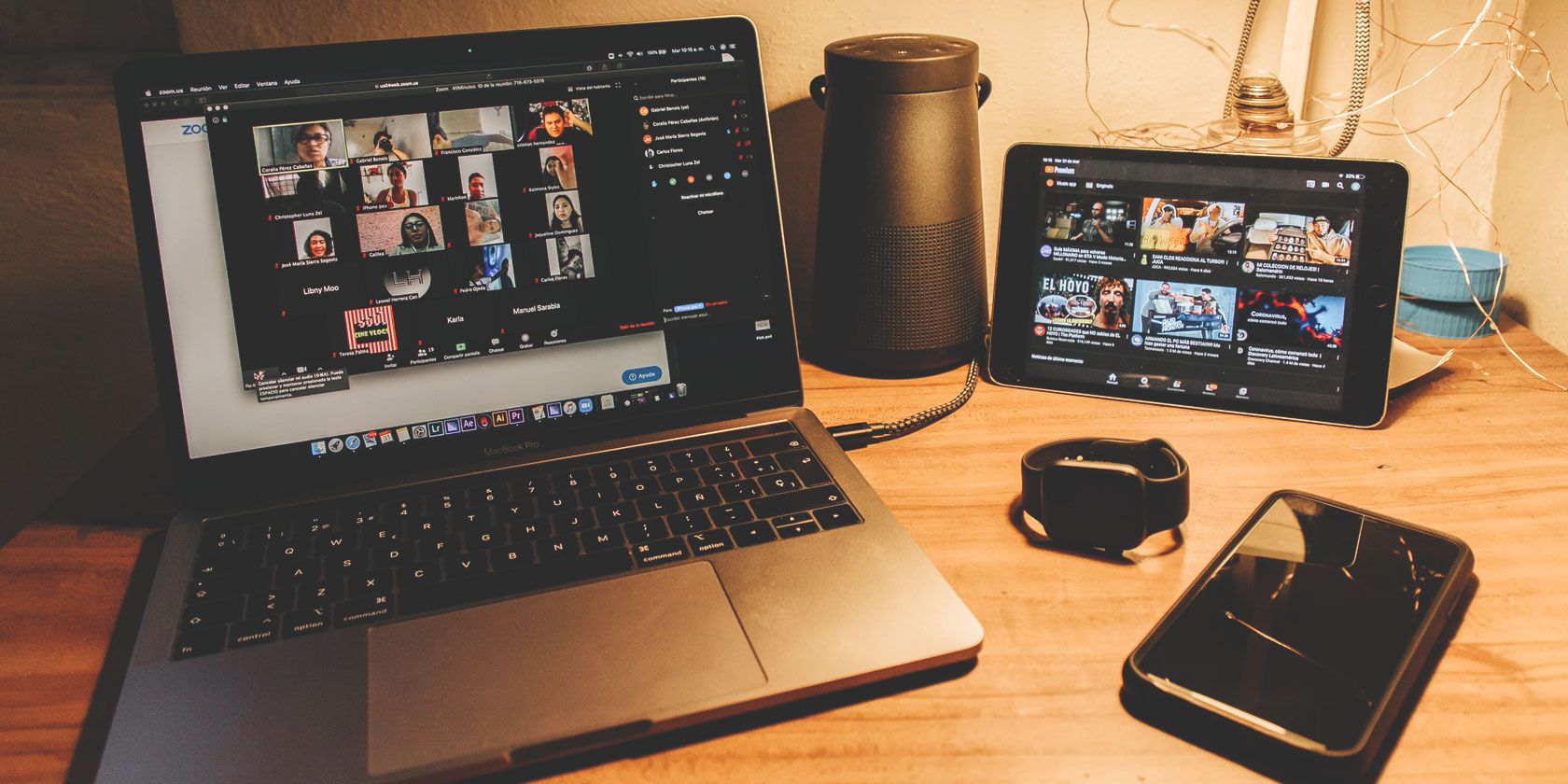
For the uninitiated, Zoom is a video and audio conferencing tool. Its primary focus is on enterprise meetings, but it also works as a platform for catching up with family and friends.

While everyone knows how to simply sit and chat on Zoom, there are lots of other fun things to do with Zoom. All of which will liven up even the dullest Zoom chat. If it’s appropriate to do so.

1. Record a Podcast

These days, everyone has a podcast, so you may as well start one too. Zoom has the ability to record audio from calls and, more importantly, record participants’ audio streams as separate files. So, with the addition of some podcast editing software you can create a podcast out of a Zoom call.

To get going, open Zoom and go to Settings > Recording and tick Record a separate audio file for each participant. Here you can also change the save folder and other options like whether to record the video too.

While in the Zoom call, press Record > Record on this Computer. When the call ends, the audio will convert automatically and the save folder will open.

2. Play Jackbox Games

Jackbox is a long-running series of party video games that are bound to get everyone laughing. Each “party pack” comes with a number of mini games inside. They are all wonderfully themed and varied, based around trivia, drawing, comedy, and more.

The best part is that only one person on the Zoom call needs to own the game. That person shares their screen (click Share Screen from the bottom toolbar, select the Jackbox application, then Share) and everyone else then logs in to the Jackbox website with a private code. Everyone then plays on their phone and watches the game play out on the Zoom call.

You can find out more about playing Jackbox and where to buy the game from on the official Jackbox Games website.

3. Mess Around With Virtual Backgrounds

Zoom has an awesome feature called virtual background. This allows you to display any image or video in the background of your webcam, even if you don’t have a green screen. It works surprisingly well.

You can use virtual backgrounds to appear in your favorite fictional setting or to imply you’re relaxing on a beach. Or you can get creative and record your own video. Zoom Backgrounds is a website with some examples to get you started.

Go to Settings > Virtual Background and click the plus icon to add an image or video. Beneath Choose Virtual Background, click the thumbnail of the image or video you wish to use. Ensure that I have a green screen is only ticked if you do—frankly, the feature is good enough not to need one.

4. Play Pictionary or Hangman

Pictionary is the classic game where you split into teams and draw pictures of words or phrases that your teammates need to guess. Hangman is similar, except people guess one letter at a time. You can play both of these in a Zoom call. To begin, you’ll need a random word generator.

Next, from the bottom toolbar, click Share Screen > Whiteboard > Share. This will open an interactive space that everyone can use to draw their creations. Be sure to make use of the annotation toolbar that offers features like Stamp, Eraser, and Format.

5. Watch YouTube or Netflix Together

Netflix logo on TV
Image Credit: Freestocks/Unsplash

If you can’t get together to watch something as a group, you can still replicate the experience on Zoom. If you want to watch the wealth of content available on YouTube, check out our guide detailing how to watch YouTube together.

Alternatively, if you fancy popping on a television show or movie, here’s how to watch Netflix with friends far away. You can see other people’s reactions and chat about what you’re watching on Zoom, just like you would in person.

6. Dance and Bust Some Moves

There’s nothing better to boost the mood than getting up and dancing. You can use a Zoom call to share the experience with others so that you’re all busting the same moves to the same song at the same time.

To have the best coordinated experience, use Just Dance Now. This is an app that links up to the screen. Once on it, you will get a unique room code that you can share with others on the call. The free version of the app allows for a couple of songs, after which you have to start paying.

Of course, you could always just invent your own dance moves to your favorite songs.

7. Play Checkers, Go Fish, Cards Against Humanity, and More

PlayingCards.io logo

Playing simple card games or board games is a joy when done together, so why not replicate that fun on a Zoom call? Thanks to PlayingCards.io, that’s easy. Go to the site and choose a game to play. The site features Checkers, Go Fish, Remote Insensitivity (a Cards Against Humanity knock-off), and more.

You will be given a link to share with your friends, so all of you will be playing in the same room. Then simply watch the reactions of everyone on the Zoom call as you swipe their cards (or lose, but hopefully not).

8. Sing Karaoke

Microphone
Image Credit: Bruno Cervera/Unsplash

You might not have the voice of an angel, but no one cares when you do karaoke. A Zoom call is the perfect way to group together and sing your heart out to the classics. To keep you all in sync, use one of our recommended ways to listen to music with friends far away.

You could turn it into a challenge and try to sing along without the aid of lyrics. If you do need a helping hand, there are many sites to find song lyrics online that will give you the right words—but they won’t help you sing in tune.

9. Host a Dinner Party

Food and drinks on table
Image Credit: Lee Myungseong/Unsplash

Hosting a dinner party is joyous, but it’s also a lot of work. Take out some of the effort by hosting your dinner party on Zoom. Everyone can get dressed up in their fineries, bring a bottle of something to drink, but then just eat whatever they would have done normally.

10. Host a Trivia Game

Zoom reactions

Everyone loves a good trivia quiz, as they get to flaunt their knowledge and impress everyone. And it’s easy to host a trivia quiz on Zoom. Just get everyone to compile a list of questions or use a service like TriviaMaker.

Zoom has a small selection of reactions that you can use. Click Reactions on the bottom toolbar to bring them up; perhaps the first person to use the reaction gets to answer. Also, click Manage Participants and there are more reactions like yes and no, which you could use for 50/50 trivia questions.

There Are Lots of Fun Things to Do With Zoom

These are just some of the many fund things you can do with Zoom, or any video chat app for that matter. Allowing you to add some variety to your Zoom calls without much effort. And if none of these appeal, get your thinking cap on and create your own fun things to do with Zoom.

If you’re new to Zoom and want to know more about its features, see our guide on how to use Zoom to host online meetings.

Read the full article: 10 Fun Things to Do With Zoom


Read Full Article

The 5 Best Family-Friendly Tablets for Entertainment


child-safe-tablet

Tablets are incredibly useful devices. Not only can they perform a variety of practical tasks, but they can also provide an excellent distraction. If you need a way to pass the time indoors, that extra screen could make all the difference.

If you need to occupy the kids while you work, or you want some down-time of your own, here are our five best tablets for all the family.

1. Fire HD 10

Fire HD 10 Fire HD 10 Buy Now On Amazon $149.99

If you want a tablet that will immerse the kids in Disney+, then the Fire HD 10 is it. As the name suggests, the 10.1-inch screen is full 1080p HD. This means you can enjoy Prime Video, Netflix, or any other online streaming service, straight from the tablet. It also ships with either 32GB or 64GB of internal storage. So, you can pop movies on there for watching offline, too.

The Fire HD 10 has a long battery life, occupying users for up to 12 hours. The Fire HD 10 charges via its USB-C port. As this is an Amazon product, it obviously has Alexa built-in. This means you can control the tablet hands-free. Not only that, but you can control other compatible smart devices around your home, too. So, this isn’t just a great choice for kids. It is also a great choice for adults!

Another advantage of this being an Amazon device is that you have instant access to Amazon services. Brands such as Kindle, Prime Movies, Prime Music, and Audible launch straight from the home screen. They sit at the top of the display, so they are easy to find.

2. Apple iPad

Apple iPad Apple iPad Buy Now On Amazon $321.98

The Apple iPad is arguably one of the best, if not the best, tablets out there. We’ll get to the finer details, but what makes it so good for the whole family? Well, the parental controls, for a start. If you tie your iPad in with your Apple account, you can control how your little ones use it. For example, you can monitor and enforce screen-time with the iPad. This will hopefully prevent any difficulties when it is time to go to bed.

The Apple iPad comes with a 10.2-inch Retina Display. This makes it a great tablet for watching movies, TV series, and cartoons—just what you need to keep everyone out of trouble. The stereo speakers should be more than enough for sofa-based entertainment. With up to ten hours of juice in the on-board battery, you have plenty of wire-free watching ahead of you before the iPad requires another zap from the mains.

The latest iPad is available with either 32Gb or 128GB of internal memory. This means you should have enough room for all your apps, plus movies, music, and games.

3. Vankyo MatrixPad S20

Vankyo MatrixPad S20 Vankyo MatrixPad S20 Buy Now On Amazon $159.99

You may recognize Vankyo for its line of home and portable projectors. But did you know that it also manufactures tablets? The MatrixPad S20 is one of the brand’s more recent tablets, and it’s a great choice for families with older children. It runs on Android, so you have the benefit of the many apps and games on the Google Play store.

While the tablet is a great all-rounder, one feature that really stands out is the Read Mode. This converts the screen into a black and white printed-style display. Potentially, then, this can mimic, and therefore replace, a Kindle or similar e-reader. If you have a house full of bookworms, giving them access to literature is important, and the MatrixPad S20 can assist here.

The addition of the Eye Health feature will be most welcome in such cases. It automatically adjusts the backlight, so that eye strain becomes a thing of the past. The S20 model comes with 32GB of on-board memory. This is expandable up to 128GB, leaving lots of space for movies, music, and ebooks.

4. Lenovo M10 Tab

Lenovo M10 Tab Lenovo M10 Tab Buy Now On Amazon $102.35

The Lenovo M10 Tab is an excellent choice for families with small children. It may lack a rugged design (so we suggest buying a bumper case if you plan to let a small child use it), but it’s great if you’re concerned about your child’s online safety. That is thanks, in part, to the M10’s Kid’s Mode.

This simplifies the tablet screen, making it easier for younger children to use. You can customize the screen for your child. This, combined with the other parental controls, means you’re the boss when it comes to what they see online. You don’t even have to worry about them accessing your account by mistake, as facial recognition will ensure they can only log into their own child-friendly profile.

Aside from these obvious benefits, the tablet comes with a generous 10.1-inch display. Ideal, then, for watching TV shows or playing games. Movies should perform well here, too, thanks to two the front-facing speakers and Dolby Audio packed under the hood. You get 32GB of storage on-board, but you can expand this with anything up to a 256GB micro-SD card.

5. Contixo V8-2

Contixo V8-2 Contixo V8-2 Buy Now On Amazon $67.99

To round-off the list, our final entry, the Contixo V8-2, is perfect even for very young children. The screen is only seven inches, but that shouldn’t really matter when it is in tiny hands. This isn’t really a tablet for the whole family, per se. But, it can occupy your little ones while you get on with adult pursuits like work. This can make it an invaluable tool in your parenting toolbox.

A rugged rubber bumper houses the tablet. This means it should be capable of withstanding even the most belligerent of flings to the floor. That way, you won’t worry so much about anyone damaging the tablet when you’re not looking.

As with the Lenovo M10 Tab, the Contixo V8-2 features a special children’s mode. This is called the Kid’s Place and features a full range of customizable parental controls. However, the V8-2 also comes bundled with a load of educational apps. All software is easy to launch with one touch, so your little ones can learn while they play. A win-win all round!

The Best Tablet for Your Family

While not every tablet is suitable for every family, there are enough options here for you to make an informed decision on which is right for you. Whether you choose Apple’s iPad or one of the range of Android tablets, you’ll be able to stay up to date and entertained.

If you’d like to play games on your tablet, maybe check out the best gaming tablets for some quick-fingered entertainment.

Read the full article: The 5 Best Family-Friendly Tablets for Entertainment


Read Full Article