10 April 2020

10 Ways Windows Group Policy Can Make Your PC Better


windows-group-policy-better

Do you wish you could change some of the ways Windows 10 behaves? Maybe you want more control over certain features, or want to make tweaks that aren’t available in the Settings panel.

A great way to get more control over your computer is using Group Policy. There are tons of useful Group Policy settings that home users can employ to tweak how Windows 10 works. Let’s look at some of the best Group Policy settings for making your system better.

What Is Windows Group Policy?

Group Policy provides a centralized way to configure and enforce all kinds of settings across computers on an Active Directory network. These settings are maintained by a domain controller and individual computers can’t override them.

Thus, Group Policy is most common on Windows domains in business settings. However, computers that aren’t on an Active Directory network (meaning most home machines) can still have their settings tweaked locally using the Local Group Policy Editor.

Think of this like the Control Panel, except much more powerful. With Group Policy, you can restrict access to parts of the system, force a certain home page for all users, and even run certain scripts whenever a computer starts up or shuts down.

Behind the scenes, most of the options in the Group Policy Editor simply make tweaks to the Windows Registry. The Group Policy Editor provides a much friendlier interface for managing these options without having to manually scour the Registry, though.

The one downside is that by default, Group Policy is only available to computers running Professional or higher editions of Windows. If you’re on Windows Home, this omission may convince you to upgrade to Windows 10 Pro—though there is a workaround that we mention below.

Accessing the Group Policy Editor

Accessing the Group Policy Editor is easier than you think, especially on Windows 10. As with most utilities in Windows, there are multiple ways to access it.

Here’s one reliable method:

  1. Open the Start Menu.
  2. Search for group policy.
  3. Launch the Edit group policy entry that comes up.
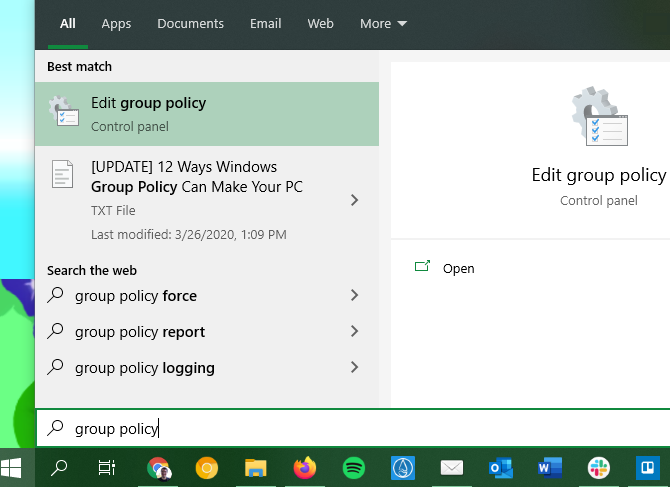
Windows Open Group Policy Editor

For another way, press Win + R to open the Run dialog box. There, enter gpedit.msc to launch the Group Policy Editor.

While we mentioned that Group Policy is not normally available on Home editions of Windows, there is a workaround you can try. It involves some basic system tweaks and the installation of a third-party Group Policy Editor.

If you’re interested, check out our step-by-step guide to installing the Group Policy Editor on Windows Home.

Applying Group Policy Updates

For some Group Policy settings, you’ll have to reboot your computer before they take effect. Otherwise, once you’re done making changes, launch an elevated Command Prompt and run the following command:

gpupdate /force

This forces any updates you made to Group Policy to take effect immediately.

Cool Things to Do With Group Policy
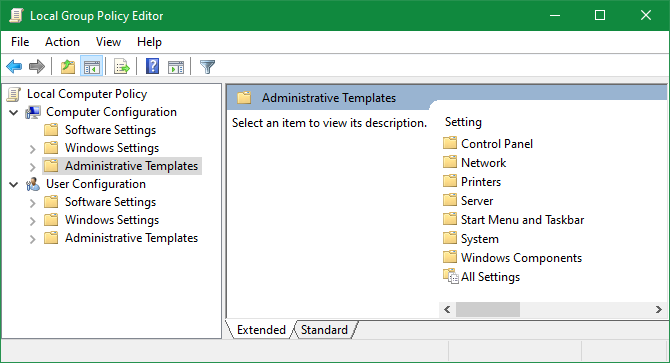
Group Policy Editor Home

The Group Policy Editor allows you to change hundreds of different options, preferences, and settings, so it’s impossible to cover everything here.

You can feel free to look around, but if you’re not confident, it’s probably to avoid experimenting with random policies. One bad tweak could cause problems or unwanted behavior. Check out our introduction to Group Policy to become more familiar first.

Now, we’ll look at some recommended Group Policy settings to get you started.

1. Restrict Access to Control Panel and Settings
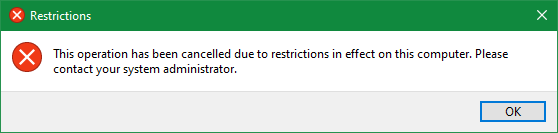
Control Panel Restricted

Control Panel restrictions are vital for business networks and school environments. However, they can also be useful at home for computers shared between multiple users. If you want to prevent children from changing settings, this is a good step to take.

To completely block the Control Panel altogether, enable this object:

User Configuration > Administrative Templates > Control Panel > Prohibit access to Control Panel and PC Settings

If you want to instead provide access to only certain parts of the Control Panel, you can set that up using one of the two following items:

User Configuration > Administrative Templates > Control Panel > Hide specified Control Panel items
User Configuration > Administrative Templates > Control Panel > Show only specified Control Panel Item

Enable them and you’ll be able to indicate which Control Panel Applets you want to show or hide. Use Microsoft’s Canonical Names of Control Panel Items to list them.

2. Block the Command Prompt

Despite how useful the Command Prompt can be, it can become a nuisance in the wrong hands. Allowing users to run undesirable commands and circumventing other restrictions you might have in place isn’t a good idea. As such, you can disable it.

To disable the Command Prompt, browse to this value:

User Configuration > Administrative Templates > System > Prevent access to the command prompt

Note that enabling this restriction means that cmd.exe can’t run at all. Thus, it also prevents the execution of batch files in CMD or BAT formats.

3. Prevent Software Installations
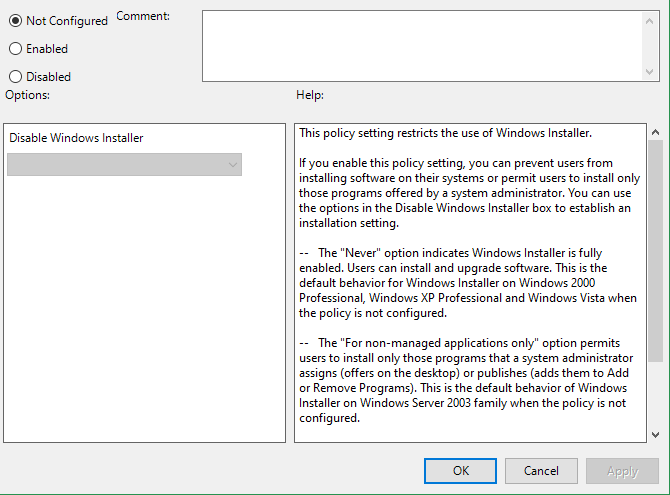
Turn Off Windows Installer

You have many ways to block users from installing new software. Doing so can help reduce the amount of maintenance you need to do when people carelessly install junk. It also reduces the chances of malware getting on your system.

To prevent software installations using Group Policy, visit:

Computer Configuration > Administrative Templates > Windows Components > Windows Installer > Turn off Windows Installer

Note that this only blocks the Windows installer, so people can still install apps using the Windows Store.

4. Disable Forced Restarts

While you can enable some options to postpone it, Windows 10 will eventually restart your computer on its own if you have updates pending. You can take back control by enabling a Group Policy item. Once you do, Windows will only apply pending updates when you restart on your own.

You’ll find it here:

Computer Configuration > Administrator Templates > Windows Components > Windows Update > No auto-restart with logged on users for scheduled automatic update installations

5. Disable Automatic Driver Updates

Prevent Driver Installation

Did you know that Windows 10 also updates device drivers without your explicit permission? In many cases, this is useful, as it aims to keep your system as up-to-date as possible.

But what if you’re running a custom driver? Or perhaps the latest driver for a certain hardware component has a bug that causes your system to crash. These are times when automatic driver updates are more harmful than helpful.

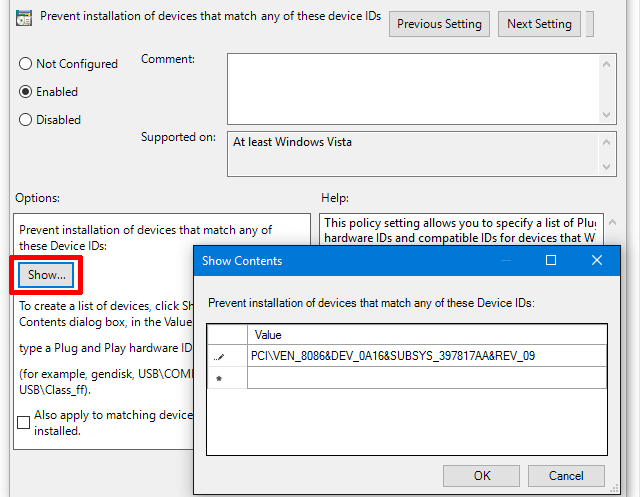
Enable this to disable automatic driver updates:

Computer Configuration > Administrative Templates > System > Device Installation > Device Installation Restrictions > Prevent installation of devices that match any of these device IDs

Once enabled, you’ll have to provide hardware IDs for the devices that you don’t want automatic driver updates for. You’ll need to get these through the Device Manager, which takes a few steps. Follow our guide to controlling driver updates in Windows 10 for full instructions.

6. Disable Removable Media Drives
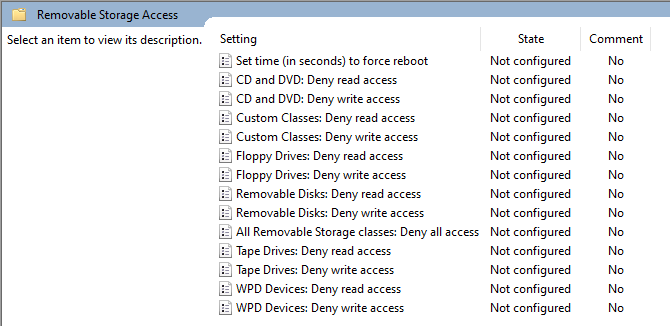
Windows Deny Storage Access

Removable media, like USB flash drives, can come in handy. But unknown USB devices can also pose a risk. Someone with access to your computer could load malware onto a flash drive and try to execute it.

While not necessary in most cases, you can prevent Windows from reading removable drives altogether to protect your system. This is especially important in business settings.

To disable removable media drives, enable this value:

User Configuration > Administrative Templates > System > Removable Storage Access > Removable Disks: Deny read access

In this folder, you’ll also see options for other kinds of media like CDs and DVDs. Feel free to disable all of these as well, but USB drives are the main concern.

7. Hide Balloon and Toast Notifications

Desktop notifications can be handy, but only when they have something useful to say. Most of the notifications you see aren’t worth reading, which often leads to them distracting you and breaking your concentration.

Enable this value to disable balloon notifications in Windows:

User Configuration > Administrative Templates > Start Menu and Taskbar > Turn off all balloon notifications

Starting with Windows 8, most system notifications switched over to toast notifications. You should thus disable them too:

User Configuration > Administrative Templates > Start Menu and Taskbar > Notifications > Turn off toast notifications

This is an easy way to block a lot of popup distractions.

8. Remove OneDrive

OneDrive is baked into Windows 10. While you can uninstall it like any other app, it’s also possible to prevent it from running using a Group Policy item.

Disable OneDrive by enabling this:

Computer Configuration > Administrative Templates > Windows Components > OneDrive > Prevent the usage of OneDrive for file storage

This will remove the ability to access OneDrive from anywhere on the system. It also erases the OneDrive shortcut in the sidebar of File Explorer.

9. Turn Off Windows Defender

Windows Defender manages itself, so it will stop running if you install a third-party antivirus app. If this doesn’t work properly for some reason or you want to fully disable it, you can enable this Group Policy item:

Computer Configuration > Administrative Templates > Windows Components > Windows Defender > Turn off Windows Defender

While it’s easy to disable, Windows Defender is a good enough security solution for most people. Make sure to replace it with another trusted Windows antivirus program if you remove it.

10. Run Scripts at Logon/Startup/Shutdown
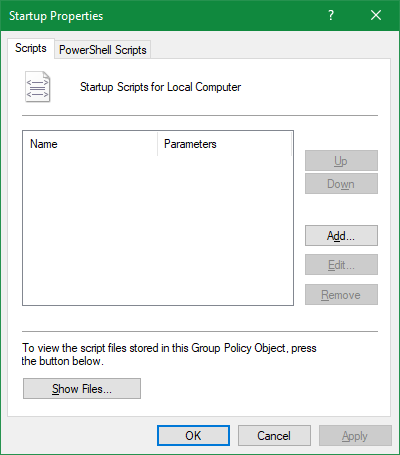
Group Policy Startup Script

Our last tip is a bit more advanced, so it probably won’t be useful to you unless you’re comfortable with batch files and/or writing PowerShell scripts. But if you are, then you can actually run said scripts automatically with Group Policy.

To set up a startup/shutdown script, visit:

Computer Configuration > Windows Settings > Scripts (Startup/Shutdown)

To set up a logon or logoff script, head here:

User Configuration > Windows Settings > Scripts (Logon/Logoff)

Doing this lets you select the actual script files and provide parameters for those scripts, so it’s pretty flexible. You can also assign multiple scripts to each trigger event.

Note that this isn’t the same as launching a specific program on startup. To do that, see how to use the Windows startup folder.

The Most Useful Group Policy Settings for You

Group Policy provides you with a lot of control of how Windows 10 works. We’ve only looked at a few instances here; there’s a lot more functionality to find if you know where to look. As you can see, though, most of the options revolve around removing or blocking functionality, not adding new tools.

Don’t have access to Group Policy or want to keep tweaking Windows? Have a look at our introduction to the Windows Registry.

Read the full article: 10 Ways Windows Group Policy Can Make Your PC Better


Read Full Article

Vimeo vs. YouTube: 5 Reasons to Host Videos on Vimeo


vimeo-for-uploading

YouTube is the king of online video. The brand is so well-known that most people aren’t even aware that alternatives exist. However, other video sites are actually better than YouTube in some ways. Like Vimeo, for example.

Vimeo has grown massively over the last decade, and has become YouTube’s closest competitor. Vimeo may have a smaller userbase than YouTube, but when comparing Vimeo vs. YouTube, it can be argued that Vimeo is better than YouTube in some ways.

In this article, we outline the reasons to host videos on Vimeo over YouTube.

1. Vimeo Offers Better Encoding and Video Quality

YouTube’s mantra is quantity over quality. Users upload more than 500 hours of footage to YouTube every single minute. And YouTube needs to process all of these videos before they can go live. In order to handle that kind of load, YouTube must balance compression speed with compression quality.

On the other hand, Vimeo’s mantra is quality over quantity. Because Vimeo has stricter guidelines for acceptable videos, its processing load is far lighter than YouTube’s. And that means it can focus more on maximizing the quality of each video using better encoding techniques.

If you upload the same video to both YouTube and Vimeo at the same resolution, the Vimeo version will look a lot better because it will have a much higher bitrate.

2. Vimeo Offers Greater Prestige

Take a second to ask yourself what comes to mind when someone says “YouTube video”. Then consider what comes to mind when someone says “Vimeo video.” If you have experience with both sites, then your perception of each brand will be radically different.

YouTube is basically a video dump. You can upload anything you want as long as it isn’t sexually explicit, gory, excessively violent, etc. No one will stop you if you want to upload low-quality content that’s pointless or spammy, whereas Vimeo is very strict about what it allows.

This is a double-edged sword. On the one hand, this limits the kinds of channels you can run on Vimeo (for example, you won’t find any gaming-related content beyond documentaries). However, most people perceive Vimeo videos as more professional than YouTube videos. In other words, if your output fits into one of Vimeo’s video niches, then being on Vimeo means something. It’s certainly more prestigious than being on YouTube.

This is why Vimeo is home to some of the best short films you can watch online. Whereas YouTube is biased towards channels that produce a lot of content, Vimeo is biased towards creators who put a lot of work into each video. Quality, not quantity.

And don’t forget about Staff Picks. Vimeo loves to curate high-quality content, and being selected as a Staff Pick is a respected badge of honor—many careers were launched after being discovered by curators on Vimeo.

3. Vimeo Has a More Sophisticated Audience

Because Vimeo limits the kind of videos that can be uploaded, and is seen as a more prestigious site than YouTube, it attracts a different sort of audience.

So even though YouTube has more reach than Vimeo, each of your Vimeo viewers is more likely to engage more deeply with your content. YouTube’s audience is one of low attention spans, lots of distractions, and a penchant for rapid-fire viewing, whereas Vimeo viewers are more receptive to slower and more thoughtful content. Viewers’ expectations are different.

This is made most evident when you compare the comments sections of both sites. YouTube is infamous for its terrible commenting atmosphere—it’s tough to find a comment that isn’t from a die-hard fanboy, a die-hard hater, or someone who’s trying too hard to be funny.

It’s a completely different story on Vimeo, where commenters tend to be more constructive, mature, and insightful. As a creator, this can be quite refreshing.

4. Vimeo Offers Greater Artistic Freedom

There are two aspects of YouTube that can prove frustrating for those who want to create certain kinds of artistic content. Leading to videos disappearing for no reason.

The rules for sexual content are inconsistent on YouTube. You can find explicit videos on YouTube that have been up for many years, yet videos that are merely suggestive can be taken down for being overly sexual. What if you’ve made a mature music video? YouTube might take it down, but Vimeo welcomes it as long as it has artistic value.

Music is another big issue on YouTube. In particular, the content ID system that automatically scans each upload for copyrighted tracks and silences anything it deems as a violation. The system is too aggressive and operates according to a “silence first, fix later” policy. Even if you’re authorized to use a certain track, you’ll have to jump through hoops to restore audio. Not so with Vimeo.

5. Vimeo Boasts Unique Features and Customizations

vimeo cost of tiers

If you don’t care about any of the above, then here are a handful of practical advantages to using Vimeo over YouTube. In terms of features and flexibility, Vimeo beats YouTube in several ways.

  • Replace video but keep URL: This is one of Vimeo’s best features. You can replace any of your existing videos with a new upload without losing its URL, thus keeping all of the likes, comments, stats, and not breaking any embeds that may exist on third-party sites.
  • Password protection: You can set a password on any video so that only those with the password can view it. YouTube doesn’t have this feature, only allowing videos to be Public, Private, or Unlisted.
  • Domain-restricted embeds: Vimeo lets you set which domains are allowed to embed your videos, and you can do this on a per-video basis. This way you can hide your videos on the Vimeo site itself and only make them viewable on your site.
  • Web player branding: Vimeo lets you alter the appearance of its HTML5 web player by inserting your own logo and branding, which is great when embedding videos on your site, whereas embedded YouTube videos always look the same and end with that unsightly suggestions page.
  • Advanced analytics: Depending on your subscription level you can get various levels of analytics, starting with a traffic dashboard and custom reports, going all the way to engagement graphs and Google Analytics integration.
  • Make money with pay-per-view: Vimeo On Demand lets you create dedicated VOD pages where viewers can pay to watch videos. You can sell worldwide or only in certain countries, and you keep 90 percent of the revenue. This is a convenient way to make money from your work without employing ads.
  • Plus, Pro, Business, Premium plans: Unlike YouTube, Vimeo is funded by its community rather than advertisers. You CAN use Vimeo for free, but free accounts are limited to 500 MB of uploads per week. Vimeo Plus costs $7/month, Pro costs $20/month, Business is $50/month, and the top-tier Vimeo Premium is $75/month.

Are You Going to Start Hosting Videos on Vimeo?

To be clear, Vimeo is not always the right choice when comparing Vimeo vs. YouTube. If you need to maximize total reach, create content not in line with Vimeo’s niche, or avoid paying to lift restrictions, YouTube might be a better fit for you than Vimeo.

However, if you’re going to focus on short films, documentaries, music videos, interviews, journalism, or travel, then Vimeo will serve you much better. You may get fewer views than if you had used YouTube, but you’ll get significantly more engagement out of each of those views.

For more YouTube alternatives here are the best free video hosting sites.

Read the full article: Vimeo vs. YouTube: 5 Reasons to Host Videos on Vimeo


Read Full Article

How to Clean Up Your Windows Desktop Once and For All


As you probably know, the Windows desktop can be a tough beast to tame. Maybe you want an organized and clean desktop, but no matter how many times you purge it, and no matter how hard you try to keep it in order, it somehow becomes messy again.

A clean desktop not only makes things easier to find, thus reducing inefficiency, but is more pleasing to look at and doesn’t cause as much cognitive stress.

Keep reading to find out how to clean up your Windows 10 desktop once and for all.

How to Clean Up Your Desktop

The actual act of cleaning a desktop is easy—all you have to do is select all icons and press Delete. The hard part is keeping it clean. To understand how to prevent desktop clutter, we need to understand why our desktops tend to collect clutter in the first place.

We simply want fast access to our most-used apps, files, and folders. And what’s the best way to do that? Shortcuts! Unfortunately, it’s way too easy to create a shortcut, plop it onto the desktop, and call it a day—do that a few times and boom, clutter. After all, is there a location that’s more conveniently accessible than the desktop? I can’t think of one.

A cluttered Windows desktop

So the trick is to find alternative methods for accessing our most-used apps, files, and folders.

A cluttered desktop is just a symptom of a deeper issue: relying on shortcuts. If you can cut that out, then you won’t need shortcuts anymore, and suddenly your desktop won’t ever be cluttered again.

This is what you’ll learn by the end of this article.

Take heart in knowing that success is possible. My own desktop has been completely empty for more than four years thanks to the following tips and tricks.

And despite how you might feel about Windows 10, this is one area where it excels. Keeping a clean desktop has never been easier.

Move App Shortcuts to the Start Menu

The redesigned Start Menu is perfect as a dumping ground for app shortcuts. First introduced in Windows 8 and greatly refined in Windows 10, the Start Menu should be your method of choice for launching apps.

It’s accessible from anywhere—all you need to do is hit the Windows key—and it’s large enough to comfortably pin dozens of apps.

To pin an app to the Start Menu:

  1. Right-click on the app shortcut on your desktop.
  2. Select Pin to Start.

Once pinned, apps can be resized (more important apps could be larger, for example) and you can mark them if they should be launched with Administrator permissions.

Organize the Start Menu Using Groups

Be mindful that you don’t just shift the problem of clutter from your desktop to your Start Menu.

For maximum productivity and sanity, you should further organize your Start Menu tiles into groups. Not only does this keep everything tidy, but it makes it easier for you to find apps when you need them.

Clean Up Windows Start Menu Pins

As you drag app tiles around, you’ll notice that they “chunk” into separate groups. If you hover your mouse over each group, you’ll see a field called Name Group that you can click on to rename that group however you want.

You’ll also see a marker with two horizontal lines—drag this to rearrange your app groups according to your needs.

Move App Shortcuts to the Taskbar

If you feel like the Start Menu requires one too many clicks, you can choose to pin apps directly to the Taskbar instead. I only recommend this for apps you use on a daily basis—the kinds of apps that are always open, such as web browsers, music players, text editors, etc.

To pin an app to the Taskbar:

  1. Right-click on the app shortcut on your desktop.
  2. Select Pin to Taskbar.

Once pinned, apps can be dragged around so you can rearrange them according to your needs. Be wary of pinning too many apps here—Taskbar clutter can be worse than desktop clutter.

If you add too many apps, the Taskbar will split into multiple rows that you’ll have to scroll between by clicking on Up and Down arrows. I find that this kills productivity, so avoid it.

Customize the Taskbar for More Space

If you want to maximize how many apps you can add without spilling over into multiple rows, you can customize your Taskbar settings. To access the settings, right-click the Taskbar and select Taskbar Settings.

  1. Use small Taskbar buttons: This does exactly what it sounds like, and it works well. The only two downsides are that the Taskbar clock will no longer show the date and the Taskbar icons can be harder to see on higher resolution screens (i.e. 1920 x 1080 or greater).
  2. Taskbar location on screen: Most users keep the Taskbar along the bottom edge of the screen because that’s the default setting on Windows, but a vertical taskbar can allow you to locate apps faster.
  3. Combine Taskbar buttons: If you prefer a horizontal Taskbar, then make sure you set this to Always, hide labels. Or at the very least, set it to When Taskbar is full. Both of these will maximize how much you can fit before spilling into another row.

Move Folder Shortcuts to Quick Access

The Quick Access feature is one of the better refinements in Windows 10’s File Explorer (formerly called Windows Explorer). Whereas the Start Menu and Taskbar are great for consolidating app shortcuts, Quick Access is where you should put all folder shortcuts.

If you’ve never heard of it before, don’t worry. Open up File Explorer (using keyboard shortcut Windows + E) and look in the left sidebar to see a section called Quick Access.

Think of it like folder bookmarks: you can pin folders here and instantly access them from anywhere in File Explorer.

To pin a folder to Quick Access:

  1. Navigate to the folder you want to pin.
  2. Right-click on the folder.
  3. Select Pin to Quick Access.

Pin File Explorer to the Taskbar

We aren’t done yet. Although some people opt for File Explorer alternatives, File Explorer actually has a number of useful lesser-known features that can be useful.

For example, you can access your Quick Access folders right from the Taskbar by pinning File Explorer just like you would any other app. Launch any folder, right-click on File Explorer in the Taskbar, and select Pin to Taskbar.

Clean Up Windows Quick Access

Once pinned, just right-click on the File Explorer icon and you’ll see a list of all Quick Access folders. This is the preferred way to “quick jump” to folders you use over and over again, and it’s actually faster than keeping folder shortcuts on the desktop.

Bypass the Need for Shortcuts With a Launcher

If you really want to clean up clutter all across your system, then you may want to forego the above alternatives and use an on-demand launcher instead. You have two options for this.

The first option is to use Talk to Cortana on the Taskbar. The improved search in Windows 10 means you can open the Start Menu (with the Windows key), start typing for an app or file and immediately open it with the Enter key.

While you don’t need Cortana for any of this, some people find the voice control aspect to be much more convenient.

To start talking to Cortana, click the white circle (the Talk to Cortana button) in the Taskbar. Cortana in Windows 10 has a lot to offer, so don’t count it out.

Clean Up Windows Cortana

The second option is to install Wox. Wox is a third-party app that replicates the Spotlight feature from macOS. At any time, you can hit Alt + Space to open Wox, then type any app, file, or folder to launch it instantly. It can also act as a web search tool.

With either of these options, you won’t have to pin apps anywhere again. And with Wox, you won’t even have to pin folders anymore. Everything is just one query away.

Last Resort: Desktop Shortcuts the Smart Way

Let’s say you don’t like any of the above suggestions. You really like using desktop shortcuts and you want to keep using them—you just want to keep them organized. In that case, you can always resort to using Fences.

With Fences, you can create sections on your desktop for organizing your shortcuts, with each section called a fence.

Fences can be minimized, which means you open them on demand, launch the shortcut you need, then close them back up. Shortcuts can automatically sort into fences according to rules, or you can set them up manually.

The downside? It isn’t free. There’s a 30-day free trial, but it’ll cost $10 after that ends.

Achieving a Clean Desktop

Now that your desktop is tidy, you probably feel like a weight has been lifted off of your shoulders. You can finally access your apps and files without digging through a messy desktop.

We also recommend going one step further and making sure all your computer files are organized. To make your life even easier, use these Windows apps that automatically organize files for you.

Image Credit: scanrail/Depositphotos

Read the full article: How to Clean Up Your Windows Desktop Once and For All


Read Full Article

Commercial real estate could be in trouble, even after COVID-19 is over


Commercial real estate owners, brokers and landlords have collectively made many hundreds of billions of dollars a year in recent years as the economy zipped along.

Now, they’re getting clobbered by the pandemic-fueled economic crisis. Worse, their industry may be forever changed by it.

To state the obvious, extracting rent from nearly anyone right now is problematic. According to the National Multifamily Housing Council, just 69% of U.S. households had paid their rent by April 5 compared with the 81% who’d paid by March 5 and the 82% who paid by the same time last year.

That statistic will almost assuredly look worse by May 5, given the soaring numbers of both laid-off and furloughed employees.

On the commercial side, the problem is beginning to look as dire. In addition to the countless small retail and restaurant businesses that may be forced to permanently vacate their commercial spaces because they can no long afford them, a growing number of corporate chains is also beginning to prove unwilling or able to pay their rent.

WeWork, for example, has stopped paying rent at some U.S. locations while it tries to renegotiate leases, says the WSJ, this even as the co-working company continues to charge its own tenants.

Staples, Subway and Mattress Firm have also stopped paying rent as a way to strong-arm building owners into rent reductions, lease amendments and other courses of action designed to offset the losses they are incurring because of the coronavirus.

Ch, ch, ch, changes

The question begged is what happens next. While some may look to muscle their way into distressed assets, it’s very possible the commercial real estate market will never look the same.

For one thing, while small retailers and restaurants melt away, some of their online rivals are beefing up. Amazon, despite no shortage of bad publicity, gains market share by the day. In fact, this week, it again sailed into trillion-dollar territory.

The online streetwear marketplace StockX is also booming, as we reported a few weeks ago. Its CEO, Scott Cutler, said at the time: “[W]e’ve always been a marketplace of scarcity, but now you can’t actually go into a real retail location, so you’re coming to StockX.”

The landscape may change particularly quickly in markets like San Francisco, Chicago, Boston and New York, where not only is there a density of independent shops and restaurants, but startup employees and other white collar workers are suddenly working from home and perfecting the art of distributed teamwork.

Consider Nelson Chu, the founder and CEO of Cadence, a seed-stage, 17-person securitization platform startup in New York. After recently landing $4 million in funding, Cadence signed a lease last month with a landlord who has agreed to start charging the outfit only when it is able to move into its new uptown digs.

It’s a good deal for Cadence, which doesn’t have to worry about paying for square footage it can’t use. Nevertheless, Chu notes that being forced to work remotely has awakened him to the possibility of incorporating more remote work into the startup’s processes.

“You always question whether remote work will impact business continuity,” says Chu. “But now that we’re forced to do it, we haven’t skipped a beat. There could be something to be said for having less office space and allowing the people who commute from out of state to not have to be in the office every day.”

It’s easy to imagine that, using tools like Slack, Google Sheets, and Zoom, other founders and management teams that hadn’t already joined the telecommuting trend are coming to the same conclusion.

Taking care of business

The possibility isn’t lost on real estate companies.

“Remote work is something we’re thinking a lot about right now,” says Colin Yasukochi, director of research and analysis at the commercial real estate services giant CBRE. “People are right now being forced to do it,” but “I think some will inevitably stick” to working remotely, he says. “The question of how many, and for how long, is unknown.”

Certainly, it’s not the trend CBRE or others in the real estate world were expecting this year. An “outlook” report published by CBRE last November sounded understandably rosy. “Barring any unforeseen risks,” it said at the time, “resilient economic activity, strong property fundamentals, low interest rates and the relative attractiveness of real estate as an asset class” suggested that 2020 would be a “very good year” for commercial real estate.

In the ensuing months, of course, that unforeseen risk has prompted shutdowns that have led to layoffs across nearly every sector of the economy. It has also — by the very nature of it being a viral contagion — made it highly likely that even when people are allowed to re-occupy commercial spaces, they’ll be less enthusiastic about dense workspaces.

This is doubly true if they know they can get their work done outside the office.

It could well lead to reduced demand for office space later on. It could also mean the same amount of space — or perhaps even more —  with reconfigured office layouts. No one yet knows, including commercial estate brokers.

Mark George, a San Jose, Calif.-based broker with the commercial real estate company Cresa, is currently working from home, where he shares an office with his wife, who is also working remotely for the first time. It’s nice to be home with their children, says George, but being housebound makes it harder to get a pulse on industry changes, particular in his industry.

Brokers are “somewhat isolated,” he says. “Touring activity has dried up because we can’t show space. City Hall is closed in every municipality, so you can’t pull permits. The industry is really shut down.”

George said that “deals that were at the finish line probably got signed” before the coronavirus really took hold in the U.S. But the “deals that were close and not quite there? Every deal I’ve seen has been put on ice. Everyone is in a holding pattern.”

A Cresa colleague of George in San Francisco, Brandon Leitner, echoes the sentiment, saying that “things are not moving fast.” Still, Leitner expects the firm — which handles clients as big as Twitter to Series A and even seed-stage companies — will see a deluge of activity once the city’s current stay-in-place mandate is lifted and brokers can start showing properties again.

Specifically, Leitner expects the market to come down by “at least 10% and probably 20% to 30%” from where commercial space in San Francisco has priced in several years, which is $88 per square foot, according to CBRE. Driving the expected drop is the 2 million square feet that will come onto the market in the city as soon as it’s possible — space that companies want to get off their books.

That’s a lot, particularly given that there is roughly 3.2 million square feet of commercial space available already, according to CBRE’s Yasukochi, who adds that a “good amount” came onto the market in the last six months alone.

Say it ain’t so

That’s not great for landlords, who are “hesitant right now to put a new number on the market,” says Leitner.

He offers that they are “realistic” and likely to “make as many concessions as they can” to hang on to and attract new tenants. Of course, there’s only so much they can do. They typically have debt to contend with, meaning that if there’s a sustained downturn or fewer people return to the office, they will themselves be relying on their relationships with lenders to see them through.

George, the San Jose-based broker, believes lenders will be inclined to help in order to preserve their own investments. The Federal Reserve may also give the banks the ability to defer mortgage payments, which would make it easier for property owners to put off charging rent.

Even still, whether the commercial real estate market comes all the way back after COVID-19 remains to be seen.

“This [pandemic] is something we’ve never experienced before,” notes Yasukochi. He says CBRE’s economists estimate the next two quarters will be “very tough.” At the same time, he says, the market “might see a substantial” uptick in the four quarter.

“It really depends on whether demand bounces back, and whether expansion plans will be put on hold, or permanently [shelved].”

For now, he seems optimistic about a return to business as usual, particularly within his home market of San Francisco.

It “feels like things go wrong really fast in the Bay Area,” says Yasukochi. “But typically, they come back really fast, too.”

No doubt industry players are counting on it.


Read Full Article

Report: Apple’s iOS 14 contains code that would let you sample apps before download


Apple has under development a feature that would allow iOS users to interact with a third-party app, even if the app wasn’t yet installed on your device, according to a report from 9to5Mac. The report is based on information discovered in the iOS 14 code, which is not necessarily an indication of launch plans on Apple’s part — but rather an insight into some of Apple’s work in progress.

The feature is referenced internally as the “Clips” API — not to be confused with Apple’s video editing app of the same name. Based on 9to5Mac’s analysis, the new API works in conjunction with the QR Code reader, allowing a user to scan a code linked to an app, then interact with that app from a card that appears on their screen.

Described like this, the feature sounds like a marketing tool for app publishers, as it would offer a way for users to try out new apps before they download them to get a better feel for the experience than a banner ad would allow. In addition to offering some interactivity with an app before it’s downloaded, the card could also be used to redirect users to the App Store if they choose to download the full version. The card could also be used to open the app directly to the content, in the case of apps the user already had installed.

Google’s Android, the report noted, offers a similar feature called “Slices,” launched in 2018. While Google had already introduced a way to interact with small pieces of an app in an experience called Instant Apps, the newer Slices feature was meant to drive usage of apps — like booking a ride or hotel room, for example, without having to first locate the app and launch it. On iOS, perhaps, these app “clips” could be pulled up by Siri or in Spotlight search — but that functionality wasn’t demonstrated by the code the report referenced today.

It’s unclear what Apple’s intentions are with the Clips API or how experimental its efforts are at this time.

However, the report found the feature was being tested with OpenTable, Yelp, DoorDash, Sony (the PS4 Second Screen app) and YouTube. This could indicate a plan to demo examples of the app’s functionality in a future reveal to developers.


Read Full Article
Facebook to supply free Portals to some care home residents under NHS scheme


The U.K. government is pulling in tech firms to connect family and friends with isolated residents and patients in care via video call devices and services during the COVID-19 crisis. First to join is Facebook, which is supplying up to 2,050 of its Portal video-calling devices for free to hospitals, care homes and other settings, including hospice, in-patient learning disability and autism units. The logistical rollout will be supported by Accenture.

Fifty of the devices have already been deployed to pilot sites in Surrey, with Manchester, Newcastle and London and other areas to follow.

Iain O’Neil, NHSX Digital Transformation Director, said in a statement: “Technology companies big and small continue to pledge their resources and expertise to support our NHS and social care system in these unprecedented times. We are working hard to find and develop services that meet people’s equally unprecedented needs. Technology has never been so important to providing one of life’s most essential things — the ability to communicate with the people we love regardless of where they are.”

The NHSX said it is working with “a range of technology companies to support the NHS and social care system.”

Freddy Abnousi, MD, Head of Health Technology, Facebook said in a statement: “We designed Portal to give people an easy way to connect and be more present with their loved ones…That’s why we are piloting a program with NHSX to provide Portal devices in hospitals and other care settings to support patients and help reduce social isolation.”

Additional solutions to be deployed under the scheme include enabling health and care staff to work remotely if needed; improving communication between clinical and care teams; shifting hospital outpatients to virtual appointments; and accelerating the use of online and video consultations within GP and primary care services.

Commenting, Digital Secretary Oliver Dowden said: “It is great to see Facebook giving care home residents and patients the devices they need to connect with their family and friends at such a challenging time. The technology sector is rising to the challenge at this moment of national emergency and we in government are working closely with them to help people stay home, protect the NHS and save lives.”

Facebook and NHSX have agreed that the care homes and care settings involved in the pilot will be able to keep the devices free of charge, and use as they see fit, following the pilot phase.

Where the Portal devices go will be chosen on the basis of their Wi-Fi connectivity and ability to run devices in residents’ rooms or another private location.

At the same time, NHSX said it is exploring connectivity options for care homes without Wi-Fi, including the use of 4G hotspots or data-enabled tablets.

The venues for the portals will be advised on how to set them up by the NHSX, as well as infection control and data protection. Concerns about privacy will be addressed by completing a factory reset on the portal before passing the device to a new user.

A Facebook spokesperson said: “Residents/patients will be supported by care staff to initiate calls to family/friends.” Each care home/care setting will be free to make their own decisions on how best to manage this; for example, whether to pre-arrange specific call times with families in advance. Staff will be supported with easy-to-use setup guidance, device instructions and guidance on infection control. Care homes will also be asked to assist residents who do not wish to use their own personal accounts by setting up a new, generic personal account to be used instead. Where residents or patients wish to use a personal account, the care home will complete a factory reset before passing the device to a new user.


Read Full Article
Facebook’s new ‘Quiet Mode’ option lets you turn off the app’s push notifications


Facebook today is launching a new feature called “Quiet Mode” that will allow you to minimize distractions by muting the app’s push notifications for a time frame you specify. The company announced the change as an update on its COVID Newsroom post, describing it as a way for users to set boundaries around how they spend their time on Facebook as they adjust to new routines and to working from home during the COVID-19 pandemic.

According to Facebook, you can either turn on or off Quiet Mode as needed or you can schedule to it run automatically at designated times. For example, if you work from home from 9 AM to 5 PM, you could set Quiet Mode to automatically run during your workday to reduce your temptation to waste time in the app.

If you try to launch Facebook during Quiet Mode, the app will remind you that you’ve set this time aside with the goal of limiting your time in the app, the company explains.

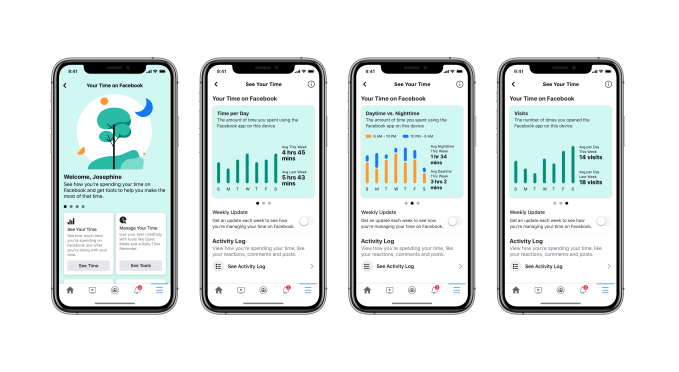
The controls for Quiet Mode will be found in a new section on Facebook where you can view other data about your time spent on Facebook’s platform. Here, you’ll be able to browse charts that show you the time you’ve spent on Facebook on a daily basis, a comparison of your daytime versus nighttime use, and another chart that lets you see how many times you opened the Facebook app each day.

Facebook introduced its first “time spent” charts back in 2018, but their appearance has changed to better match the style of this new “Your Time on Facebook” section, rolling out today. Facebook has also now added more analysis, including new week-over-week trends, the time of day charges, and the chart displaying the number of visits.

In addition, this section will include an option to enable a weekly report that will let you know how you’re managing your time. It will also link to the Activity Log of your own interactions across Facebook, including your reactions, comments and posts. And it will link out to other features that were previously buried in the Settings, including your News Feed Preferences and Notification Settings.

The former is where you designate which people you see first on your News Feed, which to Snooze, which to Unfollow and so on. The Notification Settings section, meanwhile, lets you turn on or off the push notifications and emails for specific updates from Facebook, like new comments, friend requests, tags, birthdays and more.

These aren’t new features, but they’ve been relocated here to make the new section more of a one-stop-shop for managing your time on Facebook.

Today’s changes are the latest in a series of efforts Facebook has made in recent years focused on users’ “digital well-being.”

The digital well-being movement pushes forward the idea that our smartphones and applications weren’t built with the mental health needs of their users in mind, but were rather designed to maximize the time we spend staring at screens. Users, having become aware of the addictiveness of our mobile devices, began to feel more negatively about screen time and their time-wasting apps.

Fearing backlash, tech companies — including Facebook, as well as the OS makers, Google and Apple — introduced more digital well-being features into their platforms. This includes the now built-in screen time controls that allow users to track and limit their time spent on phones and even the time spent in individual apps, like Facebook.

One iOS feature, in particular, may have posed a particular threat to Facebook: a new option introduced in iOS 12 that allowed users to more easily turn off app notifications right from the push notification itself. Apple even demoed how this could be used to silence Facebook’s notifications easily — an effort to redirect this growing negative user sentiment to specific apps on its iOS platform, rather than toward the platform that allowed apps to spam users with alerts in the first place.

Facebook’s response to this iOS feature, belatedly, is today’s launch of Quiet Mode. Instead of having its app notifications turned off entirely from the home screen of an iPhone, the option gives Facebook users more nuanced control. But it also means that Facebook retains permission to push its notifications during the hours Quiet Mode doesn’t run.

Facebook confirms Quiet Mode was in testing with a small percentage of Facebook users prior to today’s launch. It’s the same feature that reverse engineer Jane Manchun Wong had spotted in March, in fact.

The feature is now rolling out to more people globally on iOS and will continue to do so over the next month or so, Facebook says. The rollout on Android will begin with testing in May and a broader release in June.


Read Full Article
$75M weed giant Caliva ditches Eaze, launches delivery


It’s a brutal time for marijuana startups. I’m hearing some are raising at 1/5th of their 2019 valuation amidst rampant competition, tall taxes, and slow legalization. The struggles for marijuana’s best-known startup, delivery service Eaze, continue as today it’s losing one of its top partners. $75 million-funded weed brand empire Caliva has dropped Eaze in favor of launching its own delivery system.

By partnering with Hypur banking to solve the marijuana payments legality issue, Caliva will be able to accept contactless mobile payments unlike Eaze that usually requires customers pay in cash. Caliva buyers won’t have to worry about trips to the ATM, especially now during COVID-19 shelter-in-place orders, which the startup expects will boost their average order volume. Combined with verticalizing delivery in-house plus its retail and wholesale operations, Caliva hopes it can grow its margins and survive this long winter for weed startups.

“Our mission at Caliva has always been to provide safe and easy access to plant-based solutions for health, happiness and healing,” said Caliva CEO Dennis O’Malley. “Together with Hypur, we are proud to offer our customers safe, compliant and convenient cashless payment options to improve and modernize their purchasing experience.” It hasn’t been so easy for Eaze, though.

Back in January, we reported that Eaze was in trouble, having suffered unannounced layoffs and executive departures. It burned cash on billboards, and never launched the services of a startup it acquired. There were questions about data security, and weed brands dropped Eaze due to delayed payments. It was almost out of money and in danger of vaporizing. It luckily managed to secure a $15 million bridge round to keep it alive plus a $20 million Series D in February just before the COVID hit the fan, though I dread to think of the terms of that funding.

The plan for Eaze was to verticalize, buying and developing brands that it could sell through its existing delivery service to up its margins. Now it’s seeing former partner Caliva do the reverse, launching a delivery service to sell its own Fun Uncle, Deli, and Caliva brands as well as distribute other vape, edible, and flower brands like Dosist and Kiva. Its menu breadth to attract customers and in-house brands to drive profits could be a winning combo. After limited pilots in SoCal, Caliva delivery is launching in LA and the Bay Area.

Unfortunately, traditional payment processors usually refuse to work with marijuana companies for fear of legal repercussions. That’s why most delivery services can’t accept credit or debit cards, or do so through sketchy legal workarounds that have led payment providers to be sued. Others like CanPay only offer ACH transfers, while Square only works with CBD sellers. “We spent time researching and evaluating all platforms that accept cannabis payments in the U.S., and found that Hypur has the best security, compliance and consumer experience” O’Malley tells me.

400-person Caliva is now trying to raise a Series B, but may experience tough headwinds with shelter-in-place orders in effect in states where marijuana is legal. Stiff taxes on marijuana have meanwhile helped the black market continue to thrive, as California’s $3.1 billion in legal 2019 sales were overshadowed by an estimated $8.7 billion in illegal sales. Faster delivery and simpler payments could help. But enthusiasm for the industry has dwindled following the initial flood of entrants sought to exploit the end of prohibition. Is the Green Rush over?


Read Full Article
Android gets a built-in Braille keyboard


Android has received a wealth of accessibility features over the last couple of years, but one that has been left to third-party developers is a way for blind users to type using braille. That changes today with Android’s new built-in braille keyboard, which should soon be available as an option on all phones running version 5 and up of the OS.

Braille is a complex topic in the accessibility community, as in many ways it has been supplanted by voice recognition, screen readers and other tools. But many people are already familiar with it and use it regularly — and after all, one can’t always chat out loud.

Third-party braille keyboards are available, but some cost money or are no longer in development. And because the keyboard essentially has access to everything you type, there are security considerations as well. So it’s best for the keyboard you use to be an official one from a reputable company. Google will have to do!

The new keyboard, the company writes in a blog post, was created as a collaboration with various users and developers of braille software, and should be familiar to anyone who’s used something like it in the past.

The user holds the phone in landscape mode, with the screen facing away from them, and taps the regions corresponding to each of the six dots that form letters in the braille alphabet. It works with Android’s TalkBack function, which reads off words the user types or selects, so like any other writing method errors can be quickly detected and corrected. There are also some built-in gestures for quickly deleting letters and words or sending the text to the recipient or selected field.

Instructions for activating the braille keyboard are here. Right now it’s only available in English, but more languages will likely be added in the near future.


Read Full Article
Android gets a built-in Braille keyboard


Android has received a wealth of accessibility features over the last couple of years, but one that has been left to third-party developers is a way for blind users to type using braille. That changes today with Android’s new built-in braille keyboard, which should soon be available as an option on all phones running version 5 and up of the OS.

Braille is a complex topic in the accessibility community, as in many ways it has been supplanted by voice recognition, screen readers and other tools. But many people are already familiar with it and use it regularly — and after all, one can’t always chat out loud.

Third-party braille keyboards are available, but some cost money or are no longer in development. And because the keyboard essentially has access to everything you type, there are security considerations as well. So it’s best for the keyboard you use to be an official one from a reputable company. Google will have to do!

The new keyboard, the company writes in a blog post, was created as a collaboration with various users and developers of braille software, and should be familiar to anyone who’s used something like it in the past.

The user holds the phone in landscape mode, with the screen facing away from them, and taps the regions corresponding to each of the six dots that form letters in the braille alphabet. It works with Android’s TalkBack function, which reads off words the user types or selects, so like any other writing method errors can be quickly detected and corrected. There are also some built-in gestures for quickly deleting letters and words or sending the text to the recipient or selected field.

Instructions for activating the braille keyboard are here. Right now it’s only available in English, but more languages will likely be added in the near future.


Read Full Article
Quibi is the anti-TikTok (that’s a bad thing)


It takes either audacious self-confidence or reckless hubris to build a completely asocial video app in 2020. You can decide which best describes Quibi, Hollywood’s $1.75 billion-funded attempt at a mobile-only Netflix of 6 to 10 minutes micro-TV show episodes. Quibi manages to miss every trend and tactic that could help make it app popular. The company seems to believe it can succeed on only its content (mediocre) and marketing dollars (fewer than it needs).

I appreciate that Quibi is doing something audaciously different than most startups. Rather than iterating towards product-market fit, it spent a fortune developing its slick app and buying fancy content in secret so it could launch with a bang.

Yet Quibi’s bold business strategy is muted by a misguided allegiance to the golden age of television before the Internet permeated every entertainment medium. It’s unshareable, prescriptive, sluggish, cumbersome, and unfriendly. Quibi’s unwillingness to borrow anything from social networks makes the app feel cold and isolated, like watching reality shows in the vacuum of space.

Quibi

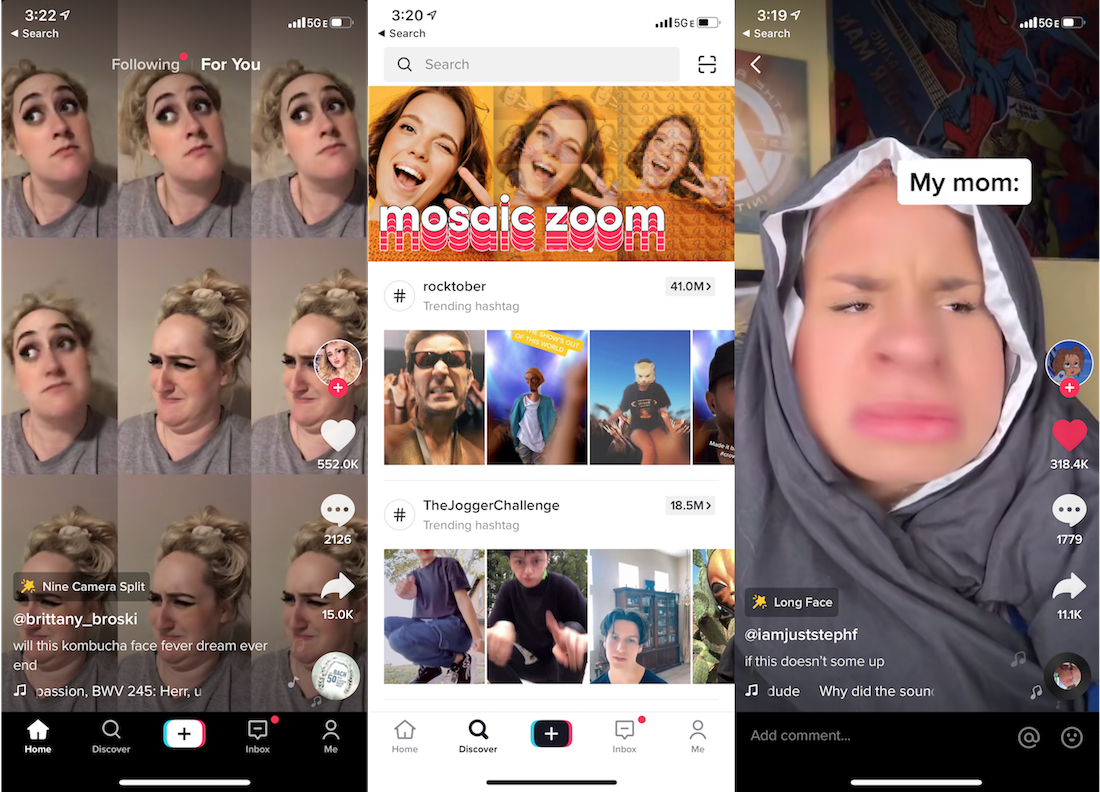
In that sense, Quibi is the inverse of TikTok, which feels fiercely alive. TikTok is designed to immediately immerse you in crowd-vetted content that grabs your attention and inspires you to spread your take on it to friends. That’s why TikTok has almost 2 billion downloads to date while Quibi picked up just 300,000 on the day of its big splash into market.

Here’s a breakdown of the major missteps by Quibi, why TikTok does it better, and how this new streaming app can get with the times.

What Hollywood Thinks We Want

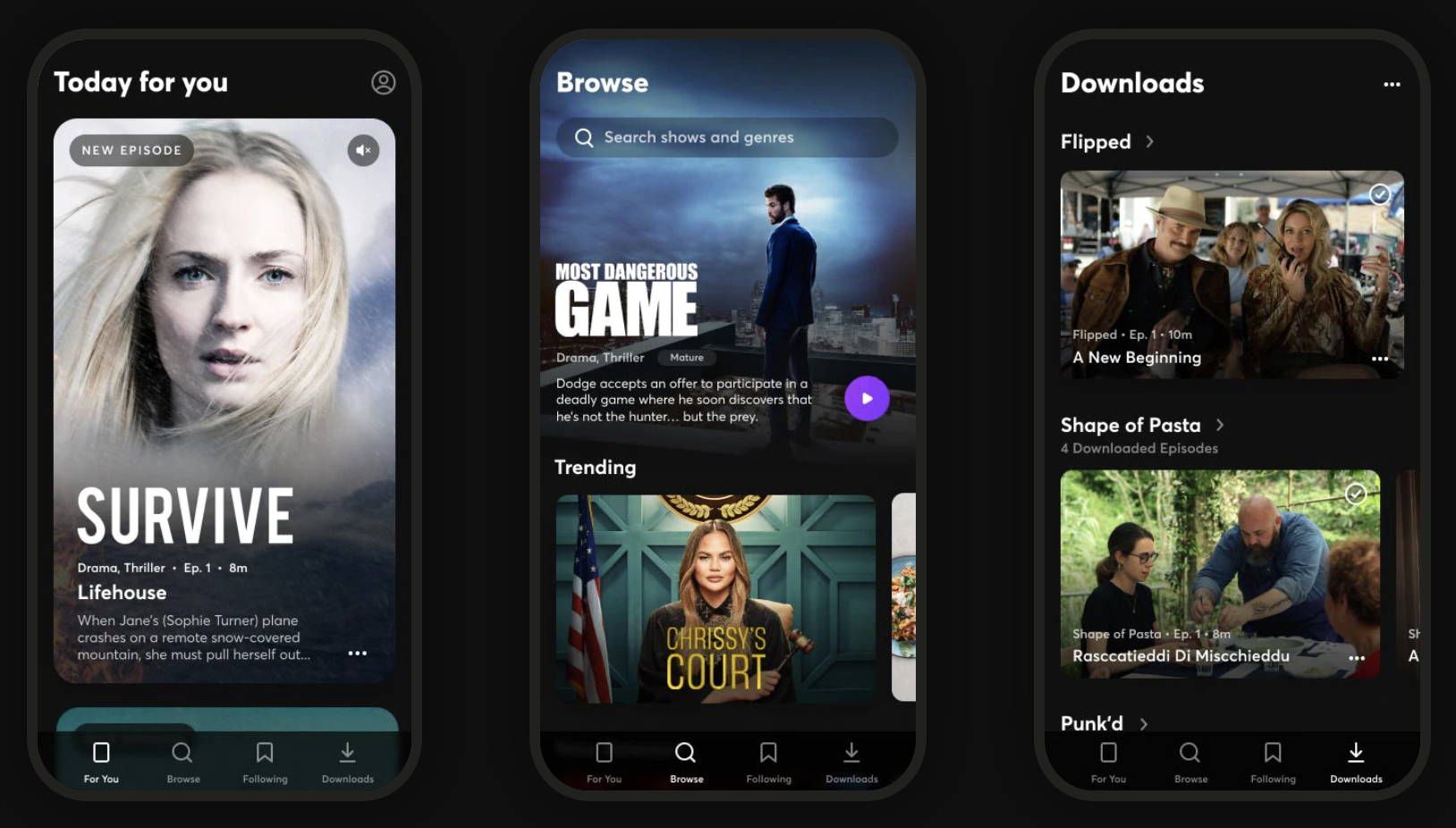
Quibi feels like some off-brand cable channel, with a mix of convoluted reality shows, scripted dramas, and news briefs. Imagine MTV at noon in the mid-2000s. Nothing seemed must-see. There’s no Game Of Thrones or Mandalorian here. While the production value is better than what you’ll find on YouTube, the show concepts feel slapdash with novelty that quickly fades. Chrissy Teigen as a small claims court judge and a cooking show where blindfolded chefs have to guess what food was just exploded in their faces…

The catalog feels like the product of TV writers being told they have 10 seconds to come up with an idea. “What would those idiots watch?” The shows remind me of old VR games that are barely more than demos, or an app built in a garage without ever asking prospective users what they need. Co-founder Jeffrey Katzenberg may have produced The Lion King and Shrek, but the app’s content feels like it was greenlit by, well, Hewlett Packard Enterprise’s leader Meg Whitman who indeed is Quibi CEO.

Quibi CEO Meg Whitman

Quibi CEO Meg Whitman

Despite being built for a touch-screen interface, there’s little Bandersnatch-style interactive content so far, nor are the creators doing anything special with the 6 to 10 minute format. The shows feel more like condensed TV programs with episodes ending when there would be a commercial break. There’s no onboarding process that could ask what popular TV shows or genres you’re into. As the catalog expands, that makes it less likely you’ll find something appealing within a few taps.

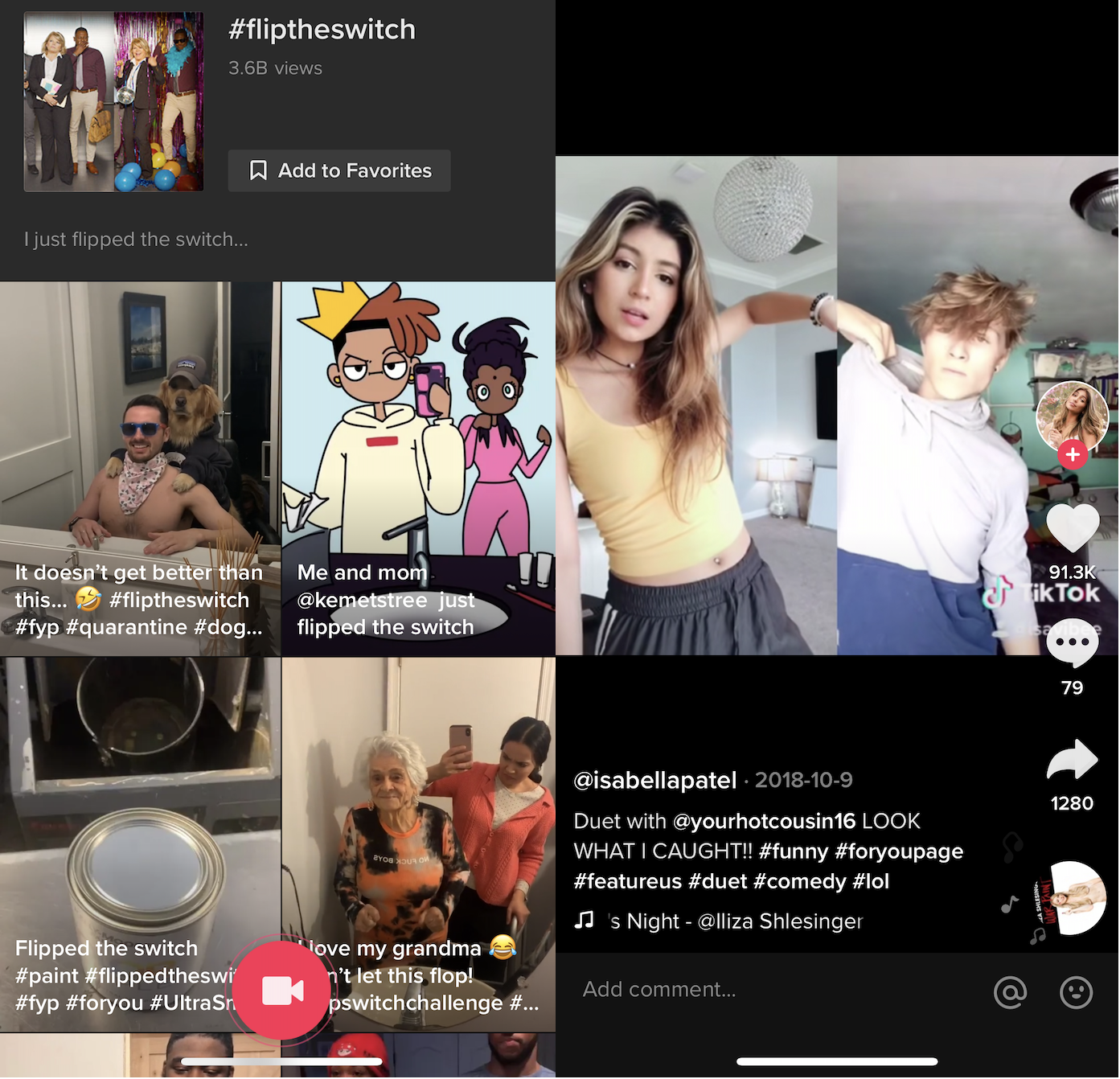
TikTok comes from the opposite direction. Instead of what Hollywood thinks we want, its content come straight from its consumers. People record what they think would make them and their friends laugh, surprised, or enticed. The result is that with low to zero production budget, random kids and influencers alike make things with millions of Likes. And as elder millenials, Gen X, and beyond get hooked, they’re creating videos for their peers as well. The algorithm monitors what you’re hovering over and rapidly adapts its recommendations to your style.

TikTok is fundamentally interactive. Each clip’s audio can borrowed to produce remixes that personalize a meme for a different demographic or subculture. And since its stars are internet natives, they’re in constant communication with their fan base to tune content to what they want. There’s something for everyone. No niche is too small.

TikTok Screenshots

The Fix: Quibi should take a hint from Brat TV, the Disney Channel for the YouTube generation that gives tween social media stars their own premium shows about being a grade school kid to create content with a built-in fan base. [Disclosure: My cousin Darren Lachtman is a Brat co-founder).

Take the Chrissy’s Court model, and shift it to stars who are 20 years younger. Give TikTok phenoms like Charli D’Amelio or Chase Hudson Quibi shows and let them help conceptualize the content, and they’ll bring their legions of fans. Double-down on choose-your-own-adventures and fan voting gameshows that leverage the phone’s interactivity. Fund creators that will differentiate Quibi by making it look like anything other than daytime TV. And ask users directly what they want to see right when they download the app.

No Screenshots

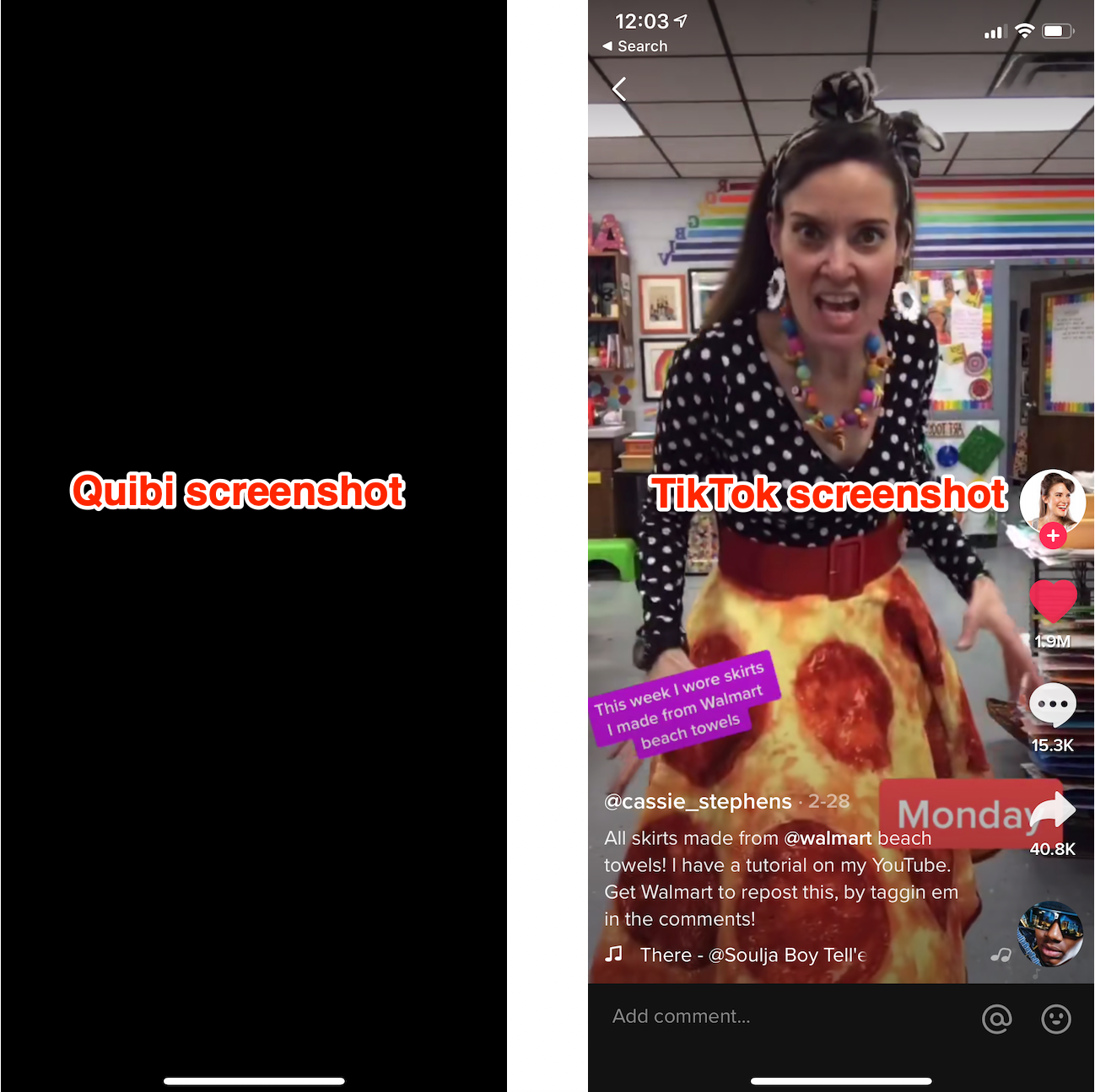
This is frankly insane. Screenshots of Quibi appear as a blank black screen. That means no memes. If people can’t turn Quibi scenes into jokes they’ll share elsewhere, its shows won’t ever become fixtures of the cultural zeitgeist like Netflix’s Tiger King has. Yes, other mobile streaming apps like Netflix and Disney+ also block screenshots, but they have web versions where you can snap and share what you want. Quibi never should have structured its deals to license content from producers in a way that prevented any way to riff on or even let friends preview its content.

TikTok on the other hand defaults to letting you download any video and share it wherever you please — with the app’s watermark attached. That’s fueled TikTok’s stellar growth as clips get posted to Twitter and Instagram, and drive viewers back to the app. It’s spawned TikTok compilations on YouTube, and a whole culture of remixing that expands and prolongs the popularity of trending jokes and dances.

The Fix: Quibi should allow screenshots. There’s little risk of spoilers or piracy. If its deals prohibit that, then it should offer pre-approved screenshots and video clips/trailers of each episode that you can download and share. Think of it like an in-app press kit. Even if we’re not allowed to set up the perfect screenshot for making a meme, at least then we could coherently discuss the shows on other social networks.

Sluggish Pacing

On mobile, you’re always just a swipe away from something more interesting. It’s like if you watched TV with your finger permanently hovering over the change channel button. Ever noticed how movie trailers now often start with a fast-forward collage of their most eye-catching scenes? Quibi seems intent on communicating prestige with its slow-building dramas like The Most Dangerous Game and Survive, which both had me bored and fast-forwarding. And that’s watching Quibi at home on the couch. While on the go where it was designed to be consumed, slow pacing could push users with a minute or two to spare to open Instagram or TikTok instead.

None of this is helped by Quibi not auto-playing a trailer or the first episode the moment you scroll past a show on the homescreen. Instead, you see a static title card for two seconds before it starts playing you an excerpt of the program. That makes it more cumbersome to discover new shows.

Where TikTok wins is in immediacy. Creators know users will swipe right past their video if it’s not immediately entertaining or obviously revving up to a big reveal. They grab you in the first second with smiles, costumes, bold captions, or crazy situations. That also makes it easy for viewers to dismiss what’s irrelevant to them and teach the TikTok algorithm what they really want. Plus, you know that you can score a dopamine hit of joy even if you only have 30 seconds. TikTok makes Quick Bites feel like an understaffed sit-down restaurant.

The Fix: Quibi needs to teach creators to hook viewers instantly by previewing why they should want to watch. Since tapping a show’s card on the Quibi homepage instantly plays it, those teasers need to be built into the first episode. Otherwise, Quibi needs to a button to view a trailer from its buried dedicated show pages to the preview card most people interact with on the homescreen. Otherwise, users may never discover what Quibi shows resonate with them and teach it what to show and make more of.

Anti-Social Video Club

Quibi neglects all its second-screen potential. No screenshotting makes it tough to discuss shows elsewhere, yet there’s no built-in comments or messaging to discuss or spread them in app. Pasting an episode link into Twitter doesn’t even display the show’s name in the preview box. Nor do shows have their own social accounts to follow to remind you to keep watching.

There’s no way for friends to follow what you’re watching or see your recommendations. No leaderboards of top shows. Certainly no time-stamped, livestream style crowd annotations. No synced-up co-watching with friends, despite a lack of TV apps preventing you from watching with anyone else in person unless you crowd around one phone.

It all feels like Quibi figured advertising would be enough. It could run contests where winners get a Cameo-esque message or chat with their favorite stars. Quibi could let you share scenes with your face swapped onto actors’ heads, Deepfake-style like Snapchat’s (confusingly named) Cameos feature. It could host in-app roundtables with the casts where users could submit questions. It’s like if web 2.0 never happened.

TikTok meanwhile harnesses every conceivable social feature. Follow, Like, comment, message, go Live, duet, remix, or download and share any video. It beckons viewers to participate in trending challenges. And even when users aren’t itching to return to TikTok, notifications from these social features will drag them back in, or watermarked clips will follow them to other networks. Every part of the app is designed to make its content the center of popular culture.

The Fix: Quibi needs to understand that just because we’re watching on mobile, doesn’t make video a solo experience. At first, it should add social content discovery options so you can see what friends opt in to share that they’re watching or view a leaderboard of the top programs. Shows, especially ones dripping out new episodes, are more fun when you have someone to chat about them with.

Eventually, Quibi should layer on in-app second screen features. Create a way to share comments at the end of each episode that people read during the credits so they feel like they’re in a viewing community.

Can Quibi Be More?

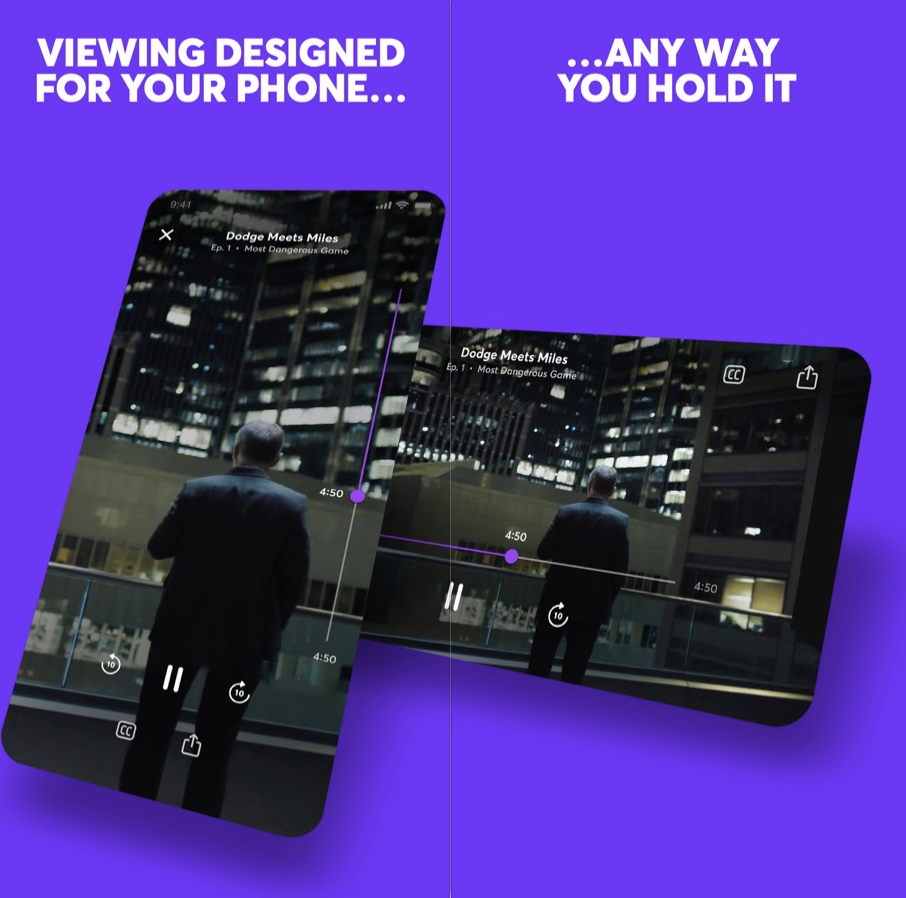
What’s most disappointing about Quibi is that it has the potential to be something fresh, merging classically produced premium content with the modern ways we use our phones. Yet beyond shows being shot in two widths so you can switch between watching in landscape or portrait mode at any time, it really is just a random cable channel shrunk down.

Youths act in front of a mobile phone camera while making a TikTok video on the terrace of their residence in Hyderabad on February 14, 2020. (Photo by NOAH SEELAM / AFP) (Photo by NOAH SEELAM/AFP via Getty Images)

One of the few redeeming opportunities for Quibi is using the daily episode release schedule to serialize content that benefits from suspense, as InternetRyan notes. Binging via traditional streaming services can burn through thrillers before they can properly build up suspense and fan theories or let late-comers catch up while a show is still in the zeitgeist. Cliffhangers with just a day instead of a week to wait could be Quibi’s killer feature.

Suspense is also one thing TikTok fails at. Within a single video, they’re actually often all about suspense, waiting through build up for a gag or non-sequitur to play out. But creators try to rope in followers by making a multi-minute video and splitting it into parts so people subscribe to them to see the next part. Yet since TikTok doesn’t always show timestamps and surfaces old videos on its homescreen, it can often be a chore to find the part two, and there’s no good way for creators to link them together. TikTok could stand to learn about multi-episode content from Quibi.

But today, Quibi feels like a minitiaturized and degraded version of what we already get for free on the web or pay for with Netflix. Quibi charging $4.99 per month with ads or $7.99 without seems like a steep ask without delivering any truly must-see shows, novel interactive experience, or memory-making social moments.

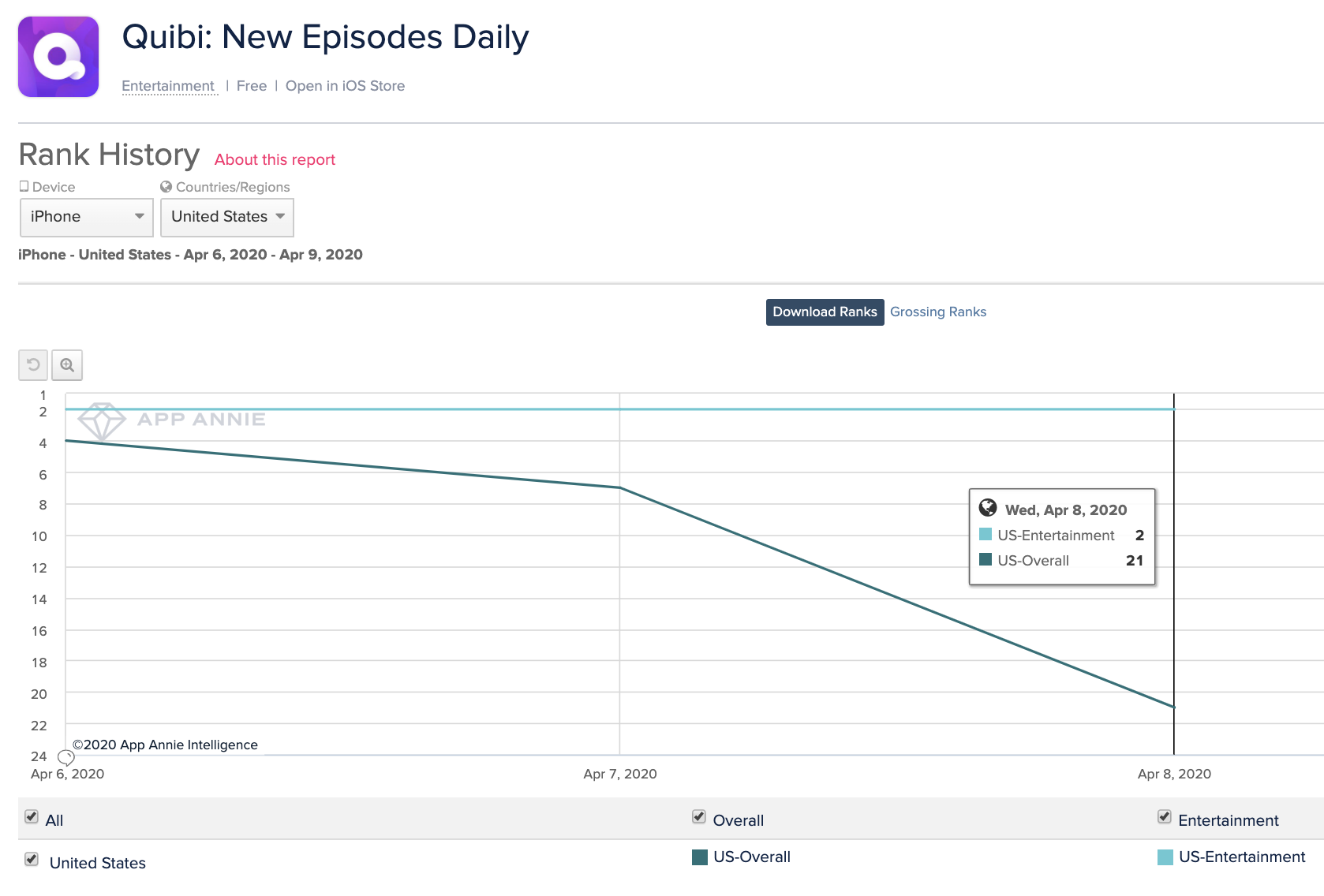
Quibi’s success may simply be a test of how bad people are at cancelling 90-day free trials (hint: they’re bad at it!). The bull case is that absent-minded subscribers amongst the 300,000 first-day downloads and some diehard fans of the celebs it’s given shows will bring Quibi enough traction to raise more cash and survive long enough to socialize its product and teach creators to exploit the format’s opportunities. But the bear case is already emerging in Quibi’s rapidly declining App Store rank, that fell from #4 overall when it launched Monday to #21 yesterday. Lackluster content and no virality means it might never become the talk of the town, leading top content producers to slink away or half-ass their contributions, leaving us to dine on short video elsewhere.


Read Full Article