09 April 2020

What’s the Difference Between Podcasts and Audiobooks?


podcast-audiobook

Podcasts and audiobooks are two of the most popular forms of audio entertainment. Both are readily available on your smartphone or computer, but you might not be familiar with the differences between them.

In this article, we’ll walk you through the differences between podcasts and audiobooks. We’ll look at format, pricing, availability, and how to choose between the two formats.

Podcasts vs. Audiobooks: A General Definition

First, let’s define these two mediums before moving onto detailed comparisons. At their core, podcasts and audiobooks are both digital audio files meant for listening, but that’s oversimplifying it.

A podcast is an episodic series of audio content run by one or more hosts. It can take a variety of formats, from quick news roundups to round-table discussions and much more. Typically, podcast shows release on a regular schedule and allow subscribers to get new episodes right away.

Find awesome podcasts

An audiobook is a professional audio recording of an existing text, usually a book. The content of audiobooks almost always exists in another non-audio format, meaning that they provide an alternate way to consume the same content. Unlike podcasts, audiobooks release as a single product and are not episodic.

There can be slight overlap with these in the form of narrative podcasts, where the host tells one story in segments or reads several short stories in an episode. However, we’ll look at other differences between podcasts and audiobooks that make the distinction clear.

Audiobook and Podcast Pricing

If you don’t want to spend money on auditory entertainment, podcasts are the way to go. Most podcasts are available at no charge, and with so many available, you’ll never run out of free content to enjoy.

Of course, podcast creators have to make money somehow, so many include sponsorship ads sprinkled here and there. These are a small price to pay for otherwise free content, plus they’re easy to skip if you don’t want to hear them.

Some podcasters also charge a fee for extra content or bonus episodes, either as a one-off or through a monthly subscription on something like Patreon.

Audiobooks are a different story in terms of cost. Recording an entire book’s worth of content is not a cheap undertaking, so publishers usually charge more for an audiobook than the Kindle edition or physical copy.

For example, take a popular title like Harry Potter and the Sorcerer’s Stone. At the time of writing, the prices for its various formats on Amazon were:

  • Kindle: $8.99
  • Hardcover: $11.99
  • Paperback: $6.89
  • Audiobook: $29.99

Audiobook Price Difference

This is a drastic difference, meaning that if you listen to a lot, audiobooks can become expensive.

Saving on Audiobooks

If you’re interested in audiobooks, the chances are you’ll look at Amazon’s Audible service first (more on that later). The base Gold subscription costs $14.95/month and gives you one credit each month, which is redeemable for any audiobook on the service.

Those who listen more can look at the Platinum plan, which provides two credits per month for a price of $22.95. While Audible members also get free Audible Originals each month and a discount on audiobook credits, you should know about other ways to find audiobooks for cheap too. You can find free choices at your local library or even on Spotify.

While these likely aren’t as polished as paid audiobooks, they can hold you over until your next credit.

Podcasts vs. Audiobooks: Usability

Trying to decide between getting into podcasts and audiobooks? You might be able to make a call depending on how practical they are for your workflow.

Podcasts generally have less of a time commitment involved. While their length can vary quite a bit, many podcasts fall somewhere in the 30 to 60 minute range. This makes them easily consumable during a commute or workout session.

Audiobooks are a different story. The first Harry Potter book, which we mentioned earlier, runs to about eight hours in audiobook form. Longer works can be multiple times longer than this, requiring 20 or more hours to listen to in full.

Audible Book Length

Whether this is a pro or con depends on your listening habits. Listening to a 20-hour book in 15-minute chunks will take a long time and will likely be unsatisfying as you struggle to follow the story. Chapters make for natural stopping points, but you can’t always stop listening exactly where a new chapter begins.

However, when you have a big chunk of time, digging into an audiobook is likely more engaging than listening to a ton of podcast episodes back-to-back.

Audiobooks allow you to experience works you wouldn’t have read otherwise while you cook, drive, or perform other tasks. But podcasts are easier to sneak in when you have a few minutes without committing to a whole book.

Podcast or Audiobook? Consider Availability

In general, podcasts are easier to access than audiobooks for a few reasons.

First, many audiobooks are protected by DRM, or digital rights management. This means that you when you buy a book on Audible, you have to use the Audible app to listen to it. You can’t export the audio file and listen to it in another app of your choice.

While DRM-free audiobooks do exist, most popular retailers (which sell the books you probably want to hear) enforce some level of DRM. This isn’t a huge deal if you only buy from one retailer, but it becomes a hassle to manage DRM-protected audiobooks from multiple sources.

Audiobooks can also suffer from regional restrictions. You’re probably familiar with this if you live outside of the US, as many forms of online media for US markets are unavailable in other regions. Thus, you might not be able to access a certain book simply because the publisher doesn’t make it available in your area.

Contrast these limitations to podcasts, which have few barriers to entry. With a podcast app on your phone, computer, or even a web app, you can subscribe to and manage podcasts from multiple sources.

Google Top Podcasts

Most podcasts don’t suffer from any regional restrictions, either. Since a lot of shows are independently created, they want to reach the widest audience possible. The chances are that you can easily access any podcast you’re interested in, even if you have to check a few services for it.

How to Get Started With Audiobooks or Podcasts

Decided that you want to give one or both of these types of entertainment a try? It’s easy to start listening to both and decide if you like them.

For audiobooks, a great way to get started is by signing up for a free Audible trial. This lets you try the service for 30 days with one free audiobook that’s yours to keep. Have a look at our recommendations for audiobooks to grab during your free Audible trial for some ideas.

If you don’t like the Audible experience or find it too expensive, it’s easy to cancel your Audible subscription before it renews without paying anything.

To get started with podcasts, you’ll need a podcast manager and some shows to try. If you use Spotify, you’ll be pleased to know that it’s home to a ton of podcasts in addition to music. Check out the best podcasts on Spotify for a good starting point.

Don’t want to use Spotify? Have a look at our guide to getting started with podcasts for more ways to listen.

Podcasts and Audiobooks: Friends Forever

We’ve taken a dive into what makes podcasts and audiobooks different. No matter which you gravitate toward, it’s easy to see that the two are not at odds with each other.

Whether you prefer the easy-to-digest format of podcasts or the longform value of “reading” audiobooks, you can enjoy a ton of great audio content anywhere. Speaking of which, we’ve rounded up the best free audiobooks you need to hear.

Read the full article: What’s the Difference Between Podcasts and Audiobooks?


Read Full Article

How to Use Multiple YouTube Accounts on a Roku Device


roku-instead-smarttv

Thanks to its official app, YouTube lets you log into multiple accounts on one Roku device. This hasn’t always been the case; Google finally added the feature in 2017 to much applause from users.

Logging in to and using multiple YouTube accounts on a single Roku is a simple process that only requires a one-time setup. And once it’s done, you can easily switch between profiles on demand.

How to Add Multiple YouTube Accounts on Roku

roku connected to youtube

The process for adding the first YouTube account to your Roku is different from the process for adding subsequent accounts. To add the first account, perform the following steps:

  1. Open the YouTube app.
  2. Press Left on your Roku remote.
  3. Scroll down to the User icon and press OK.
  4. Select Sign In and press OK.
  5. Either let Roku find your mobile device automatically or select Try another way and follow the on-screen instructions.
  6. On your mobile/PC, select the account and channel you want to connect to the Roku app.

Then, to add multiple YouTube accounts following the initial setup, do the following:

  1. Launch YouTube on Roku and press Left on the remote.
  2. Scroll down to the avatar of the person who is logged in and press OK.
  3. Select Add Account in the accounts list.
  4. Either let YouTube find your local mobile device or click Try another way, head to youtube.com/activate and enter the on-screen code.

Once you’ve finished adding users, you can switch between accounts by going to the YouTube menu and clicking on the user’s profile picture. You can also use the same menu to create a guest browsing session.

Other Ways to Get More Out of Your Roku Device

If you would like to learn about other ways to get more out of your Roku device, check out our articles listing the best free Roku channels and the best Roku web browsers.

Read the full article: How to Use Multiple YouTube Accounts on a Roku Device


Read Full Article

The Fitbit Comparison: Which Model Is Best for You?


fitbit-comparison

When it comes to fitness trackers, Fitbit is the first company that comes to most people’s minds. Fitbit has built a reputation for affordable, feature-packed devices. The company has even turned its hand to smartwatches, giving Apple a run for their money.

Their range has grown over the years, from just a few devices to an eclectic assortment for every situation. With so many options out there, we’ve created this Fitbit comparison to help find the right device for you.

The Best Fitbit Smartwatch:
Fitbit Versa 2

Fitbit Versa 2 Fitbit Versa 2 Buy Now On Amazon $199.73

The Fitbit Versa 2, the company’s fourth attempt at a smartwatch, is arguably the best Fitbit available today. The watch runs Fitbit OS, the company’s smartwatch operating system, and combines all the best features of a fitness tracker with smartwatch convenience.

The Versa 2 has the multiple sensors found on most of Fitbit’s devices, including an always-on optical heart rate sensor. The battery life is around six days, with a full charge taking about two hours. Interestingly, the Versa 2 comes with Alexa integration, too, keeping your digital assistant always within easy reach.

Although the Versa 2 has in-built NFC, it is only used to operate Fitbit Pay, the company’s answer to Google Pay and Apple Pay. However, the service is currently limited to a select number of banks, and, as a result, may not be a useful feature for you.

The watch is water-resistant up to 50 meters and even includes swimming exercise tracking. That’s alongside automatic exercise tracking and manual tracking for up to 15 exercises. You’ll also be able to rest easy knowing that the Versa 2 can track your sleep too.

If you like the Versa 2’s style but aren’t too keen on the price, the Versa Lite is a more affordable option. The Versa Lite is a slightly stripped back edition of the watch to bring the price down. So, there’s no onboard music storage, swimming tracking, tracking of floors climbed, or NFC.

If you’re in the market for a fitness-focused smartwatch, then you may want to check out our Fitbit Versa review. The Versa was the predecessor to the Versa 2, with a similar feature-set but without Alexa integration.

The Best Fitbit Fitness Tracker:
Fitbit Charge 4

Fitbit Charge 4 Fitbit Charge 4 Buy Now On Amazon $149.95

Despite the industry’s best efforts, not everyone wants a smartwatch. If you fall into that camp, then the Fitbit Charge 4 may be just the device for you. The Charge 4 is Fitbit’s most feature-packed fitness tracker, even importing some smartwatch-style notifications.

As with the Versa 2, the Charge 4 is water-resistant up to 50 meters. However, it is designed to look more like a traditional fitness tracker. The device looks more like a wristband than a watch. The black and white screen supports tap and swipe actions and sits in line with the device’s strap.

Fitbit is still best known for its pedometer feature, which is given priority here too. They have taken cues from the Apple Watch, though, with the step count on the standby screen replaced by a circular step goal tracker. That said, your detailed daily activity summary is only a swipe away.

The Charge 4 represents the first time Fitbit has embedded a GPS sensor into one of their fitness trackers. This means you can more accurately measure outdoor exercise, and keep a record of the location of your runs, bike rides, and other workouts. This is one of the tracker’s standout features, as you can now leave your phone at home while exercising.

The device also integrates with Spotify, so you can change tracks and start music directly from your wrist. Unlike Fitbit’s other fitness trackers, the Charge 4 supports Fitbit Pay thanks to the onboard NFC. The device has been designed to maximize battery life, lasting a week on average between charges.

The Charge 4 is the successor to the well-received Charge 3. If you want to know more about the Charge series before investing, check out our Fitbit Charge 3 review.

The Best Fitbit Smartwatch for Exercise:
Fitbit Ionic

Fitbit Ionic Fitbit Ionic Buy Now On Amazon $199.91

You can trace the origins of the Fitbit Ionic back to the company that turned the smartwatch into a mainstream item, Pebble. Fitbit acquired Pebble and then went about releasing the Ionic, their first smartwatch running Fitbit OS.

We reviewed the Fitbit Ionic when it was released and found it to be a promising but flawed device. It excelled at fitness tracking, but the buggy software let it down. However, cumulative updates since then have seen those initial problems ironed out.

The Ionic and Versa both run the same edition of Fitbit OS, so the overall experience is the same between the two devices. Where they differ is in design. The Ionic stands out more. The Versa’s design is like the Apple Watch, but the Ionic is more uniquely distinctive.

One of the reasons for the larger design is the Ionic’s built-in GPS tracker. This means that you can utilize all of Fitbit’s fitness tracking features without the need for a companion smartphone. The Ionic is also water-resistant to 50 meters, making it ideal for outdoor activities. The Gorilla Glass 3 screen means that the watch is durable too.

The Best Affordable Fitness Tracker:
Fitbit Inspire HR

Fitbit Inspire HR Fitbit Inspire HR Buy Now On Amazon $99.88

The Fitbit Inspire HR is the latest addition to Fitbit’s fitness tracker range, replacing the Fitbit Alta 2. The Inspire HR stays with the rounded design first seen on the Charge 3, and the similarities don’t end there. The device is water-resistant to 50 meters, has automatic exercise recognition, and hourly reminders to move.

At first glance, it can be hard to see what differences there really are between the Charge 4 and Inspire HR. The Inspire HR is the affordable, entry-level fitness tracker in Fitbit’s line-up. As a result, the Inspire HR has fewer features. There is no NFC, tracking of floors climbed, or support for on-device quick replies.

Launched at the same time, the Fitbit Inspire takes things a step further to reduce the cost. Sleep stage analysis, guided breathing sessions, heart rate monitoring, exercise tracking, and connected GPS have all been jettisoned to make the device affordable.

While that may sound like a lot of missing features, the Inspire and Inspire HR have all the hallmarks of a Fitbit device. The fitness and sleep tracking are the same as those found on Fitbit’s premium devices and accessed through the app in just the same way too.

Which Fitbit Is the Best for You?

Over the years, Fitbit has added features and incrementally improved their fitness trackers. Their smartwatches have even become firm favorites. The Versa Lite and Inspire HR promise to bring some of those premium features to devices at an affordable price point too.

Which Fitbit is best for you will ultimately depend on what you want to use it for, and which style suits you best. Since Google bought Fitbit, you might want to know how secure your Fitbit data is with Google. And consider pairing your fitness band with one of the best smart scales for better results.

Read the full article: The Fitbit Comparison: Which Model Is Best for You?


Read Full Article

Everything You Need to Know About the PlayStation 5


playstation-5

It’s hard to believe, but the PlayStation 4 launched way back in 2013. To jog your memory, Sony launched the PS4 in the same year that Battlefield 4, BioShock Infinite, and Grand Theft Auto V released.

So it’s about time for a new console generation to begin, and Sony is slowly releasing details about the new PlayStation 5. Here’s everything we know about the PlayStation 5, the next-gen Sony console and successor to the PS4.

What Is the Next-Gen PlayStation Called?

Unlike Microsoft, which has used a unique name for each of its Xbox consoles, Sony plans to stick with the straightforward numbered approach. The next PlayStation is simply called the PlayStation 5.

While it’s not particularly exciting, it does make sense.

When Will the PlayStation 5 Launch?

Sony has confirmed that the PlayStation 5 will launch “in time for Holiday 2020.” This is a bit vague, but we can guess when it will become available based on trends from the past systems.

The PlayStation 4 launched on November 15, 2013 in North America, and the PS4 Pro came out on November 10, 2016. Meanwhile, the PlayStation 3 first became available on November 17, 2006.

Therefore, it’s a good guess to say the PS5 should launch sometime in November 2020. This allows the console time to generate some excitement and build a library of games before the all-important holiday season.

The New PlayStation 5 Controller: DualSense

A console’s controller affects how you interact with everything in a game, so new controller features are always exciting. Sony has mentioned that it wants to “deepen the feeling of immersion when you play games,” and the new controller reflects this.

DualSense PS5 Controller
Image Credit: The PlayStation Blog

The new PlayStation 5 controller is called the DualSense. While it doesn’t have the Share button seen on the DualShock 4, Sony has replaced this with a new Create button. It plans to unveil more details about how this works in the future.

Interestingly, the DualSense will feature a built-in microphone array. This means that you can chat with friends even when you don’t have your headset connected.

You’ll also notice that this controller includes a light bar similar to that seen on the DualShock 4. However, the DualSense has the light bar on either side of the touchpad, instead of sitting at the top of the controller. It also uses a modern USB-C connection for charging.

The company has mentioned a few major innovations with the PS5’s controller, which we explain below.

Haptic Feedback

The first change is a switch from the classic “rumble” feature to haptic feedback. If you’re not familiar, haptic feedback refers to a specific set of vibrations that make you feel a particular sensation. This is in contrast to rumble, which is simply a constant vibration at various strengths.

For example, you might feel a light tap when your character knocks on the door, but a heavy “slam” when you’re tackled in a football game. This provides developers with better ways to make you feel like you’re part of what’s happening in a game.

If you want to test out how this feels, the Nintendo Switch’s controllers offer HD Rumble, which is a fancy name for haptic feedback. Nintendo promoted this by saying you could feel the ice cubes in a virtual glass.

Adaptive Triggers

Adaptive triggers are the other new development in the PS5 controller. These allow game developers to adjust the resistance of your controller triggers (the L2 and R2 buttons) based on in-game events.

For instance, you might have to push harder to pull back a bow and arrow, or to accelerate a vehicle over rough terrain. Combined with the haptic feedback, this should go a long way in helping you feel like the elements of the game are real.

What Specs Will the PS5 Have?

Seven years is a long time in the technological world, so you can expect some beefed-up components inside the PS5. In March 2020, Sony held a developer-focused conference that confirmed what the PS5 will pack inside.

CPU and GPU

The PS5 will boast a custom eight-core AMD ZEN 2 CPU. Sony has stated that it’s clocked at a variable 3.5GHz frequency. This variable frequency means that the CPU can adjust its frequency on-the-fly based on the demand at any moment.

Meanwhile, the GPU is also a custom unit. It’s based on AMD’s RDNA 2, and is said to hit 10.28 teraflops. It has 36 compute units, is clocked at 2.23GHz, and is also variable frequency.

Sony’s staff have also confirmed that the PS5’s GPU will support ray tracing (how real-time ray tracing changes gaming). This is an advanced graphics technology that renders extremely realistic lighting and shadows. It simulates each ray of light from a source, which is an intensive process.

Storage and RAM

Notably, the new system is leaving behind hard disk drives (HDD) in favor of faster solid-state drive (SSD) storage. As you probably already know, SSDs have no moving parts, so they can load data much faster than a traditional hard drive.

Sony plans to use a special 825GB NVMe SSD in the PS5. Having an SSD means developers won’t have to build artificial walls into their games to slow you down and let the game load.

For comparison, Sony mentioned that while the PS4 takes about 20 seconds to load 1GB of data, it’s aiming to have the PS5 load 5GB of data in just one second.

Switching to an SSD has additional benefits aside from speed. To minimize the amount of seeking an HDD has to do, developers sometimes duplicate generic assets all over the disk.

This leads to games taking up more space, which won’t be necessary with an SSD. As a result, game developers will be able to cut down the size of games and patches, or add more detail into the same amount of space.

Also reassuring is the fact that the system comes with a spare NVMe slot, meaning you can expand your available storage when you run low. This won’t require a proprietary storage type, but you will have to purchase a drive certified by Sony to work with the system.

Additionally, the PS5 will come with 16GB of DDR6 RAM.

Physical Games and the Disc Drive

The PS5 will use 100GB BDXL discs, which offer more storage than the PS4’s 50GB Blu-ray discs. If you buy physical games, you’ll still be required to install them onto the drive, since loading from an SSD is much faster than doing so from discs.

However, you’ll have control over what you install. If you don’t care about the single-player part of a game, you could just install the multiplayer portion and worry about single-player later.

Sony has confirmed that the PS5 will have a 4K Blu-ray drive. It will also support external USB drives, but since they’re slower than the SSD, that compatibility is mainly for backwards-compatibility with PS4 titles.

More PlayStation 5 Information

We’ve covered most of the known information about the PlayStation 5, but there are still a few tidbits worth mentioning.

Sony has mentioned that the PS5 will feature a fresh interface for its home screen. This includes more readily available information about what multiplayer matches are available with friends, or rewards for completing certain single-player missions. You’ll also be able to jump into the action much more quickly.

You’ll be happy to hear that the PlayStation 5 is confirmed as backwards-compatible with PS4 games. This is welcome news, as the PS4 wasn’t backwards-compatible at all. However, the company has been vague about this functionality.

In the March 2020 presentation, Sony’s Mark Cerny said that “almost all of […] the top 100 PS4 titles” are expected to be playable at launch on the PS5. This likely means that backwards compatibility will work on the console at launch and grow over time, but we’re not certain.

Sony has also discussed a new “3D audio” feature on the PS5, which offers greater sound fidelity. For example, you’ll be able to hear the difference in raindrops hitting various surfaces around you.

Finally, the PS5 will support PSVR. The system can also handle 4K visuals at 120Hz, which means even smoother games if you have a compatible TV.

Can’t Wait for the PlayStation 5?

That’s the lowdown on the PS5 for now. There are rumors about various games being developed for the PlayStation 5, but we don’t have any concrete details yet.

Sony is bound to release more information about the PS5 soon, including how it looks and what games will be available at launch. Bookmark this page for more PlayStation 5 details as and when they’re released.

In the meantime, don’t forget that the PS4 has an excellent catalog of exclusive titles to play. You may as well play the best PS4 games while you wait for the PS5 to arrive!

Read the full article: Everything You Need to Know About the PlayStation 5


Read Full Article
7 Ways to Find Music and Songs From TV Shows


crackle-free-tv-shows

We’ve all been there. You’re engrossed in a TV show or movie when you suddenly hear an awesome song that you don’t recognize. Or music that you really want to hear again.

But how do you find out the title and artist? Fear not, as this article details how to find music and songs from TV shows using the best resources we could find on the web.

1. Tunefind

tunefind tv music

You may recall HeardOnTV. It used to be one of the most popular websites specializing in helping you find songs from TV shows and movies. Since 2017, HeardOnTV has been part of Tunefind, but the tool is still as useful as ever.

The Tunefind library of musical references is massive. It covers hundreds (if not thousands) of TV shows. For each series, the songs are listed by season and by episode. Some series have scene descriptions to make the process even easier. Regardless, as long as you know what you’re watching, you will be able to find the track within seconds.

Tunefind is also ahead of the curve when it comes to new episodes. You can expect to see a show’s latest episode go live on the site—complete with its soundtrack—within minutes of it finishing on TV.

The site also focuses on accuracy. It deploys a community voting system so that readers can confirm or disagree with the selected track. It prevents cover versions or songs with the same title by different artists slipping through the net.

Other useful features on Tunefind include alerts for new episodes of shows and movies you like, alerts for your favorite artists’ songs getting featured in a video, and links to YouTube and Amazon listings for the various tracks (where available).

(NB: We’ve also written about how to identify music and songs in YouTube videos.)

2. WhatSong

whatsong tv songs

Another TV music finder worth checking out is WhatSong. The site is split into movies and TV shows.

Once again, hundreds of shows are available. However, during our entirely non-scientific testing, we felt that there were more placeholders on WhatSong than on Tunefind—as in, the show is listed but no songs have been added to the show/movie’s profile page.

Nevertheless, for mainstream shows on the major networks and streaming services like Netflix and Disney+, most of the songs are present. Like Tunefind, you can browse by season and episode number, and many of the listed tracks also have accompanying scene descriptions. Most songs have links to YouTube, Amazon, Spotify, and Apple Music.

We particularly like the “Trending Music” section of the site. It displays what’s popular right now; you’ll often find the newest songs from TV shows and movies that have just aired/had a theatrical release.

If you wish, you can make an account on WhatSong. It allows you to collate your favorite tunes, shows, and movies, and interact with the wider community in the comment boxes.

3. Soundtrack.net

soundtrack music

Soundtrack.net has been online since 1997, making it another of the most long-standing services for identifying songs you’ve heard on TV and in movies. You’ll have to forgive the slightly retro UI.

Just like the other services we’ve looked at so far, you can use Soundtrack.net to browse songs by season and episode.

But Soundtrack.net goes a little further than that. You can also browse by composer (for all those awesome instrumental pieces that crop up in shows), search for music used specifically in movie trailers, and search official soundtrack audio releases.

Music geeks might also appreciate the Release Dates section. Rather than putting the title of the show/movie front-and-center, it instead lists artists who have work included in upcoming new content.

The site used to have a news section. Unfortunately, although you can still browse the archives, it has not been actively updated since 2011.

4. IMDb

imdb music

We’ve covered the three main sites that help you find music from TV shows. For the rest of the article, we’re going to briefly look at some other services you might not have considered. First up, IMDb.

Of course, IMDb is primarily known for being one of the best resources for movie and TV geeks. It features plotlines, actor lists, reviews, and trivia for almost every release you can think of. But don’t forget; it also lists music—including bands, track names, composers, and more.

5. Shazam

Shazam is one of several music recognition services for smartphones. It uses music fingerprinting—whereby it records a few seconds of a track and then searches its database for a match—to provide you with results.

If you’re listening to the radio, the service is hard to beat. However, it’s slightly less useful for identifying music in TV shows due to background interference.

On TV and in movies, songs are rarely played clearly for a prolonged period without the accompanying noise of speech, traffic, gunshots, or something else. That interference effects Shazam’s ability to record clean clips that can be fingerprinted. However, it’s worth a shot.

Download: Shazam for Android | iOS (Free)

6. Adtunes

adtunes music

What about music in ads? The magic touch of advertisers often means that songs from commercials are catchier than songs in even the best TV shows.

If you’re trying to identify a song from a television ad, Adtunes might have the answers. It is forum-based; ask your question and the community will try to help.

7. StreamingSoundtracks

streamingsoundtracks movie music

StreamingSoundtracks is an internet radio station with a difference. Instead of playing the usual fare of chart hits, the site only plays music from TV shows and movies.

As such, it’s not the best TV show music finder if you are searching for a particular track. It is, however, a great way to hear music you may have heard on TV in the past without mentally registering it. If you like enough of the songs you hear from a specific release, it might even inspire you to watch the film or TV show in question.

Other Ways to Discover New Music

Using websites to find music from TV shows is only one of the many ways to discover new music to listen to. Here are more timeless ways to discover new music to stream, all of which should help you grow your music collection.

Read the full article: 7 Ways to Find Music and Songs From TV Shows


Read Full Article

What coronavirus means for the global economy | Ray Dalio

What coronavirus means for the global economy | Ray Dalio

"I'm a capitalist. I believe in the system. I believe you can increase the size of the pie and you could divide it well," says Ray Dalio, founder of Bridgewater Associates. He offers wide-ranging insight and advice on how we might recover from the global economic fallout of the coronavirus crisis -- and use it as an opportunity to reform the systems that help grow our economy. (This virtual conversation is part of the TED Connects series, hosted by head of TED Chris Anderson and business curator Corey Hajim. Recorded April 8, 2020.)

Click the above link to download the TED talk.

France’s competition watchdog orders Google to pay for news reuse


France’s competition authority has ordered Google to negotiate with publishers to pay for reuse of snippets of their content — such as can be displayed in its News aggregation service or surfaced via Google Search.

The country was the first of the European Union Member States to transpose the neighbouring right for news into national law, following the passing of a pan-EU copyright reform last year.

Among various controversial measures the reform included a provision to extend copyright to cover content such as the ledes of news stories which aggregators such as Google News scrape and display. The copyright reform as a whole was voted through the EU parliament in March 2019, while France’s national law for extended press publishers rights came into force in October 2019.

A handful of individual EU Member States, including Germany and Spain, had previously passed similar laws covering the use of news snippets — without successfully managing to extract payments from Google, as lawmakers had hoped.

In Spain, for example, which made payments to publishers mandatory, Google instead chose to pull the plug on its Google News service entirely. But publishers who lobbied for a pan-EU reform hoped a wider push could turn the screw on the tech giant.

Nonetheless, Google has continued to talk tough over paying for this type of content.

In a September 2019 blog post the tech giant dug in, writing — without apparent irony — that: “We sell ads, not search results, and every ad on Google is clearly marked. That’s also why we don’t pay publishers when people click on their links in a search result.”

It has also since changed how Google News displays content in France, as Euractiv reported last year — switching to showing headlines and URLs only, editing out the text snippets it shows in most other markets.

However France’s competition authority has slapped down the tactic — taking the view that Google’s unilateral withdrawal of snippets to deny payment is likely to constitute an abuse of a dominant market position, which it writes “seriously and immediately damaged the press sector”.

The company has a dominant position in Europe’s search market — with more than 90% marketshare.

The authority cites Google’s unilateral withdrawal of “longer display article extracts, photographs, infographics and videos within its various services (Google Search, Google News and Discover), unless the publishers give it free authorization” as unfair behavior.

“In practice, the vast majority of press publishers have granted Google licenses for the use and display of their protected content, and this without possible negotiation and without receiving any remuneration from Google. In addition, as part of Google’s new display policy, the licenses which have been granted to it by publishers and press agencies offer it the possibility of taking up more content than before,” it writes in French (which we’ve translated via Google Translate).

“In these conditions, in addition to their referral to the merits, the seizors requested the order of provisional measures aimed at enjoining Google to enter in good faith into negotiations for the remuneration of the resumption of their content.”

Hence issuing an emergency order — which gives Google three months to negotiate “in good faith” with press agencies and publishers to pay for reusing bits of their content.

Abusive practices the agency says it suspects Google of at this stage of its investigation are:

  • The imposition of unfair trading conditions;
  • circumvention of the law;
  • and discrimination (i.e. because of its unilateral policy of zero renumeration for all publishers)

The order requires Google to display news snippets during the negotiation period, in accordance with publishers wishes.

While terms agreed via the negotiation process will apply retrospectively — from the date the law came into force (i.e. last October).

Google is also required to send in monthly reports on how it’s implementing the decision.

“This injunction requires that the negotiations actually result in a proposal for remuneration from Google,” it adds.

We reached out to Google for comment on the Autorité de la Concurrence’s action. In a statement attributed to Richard Gingras, its VP News, the company told us:

Since the European Copyright law came into force in France last year, we have been engaging with publishers to increase our support and investment in news. We will comply with the FCA’s order while we review it and continue those negotiations.

A Google spokeswoman also pointed back to its blog post from last year — to highlight what she described as “the ways we already work with news publishers for context”.

In the blog post the company discusses directing traffic to news sites; providing ad tech used by many publishers; and a funding vehicle via which it says it’s investing $300M “to help news publishers around the world develop new products and business models that fit the different publishing marketplace the Internet has enabled”.

Interim measures are an antitrust tool that Europe’s competition authorities have pulled from the back of the cupboard and started dusting off lately.

Last October EU competition chief Margrethe Vestager used an interim order against chipmaker Broadcom to stop applying exclusivity clauses in agreements with six of its major customers — while an investigation into its practices continues.

The commission EVP, who also heads up the bloc’s digital strategy, has suggested she will seek to make greater use of interim orders as an enforcement tool to keep up with the fast pace of developments in the digital economy, responding to concern that regulators are not able to respond effectively to curtail market abuse in the modern Internet era.

In the case of France’s competition authority’s probe of Google’s treatment of publishers content the authority writes that the interim protective measures it’s ordered will remain in force until it adopts its decision “on the merits”.


Read Full Article

Sony invests $400M in Chinese entertainment platform Bilibili


Sony said on Thursday that it is investing $400 million to secure a 4.98% stake in Chinese entertainment giant Bilibili.

10-year old Bilibili started as an animation site, but has expanded to other categories including e-sports, user-generated music videos, documentaries, and games. The service, which has amassed over 130 million users, has attracted several big investors over the years, including Chinese giants Tencent and Alibaba.

The announcement pushed Bilibili’s share up by 7.6% in pre-market trading. Sony has made the investment through its wholly-owned subsidiary Sony Corporation of America.

In a statement, Sony said the company believes China is a key strategic region in the entertainment business. BiliBili says it targets China’s Gen-Z. The vast majority of its users — about 80% — were born between 1990 and 2009.

The two companies have also agreed to pursue collaboration opportunities in the entertainment field in China, including animation and mobile game apps, they said.

You can read more about Bilibili’s business and dominance in China in my colleague Rita Liao’s piece here.


Read Full Article
MIT develops privacy-preserving COVID-19 contact tracing inspired by Apple’s ‘Find My’ feature


One of the efforts that’s been proposed to contain the spread of COVID-19 is a contact trace and track program, that would allow health officials to keep better tabs on individuals who have been infected, and alert them to potential spread. Contract tracing has already seemingly proven effective in some parts of the world that have managed to curb the coronavirus spread, but privacy advocates have big reservations about any such system’s implementation in the U.S.

There are a number of proposals of how to implement a contact tracing system that preserves privacy, including a decentralization proposal for a group of European experts. In the U.S., MIT researchers have devised a new method to would provide automated contact tracing that taps into the Bluetooth signals sent out by everyone’s mobile devices, tying contacts to random numbers that aren’t linked to an individual’s identity in any way.

The system works by having each mobile device constantly be sending out random strings of numbers that the the researchers liken to “chirps” (though not actually audible). These are sent via Bluetooth, which is key for a couple of reasons, including that most people have Bluetooth enabled on their device all the time, and that it’s a short-range radio communication protocol that ensures any reception of a “chirp” came from someone you were in relatively close contact to.

If any person tests positive for COVID-19, they can then upload a full list of the chirps that their phone has broadcast over the past 14 days (which at the outside, should represent the full time they’ve been contagious). Those go into a database of chirps associated with confirmed positive cases, which others can scan against to see if their phone has received one of those chirps during that time. A positive match with one of those indicates that an individual could be at risk, since they were at least within 40 feet or so of a person who has the virus, and it’s a good indicator that they should seek a test if available, or at least self-quarantine for the recommended two-week period.

MIT’s system sidesteps entirely many of the thorniest privacy-related issues around contact tracing, which have been discussed in detail by the ACLU and other privacy protection organizations: It doesn’t use any geolocation information at all, nor does it connect any diagnosis or other information to a particular individual. It’s still not entirely left to individual discretion, which would be a risk from the perspective of ensuring compliance, because MIT envisions a health official providing a QR code along with delivering any positive diagnosis that would trigger the upload of a person’s chirp history to the database.

The system would work through an app they install on their phone, and its design was inspired by Apple’s “Find My” system for locating lost Mac and IOS hardware, as well as keeping track of the location of devices owned by loved ones. Find My also uses chirps to broadcast locations to passing Apple hardware.

“Find My inspired this system,” ays Marc Zissman, the associate head of MIT Lincoln Laboratory’s Cyber Security and Information Science Division and co-principal investigator of the project in a blog post describing the research. “If my phone is lost, it can start broadcasting a Bluetooth signal that’s just a random number; it’s like being in the middle of the ocean and waving a light. If someone walks by with Bluetooth enabled, their phone doesn’t know anything about me; it will just tell Apple, ‘Hey, I saw this light.’”

The system could be adapted to automate check-ins against the positive chirp database, and provide alerts to individuals who should get tested or self-isolate. Researchers worked closely with public health officials to ensure that this will suit their needs and goals as well as preserving privacy.

MIT’s team says that a critical next step to making this actually work broadly is to get Apple, Google and Microsoft on board with the plan. This requires close collaboration with mobile device platform operators to work effectively, they note. Extrapolating a step further, were iOS and Android to offer these as built-in features, that would go a long way towards encouraging widespread adoption.


Read Full Article
Master the Art of Editing With This Photoshop and Lightroom Training Bundle


While everyone is expected to stay at home, there are few opportunities for taking photos. However, now is an excellent time to edit images on your hard drive and improve your skills. The Adobe Lightroom & Photoshop for Beginner-Designers Bundle helps you perfect your photography, with nine courses and 27 hours of content from top-rated instructor, Marcin Mikus. You can currently get the training for just $39.99 at MakeUseOf Deals.

Master the Digital Darkroom

It was the great American landscape photographer, Ansel Adams, who famously said: “You don’t take a photograph, you make it.” Although technology has changed, the same principle applies today.

This bundle shows you how to “make” great images using two key tools: Photoshop and Lightroom.

The training starts with the fundamentals, showing you how to make simple adjustments to exposure and color. But soon enough, you dive into pro techniques such as dodging and burning, selective adjustments, and masking layers.

Through step-by-step tutorials, you also discover how to create your own presets, retouch portraits, and convert images to black and white.

Your instructor is Marcin Mikus, an editing expert who has helped over 250,000 students. With a rating of 4.3 stars on Udemy, he is one of the most popular online educators in the world.

Nine Courses for $39.99

This training is worth $1,791 in total, but you can get lifetime access now for just $39.99.

Read the full article: Master the Art of Editing With This Photoshop and Lightroom Training Bundle


Read Full Article
You Can Now Lock Your Netflix Profile With a PIN


Netflix has added new parental controls to help families get along. This includes the option to protect your Netflix profile with a PIN, which will prevent your children (and/or your partner) from accessing your profile and messing up your watchlist.

The Problem With Sharing Netflix With Others

Like all streaming services, Netflix can be a great option for families. However, setting up profiles for individual members of a family is vital. That way, the adults can keep their movies and shows seperate from the kids’ endless repeats of Peppa Pig.

The problem is there has been nothing stopping kids from logging into their parents’ profiles and watching whatever they want to watch. Until now. Now, you can set a PIN code to protect your Netflix profile, whether from prying kids or anyone else.

How to Lock a Netflix Profile With a PIN

To protect a Netflix profile with a PIN, sign into Netflix on your phone or laptop. Then, hover over the Profile icon in the top-right and click Account. Scroll down to Profile and Parental Controls, and click on the down-arrow to reveal more options.

Scroll down to Profile Lock and click Change. When prompted, enter your password and click Continue. Tick the box to “require a PIN,” enter a 4-digit code, and click Save. To stop requiring a PIN to access your profile, go through the steps again and untick the box.

This is just one of a number of parental controls Netflix has introduced. The others, as outlined on the Netflix Media Center, are the option to filter out titles by age ratings and remove individual titles. You can also turn off autoplay to prevent binge-watching.

All of these new parental controls can be accessed via the Profile and Parental Controls hub within your account settings. This is also where you can see what your kids have been watching on their profiles (or yours) to ensure everything is as it should be.

Tips and Tricks to Become a Netflix Pro

These new parental controls are all fairly basic, but they could prove invaluable for families all sharing a Netflix account. Especially in these strange times when lots of families are being forced to spend all day, every day together. Which is… fun.

We’re big fans of Netflix here at MakeUseOf. So much so that we’ve compiled a list of helpful tips and tricks to help you become a Netflix pro. This runs the full gamut from tips for beginners to recommendations for which movies to watch.

Read the full article: You Can Now Lock Your Netflix Profile With a PIN


Read Full Article
The New Firefox Address Bar Enables Faster Searching


Mozilla has updated Firefox, and besides the usual security fixes, the headline feature is a revamped address bar. In a nutshell, the new Firefox address bar is designed to make it faster and easier to find what you’re looking for when you search the web.

How to Use the New Firefox Address Bar

As detailed in a post on The Mozilla Blog, Firefox 75 introduces three major changes to the address bar. The new Firefox address bar will have a new look and feel, be capable of delivering smarter searches, and put your favorite websites at your fingertips.

First, Mozilla has updated the Firefox address bar to give it a new look and feel. This means that when you start to search for something, the address bar will get larger. It also boasts a larger font, shorter URLS, and shortcuts to the most popular sites to search.

Next are the aforementioned smarter searches. These are suggestions for ways you can further refine your search. As you type, Firefox will bold additional keywords you may not have thought of, but which, once added, will narrow your search down.

Lastly, the new Firefox address bar gives you easy access to your favorite websites. Click on the address bar, and links to these sites will appear. And if you already have one open in a tab, clicking the name will jump to that tab, saving you yet another hassle.

Other Ways to Refine Your Web Searches

With the web full of sites on every topic you can think of, no matter how niche, being able to find what you’re looking for quickly and easily is an absolute must. And the new Firefox address bar is certainly a step in the right direction.

There are other ways to narrow your searches down though, whether you’re using Firefox or any other web browser. Our Google Search cheat sheet contains all of the operators you need to know to refine your search and make the results more accurate.

Read the full article: The New Firefox Address Bar Enables Faster Searching


Read Full Article

Ubuntu Remote Desktop: Easy, Built-In, VNC Compatible


If you’re working from home, or are too far from your Ubuntu PC, setting up a remote connection seems smart.

Ubuntu features a built-in remote desktop tool. This gives you total control over your desktop from any other computer or mobile device. You’ll see what’s on that screen and be able to move the mouse, and even type!

The remote desktop feature supports RDP and VNC and is built into Ubuntu by default. Here’s how to use remote desktop software with Ubuntu.

3 Ways to Remote Control Ubuntu

Generally speaking, you have three options to remote control an Ubuntu PC:

  1. SSH: Secure Shell
  2. VNC: Virtual Network Computing
  3. RDP: Remote Desktop Protocol

While many Linux users see SSH as their remote connection tool of choice, it lacks a graphical user interface (GUI).

Usually, these three options are separate. However, thanks to Ubuntu’s built-in remote desktop tool, you can use SSH, VNC and RDP in the same app. Linux, Mac, and Windows PCs can use remote desktop tools to control Ubuntu, as can Android and iOS.

Enabling Ubuntu Remote Desktop

Enabling the Ubuntu Remote Desktop could not be easier. You don’t need to install a thing: Ubuntu has built in VNC support. However, you will need to move to the Ubuntu PC to set it up the first time.

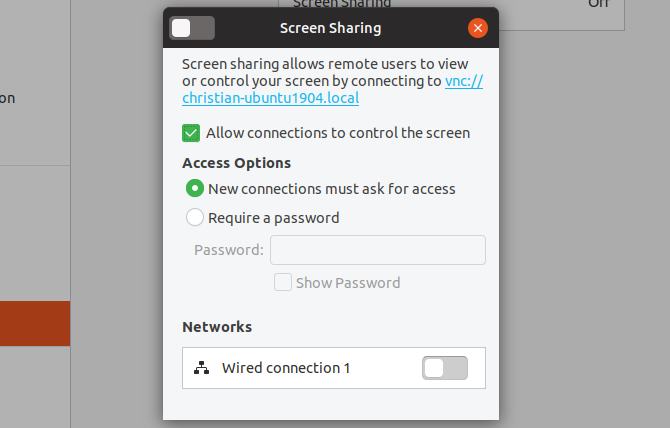
Click Search and enter desktop sharing, then click Sharing. You’ll be presented with a simple window of options. Along the top edge of the window, click the switch to enable the feature. Next, click the Screen Sharing button and again, find the switch on the window and click it to enable.

Enable Ubuntu remote desktop

Ensure that Allow connections to control the screen is enabled. For security purposes, you should also set a password here.

As soon as you enable remote connection, the local name of your Ubuntu device will be displayed. This is a VNC address—keep a note of it for remote access later.

Remote Control Ubuntu With VNC

Controlling an Ubuntu PC over VNC is straightforward from another device. Just be sure you have a VNC client or viewer app installed. Here’s how to use VNC from another desktop computer.

Remote Desktop Ubuntu From Another Linux Device

Ubuntu (and many other Linux distributions) comes with a preinstalled remote desktop viewer. This means that once your Ubuntu PC is configured for remote connection, you can connect to it from whatever Linux distro you’re using.

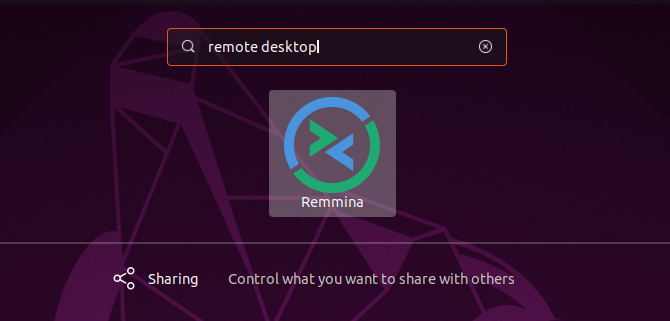
  • Click Search and enter remote.
  • Select the first result, Remmina.

Search for Remmina remote desktop software on Ubuntu

  • Select VNC in the drop-down menu on the left.
  • Enter the VNC address (or IP address) you noted earlier for the Ubuntu PC.
  • Tap Enter to commence the connection.
  • When prompted, input the password.

As you add devices, they’ll be saved in the list so you can quickly access them in future.

Use this tool to connect to other Ubuntu desktops on your network, and you’ll be controlling that computer remotely. The tool can also be used to control any computer with a VNC client installed.

Remotely Connect to Ubuntu From Windows

Want to control your Ubuntu computer from a Windows computer? Using the same VNC address (or your Ubuntu computer’s IP address) you can.

First, however, you’ll need a VNC client, such as VNC Viewer (from VNC Connect) installed on your Windows computer. Then you can connect to your Ubuntu machine by entering the VNC or IP address.

Check our guide about establishing a remote desktop connection to Ubuntu from Windows for full details.

Establish an Ubuntu Remote Desktop From a Mac

Mac users wanting to connect to their Ubuntu machines should use the built-in VNC Viewer tool.

Again, connecting to your Ubuntu machine is a simple matter of entering your IP address or the provided VNC address., Want for some in-depth information about using VNC on a Mac?

Check our tutorial to easy remote desktop support on the Mac.

What About RDP on Ubuntu?

It’s also possible to connect to an Ubuntu PC over RDP.

Remote Desktop Protocol is a proprietary system developed by Microsoft. It has proven so successful that RDP server and client apps are available on most software platforms.

RDP’s authentication system relies on your computer username and password and is quick and easy to set up.

Configure Ubuntu RDP

Before connecting to Ubuntu over RDP, you’ll need to know the remote computer’s IP address. The easiest way is to open a terminal and enter

ifconfig

Be sure to note the inet addr value that corresponds with the connection type. For example, if the Ubuntu computer is on Ethernet, use this IP address.

Next, you’ll need to install xrdp. This is an RDP server for Ubuntu (and other Linux devices) and is required before remote connection.

Install with

sudo apt install xrdp

Once installed, launch the server with

sudo systemctl enable xrdp

With xrdp running, you’re ready to use RDP.

Set Up a Remote Desktop RDP Connection With Ubuntu

As noted, RDP clients are available for most platforms. For example, you can use Remmina’s RDP function if you’re using a Linux computer to remotely control Ubuntu. Similarly, RDP is built into Windows.

If you’re using a standard desktop, use these steps to use RDP to connect to Ubuntu.

  • Ubuntu/Linux: Launch Remmina and select RDP in the drop-down box. Enter the remote PC’s IP address and tap Enter.
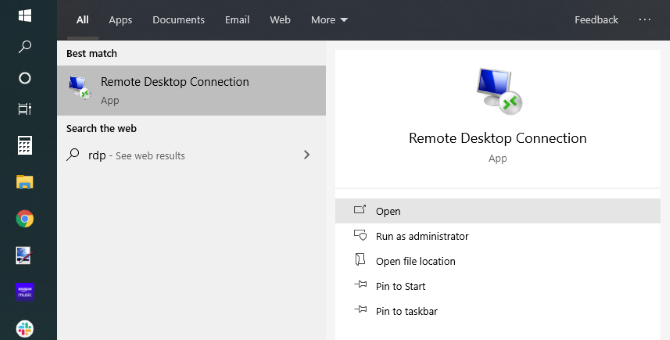
  • Windows: Click Start and type rdp. Look for the Remote Desktop Connection app and click Open. Input the IP address of your Ubuntu computer and click Connect.

Set up a Windows Remote Desktop connection with Ubuntu

  • Mac: Start by installing the Microsoft Remote Desktop 10 software from the App Store. Launch the software, click Add Desktop, add the IP address under PC Name, then Save. Simply double-click the icon for the connection in the app window to start a remote desktop session.

Our guide to using RDP on a Mac will help here. It’s aimed at remote controlling a Windows PC, but the setup is the same for Linux.

Note that RDP will prompt for your Ubuntu PC account credentials when the connection is first established.

Use Chrome Remote Desktop With Ubuntu

If you can’t establish remote desktop access with Ubuntu, there is an almost-universal alternative you can try: Chrome Remote Desktop.

This is a cross-platform downloadable tool for Linux, Windows, macOS, and Chrome OS that lets you remotely access your PC. You can also use the Android or iOS mobile app for remote access.

With Chrome Remote Desktop, remote access is managed via your Google account. All you need is an access code for the remote PC. Once a remote desktop session with Ubuntu is initiated, you can control your computer as with any other remote tool.

For more information, see our guide to Chrome Remote Desktop.

Can You Remote Control Ubuntu Away From Home?

Want to connect to your Ubuntu machine while traveling? This is a little trickier, but not totally impossible. You’re going to need a static IP, or a dynamic address from a service such as DynDNS.

This basically forwards a web address to a device running DynDNS on your network. Read our tutorial for using DynDNS to connect to your computer from anywhere for details and examples.

Make a Remote Desktop Connection With Ubuntu

Whatever your remote desktop requirements don’t feel limited by Ubuntu. It has built-in tools to ensure that you can SSH, VNC, and RDP to your Ubuntu PC.

And if the native remote-control app is too complicated, you can use the simpler option of Chrome Remote Desktop.

Have different remote requirements? Here’s how to remote control Ubuntu from Windows. Use a Mac? Learn how to use Apple remote desktop.

Read the full article: Ubuntu Remote Desktop: Easy, Built-In, VNC Compatible


Read Full Article

What Is Thermal Design Power? Explained


cpu-cache

Acronyms are not uncommon in the world of computer hardware. CPU, GPU, RAID, SSD… the list goes on.

Many of these acronyms have entered the common geek vocabulary. Most people know what a CPU is (at least they think they know), but others are more obscure. One example is TDP, which stands for Thermal Design Power.

This specification is rarely made available in marketing material, but it’s important for developing a full understanding of a processor’s potential.

What Does TDP Mean?

Thermal Design Power, or TDP, refers to the maximum amount of heat a CPU or GPU is expected to generate under general usage. TDP values are expressed in watts and are often used as a guide for how much power the hardware requires to function, as well as the level of cooling required to stop the hardware overheating.

For example, a part with a 12W TDP will potentially be cooled by a very small fan or a passive heatsink. A part with a 95W TDP, on the other hand, is going to need a substantial dedicated heatsink with a reasonably large fan (probably 80mm).

You’re most likely to see these three little letters attached to a CPU or GPU’s spec sheet, but it can be used to express the maximum power draw of a wide variety of electronics.

Is TDP Accurate?

Since this metric is based on power, it’s a useful way to understand how much power a component will draw relative to the competition. A lower thermal design power generally results in lower power consumption, which means greater battery life. However, TDP doesn’t always express the exact maximum. Rather, TDP is a nominal value to use as a guide.

Furthermore, TDP is a self-reported metric. What that means, in terms of TDP, is that each manufacturer announces TDP ratings for their hardware through internal research. Such a system can result in exaggerations, but for the most part, manufacturers report TDP with accuracy. There is a good reason for this.

If CPU and GPU manufacturers didn’t report TDP accurately, it would cause all kinds of hardware problems for consumers. In turn, the manufacturer’s reputation would suffer, and its hardware would quickly gain a negative reputation.

Intel vs. AMD TDP Ratings

Although the onus is on manufacturers to report hardware TDP ratings accurately, there are differences in the approach to reporting.

On the side of an Intel CPU box, you’ll find the three important bits of information: the advertised TDP value, the base clock speed, and the turbo clock speed. For example, in my PC is a now slightly aging Intel Core i5-3570K. The CPU has a base clock speed of 3.40GHz, a turbo clock speed of 3.80GHz, and a TDP rating of 77W.

However, Intel only guarantees the TDP rating of 77W up to the maximum base clock speed of 3.40GHz. Once it exceeds that and enters the turbo range, the TDP value also rises. But there is no information on the Thermal Design Power requirements for that extra processing power.

The difference in clock speed isn’t huge. But it is enough that should your computer run at that capacity for a prolonged time, your cooling will also begin to suffer. If you knew your system required better cooling, you would purchase that at the outset instead of a suboptimal alternative.

Conversely, many hardware enthusiasts believe AMD accurately rate their CPUs and GPUs, including the boost frequency settings. Hence why Intel CPUs carry a reputation for being hot and prone to overheating, while you can quite happily use the stock AMD cooler to keep your system working (in most cases).

PC cooling is important, especially for high-end builds. Check out the best PC cooling systems to keep your hardware working perfectly.

Examples of TDP Ratings for CPUs and GPUs

CPUs, GPUs, and other hardware types can have vastly different TDPs. One of the most common examples is the difference between a smartphone processor and a computer processor.

Take the Qualcomm Snapdragon 865, one of the most recent ARM-developed smartphone systems on a chip. The Snapdragon 865 has a TDP of 5 watts, yet it is a 64-bit 2.84GHz octa-core processor. Compare that to the top-tier Intel Core i9 9900K, which is a 3.60GHz octa-core processor with a TDP of 95 watts.

That’s a massive difference and representative of the difference in each part’s power consumption and performance.

Modern GPUs have even higher TDPs, with some parts quoting a TDP of over 250 watts. The rating doesn’t mean that the part will be consuming that much power all of the time, but it does mean that engineers designing the part consider it possible that this level of power draw will need to be dissipated for a sustained period of time.

For example, the Nvidia GeForce RTX 2080 Super carries a TDP rating of 250W but has been seen with peak consumption readings of over 265W.

How TDP Knowledge Will Benefit You

Now you know the meaning of TDP, and how CPU and GPU manufacturers use TDP, you’ll see how understanding TDP is useful. While TDP is commonly quoted, it’s not a precise gauge of power consumption or performance, but rather an engineering guideline.

Looking at the TDP of a piece of hardware can tell you about what to expect in terms of performance. Take two of the most popular desktop CPUs at the current time, the Intel Core i7-9700K and the AMD Ryzen 7 2700X. These two CPUs hit the market within six months of each other and boast similar specs. Take a look at the following PassMark comparison:

passmark cpu comparisons intel vs amd

At a glance, you can see that the AMD Ryzen 7 2700X has a faster clock speed (3.7GHz to 3.6GHz) and a higher maximum TDP (105W to 95W), and a much lower turbo clock speed. Does that translate to a better CPU? The PassMark benchmark certainly indicates that, with the AMD Ryzen 7 2700X receiving a 17,772 rating to the Intel Core i7-9700K’s 14905.

You can use the TDP ratings to assess mobile processors, too. Check out this list of 7th generation Intel Core i7 mobile processors:

Intel 7th generation mobile processor list i7

You can see there are several TDP ratings across the ten different processors. From here, you can cross-check the TDP rating with the processor clock speed to figure out how much power the processor uses in comparison to its processing capabilities and how that will, in turn, affect the battery life of the mobile device.

So, an Intel i7-7920HQ with a 3.1GHz processor and a TDP of 45W will provide more processing power than an Intel i7-7567U—but also use much more battery while doing so. Of course, manufacturer battery life is another kettle of fish. Still, you can at least begin to plan how long a battery might last if you understand the relationship between TDP and processor performance.

Also, if you want the upper hand when buying a new laptop, check out our short guide to Intel laptop model numbers and letters. Once you know what the numbers and letters mean, as well as the meaning of TDP, you’ll always buy the best laptop processor possible.

TDP Means Power and Cooling

TDP is one of several important statistics that can help you hash out the performance and power efficiency of a new processor. While nothing can replace benchmarking, knowing a part’s TDP (as well as its architecture and clock speed) will help you make an educated guess about how a new part will perform.

If you do want to know how your laptop battery is performing, check out the best ways to analyze your laptop battery health.

Read the full article: What Is Thermal Design Power? Explained


Read Full Article
Why Every OneNote User Needs to Start Using Tags Right Now


onenote-features

Microsoft OneNote tags add a visual marker to your notes for identifying the type of information, its relation to any project, and whether it represents an action item you should complete.

Some of the notes you take are easy to organize because of the OneNote structure. Other aspects, like your comments on a topic and ideas generated during brainstorming, are less structured and can be improved with the right tag.

We’ll show you how to use OneNote tags and why you should use them to keep track of anything you want to remember.

Using Tags in OneNote

By default, OneNote includes a library of preset tags. These tags let you label notes according to the type of information or the action you want to take on an item.

Each tag contains a symbol and a text label. You can apply tags to an entire page, individual paragraphs, or multimedia content; the choice is yours.

OneNote’s tagging feature not only helps you identify items that need special attention, but it can then compile all the tagged notes in a single pane for easy access, lookup, and printout.

Here are some reasons for using tags:

  • Keep track of notes, wherever they’re in your notebook and make them accessible.
  • Highlight important points, add a to-do tag to pinpoint things like homework that you should finish, or mark unclear parts with a question tag.
  • OneNote allows you to collaborate on the same notebook with several members. You can assign and manage the work of your project team easily with tags.
  • Use to-do tags together with any template (kanban, calendar, and more) to track your projects and manage them seamlessly.

How to Use Built-in Tags in OneNote

OneNote 2016 provides different types of tags. Those that are commonly used get assigned with a keyboard shortcut. For example, To Do, Important, Question, Remember for Later, and more are tags that you might often use.

There are tags to help you identify categories of information useful to your writing, research project, or for inspiration. You’ll also find tags related to project communication, priority, and delivery.

Assign a Tag

To add a tag, click or select the text you want to tag. Click the Home tab.

From the Tags group, click the More arrow in the lower-right corner of the Tags gallery. Then, click the tag you want to assign.

You can even use a shortcut to create a tag. For example, press Ctrl + 1 to make a to-do tag, Ctrl + 2 for a star, and so on.

assign a tag to an item from tags gallery

Modify a Tag

If the built-in tag doesn’t suit your needs, you can make some modifications to change its name, icon, font, or highlight color.

To modify an existing tag, click the Home tab. In the Tags group, click the More arrow, and from the bottom of the gallery list, click Customize Tags.

click customize tags to modify a tag in OneNote 2016

From the dialog box that opens, select a tag that you want to change and click the Modify Tag button.

Type in your display name, choose a symbol, font or highlight color, and click OK.

Remember that any customizations you make to a particular tag do not affect the notes you have already tagged.

modify a tag with your choosen preference

OneNote for Windows 10

The OneNote app has fewer built-in tags. Although you won’t see any visual confirmation of shortcuts, the procedure for adding it remains the same. As of now, there is no facility to modify a tag.

using tags in OneNote for Windows 10

How to Create and Use Custom Tags in OneNote

Again, the tags you want to create depend a lot on your work, needs, and domain. While you can create many custom tags, we recommend you to limit them as much as possible.

Remember: Tags should be specific, widely used across all your domain, and of high value.

To create a tag, we’ll repeat the same procedure used previously.

From the dialog box that appears, click the New Tag button. Type in the tag name.

Then, click the Symbol button and select a symbol from the gallery. Also, choose a font or highlight color, and click OK.

create a custom tag in OneNote 2016

In the OneNote app, click the Tags dropdown in the Home tab, and choose + Create New Tag. A new panel appears from the right.

Type in the name, select an icon and click Create. Any tags you create will sync with the OneNote app for all your devices.

create a custom tag in OneNote for Windows 10

Search Your Content With Tags

When you add a tag to any item, it gives OneNote information to index them and help you find the notes. Press Ctrl + F to bring up the search box. Type in your tag name to find the content by note tags. Click on one of the results to go to its specific location.

By default, the search scope is limited to the Current Page. To adjust the range, click the dropdown menu to include Current Section/Notebook or All Notebooks.

search your tagged notes in OneNote app

In OneNote 2016, you can easily find the tagged notes using the Tag Summary pane. It organizes your tags according to the groups.

You can choose to group them by name, section it appears in, the text of the notes (in ascending alphabetical order), and more.

To open it, navigate to the Tags group of the Home tab and click the Find Tags button. From the pane, click the Group tags by dropdown arrow and select a filter.

If you’re unable to find a note, you can increase the scope of your search. Click the Search box arrow, and choose a specific section or notebook.

find tagged notes in OneNote 2016

Create a Tag Summary Page

OneNote 2016 lets you create a page that summarizes your tagged notes. It’s a list of your tags across pages and sections in your notebook.

To create a summary page, repeat the procedure as described above, and click Create Summary Page. OneNote will then insert a new page in the section.

Since many tag summary pages will get created, make sure to delete any existing summary page. Also, change the page’s title to indicate that it is a summary.

Do remember that tagged notes on the summary page are the copies of original notes, but they don’t link to the originals.

create a tag summary page in OneNote 2016

Use OneNote as Your To-Do List

Tagging in OneNote is beneficial for avid note-takers. If you don’t use tags, start using them today, no matter which profession you belong to and what kind of notes you take regularly.

A well-tagged to-do list can be a great way of ensuring you’re making progress in day-to-day tasks. However, the right tags can help you set up and manage your to-dos and tasks with OneNote.

Read the full article: Why Every OneNote User Needs to Start Using Tags Right Now


Read Full Article

The Ultimate Sandwich Cost Calculator: How Much Does a Sandwich Cost?


How much does a sandwich cost?

It’s a simple question, but one that’s more important than it sounds. By figuring out your average sandwich price, you can take a closer look at your spending habits and dietary choices.

Using a Sandwich Cost Calculator

sandwich calculator

While it might seem simple to just total up ingredient costs, there aren’t a lot of resources online. Often, you’ll just run into calculators geared towards restaurants buying food in bulk.

So the challenge of figuring out your sandwich cost comes from attempting to quantify your toppings.

What if you could skip those hypotheticals though?

Cockeyed.com decided to share their sandwich price calculator with the world after their own specialized research. It even provides a surprising amount of options that range from cheap to pricier.

Plus, their sandwich cost calculator doesn’t take long to try out. Simply check the boxes and make your selections from the pull-down menu. After you click the calculate price button, you’ll see a graphic breaking down the cost of each sandwich ingredient.

After the image, you’ll see the total cost of your sandwich once all the ingredients factor in. It’s a great little reminder that cheap food can be great and save you money.

Using a Sandwich Calorie Calculator

sandwich calorie calculator

Once you’ve finished figuring out how much does it cost to make a sub sandwich, why not look at the calories? My Food Buddy offers a deli sandwich calorie calculator.

By using this calculator in tandem with the sandwich cost calculator, you get a calorie break down of your ingredients on a sub roll, hard roll, sliced bread, and thick-sliced bread.

If you’re trying to stay to any weight goals, the cheapest sandwich might not necessarily be the healthiest sandwich.

How Much Is a Sandwich?

Figuring out your average sandwich’s cost with a calculator provides a great first step towards being more informed. Whether you’re trying to be more frugal or healthy with your diet, don’t be discouraged.

If you’re a beginner, try using these food apps and sites to cook delicious and healthy meals.

Read the full article: The Ultimate Sandwich Cost Calculator: How Much Does a Sandwich Cost?


Read Full Article