08 April 2020

The 12 Best Calming Apps to Relax, Destress, and Clear Your Mind


At some point in all of our lives, it can feel like the world is going a million miles a minute and you’re left in the dust. Whether work is dragging you down and causing fatigue or something else in your personal life is bringing stress, you’re not alone.

And the good news is that there are a number of calming apps—on both iOS and Android—that can help you de-stress and clear your mind.

We’re highlighting some of the best relaxation and calming apps to sooth you. They run the gamut of different options, from mind mapping to guided meditation and more.

1. MindMeister

At any one time, there are probably a host of different thoughts swirling around in your mind. Mind mapping can help you by allowing you to brainstorm your thoughts without a particular order or structure in a visual form.

A great mind mapping app option to try is MindMeister. Along with an online interface, the mind mapping service is also available on mobile devices.

Using the app, you can quickly and easily organize, prioritize, and generate new thoughts. There are a number of tools to create a map including different themes, styles, colors, and icons. It’s also possible to collaborate with others to create a mind map in real-time.

With a subscription, you can also export maps in PDF and PNG format, create and edit unlimited maps, and add files and images to topics.

Download: MindMeister for iOS | Android (Free, subscription available)

2. Dark Noise
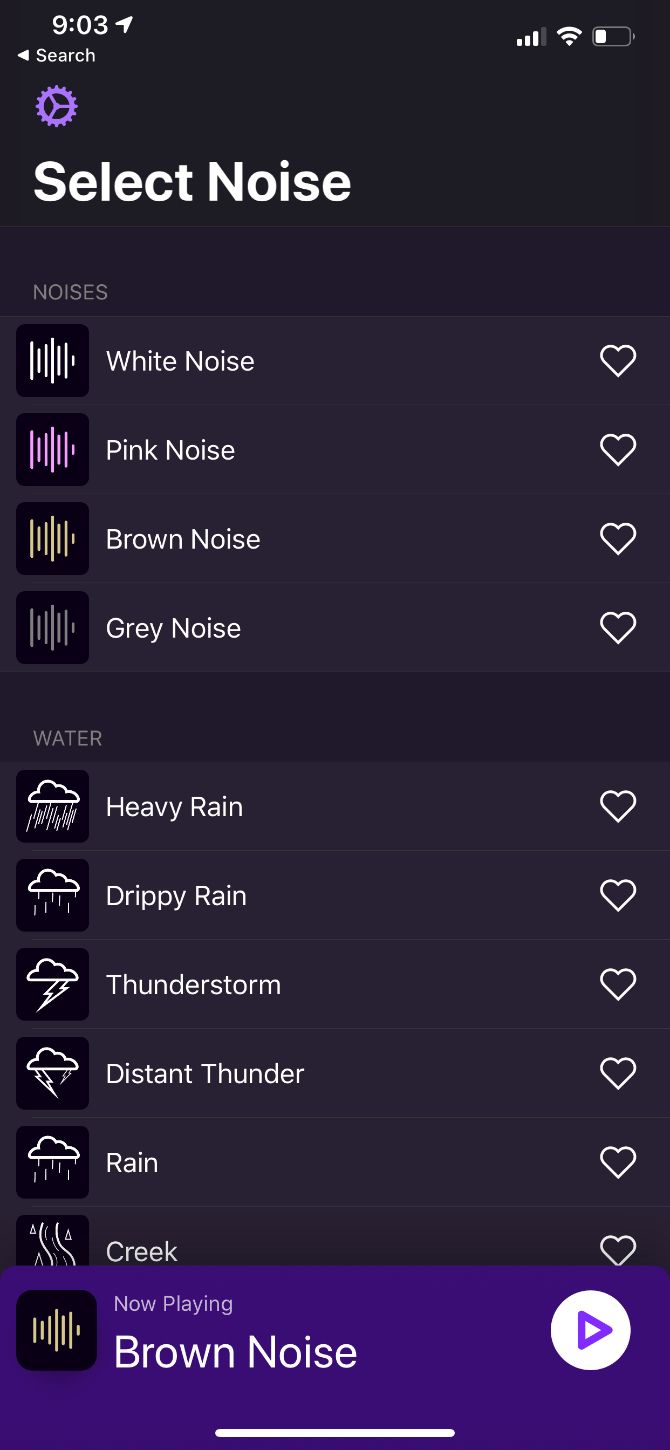
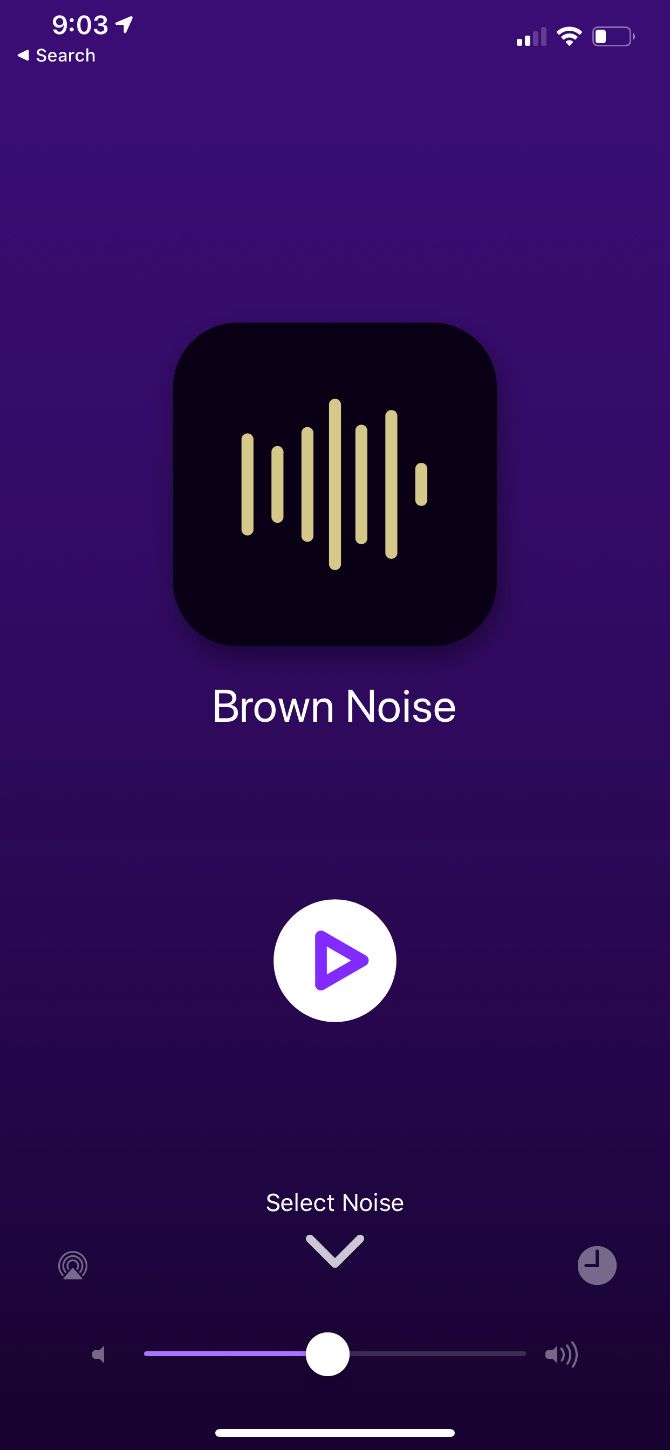
Ambient noise is a perfect way to help you get to sleep or focus on the daily task at hand. Dark Noise is an easy-to-use and powerful way to use sound.

There are more than 30 different noises to select from—everything from simple white noise to more unique sounds like a spaceship engine or a cat purring. Once you select a noise, it’s easy to set a timer to end the sound after a specific duration or time.

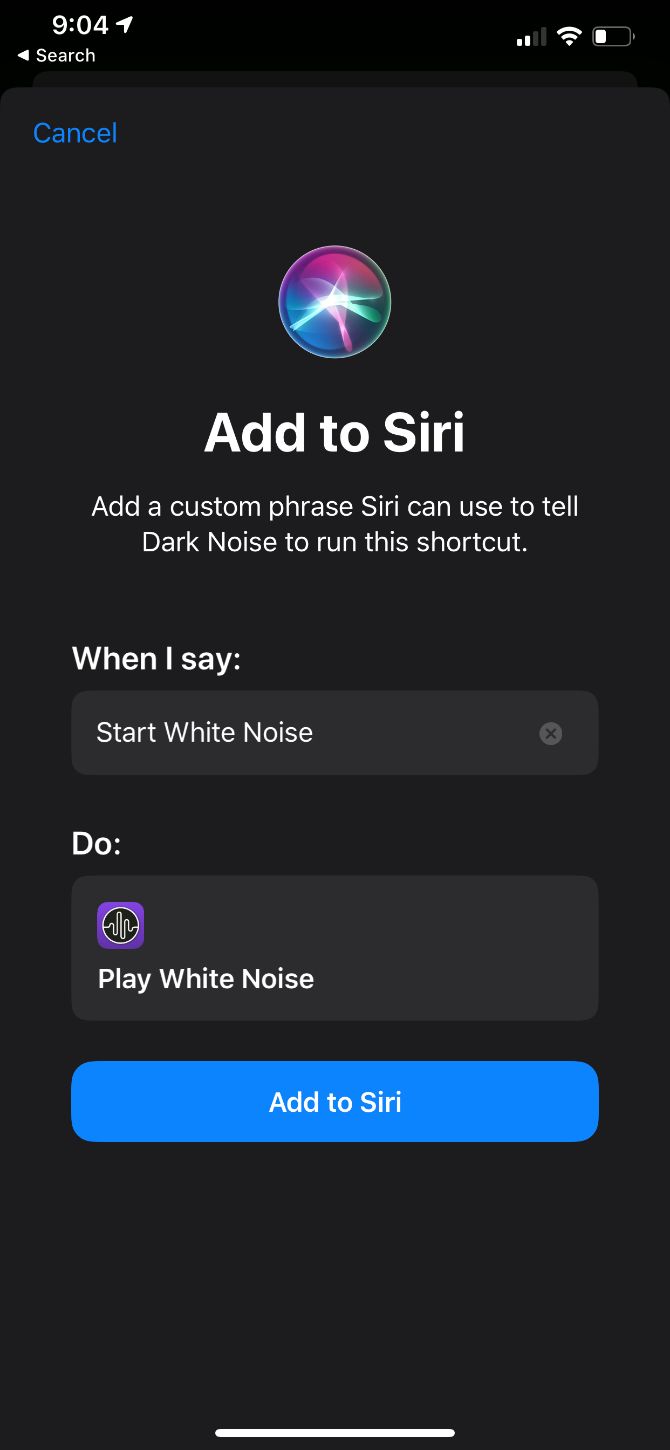
And there’s no need to open the app to start a specific noise. You can start one using a Siri Shortcut or pick a selection from a Today Extension widget.

Download: Dark Noise for iOS ($3.99)

3. Calm

Although ambient noise helps some people relax, it can annoy others. If you’re looking for something different, try the relaxation app Calm.

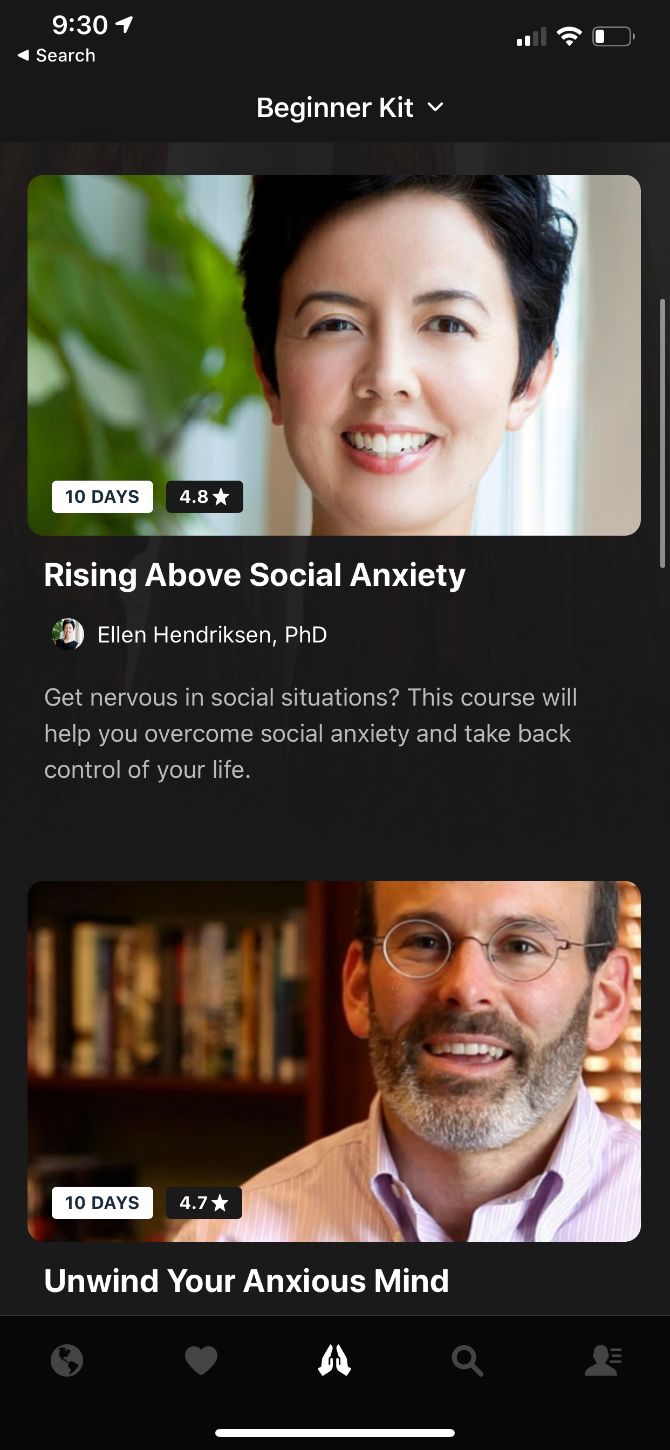
While it’s a great meditation app for beginners, there are also a number of options for more advanced users. The guided meditations sessions are available in different lengths from three to 25 minutes. Some of the different topics include managing stress, happiness, gratitude, self-esteem, forgiveness, and many others.

You can also select from an open-ended and unguided, timed meditation. Breathing exercises will also help you relax. Every day, a new 10-minute program is designed to help ease you into the day or unwind.

Download: Calm for iOS | Android (Free, subscription available)

4. Headspace

Headspace is one of the most popular tools for both guided meditations and mindfulness techniques.

You can try the free Basics course that teaches the fundamentals. And if you want to learn more, a subscription is available to unlock all of the app’s content, including the full meditation library. There are a wide variety of different topics to explore like sleep, focus, and exercise.

For a quick break, the app also offers two to three-minute meditation sessions. There are specific sessions for moments of panic, anxiety, and stress. You can even add friends to help motivate and meditate with as well.

Special animations teach new skills and help answer questions about mindfulness.

Download: Headspace for iOS | Android (Free, subscription available)

5. Insight Timer
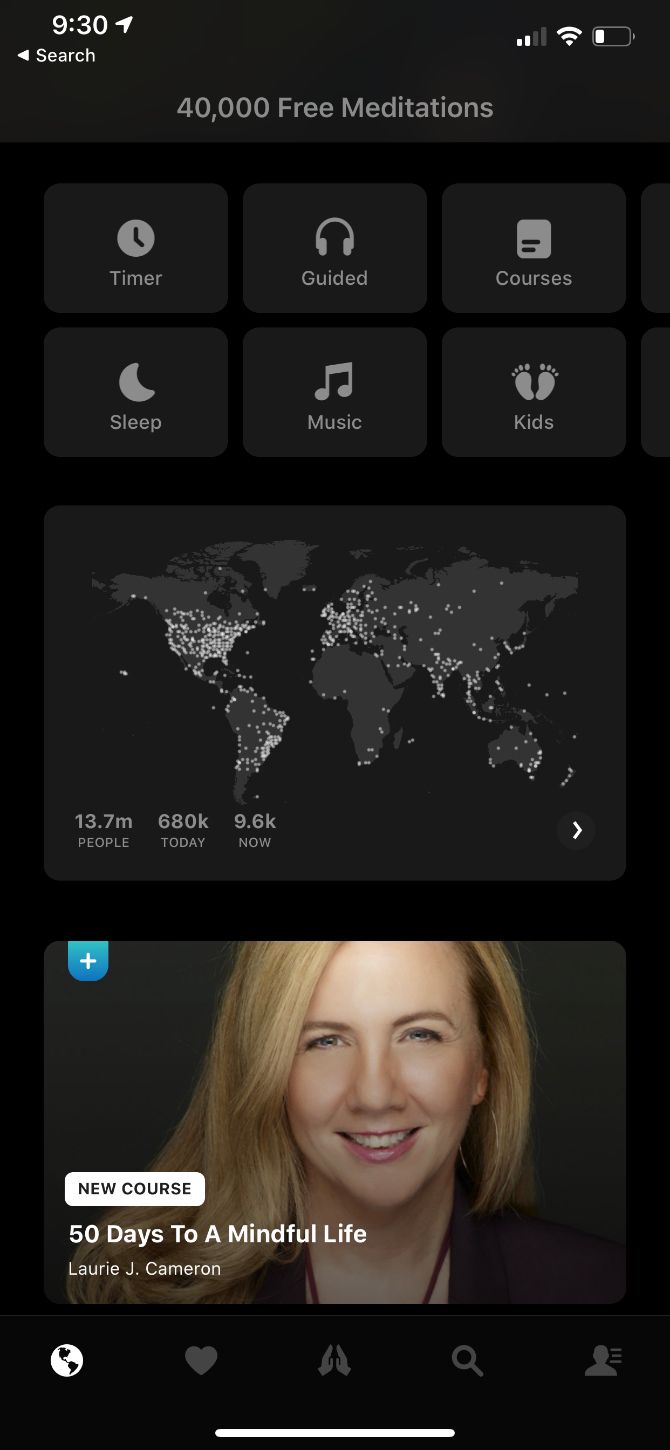
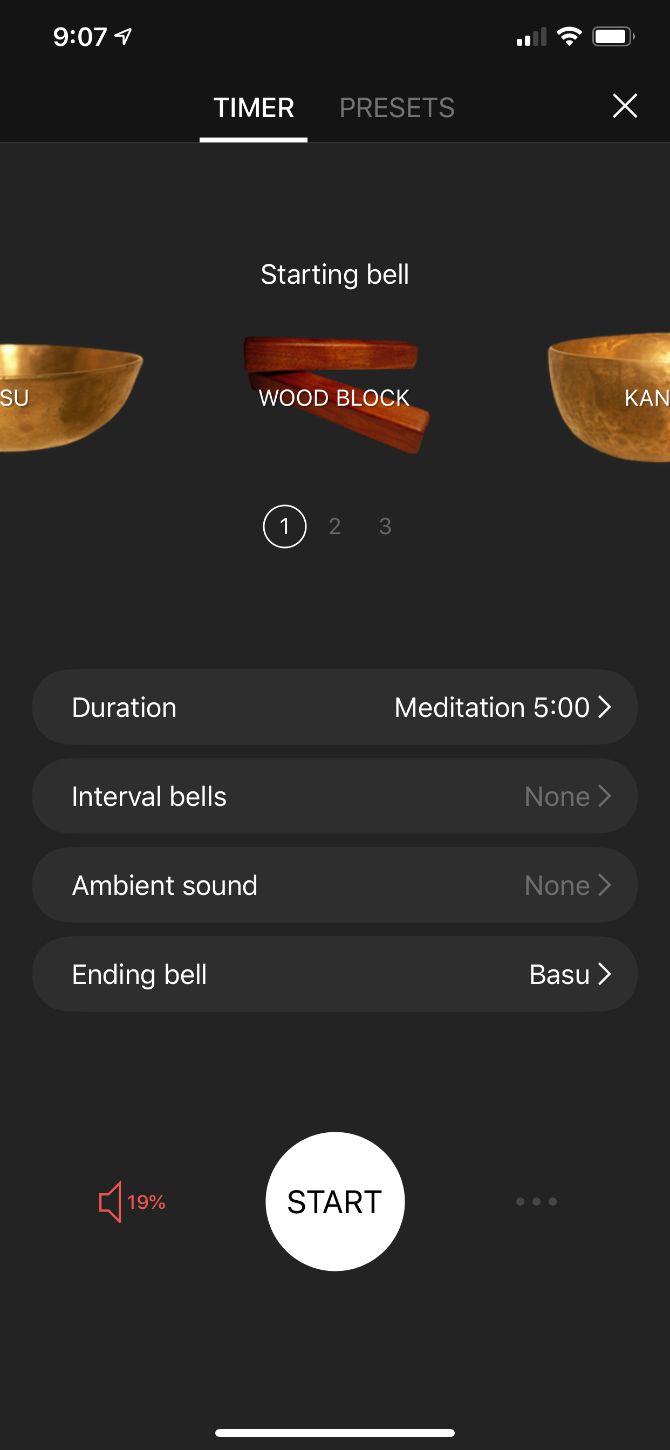
Insight Timer features more than 30,000 meditations and music tracks you can access for free. Some of the most popular topics you can find include dealing with anxiety and stress, leadership, better relationships, and sleeping deeply. As a nice touch, you can select a meditation by time when on the go to better integrate the app with your daily routine. The app’s namesake meditation timer offers a number of different sound options.

To better understand the app, there are many different community features and discussion groups with other users from around the world. You can also view stats and milestones to get a better sense of accomplishment.

A Member Plus subscription brings several of additional options. Along with unlocking all the courses, you can also use it to download the entire library of meditations to listen to offline. Have a look at the Daily Insight mindfulness practice, too.

Download: Insight Timer for iOS | Android (Free, in-app purchases available)

6. Day One

A daily journal is a great way to organize your thoughts and keep a clear mind. Day One offers a beautiful interface and other features to help make daily journaling a habit you’ll want to keep.

The interface is free of distractions, which helps you focus on specific thoughts. Journal entries support the powerful Markdown language. Entries are easy to organize and you can browse through them by calendar, timeline, maps, or photos.

Metadata from your iPhone can also bring more to each entry with other information like temperature, weather, and music playing on a certain day. Your thoughts are kept safe with passcode and Face/Touch ID support.

With an available subscription, you can take advantage of unlimited journals and photo storage. Your information also syncs with other versions of the app.

Download: Day One Journal for iOS | Android (Free, subscription available)

7. Simple Habit
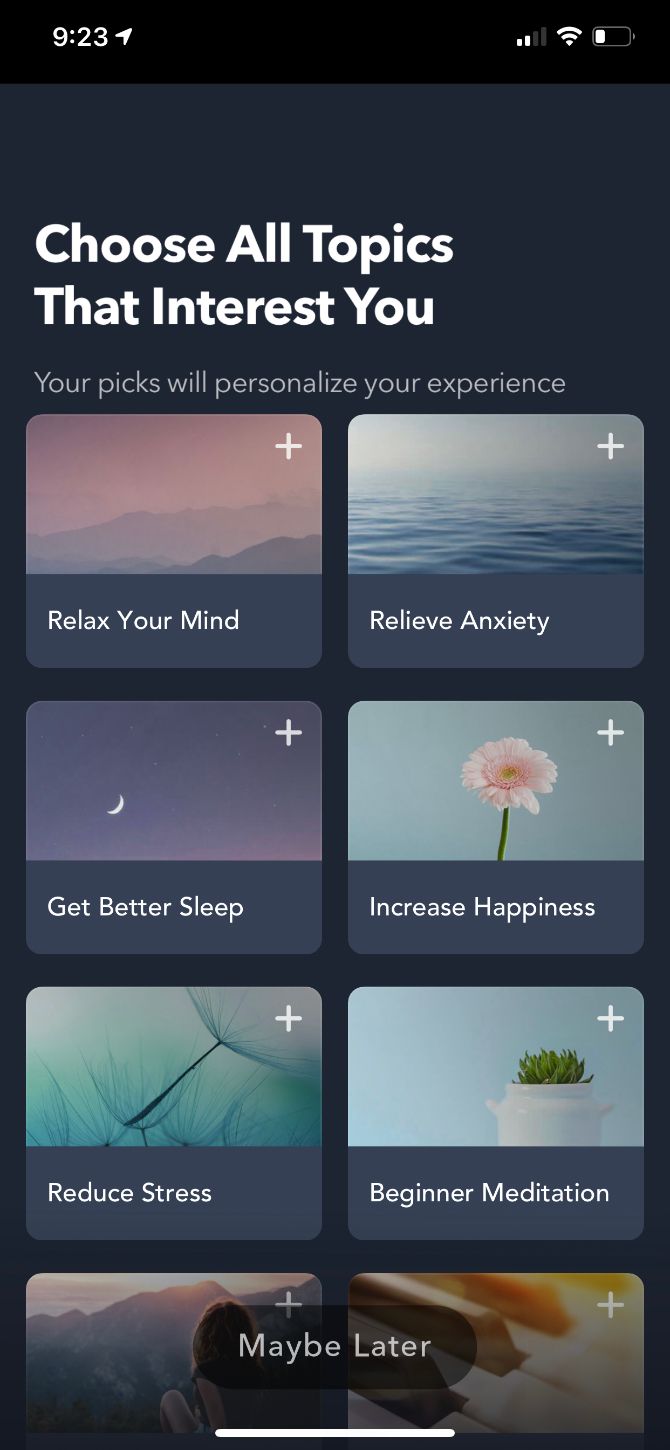
Simple Habit wants to show that you’re never too busy to start meditation. The app is known for its huge number of five-minute meditations tackling subjects like stress relief and managing depression. There are also longer sessions when you have more time.

The great on-the-go feature allows you to select from different scenarios, like a tough day, and pick how much free time you have. It will then provide a session to help.

A premium subscription allows you to download sessions for listening offline, plus unlimited access to exclusive series.

Download: Simple Habit for iOS | Android (Free, subscription available)

8. Sleep Cycle Alarm Clock

Sleepcycle

Having a calm and relaxing day often starts the night before, when you go to bed. Getting a good night’s sleep has a wide variety of benefits for your health. But for many of us, that’s easier said than done. When it’s difficult to fall asleep, we wake up too sluggish to tackle the day ahead.

Sleep Cycle Alarm Clock brings a number of features to help you track your sleep and wake up at the most opportune time in the morning. At night, the app uses special sound technology to track your different sleep phases. If it detects snoring during the night, Apple Watch wearers will feel a slight vibration that could help you change sleep positions and stop snoring.

Before going to bed, you can set a custom 30-minute period in the morning that ends at a set alarm time. The app will then wake you up in a light sleep phase during that time period.

The available subscription offers more features like long-term sleep trends, Philips Hue smart light support, and how the weather affects your sleep.

Download: Sleep Cycle Alarm Clock for iOS | Android (Free, subscription available)

9. Colorfy

Coloring books are no longer just for children. The activity of coloring has been shown to relax and calm even adults. And there are a number of different digital coloring apps for smartphones and the larger screens of tablets.

One of the best is Colorfy. The app features more than 1,000 different pictures to color, which includes animals, cats, gardens, famous paintings, and more. Users can even add their own drawings to paint. Coloring is easy: just select a color palette and then tap to color. The app provides several brush types for different effects.

It’s available to use without an internet connection and allows you to share your drawings on social networks. And a unique augmented reality virtual gallery lets you visualize your creations in the real world.

Download: Colorfy for iOS | Android (Free, in-app purchases available)

10. UCLA Mindful
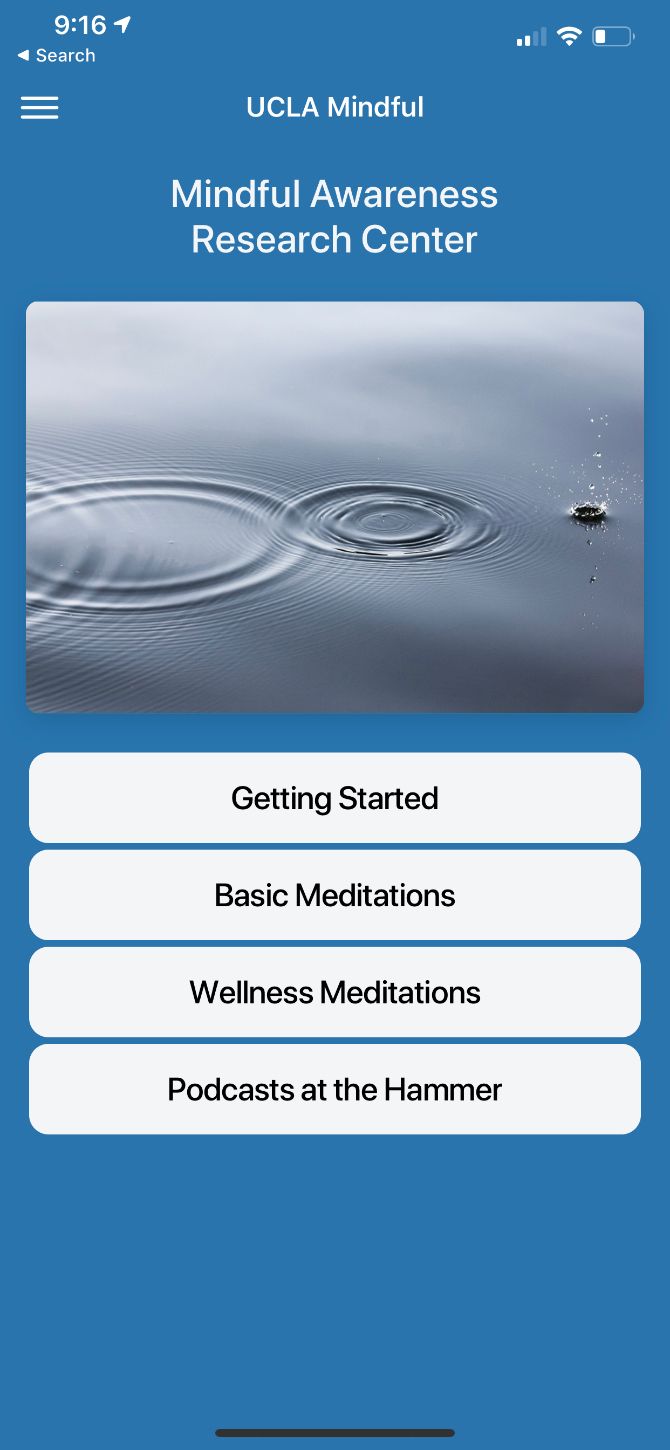
A simple and completely free choice, UCLA Mindful is a great way to step into the world of mindfulness meditation.

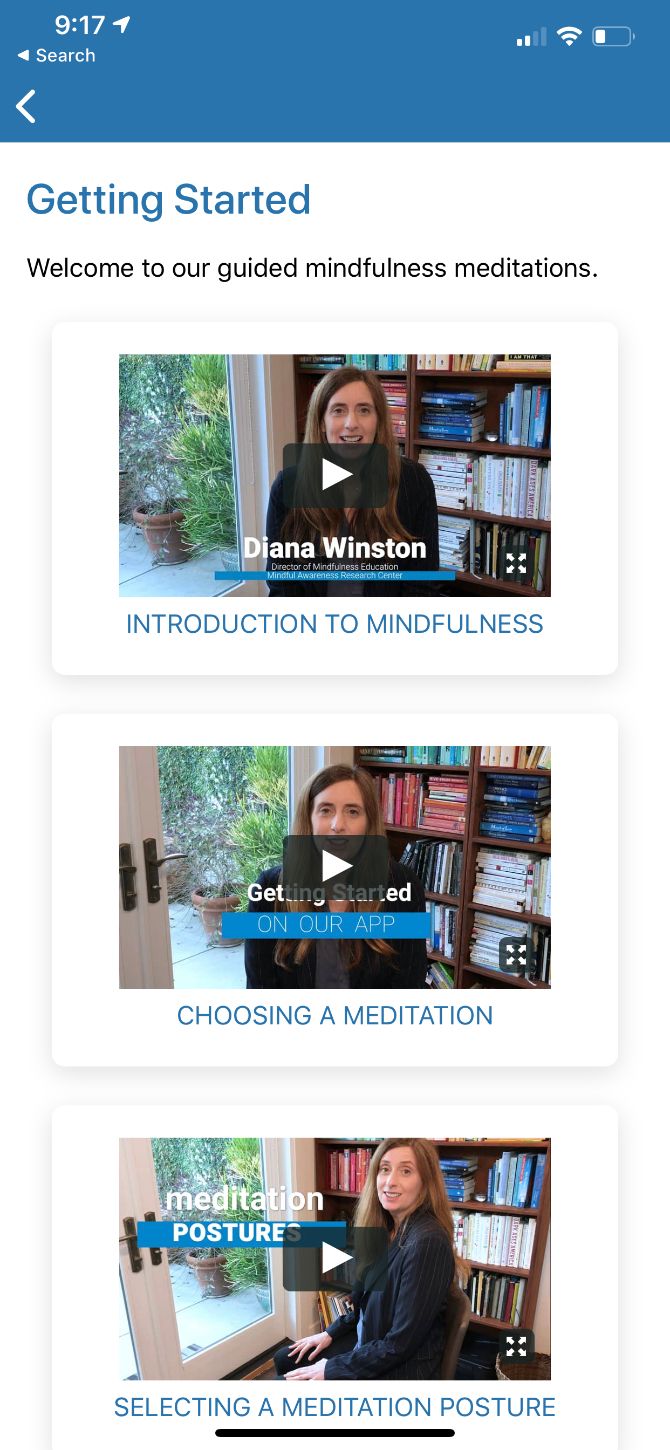
You can take advantage of basic meditations in both English and Spanish. There are also wellness meditations for people suffering from health conditions. To help beginners, there are plenty of videos that touch on how to begin, meditation postures, and the science of how meditation can help your overall physical health.

The app also includes a weekly searchable podcast exploring different themes. A timer feature lets you meditate at any time.

Download: UCLA Mindful for iOS | Android (Free)

11. Smiling Mind

One of the most interesting free relaxation apps available is Smiling Mind. The completely free app is made to assist children as well as adults.

There are specific programs for children of different ages and adults that focus on dealing with the pressure, stress, and tough challenges of everyday life. Sessions also cover mindfulness in the classroom and the workplace.

There are a wide variety of meditation lengths to select from, and you can even check in with yourself at the beginning and end of a session to quantify your stress level.

Download: Smiling Mind for iOS | Android (Free)

12. Alto’s Odyssey

You don’t need to find relaxation apps to help you get rid of stress and anxiety. Games that can de-stress you are all the rage on mobile platforms, and you can choose from a myriad of different titles to help calm you.

While the puzzle genre is known for relaxing titles, Alto’s Odyssey offers a different type of de-stressing game.

As the follow-up to the hugely popular iOS game Alto’s Adventure, the new title sees the titular Alto—along with his friends—set off an endless sandboarding adventure. Thanks to a simple one-touch control system, almost anyone can learn the basics and set off in no time. You can search for an enormous amount of secrets and learn all sorts of tricks along the way.

Along with the beautiful scenery, the original musical score for the game is easily worth the price of admission. Put on your headphones and melt away into the beautiful environment. The special Zen mode features its own unique soundtrack and allows you to enjoy the game without a score, coins, or power-ups.

Download: Alto’s Odyssey for iOS ($4.99) | Android (Free, in-app purchases available)

The Best Mobile Apps for Rest and Relaxation

While life can sometimes overwhelm you, there’s no reason to get down. Hopefully, using some of these great relaxation apps, you can better take on the daily grind and stay calm and relaxed.

For an alternative method to lower your stress levels, try playing binaural beats with an app. You might also want to take a look at positivity apps for managing mental health.

Read the full article: The 12 Best Calming Apps to Relax, Destress, and Clear Your Mind


Read Full Article

How to Use GarageBand and Free Music Loops to Create Your Own Tracks


record-track-garageband

You don’t need a whole lot of instrumental talent to make music with GarageBand. Especially with the wealth of free music loops available in the app and online. It’s easy to whip up a track in a few minutes or spend hours losing yourself creating a new song.

And since there are so many free music loops available, you don’t need to spend a cent. Here’s how to get started making music with GarageBand using loops and samples…

Get Some Loops

GarageBand comes packed with thousands of free music loops. Just open the loop library by clicking on the Loop button in the top-right corner or pressing O on your keyboard.

Loops button in GarageBand

You’ll find loops for all sorts of instruments: drum kits, synthesizers, guitars, vocals, and more. Use the Instrument, Genre, and Descriptors buttons at the top of the library to filter the collection and find the loops you’re looking for.

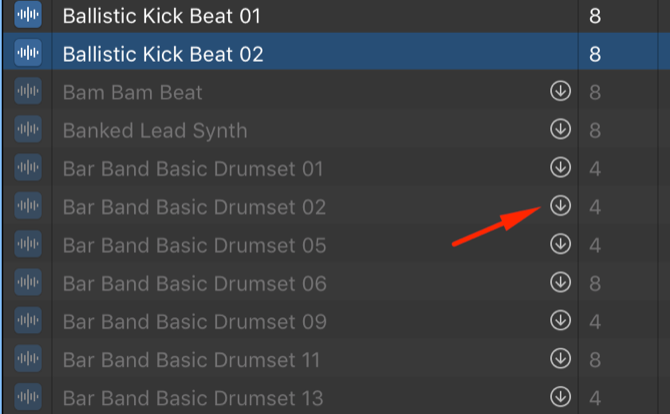
If the title of a loop is grayed out, click the download arrow to the right to download it. In addition to the one you clicked on, GarageBand may download other loops from the same set as well.

download apple loops garageband

To preview a loop, just click it. Click it again to pause the playback.

Check the box to the right of each loop to mark it as a favorite. You can then click the Heart icon in the top-right of the loops library to view all your favorite loops together.

Download Loops From Elsewhere

If you can’t find what you want in GarageBand’s loops library—or if you want to try something different—there are tons of places you can download free music loops online. Our other article lists where to find royalty-free music, so start there and see how you get on.

After that, use a search engine to look online for “free [instrument or genre] GarageBand loops”. A lot of the results you get from these searches aren’t actually free, but if you dig around a little, you should find the ones that are.

Macloops gives you a handful of free downloads, so that’s a good place to check. Looperman is another solid option as well.

If you download loops or samples from elsewhere, just drag and drop them into GarageBand to import them into your project.

Start Making Music

By now, you’ve spent a little bit of time exploring the free music loops available in GarageBand or online. So it’s time to create your GarageBand project.

Open GarageBand and choose to create an Empty Project. When GarageBand asks you to choose a track type, create a Software Instrument track. It doesn’t matter what instrument the is, since you’ll drag each loop into its own new track anyway.

add drummer garageband

Now it’s time to start making music. You can follow the steps below in any order you like.

Start With an Interesting Loop

It’s often easiest to start making music around a particularly interesting loop. This loop serves as the basis of your track, inspiring all the other instruments around it.

Spend some time looking through the loop library to find something that catches your attention. You might find a cool riff, a chilled chord progression, or a heavy-hitting drum beat.

Learning how to loop music in GarageBand couldn’t be simpler. When you find a loop you like, simply drag it into the main editor. Then click and drag from the top-right edge to repeat it.

garageband extend loop

Now you can start adding other elements to the track.

Add a Drummer

GarageBand includes a number of drum loops, but you can get a little more versatility out of your drums if you use the Drummer feature.

Go to Tracks > New Track and select Drummer from the track options.

A Drummer panel appears on the left side of the window. From here, you can select from a range of GarageBand drummers, each with their own style and musical flavor. You may have to try a few different drummers to hear the differences.

max drummer garageband

Once you’ve chosen a drummer, play around with the settings in the bottom panel.

Going through each of the options here would take an entirely separate article, but you can start by messing around with the settings. Choose different Beat Presets from the menu on the left, then drag the dot between Simple and Complex or Loud and Soft areas to adjust the beat style.

You can also select different parts of the kit to include in the beat. Then use the associated sliders to alter how much the drummer uses them.

Add Other Instruments

It’s time to add more instruments to spice things up. This is where GarageBand’s massive library of free music loops really comes in handy. For your first few tracks, you may just want to experiment with guitar and bass. But with thousands of options, you can spend hours trying new things out.

The best advice here is to play around with as many different options as possible to find what fits your style. Try adding both low- and high-pitched loops to give your track depth. Mix instruments from different genres or descriptors (using the loop library to search by both). And try different combinations of instruments to fill out the sound.

You could even learn the basics of music theory to bring your loops to the next level.

Play around with the volume and pan of each track as you add new loops to your song to keep them balanced. You can do this using the volume sliders and pan knobs to the left of the main window.

garageband loop volume

Give It Some Structure

It’s important that you add variety and structure to your songs, so that they don’t sound too monotonous. There are lots of ways to do this. For a start, make your loops drop in and out at different points or have them gradually build up one at a time.

Change over to related loops for the chorus or bridge sections and try to include different combinations of instruments playing at the same time. You can even cut loops down by clicking and dragging from the bottom-right to make them drop out in the middle of a bar.

cut down loop garageband

Give the Drums Some Variety

It’s easy to add variety to the drums if you use loops created by the GarageBand Drummer. Just click the + icon at the end of each drum loop to create a new Drummer region, then make changes to the Drummer settings for that new region.

add drummer region garageband

Experiment with different drum kits, vary the speed, or choose a different complexity and volume for the style. You can even drop the drums out altogether, or only include the kick drum and hi-hat for a bit.

Apple’s drummers don’t just do beats, either. They also throw in fills for added variety. You can tell them how often to add fills by turning the Fill knob: turn it up for more fills, or turn it down for fewer fills.

fill knob garageband

Add an Accent Loop

Once you have a decent sounding track on your hands, it’s time to add some extra spice. Find a particularly flavorful loop and add short sections of it throughout your track.

It might be a good idea to use it before going into each chorus or to have it play once every few bars throughout the song. Anything to make your music a little less predictable.

accent loop garageband

As with any kind of art, this is a stylistic choice. You might prefer the ambiance and trance-like sound of simple repetition without these accents. And that’s fine.

Play Around and Make Music With Loops

Making music is all about experimentation. And with thousands of loops available for free directly in GarageBand (plus any of the others you can find online), you’ve got enough material to experiment with for a very long time. Start developing a style, build up a few tracks, and then share your music with the world!

GarageBand lets you export directly to the Music app or to SoundCloud from the Share menu. You can use the same menu to export your song to your hard drive. Upload it to YouTube, play it on your website, or find another way to get it out there.

You don’t even need to use a computer to keep making music with loops. There are plenty of great iPhone apps for making music that you can use to create new songs even when you’re on the go.

Read the full article: How to Use GarageBand and Free Music Loops to Create Your Own Tracks


Read Full Article
PINE64 Launches the Linux-based PinePhone UBports Community Edition


For the most part, if you’re looking for a smartphone, you have two choices; Android or iOS. The iPhone is a single device tightly controlled by Apple. Google’s Android platform offers greater selection and a wider range of prices.

However, PINE64, a manufacturer of Linux-based hardware, produce the PinePhone. The device is already available in a range of mobile Linux editions. Now, there’s a new addition to the lineup; the PinePhone UBports Community Edition.

What Is the PinePhone UBports Community Edition?

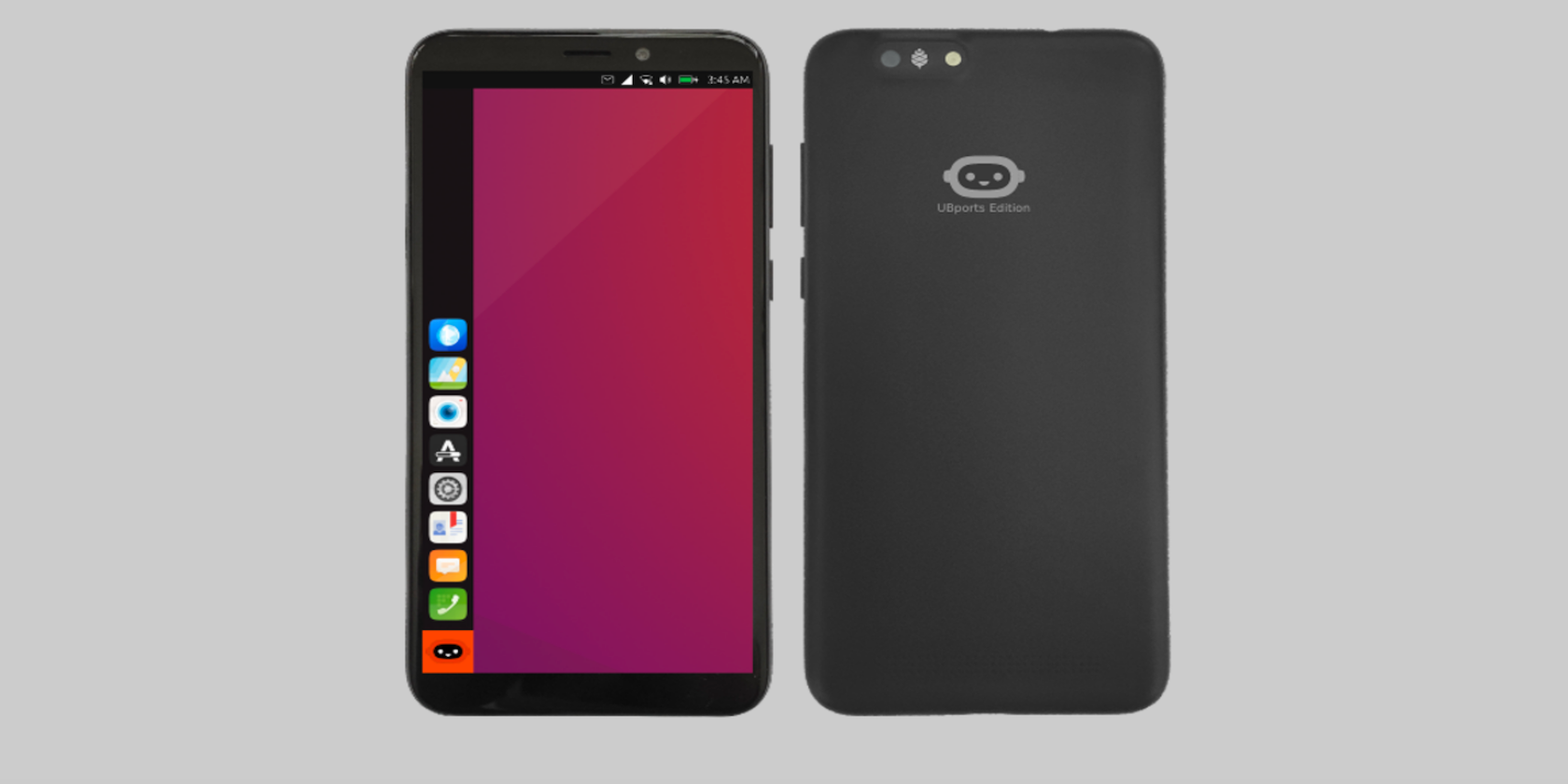
PINE64 PinePhone UBports Community Edition smartphone

The physical device looks similar to a mid-range Android device. The body of the phone is black plastic, with only the UBports logo on the rear. This is where you’ll also find the 5MP primary camera. There’s a 2MP front-facing lens, as well.

A small bezel surrounds the 5.95-inch HD display, and the phone weighs 185g. The phone is powered by the ARM Cortex A-53 CPU and supported with 2GB of SDRAM.

While there’s only 16GB of onboard storage, it can be expanded via microSD up to an astounding 2TB. The 3,000mAh battery is removable, too.

The PinePhone UBports Community Edition charges via USB-C, includes a GPS sensor, and comes equipped with Bluetooth 4.0 support.

The hardware may be entry-level, but the exciting thing about this phone—aside from the $150 price tag—is the software.

What Is UBports?

In the years since the launch of the original iPhone, there have been many attempts to develop an alternative smartphone operating system. So far, the only viable option has been Google’s Android.

However, neither platform fully caters to the passionate contingent of Linux supporters. Apple’s closed-source environment sits in direct opposition to Linux’s foundations. Android’s dependence on Google services is also a source of contention.

UBports is a community of developers contributing to the Ubuntu Touch software, a mobile-friendly port of Ubuntu. The platform inevitably suffers some of the same pitfalls as other alternatives, like the lack of a fully-stocked app store. However, it’s integration with the main Linux distro is a crucial feature.

For instance, UBports is working on Convergence—the ability to plug your phone into any monitor and expand into desktop mode. To satisfy the Linux faithful, you’ll find a full Ubuntu Terminal available on the phone, along with a host of other open-source apps preinstalled.

Of course, one of the main draws here is that the UBports Ubuntu Touch is genuinely open-source, rather than the restrictive semi open-source nature of Android. There’s also OpenStore, an app store for third-party developers.

Where Can You Buy the PinePhone UBports Community Edition?

The PinePhone UBports Community Edition is available to pre-order on the Pine64 Store for $150 and is expected to ship in late May 2020.

If you want to experiment with a Linux-based smartphone, but don’t want to buy a new device, there are options. When you feel ready to make the switch from Android, check out these Linux smartphone operating systems for inspiration.

Read the full article: PINE64 Launches the Linux-based PinePhone UBports Community Edition


Read Full Article
How Does a Drive-By NFC Hack Work?


nfc-android

Maybe you’ve noticed a feature on your phone called NFC, and wondered what it is. Or maybe you’re using NFC for contactless payments from your Android or other device, and you’re concerned about how secure it is.

NFC is a common feature on phones, but something that many people aren’t aware of is that there are security risks associated with using it. Here we’ll explain more about NFC and how NFC hacking works.

What Is NFC (And Why Is It on My Phone)?

NFC Hack - what is NFC

NFC stands for near-field communication. It is a way for devices to communicate with each other when they are physically nearby. The most common place you’ll find NFC is on your smartphone. If your phone is NFC-enabled, as most are these days, you can use NFC for tasks like quickly pairing headphones with your phone, or bumping your phone against someone else’s to transfer contact data.

NFC typically works over a distance of a few centimeters. So to use it, you need to bring the two devices which are communicating very close together. Today, it’s also used for phone-based payments systems. When you tap your phone onto a reader to pay for your coffee order, that’s using NFC.

What’s the Difference Between NFC and RFID?

A similar technology to NFC that you might have heard of is RFID. You’ll find RFID chips in contactless cards, such as pre-paid cards you use to travel on some public transportation systems. And you might see items like wallets or card holders advertised as “RFID blocking.”

So what is RFID, and what does it have to do with NFC?

RFID stands for radio frequency identification. It is a term for a system of a small radio transponder and a receiver and transmitter. You’ll also see these referred to as tags, readers, and antennas. The technology is used in everything from clothing tags in retail shops to access control such as identification cards used by employers. It can also be used for things like “chipping” pets or monitoring cars going in and out of parking garages.

RFID is not necessarily a secure technology, as it does not use encryption. There exist tools called RFID skimmers which allow hackers to read RFID data from nearby objects like cards. Hackers could use this technology to steal information from RFID items.

That’s why NFC exists. NFC is a sub-type of RFID, which is somewhat more secure. It uses encryption to keep data safe. Applications used for payment from your phone, such as Apple Pay, use NFC.

NFC Isn’t Perfectly Secure

NFC Hack - NFC security

So does that mean you don’t have to worry about your NFC devices being hacked?

Unfortunately not. NFC is more secure than other types of RFID, but it’s not perfect. It was designed to be a connection of convenience, not security. NFC requires you to bump, tap, or swipe an NFC-capable device like your phone against an NFC-capable reader like another phone. As long as both devices are NFC-capable and that they are within the NFC wireless range, the connection is valid.

As far as the NFC protocol is concerned, the close distance is all that’s necessary for a valid transfer.

Can you see the weakness? No password or credential requirements! NFC connections are established automatically and do not require any form of login or password entry in the way that Wi-Fi does. This has the potential for some real problems since anyone can establish an NFC connection with your device as long as they get close enough.

Imagine if you bumped up against a virus-infected NFC device? It would only take one bump for you to catch it.

NFC can be made secure at the application layer by implementing secure channels or by requiring credentials, but NFC as a protocol itself is not secure at all. And despite the close-proximity requirements for an NFC connection to trigger, unwanted bumps do occur. Sometimes, even a well-intentioned bump (such as when paying with Google Wallet) can result in a disaster.

Basics of An NFC Hack

NFC Hack - how NFC hacking works

What is an NFC hack, anyway? Why is this particular form of wireless connection so vulnerable?

It has to do with the way that NFC is implemented on particular devices. Because NFC is a connection based on convenience, and because there aren’t many security checks in place, a bump could end up uploading a virus or malware or some other malicious file to the bumped device. And if the NFC implementation is insecure, that file could be automatically opened by the device.

Imagine if your computer automatically opened any file that it downloaded off the Internet. All it would take is one mistaken click on a bad link for your computer to auto-install malware. The concept is similar for NFC.

With these malicious apps running in the background, your phone could be secretly forwarding bank PINs and credit card numbers to an unauthorized person somewhere across the world. A virus might open up other vulnerabilities, allowing the malicious user full privileges to your device to read your email, texts, photos, and third-party app data.

The crux of the issue is that NFC transfers can be executed without the user even knowing a transfer is in progress. If someone could figure out a way to hide NFC tags in inconspicuous places where phones are likely to bump up against, they could upload malicious data onto NFC-enabled devices without people even realizing it. Hacker group, Wall of Sheep, proved this with NFC-tagged posters and buttons.

How to Protect Yourself Against NFC Hacks

NFC Hack - protect yoruself

The most effective way to secure against NFC vulnerabilities is simply not to use NFC at all. However, if you want to use functions like contactless payments, then there are steps you can take to make it more secure.

Compartmentalize your sensitive accounts. If you use your NFC device for, say, quickly making payments through Google Wallet, then one way to stay safe is to have a separate account just for NFC. That way, if your phone is ever compromised and your Google Wallet information is stolen, it will be the dummy account that’s stolen rather than your main account.

Turn off NFC when you aren’t using it. This prevents accidental bumps from delivering unwanted programs and malware to your device. You may not think your phone gets within bump-range of many devices throughout the day. But you’d be surprised, especially if you find yourself in crowds a lot.

Routinely check your device for malware, especially after you’ve used NFC. It may or may not be possible to fully prevent NFC hacks. But if you catch them before they do much damage, that will be better than not catching them at all. If you find anything suspicious, change your important passwords and security credentials right away.

Be Aware of Security Risks From Using NFC

NFC is a useful technology for certain functions. But it’s not without its security risks. Because it lacks password protection, it’s possible for hackers to access NFC data. They can even do this without you being aware of it.

It might seem like newly adopted technologies like NFC on phones only makes them more vulnerable. However, on balance, phones now are more secure than ever before. To learn more, see our list of reasons that smartphones are more secure than dumb phones.

Read the full article: How Does a Drive-By NFC Hack Work?


Read Full Article

How to Fix a Slow or Unstable Wi-Fi Connection


wifi-fix-issues

Unstable Wi-Fi is often caused by wireless congestion. Congestion problems are common in apartment complexes or densely packed neighborhoods. The more people using the internet, the greater the instability.

When many people in the same area are working from home, connectivity suffers. For those of you wondering how to fix Wi-Fi that sucks or is unstable, this article is for you.

Unstable Wi-Fi Is Caused by Congestion

Imagine an old car radio. Rotating the station dial sometimes plays a static combination of two different radio stations.  That’s because two radio towers can be on the same frequency channel. The same is true for Wi-Fi routers: when two or more routers transmit on the same channel, they slow each other down and cause unstable connections.

The problem is magnified in dense living spaces. In apartment complexes, dozens of routers can transmit on the same channel. Even modern wireless technology can’t cope with that level of interference.

Just like radio, Wi-Fi is broken up into frequencies on the gigahertz (GHz) spectrum of 2.4GHz and 5GHz. These are much higher frequencies than those radio has access to. Each frequency is broken up into smaller increments called channels.

The 2.4GHz frequency suffers from congestion the most because of its limited number of channels and long range. It has eleven channels but only three of these are non-overlapping. That means speed and connection quality suffer when there are more routers in the same area.

5GHz, on the other hand, offers 23 non-overlapping channels—and its shorter range means fewer overlapping radio signals. It’s a lot like AM and FM radio where the longer range AM has poorer audio fidelity and FM sounds great but it comes at the expense of range.

unstable wifi is caused by too many overlapping frequencies
Image Credit: Wireless Networking in the Developing World/Wikipedia

Fortunately you can change your router’s channel the same way you can change a radio dial. It works like this: identify which channels aren’t congested and switch your device over to it. If that doesn’t work, think about changing your router to a 5GHz model (why dual-band routers work.)

How to Fix Your Unstable Wi-Fi Connection

Download and Install a Wi-Fi Analysis App

On Windows, lots of free apps can analyze the quality of wireless channels. One of the best options is available on the Microsoft Store: Wi-Fi Analyzer.

If you’ve got Windows, but don’t have access to the Microsoft Store, we recommend NirSoft’s WifiInfoView. For those without Windows, search your respective operating system’s app store for “Wi-Fi Analyzer” and you should see dozens of options.

Download: Wi-Fi Analyzer (Free)

Detect Unstable Wi-Fi

Using Wi-Fi Analyzer is dead simple. Just install and run the app. After installation, you can launch it by going to Windows Search (Windows key + Q) > Wi-Fi Analyzer.

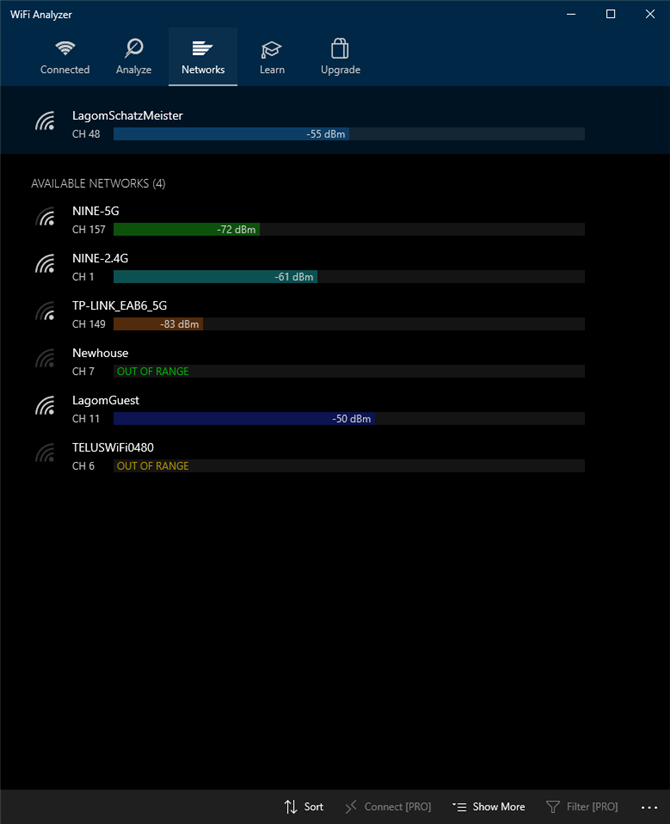
The tool should detect your Wi-Fi signal strength, which ranges from zero to -100 decibel milliwatt (dBm), the lower the better. If you have a 5GHz network, there is a toggle in the app that allows you to switch between detecting 2.4GHz and 5GHz. It’s at the bottom of the interface.

To analyze your wireless router’s signal quality, take the following actions:

Click on Analyze in the top menu bar.

Wifi analyzer app analyze menu

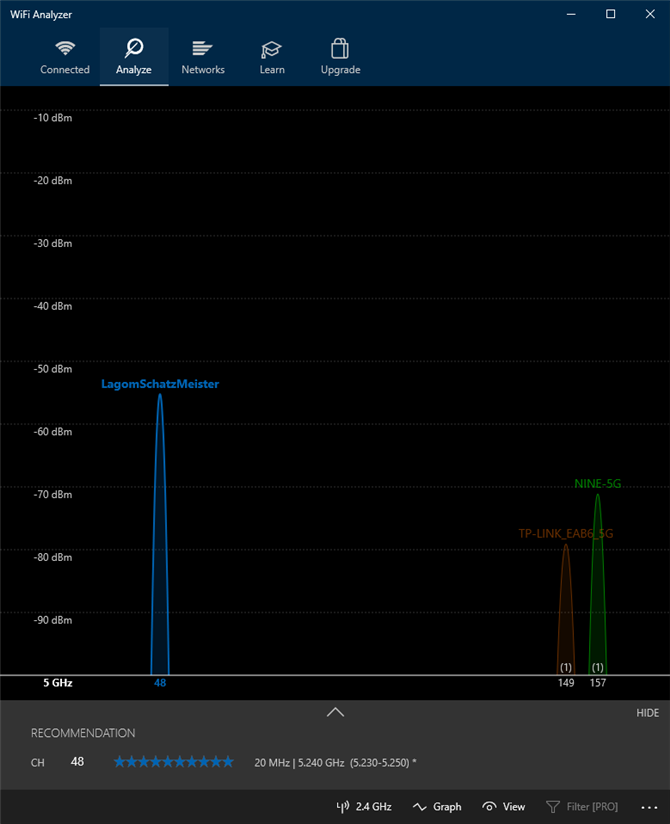
Wi-Fi Analyzer then displays a visualization of the Wi-Fi networks in your vicinity. If two networks broadcast on the same channel, you’ll notice overlap. Each channel is a number between one and 161 on the 5GHz frequency and one through 11 on the 2.4GHz frequency.

Here’s what it looks like when two networks overlap:

wifi analyzer can examine nearby networks for signal quality

The X-plane axis represents the channels available on the 2.4GHz spectrum. As you can see, channels four to seven are unoccupied. Channels five and six have no competition whatsoever. Given the app’s analysis, I should change my router’s 2.4GHz channel to either five or six.

But how do you change your router’s channel?

How to Change Your Router’s Channel

Accessing your router’s settings requires a browser, like Chrome or Microsoft Edge. Accessing its settings, unfortunately, varies between different models of router, but some general rules apply.

Note: Most routers use “admin” as the login and “password” as the password. The login details may also be printed on the back of the router or in the instruction manual that came with it. If you cannot access your router, try searching the internet for your individual router’s access method.

For my own Telus router, changing the Wi-Fi channel is easy. I navigated to the router login address and entered my login and password. Changing the channel is usually located under Wireless Settings > Advanced Settings.

fix unstable wifi by changing the router's channel

I then changed the network channel to the option which offered good connection, saved the settings, and then restarted the router by power cycling it (turning it off and on again). Afterward, it stopped randomly disconnecting.

One thing to mention: most modern routers include a feature that combines 2.4GHz and 5GHz frequencies onto a single network name, or SSID. This feature is notoriously unreliable and if you’re having network problems, I suggest disabling it as a precautionary step. On my Telus router, it’s referred to as SmartSteering. Other brands have completely different names.

How to Fix Unstable Wi-Fi? Decongest It!

If your Wi-Fi sucks, using a Wi-Fi analysis app is the best way to find out your router’s ideal network settings. If after changing your router’s channel, you still get unreliable internet, consider optimizing your network for speed instead. Sometimes ironing out the kinks in your home internet might fix reliability issues.

Read the full article: How to Fix a Slow or Unstable Wi-Fi Connection


Read Full Article

5 Easy-to-Use Online Color Blindness Simulators


It’s hard to empathize with color-blind people when you don’t have the condition yourself. Fortunately, designers have access to many online tools that can help them finalize a design suitable for everyone.

Let’s explore some of the best color-blind simulators out there.

1. The Best Color-Blind Simulator for Web Development: Built-In Browser Tools

Did you know that some modern-day browsers have color-blind simulations built into them? These tools help web designers create webpages that are compliant with color-blindness. Even if you’re not a designer, you can use them to view webpages without visiting a website or installing a program.

At the moment, only Firefox and Chrome have these simulators. You can read more about the Firefox color-blindness simulation on their accessibility inspector help page.

Chrome doesn’t have a simulator on its main branch right now, but it is currently available on its nightly dev build browser, Canary. You can see the new tool in action in this tweet:

2. The Best Color-Blind Simulator for Webpages: Toptal Color-Blind Filter

The Toptal Colorblind Filter page

If you want to test a website for its color-blind compatibility, try the Toptal Color-Blind Web Page Filter. The website, while sometimes slow, is effective at showing you what webpages look like through the eyes of others. Just give it a URL, choose the coverage filter, and click Fetch and Filter!.

Once the page is put through through the color-blind filter, you can see how a color-blind person perceives it. You can click through the conditions to generate a new preview for each type of color-blindness.

If you want to share what the website looks like, click on Copy filtered page URL at the bottom right. This will generate a link with which you can share the result with others. This is especially useful if you’re working with someone to design a website and want to prove that its design plays well with color-blindness.

If your website passes the color-blind test, you can use the image at the bottom of the page to show visitors that your page suits their needs, regardless of any vision problems.

3. The Best Color-Blind Simulator for Images: Coblis (Color-Blind Simulator)

The Coblis website for image filters

If you’re designing an image and you’re wondering how color-blind people will see it, try the Coblis (Color-Blind Simulator) website. Coblis is a web tool that makes it easy and quick to upload an image and test it against different color-deficiency examples.

To use the tool, scroll down to the middle of the page. You’ll see what looks like a screenshot of an application. Don’t be fooled; this isn’t a screenshot! This is the actual app embedded within the webpage.

You can use the buttons to play around with the default image and get a feel for what the tool can do. When you’re ready to test an image, click the Choose file button and select the file you want to upload. Now you can use the tools to experiment with different vision deficiencies and see how your image holds up.

4. The Best Color-Blind Simulator Extension: Let’s Get Color-Blind

The Let's Get Color Blind extension modifying the MUO website

Despite its somewhat worrying name, Let’s Get Color-Blind is a handy tool for checking websites on the fly. Navigate to the page you want to check, then click the browser extension at the top left to activate it.

Once it’s active, you can select the different kinds of color-blindness and the website will automatically update with your settings. You can also tweak the intensity of the simulation if it’s a little too strong or weak to your liking.

Download: Let’s Get Color-Blind for Chrome | Firefox (Free)

5. The Best Mobile App For Color-Blind Simulation: Chromatic Vision Simulator

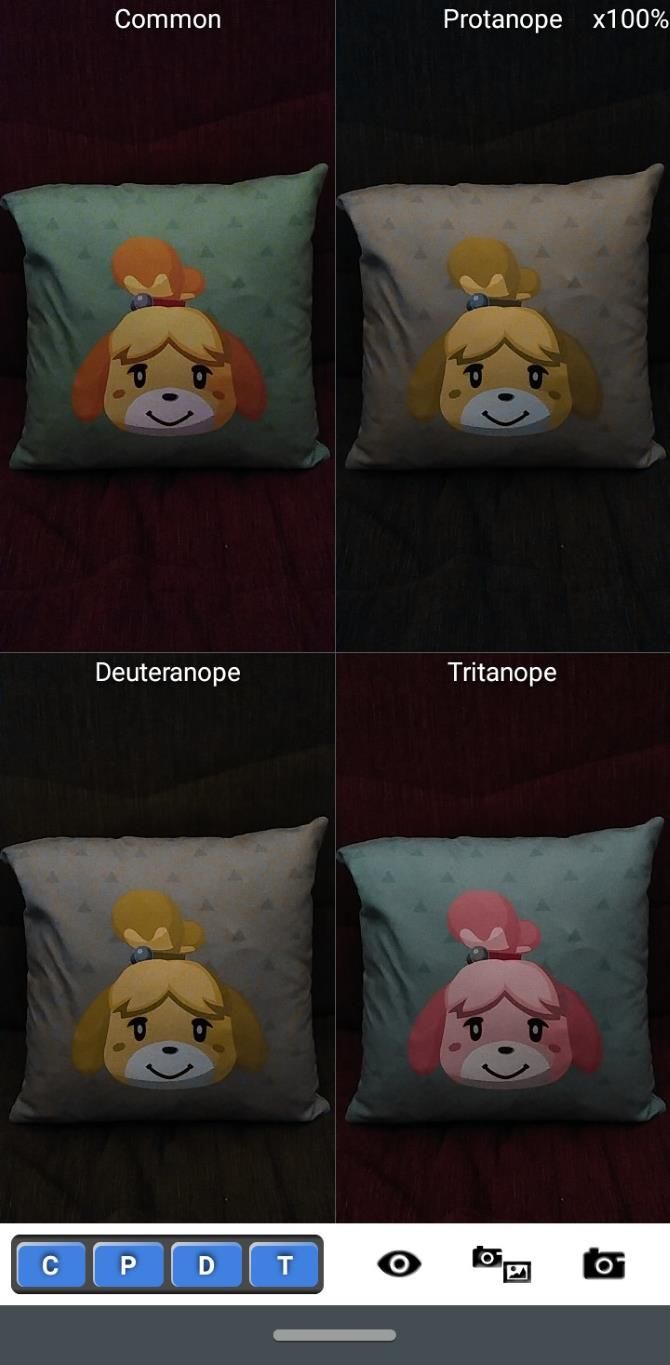
Chromatic Vision Simulator is the most impressive color-blindness simulator on this list. It’s not the best for viewing a website or an image as a color-blind person would, but it’s amazing for seeing everything else through their eyes.

Chromatic Vision Simulator uses your phone’s camera to create a realistic representation of color-blindness in real-time. You have four viewport options; one for normal vision and three different color deficiencies. You can toggle between them at the bottom to view the world through different eyes.

What makes the app so powerful is how you can mix and match these views. For example, you can have both the normal and protanopia views active at the same time, so you can compare and contrast the two. You can even have every view active to see the world around you as every color-blind person would.

Download: Chromatic Vision Simulator for Android | iOS (Free)

Using Color-Blind Assistant Tools in Operating Systems

If you or someone you know suffers from color-blindness, there are tools you can use to make the operating system more color-blind friendly. This includes modifying the colors so that color-blind people can differentiate between each one better.

Not all operating systems have this feature built into them; however, if you have Windows 10, you’re in luck. Check out our guide on this Windows 10 trick to better distinguish colors.

This feature lets color-blind people choose a theme that suits their needs, so they need not struggle to make out what color is what. Best of all, this filter also affects everything shown on-screen, such as web pages and images.

Making Life Easier for the Visually Impaired

If you design visual media for a living, it’s a good idea to consider the color-blind and how they view your creations. Fortunately, you don’t need any fancy tools to achieve this; just use a website or download an app and you can view your creative decisions through the eyes of someone else.

If the above tools don’t cut it for you, be sure to try these ways to browse the web if you’re blind or visually impaired.

Read the full article: 5 Easy-to-Use Online Color Blindness Simulators


Read Full Article

Securitization platform Cadence surpasses $125M deal volume and raises $4M


Securitization is a critical function of the modern financial system. Banks “package” individual loans, say a mortgage or an auto loan, into a group with similar characteristics and sell them to other investors. That gets the debt off the originator’s balance sheet so that they can offer more loans, while also offering private investors alternative investment opportunities to buy up.

Despite the scale of the market — the trade association SIFMA’s research shows that the volume for asset-backed securities reached more than $300 billion in 2019 (excluding mortgages) — much of that structuring remains relatively ad hoc, with structuring agents and buyers constantly seeking each other out.

Much in the way that real estate and startup crowdsourcing platforms democratized access to those alternative investments, Cadence wants to expand access to securitized products while increasing the velocity of transactions for originators and lowering prices. Founder and CEO Nelson Chu said that “our job is to bring transparency and efficiency to this market and through all the various things that we do.” The company operates on top of the Ethereum blockchain network.

Founded in 2018 and launched publicly in 2019, the New York City-based capital markets startup has now structured $88 million in notes across 76 offerings and 12 originators according to the company. The firm’s public leaderboard shows that the largest originators were Sellers Funding with more than $23 million and Wall Street Funding with almost $26 million in transaction volume. Chu said that “I think we are the 21st largest structuring agent the United States in 2020 so far,” which is not a bad place to be for a young startup in a massive multi-trillion dollar market.

In addition to that $88 million volume processed on the company’s retail platform, Cadence also structured a $40 million whole business securitization with FAT Brands, the owner of restaurant chains like Fatburger and Yalla Mediterranean. The company notes that the structuring reduced the company’s interest costs by $2 million.

The company has hit a number of milestones over the past two years. It closed a seed round of $4 million in December led by Revel VC, with Revel’s Thomas Falk, Navtej S. Nandra, former President of E*Trade, and portfolio manager Oliver Wriedt joining the company’s board.

In addition, back in 2019, the company said that it also became the first digital asset company to launch a digital asset ticker on Bloomberg Terminal and also the first to join the Bloomberg App Portal. It also secured the first financial debt rating for a digital asset.

The company has a variety of revenue streams from different areas of its platform. It takes transaction fees on each deal, but also derives revenues from hosting data related to the performance of the underlying loans. Given the company’s technology stack, it has better and more verified data about how the underlying assets that back each security are performing, giving all investment holders a much more robust look at the health of their portfolio.

Longer term, Cadence’s goal is to move to a mostly SaaS model for originators and buyers. “We can be very, very beneficial to every single counterparty involved when we become that,” Chu said, adding “we essentially are Switzerland … because our incentives are all aligned.”

I asked about how the company is responding to the COVID-19 situation, and Chu said that as the world saw in the 2008 global financial crisis, “there are pockets of opportunity here that we continue to find, and we allow retail, accredited investors to get access to that.” Chu gave the example of game developers waiting on payments from Apple and Google who need short-term loans to cover costs.

In addition to Revel, other investors in the seed round included Morgan Creek Digital, Nimble Ventures, Argo, Tuesday Capital, Manatt, and Recharge Capital. R&R Venture Partners, a joint VC firm of former Citi chairman Richard D. Parsons and Clinique chairman Ronald S. Lauder, also participated.


Read Full Article

Jack Dorsey creates $1B COVID-19 relief fund using Square equity


Jack Dorsey announced in a series of tweets today that he is shifting $1 billion in his Square equity to create a fund dedicated to COVID-19 relief. The Twitter and Square CEO is calling the fund Start Small and posting a tally of disbursements and recipients in a public spreadsheet.

Dorsey said in his announcement that the new initiative will shift the focus to other causes at some point.

The first Start Small contribution listed is $100,000 to America’s Food Fund — an effort led by Leonardo DiCaprio and Laurene Powell Jobs dedicated to providing meals to vulnerable populations disrupted by the COVID-19 pandemic.

Other top backers of America’s Food Fund include Oprah Winfrey ($1 million) and Apple ($5 million), according to the organization’s GoFundMe page.

That’s what we know so far from a tweet posted Tuesday afternoon by the American tech entrepreneur who co-founded and leads not one, but two publicly listed companies.

There’s still a lot to learn about Dorsey’s new initiative, including how it will be managed, whether it will make investments (along with donations) and how to apply for funding. TechCrunch has asked Square for additional details and will update this post when we hear back.


Read Full Article

Facebook ships an experimental app for couples


Today, Facebook quietly released a new app for couples. Called Tuned, the new release is a multimedia messaging app designed to help significant others communicate.

The app is available for download in the U.S. and Canada, app analytics firm Sensor Tower tells us. Tuned was developed and released by Facebook’s New Product Experimentation (NPE) team. The division is — as the name suggests — very experimental and thus a bit quicker to pull the plug on projects if they don’t show traction.

The Tuned app arrives during a very interesting time for couples. Couples that live together are spending every waking moment in each other’s presence in the midst of quarantine and could probably never have less of a need for an app like this. For couples that don’t live together, there’s more of an appeal, as people are emboldened to build out digital toolsets to stay close with their partners during an unprecedented time.

The app is by all means just a messaging app that’s more focused on pushing updates and stickers to a singular person. Users can also integrate the app with Spotify to share songs, or use dedicated widgets to share how they’re feeling or what they’re up to. The company refers to the app’s feed as “scrapbook-style.”

It’s not integrated with the company’s dating platform, Facebook Dating; in fact, the most interesting quality of the app is the sheer lack of Facebook tie-ins.

For years, Messenger was the testing bed for Facebook’s social curiosities, but Messenger became too important and users weren’t responding positively to constantly seeing nominal changes in an app they frequently used. The issue is Facebook doesn’t have a default experimentation app anymore, and so these NPE team releases kind of force Facebook to get by with less user data and make judgment calls on how fast functionality can develop when starting from a standstill. It’s unclear how successfully this strategy is progressing. NPE Team’s only other release that’s still available, a Pinterest competitor named Hobbi, was released two months ago and has only received one review on the App Store — a one-star review.


Read Full Article

A history of Indigenous languages -- and how to revitalize them | Lindsay Morcom

A history of Indigenous languages -- and how to revitalize them | Lindsay Morcom

Indigenous languages across North America are under threat of extinction due to the colonial legacy of cultural erasure, says linguist Lindsay Morcom. Highlighting grassroots strategies developed by the Anishinaabe people of Canada to revive their language and community, Morcom makes a passionate case for enacting policies that could protect Indigenous heritage for generations to come.

Click the above link to download the TED talk.

PlayStation 5’s new DualSense controller is a sleek and futuristic gaming accessory


Sony has revealed the design of the PlayStation 5‘s controller – a follow-on to its popular DualShock line that takes on a new name for a new generation: DualSense.

The DualSense controller is kitted out in black and white, and looks like a futuristic, plastic armor-plated robot companion more than a gamepad in some ways. It’s still recognizably a product of the DualShock legacy, however, and has the same familiar button layout as previous PlayStation controllers. The DualSense incorporates haptic feedback, however, for what Sony says will be a heightened sense of immersion in gaming.

Haptic feedback should be an improvement over the relatively general and non-specific rumble vibration of current generation controllers, and Sony has also added more tactile response thanks to new L2 and R2 “adaptive triggers” that provide different kinds of tensions response when performing in-game actions, like “drawing a bow to shoot an arrow,” the company says.

The resulting physical design is a bit chunkier than the DualShock 4, with more room needed inside the case for that adaptive trigger tech. Still, Sony said that it has redesigned the component angles to produce a controller that feels a lot lighter in the hand than it looks.

This controller also does away with the dedicated “Share” button, but replaces it with a “Create” button that sounds like it should offer similar features and much more, though Sony isn’t yet ready to tip its hand as to exactly what that entails and promises more details to follow.

[gallery ids="1971611,1971613,1971609"]

Meanwhile, there’s a new built-in mic array for voice chat without any headset required – though it sounds like this is intended primarily as a ‘you have it in case you need it’ feature than a dedicated input, since Sony is still advocating use of a headset for longer play sessions.

From a pure looks perspective, Sony clearly decided it wanted to go a bit more bold than its standard all-black look for the first version of a new controller it ships with a console. The two-tone, Stormtrooper palette is complemented by a new light bar that lines both sides of the central touchpad.

Personally, I love this look – and the USB-C port that you can spy at the top of the controller for charging. I don’t even know if I’m all that interested in a new generation of console, but the controller alone might convince me to upgrade.


Read Full Article

GV’s M.G. Siegler on portfolio management, crisis fundraising and his latest investment


The coronavirus pandemic has pushed entrepreneurs and investors into unknown territory.

Google’s GV just led a $10 million investment in Universe, a low-friction website builder that’s venturing into the world of commerce.

The investment was in the works before COVID-19 hit America in force, but things were finalized for the Brooklyn startup in late March. I chatted with M.G. Siegler, a general partner at GV (and former TechCrunch writer) who led the deal about how the crisis was affecting his investment work and how he was balancing portfolio work with sourcing new deals.

This interview has edited for length and clarity.

TechCrunch: This deal sounds like it was in the works before pandemic concerns really hit America, but when you saw this situation arise, did it change your thinking about this deal at all?

M.G. Siegler: The reality is we’re still going to be continuing to look for interesting opportunities to invest in. History has shown that even during great financial turmoil, many companies are still being built, and while it’s certainly not easy for anyone given that we’re all stuck inside and trying to make things work. I think Universe is in an interesting spot, they have a tool that can potentially help some of these struggling businesses move online quicker and create commerce opportunities that they really need to think about given the current realities.

So there’s no thought that we shouldn’t do something just because of the current macro environment if we’re really passionate about it to begin with. Obviously, there’s there’s varying degrees of that for different sectors, but I do think that Universe had been in a great position before this situation, and it seems like they have different opportunities now.


Read Full Article