30 March 2020

How to Add and Remove Email Accounts on Mac


manage-email-accounts-mac-ios

Having multiple email addresses is so common today that most people want to check all of their email accounts on their computer in one place.

It’s also essential to know how to remove email addresses for accounts you no longer use. For example, if you have a Gmail address for work and leave that job, you’ll want to remove that Google account on Mac.

Here, we’ll show you how to add and remove email accounts on your Mac.

Add an Email Account Automatically or Manually

If the email account you’re adding is from an email provider like Google, Yahoo, or iCloud, Mail will automatically add your email account with just your email address and password.

Otherwise, if you’re using an email address from an internet service provider (ISP), you may have to enter the email account settings manually.

To set up your email account manually, you need to know your user name (generally your full email address), the Incoming Mail Server, and the Outgoing Mail Server. If you don’t know these, either look them up or contact your email provider.

POP vs. IMAP

You must also choose IMAP or POP for your email account. IMAP stands for Internet Message Access Protocol, while POP is short for Post Office Protocol. These protocols allow you to receive emails using a third-party app such as Mail.

If you access your email on multiple devices, like your computer, phone, and tablet, you should use IMAP. Emails and folder structures are stored on the server and only copies are stored locally on your devices. Using IMAP ensures that all your devices see the same emails and folder structures.

POP is an older protocol, but can be useful if you want to download and store emails (not copies) locally on your device. Email downloaded using POP is available even when you’re not connected to the internet.

POP is also a good way to have a backup of all your email. However, if you choose POP in an email client on a mobile device, you most likely won’t be able to create and use folders to organize your email.

If you use POP in an email client on your computer, make sure you set the option to leave a copy of the downloaded email on the server. That way, you can download your email to your computer and still receive the same messages on your mobile devices.

Add an Email Account With Two-Factor Authentication

Two-factor authentication (2FA) is a security method that provides additional security when signing into online accounts. When using it, you must prove your identity in two different ways. One of these is the usual password, which can be compromised in several ways.

The second level of security on your account with 2FA requires you to not only know something (a password), but to also have something, like your phone. This makes it much harder for someone to hack into your account.

If you’re adding an email account that has two-factor authentication enabled, such as a Gmail account, you must get an app-specific password before adding your email account to Mail.

An app-specific password is a code generated by the email service or provider. This code is used in place of your normal password when adding the email account to Mail, or any other third-party email client. Your email provider should have instructions on how to get an app-specific password for your email account.

Add an Email Account to Mail on Mac

You can add an email account on your Mac in the Mail app or in System Preferences. The result is the same using either method; we’ll show you both.

Add an Email Account in Mail

To add an email account using the Mail app, open it and go to Mail > Add Account from the menu bar.

Select the type of email account you’re adding and follow the prompts.

Mac Mail Select Type for New Account

If you don’t see your account type on the list, select Other Mail Account. Choose Continue after you decide.

If you select Other Mail Account, the system will still try to add the email account automatically. The following dialog box displays if the account name and password cannot be verified.

Mac Mail Unable to Verify New Account

Enter the additional information as discussed above and select IMAP or POP. Next, click Sign In.

If your email account verifies, you’re asked which apps you want to use with the new account. Select the apps you want to use and click Done. Note that your email account may not support all the apps listed.

Mac Mail Select Apps for New Account
Change the Account Description in Mail

Your email account displays under Inbox in Mail. By default, the email address displays as the description for the account. To change this, right-click on the account under Inbox and select Edit from the popup menu.

Select the email account you want to rename. Next, enter a new Description and close the dialog box.

Mac Mail Edit Description for New Account

Add an Email Account in System Preferences

You can also add email accounts to your Mac via System Preferences. Adding an Internet Account adds the account to the Mail app on your Mac and the setup is the same.

Click the System Preferences icon in your Dock or head to Apple menu> System Preferences from the menu bar. Then select Internet Accounts. Select the type of email account you want to add and follow the prompts. Choose Add Other Account if you don’t see your type of email in the list.

Mac New Internet Account in System Preferences

Change the Account Description in System Preferences

By default, the email address displays as the description for the account. However, you can change this like you can in the Mail app.

Go back to System Preferences > Internet Accounts. Then select the account you want to rename and click the Details button. Enter a new description and click OK.

Mac Internet Account Edit Description

Delete or Deactivate an Email Account on Mac

If you have an email account on your Mac you no longer use, you can delete or deactivate it.

Click the System Preferences icon in your Dock or go to Apple menu > System Preferences from the menu bar. Then open Internet Accounts.

Delete an Account

If you want to remove the account completely, select it in the list and click the minus sign below the list. Confirm this action by clicking OK.

Mac Delete Internet Account

Deactivate an Account

You can also make an account inactive by unchecking all associated apps for the account. If you want to use some of the available apps but not email, uncheck Mail in the list while leaving the apps you want to use checked.

Mac Internet Account Deactivate

Managing Mail Accounts on Mac Is Easy

Mail on macOS is a great email app for connecting and managing all of your accounts. So if you want to add an Exchange account or remove a Google account on your Mac, Apple Mail makes it easy.

For more help with Mail, check out these rules to help deal with email for you or some Mac Mail productivity tips.

Read the full article: How to Add and Remove Email Accounts on Mac


Read Full Article

The 10 Best Travel Documentaries on Netflix


travel-documentaries-netflix

Maybe you’ve caught the travel bug. Maybe you have returned home from a big trip abroad and are wondering where to go next. Or maybe you’re an aspirational traveler who partakes in wanderlust from the comfort of your own sofa.

No matter what your motivations are, Netflix has you covered. In this article we list the best travel documentaries you can watch on Netflix right now. All of which are guaranteed to make you long for a week (or two) experiencing new sights and sounds.

1. Expedition Happiness

What is life’s purpose? To be happy, sure, but how? In Expedition Happiness, a couple tries to find out. What is happiness after all? Is happiness a wedding? A loft overlooking a great view of the city’s chaos? A monotonous routine just to maintain a healthy bank balance?

After all, what is the point of living if you do not break the routine. Sit back and stream the Alaskan mountains to the Mexican beaches with the “Loft on Wheels” created by Mogli and Felix with their dog Rudi. Let your soul travel as these three try to figure out what happiness is.

Get to know the ups and downs of executing a moving residence, and to turn an old school bus into happiness.

2. Street Food

Combining travel with food, this documentary series from the creators of Chef’s table will probably leave you hungry after a few episodes. The first season concentrates on Asia, visiting Bangkok, Osaka, and Seoul, among other destinations.

The theme tying all of these locales together is, as you probably guessed from the name, the street food you can find there. While the focus is often on the food itself, the show also focuses on the local heroes who create it.

3. Somebody Feed Phil

This is hands down the most fun you’ll have watching a food and travel documentary. The way that Phil approaches new food, new places, and new people is a breath of fresh air.

He’ll take you to places you never thought of. Places you’ll end up adding to your bucket list. After watching this I ended up adding to my list: coffee in Vietnam, vegetarian food in Israel, dragon fruit in Thailand, and hot dogs in Copenhagen, to name a few.

As Phil says, “If you like a dish, go to the source.” Get delighted, get amused, get amazed and definitely get hungry while somebody feeds Phil.

4. Dark Tourist

Not all of the best travel documentaries have to be about the beautiful and the serene. If you’re in the market for a slightly twisted travel story, Dark Tourist is for you. David Farrier, a New Zealand based filmmaker and journalist travels around the world looking for unusual and often morbid tourist spots across the world.

This documentary explores a new phenomenon called dark tourism. This is where tourists intentionally travel to places associated with death and destruction. A war-torn country? Sure. A dangerous border crossing? Why not. A quick trip around radioactive environments? Don’t mind if I do.

5. National Parks Adventure

The US National Parks Service is more than 100 years old. That’s more than a century of protecting natural wildernesses in the United States.

This breathtaking documentary by filmmaker Greg MacGillivray will make you want to go visit a national park right away. Between the beautiful montages is a story of three artists as they revisit Roosevelt and Muir’s camping trip, where the Parks Service began.

6. Pedal the World

Some titles are artistic, hinting at a deeper meaning. Others are starkly literal. Pedal the World belongs in the second group. Why? This is a documentary following one man’s trip around the world by bicycle.

That man is Felix Starck, who also happens to be the director of Expedition Happiness. If you enjoyed that documentary, you’ll likely enjoy this one as well. Keep in mind that this is an earlier effort, so it may be a little rough around the edges compared to the newer movie.

This is a must watch for bicycle enthusiasts and anyone obsessed with world travel.

7. Jack Whitehall: Travels With My Father

Father-son bonding is a different experience for everyone. When comedian Jack Whitehall was young, he and his father Michael never really bonded.

Now, Whitehall wants to bring that spark back by taking a gap year and traveling with his father. Watch as this comedian trades the stand-up stage (see the best stand-up comedy specials on Netflix) for a tuk-tuk in Thailand.

What better way to spend time with your parent than by going on a trip. But what happens when you have a slightly grumpy father and you are the overly energetic one? Quite a blast, actually, Watch as this father-son team gets into accidents, goes to odd places, and attempts to open up to one another.

8. Paul Hollywood’s Big Continental Road Trip

For most people, where you travel is the important part. For others, it’s how you get there that matters. Car enthusiasts definitely fall into the latter group. If you count yourself among them, Paul Hollywood’s Big Continental Road Trip should be next up in your Netflix queue.

This documentary follows the actor, baker, and part-time racing driver across a large swathe of Europe. The series sees Hollywood visit Italy, Germany, and France. In each hour-long episode, he chronicles the cars and culture of a given country.

If you’re a fan of cars as well as the Great British Baking Show, don’t miss this one.

9. Mountain

Feeling contemplative? Are you looking for a documentary that features breathtaking locations but takes a slower, more meditative approach? Mountain could be exactly what you’re looking for.

Directed and produced by Jennifer Peedom, Mountain explores peaks around the world. Willem Dafoe narrates the film, occasionally reading passages from Robert Macfarlane’s Mountains of the Mind.

Much like that book, the film examines the human fascination with mountains. Even if you never visit a mountain in your life, this film will give you a greater appreciation of them.

10. Night on Earth

Whether you’re a night owl or you’re afraid of the dark, night can a fascinating time. Night on Earth is a documentary in the style of Planet Earth that focuses on what happens at night across the world. Thanks to new camera technology, this is the best look at night you’ve probably ever seen.

Each episode has its own focus. The first episode follows predators and their prey, while other episodes touch on nighttime in the ocean or even cities. One episode even takes you behind the scenes to see how the crew captures such amazing footage.

Keep Going With Food Documentaries on Netflix

Travel and food often go hand in hand. But what if you’re more of a foodie than a traveler? Now that you know about the best travel documentaries to watch on Netflix why not check out the best documentaries about food.

Read the full article: The 10 Best Travel Documentaries on Netflix


Read Full Article

How to Make Netflix Better by Changing a Few Settings


Netflix is one of the most popular streaming services available. There are plenty of others, including Amazon Prime Video and Hulu, plus a bunch of niche streaming services. But Netflix still ranks despite shrinking the size of its catalog by half in recent years.

Whether you are brand new to Netflix or have been using it for several years, there are a few settings you can change to make Netflix even better. And by delving into the Netflix settings you can create the perfect Netflix experience for you and your family.

To access your Netflix settings on the web, just head to Netflix.com and sign in to your account. Then, click the arrow next to your profile at the top and select Account. Et voila, let the customization begin!

Create Multiple Profiles

If more than one person in your household uses the same Netflix account, multiple profiles can come in handy. This is especially helpful if you allow your children to watch content on Netflix.

Scroll down to the My Profile section and click Manage profiles. You can also jump to this area quickly by clicking the arrow next to your profile (as above) and selecting Manage Profiles.

Click Add Profile and enter a name. If you mark the checkbox next to Kid?, only movies and television shows available for children aged 12-and-under will be available. Hit the Continue button when you finish.

netflix add profile web

You will now see the new profile displayed alongside your other options, and can switch between them.

Set Up Parental Controls

To ensure that your child can only access content that you approve of, you should enable the Netflix parental controls. Scroll down to the Settings section and click Parental Controls. Enter your password when prompted and then create a four-digit parental control PIN.

Next, adjust the PIN protection level by choosing the age groups or using the slider. You can also enter titles for specific shows to require a PIN for playback, regardless of maturity rating.

Click Save at the top when you finish.

Netflix Parental Controls PIN

Now, if a user profile tries to access content outside of the level you set up, they will be prompted to enter that PIN.

Adjust Playback Settings

At the top, you can enable or disable autoplay using the checkboxes. These settings let you control whether or not you want the next episode of a series or previews on all your devices to play automatically.

For quality and convenience, you can adjust the data usage-per-screen and autoplay options. Scroll down to the My Profile section and click Playback settings. You can then choose from the default video quality, low quality, medium quality, or high quality. That default setting can be one of the annoying things about using Netflix.

When you finish, click Save.

Netflix Playback Settings

Customize the Subtitles

If you enjoy watching Netflix in another language using subtitles, you can completely customize their appearance. Scroll down to the My Profile section and click Subtitle appearance.

Here, you can choose the font style from seven options including “Casual” and “Block,” and can pick a color as well. You can also select a text size from small, medium, or large.

You can then add a little flair to your subtitles with four different shadow options for the text along with the shadow color. Finally, you can select a background and window color if you like. As you experiment with each of these options, the sample at the top will change automatically for you to review. When you finish, click Save.

netflix subtitle appearance web

Update the Communication Settings

You can stay up to date with the exact types of Netflix news and details you want via email. Scroll down to the My Profile section and click Communication Settings.

You can then mark which emails you would like to receive, such as updates on new features, newly added content, special offers, and helpful surveys.

You can opt to receive text messages by adding your phone number. And you can use that number to access and recover your account if necessary.

When you finish, click Update.

Netflix Communication Settings

Decide Your List Order

If you would prefer to decide the order of shows and movies in your list, you can change this easily. Scroll down to the My Profile section and click Order in My List. Then, mark the Manual Ordering radio button and click Save.

You can then rearrange content in the My List section rather than having Netflix recommendations at the top.

netflix list order web

Now, just click My List in the top navigation. Then, just drag and drop content in the order you want it. You can also click Move to top on any piece of content and that TV show or movie will pop to the top of your list. Or just click the X to remove an item completely.

netflix list order move to top web

Find Hidden Genres

You may not be aware of this, but Netflix has a slew of hidden categories just waiting for you to discover.

For instance, if you choose the “Action” genre when browsing, you can scroll down to see sub-genres such as “Action Thrillers” and “Action Comedies”. However, there is also a hidden category for “Mind Bending Action Sci-Fi and Fantasy”.

Maybe you love the “Horror” genre and often browse the “Cult Horror” sub-genre. However, there is also a hidden “Vampire Horror Movies” category for those looking for a specific creature feature.

Netflix Vampire Horror Movies

A handy website for accessing these hidden categories is Netflix Hidden Codes. You can browse through the list or enter a keyword into the search box. Click on one of the options and you will see options for that sub-genre open directly on Netflix.com.

netflix hidden codes web

Change Your Mobile Netflix Settings

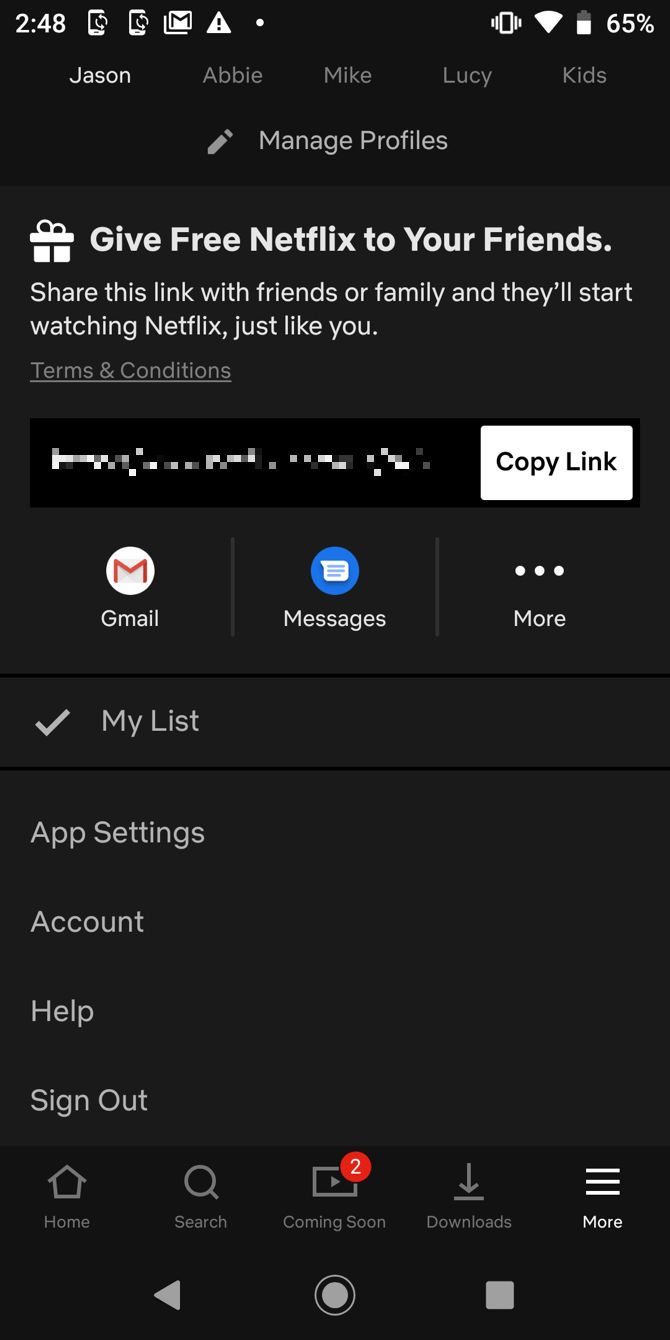
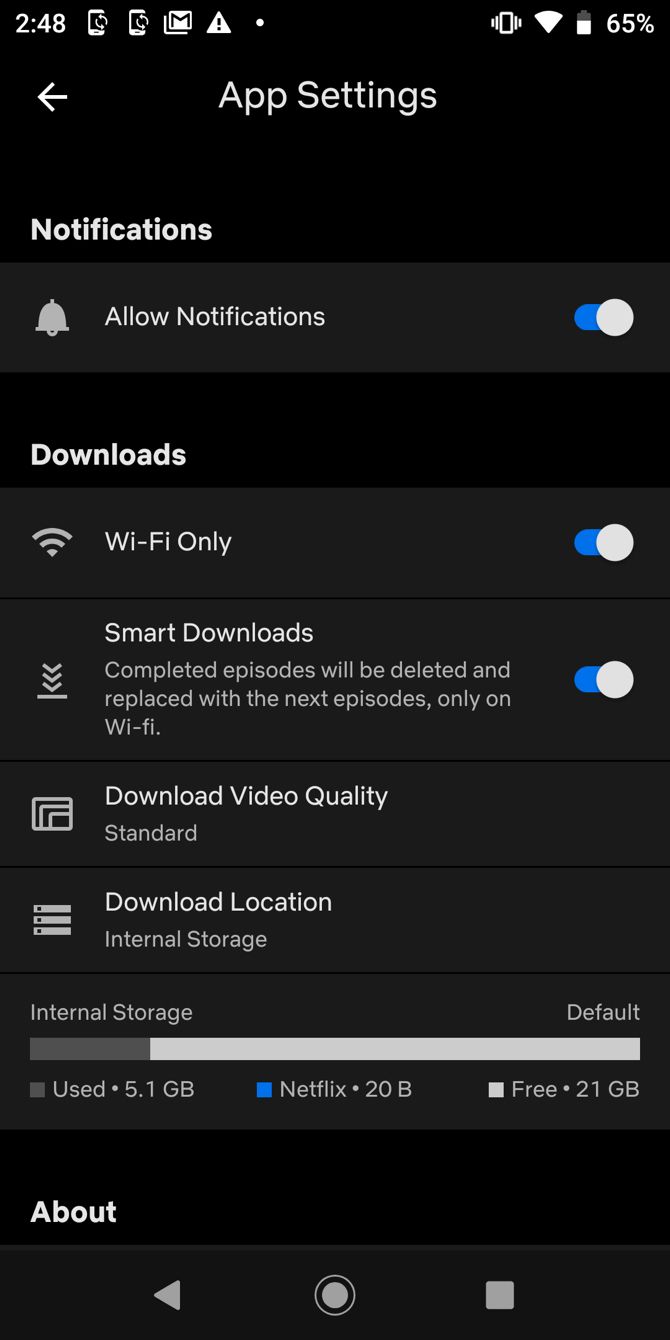
There are a few settings that can be customized on Netflix for Android or iOS. Open the app on your device, tap the More button, and select App Settings. Keep in mind that settings vary depending on your device type.

On iOS, you can then adjust the data usage options. By default, Automatic is enabled, but you can change it for playback on Wi-Fi Only, Save Data, or Maximum Data.

In addition, you can control the video quality between Standard (faster with less storage) or Higher (uses more storage).

On Android, you may notice an additional setting for Allow Notifications. You can enable this option and receive alerts for new content, suggestions, or other types of Netflix notifications.

Download: Netflix for Android | iOS (Free)

How to Make Netflix Work Better for You

These simple adjustments can greatly improve your Netflix experience. Plus, if you share your account with others in your home, everyone can benefit from these changes to the Netflix settings. And if you change your mind, you can easily revert Netflix back to its defaults.

As a bonus, we offer up something you might not have considered, with an article explaining how to learn a language watching Netflix.

Image Credit: REDPIXEL.PL, Ellegant via Shutterstock.com

Read the full article: How to Make Netflix Better by Changing a Few Settings


Read Full Article

How to Install a New Hard Drive to Replace an Old One


Hard drive space isn’t infinite. Today’s massive drives, with capacities exceeding 1TB, can create that illusion. But as drive sizes increase, ways to consume drive capacity also expand. HD video, for example, can eat gigabytes for breakfast.

That’s the bad news. The good news is that learning how to install a new hard drive isn’t difficult, so there is no need to be concerned about a hard drive that is nearly full. Read on to find out how to install a new drive to replace an old one.

Identifying The Proper Replacement Hard Drive

Before you can replace a hard drive in your PC with a new drive, you’ll need to determine the type of drive you need to buy.

HDD or SDD?

Replace Hard Drive - SSD

The most important choice you need to consider is whether you want a mechanical hard drive (called an HDD, or hard disk drive) or a solid state drive (called an SSD). SSDs are smaller in dimensions than HDD. They are also a lot faster. If you want to access programs with less waiting, then an SSD is one of the best upgrades you can make to your PC.

However, an SSD is more expensive than a HDD would be for the same amount of storage. For example, while 1TB HDDs are very affordable, a 1TB SSD is an expensive luxury. So one popular choice is to buy a smaller SSD, say around 256GB, to install your operating system and programs on.

Then you can also buy a large capacity HDD, say around 1TB, to store your media like photos and music or your games library. That way, your operating system will be fast but you’ll also have plenty of storage.

Also, consider the problem of bottlenecking. If you have a newer system with plenty of RAM and a good processor, then you’ll benefit greatly from upgrading to a SSD. Everything will run much faster and your computer will be much better to use.

But if you have a very old computer which is limited by an old processor and not much RAM, then you won’t necessarily see that much benefit from upgrading to an SSD.

In that case, you might as well save your money and stick to an HDD.

HDD Data Connection Types

Today, most hard drives use a data connection known as SATA. However, very old computers might instead support a data connection called IDE. You can easily tell the difference between the two because an IDE connection uses numerous pins, while SATA uses a pin-less L-shaped connector.

The pictures above provide a comparison—the IDE drive is on the left and the SATA drive is on the right. Laptop drives will obviously be smaller, but the connections have the same appearance.

Physical Drive Size

You’ll also need to make sure you buy a drive with the correct physical dimensions. There are two popular hard drive sizes: 3.5-inch and 2.5-inch. The larger is built for desktop systems, while the smaller is generally for laptops and compact desktops. However, solid state hard drives often come in the 2.5-inch size regardless of the type of machine they’re meant to be installed in.

This rule isn’t absolute, however, because some all-in-one computers use 2.5-inch drives.

Transferring Data From The Old To New Drive

The process of installing a new hard drive is one of the least difficult hardware installation procedures around in terms of the physical effort required. However, the hard drive is one of the most critical components in your system because it stores all of your information.

Everything from your operating system to your emails to your favorite songs are stored on your hard drive. Obviously, a straight replacement will leave you without that information.

If you’re using a computer that has more than one hard drive bay you’ll find the process of transferring data from one drive to another to be easy. All you need to do is install the second hard drive in your system and then clone an image of your existing drive using one of the many freeware tools available for this task.

Once the old drive’s image has been cloned and placed on the new drive, you can simply remove the old drive or reformat it and use it as a second drive (make sure the clone was successful before taking this step, however!)

Computers that have only a single drive bay are more difficult to work with because you can’t have the new and old drive installed at the same time. You can, however, still clone your old drive to your new one. This is possible by connecting your new drive to your PC with a USB-to-SATA cable or an external hard drive dock.

Cloning a drive may take some time because of the bandwidth limitations of USB 2.0, but it will complete eventually.

How to Replace a Hard Drive

Desktop computer hard drives are usually placed in the lower front half of a mid-tower enclosure. They are attached using between two and six screws. Once the drive is in place, you just need to plug in the SATA data cable.

This connects to your motherboard. Then you connect the power cables to your power supply unit. The next time you boot up your machine, you should be able to see the new hard drive in your BIOS.

Laptops are different, as some laptops will offer a plastic hard drive bay cover on the bottom of the laptop that is held in with one or two screws. Removing the cover will reveal the drive, which is itself typically attached with a few screws. Installing a replacement drive is simply a matter of taking the existing drive out and putting the new drive in its place.

The power and data connections are built into the mount itself, so you don’t have to worry about tracking down the cables.

Please note that not all laptops are intended to be user serviceable in this way. So please read your laptop’s manual for information about hard drive replacement before proceeding.

Booting & Partitioning

replace hard drive - windows disk management

Once you’ve replaced your old drive you’ll want to boot up your PC. This way you can make sure everything is functioning well. Assuming you did clone your data from your old drive to your new once, this process should be painless. Your PC will barely realize that anything has changed.

You should probably visit the Disk Management utility, which can be found by visiting the Administrative Tools > Computer Management section of the Windows Control Panel, to ensure that Windows is recognizing and using all of your new hard drive’s capacity. If it isn’t, you can extend the current partition to cover the free space or create a new drive partition.

If you didn’t end up cloning your drive, this step will be irrelevant. Because you’ll have to format and partition the new drive during the installation process of your operating system.

Install a New Hard Drive Easily

Replacing a hard drive in your PC can seem like an intimidating task if you don’t know much about hardware. But it’s a fairly simple process and can make your experience using your computer much better.

For more detailed information about a laptop-specific project, see our guide to upgrading your laptop DVD drive to a hard drive.

Read the full article: How to Install a New Hard Drive to Replace an Old One


Read Full Article

24 of the Best Companies That Offer Remote Working Jobs


Remote work from home is becoming more common these days, but it’s not exactly a new phase. For example, in the 1980s IBM started placing “remote terminals” in the homes of some of its employees. By 2009, 40 percent of the company’s employees no longer needed to turn up at an office each day.

With the availability of remote working jobs set to increase, you may be interested in doing it yourself. But what does working remotely mean? And what’s the difference between working from home and working from an office?

Here’s a simple explanation of the “work remotely” lifestyle. We’ll also give you a list of the best remote companies to work for, and explain why they’re great.

What Does “Working Remotely” Mean?

remote worker
Image Credit: Steven Zwerink via Flickr

Remote work—also known as “telecommuting”—means that you work independently, away from a shared, central office space with other employees.

The difference between remote work from home jobs and working in an office is self-explanatory: you’re by yourself, connected to a larger workforce by the web.

Usually, this independent work happens from your home or a home office. Sometimes you might be working from a remote company location, too. By and large, there is little commuting involved.

However, while the “no commute” aspect is definitely a benefit, most remote working jobs can get a bit isolating. It’s really important that you remain self-directed, self-motivated, and follow a schedule.

If you can master these three skills, you can stay on track and get your tasks done.

Remote Work From Home Is the Future

digital nomad
Image Credit: Steven Zwerink via Flickr

In 2017, a panel discussion by IBM mirrored the findings of a 2014 whitepaper from the company’s Smarter Workplace Institute:

“The remote workers in this research were highly engaged, more likely to consider their workplaces as innovative, happier about their job prospects and less stressed than their more traditional, office-bound colleagues.”

Other research agrees with this study, showing that remote workers log more hours and do better work.

According to findings by Gallup, 43 percent of the American workforce already spends some of its time working remotely as of 2016. The research states that “remote work not only improves outcomes and employee branding but is a policy that the most talented employees desire.”

With that trend in mind, the number of remote workers is slated to rise. Thankfully, there’s a huge, growing number of respectable employers happy to take them on.

Here’s a list of the best remote companies to work for.

These Companies Hire Remote Workers

home office
Image Credit: David Martyn Hunt via Flickr

1. Adobe

Adobe is a world-class company specializing in the creative fields, and it hires a huge amount of top talent. Although not all of the company’s positions are remote, there is a good number to choose from. Many of these remote positions can be found on FlexJobs.

2. Apple

If you’re after complete flexibility or want to be a “digital nomad,” Apple isn’t the company for you. However, Apple does offer a work environment that gives you more control over your schedule. Again, available remote Apple positions can be found on FlexJobs.

3. Automattic

This is the company behind WordPress, WooCommerce, Longreads and more. Automattic’s mission is to “make the web a better place.” It does this through an entirely distributed, massively talented team spread across 50 countries. On top of that, the employees get together once per year for a seven-day retreat to help them bond.

4. Amazon

Needing no introduction, Amazon has a range of remote work opportunities. A lot of these are in the customer service and sales departments, but more technical jobs do pop up occasionally.

5. American Express

American Express claims to “value work-life balance,” and therefore offers a decent selection of telecommuting jobs. As one of the top companies for remote work, this is definitely one to check out. Look out for American Express job openings on FlexJobs.

6. Basecamp

Headquartered in Chicago but dispersed across multiple cities around the world, Basecamp is known for its incredibly fun, close-knit team. You’ll be working on a fast-growing project management platform: one that many users fall in love with as soon as they use it.

If Basecamp doesn’t have any job openings currently available, you can always subscribe to the company’s job postings newsletter.

7. Buffer

One of the most transparent companies on the net, Buffer is a pioneer in remote work. Managing an entirely distributed team, the company has built up a loyal following of social media managers who want an easier way to schedule their posts.

8. CleverTech

CleverTech is apparently made up of a team who “bring a unique global perspective to each and every engagement.” There’s almost always a range of technical roles available, where you’ll be creating technology solutions for big clients around the globe.

9. Dell

As another huge company offering a good choice of remote work positions, Dell gives plenty of flextime in a number of departments. These positions range from developers to data scientists. A mirror of this detailed list can be found on FlexJobs.

10. Doist

The team behind the to-do list app (ToDoist), Doist is almost entirely remote, with everyone able to “work from anywhere on your own schedule.” While they don’t have many positions available at this moment, you can check back frequently to see when it’s updated.

11. DuckDuckGo

One of Google’s search competitors, DuckDuckGo is aiming to “raise the standard of trust online.” The company recognizes that people work best in different environments, and therefore trust its team to work remotely, from wherever they like.

12. Envato

Although Envato is based in Melbourne, it employs remote workers. If you’re lucky enough to be one of them, you’ll receive a subsidy to fly out to visit the HQ for a couple of weeks.

13. Formstack

The Formstack team claims to “know how to work hard and play hard from wherever we feel most productive.” This company hosts a relatively small but close-knit team, working on improving an ever-popular, impressive online form builder.

14. GitLab

GitLab is a trusted, fast-growing standard for source code version management. This is a remote-only company with a wide range of technical roles available. Want to know how its remote team works? Check out the GitLab remote manifesto.

15. GitHub

GitHub has its HQ in San Francisco. Although it’s headquartered there, a large portion of its workers are remote or allow for flexible home working.

16. Hubstaff

Another remote team, Hubstaff is a trusted time-tracking platform with a huge number of users. Whether you’re a marketer or a developer, keep your eye on the Hubstaff careers page.

17. Motorola

Motorola is a longtime player in communication solutions. Not surprisingly, a company of this size isn’t completely remote, but they do have remote positions available. The easiest way to find these positions is on Indeed or FlexJobs.

18. NodeSource

If you’re interested in the Node.js ecosystem, you’ll be pleased to hear that NodeSource is an entirely distributed team. Hoping to work with “the best in the industry,” the company is happy to let you work from wherever you like, on your own schedule.

As with the other companies on this list, if you don’t see a position that’s suited to your needs right now, you can always check back at a later date.

19. Toggl

Toggl, the small company behind the popular time-tracking app of the same name, “believes great people will make awesome stuff anywhere.” Although they don’t have a ton of positions open at any one time, the positions are remote.

20. Trello

Trello, one of the web’s most beloved productivity tools, may be headquartered in New York, but its team is distributed across the world. There is almost always a selection of interesting openings in all areas of the business.

For more information on Trello and what it does, check out our guide to Trello for life and project management.

21. Wikimedia

Want a career that’s more mission-driven? Wikimedia is a non-profit organization, “dedicated to encouraging the growth, development and distribution of free, multilingual content, and to providing the full content of these wiki-based projects to the public free of charge.”

Many of the vacancies at Wikimedia allow for telecommuting and flexible working, so you’ll have plenty of control over your schedule.

22. X-Team

Are you a talented developer? X-Team is always looking to take on remote developers to work with some of the world’s largest brands and fastest-growing startups.

23. Zapier

Zapier is a company that allows anyone to connect their favorite apps to help automate time-wasting workflows. Its team is completely distributed and includes everything from writers and developers, to engineers and data scientists.

24. Xerox

With thousands of work-from-home employees already, Xerox is no stranger to remote work. Although a lot of the roles revolve around customer care, there are some more technical roles, too, such as software developers and programmers.

Remote Work Job Sites

job interview
Image Credit: Alan Cleaver via Flickr

While we have highlighted a handful of excellent companies that are open to remote work, there are thousands of additional employers who are happy to hire remote workers, too. There are also job boards that host positions.

If you’d rather search all these employers en masse instead of visiting individual company sites, we’ve listed some of the best remote work job sites below.

1. FlexJobs

At over 10 years old, FlexJobs is one of the leaders in remote work opportunities. With over fifty job categories from thousands of employers, the opportunities are endless. As you can see from the links we’ve included above, many large companies list remote positions on FlexJobs to make it easier for people to find.

2. Stack Overflow

If you’re a developer looking for remote work, there’s no better place to find a massive range of options than Stack Overflow.

3. Indeed

Indeed is one of the best job hunting boards out there. The remote section on Indeed.com currently has over 70,000 available positions. With quick access to employer ratings, it’s easy to find a company you’d love to work for.

4. Remote.co

Packed with telecommuting and flexible work opportunities, there is a huge number of available positions in almost every industry imaginable.

5. We Work Remotely

This is a simple site with basic search functions, but it works well. There are plenty of vacancies here with relatively small companies doing exciting projects.

Create Your Office at Home

While some jobs need to be done in person, there’s no reason for employers to be saying “no” to remote desk jobs most of the time. Thousands of successful companies manage to operate at the top of their game despite being spread across the planet.

If the freedom of remote work is important to you, then check out the sites listed above. For additional information, here are some remote work resources to work from home productively.

Read the full article: 24 of the Best Companies That Offer Remote Working Jobs


Read Full Article

Video conferencing apps saw a record 62M downloads during one week in March


Work-from-home policies, social distancing, and government lockdowns have increased the demand for video conferencing apps, for both business and personal use. According to a new report from App Annie, out on Monday, business conferencing apps have been experiencing record growth, as a result, and just hit their biggest week ever in March, when they topped 62 million downloads during the week of March 14-21. Meanwhile, social networking video app Houseparty has also seen phenomenal growth in Europe during lockdowns and home quarantines.

While such growth was to be expected, App Annie’s report provides real-world context about just how many new customers these apps are gaining during this time.

For example, the jump in business app downloads to 62 million across iOS and Google Play earlier in March, was up 45% from just the prior week. It was also the highest growth among any category across the app stores that week, the report said. And it was up 90% from the weekly average of business app downloads in 2019.

Much of the growth in the category is due to the increased adoption of apps like Google’s Hangouts Meet, Microsoft Teams, and Zoom Cloud Meetings.

Zoom topped the charts worldwide in February and March, and continues to see high numbers of downloads in the U.S., U.K., and elsewhere in Europe.

During the record week of downloads, Zoom was downloaded 14 times more than the weekly average during the fourth quarter of 2019 in the U.S. It was also downloaded more than 20 times Q4’s weekly average in the U.K., 22 times more in France, 17 times more in Germany, 27 times more in Spain, and an even larger 55 times more in Italy.

A related report from the app store intelligence firm Sensor Tower saw Zoom’s U.S. downloads somewhat higher in mid-March, but noted that the term “Zoom” wasn’t a top 100 search term in the U.S. App Store before the week of March 9. That meant many new users were being sent the app’s installation page directly — such as via a link shared in a work email, calendar invite, or an intranet site, perhaps.

At the same time in March, Google’s Hangouts Meet was seeing strong downloads in the U.K., U.S., Spain, and Italy, in particular, with 24x, 30x, 64x, and 140x the average weekly downloads in Q4, respectively.

Microsoft Teams saw significant — though not quite as strong — growth in Spain, France, and Italy, at 15x, 16x, and 30x the weekly levels of downloads in Q4, respectively.

In terms of consumer apps, social video conferencing app Houseparty, popular among Gen Z, has been rapidly growing in Europe and elsewhere. The app benefits from network effects — meaning as more friends and family join Houseparty, the app becomes more useful. It then gets launched and used more often, too. In Italy, the week ending on March 21 saw Houseparty downloads surge at 423 times the average weekly number of downloads in Q4 2019.

In Spain, Houseparty skyrocketed with 2360 times the number of downloads in the week ending March 21, compared with Q4. Also notable is that Spain was a market where, before, Houseparty didn’t have any wide-scale penetration. Because of the COVID-19 outbreak, it now has a base in a region where it otherwise may have never reached.

Unlike the business conferencing apps, Houseparty aims to make video chat a more personal and social experience. When you launch the app, it shows you’re free to talk and whose else is online — similar to other messaging apps. But there are also live parties to join and in-app games to play, which signals the app is not meant for your virtual office meetings.

Business apps aren’t the only ones booming at this time, of course.

Educational apps, including Google Classroom and ABCmouse, have also spiked in March as have grocery delivery apps, like Instacart.

“As people face uncertain timelines for the length of social isolation, video conferencing apps have the potential to vastly influence our daily habits — breaking down geological barriers and fostering the ability to work and socialize relatively seamlessly,” noted App Annie, in its report. “It is an unprecedented time for the world and an incredibly dynamic time for mobile — we are seeing shifts in consumer behavior surface daily across virtually every sector,” the firm concluded.


Read Full Article

Microsoft Teams is coming to consumers — but Skype is here to stay


Microsoft today announced that later this year, it will launch what is essentially a consumer version of Teams, its Slack-like text, audio and video chat application. Teams for your personal life, as Microsoft likes to call it, will feature a number of tools that will make it easier for families and small groups to organize events, share information and get on video calls, too.

As Google has long demonstrated, there can never be enough messaging applications, but it’s interesting to see Microsoft preview this direction for Teams when it has long solely focused on Skype as its personal chat, audio and video call app. But as Yusuf Mehdi, Microsoft’s corporate VP for Modern Life, Search and Devices, told me, Skype isn’t going away. Indeed, he noted that over half a billion people are using tools like Skype today.

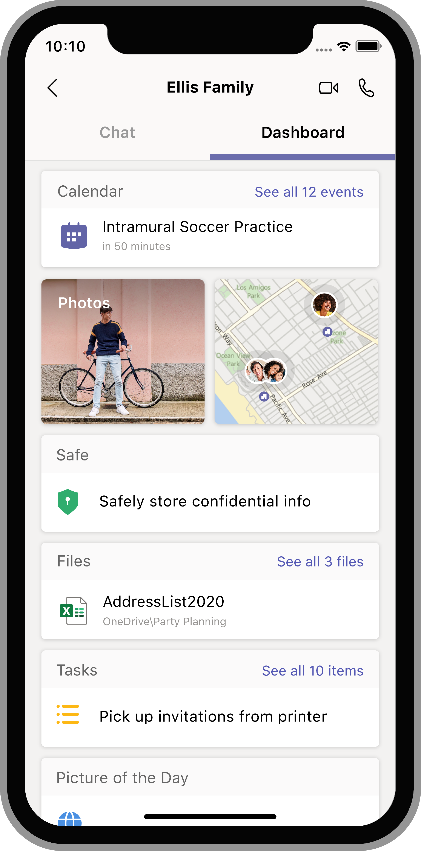
“Skype continues,” he said when I asked him about the future of that service. “We remain committed to Skype. Skype today is used by a hundred million people on a monthly basis. The way I think about it is that Skype is a great solution today for personal use. A lot of broadcast companies use it as well. Teams is really the more robust offering, as you will, where in addition to doing video and chat calling, we also bring in rich communications and templates […], we have things like dashboard and it also helps you pull in a richer set of tools.”

With the more personal Teams only launching later this year, Skype remains Microsoft’s main consumer chat service for the time being. Indeed, about 40 million people current use it daily, in part because of the COVID-19 pandemic, and the company is seeing a 220 percent increase in Skype-to-Skype call minutes.

While Microsoft thought about giving this new personal take on Teams a different brand, the company decided that Teams had pretty broad brand awareness already. In addition, the focus of today’s updates was very much on bridging the gap between work life and home life, so it makes sense for the company to try to combine both enterprise and personal features into the same application.


Read Full Article

How to create meaningful connections while apart | Priya Parker

How to create meaningful connections while apart | Priya Parker

Author Priya Parker shares tools for creating meaningful connections with friends, family and coworkers during the coronavirus pandemic -- and shows how we can take advantage of gatherings that are unique to this moment of social distancing. "We don't necessarily need to gather more," she says. "We need to gather better." (This virtual conversation is part of the TED Connects series, hosted by head of TED Chris Anderson and current affairs curator Whitney Pennington Rodgers. Recorded March 27, 2020)

Click the above link to download the TED talk.

Microsoft Edge is getting smart copy and paste, a password monitor and vertical tabs


Microsoft announced a ton of new features for its productivity apps today, but it also used today’s release to highlight a few new features that are coming to its Chromium-based Edge browser in the near future.

Most of these are pretty straightforward and expected, like its Collections bookmarking feature coming to mobile later this year, but some are quite a surprise. Edge is getting vertical tabs, for example. A lot of browsers have experimented with this in the past but it has often been seen as a niche feature for advanced users. Microsoft clearly doesn’t think of it that way. But you’ll have to wait a bit to try this out, as it’s currently scheduled to roll out to the preview channels in the next few months (or to get a taste of it today, you could try an alternative browser like Vivaldi, which has a number of other advanced tab management features, too).

Also coming to an Edge browser near you in the next few months is Smart Copy. If you’ve ever tried to copy and paste a table from a website in the past, you know that the result is always messy. With Smart Copy, Edge can preserve the formatting when you paste the table into a document. It’ll launch in the Edge Insider channels in the next month.

Also coming in the next few months is a new Password Monitor in Edge, which Microsoft built from the ground up. Like similar features in other browsers and extensions like Google’s Password Checkup, Password Monitor constantly scans the web to make sure your credentials haven’t been stolen. One nifty feature here is that you don’t just get a notification but that this notification will also take you right to the respective service’s site for changing your password.

It’s no secret that Microsoft is very excited about collections in Edge. You can think of them as a tool for bookmarking related sites, images and even text snippets. That’s a useful feature for when you are planning a trip, organizing a dinner or researching anything online. It’s a bit more ephemeral than bookmarks yet more durable than simply keeping a bunch of tabs open. As Microsoft today announced, Collections are coming to the mobile version of Edge, too, and users will be able to sync their Collections between devices.


Read Full Article

Microsoft brings Teams to consumers and launches Microsoft 365 personal and family plans


Microsoft today announced a slew of new products, but at the core of the release is a major change to how the company is marketing its tools and services to consumers.

Office 365, which has long been the brand for the company’s subscription service for its productivity tools like Word, Excel and Outlook, is going away. On April 21, it’ll be replaced by new Microsoft 365 plans, including new personal and family plans (for up to six people), at $6.99 and $9.99 respectively. That’s the same price as the existing Office 365 Personal and Home plans.

“We are basically evolving our subscription from — in our minds — a set of tools to solutions that help you manage across your work and life,” Yusuf Mehdi, Microsoft’s CVP of Modern Life, Search and Devices, told me ahead of today’s announcement.

Microsoft is making similar branding changes to its business plans for Office 365. For the most part. There, they are a bit more convoluted, with Office 365 Business Premium now called Microsoft 365 Business Standard and Microsoft 365 Business now becoming Microsoft 365 Business Premium, but for the most part, this is about branding while prices stay the same.

These new Microsoft 365 Personal and Family plans will include access to Outlook and the Office desktop apps for Windows and macOS, 1TB of OneDrive storage per person (including unlimited access to the more secure OneDrive Personal Vault service) and 50G of Outlook.com email storage, Skype call recording and 60 minutes of Skype landline and mobile phone calls.

And since this is now Microsoft 365 and not Office 365, you can also get Windows 10 technical support with the subscription, as well as additional security features to protect you from phishing and malware attacks.

More than 37 million people currently have personal Office 365 subscriptions and chances are these lower prices will bring more users to the platform in the long run. As Mehdi stressed, Microsoft’s free offerings aren’t going away.

But with today’s release, Microsoft isn’t just changing the branding and launching these new plans, it’s also highlighting quite a few new capabilities in its various applications that are either launching today or in the coming months.

Microsoft Teams gets a personal edition

The highlight of this launch, especially given the current situation around COVID-19, is likely the announcement of Teams for consumers. Teams is already one of Microsoft’s fastest-growing products for businesses, with 44 million people using it. But in its efforts to help people bridge their work and personal lives, it will now launch a new Teams edition for consumers, as well.

Just like you can switch between work and personal accounts in Outlook, you will soon be able to do the same in Teams. The personal teams view will look a little bit different, with shared calendars for the family, access to OneDrive vaults, photo sharing, etc., but it sits on the same codebase as the business version. You’ll also be able to do video calls and shared to-do lists.

Better writing through AI

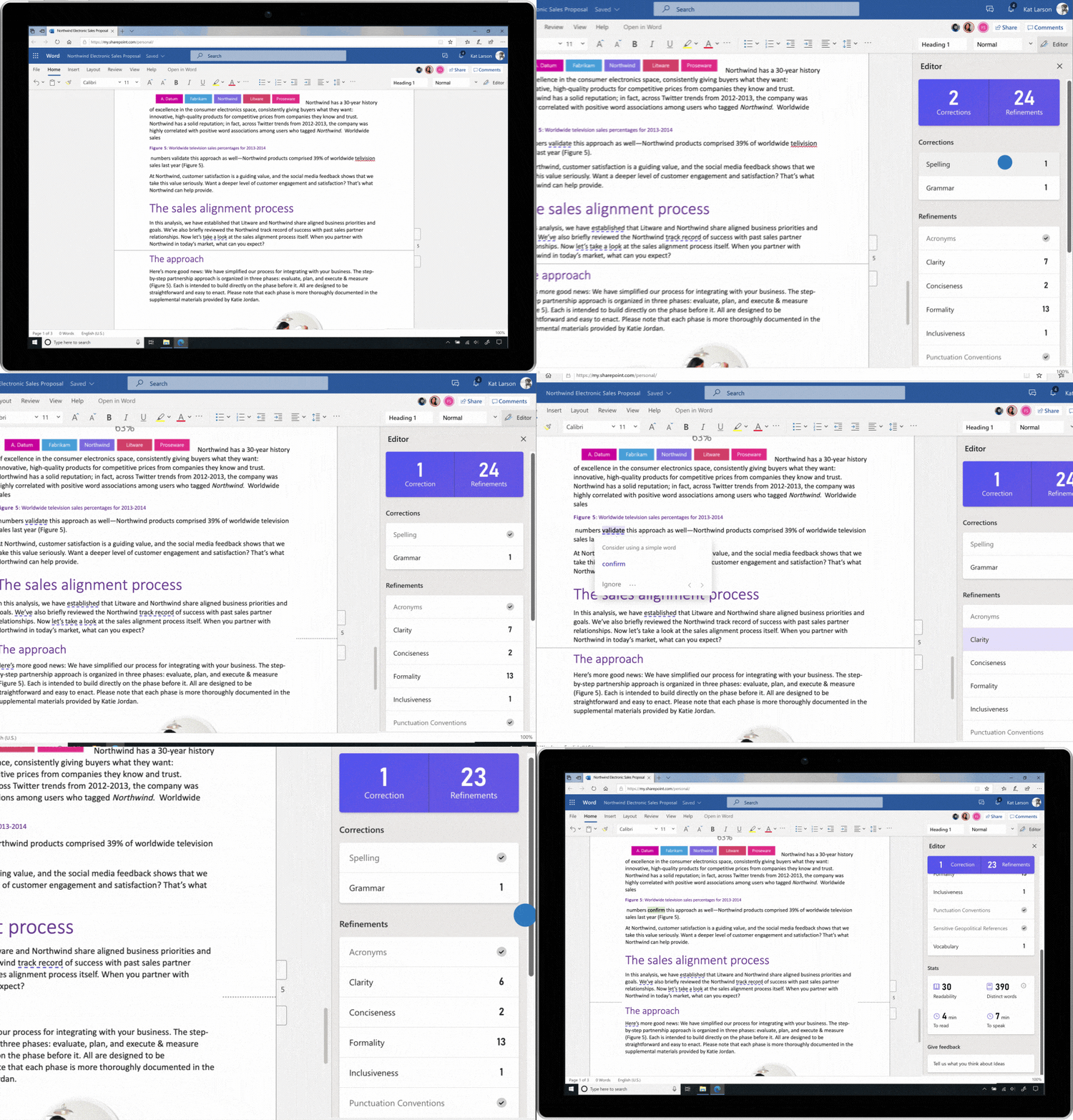
About a year ago, Microsoft announced that Word Online would get a new AI-powered editor that would help you write better. You can think of it as a smarter grammar checker that can fix all of your standard grammar mistakes but can also help you avoid overly complex sentences and bias in your word choices.

This editor is now the Microsoft Editor, and the company is expanding it well beyond Word. The new AI-powered service is now available in 20 languages in Word and Outlook.com — and maybe most importantly, it’ll be available as a Microsoft Edge and Google Chrome plug-in, too.

Free users will get basic spelling and grammar features, while Microsoft 365 subscribers will get a number of more advanced features like the ability to ask the editor to suggest a rewrite of a mangled sentence, a plagiarism checker, style analysis to see if your writing is unclear or too formal, and access to an inclusive language critique to help you avoid unintentional bias.

If you’ve used Grammarly in the past, then a lot of this will sound familiar. Both services now offer a similar set of capabilities, but Microsoft may have an edge with its ability to rewrite sentences.

Better presentations through technology

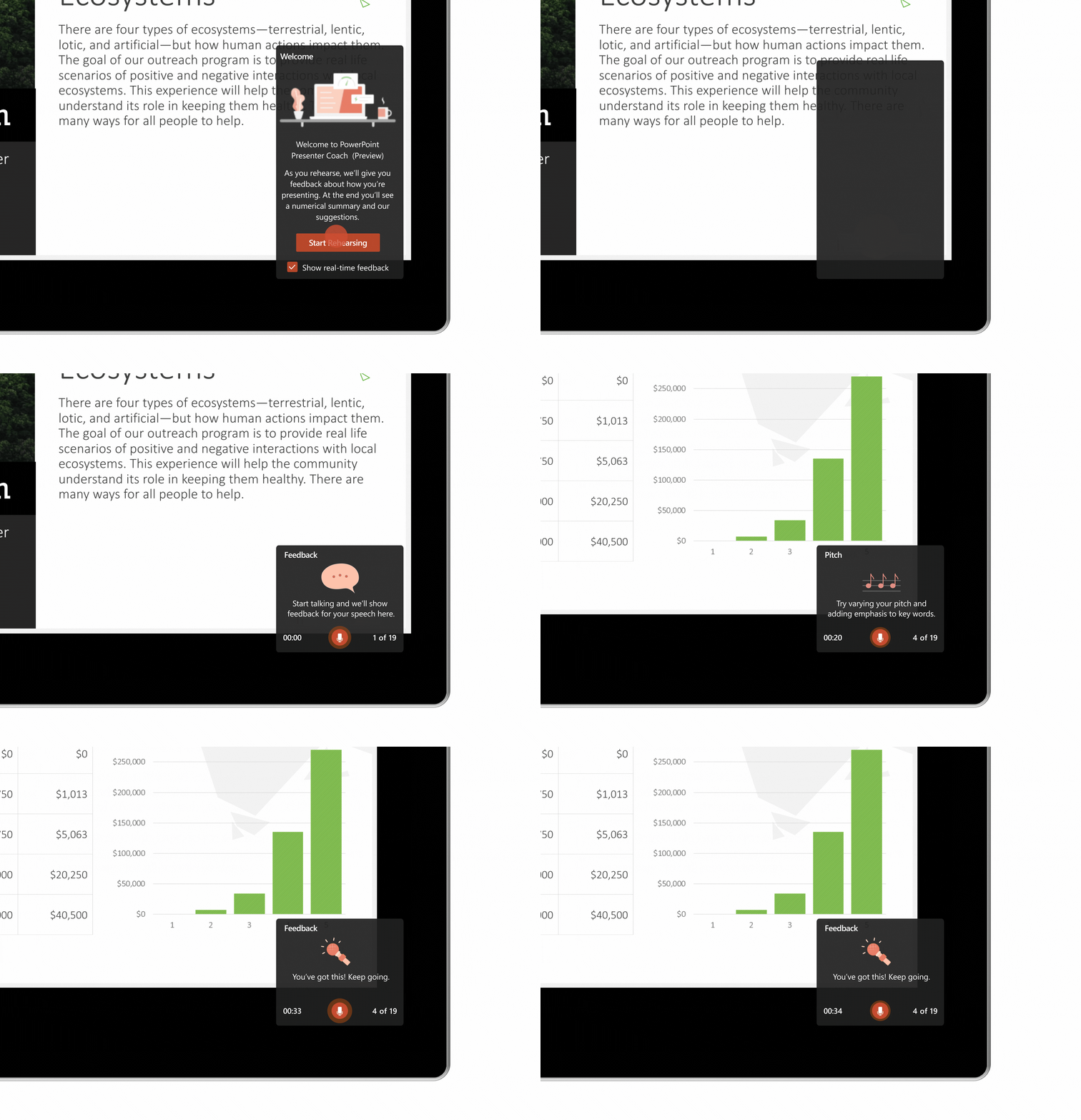
In a similar vein, Microsoft also launched a presentation coach for PowerPoint as a limited test last September. This AI-driven feature helps you avoid filler words and other presentation no-nos.

This feature first launched in the online version of PowerPoint, with a basic set of features. Now, Microsoft 365 subscribers will get two new advanced features, too, that can help you avoid a monotone pitch that puts your audience to sleep and avoid grammar mistakes in your spoken sentences.

Currently, these are still available as a free preview to all but will become Microsoft 365-only features soon.

PowerPoint is also getting an updated Designer to help you create better presentations. It can now easily turn text into a timeline, for example, and when you add an image, it can present you with a set of potential slide layouts.

Microsoft 365 subscribers now also get access to over 8,000 images and 175 looping videos from Getty Images, as well as 300 new fonts and 2,800 new icons.

Excel + Plaid

For you spreadsheet jockeys out there, Microsoft also has some good news, especially if you want to use Excel to manage your personal budgets.

In partnership with Plaid, you can now link your bank accounts to Excel and import all of your expenses into your spreadsheets. With that, you can then categorize your spend and build your own personal Mint. This feature, dubbed “Money in Excel,” will launch in the U.S. in the coming months.

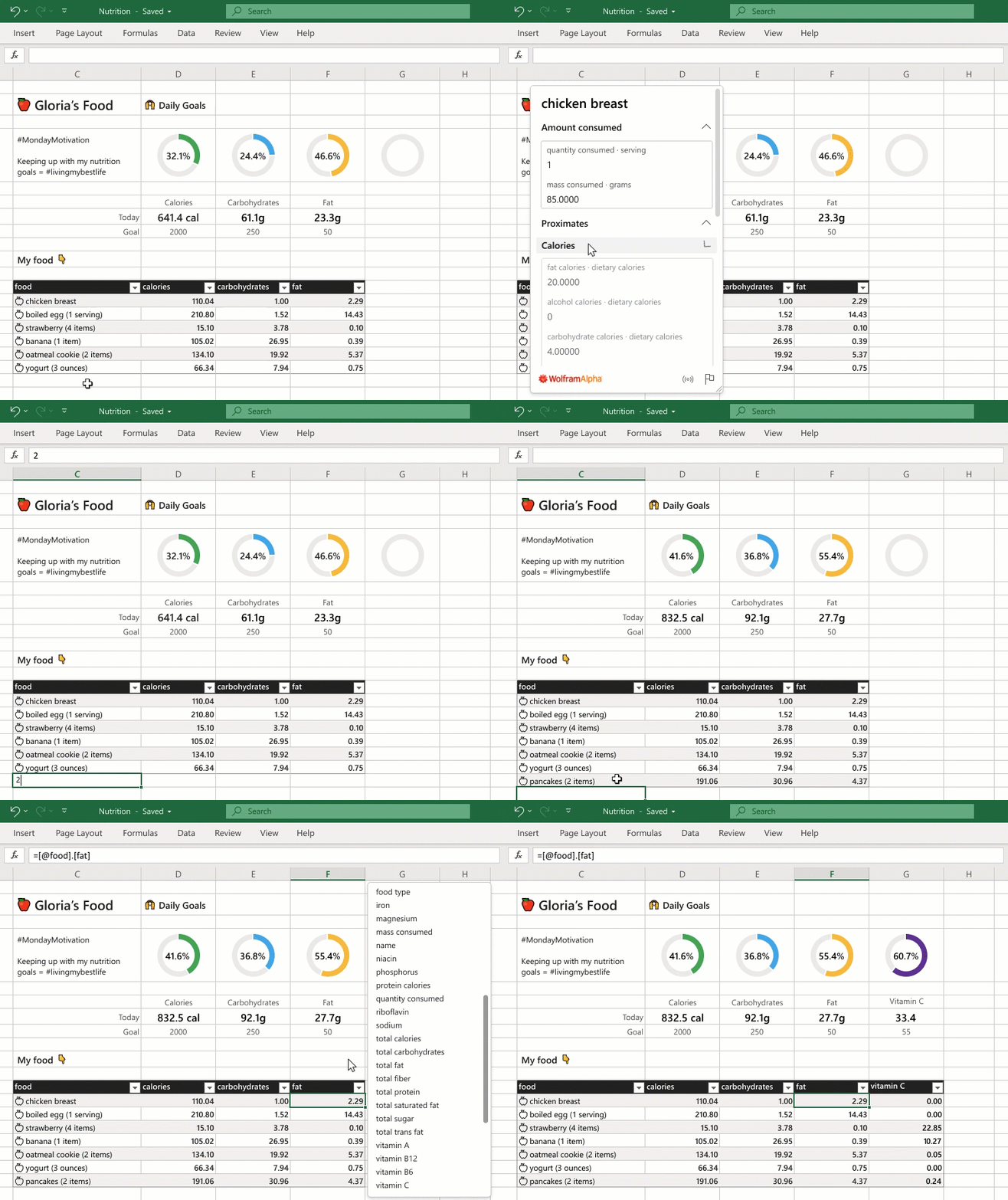
In addition, Excel is getting a lot more cloud- and AI-driven data types that now cover over 100 topics, including nutrition, movies, places, chemistry and — because why not — Pokémon. Like some of the previous features, this is an extension of the work Microsoft did on Excel in the last few years, starting with the ability to pull in stock market and geographical data.

And just like with the previous set of features, you’ll need a Microsoft 365 subscription to get access to these additional data types. Otherwise, you’ll remain restricted to the stock market and geography data types, which will become available to Office Insiders in the spring and then Personal and Family subscribers in the U.S. in the coming months.

Outlook gets more personal

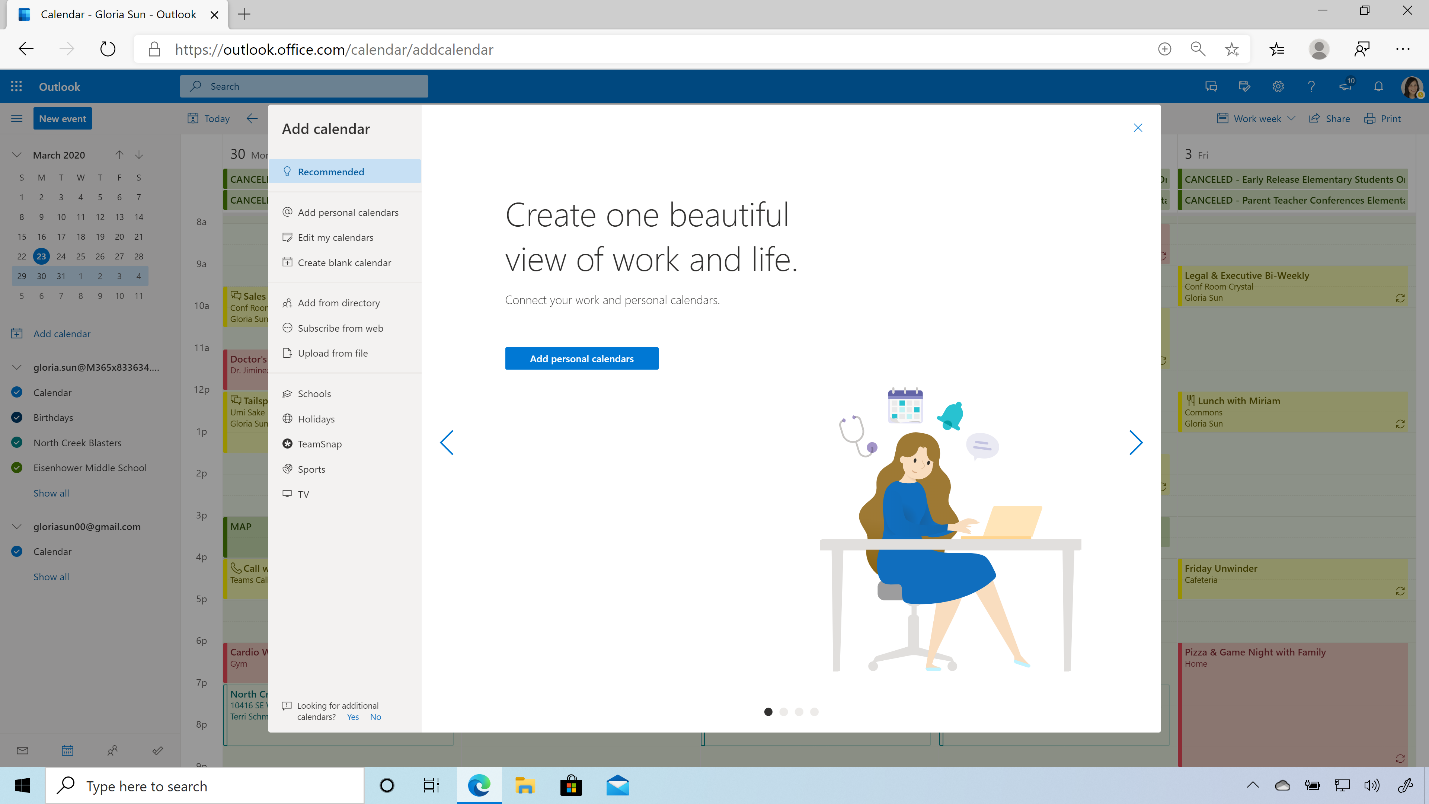
Even though you may want to forget about Outlook and ignore your inbox for a while, Microsoft doesn’t. In Outlook on the web, you can now link your personal and work calendars to ensure you don’t end up with a work meeting in the middle of a personal appointment, because Chris from marketing really needs another sync meeting during your gym time even though a short email would suffice.

Outlook for Android can now summarize and read your emails aloud for you, too. This feature will roll out in the coming months.

Family Safety

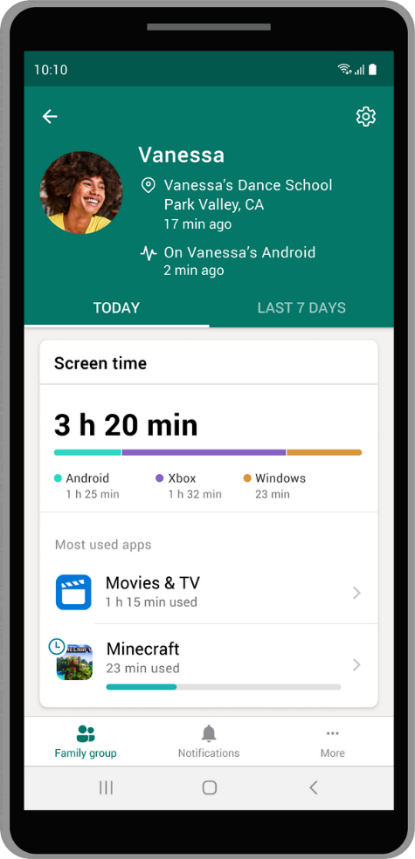
While most of the new features here focus on existing applications, Microsoft is also launching one completely new app: Microsoft Family Safety. This app is coming to Microsoft 365 subscribers on iOS and Android and will bring together a set of tools that can help families manage their online activities and track the location of family members.

The app lets families manage the screen time of their kids (and maybe parents, too) across Windows, Android and Xbox, for example. Parents can also set content filters that only allow kids to download age-appropriate apps. But it also allows parents to track their kids in the real world through location tracking and even driving reports. This, as Mehdi stressed, is a feature that kids can turn off, but they’ll probably have to explain themselves to their parents then. Indeed, he stressed that a lot of what the app does is give parents a chance to have a dialog with their kids. What makes the service unique is that it works across platforms, with iOS support coming in the future.

This app is launching as a limited preview now and will be available in the coming months (I think you can spot a trend here).

Partner benefits

Mehdi noted that Microsoft is also partnering with companies like Adobe, Bark, Blinkist, Creative Live, Experian, Headspace and TeamSnap to provide Microsoft 365 subscribers with additional benefits like limited-time access to their products and services. Subscribers will get three free months of access to Adobe’s Creative Cloud Photography plan, for example.

At the core of today’s updates, though, is a mission to bring a lot of the productivity tools that people know from their work life to their personal life, too, with the personal edition of Teams being the core example.

“We’re very much excited to bring this type of value — not increase the price of Office 365 — take a big step forward, and then move to this,” Mehdi said. “We think now more than ever, it is valuable for people to have the subscription service for their life that helps them make the most of their time, protects their family, lets them develop and grow. And our goal or aspiration is: Can we give you the most valuable subscription for your life? I know people value their video subscriptions and music subscriptions. Our aspiration is to provide the most valuable subscription for your life via Microsoft 365 Personal and Family.”


Read Full Article

Turbo Systems hires former Looker CMO Jen Grant as CEO


Turbo Systems, a three-year old, no-code mobile app startup, announced today it has brought on industry veteran Jen Grant to be CEO.

Grant, who was previously vice president of marketing at Box and chief marketing officer at Elastic and Looker, brings more than 15 years of tech company experience to the young startup.

She says that when Looker got acquired by Google last June for $2.6 billion, she began looking for her next opportunity. She had done a stint with Google as a product manager earlier in her career and was looking for something new.

She saw Looker as a model for the kind of company she wanted to join, one that had a founder focused on product and engineering, who hired an outside CEO early on to run the business, as Looker had done. She found that in Turbo where founder Hari Subramanian was taking on that type of role. Subramanian was also a successful entrepreneur, having previously founded ServiceMax before selling it to GE in 2016.

“The first thing that really drew me to Turbo was this partnership with Hari,” Grant told TechCrunch. While that relationship was a key component for her, she says even with that, before she decided to join, she spoke to customers and she saw an enthusiasm there that drew her to the company.

“I love products that actually help people. And so Box is helping people collaborate and share files and work together. Looker is about getting data to everyone in the organization so that everyone could be making great decisions, and at Turbo we’re making it easy for anyone to create a mobile app that helps run their business,” she said.

Grant has been on the job for just 30 days, joining the company in the middle of a global pandemic. So it’s even more challenging than the typical early days for any new CEO, but she is looking forward and trying to help her 36 employees navigate this situation.

“You know, I didn’t know that this is what would happen in my first 30 days, but what inspires me, what’s a big part of it is that I can help by growing this company, by being successful and by being able to hire more and more people, and contribute to getting our economy back on track,” Grant said.

She also recognizes that there is a lack of diversity in her new CEO role, and she hopes to be a role model. “I have been fortunate to get to a position where I know I can do this job and do it well. And it’s my responsibility to do this work, my responsibility to show it can be done and shouldn’t be an anomaly.”

Turbo Systems was founded in 2017 and has raised $8 million, according to Crunchbase. It helps companies build mobile apps without coding, connecting to 140 different data sources such as Salesforce, SAP and Oracle.


Read Full Article

29 March 2020

Elizabeth Warren for President open-sources its 2020 campaign tech


Democratic senator Elizabeth Warren may have ended her 2020 presidential run, but the tech used to drive her campaign will live on.

Members of her staff announced they would make public the top apps and digital tools developed in Warren’s bid to become the Democratic nominee for president.

“In our work, we leaned heavily on open source technology — and want to contribute back to that community…[by] open-sourcing some of the most important projects of the Elizabeth Warren campaign for anyone to use,” the Warren for President Tech Team said.

In a Medium post, members of the team — including chief technology strategist Mike Conlow and chief technology officer Nikki Sutton — previewed what would be available and why.
“Our hope is that other Democratic candidates and progressive causes will use the ideas and code we developed to run stronger campaigns and help Democrats win,” the post said.
Warren’s tech team listed several of the tools they’ve turned over to the open source universe via GitHub.

One of those tools, Spoke, is a peer to peer texting app, originally developed by MoveOn, which offered the Warren Campaign high volume messaging at a fraction of the costs of other vendor options. The team used it to send four million SMS messages on Super Tuesday alone.

Pollaris is a location lookup tool with an API developed to interface directly with Warren’s official campaign website and quickly direct supporters to their correct polling stations.

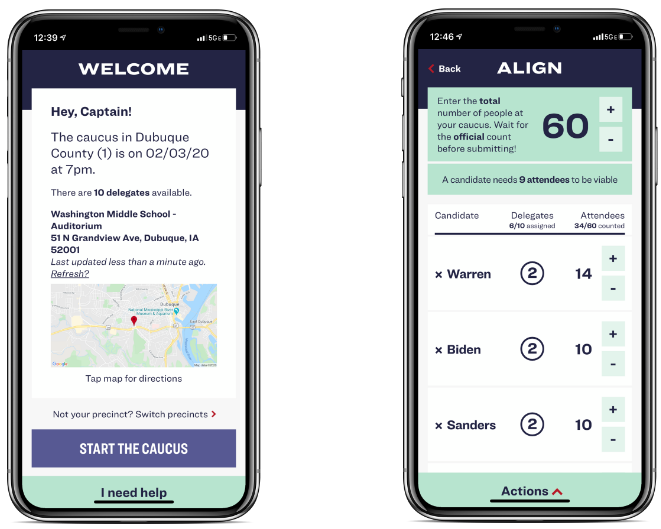
One of Elizabeth Warren’s presidential campaign app, Caucus, designed for calculating delegates. (Image: supplied)

Warren’s tech team will also open-source Switchboard (FE and BE) — which recruited and connected volunteers in primary states — and Caucus App, a delegate calculating and reporting tool.

The campaign’s Redhook tool took in web hook data in real time and experienced zero downtime.

“Our intention in open sourcing it is to demonstrate that some problems campaigns face do not require vendor tools and are solved…efficiently with a tiny bit of code,” said the Tech Team.

Elizabeth Warren ended her 2020 presidential bid on March 4 after failing to win a primary. Among her many policy proposals, the Massachusetts senator had proposed breaking up big tech companies, such as Google, Facebook and Amazon.

Her campaign will continue to share the tech tools they used on open source channels.

“We’ll have more to say in the coming weeks on all that we did with technology on our campaign,” the team said.


Read Full Article