28 March 2020

The 7 Best eCard Makers for Your Own Personalized Greeting Cards


greeting-cards-iphoto

In the current era, where most of our correspondence is digital, it makes sense that cards have also made the jump online. Now, whether you’re sending a card to someone across the world or you just remembered someone’s birthday is today, you can send a card to anyone at any time.

Here are the best ecard maker websites for that special occasion.

1. Adobe Spark

The Adobe Spark website

Adobe Spark is an in-depth online media creator. You can use Spark for a lot more than just greeting cards; it’s also perfect for pamphlets, posters, and portfolios.

As such, Adobe Spark isn’t good for generating a quick and easy card. It is, however, great for designing one that fits your needs best. You can use the templates to design a physical card that you can print and fold, or use it to create your own ecard to save and send to your loved ones.

Because Adobe Spark focuses on professional usage, there’s a lot locked behind paywalls. As such, if you decide on using Spark, be ready to sift through the paid options to get to the free ones.

2. Canva

The Canva website

If you want a professional-looking free ecard maker, try Canva. It’s one of the more interesting options on this list, as it allows you to create cards and share them as a video instead of an image.

You can use Canva to create a traditional card to print out; however, its real power comes from using videos in your cards. You can use the premade videos that Canvas has in its library, or upload one of your own from your desktop. This makes it a great way to share a special video that encapsulates the occasion.

When you’re done placing videos, you can download your card as either a video or a gif. Whichever option you pick, the end result will go through each of the pages you designed for the card, including playing any videos you embedded. If you chose the video download option, it’d even play the sound in each clip.

3. JibJab

The JibJab website

If you’re after an ecard generator that’s a little silly, try JibJab. JibJab’s main attraction is the ability to upload faces for their premade cards. The result is a funny card personalized with you or your friend’s faces on it.

The card generator is surprisingly robust. You choose a card you want to send, then upload the faces of the people you want to star in it. JibJab will then let you line up the jaw tool, so the card knows where the face’s mouths are. This is because the actors in the card can speak and sing, with animated mouths like something out of South Park.

4. Befunky

The Befunky website

Befunky is a useful ecard maker that speeds up the process. It comes with a selection of different premade templates for you to choose from. Once you’d picked out a model, you can edit the text on it to customize it to your needs.

Unfortunately, while Befunky does have a beautiful collection of templates, you’ll find the majority of them require a monthly fee of $6.99 to unlock.

Befunky also requires Flash to run, which modern-day browsers will have a problem with allowing. As such, you may need to learn the steps to enable Flash in Chrome.

5. Someecards

The Someecards website

Someecards is an odd entry on this list. There is no way to build your own card; the ability to make your own Someecard vanished in 2018.

As such, there’s no real room for personalization here and isn’t the ideal choice for people who want to tailor the card to their needs. Instead, you can browse images and memes that relate to different occasions and share them.

The main forte for Someecards is that you can share the cards via a link. While over card services need an email address to send your card, or require you to upload and share a file, Someecards can be shared by copy-pasting the link wherever you need it.

6. Smilebox

The Smilebox website

Smilebox makes it very easy to make a card. You can select a template to suit your needs, then quickly add photos to your design. To make it extra flashy, you can add music to play while the card’s animation slowly reveals the details.

Unfortunately, Smilebox is very restrictive if you want to use it for free. You’re only allowed to share your creation via Facebook or Twitter, and the card will have Smilebox’s watermark on it. However, if you’re willing to pay for premium, Smilebox can be an excellent source for professional-looking cards for any occasion.

7. Amazon eGift Cards

The storepage for Amazon eGift cards

If you want to tie a gift to your ecard, why not try an Amazon eGift card? These are like an ecard and a gift card combined, allowing you to choose from a pre-set selection of cards to fit the occasion.

You can choose from regular cards, animated ones, or upload a photo to personalize the card. Then, select the amount of money you want to send. You can send the card via email or text message, whichever works best for you.

When your recipient receives the card, they’ll see your design, name, and gift card redemption code all in one. It’s a very convenient way to celebrate an occasion when you’re unsure what to get the person in question.

Celebrating a Special Occasion With Style

Thanks to their personalization, ease of use, or their speedy delivery, digital ecards are a useful way to celebrate an occasion. Now you know some of the best websites out there for making a card of your own, so you can commemorate an event with style.

If you’re celebrating a birthday, why not accompany your card with a happy birthday meme?

Read the full article: The 7 Best eCard Makers for Your Own Personalized Greeting Cards


Read Full Article

When Is the Best Time to Buy a Computer? 5 Things to Keep in Mind


windows-computer-best-time

It can be expensive to buy a new computer or laptop, so it makes sense to time your purchase for when you can secure a bargain.

While prices are always subject to change without warning, annual sales or new hardware launches can be the perfect time to get a computer or laptop at a discounted rate. However, you could be waiting for a price drop that never comes. If you need the computer or laptop sooner rather than later, it’s better to buy it while you can.

Here are the best times to buy a computer or laptop.

1. Seasonal Sales

Santa Claus using a laptop
Image Credit: GeneGlavitsky/Depositphotos

The Christmas season is one of the biggest periods for every retailer. While computers and laptops are usually too expensive to be a common holiday gift, retailers will be looking to take advantage of the flowing holiday money. They will apply discounts to systems in order to attract shoppers and sell off stock before the year-end.

These discounts can also come in various forms, like traditional discounts, cashback offers, and voucher codes. Retailers will often engage in one-day-only deals near the holiday season, especially around key dates like New Year’s Day, so be sure to constantly check their websites near this time and keep your eyes peeled for any sudden discounting.

2. Black Friday and Cyber Monday

Woman shopping online
Image Credit: Andrea Piacquadio/Pexels

Black Friday and Cyber Monday are sales days that originated in America, but they’ve become a worldwide phenomenon. With prices often slashed across the board, usually only for a limited amount of time or on a set quantity of stock, real bargains can be snapped up on these two days providing you’re quick off the mark.

A word of caution, however: retailers will often use the fever around these days to flog outdated systems at not-so-great prices. Make sure you always do your research before buying and don’t get drawn in by a seemingly appealing price tag—you might end up overpaying for something you would have got cheaper outside the sale.

3. Back to School

People looking at computer screens
Image Credit: NESA by Makers/Unsplash

Typically, the back-to-school period runs during the summer in August to September (although it can begin earlier.) It’s a perfect time for retailers to target parents and students who are in the market for a new system to deal with their educational needs. This might actually be the best time to buy a new laptop, rather than a desktop computer.

Deals on laptops are especially prevalent during this period as they make for great college and university purchases. Stay prepared for such deals by researching the best Windows laptops beforehand.

Many retailers, like Microsoft, Apple, and Sony, will also give exclusive discounts to actual students. These deals are usually available on presentation of a student ID or a valid academic email address. Apple even extends their educational pricing to teachers and parents buying for their children.

4. New Hardware Releases

Laptop half-opened
Image Credit: Junior Teixeira/Pexels

If retailers are expecting to get fresh hardware then you’ll usually find that they begin discounting their current stock in order to make way for the new.

Different manufacturers will operate on different cycles. However, generally new products release in the spring, mid-year for the back-to-school period, and in September as the holiday season approaches.

Manufacturers like Dell, HP, and Acer often release their new products on these timelines. However, it’s best to keep your eyes on their sites and tech news so you remain in the know.

New MacBooks typically release in the spring and winter. Apple usually host media events in March, June, and September, so you should check these out to get the latest information on their upcoming releases. The best time to buy an Apple laptop is usually just before new hardware is announced.

Microsoft holds an event in October where they announce their latest Surface products. Google also hold an event at a similar time when you can expect to hear the latest on the Pixelbook.

Keep your eye on the upcoming big hardware releases and you’ll likely find retailers discounting old stock accordingly.

If you’re not after the latest flashy piece of kit then this will be a perfect time for you to jump in. While the system may be classed as old, simply because technology moves so quickly and there’s always new things being pushed to market, it might be great for you if you only need a computer or laptop for general tasks rather than high fidelity gaming.

Of course, perhaps you do want the latest compute or laptop. If so, wait a couple of months after release when the hype has died down and prices will reduce slightly.

5. Flash Sales and Price Tracking

Price graph on camelcamelcamel

Nowadays, you can probably get a good deal at any time of the year thanks to the popularity of flash sales and daily deals. Online retailers like Amazon and Newegg have new discounts all the time, and the tech that you want might be included in that. Manufacturers also do similar things—in the past, Dell have hosted a ‘Black Friday in July’ event, for example.

Of course, it’s cumbersome to check these deals every day, which is why price tracking websites can help you choose the best time to buy your new PC or laptop. These let you track specific product price history, and receive notifications when something drops to your desired price point.

You Could Buy a Used Computer or Laptop Instead

Hopefully these tips are useful for you to know the best time to buy a new computer or laptop. If you’re in the market for a purchase, the best thing you can do is always keep your eye out for deals because you never know when a retailer might begin discounting.

Just remember not to wait too long. If you see a good deal and wait in hope of a better one turning up, then you may end up disappointed and losing out on the original offer.

Still haven’t found the deal you want? You might be better off reading our advice on why buying a used computer can be better than a new one.

Read the full article: When Is the Best Time to Buy a Computer? 5 Things to Keep in Mind


Read Full Article

How to Stop Automatic Chrome Updates in Windows


chrome-extensions-google

Google Chrome updates are pretty unobtrusive. However, if you’ve decided you don’t want them to run automatically, there’s no setting in the browser to turn them off. For people who prefer a more granular level of control over their updates, that’s an issue.

Fortunately, Windows users can disable automatic updates in just a few easy steps. Keep reading to learn how to stop Chrome updates on Windows.

Unlock the "Google Chrome Keyboard Shortcuts" cheat sheet now!

This will sign you up to our newsletter

Enter your Email

Method 1: System Configuration Utility

chrome update windows

The most common way to stop chrome from updating on Windows is to use the System Configuration Utility (also known as MSConfig).

  1. Open the Run prompt. You can do this by using the keyboard shortcut Windows key + R or searching for Run using Cortana.
  2. Once it opens, type msconfig and hit Enter.
  3. Open the Services tab.
  4. Look for the two following items: Google Update Service (gupdate) and Google Update Service (gupdatem). To find them easily, it may be easier to either check Hide all Microsoft services or click on the Service column header to sort the list alphabetically.
  5. Uncheck both Google items and click OK.
  6. You will be prompted to restart your computer for these changes to take effect.

Method 2: Windows Services Manager

chrome update windows list of services

The second method way to prevent Chrome from updating uses the Windows Services Manager tool.

  1. Open the Windows Run utility. You can do this by using the keyboard shortcut Windows key + R or searching for Run using Cortana.
  2. Once it opens, type services.msc and hit Enter.
  3. Scroll down to Google Update Service (gupdate) and Google Update Service (gupdatem). Double-click each item and in the General tab under Startup Type, select Disabled from the dropdown menu and click OK.

Google warns against disabling updates, and in some cases, they bring with them some much-needed changes. By foregoing updates you may be missing out on critical security fixes, so definitely bear that in mind before you decide to disable auto-updates.

To learn more about using the Chrome browser, check out our list of the best Chrome extensions for better security.

Read the full article: How to Stop Automatic Chrome Updates in Windows


Read Full Article

9 Awesome Reasons to Use Google Forms


contact-form-google

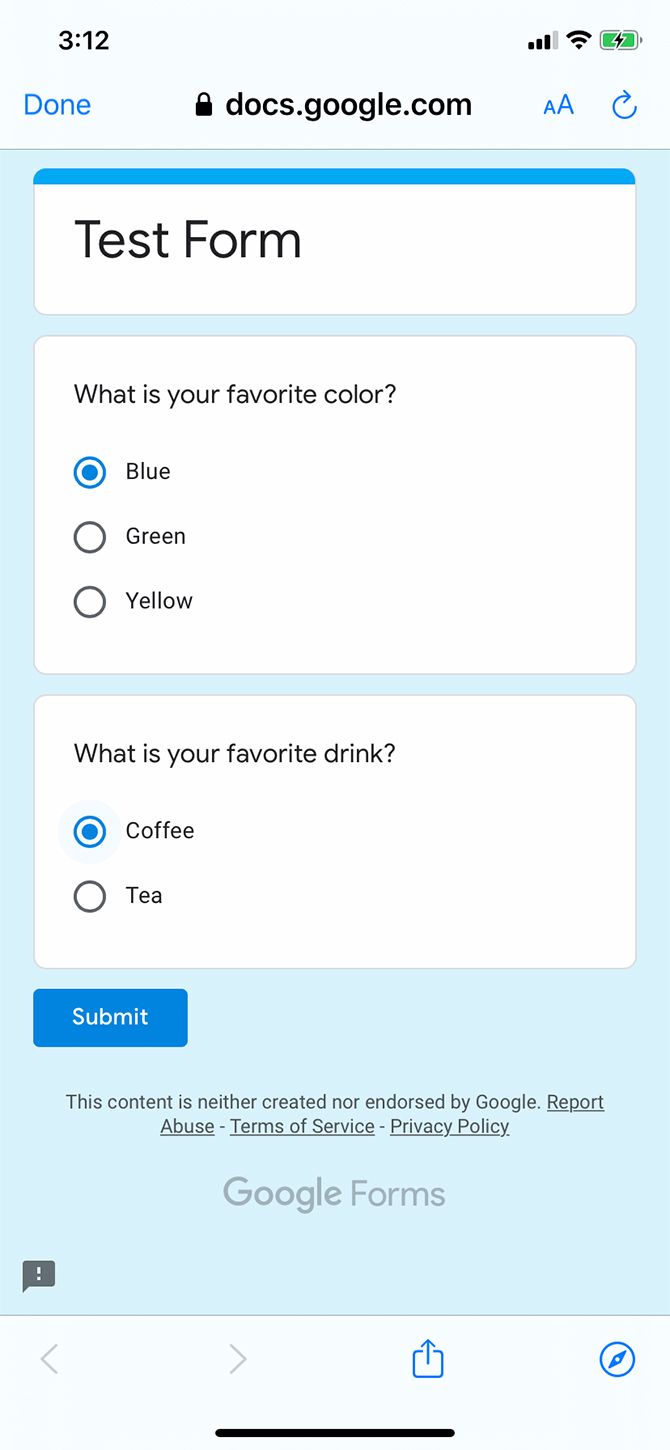
If you’ve ever tried to make an online survey before, you’ve probably used a few web-based tools like SurveyMonkey and SurveyLegend. However, there’s another awesome tool out there that we think you should use, and that free tool is Google Forms.

Why use Google Forms? It’s an app that is simple to operate, quick to complete, and easy for participants to respond to.

Here are nine advantages of Google Forms, and why you should use it for all your survey-making needs.

1. Create Unlimited Free Forms With Google Templates

Gallery of Google Forms Templates

Most survey tools will offer you a certain amount of free polling before they start to charge you for the service.

Using a subscription-based service is fine if you’re a big company. However, if you’re a single person running a small business, or if you’re part of a non-profit organization, a monthly price tag can cause an issue.

Fortunately, one of the great advantages of using Google Forms is that Google lets you run as many free polls as you’d like, at least on your personal account. Technically, you could keep on creating new surveys until your Google Drive is full, although we don’t recommend doing this: we just think there are better ways to utilize your Drive.

To save you time, Google Forms also offers a wide variety of templates that you can choose from to create a poll that is specific to your needs.

2. Google Form Benefits? The Results are Shareable

Advantage of Google Form Share Google Forms Results

If you love collaborating on documents and spreadsheets, then one of the benefits of Google Forms is that Google’s collaborative capabilities are available through this app, too. You can share a form—along with the results of that form in a spreadsheet—with as many people as you’d like.

When you click on Add collaborators for your form, all collaborators that you add can view it. Give any other team member the permission to edit, and also see the edits that others have made.

Google’s document-sharing capabilities have been the best on the market for a while, and they continue to dominate in this program, as well.

3. The Importance of Google Forms Logic Threading

Advantages of Google Forms Logic Threading

Logic threading is the ability to change a survey based upon the previous answers that the participant has given.

It’s an incredibly useful one to use. In Google Forms, follow these steps:

  1. Click on the three dots in the bottom right-hand corner of a question.
  2. After that, click on the Go to section based on answer.

Logic threading allows you to avoid the clunky wording of multiple questions. It also ensures that participants are only exposed to the relevant data that they need. For instance, if the first question on a survey asks you if you’re a Mac or Windows user, the following questions can be based upon Mac or Windows machines.

With other survey tools, logic threading is sometimes a feature that you have to pay for. On Google Forms, however, it’s free.

4. Get Email Notifications for Google Forms Results

Get Email Notifications for Google Form Results

Some of the survey making tools that you find online will only let you see the results of that survey by revisiting the app’s website. This situation can be less than ideal depending upon which sort of device you’re viewing the website on.

Fortunately, one of Google Forms’ advantages is the ability to get notifications and responses to your form directly via email.

To get responses in your email inbox:

  1. Click on the Responses tab at the top of your Google Form.
  2. Tap on the three dots on the right-hand side of the toolbar, next to the icon of a Google spreadsheet.
  3. Choose Get email notifications for new responses from the dropdown menu.

5. Google Forms Is Mobile-Friendly

Not all web pages are created equally. Not all survey making tools work great on a mobile browser, either.

Google Forms does.

One vital Google Forms usage is its cross-platform compatibility, ranging from desktop browsers to smartphones. Each template design is responsive, which means that checkboxes, multiple-choice questionnaires, and text fields are easy to use by the participants, no matter which device they use it on.

That mobile-friendly quality is a huge advantage, as a vast percentage of the world’s web traffic filters through smartphones. By having that responsive interface, Google Forms can potentially result in a higher-than-expected response rate.

Again, there are fewer barriers to participate for everyone in a survey.

6. The Importance of Google Form Customization

Customize Google Forms Template

With other online survey tools, you often have to pay a little bit extra to customize your polls, especially if you want those polls to match the branding of your company. Not so with Google Forms.

With the ability to change the look and feel of a survey to your company’s branding, Google Forms allows you to adjust the colors in each of its pre-made templates, add images to the headers of those templates, and change the font style.

The idea behind this? You want to convey to the participants of the survey that the survey is part of a unified product: that time and effort were put into the questions being asked.

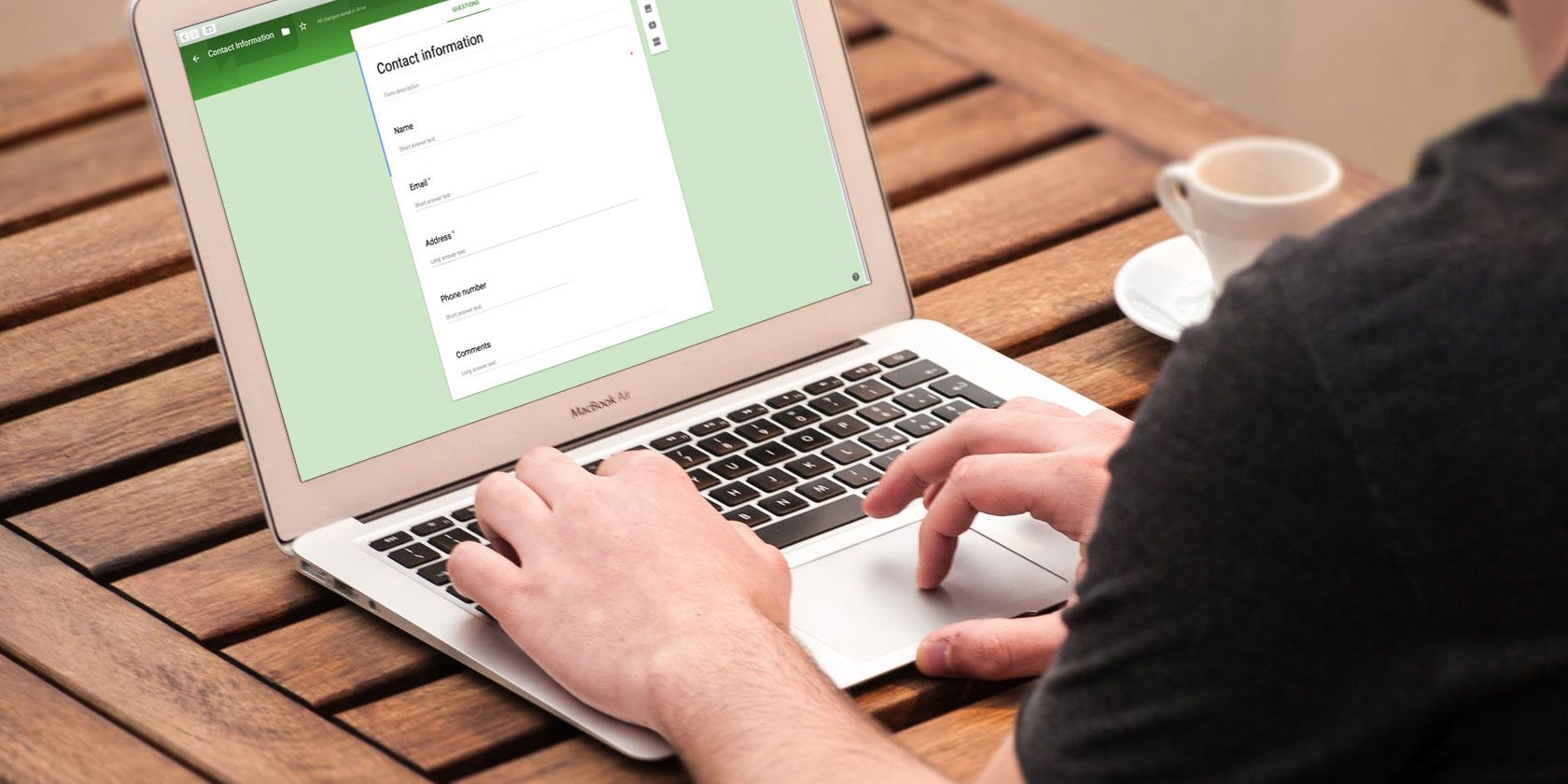
If you want a more concrete idea on where this customization aspect comes in handy, here’s how to create a free website contact form with Google Forms.

7. Google Forms Can Help Teachers and Students

Importance of Google Forms for Education

One of the unexpected benefits of Google Forms is that it can help you in the education sector, especially if you’re a teacher.

As a component of G Suite for Education, Google Forms is an economical way for educators to collect data and help them stay organized.

Through Google Forms, you can:

  • View a student’s work to track their progress.
  • Track class attendance.
  • Use Google Forms for grading.
  • Use Google Forms to quiz students on a subject.

8. Use Google Forms for Your Business

Use Google Forms for Business

On top of being a great tool for educators, Google Forms is a fantastic tool for work. If you’ve got G Suite for Business, and you’re running a simple online shop, you can use Google Forms to gain customer feedback or fill out order forms.

If you have employees, Google Forms can also be used to fill out “time off” requests.

9. Create a Survey With Google Forms Quickly

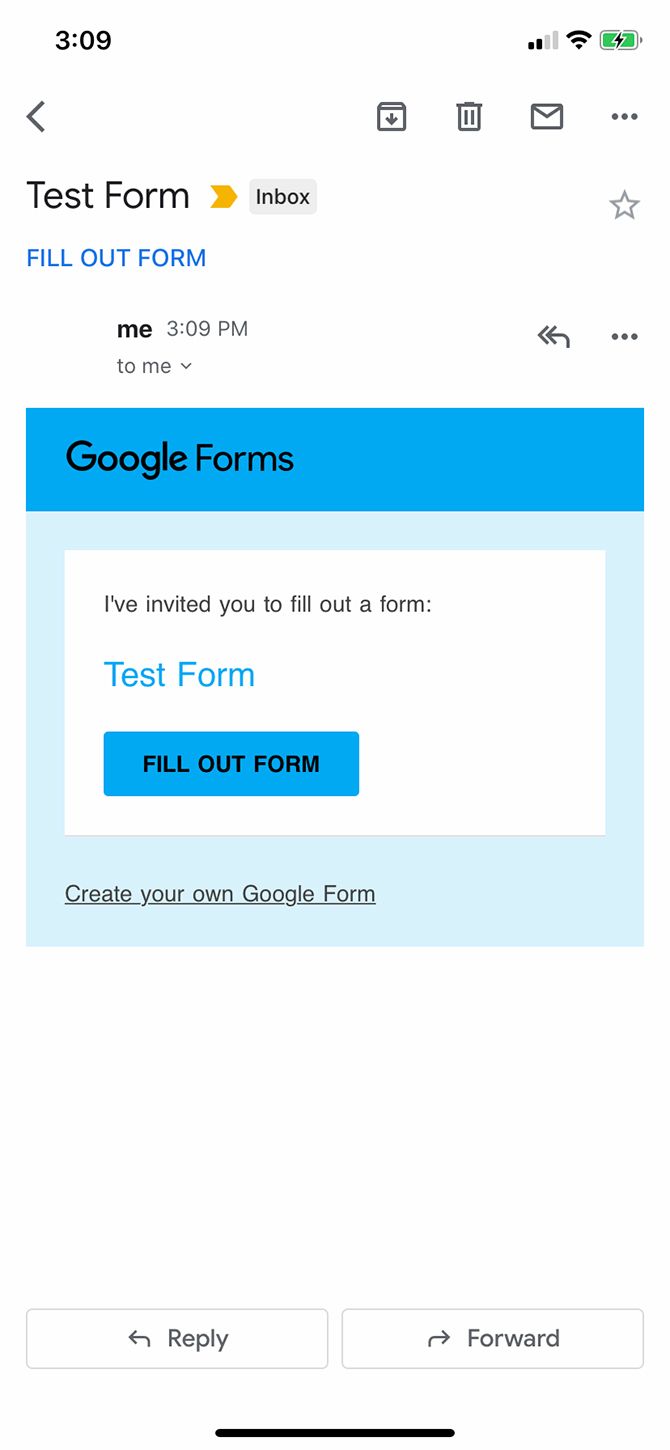
Send a Google Form

Lastly, one of the biggest advantages of Google Forms is that it allows you to create polls, forms, and surveys quickly.

There are no complicated bells or whistles that you need to know in order to learn how to use the app; no price point or insider knowledge that makes the tool inaccessible for the average user.

If you want to create a survey in ten minutes or less, then there is no easier way to do it than with Google Forms. Just open the app, pick your template, type your questions in, and go.

This makes it well-suited for casual users when it comes to creating online documents.

Use Google Forms to Create an Awesome Survey

Now, you may wonder if there are any disadvantages of Google Forms. The short answer is “no.” Unless you have a special attachment to another survey-making tool, or you’re anti-Google, Google Forms is the best way to go considering that you don’t have to pay anything.

Looking for other things you can do with this app? Here are some advanced Google Forms tips and tricks you should try out.

Read the full article: 9 Awesome Reasons to Use Google Forms


Read Full Article

The 8 Best Cheap Computer Parts Stores for Saving Money


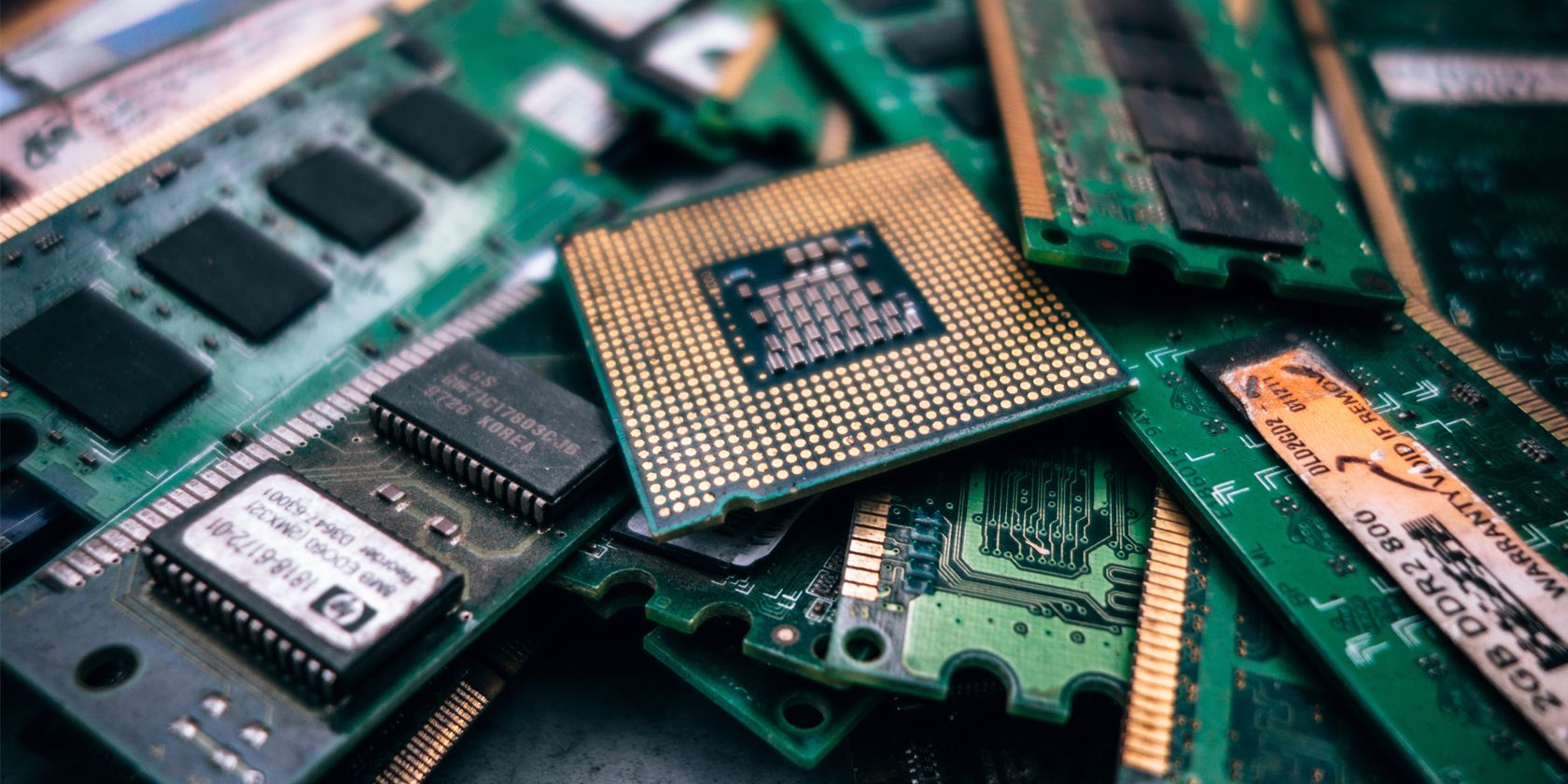
Looking for new computer parts is terrific fun. Well, at least it used to be until computer hardware became more expensive, and prices stopped dropping. Luckily, there are several decent options if you’re looking for cheaper hardware, both brand new and second-hand.

In no particular order, here are some of the best online stores for finding cheap(ish) computer parts when repairing your machine or looking to build a new one from scratch.

Is It Safe to Buy Cheap Computer Parts?

You can only expect so much regarding cheap computer components. If they’re too cheap, you must ask yourself, “Why?” Why can one store afford to sell it at a significantly lower price than its competitors?

The answer is usually, “It’s a scam.”

There are other issues, too. Cheap CPUs don’t exist unless you buy second-hand. Even then, some CPUs are surprisingly expensive.

Case in point: I thought about making a minor CPU upgrade for my main system. It has a decent i5 3570K that has never let me down, but I wanted to bump to the i7 3770K for the extra capacity. Intel 3xxx CPUs hit the market in 2012. And the price of a new i7 3770K? Precisely the same as six years ago; I should have just splashed a little bit extra back then.

Thankfully, the price of RAM has come down through the past 18 months. New manufacturing facilities coming online saw a massive increase in global production capacity. The boost to manufacturing capacity finally pushed the prices of RAM modules lower after two or three years of steady increases.

Hardware Production Issues Keep Prices High

A few years back, during the cryptocurrency boom, the prices of popular GPUs went haywire. As cryptocurrency miners rushed to buy up stock, the price of a top-tier GPU rose steadily.

The price of Ethereum and other GPU-mined cryptocurrencies is now much lower, and the demand for GPU mining hardware doesn’t cause as many issues. Furthermore, GPU manufacturers like Nvidia and AMD began marketing cryptocurrency mining-specific GPU models to remove the strain on the market.

Consider the status of the RAM market, too. Although the price of RAM has fallen, prices will not drop much further as manufacturers constrain capacity to stabilize the price, perhaps even to increase the price once more. Check out the following chart from PC Part Picker, illustrating the price of 2x4GB DDR4-2133 RAM:

pc part picker ram price chart

You see the drop, the stabilization—and the slight increases creeping in at the end.

So, if you want cheap computer parts, you have to shop around. You can find discount PC parts on several sites, be that second-hand, refurbished, or an unbranded Chinese import.

1. Best for Refurbished Computer Parts: eBay

ebay cheap pc hardware price comparisons

Let’s start with eBay, an excellent site for tracking down cheaper computer hardware.

The trick to finding a great eBay deal is patience and persistence. Set yourself a realistic price point for the hardware you want, stick to it, and wait it out. At some point, your product will appear at the price you want, within reason. (You’re not picking up a GTX 1080 Ti for $100 unless there’s something wrong with it or it’s a scam.)

Like AliExpress, you can find unknown manufacturers among the other listings, as well as brand new, second hand, and refurbished parts.

eBay is best for:

  • Brand new hardware
  • Refurbished hardware
  • Second-hand PC parts
  • Cheap computer part stores
  • Broken or not working hardware—scavenge other hardware for cheap parts

As mentioned above, you should always avoid any eBay deal that seems too good to be true—because it probably is!

2. Best for Cheap End-of-Season Clearance Sales: Newegg

newegg discount pc hardware

Newegg is a name synonymous with great computer hardware deals. You can find a range of new and refurbished computer parts, as well as the traditional Newegg deals. Deals vary daily, so if you have some specific hardware in mind, it is worth checking back periodically. To help you out, you can add those components to your wish list, and Newegg will ping you an email if it goes on sale.

Newegg has a few other good points, too. For instance, their forums are very active. Other users will direct you toward the right hardware for your PC build or otherwise. Also, hardware manufacturers are known to browse and actively respond to users with issues to ensure everything is running smoothly. At the same time, their YouTube channels make decent videos comparing various bits of hardware you might want to pick up.

Newegg is best for:

  • End-of-season clearance sales
  • Big budget and named brand discounts
  • Wide range of hardware
  • Customer service

If you’re shopping at Newegg, there are a couple of things to avoid, too:

  • Spending all of your money on the end-of-season clearance sales
  • Making forum posts before searching for similar questions

In all seriousness, make sure you double-check Newegg’s price with other retailers before purchasing.

3. Best for Huge CPU Discounts: Micro Center

micro center discount GPU prices

Micro Center is a special choice for this list. Why? Because it is the only option with actual bricks and mortar stores you can pick up your hardware from. (Forget FedEx Pickup Locations!) Also, if you’re struggling to figure out what equipment you need, their in-house teams are usually knowledgeable and not just looking for another sale.

Oh, and they’ll usually match prices between the online and real-world stores, too.

But it isn’t just bricks and mortar stores that make the difference. Micro Center has a long and well-regarded history for excellent hardware discounts, especially on CPUs.

So, Micro Center is best for:

  • CPU discounts
  • Major PC hardware discounts
  • In-house PC hardware knowledge
  • Bricks and mortar stores

4. Best for Cheap-ish RAM, General Discount PC Parts: Amazon

amazon ram discount prices

I’m keeping the Amazon section short and sweet. Amazon does have some fantastic deals on hardware; given its size, you wouldn’t expect anything else. Furthermore, you can switch between purchasing directly from Amazon, or using an Amazon verified third-party seller.

The latter can often give you extra discounts, along with some of the protections of using Amazon (return policy, customer services, and vendor communication).

However, keep an eye on the prices around the headline sales, such as Black Friday and Amazon Prime Day. Prices for certain hardware components have been known to creep upwards in the days before, to make the discounts appear even more significant during the sale event.

You can use one of these apps to track Amazon’s price changes and make sure you’re getting the best price!

Everyone knows what Amazon is about. Still, check out Amazon for:

  • Great return policy
  • Black-Friday and Cyber-Monday discounts
  • Ever-changing PC hardware discounts
  • Cheap-ish RAM
  • Warehouse deals (these are very hit and miss though)

As mentioned above, avoid purchasing straight away with Amazon. Use a price checker to figure out any recent price changes, then compare those prices to the other options on this discount PC hardware list.

5. Best for Cheap Wholesale Computer Parts: AliExpress

aliexpress cheap ssds pc hardware

China is one of the largest global manufacturers of computer hardware. AliExpress is an enormous online marketplace where you can find all manner of hardware, branded or otherwise. Branded hardware still costs roughly the same as a US or EU-based vendor, but hardware from manufacturers you’ve never heard of can cost significantly less.

RAM, HDDs, and SSDs are worth investigating, depending on your budget and desire for a deal. However, off-brand GPUs don’t exist, and the same goes for CPUs.

Now, does it cost less because the hardware isn’t as good? Or is it simply the weight of the brand that adds to the cost of other hardware? The answer is somewhere in the middle. AliExpress sellers are either companies or individuals, but it is different from Amazon in that it doesn’t directly sell any products itself.

AliExpress is best for:

  • Cheap unbranded hardware
  • Cheap wholesale components
  • Computer part stores
  • RAM, HDDs, SSDs, PSUs

You should avoid:

  • CPUs
  • GPUs
  • Some monitor manufacturers

Before purchasing anything on AliExpress, research the manufacturer, the “brand” (if there is one), and any other information you can find.

6. Best for Catching a Cheap PC Part Deal: SlickDeals

slickdeals discount pc hardware

In the UK, a popular deal site is HotUKDeals. Users post a steady stream of the discounts they find on anything and everything, including discount PC hardware. The closest US-equivalent is SlickDeals, offering a very similar format to the UK site.

You can use SlickDeals to find discounts on:

  • Computer parts, including cases, CPUs, GPUs, hard drives, SSDs
  • Peripherals, such as keyboards, mice, headsets, and lights
  • Routers
  • Printers
  • Monitors

Furthermore, you can streamline your search using the SlickDeals rating system, where other site users judge the discounts on offer. Alternatively, search using price, a specific store, or a specific brand.

7. Best for Cheap Local PC Hardware: Your Local PC Specialist

How could any cheap computer parts list leave out your friendly neighborhood PC specialist?

Your local PC hardware store will struggle to compete with the major corporations that dominate PC hardware sales. But they will still do their utmost to give you the best possible deal on hardware. There is always the chance they have some discount PC parts in stock, too.

Sometimes people sell their hardware to their local store for some quick cash, or they simply no longer need their hardware. Building a relationship with the local PC hardware store owner helps, too. What’s more, a dollar in the pocket of your local store is more likely to circulate in your local economy, keeping everything ticking over nicely.

8. Best for Comparing Cheap PC Part Prices: PC Part Picker

pc part picker amd ryzen

Okay, so PC Part Picker isn’t a store. But it is a fantastic tool for tracking down PC components as well as making sure they are compatible. PC Part Picker shows a range of online stores and their current price alongside the hardware you choose. You can make a genuinely informed decision about whether to shop around for individual parts, or simply buy every component at a single outlet.

The Best Cheap Computer Parts Stores

Finding genuinely cheap PC hardware is difficult. The amount of discount usually lies in the hardware you want to buy. Looking for a brand new Nvidia GeForce GTX 2080? You will struggle to find a huge discount on that.

Thinking about picking up a slightly older GTX 1070? There’s a strong chance one of the sites above will have it in stock with a discount.

Another way to save cash on components is to dig down into what you want to use your computer for. If you only need a machine for internet browsing, reading and sending email, and word processing, you can build a very cheap system, regardless of extra discounts or cheap hardware deals.

And for more help, be sure to check out our list of things every PC builder needs for a successful build.

Read the full article: The 8 Best Cheap Computer Parts Stores for Saving Money


Read Full Article

How to Remote Control Linux From Windows


linux-for-laptop

Set up a Linux server? Perhaps you’ve configured it as the solution to network storage. Or maybe you have a Linux work PC, media center, or a simple secondary PC in another room.

Whatever the case, at some point you’ll need to remotely access the Linux device from a Windows PC or laptop. So, what is the solution?

Windows users have several tools that enable simple remote desktop from Windows to Linux. Want to know how to access your Linux desktop from Windows? Read on!

You’ll Need the Linux Device’s IP Address

Before you start, find the IP address of your Linux device. You need this for all remote connection options, although in some cases the hostname (the device’s network name) will do.

The simplest way to check the IP address is to login to you your Linux device, and open the terminal. Enter:

ifconfig

The IP address of the device will be displayed.

If the Linux box has an Ethernet connection, the address will be listed alongside eth0. If it’s connected wirelessly, look for the IP address listed against wlan0.

If this isn’t easy, or convenient, there is another method which is almost as simple. In your browser window, connect to your router. This is usually an address like 192.168.0.1 or 192.168.0.100. You should be able to check by looking at the router itself, or the documentation that came with it.

Get your Linux device IP address

Once signed into the router, look for an option labelled called “Connected Devices” or similar. Browse through the IP addresses to find your Linux device by hostname. Some routers can even display the device operating system. You’ll find the IP address listed alongside.

Keep a note of the IP address, as you’ll need it later. And make sure you know the username and password for your Linux computer or server!

How to Access a Linux Desktop From Windows via RDP

The first and easiest option is RDP, Remote Desktop Protocol, which is built into Windows.

Before starting, you’ll need to install the xrdp software on your Linux box. You can do this in person or using SSH (see below) with a single command:

sudo apt install xrdp

To RDP to Linux, run the Remote Desktop software on your Windows machine. In Windows 8 and later, it can be found via Search, simply by inputting the letters, “rdp”.

With the Remote Desktop Connection window open:

  • Input the IP address
  • Use Show Options for any advanced connection requirements
  • Click Connect

Remote connect to Linux with RDP

It’s as simple as that.

Benefits of RDP: while it might take a bit longer to set up, using RDP provides great reliability and remote desktop access to Linux. This makes it an ideal tool for remote working with Linux machines.

If you use plan to use RDP on a regular basis, you can save some time by creating these custom configurations for Windows RDP.

Remote Into Linux From Windows With VNC

A Virtual Network Connection (VNC) also affords remote access to your Linux desktop. As with RDP, however, you’ll need to install some dedicated software. On the Linux box, VNC server software is required; on Windows, a client app.

One of the most popular options for connecting to Linux over VNC is TightVNC. You’ll find the Windows client software at the website, but make sure you choose the right version.

Download: VNC for Windows

Once you’ve done that, install the tightvncserver on your Linux box. This might be via SSH (see the next section), or with physical access to the computer.

First, in Linux, check for updates:

sudo apt update

Next, run this command:

sudo apt install tightvncserver

Once installed, run tightvncserver, and set a password when prompted.

sudo tightvncserver

There is an eight-character limit for passwords. With tightvncserver now running, you’ll see a notification displaying the port number—make a note of it.

To remote connect to Linux from Windows:

  • Run the TightVNC Viewer app in Windows
  • Input the IP address and port number
  • Click Connect
  • Input the password you set when prompted

Remote desktop from Windows to Linux with VNC

The remote desktop will then open, and you can start using the app of your choice—within reason. Certain applications with heavy graphical demands are unlikely to run reliably, if at all.

Benefits of VNC: offering fast access to the remote PC, TightVNC has its limits. You can perform standard computing tasks, but media-related activities are severely limited.

Remote Into Linux via SSH

SSH (Secure Shell) is a great way to gain remote access to your Linux device. You’re not limited to Windows with this option, either, as SSH can be used from almost any device. It’s also very secure.

You have two options for SSH on Windows:

  1. SSH in Windows PowerShell
  2. Download the PuTTY SSH tool

Let’s look at both.

Remote Access Linux With SSH in Windows PowerShell

Windows PowerShell is the new command line tool in Windows 10, replacing the old Command Prompt app. Find it by right-clicking Start to access the Power Menu and select Windows PowerShell. To SSH, enter:

ssh [IP_ADDRESS]

So if the Linux device has an IP address of 192.168.13.123 enter:

  • ssh 192.168.13.123
  • When prompted, accept the certificate
  • Input the username and password

You now have remote SSH access to Linux.

Connect to Linux Remotely Using SSH in PuTTY

Although not natively available in Windows, the PuTTY application can be downloaded. PuTTY isn’t installed, however. Instead, you simply run the downloaded EXE file.

Download: PuTTY

For convenience, it’s a good idea to create a desktop shortcut.

To use PuTTY for SSH:

  • Select Session > Host Name
  • Input the Linux computer’s network name, or enter the IP address you noted earlier
  • Select SSH, then Open
  • When prompted to accept the certificate for the connection, do so
  • Enter the username and password to sign into your Linux device

Remote into Linux from Windows with SSH

Benefits of SSH: using this method lets you make quick changes to Linux without getting your hands dirty. Particularly suited to software installation and admin changes. It’s also useful for setting up the next option, VNC!  SSH is also perfect for servers without a desktop environment installed.

However, if you need a remote connection to the Linux desktop, try VNC or RDP.

Three Ways to Remote Control Linux From Windows

Whatever your use case, there is a suitable option for remotely access Linux device from Windows. These methods work whether the device is a server, desktop PC at work, media center, or even a Raspberry Pi.

From easiest to toughest, remote access Linux from Windows using:

  • RDP (Remote Desktop Protocol)
  • VNC (Virtual Network Connection)
  • SSH (Secure Shell)

If your Linux distro happens to be Ubuntu, you already have a built-in VNC-compatible remote desktop tool. Here’s how to use Ubuntu Remote Desktop.

Read the full article: How to Remote Control Linux From Windows


Read Full Article

11 Creative Ways to Get the Most Out of Google Hangouts


google-hangouts

These days, a lot of us are spending a lot of time online. We’re spending time indoors and in front of the screen, perhaps unwillingly. As such, Google Hangouts has become one of the main programs that helps you connect with friends and family through video and chat.

While Google is phasing out its classic Hangouts app, the program still offers some bells and whistles that make it useful for online conversations.

Here are 11 creative Google Hangout ideas to get the most out of the app, whether you’re working, communicating with family and friends, or taking an online class.

Is Google Hangouts Shutting Down?

Google Hangout Ideas Google Hangouts Chat

Before we address the creative ways that you can use Google Hangouts, we need to answer the commonly asked question “will Google Hangouts go away?”

The quick answer: yes and no.

While it’s true that the classic app is being discontinued, Google is converting Hangouts into Hangouts Chat and Hangouts Meet. Personal users won’t see those changes until sometime in 2020. That switch has also been pushed back until “no sooner than June 2020,” according to Google’s GSuite blog.

As such, you still have a few months to use the classic app.

Google Hangouts Features That You Need to Know

Old Google Hangouts Chat

Additionally—in order to understand these Google Hangout ideas—we should also give a quick overview of some of the features that you need to be familiar with. Let’s talk a bit about popular features that have been discontinued and those that are still working.

  • Google Hangouts on Air: Google Hangouts on Air was a large scale version of Google Hangouts, where you could broadcast your conversations to anyone with a streaming link. Unfortunately, Hangouts on Air was discontinued in late 2019. It is currently in the process of being rolled over into Google Hangouts Meet.
  • Screen sharing: Screen sharing still works. Through Google Hangouts, you can allow everyone in the call to see your computer screen. This can be a great tool for online presentations and teaching new skills.
  • Google Chat: Not all communications on Google Hangouts need to happen through voice or video call! Text-only messaging options are still available through the classic app. The transcripts from these chats can be saved for further use.
  • Security: While messages are encrypted, the classic Google Hangouts app does not offer end-to-end encryption.
  • If you don’t have a Google account, you can still join in on a Hangout so long as the host gives you the link to the chat. You can learn more about this feature through Google Support.

11 Creative Google Hangout Ideas

Start a Google Hangout

1. Use Google Hangout Games to Keep Yourself Entertained

Can you play games on Google Hangout? All too often, people think that video chatting has to be directly related to catching up. So for this question, the answer is, fortunately, “yes!” You can use it for gaming.

Google Hangouts is a terrific option for hosting long-distance game nights with family or friends. Additionally, the app is great for when you need a gaming option that can be played indoors.

Whether you’re playing an intense tabletop role-playing game, Charades, or even one of the party games available through Jackbox, Google Hangouts Games can help you have fun with people and stay connected.

You definitely aren’t limited to small talk.

If you’re looking for more games to play on Google Hangouts or Google Hangout board games, here’s a list of free two-person online games you can play in your browser.

Additionally, you can check out Hangouts Against Humanity, which is an online version of the popular game Cards Against Humanity. Be aware, however: Hangouts Against Humanity hasn’t been updated in some time.

2. Watch Videos on Google Hangouts with Family and Friends

One of the biggest benefits of the classic Hangouts app is that you can share your screen with other participants.

While some streaming platforms have tools in place to prevent you from sharing your account with non-subscribers, you can still watch funny pet videos or personal home movies through a video chat by sharing your screen with the other viewers in the chat.

You can also provide them with a YouTube link if the video has been mirrored there.

3. Collaborate on Creative Projects

Google Drive offers a ton of tools for collaborating, but adding a real-time voice or video option can help push that collaboration from efficient to exemplary.

If you find yourself needing to collaborate on a web project with someone, it’s a great idea to have a Google Hangout occurring at the same time. This way you can easily suggest ideas, improve communication, and quickly resolve problems as they arise.

4. Get Feedback Through Google Hangouts

If you’re planning to launch a new product, you can use Google Hangouts to directly interact with your team or coworkers to get feedback on the product.

If you’re a small business—and you have access to a focus group—you can also give your audience the ability to ask questions about the product and provide you with consumer feedback. Your product launch will be better for it.

5. Join a Seminar Through Google Hangouts

Google Hangouts are great for seminars, and one of the most amazing examples of a Hangouts seminar was a discussion hosted by NASA in 2013.

Through this seminar, astronauts on the International Space Station connected to two classrooms, a young patient at a Seattle children’s hospital, and thousands of other viewers from around the world.

The topic of this discussion? Life in space and working in science.

Not all seminars need to be as large-scale as NASA’s—and they can’t be, now that Google Hangouts on Air has retired. By being an observer, however, Google Hangouts can give you the chance to learn about the subjects that you care about.

6. Conduct Job Interviews Through Google Hangouts

Are you interested in interviewing a candidate who lives too far away to physically attend an interview? What if they could fly or drive in for the interview, but can’t make the trip in time?

Google Hangouts is a great way to offer that candidate a chance to interview with your company, whether their interview is one-on-one, a large spread of candidates, or a panel. It’ll also ensure that you don’t miss out on a perfect employee due to geographic inconvenience.

7. Present a Slideshow for Work

If you ever find yourself needing to make a presentation at work, it might be convenient to schedule a Hangout session instead of an in-person meeting—especially now.

Google Hangouts will allow you to take questions from those in the call and share your screen, which can host your slideshow or other important documents.

If you are switching from Google Hangouts to Google Meet, you can also record a copy of your video call so participants can watch it at a later date. You can learn more about this feature through Google Support.

8. Use Google Hangouts for the Classroom

A surprisingly popular use for Google Hangouts has been its role in connecting students and teachers through remote classroom setups.

By making use of a classroom’s capacity for technology, teachers can exchange information with students, share their thoughts on group projects, and encourage communication between pupils.

Additionally, lots of people wish that they could easily learn another language. Despite the plethora of language and learning apps that have become available, there’s nothing better than being able to practice a new language with a native speaker.

If you’re taking online classes, Google Hangouts can help connect students with professors for real-time language practice.

However, some educational aspects of Google Hangouts are being shifted towards Hangouts Meet. Another extremely useful app for educational purposes is Google Classroom.

9. Broadcast Guest Speakers Through Google Hangouts

Another reason teachers have found Google Hangouts to be an incredibly effective tool? You can host a guest speaker and broadcast their tutorial to your class, especially when they would otherwise be unable to meet you.

By hosting guest speakers through Google Hangouts, you can give students the ability to ask questions through the chat.

10. Use Google Hangouts for Meditation, Yoga Classes, or Self Improvement

While not every kind of tutorial lends itself well to a live feed, meditation and yoga classes can be a great fit for those looking for professional instructions without having to pay pricey gym fees or take large group classes.

Some yoga instructors may be willing to provide classes through video chat apps like Google Hangouts, especially if going to a large studio is not an option for you.

It can be a great way to get expert guidance no matter where you are in the world.

11. Use Google Hangouts for Therapy Sessions

Online therapy sessions can be an alternative lifeline when you are stressed out and stuck indoors

It can also be beneficial for those who have built a strong relationship with a previous therapist but have moved to a new location that is too far away to visit.

If you’re not sure whether your therapist offers online services or not, reach out to them to see if they would be willing to do a session through Google Hangouts or another app.

Try Google Hangouts for Hangout Games

From games on Google Hangouts to educational seminars or yoga classes: there are tons of Google chats happening online every day. These ideas only scratch the surface of all the ways that you can implement the full flexibility of the app.

If you’re looking for other ways to adjust to “staying at home,” here are some remote work resources to work from home productively.

Read the full article: 11 Creative Ways to Get the Most Out of Google Hangouts


Read Full Article

The 20 Best Original Netflix Movies Worth Watching


netflix-original-movies

Everyone raves about Netflix’s original TV series. And rightly so. However, if they don’t interest you, why not switch your attention to the original Netflix movies worth watching?

Netflix’s production of original movie content continues to grow. And while they’re not all theatrical gems, many of them are movies worth watching, especially as Netflix isn’t afraid to make movies more traditional Hollywood studies won’t touch.

So, in no particular order, here are the best original Netflix films to watch right now.

1. Beasts of No Nation (2015)

Drama, War | IMDb: 7.7 | RT: 92%

It’s perhaps fitting that Netflix’s first original feature film remains one of its strongest titles, even to this day. Beasts of No Nation is the impressive yet heart-rending tale of a young West African boy whose life is torn apart by war and forced to join a rebel faction to survive.

With strong direction from True Detective’s Cary Fukunaga and powerful performances by Idris Elba and Abraham Attah, this is the kind of film that transports you into another world and leaves its mark on you for a long time.

2. Uncut Gems (2019)

Crime, Drama, Thriller | IMDb: 7.6 | RT: 92%

Uncut Gems is a triumphant return to the big screen for Adam Sandler, who puts in one of his best performances ever. Given his past few outings on the silver screen, you could be forgiven for glossing over a film featuring Sandler—but Uncut Gems is well worth your time.

Sandler plays a jewelry store owner who pawns an NBA championship ring, then promptly takes cash and places a series of high-stakes bets that could lead to the ultimate windfall. The result is a thrilling balancing act between family, business, and the most important thing of all—his life.

3. The Ballad of Buster Scruggs (2018)

Comedy, Drama, Musical | IMDb: 7.3 | RT: 91%

The Coen Brothers carry a powerful reputation for storytelling, and The Ballad of Buster Scruggs doesn’t disappoint. It’s a beautifully shot western with a packed cast, featuring Tim Blake Nelson, Liam Neeson, James Franco, and Tom Waits, to name but a few.

So, what sets The Ballad of Buster Scruggs apart from the rest? Well, it’s actually six short screenplays woven into a single film. The Coens wrote the stories over a 20-year period, only receiving funding from Netflix to finally piece the tale together once it emerged the streaming service would take a chance on unique projects.

4. Mudbound (2017)

Drama | IMDb: 7.4 | RT: 97%

Mudbound is a critically acclaimed historical drama set in Mississippi during World War II that follows two families who not only share farmland but also all the social and economic struggles of the time. It’s a moving tale that speaks to the human heart and sheds light and wisdom on many of our own modern struggles.

5. Roma (2018)

Drama | IMDb: 7.7 | RT: 95%

Roma is the multi-Academy Award-winning drama from director Alfonso Cuarón, following a year in the life of a middle-class family’s maid in Mexico in 1970.

The film is Cuarón’s tour de force, featuring stunning black and white cinematography, incredible scale, and a story intermingling personal growth and tragedy with events that shaped a nation. Throughout, Roma is gripping, intriguing, and, ultimately, a beautiful journey.

6. Okja (2017)

Adventure, Drama | IMDb: 7.3 | RT: 86%

Okja is a South Korean film that follows a rural young girl, her budding friendship with a strange new animal, and the lengths she’s willing to go to in order to save that animal’s life when it’s threatened.

The film contains a lot of not-so-subtle social commentary, but never so much as to spoil the experience. If you’re a fan of director Bong Joon-Ho’s other films (The Host, Mother, Snowpiercer), then you should check it out.

7. The Irishman (2019)

Biography, Crime, Drama | IMDb: 7.9 | RT: 96%

Crime, drama, mobsters, De Niro, Pacino, Pesci, and Scorsese. Need I say more? The Irishman is a journey through the ages of the Italian American mob, as told through the eyes of an aging mafia hitman.

It’s a long watch, coming in at over three hours. During that time, you’ll see younger versions of the main characters, manipulated using pioneering technology, and hear numerous intersecting events that shaped crime in the USA.

The Irishman picked up nine Academy Award nominations, notable for both Al Pacino and Joe Pesci receiving nominations for Best Supporting Actor.

8. The Fundamentals of Caring (2016)

Comedy, Drama | IMDb: 7.3 | RT: 77%

The Fundamentals of Caring is the story of a cynical boy with muscular dystrophy who drives away all his caretakers, until one day he meets his match. This heart-warming buddy comedy film is more than just laughs and drama; it’s an exploration of what it means to care and the importance of genuine friendship as a component in emotional healing.

9. High Flying Bird (2019)

Drama, Sport | IMDb: 6.2 | RT: 93%

Steven Soderbergh’s sports drama covers a whirlwind 72-hour period behind the scenes during a league lockout. The story focuses on a player’s agent attempting to find a new deal for his client during the lockout period, protecting the interests of his player while ensuring he can play in the NBA when the league resumes.

Interestingly, High Flying Bird is filmed entirely on an iPhone 8, from start to finish. As incredible as that sounds, it isn’t the first film that Soderbergh has shot on an iPhone (the first being psychological horror, Unsane). You wouldn’t know or even suspect that Soderbergh shot the film on a phone most people use to browse Instagram.

10. I Don’t Feel at Home in This World Anymore (2017)

Comedy, Suspense | IMDb: 6.9 | RT: 89%

Despite its genre labels, I Don’t Feel at Home in This World Anymore sits in a class of its own.

When a depressed nursing assistant returns from work one day to find her home burglarized and is brushed aside by the police, she decides to take matters into her own hands. But if you think you know where this story goes, you’re mistaken.

The excellent performances from Melanie Lynskey and Elijah Wood elevate this above its generic premise.

11. Dolemite Is My Name (2019)

Biography, Comedy, Drama | IMDb: 7.3 | RT: 97%

Eddie Murphy rolls back the years in this dramatic comedy, offering a biography of filmmaker Rudy Ray Moore’s life. Moore was well known for playing the character of Dolemite in his stand-up routine, while the character also appeared in a series of blaxploitation films.

It is a heartfelt performance from Murphy, his affinity for the subject matter clear in his portrayal of Dolemite.

12. To the Bone (2017)

Drama | IMDb: 6.8 | RT: 71%

To the Bone is an insightful look at one person’s struggle with anorexia and the obstacles that can get in the way of recovery. Not to say that all anorexia stories mimic this one, but it’s insightful, nonetheless. The performance by lead actress Lily Collins is captivating, and the film’s dark humor brings levity to what could have been a depressing tale.

13. The Meyerowitz Stories (2017)

Drama, Comedy | IMDb: 6.9 | 93%

The Meyerowitz Stories is a comedy-drama that follows the siblings of a family struggling to emerge from the shadow of their father, a successful sculptor, and professor.

What we really like about The Meyerowitz Stories is the casting. Adam Sandler, Ben Stiller, and Elizabeth Marvel play the estranged siblings, linked together through their combined efforts to succeed in their own right, analyzing and illustrating a familiar family dynamic. Add in Dustin Hoffman as the father, and you have a great movie on your hands.

14. Gerald’s Game (2017)

Horror, Suspense | IMDb: 6.6 | RT: 91%

What do you do when you go on a weekend trip to a remote lake house, agree to be handcuffed to the bed as a way to spice up your romantic life, and then get stranded because your partner has a heart attack and dies? Gerald’s Game has fun with that question and succeeds thanks to Carla Gugino’s remarkable performance.

Stephen King film adaptations tend to be a little hit-or-miss, but you can mark this one down in the “hit” column. For others that pass muster, check out the best Stephen King movies to stream.

15. Set It Up (2018)

Romance, Comedy | IMDb: 6.5 | RT: 92%

Who says romantic comedies are dead? Netflix doesn’t agree, that’s for sure. Set It Up follows the tried and tested rom-com formula: matchmaking, calamity, hilarity, misunderstandings, and of course, falling in love.

Like all rom-coms, you should go in with an open mind. Expect little, and you’ll have a pleasant enough time watching two assistants attempt to force their bosses together, only to realize that they’re a perfect match for each other.

16. ARQ (2016)

Suspense, Sci-Fi | IMDb: 6.4 | RT: 43%

ARQ is a time-loop suspense film with a heavy dose of “science fantasy.”

A couple is stuck in a makeshift laboratory that keeps repeating the same day from the same moment, all while fending off a group of intruders who want to steal a valuable device they possess.

All in all, this is a fun popcorn flick that doesn’t pretend to be anything more.

17. The Other Side of the Wind (2018)

Drama | IMDb: 6.8 | RT: 83%

Netflix takes chances on its original films, allowing interesting ideas to flourish. So, what better project to bring to the world than a new Orson Welles picture. That’s right, a new film from the legendary actor, writer, director, and producer, over 30 years since his passing.

The story behind The Other Side of the Wind is as remarkable as the film itself. Welles began filming in 1970, working on the project when his time and funding allowed. However, it ran into financial and legal trouble, and production struggled.

The filming was completed after Welles’ death in 1985, and several attempts were made to piece the various reels together. In 2018, Netflix released the film to critical praise, bringing Welles back to the screen once more.

Welles final outing follows the story of fictional veteran Hollywood director Jake Hannaford, who was attempting to resurrect his career through the production of a flashy “modern” film.

Winding through friends, enemies, the media, and a lot of booze, Hannaford’s journey explores how Welles saw the distancing of the Golden Age of Hollywood sliding into the contemporary era, and the effect it had on those working the scene.

18. Win It All (2017)

Comedy, Drama | IMDb: 6.2 | RT: 85%

Win It All follows an everyday gambling addict who, as fate would have it, comes across a lot of dirty money, gambles it all away, and becomes indebted to the criminal whose money he lost. The clock starts ticking as he scrambles to win it all back, and possibly even get his life back together in the process.

19. I Lost My Body (2019)

Animation, Drama, Fantasy | IMDb: 7.6 | RT: 96%

I Lost My Body is a stunning French animation detailing how a severed hand longs to reconnect with its host body. It sounds grim, but I Lost My Body brings some dark humor to an animated fantasy adventure that winds throughout the streets of Paris. I Lost My Body packs in the action, and the animation and illustration are brilliant to boot.

You can watch the original version in French with English subtitles, or switch to the English dub if you prefer.

20. Annihilation (2018)

Adventure, Drama, Horror | IMDb: 6.9 | RT: 88%

If you like science fiction horror, Alex Garland’s Annihilation should be right up your street.

Annihilation follows a team of scientists entering “The Shimmer,” a quarantine area full of mutant and toxic plants, animals, and more, all waiting to be discovered. The team, lead by Natalie Portman, encounter a steady stream of horrific animals and an environment that does not want to be explored.

Portman turns in an excellent performance, and Garland’s previous work on Ex Machina shines through to create a mysterious and gripping sci-fi horror movie.

More Netflix Movies Worth Watching

If you don’t have Netflix but feel compelled to try it out in order to watch these films, check out our ultimate guide to Netflix to get started. Or, if you’re looking for more films to watch, check out the best movies to watch on Netflix.

Do you still need more to watch? Then here’s how to find movies you will love on Netflix.

Read the full article: The 20 Best Original Netflix Movies Worth Watching


Read Full Article

How to Establish Remote Desktop Access to Ubuntu From Windows


You’re in one room, sitting at a PC; the data you want is in another, on a computer running Ubuntu. If both computers are in the same house, no problem; but what if they’re in different offices? It might be a bit of a walk!

The answer, therefore, is setting up a remote desktop connection. Learn how to set up a remote desktop from Windows to Ubuntu.

Why Remote Connect to Ubuntu From Windows?

There are several reasons why you might want to remote connect to your Ubuntu computer. Perhaps you’re at work and need to log into your home computer. Alternatively, you might have an Ubuntu PC in one room, your Windows PC in another. Maybe you want to run updates on Ubuntu, or access files.

Remote control Ubuntu using RDP

Alternatively, you might be running an Ubuntu server, for data, a website, even a game. Either way, a method of setting up a remote connection will save a lot of time and effort.

You have three key options for establishing a remote connection with an Ubuntu machine running the default desktop environment:

  1. Remote Desktop (RDP)
  2. Virtual Network Computing (VNC)
  3. Third party remote desktop software

First, however, you need to make some preparations:

  1. Enable port forwarding on the remote device’s router
  2. Find the IP address
  3. Install SSH

Let’s look at these in turn.

Prepare Windows RDP to Ubuntu Connections

Remote access solutions are simple to set up and manage across the same network. However, if you’re working from home, this instantly complicates things.

To use VNC and RDP with a PC on a different network, you’ll need to enable access to the remote computer via its router. This is done using “port forwarding.” Before you set this up, however, you’ll need the IP address.

Find Your Ubuntu PC’s IP Address

Before you can establish a connection to your Ubuntu device over RDP or VNC, you’ll need the IP address.

The first way is the easiest. Physically go to the Ubuntu machine, press Ctrl + Alt + T to open the Terminal, and input the command:

ifconfig

Look for the “inet addr” against the connection you’re currently using. For instance, if you’re on Wi-Fi, look for wlan0. If the computer is connected to the network for Ethernet, look for eth0.

Another way to find the IP address is to find the connection icon in the panel, right-click, and select Connection Information. You’ll find the IP address listed here.

Neither of these options open? You can also connect to your router directly, via your computer’s browser.

Once signed into the router’s admin console, you’ll be able to see which devices are connected. Just look for your Ubuntu device name, find the IP address, and make a note of it for later.

Enable Port Forwarding

To access a computer on another network (e.g. your work network) you need to enable port forwarding on the router where your Ubuntu PC is located.

Start by establishing the IP address of the router. You can use the ip r command for this, with grep to specify the default:

ip r | grep default

Make a note of the IP address, then open it in your browser to display the router’s admin console. Enabling port forwarding is simple:

  • Look for the Port Forwarding settings
  • Create a New Rule labeled Remote Desktop
  • Set the Internal Port number to 3389
  • Set the External Port number to 3389
  • Input the IP address of the Ubuntu PC
  • Click Save

Note that these steps are generic and will differ depending on your router. For detailed steps, check your router documentation.

Once saved, you should be able to RDP into the Ubuntu PC remotely via your organization’s static IP address. If your employer does not use a static IP (unlikely, but it happens) then use a dynamic DNS provider instead.

Note: your organization’s system admin can set up port forwarding if you’re not using commercial remote desktop tools.

Set Up Access Using SSH

To save time you might want to install PuTTY on your PC (or just try the built-in Windows SSH function). This enables you to set up an SSH connection, which gives remote access to the Ubuntu command line.

To be clear: this isn’t a remote desktop option; there is no mouse control. But it is useful to have to remotely install the tools you’ll be using. SSH is often disabled by default, however, so if it is not installed, you’ll need to fix this.

In short, it depends on which Ubuntu version you’re using, and whether you’ve used SSH previously.

Once installed via the terminal (sudo apt install openssh-server) you’ll be able to make a remote connection. Simply enter the IP address and the Ubuntu username and password. You can then use the terminal to install the tools you need for RDP and for VNC.

1. Remote Access Using Remote Desktop Protocol

The easiest option is to use Remote Desktop Protocol or RDP. Built into Windows, this tool can establish a remote desktop connection across your home network. All you need is the IP address of the Ubuntu device.

While the necessary software is pre-installed on Windows, you’ll need to install the xrdp tool on Ubuntu. To do this, open a Terminal window (Ctrl + Alt + T) and enter:

sudo apt install xrdp

Follow this with

sudo systemctl enable xrdp

Wait for this to install, then run the Remote Desktop application in Windows using the Start Menu or Search. Type rdp then click on Remote Desktop Connection. With the app open, input the IP address in the Computer field.

Remote connect to Linux with RDP

Next, click Show Options and add the Username for the Ubuntu PC. You can click Save to keep these settings for reuse on another occasion.

Click Connect to start the connection and input the Ubuntu account password when prompted. The connection will then be established, giving you full mouse and keyboard access to your remote Ubuntu computer. If you plan to use this connection often, you can create a configuration file for it to save time.

Troubleshooting RDP to Ubuntu

While RDP is a great option for remote connecting to your Ubuntu PC, it’s unreliable on Ubuntu 18.04 LTS. There appears to be an issue establishing a remote connection while already logged into the same account on Ubuntu.

As such, the simple way around this is to simply log out of the Ubuntu computer.

If this isn’t possible, try switching the RDP connection from using the Xorg server to using X11rdp. Wait for that to fail then try Xorg again.

You might also attempt connection after restarting the Linux machine.

Ubuntu 20.04 LTS should include a fix for this problem.

2. Connect to Ubuntu from Windows With VNC

Another option with full remote desktop functionality is VNC (Virtual Network Computing). This requires a client application on the Windows PC and a server on Ubuntu.

On the remote PC, install the TightVNC Server component after checking for updates:

sudo apt update

Then install the server utility:

sudo apt install tightvncserver

You’ll then need to run it:

sudo tightvncserver

At this point you’ll be prompted to set a password for the connection. Make a note of the desktop number, usually :1.

Now that TightVNC Server is set up on Ubuntu, you’ll need to install the client on Windows. This can be downloaded from www.tightvnc.com/download.php—make sure you choose the right version, as it is available in 32-bit and 64-bit flavors.

TightVNC tools are only available as a bundle, so once installed, look for TightVNC Viewer in Windows search.

Once you’ve launched the viewer, input the IP address of the Ubuntu box in Remote Host, followed by the desktop number. So, it might look like this:

192.168.0.99:1

Remote desktop from Windows to Linux with VNC

Input the password when prompted and commence your remote desktop activity!

Making TightVNC More Secure

By default, TightVNC will encrypt your password, but nothing else. This makes it insecure for connections over the internet. Fortunately, security can be enhanced, thanks to SSH and Xming.

To use this, download and install the Xming tool for Windows from Sourceforge. Once this is done, look for the desktop shortcut, right-click, and choose Properties.

Look for the Shortcut tab, and in the Target field, enter the following:

"C:\Program Files (x86)\Xming\Xming.exe" :0 -clipboard -multiwindow

Click Apply to save the change, then OK. Double-click the icon to run Xming, then open PuTTY. Here, expand the menu on the left to Connection > SSH > X11.

Check Enable X11 Forwarding, then return to Session at the top of the menu.

Enable X11 forwarding to use remote desktop with SSH

Enter the IP address for the remote device and click Open. Moments later, a secure connection to the remote Ubuntu desktop will be available.

3. Remote Desktop to Ubuntu With Commercial Tools

Everything you’ve learned so far is standard if you need to remotely access a Linux PC on your local network. If you need to go beyond that, then the steps to enable port forwarding will help.

But what if you have no intention of accessing your router? If this seems too complicated, then third-party commercial software designed to facilitate remote desktop, is required. Several are available, but not all support Linux.

We suggest you try out:

  • NoMachine: initially released as a Linux remote desktop tool, this is now available across all major platforms. Install on the target computer, then on your local machine, and set up a remote connection.
  • Chrome Remote Desktop: uses your Google account to manage remote access via the Chrome browser.
  • TeamViewer: a well-known commercial remote desktop solution, this offers Linux software. Simply install client and host software beforehand. Also offers a host app for remotely accessing Raspberry Pi devices.

Note that these tools require setting up before use. If you have a colleague near the remote PC, they might be able to help. See our list of remote access tools for more suggestions.

Choosing the Right Ubuntu Remote Desktop Solution

Which remote desktop tool for connections between Ubuntu and Windows should you use?

Three main options are available:

  • RDP: this uses the Windows Remote Desktop Protocol, via the open source xrdp implementation.
  • VNC: Virtual Network Computing is an alternative to RDP, but less secure.
  • Commercial remote software: most of these require minimal set up and support Linux.

You can also use SSH to issue some remote instructions to your Ubuntu PC.

We’ve shown you three ways to establish a remote connection to your Ubuntu computer or server from Windows. Each has its advantages and disadvantages. But if you just want to dip into Ubuntu, try the Windows Subsystem for Linux on Windows 10?

Read the full article: How to Establish Remote Desktop Access to Ubuntu From Windows


Read Full Article