25 March 2020

How to Look Good on a Webcam When Video Chatting


webcam-hack

With video conferencing, vlogging, and even appearing on TV via remote link on the rise, looking good on webcam is increasingly important. But so many people get it wrong. Experts, politicians, YouTubers, even models and style experts can end up looking terrible on webcams.

So, how does one look good for a webcam? Simply, make the most of what you’ve got. Learn how by following these tips to get you looking your best for the camera.

13 Ways You Can Look Better on Your Webcam

Looking good when on a video chat is vital. While one or two people you’re close to might not mind you looking a mess, this isn’t usually the case.

How to look good on a webcam

Here are 13 things you can do to look better on webcam calls and recordings:

  1. Use a good quality webcam
  2. Sound great with a decent microphone
  3. Look presentable with clothes and makeup
  4. Have a tidy background
  5. Don’t get too close or too far away
  6. Light from the front, not behind
  7. Look at the camera, not the screen
  8. Look up at the webcam, not down
  9. Don’t move around too much
  10. Establish a dedicated space for webcam recordings and chats
  11. Rehearse to improve your confidence
  12. Check the results with a friend
  13. Be yourself

With so much to consider, let’s explore these tips in detail so you can look good on a webcam today.

1. Look Good With a Quality Webcam

Using a cheap webcam will leave you with sub-par results. If you’re serious about looking good, get a decent external webcam.

Anivia 1080p HD Webcam W8 Anivia 1080p HD Webcam W8 Buy Now On Amazon $69.99

Leave plenty of time between hooking it up and using it. Take the time to test it, preferably with the chat software or video recording app you’re using. This gives you the opportunity to make any adjustments to the set up.

2. Improve Webcam Audio with a Good Mic

Built-in mics on laptops, some desktops, and webcams are typically mediocre. To sound good on webcam, it’s smarter to use a dedicated microphone. A great selection of dedicated microphones is available. Adding one to your setup will improve your overall presentation and complement the quality of your new webcam.

A good option is the Blue Snowball iCE, a USB microphone that works with desktop and laptop computers.

Blue Snowball iCE USB Mic Blue Snowball iCE USB Mic Buy Now On Amazon $49.97

Not sure how to install a mic? Check these no-hassle ways to connect a microphone to your PC.

3. Look Good on Webcam: Make Yourself Presentable

Presentation is key to looking good on a webcam. It doesn’t matter if you’re working from home for a video chat or being interviewed on TV.

Just be sure to get out of your pyjamas into some more suitable attire. You might be at home, but first impressions count, and pyjamas say, “I just got up.”

Take the time to prepare your hair and teeth. Sort out stray hair, floss and brush your teeth, and have if necessary. If you need makeup, leave plenty of time to apply it. This is particularly important with high definition video.

For clothing, rely on darker tones. Bright clothes can be off-putting and play havoc with lighting. Keep it muted.

4. Check Your Background on Webcam

A plain white wall is boring, but piles of junk are both distracting and unpleasant. See what you can do to create a pleasant background with no mess and very few visual distractions.

If this isn’t possible, some webcam apps can blur your background. For example, Skype features a background blurring tool that you can toggle for video calls. Other webcam apps include similar tools.

You might also try a webcam background that attaches to your chair.

Webaround Portable Webcam Background Webaround Portable Webcam Background Buy Now On Amazon $65.00

These come in grey, blue, and green for chromakey use. This means you can set a different background, although in most cases this is only suitable for post-production. But if you’re using your webcam for recording videos to upload to YouTube, this is an ideal background cheat.

5. Get the Distance Right

A distracting element for any webcam conversation is a subject that is too far away—or too close!

It’s best to maintain a static distance with your webcam. A good rule of thumb is to keep the camera about an arm’s length from you.

6. Light From the Front and Look Great

If it’s at all possible to relocate the lights before you use a webcam, then do so. Too much light from behind will dim you out completely.

Try to shine light on yourself from the front, preferably from slightly above. If there’s a window in the room, try to face that as natural light from the window is best.

It’s difficult to avoid glare and washout but try out a few different positions to get the best results. If you don’t have a handy window or lamp, consider using an external monitor behind your webcam. Just bring up something very white on-screen and turn up the brightness.

A phone or tablet computer can also help here. You can also buy desktop lamps for improved video call lighting.

8-inch LED Selfie Ring Light 8-inch LED Selfie Ring Light Buy Now On Amazon $29.99

These devices are affordable and ideal for indoor video on a PC webcam or mobile device.

7. Remember to Look at the Camera

Find the right angle to look at your webcam

All too often, especially during webcam chats, the image of the person you’re speaking to can distract you. The result is you’re looking slightly away from the camera, rather than at it.

So, remember to look at the camera. You can help yourself here with a few tricks:

  • Point a sticky note with an arrow at your camera
  • Move your chat window as close to the camera as possible
  • Write prompts on a stick note and place it next to the camera

Looking down when you’re supposed to be looking at the webcam can be disconcerting for the viewer. Take a moment to practice this with your device’s webcam app.

8. Use the Best Webcam Angle: Look Up at the Camera

A slight change in camera positioning could make a world of difference. This is particularly important whether you’re vlogging, appearing on TV, or attending an online job interview.

Looking up shows you in the best possible light. If you’ve worked on the other presentation aspects, ignoring this tip could ruin your hard work so far.

In short, when you’re looking down at a camera, you’re giving yourself a double chin. If that wasn’t bad enough, looking down can also and show off your nose hairs.

Looking up is far more flattering. Position the webcam to suit; if you’re using a laptop, place it on a few books for elevation.

9. Minimise Your Motion, and Don’t Lean In

Moving around too much on a webcam can cause problems. First, too much motion can be distracting. Second, it can cause pixilation of the video stream, resulting in a drop in quality. Keep as still as possible so the focus remains on what you’re saying.

Meanwhile, be careful not to lean back or forward. Leaning back too far will distract the viewer and result in them losing attention; leaning in can be intimidating.

10. Set Up A Dedicated Webcam Space

If you’re using your webcam often, you may want to set up your space, so you have a decent background. This includes maintaining front lighting and keeping your webcam at a good height.

Ensure you keep your webcam equipment, comb, decent shirt, and basic makeup ready, too. Be prepared and you’ll be able to jump into webcam chats at short notice and look as good as possible.

11. Be Confident on Webcam: Rehearse!

Be sure your webcam tips are good

Knowing what you’re going to say boosts confidence and will help to make a good impression.

If you’re having a meeting, make sure you know the main points you need to get across. Need statistics or other data to hand? Make sure you have it ready before your webcam chat starts, just as you would for an in-person meeting.

If you’re doing a show, make notes and practise just like you would for any public presentation.

12. Check the Results With A Friend

If you’re unsure about your set-up, arrange a Skype chat with a trusted friend and ask for their opinion. They should be able to help you spot any problems with how you look, lighting, background, and how you sound.

Do this ahead of time so there is opportunity to make the necessary changes before your webcam call or recording.

13. Be Yourself

A desire to look good can easily lead to copying and imitating other people. Don’t!

Just be yourself and stay calm. If you’ve followed all the steps so far, you should be confident that you look your best and are prepared to be on camera. So, just keep smiling and stay cool.

Use These Tips to Look Good on Your Webcam

Whether you’re making vlogs, video calls, joining video conferencing sessions for work, or appearing as a guest on network or online TV, the tips listed here can help you look good on a webcam.

First impressions count: don’t let yourself down by being untidy, unprepared, and uncertain. Need a webcam in a pinch? You could record your vlog or make the video call on your phone. If you must use a PC, here’s how to use your Android phone as a webcam for your computer.

Read the full article: How to Look Good on a Webcam When Video Chatting


Read Full Article

How to Enter Netflix’s Secret Codes


Despite the popularity of Netflix, it still has an issue with content discovery. The list of TV shows and movies on the homescreen often throws up bizarre recommendations. So much so that you may need to recalibrate your Netflix recommendations.

Meanwhile, content you would actually enjoy goes unnoticed until a friend happens to mention it in passing. Netflix uses a range of algorithms to decide what it recommends to you, but none of the behind-the-scenes genres are natively searchable within its apps.

Luckily, there are hundreds of secret Netflix codes to help you find new content. These let you pinpoint your search to find exactly what you want to watch. You can get strangely specific, such as code 354 which is “Movies Starring Matthew McConaughey”!

To reveal the content lurking behind these codes you need to know how to enter them. So here’s how to enter the secret Netflix codes to access the streaming service’s entire library of movies and TV shows.

How to Use Netflix’s Secret Codes

netflix secret code url

To use the hidden Netflix codes, just follow these simple step-by-step instructions:

  1. Open your browser.
  2. Go to Netflix and sign into your account.
  3. Type https://www.netflix.com/browse/genre/[code] into the address bar.
  4. Replace [code] with one of the genre-specific codes.
  5. Press Enter.

When the page loads, you will still see the usual carrousels such as Popular and Trending, but with content from within your selected genre.

Popular Netflix Hidden Codes

Some of the most popular Netflix codes to get you started are:

  • Action and Adventure (1365)
  • Anime (7424)
  • TV Cartoons (11177)
  • Film Noir (7687)
  • Stand-up Comedy (11559)
  • Cult Comedies (9434)
  • Independent Dramas (384)
  • Japanese Movies (10398)
  • B-Horror Movies (8195)
  • Classic Musicals (32392)
  • Spy Action and Adventure (10702)
  • Sci-Fi and Fantasy (1492)
  • Gangster Movies (31851)
  • Psychological Thrillers (5505)

More Netflix Tips and Tricks to Use

And remember, we have written dozens of articles to help you find more movies and TV shows worth watching on Netflix. They are the perfect complement to the Netflix secret codes.

For a full rundown of these Netflix content recommendations, as well as a bunch of other tips and tricks, check out our comprehensive guide to Netflix to help you become a Netflix pro.

Read the full article: How to Enter Netflix’s Secret Codes


Read Full Article

Why Is My Wi-Fi Is So Slow? Here’s How to Fix It


slow-wifi

If you’ve found your Wi-Fi slowing to a crawl, there could be several causes. Ultimately, you want to get things running smoothly with as little as disruption as possible.

Fortunately, there are a few steps you can take to fix your Wi-Fi. So, let’s take a look at what may be causing your slow Wi-Fi.

1. Router Positioning

The position of your router plays a critical role in your home Wi-Fi network. Even a slight shift in position could slow down your Wi-Fi. In fact, correct positioning is one of the many ways to improve the speed of your router.

High vs. Low

Like most people, you probably unpacked your new router, located a reasonable outlet, and left it on whatever was nearby: a shelf, a desk, or even the ground. As it turns out, router height does make a difference. Leaving your router on the ground or behind other objects usually results in noticeably worse performance.

Instead, put the router as high up as possible to extend the broadcasting range of the radio waves. This also helps clear the router of potential interference.

Concrete and Metals

Materials like concrete and metal are usually the biggest blockers of Wi-Fi signals. They are so effective at this that Faraday cages use the same materials to block all electromagnetic fields—they can even protect you from RFID hacks.

So, you may want to avoid placing your router in your basement, as a lot of concrete usually encloses this area. Other materials can impede your wireless network’s performance, too. Make sure any other large objects don’t block your router, either.

Distance to Router

The further away from your router you get, the weaker the Wi-Fi signal. Therefore, the best option is to place your router as close to your devices as possible. However, this is only practical if you have one main area where you tend to use your Wi-Fi-enabled devices.

Otherwise, you should place your router near the center of your home. After all, Wi-Fi broadcasts in 360 degrees, so it doesn’t necessarily make sense to put it at one end of the house.

However, if your router’s broadcast is noticeably weak or if your house is particularly large, then you may need to increase the range of those Wi-Fi waves. Wi-Fi extenders or repeaters are auxiliary devices that connect to the main router and repeat the signal to cover a greater area.

If you want to get scientific about your router placement, take a look at the Wi-Fi Strife project from London-based Software Engineer Jason Cole.

After moving into a new apartment, he mathematically modeled the property’s Wi-Fi hotspots and coldspots. You can try this for yourself with the Wi-Fi Solver app, currently available for Android and Chrome OS.

Download: Wi-Fi Solver for Android | Chrome OS (Free)

2. Other Household Users

Hands resting on a laptop keyboard

Have you ever left a large download running on your PC? That may be the cause of your slow Wi-Fi. Downloading large files can take quite a toll on your Wi-Fi performance. Sometimes you can’t avoid this—operating system updates can be massive, for example—but if you’re running tasks that aren’t urgent, try pausing them.

More likely, however, is that the people on your network—such as friends, roommates, or family members—are taking part in bandwidth-heavy activities like gaming and streaming Netflix. Fortunately, if this is the case, you can prioritize your network traffic by enabling Quality of Service in your router settings.

As humans are 60 percent water, and water can reduce the frequency of radio waves, people can also pose a connection problem. We’re not suggesting that you remove all the people from your house, of course. But do make sure to keep your router out of the main areas where people congregate. The impact won’t be monumental, but it may be noticeable.

3. Wireless Interference and Noise

You’ve probably never noticed, but there are wireless signals all around you wherever you go—and they’re passing through you all the time. These signals come from our electronic devices, Wi-Fi routers, satellites, cell towers, and more.

Although Wi-Fi is usually on a different frequency than most of these devices, the amount of radio noise can still cause interference. However, you may be able to minimize some common causes of interference.

Microwaves

It turns out that microwave ovens can cause interference with your Wi-Fi network, an issue more common with older routers. This is because microwave ovens operate at a frequency of 2.45GHz, which is incredibly close to the 2.4GHz Wi-Fi band.

The 2.4GHz Wi-Fi band actually broadcasts between 2.412GHz and 2.472GHz, so there are times when the microwave frequency can overlap with the Wi-Fi frequency. When that happens, the data being transferred gets disrupted.

Most microwaves have the proper shielding, so no waves should be detected outside of the oven. But interference can occur with inadequate or poor shielding.

Bluetooth Devices

One of the other popular wireless connections, Bluetooth, also happens to operate at 2.4GHz. In theory, a properly designed device should be shielded in a way that prevents interference.

To avoid frequency clash, Bluetooth manufacturers use frequency hopping, where the signal randomly rotates between 70 different channels, changing up to 1,600 times per second. Newer Bluetooth devices can also have the ability to identify “bad” (currently in-use) channels and avoid those. But interference can still occur, so try moving the router away from Bluetooth devices.

Experiment by turning your Bluetooth devices off to see if this is the cause of your troubles, especially if they are older Bluetooth devices without channel management.

Christmas Lights

Strangely enough, Christmas lights (or fairy lights) can be a devious culprit in slowing down your Wi-Fi. The effect is caused by these lights emitting an electromagnetic field that interacts with your Wi-Fi band. Flashing lights are particularly problematic.

But you aren’t even immune with modern LED lights. Some LED strings have flashing chips built into each lamp, and these create an interfering electromagnetic field.

In reality, all other kinds of electric lights can cause interference by emitting electromagnetic fields like this, but the effect is close to negligible in most cases. However, you should keep your router away from electric lights just in case.

Background Noise

Information designer Richard Vijgen created the mobile app Architecture of Radio. It uses public information on satellites and cell towers, along with Wi-Fi information and GPS location, to create a map of all the invisible signals around you. While the app isn’t intended as a measurement tool, it helps to visualize the digital signals all around us.

Download: Architecture of Radio for Android | iOS ($3)

4. Your Neighbors

Laundry line connecting two apartments

Nearly every household has its own Wi-Fi network, which can create channel overlap. This can cause issues in a townhouse but is especially problematic in housing complexes and apartments with many routers nearby.

Channel overlap is mostly an issue for routers that can only broadcast at 2.4GHz, or if you have devices that can only receive a 2.4GHz wireless signal. This is because there are only 14 channels to transmit on. Two routers broadcasting on the same channel at the same frequency will interfere with each other.

That’s why you must pick a proper channel in your router settings. Modern routers can choose channels for you automatically, but sometimes it’s better to investigate and find the best Wi-Fi channel for your network. You should also keep your router up-to-date and regularly check for suspicious devices on your network.

5. Your Router

Illustration of a generic router

If you’ve tried all the above fixes and are still suffering from slow Wi-Fi speeds, you may need to consider more substantial action. Many of us use the router assigned by our ISP or otherwise use an older router. This could also be the cause of your lagging network. Older routers may not support bandwidth-preserving features, automatic channel switching, or Quality of Service.

Additionally, ISP routers are usually basic devices, intentionally lacking many of these features to lower the cost. If within your means, you could consider upgrading your router to speed up your Wi-Fi. Slow internet speed is only one of the reasons to replace your ISP’s router, though.

When it comes to purchasing a new router, there’s a lot of choices out there. Before making a decision, take a look at the best routers for long-range and reliability. If this isn’t something you can invest in at the moment, you could check out how to boost your Wi-Fi signal, instead.

How to Fix Slow Wi-Fi Speed

Identifying the cause of your slow Wi-Fi can be a challenge. From router placement to the people in your home, there are many possibilities. If you’ve exhausted the physical explanations for your sluggish network, then it might be time to turn to the digital.

Take the opportunity to change your DNS settings to see if that helps. If the slowdown is isolated to your mobile devices, it’s worth considering that there may be reasons your smartphone has slow internet speeds.

Read the full article: Why Is My Wi-Fi Is So Slow? Here’s How to Fix It


Read Full Article

How to Listen to Music With Friends Far Away


listen-music-friends

Listening to music together is one of the best social activities. Topics for discussion might center on lyrics, instrumentation, or artist back-catalogs. But what happens when your music-loving pals live far away?

Thanks to the apps listed below, it’s easy to listen to music with friends at the same time, even if you aren’t together. Most of these apps require you to have access to a music streaming service, such as Spotify Premium or Apple Music.

But other than that, all of them are totally free to use. Allowing you to listen to music with friends far away!

1. Vertigo

Vertigo website banner

In addition to letting you listen to music with friends, Vertigo lets you start your own public channel—like a radio station—for strangers all over the world to listen to. If you aren’t sure what to listen to, visit the homescreen to listen in to trending live sessions from other people. These are great ways to potentially find new music or gain acclaim as a DJ.

Using Vertigo requires a music streaming subscription. After downloading the app and syncing with Spotify Premium or Apple Music, start a listening party to stream your beloved tracks to friends using the app at the same time.

Concerned about whether the artists involved still get royalties when you listen? Since Apple Music and Spotify Premium provide the content, musicians profit as normal through those services with each listener counting as a separate stream.

Download: Vertigo for iOS | Android (Free)

2. EarBuds

EarBuds website banner

Solely for iOS users, EarBuds is geared towards listening in on celebrities and sports stars. That might mean tuning in to your favorite quarterback’s pre-game playlist or checking out what they listen to during off-season training.

But EarBuds isn’t only for athletes. Create your own channel to stream your music live with friends as well. Connect EarBuds to your Apple Music or Spotify Premium account then create a playlist to share with the world.

Title each playlist to tell people what you’re doing while you listen to it. That way you can show off the music you enjoy for different activities. Share a link to your live stream with friends and keep the conversation flowing on the Chat page.

Download: EarBuds for iOS (Free)

3. JQBX

listen music friends jqbx

If you and your friends use a lot of different devices—iPhone, Android, Mac, or PC—JQBX is the best way to listen to music together across all of them. Pronounced Jukebox, this multi-platform service is available for iOS, macOS, Android and even as a web app.

The only limitation is that everyone needs to have a Spotify Premium subscription.

After signing in to JQBX, make a private listening room and invite friends to enjoy the music together. Otherwise, join JQBX community members for a global song-sharing session.

Cheer the songs you love and boo the ones you don’t. You can then take a look at the trending songs to listen to what’s most popular with JQBX users across the globe.

Download: JQBX for iOS | macOS | Android (Free)

4. we:fm

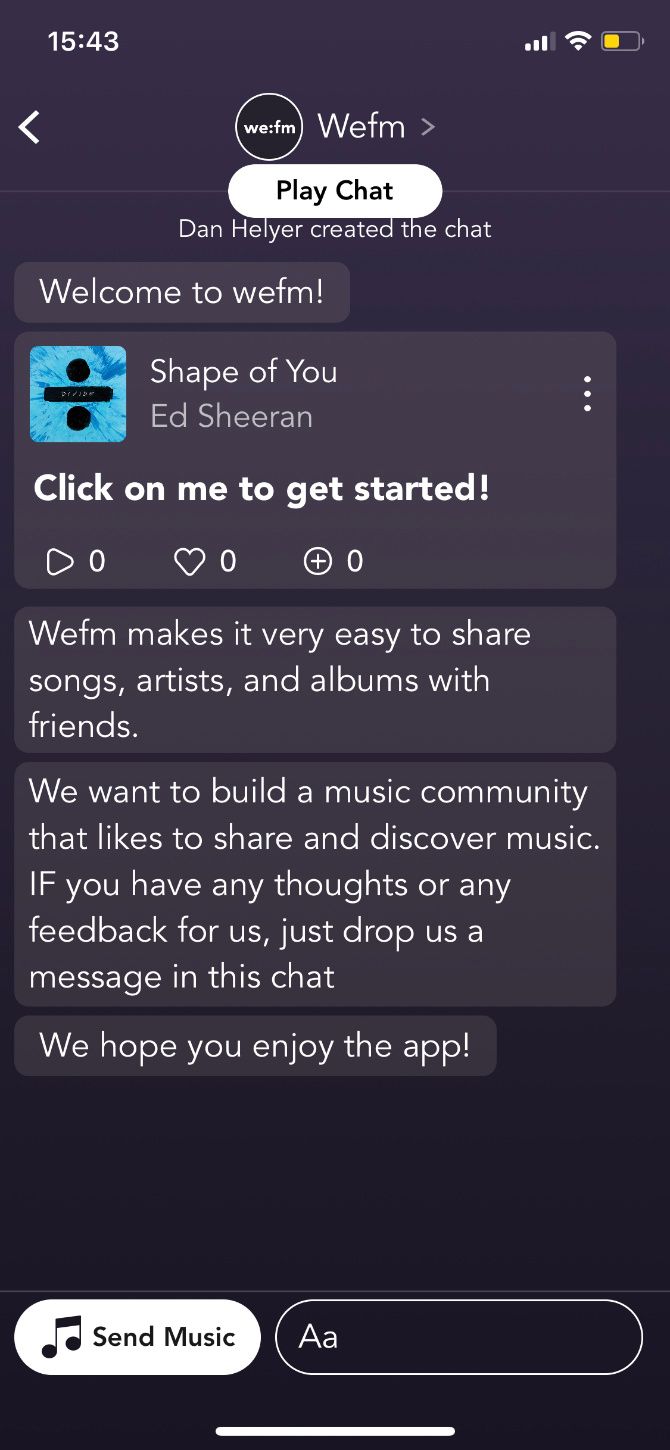
Yet another app that’s only for iOS users, we:fm lets you listen to music at the same time as other friends using the app. Like JQBX, it only works with Spotify Premium for the time being.

Once you connect your music streaming account, you can then connect to Facebook and find other friends using we:fm. Now you can broadcast music for friends to tune in and chat about the songs you’re listening to together.

If you don’t want to listen live, start a new chat within we:fm to share songs with friends for them to listen to later. Or turn on private mode so you can keep listening to those showtunes without worrying about others judging you.

Download: we:fm for iOS (Free)

5. OutLoud

listen music friends outloud

Advertised as a social jukebox, OutLoud is only a good option if you want to listen to music with friends who live close to you since it only works up to 100 feet. Ideally, it’s best for creating a party soundtrack, since OutLoud only plays music from a single device. But you could use it to share music with a neighbor.

Take a few seconds to set up a playlist. Then ask friends to add tracks from their own device using Spotify, Apple Music, or SoundCloud. Put your speakers up to the window and there you go: you’ve got a block party going.

In OutLoud, everyone gets a say over the playlist as you can vote for the tracks you to move them higher up the playlist. The highest voted songs play next, so you can enjoy the best music first.

Download: OutLoud for iOS | Android (Free)

6. Quorus

listen music friends quorus

Quorus lets you enjoy music as a collaborative process with your friends. Unleash your inner DJ and launch a live session to stream the music you’re listening to, then invite friends to join in and listen with you.

Choose how many people are allowed to contribute to add songs to your session, letting your friends add their own flavor to the playlist. You can even password-protect your stream or make it private to get more control over who can join in.

It’s easy to join other people’s ongoing live sessions, too. You might even make some brand new friends by using this app to listen to music together.

You can use Quorus with a free Spotify account, but it works best with a Spotify Premium subscription. That way, the songs play through each person’s Spotify account so the artists still get their fair share.

Download: Quorus for iOS | Android (Free)

7. Odesli

Odesli home page banner showing music sharing links

Odesli is a little different from the other apps on this list. Rather than being an app designed to let you listen to music at the same time as your friends, Odesli is a web service that makes it easier to share songs across multiple platforms.

Geared towards musicians wanting to share tracks with fans, Odesli creates a page for each song with links to that song on every music platform. This includes Spotify, Apple Music, YouTube, Soundcloud, and more.

Find a shareable track by typing terms into the search box, then send the link to your friends. Now they can easily listen to the same music as you even if you both listen to music on different platforms.

How to Listen to Music Online for Free Instead

As you can see, there are lots of different apps and services you can use to listen to music together with friends, even when you’re far away from each other. But you may have noticed that all these options depend on using a music streaming service.

Streaming music is a great way to get access to an enormous library without using up your storage. And if you would rather not play for a streaming service, check out these ways to listen to music online for free instead.

Read the full article: How to Listen to Music With Friends Far Away


Read Full Article

Monitor Buying Guide: 8 Tips for Choosing the Right Monitor


monitor-refresh-rates

Computer monitors are an oft-underestimated part of the computing experience. People who don’t flinch at spending $1,500+ on a laptop computer will often buy a monitor based exclusively on price.

That’s a shame; the monitor influences everything you do on your PC. It can make games more impressive, movies sharper, and documents clearer.

The plethora of products on the market can make finding the right one hard; what do you even need to look for in a monitor? Keep reading our monitor buying guide to find out.

1. Monitor Sizes

You can find anything from sub-20-inch monitors all the way up to 70 inches and beyond. Of course, there is no one-size-fits-all solution. You just need to make sure you pick the monitor size that’s most appropriate for your needs.

Most visual experts agree that if you’re sitting at a desk and are a typical distance away from your screen, 32 inches offers the ideal distance-to-size ratio for your eyes. It has become the standard monitor size for most desktops.

Some people will need to go smaller due to size constraints, whereas others may need to buy something much larger for the extra screen real estate. As a general rule of thumb, you’ll never regret buying a monitor that’s too large; you will regret buying one that’s too small.

2. Monitor Resolution

Display resolution is often used as a selling point for a monitor. The higher, the better. A high resolution will result in a sharper image, but you need to know about some potential downsides as well.

One problem is the perceived size of text and icons. If you increase the resolution of a display without increasing its physical size, everything on that display will appear smaller. For many people, this is not an issue, but users with poor eyesight may have problems with a display that features a high resolution and a small display size.

There are options to increase the text size. Windows has built-in accessibility tools, and you can always use the zoom features of browsers and text editors. However, zooming can also cause formatting issues. If you are concerned about your eyesight, picking a monitor with a low native resolution is the easier solution.

Gaming also can conflict with a high display resolution. Modern monitors work best when displaying content at their native resolution, but if your graphics card isn’t powerful enough, you may have to turn a game’s resolution below the monitor’s native resolution. Doing so will usually result in a slightly blurred image—still playable, but far from ideal.

3. Monitor Purpose

Building on the first two points, you need to ensure you have a clear idea of what you will primarily use your monitor for before you hit the shops. It will affect which monitor specs you should prioritize while browsing.

For example, if you’re buying a new screen for gaming, you should aim to buy a model with speedy refresh rates and lower response times. Or if you’re someone who does a lot of work with Photoshop or video editing suites you’ll need to make sure the new monitor has high levels of color accuracy. General users might be happy with a regular high-contrast screen.

4. Monitor Specs

When you’re shopping for a new monitor, you’ll end up coming across a slew of terminology and specs that might not make a whole lot of sense.

Here are some of the important monitor specs that you need to consider:

  • Refresh rates: Refers to the number of times a monitor updates its screen every second. Don’t consider less than 75Hz. Gamers need at least 140Hz.
  • Response time: The amount of time it takes for a monitor to change a single pixel from black to white. Top-end monitors can have rates of as little as 0.5Hz.
  • Aspect Ratio: The most commonly seen ratio in the shops is 16:9. Laptops are seeing more 3:2 displays, while 16:10 is also popular among desktop users.
  • Curvature: A monitor with 1500R has a radius of 150cm and a suggested viewing distance of 1.5 meters. The lower the number, the greater the curvature.
  • Brightness: We’re not going to get into the details of how brightness is measured. Suffice to say, you should not buy a monitor with less than 250 cd/m2.
  • Viewing Angle: Measured in degrees, it tells you how far from the center of the screen you can move before the image becomes unviewable. Aim for a minimum of 170 degrees.

5. TN vs. IPS vs. VA Panels

You also need to consider the various panel technologies; manufacturers use the different techniques used to build distinct types of computer monitors.

Initially, the most common type of panel was TN (Twisted Nematic). In recent times, TN panels have been superseded by IPS (In-Plane Switching) screens.

IPS monitors are popular because of their ability to display accurate colors and their wide viewing angles, both of which are lacking in TN screens. The tradeoff is that IPS panels typically have slower response times and lower refresh rates. Indeed, some of the best TN panels are better than the worst IPS panels.

VA panels offer a compromise between the TN and IPS screens. They have better color and viewing angles than TN screens, but worse refresh rates than IPS panels.

Of the three types, IPS panels are the most expensive variant.

5. Ports

No self-respecting monitor will ship without an HDMI port. But you need to consider what other tech you own and what ports it needs.

VGA and DVI connections are still knocking around on some legacy devices, while other standards like DisplayPort and USB-C are also becoming more common.

6. Don’t Buy Online

It’s a basic lesson that applies to not only monitors but also TVs, laptops, tablets, and virtually any other device with a display. Glossy images and fancy online marketing are not sufficient to truly gauge a monitor’s picture quality. You need to get down to the nearest Best Buy and see it with your own eyes.

Even then, it’s not always easy. Stores are unusual places, with lighting that is much brighter than a standard home environment and plenty of distractions. For a more definitive word, check out trusted review sites, and even user reviews.

7. More Money, More Quality

There is more to a display than the panel. For example, cheap monitors often come with inexpensive plastic stands that wobble and don’t offer ergonomic adjustments. Expensive monitors usually come with tilt, pivot, and high adjustments as standard.

Warranty is important, too. Many cheap monitors come with a one-year warranty, while more expensive models often offer a three-year or five-year warranty. Any added protection beyond the standard one-year warranty adds value to a monitor that you’re considering.

(Note: To learn more about using your monitor in an ergonomic way, have a look at our list of the best computer chairs.)

8. Buy for the Long-Term

A good monitor built five years ago is still a decent monitor today. And monitors are typically fairly reliable pieces of tech.

Ergo, you should buy a monitor under the assumption that you will be keeping it for some time. Cheap monitors are appealing, but they also lack input options and have so-so image quality. When spending your money, consider the value that you are receiving for your dollar. Do you really want to be staring at a sub-par display for a decade?

Learn More About How to Pick a Monitor

Picking the right monitor for your needs is not an exact science. You need to weigh up the pros and cons of the various specs, technologies, and price points before you make your choice.

If you would like to learn more about how to pick a monitor, check out our lists of the best curved monitors and the best cheap gaming monitors.

Read the full article: Monitor Buying Guide: 8 Tips for Choosing the Right Monitor


Read Full Article

Online marketplace OfferUp raises $120M, acquires top competitor letgo


OfferUp, a top online and mobile marketplace app, announced this morning it’s raising $120 million in a new round of funding led by competiting marketplace letgo’s majority investor, OLX Group, and others. As a part of the deal, OfferUp will also be acquiring letgo’s classified business, with OLX Group gaining a 40% stake in the newly combined entity.

Other investors in the new round include existing OfferUp backers Andreessen Horowitz and Warburg Pincus. The funds will be put towards continued growth, product innovation, and monetization efforts, OfferUp says.

The round will close with the closing of the acquisition, which is expected to take place sometime in May. To date, OfferUp has raised $380 million.

The acquisition will see two of the largest third-party buying and selling marketplaces — outside of Craigslist, eBay, and Facebook Marketplace, of course — become a more significant threat to the incumbents. Together, the new entity will have more than 20 million monthly active users across the U.S. For consumers, the deal means they’ll no longer have to list in as many apps when looking to unload some household items, electronics, furniture, or whatever else they want to sell.

“My vision for OfferUp has always been to build a company that helps people connect and prosper,” said Nick Huzar, OfferUp CEO, in a statement about the acquisition. “We’re combining the complementary strengths of OfferUp and letgo in order to deliver an even better buying and selling experience for our communities. OLX Group has unparalleled expertise and clear success with growing online marketplace businesses, so they’ll be a great partner as we continue to build the widest, simplest, and most trustworthy experience for our customers.”

OfferUp also acknowledged that mid-pandemic is an odd time to announce such a deal — especially at a time when the COVID-19 outbreak is affecting its own employees, its partners, and the buying and selling community itself. And this will continue for some time.

However, Huzar positions the deal as one that will allow the business to grow, despite the current state of affairs.

“This news helps us to continue to innovate and grow, in spite of these challenging times, and continue to deliver on that promise,” Huzar noted, in a company blog post.

For now, the OfferUp and letgo apps will remain separate experiences and no disruptions to any sales will be made. Consumers will also be able to download both apps to iOS and Android devices for the time being, too.

But soon, both sets of users will gain access to a larger network of buyers and sellers, along with nationwide shipping options, and trust and safety problems. We understand this will involve allowing users of both sets of apps to see more posts and to interact with more buyers and sellers — so some sort of merging of the two networks is at play here. There will be additional changes to improve the user experience for all users in the future, as well, but the company isn’t sharing details on that today.

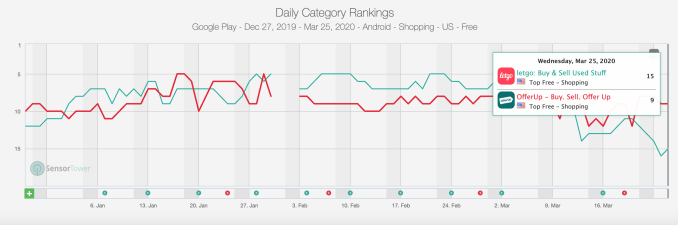
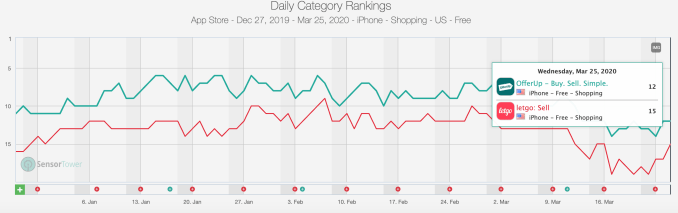
Letgo is bringing to the table an app with over 100 million worldwide downloads, so there is a potential to reactivate some of the lapsed users who aren’t currently shopping or selling on its marketplace today. The two apps were often neck-and-neck in terms of their app store category rankings, though on iPhone OfferUp has maintained a slight lead. (See App Store and Google Play charts below.)

However, letgo’s business outside of North America will be separately owned and operated as part of the OLX Group, the companies said.

“Letgo and OfferUp have always shared the same core vision for how large America’s secondhand economy can become – harnessing tech innovation to bring about an extraordinarily positive impact on consumers’ wallets and also on the environment,” said letgo co-founder Alec Oxenford. “Bringing our apps together moves us much closer to that vision,” he added.

The deal is still subject to regulatory approval. If given, the combined businesses will be operated by OfferUp,  headquartered in Bellevue, Washington. Huzar will continue to be CEO of OfferUp and Chairman of the Board. Oxenford, meanwhile, will join the Board and serve as a senior advisor to OLX Group and Prosus.

Because the deal is still in the process of closing, the companies can’t speak to any team changes, including potential layoffs as a result of overlapping positions or other redundancies, we’re told.


Read Full Article

A Neural Weather Model for Eight-Hour Precipitation Forecasting


Predicting weather from minutes to weeks ahead with high accuracy is a fundamental scientific challenge that can have a wide ranging impact on many aspects of society. Current forecasts employed by many meteorological agencies are based on physical models of the atmosphere that, despite improving substantially over the preceding decades, are inherently constrained by their computational requirements and are sensitive to approximations of the physical laws that govern them. An alternative approach to weather prediction that is able to overcome some of these constraints uses deep neural networks (DNNs): instead of encoding explicit physical laws, DNNs discover patterns in the data and learn complex transformations from inputs to the desired outputs using parallel computation on powerful specialized hardware such as GPUs and TPUs.

Building on our previous research into precipitation nowcasting, we present “MetNet: A Neural Weather Model for Precipitation Forecasting,” a DNN capable of predicting future precipitation at 1 km resolution over 2 minute intervals at timescales up to 8 hours into the future. MetNet outperforms the current state-of-the-art physics-based model in use by NOAA for prediction times up to 7-8 hours ahead and makes a prediction over the entire US in a matter of seconds as opposed to an hour. The inputs to the network are sourced automatically from radar stations and satellite networks without the need for human annotation. The model output is a probability distribution that we use to infer the most likely precipitation rates with associated uncertainties at each geographical region. The figure below provides an example of the network’s predictions over the continental United States.
MetNet model predictions compared to the ground truth as measured by the NOAA multi-radar/multi-sensor system (MRMS). The MetNet model (top) displays the probabilities for 1 mm/hr precipitation predicted from 2 minutes to 480 minutes ahead, whereas the MRMS data (bottom) shows the areas receiving at least 1 mm/hr of precipitation over that same time period.
Neural Weather Model
MetNet does not rely on explicit physical laws describing the dynamics of the atmosphere, but instead learns by backpropagation to forecast the weather directly from observed data. The network uses precipitation estimates derived from ground based radar stations comprising the multi-radar/multi-sensor system (MRMS) and measurements from NOAA’s Geostationary Operational Environmental Satellite system that provides a top down view of clouds in the atmosphere. Both data sources cover the continental US and provide image-like inputs that can be efficiently processed by the network.

The model is executed for every 64 km x 64 km square covering the entire US at 1 km resolution. However, the actual physical coverage of the input data corresponding to each of these output regions is much larger, since it must take into account the possible motion of the clouds and precipitation fields over the time period for which the prediction is made. For example, assuming that clouds move up to 60 km/h, in order to make informed predictions that capture the temporal dynamics of the atmosphere up to 8 hours ahead, the model needs 60 x 8 = 480 km of spatial context in all directions. So, to achieve this level of context, information from a 1024 km x 1024 km area is required for predictions being made on the center 64 km x 64 km patch.
Size of the input patch containing satellite and radar images (large, 1024 x 1024 km square) and of the output predicted radar image (small, 64 x 64 km square).
Because processing a 1024 km x 1024 km area at full resolution requires a significant amount of memory, we use a spatial downsampler that decreases memory consumption by reducing the spatial dimension of the input patch, while also finding and keeping the relevant weather patterns in the input. A temporal encoder (implemented with a convolutional LSTM that is especially well suited for sequences of images) is then applied along the time dimension of the downsampled input data, encoding seven snapshots from the previous 90 minutes of input data, in 15-minute segments. The output of the temporal encoder is then passed to a spatial aggregator, which uses axial self-attention to efficiently capture long range spatial dependencies in the data, with a variable amount of context based on the input target time, to make predictions over the 64 km x 64 km output.

The output of this architecture is a discrete probability distribution estimating the probability of a given rate of precipitation for each square kilometer in the continental United States.
The architecture of the neural weather model, MetNet. The input satellite and radar images first pass through a spatial downsampler to reduce memory consumption. They are then processed by a convolutional LSTM at 15 minute intervals over the 90 minutes of input data. Then axial attention layers are used to make the network see the entirety of the input images.
Results
We evaluate MetNet on a precipitation rate forecasting benchmark and compare the results with two baselines — the NOAA High Resolution Rapid Refresh (HRRR) system, which is the physical weather forecasting model currently operational in the US, and a baseline model that estimates the motion of the precipitation field (i.e., optical flow), a method known to perform well for prediction times less than 2 hours.

A significant advantage of our neural weather model is that it is optimized for dense and parallel computation and well suited for running on specialty hardware (e.g., TPUs). This allows predictions to be made in parallel in a matter of seconds, whether it is for a specific location like New York City or for the entire US, whereas physical models such as HRRR have a runtime of about an hour on a supercomputer.

We quantify the difference in performance between MetNet, HRRR, and the optical flow baseline model in the plot below. Here, we show the performance achieved by the three models, evaluated using the F1-score at a precipitation rate threshold of 1.0 mm/h, which corresponds to light rain. The MetNet neural weather model is able to outperform the NOAA HRRR system at timelines less than 8 hours and is consistently better than the flow-based model.
Performance evaluated in terms of F1-score at 1.0 mm/h precipitation rate (higher is better). The neural weather model (MetNet) outperforms the physics-based model (HRRR) currently operational in the US for timescales up to 8 hours ahead.
Due to the stochastic nature of the atmosphere, the uncertainty about the exact future weather conditions increases with longer prediction times. Because MetNet is a probabilistic model, the uncertainty in the predictions is seen in the visualizations by the growing smoothness of the predictions as the forecast time is extended. In contrast, HRRR does not directly make probabilistic predictions, but instead predicts a single potential future. The figure below compares the output of the MetNet model to that of the HRRR model.
Comparison between the output from MetNet (top) and HRRR (bottom) to ground-truth (middle) as retrieved from the NOAA MRMS system. Notice that while the HRRR model predicts structure that appears to be more similar to that of the ground-truth, the structure predicted may be grossly incorrect.
The predictions from the HRRR physical model look sharper and more structured than that of the MetNet model, but the structure, specifically the exact time and location where the structure is predicted, is less accurate due to uncertainty in the initial conditions and the parameters of the model.
HRRR (left) predicts a single potential future outcome (in red) out of the many possible outcomes, whereas MetNet (right) directly accounts for uncertainty by assigning probabilities over the future outcomes.
A more thorough comparison between the HRRR and MetNet models can be found in the video below:
Future Directions
We are actively researching how to improve global weather forecasting, especially in regions where the impacts of rapid climate change are most profound. While we demonstrate the present MetNet model for the continental US, it could be extended to cover any region for which adequate radar and optical satellite data are available. The work presented here is a small stepping stone in this effort that we hope leads to even greater improvements through future collaboration with the meteorological community.

Acknowledgements
This project was done in collaboration with Lasse Espeholt, Jonathan Heek, Mostafa Dehghani, Avital Oliver, Tim Salimans, Shreya Agrawal and Jason Hickey. We would also like to thank Manoj Kumar, Wendy Shang, Dick Weissenborn, Cenk Gazen, John Burge, Stephen Hoyer, Lak Lakshmanan, Rob Carver, Carla Bromberg and Aaron Bell for useful discussions and Tom Small for help with the visualizations.

Recurring Nightmare


Recurring Nightmare

Mammoth Media launches CatchUp, an app that summarizes the latest news and trending content


A new app called CatchUp might be useful for anyone who’s struggling to keep up with the latest headlines, podcasts and Netflix shows.

CatchUp is the latest offering from Mammoth Media, the startup behind chat fiction app Yarn and social polling app Wishbone. Founder and CEO Benoit Vatere told me that the product started out as a book summary app called Booknotes, but early users kept asking, “Why don’t you summarize more than books?”

So that’s exactly what CatchUp does, recapping the latest news and entertainment topics. The summaries should feel pretty familiar to anyone who’s watched videos on mobile social app — they’re vertically-oriented, broken up into slides, accompanied by text captions and last for just a few minutes.

Vatere told me that the topics are chosen based on what’s trending, either in Mammoth’s apps or more broadly in social media.

For example, when I opened CatchUp morning, I watched a video laying out the basic info around the big topic one everyone’s mind — the coronavirus pandemic. Then I moved onto something lighter, a video breaking down the different streaming services available now.

It sounds like the CatchUp team is moving quickly. Vatere said they should be responsive to trends, creating new videos in just a day or two. At the same time, he said the app should offer a mix of news-y videos that will eventually disappear (“too much content kills retention in the app”) alongside more evergreen content.

CatchUp

Image Credits: Mammoth Media

He emphasized that this is very much an initial version of the app, and that the CatchUp team plans to iterate based on what users respond to. It’s English-only for now but could eventually add other languages. The company’s plans also include introducing monetization later on, starting with advertising and then eventually adding in-app purchases and subscriptions.

Vatere also suggested that while a CatchUp summary should stand on its own, it could also encourage deeper engagement.

“If you’re thinking, everybody is talking about ‘Love is Blind,’ what is this … you can listen for two minutes and understand the dynamic, understand what’s happening,” he said. “Then if it sounds really interesting to you, you can watch it. But if not, now you understand what’s being said.”


Read Full Article

Simple, effective tech to connect communities in crisis | Johanna Figueira

Simple, effective tech to connect communities in crisis | Johanna Figueira

The world is more connected than ever, but some communities are still cut off from vital resources like electricity and health care. In this solution-oriented talk, tech activist Johanna Figueira discusses her work with Code for Venezuela -- a platform that helps Venezuelans gain access to vital information and medical supplies -- and shares ideas for how it could be used as a model to help other communities in need.

Click the above link to download the TED talk.

Track Coronavirus (COVID-19) Cases in India with Google Sheets


The Government of India website has a live dashboard that provides, in near real-time, the number of Coronavirus (COVID-19) cases in various states of India. This is the best resource to get updates around active COVID-19 cases in India.

COVID-19 Tracker for India

The official website provides the current data but if you were to check how the number of confirmed cases increased in India over time, there’s no historic data available. That’s one reason I built the COVID-19 Tracker with Google Sheets.

The tracker scrapes data from the official website every few minutes and uses Sparklines to help you visualize how the coronavirus outbreak is spreading in India over time. The Government has been actively publishing reports since March 10 and all the data can also be accessed through the Google Sheet.

Covid-19 India tracker

COVID-19 Sheets Tracker

COVID-19 JSON API

If you are a developer, I’ve also published the data as a JSON API that will provide you the latest state-wise data of COVID-19 cases as available on the Ministry of Health and Family Welfare website of India.

How the COVID-19 Tracker Works

The Coronavirus Tracker is written in Google Apps Script and it uses time-based triggers to scrape numbers from the mohfw.gov.in website every few minutes.

/**
 * Scrape the homepage of mohfw.gov.in (Ministry of Health, India)
 * website for latest numbers on Coronovirus positive cases in India
 */
const scrapeMOHWebsite = () => {
  const url = 'https://www.mohfw.gov.in/';
  const response = UrlFetchApp.fetch(url);
  const content = response.getContentText();
  return content.replace(/[\r\n]/g, '');
};

Google Apps Script doesn’t support HTML parsers like Cheerio so we had to quickly build one from scratch using regex. It grabs the HTML content of the page, looks for the table tag and then extracts data from individual cells of the table.

If they change the layout of the website, this parser is likely to break.

/**
 * Parse the webpage content and extract numbers from the HTML
 * table that contains statewise data on Covid-19 Cases in India
 */
const getCurrentCovid19Cases = (json = true) => {
  const states = {};
  const html = scrapeMOHWebsite();
  const [table] = html.match(/<div id="cases".+?>(.+)<\/div>/);
  const rows = table.match(/<tr>(.+?)<\/tr>/g);
  rows.forEach((row) => {
    const cells = row
      .match(/<td.+?>(.+?)<\/td>/g)
      .map((cell) => cell.replace(/<.+?>/g, ''));
    const [, stateName, indianNationals, foreignNationals] = cells;
    if (/[a-z\s]/i.test(stateName)) {
      states[stateName] = Number(indianNationals) + Number(foreignNationals);
    }
  });
  return json ? states : JSON.stringify(states);
};

Once we have the data in JSON format, we can easily write to a Google Spreadsheet using Apps Script. The script adds a new column per day while retaining the old data for comparison.

/**
 * Write the parsed data into a new column in Google Sheet
 * All the historic data is also preserved in the sheet.
 */
const writeNewCovid19CasesToSheets = (covid19Cases) => {
  const sheet = SpreadsheetApp.getActiveSpreadsheet().getSheetByName(
    'Dashboard'
  );
  const states = sheet
    .getRange(3, 1, sheet.getLastRow() - 2, 1)
    .getValues()
    .map(([state]) => [covid19Cases[state] || 0]);
  sheet
    .getRange(2, sheet.getLastColumn() + 1, states.length + 1, 1)
    .setValues([[new Date()], ...states.map((count) => [count])]);
};

The COVID-19 tracker in Google Sheets also provides a JSON API that you can use to import data directly in your apps and websites.

To publish a JSON API, we have published the script as a web app with the doGet callback function. The ContentService service returns the raw JSON output whenever an external app invokes the Google script URL.

const doGet = () => {
  const key = 'Covid19India';
  const cache = CacheService.getScriptCache();
  let data = cache.get(key);
  if (data === null) {
    data = getCurrentCovid19Cases(false);
    cache.put(key, data, 21600);
  }
  return ContentService.createTextOutput(data).setMimeType(
    ContentService.MimeType.JSON
  );
};

All the code is open-source and you are free to use in any project.


New crowdsourced COVID-19 symptom map could build a more complete pandemic picture


A new initiative by the Boston Children’s Hospital and Harvard Medical School could provide a new kind of signal for those studying the spread of the coronavirus pandemic across the U.S. The ‘Covid Near You’ map developed by researchers at both organizations, asks individuals to self-report any potential COVID-19 symptoms, as well as if they’ve taken a test, and then maps that activity on a rolling two week basis.

This isn’t a map of confirmed COVID-19 cases – other sources for that information already exist, including Google’s coronavirus map, which uses case numbers and figures provided by the World Health Organization (WHO), and the John Hopkins coronavirus resource center map. These are useful resources, but only reflect confirmed cases based on approved testing, which, especially in the U.S., is limited by testing availability and drastically under-represents the actual spread according to most experts.

New ways of tracking the spread of the virus are needed in order to supplement testing efforts, and while self-reported symptoms are hardly a reliable indicator of actual COVID-19 spread, they are a potential signal or leading indicator that, combined with other data included confirmed cases, can help researchers and medical professionals focus their efforts and gauge the effectiveness of strategies like social distancing meant to slow or stop the spread.

Another recent project, Kinsa’s U.S. health weather map, also relies on crowdsourced data to try to provide a different view of the potential spread of COVID-19. Their information is body temperature, as recorded by their connected smart thermometer hardware, however, which provides a reliable measure of one of the most common symptoms of COVID-19 patients.

Like the ‘Covid Near You’ map, Kinsa’s is not a reliable indicator of confirmed COVID-19 cases, but it is a strong signal that can provide information not available when relying on certified testing. Taken together, self-reported symptoms (especially as more people self-report using this new map), temperature data tied to geolocation, and confirmed cases could provide a much more complete picture of where hotspots are occurring, and the patterns of spread beyond those communities known to be most affected, and those that could be next in the chain of transmission.


Read Full Article

Google Podcasts is finally available on iOS


Just in time for our collective house arrests, Google has unveiled a redesigned version of Podcasts. The revamped version of the app is centered around discovery, broken up into three primary tabs.

There’s Home, which features your current feeds; Explore, which offers up popular and curated shows; and Activity, which offers a deeper dive into listening habits. Honestly, though, the big news here is that the app is finally landing in the iOS App Store.

Launched last summer, the app quickly became the top podcasting app on Android, because, well, Google. There’s been some limited cross-platform availability by way of a browser. Obviously, native app support is much more appealing for iPhone and iPad owners looking to see what kind of alternative Google is offering to Apple’s own popular Podcasts app.

Users’ listening habits on the app will be syncable across platforms by way of the Google Podcasts for Web. The iOS version is available for download starting today. The Android update, meanwhile, will be rolling out to users this week.


Read Full Article

Lockdown Entertainment for Families


family-friendly-podcasts

Engaging in self-isolation or national lockdown is not easy. If you have children, things are even tougher. Fortunately various tech companies are here to help. Christian Cawley and Gavin Philips look at the latest developments, from free Amazon Prime and Audible to top YouTube channels for 24/7 entertainment.

We also have some thoughts on enforced home schooling (as opposed to the planned variety).

Really Useful Podcast Season 5 Episode 8 Shownotes

We start off this week looking at how Big Tech is helping families deal with the unscheduled school holidays happening across the Northern Hemisphere

We’ve got some personal ideas on how to cope with lockdown as a family and as individuals, too.

This week, MakeUseOf is giving away an awesome customizable electronic pixel art backpack

You can leave a review on Apple Podcasts to help us reach more listeners. You’ll find us on:

See you next week for the final show of the current run.

Read the full article: Lockdown Entertainment for Families


Read Full Article

How to be your best self in times of crisis | Susan David

How to be your best self in times of crisis | Susan David

"Life's beauty is inseparable from its fragility," says psychologist Susan David. In a special virtual conversation with head of TED Chris Anderson and current affairs curator Whitney Pennington Rodgers, she shares wisdom on how to build resilience, courage and joy in the midst of the coronavirus pandemic. Responding to listeners' questions from across the globe, she offers ways to talk to your children about their emotions, keep focus during the crisis and help those working on the front lines.

Click the above link to download the TED talk.