23 March 2020

10 Insanely Weird Wikipedia Articles You Should Read


weird-wikipedia

Wikipedia is full of useful information, but it also has lots of weird things to read about. These can be fun articles to read for an educational laugh.

We’ve rounded up some of the weirdest and strange Wikipedia pages to keep you entertained. Start reading and enjoy getting lost in these crazy articles.

1. Danish Protest Pig: A Porky Flag Replacement

Danish protest pig
Image Credit: Axel Krampe/Wikimedia Commons

The Danish Protest Pig is a nickname for the Husum Red Pied, a rare pig breed that originated at the beginning of the 20th century. Danes living in the Prussian-ruled North Frisia were prohibited from raising their red-and-white striped flag.

Because of the pig’s red color and white belt, the creature became a symbol of national identity and stand-in for the real flag. The breed was considered extinct in 1968, though small numbers have cropped up again since 1984 (mainly in zoos.)

2. Mary Toft: Claimed to Give Birth to Rabbits

Mary Toft supposedly giving birth to rabbits
Image Credit: William Hogarth/Wikimedia Commons

Mary Toft was an English woman who in 1726 claimed to have given birth to rabbits. Following a miscarriage, Toft said she had become startled by a rabbit and then became obsessed with them, before eventually giving birth to parts of the animal. Supposedly.

The case came to the attention of King George I and gained national attention. Toft was studied in London, but after a grilling she eventually admitted that she had placed the rabbit parts inside her. She was imprisoned for the hoax, but later released without charge.

3. Ruth Belville: Sold People the Time

Ruth Belville and Maria Belville
Image Credit: Hulton Archive and Royal Museums Greenwich/Wikimedia Commons and Wikimedia Commons

Believe it or not, a world existed before smartwatches. Since there was no internet to connect to for syncing clocks, Ruth Belville, along with her mother Maria Elizabeth and father John Henry, sold people the time from the mid-1800s to the mid-1900s.

Ruth Belville would attend the Greenwich Observatory at 9am, where she would set her watch to the conservatory clock—the most accurate clock in England. People would subscribe to her services, and she would travel around and set their clocks to the right time. Ruth retired at age 86 and died three years later.

4. My Immortal: The Worst Fan Fiction Ever Written

Hogwarts letter
Image Credit: Liam Truong/Unsplash

My Immortal is a Harry Potter fan fiction that was published online between 2006 and 2007, telling the tale of a vampire who falls in love with Draco Malfoy. It’s considered by many to be the worst fan fiction ever due to its awful writing, inconsistent plot, and disregard for the source material.

The true author is unknown and is considered to be a detriment to people who want to bring legitimacy to fan fiction—indeed, some believe the story to be a satirical work. Nevertheless, it has inspired a YouTube series and further fan fiction.

5. Elvis Sightings: The King of Rock and Roll Lives On?

Elvis Presley
Image Credit: Metro-Goldwyn-Mayer, Inc./Wikimedia Commons

You’d be forgiven for thinking that Elvis Presley died in 1977. In fact, according to authors like Gail Brewer-Giorgio, the famous singer didn’t actually die and instead went into hiding. Perhaps he checked in at the Heartbreak Hotel.

Alleged sighting locations include airports, amusement parks, and in the background of movies. Of course, all of them can be plainly explained, but it didn’t stop satirical newspapers like Weekly World News mocking the conspiracy theory with a front page headline of “New wave of Elvis sightings!”

6. Hubert Blaine Wolfeschlegelsteinhausenbergerdorff, Sr.: The Longest Name Ever

Hubert Blaine
Image Credit: Associated Press/The Tuscaloosa News

Hubert Blaine Wolfeschlegelsteinhausenbergerdorff Sr. may seem like a long name on its own, but that’s actually an abbreviated version of the real 988-letter surname—the exact length and spelling is even up for debate, owing to various printing errors over time.

Hubert was a German-born American typesetter who holds the record for the longest name. He said that his great-grandfather created the surname in the 19th century when German Jews were forced to take a second name as the government didn’t like traditional patronymic names.

7. Glasgow Ice Cream Wars: Violence Under the Cover of Ice Cream

Ice cream truck
Image Credit: Pixabay/Pixabay

The Glasgow Ice Cream Wars took place in Scotland during the 1980s. It wasn’t actually a feud over ice cream, but instead a turf war between rival criminal organizations operating out of ice cream trucks.

Drivers often used violence and intimidation tactics to try to hold their ground and eventually the tension mounted and bubbled over. Sadly, one family was killed in an attack which then resulted in a 20-year battle in court.

8. Great Stink: When London’s Sewage Filled the Thames

The silent highwayman
Image Credit: Punch Magazine/Wikimedia Commons

In the 19th century, London’s longstanding sewage problem came to a head when the hot weather exacerbated the smell of waste in the Thames river. The event was dubbed the Great Stink, but worse than the smell were the outbreaks of cholera, diphtheria, and scrofula.

An engineer, Joseph Bazalgette, came to the rescue and reworked London’s entire sewer system. He and his crew did so well that much of their system is intact today.

9. Extreme Ironing: Outdoor Thrills With a Well-Pressed Shirt

Extreme ironing
Image Credit: Phil Shaw/Wikimedia Commons

Ironing isn’t the most exciting thing. Extreme ironing, on the other hand, aims to add some danger to this mundane household chore.

The sport is tongue-in-cheek, with contestants aiming to take photos of themselves ironing in crazy locations. Spots include the Antarctic, the middle of a go-kart race, or whilst parachuting.

10. Shizo Kanakuri: Completed a Marathon in 54 Years

Shiso Kanaguri
Image Credit: Asahi Shinbun/Wikimedia Commons

Shizo Kanakuri was a Japanese marathon runner who was reported to have set a world record in the qualifying trials for the 1912 Stockholm Olympics. He was then one of two athletes that Japan sent for the games.

However, during the Olympic marathon, he fainted. He was so embarrassed by this that he went home to Japan without telling anyone. The Swedes considered him missing until he was found 50 years later. He then completed the rest of the marathon, setting a time of 54 years, 8 months, 6 days, 5 hours, 32 minutes, and 20.3 seconds.

“It was a long trip. Along the way, I got married, had six children and 10 grandchildren,” said Kanakuri.

Discover More With Wikipedia

These are only a selection of the weird and wonderful articles that Wikipedia has. They even have their own list of all their unusual articles.

Wikipedia is undoubtedly an amazing resource. If you want to get more from it, check out these tools to make Wikipedia better.

Read the full article: 10 Insanely Weird Wikipedia Articles You Should Read


Read Full Article

Microsoft Remote Desktop: How to Access Windows From Your Mac


widnows-remote

If you’re working from home and need to get remote access to a Windows 10 computer from your Mac, we have good news: it’s easy.

Microsoft offers a free tool to do the job. It lets you use your Windows apps, access files, or do anything else on Windows directly from your MacBook or other macOS machine.

Read on to learn how to set up your Mac with the Remote Desktop app to connect to Windows 10.

Step 1: Set Up Remote Desktop on Windows 10

Microsoft Remote Desktop requires Windows 10 Pro or Enterprise, or Windows Server. The software runs on Microsoft’s proprietary RDP protocol, which isn’t available on the standard Windows 10 Home Edition. If you need to connect to a PC running Home, one of the best remote access tools will help you out.

The first steps to set up Remote Desktop for Mac occur on your Windows computer.

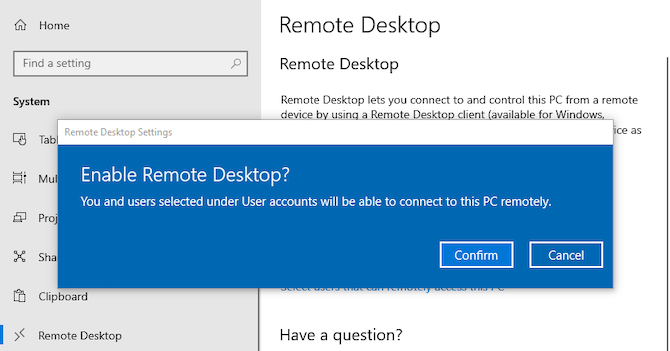
On your Windows 10 machine, open the Start menu and go to Settings > System > Remote Desktop. Set Enable Remote Desktop to On, and click Confirm when prompted.

enable remote desktop on Windows 10

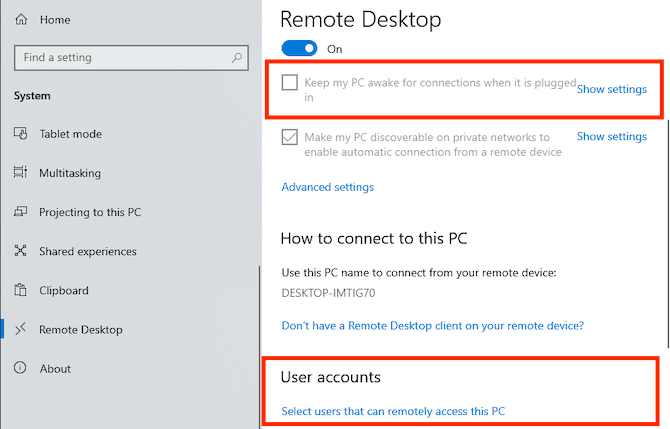
Your PC needs to be on and awake for you to connect remotely. You might therefore want to activate the Keep my PC awake option. To do this, click Show settings alongside it and set Sleep to Never. You should probably only do this if you need constant remote access to the computer. If you don’t, then allowing it to sleep is wise.

Next, scroll down to User accounts. By default, the account you’re logged into will automatically have remote access permissions. To allow other users to log in remotely, click Select users to add their usernames.

remote desktop settings keep awake

Get Your PC Name and IP Address

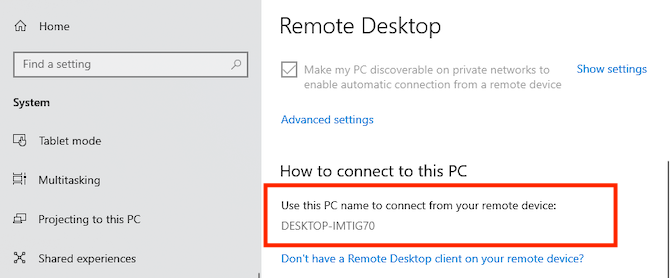
Finally, you need to grab a couple of pieces of info before you switch over to your Mac. On the same Remote Desktop menu, under How to connect to this PC, make a note of your PC name.

If the current name is generic and you’d like to make it something that’s easier to remember, switch to the About tab and click Rename this PC.

find pc name windows

Next, you need to find your computer’s IP address on your network. Go to Settings > Network & Internet. Select Wi-Fi (or Ethernet if you using a wired connection), then click on the network you’re connected to.

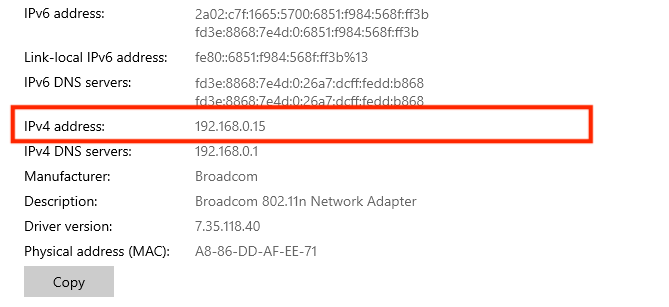
This opens the network connection properties screen. Scroll to the bottom of the page and locate the IPv4 address in the list. Make a note of this number.

find ip address windows

Step 2: Install Microsoft Remote Desktop for Mac

Now it’s time to set up remote access to Windows 10 from your Mac. First, install Microsoft Remote Desktop, available free in the Mac App Store. Microsoft also offers versions of the app for iOS and Android.

The instructions for those platforms are the same as the ones we use here.

Download: Microsoft Remote Desktop for Mac | iOS | Android (Free)

Step 3: Add Your PC to Microsoft Remote Desktop

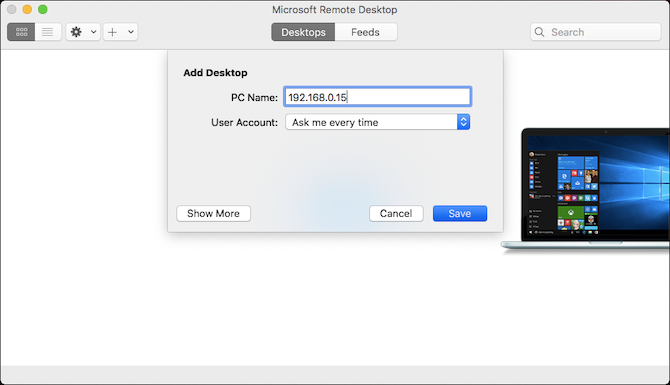
After installing it, launch the Remote Desktop client on your Mac. Click Add Desktop to begin.

In the dialog box that opens, type in the PC Name that you checked earlier. If you find that you’re unable to connect with this name, use the IP address you made note of instead.

add desktop mac

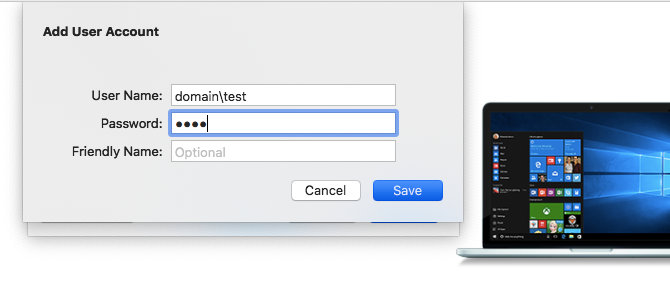
By default, User Account is set to Ask me every time. This means it will prompt you for a username and password each time you connect. If you don’t want this, click the dropdown list and select Add account.

Add your username in the format domain\[username]. You can add your password as well if you want to use automatic login. Leave it blank and you’ll get a prompt to enter it each time.

That’s all you need to do to set up a connection. Click Save and you can connect. However, you might want to adjust a few other settings before you go any further.

add windows user account mac

Step 4: Configure Your Remote Connection

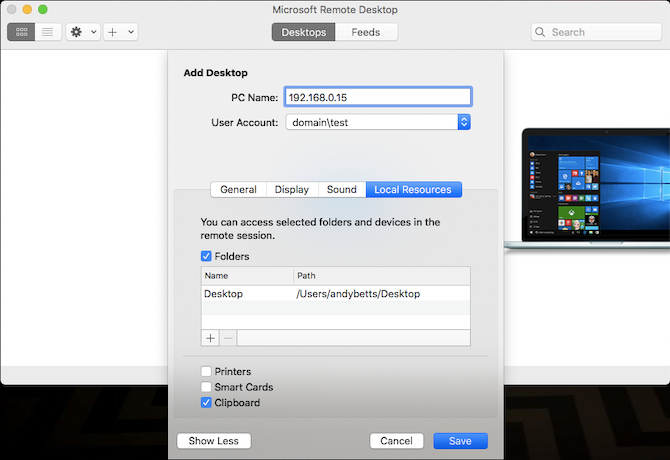
Click Show More to change your settings. Here, you’re able to configure how your remote connection works:

  • In the General tab, add a Friendly Name to make a computer recognizable if you’ve got more than one connection set up.
  • Under the Display tab, click Fit session to window if you aren’t planning on using the remote connection in full screen mode. Also, set Optimize for Retina Displays if you’re working on a high-res monitor.
  • In the Sound tab, choose which computer should play sound (if either), and whether you want to be able to use your Mac’s microphone.

However, the most important option is Local Resources.

add local resources

This allows you to make certain folders on your Mac accessible within your remote Windows session. You can access these folders through the Windows File Explorer, where you’ll find them under This PC. You can work with files stored on your Mac in a Windows app, or copy files between the machines.

shared local resource

It’s all contained within the remote session, however. Sharing a folder in this way does not make the folder accessible on the physical Windows computer.

Click Save to finish setting up your connection.

Step 5: Connect to Windows 10 From Your Mac

You’re now ready to connect. Your PC must be turned on, awake, and connected to the same network as your Mac.

The Remote Desktop app will list your computer, with a thumbnail preview, under Saved Desktops. Double-click it to connect.

If you didn’t change the settings, you’ll need to enter your username and/or password now. Remember, the username must be in the format domain\[username]. Click OK.

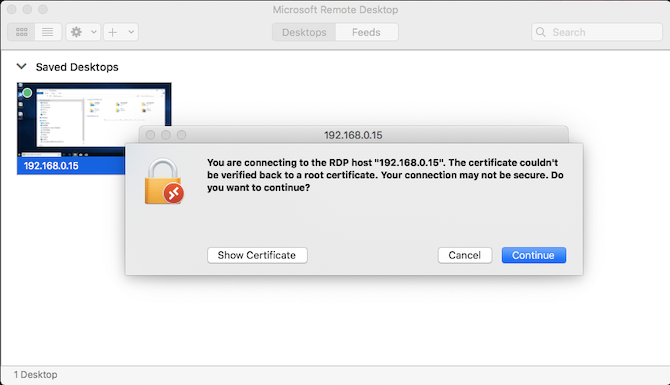
Security Warning

certificate warning remote desktop mac

When you make an RDP connection from Mac to Windows, you’ll see a security warning relating to an unverified certificate. If you’re at home, or working on a small business network, you can click Continue and ignore the message. If you’re on a large network with public access, be wary about doing this.

Once You’re Connected

When your Mac establishes the remote desktop connection, your Windows PC will lock and switch to the login screen. If anyone tries to use the PC, your remote session will end. You can’t have two people using the same computer at once.

Using Windows on Your Mac

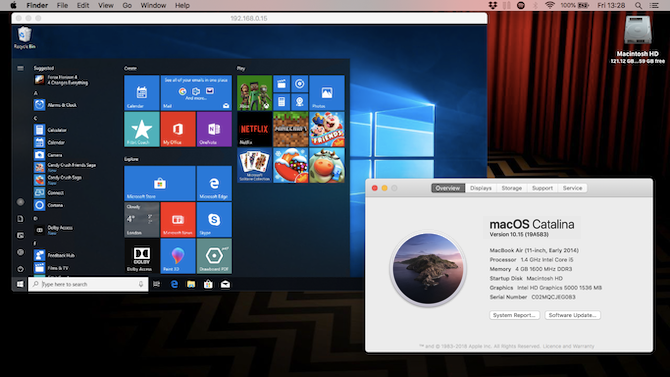
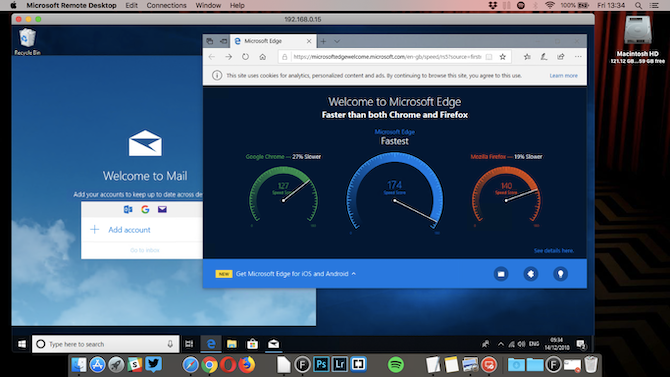
windows remote desktop mac

Unless you changed the setting, your remote desktop session opens in full screen. To use it in a window instead, move your mouse pointer to the top of the screen and click the green window button at the top-left.

Using Windows through Remote Desktop is pretty much the same as using it on a dedicated computer.

One of the few changes—and a possible point of confusion—is that the app maps the keyboard shortcuts for cut, copy, and paste to the ones used in macOS, using the Command key. However, some other shortcuts continue to use the Control key as they do in Windows.

You can launch apps, work on files, or even play games if you want to. There may be a little lag during heavy use, but most of the time it’s fast and responsive.

use windows apps with remote desktop

You can’t drag and drop files between Mac and Windows. They share the clipboard by default, though, so you can copy and paste between them instead.

For a greater level of file sharing, set up a shared folder using the Local Resources setting, as outlined above.

Disconnecting and Deleting Your Desktop

To disconnect and end the session, simply close the Remote Desktop window on your Mac. You can edit your settings at any time by hovering your mouse over the thumbnail in Saved Desktop and clicking the Pen icon.

To delete a desktop, right-click on it and select Delete.

Remotely Access Your Computer From Anywhere

Microsoft Remote Desktop is an easy way to get remote access to Windows 10 from a Mac. But what if you need to do it the other way around, or perhaps need to bring a Linux computer or a Chromebook into the mix?

The quickest solution here is to set up Chrome Remote Desktop, Google’s remote access tool that runs on any desktop computer with Chrome installed. We’ve also shown how to remote access your Mac from any platform.

Read the full article: Microsoft Remote Desktop: How to Access Windows From Your Mac


Read Full Article
When Skype Isn’t Working: 7 Key Settings You Must Check


Most of the time, Skype just works. But sometimes, you’ll run into a snag and find that Skype can’t connect or otherwise isn’t working properly. These troubleshooting steps will solve most common Skype problems, whether your microphone isn’t working or the other person sounds like a robot.

If you still find that Skype is not working after following these steps, ask the person you’re contacting to run through this list too—the problem could be on their end.

1. Check Skype Heartbeat

Skype Heartbeat Report

Before you do any troubleshooting of your own, you should check if the overall Skype service is having issues. If Skype won’t connect or you can’t use a specific Skype feature, check the Skype Heartbeat page.

You can also access this from the Skype app by clicking the three-dot Menu button at the top-left and opening the Settings menu. Select Help & Feedback from the list on the left, then click Skype Status to open the page in your browser.

The heartbeat page informs you of Skype’s system status. If there are any problems with Skype’s infrastructure, you’ll see them here. The page also lists recent Skype issues at the bottom as a reference. You can’t do anything about these issues—wait for Microsoft to fix them and try connecting later.

2. Review Skype Audio Settings

If your Skype microphone is not working, you can test your microphone (and speakers) in the app. Click the three-dot Menu button and choose Settings, then pick the Audio & Video tab from the list.

To test your microphone, speak into it. You should see the blue dots under Microphone move as you speak.

Skype Test Microphone Settings

If you don’t see the volume bar move, click the name of your mic next to Microphone and select another device. Keep trying different devices until you see the volume slider move when you talk. In a pinch, you can try using your smartphone as a makeshift microphone.

There’s also a chance that you’ve blocked apps from using the microphone altogether in Windows 10’s Settings panel. To check this, open the Settings app and visit the Privacy section. Under App permissions on the left sidebar, choose the Microphone tab.

Here, enable the Allow apps to access your microphone slider, and make sure the Skype app has permission too. If you’re using the classic version of Skype, scroll down to Allow desktop apps to access your microphone and make sure you have the master and Skype sliders enabled there, too.

Windows 10 Change Mic Settings

No sound in Skype? On the same Audio & Video settings page in the app, make sure you have the correct speakers chosen from the dropdown menu. Confirm that you have the volume at an audible level, too.

Click the Test audio button underneath the Speakers section and you should hear the Skype call sound. If you don’t, select a different device from the Speakers dropdown box and try again.

3. Troubleshoot Audio Hardware

If playing with the options on the Audio & Video panel didn’t help, you should examine your hardware. Some microphones and headsets have volume sliders or mute switches on their cords. Thus, you could have accidentally moved the slider or flipped the switch.

Also, check to make sure that your microphone and speakers are plugged into the correct ports. You can plug USB microphones into any USB slot, while analog microphones must connect to the correct sound jack.

In most cases, the microphone port (input) is pink and the headphone jack (output) is green. However, different audio hardware may sometimes use different colors.

PC Audio Ports

If you’re using a desktop computer and the microphone doesn’t work when it’s plugged into the sound jack at the front of the PC, try the sound port at the back of the computer. You may need to further troubleshoot your microphone or fix general Windows 10 sound issues if nothing here works.

4. Edit Skype Video Settings

Assuming you have a webcam, you can check it from the same Audio & Video pane in Skype’s Settings window. Here, you should see a preview feed from your webcam. Like the audio options, click the name of your device at the top-right to switch to another if you have multiple webcams installed.

Skype Webcam Settings

If your webcam is connected and you don’t see it in this window, you may need to install or update Windows drivers for it. You can usually grab drivers from your webcam or computer manufacturer’s website.

Like with the microphone troubleshooting, you should also check Windows 10’s privacy settings for camera access. Visit Settings > Privacy and jump to Camera on the left sidebar, underneath App permissions.

Make sure you have Allow apps to access your camera enabled, as well as confirming Skype has permission. Desktop users of Skype should confirm the same settings under Allow desktop apps to access your camera.

Windows 10 Desktop Apps Camera

Check out our full guide to troubleshooting Skype webcam problems for more information.

5. Make a Skype Test Call

If everything above works properly, try a test call. To do this, go to Settings > Audio & Video in Skype and click the Make a free test call link at the bottom of the page. Alternatively, you can add the Skype user echo123 (named Echo / Sound Test Service) to your contacts list and call it as a test.

Skype Test Call

The call testing service will ask you to speak into your microphone after a beep. It records what you say and, after a few seconds, plays your message back to you. This ensures that everything is working properly—your microphone, speakers, and the network connection.

If the call worked properly, you should be good to go. And if you still can’t hear another person on Skype, it’s probably a problem on their end.

6. Review Bandwidth Usage

If you—or anyone else on your network—are overloading your network bandwidth with intensive tasks like downloading large files or streaming 4K video, you’ll experience poor call quality.

One of the obvious signs of network congestion is robotic-sounding voices. Skype will usually display a red connection icon when this happens.

Close any programs downloading files (both on your computer and on other devices in your home) and try placing the Skype call again. If you’re on a Wi-Fi network, try moving closer to your router to improve your connection. You might also want to run through our network troubleshooting guide if you’re having further network problems.

7. If Skype Is Not Loading at All

If you can’t log into Skype, you may have an issue with your Microsoft account. Visit Microsoft’s account recovery page to recover your password, then try signing in again.

In case your issues still persist, or you have other specific issues like Skype search not working, it’s a good idea to uninstall and reinstall Skype to clear up any underlying problems. You can also try using the Skype web app instead of the desktop version.

Skype Troubleshooting Made Easy

Using this quick checklist, you can eliminate common Skype problems and make your calls sound great. Most of the time, what seems like a huge problem when Skype is not working is a pretty simple fix.

Remember that for Skype group calls, one user experiencing any of these problems could affect the quality for everyone. If you’ve decided that it isn’t worth using the service anymore, try one of the best free alternatives to Skype.

Image Credits: Grublee, Tomas Jasinskis, RossHelen/Shutterstock

Read the full article: When Skype Isn’t Working: 7 Key Settings You Must Check


Read Full Article

The 6 Best Free Online Collaboration Tools for Working From Home


collaboration-tools

Remote work has picked up serious pace in recent times, going from optional to enforced in many cases.

Have you started working away from the office or are planning to? Remember, remote work can quickly turn complicated and stressful for everyone involved if there’s no go-to system in place to handle online collaboration.

You can avoid such a scenario by creating an effective strategy and workflow for remote work. (As part of a team with a streamlined workflow, I can vouch for the benefits of this approach!) An important step in this process involves setting up reliable online collaboration tools. To help you start with that, we have rounded up the following free online collaboration tools.

Try Premium Remote Work Apps for Free

In light of the COVID-19 pandemic, many companies are doing their bit to ease remote work. Thanks to such moves, you can get temporary perks from remote work services and apps like:

  • Microsoft Teams: Business chat (part of Office 365); offering a six-month free trial of its premium version.
  • Google Hangouts Meet: Video meeting software for business (part of G Suite); the premium version is free.
  • Jamm: Voice and video collaboration tool; giving four months of free access for teams.

You might also want to give MeeroDrop at shot. This online visual file transfer tool was already free, but now it has upped the capacity and duration of file transfers from 5GB | 30 days to 10GB | 90 days.

1. Every Time Zone: For Time Zone Conversion

Timeline display in Every Time Zone online app

It’s a pain to track time zones for scheduling calls and meetings at times that are suitable for everyone on the team. That’s where a time zone converter can prove handy. It helps you figure out ideal times to get in touch with your teammates or clients.

Our top recommendation for a web-based time zone converter is Every Time Zone. It keeps time zone math simple and beautiful, with a slider-controlled visual timeline. You can visualize time-zone differences for any date and even share links to specific event times without signing up for an account. Creating an account, however, gives you full control over timeline customization.

World Time Buddy (WTB) and Timezone.io are a couple of Every Time Zone alternatives worth exploring.

Visit: Every Time Zone (Free, premium versions available)

2. Slack: For Real-Time Communication Via Text, Audio, and Video

Sample screenshot of Slack

Your remote team needs a proper virtual office—a place for everything from important team announcements to work-related discussions to water-cooler chats. We wholeheartedly recommend Slack for that role.

An active team communication platform like Slack can help you feel like a valuable part of the team as opposed to a nobody toiling away in isolation. It can also make much of email unnecessary.

The best part about Slack is its collection of bots, which let you create tasks, automate events, set reminders, and do a lot more in a few keystrokes and without leaving Slack. These bots can even replace some of the apps on this list. Take a closer look at how Slack bots can boost your productivity. And remember, Slack’s app integrations allow you to bring in data from various apps scattered across the web.

Slack isn’t the right fit for your team? Then try one of these free Slack alternatives for team communication.

If your team prefers a dedicated audio-video app for screen sharing, meetings, and conferences, take a look at Whereby. It was once popular as Appear.in, but now has a new identity.

Visit: Slack (Free, premium plans available)

3. Trello: For Project Management

Trello board view

Choosing a project management setup that goes well with your team’s specific workflow requires somewhat of a trial and error approach. But Trello makes a great choice for many teams, especially if they already use the Kanban method for productivity.

Trello is easy to use and capable of handling whatever you throw at it. You can map your team’s strategies, set goals, discuss ideas, assign tasks, follow up on them, and do much, much more. To get started with this versatile tool, read our guide to project management with Trello.

Of course, Trello is not your only option here. Asana and Basecamp are equally sturdy online project management tools.

Visit: Trello (Free, premium plans available)

4. Doodle: For Decision-Making

Doodle poll sample

General team discussions can go off on tangents and spin out of control super fast. They’re not conducive to making clear calls on any given proposal.

To keep decision-making streamlined, a voting app of sorts is much better. We recommend Doodle, a web-based polling app that adds clarity to the decision-making process.

With Doodle, you can start a proposal, add a few choices, and invite your teammates to take a vote on them. You can also use Doodle to pinpoint meeting times that are convenient for all team members.

Everyone voting can see at a glance where the proposal is headed. You can choose to make voting confidential, restrict participants to a single vote, or even limit the number of votes. Doodle lets you do all of this without signing up. The poll is accessible to anyone with a link to it.

If you want to remove ads, set a deadline for voting, create private invites and automatic reminders, or collect contact information, you’ll need to sign up for a premium plan.

For more elaborate surveys, software like Google Forms, Typeform, and SurveyMonkey is the way to go. For teams that use Slack or Microsoft Teams, Polly is also a great option.

Visit: Doodle (Free, premium plans available)

5. Google Drive: For Document Sharing and Collaboration

Shared With Me section in Google Drive

A repository to store, manage, and share project files is a must-have for any team, and a cloud storage service is the perfect choice for that role. We recommend Google Drive because it’s one of the best file-sharing solutions available, especially for teams using G Suite for business.

Paired with Google Docs, Sheets, and Slides, Google Drive makes a powerful piece of software for online document creation, editing, and collaboration.

If your team runs on Office 365, OneDrive is the better option. Likewise, Zoho WorkDrive works well for teams using Zoho. (You’ll find solid reasons to choose Zoho over G Suite.) Dropbox Business is also a great alternative to Google Drive.

Visit: Google Drive (Free, premium plans available)

6. IFTTT: For Automation

How to Use IFTTT Applets With Advanced Filters - create new applet

Whether you work solo or on a team, there are bound to be repetitive tasks that take up a lot of your time. The smart thing to do is to narrow down the ones that don’t need your input and then automate them using IFTTT or IFTTT alternatives.

We have plenty of resources here at MakeUseOf to help you automate various aspects of your work. Begin with our ultimate guide to use IFTTT like a pro.

Visit: IFTTT (Free, business plans available)

Take the Pain out of Remote Work

The online collaboration software listed here is a good place to start building your remote work toolkit. Of course, you might also need other software tailored to your job description. (For example, being on a design team, you might consider an online collaborative whiteboard or a design feedback app indispensable.)

But, at the very least, the types of apps listed above are essential for stress-free remote work. They work for small teams and solopreneurs, and can be scaled to accommodate remote work requirements for large teams.

Want more tips for home office productivity? Visit these super sites for remote workers and also our remote work hub.

Read the full article: The 6 Best Free Online Collaboration Tools for Working From Home


Read Full Article

The 6 Best Cheap Computer Chairs


best-computer-chairs-students

Whether you’re creating the perfect home office setup, or need a new chair for your workplace, there’s a lot of choice out there. There are expensive models from brands like Herman Miller, but they don’t always offer the best value.

The chair you choose needs to support your posture, protecting your shoulders and lower back from harm. With that in mind, here are the best cheap computer chairs available today.

How to Buy the Perfect Computer Chair

So we know that each person needs different things from a budget computer chair, but it’s not like there is a huge range of options. Depending on your body type, work environments, budget, and other requirements, here are a few thumb rules to go by.

  1. Fabric vs. leather vs. mesh: A mesh back and seat is best if you work in a space which doesn’t have central air or air conditioning. Fabric or leather backs and seats are preferred for enclosed office spaces. And don’t buy fabric or leather upholstery in budget computer chairs, they don’t last long.
  2. The adjustment essentials: Look for a chair that lets you adjust three basic factors: the height of the seat, how far the back can tilt, and the height of the armrests.
  3. Discounted furniture resellers: If you’re on a budget, look for office furniture resellers or any other discount outlets. You might pick up a $1,000 dollar chair for $100 to $150, if you’re lucky.

Best Affordable Computer Chair:
HON Exposure

HON Exposure HON Exposure Buy Now On Amazon $256.99

Almost every site recommends the IKEA Markus as the best affordable office or computer chair. Almost. The Wirecutter says the HON Exposure is better, and given their extensive testing, it’s worth recommending.

The main reasons for choosing the HON Exposure over the Markus is its ability to adjust. As mentioned earlier, it offers the three essentials of adjustment: the arms, the height, and the tilt. But it also lets you change the seat depth, which is a small but nice feature for those who are shorter or taller than average.

But as always, you need to sit in the chair before making a decision. So find a HON shop, or an online retailer with a good returns policy, and try it out.

Alternative Affordable Computer Chair:
IKEA Markus

IKEA Markus Office Chair

If you can’t find a HON shop but it’s easier to find an IKEA, go try the IKEA Markus. And if you like it, buy it. It’s one of the internet’s favorite computer chairs, so you can’t go wrong with it.

It isn’t as adjustable as the HON Exposure, but the IKEA Markus’s tall back and firm seat cushion has its own set of fans. While The Wirecutter found HON Exposure’s seat to be better, long-term users of the IKEA Markus swear by their Homer Simpson-esque indentation.

Best Budget Computer Chair:
Smugdesk High-Back Mesh Chair

Smugdesk High-Back Mesh Chair Smugdesk High-Back Mesh Chair Buy Now On Amazon $98.99

If you spend eight or more hours in your office chair, consider getting a high-back chair with a headrest. Your neck will thank you for it. The Smugdesk High-Back Mesh Chair is one of the best-reviewed chairs on Amazon that is budget-friendly and still comes with a headrest.

The headrest is adjustable to a few inches and tilts slightly, so you can get the bit fit depending on your height. The chair also has adjustable armrests, and comes with a lumbar cushion that will mold to your body with usage, thus offering better lower back support.

It meets all the other basic requirements of a good budget chair, with its mesh back and adjustable seat height and tilt. Smugdesk has also included a Rocking Mode for relaxation.

Best Cheap Computer Chair:
AmazonBasics Mid-Back Chair

AmazonBasics Mid-Back Desk Office Chair AmazonBasics Mid-Back Desk Office Chair Buy Now On Amazon $72.49

It’d be a mistake to distrust the online retailer’s AmazonBasics line. Although the items have an entry-level price, they represent great value, too. That’s especially true of the AmazonBasics Mid-Back Office Chair. For a basic budget office or computer chair, you won’t get anything better at this price.

Sadly, it doesn’t meet the three-adjustment criteria as it lacks adjustable arms. That said, it has a nice mesh back, a decent seat—it’s a bit rigid, and you might need a new cushion after six months—and can hold up to 225 pounds.

At this price, you have to ignore any long-term warranty claims though. Sure, if things go wrong in the first week or two, Amazon will probably help you out. But six months to a year after the purchase, good luck with your clams.

Best Computer Chair With Mesh:
Herman Miller Aeron

Herman Miller Aeron Herman Miller Aeron Buy Now On Amazon $1,395.00

The Herman Miller Aeron is a medium-back chair, which means it ends below your neck and doesn’t have a headrest. But given how it gets everything else right, it’s the best medium-back you can buy.

This is among the few chairs we are comfortable recommending for those who share the chair. Make sure it fits the height and weight of those sharing it, or pick the best for yourself alone, based on the three height and weight sizes Herman Miller offers.

It’s easy to share because of how you can quickly adjust it. The lumbar support is especially worth noting, as you can change the pressure it applies at eight different points. Even with varied height and size, you’ll get the right support.

The Aeron uses a mesh back and a mesh seat, but it’s as comfortable as any leather-upholstered chair you have sat on. In fact, the Aeron’s natural curves make sure you are in the right position and don’t sit up straight at your desk, since that’s bad for you.

Best Computer Chair With Fabric and Headrest:
Steelcase Gesture

Steelcase Gesture Steelcase Gesture Buy Now On Amazon $1,222.00

Let’s take a moment to make the small distinction between “computer chair” and “office chair”. An office chair is about interacting with a desk. A computer chair is about interacting with a laptop or a PC with your arms. Steelcase seems to have got that while making the Steelcase Gesture, which has fully twist-able armrests.

When your arms form a V shape to type on the keyboard, the armrests oblige. When you’re using just a mouse with one hand, the armrest will stay straight under your hand. It’s the most-talked-about feature of the Steelcase Gesture from anyone who has used it.

It is also incredibly adjustable. You can move the seat back and forward, and up and down; you can change how far inside or outside the arms are, as well as move them up and down; and you can change the back’s tilt angle as well as tension. It’s as customizable as it can be.

Steelcase also has one little feature that Herman Miller doesn’t offer on its Aeron: a headrest. A headrest isn’t a deal-breaker, but it’s nice that Steelcase gives you the option.

Best Cheap Computer Chair for Big or Tall People:
Hercules Series 500

Hercules Series 500 Hercules Series 500 Buy Now On Amazon $261.79

Choosing the best chair for you will depend on your height and weight. Not many manufacturers make products designed for taller or larger people. However, the Hercules Series 500 can handle 500 pounds of weight for 24/7 use. There are several different models for weight and height, based on your needs.

Unfortunately, the seat depth and width isn’t adjustable, but at 22 x 22 inches, it should suffice for most users. The most appreciated part about the chair has been its extra 4-inch thick foam padded seat, which makes it comfortable for long hours. Apart from that, you get a high-back design, built-in lumbar support, and tilt-lock.

If the Hercules chair doesn’t quite suit your needs, take a look at the AmazonBasics Big & Tall Executive Chair as well.

Try the Chair Before Buying

Good chairs aren’t one-size-fits-all solutions. In fact, how a chair feels will differ wildly based on your own height, weight, and shape. So don’t buy a chair purely because it ranks highest in a list. If possible, you need to go to a store and try it yourself.

This is doubly true for budget or cheap computer chairs. When it comes to cheap parts and materials, chances are, the chair that feels right the first time you sit in it is going to be the chair that feels right for a long time. There is simply no substitute for trying before buying. If you don’t try, you might regret the purchase later.

The bottom line is, use this list to prune your choices and come up with a list of three or four options. Then go try them out, and buy what your body likes best. If you aren’t able to make it to a store, check the online retailer’s returns policy before you buy.

That said, no chair is going to protect you from the health issues of sitting too long. Even if you buy the best cheap computer chair, please make sure you take breaks from that sitting position to move around from time to time.

The Best Affordable Computer Chair

At the end of this guide, you should be able to find a cheap computer chair that protects your body from potential harms. The main thing to remember is to try out the chair yourself before buying it, whether it’s a budget buy or a premium ergonomic chair.

But remember, sitting too long is unhealthy. A break from a sitting position doesn’t have to be a break from work—especially if you use an one of these adjustable standing desks. In case you’re in a productive mood, stand up and keep working!

Read the full article: The 6 Best Cheap Computer Chairs


Read Full Article

Google Cloud launches Game Servers, a managed cloud backend for games


Google Cloud today announced the beta launch of Game Servers, a managed service that provides game developers with the usual backend services for running their games, including multi-player games, in the company’s cloud. It’s worth stressing that these are not game streaming servers but solely meant to make it easier for game developers to build, scale and manage the backend services for their games.

The service sits on top of the Agones open-source game server, a project Google and Ubisoft first announced in 2018, and the Kubernetes container orchestration platform. As Google Cloud product manager Scott Van Woudenberg also told me, the team is also reusing some parts of Anthos, Google’s service for managing multi-cloud Kubernetes clusters. And while Game Servers can currently only run on the Google Kubernetes Engine, the plan is to allow for hybrid and multi-cloud support later this year.

Quite a few gaming companies have already built their own on-premises server fleets, so just like in the enterprise, having hybrid-cloud capabilities is a must-have for a tool like this. Google will also make it easy for developers who already use Agones outside of Game Servers today to bring those servers into the same managed Game Servers ecosystem by registering them with the Game Servers API.

As Van Woudenberg noted, virtually every game now needs some kind of cloud backend, be that for multi-player features, match-making or keeping persistent game stats, for example. That’s true for indie developers and major game studios. Game Servers, ideally, will make it easier for these companies to scale their clusters up and down as needed. Game Servers also provides for A/B testing and canary tests, and in future updates, it will include integrations with the Open Match matchmaking framework.

To get started, developers still have to containerize their game servers. For those companies that already use Agones, that’s a pretty straightforward exercise, Van Woudenberg said. Others, though, need a bit more help with that and Google is working with partners to walk them through this.


Read Full Article

The weird history of the "sex chromosomes" | Molly Webster

The weird history of the "sex chromosomes" | Molly Webster

The common thinking on biological sex goes like this: females have two X chromosomes in their cells, while males have one X and one Y. In this myth-busting talk, science writer and podcaster Molly Webster shows why the so-called "sex chromosomes" are more complicated than this simple definition -- and reveals why we should think about them differently.

Click the above link to download the TED talk.

Facebook Messenger provides governments, agencies with free developer tools to combat Covid-19


Big tech has been making a huge effort to mobilize its power to help people work better together to battle the ongoing coronavirus pandemic — whether it’s creating search and information portals or making sure the most authoritative voices are surfacing above the noise, or gathering compute power to supercharge research efforts to find vaccines.

Today, it is the turn of Facebook: the company announced a number of initiatives around Messenger, its messaging platform with 1.3 billion users, to help use the service to facilitate better communication around the coronavirus outbreak. It is now partnering with developers to provide free services to government and UN health organizations to create better information tools for people to use; and it’s launching a virtual (online) hackathon to see how developers can create messaging solutions to help promote some of the important aspects of fighting the  virus, such as social distancing and more general information services.

The moves come at a critical time. Facebook hasn’t had the best couple of years when it comes to public opinion — with many users increasingly concerned about their privacy and data protection on the platform, and getting more aware of how it can be used as a tool for manipulating public opinion. But for now, there’s been a stay put on that whole mess.

Facebook has identified and been working hard to battle misinformation about the coronavirus pandemic on its site, and it has also emerged as a helpful platform when it comes how ordinary people are using it to manage  communication during the coronavirus pandemic. Many communities are turning to Facebook, and other tools that it owns like WhatsApp, to coordinate communication to help those who are self-isolating, or simply people looking for advice as they start to figure out how to work, live, educate and take care of themselves in these unprecedented circumstances.

The distancing measures that are getting put in place in many cities and countries — which include things like closing schools, restaurants, theaters, and other places where people congregate, and extend also to fully locked-down quarantines with people staying in their homes — are an unprecedented disruption of our daily lives, and that’s putting a lot of focus on communication platforms like Messenger and the internet to keep us connected.

“As is common in any crisis, people are using digital channels like Messenger to stay connected and get information from trusted health authorities that are on the front lines fighting this global pandemic,” writes Stan Chudnovsky, the VP of Messenger.

While there is no charge to put such services on Messenger at the moment, developers might normally charge organizations to build these experiences, which could include bots with automated responses to questions, or guidance on how to use Messenger to broadcast information and updates more effectively, or how to switch from automated response bots to direct conversations with live people when needed: that is the part that Facebook has now negotiated to be done for no charge.

The services are already being used by UNICEF, Pakistan’s Ministry of National Health Services, Regulations & Coordination (NHSRC), and Argentina’s Ministry of Health, which is working with Botmaker.com to answer questions from the public about the coronavirus, including advice.

As for the hackathon, it’s being organised with Devpost, and while it may sound like fun, these are often amazing testbeds to surface innovation. Yes, you might think that the most important innovation right now has to be on the drug research side, but innovation in messaging is also of huge importance as we look for ways of both keeping people informed and calm.

“Participants will be encouraged to build both global and local solutions and will receive unique access to Messenger-related content, including Facebook Live tutorials with product experts and a range of educational materials to support innovation,” Chudnovsky notes. Winners will get mentoring from Facebook engineers to help make these solutions a reality. They’ll also receive invitations to attend F8 2021, including flights and accommodations, and will be given the opportunity to participate in the F8 hackathon, he added.


Read Full Article

How to Import MailChimp Subscribers to Google Sheets


The Gmail Mail Merge addon can now import the email addresses of subscribers from your MailChimp mailing lists into Google Sheets. If you wish to send emails to your subscribers directly from Gmail, instead of using MailChimp mail servers, this is the way to go.

As a developer, you can use Google Apps Script to import subscriber lists, HTML campaigns, performance reports and any other data from MailChimp to Google Sheets for analysis. You can use the MailChimp OAuth2 library but in this example, we’ll use the developer key directly to connect to MailChimp.

Get the MailChimp Developer Key

In your Mailchimp account, navigate to the Account page. In the drop-down menu, select Extras, and then API keys. Click Create A Key and make a note of it.

Google Apps Script - Get MailChimp Audiences

const MAILCHIMP_API_KEY = '<<API_KEY_HERE>>';

// MailChimp API key includes the data center id
// that your MailChimp account is associated with
const makeHttpRequest = (endpoint, params = {}) => {
  const [, mailchimpDataCenter] = MAILCHIMP_API_KEY.split('-');
  const url = `https://${mailchimpDataCenter}.api.mailchimp.com/3.0/${endpoint}`;
  const qs = Object.keys(params)
    .map(key => `${key}=${params[key]}`)
    .join('&');
  const apiUrl = qs ? `${url}?${qs}` : url;
  const request = UrlFetchApp.fetch(apiUrl, {
    method: 'GET',
    headers: {
      Authorization: `Basic ${Utilities.base64Encode(`labnol:${MAILCHIMP_API_KEY}`)}`
    }
  });
  return JSON.parse(request);
};

const getListMembers = (id, offset) => {
  const { members } = makeHttpRequest(`lists/${id}/members`, {
    count: 100,
    offset,
    fields: 'members.email_address',
    status: 'subscribed',
    sort_field: 'last_changed',
    sort_dir: 'DESC'
  });
  return members.map(({ email_address: email }) => [email]);
};

// Get a list of all subscribers of a specific
// MailChimp mailing list, you can retrieve the email address,
// name and subscription statues of subscribers
const getMailChimpListMembers = id => {
  let hasMore = true;
  let data = [];
  do {
    const emails = getListMembers(id, data.length);
    data = [...data, ...emails];
    hasMore = emails.length > 0;
  } while (hasMore);
  return data;
};

// Get a list of all audiences / lists from MailChimp
const getMailChimpLists = () => {
  const params = { count: 10, fields: 'lists.id,lists.name', sort_field: 'date_created', sort_dir: 'DESC' };
  const { lists = [] } = makeHttpRequest('lists', params);
  return lists.map(({ id, name }) => ({ id, name, members: getMailChimpListMembers(id) }));
};

The GetMailChimpLists method will bring all the lists and associated email addresses in a JSON object that you can easily write to Google Sheets using the SpreadsheetApp service.


Sabotage


Sabotage

IBM, Amazon, Google and Microsoft partner with White House to provide compute resources for COVID-19 research


During today’s White House coronavirus task force press conference, President Trump announced the launch of a new public/private consortium to “unleash the power of American supercomputing resources.” The members of this consortium are the White House, the Department of Energy and IBM. Other companies, including Google, Amazon and Microsoft, as well as a number of academic institutions, are also “contributing lots of different things,” the president said.

While Trump’s comments were characteristically unclear, IBM provided more details, noting that it is working with a number of national labs and other institutions to offer a total of 330 petaflops of compute to various projects in epidemiology, bioinformatics and molecular modeling. Amazon, Google and Microsoft are also part of the consortium, which is being led by IBM, the White House Office of Science and Technology Policy, and the Department of Energy.

IBM and its partners will coordinate the efforts to evaluate proposals and provide access to high-performance computing resources to those that are most likely to have an immediate impact.

“How can supercomputers help us fight this virus? These high-performance computing systems allow researchers to run very large numbers of calculations in epidemiology, bioinformatics, and molecular modeling. These experiments would take years to complete if worked by hand, or months if handled on slower, traditional computing platforms,” writes Dario Gil, IBM’s Director of Research.

AWS has already dedicated $20 million to support COVID-19 research while Microsoft has already announced a number of different initiatives, though mostly around helping businesses cope with the fallout of this crisis. Google has now launched its own coronavirus website (though it’s very different from the one Trump once promised) and Alphabet’s Verily is helping Bay Area residents find testing sites if needed. It’s unclear what exactly Google and Microsoft will contribute to these current efforts, though. We’ve reached out to both companies and will update this post if we hear back.

“Today I’m also announcing the launch of a new public/private consortium organized by the White House, the Department of Energy and IBM to unleash the power of American supercomputing resources to fight the Chinese virus,” Trump, who continues to insist on calling COVID-19 ‘the Chinese virus,’ said in today’s press briefing.

“The following leaders from private industries, academia and government will be contributing and they are gonna be contributing a lot of different things, but compute primarily — computing resources to help researchers discover new treatments and vaccine. They will be working along with NIH and all of the people working on this. But tremendous help from IBM, Google, Amazon, Microsoft, MIT, Rensselaer Polytechnic Institute, the Department of Energy’s, the National Science Foundation and NASA. They are all contributing to this effort.”


Read Full Article