18 March 2020

Israel passes emergency law to use mobile data for COVID-19 contact tracing


Israel has passed an emergency law to use mobile phone data for tracking people infected with COVID-19 including to identify and quarantine others they have come into contact with and may have infected.

The BBC reports that the emergency law was passed during an overnight sitting of the cabinet, bypassing parliamentary approval.

Israel also said it will step up testing substantially as part of its respond to the pandemic crisis.

In a statement posted to Facebook, prime minister Benjamin Netanyahu wrote: “We will dramatically increase the ability to locate and quarantine those who have been infected. Today, we started using digital technology to locate people who have been in contact with those stricken by the Corona. We will inform these people that they must go into quarantine for 14 days. These are expected to be large – even very large – numbers and we will announce this in the coming days. Going into quarantine will not be a recommendation but a requirement and we will enforce it without compromise. This is a critical step in slowing the spread of the epidemic.”

“I have instructed the Health Ministry to significantly increase the number of tests to 3,000 a day at least,” he added. “It is very likely that we will reach a higher figure, even up to 5,000 a day. To the best of my knowledge, relative to population, this is the highest number of tests in the world, even higher than South Korea. In South Korea, there are around 15,000 tests a day for a population five or six times larger than ours.”

On Monday an Israeli parliamentary subcommittee on intelligence and secret services discussed a government request to authorize Israel’s Shin Bet security service to assist in a national campaign to stop the spread of the novel coronavirus — but declined to vote on the request, arguing more time is needed to assess it.

Civil liberties campaigners have warned the move to monitor citizens’ movements sets a dangerous precedent.

According to WHO data, Israel had 200 confirmed cases of the coronavirus as of yesterday morning. Today the country’s health ministry reported cases had risen to 427.

Details of exactly how the tracking will work have not been released — but, per the BBC, the location data of people’s mobile devices will be collected from telcos by Israel’s domestic security agency and shared with health officials.

It also reports the health ministry will be involved in monitoring the location of infected people to ensure they are complying with quarantine rules — saying it can also send text messages to people who have come into contact with someone with COVID-19 to instruct them to self isolate.

In recent days Netanyahu has expressed frustration that Israel citizens have not been paying enough mind to calls to combat the spread of the virus via voluntary social distancing.

“This is not child’s play. This is not a vacation. This is a matter of life and death,” he wrote on Facebook. “There are many among you who still do not understand the magnitude of the danger. I see the crowds on the beaches, people having fun. They think this is a vacation.”

“According to the instructions that we issued yesterday, I ask you not leave your homes and stay inside as much as possible. At the moment, I say this as a recommendation. It is still not a directive but that can change,” he added.

Since the Israeli government’s intent behind the emergency mobile tracking powers is to combat the spread of COVID-19 by enabling state agencies to identify people whose movements need to be restricted to avoid them passing the virus to others, it seems likely law enforcement agencies will also be involved in enacting the measures.

That will mean citizens’ smartphones being not just a tool of mass surveillance but also a conduit for targeted containment — raising questions about the impact such intrusive measures might have on people’s willingness to carry mobile devices everywhere they go, even during a pandemic.

Yesterday the Wall Street Journal reported that the US government is considering similar location-tracking technology measures in a bid to check the spread of COVID-19 — with discussions ongoing between tech giants, startups and White House officials on measures that could be taken to monitor the disease.

Last week the UK government also held a meeting with tech companies to ask for their help in combating the coronavirus. Per Wired some tech firms offered to share data with the state to help with contact tracing — although, at the time, the government was not pursuing a strategy of mass restrictions on public movement. It has since shifted position.


Read Full Article

Make it Through Self Isolation and Remote Working


improve-home-office

Stuck at home in self-isolation? Restricted to remote working as a precaution? Whatever your situation, we’ve pulled together a collection of the best tips and tricks to help you maximise production and make the most of your time locked up at home.

Really Useful Podcast Season 5 Episode 7 Shownotes

We take a look at some ways big tech has been helping Joe Public cope with COVID-19 coronavirus:

We’ve also put together some tips and tricks for home working

PLUS: a list of things to do in self-isolation:

  • Play Call of Duty: Warzone (battle royale game)
  • Play steam games
  • Fix old photos with mobile apps
  • Save money by cutting the cable
  • Do online surveys
  • Home schooling
  • Use Udemy, Khan Academy, YouTube and other resources to learn new skills
  • Do some DIY or redecorate
  • Get fit—you can still go outside

In short, there’s no reason to be bored! We also take a look at the latest tech giveaways and reviews on MakeUseOf:

Rating or reviewing us on iTunes will help us reach more listeners. So you don’t miss a show, subscribe for notifications:

See you next week!

Read the full article: Make it Through Self Isolation and Remote Working


Read Full Article

You Can Now Rent Movies Still Playing in Theaters


In an extraordinary move, Universal Pictures is offering movies to rent online at the same time that they’re playing in theaters. This is in response to the coronavirus crisis, which is forcing people to stay at home rather than venture out to movie theaters.

How COVID-19 Is Changing Everything

COVID-19, which is caused by coronavirus, is now a pandemic. Which means it’s prevalent in almost every part of the world. Governments and civilians are reacting differently to the crisis, but almost everyone is being urged to stay at home whenever possible.

This is impacting the way people work, but also how they choose to spend their downtime. Vacations are being cancelled, pubs and restaurants are being closed, and movie theaters are shutting their doors. Which has led Universal Pictures to do the unthinkable.

Universal Pictures Rents Movies Early

As announced in this Comcast press release, Universal Pictures is offering its movies out to rent from home on the same day as their theatrical releases. Starting with DreamWorks’ Trolls World Tour, which you can rent on April 10, 2020, when it’s released in theaters.

Even before that, you’re going to be able to rent The Hunt, The Invisible Man, and Emma through a number of video-on-demand services from as early as March 20, 2020. This despite the fact that all three films are still showing in movie theaters.

All of the films mentioned above (and possibly others) will be available to rent for 48 hours and cost $19.99 (or its equivalent outside of the US). Which is a lot of money for a mere rental, but a lot cheaper than taking your family to the theater.

Reasons Not to Abandon Movie Theaters

Theaters have traditionally been afforded at least a 90-day window before movies are released for home viewing. And there’s usually a gap of 4-5 months between a theatrical release and a home release. However, COVID-19 has changed everything.

The question is whether Universal Pictures will carry this on after the coronavirus crisis has ended. After all, streaming services such as Netflix and Amazon Prime have already started to break the wall between theatrical and home releases.

To balance the scales, here are some reasons not to abandon movie theaters.

Read the full article: You Can Now Rent Movies Still Playing in Theaters


Read Full Article

Facebook Shuts Down the MSQRD App


MSQRD, the Facebook-owned augmented reality app, is shutting down. Facebook is pulling the plug on April 13, removing MSQRD from app stores and shuttering the whole project. This move comes four years after Facebook acquired MSQRD in 2016.

The Rise of AR Filters

There was a time not so long ago when augmented reality face filters were something out of science fiction. Then several apps, included MSQRD, starting building apps which utilized the technology. Allowing people to become something else, at least virtually.

Mark Zuckerberg liked what he saw, and Facebook acquired MSQRD for an undisclosed sum of money. Facebook promised that MSQRD would continue to be developed. However, four years on, with no updates since 2016, MSQRD is being put out to pasture.

Facebook Kills the MSQRD App

When the MSQRD team joined Facebook they were put to work building Spark AR, Facebook’s AR platform that allows users to create custom face filters. Which left little time for MSQRD, which has been left to rot ever since it became part of Facebook.

Now, as announced on the MSQRD Facebook page, “on April 13, the MSQRD app will be going away.” The MSQRD team thanks the community before confirming that its “focus is now on delivering you the best-possible AR experiences through Spark AR.”

While we’re sure most people will remember MSQRD, and some will miss it, augmented reality is now everywhere. Anyone can just open Instagram or Snapchat and apply a face filter to become a dog, rabbit, or any other such nonsense. So MSQRD is unnecessary.

The Best Snapchat Filters to Use

While Mark Zuckerberg won’t want to hear this, Snapchat is probably the king of filters right now. There are literally thousands of Snapchat filters available, and we have compiled a list of the best Snapchat filters and lenses to use on your photos.

Read the full article: Facebook Shuts Down the MSQRD App


Read Full Article

The Remote Work Hub: Tips for Working From Your Home Office


Remote Working

Whether you’ve just started working from home or you’ve had a home office for years, we have plenty of tips, tricks, and guides to boost your productivity and eliminate stress.

MakeUseOf is a remote company, so we have years of experience in working from home. If you’re new to remote work, let us tell you, it can be both liberating and challenging at the same time. Yes, you won’t have to dress up and commute to work, but you might also struggle to get stuff done. Our collection of resources will help you stay focused, productive, and happy while working from home.

Are you not working from home, yet? Here is how you might be able to convince your boss to let you work remotely.

Get the Right Equipment for Your Home Office

multiple-monitors

Working from home is convenient, but working from your couch isn’t professional. Take yourself seriously and create an environment that’s conducive to productivity. Pick a quiet and distraction-free location, prepare a table you enjoy working at, maintain your morning routine, get dressed for work, and start at your usual time.

If working from home is going to be permanent, invest in a proper home office setup. We recommend looking into the items below.

Fast and Reliable Internet

If you’ll be working from home a lot, do yourself a favor and invest in a fast internet connection with enough data to get you through the month. Whether that’s fiber or cable internet and which package exactly depends on where you live and the nature of your work. If you have no clue where to start, first learn about the types of internet:

If your Wi-Fi connection is the issue, you may be able to fix it:

Better yet, connect your PC directly to your router using an Ethernet cable.

If that’s not possible, you could use a powerline adapter to channel your internet connection from your router to your computer through electrical outlets:

A Proper Desk and Chair

When you work from home, you’re responsible for your own health and well-being—and it all begins with where you work. Will you be sitting all day? Can you covert to a standing desk occasionally? Does your chair permit good posture?

Finally, if you have the time, clean up the cable clutter and optimize your desk for maximum productivity.

The Right Computer and Keyboard

A slow computer can be a huge bottleneck for productivity. If you have a desktop computer, upgrading a few key parts (like RAM or the hard drive) might be enough to make it as good as new:

A Multi-Monitor Setup

Do you often have to juggle a lot of spreadsheets, documents, and/or browser tabs? A dual- or triple-monitor setup could take your productivity to the next level:

Quality Headphones and Headset

If working from home entails many conference calls, get a headset or headphones+microphone to make virtual meetings more bearable. We also have tips on how to overcome distractions:

Safely Connect to Your Office Computer

vpn-hacked

Wouldn’t it be great to use your home desktop computer even when you’re away from home? With the magic of a remote desktop connection, you can! The following resources will show you how to set up a remote connection at home:

If you’re going to deal with sensitive data over a remote connection, we recommend using a VPN for security reasons. If you’re working remotely for a bigger company, they should provide you with the tools and guidelines on how to do that. You should have access to a remote VPN solution, so check with your IT department before you try setting up your own VPN connection:

Communicate and Collaborate With Your Colleagues

video-call-security

One of the main challenges of remote work is feeling lonely and disconnected. With the right tools, however, you can always stay in touch and emulate your work place meetings.

Communication Platforms

We strongly recommend setting up a shared chat group. MakeUseOf uses Slack with multiple channels for our various teams, as well as a community “water cooler” channel for fun. You have many options, Slack or otherwise:

Virtual Meetings and Video Conferencing

Remote work often involves maintaining structured meetings via conference calls or video chats. At MakeUseOf, we’ve mainly been using Whereby (formerly Appear.in) for virtual meetings, but in the past we’ve also used Slack audio calls, Google Hangouts, Skype, and GoToMeeting.

Online Collaboration Tools

When you’re working on projects as a team, you’ll have shared tasks to manage, data and documents to exchange, and progress to track. Ideally, you already have tools and processes in place; if not, here are some tools that many remote teams use to collaborate effectively:

Manage Your Tasks, Your Time, and Yourself

mac-task-management-tools

Remote work isn’t magically different from office work. The lack of colleagues or meetings to interrupt your flow could make you more productive. On the other hand, not having people check in on you could leave you unmotivated and emotionally drained. Meanwhile, workaholics will have to take extra care of their physical health.

Task and Time Management

Whether you work remotely or in an office, you can use the same tools for your calendar and task management. But if you want to refresh your arsenal of tools and try out new online and mobile apps, start here.

Self Management

Remote work can be isolating and tough on your mental and physical health. Structure your day with time for yourself, plan your meals, take breaks, go for walks, schedule fun times, and have healthy routines in place to end your day and take the edge off of a stressful work week.

Read the full article: The Remote Work Hub: Tips for Working From Your Home Office


Read Full Article

How to Download Anything on the Web for Free: 12 Tips and Tools


download-anything

There are lots of useful things online that aren’t easy to download. Photos, music, videos, maps, and other exciting content don’t come with a download button. It’s also possible they’re no longer free or they may be gone from the web altogether.

We’ll show you how to download anything from the web that you thought you couldn’t for free (but without breaking the law).

How to Download Content That No Longer Exists

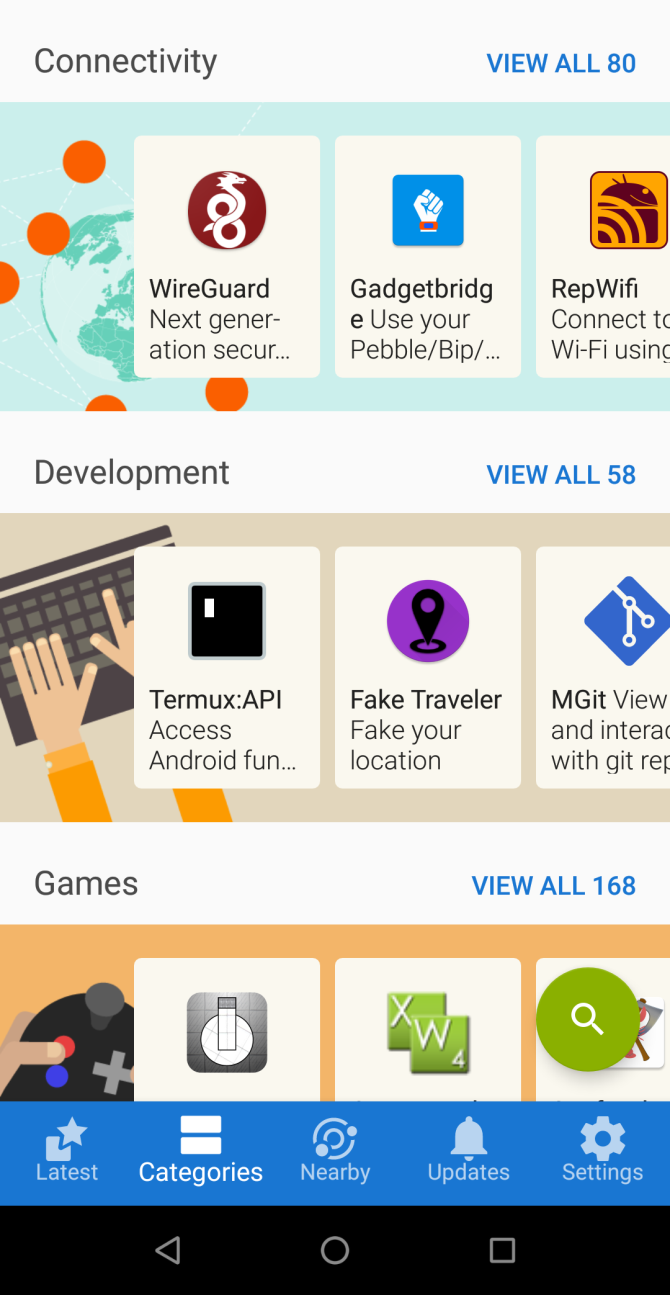
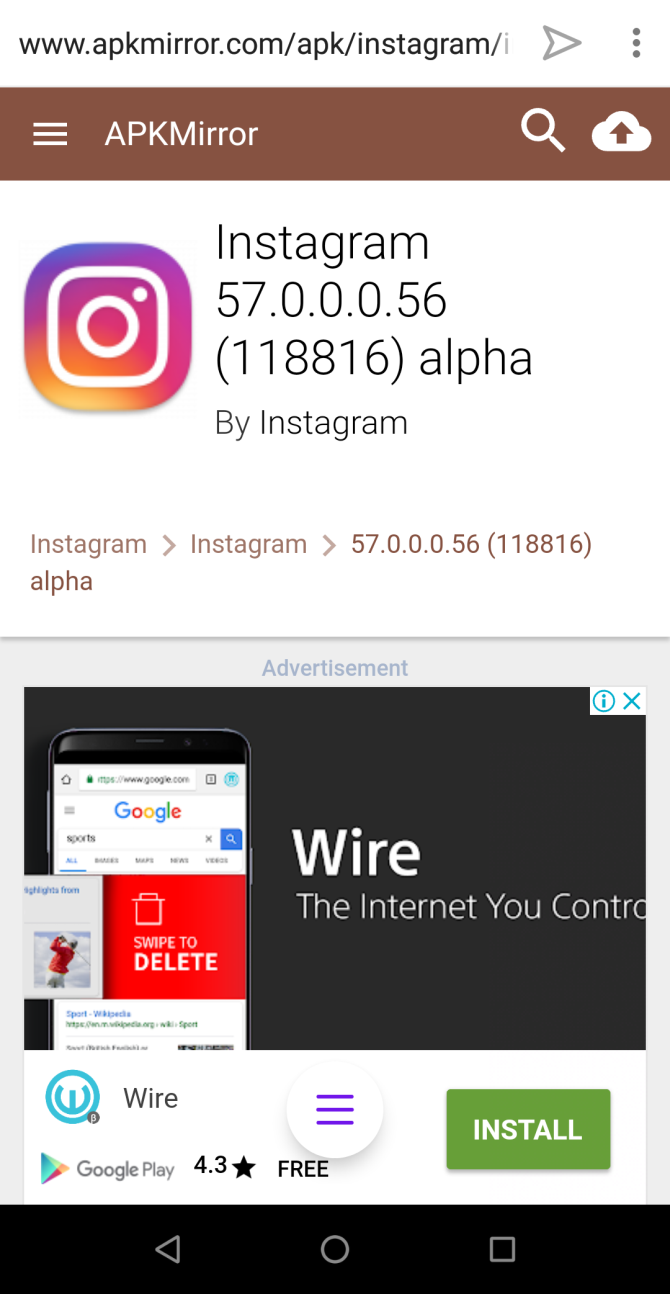
1. Apps Not Available From the Play Store

Google usually ban apps that are potentially malicious or deceptive but also object to apps that undermine its business model. Some apps are not available because of geo-restrictions. Also, the newer version of a particular app may not work well or has removed the features you need. You can download such apps from F-Droid and APKMirror.

While you should avoid installing apps from third-party app stores, these two marketplaces are an exception. They’re both community-run software projects and implement strict security practices to keep you safe from malicious apps.

To install the app, you’ve to enable sideloading. Read this guide on how to manually sideload apps on your Android device.

2. Old and Discontinued Software

download old version of ccleaner from oldversion site

Upgrading your apps to a newer version can sometimes cause problems. It may not be compatible with older OS, may get bundled with adware and nefarious APIs, and more. You can download an older copy of the app for free from OldVersion and OldApps.

Click the name of your app and select the version you want to download. Just make sure that the app meets the system requirements and is free from bloatware. We don’t recommend that you install outdated browsers as it puts your PC at risk.

3. Websites Taken Down From the Web

wayback machine home page

Websites vanish from the web every day—perhaps abandoned by the creators, banned due to legal problems, or pulled down due to hacking attempts. Wayback Machine is a digital archive of web content, that takes snapshots of a website at regular intervals and makes them available to anyone.

The free Wayback Machine Downloader lets you download an entire website from the Internet Archive. You need to install Ruby on your system, then run this command:

gem install wayback_machine_downloader

download website with wayback machine downloader

Once installed, run your app with the base URL you want to retrieve as a parameter

wayback_machine_downloader [base_URL]

Apart from saving a copy of the old website, there are many other types of content to download at the Internet Archive.

How to Download Content Without Paying Anything

4. Get Personalized Ringtones

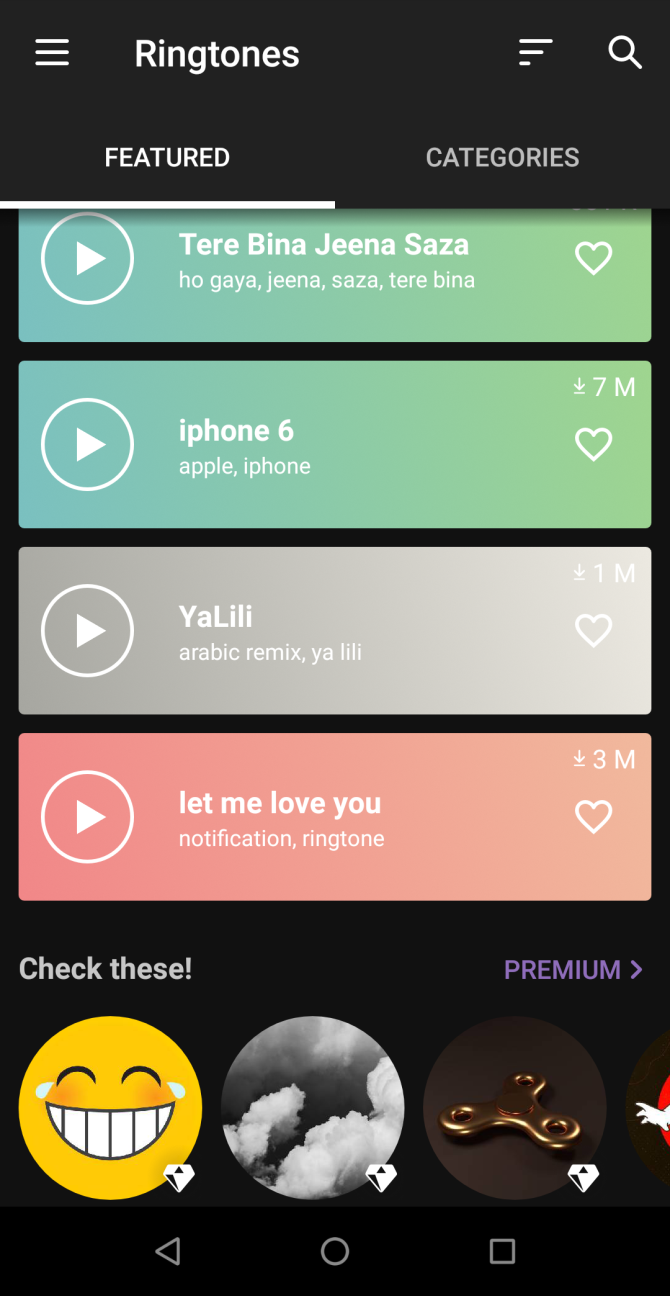
Default ringtones that come pre-installed with your device are boring. Personalized tones are popular, but you may have to pay for them. To make your phone sound more interesting, try these apps.

Zedge has more than a million free ringtones to download via its website or the app. It comes with built-in tools to save your favorite ringtones in personal lists and access them from any device.

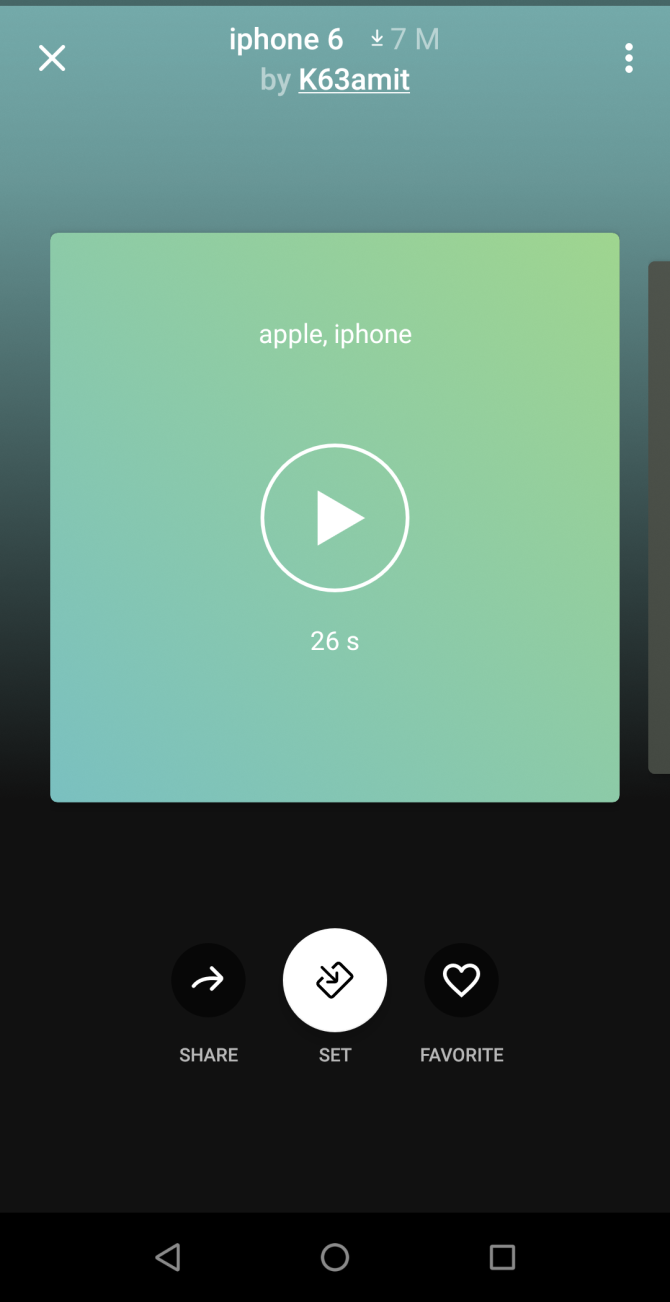
After downloading your ringtone, tap the Set button to set it as a default ringtone, notification sounds, and personalized contact ringtones.

Download: Zedge for Android | Zedge for iOS (Free, premium version available)

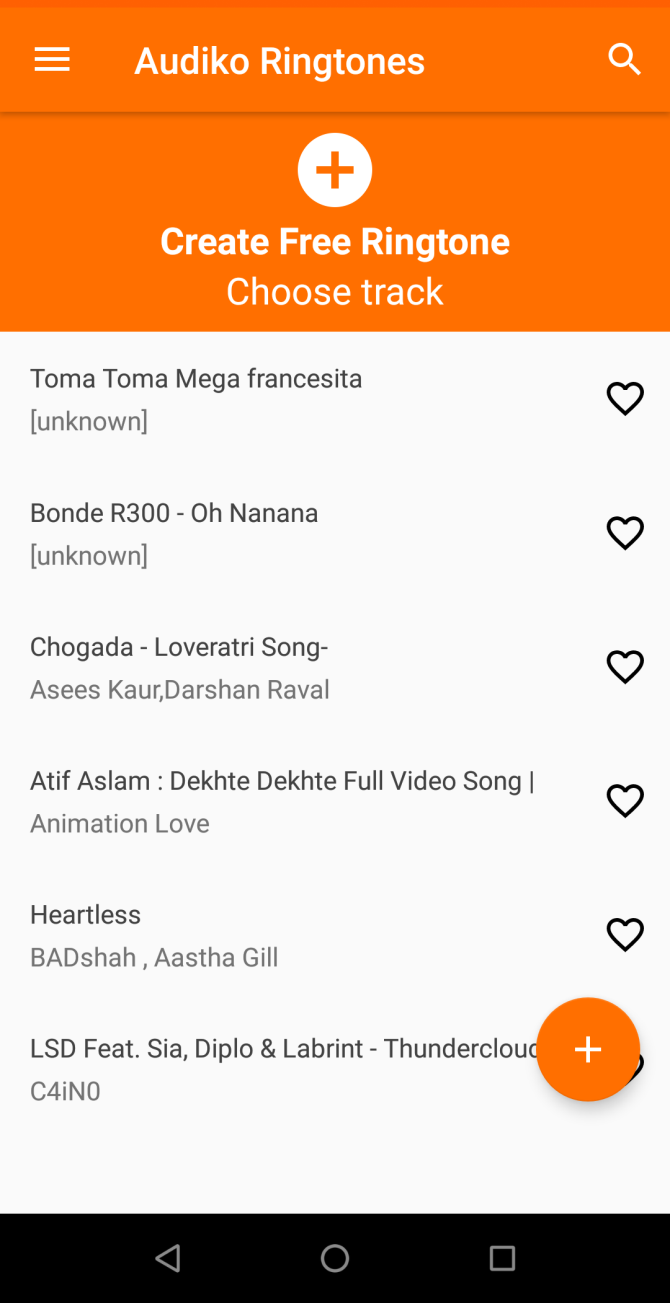
Audiko has an impressive collection of ringtones from every genre. You can download the ringtone either from the website or the app. But Audiko also lets you upload your favorite track, cut the audio segment, and download it to your phone. You don’t need third-party apps or music editing skills to create your personalized ringtone.

Download: Audiko for Android (Free, subscription available)

5. Audiobooks From Every Genre

If you’re fond of classic literature, then you can get ebooks for free, but the audiobooks version is still pricey. To get free audiobooks, try the LibriVox site and its app.

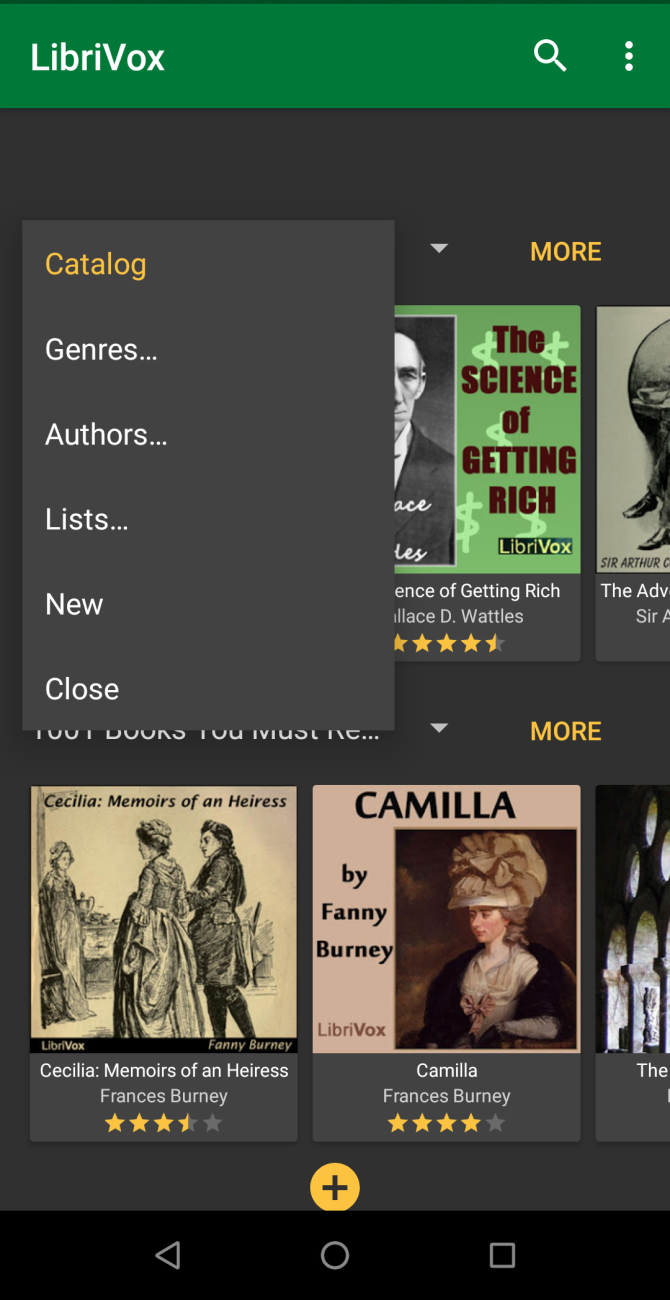
LibriVox provides free audiobooks for books that are in the public domain. It features classic best sellers and out of print books or journals from every genre in more than 30 languages. Both the site and app give you options to browse the catalog by author, title, genre, and subject.

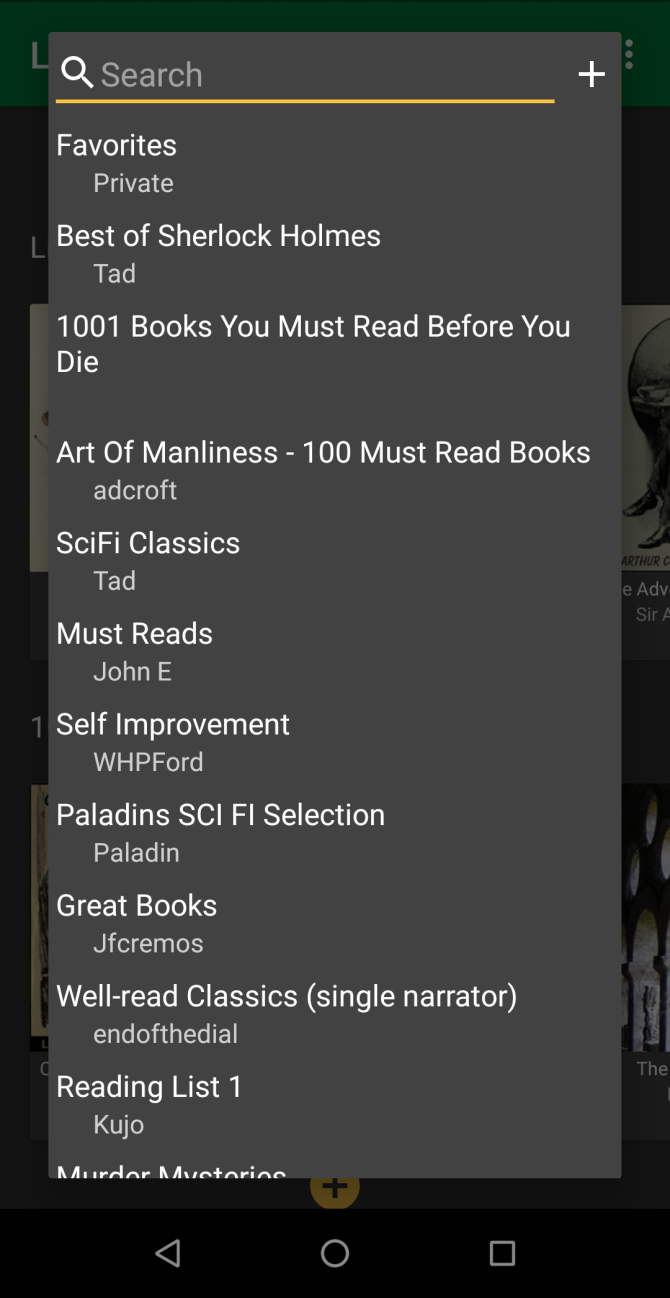
The free apps let you browse catalogs by favorite lists. Try the “Best of Sherlock Holmes”, “National Geographic’s” archived articles, sci-fi novels, and much more.

Download: LibriVox for Android | LibriVox for iOS (Free, subscription available)

6. Paid Software for Free

There’s no doubt that the premium version of an app offers more features and customer support without any bloatware. But do you know, it’s possible to download paid apps for Windows, Mac, and that too free.

Giveaway of the Day offers free licensed software for Windows, Android, iPhones, and Games you’d have to buy otherwise every day. The deal runs for 24 hours or more. The vendor gives you the license keys and is completely legal, although there could be some limitations. Just subscribe to their newsletter or RSS for periodic updates.

giveaway of the day deal page

Malwaretips Forum is full of tech enthusiasts who regularly share giveaways and discounts. You’ll find some security related apps, including Malwarebytes, Glasswire firewall for Windows, and much more. Register in the forum and subscribe to their notification channels.

malwaretips giveaway forum site

If you’re hungry for more free apps, try these tips and tricks to find Mac and iOS App Store discounts.

7. Download Commercial Games for Free

Popular games for Windows and Mac sometimes cost a lot of money. But there’s always a chance you can get fantastic game titles for free. Visit this dedicated Wikipedia list of commercial games released as freeware. You’ll see dozens and more titles listed with the download links in the footnote at the bottom.

We also recommend /r/FreeGames and /r/FreeGamesOnSteam on Reddit for all kinds of freebie offers and deals. Often, big game publishers like Steam, GOG also release free titles to attract customers. To know more, read how to download premium games for free with these sites.

How to Download Without a Download Button

8. Wikipedia and TED Talks

offline wikitionary in kiwix app

Having offline access to Wikipedia, TED, and more is helpful in places where internet connectivity is poor or heavily censored. You just need extra storage space on your PC and bandwidth to download your files.

Kiwix is a free app that lets you search and read the whole encyclopedia. Navigate to Kiwix Internal wiki library and download the ZIM file. Then browse the articles from within the app. The wiki library also lets you download complete TED talks, StackExchange sites, Wikipedia sister sites, and more.

Download: Kiwix for Android | Kiwix for iOS (Free)

9. Download Images in Bulk From a Web Page

Saving multiple pictures from a web page in one fell sweep is tedious. But there is a way to download multiple pictures from a web page for free. Try out these helpful extensions to save time and hassle.

Imageye Image downloader for Chrome lets you find and download all images on a web page with a single click. The extension has a built-in filter to select criteria for image size, URL, and dimensions. It also supports Facebook, Twitter, Google Images, and more.

imageye downloader for chrome

Download all Images for Firefox allows you to find, filter, and save all images in the opened tab. The filtering tool is powerful. You can limit pictures based on their dimension, size, and image type. It’s also possible to use custom regular expression filter to filter images based on the URL.

download all images settings pane firefox

10. Capture Audio From Any Website

We all want to own copies of cool stuff you hear every day. While downloading audio from the browser is simple, capturing live radio shows, web-based voice calls, or podcasts is not easy.

Chrome Audio Capture lets you record any audio that’s playing in the opened tab, and save it to your computer in MP3 or WAV file format. Click the Start Capture button to start recording. You can save or cancel recording at any time and also mute tabs to avoid audio spoilers.

chrome audio capture extension for chrome

The maximum capture time is 20 minutes. If you have longer duration audio, you can either continue the recording and sacrifice audio quality or stop and restart the capture.

11. Download Photos and Videos From Instagram

Instagram lets you request a file containing every photo and video you’ve shared on the site.

  1. On the desktop, click the Profile icon in the upper right corner of the screen.
  2. Click the Settings gear next to the Edit Profile button.
  3. From the menu, choose Privacy and Security.
  4. Scroll down to the Data Download button header and click Request Download.

download data from instagram

DownloadGram allows you to download your own/someone else photos on mobile and web. If the photo is yours, tap the three-dot button above the post and choose Share > Copy Link. To download someone else’s photos, tap the three-dot button again and select Copy Link.

Open the browser and paste the link to save the image. If you want to download videos, then follow these tips on how to download videos from Instagram.

12. Photo Albums From Flickr

Flickr is a popular service for saving and sharing photos online. In their blog post, they announced that free members can store up to 1000 photos of 200MB each. Before downloading anything from Flickr, remember to respect the copyright and give due credit to the photographer wherever possible.

To download multiple pictures, click the username of another Flickr member, and choose Albums. Hover your mouse or click the album thumbnail to make a download icon appear. Click this, then select Create zip file. A download link will appear after some time.

batch download photos from flickr

You Can Download (Almost) Anything Online

With so much stuff online, you can download anything for free online. With the advent of streaming services, the curiosity to download music and movies from illegal torrent sites has been considerably reduced.

Apart from popular streaming services. check out these sites to download free music and brilliant movies from the public domain.

Read the full article: How to Download Anything on the Web for Free: 12 Tips and Tools


Read Full Article

How to Write a Movie Review Online and Earn Money Doing It


Do you love watching movies, picking them apart, and making recommendations to your friends? Then, you may have already wondered about getting paid to write movie reviews. For many people, it’s a dream job, which makes it a competitive field to get started in.

But we’re here to show you the ropes. We’ll start by showing you how to write a decent movie review. Then we’ll explain all the ways you can start writing movie reviews for money.

Learning How to Write a Movie Review Online

Image of person typing on a laptop
Image Credit: LukaFunduk/Depositphotos

When it comes to writing and publishing online, movie reviews couldn’t be much simpler. There’s some general advice you probably want to follow, which we’ll get into below. But so long as you approach each review as one friend advising another, it should come out well.

It’s good to open with a brief summary of the plot, before outlining what does and doesn’t work about the movie. Keep everything vague to avoid spoilers and try to build a strong argument for why that movie is or isn’t worth watching

Since you’re writing for the web, name-drop any major cast and crew members involved in the production to help your review appear in search results. Just be sure to insert those names and titles as organically as you can.

Tie everything up with a summary of your thoughts and a recommendation to the reader. You might say the movie is a “blast for action-lovers” or “not worth it for anyone who doesn’t enjoy the genre.” Anything that lets the reader know if you think it’s good for them or not.

Finally, give the movie a rating based on the system your website or publisher uses. This might be stars, letters, numbers, or anything else.

Now, let’s get stuck into how you become a movie reviewer online and earn some money.

1. Write Movie Reviews for Royalties

Medium banner offering to pay for written content

One of the easiest ways to get paid writing movie reviews online is to submit to websites that pay royalties for your content. The money you get paid depends on how many people read your review. It might come from subscription fees or ad revenue.

You might also hear these sites referred to as revenue sharing or pay-per-view sites.

There’s a range of different sites to which you can submit your movie reviews and earn royalties. They seem to change all the time, but the most popular ones now include:

All you need to do is sign up and start publishing your reviews. HubPages even has a movie reviews category you can publish to.

We want to highlight Cultured Vultures, a website that specializes in content like movie reviews. Cultured Vultures built its site with amateur writers in mind and strives to pay as much as it can for all its content, offering around $2.50 for every 200 views during the first week of publication.

Cultured Vultures home page

Once your review is online, other folks can read or comment on it and you should receive royalty payments for the traffic it receives. It won’t be a fortune since it’s difficult getting noticed on these sites, but it’s better than writing for free.

What’s more, revenue sharing sites are a great place to start building a portfolio of your work. This is particularly important if you want to go freelance.

2. Become a Freelance Movie Review Writer

Upwork web banner showing freelance writer

Most people can’t expect to earn a living off the revenue sharing sites above. But it is possible to build up a full-time income if you find out how to become a freelance movie reviewer online. When you’ve got a portfolio of high-quality reviews, all you need to do is start answering the calls for writers across the web.

Do a quick Google search for “write movie reviews for us” to turn up all the latest websites looking for a freelance movie reviewer. Of course, these results are bound to change all the time, but we found the following sites looking to hire writers:

There are plenty of other useful Google searches to try as well, for instance, “looking for movie writers” or “paid to write movie reviews.” Any of these are likely to turn up different writing opportunities. You can also set up Google Alerts with these keywords.

Another approach is to visit the websites and blogs devoted to movies to see if they’re hiring writers. Even if there isn’t an explicit ad, it’s worth your time to send an email of inquiry. Let them know you exist, then keep returning to the site to see if things change in the future.

ScreenRant contributor program web page

And finally, don’t neglect the plethora of job boards and project sites devoted to helping freelancers find work. We’re talking about sites like Upwork and Fiverr or job boards like ProBlogger.

These sites run the entire gamut of subject matter, but there are clients out there looking to hire movie reviewers. Of course, you could always write for yourself instead.

3. Monetize Your Own Website

Amazon Affiliate program with movies and music

There’s nothing to stop you from building a new website to host your own movie reviews, then earning money from it through monetization schemes. This has proven to be an effective way for lots of people to earn a living across a range of different subjects.

Although that’s not to say it’s easy.

In fact, going down this route demands a lot of other skills alongside your writing ability, particularly marketing and research. It isn’t always easy finding out how to make money with a movie blog.

You can build a website at little-to-no-cost with services WordPress or Squarespace. Once you get up and running, find a way to drive people to your site through ads, word of mouth, or search engine optimization.

One of the most common approaches to creating revenue from your audience is by converting visitors into sales. This is a popular approach for any kind of review because you can use an Amazon affiliate link to encourage your readers to buy the product you’re writing about. All you need to do is sign up for the Amazon Affiliate Program and link your reviews to the Blu-Ray, DVD, or digital download for that movie.

Another great way to get paid for the movie reviews you write is to use Google Adsense on your website. These widgets work with Google’s enormous network of advertisers to serve up the most relevant ads to your readers. You can block ads you don’t like, choose where they appear, and pick the types of ads that work best with your site.

If you don’t want to go down the advertising route, you could always set up a Patreon account and ask readers to support you directly. A lot of writers feel more comfortable with this form of monetization.

Consider Starting a YouTube Channel Instead

Getting paid to write movie reviews is an exciting way to make a living. But remember that written reviews only account for a small part of the market, hundreds of thousands of people watch movie reviews on YouTube instead.

Consider starting your own YouTube channel to share video movie reviews. You could do this alongside the ones you write. YouTube is a great way to build your personal brand, earn some extra money, and find a passionate audience for your work.

Read the full article: How to Write a Movie Review Online and Earn Money Doing It


Read Full Article
How Can I Find Out Who Blocked Me on Facebook?


facebook-block

Who blocked me on Facebook? It’s a question many of us will have asked since joining Facebook. Thankfully, there’s plenty you do if you suspect someone has blocked you on Facebook.

Perhaps a good friend has suddenly started ignoring you. Or perhaps you have stopped seeing their posts on your feed. Are they just busy? Or have you done something wrong and been blocked?

Unlock the free "Facebook Security Checklist" now!

This will sign you up to our newsletter

Enter your Email

In this article, we’ll show you how to find out who, if anyone, has blocked you on Facebook…

How to Find Out Who Blocked You on Facebook

You can’t exactly see who blocked you on Facebook, but there are a few decent indicators to watch out for.

The first thing you should do is determine whether you’ve been blocked or unfriended (yes, we know that hurts too).

Can You Still Tag Someone Who Has Blocked You?

Let’s say you’ve found a meme you want to show a friend. Normally, you’d simply tag them by writing their name then clicking on the relevant link to their profile. They’d be notified of the tag and see it next time they log in.

But if you’ve been blocked by that person, you won’t be able to tag them in any posts—that includes memes, photos, and any posts you’re adding to your (or someone else’s) timeline. Whether you can tag someone who has unfriended you on Facebook depends on the other person’s privacy settings.

Use the Facebook Search Function to See If You’ve Been Blocked

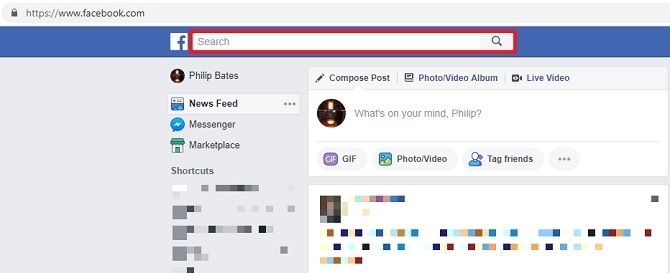
Search for your friend on Facebook. Simply sign in and you’ll see the search box at the top of the page. Similarly, if you want to know who blocked you on the Facebook app, it’s at the top of your feed.

Search social media friends by clicking on the box at the top of the news feed

A list of profiles and pages will come up. Toggle the results by clicking on People. If you’ve been blocked, their profile won’t show up under this setting. However, if you’re searching All, there’s a chance you will see them, even in the event that they have blocked you.

If you see the display image of the person you’re looking for, click on it. You’ll be able to partially view the profile (depending on their privacy settings) if they’ve simply unfriended you. But if you’ve been blocked, you won’t be able to access anything.

Use a Mutual Friend’s Profile to Check Who Blocked You

You can then go looking for further signs. The easiest way is to head to the profile of someone you and the person who has potentially blocked you both know. You’ll be able to see a brief list of their friends; click on See All. It should tell you how many contacts you have in common.

You can scroll through their contacts or just type into the field which reads “Search Friends”.

If you can see their name and profile picture, you can let out a sigh of relief, as they haven’t blocked you.

If you can’t see them, there is another potential answer for their absence. They might have deactivated their whole account. We’ll come back to that later.

Can You Read Previous Facebook Messages After Being Blocked?

Here’s another trick, albeit one which relies on you having communicated with the person before. This can’t help when it comes to relative strangers. (This shouldn’t bother you too much. However, being blocked before properly acquainting yourself can be just as damaging.)

Try to remember anything this contact has written on your profile or—if you’ve stopped others from posting on your timeline—a mutual friend’s profile. This could be a birthday message, a festive greeting, or anything incidental.

These will still be visible regardless of your friendship status. However, if you have been blocked, the other person’s profile image won’t appear, or will be replaced by a question mark. Their name might also be covered by black boxes too.

Are Contacts Who Might Have Blocked You Still on Messenger?

If you’ve previously spoken to this person using Facebook Messenger, this is another indicator. But you must do this via the Facebook website because the app still sometimes shows blocked accounts.

Facebook Messenger chat feature

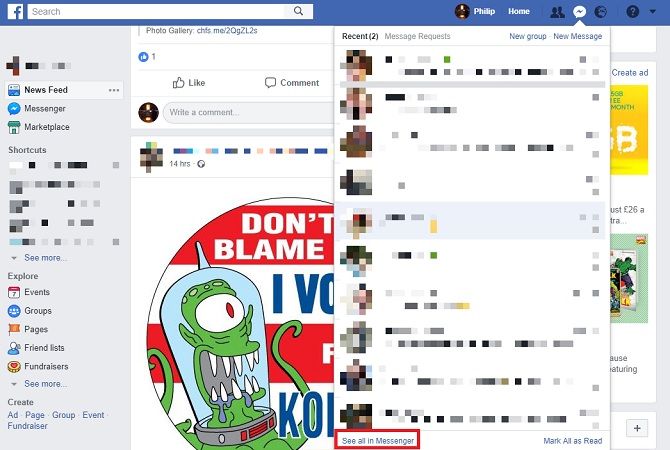
Go to the Messenger section and click on See All in Messenger in the drop-down menu. Access the conversation you had with the contact. If you’ve been blocked, their profile image won’t load, replaced by a standard gray outline. You won’t be able to click on their name to look at their profile either.

You can try to send them a message too. If you have been blocked, your attempts will be unsuccessful. Facebook will tell you there’s been a temporary error.

How can you tell they haven’t just deactivated their Facebook account? In most cases, their name won’t appear at all if they have deleted their account, but deletion is different from deactivation. Deletion is a more permanent step, while deactivation merely means they’re staying off Facebook for a short time.

The platform might be a distraction at a busy time, so deactivating it is an attempt to give it up for a while. That could be why you’re not hearing from them—but at least they’ll probably be back soon.

Deletion means they don’t intend coming back. In this case, their Messenger thread will read “Facebook User”. Be aware that they could still be using Messenger without being on Facebook; nonetheless, if you can contact them here, at least you’re still friends.

Can You Invite Friends Who Blocked You to Events?

People create events on Facebook to coordinate meetups, including birthday parties, dinners, and Christmas celebrations. But if you’ve been blocked, you won’t be able to invite that individual.

Go to Events > Create Event > Create Private Event. After entering details, you’ll need to invite specific people by essentially tagging them. You can’t add anyone who has blocked your profile though.

Similarly, you can’t invite anyone who has blocked you to join or like pages.

Try to Block Someone Who May Have Blocked You

block users on Facebook

This isn’t a case of seeking revenge. By checking whether you can block someone, you’re also checking whether they’ve deactivated their Facebook. Think of this as like tagging—you can only tag people you’re not blocked from following. And so you can only block people who haven’t blocked you.

Sign in and click on the down arrow to the top-right of your feed. Go to Settings > Blocking and enter a name under Block users. After clicking enter or Block, a list of profiles will appear, giving you the option to block them. If that person isn’t listed, they’ve either deactivated/ deleted their account or have blocked you first.

Can I See Who Blocked Me on Facebook?

The only way you can be 100 percent certain whether you have been blocked is to ask the person directly. You probably won’t want to do that (and it’s cringeworthy too). It’s better to find sneaky alternatives and infer the truth.

If you follow them on other social media apps, visit their profiles there. If they’ve blocked you elsewhere, something’s wrong. Otherwise, there might be another reason you can’t find them on Facebook. In the case of the latter, you could contact the person via direct messages on Instagram or Twitter.

Don’t challenge them head-on: you could tell them you’re worried there’s an issue with their Facebook. Be caring, not confrontational.

You could also involve someone else, although you need to tread carefully here. A mutual friend can at least tell you whether your contact’s profile has been deactivated or deleted.

What to Do If You’ve Been Blocked on Facebook

Facebook Twitter social media likes dislikes neon sign

If it turns out someone has blocked you on Facebook, you’ll feel frustrated and angry, especially if you feel you’ve done nothing wrong.

Nevertheless, in most cases, it’s simply not worth worrying about. It could be something small, like a simple misunderstanding. Or it could just be a clash of personalities. The point is, it’s largely out of your hands.

Ask yourself whether it’s worth losing sleep over. Spoiler alert: it isn’t. It’s only Facebook.

Yes, you could find the person in question and ask why they’ve blocked you. You could find another route to talk to them, and tell them how you feel. Or you could just let it go. After all, why cause further friction over something ultimately trivial?

Should You Be Worried About Being Blocked?

Social media is a wonderful thing, giving you access to people you’d otherwise drift away from. It keeps the world connected. However, it can also be a major cause for concern by feeding your worst fears.

That’s why it’s important you remember that everyone has something going on in their lives that they don’t want to share. Something that keeps them busy or distracted. It doesn’t always mean that they’ve forgotten about you or actively dislike you.

You might get to this stage too. If so, you’ll be pleased to hear you don’t have to entirely cut everyone out of your online life. Instead, try using Messenger without Facebook to keep in touch.

Read the full article: How Can I Find Out Who Blocked Me on Facebook?


Read Full Article
Beware of “ZoomBombing”: screensharing filth to video calls


The world is vulnerable to a new type of trolling as people turn to Zoom video calls to feel connected amidst quarantines. Jerks are using Zoom’s screensharing feature to blast other viewers with the most awful videos from across the internet, from violence to shocking pornography.

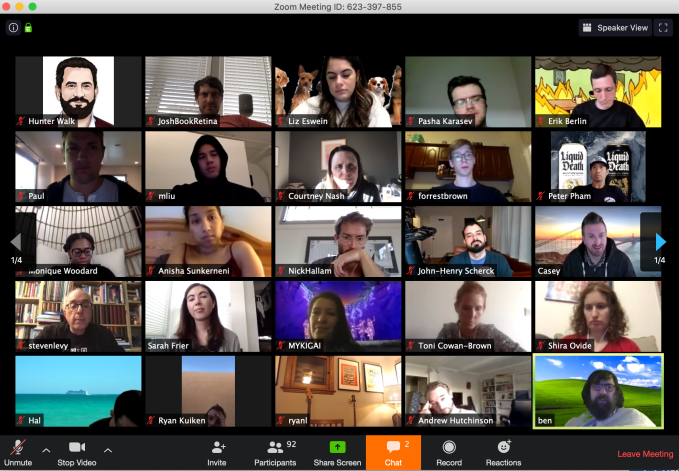
That’s just what happened today on the WFH Happy Hour, a popular daily public Zoom call hosted by The Verge reporter Casey Newton and investor Hunter Walk. Suddenly, dozens of attendees were bombarded with disturbing imagery. A troll entered the call and screenshared Two Girls, One Cup and other horrifying sexual videos. Attempts to block the attack were thwarted as the perpetrator simply re-entered the call under a new name and screenshared more gross-out clips. The hosts ended the call rather than subject viewers to the assault until they could stop it.

The problem stems from Zoom’s policy that “The host does not need to grant screen share access for another participant to share their screen.” However, hosts can disable this option in their settings or the Admin controls of a call. You can either change this in your pre-meeting Settings, or in the in-call admin settings for Share Screen -> Advanced Sharing Settings.

Anyone publicly sharing Zoom links where they could be discovered by trolls, like on Twitter, should be sure to change screensharing to “Host Only” before a call starts or as soon as they see the feature being abused. Some tips from entrepreneur Alex Miller for other ways to protect your Zoom calls include:

  • Disable “Join Before Host” so people can’t cause trouble before you arrive
  • Enabling “Co-Host” so you can assign others to help moderate
  • Disable “File Transfer” so there’s no digital virus sharing
  • Disable “Allow Removed Participants to Rejoin” so booted attendees can’t slip back in

Just imagine the most frightened look on all these people’s faces. That’s what happened.

“I want to apologize to all our attendees — including my parents, Jim and Sally, who joined #WFHappyHour today for the first time. Today we all learned an important lesson about disabling screen sharing and saw once again the importance of good content moderation” Newton tells me. When asked if he had any photographic evidence of the attack, he told me “lol I was not taking screenshots! I was screaming!”

This is just one of the many new vectors for abuse we’re experiencing in the coronavirus age. We’ve seen phishing attacks purporting to offer health screenings, scams claiming people’s electricity would be shut off during quarantine if they don’t pay, and fake COVID-19 testing kits on sale. There’s always someone willing to exploit a tragedy for money or just to see the world burn, so it’s more important than ever to stay vigilant and keep that “block” button handy.


Read Full Article
Facebook is wrongly blocking some links, including coronavirus info


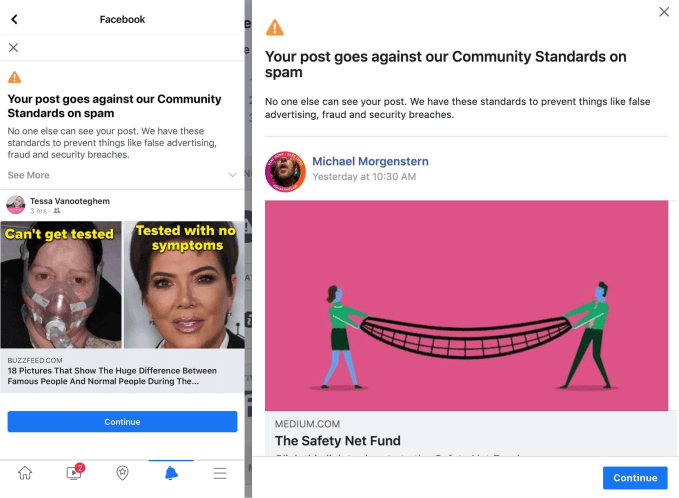
Facebook is suffering from a massive bug in its News Feed spam filter, causing URLs to legitimate websites including Medium, Buzzfeed, and USA Today to be blocked from being shared as posts or comments. The issue is blocking shares of some but not all coronavirus-related content, while some unrelated links are allowed through and others are not. It’s not clear what exactly is or isn’t tripping the filter. Facebook has been trying to fight back against misinformation related to the outbreak, but may have gotten overzealous or experienced a technical error.

A source tipped us off and provided numerous examples of blocked links. We reached out to Facebook for comment and a company spokesperson told us “We’re looking into this right now and working as quickly as possible to share information. [I] can confirm at this point that we’re looking into the matter, can’t confirm what might be happening just yet.”

Facebook’s Guy Rosen later tweeted that “We’re on this – this is a bug in an anti-spam system, unrelated to any changes in our content moderator workforce. We’re in the process of fixing and bringing all these posts back. More soon.” Facebook sent home its content moderators this week and announced it would be relying more on its artificial intelligence systems, warning it could make “more mistakes”.

Upon sharing certain links, users are seeing a warning from Facebook stating “Your post goes against our Community Standards on spam”. It goes on to explain that “No one else can see your post. We have these standards to prevent things like false advertising, fraud and security breaches.”

Earlier this month, Facebook banned ads for protective face masks in an effort to prevent price gouging during the outbreak. Facebook has also been sharing contagion prevention tips atop Instagram’s home screen, sending misinformation to fact-checkers for review, and providing data to researchers.

Facebook has grown into a fundamental communications utility, holding special importance during the COVID-19 crisis. News organizations are sharing life saving tips while non-profits are raising money for artists and businesses impacted by widespread quarantine orders. That means it’s more critical than ever that Facebook keep information flowing properly.


Read Full Article

Revolut launches Revolut Junior to help you manage allowance


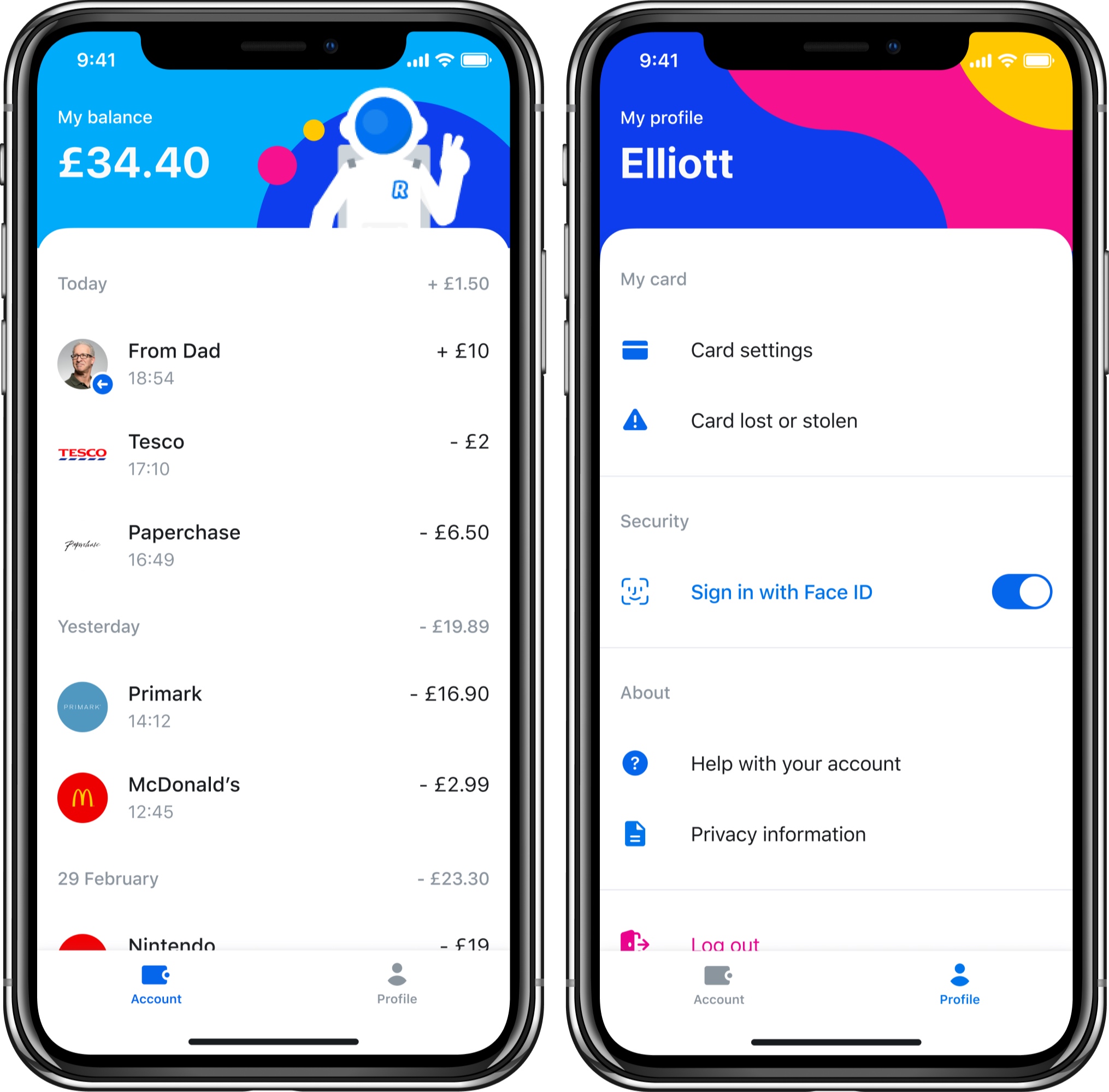
Revolut is introducing a new product specifically targeted toward kids aged 7-17 years old — Revolut Junior. Revolut Junior is a new app and service that integrates directly with the main Revolut app on the parent’s side.

Parents or legal gardians who are also Revolut users can create a Revolut Junior account for their kid. After that, your kid can download the Revolut Junior app and get a Revolut Junior card.

The new app offers a limited set of features with an interface divided in two tabs — Account and Profile. Kids can see a list of transactions in real time in the Account tab. They can configure card settings in the Profile tab. And that’s about it.

On the other end, parents can control their kids’ spending from Revolut. They can transfer money to a Revolut Junior account instantly. Parents can also access balances and transactions as well as disable some card features, such as online payments. They can also choose to receive notifications when a child is using their card.

The reason why Revolut Junior can attract a ton of users is that Revolut itself already has over 10 million users. It’s going to be easier to convince existing Revolut customers to use Revolut Junior over a custom-made challenger bank for teens, such as Kard or Step. Arguably, the biggest competitor of challenger banks for teens is still cash.

As kids grow up, chances are they’ll switch to a full-fledged Revolut account if they’ve been using Revolut Junior for years. Revolut Junior represents a great acquisition funnel as well.

Revolut Junior is only available to Premium and Metal customers in the U.K. for now. The company will eventually roll it out to more users and more countries.

Revolut plans to add more features to Revolut Junior in the future. For instance, parents will be able to set a regular allowance and financial goals. Kids will get savings options, spending reports, spending limits and more.


Read Full Article