03 March 2020

How to Play Pokémon Games on Your iPhone or iPad


ios-pokemon-emulate

The Pokémon Company has released some of the most popular titles to ever grace the gaming community. These epic games date back to 1996 and have shaped many of our childhoods. But you don’t have to stop playing Pokémon just because you don’t own a Game Boy anymore.

Unlock the free iPhone and iPad cheat sheet now!

This will sign you up to our newsletter

Enter your Email

In fact, there are plenty of ways to play Pokémon on your iPhone, whether you’re looking for the latest App Store games or classic adventures like Pokémon Red amd Pokémon Blue.

We’ll explain all your options so you can start to catch ’em all in no time.

Emulate Classic Pokémon Games on Your iPhone

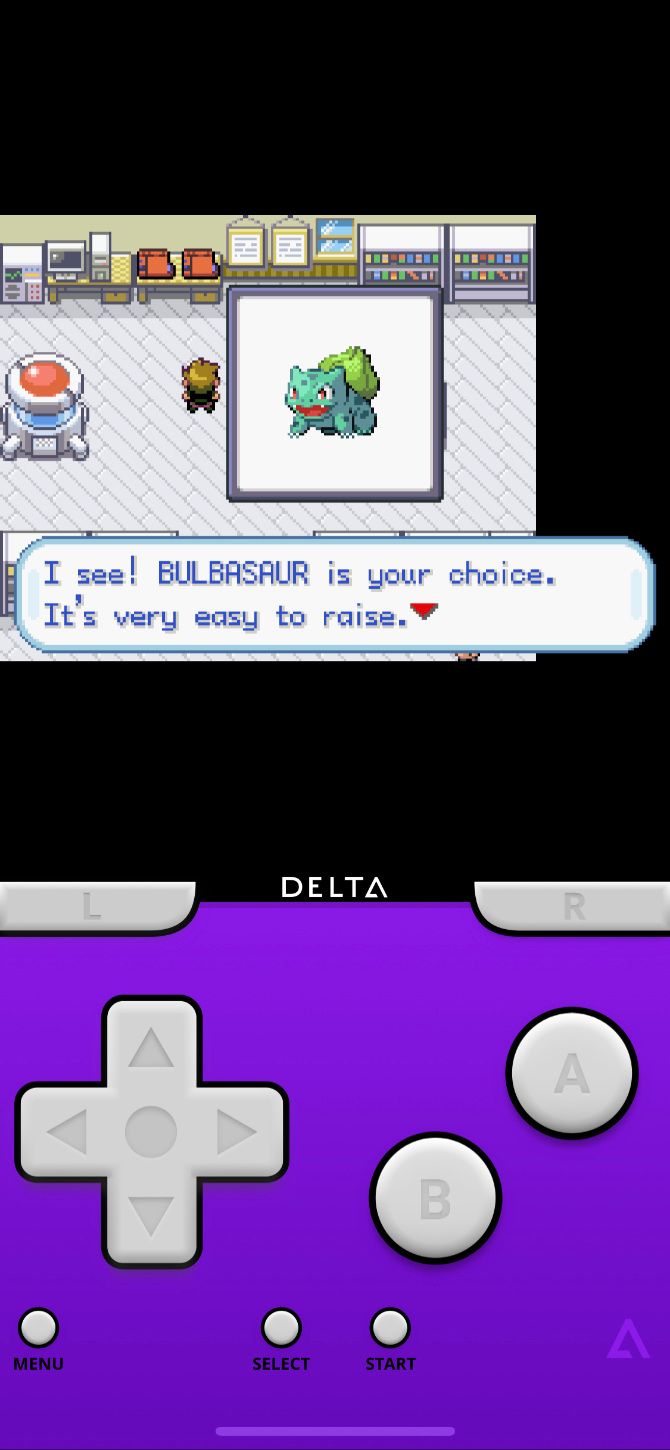
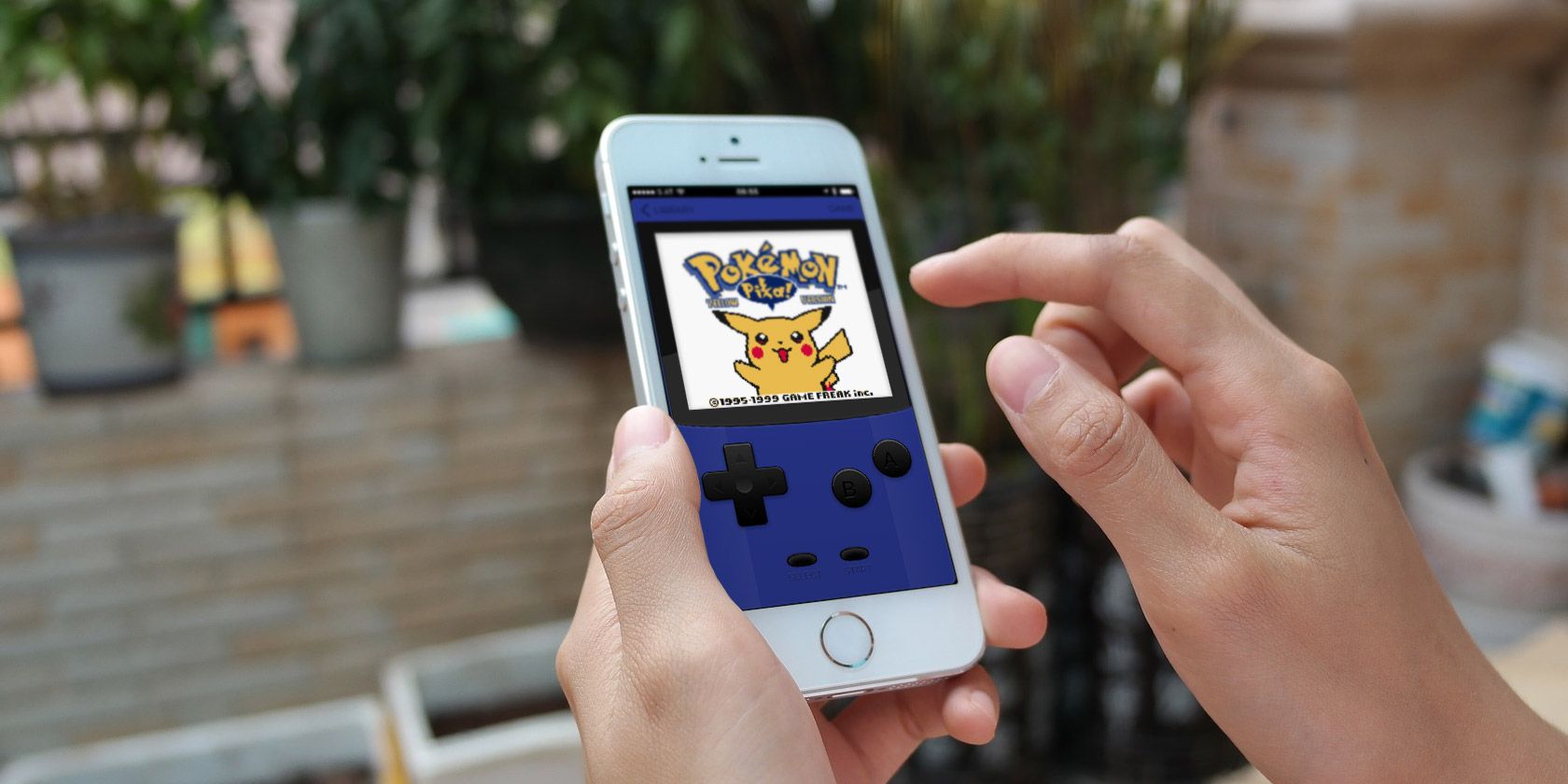
The best way to play classic Pokémon games on your iPhone is to download and install an emulator. This is a type of app that mimics a computer system, like an old video game console.

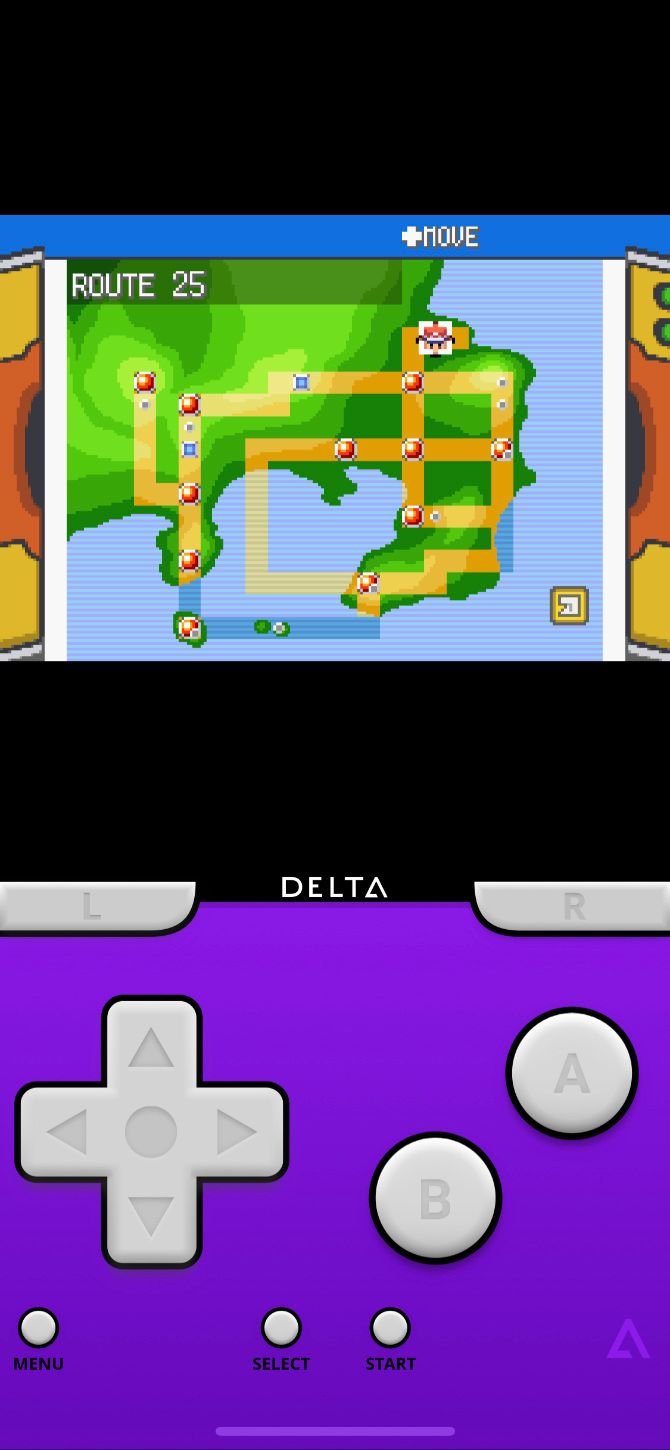
With the right emulator, you can play Game Boy, Game Boy Color, Game Boy Advance, and Nintendo DS games on your iPhone. Newer consoles, like the Nintendo Switch, aren’t usually available to emulate because your iPhone doesn’t have enough processing power.

But that doesn’t matter; the older Pokémon games are still worth playing.

How to Install an Emulator on Your iPhone

Unfortunately, Apple doesn’t allow emulators on the App Store. But there are plenty of alternative methods you can use to install an emulator on your iPhone instead. And none of them require you to jailbreak your device first.

Most emulators are open source, which means they’re free and legal to use, even if Apple doesn’t like it. That means you can install them outside of the App Store by taking advantage of enterprise certificates or compiling them as your own apps.

Don’t worry—it’s simpler than it sounds. In fact, we’ve explained exactly how to install emulators on your iPhone.

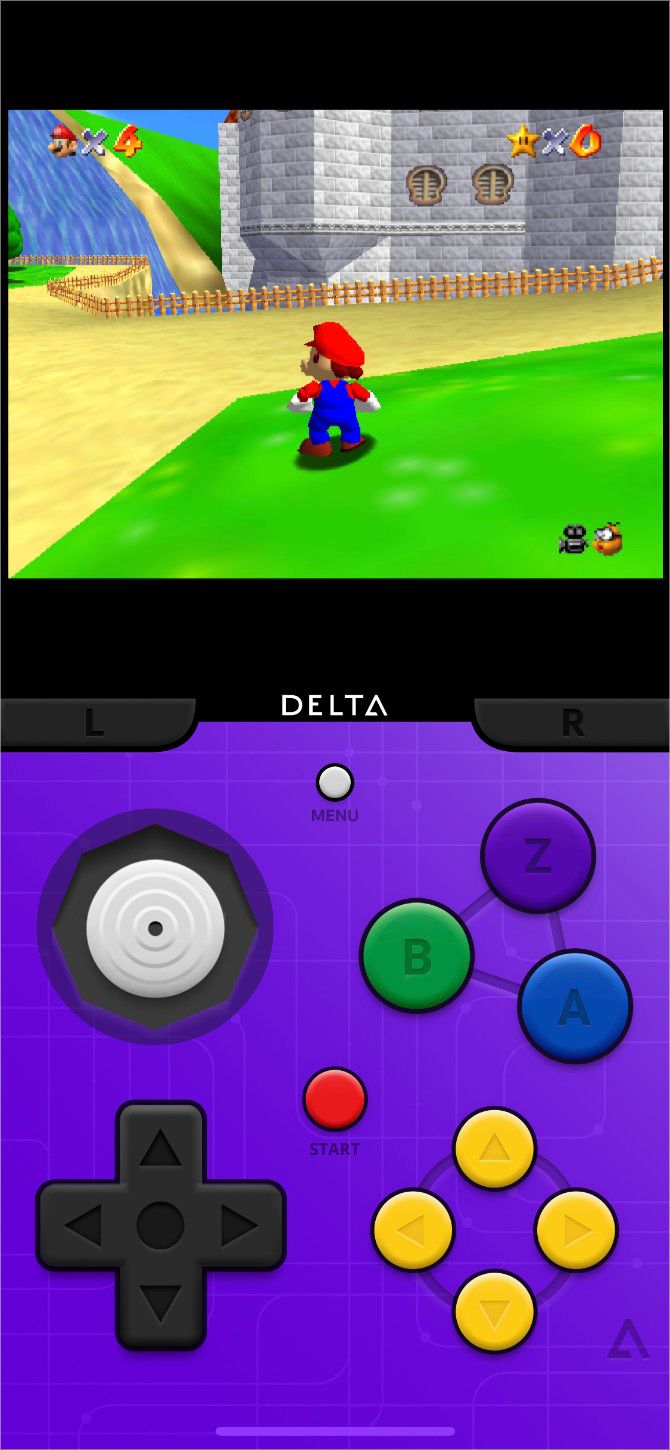
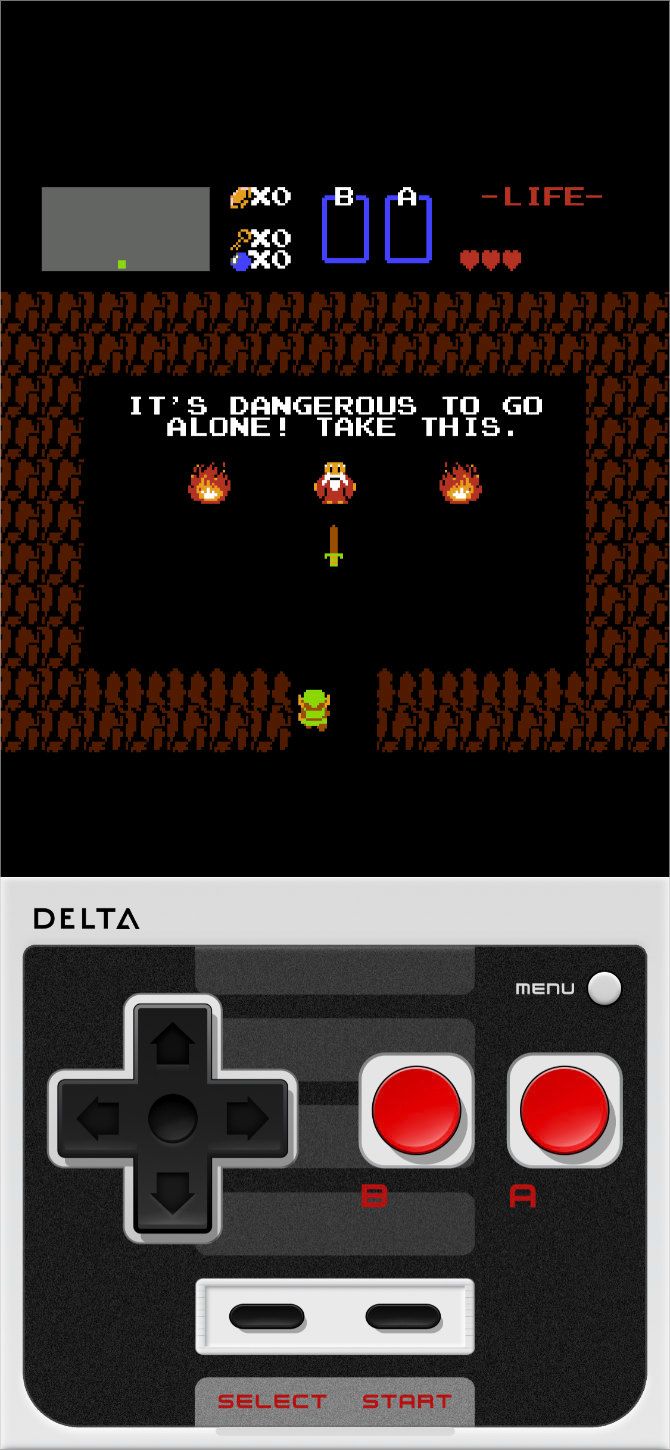
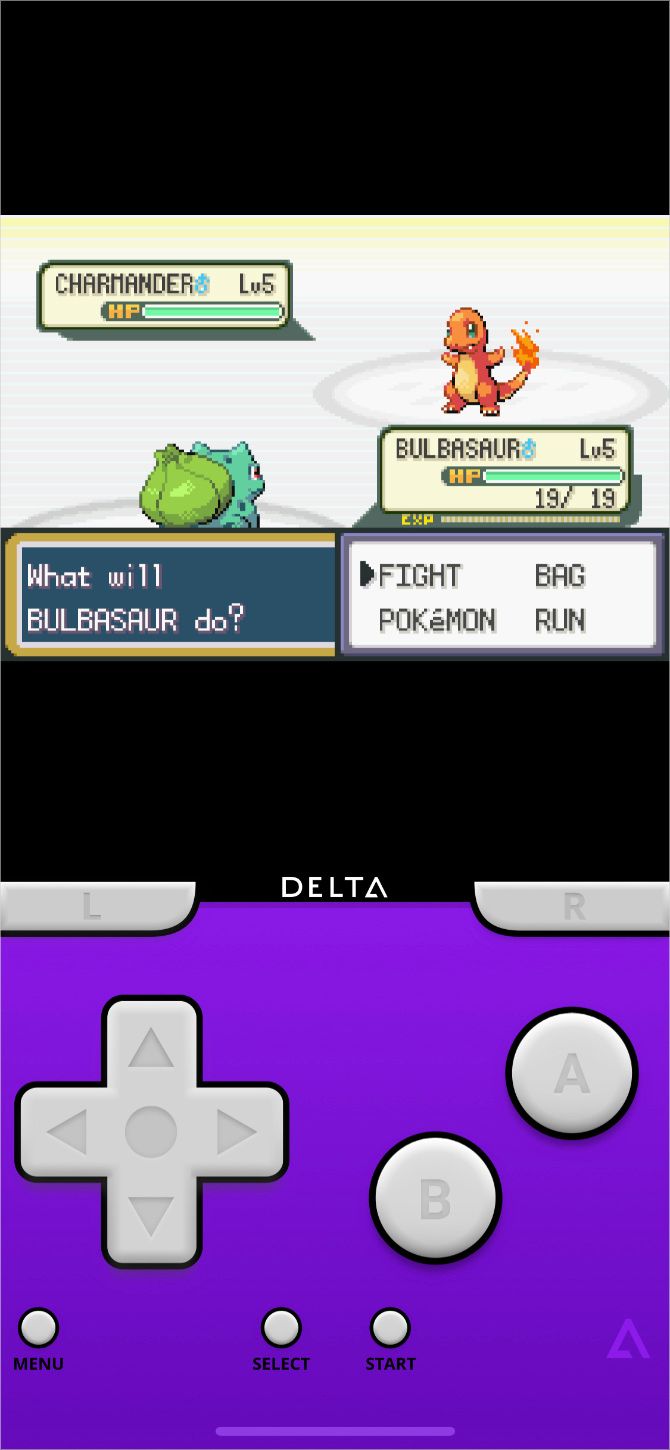
For Pokémon, the best iOS emulators are Delta and iNDS. Both of these are free, and together they let you play Pokémon games from all the following consoles:

  • Game Boy / Game Boy Color
  • Game Boy Advance
  • Nintendo 64
  • Nintendo DS

Where to Get Pokémon ROMs for Your iPhone

After you install an emulator on your iPhone, you still need a software version of the game you want to play. These are called ROMs. While emulators are free and legal to use, ROMs aren’t so straightforward.

If you already own a game legally, in some cases you’re allowed to create your own ROM version of it for backup purposes. However, Nintendo’s legal FAQ states that even this archival use is illegal.

No matter how you obtained them, since video games are copyrighted, it’s a crime for you to share a ROM with anyone else.

Still, all it takes is a Google search to find whatever ROMs you’re looking for. If you aren’t sure which ones to play, take a look at our ranking of all the mainline Pokémon games.

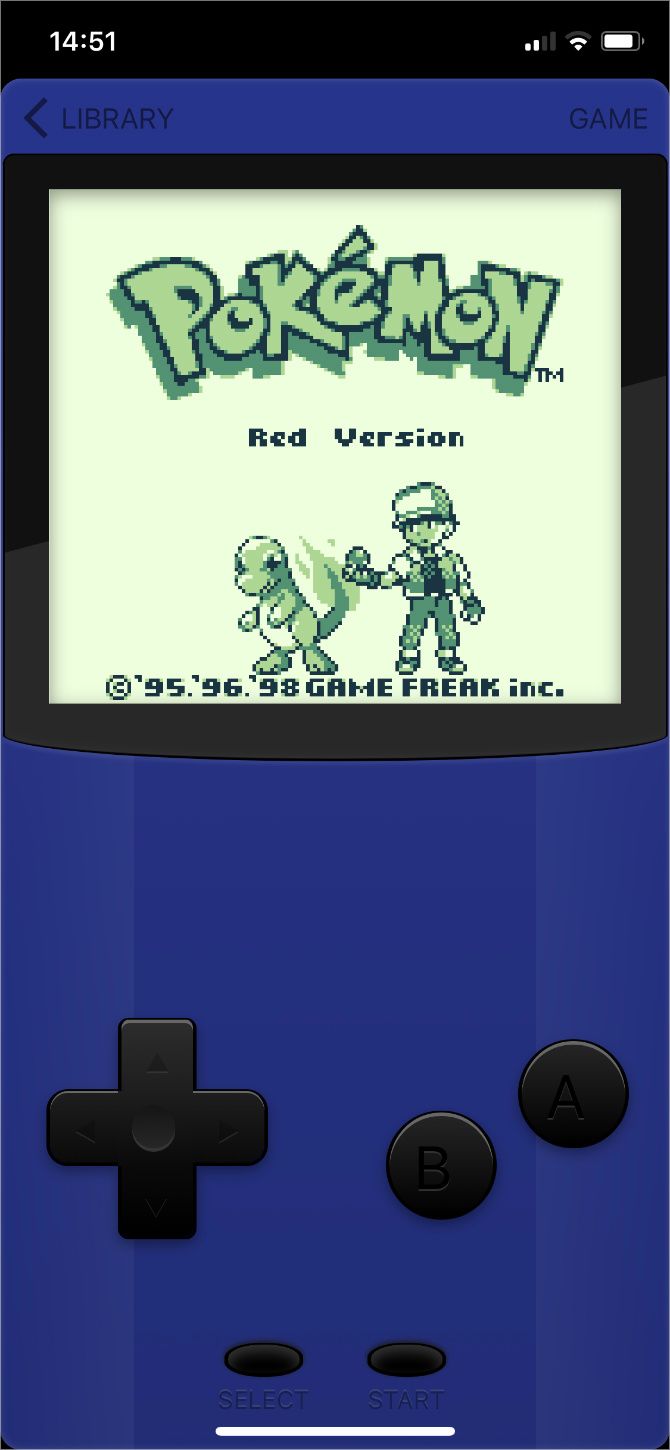
Play Pokémon in Safari With Game Play Color

If installing an emulator on your iPhone sounds too complicated, you might prefer to use a web-based emulator instead. Game Play Color is the best option for this.

You still need to download ROMs for the Pokémon games you want to play. But you don’t need to jump through as many hoops to get that emulator working on your iPhone.

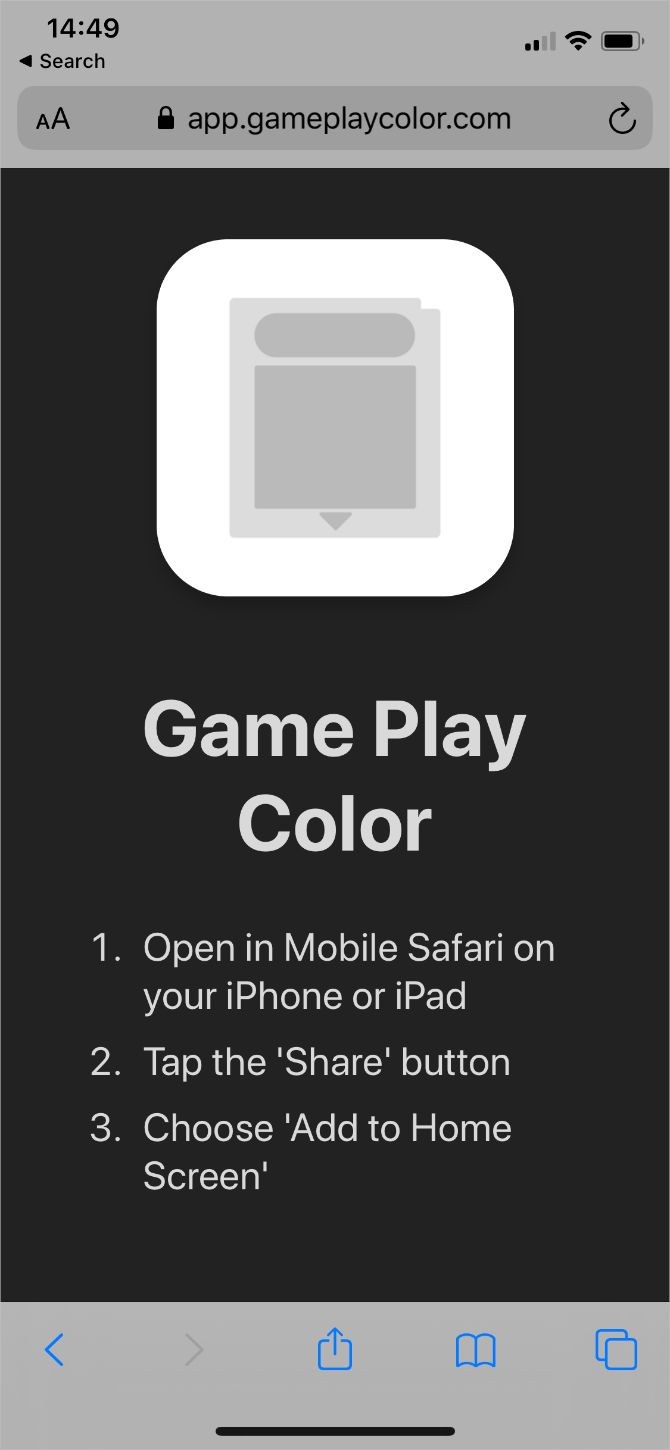
Game Play Color home page

Game Play Color is the quickest way to start playing Pokémon on your iPhone, but it comes with a few restrictions:

  • The emulator might reset when you change apps
  • You can only play Game Boy or Game Boy Color games
  • Game Play Color doesn’t support save states, so you need to save your games to the ROM file, like you’d save to the cartridge with a physical game

If none of those drawbacks sound like a deal-breaker, here’s how to get set up:

  1. Download whatever ROMs you want to play and save them to Google Drive.
  2. Open Safari on your iPhone and load the Game Play Color website.
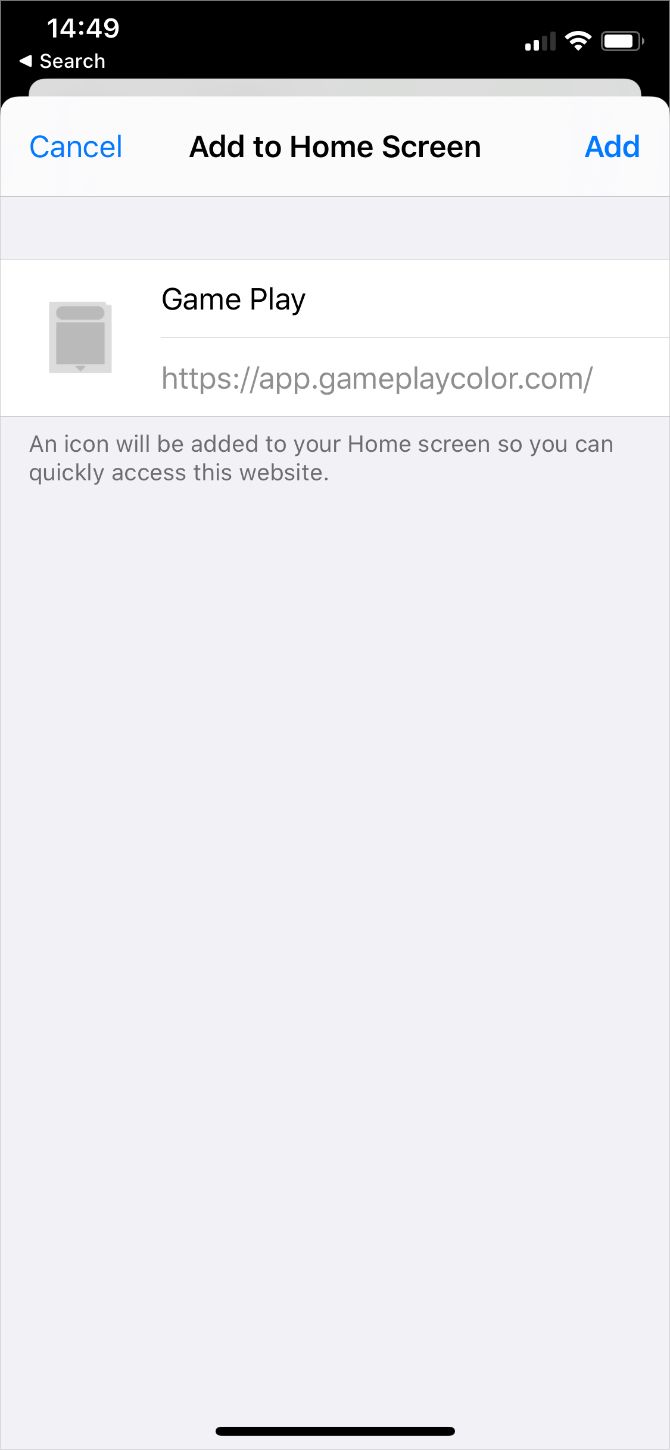
  3. Tap Play Now, then tap the Share button and choose to Add to Home Screen.
  4. You should see a Game Play app icon appear on your Home screen.
  5. Launch the Game Play app, then sign into your Google Drive account. You’ll need to copy the access code it gives you to sync your account.
  6. Game Play searches your Google Drive for compatible ROMs and shows them on the screen. Tap the game you want to play to boot it up.
Pokémon Games on the App Store

Most of you are probably looking to revisit the classic Pokémon games above. But we also wanted to take a moment to acknowledge some of the other Pokémon games you can download directly from the iOS App Store.

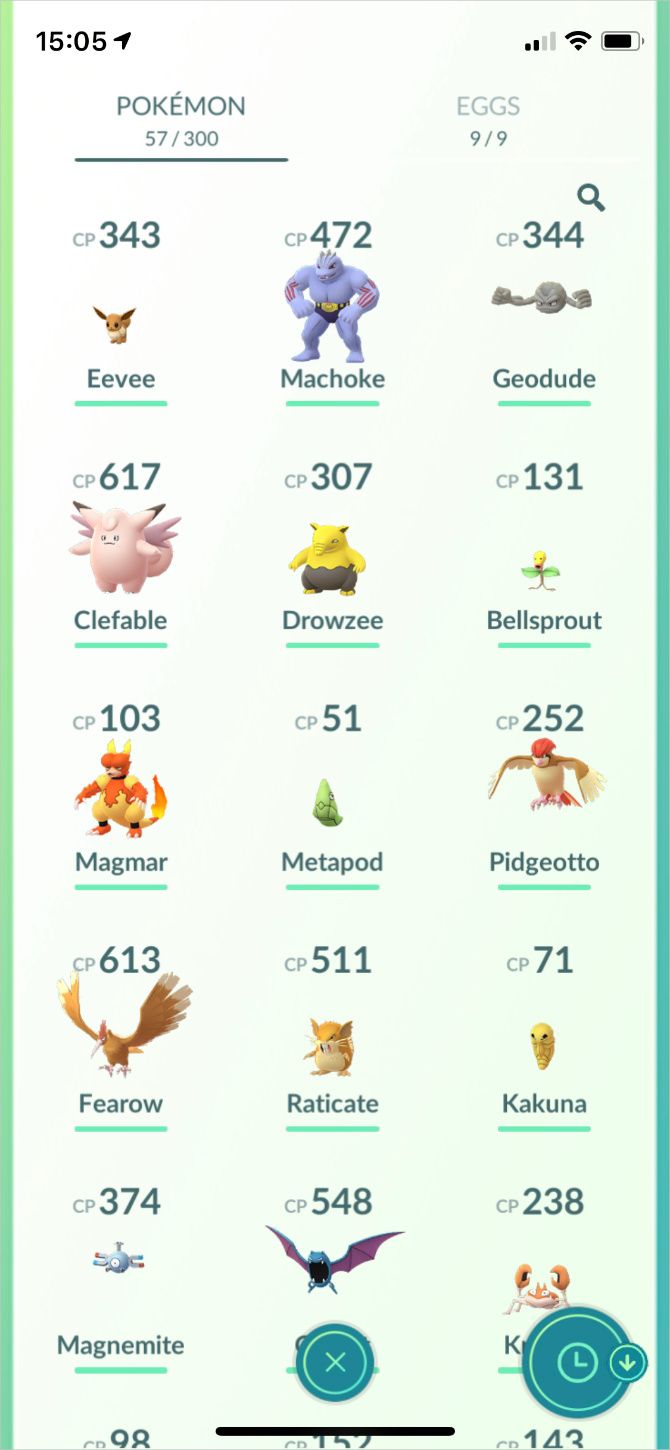
Pokémon GO
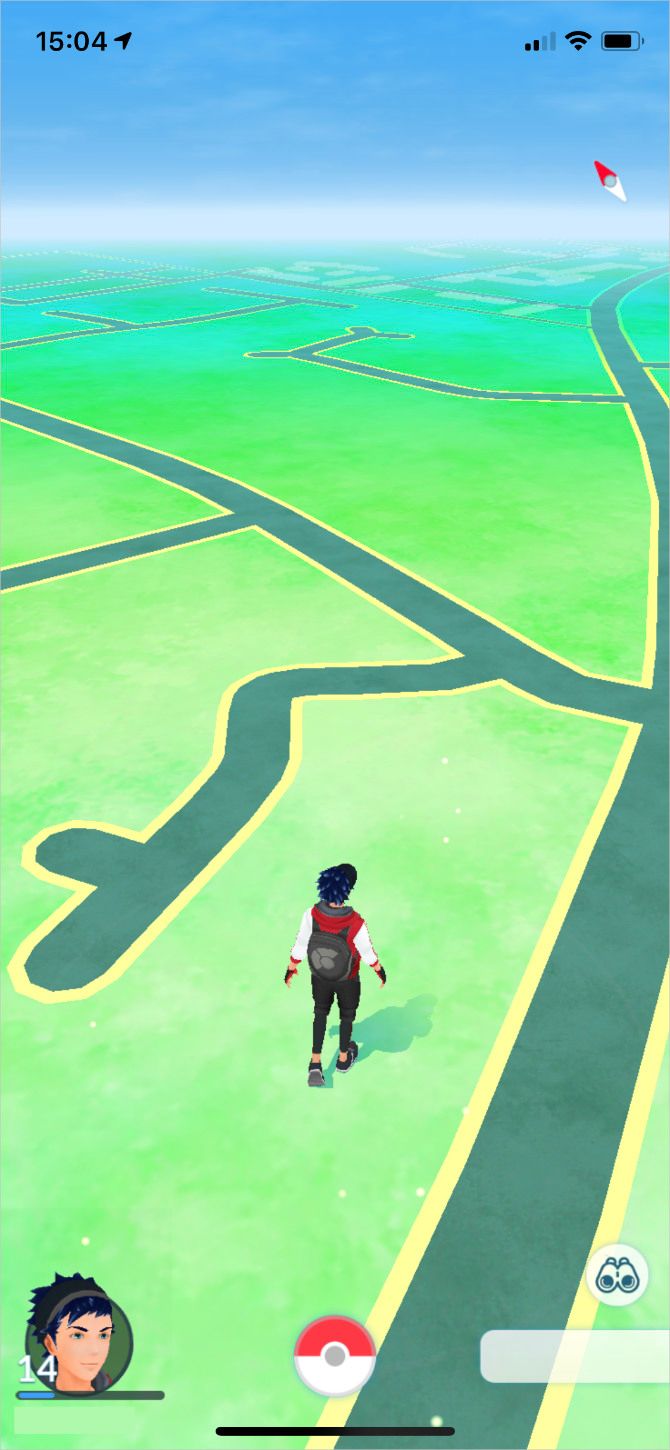
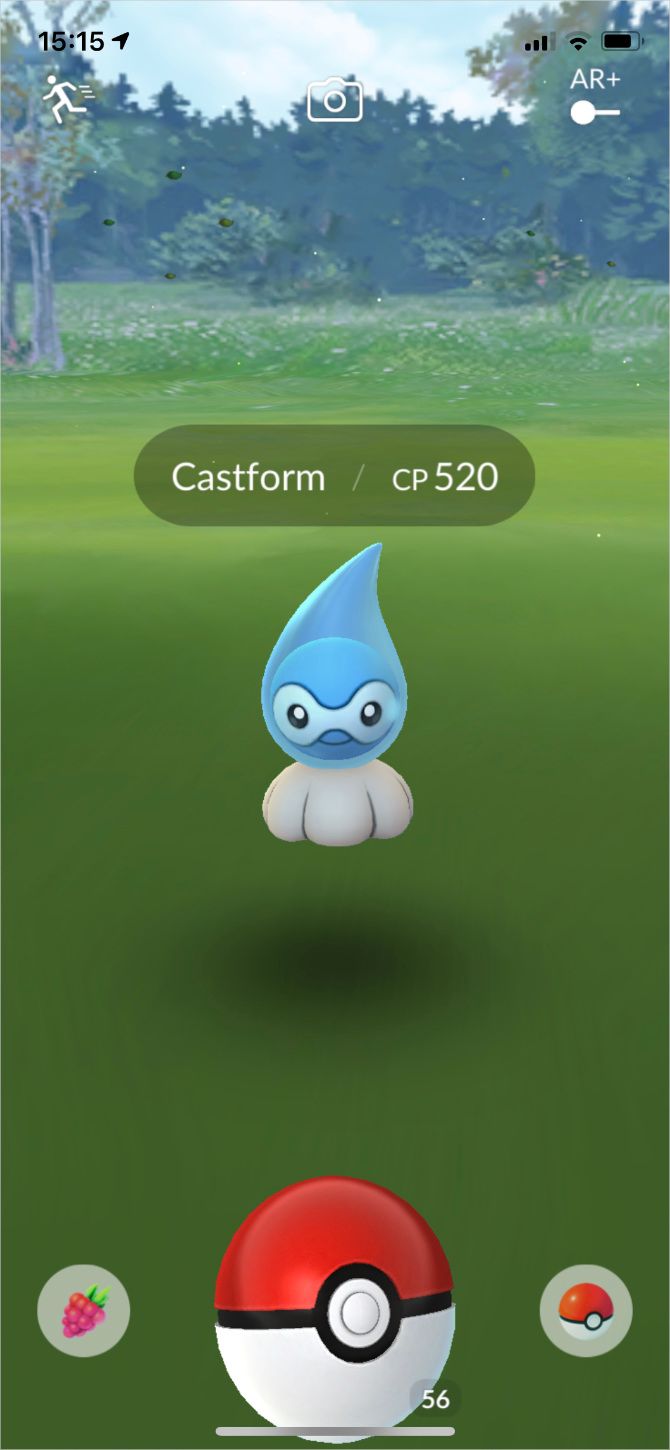
Pokémon GO exploded onto the scene in 2016, snatching news headlines and reigniting a worldwide love for the Pokémon franchise.

It’s an augmented reality game that uses the camera on your iPhone to let you find Pokémon in the real world. You can collect over 500 Pokémon, compete in gym battles, and go head-to-head against Team Rocket grunts.

And best of all, Pokémon GO incentivizes you to get outside and explore your local surroundings in search of the best Pokémon.

Download: Pokémon GO for iOS (Free, in-app purchases available)

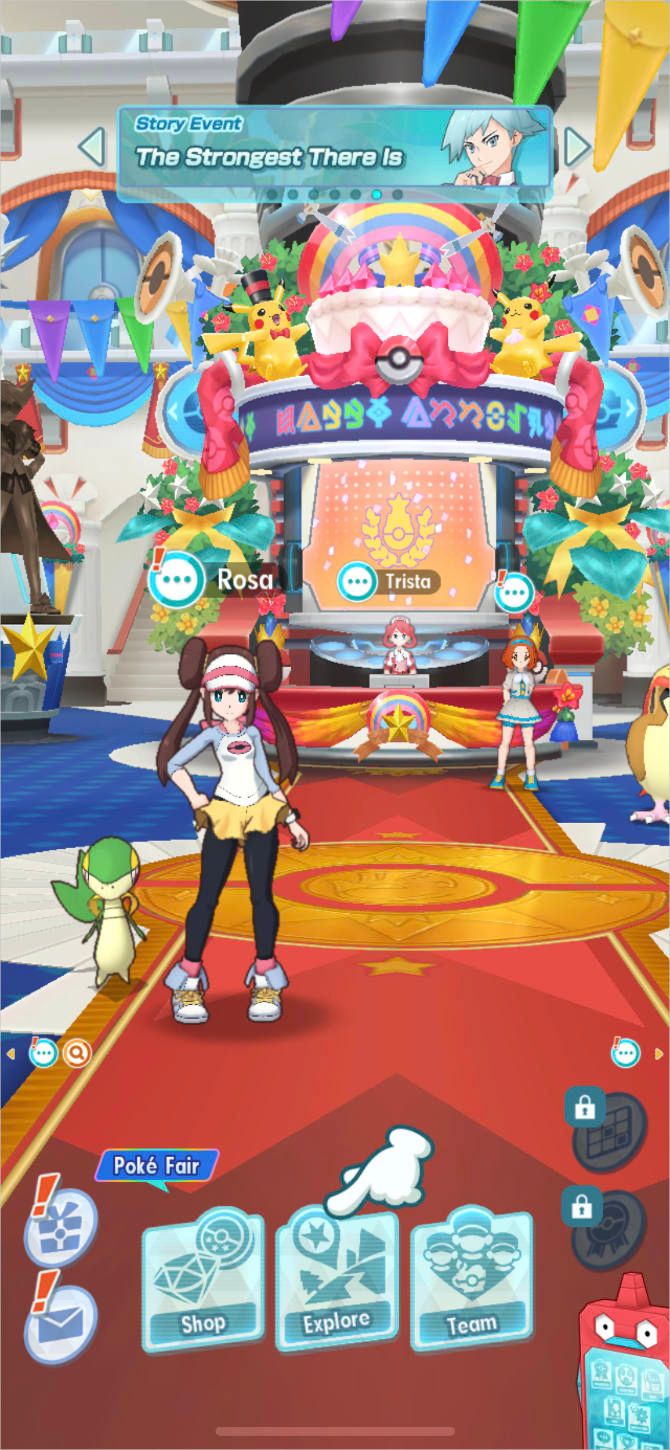
Pokémon Masters
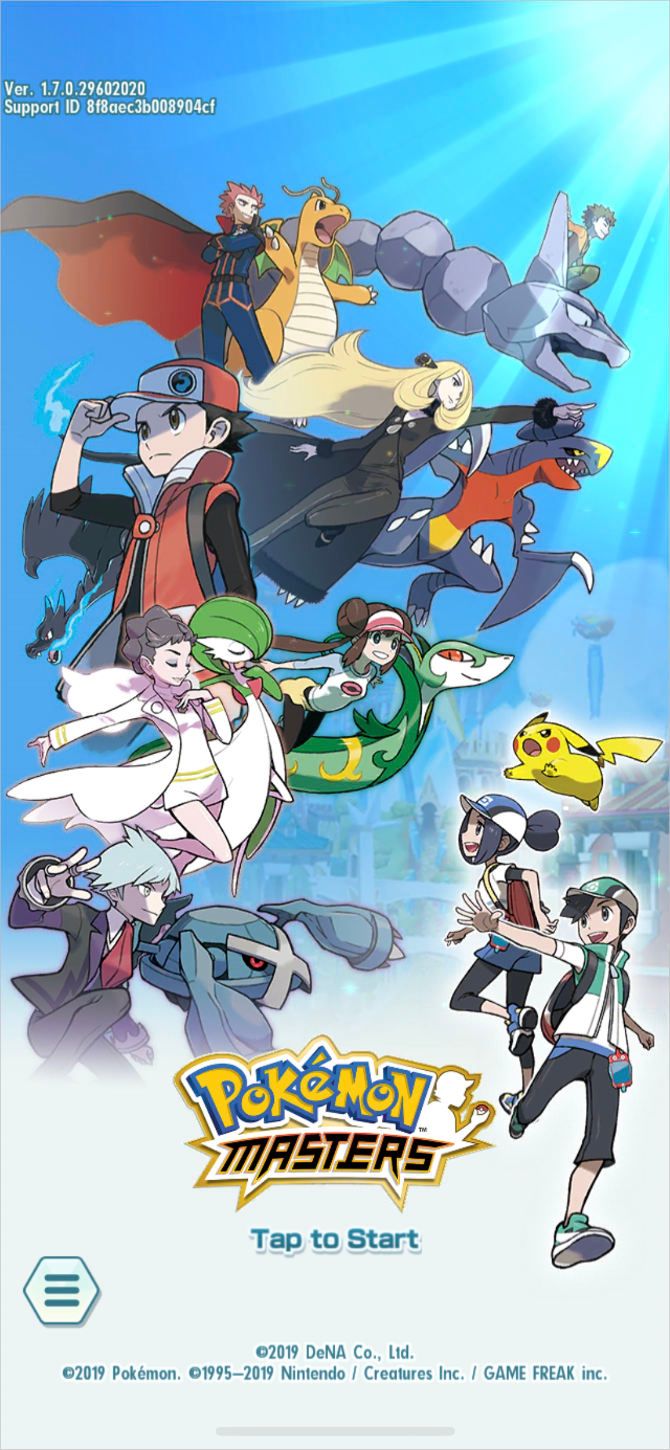
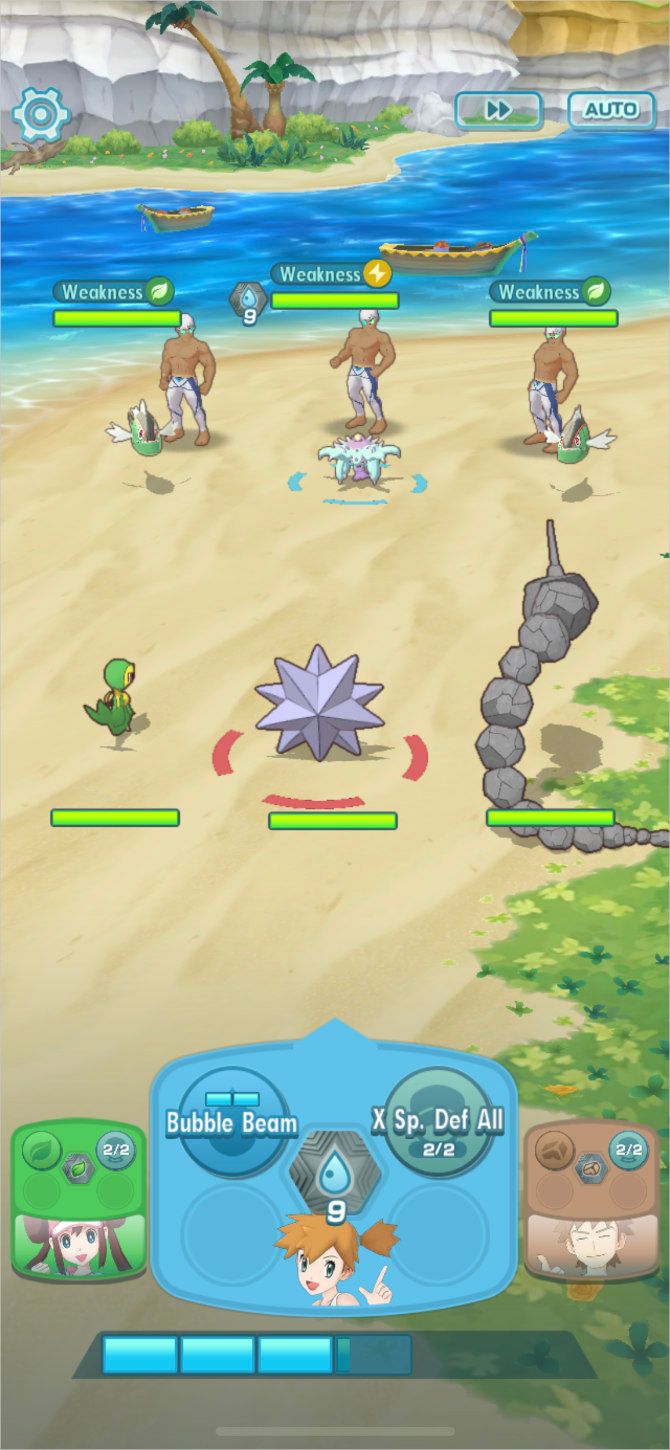
This game takes a fresh approach to the Pokémon experience by having you collect various Pokémon trainers, rather than the Pokémon themselves. Because each trainer is paired a particular Pokémon already, you get a bit of both.

Pokémon Masters is more episodic than the classic games, with a series of chapters to complete and occasional game-wide events. This makes it easy to pick up and put down, but it certainly lacks the sense of adventure you probably expect from Pokémon games.

Download: Pokémon Masters for iOS (Free, in-app purchases available)

Pokémon Quest

Pokemon Quest Home Screen

This cube-style Pokémon game encourages you to build the perfect team, carefully choosing the best moves and abilities to round out your squad. It’s a different kind of game from what you’re probably used to with Pokémon, but that doesn’t make it any less addictive.

Collect a variety of items, decorate your base camp, and try to catch all 150 original Pokémon. It isn’t difficult to sink many hours into this game.

Download: Pokémon Quest for iOS (Free, in-app purchases available)

Mix Up Your Gaming With Some Pokémon Challenges

Now you now how to enjoy Pokémon on your iPhone. Whether you install an emulator or enjoy a modern Pokémon title, there’s lots of fun to have on your iOS device.

As you probably know, the Pokémon titles aren’t particularly difficult games to beat. Most of the joy comes from exploring the world and discovering new creatures to add to your team. But if that doesn’t sound like enough, you could add a challenge to spice up the game.

Of course, we all know the greatest challenge is to catch every Pokémon. But did you know about the Nuzlocke challenge or the Monotype challenge?

We’ve written about loads of exciting Pokémon challenges you can impose on yourself to prove your mastery over the classic games. Each challenge promises to change the way you play and injects a whole new level of fun.

Read the full article: How to Play Pokémon Games on Your iPhone or iPad


Read Full Article

How to Install Emulators for iPhone Using 4 Easy Methods


emulators-for-iphone

Mobile games are fine, but they don’t live up to the heights of classic Game Boy, Nintendo 64, or PlayStation titles. We’re talking about Super Mario 64, The Legend of Zelda, Pokémon, and much, much more. If you want to play these games on your iPhone, you need to install an emulator for iOS.

Apple doesn’t allow emulators on the App Store, but we’ll show you four other ways to install them on your iPhone or iPad instead. Best of all, most of these methods are free and none of them require you to jailbreak your iPhone first.

Emulators and ROMs

An emulator is a piece of software that mimics a computer system, like an old video games console. If you want to play a Nintendo DS game, for example, you need to install a Nintendo DS emulator.

You also need a ROM for the game you want to play. A ROM is the software version of a video game. You can use the same ROM with multiple emulators, as long as the original game worked with the console you’re emulating.

While emulators are open source, making them free and legal to use, ROMs are a little more complicated. If you already own a game, in some cases, you can make a ROM version of it for personal use. However, Nintendo’s legal page states that using ROMs of its games for any reason is against the law.

No matter what, it’s a crime to share a ROM with anyone else. That said, plenty of people do it anyway. All it takes is a quick Google search to find whatever ROMs you’re looking for.

You can then download them on your iPhone to open with your emulator of choice. We can’t control if you choose to do this, but know that MakeUseOf does not condone this practice.

What Are the Best Emulators for iOS?

Before we show you how to install emulators on your iPhone or iPad, you probably want to know which ones we recommend. There’s easily enough to talk about here for a full separate list, so we’ll keep it brief.

Here are the most popular emulators for iOS or iPadOS:

  • Delta: Multi-platform Nintendo emulator
  • GBA4iOS: Multi-platform Game Boy emulator, superseded by Delta
  • iNDS: Nintendo DS emulator
  • PPSSPP: PlayStation Portable emulator
  • Provenance: Multi-platform emulator, including Atari, Sega, and Sony systems
  • Happy Chick: Multi-platform emulator with a built-in ROM library, but lots of ads

Delta is probably the best emulator for iOS, with support for numerous Nintendo consoles including Game Boy Advance, N64, and Nintendo DS (for the developer’s Patreon subscribers). The best way to install Delta is using the AltStore, which is the fourth method detailed below.

How to Install Emulators on an iPhone or iPad

Apple doesn’t allow emulators on the App Store, which is why it’s so much easier to install emulators on an Android device. Still, there are plenty of other ways to install emulators on an iPhone without using the App Store.

Here are four ways to get emulators on your iPhone or iPad, from the simplest to most complicated. The simplest method also happens to be the least reliable; for less frustration, you may want to skip the first option entirely.

1. Download Emulators From an Alternative App Store

Operation iDroid Alternative App Store in Safari

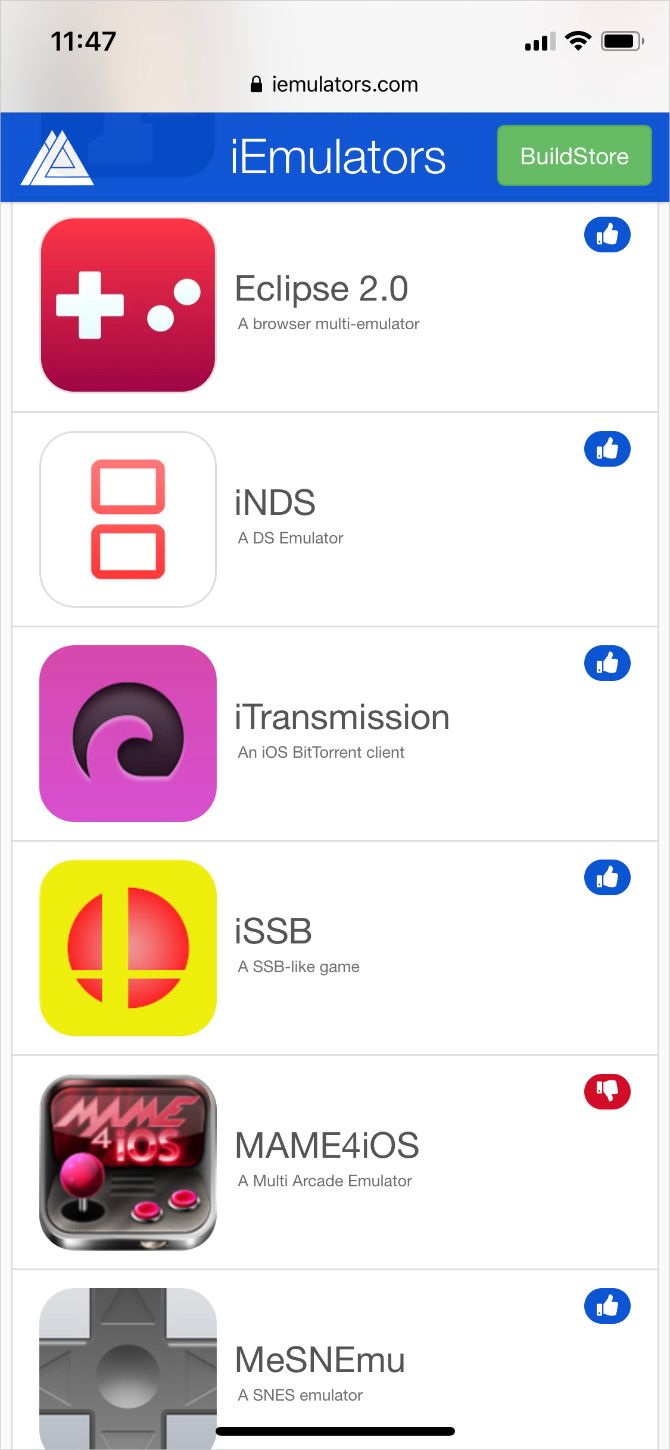
Countless websites make it quick, free, and easy to download emulators for your iPhone or iPad. All you need to do is find the emulator you want on one of these alternative App Stores, download it, then tell your iPhone to trust that app’s developer.

The problem is that these emulators stop working all the time.

You’ll frequently find the emulator you want isn’t available, or the one you downloaded last week doesn’t work anymore. This happens when Apple revokes the developer’s “enterprise certificate,” which is what lets you install apps outside of the App Store.

It can take anywhere from a couple of hours to several weeks for the developer to get a new certificate, during which time you can’t install or use that emulator. There’s nothing you can do except cross your fingers and wait, or try a different website.

Still, if you want a quick download, without needing to pay anything, these sites are usually your best option.

Visit any of the following alternative App Stores using your iPhone or iPad and tap the Install or Open button next to the emulator you want. Watch out for ads and follow the onscreen instructions for each site:

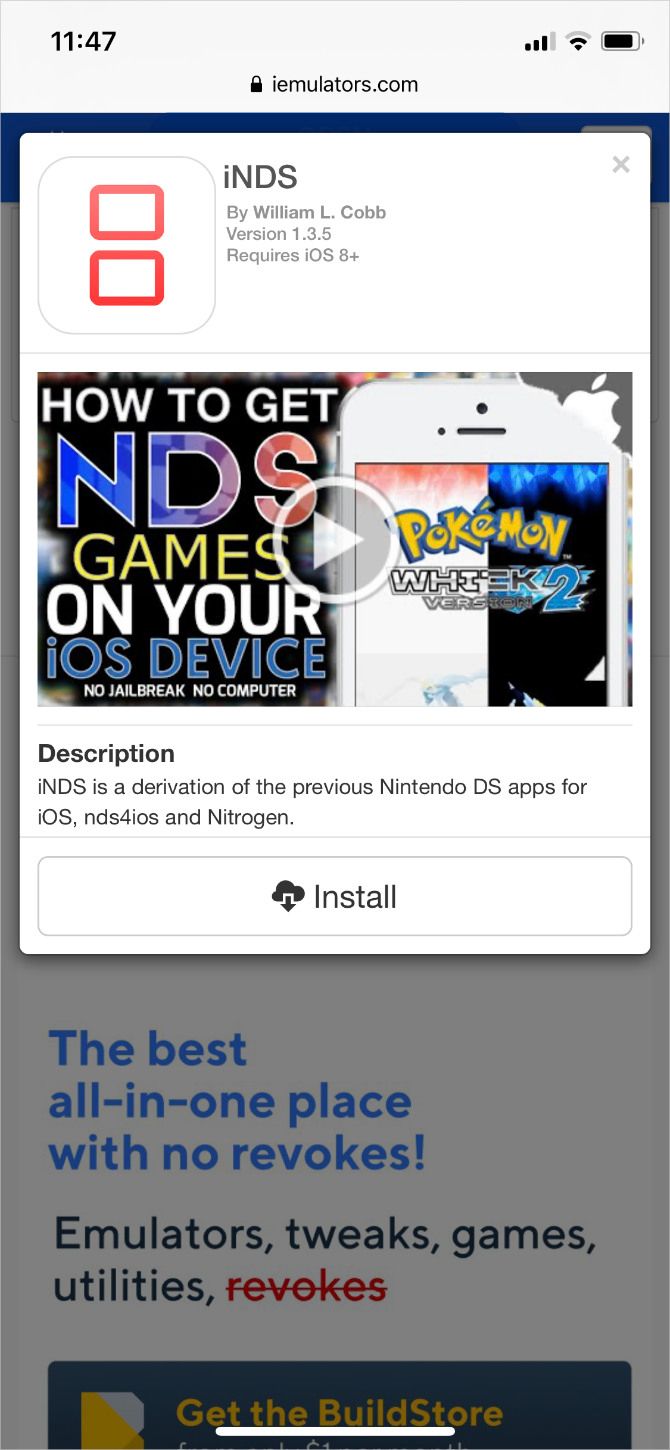
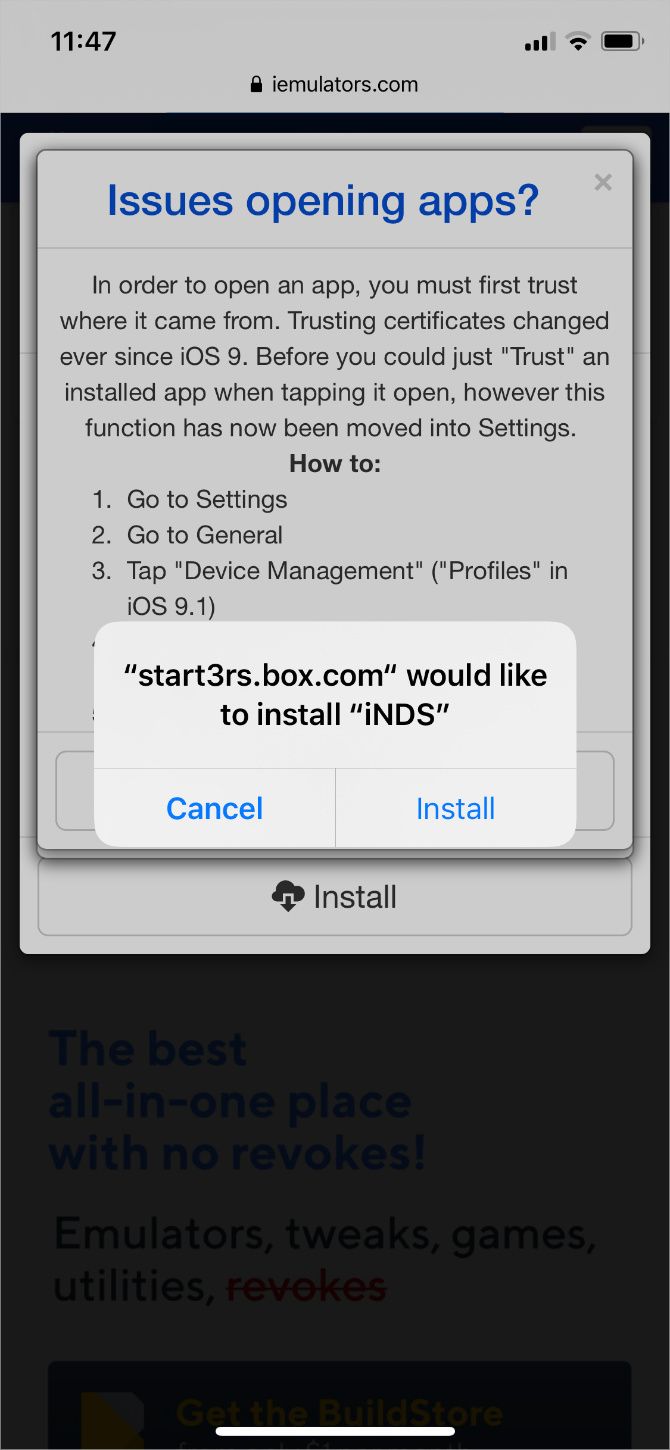
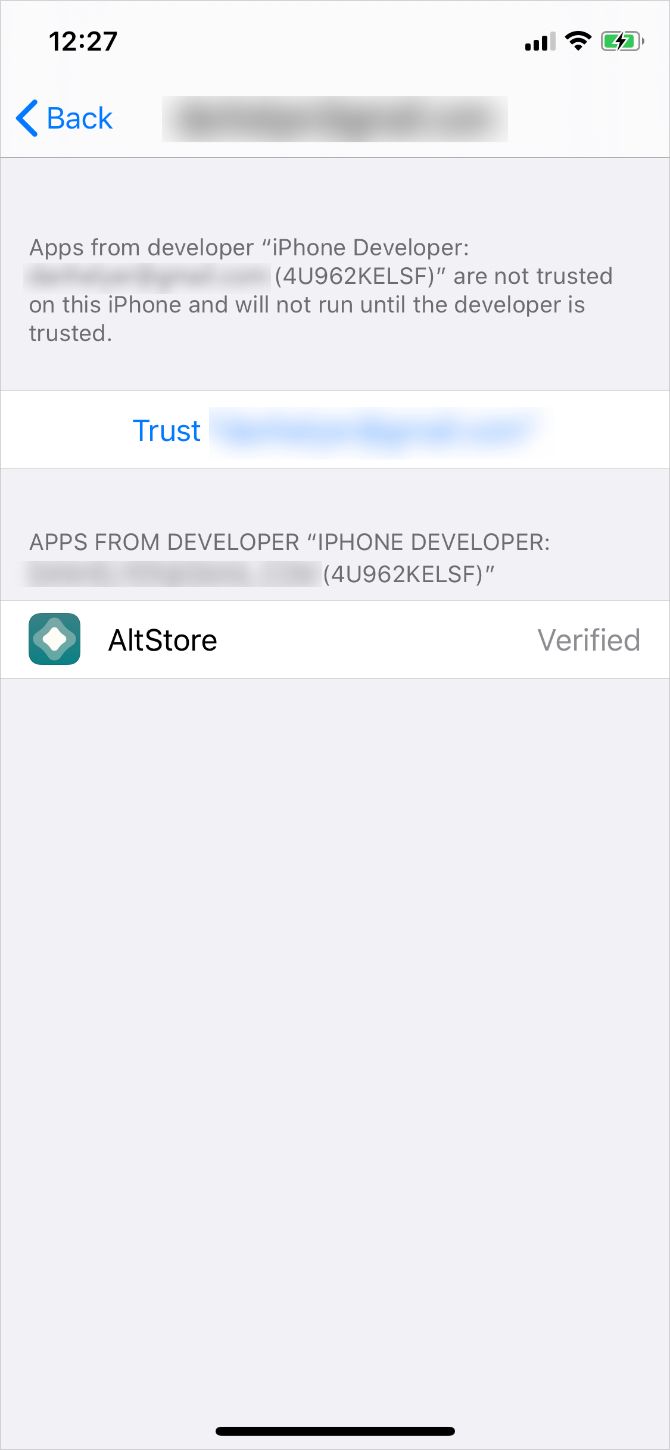
After downloading an emulator, you should see an iOS or iPadOS alert asking for permission to install it. Tap Install, then wait for it to appear on your Home screen. Lastly, go to Settings > General > Device Management and tap the developer’s name to Trust that app.

If an app says “Unable to install” then it’s currently revoked. Try another store or skip to the next method instead.

2. Buy a BuildStore Subscription for More Reliability

BuildStore website banner

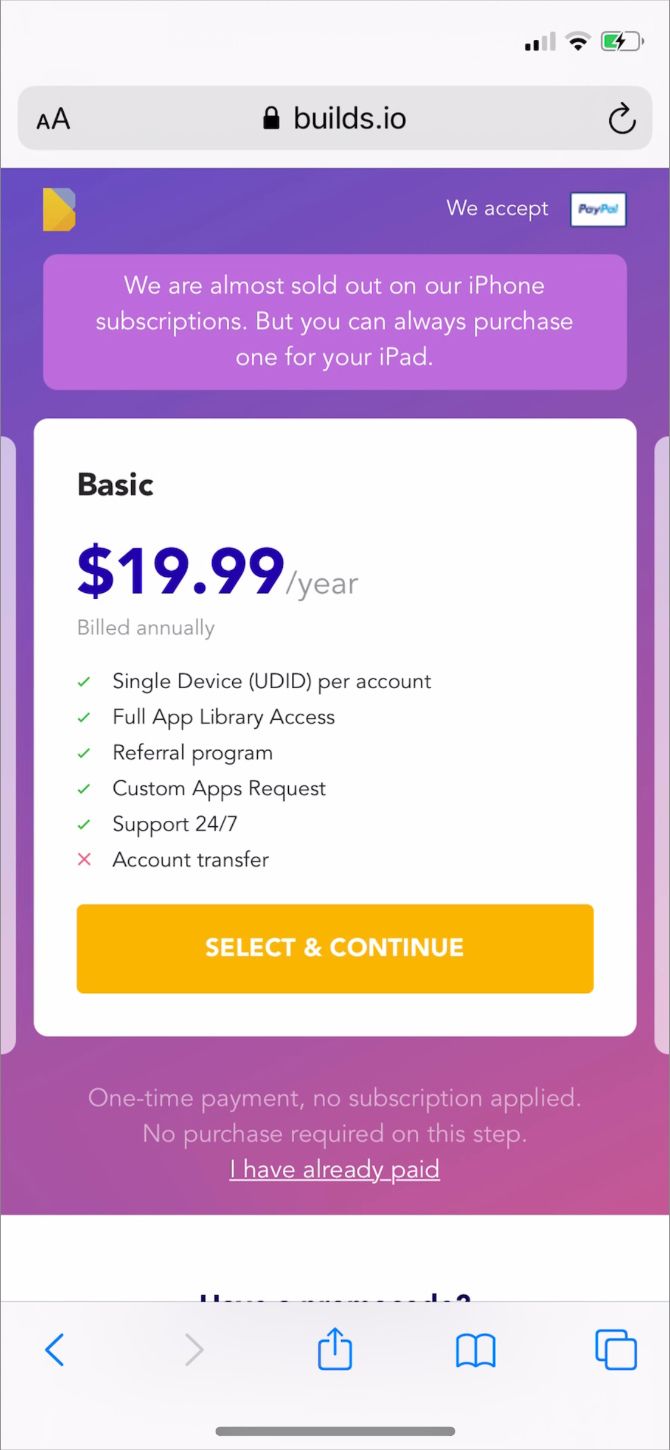
The BuildStore uses the same method as above, but has far fewer revoked apps because it limits access to registered devices. You need to pay $19.99 per year to register your device, after which you can download any of the available emulators at no further cost.

While most emulators from the websites above get revoked about once every three weeks, this only happens to apps on the BuildStore about three times a year. And when they are revoked, the BuildStore gets them back up and running much quicker.

When you sign up for the BuildStore, you register a particular device. That means if you upgrade or replace your iPhone, you need to pay for a subscription again.

Follow these steps to sign up for a BuildStore account:

  1. From the device you want to download emulators on, open Safari and go to builds.io.
  2. Follow the links to Sign Up & Get Apps, then create an account.
  3. Choose between a Basic or Premium subscription, then sign in to PayPal to pay.
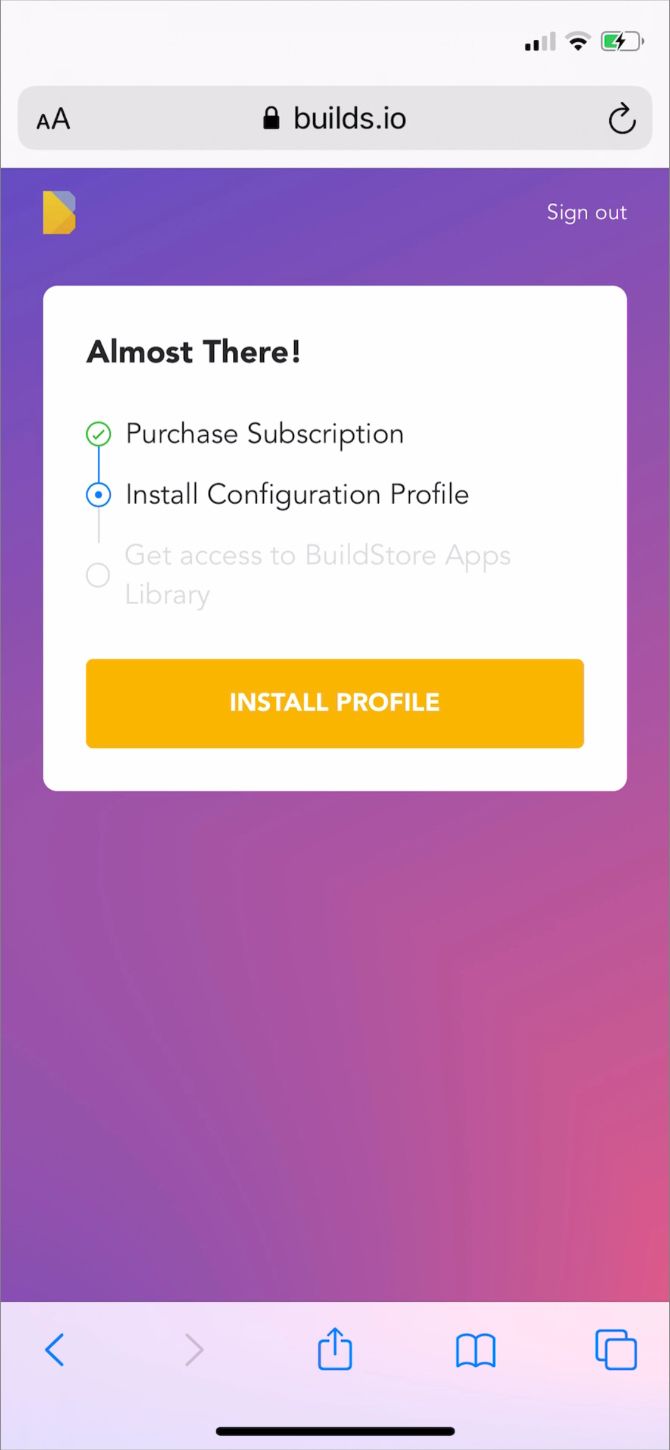
  4. Tap the button to Install Profile, then Allow the BuildStore to download a configuration profile from the popup that appears.
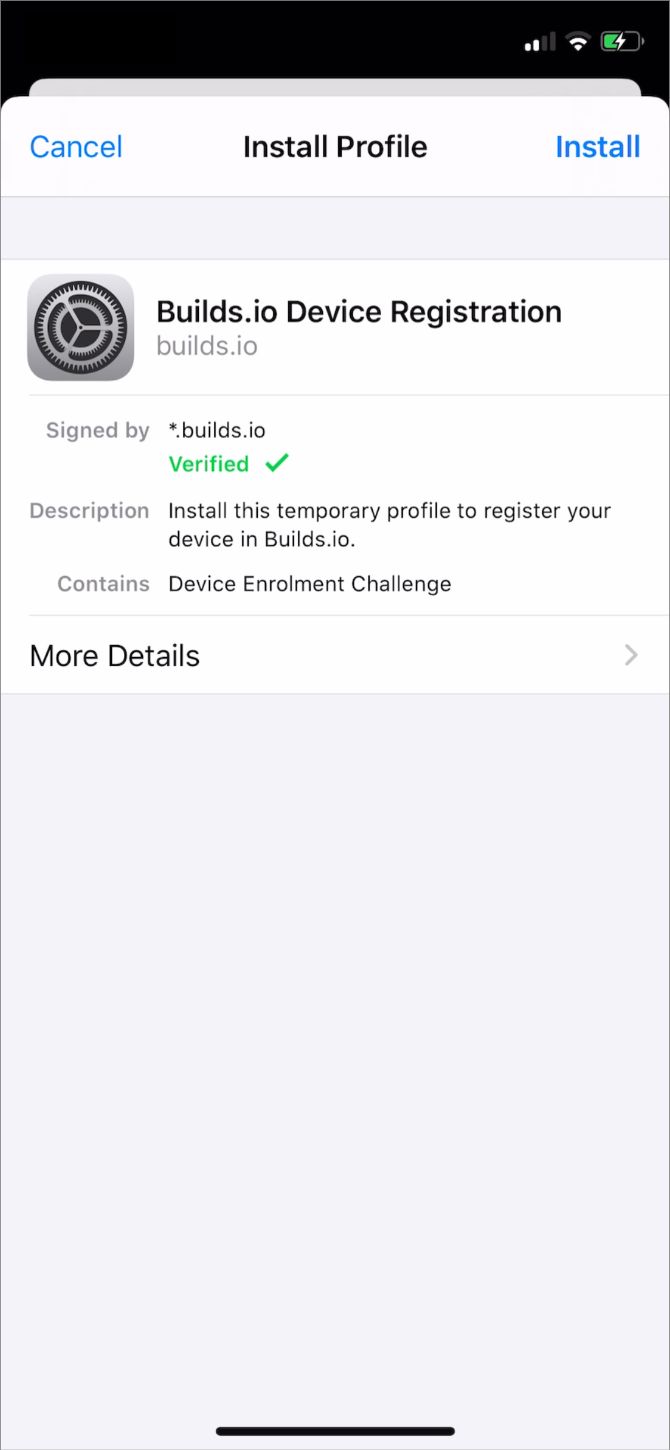
  5. Go to the Settings on your device and tap the Profile Downloaded link at the top of the page. Alternatively, go to General > Profiles & Device Management.
  6. Enter your passcode and agree to Install the profile.

The next time you visit the BuildStore, sign in to view the range of emulators. Select the emulator you want, then tap Install, followed by Open to download and install that emulator on your iPhone or iPad.

3. Use Cydia Impactor to Compile Emulators

Cydia Impactor install window on macOS

Cydia Impactor is a free Mac, Windows, and Linux app that makes it incredibly easy to install custom apps on an iPhone or iPad. All you need to do is download the source code for the emulator you want, then drag and drop it into the Cydia Impactor window.

Cydia compiles the code and installs that emulator on your iPhone. It works as though you developed the app yourself and are installing it on your iPhone for testing purposes.

Without an official Apple developer account (which costs $99 per year), you need to repeat this process every seven days to re-sign the app. If that sounds like too much hassle, take a look at the AltStore method below.

Follow these instructions to install emulators using Cydia Impactor:

  1. Download and install Cydia Impactor on your computer.
  2. Find and download the IPA file for the emulator you want. These are usually available for free with another quick Google search.
  3. Use the cable that came with your iPhone or iPad to connect it to your computer.
  4. Launch the Impactor app and select your device from the dropdown menu.
  5. Drag and drop the emulator IPA file onto the Cydia Impactor window.
  6. Follow the prompt to enter your Apple ID and password. If you use two-factor authentication with your Apple ID, create an app-specific password to use.

Cydia Impactor with iNDS emulator IPA file

Wait for Cydia to compile and install the emulator on your iPhone or iPad, after which you should find it as an app on your Home screen. Remember to repeat this process every seven days to re-sign the app.

Note: At the time of writing, Cydia Impactor doesn’t work due to an Apple server update. However, Cydia’s developers are working hard to fix it.

4. Use AltStore to Get the Delta Emulator Forever

AltStore website banner

The AltStore works in a similar way to Cydia Impactor: compiling apps on your device as though you developed them yourself. However, it automatically connects to your computer over Wi-Fi to re-sign apps, which means you don’t need to worry about the seven-day time limit anymore.

For this to work, you need to install the AltServer app on your Mac or Windows PC. You also need to make sure your iPhone and computer regularly connect to the same Wi-Fi network while that app is running.

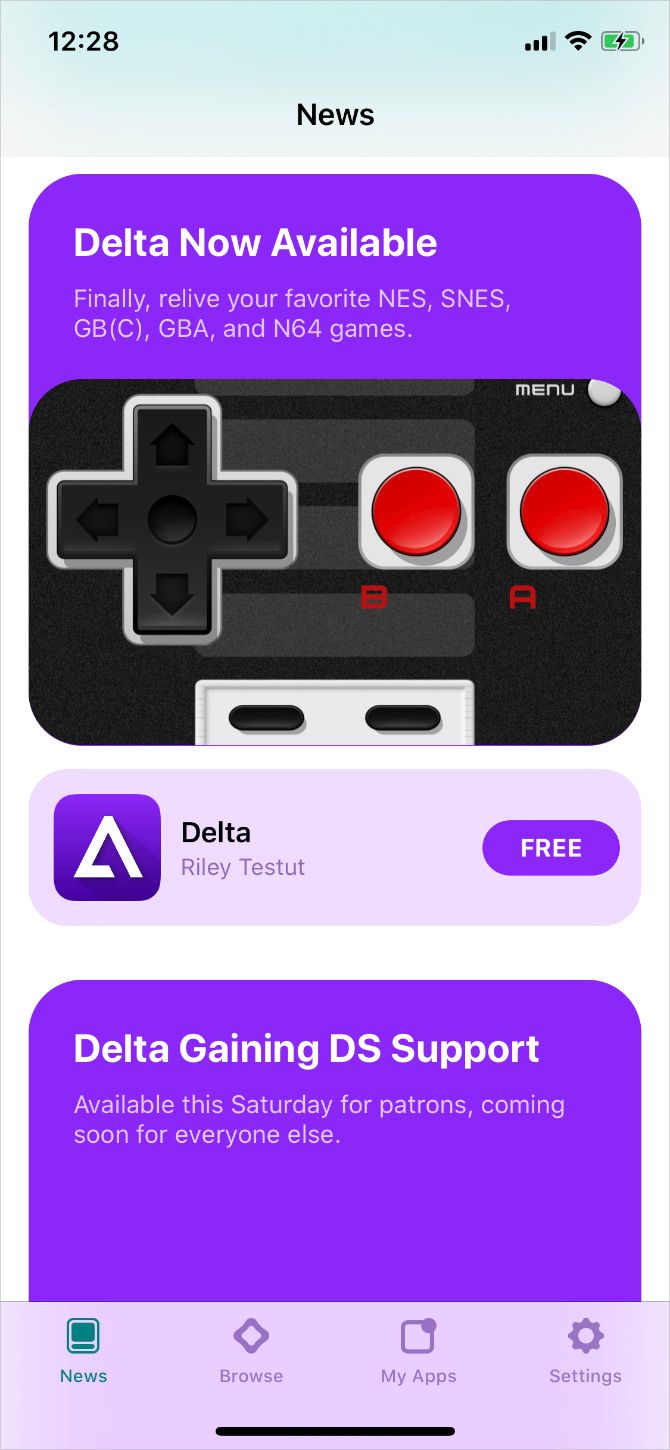
For now, the only app available through the AltStore is Delta. But it’s one of the best multi-platform emulators for iOS anyway, and the AltStore is the best way to install it.

Follow these steps to install Delta on your iPhone using AltStore:

  1. Download and install AltServer on your Mac or Windows computer.
  2. Use the cable that came with your iPhone or iPad to connect it to the computer.
  3. Open iTunes (or Finder on macOS Catalina and later) and turn on the option to sync your iPhone over Wi-Fi.
  4. Launch AltServer on your computer, then open it from the menu bar (or System Tray in Windows) and choose to Install AltStore on your iPhone or iPad.
    Install AltStore option from menu bar app on Mac
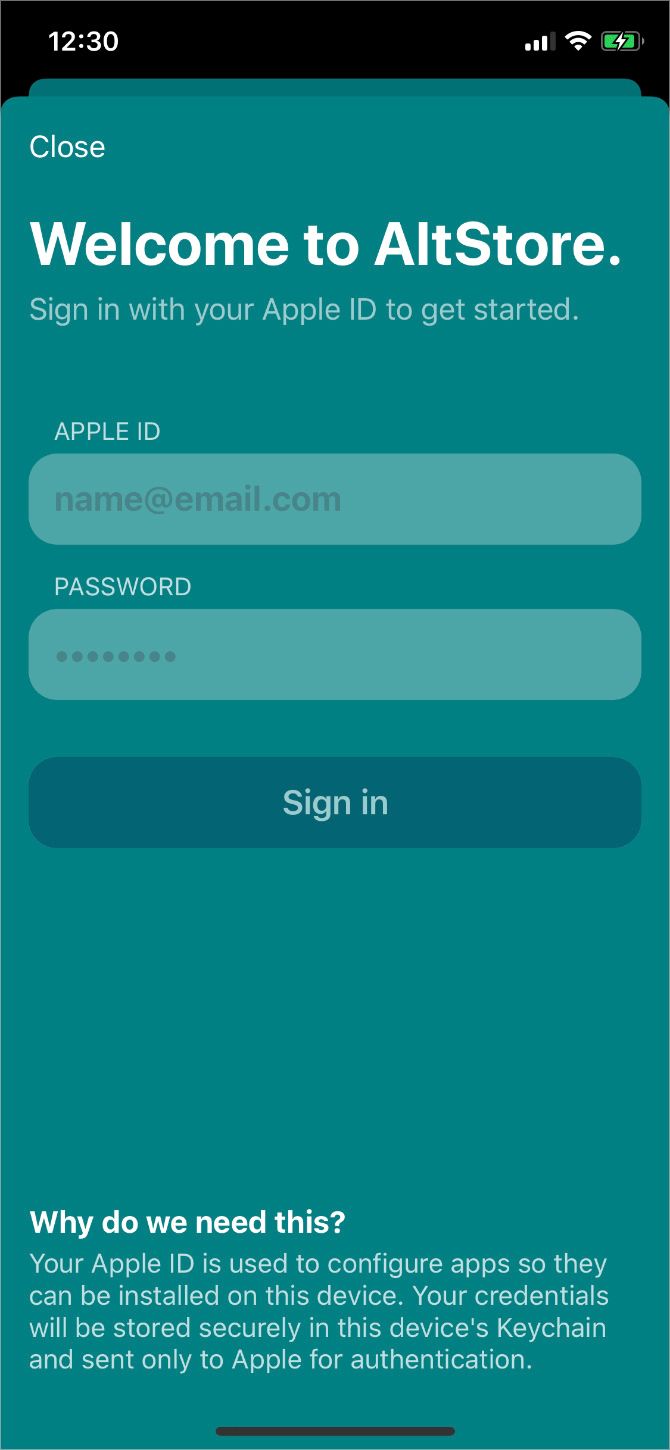
  5. Enter your Apple ID and password.
  6. On a Mac, follow the prompts to install and activate the Mail plug-in. This includes restarting the Mail app and enabling the AltStore plug-in from its preferences.
  7. After a few seconds, the AltStore app should appear on your iPhone.
  8. Go to Settings > General > Device Management and choose to Trust your Apple ID. Then use the AltStore app to download and install Delta.

Use Emulators to Play Classic Games on Your iPhone

Now that you know how to download and install emulators for iOS and iPadOS, you probably need help deciding which games to play first. Almost everything is available to you, so it’s easy to feel overwhelmed with choices.

Our advice is to revisit games from your childhood. What do you remember fondly? What did you never get the chance to play?

If you answered Pokémon to either of those questions, take a look at our comprehensive guide to playing Pokémon on your iPhone and start reliving your childhood!

Read the full article: How to Install Emulators for iPhone Using 4 Easy Methods


Read Full Article
Pixel phones updated with new gesture controls, emoji, AR effects & more


One of the benefits of owning a Pixel smartphone is that it improves over time as Pixels are first to receive updates that deliver the latest fixes and improvements. The first round of new features arrived in December, including a filter for robocalls, more photo controls, improved Duo calls, and more. Today Google says Pixel owners are getting a second set of additions, this time including new music controls, new emoji, still more photo and video features, expanded emergency help features, Google Pay improvements, and several others.

Last year, Google introduced a new sort of gesture control called Motion Sense with the introduction of the Pixel 4. The idea is that you can now control your phone without having to touch it. Instead, the smartphone detects the wave of your hands and translates that into software controls.

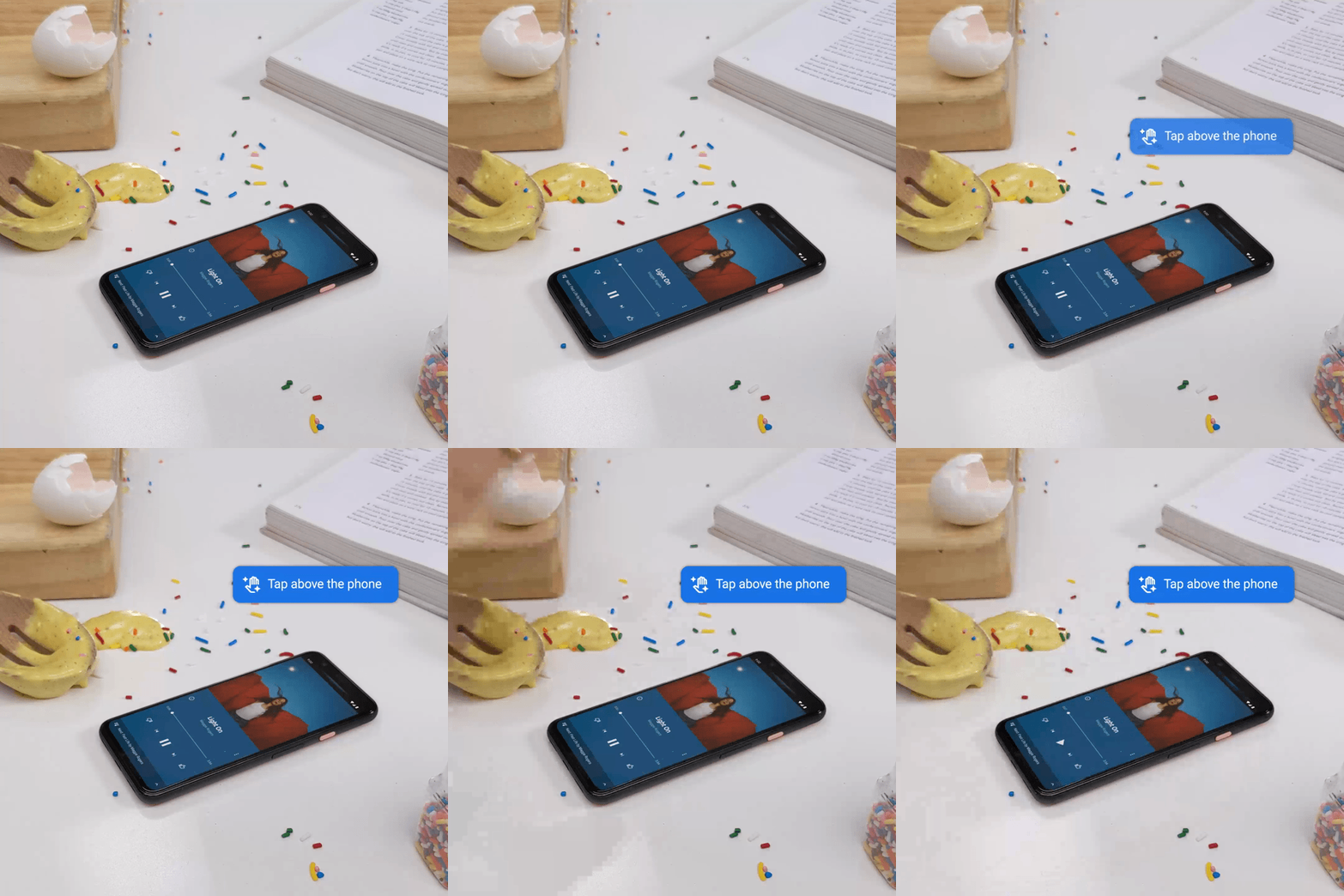
Already, Motion Sense allowed Pixel 4 owners to skip forward or go back to a previous song. With today’s update, they’ll also be able to pause and resume music by making a tapping gesture above the phone.

Google suggests this will be an easy way to pause your music when you need to have a conversation. But in reality, it will only be useful if it works consistently — and so far, reviews have said the Motion Sense system was finicky and underdeveloped. That could change in time, of course.

Another improvement today is an update to Pixel 4’s Personal Safety app, which first arrived in October. The app uses the phone’s sensors to detect if you’ve been a severe car crash and checks with you to see if you need help. It also lets U.S. users call 911 with a tap or voice command. If you’re unresponsive, the phone shares your location and details with emergency responders. Now the feature is coming to users in Australia (000) and the U.K. (999).

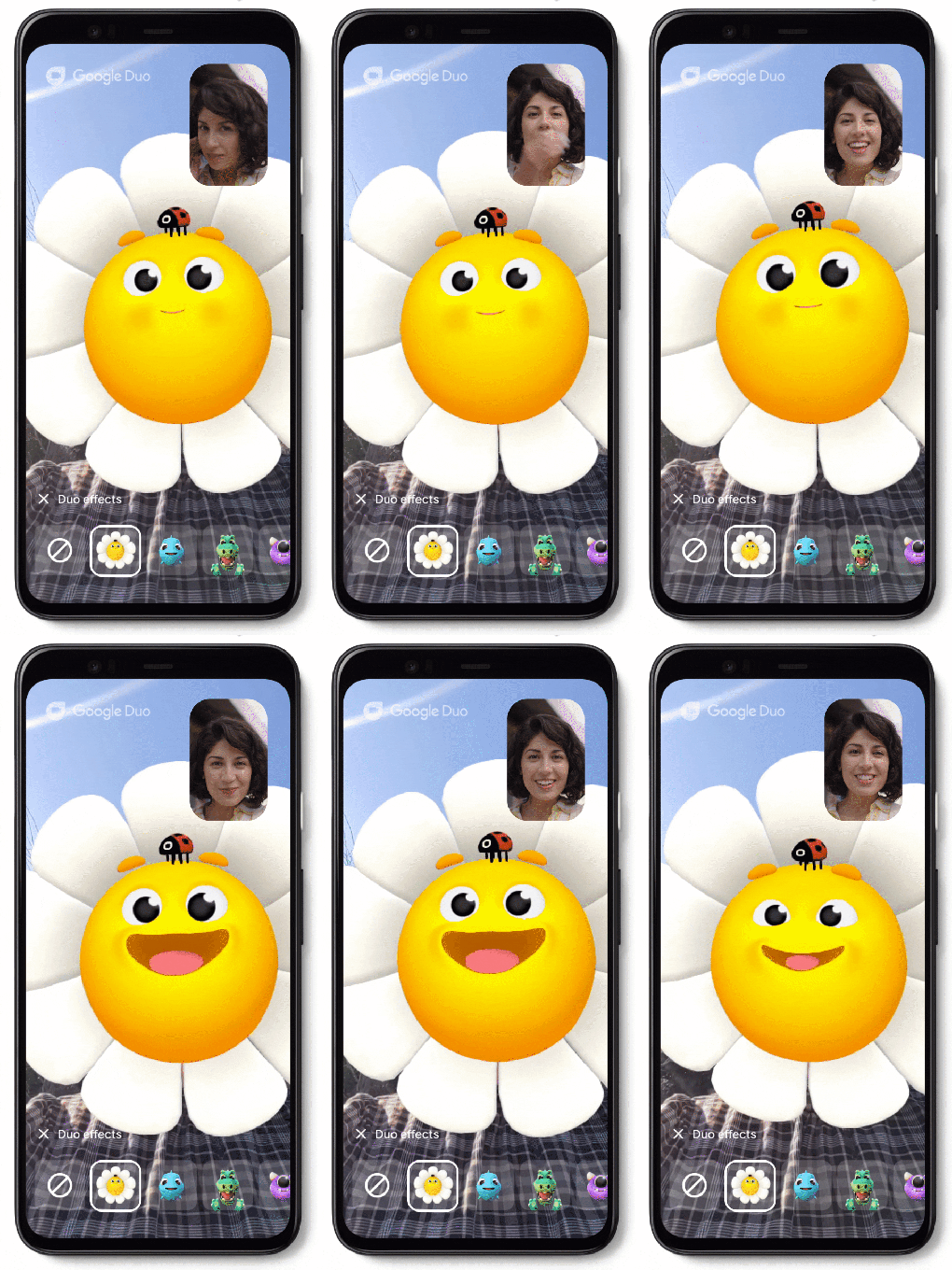
The new set of updates also includes added AR effects for Google’s video calling app Duo which can change with your expression and move around the screen. These aren’t Duo’s first set of effects, but keeping the roster of effects updated is critical for social communication apps.

Meanwhile, the Pixel 4’s selfie camera can now create images with depth, which improves Portrait Blur and color pop, and lets you create 3D photos for Facebook.

Pixel phones will also now receive the emoji version 12.1 update which hit iPhone with the iOS 3.2 update in October 2019, and which arrived on Twitter in January 2020. The set includes 169 new and more inclusive emoji, offering a wider array of gender and skin tones as well as more couple combinations.

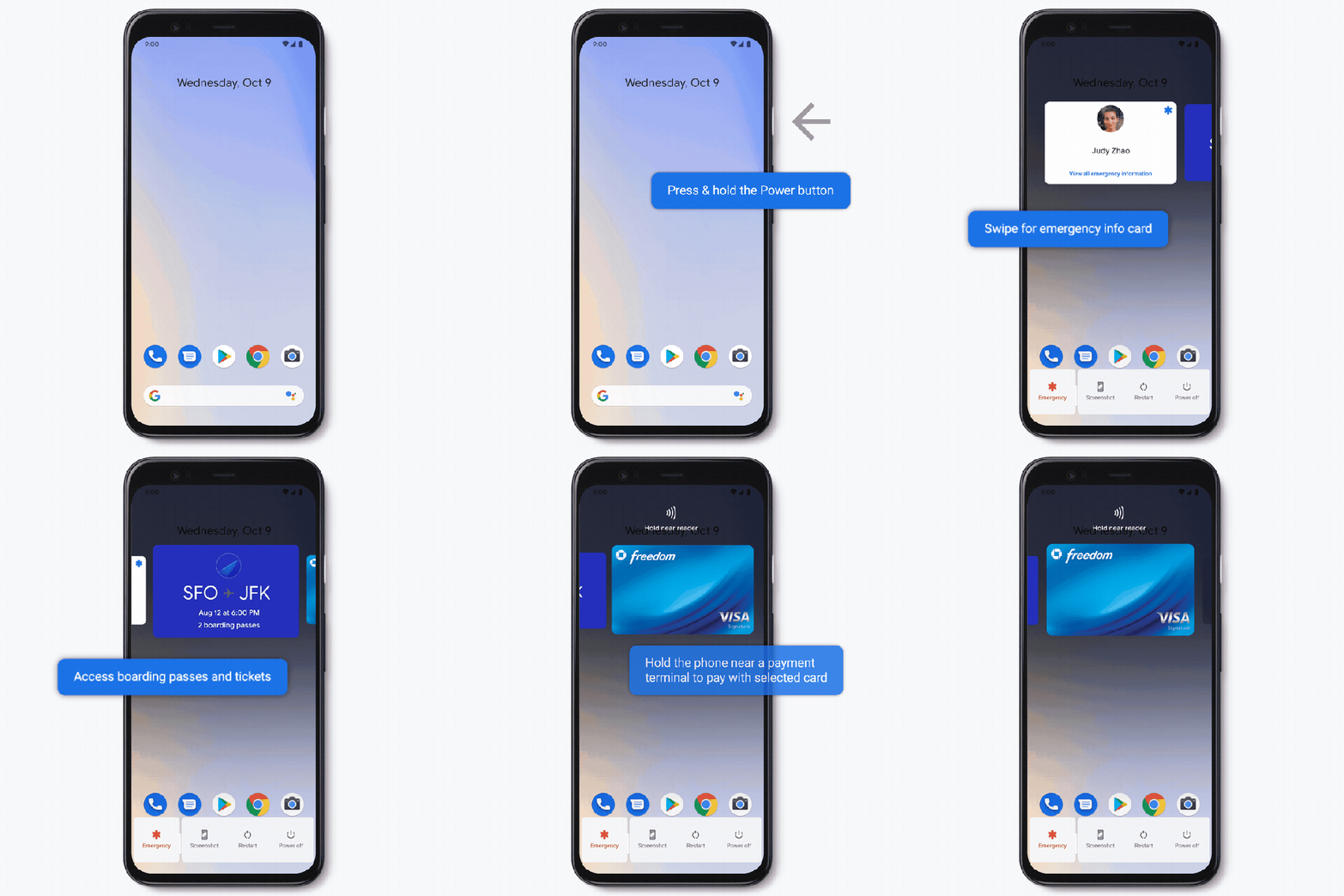
A change to Google Pay will now let you press and hold the power button to swipe through your debit and credit cards, event tickets, boarding passes, and other stored items. This is coming first to the U.S., U.K., Canada, Australia, France, Germany, Spain, Italy, Ireland, Taiwan, and Singapore.

You can also now take a screenshot of a boarding pass’s barcode then tap a notification to add it to Google Pay, to then receive real-time flight updates as notifcations. This is rolling out to all countries with Google Play on Pixel 3, 3a, and 4 during March.

For power users, another useful addition lets you now configure rules based on Wi-Fi or physical location. For example, you can set your phone to automatically silence your ringtone when you arrive at work, or go to Do Not Disturb mode when you get home, among other things.

Other new features include the rollout of Live Caption (automatic captions) to Pixel 2 phones, the ability to schedule when Pixel’s Dark theme turns off and on, an easier means of accessing emergency contacts and medical info, improved long-press options for getting faster help from your apps, and an update to Adaptive brightness to make reading in direct sunlight easier.

Google says the new feature set is rolling out starting today. You may not see it immediately, but should fairly soon.


Read Full Article
Pixel phones updated with new gesture controls, emoji, AR effects & more


One of the benefits of owning a Pixel smartphone is that it improves over time as Pixels are first to receive updates that deliver the latest fixes and improvements. The first round of new features arrived in December, including a filter for robocalls, more photo controls, improved Duo calls, and more. Today Google says Pixel owners are getting a second set of additions, this time including new music controls, new emoji, still more photo and video features, expanded emergency help features, Google Pay improvements, and several others.

Last year, Google introduced a new sort of gesture control called Motion Sense with the introduction of the Pixel 4. The idea is that you can now control your phone without having to touch it. Instead, the smartphone detects the wave of your hands and translates that into software controls.

Already, Motion Sense allowed Pixel 4 owners to skip forward or go back to a previous song. With today’s update, they’ll also be able to pause and resume music by making a tapping gesture above the phone.

Google suggests this will be an easy way to pause your music when you need to have a conversation. But in reality, it will only be useful if it works consistently — and so far, reviews have said the Motion Sense system was finicky and underdeveloped. That could change in time, of course.

Another improvement today is an update to Pixel 4’s Personal Safety app, which first arrived in October. The app uses the phone’s sensors to detect if you’ve been a severe car crash and checks with you to see if you need help. It also lets U.S. users call 911 with a tap or voice command. If you’re unresponsive, the phone shares your location and details with emergency responders. Now the feature is coming to users in Australia (000) and the U.K. (999).

The new set of updates also includes added AR effects for Google’s video calling app Duo which can change with your expression and move around the screen. These aren’t Duo’s first set of effects, but keeping the roster of effects updated is critical for social communication apps.

Meanwhile, the Pixel 4’s selfie camera can now create images with depth, which improves Portrait Blur and color pop, and lets you create 3D photos for Facebook.

Pixel phones will also now receive the emoji version 12.1 update which hit iPhone with the iOS 3.2 update in October 2019, and which arrived on Twitter in January 2020. The set includes 169 new and more inclusive emoji, offering a wider array of gender and skin tones as well as more couple combinations.

A change to Google Pay will now let you press and hold the power button to swipe through your debit and credit cards, event tickets, boarding passes, and other stored items. This is coming first to the U.S., U.K., Canada, Australia, France, Germany, Spain, Italy, Ireland, Taiwan, and Singapore.

You can also now take a screenshot of a boarding pass’s barcode then tap a notification to add it to Google Pay, to then receive real-time flight updates as notifcations. This is rolling out to all countries with Google Play on Pixel 3, 3a, and 4 during March.

For power users, another useful addition lets you now configure rules based on Wi-Fi or physical location. For example, you can set your phone to automatically silence your ringtone when you arrive at work, or go to Do Not Disturb mode when you get home, among other things.

Other new features include the rollout of Live Caption (automatic captions) to Pixel 2 phones, the ability to schedule when Pixel’s Dark theme turns off and on, an easier means of accessing emergency contacts and medical info, improved long-press options for getting faster help from your apps, and an update to Adaptive brightness to make reading in direct sunlight easier.

Google says the new feature set is rolling out starting today. You may not see it immediately, but should fairly soon.


Read Full Article

Daily Crunch: Nokia’s CEO is stepping down


Nokia announces a big leadership change, an AT&T streaming service expands and we look at how our jobs may have to evolve during to the coronavirus pandemic. Here’s your Daily Crunch for March 2, 2020.

1. Rajeev Suri to step down as Nokia CEO; Pekka Lundmark to take over

The company, like its rivals Sweden-based Ericsson and Chinese giant Huawei, has shifted its attention in recent years to aggressively build a portfolio of technologies and products for 5G networks.

“After 25 years at Nokia, I have wanted to do something different,” said Rajeev Suri, who will leave his current position on August 31 and continue to serve as an advisor to the Nokia Board until the end of this year. Pekka Lundmark is expected to start in his new role on September 1.

2. Streaming service AT&T TV launches nationwide, but isn’t meant for cord cutters

Not to be confused with AT&T TV Now — AT&T’s over-the-top live TV service aimed at cord-cutters, previously called DirecTV Now — the new service is more of an alternative to AT&T-owned DirecTV. AT&T TV offers hundreds of live TV channels, plus 40,000 on-demand titles, and 500 hours of DVR space on a set-top box.

3. How to work during a pandemic

The world is bracing for the seemingly inevitable proliferation of  the COVID-19 coronavirus, which has already paralyzed cities and isolated millions. Devin Coldewey offers some guidelines for CEOs, aspiring founders and tech industry employees on how they can continue working in this environment.

4. mParticle raises $45M to help marketers unify customer data

A whole industry of customer data platforms has sprung up since mParticle was founded back in 2013, all offering tools to help marketers create a single view of their customers by unifying data from various sources.

5. Making money from games: The future of virtual economies

In part six of our series about “multiverse” virtual worlds, we explore the dynamics of games’ virtual economies, the exchange of virtual assets for real money, challenges with money laundering and underage gambling, the compliance infrastructure needed for virtual economies and the challenges in balancing a virtual economy’s monetary supply. (Extra Crunch membership required.)

6. India’s Spinny raises $43.7M to expand its online platform for selling used cars

Niraj Singh, co-founder and chief executive of the startup, told TechCrunch that Spinny brings the trust factor that people are looking for when they are purchasing a car.

7. This week’s TechCrunch podcasts

The latest full-length episode of Equity looks at the stock market’s tumble due the coronavirus pandemic, while the Monday news roundup discusses the continuing trickle of tech IPOs. (Original Content will be back next week!)

The Daily Crunch is TechCrunch’s roundup of our biggest and most important stories. If you’d like to get this delivered to your inbox every day at around 9am Pacific, you can subscribe here.


Read Full Article

Activist investors want to crank up the Twitter revenue machine


When Elliott Management, a New York investment firm with an activist approach, sets its sights on a company, it usually means it has been under-performing, and it sees a ton of unmet potential. News broke on Friday that the company had bought a substantial stake in Twitter and was seeking board seats.

Sources have confirmed this information and say the stake is in the 4-5% range. The company is looking to take three or four board seats and wants to implement big changes, including, as reported, replacing Jack Dorsey as CEO.

Sources say that Dorsey has too many side projects, particularly Square, but also his growing interest in crypto currency and Africa, and that Twitter requires a full-time, focused chief executive. The sources indicated that they aren’t discounting Dorsey completely, and if he were willing to drop his other projects, the firm would entertain the idea of retaining him.

The company is also reportedly concerned about the constant executive turnover in key positions like product manager, and they are hoping to stabilize this. Yet like any Elliott target, this one is undervalued, but has the potential for much greater income than it’s currently generating.

As in the past, you can probably expect at some point that Elliott will share a public letter with shareholders outlining the problems it has observed, and the path, as it sees it, to a more stable and profitable future. The company sent such a letter to eBay last year, which announced plans to execute on that plan shortly thereafter. It is reasonable to assume it will follow a similar pattern with Twitter.

It is hard not to look at this deal in the context of Elliott founder and principal Paul Singer’s politics. He is a big contributor to the Republican Party, but sources say this deal is about money, not politics.

They say that the fund manages a large swath of investors, from pension funds to charitable endowments, with a fiduciary responsibility to those organizations, and considered the idea of introducing politics into an investment decision to be, in the words of one source, “ridiculous.” Voices on the Twitter platform over the weekend didn’t agree, suggesting it’s a political move by Singer.

Regardless, big changes will likely be coming to Twitter, and that could involve the user experience, new products and very likely more advertising, as the new boss looks to unlock the financial potential in the platform.

Twitter stock was up more than 8% on the news as we published this post.


Read Full Article

02 March 2020

Silicon Valley could be Biden’s funding lifeline post South Carolina


Presidential candidate Joe Biden is likely to throw a fundraising lifeline to Silicon Valley donors after his commanding South Carolina victory and heading into the next wave of primaries.

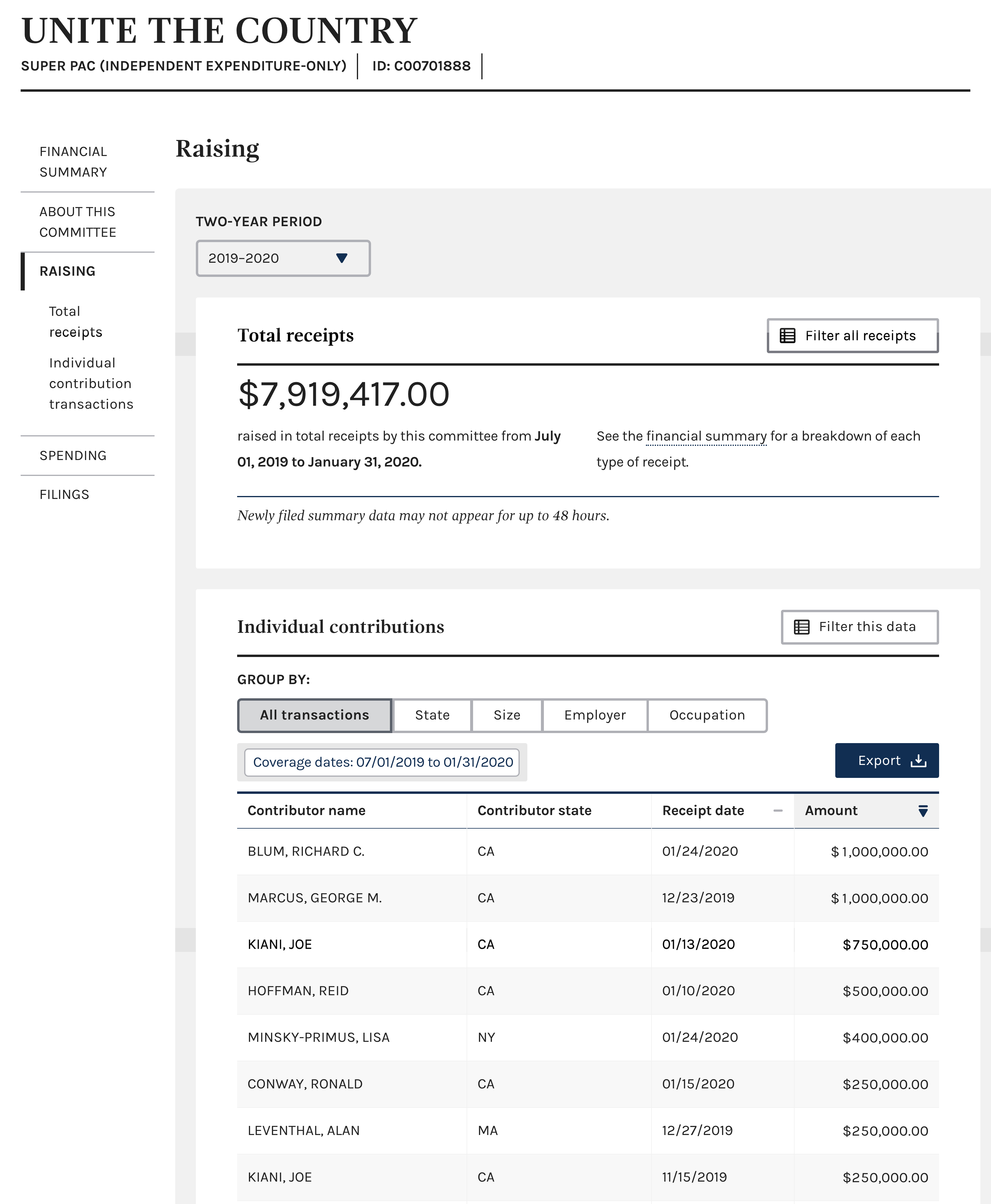
A pro-Biden super Pac, Unite the Country — whose past backers include senior tech figures — is picking up efforts to tap wealthy donors, Treasurer Larry Rasky told CNBC, after the group made several ad-buys in Super-Tuesday states (per a February 28 Federal Election Committee filing).

Past Unite the Country’s benefactors include LinkedIn founder and Greylock Partners VC Reid Hoffman (who contributed $500,000) and Angel Investor Ronald Conway ($250,000), according to FEC data.

Source: FEC filing

Biden revived his presidential-bid from life-support with a resounding 29 point win over Bernie Sanders in Saturday’s South Carolina primary.

But after flailing in the first three contests — Iowa, New Hampshire and Nevada — the former Vice-President’s campaign has reportedly been running on financial fumes.

The last Federal Election Campaign disclosures before South Carolina’s democratic primary showed Biden with $7.1 million cash on hand, compared to Sanders’ nearly $17 million.

The race to become the Democratic-nominee for president is consolidating, post South Carolina, to a Sanders-Biden match-up — after Mayor Pete Buttigieg and billionaire Tom Steyer dropped out. Mayor Mike Bloomberg, who entered the race late, will be on the ballot for the first-time on Super Tuesday, though its not clear if he’ll shift dynamics between the front-runners.

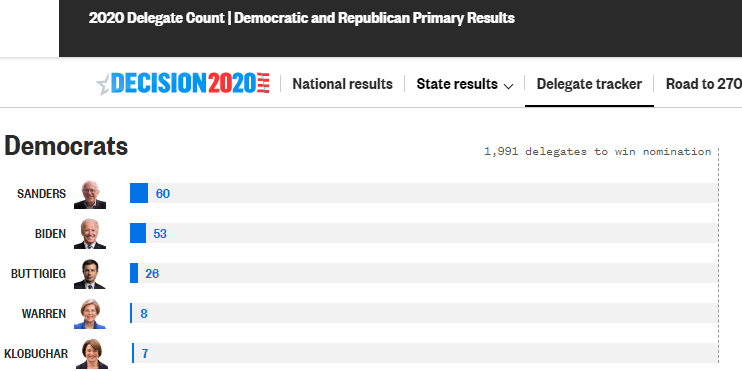
To capture Sanders, who now leads Biden in the delegate count, Biden will need to close the fundraising gap between himself and the Vermont Senator, who doesn’t accept super Pac funds and has raised a large portion of his total $126 million presidential fundraising haul from small contributions by individual donors.

Source: NBC News

For Democrats, fundraising is a big focus of campaign efforts in uncontested states (like New York and California) where they are nearly certain to win in the general-election. Areas with affluent residents, such as the Bay Area and Manhattan, have served as piggy-banks for tapping wealthy donors.

But a fundraising push by Biden and surrogates in Silicon Valley could further expose a political rift within big tech: that of founders and senior executives favoring a moderate candidate, while rank-and file workers “feel the Bern” on campaign donations.

FEC data and analysis by and the LA Times and the Center for Responsive Politics indicate Bernie Sanders has substantially outperformed all candidates in raising small-donations from workers in tech companies. By Times reporting, Sanders has raised, $1 million, or nearly four-times as much as Biden, in small donations from employees at Google, Amazon, Apple, Microsoft, and Facebook.

This preference divide within big-tech could align with the differences in each candidate’s policy platforms. Biden’s positions are generally milder on initiatives to police and potentially split up big-tech companies, such as Facebook.

Sanders has been vocal about driving policies that address the pay gap across major tech companies and has called for breaking up Facebook and Amazon.

Founders and tech-workers in California will have a non-monetary option to express their preferences in voting booths tomorrow — as the Golden State is one of 13 in the super Tuesday primary contest. Those results will roll into more primaries, more fundraising and a decision on the 2020 presidential nominee at the Democratic National Convention in Milwaukee this July.


Read Full Article

India’s Prime Minister Narendra Modi says he is thinking about quitting social media


Another major figure could soon join the list of a growing number of people who are done with social media: The leader of the world’s largest democracy.

India’s Prime Minister Narendra Modi tweeted Monday evening that he was thinking about giving up on his Facebook, Twitter, Instagram, and YouTube accounts.

Modi, whose 53 million followers on Twitter make him one of most popular figures on the microblogging social network, did not offer any rationale for his thinking.

On his Facebook page, he has over 44 million followers; on Instagram, 35.2 million; and 4.5 million on Google’s video platform.

The closure of the accounts, which Modi says he might do over the weekend, may further distance the leader from wide swathes of issues — growing unemployment in the nation, slowing economy, riots in national capital New Delhi, protests against his recent policies, to name a few — that some critics say his ruling party refuses to acknowledge — let alone fix.

And it would be a stark departure from how he has used his social media accounts over the years. Modi, and his political party Bharatiya Janata Party, have used Twitter, Facebook, WhatsApp, and several other internet services very efficiently to promote their messages and agendas, something that played a key role in his re-election last year.

Modi’s office also maintains an app, called NaMo, to share his thinking with the people. It’s one of the most downloaded apps on Google Play Store in India. No word on whether NaMo app would also be axed.

For Modi, quitting social media may at least bring some peace. The people he has chosen to follow have been found inciting violence and spreading false information on numerous occasions, according to multiple analysis.


Read Full Article

How to turn climate anxiety into action | Renée Lertzman

How to turn climate anxiety into action | Renée Lertzman

It's normal to feel anxious or overwhelmed by climate change, says psychologist Renée Lertzman. Can we turn those feelings into something productive? In an affirming talk, Lertzman discusses the emotional effects of climate change and offers insights on how psychology can help us discover both the creativity and resilience needed to act on environmental issues.

Click the above link to download the TED talk.

mParticle raises $45M to help marketers unify customer data


mParticle, which helps companies like Spotify, Paypal and Starbucks umanage their customer data, is announcing that it has raised $45 million in Series D funding.

Co-founder and CEO Michael Katz told me that the company has benefited from broader shifts — like new privacy regulation and the shift away from cookie-based browser tracking — that increase brands’ needs for a platform like mParticle that uses “modern data infrastructure” to deliver a personalized experience for customers without running afoul of any regulations.

As result, he said mParticle has nearly quintupled its revenue since it raised a $35 million Series C in 2017. (The company has raised more than $120 million total.)

“The challenges that we solve are universal,” Katz said. “It doesn’t matter if there’s a small company or big company. Data fragmentation, data quality, consistent change in the privacy landscape, consistent change in the technology ecosystem, these are universal challenges.”

Perhaps for that very reason, a whole industry of customer data platforms has sprung up since mParticle was founded back in 2013, all offering tools to help marketers create a single view of their customers by unifying data from various sources. Even big players like Adobe and Salesforce have announced their own CDPs as part of their larger marketing clouds.

When asked about the competition, Katz said, “The market has responded overwhelmingly by saying, ‘I don’t want one vendor to rule everything for me.’ Why be beholden to one suite of tools that’s just an amalgamation of products that were built in the early 2000s?”

Instead, he argued that mParticle customers want “a best-in-breed combination of independent solutions that can be integrated seamlessly.”

Getting back to the new funding — Arrowroot Capital led the round, with the firm’s managing partner Matthew Safaii joining mParticle’s board of directors. Existing investors also participated.

Katz said the funding will be spent in three broad areas: building new products, scaling its global data infrastructure and finding new partners. In fact, the company is also announcing a partnership with LiveRamp, through which mParticle customers can combine their first-party data with the third-party party data from Liveramp.

“We see this partnership with Liveramp as an opportunity to extend the surface area by which our customers can deliver highly personalized, privacy-friendly experiences,” Katz said.


Read Full Article

How to Get the Quiz Score in Google Forms with Apps Script


Teachers can use Google Forms to create an online quiz and students can view their test scores immediately after form submission. With Apps Script, you can set up automatic email notifications and send quiz scores to parents after a student has taken the quiz.

Here’s a sample Google Script that will iterate through every answer in the most recent Google Form response and log the max score (points) of a gradable question and the score for the respondent’s submitted answer.

function getGoogleFormQuizScore() {

  // Returns the form to which the script is container-bound.
  var form = FormApp.getActiveForm();

  // Get the most recently submitted form response
  var response = form.getResponses().reverse()[0];

  // Gets an array of all items in the form.
  var items = form.getItems();

  for (var i=0; i<items.length; i++) {

    var question = items[i];

    // Get the item's title text
    var qTitle = question.getTitle();

    // Get the item's type like Checkbox, Multiple Choice, Grid, etc.
    var qType = question.getType();

    // Gets the item response contained in this form response for a given item.
    var responseForItem = response.getResponseForItem(question)

    //Gets the answer that the respondent submitted.
    var answer = responseForItem ? responseForItem.getResponse() : null;

    var item = castQuizItem_(question, qType);

    // Quiz Score and Maximum Points are not available
    // for Checkbox Grid and Multiple Choice Grid questions
    // through they are gradable in the Google Form

    if (item && typeof item.getPoints === "function") {

      var maxScore = item.getPoints();
      var gradableResponseForItem = response.getGradableResponseForItem(question);
      var score = gradableResponseForItem.getScore();

      Logger.log(String(qType), qTitle, answer, maxScore, score);

    }
  }
}

The Google Forms API can only return scores for Multiple Choice, Dropdown and Checkbox style questions. It cannot provide scores for the grid type of questions where the item is presented as a grid of rows and columns.

  1. Checkbox Grid - A question item that allows the respondent to select multiple choices per row from a sequence of checkboxes.
  2. Choice Grid - A question item that allows the respondent to select one choice per row from a sequence of radio buttons.
function castQuizItem_(item, itemType) {
  if (itemType === FormApp.ItemType.CHECKBOX) {
    return item.asCheckboxItem();
  }
  if (itemType === FormApp.ItemType.DATE) {
    return item.asDateItem();
  }
  if (itemType === FormApp.ItemType.DATETIME) {
    return item.asDateTimeItem();
  }
  if (itemType === FormApp.ItemType.DURATION) {
    return item.asDurationItem();
  }
  if (itemType === FormApp.ItemType.LIST) {
    return item.asListItem();
  }
  if (itemType === FormApp.ItemType.MULTIPLE_CHOICE) {
    return item.asMultipleChoiceItem();
  }
  if (itemType === FormApp.ItemType.PARAGRAPH_TEXT) {
    return item.asParagraphTextItem();
  }
  if (itemType === FormApp.ItemType.SCALE) {
    return item.asScaleItem();
  }
  if (itemType === FormApp.ItemType.TEXT) {
    return item.asTextItem();
  }
  if (itemType === FormApp.ItemType.TIME) {
    return item.asTimeItem();
  }
  if (itemType === FormApp.ItemType.GRID) {
    return item.asGridItem();
  }
  if (itemType === FormApp.ItemType.CHECKBOX_GRID) {
    return item.asCheckboxGridItem();
  }
  if (itemType === FormApp.ItemType.PAGE_BREAK) {
    return item.asPageBreakItem();
  }
  if (itemType === FormApp.ItemType.SECTION_HEADER) {
    return item.asSectionHeaderItem();
  }
  if (itemType === FormApp.ItemType.VIDEO) {
    return item.asVideoItem();
  }
  if (itemType === FormApp.ItemType.IMAGE) {
    return item.asImageItem();
  }
  return null;
}

Quiz in Google Forms with Score

Google Form Quiz