07 February 2020

The 15 Best Amazon Alexa-Compatible Gadgets You Can Buy


alexa-compatible-gadgets

Amazon’s smart assistant, Alexa, continues to expand its reach. The personal assistant first launched in late 2014, and has come a long way from its humble beginnings with the original Amazon Echo smart speaker.

Unlock the "Mega List of 100+ Useful Amazon Alexa Commands" now!

This will sign you up to our newsletter

Enter your Email

Alexa now powers a whole host of devices, and a simple voice command can accomplish some pretty surprising tasks with the right hardware. In this article, we’re highlighting the best Alexa-compatible gadgets that you should take a look at in 2020, including an Alexa-enabled coffee maker.

1. Roav Viva

Roav Viva Roav Viva Buy Now On Amazon $19.99

Just say, “Alexa, directions to home.”

Alexa can go for a ride with Anker’s Roav Viva. Just plug it into a cigarette lighter in your car to get started. When on the go, a quick voice command will provide access to Alexa’s features, including calling, messaging, drop-in, and announcements. The adapter also features two USB ports so you can charge other devices.

2. Echo Show 5

Echo Show 5 Echo Show 5 Buy Now On Amazon $64.99

Just say, “Alexa, wake me up at 6 a.m. to my rock playlist from Spotify.”

Good things come in small packages with the Echo Show 5. The smallest device in the Echo Show lineup features a 5.5-inch touchscreen and is perfect for a nightstand or another small spot in your home.

Even with the small screen, you can still take advantage of all the skills and functions of its larger cousins like video calling, watching movies, and viewing photos. With an eye on privacy, you can cover the camera lens with a built-in shutter and also turn the microphone off.

3. AmazonBasics Microwave

AmazonBasics Microwave AmazonBasics Microwave Buy Now On Amazon $59.99

Just say, “Alexa, reheat one cup of coffee.”

A true Alexa-based smart home is moving closer to reality with the AmazonBasics Microwave. You’ll need another Amazon Echo device to control the microwave. But once that is set up, there are more than 24 voice-controllable presets to select from. You can also even specify a particular time for the 700-watt microwave to start cooking.

4. Rachio Smart Sprinkler Controller

Rachio Smart Sprinkler Controller Rachio Smart Sprinkler Controller Buy Now On Amazon $89.95

Just say, “Alexa, tell Rachio to water the side yard for 2 minutes.”

Smart sprinkler controllers can save homeowners both water and money. Taking the place of a standard irrigation system controller, the smart version can provide better insight into when your lawn needs water and exactly how much.

One of the best choices on the market is the Rachio Smart Sprinkler Controller. While you can set an automatic schedule, Alexa can also help out. With a voice command, you can start and stop watering, turn on a rain delay, and more.

5. Hamilton Beach 49350 Coffee Maker

Hamilton Beach 49350 Coffee Maker Hamilton Beach 49350 Coffee Maker Buy Now On Amazon $89.99

Just say, “Alexa, turn on my coffee maker.”

Alexa can make the morning just a bit easier Hamilton Beach 49350 Coffee Maker. Using any compatible Alexa device or the companion smartphone app, you can turn the coffee maker on or off and even change the brew strength.

With the Amazon app, you can set a morning routine on the Alexa coffee maker to have the brew set and ready to pot by a certain time.

6. Echo Wall Clock – Disney Mickey Mouse Edition

Echo Wall Clock - Disney Mickey Mouse Edition Echo Wall Clock - Disney Mickey Mouse Edition Buy Now On Amazon $41.99

Just say, “Alexa, set a timer for 15 minutes.”

You can even get into the Disney spirit with an Alexa gadget. The Echo Wall Clock – Disney Mickey Mouse Edition provides a quick way to see how much time is left on a timer you’ve set with another Alexa device. Along with the analog time, you can see one or multiple timers on the 60 LEDs around the outer edge of the device.

7. Sonos One

Sonos One Sonos One Buy Now On Amazon $199.00

Just say, “Alexa, play Beastie Boys from Spotify.”

If sound quality is your top priority when looking for a smart speaker with Alexa built-in, take a look at the Sonos One. The company is well-known for delivering top-quality audio, and the Sonos One brings Alexa into the mix.

You can accomplish almost everything possible with an Echo device, including playing music, controlling smart home devices, and interacting with skills. You even get a choice between a black or white version to match your home decor.

8. Sengled Element Classic A19 Starter Kit

Sengled Smart LED Soft White A19 Starter Kit Sengled Smart LED Soft White A19 Starter Kit Buy Now On Amazon $29.98

Just say, “Alexa, turn the bedroom light to 50 percent brightness.”

Smart lighting is one of the simplest ways to add technology to a home. While the Sengled Element Classic A19 requires a wireless hub, the lights are substantially more affordable than the popular Philips Hue line of products.

The starter kit comes with two dimmable A19 LED soft white bulbs. Using Alexa, you can turn the bulbs on and off, along with changing the brightness level.

9. Anova Culinary Sous Vide Precision Cooker

Anova Culinary Sous Vide Precision Cooker Anova Culinary Sous Vide Precision Cooker Buy Now On Amazon $188.80

Just say, “Alexa, ask Anova to cook a steak.”

A kitchen device to test your culinary prowess, the Anova Culinary Sous Vide Precision Cooker provides a great way for home cooks to try out the popular cooking method. If you’re unaware, sous vide means food sealed in a bag cooked in a water bath at a consistent temperature. You can cook a surprising amount of items using the method, everything from steaks to soups and even desserts.

With built-in Wi-Fi and Bluetooth, the cooker can be controlled with a smartphone app and also with Alexa. Using Alexa, you can heat water to a specific temperature and cook a wide variety of products, too.

10. Ring Indoor Camera

Ring Indoor Camera Ring Indoor Camera Buy Now On Amazon $59.99

Just say, “Alexa, show me the living room camera.”

The Ring Indoor Camera is a breeze to set up. Just plug it into an outlet and then connect your Wi-Fi. You can see the camera feed from any Echo Show device or Ring app. You can hear what’s happening and even talk to anyone with the camera’s built-in microphone.

11. Echo Buds

Echo Buds Echo Buds Buy Now On Amazon $89.99

Just say, “Alexa, where is the nearest pizza restaurant?”

Take Alexa anywhere with the Echo Buds. The completely wireless earbuds feature Bose Active Noise Reduction and are perfect for the gym or a run with a sweat-proof design. There’s no need to press a button to interact with your smart assistant—just say “Alexa” to get started.

The earbuds work in tandem with the Alexa app so you can do things like take calls, listen to music, or get directions. The battery provides up to five hours of music playback on a single charge and up to 20 hours with the included charging case.

12. Kasa Smart WiFi Plug

Kasa Smart WiFi Plug Kasa Smart WiFi Plug Buy Now On Amazon $16.50

Just say, “Alexa, turn off the living room lights.”

Smart plugs are a great way to get started with smart home technology. The Kasa Smart WiFi Plug is an inexpensive entry point, too. You can control the outlet with Alexa or while on-the-go using the companion Kasa app. Thanks to a minimal design, the device won’t block another wall outlet, allowing you to place two plugs in one outlet.

13. Fire TV Cube

Amazon Fire TV Cube Amazon Fire TV Cube Buy Now On Amazon $119.99

Just say, “Alexa, turn on the TV and tune to ESPN.”

Remotes are a thing of the past when using the Fire TV Cube in your living room. You can ask Alexa to turn on your TV and soundbar while even starting a specific program. The cube is capable of streaming 4K content at 60fps along with HDR and Dolby Atmos audio. It can also access popular streaming services like Netflix and Amazon’s own Prime Video.

14. Echo Flex

Echo Flex Echo Flex Buy Now On Amazon $19.99

Just say, “Alexa, unlock the front door.”

All you need is a free electrical outlet to bring Alexa into more places in your home with the Echo Flex. The small, plug-in Alexa gadget allows you to interact with the voice assistant to activate skills and features.

There is also a built-in USB port that can be used to juice up a smartphone or other device. You can also add an optional smart motion sensor or smart night light. A built-in 3.5mm AUX port allows you to plug in a larger speaker for better sound quality.

15. ecobee SmartThermostat

ecobee Smart Thermostat ecobee Smart Thermostat Buy Now On Amazon $244.00

Just say, “Alexa, turn the thermostat to 70 degrees.”

The ecobee SmartThermostat is currently one of the best Alexa smart home devices on the market; the device is a double threat. You can control your home’s heating and air conditioning with a simple Alexa command on any compatible device. The thermostat also has Alexa controls built-in, meaning it can act as a standalone smart home device like the Amazon Echo Dot, too.

A Growing World of Alexa-Compatible Devices

Amazon’s Alexa continues to gain traction and partner with more interesting and unique devices. Even though the voice control assistant is far from perfect, the vast number of uses are definitely exciting and point to a continuing bright future for Amazon’s ecosystem.

Alexa-compatible devices can do much more than just play music or tell you the weather outside, though. Take a look at these great ways to use an Amazon Echo and Alexa to be more productive.

Read the full article: The 15 Best Amazon Alexa-Compatible Gadgets You Can Buy


Read Full Article

Fitbit vs. Garmin: Fitness Watches Compared


fitbit-garmin-tracker

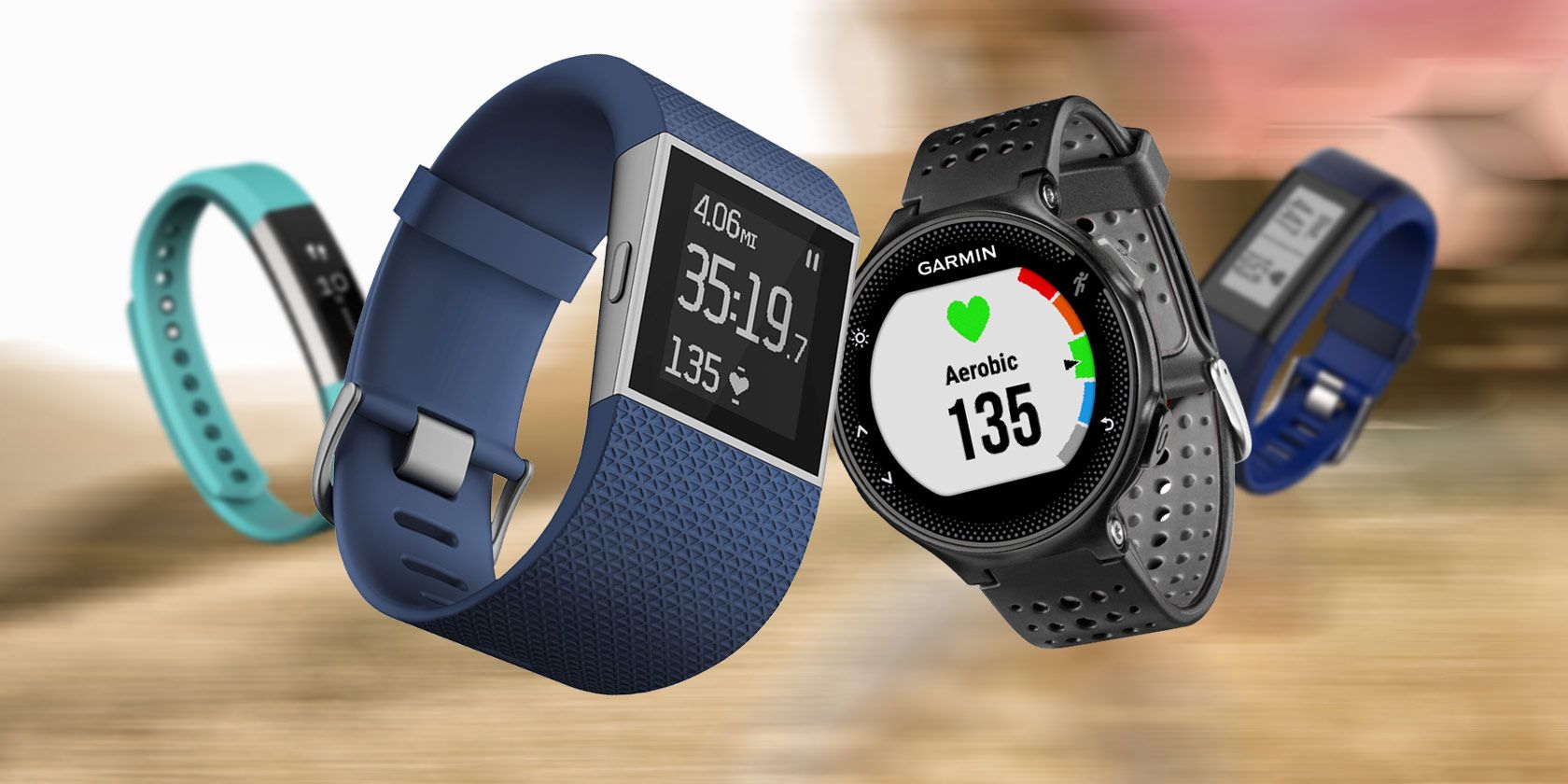
Fitbit and Garmin are the two biggest names in the fitness tracker industry. That said, it’s sometimes hard to distinguish the differences between each company’s trackers. Both have a solid lineup of devices that serve specific purposes at varying price points.

If you’re looking for a Fitbit and Garmin watch comparison, you’re in the right place. We’ll provide you with a crucial overview of the Fitbit vs. Garmin debate that can solve all of your shopping woes.

Fitbit vs. Garmin: Budget Fitness Trackers

Budget fitness trackers are typically the most basic of the trackers, but that doesn’t mean they’re not as helpful as pricier models. Fitness trackers on the cheaper side are under $100 and have only the most essential features to keep you aware of your activity level. These sleek, affordable fitness trackers will still get the job done.

Fitbit Inspire

Fitbit Inspire Fitbit Inspire Buy Now On Amazon $59.95

For a budget fitness tracker, the Fitbit Inspire is quite impressive. It’ll keep track of your daily fitness stats, such as your total steps, distance traveled, your active time, and how many calories you burned. Not to mention that it automatically keeps a record of bike activity, runs, and swimming sessions.

The battery lasts five days before you have to charge it. You can also monitor your sleep and set alarms that wake you up with a gentle vibration on your wrist.

Garmin Vivofit 4

Garmin Vivofit 4 Garmin Vivofit 4 Buy Now On Amazon $78.78

The Garmin Vivofit 4 provides basic fitness tracking—it records your steps, burned calories, sleep patterns, and distance moved. With MoveIQ, the Garmin Vivofit 4 recognizes and tracks when you’re running, biking, swimming, or using gym equipment.

As you use the Garmin Vivofit 4, it’ll get to know your activity levels. This helps it provide daily step goals tailored to you. Unlike the Fitbit Inspire, you don’t even need to charge the Garmin Vivofit 4. This tracker’s battery lasts over a full year before it needs a replacement.

Fitbit vs. Garmin: Mid-Range Fitness Trackers

Mid-range fitness trackers have a slightly higher price tag than the budget trackers, but they come with some extra features. If you’re serious about tracking your fitness (but don’t want to pay the price of higher-end models), you should consider buying a mid-range tracker. Here’s a quick rundown of reasonably-priced Garmin running watches vs. Fitbit trackers.

Fitbit Charge 3

Fitbit Charge 3 Fitbit Charge 3 Buy Now On Amazon $99.95

The Fitbit Charge 3 offers a more detailed approach to your activity level. This fitness tracker keeps track of your heart rate, a feature that cheaper trackers lack. In addition to providing you with total calories burned, the Fitbit Charge 3 records your exercise with 15 different types of activities, and even allows you to practice deep-breathing exercises.

The device’s screen displays any calls or texts that you receive on your phone. It also offers more in-depth sleep tracking—the Fitbit Charge 3 informs you of your time spent in different stages of sleep. It lasts seven days without charging, so you’ll spend less time charging and more time active.

Garmin Vivosmart 4

Garmin Vivosmart 4 Garmin Vivosmart 4 Buy Now On Amazon $97.12

In terms of this Garmin watch vs. the Fitbit Charge 3, the Garmin Vivosmart 4 is slightly more expensive. It comes equipped with a Pulse Ox sensor, along with a sleep monitoring tool that can detect REM sleep.

You can also expect this tracker to monitor your stress levels, measure your VO2 Max level, find your heart rate, and even calculate your body’s energy level. If you’re feeling stressed, make sure to use the device’s deep breathing timer.

In addition to all of these great features, it has basic fitness tracking features such as step and workout tracking. Like the Fitbit Charge 3, the Vivosmart displays any notifications from your mobile device and lasts seven days on a full charge.

Fitbit vs. Garmin: High-End Fitness Trackers

When you take a step up from mid-range fitness trackers to high-end, they start to look more like smartwatches. Wondering whether to go with a Garmin GPS watch vs. a Fitbit? Both brand’s high-end models may seem very similar, but they each have some distinct features.

Fitbit Versa 2

Fitbit Versa 2 Fitbit Versa 2 Buy Now On Amazon $149.95

When you strap on the Fitbit Versa 2, it’ll start tracking your heart rate, distance traveled, flights of stairs climbed, and active minutes. However, that’s only a few of its features. The Fitbit Versa 2 even integrates with Amazon Alexa so you can adjust your smart home devices with your voice. Not to mention that you can use your Spotify, Pandora, and Deezer to play your favorite songs while working out.

Since the Versa 2 connects to your phone, you can expect to receive alerts for texts, calendar events, and calls. The Versa 2 also gives you a better idea of your sleep quality by analyzing your REM sleep, time asleep, and restlessness. Given the feature list, this fitness watch runs out of power faster than the other trackers on this list—it can last up to six days without charging.

Garmin Forerunner 45

Garmin Forerunner 45 Garmin Forerunner 45 Buy Now On Amazon

Like most fitness trackers, the Garmin Forerunner 45 keeps track of your daily steps, activity level, and burned calories. It also allows you to stay updated on any notifications you receive on your phone, whether it’s a text or call. You can use the Forerunner 45 to play music as well. Plus, if you ever experience an emergency while wearing the watch, the Forerunner 45 automatically detects it and notifies your emergency contact of your location.

Something that makes the Forerunner 45 stand out is its compatibility with the Garmin Coach training plan. You’ll have to pay for this feature, but it can provide you with some guidance for your exercise routine. When the Forerunner 45 is in GPS mode, its charge lasts only 14 hours; without GPS mode, it’ll last up to seven days.

Which Is Better: Fitbit or Garmin?

Depending on your needs, you may feel that the Fitbit versus Garmin debate is settled. If you don’t mind spending a little more money on a tracker with extra features, you’ll want to check out Garmin fitness trackers.

Otherwise, Fitbit makes a reliable choice for a slightly more affordable price. All in all, you want a fitness tracker that can cover all the basics—the more expensive models will likely have features that you don’t always need.

Still unsure on which fitness watch to buy? Maybe our detailed review of the Fitbit Charge 3 can help you make your decision.

Read the full article: Fitbit vs. Garmin: Fitness Watches Compared


Read Full Article

Twitter-backed ShareChat eyes fantasy sports in India


The growing market of fantasy sports in India may soon have a new and odd entrant: ShareChat.

The local social networking app, which in August last year raised $100 million in a financing round led by Twitter, has developed a fantasy sports app and has been quietly testing it for six months, two sources familiar with the matter told TechCrunch.

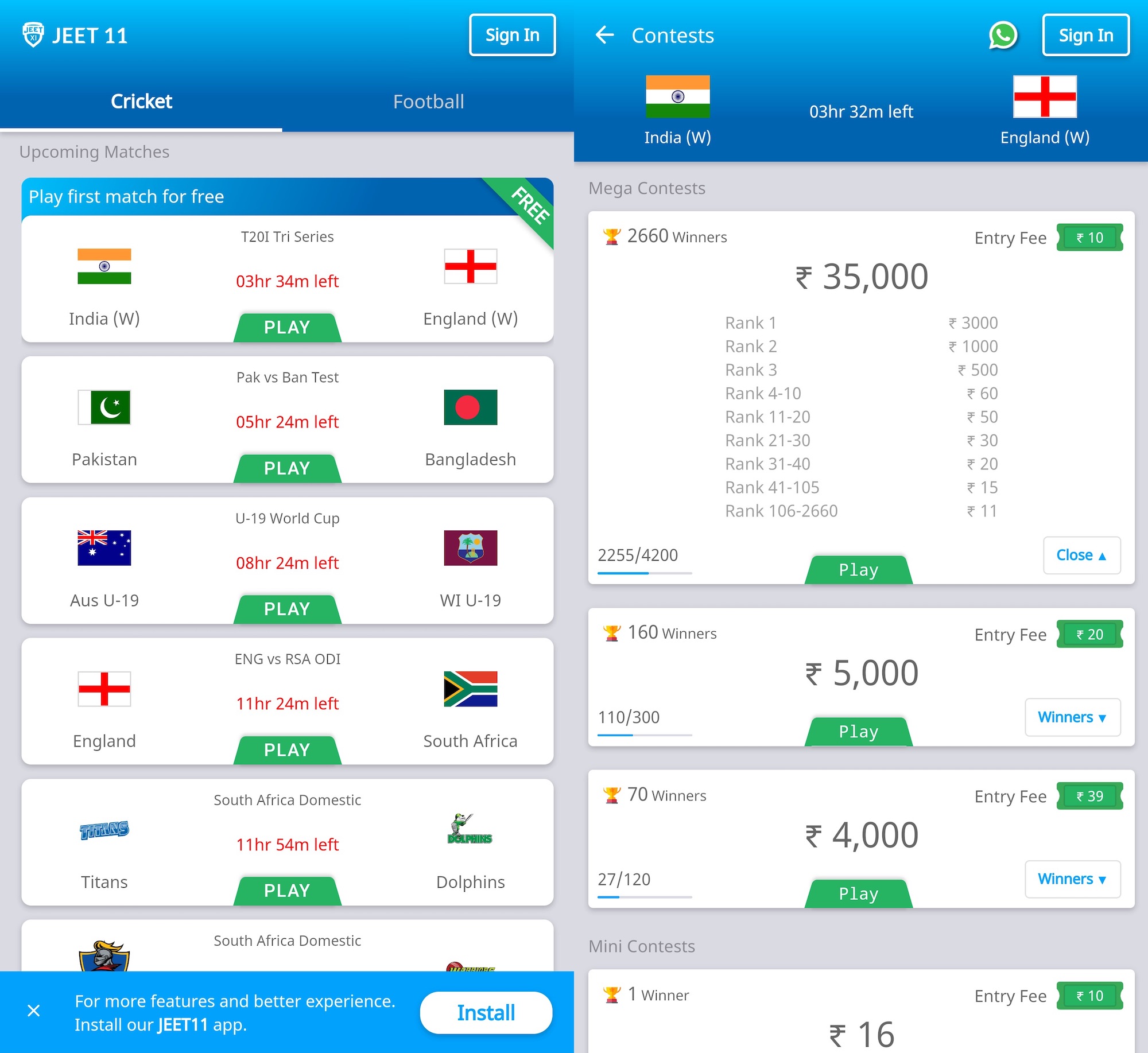
ShareChat’s fantasy sports app, called Jeet11, allows betting on cricket and football matches and has already amassed more than 120,000 registered users, the sources said. The app, or its website, does not disclose its association with ShareChat.

A ShareChat spokesperson confirmed the existence of the app and said the startup was testing the product.

Jeet11 is not available for download on the Google Play Store due to the Android maker’s guidelines on betting apps, so ShareChat has been distributing it through Xiaomi’s GetApps app store and the Jeet11 website, and has been promoting it on Instagram. It is also available as a web app.

Fantasy sports, a quite popular business in many markets, has gained some traction in India in recent years. Dream11, backed by gaming giant Tencent, claimed to have more than 65 million users early last year. It has raised about $100 million to date and is already valued north of $1 billion.

Bangalore-based MPL, which counts Sequoia Capital India as an investor and has raised more than $40 million, appointed Virat Kohli, the captain of the Indian cricket team, as its brand ambassador last year.

In the last two years, scores of startups have emerged to grab a slice of the market, and the vast majority of them are focused on cricket. Cricket is the most popular sport in India, just ask Disney’s Hotstar, which claimed to have more than 100 million daily active users during the cricket season last year.

Or ask Facebook, which unsuccessfully bid $600 million to secure streaming rights of the IPL cricket tournament. It has since grabbed rights to some cricket content and appointed the Hotstar chief as its India head.

So it comes as no surprise that many sports betting apps have signed cricketers as their brand ambassador. Hala-Play has roped in Hardik Pandya and Krunal Pandya, while Chennai-based Fantain Sports has appointed Suresh Raina.

But despite the growing popularity of fantasy sports apps, where users pick players and bet real money on their performances, the niche is still sketchy in many markets that consider it betting. In fact, Twitter itself restricts promotion of fantasy sports services in many markets across the world.

In India, too, several states, including Assam, Arunachal Pradesh, Odisha, Sikkim and Telangana, have banned fantasy sports betting. Jeet11 currently requires users to confirm that they don’t live in any of the restricted states before signing up for the service.

“It doesn’t help matters either that the fantasy sports business’ attempts at legitimacy involve trying to be seen as video games — a cursory glance at a speakers panel for any Indian video game developer event is evidence of this — rather than riding on its own merits,” said Rishi Alwani, a long-time analyst of Indian gaming market and publisher of news outlet the Mako Reactor.

An executive who works at one of the top fantasy sports startups in India, speaking on the condition of anonymity, said that despite handing out cash rewards to thousands of users each day, it is still challenging to retain customers after the conclusion of any popular cricket tournament. “And that’s after you have somehow convinced them to visit your website or download the app,” he said.

For ShareChat, which has been exploring ways to monetize its 60 million-plus users and posted a loss of about $58 million on no revenue in the financial year ending March 31, that’s anything but music to the ears. In recent months, the startup, which serves users in more than a dozen local languages, has been experimenting with ads.


Read Full Article

TyDi QA: A Multilingual Question Answering Benchmark


Question answering technologies help people on a daily basis — when faced with a question, such as “Is squid ink safe to eat?”, users can ask a voice assistant or type a search and expect to receive an answer. Last year, we released the English-language Natural Questions dataset to the research community to provide a challenge that reflects the needs of real users. However, there are thousands of different languages, and many of those use very different approaches to construct meaning. For example, while English changes words to indicate one object (“book”) versus many (“books”), Arabic also has a third form to indicate if there are two of something ("كتابان", kitaban) beyond just singular ("كتاب", kitab) or plural ("كتب", kutub). In addition, some languages, such as Japanese, do not use spaces between words. Creating machine learning systems that can understand the many ways languages express meaning is challenging, and training such systems requires examples from the diverse the languages to which they will be applied.

To encourage research on multilingual question-answering, today we are releasing TyDi QA, a question answering corpus covering 11 Typologically Diverse languages. Described in our paper, “TyDi QA: A Benchmark for Information-Seeking Question Answering in Typologically Diverse Languages”, our corpus is inspired by typological diversity, a notion that different languages express meaning in structurally different ways. Because we selected a set of languages that are typologically distant from each other for this corpus, we expect models performing well on this dataset to generalize across a large number of the languages in the world.

A Typologically Diverse Collection of Languages
TyDi QA includes over 200,000 question-answer pairs from 11 languages representing a diverse range of linguistic phenomena and data challenges. Many of these languages use non-Latin alphabets, such as Arabic, Bengali, Korean, Russian, Telugu, and Thai. Others form words in complex ways, including Arabic, Finnish, Indonesian, Kiswahili, Russian. Japanese uses four alphabets (shown by the four colors in “24時間でのサーキット周回数”) while the Korean alphabet itself is highly compositional. These languages also range from having much available data on the web (English and Arabic) to very little (Bengali and Kiswahili). We expect that systems that can address these challenges will be successful for a very large number of languages.

Creating Realistic Data
Many early QA datasets used by the research community were created by first showing paragraphs to people and then asking them to write questions based on what could be answered from reading the paragraph. However, since people could see the answer while writing each question, this approach yielded questions that often contained the same words as the answer. As a result, machine learning algorithms trained on such data would favor word matching, oblivious to the more nuanced answers required to satisfy users’ needs.

To construct a more natural dataset, we collected questions from people who wanted an answer, but did not know the answer yet. To inspire questions, we showed people an interesting passage from Wikipedia written in their native language. We then had them ask a question, any question, as long as it was notanswered by the passage and they actuallywanted to know the answer. This is similar to how your own curiosity might spawn questions about interesting things you see while walking down the street. We encouraged our question writers to let their imaginations run. Does a passage about ice make you think about popsicles in summer? Great! Ask who invented popsicles. Importantly, questions were written directly in each language, not translated, so many questions are unlike those seen in an English-first corpus. One question in Bengali asks, “সফেদা ফল খেতে কেমন?” (What does sapodilla taste like?) Never heard of it? That’s probably because it’s grown much more commonly in India than the U.S.

For each of these questions, we performed a Google Search for the best-matching Wikipedia article in the appropriate language and asked a person to find and highlight the answer within that article. While we expected some interesting divergences between the question and answers when the question writers did not have the answers in front of them, combined with the astonishing breadth of linguistic phenomena in the world’s languages, we found that the situation was even more complex.

For example, in Finnish, there are fascinating examples in which the words day and week are represented very differently in the question and answer. To be successful in selecting this answer sentence out of an entire Wikipedia article, a system needs to be able to recognize the relationship among the Finnish words viikonpäivät, seitsenpäiväinen, and viikko

Making Progress Together as a Research Community
It is our hope that this dataset will push the research community to innovate in ways that will create more helpful question-answering systems for users around the world. To track the community’s progress, we have established a leaderboard where participants can evaluate the quality of their machine learning systems and are also open-sourcing a question answering system that uses the data. Please visit the challenge website to view the leaderboard and learn more.

Acknowledgements
This dataset is the result of a team of many Googlers including (alphabetically) Dan Garrette, Eunsol Choi, Jennimaria Palomaki, Michael Collins, Tom Kwiatkowski, and Vitaly Nikolaev. The Finnish gloss above is by Jennimaria Palomaki.

06 February 2020

Daily Crunch: LinkedIn is getting a new CEO


The Daily Crunch is TechCrunch’s roundup of our biggest and most important stories. If you’d like to get this delivered to your inbox every day at around 9am Pacific, you can subscribe here.

1. Jeff Weiner will step down as CEO of LinkedIn June 1, product head Ryan Roslansky steps up

The changes are LinkedIn’s first big executive shakeup since the company was acquired by Microsoft in 2016. It’s notable that both of the new appointments (Roslansky and new product head Tomer Cohen) involve long-time LinkedIn executives — they’re not looking to rock the boat too much.

Weiner, meanwhile, says that LinkedIn was his “dream job” and that he’s moving on to the next “dream job” as executive chairman. But we expect to start seeing his name floated for other CEO roles very shortly.

2. Ancestry lays off 6% of staff as consumer genetic testing market continues to decline

The move from Ancestry follows job cuts at 23andMe in late January, which saw 100 staffers lose their jobs (or roughly 14% of its workforce). The genetic testing company Illumina has been warning of softness in the direct-to-consumer genetic testing market as well.

3. Twitter reports $1.01B in Q4 revenues with 152M monetizable daily active users

Twitter posted $1.01 billion in sales — the first time its revenues have broken past the billion-dollar mark — due to a strong quarter in advertising sales. However, net income and earnings per share both saw significant drops from the same period a year ago.

4. Google Maps adds more crowdsourced transit data and gets a new navigation bar

Google is updating Google Maps on Android and iOS with a revamped tab bar at the bottom, a new icon and a couple of new features. In particular, the company is putting more emphasis on user-generated content and recommendations.

5. Where top VCs are investing in open source and dev tools (Part 1 of 2)

We asked 18 of the top open-source-focused VCs to share what’s exciting them most and where they see opportunities. For purposes of length and clarity, responses have been edited and split (in no particular order) into part one and part two of this survey. (Extra Crunch membership required.)

6. Reddit partners with Tagboard to bring its content to TV broadcasts

Through this partnership, broadcast networks will be able to easily display Reddit’s content on TV. That includes Reddit’s unique content like AMA (Ask Me Anything) recaps and Photoshop battles, as well as popular posts and comments.

7. NASA astronaut Christina Koch returns to Earth after record-setting stay in space

Koch spent 328 consecutive days at the International Space Station. She’s second only to Scott Kelley, who spent 340 days in space, and she’s officially the woman with the longest stay in space worldwide, passing fellow U.S. astronaut Peggy Whitson’s record of 289 days.


Read Full Article

What to expect from Samsung’s S20 event


Next Tuesday, Samsung kicks off smartphone season with its Unpacked event in San Francisco. One of two tentpole events for the company, the big show brings with it the latest edition of the company’s primary flagship line, the Galaxy S.

Samsung played a fun little trick, holding the event on February 11th at 11AM PT, all while skipping the Galaxy S11 entirely. Granted, this is still firmly in the realm of rumors here, but evidence is mounting that the company is actually skipping nine full model numbers and going straight to the Galaxy S20.

Why? Well, reasons. It’s 2020, for one. Also, Apple skipped the iPhone 9 a while back, so Samsung can now do it nine better — and perhaps adopt a numbering system more akin to Huawei’s 10-at-a-time updates. Honestly, though, the most likely answer is the simplest: Smartphone sales have slowed for many manufacturers and this is a sneaky way to generate a little interest.

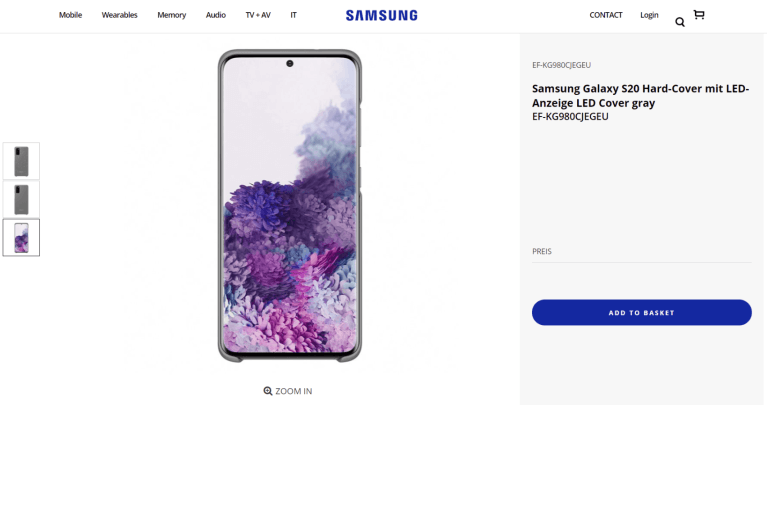
But what’s in a name, really? One thing that’s certainly in line with previous Galaxy releases is the veritable deluge of leaks leaving little to the imagination in the lead-up to the event. We’ve been seeing fairly consistent renders for weeks and months, and earlier this week, what appears to be marketing images have surfaced.

Along with the S20 name, the shots showcase a design scheme featuring a hole punch camera up front (the “Infinity O”) and a long, prominent camera array on the rear. The also-rumored Galaxy S20 Ultra appears to add an even more intense camera array to the mix, including a “Space Zoom 100x,” which would bring a pretty crazy level of zooming capabilities to the smart phone — through, one assumes, a hybrid of digital and optical.

There’s already a lot of camera literature to crawl through here, including the patenting of the term “nonacell.” That, understandably sounds like nonasense, but appears to use pixel binning to create 12-megapixel images from the 108-megapixel sensor. That seems likely to be reserved for the Ultra — one of the versions of the handset, which include the S20 and S20+. All are believed to have a 5G option — logical, given that Samsung was among the first to bring the technology to market.

We have less information about the Galaxy Z Flip, but Samsung’s second foldable appears destined to get some stage time at the show. The device could well be far more accessible than the original Fold. First, there’s the clamshell design that has more in common with the new Motorola Razr than the original Fold. It’s also believed to be a little more rugged — owing to…issues with the original version of the Fold.

Pricewise, the Flip is expected to be, well, pricey — but considerably less so than the Fold. Rumored at around $1,500, it’s $500 less than Samsung’s original foldable.

New versions of Samsung’s quite good Galaxy Buds are expected, as well. The Galaxy Buds+ reportedly offer a large bump in battery, up to a total of 22 hours. Also expected is multi-device connectivity and a $20 price bump.


Read Full Article

How to Cancel an Office 365 Subscription and Get a Refund


office-365

Microsoft Office remains the de facto gold standard when it comes to office productivity suites. The software’s full-featured apps alongside its tight integration with the world’s most popular operating system, Windows, have helped it to amass hundreds of millions of users.

Unlock the "Essential Microsoft Office Shortcuts" cheat sheet now!

This will sign you up to our newsletter

Enter your Email

It makes you wonder why anyone would want to cancel a Microsoft office 365 subscription!

We jest. Office 365 is not right for everyone. Some people don’t need all the bells and whistles that come with the full version of the suite, while others might balk at the high subscription prices—especially given how many excellent free alternatives to Microsoft Office are out there.

How to Cancel Microsoft Office

cancel office 365 subscription

So, if you have decided it’s time to cancel Microsoft Office 365, keep reading. We’re going to how to end your subscription and explain some of the little things you need to be aware of while working through the cancelation process.

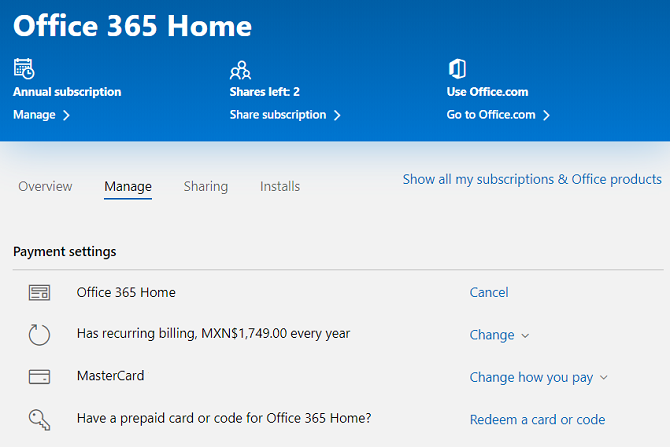
To cancel your Office 365 subscription, follow the instructions below:

  1. Go to account.microsoft.com/services and enter your login credentials.
  2. In the Services and Subscriptions section, locate your subscription.
  3. Click on Manage.
  4. Select Cancel.
  5. In the popup box, select Confirm Cancellation.

Your entitlement to a refund depends on where you are in your billing cycle. According to Microsoft, you can request a refund if either of the two conditions is met:

  • You bought an annual subscription to Office 365 within the last 30 days.
  • You have a monthly subscription and cancel within 30 days of your last renewal.

Should you decide to claim a refund, all your Office apps will immediately go into a reduced functionality mode. You can still use the apps to read and print documents, but you will not be able to edit documents. You will also lose additional Office 365 benefits such as OneDrive storage space and Skype minutes.

Lastly, anyone who you have shared your plan with will also lose access to their Office apps when you cancel an Office 365 subscription.

If you’d like more help determining whether you should subscribe to Office 365 or a pay a one-off fee, check out our guide on the subject.

Read the full article: How to Cancel an Office 365 Subscription and Get a Refund


Read Full Article
What Is a Work OS? The 7 Best Work OS Tools Compared


work-os-explained

You probably know what an operating system is—the underlying software on your computer. It ties software applications and computer hardware together to power the work you do every day.

But what is a Work Operating System (Work OS)? Let’s take a look.

“Work OS” Explained

A Work OS is an emerging software category. It is a type of platform that allows teams to plan, run, and track projects, processes, and everyday work.

A dynamic and thriving workplace will have a Work OS used by almost all level of colleagues (even domestic services in some cases). Teams can collaborate across departments and partner organizations.

Meanwhile, managers, team leads, and even executives can use a Work OS. They might use it all in different ways, but with the same aim.

The Features and Benefits of a Work OS

All Work OS systems are different. Ultimately, however, they should be able to handle all (or most) of the following:

  • Build and manage work blocks to create workflows for any situation
  • Automate workflows to eliminate human error in repetitive tasks and reduce manual work
  • Integrate information from external applications, enabling centralized access and analysis to power data-driven decisions
  • Data capture, aiding flexibility and improvement across the business
  • Data dashboards to communicate different aspects of the same information, depending on role
  • Improving work-related asset sharing to save time locating, loading, and collaborating
  • Tracking progress of live projects, plus details of completed work
  • In-context communication, such as commenting or annotating images from project work
  • Controlled autonomy, allowing teams to work to their strengths

At a basic level, Work OS platforms should enable the users to easily adapt to the software. It should save time and enhance collaboration, integrate with multiple external applications, and adapt to any workflow.

Choosing a Work OS Platform

Various Work OS tools, commonly offered with online collaboration as the key feature, are available. monday.com is perhaps the most famous, along with Notion, Asana, Wrike, and others. But which of these offers the best Work OS hub? The following comparison should help.

1. monday.com

The magic of monday.com is how it enables you to plan, organize, and track work from a “single collaborative space.” monday.com offers easy onboarding, which is ideal for existing teams and newcomers alike. The tools are provided to customize workflows and create custom dashboards.

Six views track progress: calendar, map, chart, files, Kanban, and timeline. In addition, this Work OS supports integrations with popular major software applications. monday.com provides automation, as well as data imports from relevant software.

monday.com offers a free trial, but this won’t be enough for most users. The basic $39 package (based on five users) provides 5GB of storage and activity logged for one week, while the standard $49 package ups this to 50GB for an unlimited duration. The pro package is $79 and adds unlimited storage, logging, sharing, and more.

Huge names such as Hulu, eBay, the BBC, and PayPal use monday.com. Take a look at our overview of monday.com for more info.

2. Airtable

A key competitor of monday.com is Airtable, described as “part spreadsheet, part database, and entirely flexible.”

“Airtable blocks” are the key to this tool, enabling the creation of custom workflows. These can cover almost any eventuality. Meanwhile, you can track project progress with five views: grid, calendar, Kanban, gallery, and form.

The free option from Airtable has most of the key features, but skips admin and advanced functionality. You can’t unlock these with the $10/month Plus package; instead it increases the records, attachment space, and revision history. For $20 a month, Pro increases these further, while unlocking admin features.

You won’t get the advanced toys (largely customization and password-protected shares) without the Enterprise solution. As far as name recognition, Airtable can be found on the systems of 80,000 of the world’s leading companies, including BuzzFeed, Box, and Expedia.

3. Asana

Is Asana the Work OS for you?

Asana is a popular tool among online publishers. It offers six views for team members and project managers alike to rely on. These views (list, board, timeline, calendar, progress, forms) provide all relevant information to the successful completion of projects. Task syncing adds oversight to ongoing work.

Asana also supports time-saving workflow automation, along with app integrations of popular software. Its free package is ideal for individuals and teams stepping into project management for the first time.

For a more comprehensive setup, the Premium $10.99/month package adds advanced features, including an admin console. The Business option super-charges this, adding more features for $24.99.

Nasa and Comcast-NBCUniversal are among the well-known names using Asana.

4. Notion

This is another Work OS platform aimed at helping you and your team “write, plan, collaborate, and get organized.”

Notion comes with a bunch of alternatives to software you’re already familiar with. Its Notes and Docs apps replace Google Docs and Evernote, while Knowledge Base supplants Confluence and GitHubWiki.

Elsewhere, Tasks and Projects provides alternatives to Trello, Asana, and Jira, with Spreadsheets and Databases replacing Google Sheets and Airtable.

Notion includes customizable workflow blocks, a distraction-free focused interface, Markdown support, text shortcuts and commands, and powerful real-time collaboration. As you might expect, there is support for integrations with your usual tools.

The free option from Notion is limited to 1,000 blocks and 5MB of file uploads. The Personal $4/month package is better for newcomers, with unlimited blocks and uploads.

A Team package at $8/member/month is also available, adding admin tools. Meanwhile, the Enterprise package offers the full Notion experience.

The Wall Street Journal and Reddit are just two of the big brands relying on Notion.

5. Smartsheet

A slightly more linear option is Smartsheet, offering a “flexible work execution platform” with integration support for apps and chat tools.

Users can check progress across four views: Gantt, grid, card, and calendar. Meanwhile, Smartsheet supports a wealth of collaboration options, commenting, and attachments, as well as alerts and forms.

Smartsheet offers critical automations for repetitive tasks as well as interactive reporting tools. It’s used by big-hitters Netflix, Cisco, Hilton, and others.

While you can try Smartsheet for free, the Individual package is just $14 a month (billed annually). The Business option is $25/month, adding progress tracking and extended analytics. Enterprise and Premier plans are also available.

6. Coda

Focusing on workflow building blocks and time-saving templates, the company states that “Coda brings all of your words and data into one flexible surface.”

It does this by providing customizable views, based on popular apps. This helps with onboarding, making the unfamiliar seem instantly familiar. Meanwhile, Coda offers third-party app integration and detailed project tracking.

Coda has an unusual approach to billing, with only the “Document Maker” coming at a cost. This means that people viewing and editing documents do so at no charge. A free version supports a small number of integrations—this increases with the Pro plan at $10/month. Larger teams will require the $30/month subscription.

Uber, Spotify, and the New York Times all use Coda in their workflows.

7. Wrike

Is Wrike the Work OS for you??

Wrike has positioned itself as a “cloud-based collaboration and project management software that scales across teams in any business.” To this end, it boasts real-time reports, block-based project workflows, and the all-important Gantt chart view.

The service supports collaboration, including a useful tagging system for providing feedback. In addition, it packs automation tools along with integrations for the biggest desktop and collaborative tools. These include Google, Box, Microsoft, Adobe, and more.

Wrike offers a scalable service, starting with a free shared task list for small teams of up to five users. There’s also a Professional package (for full project planning and collaboration) for $9.80 a month, up to 15 users.

The Business package covers a maximum of 200 users, adding work management, customization, and exec reporting for $24.80 a month. There’s also an Enterprise option, with case-by-case pricing. All paid packages start with a free trial.

It’s a popular Work OS solution, as Mars, Hootsuite, and even Google use Wrike.

Which Is the Right Work OS for Your Team?

Clearly, the various online collaboration and project management solutions that fall under the “Work OS” umbrella are very similar. You might even have tried some of them.

Finding a new tool for a team-based environment is not easy. It must fulfill the requirements of the project at hand, as well as those that will follow. Integration is vital; automation perhaps less so. Stable collaboration and version control is imperative, while ease of use and intuitive onboarding can save hours of training time.

Each of the solutions above offers those qualities. But on the cusp of the era of the Work OS, who will you trust to deliver yours?

What Makes monday.com the Best Work OS?

Productivity matters more than almost anything else. Having the right tools for the job means that your Work OS will be the efficiency hub you need.

Whether you’re overseeing company accounts or project managing a building development, you need a feature-packed Work OS. monday.com offers everything you’ll need, while the alternatives provide subsets of features and functionality, to varying degrees.

It’s time to embrace the concept of the Work OS and access workflows, track progress, communicate, collaborate, and more all in one place.

Read the full article: What Is a Work OS? The 7 Best Work OS Tools Compared


Read Full Article

How to See What’s Trending on Google: A Quick Guide to Google Trends


google-trends-guide

With Google’s ubiquity, seeing what people search for is quite telling. By looking at trending searches, you can easily find what the hottest topics are, which terms people care about, and gain insight into the minds of internet users.

Did you know that Google provides a powerful tool called Google Trends that lets you access and filter through this information with ease? Let’s take a look at Google Trends and see how to find what’s trending right now and much more.

What Is Google Trends?

At its core, Google Trends is a web service where Google lets you check out what’s trending on Google and see what people search for. While useful for business research, it offers a lot of fun for casual use, too.

On the Google Trends homepage, you’ll see some starter examples of topics to explore. These include worldwide interest in the World Cup by country in the past week, and overall interest in the word “cupcake” worldwide since 2004.

Google Trends Example Home


Continue scrolling down, and you’ll see trends inspired by new stories. These include global interest in the Lunar New Year and US interest in the primary elections, at the time of writing.

Further on the page, Google collects recent trends. This is a great way to see what’s trending as it starts to take off.

Near the bottom of the page, you’ll find the neat Year in Search archives. In these, you can find the most popular terms of the year on Google in a variety of categories, like car models, dog breeds, games, and GIFs.

If you like, you can see these summaries for a different country. Google also shows an overview of the year’s biggest stories through search.

That’s just the homepage, though. Google Trends is capable of a lot more.

Searching for Trends on Google

Google Trends really shines when you use it to research something you’re interested in. Enter a search term into the top bar, and you’ll see detailed trends for it.

Depending on what you enter, Google Trends considers it either a search term or topic. For example, if you type Call of Duty, you can choose the generic Search term entry or the more specific Video game series.

Google Trends’s comparison help page explains that search terms show matches for all terms in the given language, while topics are groups of terms across languages.

Google Trends Topic vs Trend


So if you use Washington D.C. as a topic, it will include searches for United States capital and equivalents in other languages. But Washington D.C. as a term will also include partial matches like Washington Nationals, for instance.

Google Trends Search Criteria

Once you enter a search term, you can set a variety of criteria underneath it.

Use the first box to set the region of search. You can choose Worldwide to see everywhere or drill it down to specific regions of a country. For instance, under United States, you can select a state like Virginia to see only information for that area.

Google Trends Choose Region

The second dropdown lets you choose the time frame. The default is Past 12 months, but you can select as recently as the past hour or as far back as 2004. This lets you see trends over years, as well as how a term’s popularity has risen or fallen in the short-term.

Change the All categories box if you want to search in a specific area like Books & Literature. Usually, you can leave this on All categories unless a term has multiple meanings.

Finally, you can change the default Web Search to Image, News, Shopping, or even YouTube Search to see trends on those Google sub-sites.

Google-Trends-Criteria

Once you’ve set your criteria, you’re ready to check out the results!

Google Trends Search Results and Comparison

On the search results page, you’ll see several data visualizations of what you searched for.

One is an Interest over time graph, which charts interest on a relative scale of 0-100 for the time period you’ve chosen. The Interest by subregion lets you see a heatmap of which states, countries, or regions search for the topic most. Mouse around on either of these to see search breakdowns.

Google Trends Single Term

At the bottom, you’ll find related queries and topics.

Comparing Topics With Google Trends

This is interesting on its own, but Google Trends really shines when you use it to compare topics. At the top of the results page, click Compare to add another topic. You can compare up to five terms.

Once you add more, you’ll see them color-coded throughout the page. The region breakdown shows you which areas search most for what items, and the breakdown among them. It’s a really neat way to see what people think of competing topics.

Google Trends Compare Topics


To drill down even deeper, click the three-button Menu on a search term and choose Change filters. This lets you edit the region or time period for one item. You could use this to see how interest for MacBooks in Australia compares to worldwide interest in Computers, to take a potential example.

Exploring What’s Trending on Google

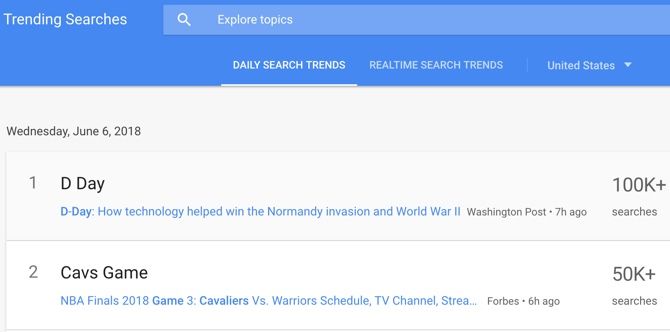
You can have a lot of fun playing with the Explore features above, but other tools reveal more about trending Google searches. Open the left slide-out menu and choose Trending Searches to see what the world is looking for right now.

Google Trending Searches

This page holds the top searches in your area per day, along with their search volume and related stories. It’s a great way to get a snapshot of trending news for each day. Use the dropdown below the search box to look at a different region.

If you’re interested in keeping up with social trends, you can also get email notifications for trending topics. Click the Envelope icon at the top-right of the Daily Search Trends tab to get periodic emails about the biggest topics. You can also subscribe via RSS.

Switch to the Realtime Search Trends tab at the top to see terms that have quickly taken off in popularity.

Subscribing to Google Trends Updates

The Trending Searches tab lets you sign up for notifications about hot topics, but the Subscriptions tab lets you get updates about any term or topic you like. Just click the Plus icon in the bottom-right corner to add a new subscription.

Enter a search term or topic you’re interested in, set the region, and specify whether you’d like updates once a week or once a month.

Google Trends Subscription

If you want regular updates on how a particular term performs but don’t want to check Trends manually, this is a convenient option.

Gain Powerful Insights With Google Trends

We’ve seen what Google Trends offers to those who wonder what’s trending on Google. Whether you just want to peruse the latest trends or dig into detailed comparisons with data visualization, there’s something here for everyone.

It’s fascinating to see what the world searches for. What will you discover with Google Trends? If you’re looking for more search tools, we’ve rounded up the best free keyword tools for your website.

Read the full article: How to See What’s Trending on Google: A Quick Guide to Google Trends


Read Full Article