17 January 2020

Marijuana delivery giant Eaze may go up in smoke


The first cannabis startup to raise big money in Silicon Valley is in danger of burning out. TechCrunch has learned that pot delivery middleman Eaze has seen unannounced layoffs, and its depleted cash reserves threaten its ability to make payroll or settle its AWS bill. Eaze was forced to raise a bridge round to keep the lights on as it prepares to attempt major pivot to ‘touching the plant’ by selling its own marijuana brands through its own depots.

If Eaze fails, it could highlight serious growing pains amid the ‘green rush’ of startups into the marijuana business.

Eaze, the startup backed by some $166 million in funding that once positioned itself as the “Uber of pot” — a marketplace selling pot and other cannabis products from dispensaries and delivering it to customers — has recently closed a $15 million bridge round, according to multiple source. The fund was meant to keep the lights on as Eaze struggles to raise its next round of funding amid problems with making decent margins on its current business model, lawsuits, payment processing issues, and internal disorganization.

 

An Eaze spokesperson confirmed that the company is low on cash. Sources tell us that the company, which laid off some 30 people last summer, is preparing another round of cuts in the meantime. The spokesperson refused to discuss personnel issues but noted that there have been layoffs at many late stage startups as investors want to see companies cut costs and become more efficient.

From what we understand, Eaze is currently trying to raise a $35 million Series D round according to its pitch deck. The $15 million bridge round came from unnamed current investors. (Previous backers of the company include 500 Startups, DCM Ventures, Slow Ventures, Great Oaks, FJ Labs, the Winklevoss brothers, and a number of others.) Originally, Eaze had tried to raise a $50 million Series D, but the investor that was looking at the deal, Athos Capital, is said to have walked away at the eleventh hour.

Eaze is going into the fundraising with an enterprise value of $388 million, according to company documents reviewed by TechCrunch. It’s not clear what valuation it’s aiming for in the next round.

An Eaze spokesperson declined to discuss fundraising efforts but told TechCrunch, “The company is going through a very important transition right now, moving to becoming a plant-touching company through acquisitions of former retail partners that will hopefully allow us to more efficiently run the business and continue to provide good service to customers.

Desperate to grow margins

The news comes as Eaze is hoping to pull off a “verticalization” pivot, moving beyond online storefront and delivery of third-party products (rolled joints, flower, vaping products and edibles) and into sourcing, branding and dispensing the product directly. Instead of just moving other company’s marijuana brands between third-party dispensaries and customers, it wants to sell its own in-house brands through its own delivery depots to earn a higher margin. With a number of other cannabis companies struggling, the hope is that it will be able to acquire brands in areas like marijuana flower, pre-rolled joints, vaporizer cartridges, or edibles at low prices.

An Eaze spokesperson confirmed that the company plans to announce the pivot in the coming days, telling TechCrunch that it’s “a pretty significant change from provider of services to operating in that fashion but also operating a depot directly ourselves.”

The startup is already making moves in this direction, and is in the process of acquiring some of the assets of a bankrupt cannabis business out of Canada called Dionymed — which had initially been a partner of Eaze’s, then became a competitor, and then sued it over payment disputes, before finally selling part of its business. These assets are said to include Oakland dispensary Hometown Heart, which it acquired in an all-share transaction (“Eaze effectively bought the lawsuit,” is how one source described the sale). This will become Eaze’s first owned delivery depot.

In a recent presentation deck that Eaze has been using when pitching to investors — which has been obtained by TechCrunch — the company describes itself as the largest direct-to-consumer cannabis retailer in California. It has completed more than 5 million deliveries, served 600,000 customers and tallied up an average transaction value of $85. 

To date, Eaze has only expanded to one other state beyond California, Oregon. Its aim is to add five more states this year, and another three in 2021. But the company appears to have expected more states to legalize recreational marijuana sooner, which would have provided geographic expansion. Eaze seems to have overextended itself too early in hopes of capturing market share as soon as it became available.

An employee at the company tells us that on a good day Eaze can bring in between $800,000 and $1 million in net revenue, which sounds great, except that this is total merchandise value, before any cuts to suppliers and others are made. Eaze makes only a fraction of that amount, one reason why it’s now looking to verticatlize into more of a primary role in the ecosystem. And that’s before considering all of the costs associated with running the business. 

Eaze is suffering from a problem rampant in the marijuana industry: a lack of working capital. Since banks often won’t issue working capital loans to weed-related business, deliverers like Eaze can experience delays in paying back vendors. A source says late payments have pushed some brands to stop selling through Eaze.

Another drain on its finances have been its marketing efforts. A source said out-of-home ads (billboards and the like) allegedly were a significant expense at one point. It has to compete with other pot purchasing options like visiting retail stores in person, using dispensaries’ in-house delivery services, or buying via startups like Meadow that act as aggregated online points of sale for multiple dispensaries.

Indeed, Eaze claims that its pivot into verticalization will bring it $204 million in revenues on gross transactions of $300 million. It notes in the presentation that it makes $9.04 on an average sale of $85, which will go up to $18.31 if it successfully brings in ‘private label’ products and has more depot control.

Selling weed isn’t eazy

The poor margins are only one of the problems with Eaze’s current business model, which the company admits in its presentation have led to an inconsistent customer experience and poor customer affinity with its brand — especially in the face of competition from a number of other delivery businesses.  

Playing on the on-demand, delivery-of-everything theme, it connected with two customer bases. First, existing cannabis consumers already using some form of delivery service for their supply; and a newer, more mainstream audience with disposable income that had become more interested in cannabis-related products but might feel less comfortable walking into a dispensary, or buying from a black market dealer.

It is not the only startup that has been chasing that audience. Other competitors in the wider market for cannabis discovery, distribution and sales include Weedmaps, Puffy, Blackbird, Chill (a brand from Dionymed that it founded after ending its earlier relationship with Eaze), and Meadow, with the wider industry estimated to be worth some $11.9 billion in 2018 and projected to grow to $63 billion by 2025.

Eaze was founded on the premise that the gradual decriminalisation of pot — first making it legal to buy for medicinal use, and gradually for recreational use — would spread across the US and make the consumption of cannabis-related products much more ubiquitous, presenting a big opportunity for Eaze and other startups like it. 

It found a willing audience among consumers, but also tech workers in the Bay Area, a tight market for recruitment. 

“I was excited for the opportunity to join the cannabis industry,” one source said. “It has for the most part has gotten a bad rap, and I saw Eaze’s mission as a noble thing, and the team seemed like good people.”

Eaze CEO Ro Choy

That impression was not to last. The company, this employee was told when joining, had plenty of funding with more on the way. The newer funding never materialised, and as Eaze sought to figure out the best way forward, the company cycled through different ideas and leadership: former Yammer executive Keith McCarty, who cofounded the company with Roie Edery (both are now founders at another Cannabis startup, Wayv), left, and the CEO role was given to another ex-Yammer executive, Jim Patterson, who was then replaced by Ro Choy, who is the current CEO. 

“I personally lost trust in the ability to execute on some of the vision once I got there,” the ex-employee said. “I thought that on one hand a picture was painted that wasn’t the truth. As we got closer and as I’d been there longer and we had issues with funding, the story around why we were having issues kept changing.” Several sources familiar with its business performance and culture referred to Eaze as a “shitshow”.

No ‘Push For Kush’

The quick shifts in strategy were a recurring pattern that started well before the company got tight financial straits. 

One employee recalled an acquisition Eaze made several years ago of a startup called Push for Pizza. Founded by five young friends in Brooklyn, Push for Pizza had gone viral over a simple concept: you set up your favourite pizza order in the app, and when you want it, you pushed a single button to order it. (Does that sound silly? Don’t forget, this was also the era of Yo, which was either a low point for innovation, or a high point for cynicism when it came to average consumer intelligence… maybe both.)

Eaze’s idea, the employee said, was to take the basics of Push for Pizza and turn it into a weed app, Push for Kush. In it, customers could craft their favourite mix and, at the touch of a button, order it, lowering the procurement barrier even more.

The company was very excited about the deal and the prospect of the new app. They planned a big campaign to spread the word, and held an internal event to excite staff about the new app and business line. 

“They had even made a movie of some kind that they showed us, featuring a caricature of Jim” — the CEO at a the time — “hanging out of the sunroof of a limo.” (I’ve been able to find the opening segment of this video online, and the Twitter and Instagram accounts that had been created for Push for Kush, but no more than that.)

Then just one week later, the whole plan was scrapped, and the founders of Push for Pizza fired. “It was just brushed under the carpet,” the former employee said. “No one could get anything out of management about what had happened.”

Something had happened, though: the company had been taking payments by card when it made the acquisition, but the process was never stable and by then it had recently gone back to the cash-only model. Push for Kush by cash was less appealing. “They didn’t think it would work,” the person said, adding that this was the normal course of business at the startup. “Big initiatives would just die in favor of pushing out whatever new thing was on the product team’s radar.” 

Eaze’s spokesperson confirmed that “we did acquire Push For Pizza . . but ultimately didn’t choose to pursue [launching Push For Kush].”

Payments were a recurring issue for the startup. Eaze started out taking payments only in cash — but as the business grew, that became increasingly problematic. The company found itself kicked off the credit card networks and was stuck with a less traceable, more open to error (and theft) cash-only model at a time when one employee estimated it was bringing in between $800,000 and $1 million per day in sales. 

Eventually, it moved to cards, but not smoothly: Visa specifically did not want Eaze on its platform. Eaze found a workaround, employees say, but it was never above board, which became the subject of the lawsuit between Eaze and Dionymed. Currently the company appear to only take payments via debit cards, ACH transfer, and cash, not credit card.

Another incident sheds light on how the company viewed and handled security issues. 

Can Eaze rise from the ashes?

At one point, employees allegedly discovered that Eaze was essentially storing all of its customer data — including users’ signatures and other personal information — in an Azure bucket that was not secured, meaning that if anyone was nosing around, it could be easily discovered and exploited.

The vulnerability was brought to the company’s attention. It was something that was up to product to fix, but the job was pushed down the list. It ultimately took seven months to patch this up. “I just kept seeing things with all these huge holes in them, just not ready for prime time,” one ex-employee said of the state of products. “No one was listening to engineers, and no one seemed to be looking for viable products.” Eaze’s spokesperson confirms a vulnerability was discovered but claims it was promptly resolved.

Today, the issue is a more pressing financial one: the company is running out of money. Employees have been told the company may not make its next payroll, and AWS will shut down its servers in two days if it doesn’t pay up. 

Eaze’s spokesperson tried to remain optimistic while admitting the dire situation the company faces. “Eaze is going to continue doing everything we can to support customers and the overall legal cannabis industry. We’re excited about the future and acknowledge the challenges that the entire community is facing.”

As medicinal and recreational marijuana access became legal in some states in the latter 2010s, entrepreneurs and investors flocked to the market. They saw an opportunity to capitalize on the end of a major prohibition — a once in a lifetime event. But high government taxes, enduring black markets, intense competition, and a lack of financial infrastructure willing to deal with any legal haziness have caused major setbacks.

While the pot business might sound chill, operations like Eaze depend on coordinating high-stress logistics with thin margins and little room for error. Plenty of food delivery startups from Sprig to Munchery went under after running into similar struggles, and at least banks and payment processors would work with them. With the odds stacked against it, Eaze has a tough road ahead.


Read Full Article

A path to security for the world's deadliest countries | Rachel Kleinfeld

A path to security for the world's deadliest countries | Rachel Kleinfeld

You are more likely to die violently if you live in a middle-income democracy with high levels of inequality and political polarization than if you live in a country at war, says democracy advisor Rachel Kleinfeld. This historical shift in the nature of violence presents an opportunity: because while few people can do much to end war, regular voters can be the greatest force for change in rotten democracies. In an eye-opening talk, Kleinfeld unravels the causes of violence around the world and offers a path to security for the world's deadliest countries.

Click the above link to download the TED talk.

Want to Edit Your Tweets? Twitter Won’t Let You


If you were hoping to be able to edit your tweets anytime soon then we have some bad news for you. Because Twitter co-founder and CEO Jack Dorsey has suggested that it’s “probably never” going to happen. So, while it isn’t impossible, it’s highly unlikely.

A Brief History of the Twitter Edit Button

Ever since Twitter was launched way back in 2006, users have been asking for an Edit button. It’s easy to see why. We all make mistakes, whether it’s as simple as making a typo or as serious as expressing an opinion that you later regret airing in public.

In 2017, Jack Dorsey stated that Twitter was thinking about letting users edit their tweets. Then, in 2019, he suggested it was still a work in progress, telling Joe Rogan that the company was trying to figure out how to add an Edit button without ruining Twitter.

Jack Dorsey Won’t Let You Edit Your Tweets

Now, Dorsey has broached the subject again, but not in a good way. In a video Q&A with Wired, Dorsey discussed the possibility of adding an Edit button to Twitter. Asked whether we’ll be getting an Edit button in 2020, he simply says, “No”.

He then goes onto explain why Twitter has never let users edit their tweets. Which is all to do with its reliance on SMS messaging in its early days. He also explains the potential pitfalls of adding an Edit button, especially with regard to retweets.

He concludes by saying, “But we’ll probably never do it”. While “never” is a strong word, the use of “probably” leaves the door open for Twitter to change its mind in the future. After all, it once decried the idea of doubling the character limit from 140 to 280.

You can see Dorsey discussing the Edit button from the 2:57 mark in the video embedded above. Fans of Twitter should probably watch the whole thing though, as there is a host of good information and interesting insights from behind the curtains at Twitter.

How to Delete All of Your Tweets Instead

Everything Dorsey says here about the pros and cons of offering users the chance to edit their tweets makes sense. However, it’s still disappointing that the naysayers at the company are winning out, and preventing us from being able to edit our tweets.

It all means that people are taking the nuclear option and deleting their tweets instead. Especially if they think they have said something in the past that could get them in trouble in the future. If that describes you then here’s how to delete all of your tweets.

Read the full article: Want to Edit Your Tweets? Twitter Won’t Let You


Read Full Article

4 Mobile Linux Distros and Interfaces You Can Run on the PinePhone


linux-distros-pinephone

You can’t run fully open versions of Linux on an Apple iPhone or even an Android device, despite the latter running Linux underneath. So Pine Microsystems has created the PinePhone, a budget priced smartphone capable of running mobile versions of traditional “desktop” Linux.

Several mobile interfaces for Linux support the PinePhone. That’s exciting, but it also means you have a decision to make. Which one is right for you?

What Linux Interfaces Does the PinePhone Support?

Free and open source software developers have created several mobile-oriented interfaces over the years, but they’ve lacked a phone to run them on. That’s the itch the PinePhone from Microsystems is here to scratch.

The PinePhone is not a powerful device. Similar to the Pinebook and Pinebook Pro before it, the PinePhone skimps on specs in order to make the device accessible to the largest number of people.

Free software developers and many free software users often don’t have piles of cash in reserves to spend on new hardware. The low price enables more people to create the software and more people to use it.

A number of mobile open source Linux interfaces are already floating around out there. Four have made their made to the Pine Phone:

  1. Ubuntu Phone
  2. Plasma Mobile
  3. GNOME (also known as Phosh)
  4. LuneOS

Three of these are mobile versions of desktop Linux interfaces. The other, LuneOS, began as a mobile-only experience.

1. Ubuntu Touch

Canonical once dreamed of providing a free and open source operating system for all kinds of devices. The company’s Ubuntu distribution was already the most popular version of desktop Linux and an alternative to the likes of Windows, macOS, and Chrome OS. With Ubuntu Touch, there would be a free alternative to Android and iOS as well.

Though Canonical successfully released a few devices that ran Ubuntu Touch, the project never became commercially successful. In 2017, Canonical shuttered the project and the UBports community took over development.

Ubuntu Touch is the easiest option to install on devices other than the PinePhone. Already supported devices include the Nexus 5, OnePlus One, and Fairphone 2. You can download additional apps from the OpenStore, the official volunteer-run Ubuntu Touch app store.

Given that Ubuntu Touch enjoyed a couple years on the market, and the project already exists in a form that people can install on existing phones, a decent number of apps are already available.

Who Is Ubuntu Touch For?

Ubuntu Touch is for anyone who wants a free alternative to Android or iOS who can do without the popular commercial apps that are only available for those two platforms. Ubuntu Touch will also feel familiar to the many people already comfortable with desktop Ubuntu.

2. Plasma Mobile

Plasma Mobile is an effort to adapt the KDE Plasma desktop environment to a smartphone form factor. The project makes use of various KDE technologies such as KDE Frameworks and Kwin.

Many of the apps you run on Plasma Mobile are the same that you install on a Plasma desktop. This is where Kiragami comes in, KDE’s effort to design apps in a more adaptive way.

The vision is for Plasma mobile to be very customizable, like Plasma on the desktop. As the project matures, you will be able to add widgets, change themes, tweak fonts, and the works.

There are multiple ways to install Plasma Mobile. The official image is based on KDE Neon, but you can also use PostmarketOS, which is akin to a traditional Linux distribution for mobile devices. It’s possible to install Plasma Mobile on the Nexus 5, though the experience isn’t yet as mature as Ubuntu Touch.

Who is Plasma Mobile For?

Plasma Mobile may most please people who love the KDE Plasma desktop environment and want to use much of the same software on their phone.

3. GNOME (Phosh)

GNOME dominates among desktop Linux interfaces, but its mobile incarnation is the least mature. While the other three options on this list were usable on pre-existing phones in one form or another, mobile GNOME is making its debut alongside the release of GNU/Linux smartphones.

That’s not to say that GNOME is the least ready. Since Purism has chosen GNOME as its interface for the Librem 5, development is taking place at a rapid pace. The interface is known as Phosh, short for phone shell.  It could very quickly become the most viable of the options for more casual users.

GNOME Mobile benefits from the touch-oriented design of the GNOME desktop in general. Many apps are able to shrink down to the smaller form factor without changing all that much in look or feel. GNOME Web, for example, is the same browser running the same code on desktops and mobile devices alike. You can already see how well apps adapt by resizing windows on a computer running GNOME.

While much GNOME Mobile development is oriented toward the Librem 5, that is a significantly more expensive device than the PinePhone. So there will likely be an audience of GNOME fans who carry a PinePhone instead.

Who is GNOME For?

GNOME is the default interface in distros such as Ubuntu and Fedora. It also comes pre-installed on machines from Linux PC makers System76 and Purism. If you like that experience on your computer, the phone offers consistency. GNOME is also one of the options likely to feel most familiar for people coming over from Android or iOS.

4. LuneOS

In 2009, Palm developed an mobile OS for phones called webOS, which debuted on the Palm Pre. A year later, HP bought webOS and used it as the OS for the HP TouchPad and a couple of phones.

HP discontinued all webOS devices just under 50 days after launching the TouchPad. The company then open sourced code used on its existing webOS devices, which it called Open webOS.

LuneOS was born a few years later, in 2014, as a successor to webOS. Though LuneOS shares much in common with the Palm and HP devices, developers have rebuilt the interface from scratch using Qt and other technologies. The name comes from the French word for moon and refers to the LunaSysMgr interface in webOS.

While webOS never gained prominence on mobile devices, several design elements were adopted on other operating systems. So even though LuneOS is not based on an existing desktop interface, you may feel at home regardless.

Who is LuneOS For?

LuneOS is for people who love the feel of webOS and can get by with the limited set of built-in software. Expanding app support is not a core priority for the team.

PinePhone vs the Librem 5

The PinePhone is hitting the market more or less at the same time as Purism’s Librem 5. That invites comparisons between the two.

The PinePhone is more affordable and shaped more like a traditional smartphone, though it has a cheaper feel and lower specs. Pine Microsystems also does not develop the software for the phone, so you’re reliant on various communities for support.

By comparison, the Librem 5 is a more powerful device with a more premium feel and direct support from a single company, but you’re looking at paying three or four times the cost.

If you haven’t already made the switch to Linux on your PC, maybe now’s the time to pick up a Linux-powered computer too.

Read the full article: 4 Mobile Linux Distros and Interfaces You Can Run on the PinePhone


Read Full Article

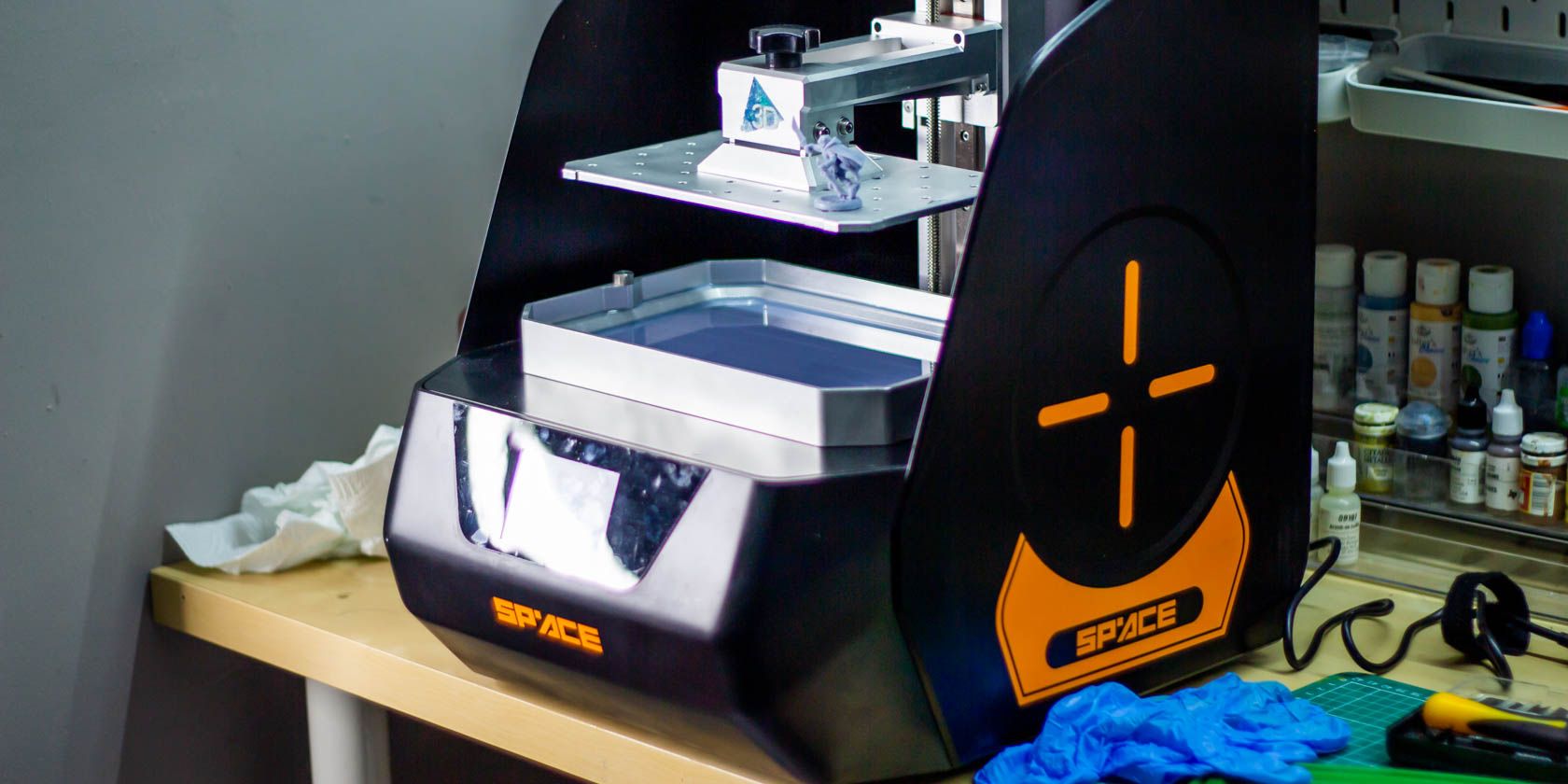
Space 3D Review: Affordable Large Format Resin Printer


space 3d resin printer kickstarter
Our verdict of the Space 3D:
An all-metal design results in a sturdy device and reliable printing. The build volume is unparalleled at this price point, but equally such a large build plate makes this awkward for beginners to resin printing. Those looking for larger resin prints can save during the Kickstarter, but that comes with inherent risks.
910

3D printing is now a part of everyday lexicon with filament-based FDM printers to be found in schools, libraries, and homes all over the world. But it’s only in the past year or so that stereolithographic (SLA) resin printing has come down in price to be accessible to the home user too. So far we’ve seen incredible quality prints from a few consumer resin printers, but with one very limiting factor: the build volume is tiny.

Space 3D from 123dimension promises to change that, offering an affordable and uniquely large-format resin printer for less than $700 during their Kickstarter, rising to a claimed RRP of $1100 later. The campaign is running until Saturday 18th January, so be quick if you’re interested.

What Makes Space 3D Different?

Two things make the Space 3D different from existing printers.

Firstly, the large build plate and 10.1-inch 2K resolution screen enable a much larger overall print volume. This means you can either print larger objects (obviously), or you can print multiple smaller objects at once. This is significant because a resin printer takes the same amount of time to print per layer, regardless of how much is on the build plate–so you might as well fill it up with objects. This is in contrast to an FDM printer, where increasing complexity means more movements and therefore a longer print. A resin printer produces an entire layer each time.

28mm scale mini for comparison

The second biggest feature of the Space 3D is an all-metal design. Plastic has a tendency to warp over time and isn’t as stable during printing. When you’re dealing with measurements in microns, accuracy is important to successful printing. The all-metal design of the Space 3D enables it to print reliably with no wobble or shaking, and with longer service life.

Of course, it also makes it significantly heavier, weighing around 22 pounds (10kg).

Space 3D Specifications

  • Build volume XZY 8.5 x 5.3 x 7.9 inches (215 x 135 x 200 mm).
  • Machine size: 14 x 16.5 x 19.7 inches (356 x 420 x 500 mm).
  • XY resolution 85?m; Z resolution 10?m; layer height 25-100?m.
  • 140W UV LED matrix.
  • 10.1″ 2K (2560 x 1600px) resolution UV mask screen.
  • All-metal build.
metal y-axis of space 3d
The all-metal design of Space 3D results in reliable printing.

Slicing with ChituBox

All 3D printers require a 3D object file to be prepared before printing. A piece of software “slices” the print into layers and translates those into codes that the machine can understand.

For the Space 3D printer, that process requires you to use ChituBox, available for all common platforms. I had some issues importing the configuration files supplied, though this appears to be a Mac OS bug rather than an issue with the files. Opening them up and manually copying over the settings was trivial.

chitubox software for space 3d

From there, simply drag in the object, re-orient if needed, then add supports. Just like a filament printer, resin printers will have issues with overhangs in the model. Everything must be connected to something on the build plate. Otherwise, it would simply solidify on the FEP film at the bottom of the resin, and not be pulled out when the build plate rises back up again.

For the most part, I found the auto-generated supports worked fine, but I did have a few models that failed, so it’s a good idea to learn how to examine the supports and verify they’ve been generated correctly.

Sample Prints

After a failed attempt at using some LCD-W water washable resin (which apparently requires a longer exposure time, and even then it’s tricky to print with), I picked up some Elegoo Grey. There’s a variety of resins available as add-ons when you back the Kickstarter, but these weren’t ready for testing yet.

This was the first selection of models, all done in a single 8-hour print. This was at 50 microns with heavy supports. This level of supports proved to be quite difficult to remove cleanly, but other than that, the detail was incredible.

50 microns print sample 1 on space 3d

50 microns print sample 2 space 3d

My next prints were two larger models and one smaller, all at 25 microns and medium auto-generated supports. One of the larger models failed, but two came out fine.

25 microns print sample 3
The models I tried at 25 microns were from the January Cast’n’Play Patreon releases.

The supports were a lot simpler to remove, but still not as clean as I’d like. I’m confident the Space 3D can print reliably though, and any failures were my fault. Learning how to optimize supports is the biggest hurdle to the best quality results here, which is great: that’s a skill that can be learned.

25 microns print sample 4 space 3d

Washing and Curing

For those of you new to resin printing, you should know that it’s not as simple as pouring in some resin and hitting the print button. There’s a lot of clean-up and post-processing involved–far more than filament-based printers.

Space 3D mid-print

After scraping the print off the build plate, you’ll need to wash everything with isopropyl alcohol (IPA), which is highly flammable and noxious. If one of your prints has failed, you may need to pour the resin out of the tank and filter out the solid residues; failure to do so will result in damage to the screen when you print again.

Space 3D includes a handy “one-button cleaning” function, whereby a single layer is cured, which you can then peel out of the resin tank. This will have bonded with any failures. I certainly appreciated this feature.

Peeling out a failed print after one-button cleaning function

You also need to do a final cure on your successful prints. The best way to do this is to submerge them in a bath of water, with a UV light around them. I picked up a cheap nail curing device with a 30s timer, which I precariously balanced over a small tub. A few minutes was enough.

You’ll use a lot of IPA with a device this large, though you can reuse it to some extent between prints. You’ll need a sealed container big enough to store that of course, which is where the large build plate and resin vat of the Space 3D becomes its biggest annoyance.

The build plate is particularly heavy, making it awkward to hold one-handed while wiping with another. I struggled to find a container big enough to fit the build plate. With smaller devices, you can put them in a sealed sandwich box, so you can shake vigorously to clean everything.

For that reason alone, I don’t recommend the Space 3D printer for beginners: start with something smaller. Once you’re comfortable with resin, IPA, the cleaning processes, and find yourself wanting to print larger, then consider upgrading.

Kickstarter Disclaimer

Our thoughts, images and videos are of the prototype Space 3D device sent to us for review, of which we’ve had very limited time with due to customs and delivery mishaps. We cannot guarantee anything will be fulfilled, only comment on what we have been given.

There is always an inherent risk when backing any Kickstarter, and you should not treat Kickstarter as a pre-order system with a guaranteed final product. I’ve personally put thousands of dollars into products that just haven’t materialized (in one instance, the creator was jailed for murder). I’ve backed many more that have succeeded, but the point is: please don’t part with any money that you couldn’t afford to lose.

My experience tells me that the Space 3D Kickstarter is not a scam, and that they have a genuine product they’d like to mass-produce. But at the very least, nearly all hardware projects suffer from delays. Creators are inherently optimistic about schedules, so factor that in if you’re looking at a particular project deadline.

Should You Back the Space 3D?

If you’re experienced with resin printing and in need of something larger, this could be a great opportunity to grab a bargain on the Space 3D Kickstarter before it hits retail, by helping the creators to bring this device to production. The detail is incredible, and if you know what you’re doing, you should never get a failed print.

On the other hand, if you’re a complete beginner to 3D printing or even just resin printing, I wouldn’t recommend Space 3D as a suitable entry point. Get something smaller like the Elegoo Mars to gain experience in the preparation, cleanup and curing process.

Win the Space 3D Prototype

We’re giving away our prototype to one lucky reader. Please note, due to the sheer size and weight of this printer, the competition is open to United Kingdom residents only. To enter, please make sure you answer the question of what you’ll do with the printer, as we’d love it to go to a home that’ll make good use of it. Good luck!

Enter the Competition!

Space 3D Prototype Giveaway

Read the full article: Space 3D Review: Affordable Large Format Resin Printer


Read Full Article

How to Insert a Horizontal or Vertical Line in Microsoft Word


insert-line-ms-word

Lines are a basic design element. In Microsoft Word, a horizontal or vertical line can divide a document and guide the flow of the text. You can insert a line in Word and format it in different ways to change a humble line into something more appealing.

Unlock the "Essential Microsoft Office Shortcuts" cheat sheet now!

This will sign you up to our newsletter

Enter your Email

You do know how to add a line in Word. It’s so simple after all. But if you don’t know all the ways to do it, then this primer is for you.

Let’s find out how to insert a horizontal and vertical line in Word, and the few ways we know to draw them.

The Quick Way: How to Insert a Line in Word With the Keyboard

Did you know that you can quickly add a line in Word by typing a few characters? Word’s AutoFormat feature types stuff for you as you type it. You may have already seen it in action when it creates automatic bulleted lists.

You can not only insert a line but also add lines with different designs. Here’s how it works:

Place the cursor in the spot where you would like to start your horizontal line.

Then, type three characters for any of the possible line styles you see in the screenshot below. Press Enter.

For example, to draw a dotted line, type *** and press Enter.

Different types of AutoFormatted Lines in Word

As you will see, you will get six variations of the standard horizontal line.

  • Plain single line with three hyphens (—)
  • Broken or dotted line with three asterisks (***)
  • Plain double line with three equal signs (===)
  • Bold single line with three underline symbols (___)
  • Triple line with a thick center with Three number signs (###)
  • Wavy line with three tildes (~~~)

The line takes up the entire width of the page. When added inside a column, the line is inserted to match the width of the column. If you want to add text above or below the line, put your cursor where you want the text and begin typing.

You will also notice a tiny AutoCorrect Options button pop up next to the line. This is a shortcut that allows you to undo the automatic line when you don’t need it, stop them altogether, or dive into the AutoFormat options dialog.

AutoFormat Button in Microsoft Word

You can turn off these lines permanently from the AutoFormat options dialog.

Go to AutoFormat As You Type tab > Apply as you type section > uncheck Border lines.

Insert a Horizontal Line From the Ribbon

If you find AutoCorrect annoying and disabled the option, there’s another quick way to add a horizontal line.

1. Place your cursor where you want to insert the line.

2. Go to the Home tab and then click the dropdown arrow for the Borders option in the Paragraph group.

3. Select Horizontal Line from the menu.

Insert horizontal line in Microsoft Word

4. To tweak the look of this horizontal line, double-click the line. The Format Horizontal Line dialog box enables you to modify the width, height, color, and alignment of the line.

Format horizontal line dialog box in Word

5. To resize a line, select the line with a double click and then drag any of the resizing points to change the length or width.

6. To remove the line, select it and press Delete on your keyboard.

Use Borders to Add Horizontal and Vertical Lines

The Borders option in the Paragraph group also gives you another way to insert a top or bottom border that resembles a horizontal line in the document.

1. Click on the paragraph of text where you want the line to appear.

2. Got to Home and the Paragraph group. Click on the Border button.  The Bottom border is usually the default. This places a line below the text you have selected on the page or the paragraph if you haven’t selected any text.

Screenshot of Word's Border and Shading button

3. For other options (like a vertical border), you can click on the tiny dropdown arrow on the Borders button to access a list of options.

Adding a Vertical Border in Word

4. To change the look of any border, click on Borders and Shading. Use the dialog to adjust the style, color, and width of the border.

5. Deleting this horizontal line in your Word document may not be obvious but it easy enough.

Use Shapes to Insert a Horizontal or Vertical Line in Word

The Shapes menu contains several line options. These line shapes come with one important difference—you can draw them at different angles. Then, after you draw the line, you can customize the color and appearance to make decorative horizontal or vertical lines anywhere in the document.

1. Position the cursor where you want to insert a line.

2. Go to Insert > Illustrations group > Shapes dropdown arrow.

3. In the Lines group, choose the shape of the line.

Screenshot of Lines shapes in Word

4. Click and drag across the document with the mouse pressed till the endpoint. (Tip: Hold down the Shift key to insert a straight line that is either horizontal or vertical)

5. Keep the line selected to customize the appearance of the line with the Shape Format tab on the Ribbon.

Shape Effects and Styles for a straight line in Word

6. Go to the Shape Styles tab and change the color, use a different line style, or apply effects.

7. You can also right-click on the line and choose Format Shape from the context menu to open more options for changing the look.

How to Add a Vertical Line and Separate Text into Columns

Text arranged into columns is a basic layout technique. You can separate any block of text into multiple columns and also insert a vertical line between them.

1. Select the text.

2. Go to Ribbon > Layout > (Page Setup group) Columns. Click on the dropdown and select the number of columns you want.

Change layout to columns in Word

3. The text is now arranged into columns. Click on any column and go to Layout > Columns > More Columns.

4. In the Columns dialog box, check the Line Between box and click OK.

Adding Vertical lines between columns

Note that you can change the number of columns and the spacing between them from this dialog too.

Use a Bar Tab to Add a Vertical Line

Tab stops in Word help align lines and paragraphs. The bar tab, on the other hand, doesn’t set a tab stop. It inserts a vertical line and demarcates your paragraph into columns.

1. Select the paragraph where you want to add the vertical line.

2. Go to Ribbon > Home. In the Paragraph group click the tiny arrow to open the Paragraph Settings.

Paragraph Settings in Word

3. Click the Tabs button at the bottom of the dialog.

4. In the Tab stop position box, enter the position where you want the vertical line to appear. You can use the ruler at the top of the screen to gauge a value to enter.

5. Click the Bar button in the Alignment section. Click on Set and OK.

As you can see, I have set it to “-0.2” to make it appear just to the left of the first paragraph. To delete the vertical line, delete the bar tab.

Using a bar tab for a vertical line in Word

Also: Want to make blank lines where the reader can fill in some information? You can use tabs to quickly create empty lines in forms with Microsoft Word.

Draw a Line in Your Word Document

Horizontal lines are more obvious and common. But adding vertical lines at the right place can boost the visual appeal of your content. Lines aren’t mere decorations… they can lead your eye to the most important part of a document when used with subtlety.

Think about lines and use these methods the next time you sit down to write a professional report with Microsoft Word.

Read the full article: How to Insert a Horizontal or Vertical Line in Microsoft Word


Read Full Article

Wyze Exposed Customer Data: 6 Ways to Keep Your Home Security System Safe


home-security-safe

The large breach which affected security camera manufacturer Wyze left the data of millions of users potentially exposed on the internet.

This is just one example of threats to home security systems. Read on to find out what happened and to learn how to secure your system.

What Happened in the Wyze Breach?

Wyze breach - what happened

Right at the end of 2019, security firm Twelve Security revealed in a blog post that they had uncovered a massive data breach of home security camera manufacturer Wyze. The data of up to 2.4 million users had been left on a publicly accessible database, affecting anyone who created a Wyze account before December 26th 2019.

The data leak was confirmed by Wyze, who said they would launch an investigation into what happened and warn affected customers in an email. It appears that a Wyze employee copied a database of user information to try out a new database format, but failed to secure the database correctly. The database was left open on the internet for several weeks. During this time, anyone with sufficient knowledge could access customer data.

What Data Was Stolen?

Data breaches happen to many companies. What was scary about the Wyze leak was just how much personal data was mishandled. According to Twelve Security, the leaked data included the following information:

  • Username and email of those who purchased cameras and then connected them to their home.
  • Email of anyone the user ever shared camera access with such as a family member.
  • List of all cameras in the home, the nicknames for each camera, device model, and firmware.
  • Wi-Fi SSID, internal subnet layout, last on time for cameras, last login time from app, last logout time from the app.
  • API tokens for access to the user account from any iOS or Android device.
  • Alexa tokens for 24,000 users who have connected Alexa devices to their Wyze camera.
  • Height, weight, gender, bone density, bone mass, daily protein intake, and other health information for a subset of users.

In its response, Wyze said it does not collect information about bone density or protein intake. But it did not deny the rest of the information had been leaked.

How Home Security Systems Can Be a Security Risk

Wyze breach - security risks
Image Credit: blasbike/DepositPhotos

It’s ironic that something you buy in order to keep your home secure can itself be a security risk. But like all IoT (Internet of Things) devices, security cameras for the home cause potential security issues.

The more data you give to a system, the more of a problem it can cause when a breach occurs. As security systems will often include highly personal data such as video feeds of you and your family going about your day, you want to be extra careful with these devices.

It’s not only data breaches that you need to worry about. Security devices themselves can be hacked too. For example, in December 2019 it was revealed that hackers managed to breach Ring security cameras. Hackers were even able to send unpleasant and threatening messages through the cameras.

Finally, like other IoT devices, home security cameras are vulnerable to hacking as people often forget to change their default passwords. This makes them very easy to access.

How to Protect Your Home Security System

Wyze breach - protect your home security sytem

So what should you do if you have a home security system and you want to keep it secure? There are a few simple steps you can take to reduce the likelihood of your system becoming a security risk.

1. Enable Two-Factor Authentication

Whether it is from Wyze or another manufacturer, your security system likely has login information. This is the username and password that you use to log in to apps and websites. Make sure you use a strong password for this, and definitely don’t reuse an old password. To improve the general security of your account, you should enable two-factor authentication where possible. This will make it harder for anyone to access your account without your knowledge.

However, do be aware that there are risks and downsides to two-factor authentication. In the case of the Wyze hack, even customers who had strong passwords and two-factor authentication enabled weren’t protected, as the company was careless with their data.

2. Consider the Reputation of the Manufacturer

When you choose a home security system, you might look at factors like ease of installation, features of the cameras, the quality of the smartphone app, and price. But you shouldn’t forget that you are entrusting your security to the company who manufactures the device and collects the data.

Take some time to look into different device manufacturers and to check their data policies. What kind of data will they collect? Will they sell that data to third parties? Do they have a history of security breaches?

If you have doubts about trusting a company with highly personal data, you could consider building your own security system instead. That way, you can remain in control of all your data yourself.

3. Check Whether Live Feeds Are Enabled

Many home security cameras will only activate and start recording at preset times, or when you enable them, for example when you’re going on vacation. But some cameras also have a live feed option. This is where the camera will record everything it sees and may save this video or send it to the cloud. This can be useful, for example if you’re at work and you want to see what’s happening at your house in real time.

However, you might not like the idea of a camera observing you while you’re relaxing at home. So always check whether live feeds are enabled, as some cameras come with this option enabled by default. Also, don’t forget to check this setting after you update your software or reconfigure your cameras.

4. Add a Password to Your Router

When considering security threats on your home network, it’s easy to overlook the main hub of your network, the router. A report by security company ESET from 2019 found that 57 percent of surveyed US users either hadn’t changed their router’s default password or didn’t know if it had been changed.

You should absolutely enable password protection on your router and change it from the default option to keep your home network secure. Even if devices like security cameras have good security, they are still vulnerable through your router if you haven’t changed the password.

5. Add a VPN to Your Router

One problem with trying to secure IoT devices is that they often don’t support VPN use. Adding a VPN to your computer or phone is one of the best ways to improve your security, but it’s not always possible to do this with devices like security cameras.

There is a way to add VPN protection to your entire network though, including not only any computers or phones connected to your Wi-Fi but also including other devices like cameras, games consoles, or smart TVs—set up a VPN on your router. Not all routers support this. But if yours does, you can use it to secure every device on your network including your security system.

6. Keep Your Firmware up to Date

Finally, it’s important for all your devices to keep your firmware up to date. This is especially important for security devices. When manufacturers discover security vulnerabilities, they will update the software to protect against them. So if your devices aren’t up to date, they are vulnerable.

Make a point to check the manufacturer’s website to see when software updates are available. And set up automatic updates if you can so your devices will be updated as soon as possible.

DIY Your Own Security System

Although companies design home security systems to keep you safe, they can in fact cause security problems of their own. Make sure you research and trust the manufacturer of cameras before you buy them. And don’t forget to take steps like changing the password and securing your home network.

If you want to mitigate some of these risks, you could try creating your own security camera system using Linux software.

Read the full article: Wyze Exposed Customer Data: 6 Ways to Keep Your Home Security System Safe


Read Full Article

Is Ubuntu Special? 6 Things That Set Canonical’s Linux Distro Apart


special-ubuntu

When you discover Linux for the first time, Ubuntu is likely to be one of the first recommendations. You may have even come across Ubuntu before learning about Linux itself. What makes Ubuntu so special? How is it different from other versions of Linux (known as Linux distributions)?

The short answer is “not much.” Once you learn how to use Ubuntu, you can switch to other distributions and find that most of the experience is the same. Ubuntu is also no longer significantly easier to use than its alternatives. But there are some key technical differences that make Ubuntu what it is.

1. Canonical Maintains Its Own App Repositories

Ubuntu app store

Linux isn’t like Windows or macOS, where a single company develops most of the operating system. Linux is a compilation of components from many different sources. On top of the Linux kernel, you have a display server, a sound manager, a desktop environment, and the list goes on. A Linux distribution is a way of bundling and distributing this software together to form a functional operating system.

Like the operating system itself, Linux apps don’t come from a single source. Whichever company or community produces your chosen Linux distribution also provides a way for you to download additional apps.

Canonical, the company behind Ubuntu, has its own computers filled with software to distribute to other computers. These computers are known as servers, and the mass collection of software is a repository.

The software on these computers first comes from the Debian project’s repositories, but that doesn’t mean the software is the same. Ubuntu may add additional apps, provide different versions, or include patches. The same is true of the many different system components and utilities that are also available for download.

There are many Linux distributions out there, but only a few host their own software repositories.

2. Canonical Provides a Patched Linux Kernel

We casually use the name “Linux” to refer to the entire operating system, but Linux specifically refers to the kernel. The kernel is what enables your computer’s hardware to communicate with the software. In other words, the kernel is the reason that when you press a button on your keyboard, something happens on your screen.

The Linux kernel is available for people to use to create their own operating systems. But there isn’t one version of the kernel. New updates come along all the time.

Generally, Linux distributions choose which version of the Linux kernel will power their operating system. They then try to patch features and updates from newer versions of the kernel back into whichever older release they’ve chosen to support.

Canonical not only ships the Linux kernel, it has a security team that tests the kernel and adds needed fixes. Canonical’s tweaks to the Linux kernel is one of the reasons the elementary team cites for why they’ve chosen to base elementaryOS on Ubuntu.

3. Ubuntu Has A Custom Desktop Theme

Ubuntu app drawer

Appearances are often the easiest aspect of a Linux desktop to change, but this is the part that stands out to people to most. Ubuntu comes with its own themes, known as Yaru. This gives app windows on Ubuntu a look distinct from other versions of Linux.

The current look features black headerbars and a red close button, with a lighter variant also included. The Yaru theme extends to the icons, which are colorful and vibrant.

It’s worth noting that many app developers are not a fan of themes. Desktop themes can cause unexpected behavior, leading to users filing bugs for issues that stem from the theme rather than the app. Icon themes can also conflict with an app’s branding. Much of the software on Ubuntu is designed for GNOME’s default look and feel, not necessarily the way things appear in Ubuntu.

4. Ubuntu Ships With a Tweaked Version of GNOME

While Ubuntu comes in many flavors, the default version uses the GNOME desktop environment. Yet the Ubuntu screenshots you see across the web will differ in behavior from what you see on GNOME.org.

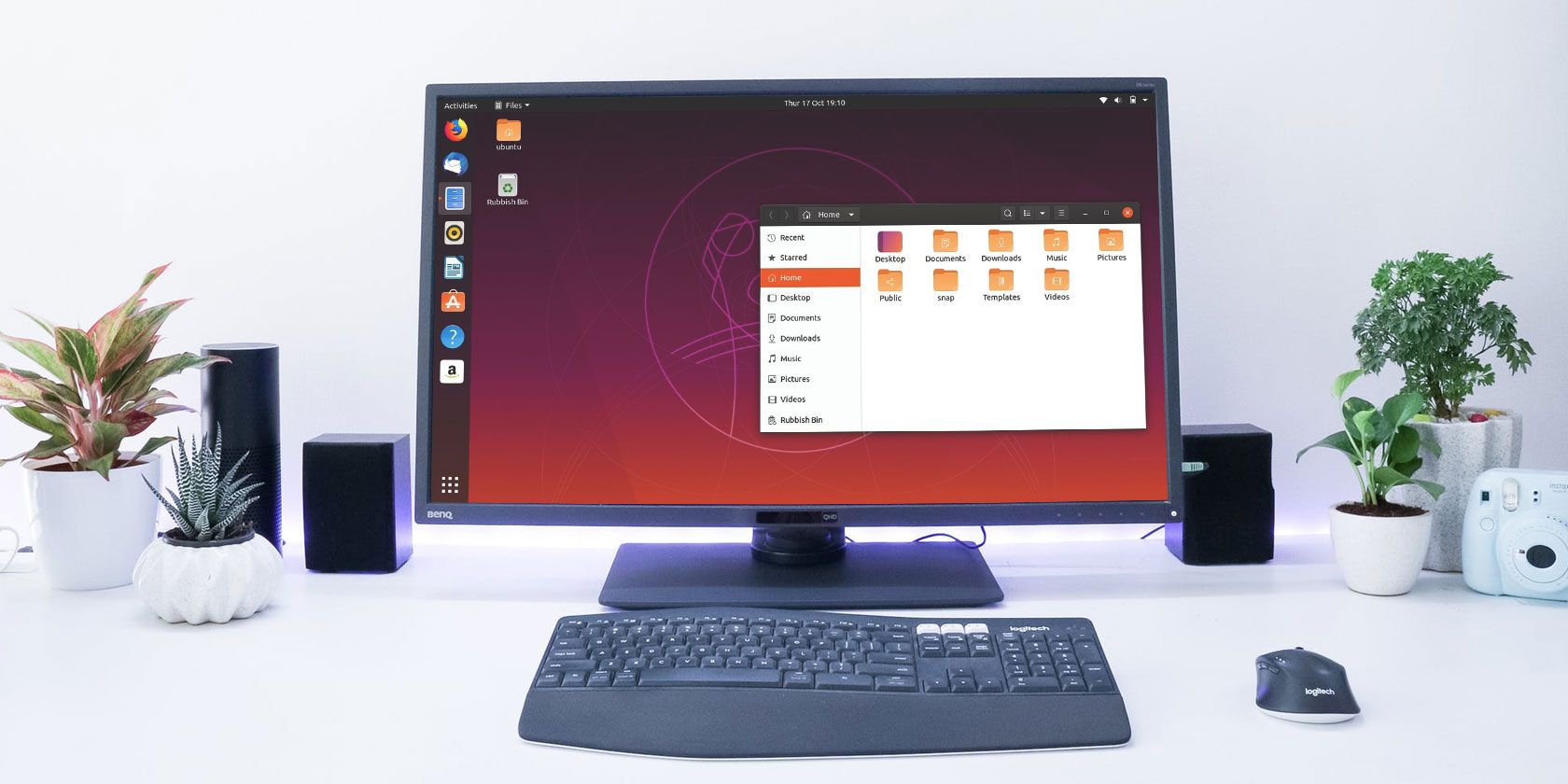
The key difference between Ubuntu and the default GNOME interface is the dock that’s always visible on the left side of your desktop. This is a tweak Canonical made to the GNOME desktop. Usually, GNOME desktops only display the dock when you open the Activities Overview.

Canonical has also expanded the dock to take up the entire height of the screen and moved the app launcher icon to the very bottom of the dock. Ubuntu comes with settings for configuring this dock, enabling you to move it to different sides of the screen or auto-hide when an app overlaps.

Canonical’s changes aren’t limited to the dock. App windows, for example, have minimize and maximize buttons in addition to the close button. Plus you can place files and folders on the desktop. This is not the case in standard GNOME.

5. Ubuntu Comes With Many Years of Support

Ubuntu desktop with file manager and LibreOffice

All Linux distros come with varying support periods. You’re free to upgrade to the latest software at any time, but if you want to stick with an older release, you may stop receiving updates in a few years.

Ubuntu comes in two versions, a standard release that comes every six months and a Long-Term Support release that comes every two years. Standard releases receive support for nine months. LTS releases last for five years. That means Ubuntu 18.04 LTS should still receive updates after the launch of versions 20.04 and 22.04.

If you want your desktop experience to remain relatively consistent for years at a time, or you have a computer that you need to keep up and running with as little downtime as possible, then you may value the stability an LTS provides.

6. Ubuntu Has Universal Snap Packages Built-In

Installing software on Linux is simple if an app comes included in your distro’s repositories. If not, then the process has traditionally been somewhat of a pain. Often your only choice was to build the program using the provided source code or, in Ubuntu’s case, hope a Personal Package Archive was available.

Now there are multiple universal package formats that allow you to install Linux apps regardless of which distro you use. The snap format is one such option, and it comes from Canonical.

While you can use snaps on other versions of Linux (that’s the point, after all), Ubuntu comes with snap support built-in, and you know that snaps have generally been designed with Ubuntu in mind.

What Else Makes Ubuntu Special?

Many of the reasons to use Ubuntu are not due to the technical differences between Ubuntu and other Linux distributes. For example:

  • Many third-party commercial software makers port software specifically to Ubuntu when developing for Linux.
  • Ubuntu has the largest desktop Linux community, which increases your chances of finding fixes for bugs and other issues.
  • There are a growing number of PCs that ship with Linux pre-installed, and Ubuntu is the most common option. Dell, for example, lets you choose between Windows 10 and Ubuntu.

If you would like a more in-depth look at Ubuntu, be sure to check out our beginner’s guide to Ubuntu.

Read the full article: Is Ubuntu Special? 6 Things That Set Canonical’s Linux Distro Apart


Read Full Article

44% of TikTok’s all-time downloads were in 2019, but app hasn’t figured out monetization


Despite the U.S. government’s concerns over TikTok which most recently led to the U.S. Navy banning service members’ use of the app, TikTok had a stellar 2019 in terms of both downloads and revenue. According to new data from Sensor Tower, 44% of TikTok’s total 1.65 billion downloads to date, or 738+ million installs, took place in 2019 alone. And though TikTok is still just experimenting with different means of monetization, the app had its best year in terms of revenue, grossing $176.9 million in 2019 — or 71% of its all-time revenue of $247.6 million.

Apptopia had previously reported TikTok was generating $50 million per quarter.

The number of TikTok downloads in 2019 is up 13% from the 655 million installs the app saw in 2018, with the holiday quarter (Q4 2019) being TikTok’s best ever with 219 million downloads, up 6% from TikTok’s previous best quarter, Q4 2018. TikTok was also the second-most downloaded (non-game) app worldwide across the Apple App Store and Google Play in 2019, according to Sensor Tower data.

However, App Annie’s recent “State of Mobile” report put it in fourth place, behind Messenger, Facebook, and WhatsApp — not just behind WhatsApp, as Sensor Tower does.

Regardless, the increase in TikTok downloads in 2019 is largely tied to the app’s traction in India. Though the app was briefly banned in the country earlier in the year, that market still accounted for 44% (or 323M) of 2019’s total downloads. That’s a 27% increase from 2018.

TikTok’s home country, China, is TikTok’s biggest revenue driver, with iOS consumer spend of $122.9 million, or 69% of the total and more than triple what U.S. users spent in the app ($36M). The U.K. was the third-largest contributor in terms of revenue, with users spending $4.2 million in 2019.

These numbers, however, are minuscule in comparison with the billions upon billions earned by Facebook on an annual basis, or even the low-digit billions earned by smaller social apps like Twitter. To be fair, TikTok remains in an experimental phase with regards to revenue. In 2019, it ran a variety of ad formats including brand takeovers, in-feed native video, hashtag challenges, and lens filters. It even dabbled in social commerce.

Meanwhile, only a handful of creators have been able to earn money in live streams through tipping — another area that deserves to see expansion in the months ahead, if TikTok aims to take on YouTube as a home for creator talent.

When it comes to monetization, TikTok is challenged because it doesn’t have as much personal information about its users, compared with a network like Facebook and its rich user profile data. That means advertisers can’t target ads based on user interests and demographics in the same way. Because of this, brands will sometimes forgo working with TikTok itself to deal directly with its influencer stars, instead.

What TikTok lacks in revenue, it makes up for in user engagement. According to App Annie, time spent in the app was up 210% year-over-year in 2019,  to reach a total 68 billion hours. TikTok clearly has users’ attention, but now it will need to figure out how to capitalize on those eyeballs and actually make money.

Reached for comment, TikTok confirmed it doesn’t share its own stats on installs or revenue, so third-party estimates are the only way to track the app’s growth for now.


Read Full Article