15 December 2019

The Firefox Keyboard Shortcuts Cheat Sheet for Windows


Close-up of Firefox logo

You’ll find plenty of reasons to love Mozilla’s Firefox browser. For starters, it’s fast, highly customizable, and has a rich collection of extensions.

If you have chosen Firefox as your go-to app for accessing the web, prepping it for fast, smooth browsing is a good idea.

One way to do that is with the help of keyboard shortcuts. They can speed up navigation, tab management, bookmark creation, on-page searches, and various other browser operations.

To help you discover and memorize the best of Firefox’s keyboard shortcuts on Windows, we have compiled the cheat sheet below. Save it to your desktop for quick access.

FREE DOWNLOAD: This cheat sheet is available as a downloadable PDF from our distribution partner, TradePub. You will have to complete a short form to access it for the first time only. Download The Firefox Keyboard Shortcuts Cheat Sheet for Windows.

The Firefox Keyboard Shortcuts Cheat Sheet for Windows

Shortcut Action
Navigation
Alt + Home Open Home Page
Ctrl + Home button Open Home Page in New Tab
Alt + Left Arrow
Ctrl + [
Backspace
Back one Page
Ctrl + Back button Previous Page in New Tab
Alt + Right Arrow
Ctrl + ]
Shift + Backspace
Forward one Page
Ctrl + Forward button Next Page in New Tab
Enter Open Link/Bookmark
Ctrl + Enter
Ctrl + Left-click
Middle-click
Open Link/Bookmark
in new Background Tab
Ctrl + Shift + Left-click
Shift + Middle-click
Open Link/Bookmark
in new Foreground Tab
Shift + Enter
Shift + Left-click
Open Link/Bookmark
in New Window
Alt + Enter Save Link Target As
Ctrl + O Open File
Windows and Tabs Shortcuts
Ctrl + T Open New Tab
Ctrl + W
Ctrl + F4
Close Tab
(close Window if only one tab)
Ctrl + Shift + T Undo Close Tab
Ctrl + Drag Copy Tab
Ctrl + PageUp
Ctrl + Shift + Tab One Tab to the Left
Ctrl + PageDown
Ctrl + Tab One Tab to the Right
Ctrl + 1…8 Select Tab [1 to 8]
Ctrl + 9 Select Last Tab
Ctrl + N Open New Window
Ctrl + Shift + W
Alt + F4
Close Window
Current Page
Ctrl + C Copy
Ctrl + X Cut
Delete Delete
Tab Focus on Next Link or Field
Ctrl + V Paste
Ctrl+ Shift + V Paste (as plain text)
Ctrl + Shift + Z Redo
Ctrl + A Select All
Ctrl + Z Undo
Shift + Tab Focus Previous Link or Field
Fn + Page Down
Or Press Space bar
Go Down a Screen
Fn + Page Up
Or Press Shift + Space bar
Go Up a Screen
End
Ctrl + ↓
Go to Bottom of Page
Home
Ctrl + ↑
Go to Top of Page
F6 Move to Next Frame
Shift + F6 Move to Previous Frame
Ctrl + P Print
Alt + Enter Save Focused Link
Ctrl + S Save Page As
Ctrl + + Zoom In
Ctrl + - Zoom Out
Ctrl + 0 Zoom Reset
Search
Ctrl + K
Ctrl + E
Select Search Bar
Ctrl + Down Arrow Select Next Search Engine
Ctrl + Up Arrow Select Previous Search Engine
Alt + Down Arrow
Alt + Up Arrow
F4
Open List of Search Engines
Alt + Enter Open Search Results in New Tab
Search in Page
Ctrl + F Find in This Page
Ctrl + G
F3
Find Again
Ctrl + Shift + G Find Previous
/ Quick Find Text
Quick Find Link
Bookmarks and Browsing History
Ctrl + Shift + D Bookmark All Tabs Into a Folder
Ctrl + D Bookmark This Page
Ctrl + B Bookmarks sidebar
Ctrl + Shift + B Library window (Bookmarks)
Press Spacebar - in Empty Search Field in Bookmarks Library Window or Sidebar. Show List of All Bookmarks.
Ctrl + Drag Copy Bookmark
Ctrl + Shift + H History sidebar
Ctrl + J Download History
Ctrl + Shift + Delete Clear Recent History
Media Controls
Spacebar Play/Pause (toggle)
Down Arrow Decrease Volume
Up Arrow Increase Volume
Ctrl + Down Arrow Mute
Ctrl + Up Arrow Unmute
Home Back to Beginning
Ctrl + Left Arrow Back 10%
Left Arrow Back 15 seconds
Right Arrow Forward 15 seconds
Ctrl+Right Arrow Forward 10%
End Forward to End
Tools
Ctrl + J Downloads
Ctrl + Shift + A Add-ons
F12 Toggle Developer Tools
Ctrl + Alt + K Web Console
Ctrl + Alt + C Inspector
Ctrl + Alt + S Debugger
Shift + F7 Style Editor
Shift + F5 Profiler
Ctrl + Alt + E Network
Shift + F2 Developer Toolbar
Ctrl + Alt + M Responsive Design View
Shift + F4 Scratchpad
Ctrl + U Page Source
Ctrl + Shift + J Browser Console
Ctrl + I Page Info
PDF Shortcuts
N or J or Right Arrow Next page
P or K or Left Arrow Previous page
Ctrl + + Zoom in
Ctrl + - Zoom out
Ctrl + 0 Automatic Zoom
R Rotate the PDF clockwise
Shift + R Rotate The PDF counterclockwise
Ctrl + Alt + P Switch to Presentation Mode
S Choose Text Selection Tool
H Choose Hand Tool
Ctrl + Alt + G Focus the Page Number input box
General Browser Operations
Ctrl + Enter Complete .com Address
Shift + Delete Delete Selected Autocomplete Entry
Ctrl + Shift + F Toggle Full Screen
Ctrl +Alt + R Toggle Reader Mode
F7 Caret Browsing
Ctrl + L Select Location Bar
Ctrl + F Go to Search Field in Library
Esc Stop Autoscroll Mode
Esc Cancel Drag-and-Drop Operation
Esc Clear Search Field in Library or Sidebar
Esc Close a Menu

More Tips for a Faster Firefox Experience

Using keyboard shortcuts will give your Firefox browsing sessions a big burst of speed, but if you want speed up Firefox itself, try these simple tweaks:

Read the full article: The Firefox Keyboard Shortcuts Cheat Sheet for Windows


Read Full Article

Let’s talk Samsung Galaxy S11


We’ve officially entered the mid-December hardware doldrums. Obviously no major hardware maker in its right mind is going to be announcing anything major in the next few weeks, for fear of preemptively cannibalizing holiday sales. Things will, however, heat up immediately after the new year with the kick off of CES. Then, a little over a month later, comes MWC.

Sandwiched somewhere in there is the launch of Samsung’s next flagship. This is the device that sets the tone for the company for the whole year. Samsung’s six month flagship release cycle (S series, followed by the Note) affords the company the ability to offer more frequent refreshes, but this first one is really a standard setter for both the company and the industry at large.

A February 18 launch date has been floated for the next flagship. The timing certainly makes sense. Samsung has broken away from MWC — and big tech shows in general — for its biggest announcements. Doing so puts the spotlight on its own devices and beats the MWC news glut for a few weeks. Likely available for the devices will begin the following month.

As for the name — there’s no reason to believe the company would use this opportunity to break away from the S11/S11+ scheme this time out. So we’re going to stick with that until credibly informed otherwise.

The recently announced Snapdragon 865 will be powering the device in a number of markets, making the S11 among the first devices to launch with the latest flagship SoC. A recent report also suggests that the configuration will be available in even more markets, including, potentially its native South Korea. Standardized 5G seems possible across the board, though that’s likely going to mean an even more prohibitively expensive starting price. It’s a big jump, especially with a still-spotty rollout in many markets.

An under-screen front-facing camera has been rumored, but the more familiar hole punch seems a lot more likely for this gen. Renders (courtesy of OnLeaks) of the device point to a design similar to the most recent Note, only with an even more trypophobia-inducing design than the most recent iPhone and Google Pixel (which is saying something). The camera bump appears downright massive, monopolizing an impressive portion of the rear.

An impossible large 108 megapixel camera has been rumored for the device, along with 8K video. Either way, imagining is no doubt going to once again be a major focus for the line. So, too, is a healthy battery increase.

EVLeaks, meanwhile, is suggesting an EVEN LARGER screen, with the S11e measuring either 6.2 or 6.4 inches, the S11 at 6.7 inches and the S11+ at a huge 6.9 inches. Plenty more leaks sure to come between now and mid-February. Stay tuned. 


Read Full Article

14 December 2019

FBI secretly demands a ton of consumer data from credit agencies. Now lawmakers want answers


Recently released documents revealed the FBI has for years secretly demanded vast amounts of Americans’ consumer and financial information from the largest U.S. credit agencies.

The FBI regularly uses these legal powers — known as national security letters — to compel credit giants to turn over non-content information, such as records of purchases and locations, that the agency deems necessary in national security investigations. But these letters have no judicial oversight and are typically filed with a gag order, preventing the recipient from disclosing the demand to anyone else — including the target of the letter.

Only a few tech companies, including Facebook, Google, and Microsoft, have disclosed that they have ever received one or more national security letters. Since the law changed in 2015 in the wake of the Edward Snowden disclosures that revealed the scope of the U.S. government’s surveillance operations, recipients have been allowed to petition the FBI to be cut loose from the gag provisions and publish the letters with redactions.

Tech companies have used “transparency reports” to inform their users of government demands for their data. But other major data collectors, like credit agencies, have failed to publish their figures altogether.

Three lawmakers — Democratic senators Ron Wyden and Elizabeth Warren, and Republican senator Rand Paul — have sent letters to Equifax, Experian, and TransUnion, expressing their “alarm” as to why the credit giants have failed to disclose the number of government demands for consumer data they receive.

“Because your company holds so much potentially sensitive data on so many Americans and collects this information without obtaining consent from these individuals, you have a responsibility to be transparent about how you handle that data,” the letters said. “Unfortunately, your company has not provided information to policymakers or the public about the type or the number of disclosures that you have made to the FBI.”

Spokespeople for Equifax, Experian, and TransUnion did not respond to a request for comment outside business hours.

It’s not known how many national security letters were issued to the credit agencies since the legal powers were signed into law in 2001. The New York Times said the national security letters to credit agencies were a “small but telling fraction” of the overall half-million FBI-issued demands made to date.

Other banks and financial institutions, as well as universities, cell service and internet providers, were targets of national security letters, the documents revealed.

The senators have given the agencies until December 27 to disclose the number of demands each has received.


Read Full Article

6 Ways to Find Which TV Series to Binge Watch Next 


Streaming recommendations

There is so much content on streaming services, it’s difficult to decide what to watch next. Stop struggling and let these apps recommend your next binge-watch.

This isn’t about whether you should choose Netflix or Disney+ or Amazon Prime. No matter which streaming service you use, you are spoilt for choice. And you can’t even rely on IMDb or Rotten Tomatoes as much anymore because it seems like everything gets a good rating these days.

1. Goodviews.TV (Web): Charts and Analytics for Streaming TV

Goodviews charts TV series recommendations

How much do you trust the internet? If you believe in statistics guiding your choices, then let Goodviews take the wheel. The website relies on what the internet is talking about to create charts for current TV series.

The app tracks TV shows being talked about on Twitter and Reddit, web searches, as well as most torrented shows. By aggregating statistics from all of these different sources, Goodviews creates something akin to the Billboard charts for streaming TV series. There is an overall list, as well as sub-categories.

You can sort the list by network or streaming service, as well as genre. You can even see shows ranked by a specific source, such as the most talked-about shows on Twitter right now. Each show gives you its ranking history, recent news about it, and all the other information you might need to find in a click.

2. BingeClock (Web): Find Movies and Shows to Binge-Watch

Find movies and TV shows to watch, and how long they will take to binge

If you’re looking for a movie marathon or a TV show that will take up the whole weekend, you don’t need to do those calculations. BingeClock takes care of the heavy lifting so you can focus on the screen.

Create an account and start adding movies or TV shows to it. BingeClock will count their entire runtime to tell you how long you will be watching that marathon for. You can create multiple “playlists” for your marathons, and add to them as you see fit.

BingeClock is especially good with TV shows, telling you the entire time it will take to watch a series. There are quick links for season-wise binge watches, a way to plan your marathon, and calculations for what happens if you cut commercials and titles. For ongoing series, it also includes information about when the next episode will air.

The app also has its own lists and rankings, included with any show you search for. That’s a great place to get a few recommendations you might have otherwise not known about.

3. TV Line’s 2019 Review (Web): The Best and Worst of 2019

TV Line has the best and worst of 2019 TV and streaming series

TV Line is all about TV news, reviews, recaps, and ratings. That makes it a great place to find information about new shows, and save time by reading a review about a series or episode before watching it. But it shines in the current annual recap.

The “Best & Worst of 2019” section is excellent for anyone who wants to catch up on what has happened in the last year and ensure you didn’t miss out on an awesome show or moment. TV Line has turned it into articles about best episodes, best moments, scenes, plot twists, and so on.

Who wants to wait till the Emmys or Golden Globes to find a similar list? Right now, you can find what’s unmissable from 2019.

4. Reelgood’s Roulette (Web): Randomly Pick a Series

Reelgood Roulette randomly picks which series you should watch next

Reelgood has always been one of our favorite sites to find which TV show to watch next. But it has leveled up its game with the Reelgood Roulette. This randomly picks a TV series to watch, while still giving you a few ways to narrow down your options.

Sign up for an account and you’ll be able to add the streaming services that you have access to. Then spin the roulette wheel to get a random series selection on one of those services. You can add a few filters like minimum rating on IMDb or Rotten Tomatoes, as well as the genre.

Reelgood’s extensive database sets it apart from a lot of other such “random pick” services. In one click, you’ll find series info, cast and crew, episode breakdowns, ratings and descriptions, and a lot more. And you can keep spinning the wheel as much as want till you find what you like.

5. Serieslist.io (Web): Upvote System for TV Series

Serieslist.io is an upvote system for TV shows like Hacker News

The upvote system is the internet’s favorite new way to rank any list. Add any item, and people will upvote it if they like it, but there aren’t any downvotes to reduce its rank. It works for Product Hunt and Hacker News, so why won’t it work for a TV series?

Serieslist.io tried it out and it’s a neat way to find a new show to watch. It’s only a list of names of TV shows, and which streaming service it’s available on. You can sort the list by upvotes, newest, or comments. Simple and easy.

6. Episode Length (Web): Find Average Episode Length of a Series

Episode Length tells you the average runtime of an episode of any series

TV series aren’t the same as movies. You don’t have an intermission or a clearly demarcated time to stop watching and take a break. So all you can do is stop between episodes. But how long is an episode going to be? Episode Length will tell you.

A quick search on Episode Length will tell you the average runtime of an episode of any TV series. That should help you plan which series to watch, or when you can stop between an episode. It’s unscientific, but hey, for now, it’ll have to do.

Go Beyond Streaming Services

Streaming services seem to spell the end of good old fashioned TV. But you’d be surprised to find that there are ways to still get that on your phones and computers. You just need to know where to look.

Check out these 15 sites to watch TV on your computer. Chances are, you’ll find a way to view your favorite shows without worry about which service it’s streaming on.

Read the full article: 6 Ways to Find Which TV Series to Binge Watch Next 


Read Full Article

Google Assistant Now Offers Realtime Translations


manage-day-google-assistant

Google Assistant now has the ability to translate conversations in realtime on your phone. This is thanks to Interpreter mode, which can act as your go-between when conversing in a foreign language. Meaning you’ll never have to resort to using hand gestures again.

Google Assistant Learns to Translate Conversations

In February 2019, Google rolled out Interpreter mode to Google Home smart speakers and smart displays. This allowed owners of these devices to translate conversations in foreign languages. However, its usefulness was limited by the lack of mobility of these devices.

Now, Interpreter mode is available on Google Assistant on your phone. Which means you can use it to translate conversations between you (speaking one language) and someone else (speaking another language) in realtime just using your smartphone.

Assistant’s Interpreter Mode Lands on Smartphones

Google announced the increased availability of Assistant’s Interpreter mode in a post on The Keyword. The company claims Interpreter means that “you can have a back and forth conversation with someone speaking a foreign language.”

To enable Interpreter mode just say, “Hey Google, be my German translator” or “Hey Google, help me speak Spanish”. You’ll then “see and hear the translated conversation on your phone.” Google will even offer Smart Replies to keep the conversation flowing.

The most basic way of using Interpreter mode is to just start talking. Google will then automatically translate both sides of the conversation. However, you can also control what’s being translated or type out the sentences you want to have translated.

Google Assistant’s Interpreter mode currently supports 44 languages, including Arabic, Dutch, English, French, German, Italian, Japanese, Russian, and Spanish. It’s rolling out around the world to the Google Assistant app on Android and on iOS.

The Best Apps to Help You Learn a New Language

While Google Assistant’s Interpreter mode makes it easier to understand another language, it isn’t perfect. So we would still recommend everyone learn a new language. And to help you get started, here are the best language learning apps that work.

Read the full article: Google Assistant Now Offers Realtime Translations


Read Full Article

Do You Really Need Cell Phone Insurance? The Facts and Best Plans


smartphone-insurance-buy

According to surveys, around 33 percent of smartphone owners have lost or broken their phones. If the thought of this happening to you is a concern, it’s worth considering phone insurance.

But what does smartphone insurance cover? What does it cost? And is mobile phone insurance worth it? Let’s find out.

Why You Need Cell Phone Insurance

Most people reach the end of their cell phone contract with little more than superficial damage to the handset. Others aren’t as successful.

We’ve all heard about people who have dropped their phones down drains, toilets, or sinks. Similarly, devices have fallen from bridges, railway platforms, car roofs, prams, even boats. Then there is the risk of smartphone theft to consider.

While dedicated smartphone apps can protect an Android device from theft, iPhone owners can use the Find My iPhone app. But if a phone has been stolen and wiped, you’re never going to see it again.

That’s where phone insurance comes into its own.

What Does Phone Insurance Cover?

By taking out insurance for your phone, you can be covered for:

  • Accidental damage, including cracked screens and water/liquid damage
  • Loss
  • Theft
  • Mechanical breakdown
  • Malfunction not covered by warranty

Paying for mobile phone insurance for your Android smartphone or iPhone gives you peace of mind. You can be confident that when lost, stolen, or damaged, your phone will be replaced or repaired.

Note, however, that the insurance policy often has an excess that must be paid as a contribution to a claim. This is usually around $99. You may prefer to avoid insurers that demand an excess, added cost, or deductible.

Consider phone insurance for your iPhone

iPhones and other premium devices (such as the Samsung Galaxy S range) typically attract a higher premium. This is due to them being highly desirable items and more likely to be stolen. Keep in mind that insurers will charge more and probably apply greater scrutiny to claims for these phones.

So, before signing up, think about what the risk is to your phone. If you’re forgetful, then loss or theft might be wise; for the clumsy, accidental damage cover.

Will Phone Insurance Companies Pay Out?

Getting insured is only one side of the coin, however. The real trick is getting the insurers to pay out. Increasingly insurers are becoming less interested in paying out and more interested in not fulfilling their role. While the sales literature will make insurance seem attractive, the small print is another matter entirely.

For instance, if your mobile phone is stolen from an unoccupied table in a bar, you might expect the insurers to be unhappy about paying up. However, the same is often true if the table is fully occupied, and the device is surreptitiously spirited away unnoticed.

You may well find that mistakes like these will lead to insurers refusing to pay out. Add an extra layer of protection by using the best mobile phone tracking tool for your device.

So, should you really pay out $20 insurance over 24 months only to find that you’ve paid an extra $480? If you’re not confident an insurer will pay out, it’s a risk you don’t really need. You could just use that money for a new phone and avoid the annoyance of the insurer refusing your claim.

Best Insurance for iPhone and Android Phones

The first option you should take when insuring a smartphone is to check what the warranty covers. While theft and throwing the phone down the toilet are unlikely to be covered, mechanical and electronic failure probably will.

If this is all the protection you need, great! If not, consider extending the warranty with a protection package from Asurion.

ASURION 3 Year Portable Electronic Accident Protection Plan with Tech Support

Mobile phone insurance from Asurion offers several coverage options for smartphones and tablets that have stopped working. Asurion offers a simplified insurance program that essentially extends your manufacturer’s warranty. The basic Asurion package covers:

  • Power surge
  • After the manufacturer’s warranty:
    • Mechanical/electrical failures
    • Defects in materials and workmanship
    • Failures due to normal wear and tear
    • Failures due to dust, heat, humidity
  • 27/4 tech support
  • Device replaced or the purchase price reimbursed as an Amazon e-gift card

From there, it might cover you for different issues depending on your type of device. For example, “drops, spills and cracked screens” are “covered from day one” with some policies, but not with others.

As a result, it does not cover drops, cracked screens, liquid damage, loss, theft, cosmetic damage if the product is still usable, consumable replacements, or breakdowns covered by warranty.

This might prove inflexible to you, but if you’re mainly concerned with the limits of the manufacturer’s warranty, Asurion can prove a good choice. You may have already heard of Asurion, as they provide insurance services to networks like AT&T and Sprint.

Helpfully, Asurion They offer insurance packages at different price points.

For example, there is the ASURION 3 Year Portable Electronic Accident Protection Plan with Tech Support package, which offers the basic coverage above. It also gives cover for drops, spills, and cracked screens.

AppleCare+

Bought an iPhone? The default repair coverage is just one year, but you can extend this with AppleCare+ and AppleCare+ with Theft and Loss.

  • AppleCare+ compensates for up to two incidents of accidental damage, every 24 months. Each incident is subject to service fees and tax.
  • AppleCare+ with Theft and Loss covers the same, plus theft or loss.

So, for example, screen damage will set you back $29 for repair. This is about the same as you would pay in a local phone repair shop.

Note that AppleCare+ with Theft and Loss comes with several deductible charges. Check the AppleCare+ website for the latest prices.

eSurranty

An excellent option for buying coverage for any premium phone, eSurranty offers policies for iPhone, Samsung, and Google Pixel devices.

Packages are available for damage, loss, and theft, with the latter starting after 45 days of the policy starting. There’s also the option of an express replacement, although deductible charges are added for most replacement needs.

Helpfully, eSurranty coverage is transferrable—useful when you’re upgrading to a new device. Note, however, that claims are limited by type.

Samsung Premium Care

If you use a Samsung phone, you can rely on the warranty or boost it with the Samsung Premium Care protection plan. Two plans are on offer, a $99 plan for Galaxy S devices, and the $129 plan for other flagships (such as the Galaxy Note). Monthly payment options are available.

While phone insurance companies will typically offer a courier service, Samsung provides a choice between sending the device away and a doorstep repair.

In our experience, doorstep repair (in which a third-party repair team is contracted) is fraught with supply chain and reliability issues. It is usually best to send the device away than have to wait home repeatedly and hope the engineer has the right parts for repair.

Get Protection Against Device Theft and Damage

Electronic insurance for other devices is also available. For example, if you wish to protect a printer or a desktop PC from failure with Asurion, you can buy the ASURION 3 Year Electronics Protection Plan.

Meanwhile, if you need device insurance for the office, Asurion can also help. It offers the ASURION 4 Year Office Equipment Protection Plan for office equipment.

In truth, for cheaper phones, you probably won’t need phone insurance. Cell phones that are cheaper than the excess charge aren’t worth insuring, after all. But if you have an expensive Android or iPhone, insurance is a smart move. It protects your purchase, gives you an affordable replacement, and gets you reconnected quickly.

The Best Cell Phone Insurance for You

Whatever happens, if you’re going to sign up for insurance for your electronic devices, take your time. Choose the best offer for your device, usage, and budget. This might mean using the suggestions above or shopping around for phone insurance from companies with products that suit you.

Don’t have phone insurance but have a cracked screen? Here’s how to replace a damaged phone screen display yourself.

Read the full article: Do You Really Need Cell Phone Insurance? The Facts and Best Plans


Read Full Article

10 Gift Ideas for Those Who Work From Home


work-home-gifts

So, if you’re buying a gift for someone who works from home this Christmas, why not splash a little cash and get them something they’ll really appreciate? Everything from body massagers to good quality chairs is an option. It just depends on how much you’re willing to spend.

If you’re struggling for inspiration, keep reading. Here are 10 gifts ideas for people who work from home.

1. Shoyeido Ceramic Incense Burner

Shoyeido Ceramic Incense Burner Shoyeido Ceramic Incense Burner Buy Now On Amazon $29.00

Buying an incense burner is an inherently Christmassy idea; the nativity story claims that one of the three wise men gave Jesus some Frankincense as a gift. Ergo, why not check out the Shoyeido Incense Burner? An incense burner has two clear benefits for someone who works from home.

  1. Depending on which aromas you choose to burn, you can inspire creativity, relax your mind, soothe yourself to sleep, and a whole lot more.
  2. If you spend all day sitting in an enclosed office with the windows shut, it’s going to start smelling a little “funky” by the time you power down your computer. Burning incense can freshen up the mustiest of rooms.

2. Nature Bright SunTouch SAD Lightbox

Nature Bright SunTouch Lightbox Nature Bright SunTouch Lightbox Buy Now On Amazon $49.99

SAD is an acronym for Seasonal Affective Disorder. SAD is a form of depression that typically kicks in during Fall and Winter as the nights become longer and the weather deteriorates.

The Nature Bright SunTouch Lightbox is a remedy for people who suffer from SAD, but it’s also a great way to wake yourself up in the morning. After all, if you’ve been burning the candle at both ends to meet deadlines, you’re going to need a little help.

3. Viktor Jurgen Full Body Massager

Viktor Jurgen Full Body Massager Viktor Jurgen Full Body Massager Buy Now On Amazon $29.99

You might think your homeworking friend leads a life of luxury. Nothing could be further from the truth. Having an office, kitchen, and bedroom within a few yards of each other means there’s no motivation to get up and move around. Exercise is an afterthought; physical issues are a very real problem.

While it’s no substitute for going for a jog, a massage set can at least ease some of the aches and pains of sitting down all day. The Viktor Jurgen Full Body Massager is a handheld device that works on a person’s head, neck, shoulders, back, legs, and feet.

4. Dreamfarm Cup Holder

Dreamfarm Cup Holder Dreamfarm Cup Holder Buy Now On Amazon $10.53

Keyboards and food are a bad combination. But keyboards and liquids are an (expensive) disaster waiting to happen. Of course, the obvious solution is to keep liquids well away from the computer. But we all know a typical homeworker’s desk is akin to the beverage fridge in a 7-Eleven.

If you don’t want to be buying the person a new keyboard next Christmas, get your buddy a cup holder this year instead. The Dreamfarm Spink Cup Holder has a suction pad on the bottom so it can never be knocked over.

5. Herman Miller Classic Aeron Task Chair

Herman Miller Classic Aeron Task Chair Herman Miller Classic Aeron Task Chair Buy Now On Amazon $1,395.00

A high-quality office chair is one of the most critical items in any homeworker’s office. It can prevent back problems and improve your posture.

Of course, the quality and price of chairs can vary drastically between brands. If the person you’re buying for is important to you, you might want to go for a top-of-the-range model. Arguably, the best chair is the Herman Miller Classic Aeron Task Chair. They’re pricey but impressive.

6. Gym Membership

Sticking with the theme of physical health, why not buy the person a gym membership? It’s a not-so-subtle way to remind them that they need to venture beyond the perimeter of their property occasionally.

Again, gym memberships vary drastically in price. If you’re happy to send your buddy into a rough part of town, you can probably pick one up for a few bucks a month. If you want to send them to the local high-end spa, you can expect to pay more than $100 per month.

7. Bluelounge CableBox

Despite the tech firms’ best efforts, we still don’t live in a cable-free world. If anything, the number of cables around our machines is multiplying. Apple users know what we’re talking about (cough, dongles).

If the person you’re buying for is a neat freak, they probably die a little inside every time they see a mess of tangled cables. You could give them a helping hand and alleviate some stress by buying them a cable management system. There are lots of designs available, but in terms of value for money, you’ll struggle to beat the Bluelounge CableBox.

8. VIVO Standing Desk

VIVO Standing Desk VIVO Standing Desk Buy Now On Amazon $119.99

The jury is still out of the health benefits of standing desks. You’ll burn more calories, and some research suggests they can help stave off diabetes, cardiovascular disease, and breast cancer. Other research claims you’ll be at a higher risk of developing back, leg, or foot pain.

As with many things, the answer lies in moderation. Don’t suddenly go from sitting all day to standing all day—split your time between the two environments, instead. If you want to buy a practical-but-beautiful standing desk, check out the VIVO Standing Desk as a thoughtful happy medium.

9. Click and Grow Indoor Garden Kit

Click and Grow Indoor Garden Kit Click and Grow Indoor Garden Kit Buy Now On Amazon $99.95

While not usable in a traditional sense, a few office plants will brighten the place up no end. Let’s be honest, if you’re spending all day, every day in the same room, you want it to look nice. If the person you’re buying for loves smart home technology, you could buy a Click and Grow Indoor Garden Kit.

It comes with smart soil, a water reservoir, and temperature controls. The person won’t need to have green fingers to stop the plant from dying. Lots of seed cartridges are available; Click and Grow devices can grow everything from basil to cherry tomatoes.

10. Alexander Del Rossa Bathrobe

Alexander Del Rossa Bathrobe Alexander Del Rossa Bathrobe Buy Now On Amazon $68.99

Do people who work from home even bother to get dressed in the morning? If your loved one is the type of person who spends all day in their pajamas in front of the computer, why not treat them to a new bathrobe? If they ever need to have a video conference call with colleagues, they’ll at least look semi-respectable.

Unsurprisingly, Amazon offers an abundance of bathrobes. If you want something that’s comfy and practical in equal measure, have a look at the Alexander Del Rossa Bathrobe. They are made with 330GSM coral fleece and come in a variety of sizes and colors.

The Best Gifts for Remote Workers

Working from home can be a lonely life. Sure, you avoid rush hour traffic and can set your own hours, but the trade-off is less social interaction and more distractions. One of these gift ideas for home workers is sure to be gratefully received.

If you’re looking for even more ideas, you might find some inspiration in this list of key habits for freelance success.

Read the full article: 10 Gift Ideas for Those Who Work From Home


Read Full Article

How to Convert PDFs to Printable Booklets Using BookletCreator


online-pdf-editors

Sometimes you need to put a booklet together. Not a fancy booklet, either—a simple one for yourself or your friends, ranging from topics like recipes to book reports.

Enter BookletCreator, a simple tool that lets you instantly turn any PDF document to a printable booklet. While the software has been around for awhile, it’s still easy to use. Here’s how to use this printable booklet maker tool to convert a PDF to a booklet.

What Is a Booklet Creator?

Booklet Creator

BookletCreator is an extremely simple tool that lets you turn a PDF to a booklet. If you’re one of those people who prefers to read documents in paper format, and you don’t have the budget for something like InDesign, then this is the program for you.

Basically, BookletCreator reorders your pages in such a manner so that when the document is printed, it can easily be folded into a small book. No registration is required for the free trial. When you download the program, you simply have to complete these steps:

  • Upload your PDF
  • Run BookletCreator
  • Save the printable file to your computer
  • Print the booklet out

Thankfully, BookletCreator has both macOS and Windows versions, so you’re in luck no matter which platform you prefer. The developers also provide detailed, easy-to-follow instructions for BookletCreator that make it easy to get started.

For this tutorial, we’ll use the macOS version of BookletCreator.

How to Use BookletCreator

Free Trial Booklet Creator

After you download the free trial of BookletCreator and open the program for the first time, you may see a popup notice similar to the one above. BookletCreator will tell you that because you’re using the trial version, only the first 16 pages of your document will be processed.

We did some investigating about this “hard limit” on how many pages you’re allowed to process. For the trial version, it seems that you’re able to create multiple booklets, so long as those booklets are under 16 pages each.

However, we’re not sure how long this free trial will last. The official documentation on these limitations in the Terms and Conditions section is scarce.

If you’re just using the free trial, press OK to proceed to the booklet making process. However, if you have a license number, enter it. In case you want to buy the program, press Buy Now. You can go to the company’s website to see the details on BookletCreator’s pricing plan.

Step 1: Add a PDF File to Your Booklet Creator

Once you’re past the loading screen, the first action you’ll need to take is adding your PDF file to BookletCreator. Press Add PDF File, as shown below in red. Find the PDF on your computer that you want to format, and add it.

Turn PDF Into Booklet Online

It’s important to note that BookletCreator cannot “reorder” your text, or format it. All it can do is reshuffle the way your pages are laid out. That way, when you print them, you can turn your PDF into a double-sided booklet. So it’s important to get all that formatting sorted out ahead of time.

If you want to know more about formatting PDFs, check out how to create, merge, split, and mark up PDFs on a Mac.

Step 2: Use Page Setup When You Convert a PDF to a Booklet

Next, you’ll need to finish the page setup for your booklet. BookletCreator automatically checks the Auto paper size option when you upload your PDF to the printable booklet maker, but you can also format this booklet to the paper size that’s best for you.

To do this, click on Page Setup. Once you’re there, you can format your document to fit any printer available with the specific dimensions you’re using to print.

You can also change the scale of the document, along with its orientation.

Page Setup Printing PDF Booklet

For booklets, in most cases it makes sense to print in Landscape orientation. BookletCreator automatically has this option checked, so keep that set. Once you’re done adjusting your specs, click OK. If you don’t want to manually adjust the page setup, click Cancel. Then check the Auto paper size option again.

We used the Auto paper size option in our testing, which worked well.

Step 3: How Many Pages per Booklet?

After you figure out your paper size, you need to decide how many pages you want within your booklet.

Because booklets are usually printed double-sided, all numbers for the pages show in sets of four. You have several options:

  1. You can print All pages in your booklet, to the closest set of four that the program can manage. BookletCreator will not skip any pages, which means that if you have an odd number of pages, some of the pieces of paper in your final booklet will be blank. Use this if you’re not sure.
  2. 4 will have BookletCreator create multiple booklets with four pages each, to split up your PDF into manageable chunks.
  3. 8 will create multiple booklets with eight pages.
  4. This continues down the line with 12 and so forth.

Add Pages to PDF Booklet

Please note: When using the free trial, you can only process booklets that contain up to 16 pages each. If you choose above the 16-page option, you may run into issues.

Step 4: Additional Booklet Options to Consider

Once you’ve figured out how many pages you want in your booklet, there are a few additional options you can adjust before you format the book. If you didn’t add page numbers to your original PDF file, you can do so now. The tool also lets you add some basic formatting to those page numbers, such as:

  • Letting BookletCreator know which pages to put the numbers on.
  • What those starting numbers should be.

Additionally, you can format the booklet for duplex printers, put the last page on the back cover, or have the document read from right-to-left instead of left-to-right.

Format Booklet for Double Sided Print

Once you’re done formatting these options—if you need to format any of them—press Create Booklet. BookletCreator will create a new PDF specifically laid out in booklet format for you to print.

Step 5: Printing From Your PDF to a Booklet

The last stage of BookletCreator is the printing part, and it’s a simple but important step. Before you print, it’s recommended that you look at your document in an image previewing app to make sure that everything looks correct.

You’ll notice that the pages seem to be out of order, but they aren’t actually. This is just how a booklet looks before it’s stapled together. After you take a look, press Print.

Preview Print Document Booklet

If you have a double-sided printer, make sure that you turn off the double-sided print option on your device. If you don’t have a double-sided printer, you’ll need to feed the pages through manually.

You also need to make sure that you use the right-sized paper for your document when you print it. Because we just did a test booklet, the paper isn’t exactly the right size, but the print quality still turned out decently. Here’s the result:

Turn PDF documents to small booklets

As you can see, the double-sided printing works well. All the pages were in order, exactly as BookletCreator formatted them. Once printed, it was a simple matter of folding the printed pages and stapling the booklet together.

Use BookletCreator to Convert a PDF to a Booklet

BookletCreator will never have the fine-tuned controls of a program like Adobe InDesign. However, it’s quite simple to use and will work great for people who just need to make a printable booklet every once in a while.

Those you want to create lots of professional-looking booklets should look at the best free InDesign templates for books, flyers, and magazines.

Read the full article: How to Convert PDFs to Printable Booklets Using BookletCreator


Read Full Article

Brussels Sprouts Mandela Effect


Brussels Sprouts Mandela Effect

This Week in Apps: Apple Arcade’s new franchise, Fortnite takes on Google Play, the Disney+ app footprint


Welcome back to This Week in Apps, the Extra Crunch series that recaps the latest OS news, the applications they support and the money that flows through it all.

The app industry is as hot as ever, with 194 billion downloads last year and more than $100 billion in consumer spending. People spend 90% of their mobile time in apps and more time using their mobile devices than watching TV. Apps aren’t just a way to waste idle hours — they’re big business, and one that often seems to change overnight.

In this Extra Crunch series, we help you to keep up with the latest news from the world of apps.

This week, we’re taking a look at Apple Arcade’s new gaming franchise, Fortnite maker Epic Games calling out the Google Play Store for its monopolistic practices, Android’s new AR features, Disney+’s one-month app footprint, and more.

Headlines

Apple Arcade scores a big sports game franchise, “Ultimate Rivals”

Apple Arcade launched in September offering over 100 games for $4.99 per month. Since launch, the service stays fresh by adding new releases on a regular basis. This week, Apple touted one of Arcade’s biggest wins to date — an all-new sports franchise from Bit Fry Game Studios, called “Ultimate Rivals.” The new game brings together athletes from across hockey, basketball, football, baseball, and soccer to play in a licensed video game that’s a first for the mobile gaming industry. The debut title in the franchise, out now on Apple Arcade, is “Ultimate Rivals: The Rink,” which lets players choose from over 50 athletes to compete in two-on-two hockey matches.

For example, you could pit Alex Ovechkin and Alex Morgan against De’Aaron Fox and Jose Altuve or Skylar Diggins-Smith and Wayne Gretzky, Apple says.

The game was made possible by Bit Fry’s groundbreaking licensing deals with nine pro sports organizations,  the NHL, NHL Players’ Association (NHLPA), NBA, National Basketball Players Association (NBPA), MLB, MLB Players Association (MLBPA), NFL Players Association (NFLPA), Women’s National Basketball Players Association (WNBPA), the USWNTPA, as well as Wayne Gretzky.

Next spring, the Bit Fry will launch “Ultimate Rivals: The Court” as the next title in the series.

The franchise is a big win for Apple Arcade, which doesn’t yet have many sports-themed titles. In fact, with the addition of “Ultimate Rivals,” it now has only a half dozen. And because of the numerous pro sports deals, the game has the potential to appeal to a wider audience.

Fornite tries to bypass the Google Play Store’s 30% cut


Read Full Article

13 December 2019

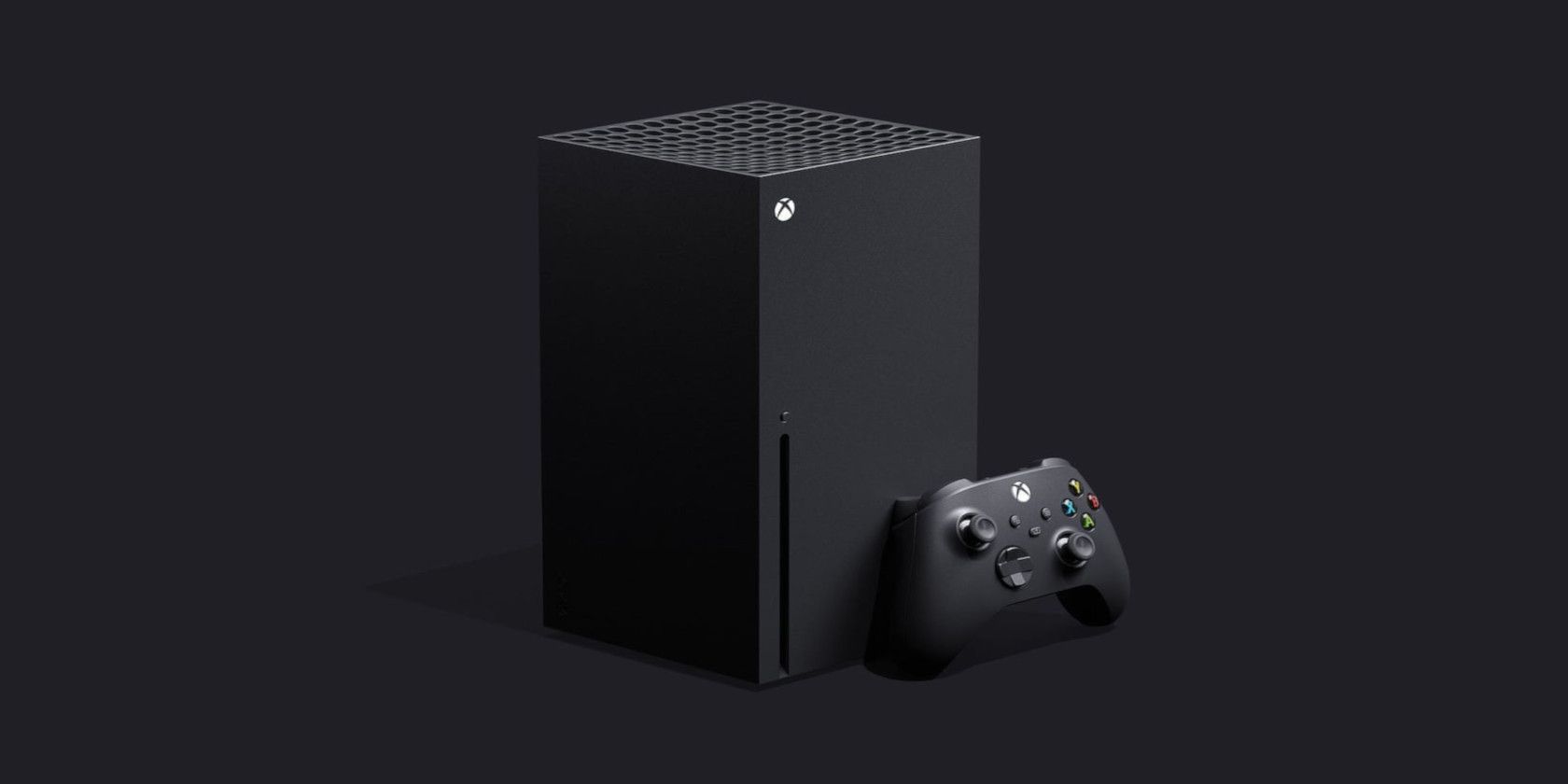
Microsoft Officially Announces the Next-Gen Xbox Series X


Microsoft has officially announced the follow up its enormously successful Xbox One. The Xbox Series X, tentatively due out late 2020, further cements Microsoft’s gaming credentials.

But, the Series X is something we’ve not seen before; a gaming PC in a console’s body.

What is The Xbox Series X?

Microsoft debuted the original Xbox back in 2001 and has since gone on to establish itself as one of the leading gaming manufacturers. More recently, the company has moved many of its services to the cloud, and promoted tighter integration between Windows 10 and the Xbox platform.

And, thanks to the Xbox Games Pass, you can now play your games on your Windows 10 PC. If Microsoft continues in this direction, with games available on a range of hardware, why would you need the Xbox Series X?

Well, this isn’t really a console in the traditional sense. Gaming PCs are typically higher performance devices, but without tight software integration and higher cost. The Series X closes that gap, housing all the Xbox services in what is essentially a high specification computer.

The design of the console is different this time around, too. The Xbox Series X is no longer a slim, rectangular device. Instead, it is a reasonably non-descript black box, designed to be stood horizontally or vertically. The console will come with a solid-state drive (SSD) as standard, offering faster loading speeds.

What Can The Xbox Series X Do?

To demonstrate the Series X’s capabilities, Microsoft shared footage of Senua’s Saga: Hellblade II, a sequel to Hellblade: Senua’s Sacrifice, designed exclusively for the Xbox Series X.

For displaying art this realistic, the Series X will support 4K at 60FPS, and possibly at 120FPS, alongside with 8K compatibility.

The console comes with a custom AMD Zen 2 CPU, enabling hardware-accelerated ray tracing. The performance of the Series X will also be much improved over previous models, while also being quieter and cooler.

The company also has an eye on the future, with cloud capabilities built into the hardware. This is presumably to support Microsoft’s Project xCloud game streaming service.

The Future of Gaming?

The Xbox Series X is due to launch in late 2020, although there is no word on pricing just yet. As an established player in the gaming market, Microsoft’s latest console will undoubtedly be eagerly snapped up. But they aren’t without competition; Sony’s PlayStation 5 has been announced, too, and is due for release around the same time.

And that’s not to mention the hotly-anticipated game streaming services preparing to come to the market. Google was the first to launch its game streaming platform in November 2019, although you may want to check out our Google Stadia review before investing.

Read the full article: Microsoft Officially Announces the Next-Gen Xbox Series X


Read Full Article

The 6 Best Websites to Find Guitar Chords for Songs


Playing guitar is a fantastic way to relax and de-stress. One of the best things about the guitar is the sheer number of songs you can play with a few chords. All you need now is a good website with all the guitar chords and lyrics to your favorite songs.

Luckily for you, the internet is full of awesome options.

We’ve pulled together the best websites to find free guitar chords and lyrics to all the most popular songs. Let’s start playing!

1. Ultimate Guitar: The Largest Song Library Available

Ultimate Guitar home page

Ultimate Guitar benefits from a huge community of guitarists who contribute chords and tabs to the website. You will also find several different versions of the songs to practice with too.

Search for songs using the track name or artist, or click the chord button in search bar to search for particular chords. That way, if you’re new to guitar, it’s super easy to find songs you can already play by searching the chords you already know.

Users can rate the guitar chords and tabs out of five, making it clear which version is the best. What’s more, sign up to Ultimate Guitar Pro to get access to professional guitar chords and lyrics, which are always accurate.

Ultimate Guitar also features music news, reviews, articles, and interviews. Take a look at the most popular recent guitar chords and tabs or browse through the top 100 tabs of all time to start learning some classics.

Guitar Chords for “You and I” on Ultimate Guitar

Ultimate Guitar website with You and I Guitar Chords

Let’s walk you through an example of finding guitar chords and lyrics on Ultimate Guitar. Get started by searching for the song you want to learn. In this example, we searched for “You and I” by One Direction.

Filter your search results with the Chords button, then sort them by High rated. If there are several different versions for your song, start with the highest rated one.

When you click the version you want, you should see a combination of guitar chords, tabs, and lyrics. Sometimes there’s also an explanation for how to play the song. In the “You and I” version we chose, there was a link to a performance on YouTube as well.

Hover your mouse over each chord name to see a diagram showing how to play it. You can hear how it should sound and even use the arrow button to see alternate fingerings. If you want to sing along, transpose the song to a key that’s comfortable for you.

When you’re ready to play, click the Auto-scroll button at the bottom of the screen.

2. Chordify: Play Along With the Recording

Chordify home page

Sometimes, you want to learn a particular song even if you don’t know how it goes that well. Chordify is perfect for those situations. This website features a super clean interface with large chord diagrams that update as the song plays in real-time.

Hit the play button and grab your guitar. Chordify loads a YouTube video in the corner and starts playing the actual recording. The display in the center of the screen shows a square box for each bar and tells you when to change to the next chord.

If anything, it’s all a little bit too simple. There’s no information about strumming patterns and Chordify doesn’t offer alternate chord fingerings, even if the song needs them. There are no lyrics too. But it’s a great place to get started.

Also, if you sign up for a monthly subscription, you can unlock tools to change the tempo, volume, and pitch of the song as you play along with it.

Guitar Chords for “Can’t You See” on Chordify

Chordify page showing Can't You See Guitar Chords

Let’s find guitar chords for the song “Can’t You See” by the Marshall Tucker Band.

Search the song or artist you want to play, then click the song from the list of results. There’s only one version available for each song, which is nice and simple. But not all songs are “Chordified” which means you might not be able to play along.

On the next screen, take a look at the chords you need for the song. When you’re familiar with them, click the Play button and Chordify starts playing the song over YouTube and scrolling through the chords in time.

3. Songsterr: Interactive Tabs or Clean Chords

Songsterr home page

There are two versions of the Songsterr website. The newer version features an interactive player with tabs for over 500,000 songs. Many of the songs on here even let you choose from multiple instrument parts to play.

However, if you’re looking for guitar chords and lyrics to popular songs, rather than tabs, click the button to visit Old Songsterr instead. From here, enter the song title or artist you want to search for, then click the song you want to learn from the results.

Each song on Songsterr has one of three different icons, to show what’s available:

  • The Play button signifies an interactive tab that uses Flash Player.
  • The T indicates a tab written out in text form, which is often trickier to read.
  • And the Chord icon shows songs with the lyrics and chords.

Click the Chord icon to reveal a clean interface with lyrics running down the page and all the chords you need to know on the right. Click each chord to see alternate fingerings.

Guitar Chords for “Just What I Needed” on Songsterr

Songsterr page with Just What I Needed guitar chords

For this example, we’re going to play “Just What I Needed” by The Cars. Search the song name from Songsterr’s old website, then click the Chord icon next to that song from the list of results.

Take a moment to get familiar with the chords in the song, clicking each one to find alternate fingerings if you need them. When you’re ready, follow the lyrics to play the song, changing the chord whenever it’s indicated.

There’s no auto-scroll, backing track, or strumming patterns in Songsterr. So you need to know how the song goes. If you want, find the best audio interface to record yourself with so you can review your performance afterward.

4. Chordie: Search for Chords or Lyrics to Find Songs

Chordie home page

At Chordie, you can search for the song name, artist, lyrics, or chords you want to play. It doesn’t have as big a catalog of free guitar chords as Ultimate Guitar, but Chordie presents chords and lyrics in a super clean interface.

Chordie is built from another community of guitarists, who contribute their time to upload guitar chords and lyrics to different songs. What’s nice about Chordie is there’s only one version of each song, so you don’t need to work through five bad versions first.

When you open a song on Chordie, the chords you need are displayed in the top-right corner. You don’t need to go flipping through a guitar book every time you forget how to play an F chord, just scroll back to the top of the page.

Chordie also gives you simple tools to change the font size, transpose to a different key, adjust the chords based on your capo placement, and auto-scroll while you play along. The clean interface includes a tab section for important riffs as well.

Guitar Chords for “This Is It” on Chordie

Chordie page showing This Is It guitar chords

Now, play the song “This Is It” by Ryan Adams. If you don’t remember the name of a song, just search for any of the lyrics you can remember. We searched “She kisses when she sleeps” to find our song.

Click the song you want from the search results and get familiar with the guitar chords. Take a moment to learn any tabbed out sections of the song. Then use the tools to transpose to a key that’s easy for you to sing in.

When you’re ready to play, click the scroll button and choose a speed to auto-scroll at.

5. E-Chords: A Simple Interface With Lots of Tools

E-Chords home page

The E-Chords home page features video lessons, new tabs, tutorials, and highlighted blogs. Search for songs, artists, or lyrics to find the free guitar chords you’re looking for. Then open them up into a clean page with lots of useful tools running down the left side.

You can customize how the songs look by choosing simplified chords, changing the color of links, and even clicking and dragging chords to where you want them beside the lyrics. Hover your mouse over a chord name above the lyrics to see how to play it.

The verses and choruses are separated, making it easy to learn the structure of a song with just a quick glance. All the chords you need are listed at the bottom of the page as well, so spend a moment there to learn the song before you get started.

Guitar Chords for “The Greatest Show” on E-Chords

E-Chords page showing The Greatest Show Guitar Chords

Let’s find chords to “The Greatest Show” from the soundtrack to The Greatest Showman. Search for the song name or any of the lyrics to get started. Then hover your mouse over the instrument icons in the results to check if guitar chords are available for that song.

Click the song and start learning the chords from the bottom of the page. If you ever forget one, just hover over the chord name again to see a chord diagram. You can even pin diagrams beside certain lyrics and display them while you play along.

Use the tools on the left of the screen to set your scroll speed, change the font size, change the color, or simplify the chords to your liking.

6. Heartwood Guitar: Accurate Curated Chord Charts

Heartwood Guitar home page

Heartwood Guitar doesn’t feature a giant library with thousands of guitar chords and lyrics, but it does have a curated selection of accurate guitar chords and lyrics to the most popular songs.

In fact, the site has a lot of free resources for learning how to play the guitar well.

Major kudos to Rob Hampton of Seattle for creating this impressive and useful online resource. There are over 600 free guitar chord charts available or you can subscribe to get access to tutorial videos and exclusive lessons.

Click on Chord Charts to see an alphabetical list of the available songs. Each one has accurate lyrics and guitar chords, with loads of detail explaining how to play the song. It may look intimidating at first, but before long you’ll be playing like a pro.

These chord listings are nicely laid out with chord and strumming information listed at the top of the page. There aren’t fancy tools like auto-scroll or transcribe, but you don’t need them when you’ve got such an accurate chord chart to follow instead.

Guitar Chords for “Space Oddity” on Heartwood Guitar

Heartwood Guitar chord chart for Space Oddity

For our last song, let’s learn to play “Space Oddity” by David Bowie. Click the Chord Charts button then scroll down to the B section to find Bowie. Click Space Oddity and brace yourself to learn an awesome song.

The chord chart opens with information about the chords you need to use along with how to play the strumming pattern. Take a moment getting familiar with this before scrolling down to see the guitar chords and lyrics together.

Chords appear above the lyrics. If you need to, play the song from Apple Music or Spotify to learn how it’s supposed to sound.

Find the Right Apps to Improve Your Playing

You’ve got an entire world of popular songs to learn the guitar chords and lyrics for, and you can do it all for free. But don’t stop there, put your technology to good use and find the best apps to improve your guitar playing as well.

Read the full article: The 6 Best Websites to Find Guitar Chords for Songs


Read Full Article