13 December 2019

The 8 Best Wireless Earbuds for All Budgets


in-ear-headphones-best

Wireless earbuds and earphones are becoming increasingly common. Mobile manufacturers’ insistence on stripping away headphone jacks has played a significant role in the rise of their popularity, but there’s no denying that they’re here to stay.

So if you’re in the market for some new wireless earbuds, which ones should you choose? Keep reading to find the best wireless earbuds available today.

1. Best Wireless Earbuds for Noise Cancelling:
Bose QuietControl 30

Bose QuietControl 30 Bose QuietControl 30 Buy Now On Amazon $299.00

Bose has been one of the leading names in the headphone sector for years, so it’ll be no surprise to learn that the company offers one of the best noise-canceling wireless earbud headphones available—the Bose QuietControl 30. Because they offer noise-canceling capabilities, the earbuds come with a neckband. It’s where all the clever technology lives. The buds also come with a mobile app.

This allows you to tweak the level of noise-cancellation to suit your environment. The feature is useful if you’re wearing them in public and need to keep one ear on traffic and other dangers. Expect the battery to last for around ten hours. The most significant drawback is the microphone quality. The audio is not as clear as rival brands’ models, meaning people who want to use their earbuds for lots of phone conversations should look elsewhere.

2. Best Wireless Earbuds for Making Phone Calls:
Sennheiser HD1

Sennheiser HD1 Sennheiser HD1 Buy Now On Amazon $99.00

Not everyone wants earbuds for listening to music. If you spend a lot of time on the phone, you might prefer to buy a pair of earphones instead. If you’re looking for the best earphones for making phone calls, you need to make sure to purchase a pair with a high-quality microphone. In truth, there’s only one model worth considering: Sennheiser HD1. They don’t come cheap; you can expect to pay north of $200.

But they do come equipped with an incredible microphone and an earpiece that can deliver 15Hz-22KHz and powerful bass. The design features an inline remote below the left earpiece. You can use it to adjust the volume, skip songs, and answer phone calls. This model’s battery lasts for about six hours. On the downside, the neckband is not rubberized, meaning you will have annoying loose cables behind your head.

3. Best Cheap Wireless Earbuds:
Aleola Bluetooth Wireless Earbuds

Aleola Bluetooth Wireless Earbuds Aleola Bluetooth Wireless Earbuds Buy Now On Amazon $32.19

The Aleola Bluetooth Wireless Earbuds are one of the cheapest wireless earbud models you’ll find. You should be able to pick them up for less than $40. But don’t let the low price fool you. For the money, you won’t be able to find a better-sounding pair of buds. The sound is clear and crisp, though the bass could be better.

Nonetheless, if you enjoy less bass-intensive music like folk and rock, these will be ideal. For the money, you get 66 feet of Bluetooth range, six hours of battery life (for both music playback and phone calls), 200 hours of standby, and a charging case.

4. Best Wireless Earbuds for Under $100:
Linner NC50

Linner NC50 Linner NC50 Buy Now On Amazon $72.99

The Linner NC50 wireless earbuds are a step up from the entry-level Aleola model, but they are still available for sub-$100. These earbuds are almost every bit as good as some of the more well-known models. Sure, the quality of the noise-cancellation isn’t quite as high as products from Bose, but they’ll be more than adequate in all but the noisiest environments.

Battery life is also more impressive than some of the other buds we’ve looked at. You can expect to get around 13 hours out of a charge. The earbuds offer some of the best bass out of the six models we have discussed. On the other end of the scale, you might find that the treble sounds a touch tinny. The Linner NC50 buds use a behind-the-neck design, with the ANC processor located in a small box below each ear.

5. Best Wireless Earbuds for Sport:
Sennheiser CX Sport

Sennheiser CX Sport Sennheiser CX Sport Buy Now On Amazon $100.74

Sportspeople need a particular type of wireless earbud. It needs to be secure in your ear, sweat and splash resistant, and it needs to charge quickly so you can maintain your music-inspired performance levels. The Sennheiser CX Sport will provide you with an hour of playback off just 10 minutes of charging.

You can charge it in the locker room and get enough juice to last throughout your workout or match. The thin strap means you can wear them behind or in front of your neck. And there’s an inline remote so you can skip songs or change the volume without slowing down.

6. Alternative Earbuds for Sport:
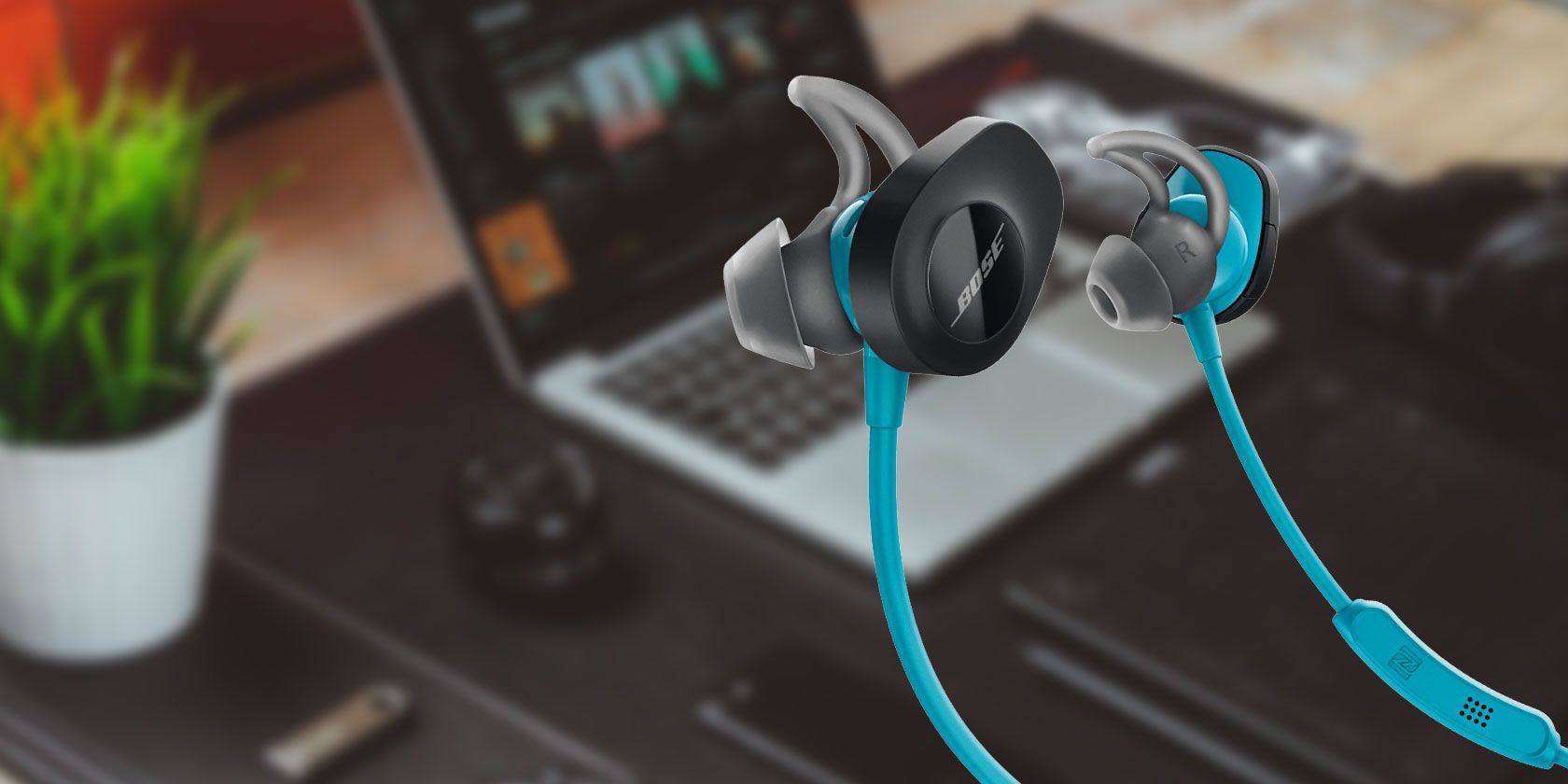
Bose SoundSport Free

Bose SoundSport Free Bose SoundSport Free Buy Now On Amazon $169.00

We’ve already touched on one pair of sports wireless earbuds in the Sennheiser model. However, if you’re looking to spend top money on a premium model, the Bose SoundSport Free buds are the pair you need to consider. They are truly wireless, meaning there’s no neck strap. They also offer one of the most comfortable and secure in-ear fits out of all the buds we’ve looked at in this list.

The snug fit is down to the wingtips; the tips hook into your outer ear to help hold the bud in place. And even if your bud does become dislodged and fall out while you’re exercising, you should find it quickly thanks to Bose’s Find My Headphones feature.

From a sporting standpoint, you will find an activity monitor, heart rate monitor, and an IPX4 waterproof rating (meaning the earbuds are resistant to splashes but not submersion). Finally, sound-wise, you can expect to hear lots of well-defined treble and mid-range tones, but the bass is a little light.

7. Best for Fashion-Conscious Listeners:
BeatsX Wireless Earphones

BeatsX BeatsX Buy Now On Amazon $99.95

Beats headphones might not offer the same sound quality as some of the other premium manufacturers, but if following hot trends are just as important to you, it will be hard to find a better product than the BeatsX earbuds. You’ll see them in sports stars, celebrities, and on catwalks around the world.

Best of all, unlike the over-ear models, the BeatsX earbuds won’t break the bank. The earbuds offer eight hours of battery life (with two hours off a single five-minute charge), support for Siri, a flexible neckstrap, and Apple’s revered W1 chip.

8. Best Mid-Range Wireless Headphones:
Bose SoundSport

Bose SoundSport Bose SoundSport Buy Now On Amazon $99.00

We end with the Bose SoundSport. If you want premium sound without hitting the three-figure price tag, they are worth investigating more closely.

The earbuds boast Bose Active EQ, Bluetooth and NFC pairing, a proprietary ear tip that helps to keep the buds in place throughout the day, and six hours of battery life off a single charge.

The Best Wireless Earbuds for You

It’s impossible to say which of these will be the best wireless earbuds for you. It all depends on the situations in which you plan to use your earbuds and how much money you’re willing to spend.

If these earbuds don’t fulfill your needs, you might find what you’re looking for in some of our other headphone buying guides. We’ve covered the best wired headphones and the best noise-canceling headphones for students. And for louder sound, maybe check out some Bluetooth speakers.

Read the full article: The 8 Best Wireless Earbuds for All Budgets


Read Full Article

The Best Unlisted Phone Number Finders to Help You Dodge Scam Callers


phone-scam-signs

Phone scammers are the bane of everyone’s existence. There has never been a time when they were wanted, and as the years have passed scam calls have gotten more sophisticated and adept.

Because of this, the best option to avoid a scam is to ignore unlisted phone numbers and block suspicious callers. Here is a list of five websites and apps, including the long-time favorite 800Notes, that help you detect scammers. We’ve also got an explanation of why you shouldn’t answer unlisted calls in the first place.

Why Should You Not Answer Unlisted Phone Numbers?

800notes Look up Unlisted Phone Number

According to PR Newswire, over 47 billion robocalls were placed in 2018. More and more often, these scammers are trying to impersonate the IRS or another governmental agency.

Additionally, scammers might try to get you to say “yes” over the phone to record your voice and access stolen credit card data, according to a report by ABC News.

With the myriad of ways that you can be scammed, it’s better to be safe than sorry. Check those unlisted numbers first, and know the telltale signs that you’re on the phone with a scammer.

1. 800Notes

800 notes

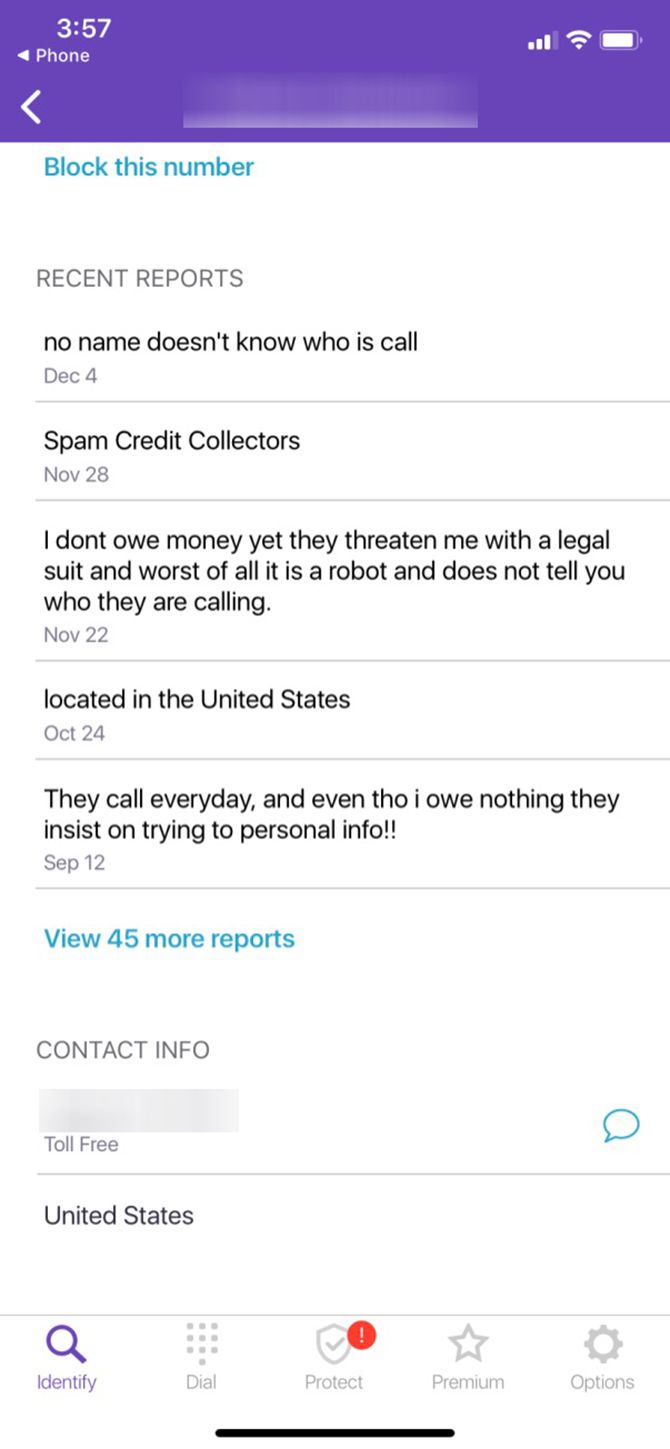
Did you receive a call from an unknown caller ID and the caller did not leave any messages? Wondering who that was? 800Notes is a free website that can help you identify unlisted phone numbers.

Simply enter the caller’s phone number. Then, 800Notes will check to see if there are any other people who received a call from the same number. It will also show other user comments if they left any.

One of the obvious ways to make use of 800Notes would be to identify and report phone scammers. 800Notes also posts news, articles, and videos explaining how to deal with telemarketers or robocalls.

We especially like how frequently the forums are updated for this site, and how active the userbase is in trying to make sure scams and robocalls are tackled directly. An active community is a successful community, in our opinion.

If you’re trying to find the website through Google, however—instead of typing in the address directly—make sure you don’t type “1800 notes” or “800 Note” by accident. Neither of these names belongs to the website, but they get mistaken as such on the regular.

2. WhoCallsMe

Who Calls Me Unknown Number Lookup

WhoCallsMe is a website that looks nearly identical to 800Notes, and it works in a very similar fashion. If you’re contacted by an unlisted phone number, you can type it in. WhoCallsMe will give back information on whether or not the number has already been recorded as a scam.

While WhoCallsMe is not as well-known as 800Notes, it does have a small forum where you can ask questions about scammers and robocalls, and get feedback on how to deal with them.

3. Whitepages

Whitepages Reverse Phone Lookup

Whitepages is one of the biggest online “phone lookup” services out there. Beyond having a visually engaging site, it’s fairly easy to use. You can access multiple different services through the website, including:

  • Looking up a number to see someone’s spam/fraud potential.
  • The address associated with a phone number.
  • The ability to tell if a caller is calling from a cellphone or landline.

If you keep on getting calls from unlisted numbers—and you want details on whom the numbers belong to—then this is a great website to use. What we personally love about Whitepages is that it specifically breaks down the potential scam risk behind each number with a handy graph.

Aside from this, Whitepages is so much more than a scam alert website. Surprisingly, you can also run background checks, screen tenants, and find reputable businesses through it, too.

4. Hiya

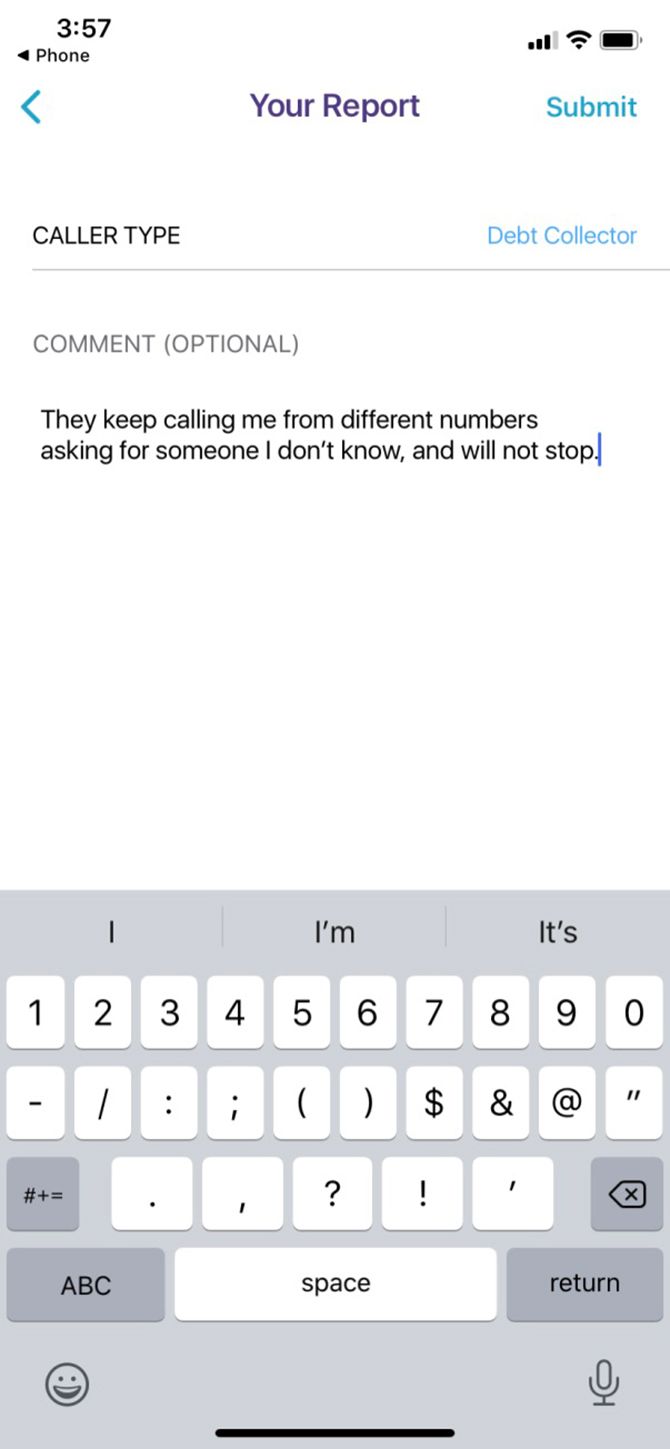
Hiya is an app that you can use to identify and block unknown or unlisted phone numbers, available on Android and iOS. I personally use this app to get rid of persistent, annoying robocalls, and I’ve had a great experience with it so far.

While Hiya does have a premium subscription available, its basic free plan allows you to identify and block spam callers, which is all you really need.

Once Hiya has been installed on your phone, you can whitelist your contacts so that they don’t get caught up in your filters. You can also download block lists of known scam callers to keep yourself safe or report callers who have yet to be added to the system.

Additionally, when you receive a call on your phone that isn’t blocked, a pop-up screen from Hiya will emerge, asking if you want to run the number against their known database of scammers. With one click of the button, you can find out who that unlisted number belongs to and if you need to block them, fast.

Hiya is intuitive and easy to use, and a must-have for anyone who gets a lot of calls on their cellphone.

Download: Hiya for Android | iOS (Free, subscription available)

5. SpamCalls.net

Stop Spam Calls Spamcalls.Net

Last on the list is SpamCalls.net, an unlisted phone number finder that allows you to search for and report scammers in your region.

Through the website, you can identify scammers, report robocalls, and use the reverse phone number lookup tool to see if a suspected number has been hitting your area particularly hard.

What we find especially helpful about this site is that it breaks down the data on scammers by region.

For example: If you’re located in the US, it will show you the phone numbers that are most likely to be bothering US residents, or Canadian residents if you’re living in Canada, etc.

Block and Report Scam Calls

Scammers are a serious menace, not only because they can bother you during the day, but because they’re getting more sophisticated, insidious, and harder to identify when you pick up the phone. If you answer one—and you fall for their scam—there is a high chance of identity theft.

Remember, the safest way to deal with scammers is to not answer any calls by people you don’t know. Look up the number on 800Notes or another website on the list, and block them if they seem suspicious.

Are you being plagued by scams of the digital kind? Here’s how to spot online fakes used by scammers.

Read the full article: The Best Unlisted Phone Number Finders to Help You Dodge Scam Callers


Read Full Article

How to Delete (or Restore) Your Mac’s Recovery Partition


delete-repair-mac-recovery

Every Mac released since 2011 has a built-in Recovery partition. This is a separate section of your hard drive that you can boot into if you need to repair or reinstall the operating system on your Mac.

Unlock the free "Most Useful Mac Keyboard Shortcuts" cheat sheet now!

This will sign you up to our newsletter

Enter your Email

There are some situations where you may want to delete the Recovery partition from your Mac, such as reclaiming the storage it takes up. You shouldn’t do this lightly, though, since it’s a valuable tool for fixing all kinds of problems.

That said, here’s how to delete your Mac’s Recovery partition if you’re sure you want to. We’ll also cover how to restore it again afterward.

What Is the Recovery Partition?

When starting up your Mac, hold Cmd + R to boot into the Recovery partition. If that doesn’t work, you can hold Option + Cmd + R to boot Recovery mode over the internet instead. When there’s a problem with macOS, this is the place to fix it.

The Mac Recovery partition gives you four troubleshooting options:

  • Restore From Time Machine Backup
  • Reinstall macOS
  • Get Help Online
  • Disk Utility

macOS Utilities window from Recovery partition on Mac

These are fairly self-explanatory, although the best tool to use at any time depends on the particular problem you’re experiencing with your Mac.

Extra options are also available from the Utilities dropdown in the menu bar:

  • Firmware Password Utility
  • Network Utility
  • Terminal

You often need to boot into the Recovery partition to make changes to your Mac’s system drive, making it a crucial troubleshooting tool for any Mac user.

How to Delete the Recovery Partition on Your Mac

If you have a spare USB stick and want to reclaim around 650MB of disk space on your Mac, create a bootable macOS installer to replace your Recovery partition. This way, you can still repair macOS if anything goes wrong with your system drive.

Removing the Recovery partition is a tricky procedure that can easily erase all your data. Time Machine can’t help you recover your Mac’s Recovery partition. So we recommend you use software like Carbon Copy Cloner to clone your entire hard disk instead.

Carbon Copy Cloner main window

Even after you do this, there’s a good chance that macOS will restore the Recovery partition on your Mac the next time you install an update anyway. So unless you don’t plan to update macOS ever again, you might need to repeatedly delete your partition.

Find Out if Your Mac Uses Core Storage

Apple introduced Core Storage as part of the technology behind its Fusion Drive. It’s a little trickier to remove the Recovery partition if your Mac uses Core Storage, and you need to use a different method to do so.

Before going any further, find out if your system drive uses Core Storage. Open Terminal and run the following command: diskutil list.

This lists all the drives and partitions on your Mac. Find your Mac’s system drive, usually called Macintosh HD, and check the storage Type it’s listed as.

Terminal DiskUtil List Showing Macintosh HD Storage Type

In the example above, the type is APFS Volume, but if your type is Apple_CoreStorage you should use the second set of instructions below.

Option 1: Delete the Recovery Partition With Terminal

If your Mac doesn’t use Core Storage, the easiest way to delete your Recovery partition is using the Terminal. To get started, find your Recovery identifier by running the following command a second time: diskutil list.

Once again, this lists all the disks and partitions connected to your Mac. Find the Recovery partition and take note of its Identifier. Also, make a separate note of the identifier for your system drive, which is usually called Macintosh HD.

Macintosh HD and Recovery partition identifiers in Terminal

In the example above, the Recovery partition uses the identifier disk1s3. Meanwhile, the Macintosh HD system drive uses the identifier disk1s1. Your Mac may be different.

Now, use the Terminal to delete your Mac’s Recovery partition. Run the following command, replacing the Recovery identifier where noted:

diskutil eraseVolume APFS Blank [RECOVERY IDENTIFIER]

If this command doesn’t work, you may need to change the Type from APFS to JHFS+ to match your drive.

Terminal diskutil showing eraseVolume command

This command deletes the Recovery partition and replaces it with blank space. For the next step, you need to combine the blank space with your system drive. Run this last command in Terminal, replacing the Recovery and system identifiers where noted:

diskutil mergePartitions APFS "Macintosh HD" [SYSTEM IDENTIFIER] [RECOVERY IDENTIFIER]

This command should merge both partitions while preserving all the data on your system disk. You’ve successfully deleted the Recovery partition from your Mac.

Option 2: Clone Core Storage to an External Drive

It’s difficult to edit Core Storage partitions safely, even with the power of the Terminal behind you. You could easily wind up erasing your entire Mac, forcing you to restore everything from a backup.

There is a solution, but it requires the use of Carbon Copy Cloner. You also need another spare external drive with enough storage to clone your Mac’s system drive. If you haven’t already, install Carbon Copy Cloner on your Mac. The software offers a free trial you can use for this.

Clone Your Mac’s System Drive

Connect your external drive and open Disk Utility. Select your external drive from the sidebar and click Erase. Name the drive, set the format to Mac OS Extended (Journaled), and set the scheme to GUID Partition Map.

Disk Utility window showing options to erase external disk

Click Erase to erase and reformat the external drive.

Now, open Carbon Copy Cloner and go to File > New Task. Select your Mac’s system drive as the Source and select your external drive as the Destination. When ready, click Clone to start cloning data to your external drive.

Carbon Copy Cloner selecting Source and Destination

This might take a while, depending on the size of your system.

Boot Into Your External Drive

When it’s complete, reboot your Mac and hold Option while it starts up again. You should get the option to boot your Mac from the external drive. Select it with the arrow keys and hit Enter to boot.

Boot options for Mac showing External Drive

Since you cloned your Mac’s system drive, everything should look the same as it normally does. The only difference is that you’re now running macOS from your external drive.

Open Finder and navigate to the Computer folder, then eject your Mac’s system drive (usually called Macintosh HD).

Delete the Recovery Partition

For the next step, open Disk Utility and select View > Show All Devices. Select the parent drive for your Mac’s internal storage—the one that holds your Recovery partition—and click Erase. Once again, name your drive and set the format to Mac OS Extended (Journaled) with a GUID Partition Map scheme.

Disk Utility sidebar showing parent drive for Mac internal storage

After erasing your Mac’s system drive—and removing your Recovery partition—use Carbon Copy Cloner to put all your data back on it. This time, set your external drive as the Source and your newly erased Mac system drive as the Destination.

When Carbon Copy Cloner asks if you want to include a Recovery Partition, select Cancel. When it finishes cloning the data back to your Mac, you won’t have a Recovery partition anymore.Create Recovery HD option from Carbon Copy Cloner

How to Restore Your Mac’s Recovery Partition

One of the easiest ways to restore the Recovery partition on your Mac is to update macOS. Go to Apple menu > About This Mac > Software Update to download and install new updates.macOS System Preferences Software Update showing up to date Mac

Unfortunately, that means that even when you don’t want it to, the Recovery partition might come back every time you update your Mac. If that happens, repeat the steps above to delete it again.

Of course, if you chose to replace macOS with Linux, you’ve got nothing to worry about with macOS updates.

If you need to restore your Recovery partition but can’t install a new macOS update, use a USB macOS installer to reinstall all the software on your Mac. Alternatively, use Carbon Copy Cloner to clone your drive, but choose to Create Recovery Volume when prompted.

Find Better Ways to Create More Mac Storage

As we’ve seen, it’s entirely possible to delete the Recovery partition from your Mac and free up a bit of storage. But we still don’t recommend it because Recovery mode is so useful. You might need it someday, and it’s a big pain to fix your Mac without that mode.

Thankfully, there are plenty of better ways to create more free space on your Mac.

Read the full article: How to Delete (or Restore) Your Mac’s Recovery Partition


Read Full Article

The 8 Most Relaxing Puzzle Game Apps for iPhone


iphone-games-relax

At the end of a long day there is nothing more comforting than winding down in a relaxing environment. With that in mind here are the most relaxing puzzle game apps to play on your iPhone.

These awesome puzzle games for iPhone combine calming atmospheres with challenging puzzles. So, why not sit back, relax, immerse yourself in the games, and let the stress fade away…

1. Breath of Light

For a truly relaxing experience on your iPhone, give Breath of Light a shot. In this puzzle game app, you move stones around a Zen garden to guide energy supplied by the main source. The goal is to give life to the lotus flowers by directing the energy stream onto them.

In Breath of Light, you have no time limits or points to earn. That means you can take your time and enjoy the varied puzzles at your own pace. It is meant to provide a meditative atmosphere. With lovely visuals and a peaceful soundtrack, the game certainly accomplishes its mission.

Download: Breath of Light ($1.99)

2. Quell+

Quell+ is one of three games in a series, with each one terrific in their own right. This logic puzzle game provides over 80 levels that naturally become more challenging as you progress. Your goal is to collect pearls by moving the raindrop over them, while avoiding obstacles. The game tracks the number of moves you make to encourage a personal best, but there is no limit.

The soundtrack is comprised of classical music with a calming feel. Visuals are polished and attractive for both the puzzle boards and their backgrounds. If you get stuck on a level, the game has in-app purchases for items to help.

If you are interested in the rest of the series, Quell Zen+ and Quell Memento+ are available for $2.99 each. All games in the series offer the same type of serene experience, so if you like this one you’re bound to enjoy them all.

Download: Quell+ ($1.99)

3. Prune

Prune is a relaxing concept which involves growing and shaping a tree. You start by planting the seed, then swipe to prune your tree as it grows. As you progress through each level, you will enter a new chapter with varying environments. You may need to plan for a slight breeze or trim around an obstacle.

Prune has gorgeous minimalist visuals and a tranquil soundtrack which provides the perfect calming atmosphere. If the idea of a creative and elegant puzzle game appeals, give Prune a shot.

Download: Prune ($3.99)

4. Polyforge

Polyforge is a shape-based game with a simple concept. As the crystal rotates, tap to strike each side of it with color. The trick is, if you hit the same side twice, you must start again. While it may sound more frustrating than relaxing, it isn’t. Just check out the video above.

A comforting color palette sets the scene, and with each successful tap on the side of the crystal you will create a soft music tone. This combines well with the theatrical background sounds. However, if you do tap a side twice, you will hear an off-key note.

Polyforge is a nice mix of challenge and relaxation. The game offers an in-app purchase to remove the ads for 99 cents.

Download: Polyforge (Free)

5. Slices

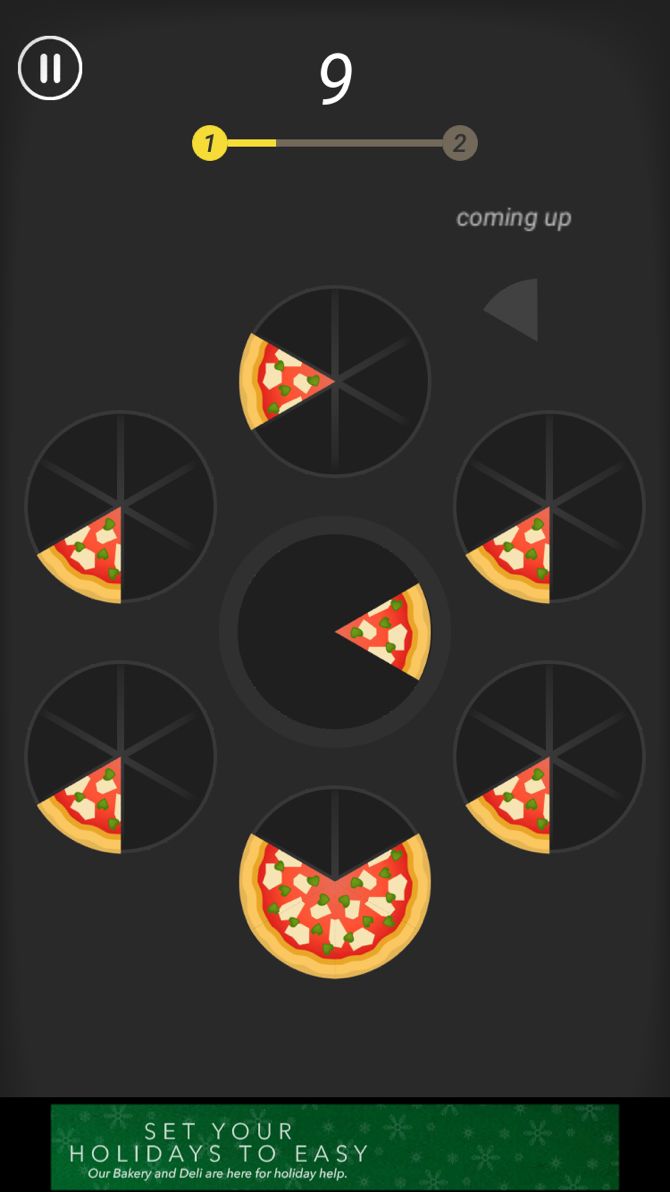
Is Slices as easy as pie? Not quite. But it’s certainly a relaxing puzzler. In this game you have six empty spots to add the slices you receive in the center. Your goal is to fill the pies so that they are removed from the board and you score. If you receive a slice that can’t fit into one of your pies, the level is over.

Work your way through tons of challenging levels with various types of slices. You can also test your skills with daily challenges and earn tickets to play the World Tour which offers several levels per country.

For an addicting puzzle game app that you can just pick up and play at the end of a long day, check out Slices. If you enjoy the game, you can remove the ads for $2.99.

Download: Slices (Free)

6. Alpha Omega

If you enjoy puzzles, but prefer word games over games focused on objects or shapes then Alpha Omega is the game for you. In it you must solve each crossword-styled puzzle using the provided hints. The letters are there for you, but are in the wrong order. Just tap to swap letters to solve each challenge.

Alpha Omega has a beautiful set of themes to choose from, each with a pleasing appearance. To go along with the charming visuals, the game has an elegant, charismatic soundtrack. So, if word puzzles are your preference after a day in the office, Alpha Omega is the ideal way to relax.

The game offers in-app purchases for additional hints and level packs starting at 99 cents. These packs bring the total level count for Alpha Omega to over 2,500.

Download: Alpha Omega (Free)

7. Shadowmatic

Shadowmatic brings an interesting concept to the puzzle genre. Rotate items until the shadow they cast on the wall turns into a recognizable object related to the surroundings. The game includes 100 levels with 3D views, plus an in-game hint system if you get stuck.

Solve your way through 12 different rooms, each with a unique atmosphere. Shadowmatic provides just the right amount of challenge, impressive graphics, and captivating music. And, if you end up loving the music from the game, it is also available on the App Store.

Download: Shadowmatic ($3.99)

8. Zen Trilogy

puzzle game apps - Zen Trilogy

For a set of classic games, the Zen Trilogy puts the challenge of tangram puzzles with soothing sounds in the palm of your hand. You are presented with outlines of shapes, objects, and even animals. Then just drag to fit the colored puzzle pieces onto the outline until the picture is complete. Just keep in mind that you cannot overlap pieces.

Flip and rotate pieces easily, reset them by shaking your device, and remember that not all pieces may be required in a single puzzle. The visuals for each game have subtle and attractive colors and the background music has a peaceful, Zen sound.

The trilogy includes TanZen, Zentomino, and TriZen, each of which can be purchased individually for 99 cents. So, if you enjoy these games, the Zen Trilogy is a smart buy for a combination of 1,365 puzzles. You can also check out the in-app purchases for additional skins starting at 99 cents.

Download: Zen Trilogy ($1.99)

Puzzle Game Apps Can Help You Relax

Each of these games provides a calming, comforting atmosphere. With eye-catching visuals and ambient music, you can use them to unwind at the end of the day.

Looking for more ways to de-stress? Then check out these video game soundtracks to help you relax or these relaxing YouTube channels to help you chill out.

Image Credit: Joshua Resnick/Shutterstock

Read the full article: The 8 Most Relaxing Puzzle Game Apps for iPhone


Read Full Article

The Best Last-Minute Digital Gifts That Don’t Require Shipping


digital-gift

Are you still scrambling to get all your gifts together? Shipping may determine whether your presents make it in time for the holidays. What can you do when it’s too late to ship your gift?

We’ve prepared a list of the best virtual gifts, not just for online friends. On top of being guaranteed to arrive in time, these last-minute digital gifts also have a small ecological footprint.

Digital Gift Cards, Certificates, and Vouchers

Do you know where your gift recipient likes to shop? Most stores offer digital gift cards for their online shops.

In short, if it’s online and selling things, it most probably has a digital gift option, and you’re more than likely to also find it on Amazon. If you know a little about your friend’s hobbies, the devices they own, or their online shopping habits, you can select a gift card from a matching online store, and they will certainly appreciate it.

Inspired Gift Cards: Giftly

Gift anything at any place with a Giftly gift card.

If you’re still at a loss what kind of gift card you should get, use Giftly to spur your inspiration. First, you choose what you want to give, with options ranging from anything to hot cocoa, then you choose a place. Next, you customize your voucher before you pay and either print it out yourself or have it sent to the recipient via email, text, or card. If you have absolutely no clue what your recipient might appreciate, you could select to give them anything at any place.

Be careful when purchasing a gift card for someone abroad or outside the US, though; not all gift cards work in all countries.

Premium Web Services as Virtual Gifts

Like many digital stores, other online services offer pro memberships or subscriptions. People are often somewhat reserved when it comes to investing in such services; it’s a luxury. And that actually makes these services a perfect gift.

What better gift could you deliver than to improve your friend’s experience with their favorite online service. Find out which services they frequently use and surprise them with an upgrade. Should they already have a premium subscription, it only means you made a great choice, and their expiry date will be extended. Below is a short list of options.

Media Streaming

  • Netflix: Surprise someone with unlimited streaming of movies and TV shows.
  • Audible: Gift an audiobook per month for three months at a cost of $45.
  • Pandora: Make a music lover’s day by removing the ads from their favorite music recommendation service. Pandora lets you email a gift card or print it yourself.
  • Spotify: Ad-free commercial music streaming gift cards starting at $10. While you can’t buy them online, you could just buy one at a local store and share the PIN with your recipient.
  • Hulu: Gift a whole month of unlimited movies and TV series. As with Spotify, gift cards aren’t sold online, but you can just share the code.
  • Disney+: This subscription package includes exclusive Disney movies, Hulu shows, and ESPN, making it the perfect family gift. You’ll have to pick up a physical gift card and share the code.

Other Premium Services

  • Amazon Prime: Extra fast shipping, streaming blockbusters, and borrowing Kindle books for free for one year with an Amazon Prime subscription. Learn more about the awesome benefits of Amazon Prime.
  • Kindle Unlimited: Bookworms will appreciate unlimited access to Amazon’s library of Kindle ebooks. You can gift a six months subscription for just under $30.
  • GoSkills: Give the gift of learning. Pick a specific course or the Unlimited option for $39 and support your loved one’s self-improvement ambitions.
  • Treehouse: If your giftee is a programmer, they will appreciate a subscription to this online course library.
  • LastPass Premium: Secure passwords stored online and synced across devices.

Individual Digital Gifts

Gift cards and subscriptions aren’t the most exciting of gifts and may seem uncreative. Here are options for those of you seeking less generic alternatives to a physical gift.

Apps

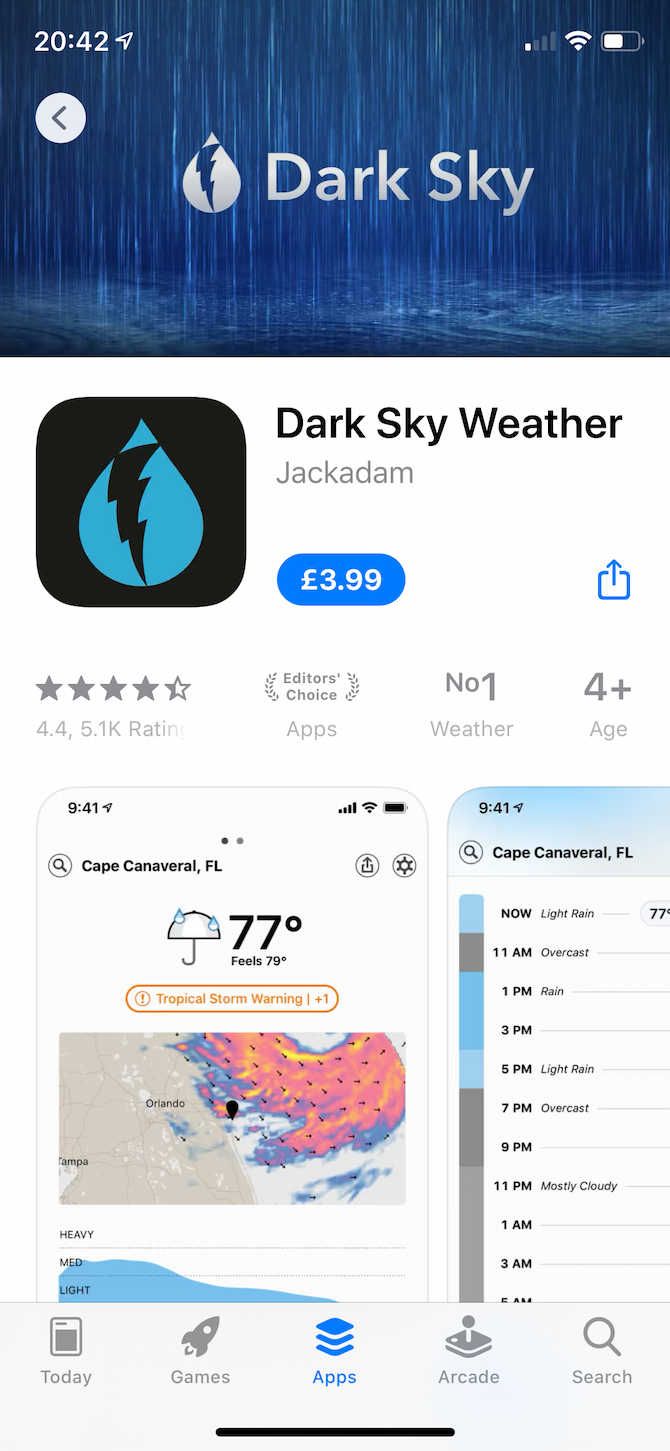
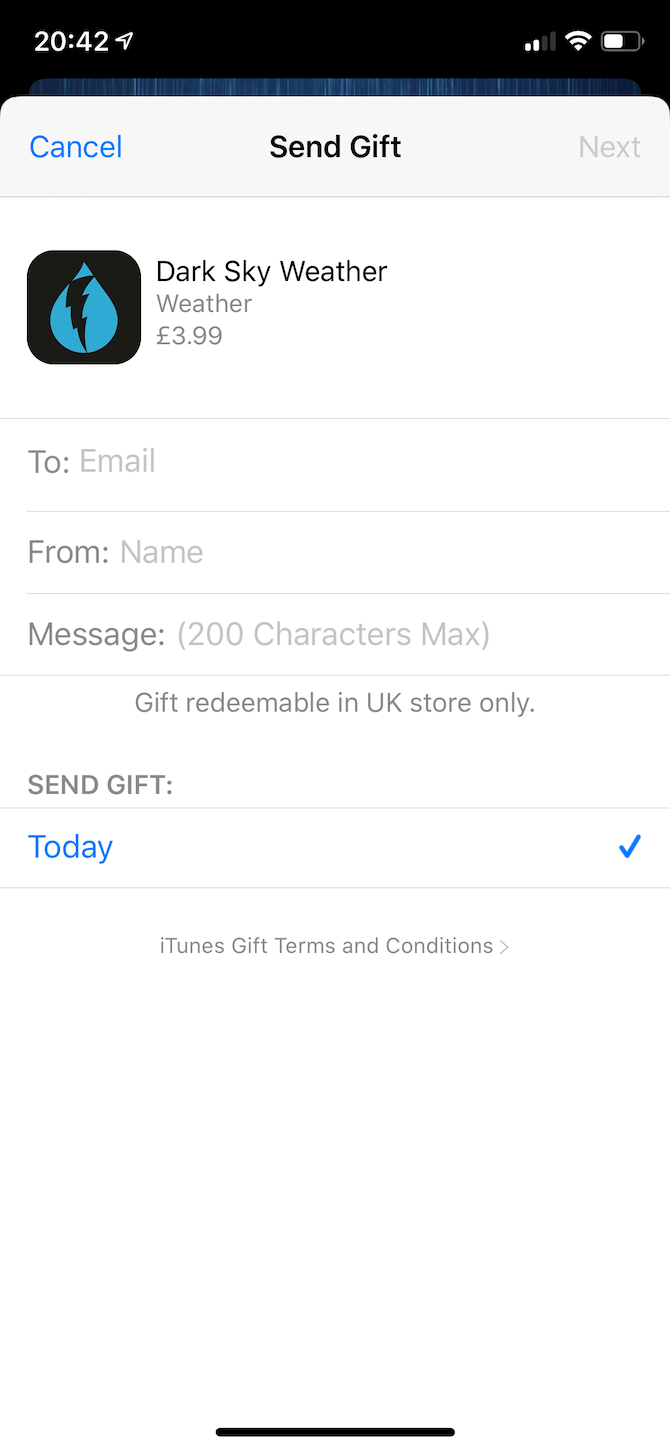
You can gift an iOS app and thus make your present a little more personal.

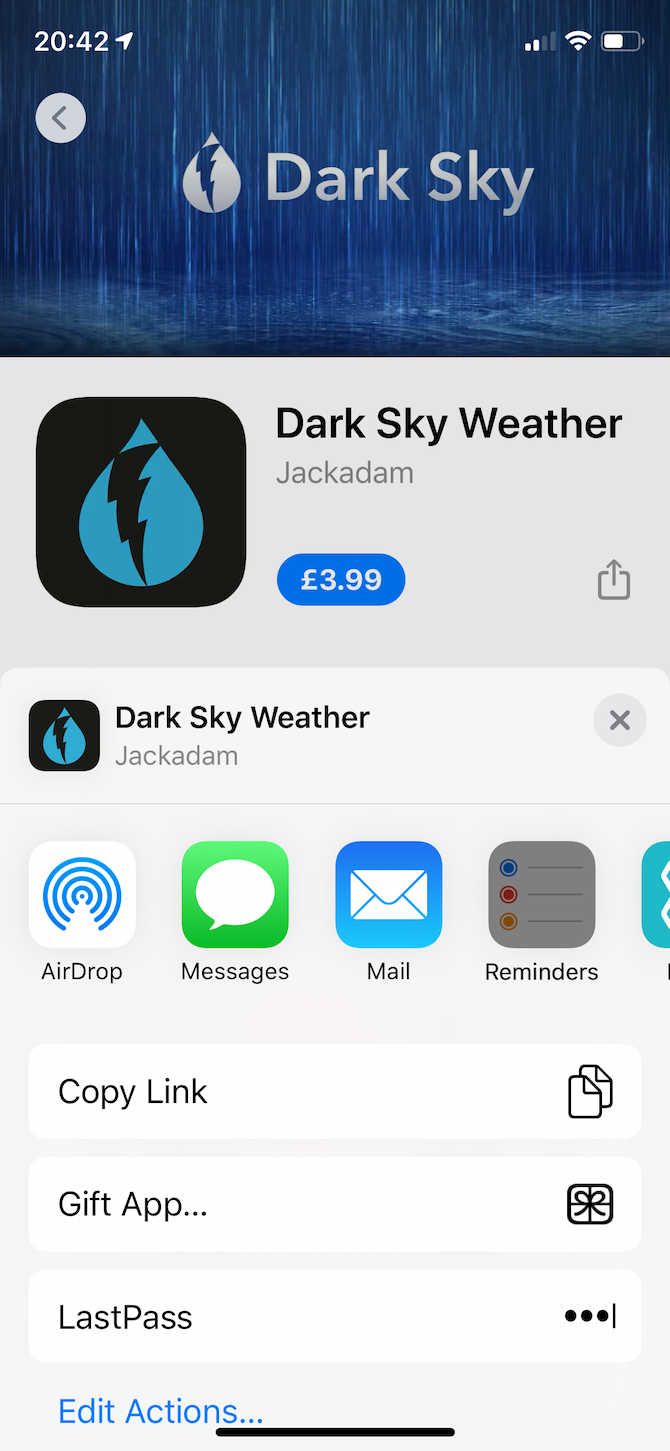
In the App Store or on iTunes, navigate to the app you wish to gift, tap the Share icon in the top right, on the next screen tap the Gift icon.

Then sign in with your Apple ID, type the email address of the recipient, add a custom message, select a date for the gift, and finally tap Next and confirm your purchase.

Music

If your friend is into music and if you know what genres or artists they like, you can probably find a great album for them on one of the many places that sell music. Several allow you to give music as a gift.

  • Amazon Music Unlimited has a Give album OR song as gift button when you expand More options. Also, double-check your friend’s Wish List.
  • iTunes has an option to gift albums, which works just like gifting an iOS app.
  • Bandcamp lets you send songs or albums as a gift.

Audiobooks and Ebooks

Finally, everyone loves a good story or learning new things. Some people prefer reading, others have embraced audiobooks, which are great gifts. Find out what camp your friend belongs to and what devices they own, and you’ll soon be able to identify a compatible and custom gift.

Give the Gift of Consideration

Giftfluence automatic and free charity donations.

Whatever you decide to give as a gift, be considerate. Don’t gift just because you have to or to entertain yourself. Make your gift personal, meaningful, and useful for the recipient.

Note that whenever you do online shopping, you can donate to a charity of your choice—for free—by using a service like Giftfluence. Just visit Giftfluence, choose a cause, then use Giftfluence’s online store link/s, and do your online shopping as usual. Giftfluence also lists vouchers you can use to save on your online purchases.

The Best Digital Gifts

Although we’ve rounded up some of the best last-minute digital gift ideas, if you’re not sure which gift card to choose, simply use one of these creative ways to give money, instead!

Digital gifts without shipping is a convenient way to go. But if you’re still up in the air and are in need of a gift for the Apple fan in your life, check out one of these gift ideas for Mac users.

Read the full article: The Best Last-Minute Digital Gifts That Don’t Require Shipping


Read Full Article
Why lakes and rivers should have the same rights as humans | Kelsey Leonard

Why lakes and rivers should have the same rights as humans | Kelsey Leonard

Water is essential to life. Yet in the eyes of the law, it remains largely unprotected -- leaving many communities without access to safe drinking water, says legal scholar Kelsey Leonard. In this powerful talk, she shows why granting lakes and rivers legal "personhood" -- giving them the same legal rights as humans -- is the first step to protecting our bodies of water and fundamentally transforming how we value this vital resource.

Click the above link to download the TED talk.

Chrome 79 Helps Protect Your Passwords


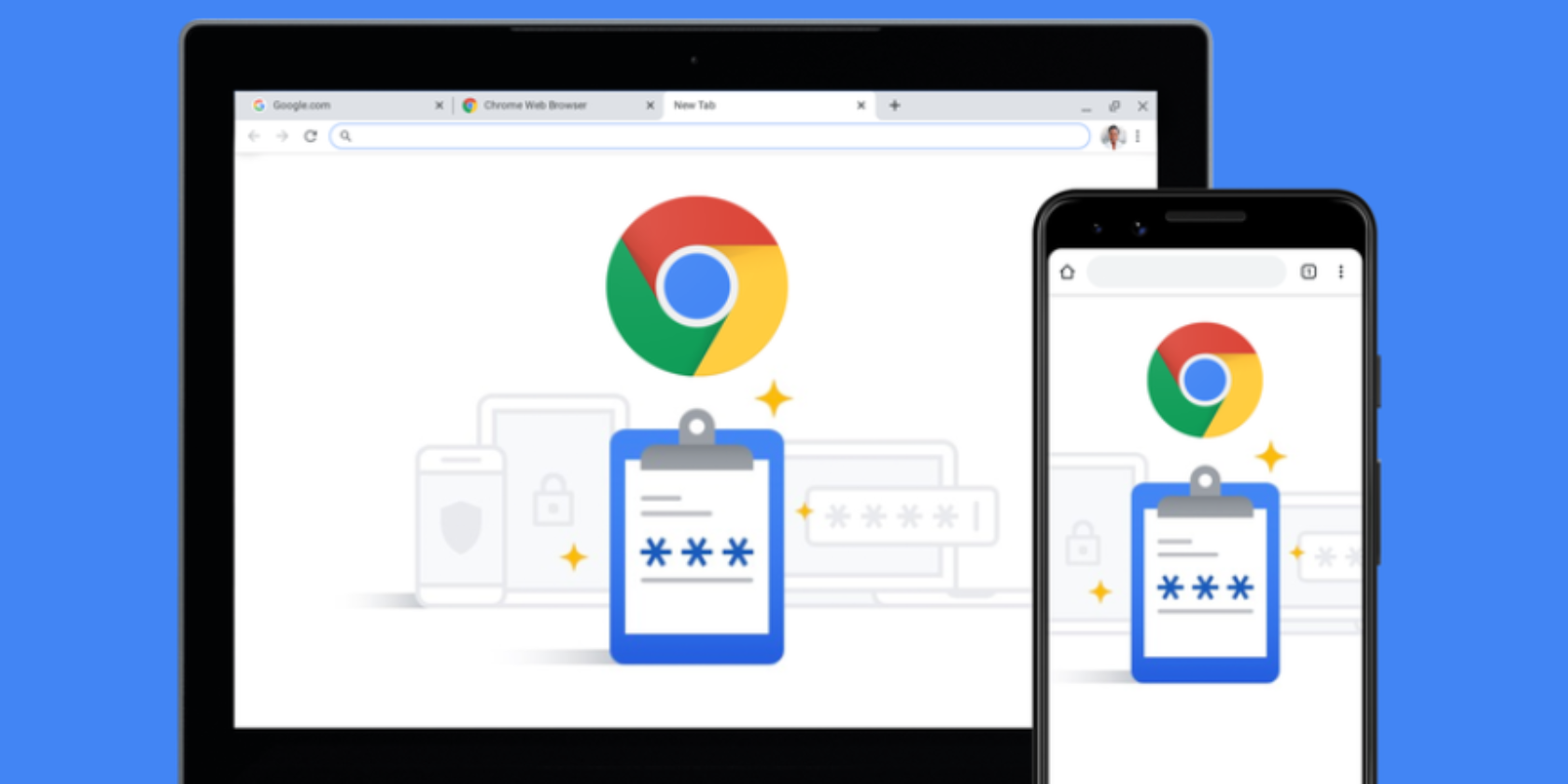
Google has released Chrome 79, which comes with tools designed to keep you safe online. The headline feature is better password protections, which means Chrome will warn you when your password has been stolen and protect you from phishing attempts.

Google Fights Back Against Cyber Criminals

With Chrome 79, Google is ramping up its efforts to keep us all safe while we’re online. And with new threats to our security emerging all of the time, this is more important than ever. Thankfully, Chrome 79 should make it harder for hackers and phishers to succeed.

This is thanks to three of Chrome’s built-in safety protections being expanded. These being password protections, realtime phishing protections, and predictive phishing protections. All of which are outlined in this post on The Keyword.

Chrome Adds Improved Password Protections

The first improvement means that “Chrome will now warn you if your username and password have been compromised in a data breach on some site or app.” This is an expansion of the Password Checkup, and you’ll now be warned as you browse the web.

Google is also improving its Safe Browsing protections to help protect Chrome users from phishing attempts. Realtime phishing protections (on desktop) should prevent phishing sites from stealing your credentials while Google’s list of unsafe sites is refreshed.

Google is also expanding its predictive phishing protections. This protects your Google Account password and any passwords you have stored in Chrome’s password manager. You no longer have to have Sync enabled. Instead, you just need to be signed into Chrome.

The Important Habits to Stay Safe Online

All of these expanded protections will be rolled out to Chrome users over the next few weeks. If you want to read a more in-depth guide to the expanded password protections in Chrome, be sure to read all about it on the Google Online Security Blog.

Obviously not everyone uses Chrome, but that’s no reason to take risks with your online security. It’s all about being aware of the dangers and not doing anything stupid. With that in mind here are the most important habits to help you stay safe online.

Read the full article: Chrome 79 Helps Protect Your Passwords


Read Full Article

How to Use Your Apple or iTunes Gift Card


apple-gift-cards

Not everyone knows how to use an iTunes gift card.

Unlock the free "iPhone and iPad Shortcuts" cheat sheet now!

This will sign you up to our newsletter

Enter your Email

It all depends on which gift card you’ve received. The good news is that Apple credit is often versatile. which means you can use it for all sorts of purchases. Everything from apps and music to subscriptions and accessories is fair game.

Here’s a guide to what you can spend each kind of Apple gift card on. We also have a few recommendations for items you might want to pick up.

Which Apple Gift Card Do You Have?

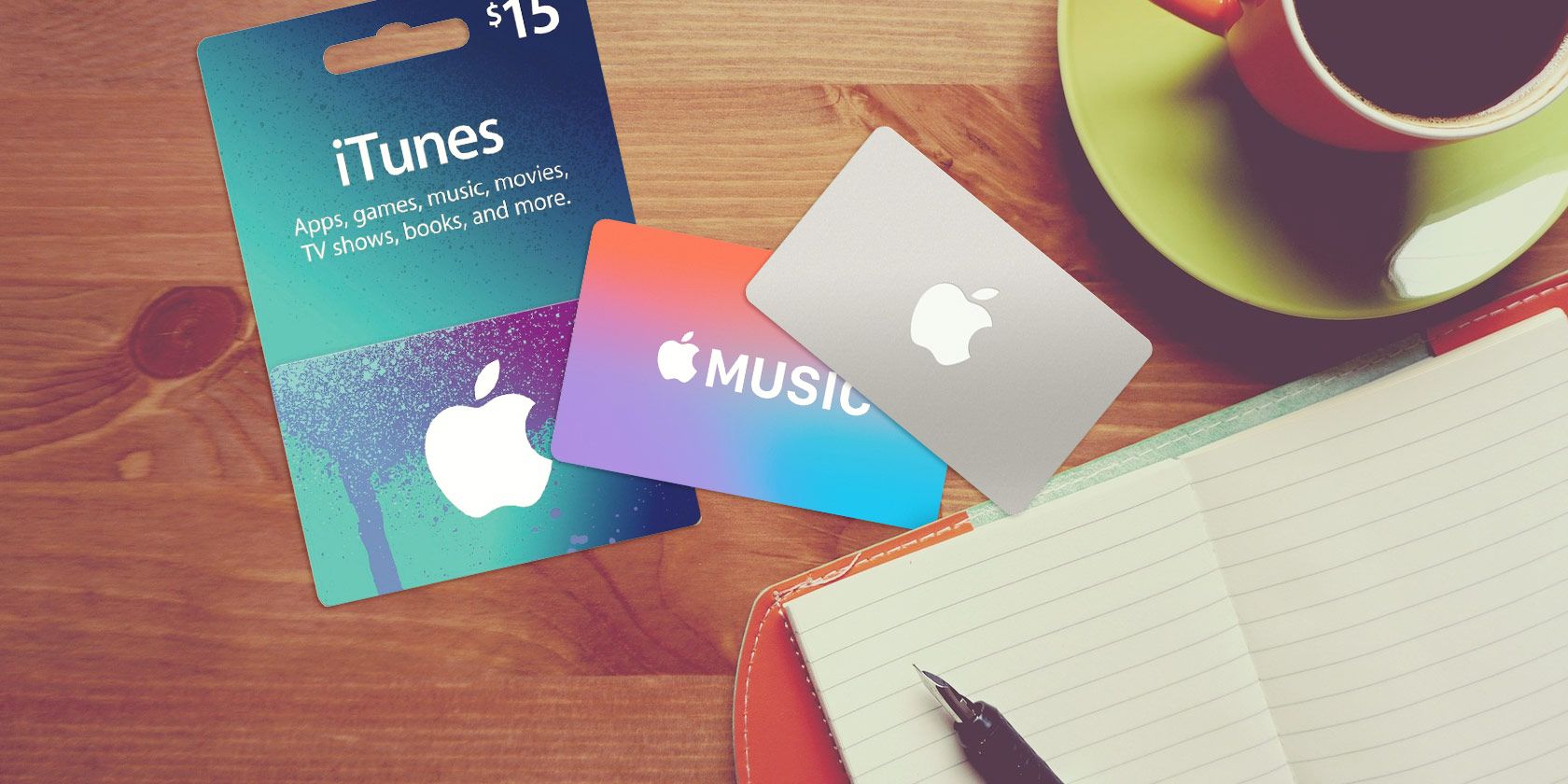
There are two types of gift cards sold by Apple: App Store & iTunes, and Apple Store. These cards are only valid for redemption in the same country they were purchased in. So a US gift card will only work on the US iTunes Store, in a US retail location, or an online outlet.

You can use an App Store & iTunes gift card for purchases from the iTunes Store, App Store, Apple Books, or Apple TV app. Think of it as credit for virtual products. App Store & iTunes gift cards credit your Apple ID balance, so you can use them for movies, games, apps, books, music, and TV shows.

You can also use your credit to pay for other Apple-related services. For instance, you might upgrade your iCloud storage, or pay for subscription services such as Apple Arcade, Apple TV+, Apple News+, and Apple Music.

An Apple Store gift card is only good on Apple’s website, over the phone, or in a physical retail location. You can purchase gift cards in Apple retail stores, or buy them online to be delivered later by mail or email. Once received, you can use them for any purchase in-store, whether it’s Apple hardware, accessories, or boxed software.

What Can You Buy With Apple Store Gift Cards?

A image showing the Apple Store gift card colors

You don’t need to “redeem” an Apple Store gift card—just spend it at a store like cash. Unless specified, there’s no expiry date on an Apple Store gift card.

Here are a few ideas for spending your store credit.

Buy a New iPhone, iPad, or Mac

An image of a 16" MacBook Pro

Even if your gift card doesn’t completely cover the cost of a new Apple gadget, you can use the balance towards any purchase. That means a new iPhone, iPad, Mac, or other pricey Apple product will be cheaper if you use your Apple Store credit.

The iPhone 11 and 11 Pro offer a performance leap over last year’s model. A new MacBook Pro is expensive, but a gift card can help make the price more manageable. You can also pick up the AirPods and Beats X wireless headphones at your local Apple Store.

If you’ve been considering a big purchase for a while, an Apple Store gift card might be the perfect excuse to go ahead with it.

Get an Apple Watch

The latest Apple watch is available in GPS and/or cellular versions, depending on your budget. Having Siri on your wrist is super useful, and built-in GPS lets you track physical activity and workouts. Despite this, many are unsure when to pull the trigger and buy one.

A photo of the different Apple Watch Series 5 finishes

Starting at $399, the Apple Watch Series 5 isn’t cheap. But it might not seem so expensive if you’ve got a nice discount courtesy of an Apple Store gift card. Maybe you’ve already got an Apple Watch, and want to buy a new band to replace your old one? You can use your gift card for that too.

If you’re on the fence about the wearable, check out some of the coolest uses for the Apple Watch.

Consider an Apple TV 4K

Looking for a media streamer, set-top box, or way to watch content from your iOS or macOS devices on your TV? Maybe you want to use AirPlay to send music to your digital receiver?

The latest Apple TV unit is 4K-ready, and so are many of your existing iTunes purchases. If you have a 4K TV, why not accessorize?

Apple TV

Starting at $179 for the 32GB model (which is plenty for most users), a new Apple TV is a great addition to your living room.

Purchase Accessories for Your Devices

An image of an assortment of iPhone 11 cases

Apple stocks its stores not only with iPhone and Mac devices, but many first and third-party accessories too. This includes audio accessories like the Beats Solo Pro wireless headphones and Bose SoundLink Micro speaker. You’ll also find also useful Mac accessories like the Magic TrackPad 2 and mophie wireless charging stand.

Also for sale are game controllers like the SteelSeries Nimbus, Rotor Riot Wired, Horipad Ultimate, and Gamevice for iPhone or iPad Air.

Other cheaper purchases include a huge selection of iPhone cases, charger cables, flash drives, bands, and more.

Also Consider: AppleCare

If you recently received a new iPhone, iPad, Mac, or similarly valuable piece of hardware, you can visit an Apple Store or go online and enroll in AppleCare. Best of all, you can use your gift card towards the purchase.

While the exact policy and price differ depending on the device you buy it for, it’s a pretty worthwhile investment, particularly for iPhone owners. See our guide to AppleCare for more info.

What Can You Buy With App Store & iTunes Gift Cards?

An image of the App Store & iTunes gift card

To use an App Store & iTunes Gift card, you’ll first need to redeem it. Once you’ve redeemed the credit, it’s added to your Apple ID and can’t be transferred.

Any purchases you make will subtract from that balance. You can redeem App Store & iTunes credit using an iOS device, Android device, or from your computer.

Redeem on an iPhone, iPad, or iPod touch:

  1. Launch the App Store.
  2. Tap Today at the bottom of your screen.
  3. Select your user icon at the top of the screen (or sign in if needed).
  4. Tap Redeem Gift Card or Code to redeem by using your camera or entering your code manually.

Redeem via Android:

  1. Launch the Apple Music app.
  2. Press the menu button.
  3. Hit Account.
  4. Choose Redeem Gift Card or Code.
  5. Enter your code and tap on Redeem.

Redeem via the App Store on your Mac:

  1. Launch the App Store.
  2. On the sidebar, click your name or the sign in button.
  3. Click on Redeem Gift Card to redeem by using your camera or entering your code manually.

Redeem via iTunes for Windows:

  1. Launch iTunes.
  2. On the menu bar, choose Account, then pick Redeem.
  3. Sign in and follow the on-screen directions.

Buy iOS or tvOS Apps and Games

Perhaps the most common use for your Apple ID credit these days is to buy mobile apps and games. Considering the relatively low cost of items on the App Store, your credit will likely last you a while. If you prefer, you can make in-app purchases using Apple ID credit too.

Looking for some fun games to buy? Take a look at these:

  • Plague Inc. ($0.99) provides an immersive strategy option for those wanting to go against the entire world.
  • Geometry Dash ($1.99) offers an almost maddeningly difficult but still addictive platforming experience with one-touch controls.
  • Dead Cells ($8.99) gives rogue-lite and Metroidvania fans a challenging yet accessible action title on iOS.

You may also want to use your credit to grab some genuinely useful apps, such as:

  • CARROT Weather ($4.99) is a hyper-local weather forecast bot that’s built on Easter eggs and snark.
  • Tweetbot 5 ($4.99) is the best Twitter app you can buy.
  • The original Facetune ($3.99) is an awesome app to tweak your selfies.

Buy Mac Apps and Games

Your Apple ID credit also works on the Mac App Store. The apps you’ll find there are quite a bit more expensive than their mobile counterparts. But as they are more powerful, you can get real work done.

You might be able to get a nice discount on Apple’s pro-level video editor Final Cut Pro ($299.99) to bring it within your price range. If you’re looking for a good image editor but don’t fancy Adobe’s subscription model, Affinity Photo ($50) is modestly priced and sufficiently powerful.

In the play section of the store, macOS’s 2019 game of the year is a painterly puzzle-platformer called GRIS ($4.99). Also worth your time is Mini Metro ($9.99), a fun strategy puzzler about managing public transportation infrastructure. The legendary Civilization VI ($59.99) is a good pick for strategy fans.

Music, Movies, and TV

You can also buy media on iTunes directly (prior to upgrading to macOS Catalina). If you’re on Catalina or later, Apple Music, Apple TV, Apple Movies, and the Apple Podcasts apps can utilize your funds as well. Regardless of which program you use, it’s easy to buy albums from your favorite artists or even use your Apple ID credit towards an Apple Music subscription (just be aware of the automatic payments when the credit expires).

An image of the Apple Music subscription across different devices

If you prefer, you can also buy or rent movies and TV programs; the latter is much cheaper. Once you’ve redeemed an App Store & iTunes gift card, you can also use it to buy content via your Apple TV.

Don’t Forget Books

If you use your iPhone or iPad as an ereader, you can also use Apple ID credit in the Apple Books app on either a mobile device or a Mac computer. That includes graphic novels, nonfiction, interactive books, and audiobooks.

For pre-Catalina users, iTunes allows for audiobook purchases and playback.

Use Your Apple Gift Card Wisely

Providing that you don’t want to sell your gift card for real currency, an Apple Store gift card can bring an expensive new gadget within reach of your budget. The best aspect of Apple’s credit is that it’s so versatile. If you want to buy a few iPhone apps, rent a movie, and start an Apple Music subscription, go for it.

Your gift card will go even further when paired with Apple hardware discounts you should take advantage of.

Read the full article: How to Use Your Apple or iTunes Gift Card


Read Full Article

10 Awesome Gifts for iPhone and iPad Users


apple-gift-cards

The year is coming to a close, so that means it’s the holiday gift-giving season. If you’re on the hunt for a perfect gift idea, here are 10 great gifts for iPhone and iPad users.

1. Apple AirPods Pro

Apple AirPods Pro Apple AirPods Pro Buy Now On Amazon $249.00

Apple AirPods Pro are probably high on the list of any Apple device user, and for good reason. The completely wireless earbuds take what makes the AirPods so popular and add some great features to the mix.

The biggest perk is active noise cancellation technology, something not found in many other earbuds. With three different sizes of tips and a special fit test, you’ll find the most comfortable fit that also provides the best noise cancellation. A special Adaptive EQ also changes the audio to the shape of your ear.

The earbuds are also resistant to sweat and water, making them perfect for a workout or run. And just like the AirPods, the AirPods Pro quickly and easily connects with an iPhone or iPad and other Apple devices, including an Apple Watch and Mac.

2. Apple Watch Series 5

Apple Watch Series 5 Apple Watch Series 5 Buy Now On Amazon $404.00

Another great gift for iPhone users is an Apple Watch. And the Apple Watch Series 5 is a great way for anyone to track and improve their overall health, stay in touch with family and friends, and depend less on an iPhone.

Thanks to the always-on Retina Display, the Series 5 will display the time and watch face (complications included) without having to turn your wrist or touch the screen. Another exclusive feature is a built-in compass. You can also keep track of your daily activity and even take an ECG to get a better idea of your heart health.

There are two different sizes of the watch, along with a number of different case and band options to suit your taste. You can also purchase a version of the watch with cellular capability that can fully operate away from an iPhone.

3. Belkin Boost Up Wireless Charging Vent Mount

Belkin Boost Up Wireless Charging Vent Mount Belkin Boost Up Wireless Charging Vent Mount Buy Now On Amazon $49.00

While most iPhone users have a wireless charger at home or work to juice up their handset, they probably still have a Lightning cable in their car. But you can cut the cord on the go Belkin Boost Up Wireless Charging Vent Mount.

Made for any iPhone that supports wireless charging, the mount provides the fastest possible charging speed. It securely attaches to any air vent in a vehicle. The adjustable brackets fit a wide variety of phone sizes and thinner cases. You can even place an iPhone in portrait and landscape mode.

4. DJI Osmo Mobile 3 Gimbal

DJI Osmo Mobile 3 Gimbal DJI Osmo Mobile 3 Gimbal Buy Now On Amazon $109.00

The DJI Osmo Mobile 3 Gimbal can help make your iPhone videos and photos even better. The foldable three-axis gimbal can reduce shakiness and provide a smooth, stable video. An ergonomic grip is made to be held for long periods and provide quick one-handed access to buttons for advanced controls.

You can activate many advance shooting modes like ActiveTrack 3.0 that can automatically track a subject with the press of a button. Another fun mode can capture a selfie with the front or rear camera using just a gesture.

5. Brydge Pro Keyboard for 11-inch iPad Pro

Brydge Pro Keyboard for 11-inch iPad Pro Brydge Pro Keyboard for 11-inch iPad Pro Buy Now On Amazon $119.99

Thanks to the combination of hardware and iPadOS 13, current iPad Pro models are taking big steps forward in productivity. But one major part of the equation is missing—a hardware keyboard. While Apple offers its own optional Smart Keyboard Folio, anyone looking to get some serious work done should look at the Brydge Pro Keyboard for 11-inch iPad Pro.

The keyboard can turn the iPad Pro into a MacBook-like clone. The adjustable backlit keyboard features well-spaced keys with good travel. Connecting via Bluetooth, a single charge of the keyboard provides up to 12 months of use. There is even a special row of keys with iPadOS specific functions.

You can choose from a silver or space gray version to match the iPad Pro color choices. There is also a version available for the larger, 12.9-inch iPad Pro. A snap-on magnetic cover protects the back of the tablet while on the go.

6. Twelve South AirFly Duo

Twelve South AirFly Duo Twelve South AirFly Duo Buy Now On Amazon $49.99

Now that Apple’s AirPods and other completely wireless headphones have become commonplace, you’ve probably run into a problem at the gym, on an airplane, and other locations—a 3.5mm jack. Instead of having to forgo watching a video or listening to music, you can use the Twelve South AirFly Duo.

The small device turns any 3.5mm jack into a wireless-ready system. The Bluetooth 5.0 device can run for up to 20 hours of use on a single charge and has a range of 33 feet from your headphones. As a nice touch, the AirFly Duo can share audio between two wireless headphones.

7. Fuse The Snap Back 12W

Fuse The Snap Back 12W Fuse The Snap Back 12W Buy Now On Amazon $12.99

While traveling or on the go, you’re probably carrying a cable and a charging adapter. And the combination always seems to take up an inordinate amount of room in a mangled mess on the bottom of your bag. But Fuse’s The Snap Back brings the two essential items together. The organizer makes it simple.

First, you’ll insert the charger into The Snap Back, insert the USB cable and then wrap it around the outside. When it’s charging time, you can control the amount of cable, too.

Along with the version for the 12W Apple charger that can juice up an iPhone or iPad with a Lightning cable, Fuse has a version for the 5W iPhone charger, the 18W USB-C adapter that can charge an iPhone and iPad Pro, and a 29/30W USB-C MacBook Air charger. All the cable managers are available in black or white.

8. GoCube Connected Rubik’s Cube

GoCube Connected Rubik's Cube GoCube Connected Rubik's Cube Buy Now On Amazon $99.95

Let’s face it. While you might use the iPhone or iPad to help get work done, there’s nothing better than using an Apple device to have some fun. And the GoCube Connected Rubik’s Cube takes the brain-teasing game into the modern age.

The app-enabled cube connects to an iPhone or iPad and helps players solve the classic puzzle in just an hour. You can also see stats to help you improve the time and number of moves it takes to solve the puzzle.

In battle mode, you can also compete with friends and other players from around the world. And that’s not all you can do with the device. You can embark on missions or use the cube as a controller to play mini-games and more in the app.

9. Sonos Move

Sonos Move Sonos Move Buy Now On Amazon $399.00

Sonos has always been a big name in high-quality, whole-home audio. But the new Sonos Move allows music fans to take the sound anywhere. While you can still play music inside using Wi-Fi, the speaker is Bluetooth compatible, so you can connect an iPhone or iPad and turn the volume to 11.

The built-in battery provides up to 10 hours of music playback on a charge. The speaker sports a shock-resistant case can also withstand extreme heat and cold and other elements.

You can play music and more with built-in Amazon Alexa. The Move is also compatible with Apple’s AirPlay 2 protocol to easily start music with a Siri command from your iPhone or iPad.

10. Philips Hue Play White & Color Smart Light

Philips Hue Play White & Color Smart Light Philips Hue Play White & Color Smart Light Buy Now On Amazon $60.00

You can add some ambiance to a home theater system with the Philips Hue Play White & Color Smart Light. Philips includes clips and double-sided tape to make it easy to mount the smart light behind any TV set. You can also mount it in a horizontal or vertical position near a TV.

You will need the additional Philips Hue Hub to unlock the light’s full features, including the ability to change brightness and color with a voice command to Siri, Amazon Alexa, or Google Assistant.

The light is available in a white or black version to better match decor. To save cash, there is also a two-pack of lights for purchase.

Make an iPhone or iPad Owner Happy With These Gift Ideas

The world of accessories is sometimes tricky to navigate, especially if you’re not familiar with either device. So hopefully, we’ve made your job a bit easier with some of these great iPhone and iPad gift ideas.

And if you need to find a perfect present for an Apple computer fan, make sure to take a look at these cool gift ideas for Mac users this holiday season.

Read the full article: 10 Awesome Gifts for iPhone and iPad Users


Read Full Article