28 November 2019

Twitter tests new conversation features from twttr prototype, rollout planned for 2020


Twttr, the prototype app Twitter launched earlier this year, has been testing new ways to display conversations, including through the use of threaded replies and other visual cues. Now, those features have been spotted on Twitter.com, giving the service a message board-like feel where replies are connected to original tweeter and others in a thread by way of thin, gray lines.

As you may recall, the goal with twttr was to give Twitter a place outside of its main app to publicly experiment with more radical changes to the Twitter user interface, gain feedback, then iterate as needed, before the changes were rolled out to Twitter’s main user base. Since its arrival in March, the prototype twttr app has focused mainly on how threaded conversations would work, sometimes including different ways of labeling the posters in a thread, as well.

Currently, for example, twttr labels the original poster — meaning the person who started a conversation — with a little microphone icon, similar to Reddit. It’s also testing a way to view the tweet details in a card-style layout you can activate with a tap.

But its main focus continues to be on the display of the threads themselves.

Following its launch, the work on twttr slowed as did the excitement over its exclusive, invite-only Twitter experience. Instead of being a continual testbed of new ideas, twttr mostly rolled out small tweaks to threads. And it never branched out beyond conversation redesigns to test entirely new features, like Twitter’s recently launched Topics, for example.

In August, Sara Haider, who had been heading up the design of Conversations on Twitter — a role that included running twttr — announced she would be moving to a new team at the company. Meanwhile, Suzanne Xie, who had just joined Twitter by way of the Lightwell acquisition, stepped in to lead Conversations instead. She confirmed at the time that part of her role would be working with the twttr team to bring its best parts to the main Twitter app.

That work now appears to be underway.

Noted reverse engineer Jane Manchun Wong spotted a conversation tree layout being developed on Twitter.com, identical to the one found on twttr.

And just this week, the feature was tweaked a bit more to include the ability to focus on a specific tweet, even from a permalink — also similar to twttr’s card-style layout, which highlights tweets you tap within a thread in the same way.

Wong wasn’t opted into an A/B test on Twitter.com to view this feature but rather found it through her investigative techniques, we understand.

Twitter confirmed what she found is part of the company’s broader plan to bring twttr’s features to Twitter — a rollout that will take place next year, a spokesperson said.

In addition, the company is considering how to use the twttr app to experiment with other features going forward, it says.


Read Full Article

Twitter to add a way to ‘memorialize’ accounts for deceased users before removing inactive ones


Twitter has changed its tune regarding inactive accounts after receiving a lot of user feedback: It will now be developing a way to “memorialize” user accounts for those who have passed away, before proceeding with a plan it confirmed this week to deactivate accounts that are inactive in order to “present more accurate, credible information” on the service. To the company’s credit, it reacted swiftly after receiving a significant amount of negative feedback on this move, and it seems like the case of deceased users simply wasn’t considered in the decision to proceed with terminating dormant accounts.

After Twitter confirmed the inactive account (those that haven’t tweeted in more than six months) cleanup on Tuesday, a number of users noted that this would also have the effect of erasing the content of accounts whose owners have passed away. TechCrunch alum Drew Olanoff wrote about this impact from a personal perspective, asking Twitter to reconsider their move in light of the human impact and potential emotional cost.

In a thread today detailing their new thinking around inactive accounts, Twitter explained that its current inactive account policy has actually always been in place, but that they haven’t been diligent about enforcing it. They’re going to begin doin so in the European Union partly in accordance with local privacy laws, citing GDPR specifically. But the company also says it will now not be removing any inactive accounts before first implementing a way for inactive accounts belonging to deceased users to be “memorialized,” which presumably means preserving their content.

Twitter went on to day that it might expand or refine its inactive account policy to ensure it works with global privacy regulations, but will be sure to communicate these changes broadly before they go into effect.

It’s not yet clear what Twitter will do to offer this ‘memorialization’ of accounts, but there is some precedent they can look to for cues: Facebook has a ‘memorialized accounts’ feature that it introduced for similar reasons.


Read Full Article

Twitter Is Planning to Cull Inactive Accounts


Twitter is embarking on a mass cull of inactive users. The cull is set to begin on December 11, 2019, so if you haven’t signed into Twitter lately, you should do so right now. Unless you’re happy for Twitter to permanently delete your account.

Twitter Wants to Cull All Inactive Accounts

This cull is happening thanks to Twitter’s Inactive Account Policy. This states that in order to “keep your account active, be sure to log in and Tweet at least every 6 months.” Furthermore, “Accounts may be permanently removed due to prolonged inactivity.”

Twitter is emailing owners of accounts under threat. Which is anyone who hasn’t signed into Twitter for the past six months. The emails make it clear that Twitter wants you to “agree to the current Terms, Privacy Policy, and Cookie Use”.

In order to do that “you need to log in and follow the on-screen prompts before Dec. 11, 2019, otherwise your account will be removed from Twitter.” That date may not apply to all inactive accounts, but if you get an email you should definitely act fast.

What Happens to Twitter Users Who Have Died?

One wrinkle Twitter doesn’t seem to have considered is accounts belonging to people who have passed away. While Facebook offers family and friends a way to memorialize accounts for people who have died, Twitter currently doesn’t offer anything similar.

This means that relatives of people who have died could see their accounts disappear. That is unless they have access to it, and can log in and tweet from it. At the time of writing Twitter has only said that it’s “thinking about ways” to deal with this issue.

Twitter Usernames Will Become Available Again

This is bad news for Twitter users who don’t tweet very often. If that describes you, you need to log in and start tweeting by the cutoff or risk losing your account. However, it’s good news for the rest of us, as old usernames will soon become available again.

If you have fallen out of love with Twitter but want to start tweeting again, be sure to read our guide explaining how to use Twitter. It’s packed full of interesting information and advice that will help you get more out of Twitter, even if you’re just a casual user.

Image Credit: Andreas Eldh/Flickr

Read the full article: Twitter Is Planning to Cull Inactive Accounts


Read Full Article

Windows 10 Taskbar Customization: The Complete Guide


windows-10-taskbar

The Windows 10 taskbar is one of the least-appreciated aspects of the Windows user interface. It’s there, it’s reliable, and it does exactly what it’s supposed to.

However, this doesn’t mean you have to stick with the way it works by default. You have plenty of options, both built-in and through third-party software, that allow you to tweak many facets of the taskbar.

Let’s look at the many ways to customize the Windows 10 taskbar, plus some third-party tools for more control.

Windows 10 Taskbar Options in the Settings Menu

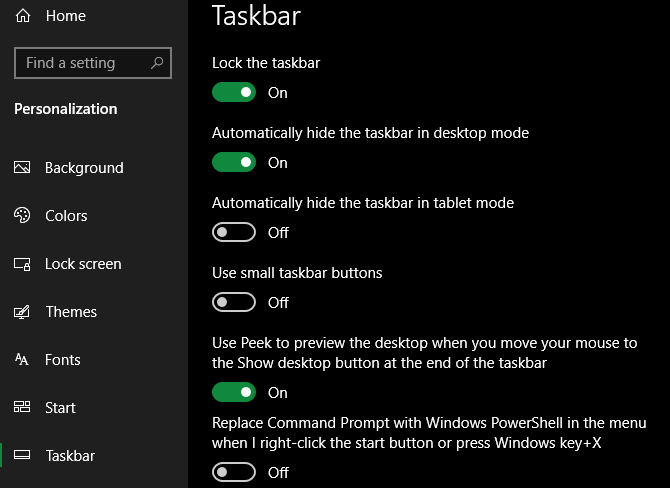
We’ll start with the basics. In the Settings menu under Settings > Personalization > Taskbar, you’ll find a slew of customization options related to this element.

Here’s how to use them to change various facets of your Windows 10 taskbar.

Windows 10 Taskbar Options

Basic Taskbar Settings

First up is Lock the taskbar. With this enabled, you can’t drag the taskbar to change its on-screen position or rearrange toolbar elements. It’s a good idea to keep this enabled unless you want to make changes.

Next you’ll see a pair of related options: Automatically hide the taskbar in desktop mode and Automatically hide the taskbar in tablet mode. With either of these enabled, your taskbar will slide off-screen except when your mouse is near it or you swipe a finger from that direction.

windows 10 taskbar hide

Check Use small taskbar buttons if you have a lot of icons pinned and want to fit them all.

windows 10 taskbar enlarge icons

Moving on, you’ll see a Use peek to preview the desktop… option. With this enabled, you can move your mouse to the very bottom-right corner of the screen to “see through” all open windows. The keyboard shortcut Win + Comma achieves the same effect.

If you prefer the Command Prompt over PowerShell, make sure the Replace Command Prompt with Windows PowerShell… option is unchecked. This changes what utility shows up when you right-click the Start button or press Win + X.

Turn Show badges on taskbar buttons on and you’ll see, for example, how many unread emails you have in the Mail app’s icon.

You can also select the taskbar location on screen in this menu. Most people are used to it at the bottom, but you can move it to the top, left, or right side if you want to try something different.

windows 10 taskbar move

By default, Windows 10 simply shows one icon for each program you have open, regardless of how many instances are running. You can split this into separate entries for each process, plus add the title text to the taskbar, by changing the Combine taskbar buttons setting.

The default is Always, hide labels. Choose Never to keep them separate all the time, or When taskbar is full to split them unless there are too many icons. This style resembles the taskbar in Windows Vista and earlier.

Windows 10 Taskbar Labels

System Tray Options

The System Tray, also known as the notification area, is the group of icons at the far right of your taskbar. It holds icons for programs running in the background, along with Windows system icons like volume and the clock.

Click the Select which icons appear on the taskbar text to take a look at the list. Toggle the slider to On for any apps you want to always show, and Off if you don’t want them appearing.

windows 10 taskbar system tray options

Icons you’ve turned off will appear when you click the overflow arrow in the System Tray section of the taskbar. If you find a lot of apps here that you don’t want to run all the time, you should manage your Windows startup items.

You can also choose to Turn system icons on or off. This lets you hide default Windows icons (such as the network icon and volume slider) from the System Tray.

Using the Taskbar With Multiple Displays

If you use two or more monitors with your computer, you can change how the taskbar works across the screens. Disable Show taskbar on all displays to only display it on your primary monitor.

windows 10 taskbar multiple displays

When the taskbar is enabled across monitors, you have two additional options underneath this. Show taskbar buttons on has three choices:

  • All taskbars will keep all pinned and open icons on the taskbar for every monitor.
  • Main taskbar and taskbar where window is open will show all icons on your main monitor. However, other monitors will only show taskbar icons for programs currently open on that display.
  • Taskbar where window is open only shows icons for programs open on that monitor.

Below this, you’ll see a Combine buttons on other taskbars option. This works the same way as the combination option discussed above.

People on the Taskbar

Windows 10 People Icon

When you set up Windows 10 for the first time, you’ll see a People icon on the taskbar’s right side. This feature is supposed to make it easy to message your frequent contacts across various apps. In reality, though, hardly any services support it, so it’s effectively pointless.

Because nobody really uses the People option, we recommend disabling Show contacts on the taskbar on this page. Doing so gives you more space for icons you’ll actually use.

Change the Windows 10 Taskbar Color

Windows 10 lets you change the taskbar color to whatever you like, but the option isn’t on the same page as everything above. Instead, head to Settings > Personalization > Colors.

Here, use the Choose your color dropdown to select between Dark and Light modes (or Custom to pick different options for apps and UI elements). You can also disable the Transparency effects slider if you don’t like those.

Below, you can choose a color for your taskbar and other Windows 10 interface elements. Pick from the palette or choose Custom color to specify a specific value. There’s also an option to have Windows pick a color based on your wallpaper, if you like.

windows 10 taskbar change color

Finally, make sure you have the Start, taskbar, and action center box checked at the bottom of the page to apply your chosen color to those areas.

Built-In Windows 10 Taskbar Customization Options

Next, we look at ways to get more out of the taskbar with some shortcuts, workarounds, and options on the taskbar itself.

Pin Programs and Folders to Your Taskbar

Pinning your frequent programs to the taskbar is simple. Search for something by typing it into the Start menu, then right-click the app and choose Pin to taskbar. If you change your mind, unpin program icons by right-clicking them and hitting Unpin from taskbar.

Windows Pin to Taskbar

Did you know that you can also store specific folders on your taskbar? First, right-click on your desktop, mouse over View, and ensure Show desktop icons is checked. Next, right-click again and head to New > Shortcut.

On the Create Shortcut window, click Browse and select your folder. Before you finish, ensure you add “explorer ” before the folder location (as shown in the example below; note that there’s a included space between “explorer” and the address).

windows 10 taskbar create shortcut

Give it a descriptive name, then finish creating your shortcut. Once it’s ready on the desktop, right-click it and select Pin to taskbar.

windows 10 taskbar pin folder

You can then click to open a File Explorer window right to that spot.

Center All Windows 10 Taskbar Icons

This is a fun customization because it’s clever and not immediately obvious. It also makes for a more aesthetically pleasing desktop.

First, right-click on your taskbar and ensure the Lock the taskbar option is not checked. Next on the right-click context menu, mouse over Toolbars and select Links. You should now see a Links section on the right side of your taskbar.

Drag the taskbar separator beside Links to the left-most edge of the taskbar. Your icons should automatically shift to the right. Then, drag the separator on the right-hand side (which is to the left of the program icons) to the middle, shifting your programs along with it.

windows 10 taskbar center icons taskbar

Once you’ve centered your icons, right-click on the Links parameter (which should now be on the left side of your taskbar) and uncheck both Show Text and Show title. If you have any icons in the Links section, right-click them and hit Delete.

Finally, right-click an empty spot on the bar again and select Lock the taskbar. That’s it: you now have centered icons on your taskbar.

Add Windows 10 Taskbar Spacers

Windows 10 Spaced Icons Taskbar

By default, all your taskbar icons appear right next to each other. If you want to create a divider on the Windows taskbar, you can whip one up by hand fairly easily.

See the “How to Create Blank taskbar Icons” section in our guide to creating custom icons in Windows 10 for instructions on this. The tips in that piece will also help you make folders pinned to your taskbar stand out with unique icons.

Remove the Cortana Icon and Other Features

Out of the box, the taskbar includes some icons for features that you might not use. You can remove these or make them smaller to maximize the available space. Let’s briefly look at everything in the context menu of the taskbar.

Under Toolbars, you’ll see three options: Address, Links, and Desktop. Address provides a small bar where you can type a URL or location on your PC to jump to it. Links is a quick shortcut to your internet Explorer favorites (though you can drag other links to it). And Desktop lets you access files saved on your Desktop from the taskbar.

Windows Taskbar Toolbars

You can also choose New toolbar to quickly access any folder on your PC. However, for most people, these aren’t that useful and take up more space than they’re worth.

Under Search, you can choose Show search icon or Hidden to reduce the huge amount of space the default bar uses. Uncheck Show Cortana button if you don’t need quick access to the virtual assistant. And even if you disable the Show Task View option, you can still press Win + Tab to access it.

Windows 10 Taskbar Icon Hiding

We discussed People earlier. The final two options for Windows Ink Workspace and touch keyboard are only useful for touchscreen users, so you can disable them otherwise.

You may have some other options, depending on the software installed on your computer.

Third-Party Windows 10 Taskbar Customization

That’s it for default customization options. If you’re looking for more, you should turn to third-party tools for editing deeper aspects of the Windows 10 taskbar.

For this, have a look at our list of the best Windows Start menu alternatives. These apps allow you to customize not only the Start menu, but also many taskbar elements as well.

If you’re not interested in installing an alternative, we recommend taking a look at 7+ Taskbar Tweaker. It’s definitely the best Windows 10 taskbar customization software; this powerful yet straightforward utility lets you change all sorts of advanced taskbar options. Many of these are not normally available or require digging into the Registry.

Your Windows 10 Taskbar, Made Better Than Ever

You might never have considered how you can improve the Windows 10 taskbar. But now you know what each of the Settings menu options does and how to go further if you want more customization. By making the taskbar conform better to your needs, you can work more efficiently in Windows.

If this customization has you looking for more, check out more ways to tweak the look and feel of your Windows desktop.

Read the full article: Windows 10 Taskbar Customization: The Complete Guide


Read Full Article

The 6 Best Complaint Sites for Pissed Off Consumers


When you have a terrible experience at a restaurant or store, you might not know where to turn. Maybe you even alerted a manager or customer service agent, only to get ignored. As a pissed off consumer, you want to post a review or complaint online.

Online reviews can help warn other customers about an untrustworthy company, and can also help your problem reach a satisfying conclusion. If you want to comment on a business or product, head to these consumer complaint sites.

1. Pissed Consumer

Pissed Consumer Customer Review Site

PissedConsumer includes a database of business reviews and complaints on a wide variety of topics, companies, products, and services. The Latest Reviews page consists of clear titles and summaries of consumer complaints, as well as positive feedback.

In addition to having written reviews, the complaint website houses plenty of reviews with videos. Clicking on one of its videos will lead you to the Pissed Consumer’s YouTube Channel. You can find reviews accompanied by pictures as well. That said, the site definitely gives you a chance to thoroughly express your opinion about a service or product.

As you search through different reviews, you’ll notice that you can give the review a “thumbs-up” or “thumbs-down,” and even leave some comments. If you’re looking for reviews on a specific company, perform a simple search—Pissed Consumer will display the company’s latest complaints along with contact information.

2. Complaints Board

Complaints Board Customer Review Site

As soon as you open Complaints Board, you’ll see a running list of the most recent reviews on the home page. The site covers complaints about all types of businesses and services. Some categories include medical negligence, auto shops, utility services, online stores, restaurants, and much more. In other words, if you have a complaint, this consumer complaints website most likely has a place for it.

On the bottom right side of the page, you can view a list of poorly-rated businesses titled “Stay Away,” along with another list of businesses underneath the “Subjects of Wide Speculation” heading. These lists give you a quick rundown of the businesses with the most negative feedback at the moment.

A list of the top 20 complaints lies at the very bottom of the page. This also comes in handy to find out if other customers have had the same experience as you.

3. Consumer Affairs

Consumer Affairs Customer Review SIte

ConsumerAffairs focuses on consumer news on a wide range of subjects including warranties, debt settlement, solar power, investing in gold, and much more. The home screen features a list of these categories—clicking on one will lead you to a page with reviews of various different companies.

You can also head to the Trending tab on the top menu bar, and select a category from the dropdown menu to view reviews. The Buyers Guide option is also quite helpful, as it shows you the best businesses in each area.

If you’re a pissed off consumer, all you need to do is click Write a Review in the top right of the screen. From here, you can create a video review or write about your experience.

4. Better Business Bureau

Better Business Bureau Customer Review Site

The Better Business Bureau exists to make sure that businesses fulfill their promises. The organization serves the United States, Canada, and Mexico.

Are you a pissed consumer who had a poor experience with a business? Click Leave a Review on the site’s home page. You can then find the business you disliked and rate it. The Better Business Bureau also allows you to file a formal complaint. However, you have to make sure that your complaint meets certain criteria before submitting it.

You can also head to BBB Scam Tracker on the top menu bar. This helps you keep track of potential scams in your area, and lets you report scams as well.

5. Trustpilot

Trust Pilot Customer Review Site

While Trustpilot has a host of great reviews, it has an equally alarming number of product complaints and bad reviews. Trustpilot has dozens of very specific categories—you can find any type of business worth complaining about, from coffee roasters to pizza delivery services and day spas. Clicking on one of these categories lets you view related reviews.

Wonder if AliExpress is legit and safe to buy from? You can find out information about online businesses as well. Each company gets a rating from one to five stars.

If you have a review you’d like to post, simply find the company and click on it. You can then add in your own rating, as well as a written review. Just keep in mind that you’ll have to verify yourself with Google, Facebook, or email before posting it.

6. Sitejabber

Sitejabber Customer Review Site

Sitejabber is the perfect complaint site for anyone who’s had a bad experience with an online shop. Like most sites on this list, Sitejabber also has tons of categories where you can easily find the business you want to review. Each business is also ranked from one to five stars.

If you want to leave a review, simply scroll to the bottom of the page and click Write a Review under the Resources heading. You can then add the name of the website, write your review, and even add pictures.

Sitejabber also has some helpful additional content as well. Head to the Consumer Tips section, and you can browse through a number of articles that help you avoid scams when shopping on eBay and other online shops.

Use Consumer Complaint Sites to Express Your Opinion

When you receive poor customer service or a faulty product, it’s only right to warn other shoppers. Otherwise, other customers will inevitably fall into the same scam.

Giving your truthful and honest opinion on a consumer complaint site can also help a business improve its services in the future. By posting a review, you just might get a response from a company that resolves your issue!

While you should be a bit cautious when shopping online, it’s no reason to stop altogether. You’ll need to use extra caution on Amazon, as it’s plagued with tons of fake reviews. Read this article to find out how you can spot fake reviews on Amazon, and avoid getting scammed.

Read the full article: The 6 Best Complaint Sites for Pissed Off Consumers


Read Full Article

13 Best Gifts for Fans of Marvel’s Avengers


avengers-gift-ideas

Of course, Marvel Comics is one of the biggest brands in the world, with millions of fans of all ages. Thanks to the Marvel Cinematic Universe (MCU), everyone knows who Iron Man, Captain America, and Thor are. That’s without mentioning Dr. Strange, Hawkeye, and the Guardians of the Galaxy!

But with a wealth of Marvel merchandise on offer, how do you find the perfect presents for Avengers fans? We’ve narrowed it down for you.

Here are the best gifts for fans of Marvel’s Avengers.

1. Avengers Hero Inventor Kit

Avengers Hero Inventor Kit Avengers Hero Inventor Kit Buy Now On Amazon $94.00

The Avengers Hero Inventor Kit lets kids follow in the footsteps of Iron Man. It encourages them to use their own minds to become a hero—exactly as Tony Stark did.

The set includes everything you need to build and customize an interactive gauntlet, giving youngsters hours of entertainment. This is a fun way of introducing coding through STEAM (Science, Technology, Engineering, Art, and Math) learning.

2. Captain America Sky Hero Drone

Captain America Sky Hero Drone Captain America Sky Hero Drone Buy Now On Amazon $19.95

Drones are hugely popular right now, and everyone wants to try flying one. This Captain America Sky Hero Drone is a good place to start. The controls are simple and the body durable, so it shouldn’t suffer much damage if the owner crashes it.

There are spare rotors in the pack, too. The red, white, and blue Captain America branding is a nice touch, as are the LEDs. These provide light so that the owner can signal the Avengers even in low light.

3. Thor Hammer 3D Deco Light

Thor Hammer 3D Deco Light Thor Hammer 3D Deco Light Buy Now On Amazon $39.99

Whosoever holds this hammer, if they be worthy, shall possess the power of…Thor.

The God of Thunder lights up a room. Or, at least, the Thor Hammer 3D Deco Light does. The battery-operated replica of Mjolnir adds a warm glow to its environs. It attaches to a wall using two small screws, covered by a cracked-wall decal. Because it uses LEDs, the 3D Deco Light doesn’t get hot, making it a great gift for Thor fans.

4. Age of Ultron

Age of Ultron Age of Ultron Buy Now On Amazon $8.66

Written by Brian Michael Bendis, with art by Bryan Hitch, Brandon Peterson, and Carlos Pacheco, the Age of Ultron graphic novel sees the  artificial intelligence, Ultron, victorious.

The 10-part comic series, collated into one volume, blends aspects of the second Avengers movie with Endgame, as Wolverine heads back in time to stop Ultron. Unlike in the MCU, this involves killing Ultron’s creator, Hank Pym, before he can develop the malicious software.

5. Captain Marvel Gaming Chair

Captain Marvel Gaming Chair Captain Marvel Gaming Chair Buy Now On Amazon $139.98

Sit back in style with the Captain Marvel Gaming Chair, emblazoned with the eye-catching colors. Gaming chairs are designed for people who like to spend time sitting in front of their favorite games.

This means they’re typically more hard-wearing than desk chairs, so this is a fantastic investment—doubly so as Captain Marvel is set to be the future of the MCU. Similar embroidered designs are available for fans of Iron Man, Captain America, and Spider-Man.

6. Spider-Man: Game of the Year Edition

Spider-Man: Game of the Year Edition Spider-Man: Game of the Year Edition Buy Now On Amazon $20.49

Anyone who has already tried the original PlayStation 4 game won’t be surprised that it’s been repackaged as the Spider-Man: Game of the Year Edition. Its well-deserved, because it really is that good.

The real joy of this Spidey game is the fact that, while there’s a central narrative, you can deviate. It means you can web-swing and wall-crawl around the city, defeat hoodlums, and save New Yorkers. Remember: with great power, there must also come great responsibility.

Be careful you get the correct edition for your area; Downloadable Content (DLC) is region-locked.

7. Marvel Ultimate Alliance 3

Marvel Ultimate Alliance 3 Marvel Ultimate Alliance 3 Buy Now On Amazon $41.99

Bring together a team of superheroes in Marvel Ultimate Alliance 3—a game exclusive to the Nintendo Switch. The game is a fitting follow-up to 2006’s Marvel Ultimate Alliance and its 2009 sequel. The range of playable characters is astonishing, too.

It includes Black Widow, Hulk, Daredevil, Nightcrawler, Ghost Rider, Deadpool, Loki, Moon Knight, Gamora, Spider-Gwen, Venom, Black Panther, and Rocket. The villains, too, are fantastic—like Hela, the Kingpin, Bullseye, Ronan, and the Sentinels. Defeating the villains leads to the major bosses; Thanos and his Black Order.

8. Avengers Logo Magnetic Car Door Projector

Avengers Logo Magnetic Car Door Projector Avengers Logo Magnetic Car Door Projector Buy Now On Amazon $12.59

Avengers Assemble! The Avengers Logo Magnetic Car Door Projector shines the classic “A” emblem onto the ground whenever the recipient opens the car.

The projectors are small black units, each powered by three AAA batteries (not included) that attach easily to the bottom of car door interiors. When the magnetic link between the halves is broken, the logo shines down.

9. Garmin Captain Marvel Smartwatch

Garmin Captain Marvel Smartwatch Garmin Captain Marvel Smartwatch Buy Now On Amazon $349.99

If the person you’re buying for is more likely to go for a run than a trip in the car, the Garmin Captain Marvel Smartwatch is an ideal present. The device links to your phone to act as a fitness tracker and measures your energy levels to let you know when you should be most active.

It also includes notifications, music, contactless Garmin Pay, and the IQ Store. The latter personalizes your smartwatch further with special edition interfaces and widgets. Etched on the back is the iconic Captain Marvel phrase, “Higher, Further, Faster.”

10. Spider-Man Garmin Kids Fitness Tracker

Spider-Man Garmin Kids Fitness Tracker Spider-Man Garmin Kids Fitness Tracker Buy Now On Amazon $49.99

The Spider-Man Garmin Kids Fitness Tracker is a brilliant way to encourage youngsters to get fit. Parents can reward their children for getting 60 minutes of daily recommended activity. Steps taken unlock additional games and icons on the accompanying Garmin app.

The watch can also remind kids to do chores like homework with customized notifications. Don’t expect the same functionality as an adult’s Garmin, however. Nonetheless, this is great for younger demographics.

11. The Astonishing Ant-Man: The Complete Collection

The Astonishing Ant-Man: The Complete Collection The Astonishing Ant-Man: The Complete Collection Buy Now On Amazon $14.41

The Astonishing Ant-Man: The Complete Collection is a hilarious and touching examination of parent/child relationships. Scott Lang is a former criminal. Now, he’s an Avenger. Or is he still a criminal? Life becomes more complicated because his daughter, Cassie, is now a former Avenger.

Could she, too, turn to a life of crime? Of course, writer Nick Spencer throws in a smörgåsbord of wonderful ideas, including Tinder for criminals. This collected comic book series launched around the time of the Marvel Studios Ant-Man film, featuring Paul Rudd as Ant-Man himself.

12. Captain America 4K Trilogy Collection

Captain America 4K Trilogy Collection Captain America 4K Trilogy Collection Buy Now On Amazon $50.15

There are so many fantastic MCU films available—how do you choose just one as a gift? Fortunately, you don’t have to. Instead, you pick up the Captain America 4K Trilogy Collection, which includes three exceptional movies.

The First Avenger details Steve Rogers’ origin and foreshadows Endgame beautifully. Many consider The Winter Soldier the best MCU film ever. Civil War sees the Avengers torn apart, and features the memorable melee at the Flughafen Leipzig-Halle airport.

13. Infinity War: Iron Man AR Experience

Infinity War: Iron Man AR Experience Infinity War: Iron Man AR Experience Buy Now On Amazon $44.99

The Infinity War: Iron Man AR Experience is an augmented reality game that comes with Iron Man mask and goggles, gauntlet, AR markers, and Infinity Stone. Battle through 10 levels by inserting a supported smartphone into the mask.

The Marvel Universe is brought to life around you—but beware the might of the Mad Titan himself, Thanos. Kids will absolutely love it. So too will big kids. Who wouldn’t want to be the genius, billionaire, philanthropist?

The Best Gifts for Avengers Fans

There’s more Marvel merchandise on offer than there are super-villains. Don’t worry if such a selection seems overwhelming at first.

If the person you’re buying for loves reading or is trying to get into comic books, why not get them an annual subscription to a digital comic service. To help you decide which platform is best, check out our comparison between Marvel Unlimited and ComiXology Unlimited.

Read the full article: 13 Best Gifts for Fans of Marvel’s Avengers


Read Full Article

Google Stadia Review: Console Free Gaming at a Price – Your Sanity!


Google Stadia controllers on a park swing
Our verdict of the Google Stadia:
A promising cloud gaming experience hampered by unreliable setup, a limited launch library, and missing features. With the right games, this could be awesome, but while early adopters might keep faith, it's unlikely there's a subscription market for casual gamers.
610

Announced to an unsurprised world in mid-2019, Google Stadia is a cloud gaming platform that does away with hardware. Launching in November 2019, both a week earlier and with more problems than planned, it has caused a bit of a storm.

The consensus is that Stadia is far from awesome.

But does it work, should you get one, and will it be worth the time and effort setting it up? To find out, we bought one, plugged it in, and… waited.

A Games Console Experience Without the Console

Stadia lets you play games through your TV, and ships with a game controller. There’s an impressive (if small) selection of premium games available, with 5.1 surround sound, 4K resolution, HDR, and 60FPS. These include (with more on the way):

  • Assassin’s Creed Odyssey
  • Attack on Titan 2
  • Destiny 2
  • Farming Simulator 19
  • Final Fantasy XV
  • Football Manager 2020
  • Metro Exodus
  • Red Dead Redemption 2
  • Samurai Shodown
  • Tomb Raider (2013)
  • Wolfenstein: Youngblood

But Stadia isn’t a games console. So, what on earth is it?

In short, it’s a completely new approach to gaming: a game console experience on any device. This is made possible thanks to some impressively powerful cloud game servers, utilizing a specialized graphics chip developed with AMD.

Cloud gaming is streamed over the internet, which means, in theory, you can play Stadia titles on a phone, PC, even an iPad.

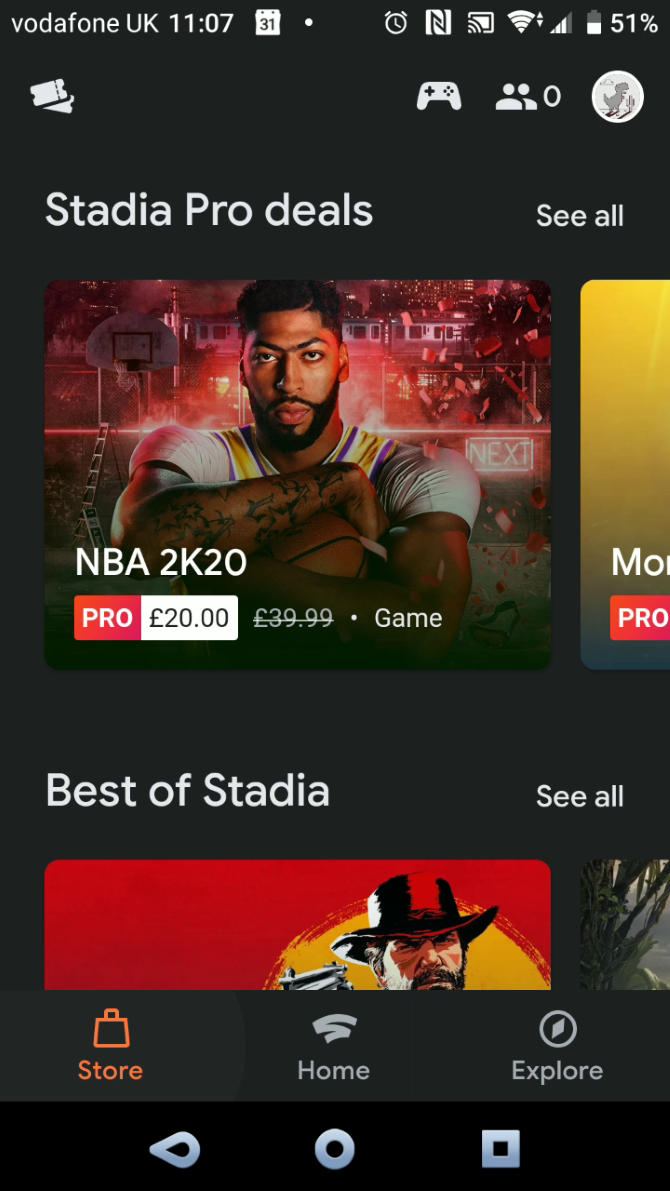
The main Stadia gaming experience is via a TV, however, and to get started you’ll need the Stadia app. It’s available on Android and iOS and is needed to provide access to your Stadia account, games library, and to sync the dedicated controllers.

Cloud gaming comes will all manner of shortcomings, not least latency. To deal with this, the controller connects via Wi-Fi directly to the cloud game server.

What’s In the Box: A Chromecast and a Controller

We ordered a Stadia Founder’s Edition box at the $129.99 launch price back in July, in advance of the November 28th launch. Pre-ordering meant getting a few useful bonuses, such as a free game and early username selection.

Google Stadia relies on Chromecast Ultra for streaming

The next phase is Stadia Premiere Edition, $129.99 with free shipping, which is available to order now. Whatever your edition, Stadia comes with a choice of packages.

A monthly subscription to the Stadia Pro package is $9.99, which gives you improved streaming performance over the non-subscription access. This means the full frame rate and resolution, HDR, and 5.1 surround-sound. You also get to enjoy a free game on a regular release cycle.

Without the subscription, the streaming quality is reduced. However, Stadia Base isn’t available until 2020, delivering 1080p resolution and standard stereo sound. Unsurprisingly, there’s no free game.

Of course, a fast internet connection is required for streamed gaming. The recommended minimum speed is a 10Mbps connection, with the best results at around 35Mbps or more. (We tested the service using a 45Mbps link.)

Games can be bought, and permanently (or for as long as Stadia exists) added to your library. Access to the games is managed via the mobile app.

Unboxing Google Stadia

When the box arrived, it came a week early. It’s a smart piece of packaging, striking futuristic white, metallic print, and hard edges. Inside, there’s more white, along with a 4.13-inch by 6.4-inch Wi-Fi controller, and a Chromecast Ultra.

Along with chargers and USB Type-C cables, and a few quick start guides, that’s all there is. For multiplayer testing purposes, we also grabbed a second controller, which came in its own box. These retail for a further $69.99 which is standard these days for a branded controller.

That’s basically it. As you should have realized, what you get in the box just helps you to access Stadia. It’s not a console, it’s a service.

Hooking Up Stadia

With Chromecast Ultra, game controller, and mobile app to hand, I set about connecting the Stadia. I put aside 15 minutes—after all, how hard could it be?

Google Stadia controllers

First, I plugged in the power adaptor for the Chromecast and an Ethernet cable to the router. This caused some problems, due to the placement of the Ethernet port on the Chromecast Ultra’s adaptor. Thankfully, it was easily solved with some rearrangement of plugs.

Next, the Chromecast Ultra is connected to the TV, the power cable connected, and the TV switched on. With the Stadia app running on my smartphone, I commenced setup.

At this point, you’re perhaps thinking: “all those other reviews said Stadia was awful!” But bear in mind, at this point, I don’t know how good or bad it is. I haven’t set it up yet.

And as it happened, I wouldn’t be able to for several hours. Having spent two months checking my emails and spam folder every day, I had not received the Stadia activation code. Without it, there would be no cigar.

It seems that the code arrives after the device is connected to your network and payment is taken. However, it’s not clear what triggers this. Perhaps the receipt of the box triggers payment or syncing the Chromecast Ultra with the Stadia app does. Either way, I had a three-hour wait for the activation code to arrive.

Stadia’s Bad Reputation

Following its public unveiling in June 2019, Stadia’s reputation has slowly, but surely, declined as more facts have been revealed. A narrow game library was bolstered in early November; a Reddit AMA revealed key features would be missing at launch. (This includes Buddy Pass, a way of sharing the subscription with a friend for three months.)

It’s not cheap, either. The Founder’s Edition (reviewed here) affords three free months of Stadia access and two free games. But once the free period is up, other games must be bought—it’s not a free, Netflix-like library.

Since launch, Stadia has been haunted by several issues. There are the missing activation codes; missing “join a game via YouTube” feature; overheating Chromecast Ultras (and dismissive Google responses); streaming issues; an inability to launch games.

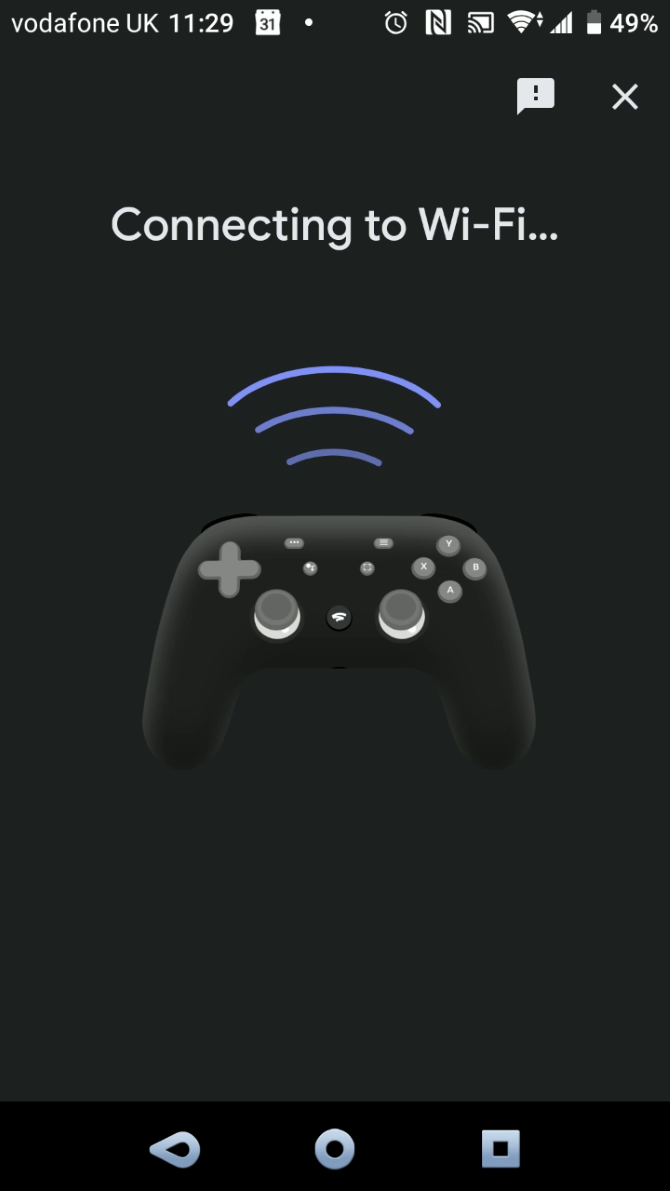
Setting up the Stadia controllers requires the mobile app. This is used to sync the controller to your Wi-Fi network and establish a connection with the game server. The Chromecast Ultra then streams the action to you as the game plays.

That is, of course, if you can get Stadia to launch the game…

The Stadia Game Wouldn’t Launch

Another problem encountered setting up Stadia was an inability to get the game to launch via the app or Chromecast. Instead, the user is caught in a cycle of “refresh the app” to fix the issue… which doesn’t fix anything.

Advice on this issue wasn’t easy to find at the time, although a Reddit user had tracked down the relevant support page.

The solution here is to register the Stadia account on the Chromecast using a linking code. With that done, it was finally possible to launch a game…

Finally, We’re Gaming With Stadia

Boom! That bit of technical help launched the first of the free games, the rebooted Samurai Shodown. Having heard horror stories of latency and lag, I was apprehensive to say the least; the issues activating and launching games earlier hadn’t helped.

Yet I was pleasantly surprised. Crisp graphics, good sound quality and responsive actions made for a tip-top gaming experience. The second controller was set up via the app and a two-player game initiated. Another good result.

Two days later, those complaints about the Founders Edition being a glorified beta seem self-indulgent.

Samurai Shodown on Stadia

Stadia clearly works. It’s not perfect, of course, but then what is?

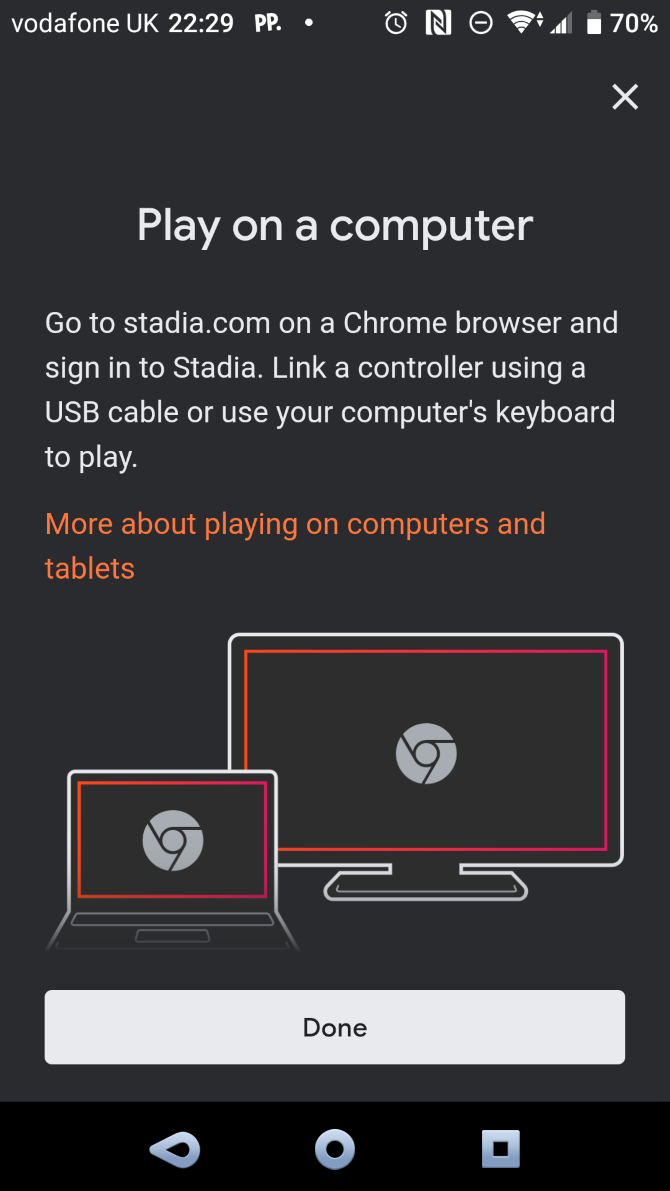
For example, access to Stadia is also available through other devices, notably a PC with the Chrome browser. Gameplay here is slightly different. The Ethernet connection on the Chromecast Ultra plays a huge part in delivering a stable gaming environment to a TV.

Ethernet is recommended for PC play, as otherwise you’re limited by audio/video lag and latency. Sadly, the Stadia controllers cannot be used wirelessly via a computer. Instead, you’ll need to connect using USB, grab a previously set up game controller, or rely on the keyboard.

PC play is certainly an area where Stadia needs to improve. As there have been murmurs of family/household multiplayer, it makes sense to perfect it.

Secrets of the Stadia Controller

You can do more with the Stadia Wi-Fi controller than simply play games.

The controller uses Wi-Fi to connect to your Stadia account and launch and control games. It features the standard layout of dual thumbpads, a D-pad, a diamond of four buttons, two shoulder buttons, and two triggers. A USB Type-C port is on the rear of the controller for charging and cabled connection.

Google Stadia controller headset port

Facing the player is a headphone port (Bluetooth support is planned), and under this a microphone. The controller also features five other buttons:

  • Stadia button to power on, also used in Wi-Fi connections
  • An Options button
  • Google Assistant (disabled at the time of writing)
  • Menu button
  • Capture button (quick tap for screenshots, long press for last 30 seconds of video)

Capture syncs directly to your app, but it’s almost impossible to share the footage. No doubt that’s just another feature waiting to be fixed, but the current method is to use Google Takeout to download Stadia data to your Google Drive account and retrieve your captures, which are frustratingly stored in WEBM format. That’s particularly clunky when everyone wants to share gaming footage.

Whatever happens with Stadia long-term, controllers are almost certainly going to be the target of hackers. The question is, will it be someone trying to install Linux, or will the devices turn into security risks.

Stadia Is for Gamers, But Do They Want It?

The Stadia controllers are perhaps the highlight of the entire experience. While getting a Chromecast Ultra into the bargain is a good deal, the 4K is largely wasted without the right display and top-quality broadband speeds.

Stadia is positioned in the market as being a platform-agnostic experience for gamers. But it’s a crowded market and one that’s already divided by platform, which dedicated gamers tend to be loyal to. Although the monthly subscription of $9.99 might seem steep, there is something here. The question is, can Google overcome the lack of expected launch features and gain critical mass?

I’ve enjoyed using Stadia, but overall there is a good chance that Google has just got this whole thing wrong. Gaming isn’t just about the games. It’s also about the hardware, including the controller, and the type of games that are available on it. While physical sales have dropped, AAA titles continue to do well.

Google Stadia controllers

And those AAA games are the ones you’ll find on Stadia. The problem is, you’ve probably already got them on Xbox Live, PlayStation Network, Steam, whatever. You almost certainly don’t want to buy the games again, and probably not without a physical copy if you didn’t already have one.

Has Google inadvertently launched a premium gaming service for casual gamers? If it has, Stadia isn’t going to last long without a quick rethink about its subscription model. They might even consider delivering a physical product (a box, limited edition artwork, etc.) for deluxe editions.

Overall though, Stadia works as a gaming service. With a good library of games, it can only get better, although Google might consider something closer to Xbox’s Games with Gold or Game Pass long-term.

If Stadia lasts that long.

Enter the Competition!

Google Stadia Giveaway

Read the full article: Google Stadia Review: Console Free Gaming at a Price – Your Sanity!


Read Full Article
Getting Your First Gaming PC? Follow These 6 Tips


first-gaming-pc

Consoles might be the most popular gaming platform these days, but there are still many advantages to playing games on a PC.

If you’ve been thinking about getting your first gaming PC, here are six things to consider before you make any purchases.

1. Build Your Own Computer vs. Buying a Pre-Built

Tips for gaming PC - pre-built versus build your own

The first thing to decide is whether you’d like to build your own PC or whether you’d prefer to buy a pre-built system. If you’ve never built a PC before, it can seem intimidating, but these days it’s a relatively simple procedure.

The advantage of building your own system is that you can configure it to your specific needs and to the games that you play. Building your own system will also give you confidence when upgrading parts or diagnosing hardware issues. The downside is that you’ll need to spend more time researching parts and checking that everything in your build is compatible.

Pre-built systems are easier to get started with. And in addition, because system integrators buy parts in bulk, they can offer cheap prices so you can sometimes get hardware for less money than if you bought the same components yourself.

2. The Most Important Components for Gaming

Whether you’re buying or building, the most important components for gaming are the processor and the graphics card. The processor is the brain of the PC and performs calculations, so it’s important for open world and strategy games like Civilization 6 or Grand Theft Auto 5.

The graphics card is what creates the on-screen graphics, so it’s important for visually detailed games like The Witcher 3 or Rise of the Tomb Raider.

Most games will require a mix of processing power and graphics power, so for the best gaming experience you should get the best processor and graphics card you can afford. Typically the graphics card will be the most expensive component in a gaming PC.

The processor could be Intel or AMD, with AMD processors generally being a bit cheaper than their Intel equivalents. And the graphics card could be Nvidia or AMD, with AMD once again usually being the more affordable option.

3. Checking How Good a Part Is

But how do you know how good a part is? Both graphics card and processors can have confusing names, and it’s not obvious to first-time buyers whether an Nvidia GeForce GTX 1660 is better than an AMD Radeon RX 560, for example.

To see a comparison of different graphics cards from both the major manufacturers, you can use what’s called a GPU hierarchy table. These tables, like the one from Tom’s Hardware, show you the names of the different graphics cards, what their basic features are, and assign each one a score out of 100.

To see whether one card is better than another, you simply search for the product names in the table and compare them. You can also find similar tables for processors.

If you’re wondering how your hardware will perform in real-world gaming, you can look up some benchmarks. These are where users describe what hardware they have and submit information on how many frames per second they see on various games. One site where you can find this kind of information is UserBenchmark.

4. Gaming Considerations When Choosing Hardware

Tips for gaming PC - choosing hardware

Before you settle on your hardware, you should consider what your gameplay requirements are. Some games are far more demanding than others. If you play relatively resource-light games like Fortnite or Minecraft, for example, you can get away with mid-range or budget hardware.

But if you want to play the latest AAA games at the best settings, you’ll need to spend more.

Two big factors in how resource demanding a game is are the resolution at which it’s played and the graphics settings you choose. The resolution could be as low as 720p, though most people will prefer 1080p and above, and it could be as high as 4K. The higher the resolution you play at, the more powerful hardware you’ll need.

When it comes to graphics settings, playing games on high or ultra settings will be much more demanding than running them at medium or low settings.

5. Other Considerations When Choosing Hardware

You might want to consider users for your PC other than gaming. For example, maybe you are a YouTube creator and you want to use your PC to edit videos. Or maybe you want to stream your games to Twitch or another platform.

For these uses, you’ll need a slightly different approach to hardware.

Video editing requires lots of memory, so while a pure gaming PC can get away with just 8GB of RAM, a content creator would ideally want 32GB or even more RAM. And streaming requires a lot of processing power, so you’ll need a better processor relative to your graphics card if you want to stream as well as play.

In addition, most people will want to use their PCs for general productivity tasks like browsing the internet, sending emails, and watching videos. None of these tasks is particularly demanding so you’ll be able to easily do any of these on a gaming PC.

However, if you want to do more advanced productivity tasks, you might consider getting a better processor which will be able to open programs more quickly and switch between multiple tasks more easily.

6. Planning for the Future

Tips for gaming PC - plan for the future

A final issue to consider before making a purchase is what your plans are for the future. Lots of hardware companies will talk about making your PC “future-proof,” but really it’s impossible to know what requirements might come along in the future. However, you can make some plans to ensure your system lasts longer before you need to replace it.

Firstly, think about how you’ll upgrade your system down the road. If you get a PC with a good processor and motherboard but not such a good graphics card, you can buy a new graphics card later and install it relatively simply. You can also easily add more RAM to your build in the future.

But if you need to upgrade your processor, you’ll usually need to upgrade your motherboard too, and then you’ll often end up replacing the whole system.

That’s why, if you’re looking for longevity, you should prioritize your processor and motherboard. Although different types of motherboard probably won’t have much impact on gaming performance, they will offer different features such as support for M.2 SSDs.

Even if you’re not using an M.2 drive now, you might want one in the future. So you’d need to have a motherboard which supports that.

Another factor in how long a system lasts is how reliable the components are. First-time buyers often opt for a cheap power supply unit because it doesn’t seem important. But a cheap PSU can die and take other components in your system with it. A more expensive but more reliable PSU will keep your system running for longer.

Issues to Consider When Buying a Gaming PC

These tips can help you when buying your first gaming PC, whether you opt to purchase a pre-built computer or to build your own. And once you’ve made your purchase and got your gaming PC up and running, don’t forget to check out these vital tweaks to optimize your PC for gaming.

Read the full article: Getting Your First Gaming PC? Follow These 6 Tips


Read Full Article

How to Use Your iPad as a Second Mac Monitor With Sidecar


ipad-second-monitor

Due to its size and portability, the iPad makes a perfect companion to a MacBook. You can use it on its own, but for years, third-party apps and even dongles have allowed you to turn your iPad into an impromptu second monitor.

While these third-party solutions were handy, many users wondered why Apple didn’t implement this into the operating systems natively. But as of macOS 10.15 Catalina, it finally has. The feature is called Sidecar, and it lets your iPad pull double duty as a monitor much more easily than before.

What Is Sidecar?

In a nutshell, Sidecar lets you use your iPad as a second monitor for your Mac, either via a wired connection or wirelessly. You can set it to the left or right of your main display and use it as you would any other monitor, but that’s not all it can do.

Sidecar in action

Notably, Sidecar takes advantage of the iPad’s touchscreen. It even supports the Apple Pencil, which makes it a great addition if you’re an artist looking to expand your creative options. If you’re jealous of the touchscreen on Windows computers, this doesn’t get you all the way there, but it’s a step closer.

What You Need to Use Sidecar

To get started using Sidecar, you’ll need have the right software on both your Mac and iPad. On the Mac side, you need macOS 10.15 Catalina or later. However, not all Macs that can run Catalina will work with Sidecar.

For Mac laptops, MacBook and MacBook Pro models from 2016 forward are supported. If you have a MacBook Air, only the newer models from 2018 and onward work with Sidecar.

On the desktop side, the 2015 27-inch 5K iMac is supported, as are iMacs from 2017 and onward as well as the iMac Pro. Finally, the Mac mini introduced in 2018 and the 2019 Mac Pro are also supported.

Your iPad must have iPadOS 13 or later installed, but again, not all compatible models support Sidecar. You’ll need at least an iPad mini 5 or iPad Air 3 if you have one of those lines. In the main iPad line the sixth generation and newer will work, as will any iPad Pro.

Because of Apple’s confusing iPad naming scheme, figuring out what iPad you have can be difficult. If you’re in doubt, check Apple’s Sidecar system requirements.

Setting Up Sidecar

Unless you’re low on battery, you’ll probably want to use Sidecar wirelessly. To get started, just click the AirPlay icon in the menu bar of your Mac, then choose the option to connect to your iPad.

As long as the Mac and iPad are within 30 feet of each other, this should be all you need. If you can’t connect, see the troubleshooting section below.

Connecting to the iPad as a display

You can also use Sidecar over USB. To do this, simply plug your iPad into your Mac with the right cable. Make sure your iPad is set to trust your Mac. Otherwise, you won’t be able to connect.

Keep in mind that you can use Sidecar wirelessly and still plug the iPad into your Mac to charge it. This is generally simpler than using the USB option.

Once you connect, you can choose to either mirror your screen or extend it. Most people will probably want to use the extend option for extra screen real estate. To change which side of your Mac the iPad appears on for proper mouse movement, open System Preferences, then go to the Displays menu.

Here, switch to the Arrangement tab and drag the iPad to whichever side of your Mac display you’ve physically placed it.

Arranging the iPad in Display settings

How to Use Sidecar

Once you’ve connected your iPad via Sidecar, you can use it as you would any other second monitor. To move a window from your main screen to the iPad, you have a few options. You can drag it, or you can hover over the green full-screen button in the top-left of a window, then choose Move to iPad.

By default, the iPad will show a sidebar with common controls like Command, Shift, and other modifier keys. These let you more easily interact with your Mac via the touchscreen. You also get a Touch Bar at the bottom of the screen, which works just like the Touch Bar on MacBook Pro computers.

You can toggle both of these options by opening Preferences and going to the Sidecar menu.

Sidecar options

While using Sidecar, you can still use your iPad as you normally would by switching apps. Once you’ve switched, you’ll notice a new Sidecar app icon on your home screen. Simply tap this icon to return to using your iPad as a monitor.

Troubleshooting Sidecar Issues

Apple has gone a long way toward making Sidecar easy to use, but you might still run into trouble. Fortunately, getting Sidecar working usually only takes a simple fix.

If you’re using Sidecar with a wired connection to your iPad, check the cable. Lightning cables are often finicky, so even if the cable seems fine, you still might want to try swapping it out for another.

For both wired and wireless connections, check that your iPad isn’t sharing its cellular connection (assuming it has one). Similarly, you’ll need to make sure your Mac isn’t sharing its internet connection.

The Sidecar sidebar

For wireless connections, the first area to check is whether your iPad and Mac are on the same Wi-Fi connection. This is one of the biggest problems people have run into, and it’s especially likely if you’re running a dual-band router. Make sure to check that you’ve signed into iCloud on both devices with the same Apple ID.

If the above tips didn’t help, double-check that you have Bluetooth enabled on both your iPad and Mac. In case your problem is on the Mac side, take a look at our collection of fixes for Bluetooth issues on your Mac.

Still having trouble? Try signing out of your Apple ID and back in on both devices. If nothing else works, you can try going to Settings > General > Reset on your iPad and choosing Reset All Settings. This will change all options back to their defaults, but can sometimes fix strange problems like this.

Sidecar Alternatives for Older macOS/iOS Versions

Sidecar is incredibly useful, assuming you can actually run it. But what if you can’t? There are plenty of people that either can’t or don’t want to run macOS Catalina. The same goes for iPadOS 13, which leaves older iPads out of the running.

If you’re looking for Sidecar-style functionality in software form, the Duet Display app costs $9.99 and can turn any device running iOS 10 or later into a second monitor. Even better, it works with a Windows PC as well as Macs. Luna Display is another option. This comes as a USB-C or Mini DisplayPort dongle that costs $79.99 and can work with either an iPad or even another Mac as a secondary display.

Though it’s one of the biggest additions, Sidecar isn’t the only new feature in macOS Catalina. If you’re looking to try some of these features but don’t want to install Catalina, we’ve put together a list of features in macOS Catalina you can get without updating your Mac.

Read the full article: How to Use Your iPad as a Second Mac Monitor With Sidecar


Read Full Article