11 November 2019

The 9 Best Gaming Smartphones in 2019


best-gaming-smartphones

Smartphone games are becoming more sophisticated and graphically complex than ever. But while most phones can play most games, you need a smartphone with great specs to properly handle top titles like Call of Duty or Fortnite.

So if you want to buy the best gaming phone for 2019, let’s take a look at your options.

What to Look for in a Gaming Phone

When you’re looking for the best gaming smartphone, there are a few key specs you need to keep an eye out for. You don’t need all of them, but the more you have, the better your phone will perform.

  • Fast CPU and GPU: you want a flagship-level processor, ideally something in the Snapdragon 8xx range or similar.
  • Cooling system: a phone’s CPU normally slows down once it starts to get too hot. Liquid cooling, or some other special cooling system, will help control the temperature and keep it running faster for longer.
  • Big battery: a large battery, starting at around 4000mAh, is a must. Fast charging is also good to have.
  • Lots of RAM and storage: Android phones will ideally have at least 6GB of RAM for gaming, if not more, plus as much storage as possible to keep your games on.
  • Fast refresh screen: most phone screens have a 60Hz refresh rate, meaning they refresh 60 times every second. Some gaming phones are 90Hz, or even 120Hz, and can produce smoother, more fluid animations.

1. Apple iPhone 11 Pro Max

iphone 11 pro max

We’ll start with the iPhone 11 Pro Max. It is, by almost any measure, the most powerful smartphone you can buy. And iOS is still the best platform for smartphone gaming. Although all the main AAA titles are available on Android, iOS still has the best indie titles.

All the iPhone 11 models have the same core specs, but we’d recommend the 11 Pro Max for gaming because it’s the only one of the three to combine the largest screen with the longest battery life. In truth, though, they’re all great games machines.

2. Razer Phone 2

Razer Phone 2 Razer Phone 2 Buy Now On Amazon $399.99

When you’re looking for the best Android phone for gaming, why not start with one of the best-known gaming hardware brands. From a company renowned for its gaming laptops, the Razer Phone 2 is a pretty compelling gaming phone.

What it lacks in style—the large bezels give it a slightly dated look—it more than makes up for in power and performance. It’s got a fast processor, a large 4000mAh battery, dual Dolby Surround Sound speakers, and a vapor chamber cooling system to stop it overheating.

But best of all is the 120Hz display for a super-smooth gaming experience. The device came out in late 2018, and subsequent price cuts make it an absolute bargain.

3. Red Magic 3

Red Magic 3 Red Magic 3 Buy Now On Amazon $550.00

The Red Magic 3 is one of the top gaming phones you can buy right now. Manufacturer ZTE describes it as delivering “Esports grade” performance. The standout feature is a fan assisted liquid cooling system that enables the processor to run at a faster clock speed for longer.

You also get up to 12GB of RAM, a massive 5000mAh battery, and a 6.65-inch HDR display with a 90Hz refresh rate. And if that’s not enough, the device also has capacitive shoulder triggers for some of the most ergonomic gaming you’ll find on a phone.

4. Asus ROG Phone 2

Asus ROG Phone 2 Asus ROG Phone 2 Buy Now On Amazon $646.00

You’ll be hard-pressed to find a phone with better specifications than the Asus ROG Phone 2. It crams in the cutting-edge Snapdragon 855 Plus CPU, a 120Hz AMOLED HDR display, twin front-facing speakers, and up to 12GB of RAM and 1TB of storage.

It’s all backed up with a mammoth 6000mAh battery with 30W fast charging that can take you to 40 percent in just half an hour. The only downside is the aesthetic design—it is not a phone for the style-conscious. The ROG 2 is big, has a rugged looking design, and weighs over half a pound.

5. Black Shark 2 Pro

black shark pro 2

With its two rear LED lighting strips, the Black Shark 2 Pro from Xiaomi looks more like a gaming phone than any other. It isn’t all gimmicks, though, as it has the specs to match. There’s the Snapdragon 855 Plus processor, super-fast UFS 3.0 storage, liquid cooling, and your choice of 8GB or 12GB of RAM.

Most impressive is the gaming-optimized display. The low latency allows for faster in-game responses, while the high sensitivity—it recognizes movements as short as 0.3mm—gives you incredible levels of precision. Best of all, it’s pressure-sensitive. You can use different actions within your games simply by pressing the screen harder.

6. OnePlus 7 Pro

OnePlus 7 Pro OnePlus 7 Pro Buy Now On Amazon $867.21

You don’t need a dedicated gaming phone to get great gaming performance. The OnePlus 7 Pro has most of what you’re looking for in a sleeker, more stylish package.

This includes a flagship Snapdragon 855 processor, up to 8GB of RAM, a 90Hz QHD display, dual stereo speakers, and a 4000mAh battery with the unique Warp Charge 30 system. As well as charging the phone rapidly, it doesn’t get hot if you keep it plugged in while gaming.

Also, check out the OnePlus 7T Pro, with a slightly upgraded processor. It’s available in the UK and other parts of the world, but not the US.

7. Honor Play

Honor Play Honor Play Buy Now On Amazon $329.99

Gaming doesn’t have to be off-limits if you’re on a budget, thanks to the Honor Play. This device may come at an affordable price, but it packs in the high-end Kirin 970 processor and up to 6GB of RAM, along with the GPU Turbo feature that’s tuned for high frame rates and low power consumption.

There are a few compromises, inevitably. There’s only a single speaker, and storage is limited to 64GB—although there is a microSD slot. But while the battery looks small at 3750mAh, users suggest it holds up pretty well.

8. Samsung Galaxy S10

Samsung Galaxy S10 Samsung Galaxy S10 Buy Now On Amazon $899.00

The Samsung Galaxy S10 excels as a gaming smartphone. There’s an innovative cooling system and the S10 is optimized for games built with the Unity engine. The phone has stereo speakers with Dolby Atmos sound, and a GPU that’s over a third faster than on the Galaxy S9 just a year earlier.

With up to 12GB of RAM, it’ll handle the most cutting edge games for several years to come. And all that’s on top of the other great stuff the S10 has to offer; fast performance, an incredible camera, and a long battery life with fast charging too.

9. Pocophone F1

Pocophone F1 Pocophone F1 Buy Now On Amazon $287.70

You can play games on cell phones of any kind, but the better the specs, the better your experience will be. The Pocophone F1 is the cheapest way to get your hands on a true flagship. Despite its lower mid-range price, the F1 doesn’t skimp on the specs.

It has a top-end Snapdragon 845 CPU, with up to 8GB of RAM, up to 256GB of storage, and stereo speakers. The 4000mAh battery, with fast charging, will keep you playing for a long time. It even has a liquid cooling system to prevent heat from becoming a problem.

On the downside, it is plastic and does have larger bezels than you might prefer. But these aesthetic issues can’t detract from the sheer power under the hood.

The Best Smartphone for Gaming

All of these devices rank among the best smartphones for gaming this year. Whether you’re a serious player or just prefer casual games, they’ll all serve you well.

If you have other priorities, like how long-lasting a phone is, check out our picks of the Android phones with best battery life.

Read the full article: The 9 Best Gaming Smartphones in 2019


Read Full Article

8 Reasons to Stop Buying Games on Steam


stop-steam

Steam is the largest digital distribution service for PC games. So if you’re a PC gamer it’s likely that you own games on Steam. But is it really the best way to buy games? Here are some reasons to stop buying games on Steam.

1. DRM Means You Don’t Own Anything

Steam is a form of digital rights management (DRM), which is a method to protect against piracy. When you launch a game, Steam launches with it, ensuring you can benefit from platform features like achievements, cloud saves, and trading cards (how to get Steam trading cards).

The good thing is that the DRM is optional. Developers can disable it and allow their games to launch without Steam running. However, many don’t.

For those that don’t, that game is tied to your Steam account. So, if Steam closes down or your account gets banned, you’ll no longer have access to the games you bought. Which means that, in essence, you are merely renting a license to a game.

2. You Can’t Resell Your Steam Games

GameStop store
Image Credit: JJBers/Flickr

Once you buy a game on Steam, there’s no way to sell it on. While you can get a refund under certain conditions, you can’t list it on any marketplace. The game is tied to your account.

That’s different to a game that you buy physically, for example (providing you don’t have to redeem a key to activate the game.) They can easily be sold on eBay, traded in, or donated to a thrift store.

However, a French court ruled that Steam users do have a right to resell their games. That’s something that hasn’t come in to practice yet as Valve is appealing the decision.

3. Steam Games Rarely Come With Bonus Goodies

Playing the game you buy is of course the main draw, but it’s always nice to receive some extras for free. Sadly, you rarely get any bonus goodies when you buy a game on Steam.

If you buy direct through the developer, or on another storefront like GOG, you often get downloadable treats like art books, soundtracks, wallpapers, and more.

It harks back to the days when you would get physical bonuses with your games, like a cloth map or figurine.

4. Valve Takes a Huge Cut From Developers

empty wallet
Image Credit: Marco Verch/Flickr

Making video games is difficult. Turning a profit on them? That’s even tougher. As standard, Valve takes a 30 percent cut of the revenue of all Steam purchases. That percentage reduces on a sliding scale when certain revenue targets are reached, but most developers will never get to that point.

Some developers don’t think Valve deserve such a large chunk of the pie, but Steam’s ubiquity makes it hard to argue. It’s where many consumers automatically go to buy games, so not having a game listed on Steam is risky.

If you want to support a developer then you should stop buying games on Steam. Instead, your best approach is to buy games directly from developers, if possible. Alternatively, the Epic Store only takes a 12 percent cut, while Humble Bundle lets you choose how much of the purchase price goes to the developer.

5. Steam Isn’t Always the Cheapest Option

Steam store on macOS showing video games on sale

Steam always has sales. There are daily sales and also the big seasonal ones around events like Halloween and Christmas. But even then it’s not necessarily the cheapest place to buy games.

Gaming is an expensive hobby at the best of times, so there’s no point spending more than you need to. Especially when the end product is exactly the same wherever you buy it (things like pre-order bonuses aside.)

Check out our recommendations for the best sites for video game deals. Some websites even provide your purchase as a Steam code, meaning there’s literally no difference in the product except the price.

6. You Are Tied Into the Steam Ecosystem

Some people like owning all of their games on Steam and being tied into the Steam ecosystem. Perhaps it’s the collector in them coming out, or it’s just what all of their friends use.

The problem with this comes when you want to buy something outside of Steam.

Let’s say you buy a game through Steam and the developer later releases DLC. You have no choice but to buy that DLC through Steam, even if it’s cheaper elsewhere, because there’s no way to link the two purchases together otherwise.

7. You Don’t Get a Physical Box

PC game box and manual
Image Credit: Sergey Galyonkin/Flickr

Video games used to come in big cardboard boxes, with great artwork perfect for display. That changed with the introduction of CDs and DVDs, but there’s still something satisfying about seeing a shelf lined with your favorite games.

While it’s much quicker to browse and search your collection on Steam, it’s not quite the same. Visitors to your home aren’t going to strike up a conversation about your Steam library like they might if they saw a line of physical game boxes.

There was something special about poring over a game’s manual on your way home from the shop too. That’s an experience lost, although, to be frank, it does cut down on paper and plastic waste.

8. The Steam Store Is Full of Trash

Negatively reviewed games on the Steam store

Steam is home to tens of thousands of games. The number of games on the store has skyrocketed in recent years, in part thanks to Valve’s lack of curation.

Unlike when you walk into your local store, where the stock has been carefully chosen, the Steam store plays host to everything. While it’s good that the barrier to entry is low, it means there’s a lot of trash and low-effort games to wade through.

For instance, 4,000 of the games on the store are classed as Early Access, which means development isn’t finished. And there’s no guarantee that these games will ever be properly finished.

Why should it be on the consumer to separate the wheat from the chaff?

The Best PC Game Launchers

Despite all of these reasons to stop buying games on Steam, it definitely still has its place. The problem is, Steam has such a hold on the market that it’s difficult for competitors to enter and shake things up.

If you own lots of games across different platforms and want to organize them, you need a game launcher. To get you started, take a look at our list of the best PC game launchers.

Read the full article: 8 Reasons to Stop Buying Games on Steam


Read Full Article

5 Anti-Spam Filters for Microsoft Outlook That Raise Your Protection


anti-spam-filters-outlook

Microsoft Outlook is one of the most popular email clients in the world. Despite the popularity, Outlook’s integrated spam filtering doesn’t catch much. As spammers use increasingly novel methods to skirt the default Outlook spam blocker, your inbox can come under attack from all manner of spam emails.

If your Outlook inbox is under spam-siege, check out the top anti-spam tools for Outlook.

1. SpamBully

SpamBully takes the crown as the top-rated spam filter for Microsoft Outlook. It is a premium spam filter, but it delivers excellent results straight out of the box as it purges inboxes and keeps them clean.

SpamBully works with Outlook, Office 365, Office 2019, Office 2016, and older Office versions.

SpamBully brings an extensive range of spam filtering and blocking to Outlook. It learns how you use your email, making sure that only the good email passes to your inbox even as it removes spam automatically without you constantly updating your block list.

One of SpamBully’s best features is the option to “punish” the spammer. You can return spam mail automatically to the sender so that it doesn’t clog your inbox. It also reports the sender to the server it came from. The idea is to increase the cost of sending spam.

Another interesting feature is the email password for unfamiliar senders. If the address looks suspicious or spoofed, you can request the sender to enter a password before the email enters your inbox. A spammer isn’t going to take the time to enter individual passwords for each spam email.

If you are unsure about malicious email, why not try Google’s phishing email quiz? It teaches you how to spot and avoid phishing emails and other malicious email types.

A 1-year SpamBully subscription comes in at $29.95.

Download: SpamBully for Windows (Free Trial)

2. MailWasher Free and Pro

outlook spam filter mailwasher pro

MailWasher is an Outlook spam filter that receives excellent reviews. MailWasher comes in two flavors: Free and Pro. The free version works with a single email account, and you cannot block incoming mail based upon country of origin.

Those limitations aside, MailWasher Free offers much of the same features as the Premium version.

MailWasher uses an automated learning system to figure out what is spam in your inbox and what it should leave intact. It has extensive filtering, which it uses in conjunction with customizable blacklists. The MailWasher interface is easy to use, allowing you to sort through spam emails rapidly. The auto-account detection works well, too.

A 1-year MailWasher Pro license will set you back $39.95, and a lifetime license comes in at $100. MailWasher is also available for iOS and Android.

Download: MailWasher Free for Windows (Free)

3. SPAMfighter

outlook spam filter spamfighter

SPAMfighter is an award-winning free spam filter for Microsoft Outlook. SPAMfighter is a Microsoft Gold Partner, too, working closely to deliver a great spam filter.

Once installed, SPAMfighter protects all the accounts on your PC (including Outlook Express and Mozilla Thunderbird). When you receive an email, SPAMfighter checks it automatically. If it is spam, it heads straight to your spam folder.

If SPAMfighter misses a spam email, you can update the SPAMfighter definitions with a single click. The updated definition will eventually filter through to all other SPAMfighter users.

Handily, SPAMfighter creates whitelists automatically, and you can also filter emails using the language list.

Download: SPAMfighter for Windows 10 (Free for home users)

4. Spamihilator

Spamihilator Settings screen

Spamihilator takes the prize for the best spam filter name. It isn’t just an amusing name, though. Spamihilator is a useful free anti-spam tool for Outlook that will keep your inbox clear. Once installed, Spamihilator sits between Outlook and your network connection, catching spam before it hits your inbox.

Spamihilator hasn’t received an update in a while, but it is still a great free tool. The “Training Area” feature lets you mark specific emails for future filtering, teaching the program to remove messages with similar content. Spamihilator becomes better the more you use the filters.

There is a setup wizard that appears automatically after installation. The wizard is fine if you have a POP3 email account. However, if you use IMAP, you need to enter your email configuration within the Spamihilator settings.

If you are unsure about what email type you use, here are the differences between IMAP and POP3.

Unlike most other spam filters, Spamihilator offers a portable installer. A portable installer works directly from a USB flash drive, meaning you can use it to clean up spam on a different computer without installing. You can find the portable installers on the Spamihilator download page.

Download: Spamihilator for Windows 32-bit | Windows 64-bit (Both Free)

5. Spam Reader

outlook spam filter spam reader

Spam Reader scans your inbox with impressive speed after installation. No sooner had I opened Outlook, Spam Reader reported back over 8,000 spam messages. It had scanned my existing spam box, but also caught a lot of spam lurking in my inbox. Spam Reader nestles in your Outlook toolbar, as per the above image.

Aside from rapid scanning speed, Spam Reader tracks and analyses your inbox to understand your usage.

In this, it uses a “Sure/Not Sure” method to deal with potential spam. Marking messages Not Sure keeps false negatives from deletion before you have had a chance to check manually. Over time, Spam Reader learns that those false negatives should head straight to your inbox.

There are two Spam Reader versions: Free and Pro. The features are exactly the same. But after 30-days, the free version adds a small message to your outgoing emails. If that is not something you want, the Pro version comes in at $39.95 for a lifetime license with minor upgrades, or $59.50 for a lifetime license with major upgrades.

Download: Spam Reader for Windows (Free)

What Is the Best Outlook Spam Filter?

The default Outlook spam filter doesn’t cut out enough spam. Spam is big business, and Microsoft is losing the war.

Spam varies between inboxes, of course. If your email has found its way onto a spam list, you will receive more spam than most. Data breaches are extremely common, unfortunately, so your email address could well be in the hands of the spammers.

The best Outlook spam filter is SpamBully. It catches almost every bit of incoming spam and learns about your inbox and usage habits quickly. SpamBully does come with a price tag. But for the sake of keeping your Outlook inbox free of time-consuming and potentially malicious spam, it is a worthwhile investment.

If you want to power-up your Outlook inbox, check out these Microsoft Outlook add-ins for a better email experience.

Read the full article: 5 Anti-Spam Filters for Microsoft Outlook That Raise Your Protection


Read Full Article

5 Reasons Why Macs Are Less Likely to Get Malware Than Windows


mac-less-malware

The common wisdom states that Macs aren’t as susceptible to viruses as Windows PCs are. But why is this, exactly?

Of course, no system is flawless when it comes to security. It’s possible to get malware on a Mac just like any other computer. And while user habits definitely play a role, you’ll be glad to know your Mac is naturally protected from most threats. Let’s look at the ways macOS is built to resist viruses and other malware.

What Is Malware?

We often use the terms “malware” and “virus” interchangeably, but they refer to different types of attacks.

A proper computer virus damages your software by slowing it down, filling up the hard drive, or deleting important files. Viruses are hard to get rid of because they replicate themselves inside your operating system.

These days, most computers do a pretty good job of protecting against traditional viruses, but there are hosts of other software threats lurking in the shadows. The term malware refers to any malicious software, including:

  • Adware: Malicious programs that spawn advertisements
  • Spyware: Monitors your computer use and reports it to some entity
  • Worms: Malware that spreads to other computers over a network
  • Trojan horses: Dangerous programs that masquerade as useful ones
  • Computer viruses

What Protects a Mac From Malware Infections?

You might have heard the claim that viruses don’t affect Macs. This isn’t true, as Macs can certainly get viruses. But we’ve all come across someone who’s used a Mac without antivirus software for years and never had a problem. You’ll struggle to find the same story from a Windows user.

There are a lot of factors at play here. Windows has made tremendous progress in terms of security in recent years, but macOS still benefits from unique advantages that make it less likely to get malware in the first place.

1. Apple Built macOS Using the Unix Platform

Computer programmer working on a Mac
Image Credit: welcomia/Depositphotos

When Microsoft developed Windows, it built the OS upon its own unique software platform called MS-DOS. In contrast, Apple developed macOS (or Mac OS X at the time) using Unix, an open-source platform that had already been in use for years.

Unix is renowned for its stability and security features, many of which aren’t present in MS-DOS. Windows hasn’t used MS-DOS as its basis since Windows XP, but many parts of its security and architecture today are left over from those old days.

Meanwhile, Unix is open-source and has been used by a range of different companies in the development of macOS, Linux, the PlayStation 4, and even the firmware for gadgets like your router.

There are lots of people looking to fix vulnerabilities in Unix so they can make their own products more secure. Your Mac benefits from this group effort, whereas Windows PCs are solely dependent on Microsoft’s architecture.

2. Gatekeeper Scans New Apps to Ensure They’re Safe

Gatekeeper blocking Signal app from opening on a Mac

If you’ve ever downloaded an app from outside the Mac App Store, you may have discovered you can’t open it after the download completes. This is due to a macOS security feature called Gatekeeper.

When you download new apps, Gatekeeper quarantines them and uses XProtect to scan the code for malware. If it finds any, Gatekeeper alerts you of the risk and doesn’t let you open the app. You can bypass Gatekeeper by holding Control and clicking an app, but you run the risk of infecting your Mac when you do so.

Even if the XProtect scan comes back clean, Gatekeeper might reject your app if it doesn’t trust the developer. By default, your Mac only lets you install apps from the Mac App Store or “identified developers.” This allows apps like Dropbox, Evernote, or Microsoft Office while blocking lesser-known developers. This is an example of Apple’s infamous “walled garden” approach.

3. macOS Separates Apps With Sandboxes

Sandbox Illustration

macOS makes use of sandboxing to limit what apps can do. This is the practice of a software provider putting up virtual barriers around third-party apps to keep them from accessing other apps or system files on your machine.

It’s one of the reasons a Mac is less flexible than a Windows PC, but these restrictions come with the payoff of tightened security. Third-party applications have limited access to core system files, making it difficult for malware to cause serious damage if it gets past Gatekeeper.

Since macOS Catalina, Mac apps need to request permission for each part of the system they want to access. This includes categories like Files and Folders, Screen Recording, Camera, Photos, and more.

Go to System Preferences > Security & Privacy > Privacy to see what is and isn’t allowed; you can revoke access for anything you’re unsure about.

4. SIP Provides an Added Layer of Protection

Mac System files folder shown in Finder

The OS hides important system files on your Mac so you can’t accidentally damage or move them. But it also guards important files behind a hidden defense, called System Integrity Protection (SIP).

SIP (present on OS X El Capitan and newer) stops you or anyone else from editing the system files on your Mac, which are often a prime target for malware. This makes it trickier for malware to infiltrate your operating system and compromise the security or performance of your Mac.

Just like Gatekeeper, you can bypass SIP if you need to. But most reputable developers design their apps to work alongside SIP, so you shouldn’t need to. See our full explanation on System Integrity Protection for more details.

5. There Are Still Far Fewer Macs Than Windows Computers

Computer bank with multiple Windows computers on desks
Image Credit: mishoo/Depositphotos

Although it doesn’t seem like a great defense, particularly since it’s outside of Apple’s control, your Mac is also protected by the fact that there are more Windows computers in the world than Macs. In fact, there are a lot more.

A virus designed to damage Windows doesn’t work against Macs. So criminal developers need to choose which platform they want to target. Since Windows is vastly more popular than macOS, it makes more sense to create Windows malware and attack a larger number of people.

This is exactly what happens. Fewer malware threats exist for the Mac because there’s far less to gain for people who create them. This principle, however flawed, is known as security through obscurity.

Do What You Can to Keep Your Mac Safe

The weakest link of any security system is the user. Your Mac does a great job at keeping malware away, but you can help it by exercising common sense as well. For example:

  • Keep your Mac up-to-date to benefit from the latest security patches.
  • Avoid opening email attachments or links from unknown senders.
  • Don’t bypass security features to install apps from untrustworthy sources.

For additional protection, you might also consider installing antivirus software. There are lots of bad options out there, so take a look at the best free antivirus software for your Mac to make sure you install something reputable.

Read the full article: 5 Reasons Why Macs Are Less Likely to Get Malware Than Windows


Read Full Article

10 November 2019

The Slack Cheat Sheet: Shortcuts, Commands, and Syntax to Know


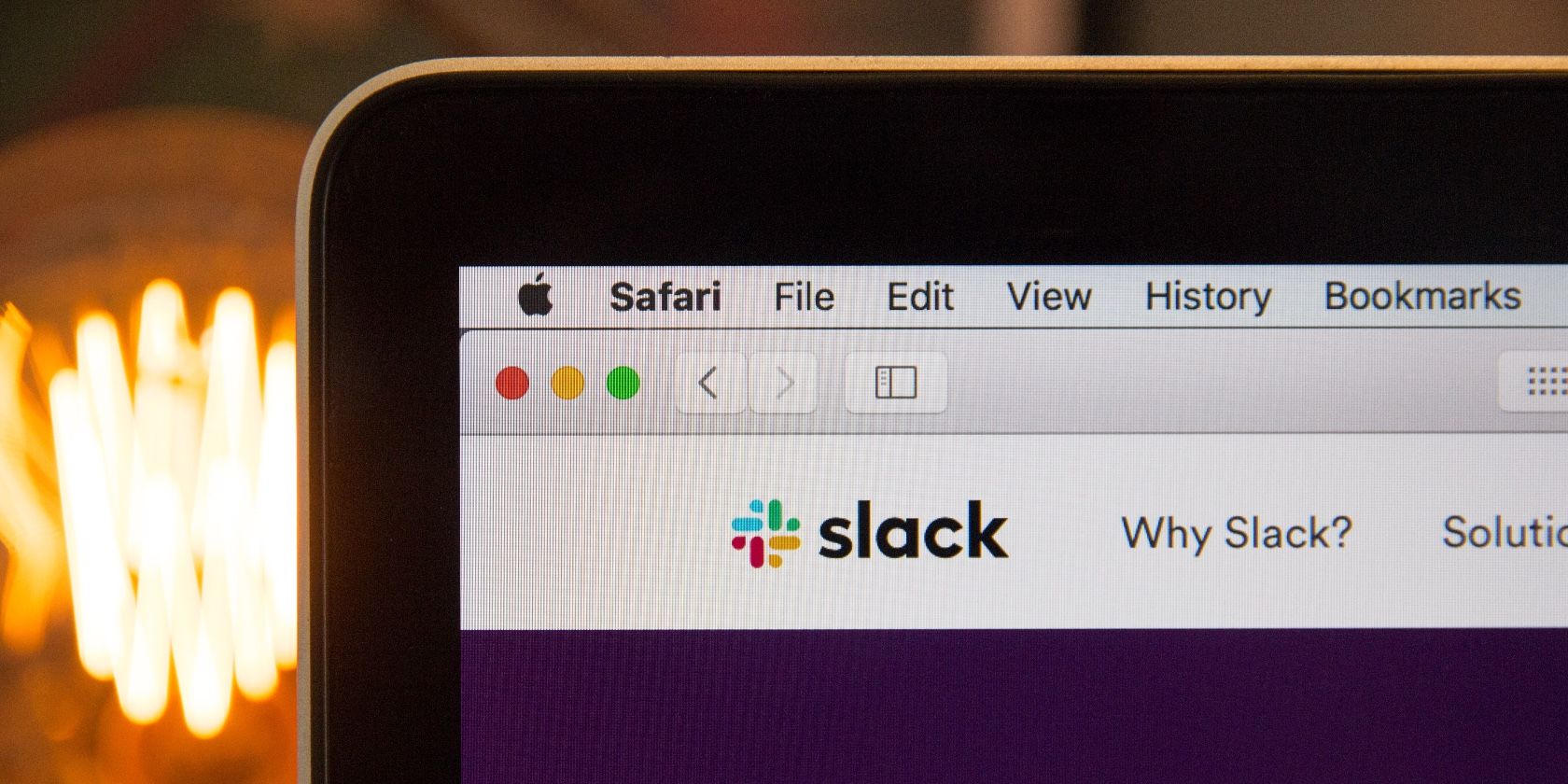
Screenshot of Slack in Safari

Slack tops the current crop of digital workspace tools. It’s powerful enough to handle both huge teams and complex projects well.

If you use Slack at work, you’ll probably agree that its layout and feature set are quite complex. Fortunately, both these elements are well planned and easy to use. But with so much going on in the interface, it’s quite natural to miss out on several features unless you go looking for them specifically.

To remedy that, we decided to compile the best Slack tips into a cheat sheet for you. It contains keyboard shortcuts, search tricks, formatting syntax, and special commands that can speed up your Slack workflow. And the best part is that you can use them all without taking your hands off the keyboard!

FREE DOWNLOAD: This cheat sheet is available as a downloadable PDF from our distribution partner, TradePub. You will have to complete a short form to access it for the first time only. Download The Slack Cheat Sheet.

The Slack Cheat Sheet : Shortcuts, Commands, and Syntax to Know

Shortcut Action
Keyboard Shortcuts
On a Mac keyboard, press Option instead of Alt and Cmd instead of Ctrl for shortcuts.
Ctrl + k OR

Ctrl + g OR
¹Ctrl + t
Open Quick Switcher
Ctrl + Shift + k Browse DMs
¹Ctrl + Shift + t Open Threads view
²Ctrl + Shift + a Open All Unreads view
Ctrl + Shift + l Browse channel list
³Alt + Down Arrow Jump to next channel or DM
³Alt + Up Arrow Jump to previous channel or DM
³Alt + Shift + Down Arrow Jump to next unread channel or DM
³Alt + Shift + Up Arrow Jump to previous unread channel or DM
Cmd + [ OR

Cmd + Left Arrow
Move back in history
Cmd + ] OR
Cmd + Right Arrow
Move forward in history
Ctrl + Shift + m Open Activity pane
Ctrl + Shift + s Open Starred Items pane
Ctrl + Shift + w Open Workspace Directory
Ctrl + Shift + i Open Channel Details pane
Ctrl + / (Slash) Open Keyboard Shortcuts pane
Ctrl + . (Period) Toggle right-hand pane
¹Ctrl + , (Comma) Open Preferences
Ctrl + Shift + [ Switch to previous workspace
Ctrl + Shift + ] Switch to next workspace
⁴Ctrl + [Number] Switch to specific workspace
Ctrl + Alt Show numbers assigned to workspaces in sidebar
Ctrl + f Search the current channel or DM
Esc Mark all messages in current channel or DM as read
Shift + Esc Mark all messages as read
⁵Alt + click message Mark message as oldest unread message
Ctrl + Shift + Y Set or edit your Slack status
Ctrl + u Upload file to current channel or DM
Ctrl + Shift + Enter Create snippet in current channel or DM
⁶Up Arrow Edit your last message in current channel or DM
Shift + Up Arrow Select text to beginning of current line in message draft
Shift + Down Arrow Select text to end of current line in message draft
Shift + Enter Insert new line in message draft
Ctrl + b Bold selected text
Ctrl + i Italicize selected text
Ctrl + Shift + x Strike through selected text
Ctrl + Shift + > Indent selected text
Ctrl + Shift + c Format selected text as inline code
Ctrl + Shift + 7 Format selected text as numbered list
Ctrl + Shift + 8 Format selected text as bulleted list
@[Character] Show autocomplete options for display names
#[Character] Show autocomplete options for channel names
:[Character] Show autocomplete options for emoji
m Toggle mute during call
v Toggle video during call
+ (Plus) OR
a
Show invite list during call
e + (1-9) View and select emoji during call
@[username] Notify specific person
@here Notify active members of channel
@channel Notify all members of channel, whether they’re active or not
@everyone Notify all members of channel #general
Message Formatting Syntax
*text* Bold text
_text_ Italicize text
~text~ Strike through text
>text Indent single block of text
>>>text

text
Indent multiple blocks of text
`text` Format single line of inline code
```text

text```
Format multiple lines of inline code
1.

2.
Format as numbered list
text OR
• text
Format as bulleted list
Search Modifiers
Add modifiers before or after search keyword(s).
in:[channel] Search specific channel
in:[@username] Search specific DM
from:username Search messages/files shared by specific user
from:me Search messages/files sent by you
⁷on:[date] Search using specific date
⁸before:[date] OR
⁸after:[date] OR
⁸during:[date]
Search using specific date or time frame
has:[:emoji:] Search for items with specific emoji
has:pin Search for pinned items
has:star Search for starred items
has:link Search for items with links
Slash Commands
Type in the message field and hit Enter.
/status Set or clear your custom status
/away Toggle your “away” status
⁹/dnd for [Time] OR
⁹/dnd until [Time]
Schedule Do Not Disturb session
/dnd off Turn off Do Not Disturb
/expand Expand all inline images and videos in current channel
/collapse Collapse all inline images and videos in current channel
/feed subscribe [feed address] Subscribe to RSS feed in current channel
/feed list List RSS feeds (and their ID numbers) for current channel
/feed remove [ID number] Unsubscribe current channel from RSS feed
/feed help Get help with /feed commands
/join [#channel] Join channel
/leave [#channel] OR

/close [#channel] OR

/part [#channel]
Leave channel
/leave Leave current channel
/open [#channel] Open specific channel
/topic [text] Set topic for current channel
/invite [@username] [#channel] Invite member to channel
/remove [@username] OR
/kick [@username]
Remove member from current channel
/mute [#channel] Mute/unmute specific channel
/mute Mute/unmute current channel OR ¹Unfollow current thread
/star Star current channel or DM
/rename [new-name] Rename current channel
/archive Archive current channel
/who List members (up to 100) in current channel
/msg [#channel] [message] Send message to any channel
/msg [@username] [message] OR
/dm [@username] [message]
Send DM
/me [text] Display italicized text
/remind @me or [@username] or [#channel] to [What] [When] Set a reminder
/remind list View list of upcoming, past, or incomplete reminders
/remind help Get help with /remind commands
/search [keyword(s)] Search messages and files
/shortcuts Open Keyboard Shortcuts pane
/apps [app] Search for app in Slack directory
/feedback [text] Send feedback or help request to Slack
/shrug [message] Add ¯\_(ツ)_/¯ to end of message
¹⁰/giphy [keyword(s)] Share a random GIF

¹Works only in desktop app.

²Works only if you have enabled All Unreads view under Preferences > Sidebar.

³Includes starred channels and DMs.

⁴Press Ctrl + Alt or hover over workspace logo in sidebar to see number assigned to workspace.

⁵Use Ctrl + Alt + click on Linux.


⁶Ensure cursor is in empty message field.

⁷Use MM/DD/YY(YY) or MM-DD-YY(YY) format for date.

⁸Replace [date] with specific date or with keyword like today, yesterday, [day], [month], or [year]

⁹Use time descriptors like “for 20 mins”, “until 4pm”, until tonight”, etc.

¹⁰Requires integration with Giphy app.

Take Control of Your Slack Workspace

Slack not only saves you from the clutches of email at work, but also makes your online office feel more like an offline one, complete with water-cooler chats. Once you master Slack and learn how to navigate it faster, your days at the office will be a lot more fun!

Image Credit: Web Hosting on Unsplash

Read the full article: The Slack Cheat Sheet: Shortcuts, Commands, and Syntax to Know


Read Full Article

09 November 2019

This Week in Apps: Photoshop for iPad bombs, Google Play’s new rewards program, iOS bug fixes


Welcome back to This Week in Apps, the Extra Crunch series that recaps the latest OS news, the applications they support, and the money that flows through it all. What are the developers talking about? What Do app publishers and marketers need to know? How is international politics playing out in the App Store? What apps is everyone using?

As November kicks off, we’re looking at a number of big apps launches from Microsoft and Adobe — as well as what went wrong. We’re also looking at the iOS bug-squashing release, a bunch of data about app install trends around the world, Google Play’s new loyalty program and what it means for developers, the continued scrutiny of Chinese apps by the U.S. government, and more.

Fast Facts

eMarketer remindS us that it recently put out a big report on app installs with a ton of insights. It’s actually been live for a few months, but ICYMI, here are some of the key data points and highlights:

  • The average iPhone user in the U.S. downloaded 47 apps in 2018, up from 44 in 2017.
  • The average number of apps installed is rising — up 15% from 2016. In the U.S., Japan, South Korea, and Australia, users had more than 100 apps downloaded in 2018.
  • Smartphone users spend the most time using their top 5 apps. In 2017, the top 5 accounted for 87% of usage. Now (Apr. 2019) it’s 83%. The No. 1 app had a 49% share of the time spent, now it’s 44%.
  • The number of smartphone users in the U.S. will grow just 3% in 2019, compared with 13.2% in India and 12.1% in Indonesia.
  • Related, app downloads grew 165% in India from 2016 to 2018. In China, 70%. In Indonesia, 55%. And in Brazil, 25%. The U.S. app downloads grew just 5%.
  • In June 2019, the App Store had 1.8 million apps compared with Google Play’s 3.1 million.
  • 43% of iOS app install referrals came from Facebook properties, and only 6.6% came from Google properties.
  • Apple Search Ads drove 12% of non-organic installs in May 2019.
  • In-app video ads outperform display ads. Install-to-register rates for video were 35.1% in Q1
    2019 on the Liftoff network, compared with 28.5% for display ads.
  • App engagement drop-off rates after day one are the biggest in shopping apps. (25% engagement after the first day, but 8% at 30 days). Travel also sees a big drop-off. (20% after the first day and 6% after 30 days).

Headlines

iOS Bug Squashing: Apple fixed the iOS bug that killed your background apps. Apple this week finally squashed a very annoying bug in iOS 13 that made the OS overly aggressive about killing background apps and tasks. Apps like Safari, YouTube, Overcast and others were impacted, leading users to lose emails or the video they were watching just when they switched away for a few seconds. What Apple can’t fix is a growing concern that Apple has “lost the plot” following a series of extremely buggy software updates across its product line, which made users hesitant to upgrade to macOS Catalina, and bricked people’s HomePods.

Google admits it can’t secure the Play Store on its own: Google this week announced partnerships with security firms ESET, Lookout, and Zimperium to form what it has branded the “App Defense Alliance.” The goal, the company says, is to unite the security industry to fight malicious apps across Android’s ecosystem of 2.5 billion devices. Basically, Google will integrate its own detection systems with each partner’s scanning engine to help it uncover potential risks and threats. However, the fact that Google is now essentially outsourcing security to a partner ecosystem is an admission of failure, to some extent, about its abilities to keep the Play Store free from bad actors on its own. (But of course, we all knew that already, right?)

Photoshop for iPad is tanking: Adobe released its most important mobile app ever with this week’s launch of Photoshop for iPad. But fans panned the app because it’s missing several key features. Like RAW support! The app now has 2 stars out of 5…yikes. So what went wrong?

To read more, subscribe to Extra Crunch.


Read Full Article

5 Apps and Sites to Find Reddit’s Best Posts and Favorite Recommendations


apps-sites-reddit-recommend

Reddit has so many people talking about so many things across so many subreddits. How can you get the best recommendations easily? Well, there are a few sites and apps that collect the best of Reddit.

You can always sort any subreddit by top posts for the day, week, month, year, or all-time. But that’s not what we’re talking about here. These apps have a different outlook. Some collect posts based on how much time you’ll take to read them, others track recommendations across different subreddits.

But the idea, in the end, is the same: to get you the best content and recommendations.

1. Walnut TV (Web, Android): Best Videos on Reddit

Browse the best videos posted all over Reddit at Walnut TV

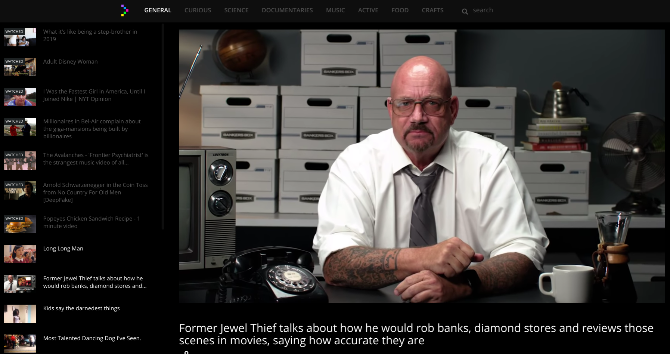
People share a lot of YouTube videos on Reddit. Walnut.TV collects all of them in one place to give you the top videos currently being talked about and upvoted on Reddit. It’s a useful and eye-pleasing interface.

On the left, you’ll see a playlist of all the videos coming up. Click any to watch it, or let the endless stream of videos keep auto-playing. You can also skip forward or go back with the left and right arrow keys.

At the top, you’ll see tabs that curate videos from different subreddits, based on topics. At the moment, categories include curious, science, documentaries, music, activities, food, and crafts. You can also search for your favorite subreddit to automatically create a playlist of all YouTube videos shared in it.

There is also an Android app, but it’s mainly the web version where Walnut.TV shines.

Download: Walnut.TV for Android (Free)

2. Shortly (Android, iOS): Curated Short Stories for 5 Minutes of Reading

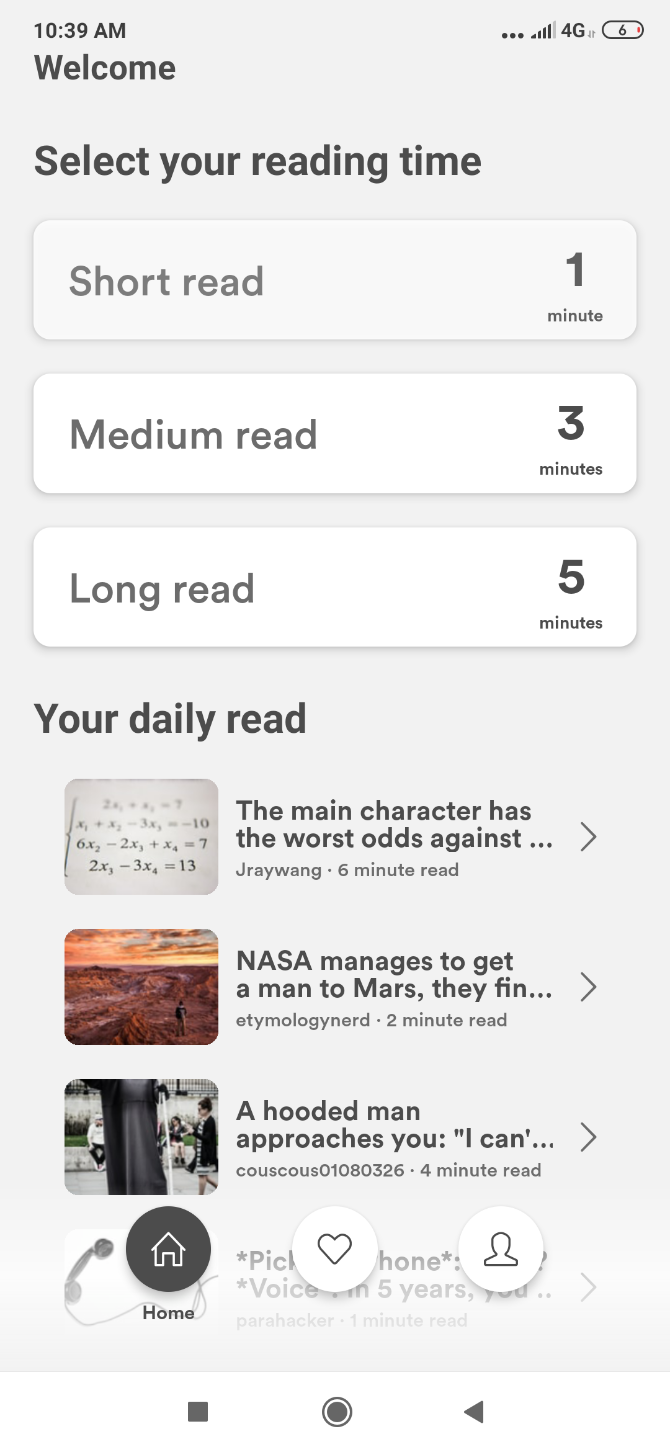
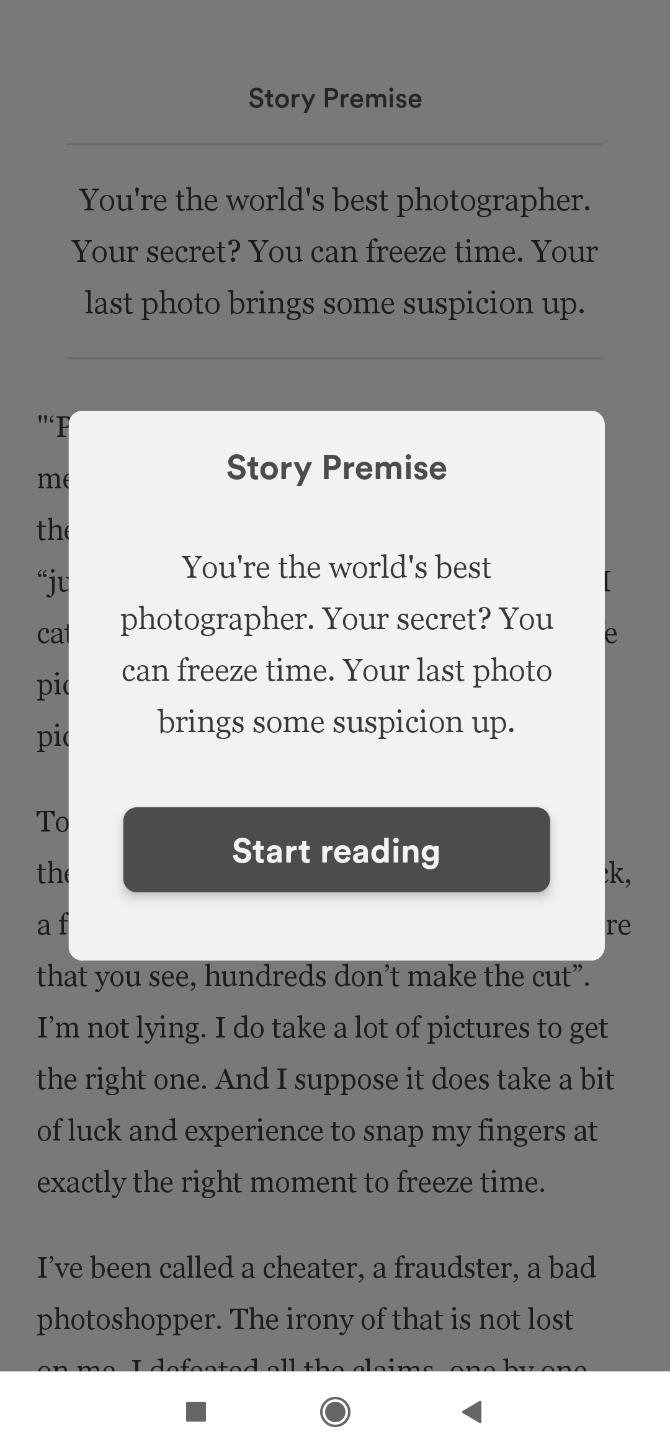
The subreddit r/writingprompts gives anyone with a flair for writing a chance to exercise their creative muscles. One user will set a premise, and other community members then write whatever short story they come up with, based on that premise. Shortly gives you the cream of the crop in a fantastic interface.

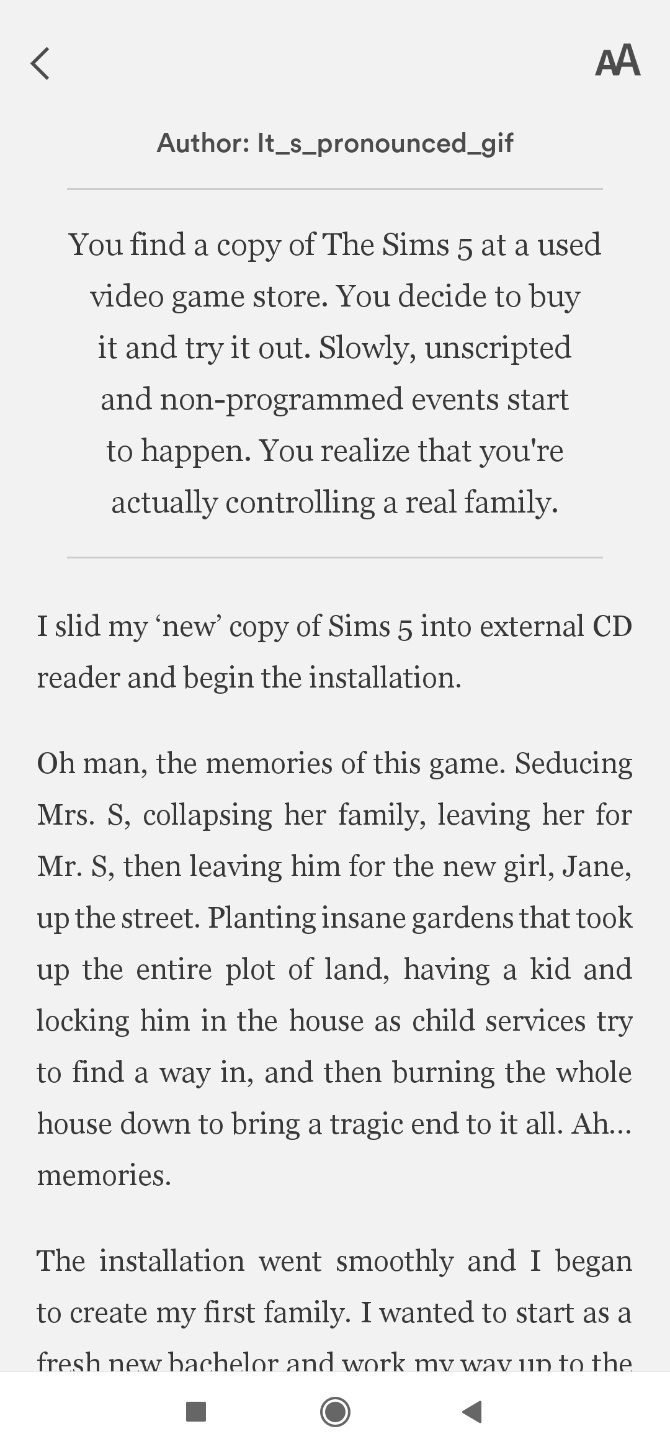
When you start the app, Shortly will give you a quick test to determine your reading speed. Then, you have to choose a story based on how much time you have to read. Options include one-minute, three-minute, and five-minute stories. And just like that, you’ll get a well-formatted short story in a neat font and a pleasing grey background.

If you want to develop a fiction-reading habit, Shortly is an excellent way to begin. Not every story is amazing, but these are the most upvoted short stories on the subreddit, which has been active for several years. So you’re bound to get many winners.

Download: Shortly for Android | iOS (Free)

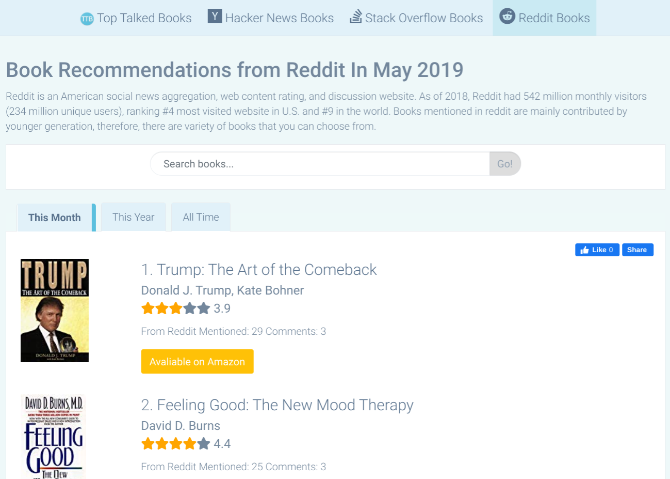
3. Top Trend Books and Top Talked Books (Web): Book Recommendations From Reddit

Top Talked Books lists the most recommended books on Reddit

There are two book recommendation engines that try to find what Redditors are reading. Both do a good job and there’s no real reason to select one over the other, so try them both out.

Top Trend Books calls itself a data-driven recommendation engine, which collects all comments and posts about a book. It then assigns “trend points” based on upvotes, number of references, and the date. Based on that, you can look through categories like tech, comic, free ebooks, fantasy, and more, and sort the recommendations based on time. You can also search for authors or topics.

Top Talked Books isn’t restricted to Reddit alone, and also includes data from Hacker News and Stack Overflow. You can restrict yourself to Reddit-based sources, but why would you want to do that? Check New, Best of the Best, and even articles. The Explore tab lets you sort by categories and tags.

If you like these, you should also check out these essential “best book” lists to see how many of them you have read.

4. Things On Reddit (Web): Reddit’s Favorite Product Recommendations

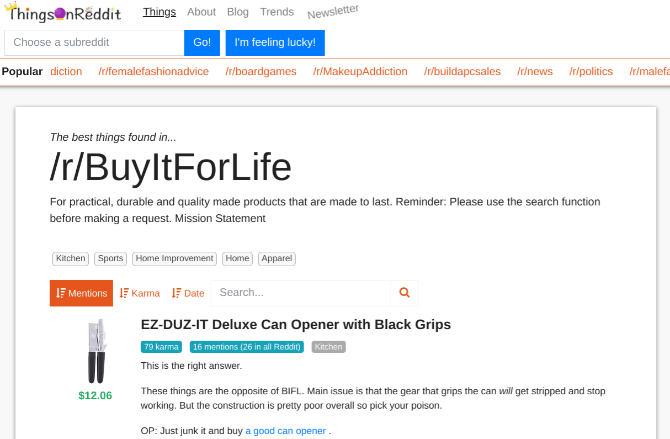
Find all of Reddit's favorite product recommendations at Things On Reddit

On every subreddit, there are experts who will share their favorite products. Some products are shared often by multiple contributors, and gain a reputation for being a favorite and a must-buy. Things On Reddit collects all such favorites in one website.

The Featured Things highlights a few products, while you can jump to any of the popular topics or subreddits to find items from that community. Once you’re viewing items in a topic or subreddit, you can further sort them by mentions, karma, or date. There’s also a short blurb from the best-voted post, often describing why it’s recommended.

Each item on Things On Reddit includes an affiliate link to Amazon or some other store, which helps pay for the website.

5. Unreadit (Email): Get Newsletter Digests of Favorite Subreddits or Topics

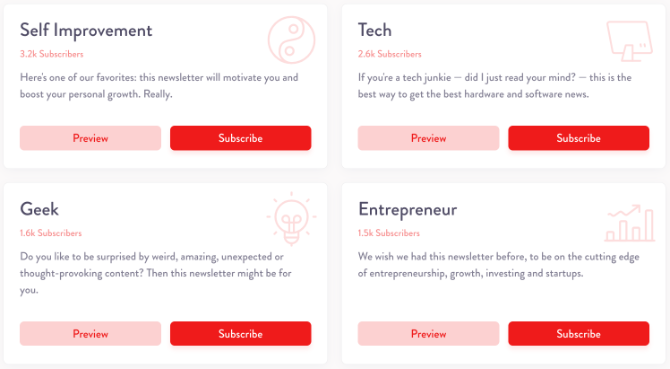
Get newsletter digests of Reddit posts about topics, handpicked by human editors at Unreadit

Unreadit gives you the best of Reddit without needing you to visit the website or the app. It’s a series of newsletters that curate content from multiple subreddits to create a digest, and send it straight to your inbox.

Here’s an example. If you’re interested in technology, subscribe to the Tech newsletter. Sent every Monday, a human editor handpicks the best posts of the week from r/Tech, r/TechNews, r/Gadgets, r/HackerNews, and r/Apple. And just like that, you’re caught up with what people are discussing and sharing on Reddit. Currently, there are such newsletters for self-improvement, tech, geek, entrepreneur, design, frontend, and indie makers.

Unreadit also offers automated newsletters, which aren’t handpicked by a human editor. These are a bit of a hit-or-miss affair, but they might be worth it nonetheless. It’s a much wider range of topics, such as writing, travel, fiction, blockchain, cinema, gaming, etc.

Awesome Reddit Apps and Extensions

All these apps and sites make it easy to find good recommendations from Reddit without diving into the forums. In fact, you can entirely skip ever visiting Reddit if you use these well.

But then you’re missing out on so much. Reddit is full of great content and helpful communities. If you’ve found it overwhelming or disliked the experience, you might not be using it right. Have you tried these awesome Reddit apps and extensions for a better experience?

Read the full article: 5 Apps and Sites to Find Reddit’s Best Posts and Favorite Recommendations


Read Full Article

Instagram to test hiding Like counts in US, which could hurt influencers


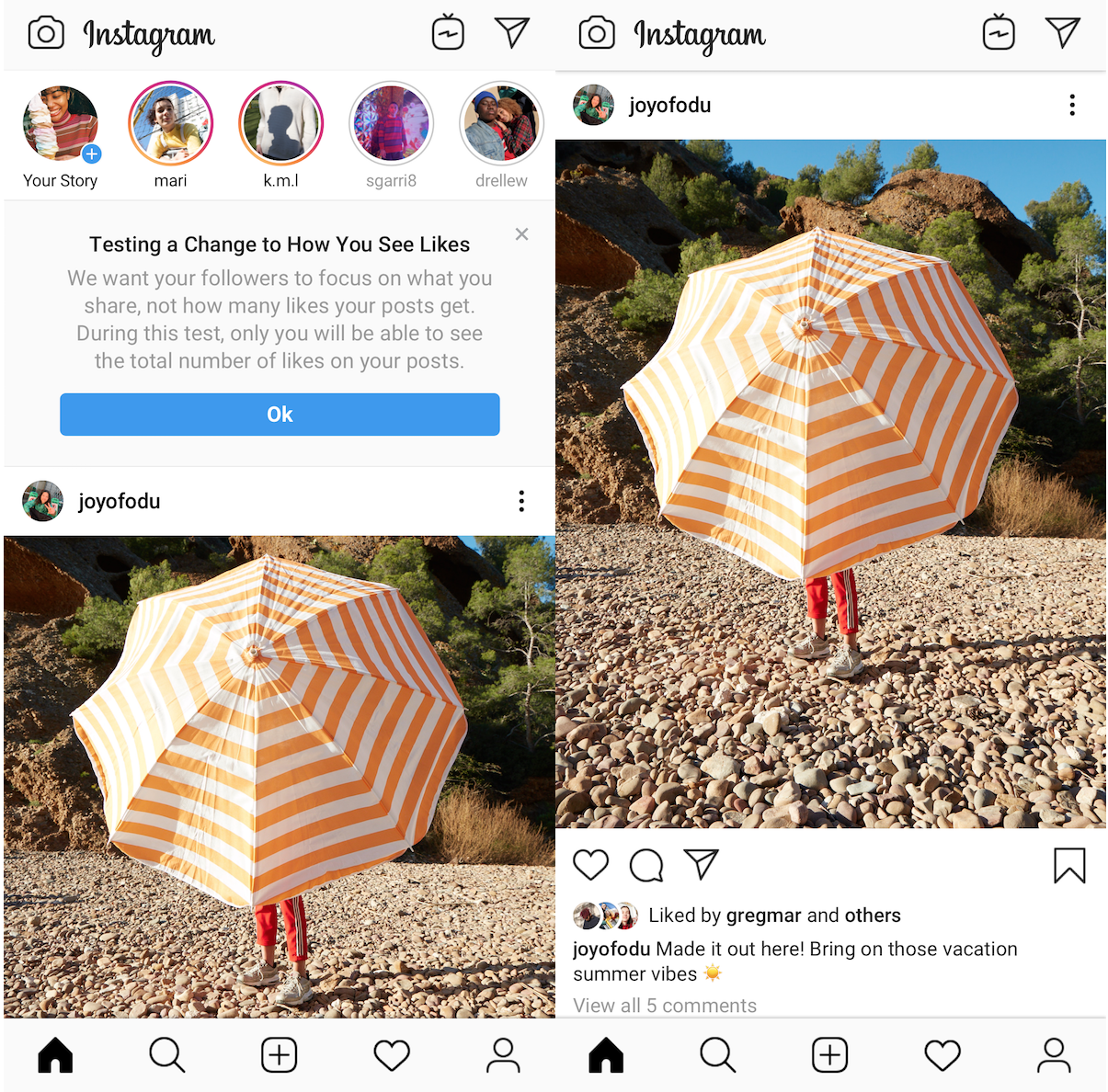
“We will make decisions that hurt the business if they help people’s well-being and health” says Instagram’s CEO Adam Mosseri. To that end, next week Instagram will expand its test of hiding Like counts from everyone but a post’s creator to some users in the United States. But there are major questions about whether the change will hurt influencers.

Mosseri revealed the plan at the Wired25 conference today, saying Instagram “We have to see how it affects how people feel about the platform, how it affects how they use the platform, how it affects the creator ecosystem.”

Instagram’s CEO explained that “The idea is to try to depressurize Instagram, make it less of a competition, and give people more space to focus on connect ing with the people they love and things that inspire them.” The intention is to “reduce anxiety” and “reduce social comparison”.

Elsewhere during the talk that also featured actor and CEO Tracie Ellis Ross, Mosseri discussed Instagram’s growing interest in shopping, and how it can provide new revenue streams to influencers. He also described Instagram’s three-pronged approach to well-being where it identifies and addresses acute problems such as hate speech, finds positions where it can lead as with fighting bullying, and rethinks fundamentals of how the platform works as with Like count hiding.

Instagram began testing this in April in Canada and expanded it to Ireland, Italy, Japan, Brazil, Australia, and New Zealand in July. Facebook started a similar experiment in Australia in September.

While it seems likely that making Instagram less of a popularity contest might aid the average user, Instagram has to be mindful that it doesn’t significantly decrease creators’ or influencers’ engagement and business success. These content makers are vital to Instagram’s success, since they keep their fan bases coming back day after day, even If  users’ friends are growing stale.

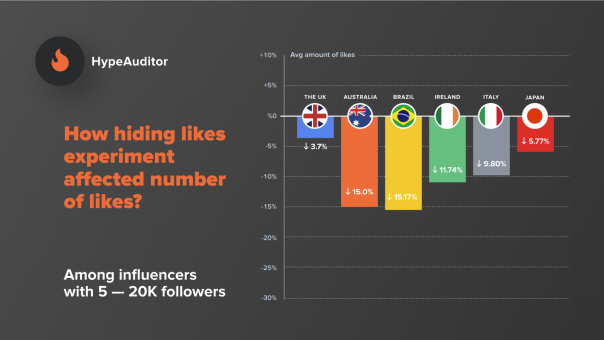
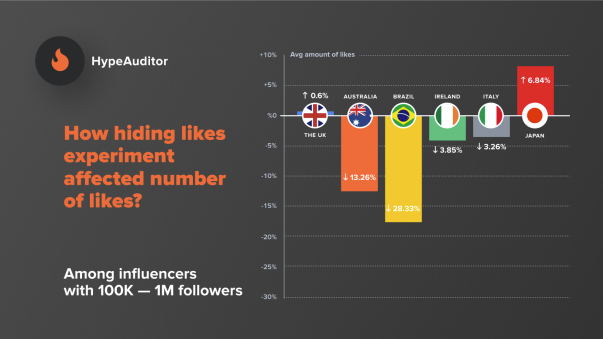
A new study by HypeAuditor reported by Social Media Today found that influencers across tiers of follower counts almost unanimously saw their Like counts fall in countries where the hidden Like count test was active. Likes fell 3% to 15% in all the countries for influencers with 5,000 to 20,000 followers.

Only in Japan, and only for influencers with 1,000 to 5,000 or 100,000 to 1 million followers did the change lead to a boost in Likes — of about 6% in both groups. Meanwhile, influencers saw the biggest loss of Likes in the Brazilian market. Those trends could relate to how users in certain countries might feel more comfortable Liking something if they don’t know who else is too, while in other nations users might rely on more herd mentality to know what to Like.

If Instagram finds the impact of the test to be too negative on influencers, it may not roll out the change. While Mosseri stated the company wasn’t afraid to hurt its own bottom line, impairing the careers of influencers may not be acceptable unless the positive impacts on well-being are significant enough.

Instagram CEO Announces Platform Will Test Hiding Likes in the US

WATCH: Instagram CEO Adam Mosseri announces that the platform will start hiding likes for US audiences starting next week. It's the latest step in Instagram’s quest to become the safest place on the internet. Learn more: https://ift.tt/36NdTcx

Posted by WIRED on Friday, November 8, 2019


Read Full Article

Instagram to test hiding Like counts in US, which could hurt influencers


“We will make decisions that hurt the business if they help people’s well-being and health” says Instagram’s CEO Adam Mosseri. To that end, next week Instagram will expand its test of hiding Like counts from everyone but a post’s creator to some users in the United States. But there are major questions about whether the change will hurt influencers.

Mosseri revealed the plan at the Wired25 conference today, saying Instagram “We have to see how it affects how people feel about the platform, how it affects how they use the platform, how it affects the creator ecosystem.”

Instagram’s CEo explained that “The idea is to try to depressurize Instagram, make it less of a competition, and give people more space to focus on connect ing with the people they love and things that inspire them.” The intention is to “reduce anxiety” and “reduce social comparison”.

Instagram began testing this in April in Canada and expanded it to Ireland, Italy, Japan, Brazil, Australia, and New Zealand in July. Facebook started a similar experiment in Australia in September.

While it seems likely that making Instagram less of a popularity contest might aid the average user, Instagram has to be mindful that it doesn’t significantly decrease creators’ or influencers’ engagement and business success. These content makers are vital to Instagram’s success, since they keep their fan bases coming back day after day, even If  users’ friends are growing stale.

A new study by HypeAuditor reported by Social Media Today found that influencers across tiers of follower counts almost unanimously saw their Like counts fall in countries where the hidden Like count test was active. Likes fell 3% to 15% in all the countries for influencers with 5,000 to 20,000 followers.

Only in Japan, and only for influencers with 1,000 to 5,000 or 100,000 to 1 million followers did the change lead to a 6% boost in Likes. Meanwhile, influencers saw the biggest loss of Likes in the Brazilian market. Those trends could relate to how users in certain countries might feel more comfortable Liking something if they don’t know who else is, while in other nations users might rely on more herd mentality to know what to Like.

If Instagram finds the impact of the test to be too negative on influencers, it may not roll out the change. While Mosseri stated the company wasn’t afraid to hurt it’s own bottom line, impairing the careers of influencers may not be acceptable unless the positive impacts on well-being are significant enough.

https://ift.tt/32tWUbK?xts[0]=68.ARCnhigtpUX2ohjQeN9KIlum_5cxn4DOJYlqFOXPwWo4ndBn7QBKOYXIv8ulLQY2jz2qYbkJxzVzGI-uyPS5oQ5wpoDbDRsM9Rj2qzemd1YriP7AScwpYoE6oozTUowaSTEqqsP5EciyVLvpbSgtIysbCzILMmnyr-0mIq7v-6dKuk3SlRiYTXU7R3dUXCcQfktwP41b7QN4JVagnHrfWg2Ag5xAkvmcdJw7z01CmGmTzp_2D_bVpZHJw73r0S9KvYOW6emyrrZAu61r4u5ZDjKf8yw8vHyKWWFT9mz5dS9oUC8uCpDBpL2CKDg3MzLOgGoRJtXtTtGCAF_dt40Ewr4C&tn=-R


Read Full Article

YouTube Makes Its Homepage Easier to Use


YouTube is rolling out a new homepage. This is designed for desktop users, plus tablet users on both Android and iOS. The homepage has been redesigned so that it’s cleaner, clearer, and easier to find the videos you actually want to watch.

Exploring the YouTube Homepage

While most of us open YouTube specifically to watch a particular video, the YouTube homepage is well worth exploring. If you’re signed into your Google account you’ll find recommended videos YouTube thinks you’ll enjoy watching.

Unfortunately, the YouTube homepage isn’t perfect. The size of the thumbnails and lack of descriptions make it hard to know what to watch. And controls to help you customize YouTube are hidden from view. Which is why YouTube has redesigned its homepage.

How to Use the New YouTube Homepage

YouTube introduced the new-look homepage in a post on The Official YouTube Blog. YouTube explains that the new-look homepage, which is rolling out now, is designed to “help you find the next great video to watch.” Which is becoming increasingly difficult.

The most obvious change to the YouTube homepage is the new look. Rather than rows of five videos with small thumbnails, you’ll now see rows of four videos with larger thumbnails. High-resolution previews and channel icons will help you find videos.

Once you’ve found the videos you want to watch, you can now add them to your queue on desktop right from the homepage. Just hover your cursor over a video thumbnail and tap the Add to Queue icon. These will then play in the order you added them to your queue.

On the other hand, if you find that YouTube keeps recommending a channel you have no interest in watching, you can now remove those suggestions. Just click the three-dot menu next to a video on the homepage, and tap Don’t Recommend Channel.

Our YouTube Starter Kit for Beginners

These changes should make it easier to use the YouTube homepage. Which should, in turn, keep you watching YouTube videos for longer. And YouTube is promising more features to come. In the meantime, here’s our YouTube starter kit full of entertaining channels.

Image Credit: Rego Korosi/Flickr

Read the full article: YouTube Makes Its Homepage Easier to Use


Read Full Article