05 November 2019

What open water swimming taught me about resilience | Bhakti Sharma

What open water swimming taught me about resilience | Bhakti Sharma

Dive into the deep with open water swimmer Bhakti Sharma, as she shares what she learned about resilience during her personal journey from the scorching heat of Rajasthan, India to the bone-chilling waters of her record-breaking swim in Antarctica and her courageous crossing of the English Channel. "In the middle of the ocean, there is nowhere to hide," Sharma says.

Click the above link to download the TED talk.

How Europe overtook the U.S. in championing free markets


The deregulation of major U.S. industries like telecom and energy in the 1970s and 80s sparked competition that lowered consumer prices and drove product innovation between competitors. Europe, on the other hand, lagged behind with more expensive internet, phone plans, airline tickets, and more until around 2000 when a major reversal of this trend began. Strikingly, when the EU strengthened deregulation and antitrust efforts to open its markets to more competition, it was the U.S. that reversed course.

According to a new book by French economist Thomas Philippon, Americans’ view of their country as the world’s beacon of free market competition and Europe as an over-regulated region of lethargic corporate giants is out of date, and may be inhibiting our ability to recognize growing corporatism at home. Philippon, a professor of finance at NYU Stern who earned a Ph.D. in Economics from MIT, was named one of the top 25 economists under age 45 by the International Monetary Fund.

“If you have nothing interesting or relevant to say, you can always take a jab at European bureaucrats. It’s the political equivalent of complaining about the weather…”

Based on Organization for Economic Cooperation and Development (OECD) data, the U.S. now has more regulations for opening a new business than every EU country except Greece and Poland — a complete reversal since 1998, when only the UK had fewer rules than the U.S. Per capita GDP growth in the EU outpaced that of the U.S. over 1999-2017. On a purchasing power parity basis, Americans have experienced a 7% increase in prices (relative to EU residents) for the same goods, due specifically to increased profit margins of companies with reduced competition.

The reason for this divergence? According to Philippon, corporate incumbents in the U.S. gained outsized political influence and have used it to a) smother potential antitrust reviews and b) implement regulations that inhibit startups from competing against them. As a result, the U.S. regulatory system prioritizes the interests of incumbents at the expense of free market competition, he says.

Philippon makes his case in “The Great Reversal: How America Gave Up on Free Markets,” released this past Tuesday by Harvard University Press. The book builds an argument from extensive data and pre-empts likely critiques by investigating numerous potential confounding variables or differences in research methodology. It is a compelling read for those interested in the dynamics of the overall innovation economy or the political debate over antitrust and Big Tech.

Incumbents over startups

Philippon, who was na states upfront that he isn’t claiming Europe is a bigger startup hub. In fact, he writes that “the U.S. has better universities and a stronger ecosystem for innovation from venture capital to technological expertise.” 

What he does do is ring the alarm about a systemic shift in market consolidation in the U.S. that results in a small number of large incumbents charging high prices, an economy-wide prioritization of share buybacks over investments in innovation and government policy that inhibits competition from new entrants.

An important take-away for readers: there’s a concerning trend toward more barriers to successful entrepreneurship, higher prices for countless goods and services that startups use, an overall decrease of corporate investment in new technologies and fewer potential startup acquirers.

There are half as many publicly-traded companies in the U.S. as there were in 1997, and turnover within rankings of the top five companies per industry has declined sharply since the late 1990s as well.

Market concentration isn’t due to superstars

“The Great Reversal” considers that increased market concentration could be the result of “superstar” firms whose increased productivity is a win-win for shareholders and consumers alike. This has indeed occurred during the 1990s but the correlation between increased concentration and increased productivity ended around 2000 (with the exception of the retail sector).

Corporate after-tax profits as a percent of U.S. GDP were stationary for decades at 6-7% but increased to 10% in the last two decades, highlighting increased “rent-seeking” that shouldn’t occur if the leaders in most industries were facing the same amount of domestic competition or increased international competition. 

From the 1960s through the 1990s, American companies poured an average of 20 cents from each dollar of operating profit into investments (R&D, capital expenditures, etc.). Since 2000, that’s fallen to 10 cents per dollar. With reduced competition, large companies are focusing less on advancing their product offerings and more on extracting profits for shareholders out of existing business operations.

Big tech isn’t exempt

Major tech companies — specifically Alphabet (Google), Amazon, Facebook, Apple, and Microsoft — are the focus of multiple chapters of analysis by Philippon, who rejects the notion that these companies are somehow unprecedented relative to the leading companies of prior decades from an antitrust standpoint. They account for a smaller portion of U.S. GDP and stock market value, and they have similar profit margins. Network effects and accelerating economies of scales are not new concepts in economics — existing antitrust regulations are capable of dealing with these companies.


Read Full Article

7 Fixes When Bluetooth Is Not Available on Your Mac


mac-bluetooth-issues

Bluetooth a technology that most people tend to forget about until it doesn’t work. For example, you might feel that everything is going along swimmingly until your AirPods decide not to connect. Most of the time, this is a relatively easy fix. But sometimes it can be a bit tricky.

One of the most frustrating issues is when suddenly Bluetooth is not available on your Mac. At least, that’s what it seems like, but can you really be sure? Without a clear indicator of what’s going wrong, troubleshooting Bluetooth on your Mac can be like walking around in the dark.

Here’s how you can fix macOS Bluetooth issues.

1. Bluetooth Not Available? Reboot Your Mac

Yes, this is the step you always hear about, but there’s a reason for it. More often than not, a reboot will solve a batch of problems with your Mac—Bluetooth issues among them.

Rebooting your Mac under Apple menu > Restart will fix almost every Bluetooth problem, particularly those where the Bluetooth module has crashed and you’re experiencing an unresponsive system. According to Apple, removing any USB devices can help, so you might want to give that a try too.

Before proceeding, you should also review our introduction to using Bluetooth on macOS to make sure you understand how it works.

2. Check Your Mac’s Bluetooth Device Settings

To connect to your Mac, your Bluetooth device needs to be turned on and have some battery charge. This might sound obvious, but it’s worth checking before you go to great lengths fixing a problem that doesn’t really exist. If you haven’t paired this device before, make sure you’re doing it correctly (and that it’s visible to your Mac).

If you’re trying to get a Bluetooth speaker or other audio device working, have already paired it, and are wondering why you can’t hear anything, then you’ll need to make sure it’s selected as your primary output under System Preferences > Sound > Output.

The same goes for Bluetooth headsets with microphones: head to the Input tab and choose your Bluetooth device there. Your Mac should remember your choice for the next time you connect a wireless audio device.

Audio settings on macOS can affect Bluetooth devices

You can also click on the Volume button in the menu bar and pick your audio device there. If you don’t see the button in your menu bar, you may need to enable it. Go to System Preferences > Sound > Output, then choose Show volume in menu bar at the bottom of the window.

3. Disable and Re-Enable Bluetooth

To reset Bluetooth without restarting your whole Mac, head to System Preferences > Bluetooth and click Turn Off. You can also toggle Bluetooth by clicking on the menu bar icon—click Turn On to try again. If you’re having trouble using AirDrop on your Mac, toggling this setting can often solve your problem.

Turning Bluetooth off on macOS

You can also try killing the Bluetooth process entirely, though this isn’t always effective. Open Terminal and enter sudo pkill blued followed by your admin password. This should kill and restart the background process, allowing you to try again.

4. Pair Your Bluetooth Device With Your Mac Again

If you’ve already paired the device in the past, another option is to tell your Mac to forget it and start again. You can reveal all currently paired Bluetooth devices under System Preferences > Bluetooth.

Find whatever is causing you problems, select it, then click on the X followed by Remove to get rid of it.

Removing and re-adding Bluetooth devices on macOS

You’ll now need to pair the device again, which most of the time involves holding a button till a light flashes. Check the device’s manual if you’re not sure.

5. Reset Your PRAM and/or SMC

Though it’s a more complicated process, resetting your Mac’s PRAM or SMC is one of the most commonly recommended fixes for a whole host of issues. The system management controller (SMC) is far less likely of a culprit than the PRAM or NVRAM when it comes to Bluetooth. That said, resetting both can’t hurt, since an underlying issue could be causing your Mac Bluetooth problems.

People often do both of these steps at once, which is why they’re listed here as they are. See our detailed guide on how to reset your PRAM and SMC to perform the process, no matter which type of Mac you have.

6. Delete a Few Key PLIST Files

macOS stores information about Bluetooth devices in two files on your hard drive: one that is personal to you and another which is used by all users on your Mac. Deleting these files is often recommended when you encounter Bluetooth issues, as it forces macOS to create fresh ones when your computer restarts.

Both files are PLIST files, which are used all over the operating system for storing application data in XML format. To delete and recreate these files:

  1. Open Finder and click on Go > Go to Folder from the menu bar.
  2. Type or paste /Library/Preferences.
  3. Look for a file called com.apple.Bluetooth.plist and drag it to the Trash.
  4. Click Go > Go to Folder again and type or paste ~/Library/Preferences/ByHost.
  5. Look for a file that starts with com.apple.Bluetooth followed by numbers and letters (ending in .plist) and drag it to the Trash.
  6. Disconnect any USB devices and shut down your computer.
  7. Turn off your Bluetooth devices and start up your Mac again.
  8. Enable Bluetooth on your devices and attempt to pair again.

7. Reset Your Mac’s Bluetooth Module

As a last resort, you can try resetting your Bluetooth module to factory settings. This means you will lose all existing paired connections. If you’re still having issues after trying all of the above, that’s a small price to pay to get your device working again.

If you don’t have a Bluetooth icon in the menu bar, head to System Preferences > Bluetooth and check Show Bluetooth in menu bar. Now hold Shift + Option and click on the Bluetooth icon in the menu bar. In the menu that appears, select Debug > Reset the Bluetooth module. You can now try re-pairing your devices.

Resetting macOS Bluetooth module

One final tip here is to start re-pairing your devices by importance. You don’t want to pair your headphones only to find that the mouse and keyboard you depend on are still having issues, for example. Once you get the important hardware connected, then you can focus on other issues.

Still Have Problems With Bluetooth?

Most issues should disappear after deleting system files, resetting PRAM, and reverting your Mac’s Bluetooth module to factory settings. If you still have problems, it’s likely your Mac is experiencing hardware issues, though you might want to try a fresh install of macOS too.

The best option is to purchase a dedicated USB Bluetooth adapter and use that instead. Older Apple computers are more likely to have issues than newer ones, so the price of a repair is often not worth it when compared with the price of a USB dongle. The Hideez Key USB Smart Bluetooth 4.0 Dongle is inexpensive and should do the trick.

If you bought your Mac recently and it’s still under warranty, or you purchased Apple Care with your Mac, you should make an appointment with Apple. A technician will look at the problem and fix it for free. This could be indicative of a broader hardware issue with your system, so it’s a smart idea. If you’re serious about getting the issue fixed but aren’t covered, you can take it to Apple and pay for the repairs.

Read the full article: 7 Fixes When Bluetooth Is Not Available on Your Mac


Read Full Article

The Minecraft Command Blocks Guide


minecraft-command-block

At first glance, Minecraft command blocks seem complicated to use. Once you get to know them, however, they become a useful tool for creating adventure maps or managing multiplayer servers.

In this article, we’ll explain what a Minecraft command block is, show you how to make a Minecraft command block, and examine how to use Minecraft command blocks to make Minecraft even better.

What Is a Minecraft Command Block?

A Minecraft command block is a special redstone-powered block. Its main use is to perform pre-set console commands when a redstone charge activates it. When it receives a charge, it fires off the command loaded into it.

The main use for Minecraft command blocks is giving the player control over commands they could not otherwise use. That’s because command blocks have admin-level powers, so they can perform console commands for people without admin privileges. This means you can give players control over specific things without giving them power on your server.

This is great for performing menial tasks, such as changing the current gamemode. If the term “gamemode” draws a blank for you, be sure to read our beginner’s guide to Minecraft to learn what they are.

How Do You Get a Minecraft Command Block?

Because Minecraft command blocks are related to server and player management, they cannot be mined in the game world.

If you want to get a command block, you must have the right permissions to give yourself items. Then, open the chat by pressing the T key. The chat window doubles as the in-game console; start your message with a forward-slash (/) to turn a chat message into a command.

With the chat open, type “/give PLAYER_NAME minecraft:command_block”, where PLAYER_NAME is your name.

You may notice the game predicting what you’ll type as you enter characters. If the game guesses correctly, you can press the TAB key to enter the guess automatically.

Now that you have a command block in your possession, it’s time to put it to use.

How to Use Minecraft Command Block Commands

Minecraft command block UI

To use the block, right-click it as if it were a crafting table. You’ll see a lot of confusing buttons, but don’t worry about those right now. Let’s focus on getting the command block to perform a task when it receives a redstone charge.

Entering a Command

In the text entry box, enter the console command you want the block to perform. Unlike chat commands, you don’t need the forward-slash at the start—just enter the command without it.

If you enter a command that requires a username to complete (such as the “give” command), you’ll notice something odd happen. When it comes to the user argument, the autosuggest will mention a few cryptic-looking entries. All of these entries are an @ followed by a single letter. These are called target selectors and are very useful for commands that aren’t user-specific.

For example, if you want a command block that dispenses a diamond sword, you can use a target selector, so the closest player receives the sword. This is a much easier solution than making separate command blocks for “/give player_a minecraft:diamond_sword”, “/give player_b minecraft:diamond_sword”, etc.

Using Target Selectors

The target selectors available in command blocks are as follows:

  • @a is for every player on the server. This is useful for performing a command on every single user without manually typing each of their names individually.
  • @p is for the closest player to the block at that time. This command is best for performing an action on whoever activates the block.
  • @r is for a random player on the server. You can use a “give” command with a @r argument for a lottery-based system, or attach it to a “kill” command for the Minecraft version of Russian Roulette.
  • @e targets all entities on the server. All players are entities, but the category spans a lot further than that. Entities include everything that can move, either by themselves or via physics. This includes monsters, items, arrows, boats, minecarts, and even falling sand. As such, be careful with how you use this command.

Once you’ve typed out the command you want to perform, activate it using redstone. The easiest way is to put a lever or redstone torch next to it, but you can also use a redstone circuit to trigger it off of buttons or pressure pads.

Chaining Minecraft Command Blocks

Minecraft command block arrow

If you take a closer look at the design of a Minecraft command block, you’ll see that it has an arrow pointing upward. Every time the command block fires, it sends a signal to activate the next command block in the direction of the arrow.

Because we’ve been experimenting with only one block, we haven’t put this feature to use yet. To chain commands together, place a block so that the first one is pointing directly at it and is also adjacent to it. Then, in the command block interface of the new block, click the “Impulse” button to change it to “Chain”.

Minecraft command block chain

Give the chain block a command to perform. Now, when you activate the first block, it should automatically trigger the second one to fire, too.

The Buttons on the Minecraft Command Block Interface

Now that we’ve gotten to grips with commands, it’s time to explore the other buttons we have on the command block interface. These buttons are:

  • Impulse, Chain, and Repeat. This defines how the block handles its command. “Impulse” fires off once when it receives a signal. “Chain” fires when it receives the go-ahead from another command block. “Repeat” continually fires when it’s activated.
  • Conditional and Unconditional. If the block is set to “Conditional,” it will only fire if the command block behind it successfully fires. Note that the block only cares if the one behind it triggers; it doesn’t care if it’s being chained into or not. A block set to “Unconditional” won’t care about if the block behind it successfully fired.
  • Needs Redstone and Always Active. “Needs Redstone” means the block only fires if it has a redstone charge. “Always Active” means it’s always ready to fire. The latter setting is useful for chain command blocks because you don’t need to add them to the redstone circuit to use them. Just chain into them, and they’ll activate right away. If you turn on “Always On” for an impulse block, it’ll fire only the once. For repeat blocks, it’ll continuously fire off.

Getting the Most Out of Minecraft Command Blocks

Minecraft command blocks are a useful tool and aren’t nearly as complicated as they first appear. And now, thanks to this guide to Minecraft command blocks, you know how to make a command block, how to use a command block, and how to chain command blocks together.

If you’re interested in modifying your Minecraft game with commands, here’s how to create your own Minecraft mod.

Read the full article: The Minecraft Command Blocks Guide


Read Full Article

The 9 Best Cheap Gaming Mice of 2019


best-cheap-gaming-mice

A great gaming mouse should complement your powerful gaming rig. While you can spend top dollar on the most advanced mouse, you really don’t need to. Fortunately, there are tons of affordable options that don’t compromise on performance.

Wondering how to find the best cheap gaming mouse? This list will help you choose an affordable and reliable gaming mouse.

1. Redragon M711 Cobra Gaming Mouse

Redragon M711 Cobra Gaming Mouse Redragon M711 Cobra Gaming Mouse Buy Now On Amazon $19.83

The Redragon M711 Cobra Gaming Mouse is possibly the best budget gaming mouse you can find. It comes with stunning lights that add a pop of color to the scroll wheel and the side of the mouse. You can even customize the color of the lights and swap through eight different light modes.

The M711 Cobra doesn’t only have sleek looks—it has the performance to back it up. Choose between five DPI settings: 500, 1000, 2000, 3000, and 5000. This flexibility makes it suitable for all gaming situations. When you’re in a pinch, click the DPI button below the scroll wheel to adjust it.

2. Logitech G502 Proteus Spectrum Gaming Mouse

Logitech G502 Proteus Spectrum Gaming Mouse Logitech G502 Proteus Spectrum Gaming Mouse Buy Now On Amazon

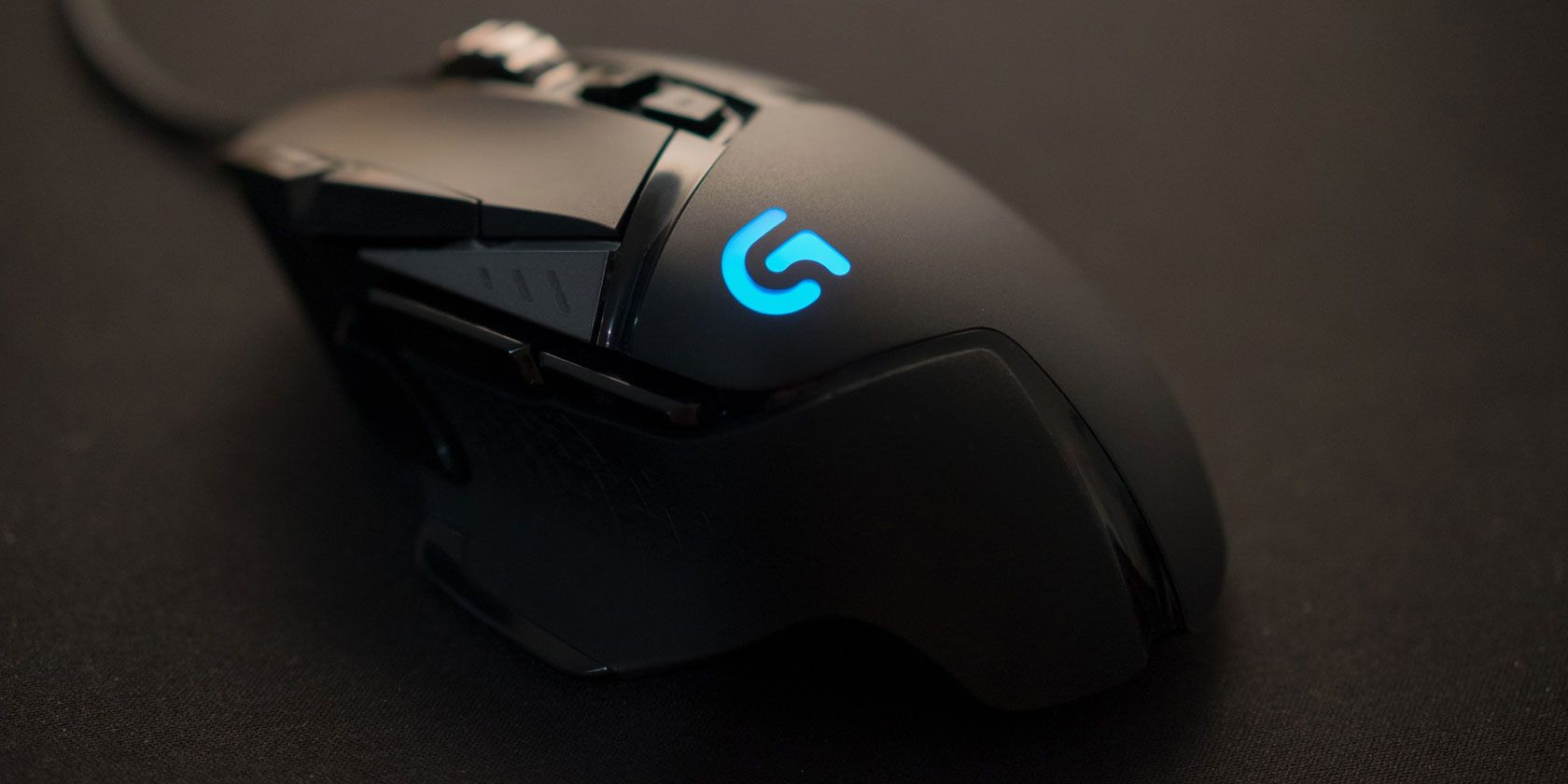
You’ll have to spend a little more in order to get your hands on the Logitech G502 Proteus Spectrum Gaming Mouse, but it’s a great choice if you have the cash. This mouse allows you to easily lower or raise your DPI to anywhere between 200 and 12000DPI. Simply press the thumb button to change your DPI in an instant.

If you aren’t sure what DPI you landed on, the mouse’s built-in lights will show you. Even the scroll wheel has been optimized for maximum performance. You can choose between two settings; one lets you scroll extremely fast through several pages, while the other offers controlled, single-page scrolling.

The Logitech G502 is also customizable. Not only can you adjust RGB settings, but the mouse also comes with 11 programmable buttons. You can also tune the mouse specifically for your desk, and customize its RGB lighting.

3. Razer DeathAdder Elite Gaming Mouse

Razer DeathAdder Elite Gaming Mouse Razer DeathAdder Elite Gaming Mouse Buy Now On Amazon $59.99

For another cheap gaming mouse on the higher-end, check out the Razer DeathAdder Elite Gaming Mouse. This mouse is guaranteed to give you 50 million clicks (and maybe more) over its lifetime. It’s built for gaming performance—the bumpy, solid scroll wheel allows for better grip and accuracy.

The Razer DeathAdder Elite also comes with seven buttons that you can program through Razer Synapse. You can set these buttons for on-the-fly DPI adjustment, and this mouse supports up to 16000DPI. Like most mice on this list, it also comes with customizable RGB colors.

4. PICTEK Gaming Mouse

PICTEK Gaming Mouse PICTEK Gaming Mouse Buy Now On Amazon $17.99

The PICTEK Gaming Mouse is another one of the best cheap gaming mice. It has all of the features of a more expensive mouse for a much lower price. You can expect five different sensitivities that range from 1200 to 7200DPI, along with eight buttons you can program.

Besides being programmable, it has a rapid-fire button as well. This makes it perfect to use in FPS games. It definitely comes in handy when you’re in an intense battle, as it keeps your hand comfortable. The claw-grip shape and sweat-proof design allow you to play for hours with no hand cramps.

5. Ajazz AJ52 Watcher Gaming Mouse

Ajazz Aj52 Watcher Gaming Mouse Ajazz Aj52 Watcher Gaming Mouse Buy Now On Amazon $15.99

You’ll immediately notice that the Ajazz Aj52 Watcher Gaming Mouse looks nothing like the other mice on this list. Its unique look, affordable price, and performance make it a must-buy. The stark white color, coupled with a fractured design, makes it an aesthetically-pleasing addition to your gaming rig.

If you don’t like the default RGB backlight colors that the Ajazz Aj52 comes with, you have millions of color choices you can choose from. There’s also the option of seven different DPI levels, and you can play around with its seven programmable buttons.

6. UtechSmart Venus Gaming Mouse

UtechSmart Venus Gaming Mouse UtechSmart Venus Gaming Mouse Buy Now On Amazon $32.99

The UtechSmart Venus Gaming Mouse gives you more programmable buttons than most cheap gaming mice. With this mouse, you’ll have a total of 18 buttons at your disposal. You can also set up five DPI presets. As you change your DPI, you’ll always be able to identify which setting you’re using by looking at the mouse’s lights.

This mouse was designed with ergonomics in mind. It feels natural to grip, and it gives you space to rest your thumb and ring finger as you game.

7. Anker Gaming Mouse

Anker Gaming Mouse Anker Gaming Mouse Buy Now On Amazon $12.99

The Anker Gaming Mouse is a solid choice if you want a good cheap gaming mouse. Despite its low price, you the Anker Gaming Mouse allows you to change your sensitivity from 800 to 6400DPI with the press of a button. When you use this mouse, you’ll notice that you don’t need to use much strength to click.

That’s because this mouse comes with premium switches that make clicking much easier. Just like most other mice on this list, you can adjust the colors of the mouse’s LEDs and even program its buttons. You really can’t beat all of these features for the price!

8. Logitech G203 Prodigy

Logitech G203 Prodigy Logitech G203 Prodigy Buy Now On Amazon $20.99

If you want a mouse from a reputable brand without the expensive price tag, check out the Logitech G203 Prodigy. You might recognize the look of this mouse, as it’s been designed to mimic the popular Logitech G100S gaming mouse. The only difference is that the G203 has more features.

You can expect it to respond eight times faster than typical mice. Additionally, you can easily switch your mouse sensitivity to anywhere between 200 and 8000DPI. Logitech also gives you millions of colors for this mouse’s lights, along with lighting effects for specific games.

Want to use your mouse on-the-go? The G203 has you covered. You’re able to use your mouse on any PC without installing any software, and it’ll still save your customized settings.

9. Redragon M652 Optical Wireless Mouse

Redragon M652 Optical Wireless Mouse Redragon M652 Optical Wireless Mouse Buy Now On Amazon $12.99

Although wireless mice aren’t as popular among gamers because of lag, most wireless mice now come close to the speed of wired mice. The Redragon M652 Wireless Mouse gives you lag-free gameplay and has a battery life that lasts. It automatically goes into sleep mode after eight minutes of inactivity to conserve energy.

You’ll also find that this mouse comes with five different sensitives that range from 800 to 2400DPI. It even gives you the choice of two different polling rates; 125Hz and 250Hz. Both of these features make this mouse suitable for almost any game.

Choosing the Best Cheap Gaming Mouse

An expensive mouse doesn’t always mean that it’s better. Cheap gaming mice might not come with the bells and whistles of pricier models, but they still have plenty of useful features.

Now that you have a new gaming mouse, you’ll need a keyboard to go with it. Maybe you’ll find what you’re looking for in this list of the best gaming keyboards.

Read the full article: The 9 Best Cheap Gaming Mice of 2019


Read Full Article

13 df Linux Commands With Examples


linux-df-commands

Getting to grips with Linux can be tough for newcomers. But the power of command line tools should not be overlooked. They may look old fashioned—requiring zero mouse use—but tricks like the df command can save you time.

With the Linux df command you can easily interrogate your system for details on disk space and file size. These 12 df command examples will show you how.

What Is the df Command in Linux?

If you want to know how much disk space is free on your Linux PC, what is your first instinct? For many it might be to check your Linux distro’s disk management tool, but this isn’t the best option. Just as there is a data duplicator tool for cloning disks, there is also a “disk filesystem” tool for checking details about the filesystem.

This is the df command, entered in the bash terminal. It can be used in so many ways:

  1. Display disk space usage
  2. Display usage on a specific device
  3. Show all file systems in use
  4. Find disk information on a specific file
  5. Display inodes
  6. Show the file system on a specific file
  7. Include file system types
  8. Exclude file system types
  9. Display the df command help file
  10. Show grand total disk usage and free space

The df command can also be tweaked to display file sizes and free space in kilobytes, megabytes, and gigabytes.

The df Command Syntax

Before you start using the df command, be aware of its syntax. Like most Linux terminal tools, it is straightforward; knowing it will save time as you use df more often.

You can check the df command syntax manually with the help command:

df --help

You’ll see the first line:

Usage: df [OPTION]... [FILE]...

So, you would use df followed by the [OPTION] then any relevant [FILE] or directory. These are listed in the help file, but you can keep reading to see some examples demonstrated.

1. Display Disk Usage With the df Command

Linux df command output

To display your computer’s disk space, which results in file system type, used and available space, and more, use:

df

2. Display Disk Usage for a Specific Drive With df

You can get more specific by selecting a specific drive or partition. Simply add the file path as the [OPTION]:

df /home

3. Display All File Systems With df

Display all filesystems with the Linux df command

The default df command only shows standard file systems on your computer. Inaccessible file systems, duplicates (in a RAID system for example) and pseudo file systems are ignored.

However, you can display these using df. Just use the -a switch, for “all”:

df -a

4. Find Information for a Specific File

Looking for data concerning a specific file? If you need to know where a particular file is and the remaining space on the device it is stored on, use:

df /home/christian/file.txt

This is useful when tracking down data to move between hard disk drives. For example, you might be migrating important personal data to a secondary drive or partition.

5. Display Inodes With df

Inodes are key to Linux file systems, storing information about files much like a database. To show information about inodes input

df -i

6. Use the df Command to Display File System

Linux df command with the -T option

Need to know what file system type is in use on your drives? Use the -T option, followed by a file path.

df -T /home/christian/file.txt

Look for the Type column heading. As you can see in this example, the filetype is ext4.

7. Include and Exclude File System Types with df

As well as displaying file system types with df, you can also include specific types. For example, if you wanted to display all ext4 file system devices use:

df -t ext4

8. Exclude File System Types

Want to exclude a file system type? To display all file system types on your drive except ext4, use:

df -x ext4

9. View Grand Total Disk Usage With the df Command

View totals with the Linux df command

While the basic df displays a summarized total of disk usage, it doesn’t include hidden files. To see this figure instead, use

df --total

10. Check the df Command Help File

While most df commands can be found in this list, you’ll find some additional, rarely used examples in the help file. View this with

df --help

Bonus: Display df Results in KB, MB, and GB

In addition to all of that, the df command can be tweaked slightly to deliver more readable results. By default, the output is in bytes. If you know how bytes relate to megabytes and gigabytes, this may not be an issue for you.

Switch output of the Linux df command to kilobytes

However, for readability it is a smart option to use these switches:

  • Make the standard output readable to humans familiar with GB numbering with -h
  • Display df command output in megabytes (MB) with -m
  • You can also display output in kilobytes with -k

Usage is straightforward—the option appears in the specified position, alongside any others that are selected if necessary. For the basic df command, use

df -h

If you want to see the size of a specific file in GB rather than the default bytes, use the file path and filename:

df -h /home/christian/file.txt

The df Command Is Key to Successful Linux Use

By now you should have gained some familiarity with the df command. Yes, you can live without it and perhaps find the info you need in the file manager. But with as little as two keystrokes you can also find the information in the terminal.

As typing is almost always faster than using a mouse, it makes sense to have this command line trick ready.

Want more Linux terminal commands like df? Become a Linux command line master with these tips and tricks.

Read the full article: 13 df Linux Commands With Examples


Read Full Article

Philo vs. Sling TV: What’s the Best Streaming Service Deal?


philo-vs-slingtv

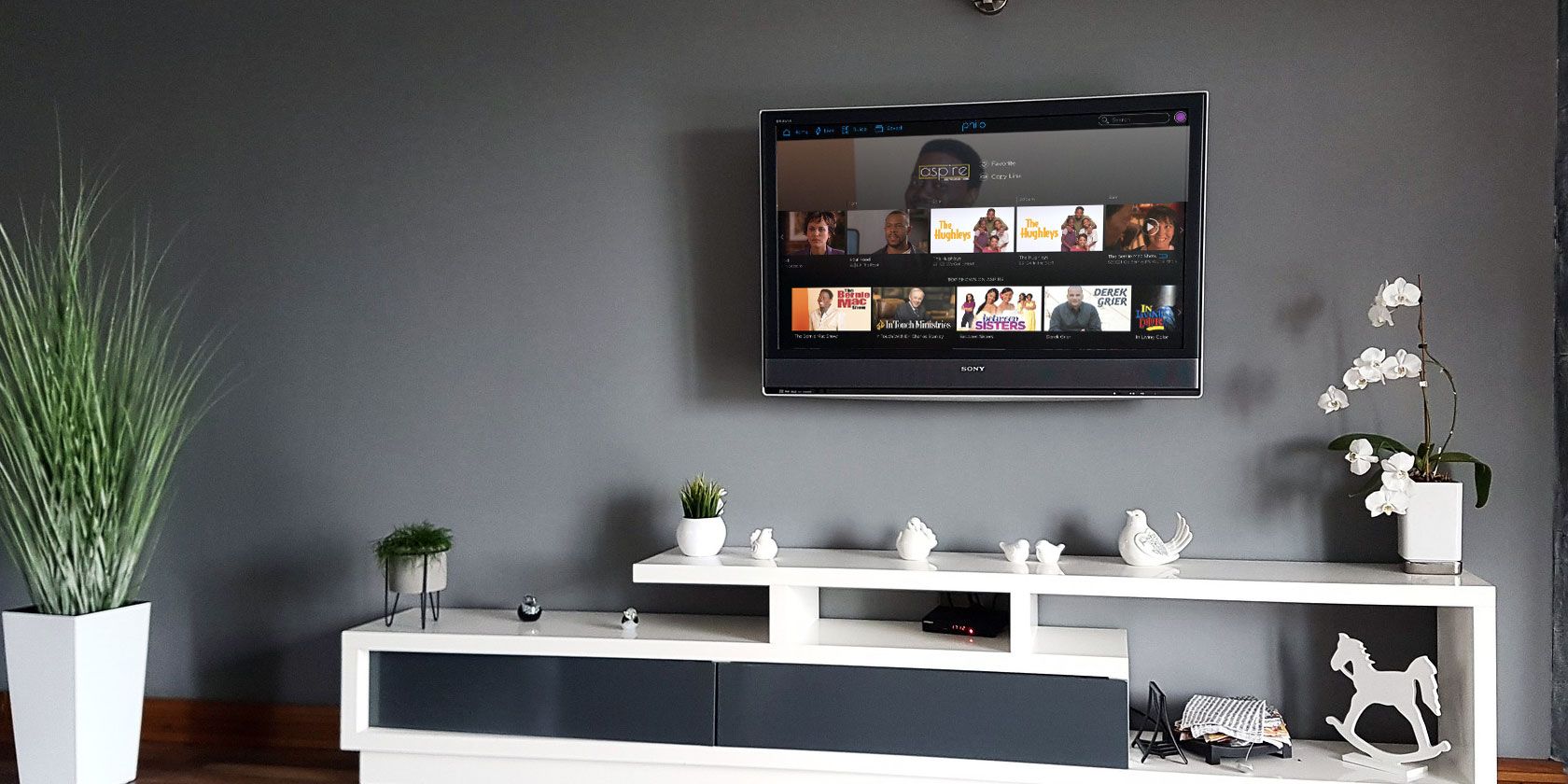
Philo vs. Sling TV… which is the best streaming service? As more and more players enter the market, it’s becoming increasingly hard to determine an answer.

For many people, the decision is driven by cost. Philo and Sling are two of the leading budget streaming services available, but which offers the best deal?

In this article we pit Philo vs. Sling TV. We’ll tell you about both services, compare their streaming plans, discuss additional features, and pick a winner.

Philo vs. Sling: Background

Although Philo has been around since 2009 (then called Tivli), it only began offering a streaming service in late 2017. At the time of writing, it has amassed 50,000 subscribers and a string of high-profile investors, including Mark Cuban, HBO, and Facebook co-founder Andrew McCollum. Today, it is jointly owned by A&E, AMC, Discovery, and Viacom.

Sling is a newer company (it was founded in 2015) but has offered streaming services since its inception. It is owned by Dish Network. Unlike Philo, Sling TV benefits from extensive brand recognition and a much larger userbase. At the time of writing it has 2.5 million subscribers.

Philo vs. Sling: Cost

sling price and channels

Philo offers a single package to its users. It costs $20/month and includes 58 television channels. If you’re a new subscriber, you can benefit from a seven-day free trial. And when you do sign up, you will not be tied down to a lengthy contract; you can cancel and restart your plan at any time and as frequently as you wish.

Sling TV has two packages: Sling Blue and Sling Orange. They each cost $25/month. Sling Orange offers 32 channels; Sling Blue includes 47 channels. If you want access to the full set of content, you need to sign up for the $40/month combined package. Like Philo, you can take advantage of a seven-day free trial before you commit, and you’re free to cancel your plan at any time.

Philo vs. Sling: Channel Availability

philo channels and price

Aside from price, another key aspect of establishing which is the best streaming service is the availability of channels.

Firstly, let’s look at Sling TV Orange vs. Blue. There is some channel overlap between them. Both packages include TNT, AMC, CNN, Comedy Central, History Channel, A&E, The Travel Channel, Cartoon Network, Newsy, BBC America, Comet, Food Network, HGTV, and TLC.

The differences appear when you look at the premium channels. Channels that are exclusive to Sling Orange include Disney Channel, ESPN, ESPN 2, ESPN 3, Freeform, and Motor Trend. Sling Blue has more exclusives, including Discovery Channel, E!, FOX, FOX Sports, FS1, FS2, National Geographic, NBC, NBC Sports, NFL Network, Nick Jr., and Paramount Network. Sling Blue also offers local channels from FOX and NBC in some markets.

These variances cause issues for sports lovers and families with kids. ESPN is on Orange, while FOX Sports is on Blue. Disney is on Orange, while Nickelodeon is on Blue.

Philo has no such discrepancies. It only offers a single plan to its users. Some of the most noteworthy channels on the service include A&E, AMC, Animal Planet, BBC America, BBC World News, Comedy Central, Discovery, DIY Network, HGTV, History Channel, MTV, Nick Jr., Nickelodeon, VH1, and TLC.

Readers with a keen eye for detail will have noticed some glaring omissions. Significantly, Philo does not carry any sports channels and does not offer any domestic news channels. Philo also does not offer any local channels. For many users, that makes the service entirely unsuitable.

Philo vs. Sling: Add-Ons

sling add ons list

Philo’s channel lineup is fixed; the company does not provide any add-ons or additional packages.

In contrast, Sling offers a few add-ons for users with niche interests. For example, several Spanish-language add-ons are available. For $5/month/region, you can watch channels from Mexico, Spain, South America, Central America, or the Caribbean.

There are also additional packages for comedy, premium channels, sports, kids, news, lifestyle, Hollywood, outdoor living, and international channels. Again, each additional package is $5/month.

Philo vs. Sling: Country Restrictions

Both Philo and Sling are only available to people living within the United States. If you want to access the plans from other territories, you need to use a high-quality paid VPN.

If you don’t have a VPN plan, MakeUseOf recommends signing up with either ExpressVPN or CyberGhost.

Philo vs. Sling: App Availability

philo apps list

Philo has apps available for Roku, Android, Android TV, Apple TV, iOS, and Fire TV. Sling supports those six platforms, but also has apps for AirTV, LG webOS, and Xbox. And unlike Philo, Sling TV is also Chromecast-enabled.

Both services have browser-based web apps.

Philo vs. Sling: Other Features

If you still can’t decide which is the best streaming service for your needs, perhaps some of the services’ additional features might help to crystallize your thoughts.

For example, Sling has some differences between its packages regarding the number of simultaneous streams. Sling Orange only allows you to watch one stream at a time, whereas Sling Blue increases the number to three. And if you subscribe to Orange + Blue, you can watch on four screens simultaneously. Philo offers three simultaneous streams for all of its subscribers.

Philo also includes the ability to record shows and watch them for up to 30 days after they aired. There is no restriction on the number of shows you can record.

If you want to record shows on Sling TV, you will need to subscribe to the Cloud DVR add-on for $5/month. All your recordings will be available forever; you do not need to watch them within a 30-day period. Furthermore, your recordings will still be available if you leave as a customer and then return at some point in the future.

NB: Check out our article looking at the best streaming services with family plans for more information.

Philo vs. Sling: Which Is the Best Streaming Service?

So, Philo vs. Sling TV Orange vs. Blue—which is the best streaming service for you? It’s a difficult question to answer. If money is no object, then the Sling Orange + Blue package with the entire suite of add-ons is the best solution. However, if you’re an occasional TV watcher with no interest in sports content, we’d recommend going for Philo as the budget option.

To learn more, be sure to read our article listing the best TV streaming services available right now.

Read the full article: Philo vs. Sling TV: What’s the Best Streaming Service Deal?


Read Full Article

Daily Crunch: Adobe launches Photoshop for iPad


The Daily Crunch is TechCrunch’s roundup of our biggest and most important stories. If you’d like to get this delivered to your inbox every day at around 9am Pacific, you can subscribe here.

1. Adobe Photoshop arrives on the iPad

Adobe has released Photoshop for the iPad, making good on an announcement that it made last October.

The tablet version of the popular photo-editing software is free to download, and includes a 30-day free trial. After that it’s $9.99 per month via in-app purchase, or you can get access as part of an Adobe Creative Cloud subscription.

2. Cortana wants to be your personal executive assistant and read your emails to you, too

At its Ignite conference, Microsoft announced a number of new features that help Cortana to become even more useful in your day-to-day work, all of which fit into the company’s overall vision of AI as a tool that is helpful and augments human intelligence.

3. Apple commits $2.5 billion to address California’s housing crisis and homelessness issues

The investment includes a $1 billion commitment to an affordable housing investment fund, $1 billion toward a first-time homebuyer mortgage assistance fund and $300 million in Apple-owned land that will be made available for affordable housing.

4. A startup just launched red wine to the International Space Station to age for 12 months

The wine isn’t being sent just to help the ISS astronauts relax. Instead, it’s part of an experiment that will study how the aging process for wine is affected by a microgravity, space-based environment.

5. Lemonade gets a nastygram from Deutsche Telekom over its use of magenta, says it will fight

Deutsche Telekom’s German lawyers have sent a letter to AI insurance startup Lemonade, demanding it cease using magenta — a color that appears across Lemonade’s logo and marketing material — globally.

6. Where tech companies should look to expand

Zillow’s Cheryl Young says the company has analyzed data to determine the best markets that provide fertile environments for startups or tech companies looking to put down stakes for their next office.

7. This week’s TechCrunch podcasts

On the latest episode of Equity, Alex and Kate discuss Sam Altman’s investment in Quill, a company that could eventually challenge Slack. And on Original Content, we review the Netflix series “Living with Yourself,” in which Paul Rudd plays two different versions of the same man.


Read Full Article

04 November 2019

Adobe’s Photoshop Camera is an AI-powered photo editor for your phone


Instagram and Snapchat have changed the way people look at photo editing. What was once a task limited to those with wildly expensive tools and years of training has become accessible to anyone with a smartphone. These apps and their filters aren’t going to replace Photoshop for the pros… but for people just looking to upload a quick selfie to their story, they’re Good Enough™.

Adobe realizes this, and now they’re looking to flex a bit.

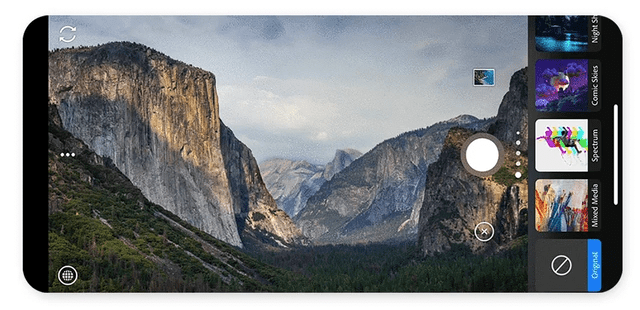
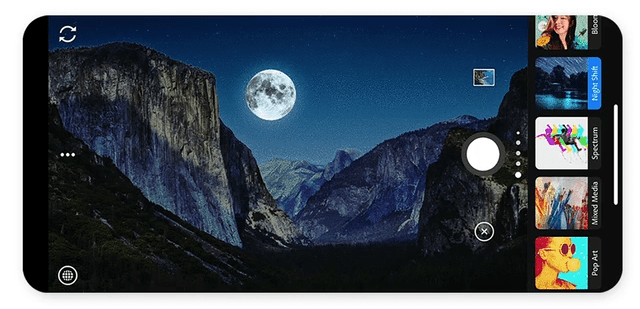
This morning the company announced Photoshop Camera, an AI-driven photo-editing app for iOS and Android. Take a picture (or grab one from your camera roll), and Photoshop Camera will near-instantly analyze it and offer up a drawer full of potential enhancements, from basics like shadows/highlight tweaks, to more complicated things like swapping out the sky in a complicated cityscape.

It recognizes what’s in the photo — be it food, people or distant mountains — and bubbles the most relevant “lenses” (think filters) up to the top. All lenses and effects are non-destructive, so you can quickly roll back any changes it makes.

Powering the AI is years and years of data. Adobe has hundreds of millions of photos in its stock photo collection, along with the data on which of these photos people tend to buy and use. Perhaps most importantly, they have the tooling data on how photo editors take a picture and get it from point A to point B.

I saw the app in action last week. While it’s tough to gauge how well something like this works in a quick demo, the results I saw were pretty astounding. It took a solid but basic landscape photo and made it look like something out of a nature magazine. It took a photo of food on a table and, in a split second, identified which parts of the photo were food and tweaked just those regions to make the colors shine.

Adobe tells me that it’s working with artists — Billy Eilish, for example — to create custom filters and lenses. Adobe CTO Abhay Parasnis also hinted to me at the possibility of limited-edition, region-locked lenses — like, say, those that only appear when you’re at a music festival or conference.

One catch: If you want to use the app anytime in 2019, you’ll have to get Adobe’s thumbs-up. It’s going to be in private “preview” mode until sometime in 2020, when it rolls out to everybody. You can sign up for the preview here.


Read Full Article

The Google News mobile app now supports bilingual users


Google News is going bilingual. The company announced this morning a new feature that will allow users to update their Google News settings to support two languages instead of one, in an effort to better serve the more than 60% of people worldwide who speak and read news across two more languages.

The change means you won’t have to constantly toggle between two languages in order to keep up with news that’s being covered elsewhere. This is particularly important for those who have moved to a different country, but want to keep up with their news from back home, as well as in places where it’s common for people to speak multiple languages.

Google cites the ability to read both English and Hindi news at the same time as a key example.

The update won’t impact your other personalization preferences, Google notes — it will just pull in more stories that match the topics and interests you care about.

The changes follow a larger revamp of the Google News product and destination website that’s been underway for over a year. At Google’s developer conference in 2018, the company announced its plans to leverage A.I. technology to help select which stories were shown first and how the news selection would be customized to each user, while not trapping them in so-called “filter bubbles” where they don’t have access to fact checks or the other side’s opinion.

That A.I.-powered version of the Google News app rolled out last spring. 

More recently, Google revamped the Google News tab on the desktop to organize articles in a card-style layout, which was meant to improve readability and better highlight the publisher sources.

Today’s new bilingual feature, however, is aimed at the Google News mobile app user base.

Google says the feature is available now across 141 countries and 41 languages on the Google News app for both iOS and Android. (On the desktop, you still have to pick just one language, we found.)

The company notes that being able to read news in other languages can also help people widen their perspective on issues.

“There’s still lots more to do to help connect people with quality and trustworthy news on the issues they care about, but we hope today’s update will make it easier to connect with different cultures and perspectives from the comfort of your device,” Google says.


Read Full Article

Facebook’s new branding distinguishes app from acquisitions


Facebook wants more people to know it owns Instagram, WhatsApp, and Oculus while still maintaining a distinct identity for its main app. So today Facebook launched a new capitalization and typography format for its company name, using all capital letters and a shifting color scheme that highlights Instagram’s purple gradient and WhatsApp’s green tint.

“Over the coming weeks, we will start using the new brand within our products and marketing materials, including a new company website” Facebook’s CMO Antonio Lucio writes. For example, the bolder “from FACEBOOK” branding will appear at the bottom of the Instagram login screen and settings menu. Facebook previously used a blue or white lowercase “f” as a logo.

Facebook began its rebranding process in June, adding “from Facebook” taglines to its products. The Information reported Facebook CEO Mark Zuckerberg was unsatisfied with the credit Facebook was getting for owning Instagram and WhatsApp.

Zuckerberg double-down on that sentiment during this month’s earnings call as a response to questions about anti-trust investigations against the company that could seek to force a spin off of its acquisitions. Zuckerberg noted that it wa Facebook’s resources in areas like anti-spam, internationalization, and ads that helped turn Instagram from a sub-50 million user product to a billion-plus one today.

Some see Facebook as preemptively mounting defense against anti-trust action. Beyond rebranding, it’s working on making Facebook Messenger, WhatsApp, and Instagram Direct a unified interoperable and encrypted messaging system where users can chat across the apps. Building them all on a centralized infrastructure could make Facebook tougher to break up.

Yet from another perspective, the rebranding efforts feel ham-handed and egotistical. Facebook likely benefits from the fact that most people don’t actually know it owns Instagram and WhatsApp. A recent Pew study found only 29% of Americans correctly the named the two as companies owned by Facebook.

Given Facebook’s rash of data security, developer platform, election interference, and ongoing privacy scandals, it’s probably better off if people think they can escape the toxicity by using Instagram. The acquisitions effectively acted as a brand lifeboat for Facebook.

Now it seems Facebook is happy to burn down some of the credibility of its younger apps if it builds up the central company. Autonomy at the acquired companies has seemed to wane since Facebook installed loyal lieutenants like Adam Mosseri and Will Cathcart to run Instagram and WhatsApp.

The big problem for Facebook, beyond government regulation? If talent see Facebook as choking the potential of its subsidiaries, top workers might be hesistant to join or stay at the family of social networks.


Read Full Article

TikTok expands its influence to third-party apps with new developer program


TikTok is looking to expand its influence by integrating with popular third-party video creation and editing apps. The company today announced a new TikTok for Developers program which will introduce tools for third-party app developers, including those that allow them to access TikTok’s creative offerings as well as push content from their apps to TikTok directly. The first of these tools is the new Share to TikTok SDK, which will let users edit videos in other apps then publish them from that app to TikTok.

One of the key launch partners for the new SDK is Adobe Premiere Rush, Adobe’s mobile app for video editing. With the new TikTok integration, Premiere Rush users can access video editing features like aspect ratio switching, transitions, color filters, timelapse and slo-mo, audio control and more, then share instantly to TikTok and other video destinations.

In addition to Adobe, the apps supporting the Share to TikTok SDK at launch also include looping video creator Plotaverse, AR app Fuse.it, gaming highlights recorder Medal, Momento GIF Maker, PicsArt, and Enlight Videoleop.

For some of the smaller, single-purpose apps being able to become a useful tool for the creator community can have an outsized impact on their growth and revenues. For example, Facetune’s maker Lightricks has built a profitable business across its suite of photo and video editing apps, including Enlight Videoleap, and has now raised a total of $205 million.

In addition to built-in sharing features, apps that integrate with the new TikTok SDK will also gain access to a wider selection of creative tools, says TikTok.

But the apps will benefit in another way, too — when creators share their videos, they’ll include the specified partner hashtag along with the content. This will help to give the app the ability to gain exposure among even more TikTok users.

“This new Share to TikTok feature enriches the content available on TikTok, diversifies the types of videos users can discover, and offers more editing choices for users to explore in addition to TikTok’s built-in creative tools,” explained TikTok, in an announcement. “Most importantly, it gives users multiple avenues to create new original, high-quality content using platforms with exciting creative tools,” the company said.

The TikTok for Developers program also includes tools to embed videos on the web, and offers developer documentation, demos, and more. The program’s terms of service restricts developers from collecting users’ personal data or other nefarious activity, and threatens developers’ access could be removed if terms are violated.

TikTok didn’t say what other plans its has in store for the developers program, only that it will continue to expand access to its own creative tools further across the wider app ecosystem.


Read Full Article

TikTok expands its influence to third-party apps with new developer program


TikTok is looking to expand its influence by integrating with popular third-party video creation and editing apps. The company today announced a new TikTok for Developers program which will introduce tools for third-party app developers, including those that allow them to access TikTok’s creative offerings as well as push content from their apps to TikTok directly. The first of these tools is the new Share to TikTok SDK, which will let users edit videos in other apps then publish them from that app to TikTok.

One of the key launch partners for the new SDK is Adobe Premiere Rush, Adobe’s mobile app for video editing. With the new TikTok integration, Premiere Rush users can access video editing features like aspect ratio switching, transitions, color filters, timelapse and slo-mo, audio control and more, then share instantly to TikTok and other video destinations.

In addition to Adobe, the apps supporting the Share to TikTok SDK at launch also include looping video creator Plotaverse, AR app Fuse.it, gaming highlights recorder Medal, Momento GIF Maker, PicsArt, and Enlight Videoleop.

For some of the smaller, single-purpose apps being able to become a useful tool for the creator community can have an outsized impact on their growth and revenues. For example, Facetune’s maker Lightricks has built a profitable business across its suite of photo and video editing apps, including Enlight Videoleap, and has now raised a total of $205 million.

In addition to built-in sharing features, apps that integrate with the new TikTok SDK will also gain access to a wider selection of creative tools, says TikTok.

But the apps will benefit in another way, too — when creators share their videos, they’ll include the specified partner hashtag along with the content. This will help to give the app the ability to gain exposure among even more TikTok users.

“This new Share to TikTok feature enriches the content available on TikTok, diversifies the types of videos users can discover, and offers more editing choices for users to explore in addition to TikTok’s built-in creative tools,” explained TikTok, in an announcement. “Most importantly, it gives users multiple avenues to create new original, high-quality content using platforms with exciting creative tools,” the company said.

The TikTok for Developers program also includes tools to embed videos on the web, and offers developer documentation, demos, and more. The program’s terms of service restricts developers from collecting users’ personal data or other nefarious activity, and threatens developers’ access could be removed if terms are violated.

TikTok didn’t say what other plans its has in store for the developers program, only that it will continue to expand access to its own creative tools further across the wider app ecosystem.


Read Full Article

The business case for working with your toughest critics | Bob Langert

The business case for working with your toughest critics | Bob Langert

As a "corporate suit" (his words) and former VP of sustainability at McDonald's, Bob Langert works with companies and their strongest critics to find solutions that are good for both business and society. In this actionable talk, he shares stories from the decades-long transition into corporate sustainability at McDonald's -- including his work with unlikely partners like the Environmental Defense Fund and Temple Grandin -- and shows why your adversaries can sometimes be your best allies.

Click the above link to download the TED talk.