29 October 2019

How to Clone a Repository Using GitHub Desktop


clone-github-repo

Version control is an essential skill for programmers to have. GitHub is one of the more popular programs to run version control, typically through the command line.

The command line is not the only option to work with your code in GitHub, however. GitHub Desktop is an app that gives you the same control over your repositories, in a more visual way. This includes one of the most important version control tasks: cloning a repository. Here’s how.

What Is GitHub Desktop?

GitHub Desktop is an app for Mac and PC users that takes version control from the command line to the desktop. The command line, while powerful, has a steeper learning curve. GitHub created this program to simplify version control.

GitHub Desktop can perform the same tasks you use to control repositories including:

  • Cloning repositories
  • Deleting repositories
  • Updating and saving repositories

Interested? Grab the GitHub Desktop download from the GitHub site.

Download: GitHub Desktop (Free, Windows/Mac)

Download Page for GitHub Desktop

Installing GitHub Desktop

Download and run the installer (an EXE file for Windows or DMG for Mac), then configure your Git in GitHub Desktop.

Main Window to Configure GitHub Desktop

Enter your name and email into the configuration. This is used to label all your work in GitHub Desktop with your name. It is helpful to use the same information you use with your GitHub profile.

Click Continue through the configuration and onto the final landing screen. Click Finish to be taken to the front page of GitHub Desktop.

Signing in to GitHub

To use GitHub Desktop you will need to sign in with your GitHub login. From the front page click on File and scroll down to Options.

Main Window of GitHub Desktop

In the accounts menu, you will see an option to sign in with your GitHub.com account. Sign in with your username and password, then wait to be taken back to the home screen with your information now loaded. Let’s close GitHub Desktop for now.

For this tutorial let’s create a repository using GitHub.com, so we can clone it into GitHub Desktop. You can use an existing repository if you have one, but creating a new one will show how GitHub Desktop works hand-in-hand with GitHub.

Create a Repository

Head over to GitHub.com and sign in with your user name and password.

Let’s create a new repository from the home screen. Around the top left of the screen, you will see an option to create a new repository. Click New to begin the process.

Create New GitHub Repository

Choose a repository name; any name will do as long as you remember it for cloning. For this exercise let’s call the repository “Desktop” so we remember the name.

Let’s set this repository to Public and add a description. Check the box to initialize the repository with a “README” file, this will make it available to clone as soon as you finish.

New GitHub Repository for GitHub Desktop

Click Create repository to complete.

Now that we have a repository created in GitHub, as well as our GitHub profile signed in to GitHub Desktop, we’re ready to use the program!

Cloning the Repository in GitHub Desktop

Now that the repository is created, re-open GitHub Desktop. You will now see the repository we just created is now loaded into the app. Using GitHub Desktop gives you access to all your code on GitHub, outside of your browser.

For this tutorial, we are going to clone the “Desktop” repository onto the computer so we can modify it.

From the front page of the app, click on the Desktop repository and a button will appear to clone the repository you selected.

GitHub Desktop Clone Repository Screen

Click on this button to clone your repository. GitHub Desktop will pop up a window to confirm the name of the repository, as well as the location on your computer you would like to clone it to.

Cloning Repository Using GitHub Desktop

This repository is going to be saved to C:\Desktop. To clarify, this is being saved to my C Drive in Windows, and the folder name is Desktop. Not to be confused with the traditional Windows Desktop location.

Click Clone to copy the repository to this new folder.

Cloned Repository in GitHub Desktop

GitHub Desktop has now copied the repository into a local folder for editing, all without using the command line. From here, you can make additional changes and save to the repository using Commit to master. 

Since the folder is now saved to your computer, you can also navigate to the folder and add files or make changes. GitHub Desktop will save all your changes, and you can commit that way as well.

You now can comfortably clone any repository stored on GitHub, whether your own project or another developer’s code.

Why Not Use the Command Line?

The command line is certainly powerful, and every developer should learn how to use it at a basic level. Knowing the command line is essential to using help GitHub Desktop since some of the terms you will see are the same for both programs.

GitHub Desktop does not replace the command line. GitHub Desktop aims to put your information in front of you, using a graphical user interface (GUI).

Some may find that this is easier to work with. Some may be experts in the command line, but just want a program that they can click through. Programming is always about working smarter. If you find something that works nicely with your workflow, keep it!

Next Steps With GitHub Desktop

Now that you’ve cloned a repository using GitHub Desktop, give modifying your folder a try and committing the changes back to your repository.

GitHub Desktop fits in with text editors, as well as other tools that upgrade your web development skills. The pure power of GitHub can be used to build any project, even Microsoft’s Calculator program is open-sourced on GitHub. GitHub Desktop is just another tool in an already powerful program.

Read the full article: How to Clone a Repository Using GitHub Desktop


Read Full Article

10 Scenic Travel Instagram Accounts You Should Be Following


scenic-instagram-follow

The most beautiful thing about planet Earth is the landscapes. The vistas. The scenic views that make us gasp. From the rocky orange deserts of Nevada to the lush green forests of the Amazon, each color lends itself to the landscapes of the world.

Like a painter’s brush against the canvas, the world around us can be a great inspiration to our lives and travel choices. Whether you’re clamoring for more travel inspiration or just want a scenic picture to cross your Instagram feed more often, this list is for you.

Note: Need a tool to make your photos shine amongst the crowd? Check out our list of Instagram photo editors.

1. Tiff Penguin

From Punta Cana to Barcelona, Tiffany Nguyen has an eye for nature. Based in Los Angeles, Tiff balances traveling the world as a photographer and being a Dentist. Her strongest feature is the ability to capture the scale of her surroundings, especially mountain ranges.

Tiffany’s sharp eye for natural lighting and clean colors lend her credibility—her work with companies such as Sony and Amazon are the icing on top.

2. Alex Strohl

Nature holds many mysteries and wonders, right under our nose. As seasons change, the color palette follows suit. The secrets of nature are different for each land and deserve a listening ear. And Alex will tell us all about it. His Instagram has over 2 million followers, highlighting the deep blues and rustling greens of the world’s forests and valleys.

Aside from Instagram, Alex creates documentaries on nature for TV networks alongside his Youtube Channel.

3. Beautiful Destinations

The positivity of Beautiful Destinations is contagious. This Instagram account is home to a large assortment of “Best Of’s” when it comes to travel photography. If you’re not sure where to begin when it comes to following photographers, this account is for you. Each illustrious photo is hand-picked from other travel accounts, giving credit to the photographers and highlighting nature’s wonder!

Beautiful Destinations has an emphasis on global awareness and our ability to keep the Earth beautiful if we work together.

4. Everything Everywhere

Everything Everywhere is a one man show when it comes to travel photography. With dozens of awards under his belt, Gary Arndt wants to share his love for nature, at all costs. As he travels the world, each photo comes with a diary entry that documents the journey, hardships, and joys of traveling. Make sure to check his previous Instagram stories for spotlights on the heritage of every place he visits!

From the Baltics to Switzerland, one picture from Gary will have you ready to go on vacation again.

5. Expert Vagabond

Matt Karsten, also known as Expert Vagabond, sees nature and the cities we build around it as extraordinary. So he thought, why not visit them all? With a perfect balance between family life and travel, Matt’s vagabond personality was ripe for photography, so we aren’t surprised by his natural inclination for it.

Along with his dual citizenship in America and Italy, his excursions range from Tanzania to Russia. With the purpose of enjoying life to the fullest, there’s so much to love about this traveler and his photos.

6. Hello Emilie

Hello Emilie knows how to turn each photo into a statement of color and emotion. With a penchant for a rusty orange, she proves her value as a photographer in each and every scene she captures. Emilie’s Instagram account is home to over a thousand pictures and she’s quite outspoken about her love for travel.

From expansive mountain ranges to serene dusty landscapes, Emilie never fails to deliver a mystical approach to each country she visits.

7. Travis Burke Photography

Travis Burke knows that life can hit hard. So he pushes forward with gusto, claiming difficult mountain passages and winding jungles as his domain to conquer. His story as an athlete and photography adventurer is inspiring. Not only does Travis push the boundaries of human limitations with his daring journeys, but he begs us to do the same.

Many blogs and Instagram accounts are there to say “you can do it” from afar. But few actually go and show you how rewarding it can be to live life to the fullest while exploring the world.

8. Earth Pix

Earthpix is the best of the best when it comes to scenic travel photos. With photos that could be off of a travel guide, Earthpix rounds up the best of the best.

With exotic locations galore, there’s enough variety to wow anyone. This grouping of likeminded travel photography enthusiasts is the perfect place to chat up camera lenses and anything else related.

These vistas are awe-inspiring, with many of the aerial shots being shot with drones. Want to take drone shots of your own? Check out our recommendations for the best drones for photography.

9. Susan Seubert

Susan Seubert is a jack of all trades in the photography world. Her award-winning work stretches from food and portrait photography to interiors and travel.

Susan’s knack for animals and flowers only adds to the warming shots she frequently posts. If there’s one person on this list who can do it all in style, it’s Susan. Hired on as an official National Geographic photographer, each Instagram post will have you ready to book a trip ASAP.

10. In Far Away Land

Marta Kulesza’s passion is the outdoors, and it shows. Vast shots of large landscapes and small people permeate her work. Each photo is a testament to how expansive the Earth and its vistas truly are.

With multiple travel guides for different continents, expect to see a lot of helpful tips on how to pursue life on the road.

If these pictures satiate your photography itch, perhaps you’re realizing how much you want to try it yourself. Travel photography takes time, effort, and a whole lot of patience. That’s where we come in.

Check out our guide with tips, tricks, and surefire methods for better photographs to help get you started on the right track.

Read the full article: 10 Scenic Travel Instagram Accounts You Should Be Following


Read Full Article

PipelineDeals Is a Powerful Sales CRM That You Can Actually Understand


Building relationships with hundreds or thousands of clients isn’t easy. That pis why every sales team needs a good CRM system. Many of these platforms provide a vast array of features to meet the needs of big business. But trying to understand and navigate these complicated apps can slow you down. PipelineDeals is a sales management system that focuses on ease of use. It provides all the tools you need, without the clutter and confusing vocabulary. Sounds good? Right now, you can try the platform free for 14 days or explore a customized demo.

Sales Made Simple

Keeping track of prospects is a vital part of winning new business. Using CRM software should make the task straightforward. Unfortunately, many platforms are so complex that leads can get lost somewhere along the line.

PipelineDeals offers a smarter solution. This software provides a clear pathway from initial contact to the done deal. The whole pipeline is easy to manage, and you can work directly from Outlook or Gmail.

To streamline the process further, you can create advanced automations and sync PipelineDeals with your favorite productivity apps. The software even allows you to share deals securely with outside partners.

You can access PipelineDeals in any desktop browser, and work on the move with the iOS and Android apps.

Affordable Pricing

With pricing starting at $25/user/mo, PipelineDeals is scalable and affordable for any sales team. Sign up today to get started with your 14-day free trial or try a custom demo.

Read the full article: PipelineDeals Is a Powerful Sales CRM That You Can Actually Understand


Read Full Article

What’s Google Up To? 9 New Google Apps and Tools You Need to Know About


google-new-apps-tools

Google releases so many new software and updates that it’s difficult to keep track. Not all of it is awesome or useful either. So here’s a quick list of the best Google apps, tools, and updates that you can make use of.

Naturally, the internet giant focuses more on Android apps and websites, but there are a few cross-platform tools too. There are cultural experiments, items that focus on health and well-being, and even some quirky and artsy programs.

1. Digital Well-Being for Families (Web): Navigating Technology as a Family

The Family Conversation Guide from Google's Digital Well-Being tells families how to have a healthy digital lifestyle

Google created a mini-portal guide for families to figure out how to interact with technology in a healthy way, as part of its Digital Well-Being initiative. The Family Conversation Guide has six elements, each primed to ensure technology doesn’t disrupt your happy home.

  1. Decide when and how to use devices: As a family, this will ensure family time is kept separate, with also a special family-time box.
  2. Find positive content: In a world of bad news and negativity, work as a collective to find, discuss, and enact on the good stuff.
  3. Determine when your kids are ready for a device: Have the tough-but-fair conversation with your children, and make them present their case too.
  4. Use social media meaningfully and responsibly: While kids will obviously benefit from this, so will the parents.
  5. Make gaming a positive experience: Video games are great and inevitable, and they could be better if you discussed their harmful sides and positive aspects.
  6. Balance offline and online activities: This is a tough act for any family, but Google has a few ideas on making it happen.

The Family Conversation Guide is a great tool to learn more about how to balance digital and personal lives. If you’re looking for apps to fight smartphone addiction, Google has also created a few Digital Well-Being Experiments for Android.

2. Unlock Clock (Android): How Often Do You Look at Your Phone?

Unlock Clock is a Live Wallpaper app for Android phones. Every time you unlock the phone from a screen-off phase, it will update the counter. It’s big, it’s in-your-face, and after that number gets too high, Google is hoping you’ll start feeling guilty.

The clock resets every day. It also has the current date and weather information, as well as the Google Assistant bar for quick search.

Download: Unlock Clock for Android (Free)

3. We Flip (Android): Be More Social When Meeting Friends

Do you or your friends spend too much time on their phones when meeting together? Try the We Flip game to find out who is the worst smartphone addict among you.

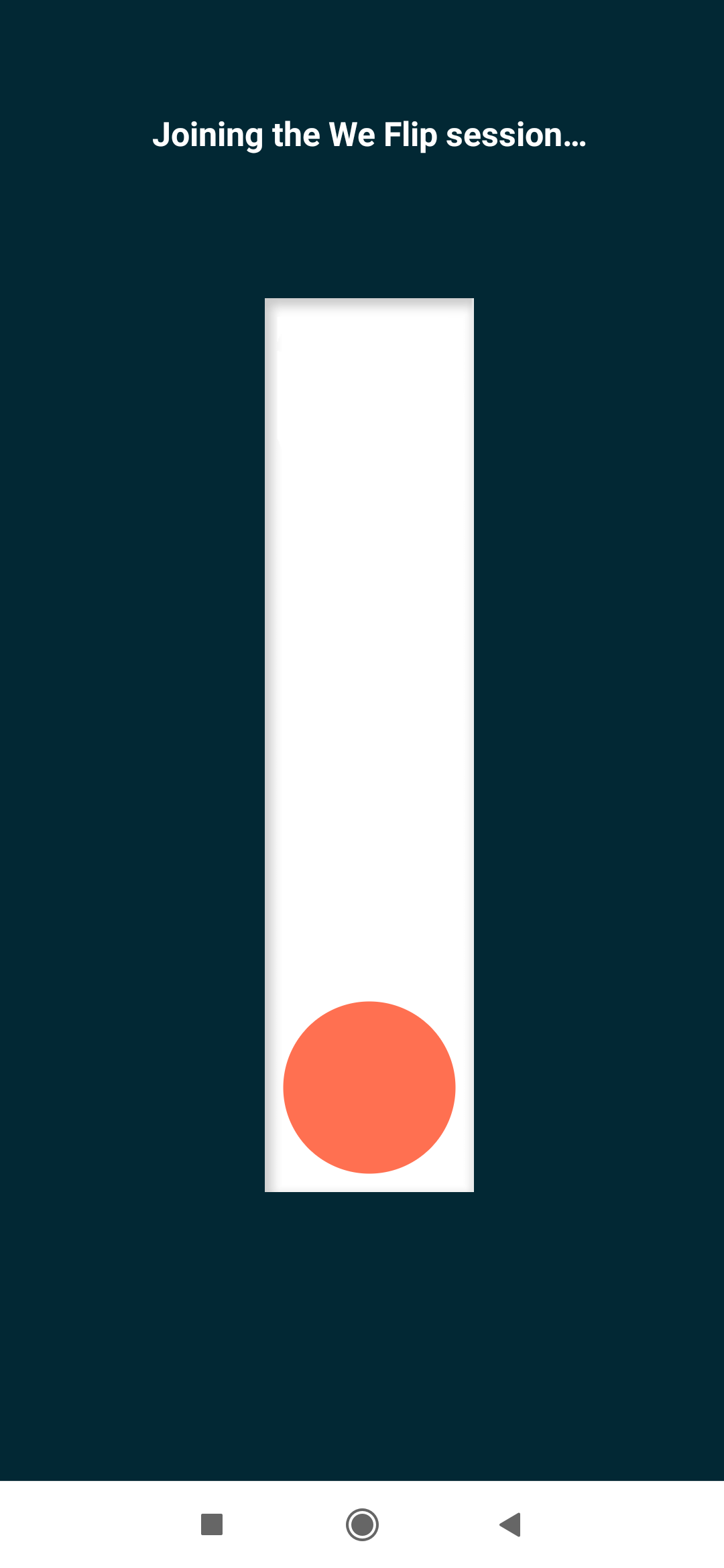
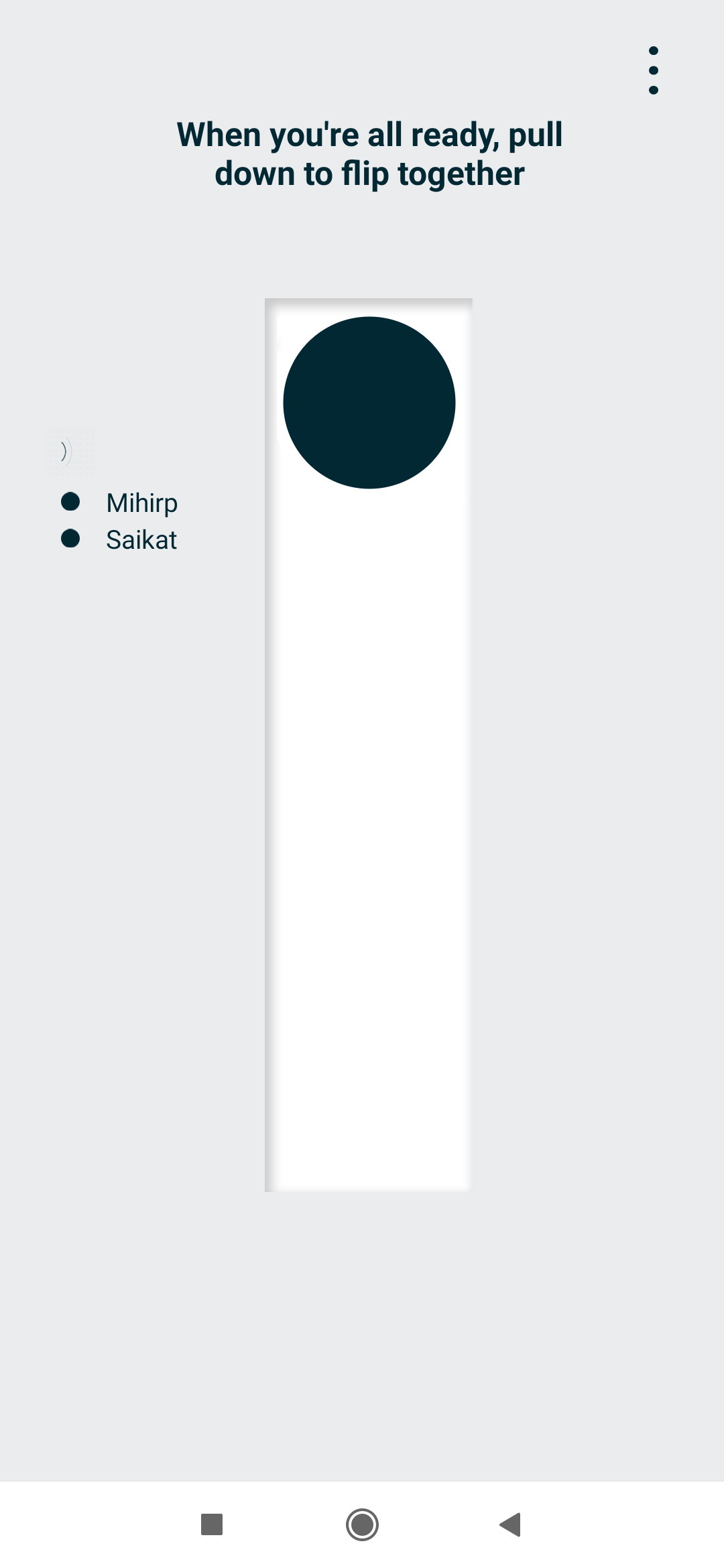
When you meet, switch on We Flip on all your phones and “flip the switch” to begin a session. When someone unlocks their phone, the session ends. We Flip also knows whenever a person’s screen was active without unlocking, counting those as peeks.

At the end of your meeting, switch off the flip and see how you did. Psst, make the worst addict pay the bill!

Download: We Flip for Android (Free)

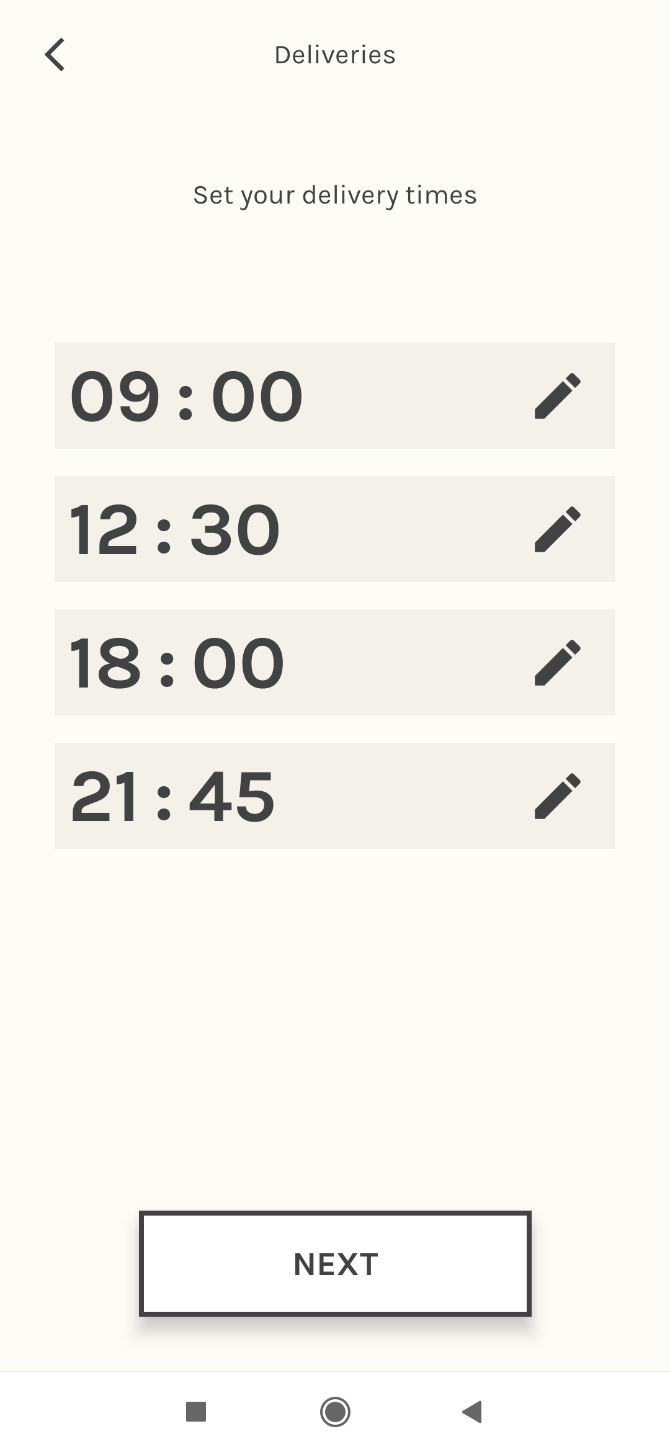
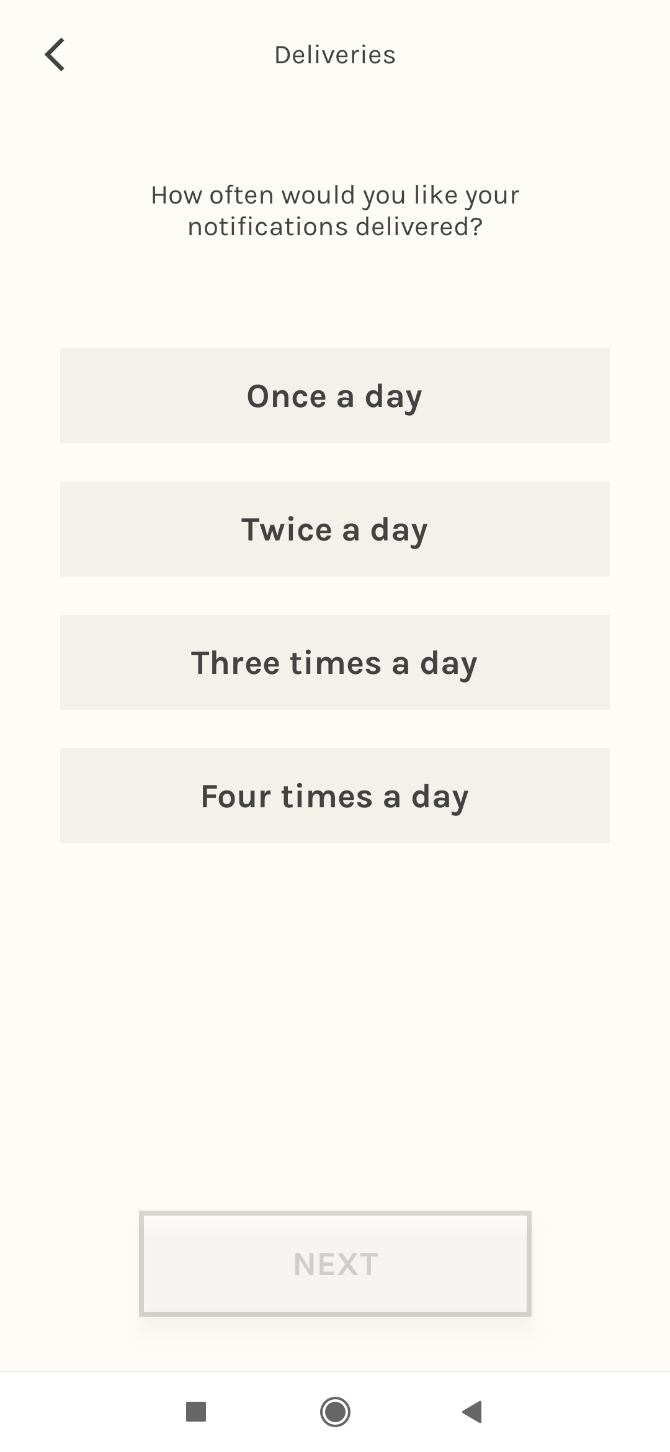
4. Post Box (Android): Delayed Notifications in Batches

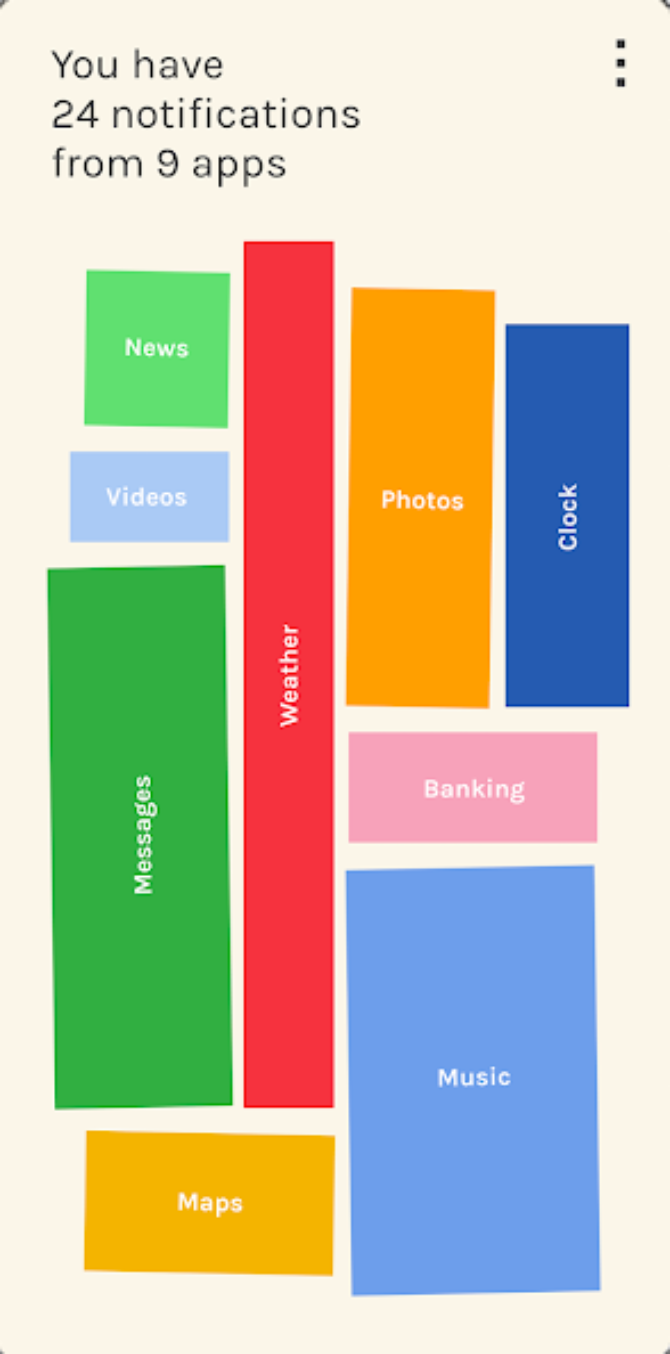
Out of all the new Digital Well-Being experiments by Google, Post Box shows the most potential. We have talked about how notifications can be major distractions and disrupt productivity. Instead of instant notifications, Post Box sends them all at once in batches.

It works exactly as you’d expect it to, but there is one significant problem. Right now, you can choose only four predetermined time slots in a day. Hopefully in a future update, Post Box will let you delay notifications to 15-minute or half-hour updates, which would make it tremendously useful.

Download: Post Box for Android (Free)

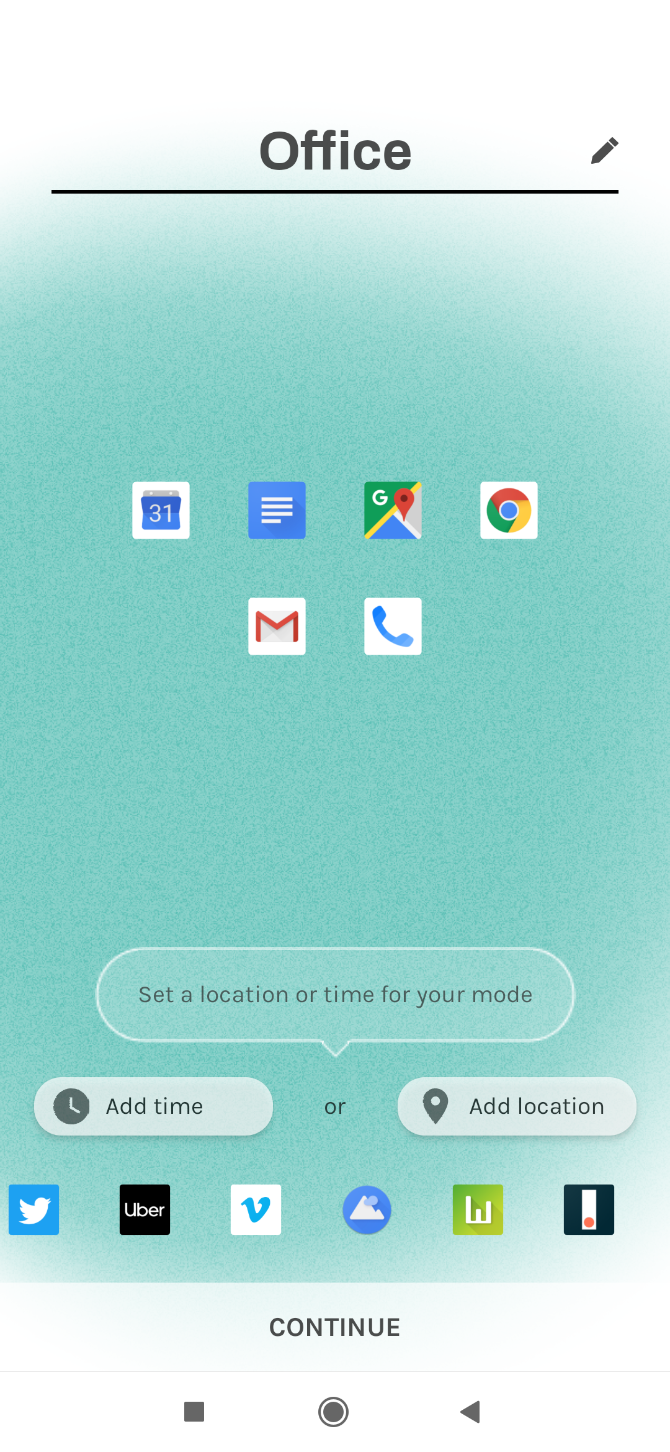
5. Morph (Android): Get Apps Based on What You’re Doing

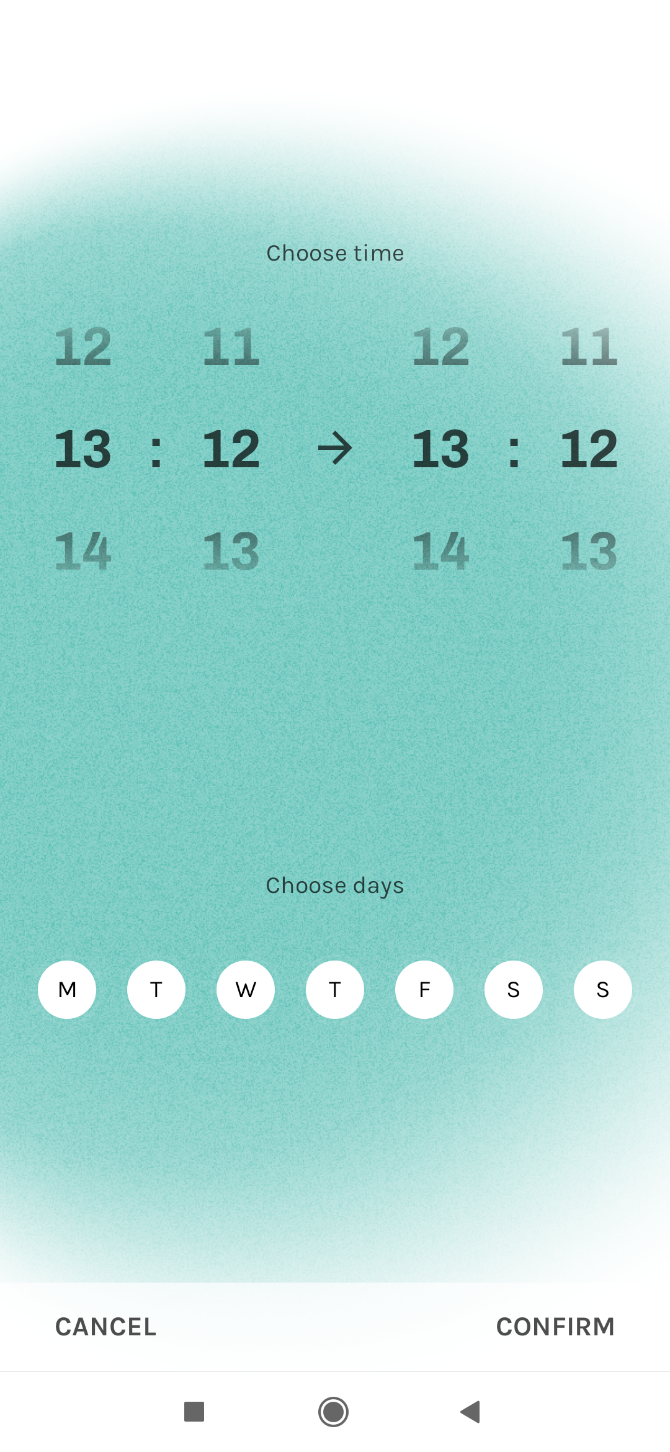
Morph is a fancy version of creating profiles for your phone. In each profile, you set a few apps that are useful. You also add either a time slot or a GPS location for each profile.

When you reach that place or the clock strikes, Morph will then automatically give you only those apps you set in your profile. That way, you avoid distractions like checking social media at work.

Download: Morph for Android (Free)

6. Desert Island (Android): A Personal Challenge for Smartphone Addicts

You claim you aren’t addicted to your phone, but you’ll be surprised how much time you are wasting on it. Don’t believe us? Try the Desert Island challenge for smartphone addicts.

The app forces you to choose only seven essential apps and locks everything else away for 24 hours. Those apps will be on your home screen. You can still access other apps if needed, but it’s an honor-based personal challenge. You get to decide if you failed or succeeded. Are you brave enough?

Download: Desert Island for Android (Free)

7. Rivet (Android, iOS) and Bolo (Android): Help Kids Learn to Read

Google is building two new apps to help teach children how to read better. Google’s experimental team at Area 120 is developing Rivet, while Bolo focuses on Indian children, but should work for anyone.

Both apps feature a large library of illustrated books with built-in speech recognition. If the kid is stuck at any point, they can tap the word to hear it aloud. Plus the apps work offline and don’t show any ads.

These are among the best Google apps to play and learn for young children.

Download: Rivet for Android | iOS (Free)

Download: Bolo for Android (Free)

8. Touring Bird (Web): New Sightseeing and Tourism App for City Guides

Google's Touring Bird is a new sight-seeing and tourism app for detailed city guides

Many users were disappointed when Google shut down Google Trips. While that’s a done deal, there is still some hope for those who love to travel. Check out Touring Bird, the new venture from Area 120 that is now moving to Google full-time.

Touring Bird is a city guide that tells a tourist anything and everything they’d want to know. There is a price comparison for tours, tickets, and activities, which usually takes a lot of planning and research. The guide also includes off-beat activities and curated recommendations from writers and experts.

It currently has information for the most popular travel destinations in the world. Over time, Google hopes to add more, making this a comprehensive one-stop resource when you are visiting any of these major cities.

9. You Asked, Art Answered (Web): Google and BBC Answer Life’s Greatest Questions

In You Asked, Art Answered, Google and BBC get artists and creative thinkers to answer most-asked common search questions on google

Google’s Arts & Culture Lab is always doing something cool and quirky. This time, they teamed up with BBC to get artists and creative thinkers to answer some of the most Googled questions by everyday people. Naturally, the answers are a bit different than what you’d expect.

For example, choreographer Jamiel Lawrence tackles the question, “Do I have free will?” Artist Andy Holden’s cartoon ponders the eternal question “What is love?” through popular music. And if you’re from jolly old England, you’re going to love Sarah Maple’s “What does it mean to be British?”

Get the New Google Apps and Tools

On one hand, Google is doing great things at the cutting edge of innovation. On the other, it continues to promote quirky new apps and tools that are pure fun or useful for everyday tasks. They come in so frequently, that’s you can miss stuff. For instance, how many of these fun Google-made apps have you tried so far?

Read the full article: What’s Google Up To? 9 New Google Apps and Tools You Need to Know About


Read Full Article